

You pick a photo, tap send, and the little clock icon just sits there. The message never turns into a tick, the progress circle never finishes, and a second attempt stalls in exactly the same place. That stuck photo is the fastest way to fix WhatsApp not sending photos, because it tells you the send itself is failing, not the chat, and it gives you a clean test case for every step that follows.
This guide works from fastest to deepest. You will start with a two minute symptom check, then move through storage, permissions, file checks, and network checks, and finish with update and reinstall steps that you should only need if the early fixes fail. Each step tells you what it rules out, so you stop as soon as the photo goes through instead of changing ten settings and never learning which one mattered. Keep one rule throughout. Change one thing, send one test photo, and note the result before you move on.
How to Fix WhatsApp Not Sending Photos in Order
Use this fix order checklist as your spine for the whole guide. Work down it in order, test after each step, and stop at the first step that sends the photo.
- Test with a small photo to a second contact. This rules out one bad file and one unreachable recipient.
- Restart WhatsApp and restart the phone. This rules out a frozen session and a stuck upload queue.
- Check the date and time setting. This rules out a server connection problem caused by a wrong clock.
- Check free storage and clear the WhatsApp cache on Android. This rules out a phone that has no room to process the upload.
- Check photo permission on Android or iPhone. This rules out an app that cannot see the photo you picked.
- Check the file size, format, and name. This rules out a file WhatsApp cannot handle in its normal photo path.
- Switch networks, turn off the VPN, and check data saver settings. This rules out a connection that is too weak or too restricted for uploads.
- Update WhatsApp and update the phone software. This rules out a known bug in an old version.
- Back up chats and reinstall WhatsApp. This is the last resort for a damaged installation.
| What you see | Most likely cause | Start here |
|---|---|---|
| Clock icon never becomes a tick | Weak connection or stuck upload queue | Fast fixes and network checks |
| Photo picker shows no photos or an empty album | Photo permission denied or limited | Permission section for your phone |
| Error about media or a failed send straight away | Bad file, unsupported format, or a damaged app | File checks, then app update |
| Photos fail but text messages go through | Upload bandwidth, file size, or storage | Network checks and storage checks |
| Photos fail to one person only | Recipient connection, storage, or account issue | The section on problems beyond your phone |
| Photos fail after a system update | Changed permission or a new app bug | Permission checks and app update |
| App crashes when you open the photo picker | Corrupt cache or damaged installation | Cache clear, then reinstall |
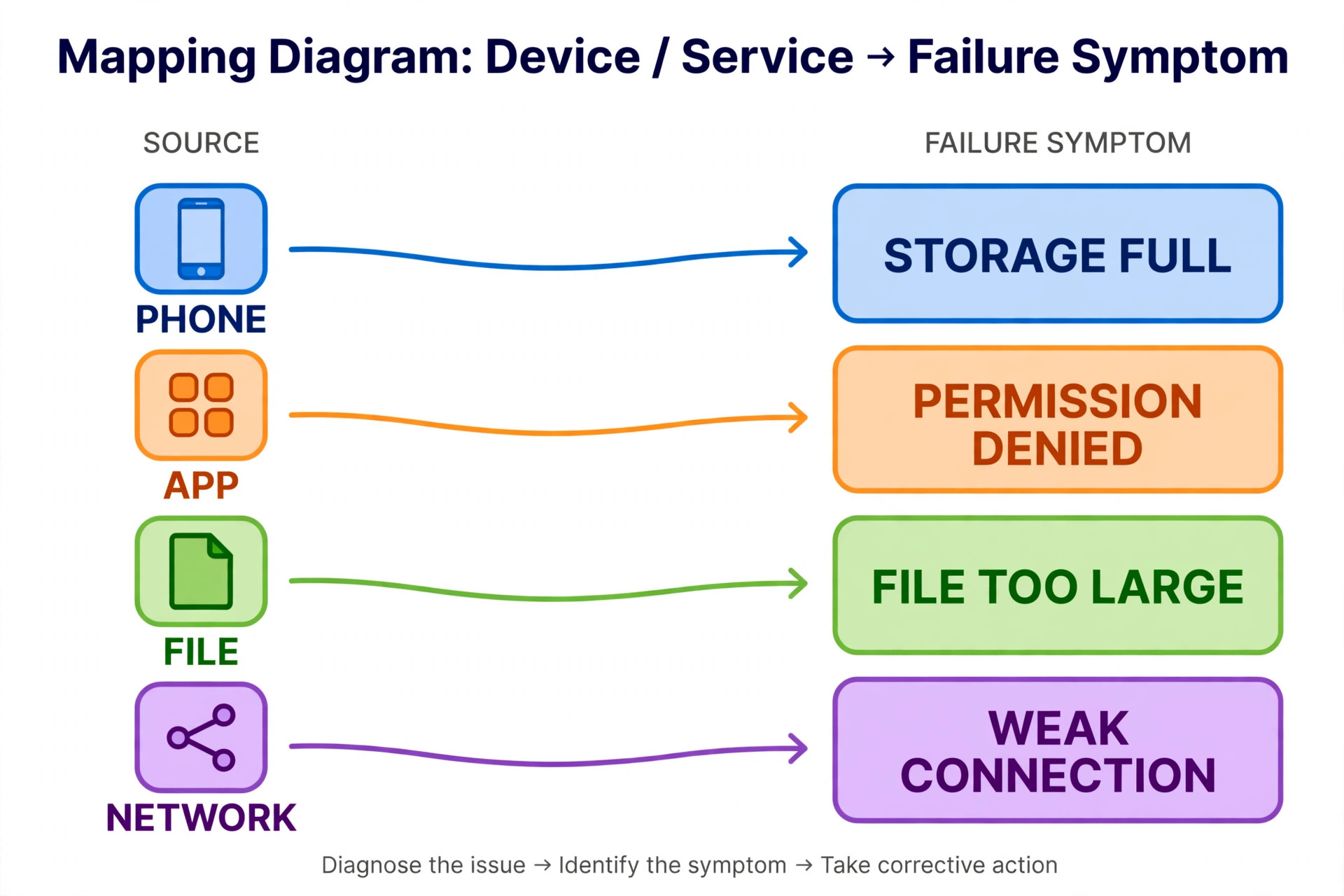
Read the Symptom Before You Change Anything
A stuck photo can look identical for five different causes, so a short diagnosis saves you from fixing the wrong layer. Spend two minutes on these questions before you touch a setting. Write down the answers if you can, because they will guide every later step and they will help you explain the problem if you ever need support.
First, does the photo fail for every contact or only one. If it fails for everyone, the problem sits on your phone, your app, or your connection. If it fails for one person only, the problem may sit on their phone or their connection, and no amount of cache clearing on your side will fix it. Send a small test photo to a second contact and to a group you trust, and compare the results.
Second, do text messages still go through. Text uses very little data, so a connection that is strong enough for text can still be too weak or too unstable for a photo upload. If texts work and photos do not, suspect the network, the file size, or a data saver setting before you suspect the app itself. If texts also fail, suspect the connection or a wider WhatsApp outage first.
Third, what changed just before the problem started. A system update, an app update, a new phone, a restored backup, or a changed permission are all common triggers. A permission that worked for months can change during an update, and a new phone can restore chats without restoring the same photo access. If the problem started right after one of those events, start with the section that matches that event.
Fifth, check the file itself. Try a different photo from the same album, then try a small screenshot. If a small screenshot sends and your original photo does not, the file is the suspect, not the app. If no photo sends at all, the app, the permission, or the connection is the suspect. This one test splits the whole problem in half, and it costs less than a minute.

Fast Fixes That Take Under Two Minutes
Force close WhatsApp and reopen it. On iPhone, swipe up from the bottom of the screen, find the WhatsApp card, and swipe it away, then reopen the app. On Android, open recent apps and swipe WhatsApp away, or open the app info screen and tap Force Stop if the app is frozen. A force close clears a stuck upload session without touching your chats. After reopening, send the small test photo again before you retry the original.
Restart the phone. A restart clears temporary system states that a force close cannot reach, including a stuck network session and a frozen media service. Hold the power button, choose Restart, wait for the phone to fully boot, and test again. This step sounds too simple to matter, and that is exactly why people skip it and waste an hour on deeper fixes that were never needed.
Check the date and time. WhatsApp connects to its servers with a time check, and a phone clock that is far out of step can fail that connection even when browsing still works. Open your phone settings, find Date and Time, and turn on the automatic option so the phone takes the time from the network. On iPhone the path is Settings, then General, then Date and Time, with Set Automatically switched on. On Android the path is Settings, then System, then Date and Time, with automatic date and time switched on. After fixing the clock, restart WhatsApp and test again.
Send a plain test. Pick a small photo you took with the phone camera, not a downloaded image, not a screenshot of a document, and not a file forwarded from another app. Send it on its own, with no caption and no other photos attached. If the plain test sends, the problem is tied to the original file, its format, or its size, and you can move to the file section with confidence. If the plain test also fails, keep working through the order, because the cause is broader than one file.
Check Storage and Clear the Cache
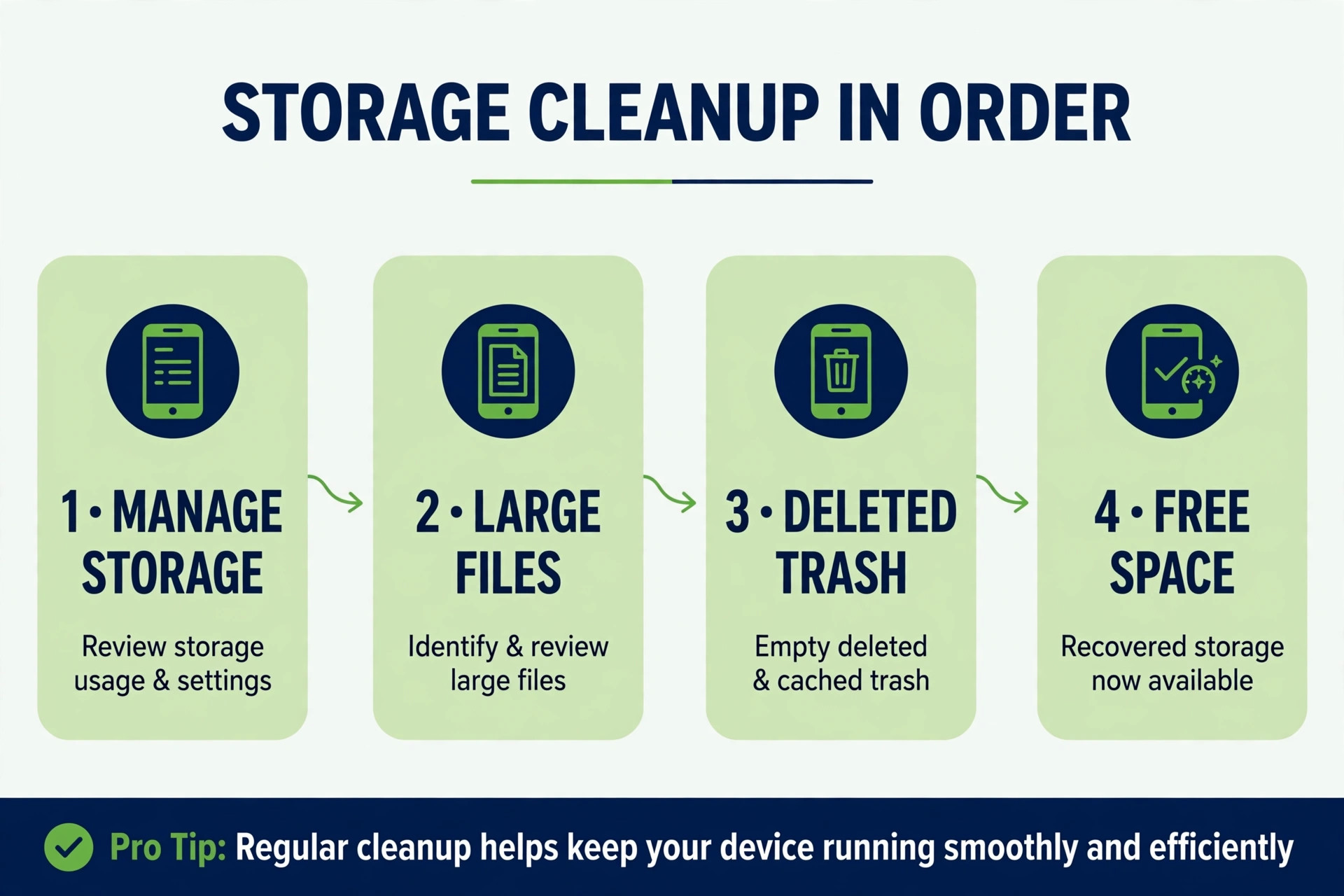
Storage is the quiet cause of photo failures. The phone may still make calls, load chats, and send texts while it has too little room to process a photo upload, so people often rule storage out too early. Check it properly before you move on to permissions and network settings.
Start with the phone number. On iPhone, open Settings, then General, then iPhone Storage, and read the free space figure at the top. On Android, open Settings, then Storage, and read the free space figure there. As a working rule, treat anything under about 1 gigabyte free as a suspect. That is not an official WhatsApp threshold, it is a practical margin, because the phone also needs room for the operating system, the app cache, and the upload itself. If you are below that margin, freeing space is your next step whether or not storage turns out to be the final cause.
Next, open the WhatsApp storage manager, because it shows you exactly what WhatsApp itself is holding. Open WhatsApp, go to Settings, then Storage and Data, then Manage Storage. The screen shows total usage and free space, plus categories for large files and frequently forwarded files. The “Larger than 5 MB” category is the fastest win in most cases, because a handful of old videos often takes more room than thousands of messages. Select files you no longer need, delete them, and then test a photo send again.
On Android, clear the WhatsApp cache as a separate step. Open Settings, then Apps, then WhatsApp, then Storage and Cache, and tap Clear Cache. Clearing the cache removes temporary files only. It does not delete your chats, your login, or your saved media, and it often fixes a stuck picker, a stale thumbnail, or a send that fails for no visible reason. Do not tap Clear Storage or Clear Data on that same screen. That option wipes the app data and forces you to log in and restore from backup, which is a far bigger job than a cache clear.
Fix Permissions on Android
Permission problems are common after system updates, after restoring a phone, and after tapping a prompt too quickly during setup. WhatsApp cannot send a photo it cannot see, and on Android the symptom is often an empty picker, a picker that shows only some albums, or a send that fails the moment you pick a file. The fix is a settings check, not a reinstall, so do it carefully and in full.
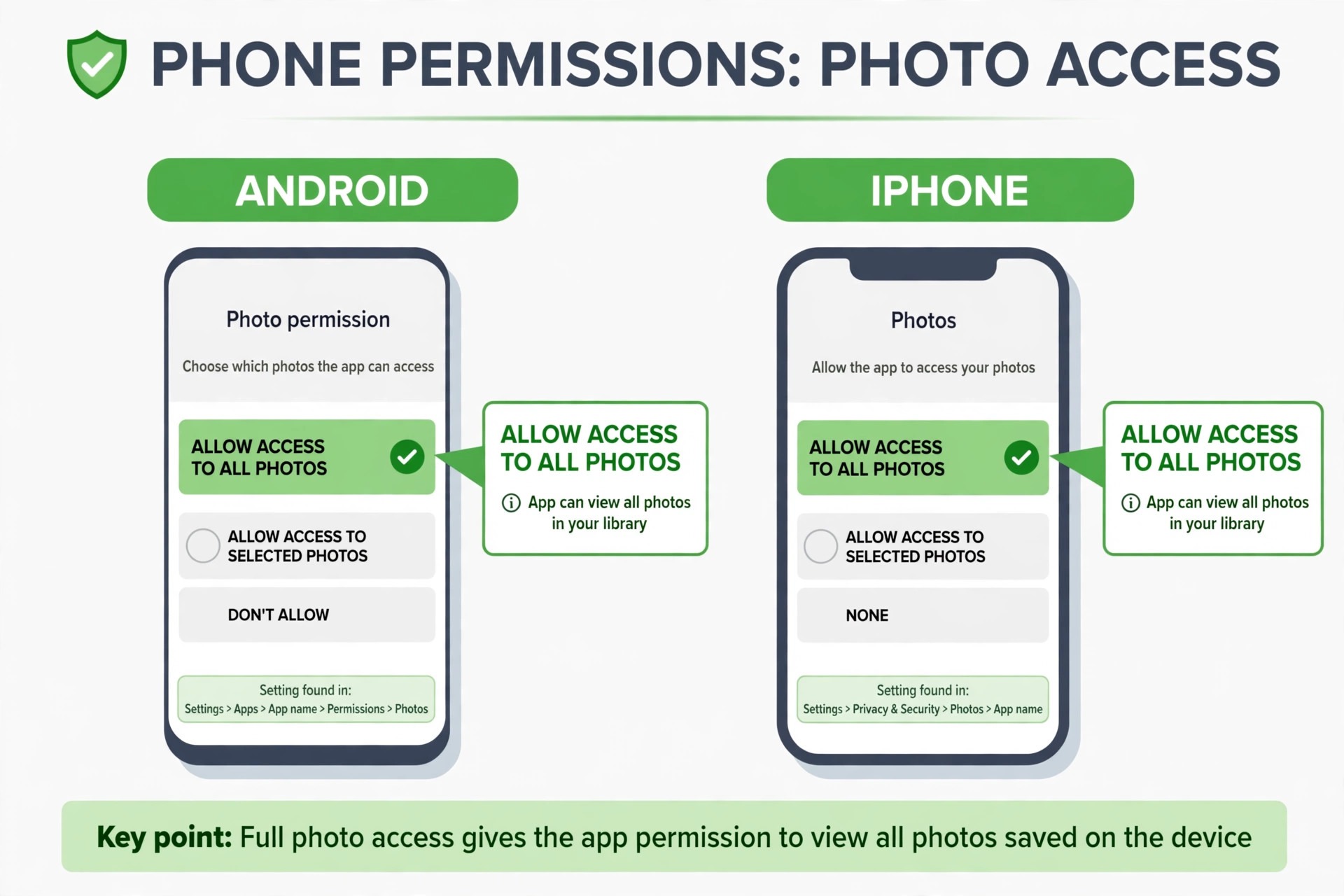
Open Settings, then Apps, then WhatsApp, then Permissions. Look for Photos and Videos, and check what it is set to. On newer Android versions this permission is split from older storage permission names, so you may see Photos and Videos where an older phone showed Files and Media or Storage. The setting you want for reliable sending is Allow access to all photos and videos, or the full access option your phone shows. If it is set to limited or selected access only, WhatsApp can only see the photos you picked one by one, and a photo outside that selection will fail or never appear.
Change the setting, then fully close WhatsApp and reopen it before you test. Permission changes do not always take effect in an app that is already running, and testing in the old session can make a correct fix look like a failure. After reopening, open the photo picker inside a chat and check that the album you need is visible. If the album is visible, send the small test photo. If the album is still missing, repeat the settings path and confirm the change saved, because some phones require a second confirmation for full photo access.
Fix Permissions on iPhone
iPhone permission failures look slightly different from Android ones, because iOS offers a middle option that quietly limits access. The trap is the Selected Photos or Limited Access choice. It feels like a privacy win, and it is, but it means WhatsApp can only see the photos you chose at setup time. A new photo, or a photo in an album you did not select, will not appear in the picker, and a send from that album will fail. Many iPhone photo problems trace back to this one setting.
Open Settings, then find WhatsApp in the app list, then tap Photos. Change the setting to All Photos. That gives WhatsApp access to your full library for sending. If you prefer limited access for privacy reasons, you can keep it, but you must then add each new photo you want to send to the selected set, and you must expect sends from outside that set to fail. For troubleshooting, switch to All Photos first, test the send, and only tighten the setting afterward if you want to, once you know the send works.
You can also reach the same setting through Settings, then Privacy and Security, then Photos, then WhatsApp. Both paths lead to the same choice, so use whichever you find first. After changing it, close WhatsApp fully by swiping its card away, reopen it, and check the picker. If your albums now appear, send the small test photo.
Check the File Size and Format
When a small test photo sends and your real photo does not, the file is the problem, and the fix is to change the file, not the app. WhatsApp compresses photos sent the normal way, so most everyday phone photos go through without trouble. The failures cluster around files that are unusual in size, format, or origin, and each type has a different workaround.
Start by checking the size and the source. Open the photo details in your gallery app and look at the file size, the format, and where the file came from. A photo taken on the phone camera is the safest test case. A photo downloaded from a website, exported from a design tool, forwarded through several apps, or saved from a cloud drive is more likely to carry an unusual format or a damaged header. If only downloaded or forwarded files fail, suspect the file, not WhatsApp.
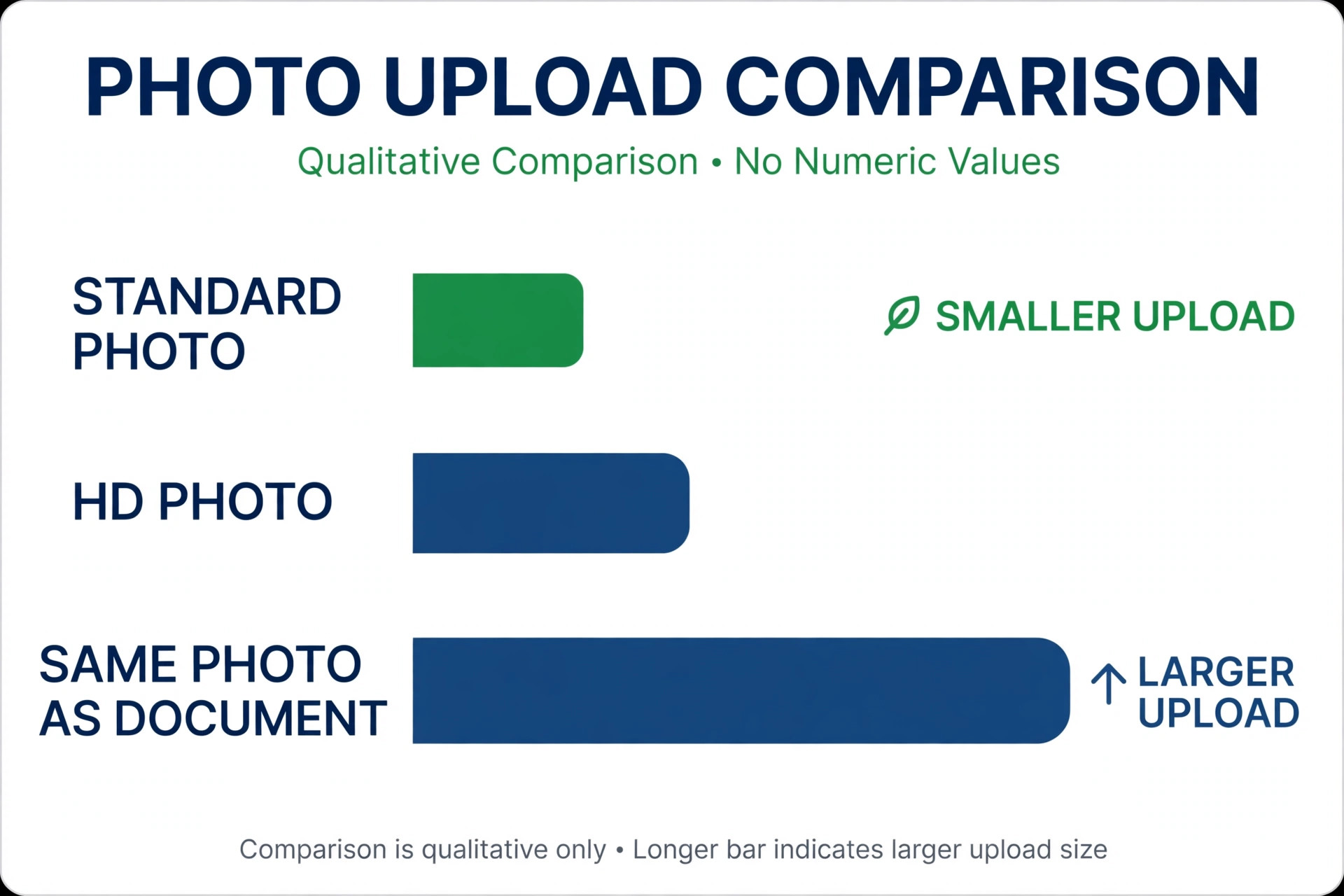
Try the document route for a large or unusual file. In the chat, tap the attach button, choose Document instead of Gallery or Photos, and pick the same photo. WhatsApp passes a document through without the normal photo compression, and WhatsApp itself describes that route as handling original files up to 2 GB in size. The recipient gets a file card to tap and open rather than a photo shown inline in the chat, so warn them if they expect a picture in the thread. This route is the fastest way to fix WhatsApp not sending photos when the file itself is the blocker, because it bypasses the compression path entirely.
Convert the format if the document route also fails or if the recipient cannot open the file. WhatsApp photo sends work best with JPG and PNG files. A HEIC photo from an iPhone, a WebP image saved from a website, or a CMYK JPEG exported from a print tool can all cause trouble, because the receiving device or the upload path may not handle that format. Export or convert the photo to JPG in sRGB colour, which is the most widely compatible choice, and retry. On iPhone, you can change the camera capture format in Settings, then Camera, then Formats, but converting the single problem photo is faster than changing a global setting for one send.
Shrink an oversized photo before you send it. Open the photo in your gallery or editor, export a copy at a smaller size, and send the copy. You do not need to delete the original. Keep the original in your camera roll or cloud backup, and send a copy sized for chat. A copy around a couple of megabytes or smaller will upload far faster on a weak connection than a huge original, and for chat viewing the difference is usually invisible. If the smaller copy sends and the original does not, you have found the cause, and you can use the same shrink step for future large photos.
Check the Network and Data Settings
A photo upload needs a stable connection for longer than a text message does. A network that loads web pages can still drop a photo upload, because the upload must hold steady until the whole file transfers. Network checks therefore focus on stability and restrictions, not just on whether you are online.
Switch networks as a test. If you are on Wi-Fi, switch to mobile data and retry the small test photo. This single test often reveals how to fix WhatsApp not sending photos when the network is at fault. If you are on mobile data, switch to Wi-Fi and retry. If the photo sends on one network and not the other, the problem is that network, not WhatsApp. A home router that needs a restart, a public Wi-Fi network that blocks large uploads, or a mobile plan that throttles after a data cap can each produce this pattern.
Restart the router if home Wi-Fi is the suspect, and move closer to the router or switch to a different network before you retry.
Turn off the VPN for one test. A VPN can slow an upload, route it through a distant server, or block it entirely on a restricted network. Disconnect the VPN, force close WhatsApp, reopen it, and send the test photo. If it sends with the VPN off, the VPN is the cause, and you can either keep it off for WhatsApp sends or switch to a faster server. Reconnect the VPN afterward if you normally use one, but test the send first so you know the cause for certain.
Check data saver settings in two places. On the phone, a system data saver can restrict background data and slow uploads, especially on mobile data. On Android, open Settings, then Network and Internet, then Data Saver, and check whether it is on. On iPhone, check Settings, then Mobile Data, and confirm WhatsApp is allowed to use mobile data at all. Inside WhatsApp, open Settings, then Storage and Data, and review the media auto-download settings and the data usage options. A setting that limits media on mobile data can make photo sends look broken when they are actually just restricted. Turn the restriction off for one test, send the photo, and then decide what permanent setting you prefer.

Update, Offload, and Reinstall as a Last Resort
App fixes come late in the order for a reason. Updates and reinstalls take longer, they can disturb drafts and settings, and they cannot fix a permission, storage, or network problem. Use them only after the earlier sections have ruled those causes out, or when the app crashes, freezes, or behaves in ways that point at the installation itself.
Update WhatsApp first. Open the Play Store on Android or the App Store on iPhone, search for WhatsApp, and check for an update. Automatic updates can be delayed by storage, battery settings, or a pending system update, so a manual check is worth the minute. After updating, force close the app, reopen it, and send the test photo. An update fixes known bugs in older versions, including media handling bugs that produce vague send failures with no clear error message.
On iPhone, try offloading before you delete anything. Open Settings, then General, then iPhone Storage, then WhatsApp, and tap Offload App. Offloading removes the app itself but keeps its documents and data, and reinstalling from the App Store restores them. This is the closest iPhone equivalent to a clean reinstall without the data loss of a full delete, and it is the safer choice when you want to replace the app without risking chats.
Reinstall only with a fresh backup in place. Open WhatsApp, go to Settings, then Chats, then Chat Backup, and run a backup now. On Android the backup goes to Google Drive, and on iPhone it goes to iCloud. Confirm the backup time is current before you delete anything. Then delete WhatsApp, reinstall it from the official store, verify your number, and restore from the backup when prompted. Test the photo send only after the restore finishes, because a restore in progress can itself block media handling.
Reinstalling will not fix WhatsApp not sending photos if the cause is storage, permission, or network, because those settings live outside the app or survive a reinstall. That is why reinstall sits last. If a fresh install with a restored backup still cannot send a small test photo on two networks, the problem is almost certainly outside the app, and the next section covers what to check on the other side of the chat.

When the Problem Is Not on Your Phone
If your phone passes every check and photos still fail to one person, look at the other end of the chat. A recipient whose phone is full, whose connection is weak, or whose WhatsApp is out of date can fail to receive a photo even when your send is clean. The stuck clock on your side does not always mean your upload failed, because delivery depends on both phones and on the connection between them.
Ask the recipient to check their free storage and their connection, and to update WhatsApp if they have not in a while. Ask them to test receiving a photo from someone else. If they cannot receive photos from anyone, the problem is on their side, and your phone was never the cause. If they receive photos from others but not from you, check whether you are blocked or whether a privacy setting is interfering, and try a fresh chat or a different contact method to compare.
If nothing in this guide helps fix WhatsApp not sending photos on your phone or theirs, contact WhatsApp support from inside the app. Open Settings, then Help, then Contact Us, and describe the symptom, the phone model, the app version, and the steps you already tried. That record helps support rule out the common causes quickly, because you can show that storage, permission, file, and network checks all passed. Keep your test results written down, because support will ask what you already tried.
If photo trouble is part of a wider phone or messaging problem, the guides on this site can help you place this fix in context. For a deeper cleanup when your phone itself is running out of room, see fix phone storage full without deleting photos. For a similar fix order on a different app, see fix Instagram Reels not uploading. For business messaging setup and tool choices, see best AI tools for WhatsApp Business. This guide to fix WhatsApp not sending photos pairs naturally with the storage guide, because the two problems share the same first checks and the same habit of freeing space before deeper fixes.
Frequently Asked Questions
Why can I send texts but not photos on WhatsApp?
Text messages use very little data and finish in a fraction of a second, while a photo upload must hold a stable connection until the whole file transfers. That gap is the classic signature when you try to fix WhatsApp not sending photos on a weak connection. A weak signal, a throttled mobile plan, a VPN, or a data saver setting can therefore block photos while texts still go through. Test the photo on a second network with the VPN off and data saver off. If it sends on the second network, the connection was the cause. If it fails on every network, check storage, permission, and the file itself.
Why is my photo stuck on the clock icon?
The clock icon means WhatsApp is still trying to upload the photo and has not yet handed it to the server. The usual causes are a weak or interrupted connection, a very large file, a full phone, or a stuck app session. Force close WhatsApp, restart the phone, switch networks, and retry a small test photo. If the small photo sends, the original file or its size was the problem. If no photo sends, work through storage and permission checks before you consider a reinstall.
How do I give WhatsApp permission to access my photos?
On Android, open Settings, then Apps, then WhatsApp, then Permissions, and set Photos and Videos to full access. On iPhone, open Settings, then WhatsApp, then Photos, and choose All Photos. Avoid the limited or selected option while you troubleshoot, because it hides any photo outside the selected set. Close WhatsApp fully and reopen it after changing the setting, then check that your albums appear in the picker before you test a send.
Does clearing the WhatsApp cache delete my chats?
On Android, tapping Clear Cache removes temporary files only, and your chats, login, and saved media stay intact. Do not confuse it with Clear Storage or Clear Data on the same screen, because that option wipes app data and forces a fresh login and restore. On iPhone there is no direct cache button, so use the Manage Storage cleanup inside WhatsApp instead, and use offloading if you need a clean app replacement without deleting data.
Can reinstalling fix WhatsApp not sending photos?
Reinstalling can help when the app installation itself is damaged, but it should not be your first step, because it takes time and it risks chat history if the backup is stale. Try a restart, a cache clear, a permission check, a file test, and a network test first. If you do reinstall, run a fresh chat backup, confirm the backup time is current, and only then delete the app. If a fresh install still cannot send a small test photo on two networks, the cause is almost certainly outside the app.
Why does WhatsApp say it cannot send this media?
That message usually means WhatsApp rejected the file before or during upload, often because of an unusual format, a damaged file, a very large size, or a file the receiving device cannot handle. Convert the photo to JPG, shrink it, rename it to a short plain name, and retry. If the converted copy still fails, send the original as a document instead, which bypasses the normal photo compression path. If every file fails with the same message, check permissions and storage, then update the app.
Send the Photo, Then Stop the Next Stall
The fix that works once is useful. The routine that prevents the next stall is better. Keep at least a gigabyte free on your phone, keep photo permission set to full access, and keep WhatsApp updated. Before an important send, test with a small photo if you changed phones, updated software, or switched networks since your last success. That test takes a minute, and it tells you whether the app, the file, or the connection needs attention before the real photo is due.
When a photo does stall, return to the order in this guide. Diagnose first, fix storage and permission, then check the file and the network, and save the reinstall for last. Change one thing at a time, note the result, and protect your chats with a backup before any destructive step. Most photos that refuse to send are not lost. They are waiting for one small correction, a freed gigabyte, a restored permission, a converted file, or a stronger network. Find that correction, test it with a small photo, and send the picture you already picked, instead of starting over under pressure.