
A slow download creeps forward, even if it takes all evening. A stuck download does not move at all, and that difference decides what you should do next. If you want to fix Windows update stuck downloading properly, start by watching the percentage for ten minutes while you use the computer normally. A number that climbs, even by one percent, points to a slow connection or a large update. A number frozen in place for an hour, with no disk or network activity behind it, points to a broken download, a stalled service, or a damaged cache file.
This guide works from the fastest checks to the deepest repairs, and it tells you what each step rules out, so you stop repeating fixes that cannot help. You will check the connection and the free space first, restart the update service next, clear the update cache, run the built-in troubleshooter, repair system files, and only then install the update by hand. Most stuck downloads clear at step three or four. The later steps exist for the stubborn cases, and each one is safe if you follow the order given.
How to Fix Windows Update Stuck Downloading in the Right Order
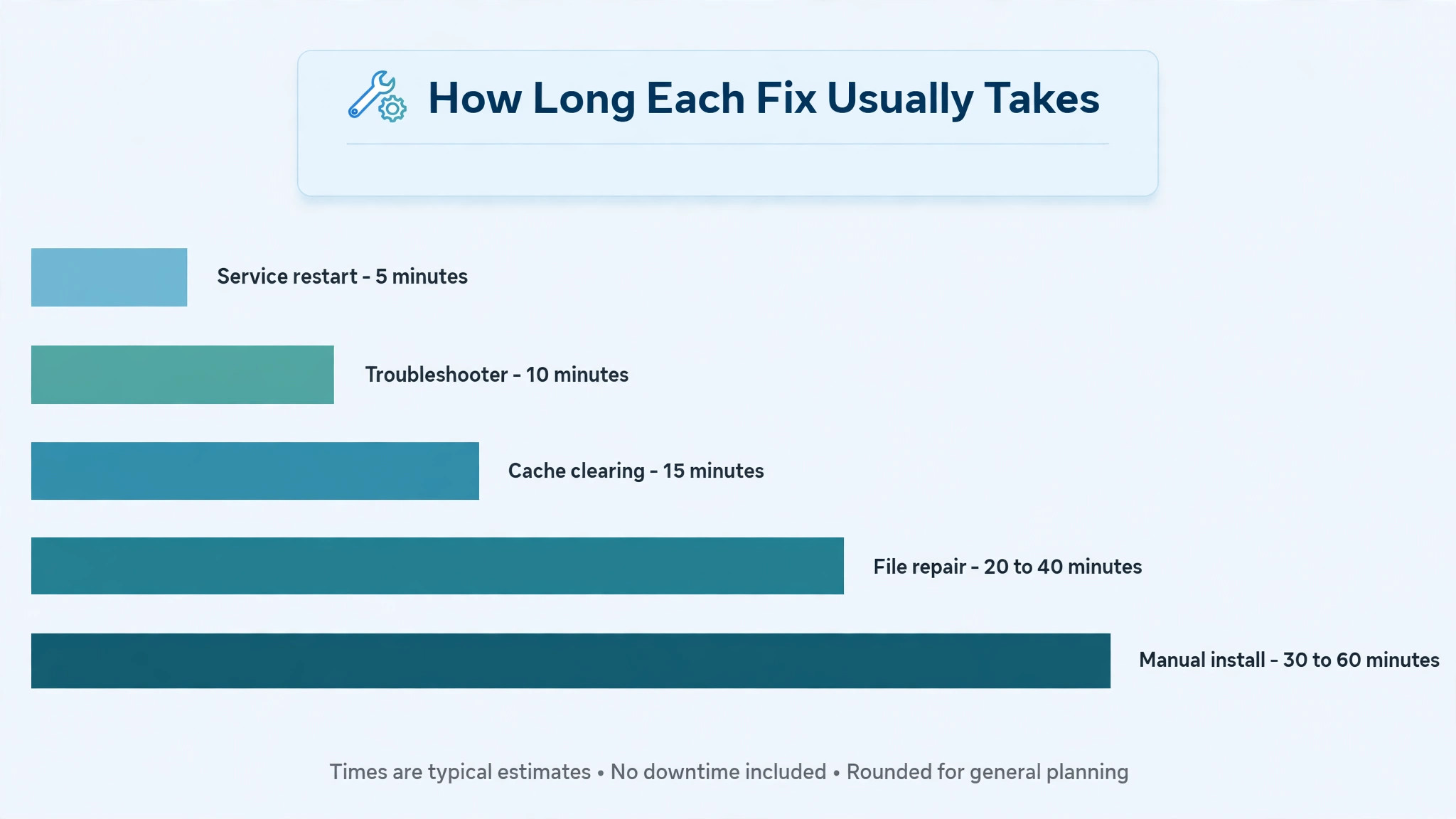
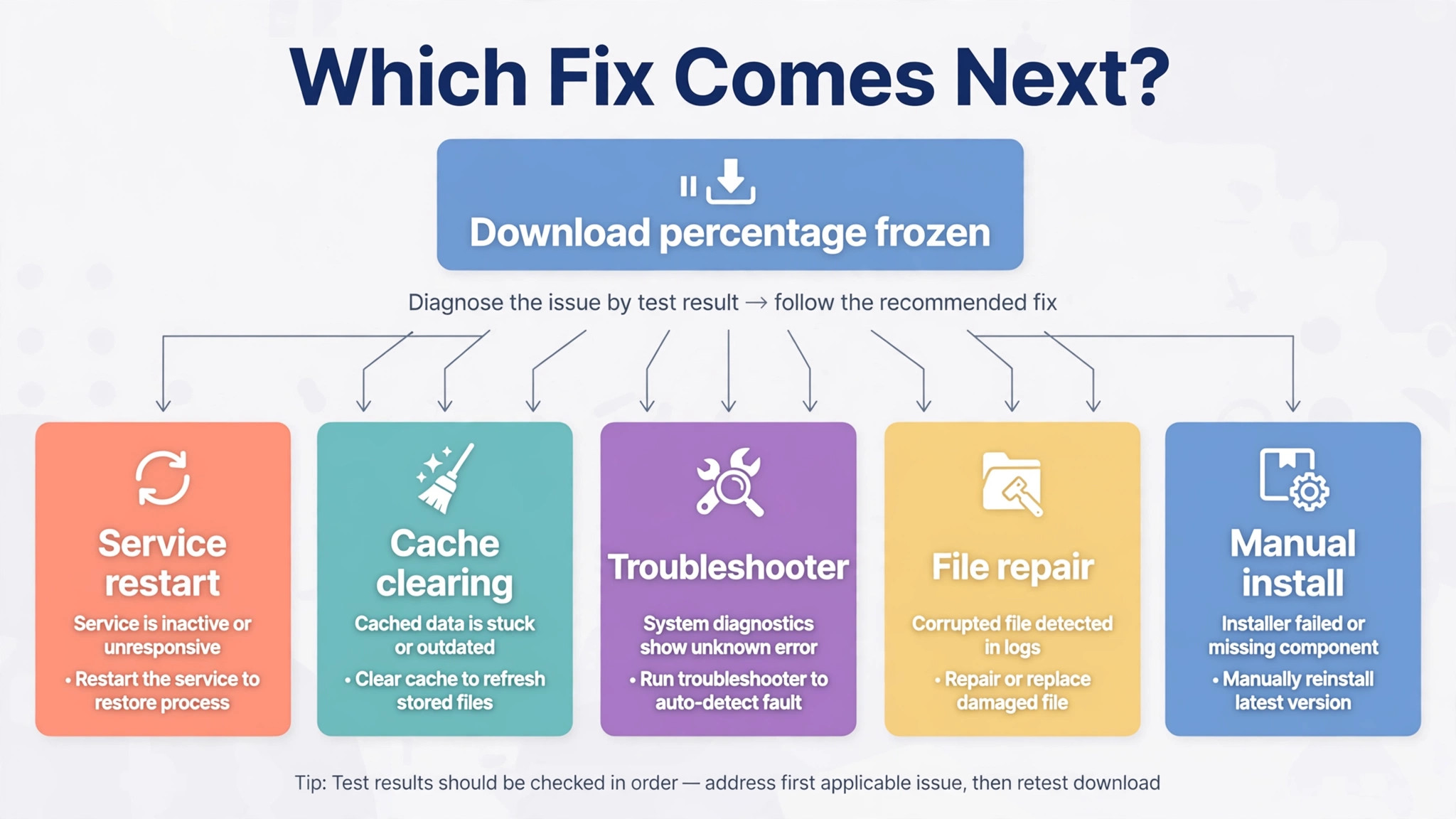
The checklist below is the whole method on one screen, and it is the fastest way to fix Windows update stuck downloading without repeating steps that cannot help. Work down it in order and stop as soon as a download starts moving again. Each row also names what a success rules out, which matters when the problem returns later, because you will know which part of the system already proved healthy.
| Fix | Time it takes | What it rules out when it works |
|---|---|---|
| Confirm the download is really stuck | 10 minutes of watching | A slow connection or a large feature update |
| Check connection, power, and free space | 10 minutes | A dropped network, a paused update, or a full drive |
| Restart the Windows Update service and BITS | 5 minutes | A stalled service or a paused transfer queue |
| Clear the SoftwareDistribution cache | 15 minutes | A damaged or half written download file |
| Run the Windows Update troubleshooter | 10 minutes | A misconfigured setting or a registration fault |
| Repair system files with DISM and SFC | 20 to 40 minutes | Damaged system files behind the failure |
| Install the update manually | 30 to 60 minutes | A fault in automatic download only |
Do not jump to the cache step first. Clearing the cache deletes a download that may have been fine, and it forces Windows to start again from zero. That is a reasonable price when the cache is the problem, and a waste of an hour when the real problem was a metered connection quietly pausing the download. The order protects your time. Fast and harmless checks come first, destructive steps come only after the harmless ones have failed.
Keep a short note as you go. Write the percentage when you start, the time, and what you changed. A note such as “stuck at 47 percent at 7 pm, restarted the service, moved to 48 percent by 7.20 pm” is far more useful than a vague memory that something once helped. If the problem comes back next month, that note tells you where to start.

Slow or Stuck. How to Tell in Five Minutes
Open Settings, then Windows Update, and look at the percentage and the update name. Feature updates are much larger than monthly security updates, and a feature update can sit at one percentage for a long time while it prepares files in the background. That alone does not mean it is stuck. The test is movement plus activity, not the number on screen.
Open Task Manager with Ctrl plus Shift plus Esc, then open the Performance tab and watch the network graph and the disk graph for two minutes. A healthy download shows network activity, even in small bursts, and some disk writes as files arrive. A truly stuck download shows a flat network line and almost no disk activity from the update process, while the percentage stays frozen. If you see activity, give it more time before you touch anything.
Also check whether the rest of the computer is online. Open a web page, start a short video, and see whether they load normally. If the whole connection is down, the update is not the problem, and the network fix comes first. If only the update is frozen while browsing works, the fault sits inside the update system, and the steps in this guide apply directly to fix Windows update stuck downloading cases of that kind.
One more check saves a lot of confusion. Look at the update history in Settings, then Windows Update, then Update history. If the same update failed before with an error code, write that code down. Common codes for download trouble include 0x80070002, 0x80240034, and 0x800705b4. Microsoft support pages link each code to a likely cause, and the code can confirm whether you are dealing with a missing file, an interrupted download, or a timeout. You do not need to understand the code in depth. You need it recorded, so you can match it to the fix that finally works.
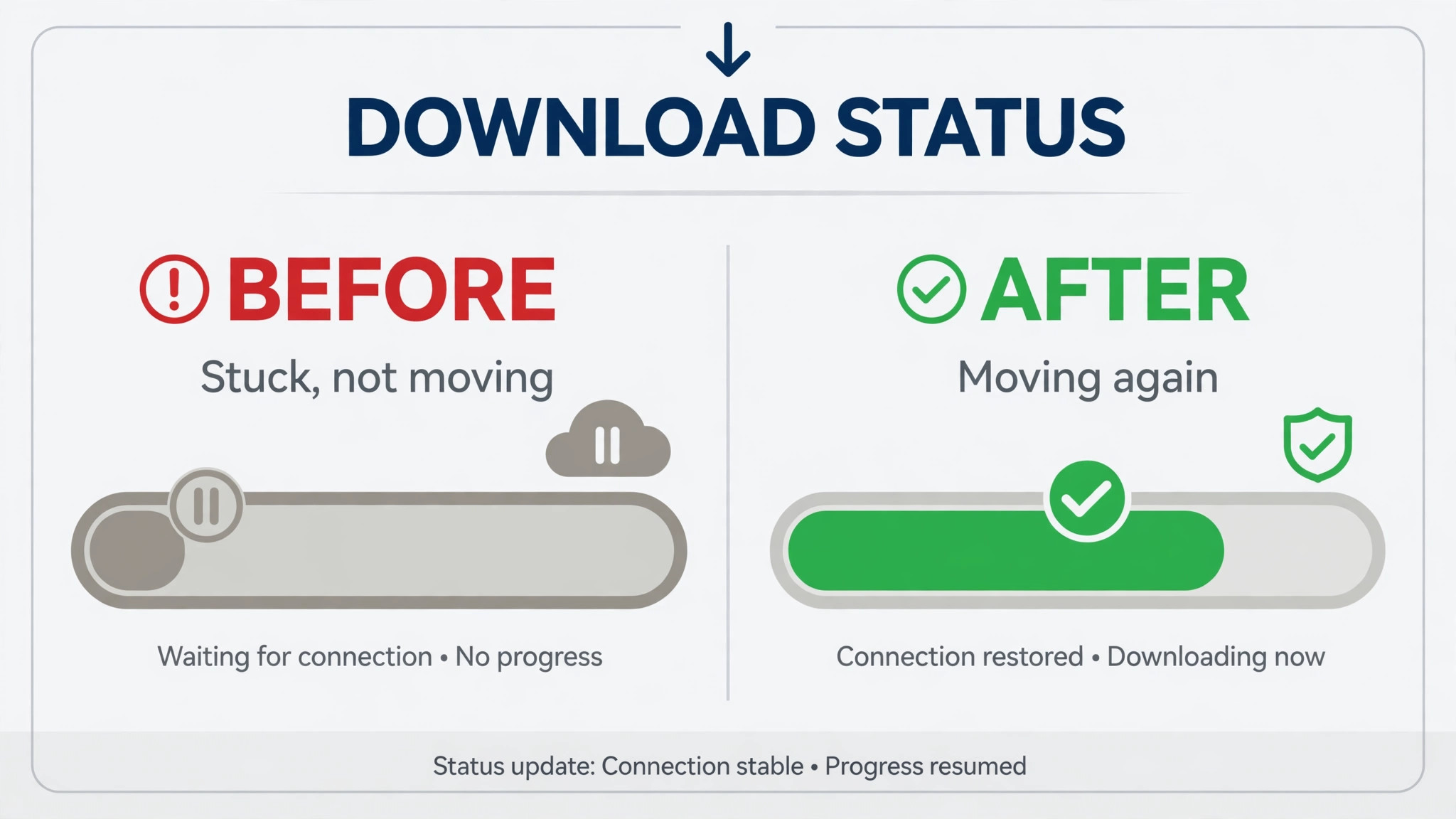
First Checks. Connection, Power, and Free Space
Start with the connection, because Windows will not say clearly that it paused a download. It will simply sit still. First, check whether the network is set as metered. Open Settings, then Network and internet, then Wi-Fi or Ethernet, then the network you are on, and look for the metered connection setting. On a metered connection, Windows limits downloads to save data, and a large update may wait indefinitely. Turn the metered setting off for a home network, or allow downloads over metered connections for this update, then check for updates again.
Next, test the connection itself rather than trusting the signal icon. Switch from Wi-Fi to a wired connection for one test if you can, or move closer to the router. A weak Wi-Fi signal causes repeated download retries that look exactly like a stuck percentage, because each retry starts over behind the scenes. If the download moves on a wired connection, the fix is a network fix, not an update fix, and you can read the companion guide to fixing a laptop connection that keeps dropping for the router side of that problem.
Then check the power state. Laptops set to save battery can pause background downloads, and a laptop that went to sleep mid-download can wake with the transfer queue in a confused state. Plug the laptop in, set it not to sleep for the next hour, and try again. This sounds too simple to matter, and it still resolves a surprising number of reports, because the download was never broken, only paused.
Free space is the check most people skip, and it is the one that blocks large updates outright. Feature updates need room to download, unpack, and install, and Windows needs spare room on the system drive even after the download finishes. Open Settings, then System, then Storage, and look at the free space on the drive where Windows is installed. As a practical rule, keep at least 20 GB free before a feature update and at least 10 GB free before a monthly update. If you are short, run Disk Cleanup, empty the Recycle Bin, remove downloads you no longer need, and uninstall one large app you do not use.
Check for updates again only after the space is genuinely free, because starting a download on a nearly full drive invites a second failure halfway through.
Also pause any VPN, third party firewall, or download manager for one test, because a blocked route is an easy win when you try to fix Windows update stuck downloading on a managed or filtered network. These tools can filter or reroute update traffic, and some corporate VPN setups block the update servers entirely. Turn the tool off, try the download for ten minutes, and turn the tool back on afterwards. If the download moves with the tool off, you have found the cause, and the fix is a setting inside that tool, not another round of update repairs. Remember to re-enable your security software after the test, because leaving it off is a worse problem than a delayed update.

Restart the Windows Update Service and BITS
If the fast checks did not move the percentage, the next step is a service restart. Two services do most of the work here. The Windows Update service manages the download and install cycle, and the Background Intelligent Transfer Service, usually called BITS, manages the actual file transfer in the background. When either one stalls, the percentage freezes even though the computer looks healthy.
The simplest restart is a full restart of the computer, and it is worth doing once, properly, through Start and then Restart, not through sleep or a quick power button press. A restart clears a stalled service state and a stuck transfer queue, and it costs two minutes. If the download moves after a restart, you are done, and the stall was temporary.
If a restart does not help, restart the two services directly. Press the Windows key plus R, type services.msc, and press Enter. In the Services window, find Windows Update, right click it, and choose Restart. If Restart is greyed out, choose Stop, wait a few seconds, then choose Start. Do the same for Background Intelligent Transfer Service. Then return to Settings, then Windows Update, and select Check for updates. Give it ten minutes before you judge the result, because the service needs time to recheck what is already downloaded and resume the transfer.
This step is the right moment to learn one habit that will help you fix Windows update stuck downloading cases in the future. Always test after a single change. Restarting the service and clearing the cache in the same minute feels faster, but it hides which change worked. If the download starts after the service restart alone, you know the cache was fine, and you have saved yourself a full re-download. That discipline is what separates a ten minute fix from an afternoon of repeated repairs.
If the services refuse to start, or if they stop again within minutes, do not keep restarting them in a loop. That pattern points to a deeper fault, such as damaged system files or a corrupted cache, and the later sections cover both. Move on to the cache step rather than hammering a service that cannot stay running.
Clear the SoftwareDistribution Cache Step by Step
The SoftwareDistribution folder is where Windows stores downloaded update files and the database that tracks them. When a file inside it is half written or damaged, Windows can retry the same broken file forever, and the percentage never moves. Clearing the folder forces Windows to download fresh copies and rebuild its tracking database. Installed updates are not removed by this step, and your files and apps are untouched. What you lose is the update history display and the already downloaded portion of the stuck update, which is exactly the portion you cannot trust.
Work through the steps in order, and do not delete the folder itself, because a careful cache clear is the safest way to fix Windows update stuck downloading when a damaged file is the cause. You delete the contents, while the services are stopped, so Windows can rebuild cleanly.
- Open Command Prompt as an administrator. Press the Windows key, type Command Prompt, right click the result, and choose Run as administrator. Confirm the permission prompt.
- Stop the two services with these commands, pressing Enter after each one. Type net stop wuauserv and press Enter. Type net stop bits and press Enter. Wait for each command to report that the service stopped.
- Open File Explorer and go to the SoftwareDistribution folder inside the Windows folder on your system drive. Select everything inside it with Ctrl plus A, then delete it. If a few files refuse to delete, check that both services really stopped, then try again. Do not delete the SoftwareDistribution folder itself, only what is inside it.
- Return to Command Prompt and restart the services. Type net start wuauserv and press Enter. Type net start bits and press Enter. Wait for each command to report that the service started.
- Restart the computer, open Settings, then Windows Update, and select Check for updates. The download should start again from the beginning. That is normal, and it is the point of the exercise.
Give the fresh download at least 20 minutes before you judge it. A cache clear followed by an instant verdict is the most common way this fix gets declared a failure by mistake. The first minutes are spent rechecking the system, contacting the update servers, and rebuilding the tracking database, and the percentage may stay low during that phase while the download itself is healthy underneath.
If the download stalls at exactly the same percentage as before, the cache was probably not the cause, or the same damaged file is being served again. Run the troubleshooter next, because it checks settings and registrations that a cache clear does not touch. If the download stalls at a different percentage, you made progress, and the cache clear likely helped, even if a second fault is still in play. Note the new percentage and keep working down the list.
A warning belongs here. Some guides tell you to rename the folder and the Catroot2 folder as well, using commands that add a .old suffix. Renaming is a valid deeper reset, and Microsoft support material describes it for stubborn cases, but it is not the first cache step. Try the contents delete first, because it is simpler to reverse and easier to explain to support if you need help later. Keep the rename step in reserve for the case where the contents delete and the troubleshooter both fail.

Run the Windows Update Troubleshooter
The built-in troubleshooter checks the update settings, the service registrations, and the common misconfigurations that a manual service restart misses, which makes it a useful step whenever you need to fix Windows update stuck downloading after a cache clear has failed. It is not a magic repair, but it is fast, it is safe, and it sometimes finds a fault you would not find by hand. On Windows 11, open Settings, then System, then Troubleshoot, then Other troubleshooters, find Windows Update, and select Run. On Windows 10, open Settings, then Update and Security, then Troubleshoot, then Additional troubleshooters, and run the Windows Update troubleshooter from there.
Follow the on-screen prompts and let it finish, even if it reports no problem found.
If the troubleshooter reports that it fixed something, restart the computer and try the download again. If it reports nothing, that result is still useful, because it rules out the configuration faults it checks, and it pushes the likely cause toward damaged files or a problem with the update package itself. Either way, record what it said. A support agent or a forum helper will ask exactly that question, and a precise answer saves a round of back and forth.
One useful follow-up is to check for updates immediately after the troubleshooter finishes, rather than waiting for the next automatic check. Automatic checks run on a schedule, and waiting for one can make a successful repair look like a failure. Open Settings, then Windows Update, select Check for updates, and watch the result for ten minutes with Task Manager open, as described in the diagnosis section. Movement plus network activity is the proof you want.
Repair System Files With DISM and SFC
When the service restart, the cache clear, and the troubleshooter all fail, damaged system files move to the top of the suspect list. Two built-in tools check them. DISM repairs the Windows system image that SFC uses as its reference, and SFC then scans protected system files and replaces damaged ones. Run DISM first, then SFC, because running SFC against a damaged reference image can miss faults.
Open Command Prompt as an administrator, as before. Type the DISM command, DISM /Online /Cleanup-Image /RestoreHealth, and press Enter. This scan needs an internet connection, because it can fetch clean files online, and it typically takes 10 to 30 minutes. Do not close the window while it runs, even if the percentage sits still for a while. When it finishes, type sfc /scannow and press Enter. That scan usually takes 10 to 20 minutes. Restart the computer when both finish, then try the update again.
Read the SFC result rather than assuming it worked. A message that it found corrupt files and repaired them is a good sign, and the update deserves a fresh test. A message that it found nothing is also useful, because it rules out system file damage and points you toward the manual install. A message that it could not repair some files points to a deeper image problem, and at that point a repair install, which keeps your files and apps while refreshing Windows, is a better next step than repeating the same scans.
This section is also where patience matters most. DISM and SFC look idle for long stretches, and the temptation is to close them and try something else. Closing a repair mid-run can leave files in a half repaired state, which is worse than the fault you started with. Start the scans when you can leave the computer alone, plug the laptop in, and let both finish.
Install the Update Manually as a Last Resort
A manual install bypasses automatic download entirely, which is why it works when every automatic fix fails, and it is the last reliable way to fix Windows update stuck downloading before a repair install. It does not repair the automatic system, but it gets the update onto the computer, and that distinction matters. If a manual install works, the update package itself was fine, and the fault was in the download or scheduling side. If a manual install also fails with the same error, the fault is deeper, and a repair install or support help is the honest next step.
First, find the update number. In Settings, then Windows Update, the stuck update shows a knowledge base number, usually written as KB followed by digits. Write it down exactly. Then visit the Microsoft Update Catalog, search for that KB number, and download the version that matches your system, checking 64 bit versus ARM and Windows 10 versus Windows 11 carefully. Installing the wrong package wastes time and can fail with a confusing error, so match the details before you download. Run the downloaded file, follow the prompts, and restart when asked.
For a feature update that will not download, the alternative route is the official installation tool. Microsoft provides a Media Creation Tool and an Installation Assistant for Windows 11, both from the official Microsoft software download pages. These tools download the new version directly and guide you through an in-place upgrade that keeps your files and apps. They take longer than a Catalog install, often 30 to 60 minutes, and they need a stable connection and a plugged in laptop, so do not start one on battery power or on a weak Wi-Fi signal.
After any manual install, open Settings, then Windows Update, then Update history, and confirm the update now shows as installed. Then run Check for updates once more, because a feature update is often followed by smaller updates that depend on it. If the manual install worked but automatic updates still stall on the next update, the automatic system still needs attention, and the service and cache steps deserve a second look with the new baseline in place.
For readers sorting out a wider slow computer, the guide to fixing a laptop that overheats during video calls and the guide to fixing slow Chrome with too many tabs open cover two common slowdowns that get blamed on updates, and both are worth a read if the computer feels slow even when updates are healthy. The guide to fixing Wi-Fi that keeps dropping on a laptop is the right companion when the download only stalls on wireless, and the guide to fixing a printer that will not connect to Wi-Fi helps when the update fixed itself but a device still will not join the network.
Those guides sit alongside this one, not instead of it, and they keep the rest of the setup healthy while updates run quietly in the background.
Mistakes That Make a Stuck Update Worse
The first mistake is forcing a shutdown mid-download by holding the power button. A forced shutdown can corrupt the very cache files you are trying to repair, and it can interrupt a write to the system drive. Use Start and then Restart, and let Windows shut down cleanly, even when you are frustrated with the frozen percentage. The second mistake is deleting the whole SoftwareDistribution folder, or files elsewhere in the Windows folder, without stopping the services first. Locked files will refuse to delete, half deleted contents can confuse the next download, and deleting system files outside the cache can break Windows itself. Stop the services, delete the contents only, restart the services, and nothing else.
The third mistake is running five fixes at once and declaring victory. That habit makes it impossible to know what worked, and it guarantees a repeat of the whole ritual next time. Change one thing, test for a realistic period, and write the result down. The fourth mistake is downloading update files, drivers, or repair tools from unofficial sites. Fake update installers are a well known malware route, and a wrong driver can leave the computer worse off. Use the Microsoft Update Catalog, the official Microsoft download pages, and the laptop maker support page, and nothing else, for update and driver files.
The fifth mistake is ignoring the error code. A stuck download with no error code and a failed download with code 0x80070002 are different problems, and treating them the same wastes the diagnostic value of the code. Record the code, search the Microsoft support page for that code, and match the fix to it. The sixth mistake is starting a feature update with almost no free space and a laptop on battery power. Both conditions invite a failure halfway through, and a halfway failure is harder to clean up than a download that never started. Free the space, plug the laptop in, and start again.

Frequently Asked Questions
How long should I wait before calling a Windows update stuck?
Wait at least one hour of no movement, with no network or disk activity in Task Manager, before you treat the download as stuck. Feature updates are large, and a percentage can sit still while files prepare in the background. A short wait costs nothing, while an early cache clear throws away a healthy download and forces a restart from zero.
Is it safe to delete the SoftwareDistribution folder contents?
Yes, when you stop the Windows Update service and BITS first and delete only the contents, not the folder itself. Windows rebuilds the contents on the next update check, and installed updates, files, and apps are untouched. You will lose the update history display and the already downloaded portion of the stuck update, which is the portion you cannot trust anyway.
Why does the download stall at the same percentage every time?
A stall at the same percentage usually means the same damaged file, the same blocked server, or the same failing drive sector is hit on every attempt. A cache clear fixes the damaged file case, a VPN or firewall test covers the blocked server case, and a disk health check covers the failing drive case. Note the exact percentage, because a stall that moves after a fix tells you the fix helped, even if a second fault remains.
Will the troubleshooter delete my files or apps?
No. The Windows Update troubleshooter checks settings, service registrations, and update components, and it does not touch personal files or installed apps. It may restart services and reset update settings, which is safe, and it reports what it changed, so you can review the result before you try the download again.
What should I do if the manual install fails too?
First, confirm you downloaded the exact KB number for your Windows version and processor type, because a mismatched package is the most common manual install failure. If the package matches and still fails with the same error code, the fault is deeper than the download system, and a repair install that keeps your files and apps, or help from Microsoft support with the error code in hand, is the right next step.
Can a stuck update damage my computer if I leave it alone?
A stuck download by itself does not damage the computer, because the half downloaded files sit in the cache and are not installed. The risk comes from forced shutdowns, deleted system files, and unofficial repair tools used out of frustration. Leave the download alone, work through the steps in order, and the computer stays safe while you fix the problem properly.
Get the Download Moving Again, Then Leave It Alone
A stuck update rewards a calm order of operations, not a flurry of fixes. Confirm it is truly stuck, check the connection and the space, restart the service, clear the cache, run the troubleshooter, repair the files, and install by hand only when the automatic route has proved itself broken. Most readers will be finished by the cache step, and the readers who need the later steps will reach them with clean evidence about what already failed. That evidence is the real prize, because it turns the next stuck update from a mystery into a short checklist with a known starting point.
Once the download moves, resist the urge to keep tweaking. Let the update finish, restart when asked, and confirm it in the update history. Then leave automatic updates alone to do their job. The best update system is a boring one, and a boring one is exactly what this sequence is designed to restore.