
A business email move rarely fails because the new mailbox is hard to set up. It fails because an old label never becomes a folder, a filter that routed invoices stops working, a shared calendar disappears, or a client reply lands in an inbox nobody checks after the domain switches over. The team notices the problem days later, when a quote has gone unanswered and a thread that should have been searchable is sitting in a personal archive.
When you migrate Gmail to Outlook business mail, the risk is not the technology. The risk is the quiet detail work that nobody owned, and the fix is a checklist that treats mail, labels, filters, calendars, contacts, and domain records as one move rather than five separate jobs.
This guide gives you that checklist. You will audit what your team actually uses in Gmail, choose the right Microsoft 365 plan and migration route for your size, map every label and filter to its Outlook equivalent before you move a single message, run a staged copy with a final delta sync, switch your domain records in a planned window, and verify the result mailbox by mailbox before you cancel anything at Google. Prices change often, so check the official pricing page and checkout before you pay for any plan or tool mentioned here.
What You Are Really Moving
Email is the visible part of the move, but it is rarely the whole move. A typical business Gmail account also carries labels that act as filing, filters that sort, star, forward, or delete mail automatically, contacts grouped for clients and suppliers, calendars with shared events and rooms, Drive files linked from old messages, and app passwords or sign-ins that other tools use to send mail. A migration that copies messages and ignores the rest leaves the team with a full inbox and a broken workflow, which feels worse than a short outage.
Start with a one page inventory for each mailbox. Record the total mailbox size, the number of labels and nested labels, the filters in place, the calendars owned and shared, the contacts groups, and any delegated access, such as an assistant who reads a director inbox or a shared inbox for support. Add the tools that send mail through the account, like a CRM, a form on your website, an invoicing app, or a booking system. Those senders need new SMTP or app settings after the move, and they are the most common cause of a silent failure, because nothing looks broken in Outlook while a form quietly stops delivering.
Decide the Scope Before You Buy Licences
Scope decides cost more than the headline price of a plan. A five person team that only needs mail and web apps has a different bill from a 40 person team that needs desktop Office, shared drives, device management, and retention rules. Buy for the work the team does after the move, not for the work it did in Gmail, because Outlook, Teams, SharePoint, and OneDrive change where files and chats live, and a plan that is cheap on paper can force a second purchase within a month.
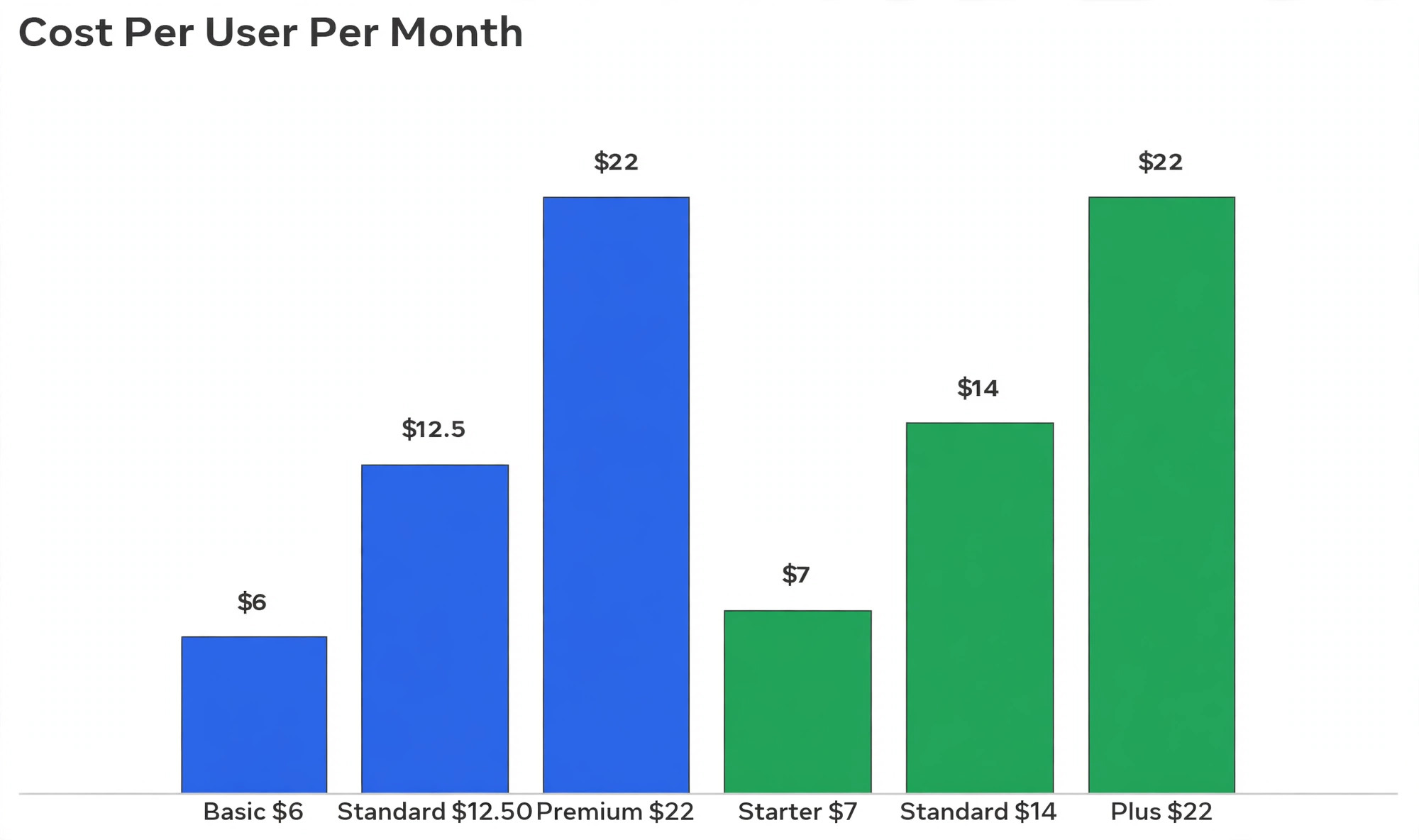
Microsoft 365 Business plans cap at 300 users, which covers most small and mid sized businesses. A clear licence count is the first saving when you migrate Gmail to Outlook business, because it stops you buying Premium for seats that only need mail. Business Basic gives web and mobile apps, a custom domain mailbox, Teams, and 1 TB of OneDrive storage per user. Business Standard adds the desktop versions of Word, Excel, PowerPoint, and Outlook.
Business Premium adds the security and device management stack, including Entra ID P1, Intune, and Defender for Business. If your team works mainly in a browser and on phones, Basic is a genuine saving. If anyone lives in desktop Excel or Outlook, Standard or Premium avoids the frustration of a web only licence for a power user, and mixing plans is allowed, so you do not need Premium for every seat.
What It Costs in 2026
Use the figures below as a planning budget, then confirm them at checkout, because both vendors show introductory offers to new customers that are lower than the standard rate, and the standard rate is what you pay after the offer period ends. These figures are the budget to use when you migrate Gmail to Outlook business, before you add tool costs or partner time.
| Item | Planning figure | What it covers |
|---|---|---|
| Microsoft 365 Business Basic | About 7 dollars per user a month on an annual plan | Web and mobile apps, mailbox, Teams, 1 TB OneDrive |
| Microsoft 365 Business Standard | About 14 dollars per user a month on an annual plan | Everything in Basic plus desktop Office apps |
| Microsoft 365 Business Premium | About 22 dollars per user a month on an annual plan | Everything in Standard plus security and device management |
| Google Workspace Business Starter | About 7 dollars per user a month on an annual plan, or 8.40 dollars on a flexible monthly plan | Custom domain Gmail, 30 GB pooled storage per user |
| Google Workspace Business Standard | About 14 dollars per user a month on an annual plan, or 16.80 dollars on a flexible monthly plan | 2 TB pooled storage per user, meeting recording |
| Google Workspace Business Plus | About 22 dollars per user a month on an annual plan, or 26.40 dollars on a flexible monthly plan | 5 TB pooled storage per user, Vault and eDiscovery |
| BitTitan MigrationWiz mailbox licence | About 14 dollars per mailbox for up to 50 GB of data | One mailbox move with reporting and delta sync |
| BitTitan MigrationWiz User Migration Bundle | About 17.50 dollars per user | Mailbox plus documents and related workloads |
| Native Exchange IMAP migration | Included with Microsoft 365 | Mail only, with limits described below |
| Google Workspace Migration for Microsoft Outlook | Free from Google | Per user export of mail, contacts, and calendar to a PST file |
A ten person team on Business Standard at about 14 dollars per user a month pays about 140 dollars a month, or about 1,680 dollars a year, before any migration tool cost. Add MigrationWiz at about 14 dollars per mailbox and the one off tool cost is about 140 dollars for ten mailboxes, plus staff time or partner time for planning, testing, and support. For a team under ten with simple mail, the native route plus careful checking is often enough, and the money is better spent on a longer overlap period than on a tool you do not need.
Choose the Migration Route for Your Size
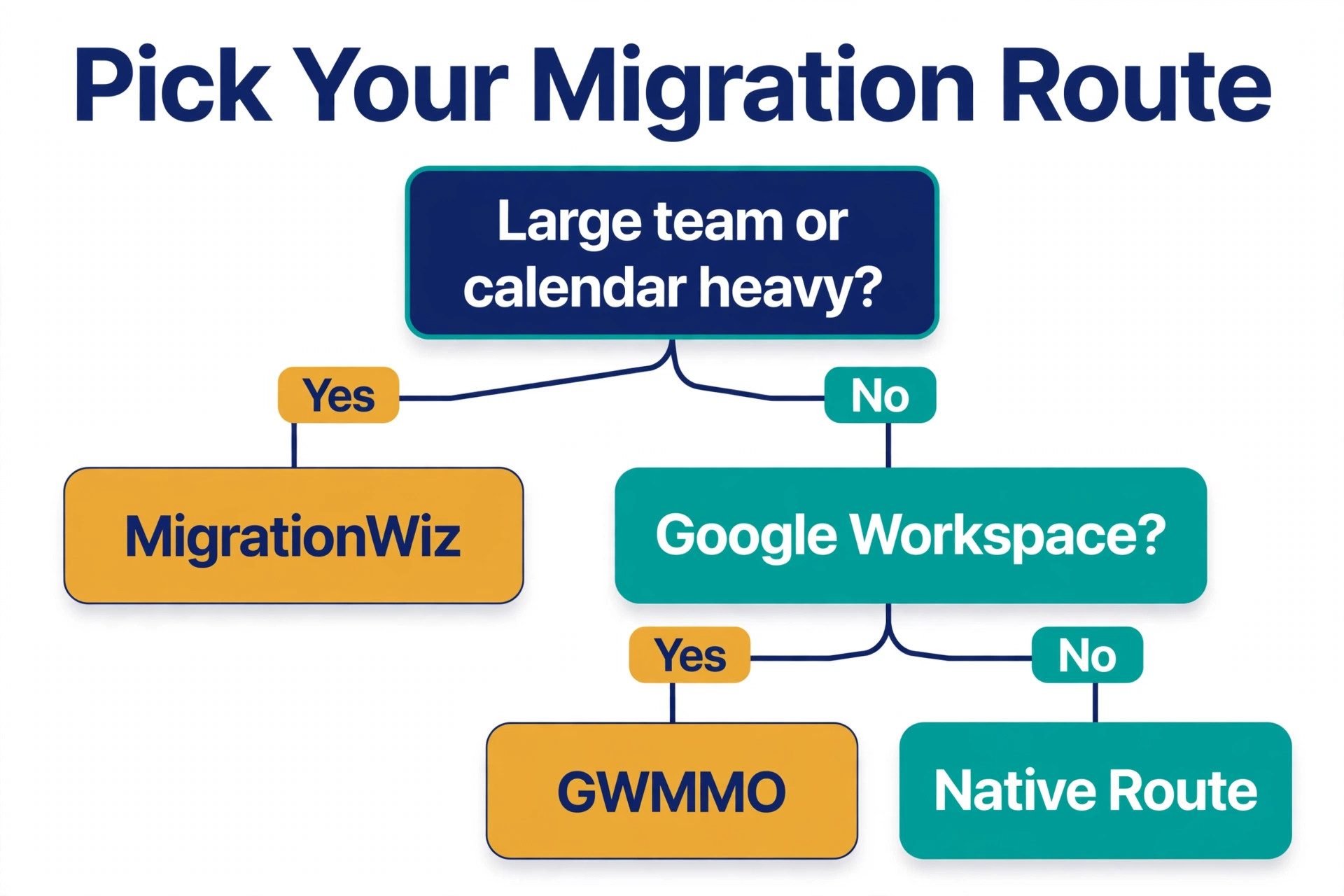
There are three practical routes, and the right one depends on mailbox count, mailbox size, and how much calendar and contact data must move cleanly. The route you pick when you migrate Gmail to Outlook business should match mailbox count, not marketing claims.
The native Exchange IMAP route uses the Exchange admin center to copy mail from Gmail over IMAP. It is included with Microsoft 365, it works well for small teams, and it suits email only moves. Its limits matter. It moves mail, not contacts, calendars, or Drive files, and published guidance for small organisations puts its comfortable range under about 150 users with simple requirements, with a practical limit of about 50 GB per mailbox. Folder structure beyond the top level can also flatten, which is why the mapping table later in this guide matters more on this route than on any other.
Google Workspace Migration for Microsoft Outlook, often shortened to GWMMO, is Google’s free tool for a per user move. Each user runs it, exports Gmail, contacts, and calendar data to an Outlook data file, and imports that file into Outlook. It suits a small team where each person can follow instructions and check their own result, and it is a poor fit for a large team, because it depends on individual action and gives the admin no central report. It also creates a local file that must be stored safely during the move, which is a security point to brief the team about before anyone starts.
Third party tools such as MigrationWiz are the standard choice for larger or messier moves. They run in the cloud, migrate mail, contacts, and calendars with reporting, support batch scheduling, and run a delta pass that picks up mail received after the first copy. That delta pass is the feature that makes a low downtime cutover possible. You pay per mailbox, and you still need to map labels and rebuild filters, but you get a central dashboard, error logs, and a repeatable process for 50 mailboxes that a manual route cannot match. If your team has shared calendars, delegated mailboxes, large archives, or a hard deadline, pay for the tool.
How to Migrate Gmail to Outlook Business With the Native IMAP Route
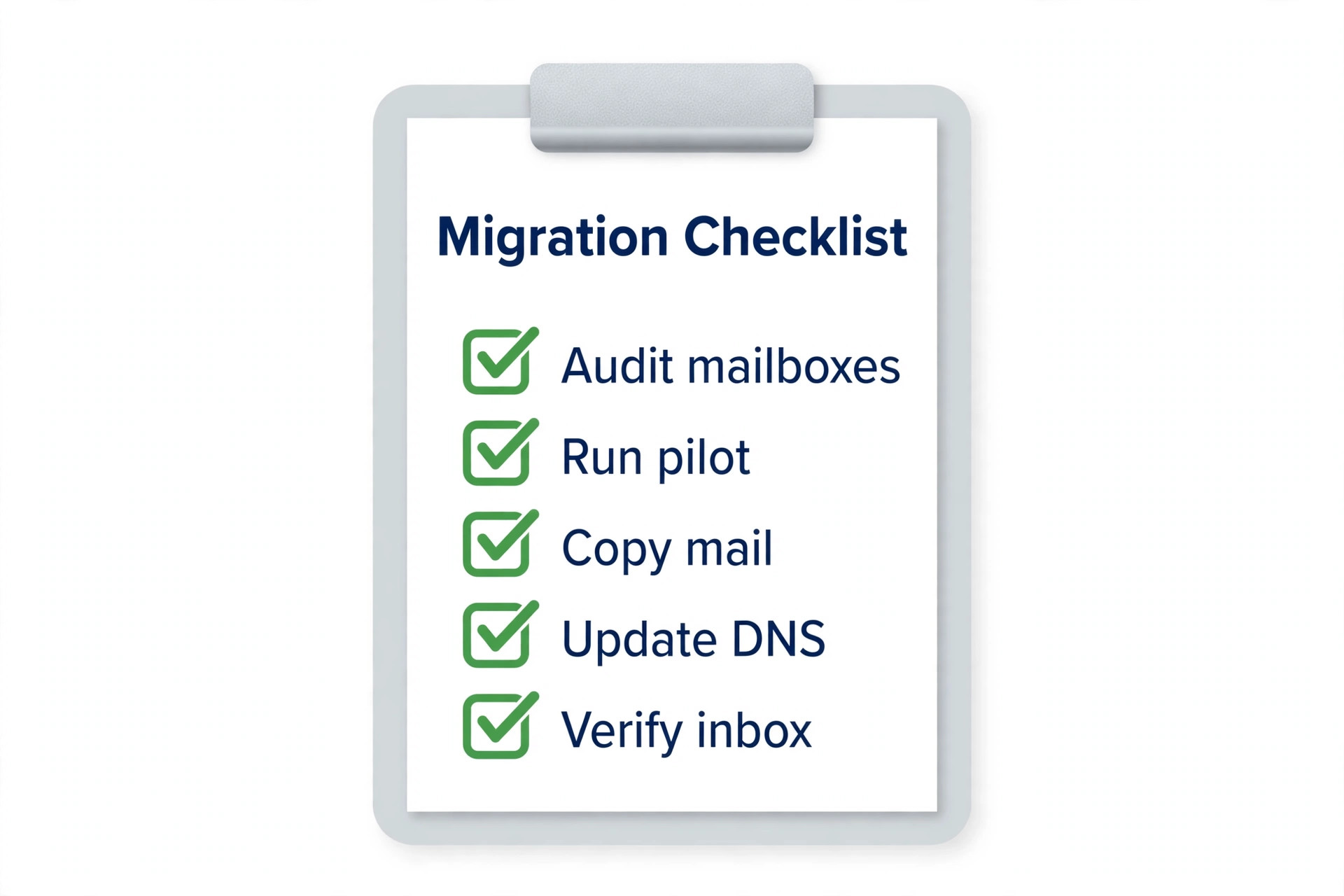
This section walks through the native route in detail, because it is the route most small teams will actually use, and because its steps show the logic that also applies when a paid tool does the copying. If you use MigrationWiz or another tool, keep the same order. Audit first, test with a pilot batch, copy in full, check, cut over, run a delta pass, and only then cancel the old service.
First, prepare Google. In the Google Workspace admin console, confirm IMAP access is enabled for the users in scope, and confirm that each user who has two step verification turned on has an app password for the migration. App passwords are sensitive. Collect them through a secure method, store them only for the migration window, and revoke them as soon as the move is verified. If your organisation uses security keys or advanced protection that blocks app passwords, test that early with one mailbox, because it changes the route you can use.
Second, run a pilot batch of two or three mailboxes that represent your real variety. Pick one light mailbox, one heavy mailbox with many labels, and one mailbox with shared calendars or delegation. Run the batch, wait for it to finish, and check the result against the mapping table before you touch the rest of the team. The pilot answers the questions that matter, such as how long a gigabyte takes on your connection, which labels flattened, and whether filters need rebuilding by hand. If the pilot fails, you have lost an afternoon, not a weekend.
Your Mailbox, Label, and Filter Mapping Table
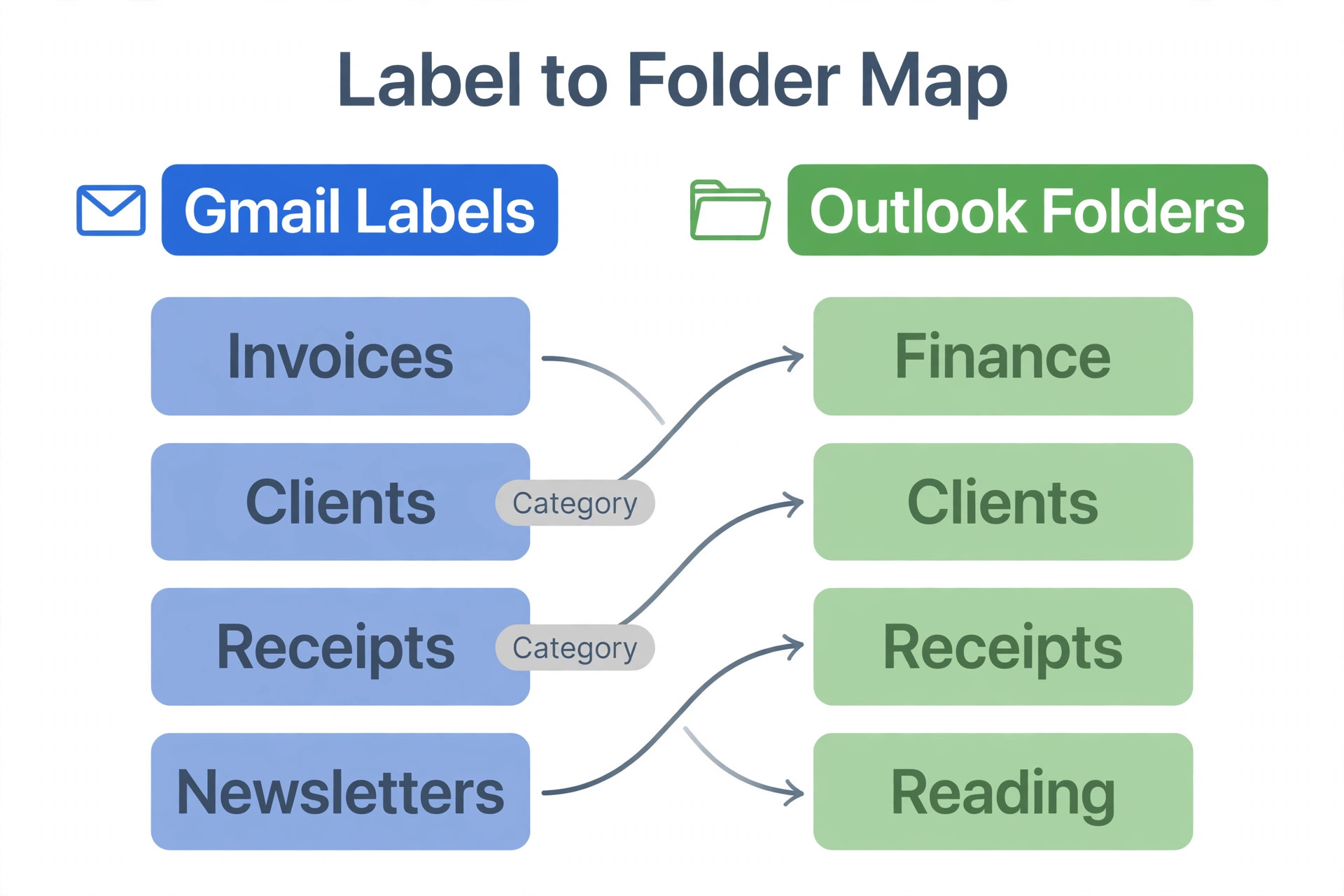
Gmail labels are not Outlook folders, even though they look similar. Deciding each home folder is the core work when you migrate Gmail to Outlook business, and it cannot be left to the import tool. A Gmail message can carry several labels at once, while an Outlook message lives in one folder, so a message labelled both Clients and Invoices must be given a home in Outlook, and the second label must become a category, a search folder, or a rule, not a second copy.
Decide that rule before you migrate, mailbox by mailbox, and write it in the table below. This table is the document that turns a vague move into a checkable one, and it is the first thing to hand to anyone who helps you.
| Gmail item | What it is used for | Outlook equivalent | Action before migration |
|---|---|---|---|
| Inbox | New and unfiled mail | Inbox | Keep as the working inbox, no rename |
| Starred | Mail to act on soon | Follow Up flag plus a Follow Up search folder | Flag the same threads after import, or use a category named Starred |
| Important | Gmail priority mail | Focused Inbox plus a category named Important | Review the list first, because Gmail importance is learned, not a rule |
| Sent | Sent mail | Sent Items | Confirm sent mail is included in the migration scope |
| Drafts | Unsent work | Drafts | Ask each user to finish or delete drafts, because drafts migrate poorly on some routes |
| Clients, nested under Work | Client threads by account | Folder Work, subfolder Clients | Create the folder tree in Outlook before import where the tool allows it |
| Invoices, also labelled Clients | Money threads needing a second view | Folder Invoices, plus category Clients | Pick one home folder, use a category for the second label |
| Support, shared label | Team queue mail | Shared mailbox Support, not a personal folder | Move this to a shared mailbox plan, not a personal migration |
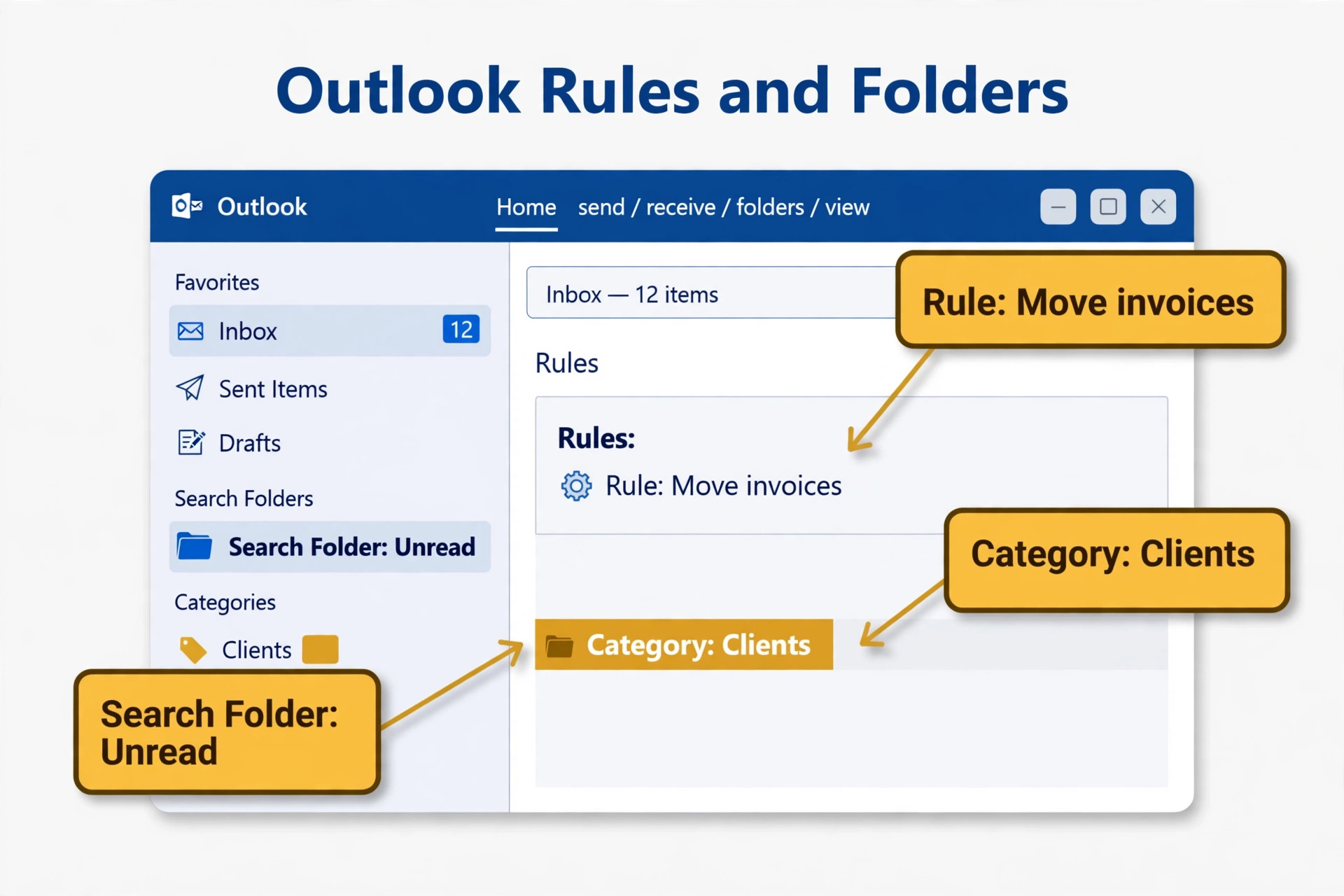
| Filters that file mail | Auto filing by sender or subject | Outlook rules | Rebuild each rule by hand and test with a test message |
| Filters that forward mail | Auto forwarding to a colleague or app | Outlook rules plus a forwarding address check | Rebuild and test, and confirm the destination still accepts forwarded mail |
| Filters that delete or archive | Bulk mail handling | Outlook rules with a sweep or archive action | Review first, because a bad delete rule in Outlook is harder to undo |
| Filters that apply a label | Tagging by sender, subject, or keyword | Outlook categories or rules that assign a category | List the keyword and the category side by side for testing |
| Snoozed mail | Mail hidden until a later date | Outlook snooze or a Follow Up date | Clear snoozes before migration, or re-snooze the same threads after import |
| Archived mail, no label | Old mail out of the inbox | Archive folder or an Online Archive | Confirm archived mail is in scope, and check its size against the mailbox limit |
The Downtime Plan That Keeps Mail Flowing
Downtime in a mail migration is rarely a total outage. A written plan is what lets you migrate Gmail to Outlook business without a day of split inboxes. Downtime is a window where mail is in two places, or where a sender gets a bounce, or where a user sees new mail in Gmail but not in Outlook, and replies from the wrong account. The plan below is designed to keep that window short, visible, and reversible, and it works for a team of five and for a team of 100, with the batch sizes changed.
| Phase | When | What happens | Who owns it | Rollback |
|---|---|---|---|---|
| Prepare | Two weeks before cutover | Audit, mapping table, pilot batch, licence and DNS checks | Admin plus one pilot user per team | No change to live mail, so no rollback needed |
| Pre-stage copy | One week before cutover | Full mailbox copy runs while Gmail stays live | Admin | Gmail stays live, copy can be rerun |
| Freeze changes | Cutover evening | Users stop creating new labels, filters, and calendar events in Gmail | Whole team, briefed in advance | Gmail stays live until MX change |
| Final delta sync | Cutover evening, after the freeze | Copy of mail received since the pre-stage copy | Admin | Gmail stays live, delta can be rerun |
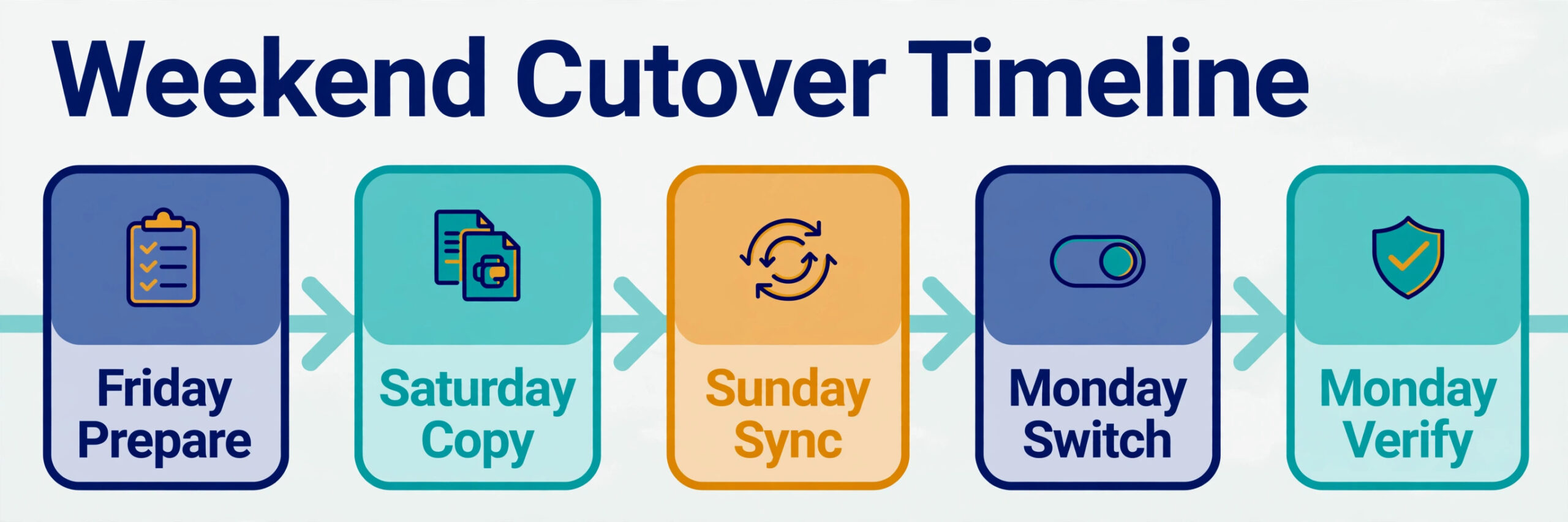
| MX switch | Friday evening or a low traffic window | MX records point to Microsoft 365, SPF and DKIM updated, DMARC checked | Admin plus DNS owner | Revert MX records to Google if mail flow fails |
| Propagation watch | First 4 hours after MX change, then 24 hours | Admin watches mail flow, bounces, and spam filtering | Admin | Revert MX records, Gmail still holds old mail |
| User switch | Saturday morning, or Monday morning for a weekend cutover | Users open Outlook, check rules, calendars, and contacts | Each user, with a one page guide | Users can still read Gmail until cancellation |
| Verify and close | One week after cutover | Counts, rules, calendars, and sender tests rechecked | Admin | Gmail kept for 30 to 90 days before cancellation |
Lower the TTL on your MX and related DNS records to 300 seconds at least 48 hours before cutover, so the change spreads quickly when you make it. A TTL of 3600 seconds or more means some senders will keep delivering to Google for an hour or longer after you switch, which is not a disaster if Gmail is still live, but it stretches the window where mail lives in two places.
After the switch, do not cancel Google immediately. Keep Gmail live for 30 to 90 days as a read only safety net, and keep forwarding or dual delivery off unless you have tested it, because dual delivery can create duplicate threads that confuse the team more than a short delay does.
Calendars, Contacts, and Drive
IMAP moves mail. It does not move calendars, contacts, or Drive files, and this is where native route plans most often fall short. That gap is easy to miss when you migrate Gmail to Outlook business, so give calendars and contacts their own checks. Plan each workload separately, with its own owner and its own check, rather than assuming the mail copy covers them.
For calendars, export and import is the simple route for a small team, and a migration tool is the cleaner route for shared calendars. Ask each user to list calendars they own, calendars shared with them, and calendars for rooms or resources. Room calendars and resource calendars need recreating in Microsoft 365, not just copying, because they carry booking rules. After import, check a recurring event, an all day event, and an event with an external guest, because those three break most often. External guests need a new invite from Outlook if the old Gmail invite still points at Google, so warn the team to re-send invites for key meetings in the first week.
Migration Helper Tools Compared
You do not need a large toolset for this move. You need one route that fits your size, and a clear reason for choosing it. Keep the choice simple when you migrate Gmail to Outlook business, and pick the route that fits your mailbox count. The three options below cover almost every small and mid sized business case, and the count is deliberately small, because a longer list would only delay a decision that should take an afternoon.
| Tool or route | Cost | Best for | Moves | Limit to watch |
|---|---|---|---|---|
| Exchange IMAP migration | Included with Microsoft 365 | Under about 150 users, mail only, simple labels | Mail only | About 50 GB per mailbox, contacts and calendars need a separate step |
| Google Workspace Migration for Microsoft Outlook | Free | Small teams where each user can run their own export | Mail, contacts, calendar to a PST file | Depends on user action, no central reporting |
| BitTitan MigrationWiz | About 14 dollars per mailbox, or about 17.50 dollars per user for the bundle | Larger teams, shared calendars, strict deadlines | Mail, contacts, calendars, documents with the bundle | Per mailbox cost adds up, and label mapping still needs your table |
The Cutover Weekend, Hour by Hour
A cutover weekend works best when it is written as a timetable, not as a vague intention to switch over the weekend. The timetable below assumes a Friday evening switch and a Monday morning team start, which suits most businesses. Shift it by a day if your low traffic window is different, but keep the order, because the order is what protects mail.
On Friday evening, run the final delta sync, then change the MX records to point to Microsoft 365. Update the SPF record to include Microsoft sending, set up DKIM signing in Microsoft 365, and check the DMARC record. DKIM and DMARC are not optional extras. Without them, your mail is more likely to land in spam or to be rejected, and clients will see the problem before you do. Use the official Microsoft and Google documentation for the exact record values for your domain, because a copied record from another domain will not validate.
After Cutover Checks for 30 Days
The first week after cutover is for fixing, and the next three weeks are for proving the move worked. Keep a simple log of every issue, with the mailbox, the symptom, and the fix, because patterns in that log tell you whether a rule, a calendar, or a sender needs a wider fix.
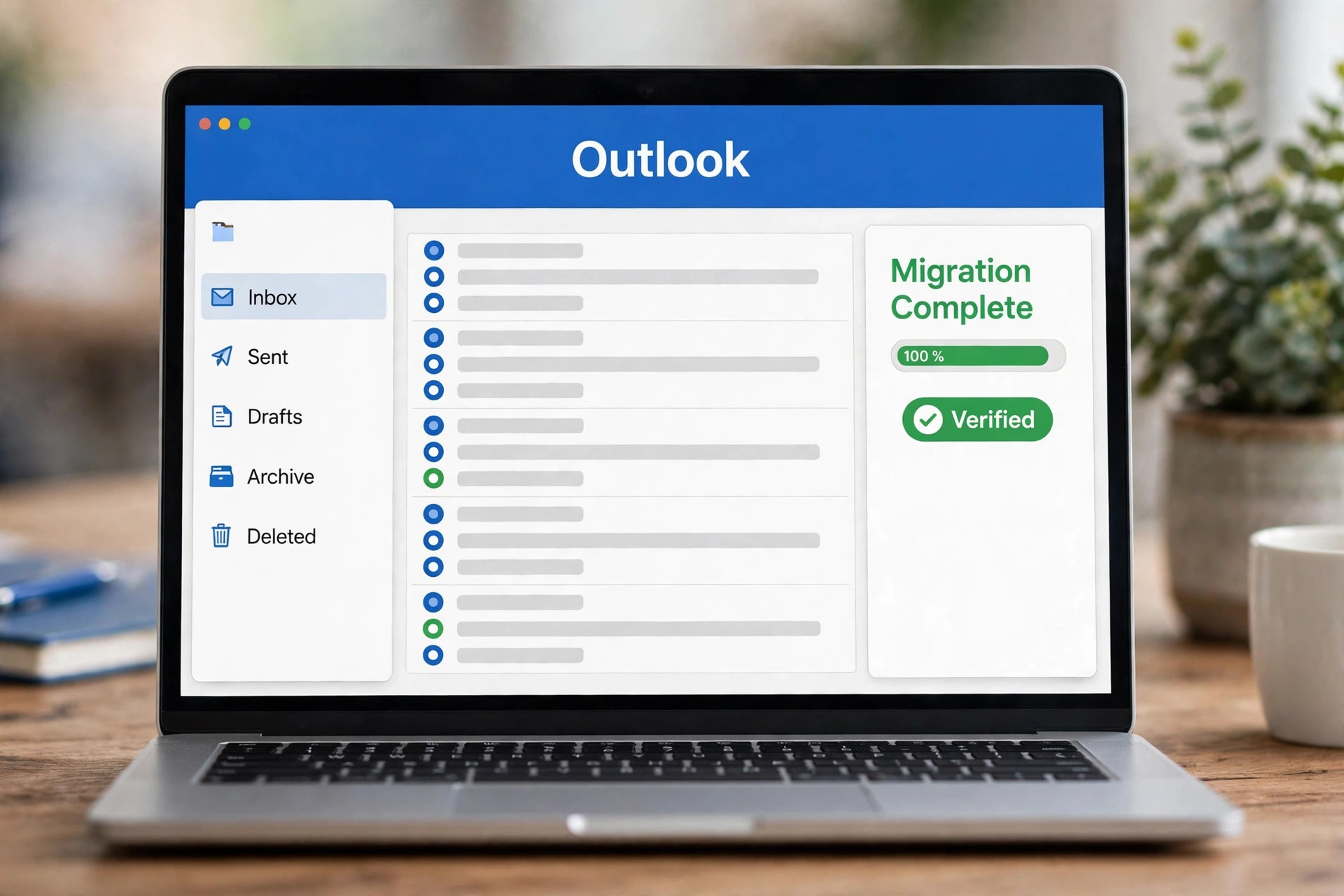
At day 30, make the cancellation decision for Google. If the log is clean, if counts match, and if no mail has arrived in Gmail for two weeks, you can cancel or downgrade Google. If any mailbox still has doubt, keep Google for another 30 days. The cost of one more month of Google is small compared with the cost of cancelling a mailbox that still holds the only copy of a client thread. When you do cancel, export a final archive first, store it securely, and record where it lives, because that archive is your safety net after the account closes.
Mistakes That Lose Mail
The first mistake is changing MX records before the copy finishes. Mail that arrives after the switch lands in Outlook, while older mail is still copying from Gmail, and the team sees a split inbox that looks like missing mail. Copy first, delta sync second, switch third, and keep that order even when the weekend feels tight. That order protects you when you migrate Gmail to Outlook business, even when the weekend feels tight.
The second mistake is trusting a tool status that says success without checking counts. A batch can report success for a mailbox that is missing a nested label or a large attachment, because the tool copied what it could reach and logged the rest as a warning nobody read. Read the warnings, compare counts, and sample threads. A ten minute sample per mailbox catches more problems than a dashboard that says 100 percent.
The third mistake is forgetting filters and forwarding. A filter that forwarded mail to a personal address, a filter that deleted mail from a mailing list, and a filter that marked mail as read all need a decision in Outlook. If you rebuild none of them, the team gets mail they used to filter out, misses mail they used to forward, and blames Outlook for a Gmail rule they set years ago. The mapping table exists to prevent this, but only if you actually fill it in.
The fourth mistake is cancelling Google too soon. A team that cancels on Monday, after a Friday switch, has no safety net when a calendar or a contact turns out to be missing on Wednesday. Keep Google for 30 to 90 days, keep it read only if you can, and tell the team that Gmail is still available for checking, not for sending. Sending from Gmail after cutover creates a second thread history that will never merge cleanly into Outlook.
For related reading, best AI email management tools covers tools that can help tame the new Outlook inbox once the move is done, AI tools for Gmail power users is useful background on the Gmail habits your team is leaving behind, and how to use AI to write better emails helps the team write clearer client mail in the new system. If the move is part of a wider switch to Microsoft tools, Slack vs Microsoft Teams helps you decide where team chat should live after mail moves.
Frequently Asked Questions
Will I lose mail when I move from Gmail to Outlook?
You should not lose mail if you copy first, run a delta sync, switch MX records after the copy, and verify counts before you cancel Google. Loss usually comes from changing MX records too early, from a label that flattened during import, or from cancelling Google before verification, and all three are preventable with the checklist in this guide.
How long does a business Gmail to Outlook move take?
A small team of five to ten mailboxes can pre-stage in a day or two, depending on mailbox size and connection speed, with a Friday evening cutover and a Monday morning start. Larger teams need a week or more for pre-staging, because the copy runs mailbox by mailbox and large mailboxes with many attachments take longer. The pilot batch gives you a real time per mailbox, which is a better estimate than any generic figure.
Do Gmail labels become Outlook folders automatically?
No, not cleanly. A migration tool or IMAP copy will usually create folders from labels, but a message with several labels needs a decision, because Outlook puts a message in one folder. Use the mapping table to pick a home folder for each label, and use categories or search folders for the second label, then test with real threads before cutover.
Do Gmail filters move to Outlook?
No. Filters do not migrate as Outlook rules. You must rebuild each filter as an Outlook rule, test it with a test message, and review old filters first, because a forgotten filter that deletes or forwards mail will cause confusing behaviour if it is rebuilt without review, and will cause missing mail if it is not rebuilt at all.
What happens to calendars and contacts?
Calendars and contacts need a separate step on the native IMAP route, because IMAP moves mail only. Export contacts from Google Contacts and import them into Outlook, rebuild contact groups as Outlook lists, and export or migrate calendars separately, checking recurring events, all day events, and external guests after import. A migration tool can handle calendars and contacts centrally, which is one reason larger teams choose it.
Should I cancel Google Workspace right after cutover?
No. Keep Google live for 30 to 90 days as a read only safety net, and cancel only after message counts match, rules and calendars check out, and no mail has arrived in Gmail for at least two weeks. Export a final archive before you cancel, store it securely, and record where it lives, so the team still has a safety net after the account closes.
Cut Over on a Friday, Breathe on Monday
A Gmail to Outlook move succeeds when it is boring. Audit the mailboxes, map the labels and filters, pick a route that fits your size, pilot with real mailboxes, copy in full, switch DNS in a planned window, verify mailbox by mailbox, and keep Google alive until the log is clean. That is more work than clicking a migration button, but it is the work that stops a client mail from vanishing and a team from losing trust in the new system on day one.
Start this week with the inventory, not with the MX change. List the mailboxes, fill in the mapping table for one pilot user, and run that pilot. If the pilot checks out, the rest of the move is a repeatable process, and Monday morning will feel like a normal working day with a new inbox, not a recovery operation. That calm Monday is the real test of the move, and it is worth the extra week of preparation to get it.