
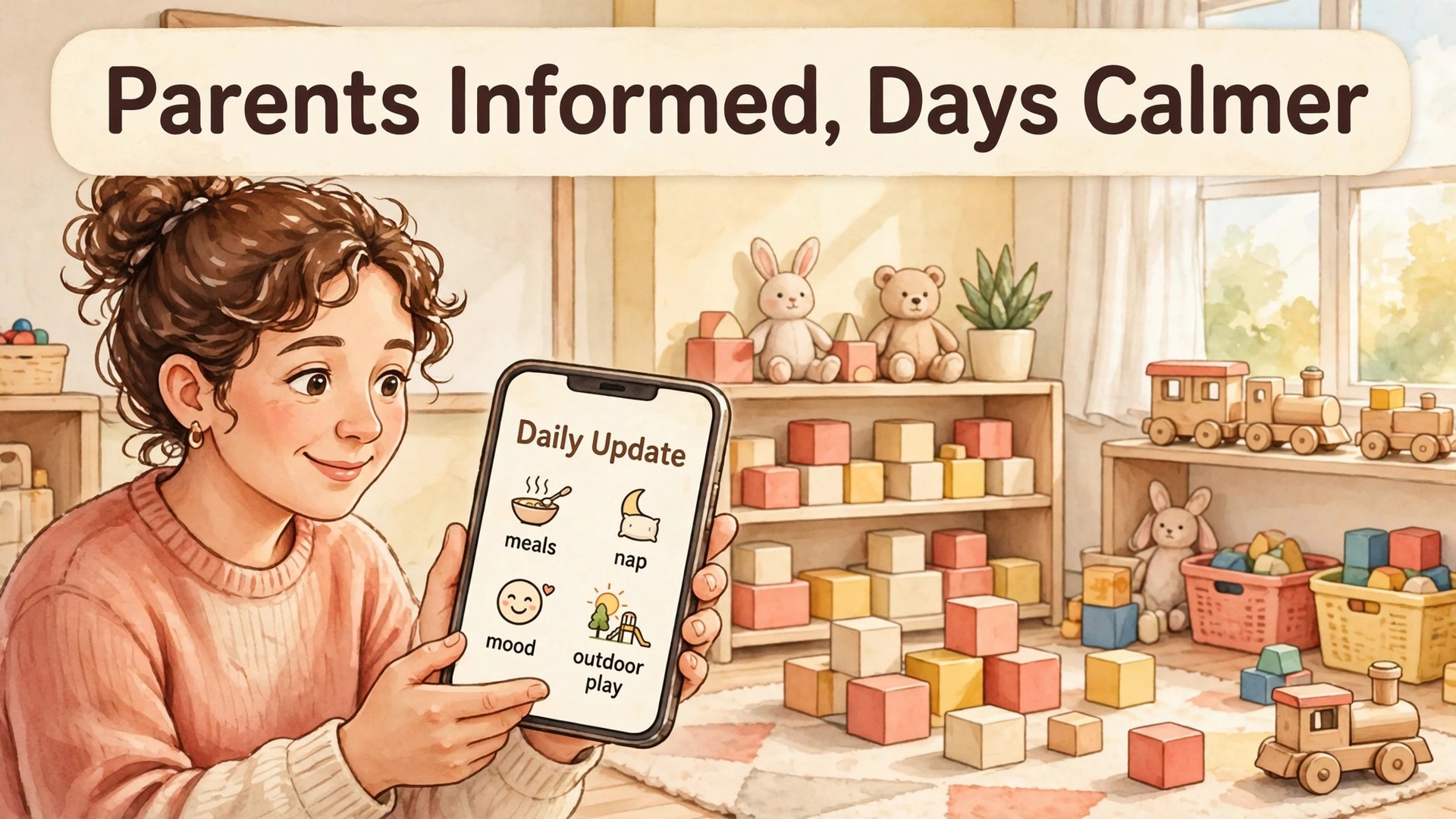
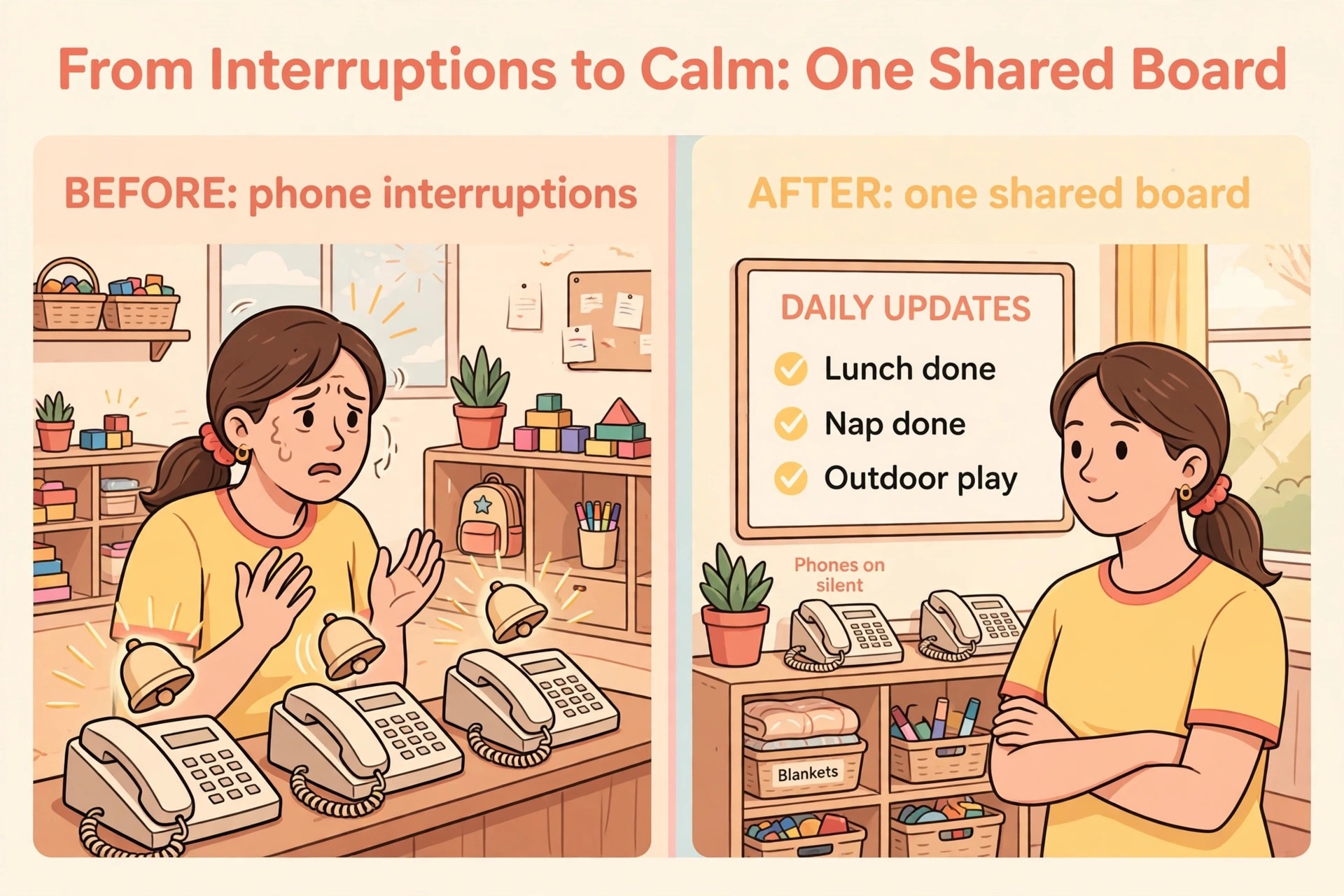
A good daycare parent communication system setup starts with a familiar problem. Parents call during the day because they do not know how their child is doing, staff stop what they are doing to answer, and the same questions come back at pickup time. The phone rings while a teacher is settling a toddler for a nap, a parent waits for a call back about a rash, and another parent asks at the door whether lunch was eaten. None of these parents is being difficult. They are filling a gap left by a system that tells them too little, too late, or in too many places at once.
This guide closes that gap with one channel for daily updates, one rule for photos, one habit for billing notes, and one separate route for emergencies. It is written for a single daycare, a small preschool, or a home-based program that wants fewer phone calls, calmer pickup times, and parents who trust what they hear. You will compare real tools and their published starting points, set up each message type in order, and finish with a checklist and a daily update template you can use from tomorrow morning.
Why Parent Calls Pile Up During the Day
Most daycare phone traffic is not urgent. It is a parent checking on a nap, a meal, a mood, or a minor bump, and each call interrupts care. When five families call in one morning, teachers lose the thread of the room. They answer from memory, guess at a detail, or promise to check and then forget in the rush of lunch. Parents sense the uncertainty and call again the next day, which makes the pattern worse.
How a Daycare Parent Communication System Setup Actually Works
A daycare parent communication system setup is a set of decisions, not a single app purchase. You decide what parents hear each day, who sends it, when it goes out, which tool carries it, and what happens when something urgent occurs. The app matters, but the habits around it matter more, because a powerful tool with no routine produces the same silence as no tool at all.
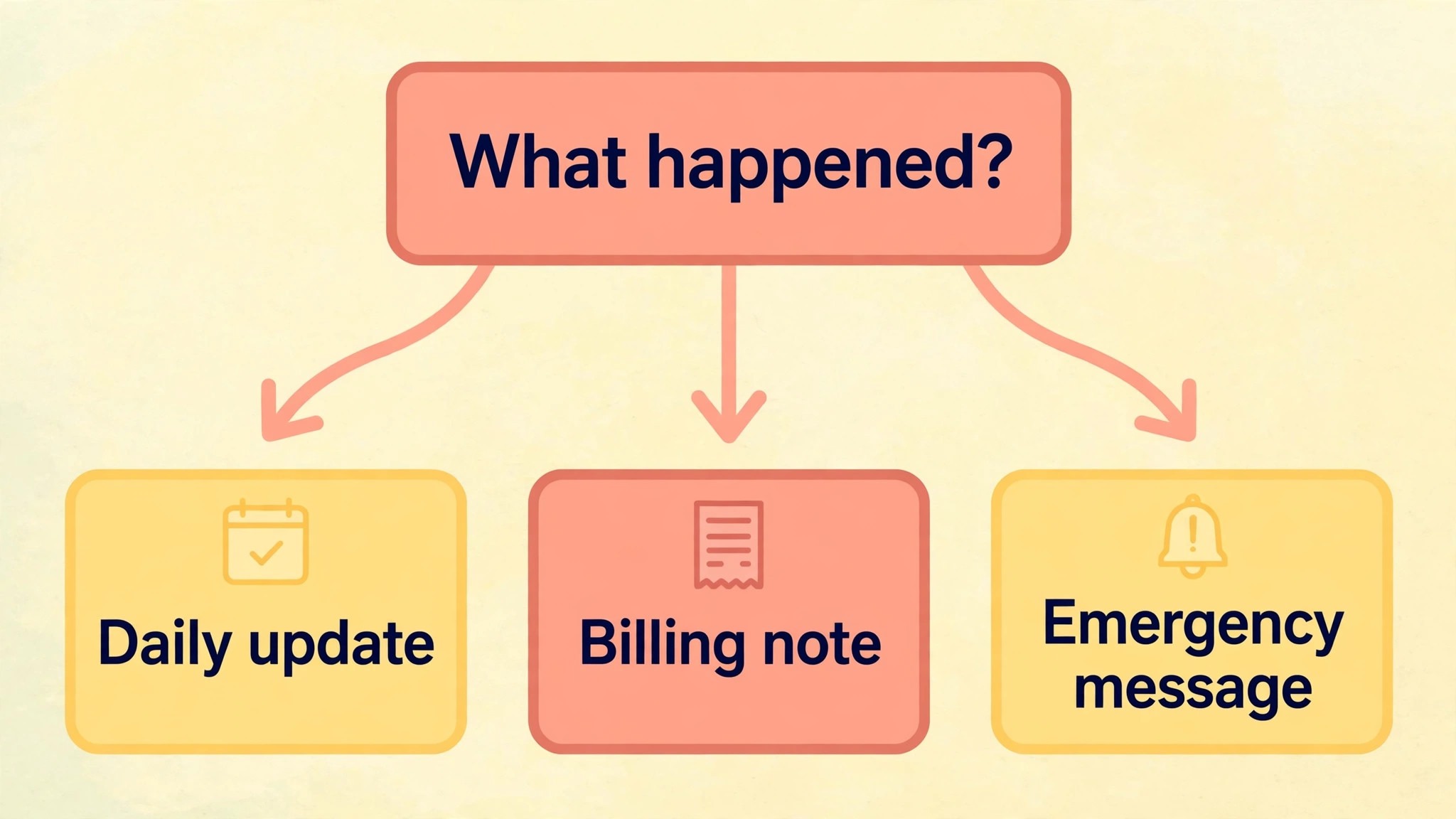
Start by naming four message types and keeping them separate. Daily updates cover meals, naps, toileting, mood, and activities. Photos show moments from the day and support the written update. Billing notes cover fees, due dates, late charges, and payment confirmations. Emergency messages cover closures, illness outbreaks, accidents, and pickup changes. When these four types share one unstructured chat thread, billing questions bury nap updates and urgent alerts drown in photo comments. Separation is what keeps the system calm.
Choose Your Channels Before You Choose Your Tool
Many programs buy software first and then discover that half their families never open it. Reverse the order. Ask families how they actually receive news, and design around the answer. A short paper survey at enrolment, or three questions at pickup over one week, gives you enough to decide. Ask which device they check most, whether they read email or app alerts faster, and whether they need messages in another language.
Set response-time promises you can keep, and write them down. A useful starting point is routine messages answered within one working day, billing questions answered within two working days, and urgent messages answered as soon as a staff member can safely step away from children. Publish these promises in the parent handbook and repeat them at enrolment. Parents accept a slower reply when they know the wait in advance, but they grow frustrated when they expect an instant answer and hear nothing.
Language and access need attention from day one. If some families share one phone, or a grandparent handles pickup, make sure more than one contact can receive updates for a child. If families speak different home languages, check whether your platform offers translation or whether you need a short translated welcome sheet for the main routines. A daycare parent communication system setup that only works for the most connected families will push the rest back to phone calls, which defeats the purpose. Also decide what never goes in writing through the app. Sensitive health details, safeguarding concerns, and complaints about another child belong in a private conversation, not a message thread that can be screenshotted and forwarded.
Compare Daycare Communication Tools Honestly
Pricing in this market is hard to compare because several leading vendors do not publish a flat rate. Treat any single figure as a starting point, get a written quote for your exact enrolment, and check what payment processing fees sit on top of the subscription. The figures below come from vendor pages and comparison guides checked while writing this guide, and they are described that way on purpose. A price you cannot verify on the vendor’s own page should not decide your choice.
Brightwheel is the best-known name in this space, and its structure shows why quotes matter. Its basic free plan covers small programs with fewer than 20 students and one staff member, including daily reports, photo sharing, tuition invoicing, and direct deposit. Its Premium plan, which adds family messaging, online forms, waitlist management, ratio tracking, and live support, is priced per program by quote, with no published price list. Brightwheel also runs state-funded partnerships that make the full platform free for eligible providers in Kentucky, Iowa, and Texas, so check your state’s program before you budget anything.
MyKidReports takes the opposite approach and publishes its rate openly. It is free for up to five children and then costs 99 cents per enrolled child per month, with a free parent app. That model suits a home-based provider or a very small centre, because the bill grows only as enrolment grows. For a 40-child program, the maths is simple enough to check in one minute, which is a real advantage over a quote you must wait days to receive.
| Tool | Published starting point | Best fit |
|---|---|---|
| Brightwheel | Free plan under 20 students, Premium by quote | Small to mid-size centres that want polished parent communication |
| MyKidReports | Free up to 5 children, then 99 cents per child per month | Home-based and very small programs |
| Procare | Around 69 dollars per month in comparison guides, confirm by quote | Large centres and multi-site operators |
| Lillio | Quote only | Curriculum-led preschools |
| Playground and Famly | Around 49 to 50 dollars per month in comparison guides | Operators that want flat pricing and automation |
| Illumine | From about 1 dollar per student per month in comparison tables | Centres that want communication in every plan |
Run a two-week trial with real rooms, not a demo with sample children. Load two rooms, send real updates for ten working days, and ask three questions at the end. Did teachers finish updates inside the time you allowed. Did parents open and reply in the app instead of calling. Did billing notes and photos stay in the right places. A tool that fails any of those three in a trial will fail worse at full enrolment, no matter how good the sales demo looked. Watch for three hidden costs during the trial. First, payment processing fees on card and bank payments, which sit outside the subscription on most platforms.
Second, add-on charges for curriculum content, payroll connections, or extra reporting. Third, the staff time cost of a tool that needs many taps per update. A daily report that takes eight minutes per child will not survive a room of twelve toddlers.
Set Up Daily Updates Parents Actually Read
A daily update has one job, which is to answer the questions parents would otherwise call about. That means meals, naps, toileting, mood, and one activity note, in that order, every day, in the same format. Parents learn where to look, teachers learn what to record, and pickup conversations get shorter because the basics are already covered.
Write updates in plain words and short sentences. A useful update says that a child ate most of their lunch, napped from 12.30 to 2 pm, played outdoors, and seemed happy at pickup time. It does not need adjectives, and it does not need a paragraph about child development theory. Parents read these updates on a phone while doing something else, so clarity beats length every time.
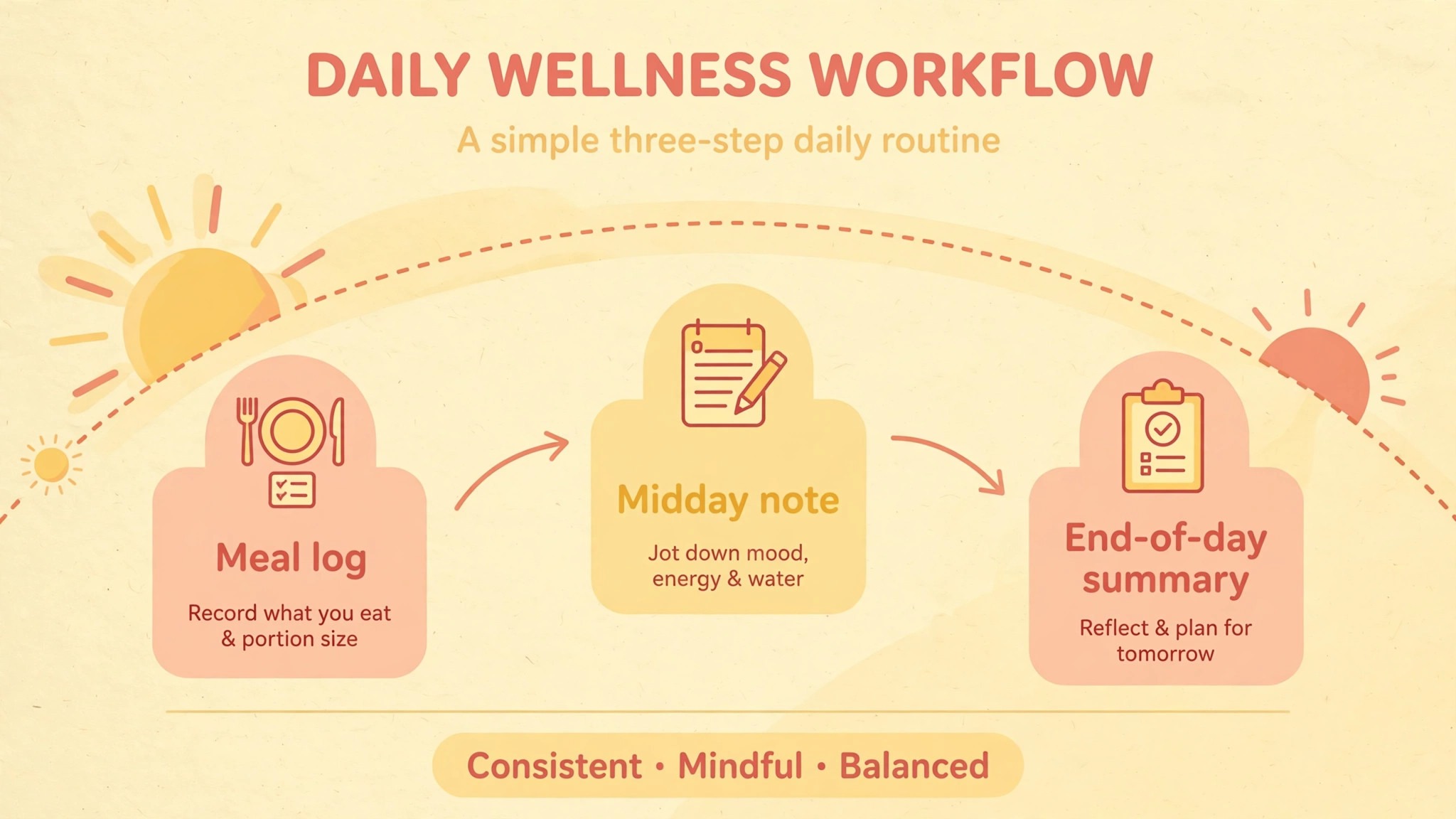
Set a realistic posting rhythm per room. One midday note and one end-of-day summary works for most rooms. The midday note can be two lines, covering lunch and mood so far. The end-of-day summary completes the record with nap, toileting, and activities. Infant rooms may need more frequent feeding and nappy notes, while preschool rooms can lean on one strong end-of-day summary with an activity note. Whatever rhythm you choose, keep it the same for a full month before judging it, because parents need time to trust it.
Photos are the most loved part of parent communication and the easiest part to get wrong. A photo of a child eating lunch reassures a parent in seconds, but a photo shared to the wrong audience, or kept on a staff member’s personal phone, creates a problem that no later apology fully fixes. Build photo rules before the first picture goes out.
Start with written consent for every child, collected at enrolment and renewed each year. The form should cover four separate permissions, because families often agree to one and not another. Those four are photos sent privately to the child’s own family, photos used inside the centre such as displays, photos used in group shots where other children appear, and photos used publicly such as on a website or social page. A family that says yes to private updates and no to public use has given a clear answer, and staff must be able to see that answer in seconds when choosing a photo.
Train staff on group photos specifically, because they cause most consent mistakes. A group shot is only safe to share with a family when every child in it has consent for that use, or when other children are cropped or blurred out. Many centres solve this by sending individual photos as the default and using group photos only for centre-wide moments where consent is already confirmed. When in doubt, do not send the photo. A missing photo disappoints one parent briefly, while a wrongly shared photo breaks trust with a family for a long time.
Never use personal phones for centre photos if you can avoid it. A centre tablet or a shared device, logged into the centre account, keeps photos inside the system and off personal camera rolls, messaging apps, and cloud backups. If a personal phone must be used in an emergency, require immediate transfer to the centre account and deletion from the device, and write that rule down. Also check whether your platform strips location data from uploaded photos, and if it does not, use a setting or a workflow that removes it before sharing.
Write Billing Notes That Prevent Awkward Conversations
Billing messages fail for a different reason from daily updates. Parents rarely complain about the amount itself first. They complain about surprise, about a charge they did not expect, about a due date they never saw, or about a late fee that arrived without warning. A billing note system that removes surprise will cut more arguments than any discount or payment plan.
Send billing notes on a fixed schedule, and keep them separate from daily updates. A useful rhythm is an invoice note when the bill is issued, a friendly reminder three days before the due date, a same-day note if payment is missed, and a clear statement when a fee changes. Each note should carry the amount due, the due date, what the charge covers, and how to pay, in that order. A parent should never have to reply asking what a charge was for, because that reply starts the argument.
Write billing notes in neutral, factual words. State the charge, the period it covers, and the next step, and leave emotion out of it. If a family falls behind, move the conversation to a private call or meeting quickly, because a payment thread in an app is a poor place to discuss hardship. Handle fee changes with extra care, and give at least a month of notice where your contract allows. A fee change note should state the old amount, the new amount, the date it starts, and one plain sentence about what the change supports, such as staffing ratios or food costs. Parents accept increases they understand and resent increases that arrive as a single line on an invoice.

Send Emergency Messages That Work Under Pressure
Emergency messages need a different design from everything else in this guide, because they are read under stress and acted on quickly. A closure notice, an illness outbreak alert, a pickup change, or an accident report must be short, unmistakable, and sent through the fastest channel you have, not the prettiest one.
Write emergency templates in advance, when nobody is under pressure. A closure template needs the reason in one line, the dates affected, what parents should do, and where updates will appear. An illness template needs the symptoms to watch for, the exclusion rule, and the return condition. A pickup change template needs the child’s name, the authorised person, the time, and a confirmation step. An accident template needs what happened in plain words, what care was given, and whether the parent needs to collect the child or seek medical advice. Keep each template under 80 words, because a long message gets skimmed at the worst moment.
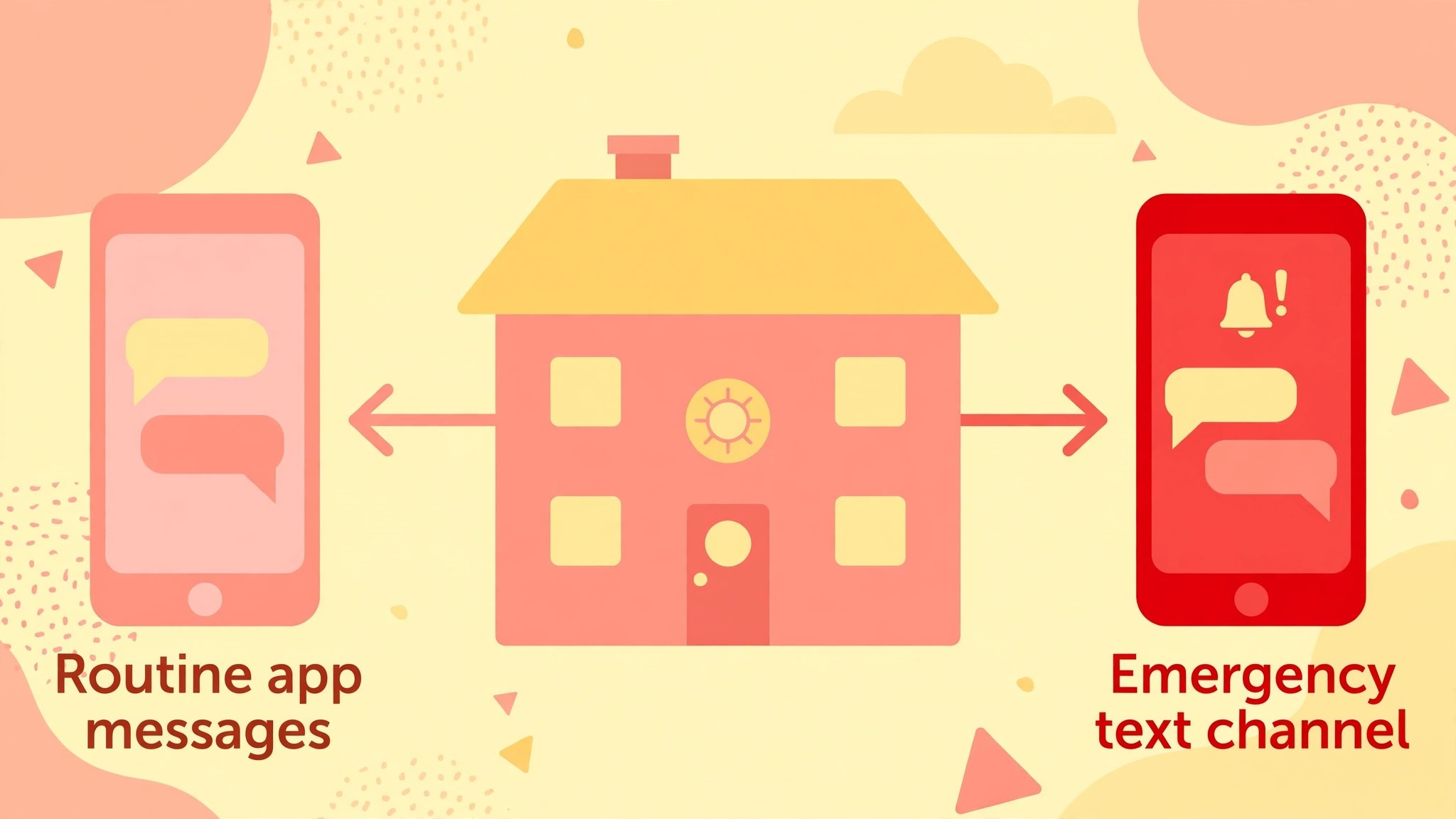
Choose the emergency channel by speed, and test it twice a year. If text messaging reaches parents faster than your app, use text for emergencies and use the app for the follow-up detail. If some families have poor mobile signal at work, add a phone call step for the most serious cases, such as a child needing collection. Record which channel each family prefers for emergencies at enrolment, and update it whenever a phone number changes, because an emergency system built on old numbers is no system at all.
The Setup Checklist
This checklist turns the advice above into a sequence you can tick off room by room, and it is the core of a daycare parent communication system setup that actually launches. Work through it in order, and do not launch to all families until the first seven items are complete. A partial launch, where some rooms post and others do not, teaches parents that the system is unreliable, and that lesson is hard to undo.
- Name the four message types for your centre, daily updates, photos, billing notes, and emergency messages, and write one paragraph each in the parent handbook.
- Choose one main channel for routine messages and one separate channel for emergencies, and record both in the handbook.
- Collect written photo consent for every child, covering private family sharing, centre displays, group shots, and public use as four separate answers.
- Assign one owner per message type per room, plus a named deputy, and post the roster where staff can see it.
- Set sending windows for midday updates, end-of-day summaries, and billing notes, and publish the response-time promises for each type.
- Choose your platform with a two-week trial in real rooms, and confirm the full cost including payment processing fees and add-ons in writing.
- Load every child, family contact, allergy, and pickup authorisation into the platform, and check the data against paper records before launch.
- Write the emergency templates for closure, illness, pickup change, and accident, and test the emergency channel with all families.
- Train staff on the photo rules, the private-topic boundary, and the daily update format, with examples of a good update and a weak one.
- Onboard families in small groups, checking that each family can log in, receive a test message, and find their child’s record before their start date.
- Run the system for one room first for a full week, fix the problems that appear, and only then roll out to the remaining rooms.
- Review the system after 30 days using the measures in the later section, and adjust sending windows, owners, or templates based on what parents actually opened and answered.
Keep the completed checklist with your enrolment records, and revisit it whenever you change platform, open a new room, or hire a new lead teacher. A system that lives only in one director’s head will not survive staff turnover, while a written checklist survives it easily.
A Daily Update Template You Can Copy
Copy the template below into your platform, adapt the room details, and use the same structure every day. Consistency is the point. Parents learn the layout once and then scan it in seconds, while teachers stop wondering what to include.
Good morning note, sent in the midday window. Today your child settled well this morning and played outdoors before lunch. Lunch was eaten with enthusiasm, with most of the main meal finished and water offered throughout the morning. Mood so far is happy and settled, and we will share the full day summary before pickup.
End-of-day summary, sent before pickup. Meals today included a full lunch and an afternoon snack, with water available all day. Nap ran from 12.30 to 2 pm and was settled throughout. Toileting followed the usual routine with no concerns. Activities included outdoor play, block building, and story time. One moment worth sharing is that your child helped a friend tidy the blocks and chose a picture book to share at story time. Tomorrow we plan outdoor play in the morning and painting in the afternoon, weather permitting.
Billing note, sent with each invoice. Tuition for the coming two-week period is due on the first of the month. The amount covers care, meals, and activities for that period as set out in your enrolment agreement. You can pay by bank transfer or card through the link below. If anything in this invoice looks different from what you expected, reply here before the due date and we will check it with you.
Adapt the wording for infants, toddlers, and preschoolers, but keep the order of information the same. A parent with children in two rooms should be able to read both updates the same way, without learning a new layout per room. Save the template in the platform itself, not in a personal document, so a covering teacher can use it without asking the lead teacher for a copy.

Train Staff and Onboard Families in Week One
A daycare parent communication system setup fails most often in week one, not in month six, because staff were never shown the system properly and families were never helped to log in. Treat training and onboarding as part of the launch, with time booked for both, rather than as an afterthought squeezed around care duties.
Train staff in two short sessions, not one long one. The first session covers the daily update format, the photo rules, and the private-topic boundary, with staff writing a practice update from a sample day and receiving feedback on it. The second session covers billing notes, emergency templates, and what to do when a parent replies with a complaint or a sensitive question. Give every staff member a one-page crib sheet with the sending windows, the owners, and the response-time promises, and keep a copy in each room for the first month.
Onboard families in small groups of five to eight, ideally in the week before a child’s start date. Walk each group through logging in, finding their child’s record, turning on alerts, and replying to a test message. Check completion the next day, and call any family that has not finished, because a family that cannot log in will revert to phone calls on day one. For families with limited English or limited phone access, offer a one-to-one walkthrough and a printed welcome sheet in plain words, and record their preferred emergency channel separately.
Measure It and Fix What Parents Ignore
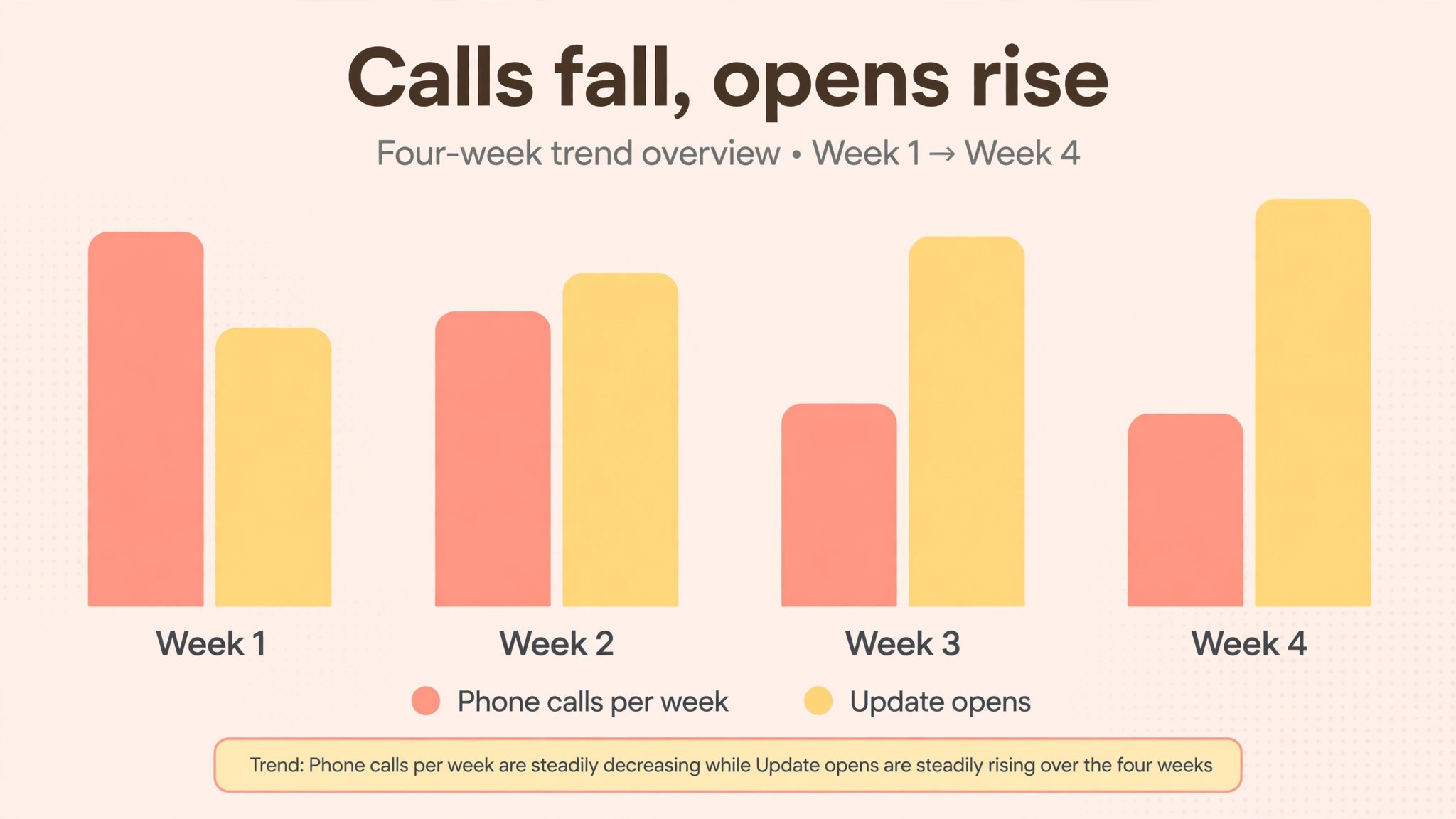
After 30 days, judge the system on evidence, not on whether staff feel it is working. Pull four simple measures from your platform and from pickup conversations, and act on what they show. First, the share of families that opened the end-of-day summary in the last week. Second, the number of routine phone calls per week compared with the month before launch. Third, the number of updates sent late or missed per room. Fourth, the number of billing questions that arrived after an invoice, and what they were about.
If open rates are low, the problem is usually timing, length, or login trouble, not parent interest. Try moving the end-of-day summary 30 minutes earlier, shortening it by a third, or rechecking login completion for the families that never open anything. If phone calls have not fallen, ask parents at pickup what they still call about, and add exactly that information to the update. A common gap is toileting or nap detail for toddlers, which takes one extra line to fix.
For related reading, best AI tools for daycares puts this system in a wider context, showing which daycare tools combine communication with attendance and billing. If your team also struggles with staff messaging, best team communication software covers internal channels that keep centre messages separate from parent messages. And when billing grows complex, best CRM software for small business helps you compare enrolment and family record tools that sit alongside a parent communication platform.
Frequently Asked Questions
How much does a daycare parent communication app cost
Costs vary widely because several leading vendors price by quote, so a daycare parent communication system setup budget should start with a written quote, not a single advertised figure. Brightwheel offers a free plan for programs under 20 students, with Premium priced per program. MyKidReports is free for up to five children and then costs 99 cents per enrolled child per month. Comparison guides put most centres between 50 and 400 dollars per month, depending on size and features. Confirm payment processing fees and add-ons before you commit, and run a two-week trial in real rooms first.
How many updates should parents get each day
One midday note and one end-of-day summary works for most rooms. Infant rooms may need more frequent feeding and nappy notes, while preschool rooms can rely on one strong end-of-day summary with an activity note. The key is a predictable rhythm that parents can rely on, rather than a stream of real-time posts that teachers cannot sustain. Keep the same rhythm for a full month before judging it.
That depends on your policy and on consent. Photos sent privately to a family are for that family, but a group photo may include other children whose families did not agree to public sharing. State this clearly in your photo policy, ask families not to post group photos publicly, and use individual photos as the default. If a family withdraws consent, stop future sharing immediately and record the date.
What should we do when a parent only ever calls instead of using the app
Start by checking whether they can log in and receive alerts, because login trouble is the most common cause. Offer a one-to-one walkthrough, check their emergency contact details, and confirm the update times with them directly. If they still prefer calling, agree a simple compromise, such as one short call at an agreed time each week, while routine news stays in the app. Most parents switch once the app proves reliable for a fortnight.
How do we handle billing questions without arguments
Keep billing notes separate from daily updates, send them on a fixed schedule, and include the amount, the due date, what the charge covers, and how to pay. Give at least a month of notice for fee changes, showing the old and new amounts side by side. Move any family that falls behind to a private call or meeting quickly, rather than discussing hardship in a message thread. Clear notes prevent most arguments before they start.
What makes a good emergency message
A good emergency message is short, sent through the fastest channel, and written from a template prepared in advance. It states what happened in plain words, what parents should do, and where the next update will appear, all in under 80 words. Only the director or a named deputy should send centre-wide alerts, so parents never receive two versions of the same event. Test the emergency channel twice a year to catch dead numbers and unfinished onboarding.
What Good Looks Like After 30 Days
After 30 days, a good daycare parent communication system setup feels quiet in the best sense. The phone rings less during care hours, pickup conversations focus on the child rather than on missing information, and teachers finish updates inside the time allowed for them. Parents open the end-of-day summary because it reliably answers their questions, and they trust the billing note because it never surprises them. That quiet is the measure that matters, more than any feature list or app rating.
The next step is small and concrete. Pick your main channel this week, collect photo consent for one room, and run the daily update template in that room for five working days. Watch what parents open, what they ask at pickup, and how long updates take to write. Then fix one problem, roll out to the next room, and repeat. In a month you will have a system built on evidence from your own rooms, not on a demo, and that is a system your staff will actually keep using.