
Your team did not choose Zoho CRM by accident. It was affordable, it covered contacts and deals, and it bent to fit the way you already worked. The problem usually shows up later, when reporting gets tangled, custom modules pile up, and every new hire needs a week just to understand where a deal actually lives. If that sounds familiar, the decision to switch Zoho CRM to HubSpot small business owners keep weighing is worth taking seriously, because the cost of staying is rarely the subscription. It is the hours lost to workarounds.
This guide walks through the move the way a careful migration actually happens. You will see what exports cleanly, what has to be rebuilt by hand, how to keep deal history attached to the right people, and what the first week after cutover should look like. No step here assumes a large IT team. It assumes one owner or operations lead, a few salespeople, and a normal workload that cannot stop for a month.
Why Small Teams Start Looking for the Exit
Zoho CRM rewards teams that like to configure. Custom modules, layouts, workflow rules written in Deluge, and blueprint processes give a small business a system shaped exactly like its sales process. That flexibility is also the trap. Each custom module adds a mapping decision later. Each workflow rule adds something that must be rewritten, not transferred. By year two or three, many teams run a CRM that only one person fully understands.
HubSpot appeals for the opposite reason. Its data model is flatter and more opinionated. Contacts, companies, deals, and tickets sit at the center, and marketing, sales, and service tools share the same records. Teams that switch usually want fewer decisions, not more features. They want a new hire to open a deal and understand it in two minutes, and they want reports that do not need a spreadsheet rescue.
There is a real trade to weigh. HubSpot charges per seat on paid tiers, and costs climb as the team grows, so confirm current pricing on the vendor page before you commit. Zoho often wins a pure price comparison, especially inside the wider Zoho bundle. The case for moving is operational, not financial. You move when the time your team spends fighting the system costs more than the price gap.
A useful test is to count the workarounds. If your team keeps a side spreadsheet for pipeline reviews, if deal stages mean different things to different reps, or if onboarding a new rep takes more than a few days because of CRM quirks, the system is no longer serving the process. Those are the signs that a migration will pay back, and they are also the problems a migration must fix rather than copy over.
There is one more signal worth watching, and it is easy to miss. When you switch Zoho CRM to HubSpot small business reporting usually improves fastest in the first month, because HubSpot reports read directly from deal and contact records instead of from a patchwork of modules. If your Monday pipeline meeting currently starts with someone reconciling three reports, that meeting alone may justify the move. Time spent reconciling reports is time not spent selling, and it compounds every week.
For a broader view of how HubSpot compares as a general small business CRM, see our guide to the best CRM software for small business. It puts HubSpot in context against the field rather than against Zoho alone.
What Moves Cleanly and What Has to Be Rebuilt
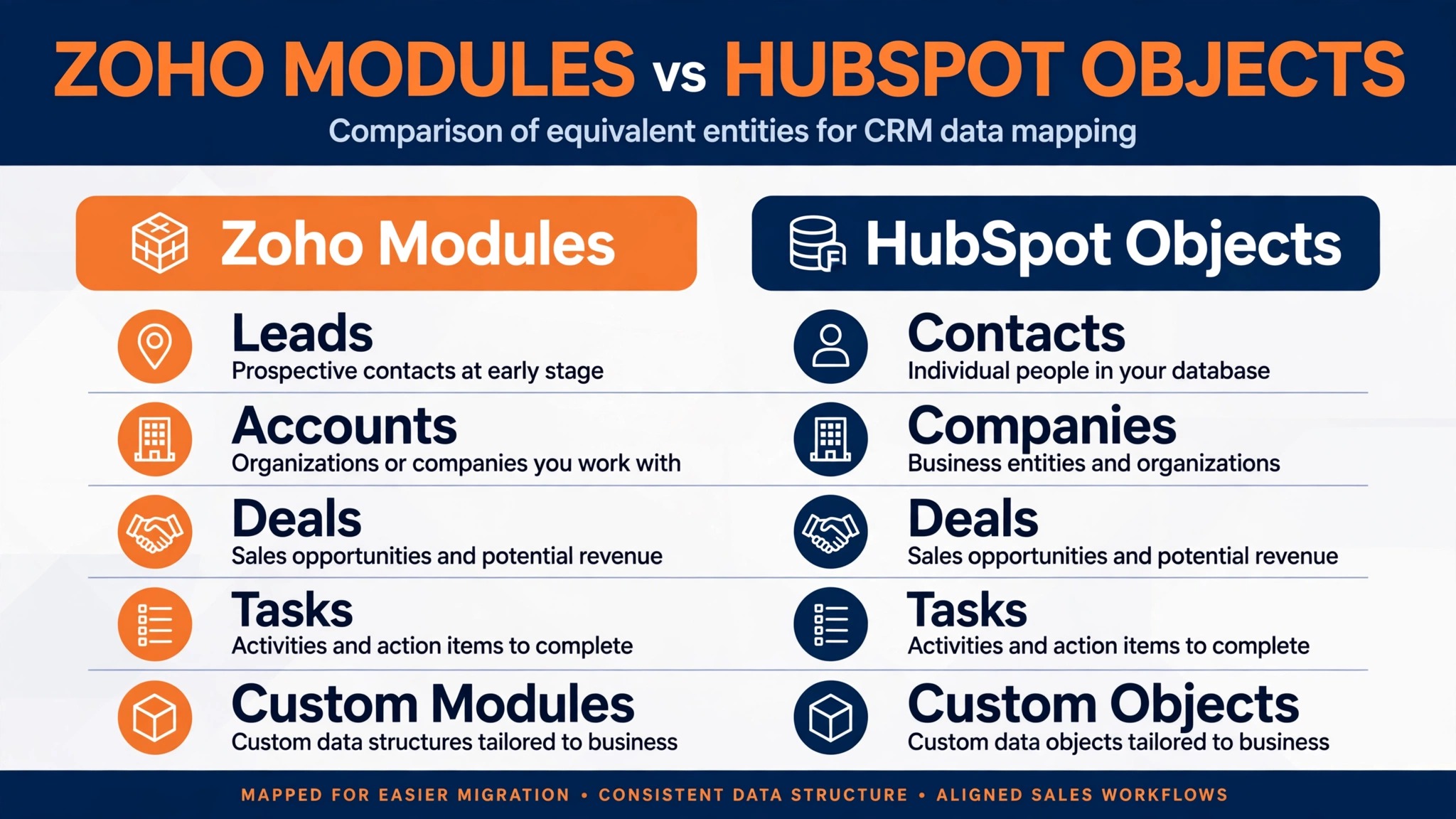
A CRM migration is a data model translation project, not a file copy. Zoho organizes work into modules, and many small businesses add custom modules for things like projects, vendors, rentals, or deliveries. HubSpot has a flatter object model built around contacts, companies, deals, and tickets, plus custom objects on higher tiers. Something has to give in that translation, and deciding what gives is the most important planning work you will do.
Records that move well include contacts, companies, deals, notes, and tasks, provided you export them with their record IDs intact. Standard fields map with little drama. Email addresses, phone numbers, deal amounts, close dates, and stage names transfer as long as you normalize formats first. Phone numbers deserve special attention, because HubSpot expects a standardized international format, and Zoho exports sometimes carry formulas or inconsistent formatting that must be cleaned in a spreadsheet before import.
What does not move automatically is almost everything that made your Zoho setup feel custom. Workflow rules, blueprint processes, Deluge functions, approval chains, and scoring rules must be rebuilt in HubSpot workflows or sequences. Email templates and web forms must be recreated. Dashboards and reports must be rebuilt against HubSpot properties. Attachments are the sharpest edge of all. Native CSV import cannot carry binary files, so attachments need a separate plan, usually a file store linked from records or a migration tool that handles them.
| Zoho element | What happens in HubSpot |
|---|---|
| Contacts and companies | Import as contacts and companies, matched on email and domain |
| Deals and pipelines | Import as deals, with stages mapped to a HubSpot pipeline |
| Custom modules | Become custom objects, custom properties, or tickets, by decision |
| Workflow rules and blueprints | Rebuilt as HubSpot workflows, manually |
| Notes and activities | Imported as engagements, or carried as timeline notes |
| Attachments | Need a separate file migration, not CSV import |
| Email templates and forms | Recreated in HubSpot from scratch |
| Dashboards and reports | Rebuilt against HubSpot properties |
That table is the honest shape of the project. Roughly half the work is moving records, and half is rebuilding logic. Teams that budget only for the record move run out of time in week two.
How to Switch Zoho CRM to HubSpot Small Business Owners Can Actually Follow
The safest sequence for a small team runs in five stages, and the order matters more than the speed. Rushing the import before the target system is ready is how deals end up attached to the wrong companies. Work through these stages in order, and test each one on a small sample before committing the full dataset.
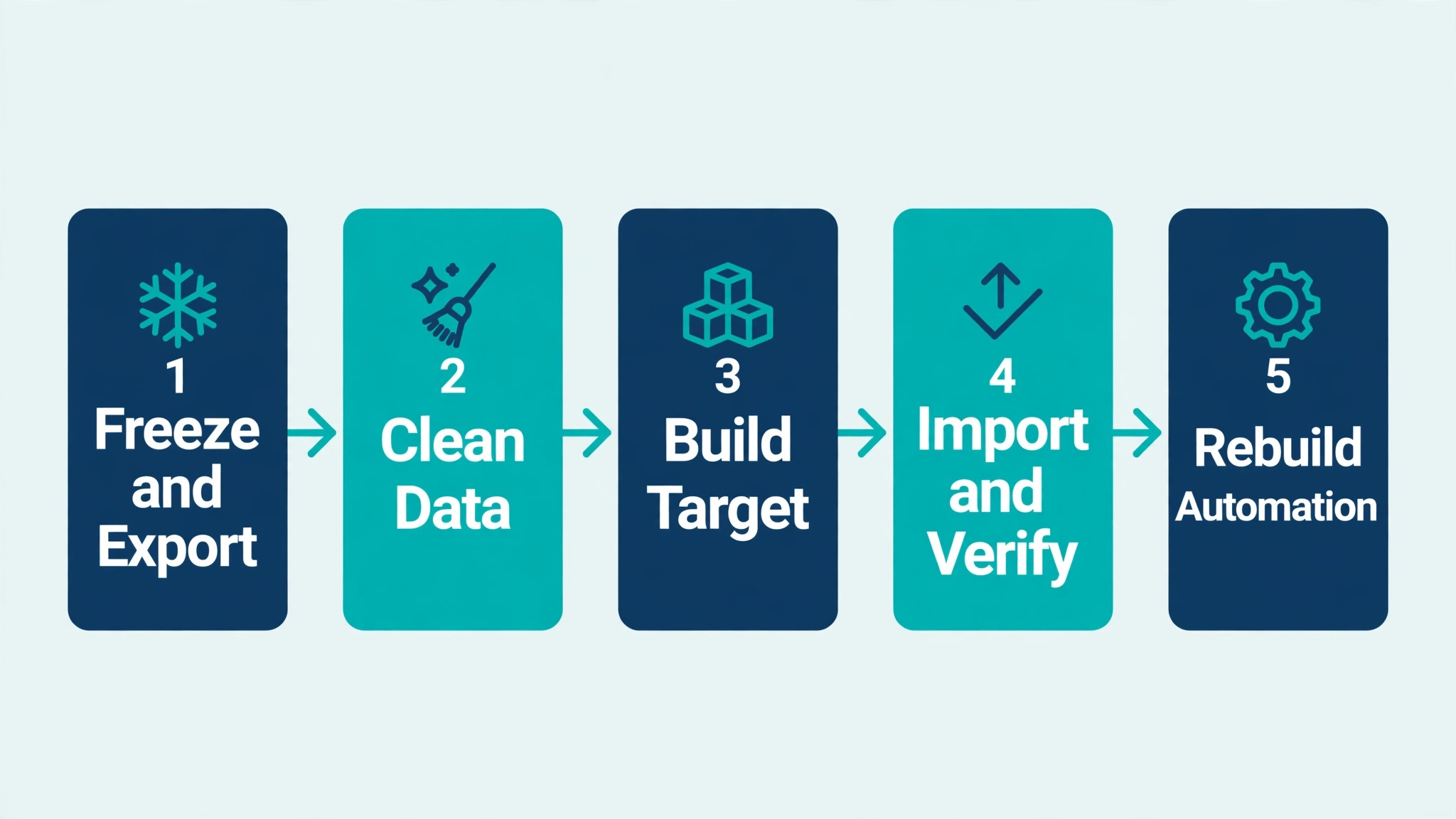
Stage 1. Freeze the scope and take a full export
Start by listing every module in Zoho, including custom ones, and mark each one as migrate, archive, or drop. Small teams are often surprised by how much dead weight they carry. Old pipelines, unused fields, and test records should not make the trip. Archiving them in Zoho keeps history available without polluting the new system.
Export each surviving module to CSV, and keep the Zoho record ID column in every file. That ID is your anchor. Later, when you import deals, you will use the stored company and contact IDs to rebuild associations that a plain name match would get wrong. Download attachments separately and store them in a dated backup folder. Take a full backup before you change anything, and keep Zoho read only during the final export window so no record changes after it has been exported.
Stage 2. Clean the data before it touches HubSpot
Cleaning happens in a spreadsheet, never by editing records one at a time in the new system. Deduplicate contacts by email, standardize company names, fix phone formats to a consistent international style, and convert date columns to one format. Decide what to do with records that have no email address, since email is the key HubSpot uses to match and merge. Those records need a manual review list, not a silent import.
This is also the moment to fix stage names. If two reps used different stage labels for the same step, pick one label now. Importing messy stages into HubSpot bakes the mess into your new pipeline, and cleaning it afterward takes longer than cleaning the CSV did. A good rule is that no field migrates unless someone can say what it is used for in a weekly review.
Stage 3. Build the HubSpot target before importing anything
Create your HubSpot pipelines first, with the stage names you just standardized, and set close probabilities that match how your team actually forecasts. Create custom properties for every Zoho field that survives the scope freeze, and create a temporary custom property on each object to hold the legacy Zoho record ID. That property is what lets you link deals to the right companies and contacts during import, and you can delete it after cutover once associations are verified.
Invite users and match them to Zoho owners by email address before importing, because records imported without a matching owner land unassigned. Set up lifecycle stages so marketing and sales agree on what counts as a lead, a qualified opportunity, and a customer. If your team has never agreed on those definitions, the migration week is the cheapest time to settle them, since every imported record will be tagged by them.
Stage 4. Import in dependency order, then verify counts
Import companies first, then contacts, then deals, then notes and activities. This order exists because each later import references the earlier one. Map the legacy Zoho ID fields on every import, and use them to build associations rather than relying on company domain matching alone. Domain matching works for many records but fails for contacts on personal email domains and for companies with several domains.
After each import, compare row counts. The number of companies in HubSpot should equal the number of rows in your company export, minus any records you deliberately excluded. Spot check ten deals by hand and confirm the company, contact, amount, stage, and owner all match Zoho. If a check fails, stop and fix the mapping. Importing the next file on top of a bad mapping doubles the cleanup.
Stage 5. Rebuild automation only after records are verified
Workflows, sequences, lead rotation, and notification rules come last, deliberately. Building automation on unverified data sends the wrong emails to the wrong people. Start with the automation your team uses every day, usually lead assignment and deal stage notifications, and leave nice to have rules for week two. Test each workflow with a test record before turning it on for the team.
If your Zoho setup includes custom modules, expect this stage to take the longest. HubSpot Smart Transfer, the native migration tool, can move standard objects through the API, but it does not support custom object migration, so custom modules need a manual decision and a manual build. Confirm the current scope of that tool on the vendor page, since its limits change over time.
Rebuilding Zoho Custom Modules Without Losing Their Meaning
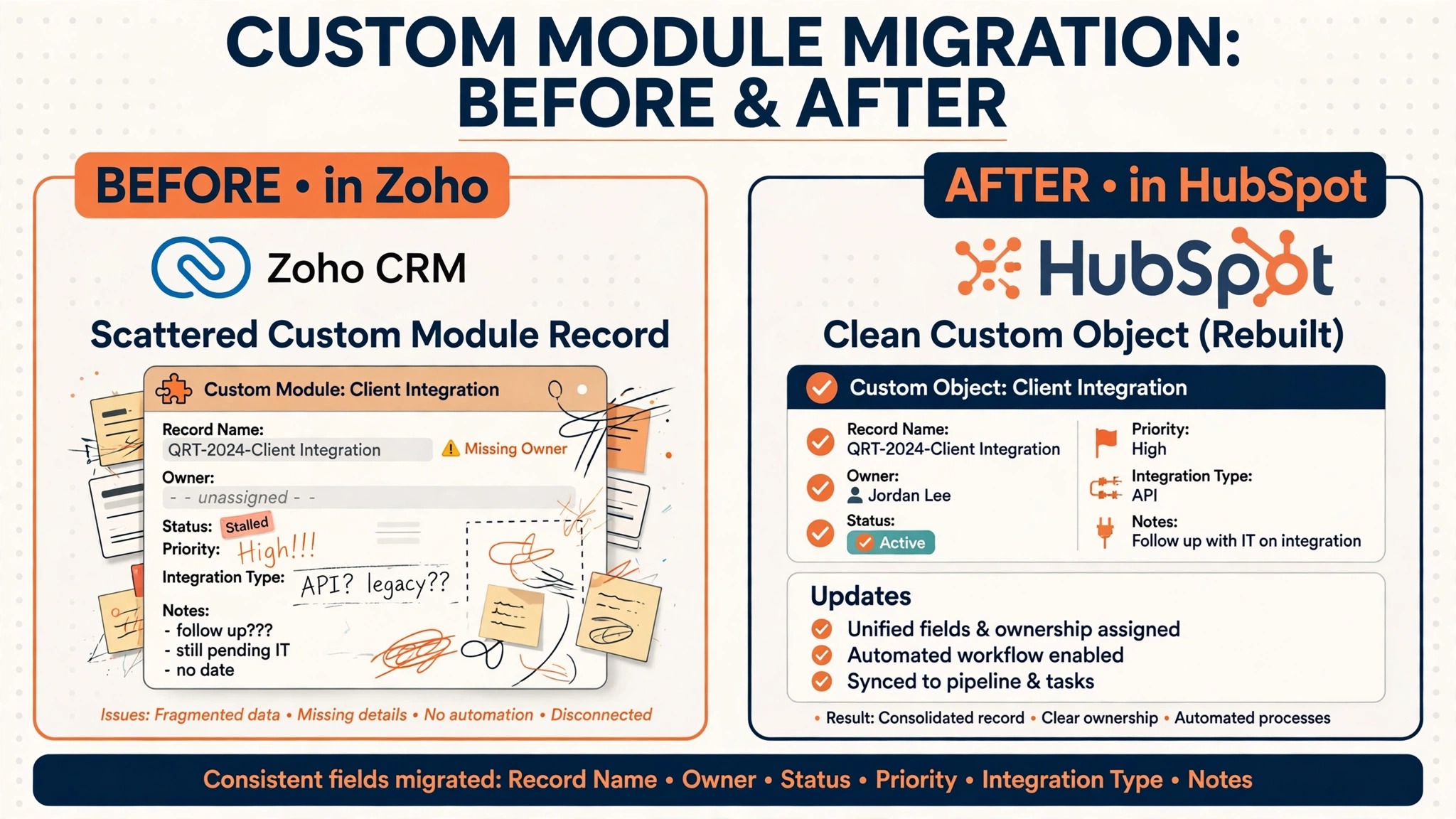
Custom modules are where Zoho migrations succeed or quietly fail. A module called Rentals, Projects, or Vendor Orders holds real business logic, and dumping its fields into a generic notes field destroys that logic. Before you migrate, write one sentence for each custom module that says what decision it supports. If no decision depends on it, archive it.
Three destinations cover most cases. A module that tracks a thing your team sells or delivers, with its own lifecycle, usually becomes a HubSpot custom object, which is available on higher tiers, so confirm tier availability on the vendor page before promising it. A module that is really a set of attributes on a deal or company becomes custom properties on that object. A module that tracks requests or issues becomes tickets. Choosing wrong is not fatal, but it is expensive, because rebuilding a custom object after deals reference it means rework.
Rebuild one module at a time, starting with the one your team opens most often. Map its fields, recreate its key views as HubSpot saved views, and move its records with the same legacy ID technique used for deals. Train the team on the new location before moving the next module. Teams that migrate five modules in one weekend spend the next month answering the question of where things went.
This is also where many small businesses discover that HubSpot changes their process for the better. A custom module that existed to patch a reporting gap in Zoho may be unnecessary in HubSpot, because the report already exists. Do not rebuild a workaround out of loyalty to the old system. Rebuild the outcome, not the mechanism.
The Import Errors That Catch Small Teams
Most failed imports fail in the same handful of ways, and all of them are preventable. The first is duplicate contacts created by email mismatch. A contact stored as firstname.lastname@company.com in Zoho and firstname@company.com in a web form becomes two people in HubSpot, and each one carries half the history. Deduplicate by email before import, and decide a single rule for which record wins when two rows share an address.
The second is the broken association. Deals imported without their legacy company and contact IDs attach by domain guesswork, which fails whenever a contact uses a personal email address or a company uses more than one domain. When you switch Zoho CRM to HubSpot small business teams should treat the legacy ID columns as mandatory, not optional, because rebuilding associations after import means touching every deal by hand. A ten deal spot check after each import catches this before it spreads.
The third error is the silent picklist mismatch. A Zoho dropdown value with no matching HubSpot option either gets dropped or lands in an unexpected bucket, depending on import settings. Export your picklist values in advance, create matching options in HubSpot, and map them explicitly. The same rule applies to deal stages. A stage name that differs by one word is a different stage to the import tool, and your pipeline report will show it.
Staffing and service businesses face this question in a sharper form, since their custom modules often track placements or jobs. Our guide to the best CRM for staffing agencies shows how those workflows map to a CRM built around people and placements.
Swapping the Integrations Around Your CRM
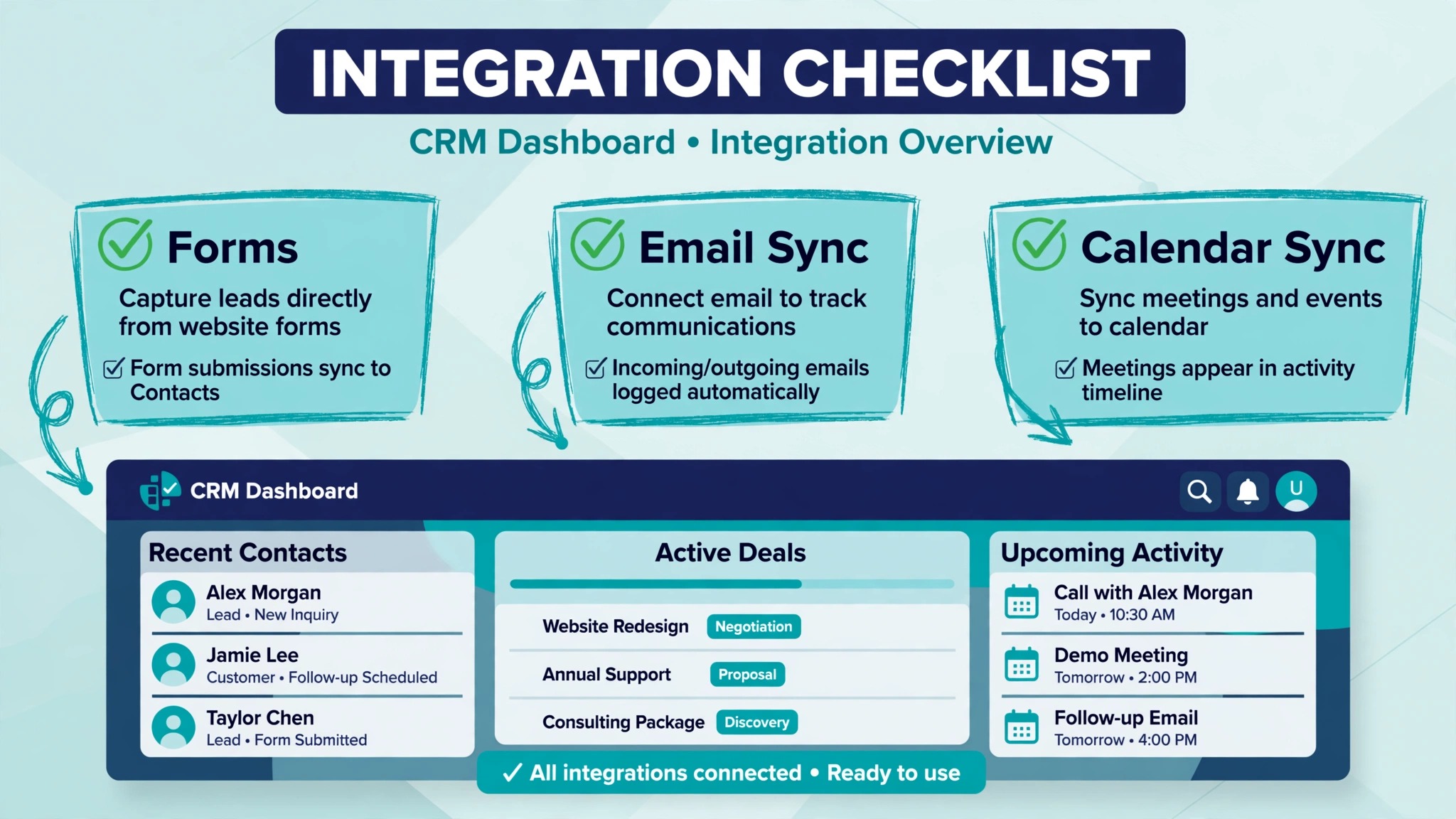
A CRM never sits alone. Email, calendars, accounting, forms, and marketing tools all connect to it, and each connection needs a new home in HubSpot. List every integration before cutover, including the ones nobody remembers setting up. Website forms are the most commonly forgotten, and a form still pointing at Zoho after cutover silently sends new leads into a system nobody checks.
Move integrations in order of revenue impact. Website forms and lead capture come first, then email sync and calendar sync, then accounting and invoicing links, then marketing tools. HubSpot connects natively to common email and calendar providers, and its marketplace covers most accounting and form tools, but each connection needs its field mapping checked. A form that mapped a Zoho picklist to a HubSpot text field will accept values your reports cannot filter.
Email history deserves its own decision. Zoho stores email as records attached to modules, while HubSpot stores it as engagement history on the timeline. Migrating full email history is possible through migration tools or the API, but for most small teams a cutoff is wiser. Migrate the last ninety days of email per active deal, archive the rest in Zoho, and keep Zoho accessible in read only mode for six months. That preserves history without turning the migration into a data archaeology project.
Tell your integration vendors about the move early. Some tools charge for a second connection, and some need a few days to reissue credentials. The week of cutover is the wrong time to discover that a billing integration needs a support ticket.
One integration deserves a dry run before cutover day. Point a copy of your main website form at a test HubSpot form, submit it with a test contact, and confirm the record, the owner assignment, and the notification all behave as expected. When you switch Zoho CRM to HubSpot small business lead flow is the first thing customers notice if it breaks, because a lost form submission is a lost sale that nobody hears about. A fifteen minute test prevents that silence.
The Go-Live Checklist
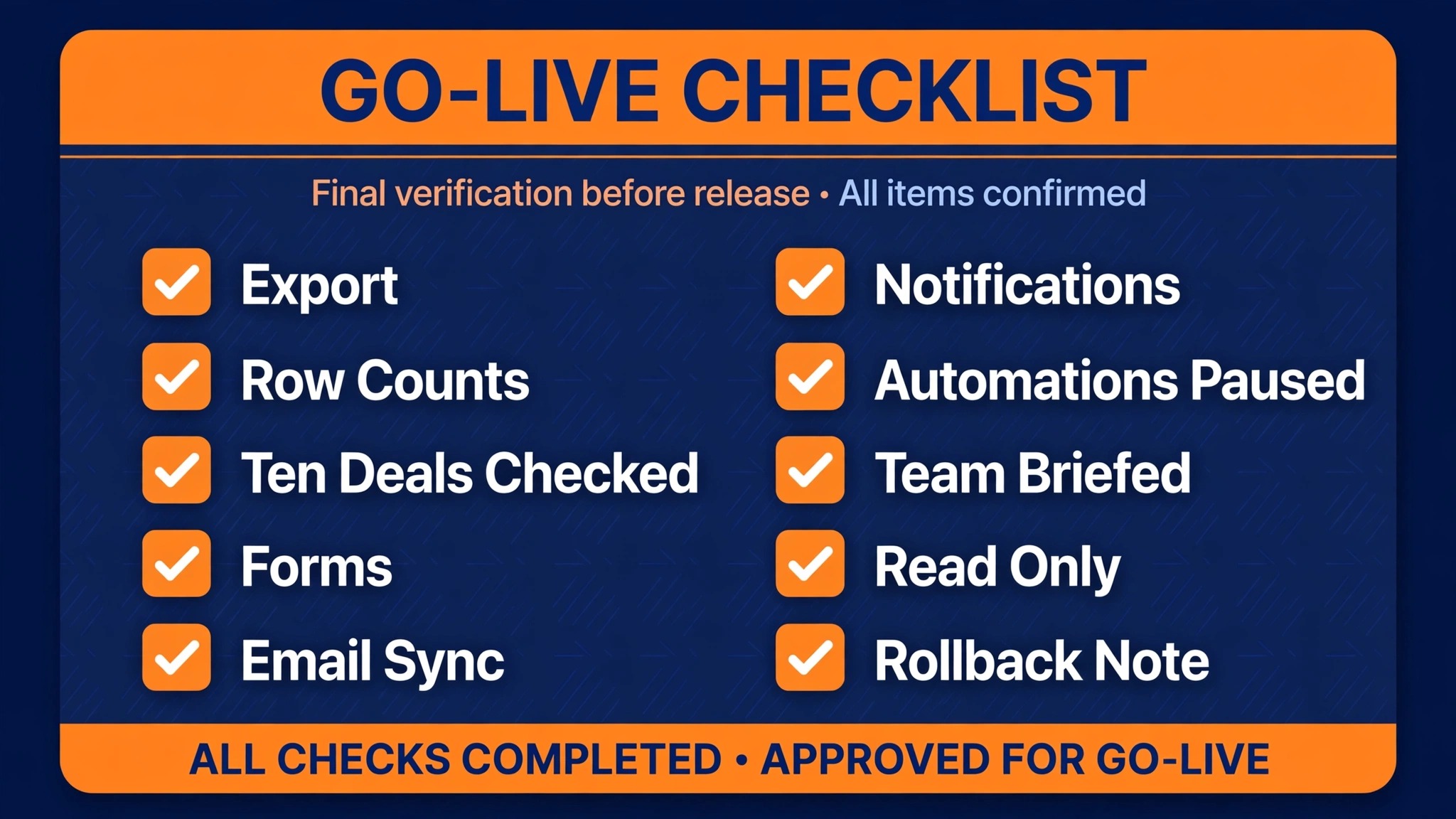
Cutover day should feel boring. If it feels dramatic, something was left to the last minute. Use this checklist in the final forty eight hours, and do not flip the switch until every item is checked by a named person.
1. Final Zoho export taken, with record IDs, and stored in a dated backup folder. 2. HubSpot row counts match the export counts for companies, contacts, and deals. 3. Ten deals spot checked end to end, including company, contact, amount, stage, and owner. 4. Website forms point at HubSpot, and a test submission lands on the right record. 5. Email and calendar sync connected for every user, with a test email logged. 6. Lead assignment and deal notifications tested with test records. 7. Old Zoho automations paused, so no customer gets two versions of the same email. 8. The team knows the cutover date, the new login, and who to ask for help. 9. Zoho kept in read only mode for reference, not deleted. 10. A rollback note exists, stating the point of no return and who can call it.
The rollback note matters more than it sounds. Every migration has a moment after which returning is harder than pushing forward, usually the moment new deals are created in HubSpot. Naming that moment in advance stops a panicked reversal on cutover afternoon, when a minor issue can feel like a disaster.
Your First Week After Cutover
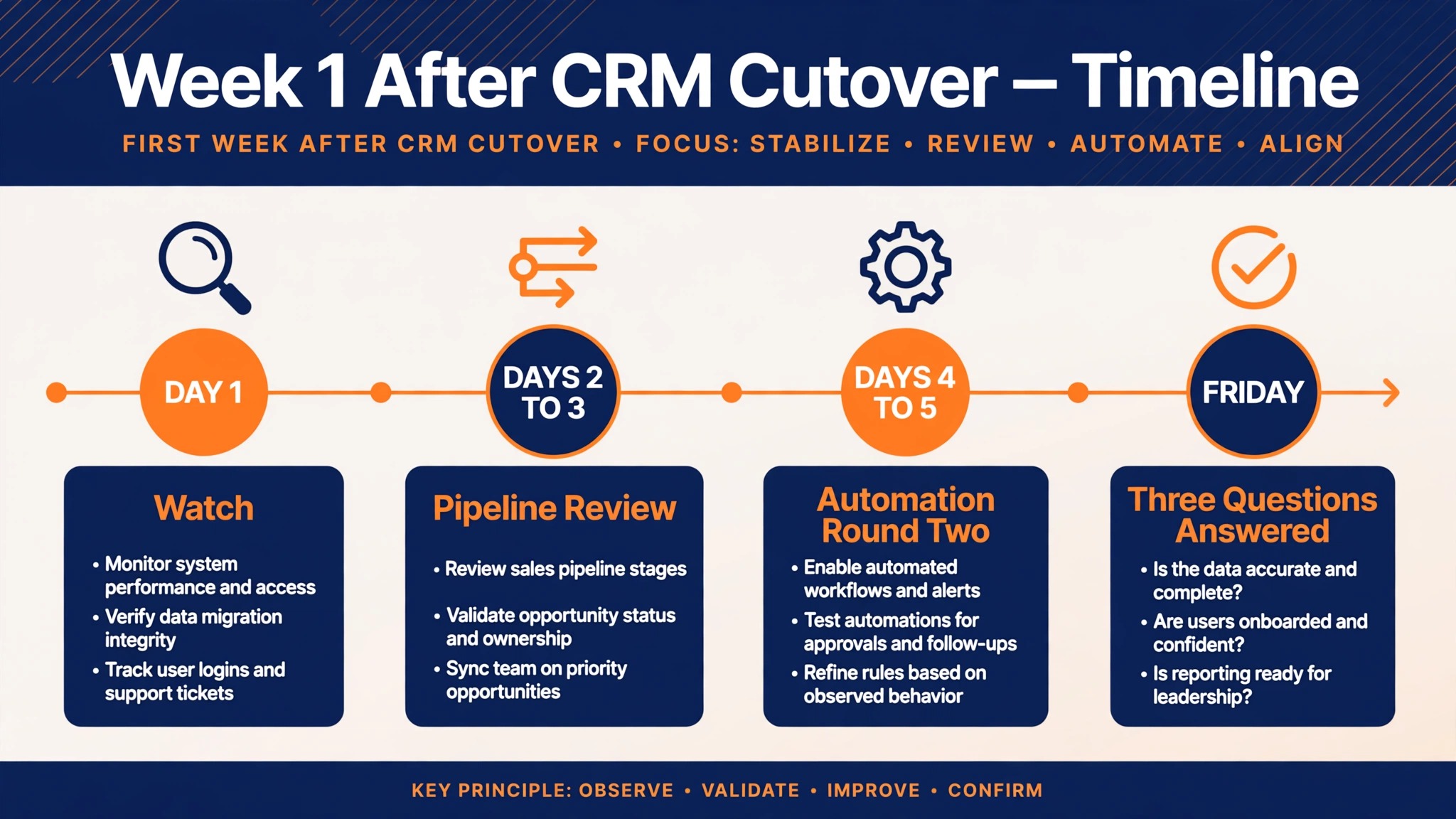
Day one is for watching, not for optimizing. The owner or operations lead checks new leads, new deals, and email logging in the morning and again in the afternoon. Reps log every oddity in one shared list instead of building private workarounds. Most day one issues are small, a missing picklist value or a form mapping, and fixing them from one list keeps the system consistent.
Days two and three are for the first real pipeline review in HubSpot. Run the review from HubSpot reports, not from a spreadsheet, even if it feels slower. This is the moment the team learns whether stage definitions and probabilities match reality. Adjust stage names now if they cause confusion, because the longer a confusing stage survives, the more bad data it collects.
Days four and five are for automation round two. Turn on the workflows you deferred, starting with the ones that save the most manual work, and retire the temporary legacy ID properties only after a final association check. By Friday, the team should be able to answer three questions from HubSpot alone. How many open deals do we have, what is their value, and what is each rep working on next.
Week two is when you delete nothing yet but stop opening Zoho for daily work. Keep it as reference for a few months, then export a final archive and close it. Teams that keep both systems open indefinitely end up with two half true records, which is worse than either system alone.
By the end of week one, run one more check that many teams skip. Pick five deals that closed during the week and trace each one from form submission to closed record, confirming every touch landed on the right timeline. When you switch Zoho CRM to HubSpot small business owners often find this trace exposes one small automation gap, usually a notification that fires too early or a lifecycle stage that never updates. Fixing it in week one costs minutes. Finding it in month three costs a quarter of reporting.
Cost context helps here too. If your team also uses the wider Zoho bundle, check our breakdown of the cost of Zoho One for small business monthly before deciding whether to keep any Zoho apps alongside HubSpot. Many teams keep Zoho Books or Zoho Desk while moving the CRM, and that hybrid is fine as long as the integration between them is deliberate.
Costs and Timing, Stated Honestly
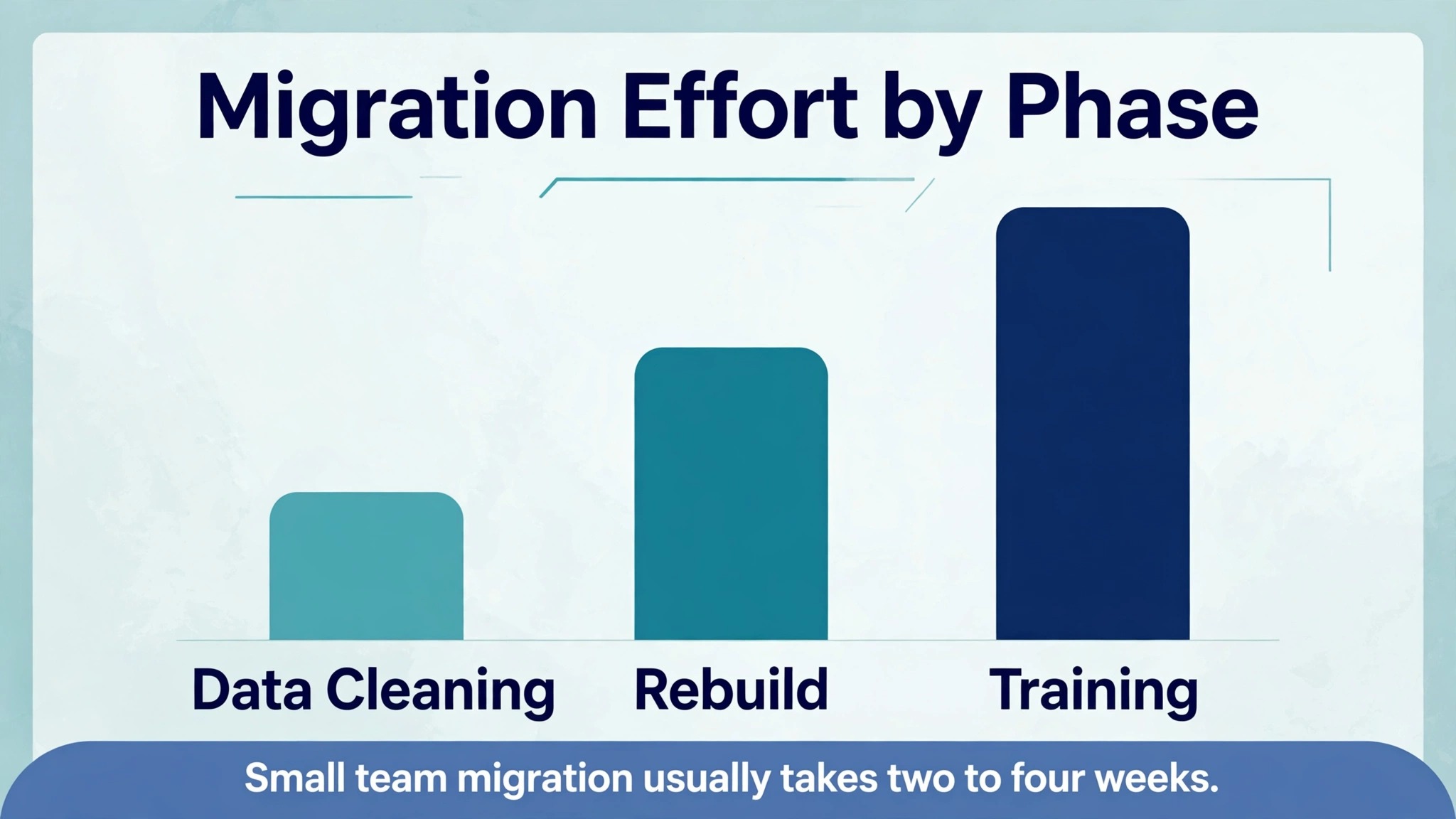
A small team migration usually takes two to four weeks from scope freeze to stable daily use, based on migration guides for teams under one hundred thousand records. Larger custom module counts push toward the longer end, and a team that tries to finish in one weekend usually spends the following month fixing associations. Budget the time of one internal owner at roughly half their week during the project, plus a few hours from each rep for testing.
On price, compare total cost, not headline subscription. HubSpot paid tiers charge per seat, and marketing or service add ons add to the bill, so build your quote around your actual seat count and the features you will really use. Zoho CRM often costs less per user, and the bundle math can favor Zoho for teams deep in its ecosystem. The financial case for moving rests on time saved in reporting, onboarding, and deal reviews, not on a lower invoice. If those savings are not real for your team, staying is a reasonable decision, and this guide will still have helped you clean up Zoho.
A practical way to size the saving is to time your current pipeline review. If preparing it takes an hour of spreadsheet work every week, that is more than fifty hours a year, and a plan to switch Zoho CRM to HubSpot small business reporting usually cuts that preparation to minutes. Multiply the hours saved by a loaded hourly cost and compare the result with the subscription gap. That comparison is more honest than any feature table, because it measures your team, not a vendor demo.
Frequently Asked Questions
Can I switch Zoho CRM to HubSpot small business data without hiring a consultant?
Yes, for a typical small team. Contacts, companies, deals, and notes move through CSV export and HubSpot import, and the import wizard handles field mapping. Hire help only if you have many custom modules, complex automation, or more than a hundred thousand records, since those cases reward experience.
Will I lose my deal history and notes?
Not if you plan for them. Deals, notes, and activities migrate as records and engagements, but attachments and full email history need separate handling. Keep Zoho in read only mode for reference, migrate recent email per active deal, and archive the rest. Verify a sample of deals before declaring the migration done.
How long does the migration take?
Most small teams finish in two to four weeks, including testing and training. The record import itself may take a day. The longer work is cleaning data, rebuilding automation, and retraining the team. A team that skips testing can import in a weekend and spend a month fixing the result.
Do Zoho custom modules transfer to HubSpot automatically?
No. Custom modules need a decision for each one, becoming custom objects, custom properties, or tickets. HubSpot Smart Transfer does not support custom object migration, so expect manual work here. Start with the module your team uses most and rebuild it properly rather than rushing all of them.
What happens to my Zoho workflows and automations?
They do not transfer. Workflow rules, blueprints, and Deluge functions must be rebuilt as HubSpot workflows or sequences. Use the migration as a chance to drop rules nobody remembers writing. Rebuild daily use automation first and defer the rest to week two.
Should I keep Zoho running after cutover?
Keep it in read only mode for a few months as a reference and backup, but stop creating new records there on cutover day. Running two live systems creates conflicting records. After the reference period, export a final archive and close the account.
The Verdict for a Small Business
Moving from Zoho to HubSpot is worth it when your team wants a simpler system that new hires grasp quickly, reporting that works without spreadsheets, and a shared record across sales and marketing. It is not worth it as a pure cost saving, and it is not worth rushing. The teams that succeed treat it as a cleanup and a rebuild, not a copy. They freeze scope, keep record IDs as anchors, import in dependency order, rebuild custom modules deliberately, and run a boring cutover with a checklist.
If your Zoho setup is simple, with few custom modules and light automation, you can run this migration yourself in a few weeks. If it is heavily customized, budget for help on the custom module rebuild, because that is where the project is won or lost. Either way, start with the scope freeze. Everything after it gets easier.
The decision itself is simple once the scope is clear. If your team loses hours every week to reporting workarounds, tangled modules, and slow onboarding, the move pays back. If you switch Zoho CRM to HubSpot small business momentum usually returns in the first month, because the system stops being a project and goes back to being a tool. That is the outcome worth migrating for.
Independent dealers and brokerages run the same decision with their own twists, so if your business sells cars or property, compare notes with our guides to the best CRM for independent car dealers and the best CRM for real estate agents at a small brokerage. The migration steps stay the same. Only the fields change.