
To use Google Sheets for gradebook teachers is to trade a paper book that never recalculates for a live record that totals itself every time you type a score. Paper gradebooks look simple until a student asks why a mark changed, a term total needs checking, or a report card deadline arrives and every average must be worked out by hand. Paid gradebook apps solve the maths, but they also add a subscription, a login system, and a set of features most classroom teachers never open. Sheets sits in the middle. It costs nothing extra on a free Google account, and it keeps the teacher in charge of the structure, the weights, and the final judgement.
This guide builds a complete gradebook you can reuse term after term. You will set up tabs for classes, terms, and summaries, write weighted formulas that survive missing work, handle late and excused assignments without corrupting averages, set grade boundaries that match your school scale, generate a clean report card summary for each student, and share the file without exposing one student record to the whole class. Where a school system is the official record, this sheet is the working record that feeds it, and the last section explains when to stop using a spreadsheet and move to that system instead.
Why Sheets Wins for Most Classrooms
A gradebook has one job above all others. It must be right when a parent, a head of department, or a student questions a grade. That means every score needs a date, a category, a maximum, and a reason if it is missing or changed. Paper can hold those facts, but it cannot check them. A teacher adding a column of percentages by hand will make errors, and the errors tend to appear in the busiest weeks, when there is no time to recheck. Sheets removes the arithmetic and leaves the professional judgement, which is exactly the division of labour a busy teacher needs.
Cost is the third reason, and it is worth stating plainly. Google Sheets is included with a free Google account, and Google Workspace for Education Fundamentals is available at no cost for qualifying institutions, with Sheets included in every edition. Education Plus is listed at 6 dollars per user per year in United States pricing found in October 2026, but a teacher does not need Plus to run a gradebook. The formulas in this guide use core Sheets functions that work on a free account. Before paying for any gradebook app, a teacher should be able to name the specific feature Sheets cannot provide, because most paid apps sell reporting and parent portals, not better addition.
How to Use Google Sheets for Gradebook Teachers Without Starting Over Each Term
The mistake most teachers make is building one giant sheet for a whole year, with every class, every assignment, and every total on a single tab. That sheet becomes slow, hard to print, and frightening to edit by October. The better structure is small and boring. One file per school year, one tab per class and term where needed, and a small set of summary tabs that pull from the detail tabs. When a term ends, you copy the file, rename it for the new term, clear the scores, and keep the weights, boundaries, and formulas. The system improves each term instead of being rebuilt.
The Gradebook Template, Sheet by Sheet
The cleanest way to use Google Sheets for gradebook teachers is to keep raw scores, weights, and reports on separate tabs. Each tab below is described with its columns, so you can build it in about twenty minutes and then reuse it all year.
Roster tab
The Roster tab holds one row per student and nothing else that changes weekly. Columns are student ID or school code, first name, last name, class or section, and a notes field for access needs or seating notes that affect teaching but never appear on a report. Use an ID rather than relying on names alone, because two students with the same first name, or a name spelled two ways, will otherwise create duplicate rows and split scores. If your school does not issue a short code, use last name plus first initial plus a number for duplicates, and use it consistently on every tab.
Scores tab
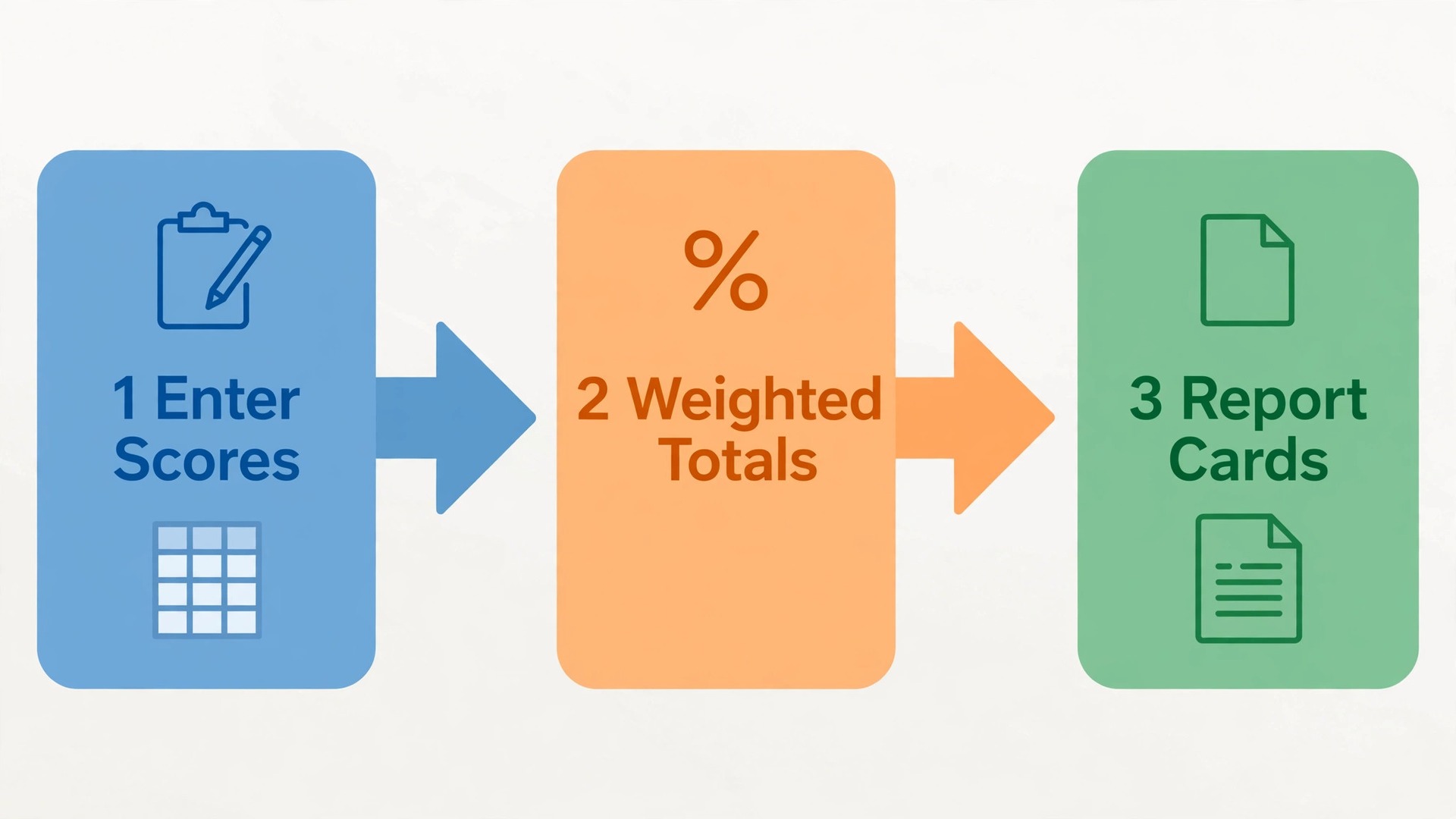
The Scores tab is where daily work happens. Each row is one student, matching the Roster order exactly. The first columns repeat the ID and name, so a printed Scores page still makes sense on its own. After that, each assignment gets three pieces of information, not one. The assignment name and date go in the header, the maximum points go in a row just below the header, and the student score goes in the body of the table. Storing the maximum in the sheet, rather than remembering that a quiz was out of 20 and a project out of 50, is what lets Sheets convert everything to a percentage fairly.
Add a category column or, better, a category row above the assignment headers, so every assignment is tagged as homework, quiz, classwork, project, or exam. That tag drives the weighted averages later. Add a status column per assignment only if you need it, using a dropdown with the values Submitted, Missing, Late, Excused, and Not yet due. Dropdowns matter because free typed status words drift. One teacher types Missing, another types Missed, and a formula looking for one word misses the other. Data validation, found under Data and then Data validation in Sheets, lets you set that dropdown once and reuse it for every new assignment column.
Weights tab
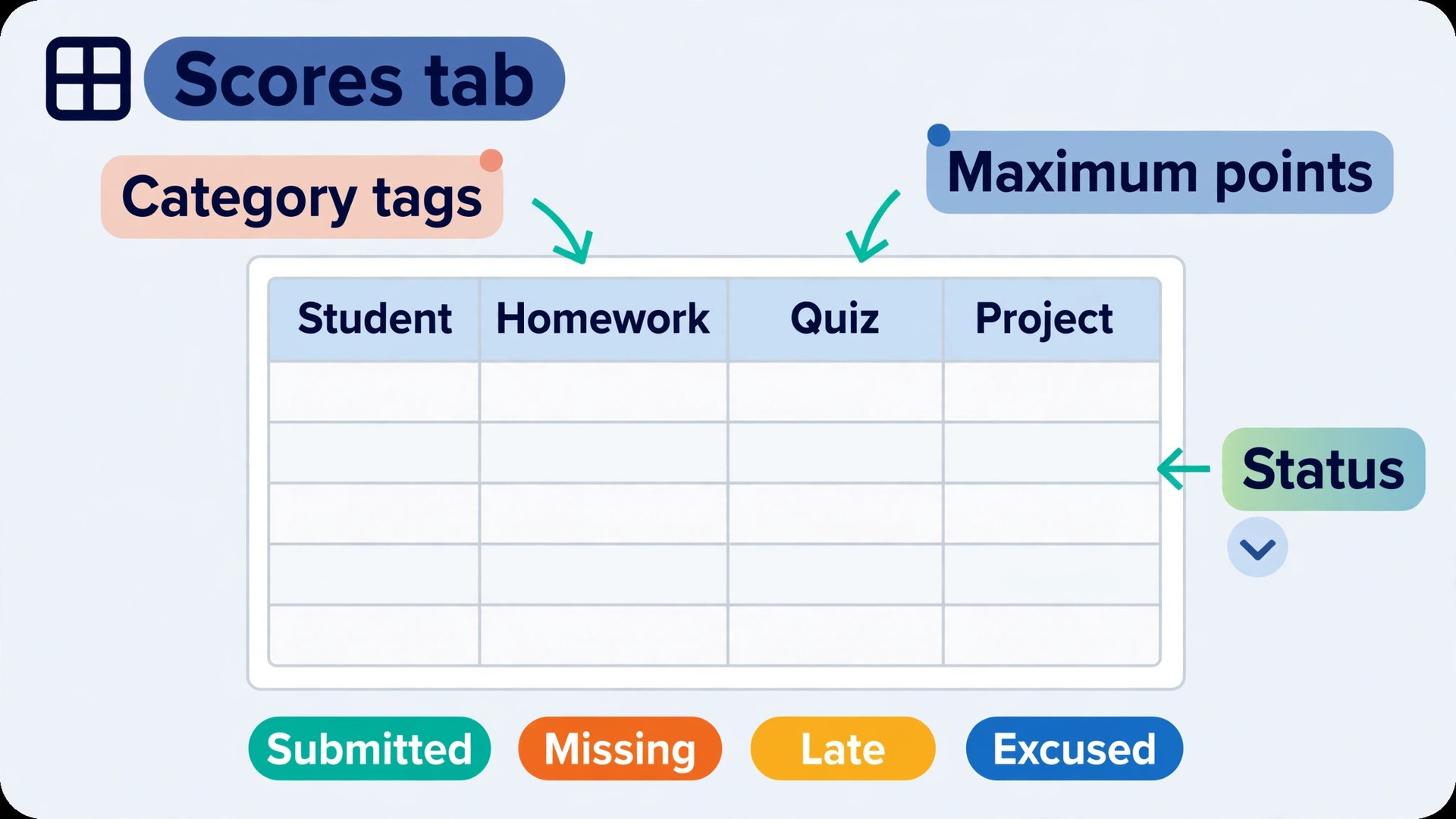
The Weights tab is small and powerful. It lists each category, its weight as a percentage, and the number of assignments counted so far. An example set of weights for a general class might be homework at 20 percent, quizzes at 25 percent, classwork at 15 percent, projects at 20 percent, and exams at 20 percent. Those five weights add to 100 percent, and the Checks tab will flag it loudly if they do not. Change weights only at the start of a term, or with a clear note to students and parents, because changing weights mid term changes every total retroactively and creates disputes that no formula can settle.
Summary tab
The Summary tab holds one row per student and one column per category average, plus the weighted total and the letter grade. It contains formulas only, no typed scores. That rule is the single most important discipline in the whole template. If a score looks wrong on the Summary tab, fix it on the Scores tab, never by typing over the Summary formula. Typing over a formula fixes one student and breaks the audit trail for everyone, because the next score entered on the Scores tab will no longer flow through.
Report Cards tab
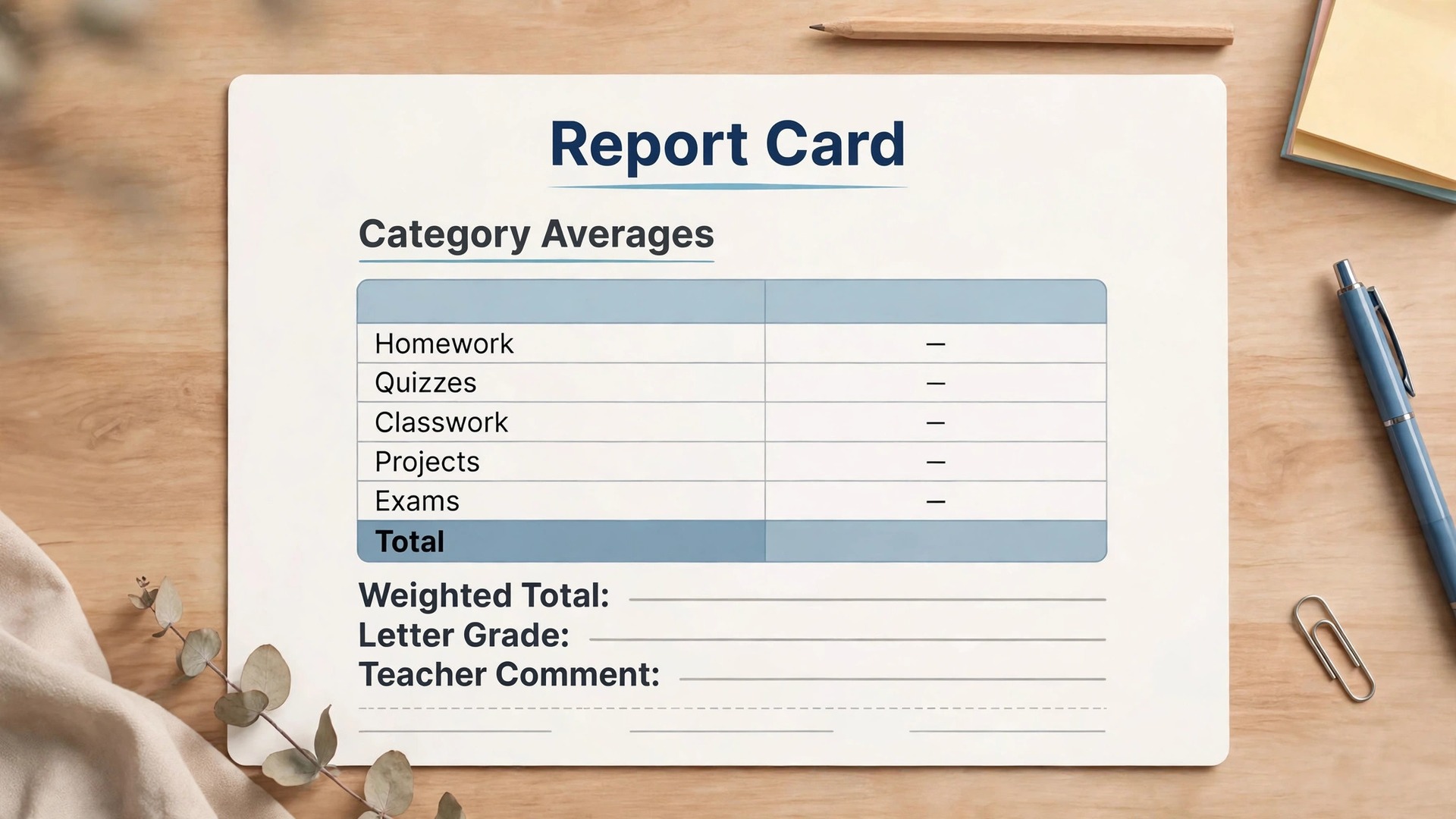
The Report Cards tab pulls each number from the Summary tab, so a parent sees one student only, with category averages, the total, the letter grade, and a short comment. It is built in the report workflow later in this guide.
Checks tab
The Checks tab lists formulas that return Pass or Check this for weights, score limits, and missing marks. Open it every Friday and again before reports, and fix any failed check on the Scores tab.
Weighted Categories That Actually Add Up
Weighting is where gradebooks go wrong, because a simple average treats a five point homework task and a hundred point exam as equals. Weighted averages fix that by giving each category a share of the final grade, then combining category averages in those proportions. The maths is simple once the structure is right, and Sheets has two functions built for it.
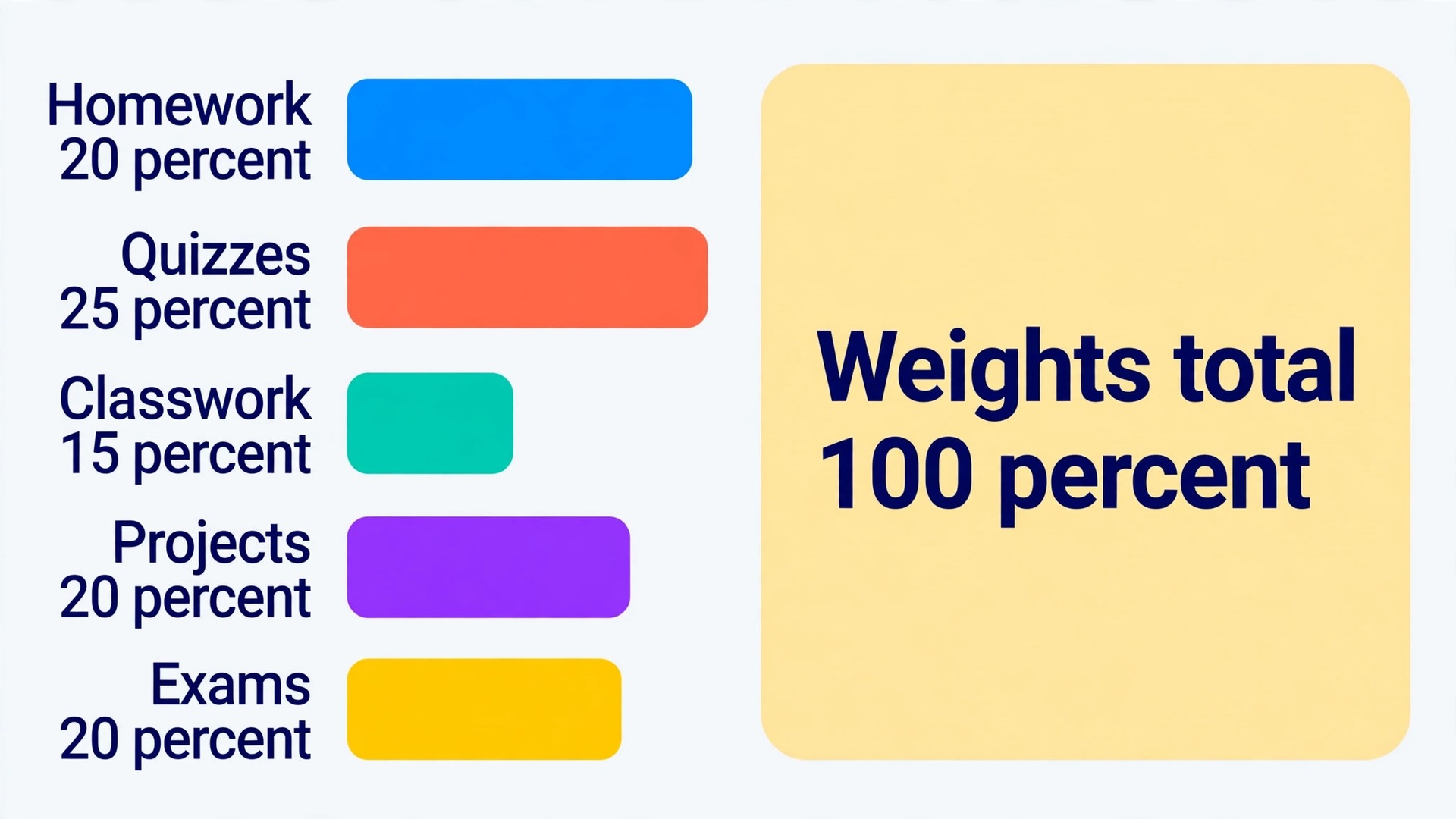
First, calculate each category average as a percentage. If homework scores are stored as points earned, with the maximum in the row below the header, convert each score to a percentage first, or use an average of percentages. The cleanest classroom method is to store a percentage per assignment in a helper area, then average those percentages by category. The AVERAGEIF function does the category part in one step. It averages only the scores whose category matches the label you give it, which is why the category row on the Scores tab must use identical spelling for every homework assignment.
A category average formula looks like this.
`=AVERAGEIF(B2:B40, “Homework”, E2:E40)`
In that example, the first range holds category labels, the word in quotes is the category to match, and the second range holds the percentages to average. Adjust the ranges to your own sheet layout, and copy the formula across for each category, changing only the category word. If the result looks wrong, check the category spelling first, then check for blank cells and text typed into score cells, because both are more common causes than a broken formula.
Next, combine the category averages into a weighted total. The SUMPRODUCT function multiplies each category average by its weight and adds the results, which is exactly the definition of a weighted average. Dividing by the sum of the weights protects the result if weights ever add to something other than 100 percent during editing, though the Checks tab should catch that before report week.
A weighted total formula looks like this.
`=SUMPRODUCT(H2:H5, I2:I5)/SUM(H2:H5)`
In that example, one range holds the weights and the other holds the category averages, in the same order. Order matters. If homework is first in the weights list, homework must be first in the averages list too. A mismatch here is silent, because Sheets will still return a number, just the wrong number. That is why the Weights tab and the Summary tab should list categories in the same order, and why you should test the formula with a simple case before trusting it, such as setting every category average to 80 percent and confirming the total is 80 percent.
Missing, Late and Excused Work Without Breaking the Maths
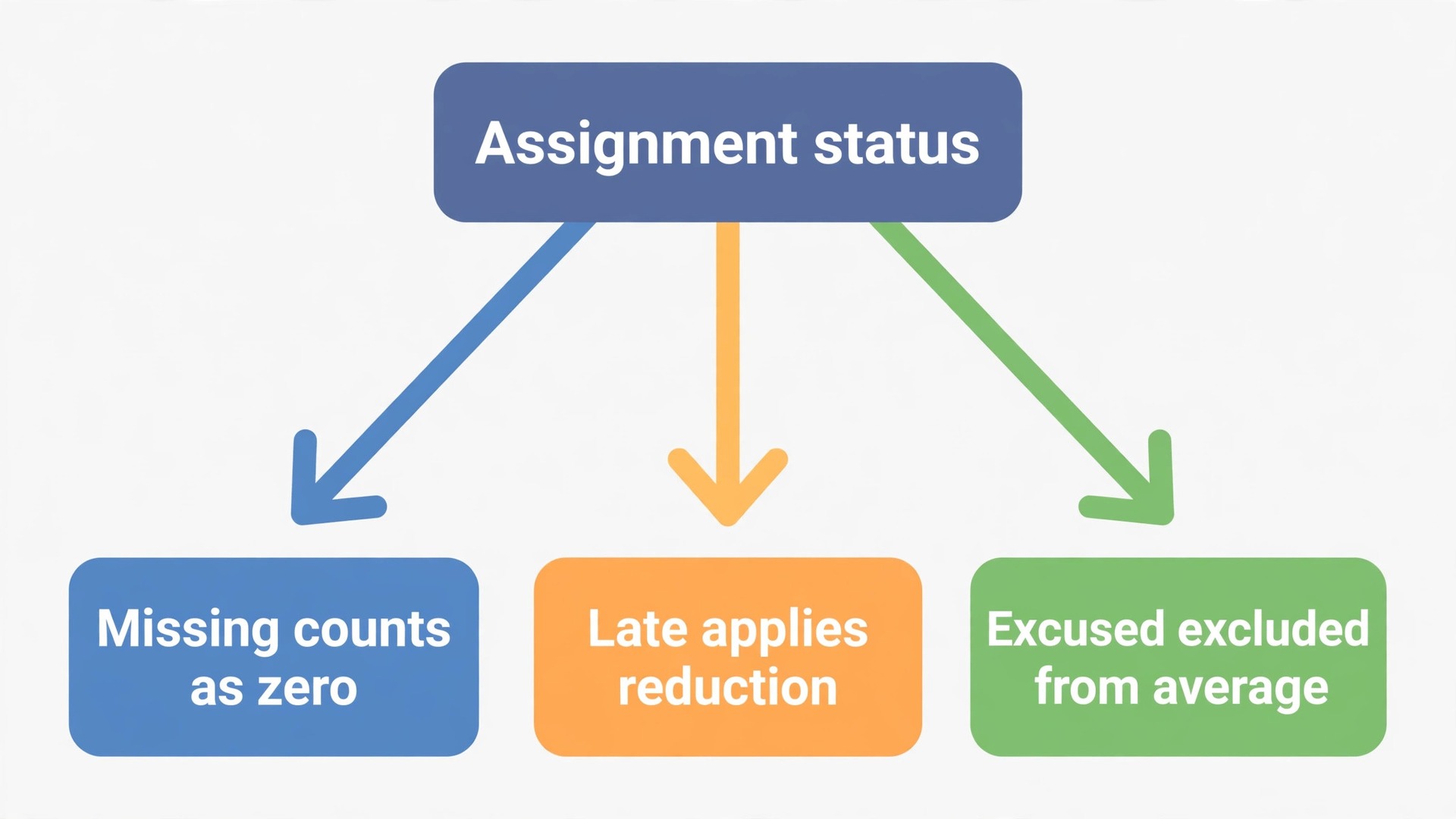
When you use Google Sheets for gradebook teachers, the fairest way to handle missing work is to record what actually happened, then let a rule decide the consequence. A blank cell, a zero, and an excused mark mean three different things, and a gradebook that treats them the same will punish a sick student and reward a student who never submitted work. The status dropdown on the Scores tab exists to keep those three cases apart.
A blank cell should mean not yet due or not yet marked. It should not count in any average, because the work does not exist yet in the record. Most averaging functions in Sheets already ignore blank cells, which is helpful, but only if you leave the cell truly blank. Typing a dash, the word pending, or a space into a cell can turn it into text that some formulas handle differently, so leave it empty and use the status dropdown to explain why it is empty.
A missing submission after the deadline should be a zero in the score cell, with the status set to Missing. That zero counts, because the student had the opportunity and did not submit. The status label lets you find every missing item at a glance, and lets a student or parent see that the zero is a missing item, not a failed attempt. If the work arrives late, change the score to the marked score, change the status to Late, and apply your late rule in a consistent way, such as a fixed percentage reduction or a cap. Record the rule on the Weights tab or the Roster notes, so the same reduction applies to every student.
An excused absence should not be a zero and should not be a blank that a formula might later misread. The cleanest method is to leave the score cell blank, set the status to Excused, and make sure the category average ignores that assignment for that student. AVERAGEIF over percentages already ignores blank cells, but a points based total needs care, because a blank maximum or a blank score can distort a sum. Test the excused case with a single student before report week. Give that test student an excused quiz, check that the quiz category average uses only the remaining quizzes, and check that the weighted total moves in the expected direction.
If it does not, the formula is treating the excused item as a zero, and you have found the error before it reaches a report.
Grade Boundaries, Rounding and What Parents See
Grade boundaries turn a percentage into a letter, and they cause more arguments than any other part of a gradebook, because a student at 89.6 percent and a student at 90.0 percent receive different letters for what feels like the same performance. The solution is to publish the boundaries before the term starts, apply them with a formula, and decide the rounding rule in advance. A boundary table on the Weights tab, with the lowest percentage for each letter, makes the system visible and testable.
| Lowest percentage | Letter grade | What it means in plain terms |
|---|---|---|
| 90 | A | Excellent work against the stated criteria |
| 80 | B | Strong work with minor gaps |
| 70 | C | Satisfactory work that meets the standard |
| 60 | D | Work below the standard but with some evidence |
| 0 | F | Work that does not yet meet the standard |
`=IF(G2>=90, “A”, IF(G2>=80, “B”, IF(G2>=70, “C”, IF(G2>=60, “D”, “F”))))`
In that example, G2 holds the weighted total. Change the numbers and the letters to match your school scale, and test the boundaries with values just above and just below each cut point, such as 89.9, 90.0, 79.9, and 80.0. Boundary tests catch the most embarrassing gradebook error, which is a formula that awards a B at 90 percent because the comparisons were written in the wrong order.
Rounding needs its own decision, stated in writing. If you round to the nearest whole number, 89.5 becomes 90 and the letter changes. If you do not round, 89.9 stays a B. Neither choice is wrong, but switching between them for different students is unfair, and doing it silently is worse. Pick one rule, write it on the Weights tab, and apply it with the ROUND function if you round, so the displayed total and the letter always agree. A total that displays as 90 but still awards a B, because the stored value is 89.6, will confuse every parent who reads it.
From Scores to Report Cards, Step by Step
To use Google Sheets for gradebook teachers at report time means building one clean summary per student, not retyping scores into a new document. Retyping is where report errors enter, because a tired teacher at midnight will transpose digits, copy the wrong row, or forget a late adjustment. A formula linked summary cannot make those copying errors, though it can still carry an original scoring error forward, which is why the Checks tab comes before the report step, not after it.
Step 1. Freeze scores and run the checks
Pick a cutoff time, announce it to students, and stop entering new scores after that point except for corrections. Open the Checks tab and confirm every check returns Pass. Check that weights add to 100 percent, that no score exceeds its maximum, that every student has the same number of roster rows as summary rows, and that missing items are marked Missing rather than left blank. Fix any failed check on the Scores tab, not on the Summary tab, and rerun the checks until they pass.
Step 2. Review the Summary tab student by student
Read down the Summary tab one student at a time and flag any total that does not match your classroom knowledge, such as a strong participant with a low average. Make corrections on the Scores tab, never over a Summary formula.
Step 3. Build one report block per student
On the Report Cards tab, create a block for each student with the student name and ID, the term, the category averages, the weighted total, the letter grade, the count of missing items, and a comment of two or three sentences. Pull each number with a direct cell reference to the Summary tab, so the report block updates if a late correction is made. Keep comments specific and evidence based, naming a strength and a next step, rather than generic praise that could fit any student. A comment such as strong quiz results but three missing homework tasks explains the total in a way a letter alone cannot.
Step 4. Check the report blocks against the Summary tab
Preview the report blocks and compare the highest total, the lowest total, and every student near a grade boundary against the Summary tab. Correct any error on the Scores tab so the report block updates with it.
Step 5. Export and send one student at a time
Export each student block as a PDF page, or copy the block into a document or email for that student family only. Never export the whole Report Cards tab as one file and send it to every family, because that file contains every student. Never send the working gradebook file itself to parents, because it contains the full class, the roster notes, and the formula structure. One student, one file, one recipient is the rule that protects privacy at the busiest moment of term, when shortcuts are most tempting.
Teachers who use Google Sheets for gradebook teachers must treat the file as a student record, not a casual spreadsheet. Student names linked to scores are sensitive, and in many school systems they are protected by law and by school policy. The United States law most often cited is FERPA, which limits disclosure of education records, and schools in other countries work under their own privacy laws. This guide does not replace your school policy or legal advice, but the practical rules below match the sharing controls Google provides and the guidance schools publish for Workspace for Education.
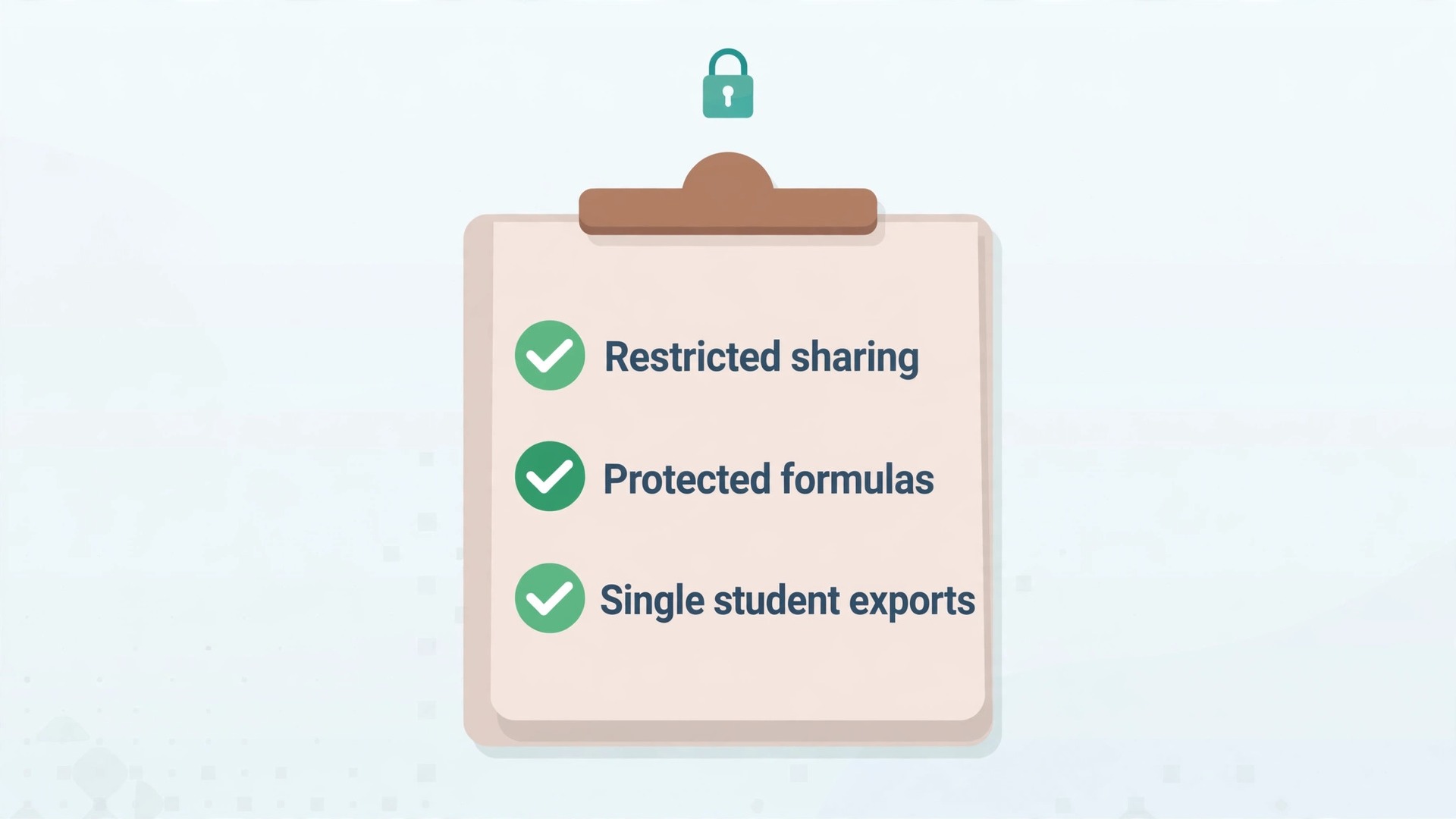
The first rule is the simplest. Keep the working gradebook on Restricted sharing, which means only people you explicitly add can open it. Do not use Anyone with the link for a gradebook, and never use Public on the web. A link shared for convenience can be forwarded, copied, or found later, and a gradebook link carries a whole class record, not a single document. If your school uses Google Workspace for Education, your admin may already limit sharing outside the school domain, and you should follow that setting rather than working around it.
The second rule is to share the smallest piece that does the job. A colleague covering your class needs the working file, or a copy of the relevant class tab, with editor access for a defined period. A head of department checking totals needs viewer access to the Summary tab, or a PDF export of that tab, not editor access to the whole file. Parents need one student report only, as described above. Students, if they see anything at all, should see only their own scores, through a separate individual sheet or a school system, never the class file.
Giving a whole class viewer access to a gradebook, even with a request not to look at other rows, is not a privacy control. It is a hope.
The third rule is to protect the parts that must not change. Use Data and then Protect sheets and ranges to protect formula cells, header rows, weights, and grade boundaries, while leaving score entry cells open. Set the protection to show a warning or to restrict editing to yourself, depending on whether a colleague needs to enter scores. Protection is not encryption and it is not a substitute for correct sharing, because an editor with access to the file can still view the whole sheet. Protection stops accidents, such as typing over a formula. Sharing controls stop exposure. You need both, for different reasons.
Weekly and Term Routines That Keep It Accurate
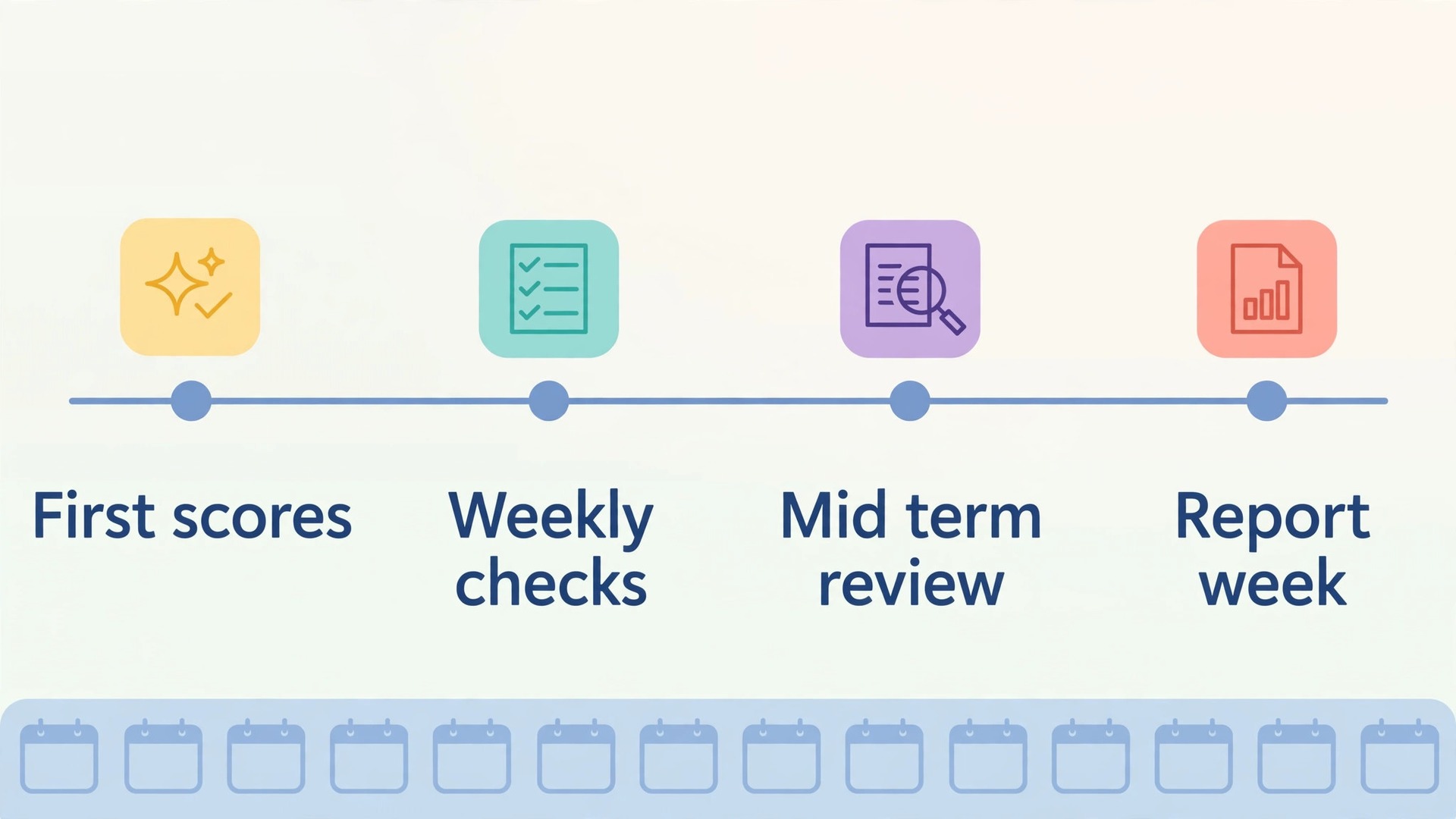
A weekly routine is what lets you use Google Sheets for gradebook teachers without the end of term panic. The routine below takes about ten minutes a week once the template is built, and it is deliberately short, because a routine that takes an hour will be skipped in the weeks it matters most.
On Friday, or on your last teaching day of the week, run three checks. First, open the Checks tab and confirm all results still pass. Second, filter the Scores tab for Missing status and note how many students have more than two missing items, because that pattern often signals a misunderstanding of the task rather than laziness, and it is worth addressing in class on Monday. Third, glance at the Summary tab for any student whose total moved by more than ten points in a week, because a large move usually means a data entry error, a newly entered exam, or a policy such as a dropped score taking effect.
Each of those has a different explanation, and a parent will ask about it sooner or later.
When Sheets Is Not Enough, and What to Do Then
If you use Google Sheets for gradebook teachers, you already own the export, the formulas, and the history, and for many classrooms that is enough for years. Sheets stops being enough when the job grows beyond one teacher and one class record. A school that needs automatic syncing from Google Classroom, parent portals with individual logins, attendance linked to grades, transcript generation, or audit logs for every change across a whole school should use the school system of record, not a personal spreadsheet. That is not a failure of Sheets. It is a sign that the requirement changed from a working record to an institutional system.
The decision test is short. Can you export every score, with dates and categories, in a standard format today. Can a colleague take over the file next week without your password or personal account. Does the school accept this record as evidence if a grade is disputed. If the answer to any of those is no, fix the gap or move to the school system. A gradebook that only works while one teacher is present is a risk, however tidy it looks.
For related reading, the guide to best AI tools for teachers covers the wider classroom toolkit beyond spreadsheets, best AI tools for Excel and Google Sheets helps if you want add-ons and helpers for sheet work, and best spreadsheet software for small business compares spreadsheet options when you need to judge Sheets against other tools.
Frequently Asked Questions
Can I run a whole class gradebook on a free Google account?
Yes, for most classroom use. Sheets, Drive storage up to the free account limit, sharing controls, protected ranges, data validation, and the formulas in this guide all work on a free account. A school Workspace for Education account adds admin controls and domain sharing limits, which help with privacy, but it is not required to build the template. Keep an eye on Drive storage if you store many exported PDFs, and archive old term files in a school folder where they belong.
How do I stop students seeing each other grades?
Never give students access to the class gradebook file. Keep sharing on Restricted, share only with named colleagues who need it, and send parents one student report at a time. If students need to track their own progress, give each student a separate individual sheet, or use the school system that already separates student views. A whole class file with a polite request not to scroll sideways is not a privacy control, because every student with viewer access can still scroll.
What is the best weight split for homework, quizzes, and exams?
There is no universal best split, because it depends on your subject, your school policy, and what you want grades to reward. A common starting point is homework 20 percent, quizzes 25 percent, classwork 15 percent, projects 20 percent, and exams 20 percent, but your school document overrides any example in this guide. The important rules are that weights add to 100 percent, that thin categories are not given heavy weights by accident, and that any change is announced before it takes effect, not discovered by students after totals move.
How should I handle a student who joins the class mid term?
Add the student to the Roster tab and to the Scores tab in the same row position, leave earlier assignments blank with the status Excused or Not applicable according to school policy, and check that category averages ignore those blanks rather than counting them as zeros. Record the joining date and the policy applied in the roster notes, so a later reader understands why the student has fewer scores. Test the weighted total after adding the student, because a mid term join is a common moment for a formula to misread blanks.
Can Google Sheets pull grades automatically from Google Classroom?
Sheets does not sync Classroom grades automatically on its own. Teachers usually export grades from Classroom or copy scores across, then use Sheets for weighting, reporting, and analysis. Add-ons and scripts can automate parts of that transfer, but they need school approval before student data flows through them, and they add a point of failure. For most teachers, a short weekly copy routine is more reliable than an untested automation, because every copied score can be checked against the Classroom source in the same pass.
Should Sheets replace my school gradebook system?
No, not when the school names a system of record. Use Sheets as a working record, a calculator, and a report builder, and enter final grades in the school system as required. Sheets is the right tool when you need control, flexibility, and a record you can export and keep. The school system is the right tool when the school needs shared access controls, parent portals, transcripts, and audit trails across many teachers. When the two disagree, the school system wins, and the Sheets file should be corrected to match it, with a note about the change.
Start With One Class, Then Copy What Works
Start small, prove the system on one class, and then use Google Sheets for gradebook teachers as your single record for the term. Build the six tabs, enter one real week of scores, run the Checks tab, and generate one sample report block before you commit a whole term to the template. That trial will reveal the one detail every template gets wrong for a specific classroom, whether it is a category weight, a status word, or a grade boundary that does not match your school scale. Fix that detail once, in the template, and every later class inherits the fix.