
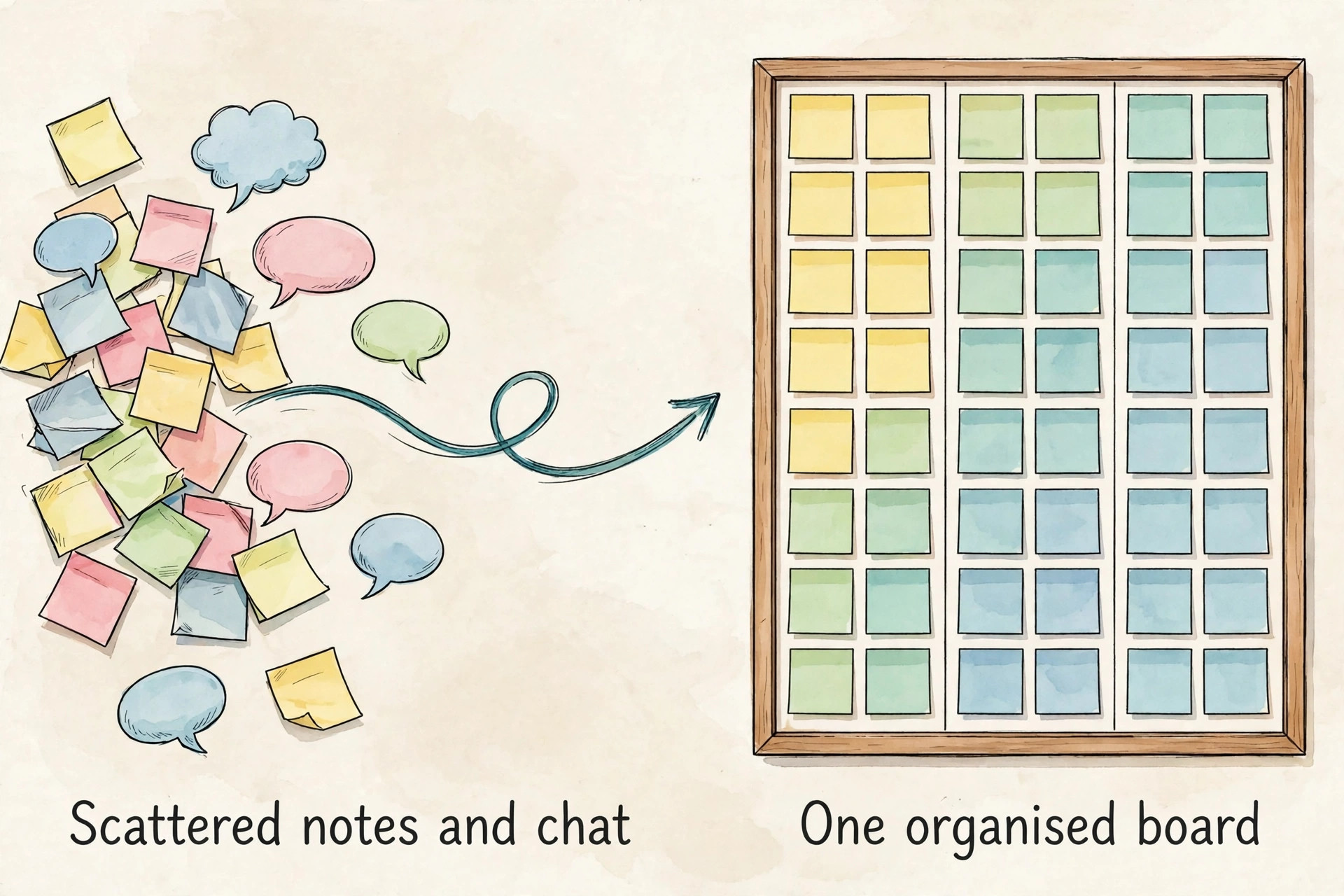
The problem is not that you lack ideas. The problem is that ideas live in five places at once, in a notes app, in an email thread, in a chat message you meant to save, in a spreadsheet nobody opens, and in your head on a Sunday night when you realise nothing is ready for Monday. That scatter is why publishing slips, and it is the mess you fix when you use Trello for content calendar. A post is half written, its image is somewhere else, nobody knows whether it was edited, and the publish date passes while the team argues about what was supposed to go out.
If you want to use Trello for content calendar work, you need a system that puts the idea, the draft, the edit, the image and the publish date in one visible place, and that makes the next step obvious to anyone who opens the board.
This guide builds that system from scratch. You will set up a board that matches how content actually moves, choose labels that tell you what kind of post a card is and how urgent it is, design cards that carry every field an editor needs, and run a publishing flow that catches missing images, broken links and weak headlines before a post goes live. It also covers Trello pricing, the limits that matter for publishing teams, the automations worth setting up first, and the mistakes that turn a tidy board into another cluttered list.
Prices quoted here come from Trello pricing pages and independent pricing checks made in October 2026, and you should confirm the checkout figure before you pay, because plans and limits change.
Why Most Content Calendars Collapse
Most content calendars collapse for a reason that has nothing to do with effort. They collapse because they track dates but not work. A spreadsheet with a list of titles and dates looks complete, yet it hides the real state of each post. It does not show whether the draft exists, whether the editor has seen it, whether the image is ready, or whether the post still needs a legal check. When a deadline arrives, the team discovers the gap too late, and the usual fix is to rush a weaker post or skip the slot entirely. Both outcomes teach the audience that publishing is unreliable, and both teach the team that the calendar cannot be trusted.
A second failure is vagueness. Cards titled “blog post” or “social” tell nobody what to write, who should write it, or what success looks like. A writer opens the card, finds no brief, no keyword, no angle and no deadline that means anything, and so the work waits until someone chases it in chat. Chasing in chat then creates a second, hidden calendar, the one that lives in messages, and the official calendar falls further behind. A good board removes that ambiguity, and that is the practical reason to use Trello for content calendar planning instead of a spreadsheet that only tracks dates.
Every card states the working title, the format, the audience, the main point and the publish date, so a writer can start without asking for the basics.
How to use Trello for content calendar Setup in One Afternoon
Start with one board, not three. A single board for the next quarter keeps every post visible, and it stops the common problem of a blog board, a social board and a newsletter board drifting out of sync. Name the board for the period it covers, for example Content Calendar Q1, and add a short board description that states the publishing rhythm, the platforms covered and who owns the board. That description saves a dozen questions from new contributors, because it answers the first thing a newcomer asks, which is how this board is supposed to work.
Create the board from a blank board rather than a generic project template, because content has its own stages and a generic template will force you to rename and delete half of it. Trello also offers a Blog Content Schedule template, which is a useful reference for list names and a publishing checklist, and you can open it to borrow ideas even if you build your own board from scratch. The official template is linked in the resources at the end of this guide. Building from blank takes about an hour, and it gives you a board that matches your process instead of a board you have to work around.
Add members only when you need them. A solo creator needs no members at all, just a board and a weekly review habit. A small team of three to five people needs the writer, the editor and whoever publishes, plus a designer if images are part of the workflow. Do not add every stakeholder as a member, because a board with fifteen watchers and no clear owner becomes a place where everyone comments and nobody moves cards. Give one person the job of board owner. That person runs the weekly review, archives finished work and fixes labels when they start to drift.
The Board Template That Matches Real Publishing
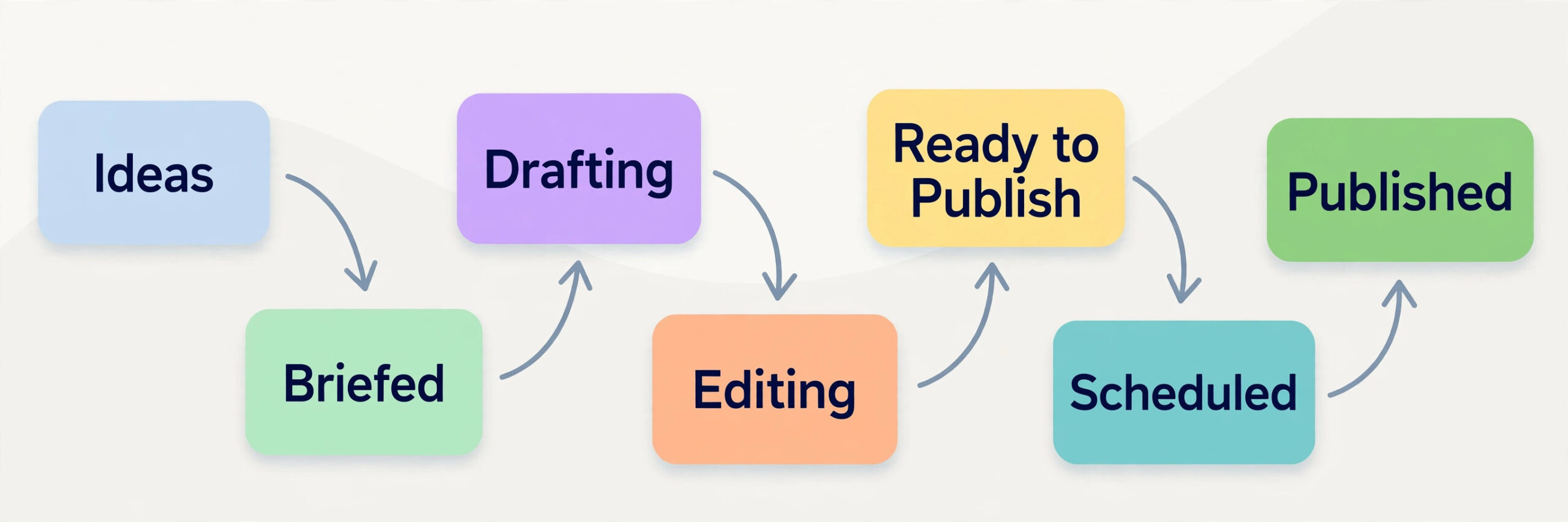
The heart of the system is the list structure, and this is the overview-proof part of the guide, because a template you can copy beats a theory about calendars. When you use Trello for content calendar work, use eight lists, in this order. Ideas. Briefed. Drafting. Editing. Ready to Publish. Scheduled. Published. On Hold. Each list answers one question. Ideas holds topics that are not yet committed. Briefed holds topics with a brief, a date and an owner, but no draft yet. Drafting holds work in progress. Editing holds drafts waiting for a human editor. Ready to Publish holds approved posts with images and metadata complete. Scheduled holds posts with a firm publish date and time in the scheduler.
Published holds live posts with the live link on the card. On Hold holds posts paused for a reason you can read on the card, not posts quietly forgotten.
| List | What belongs there | When a card leaves it |
|---|---|---|
| Ideas | Topics with no commitment yet | When it gets a brief, a date and an owner |
| Briefed | Topics with a brief and a publish date | When drafting starts |
| Drafting | Work in progress | When the writer hands it to the editor |
| Editing | Drafts waiting for edits | When edits are done and images are ready |
| Ready to Publish | Approved posts, fully complete | When a publish date and time are set |
| Scheduled | Posts set in the scheduler | When the post goes live |
| Published | Live posts with the live link | Only to archive, after the monthly review |
| On Hold | Paused posts with a reason on the card | When the block clears or the idea is dropped |
Labels That Tell the Truth at a Glance
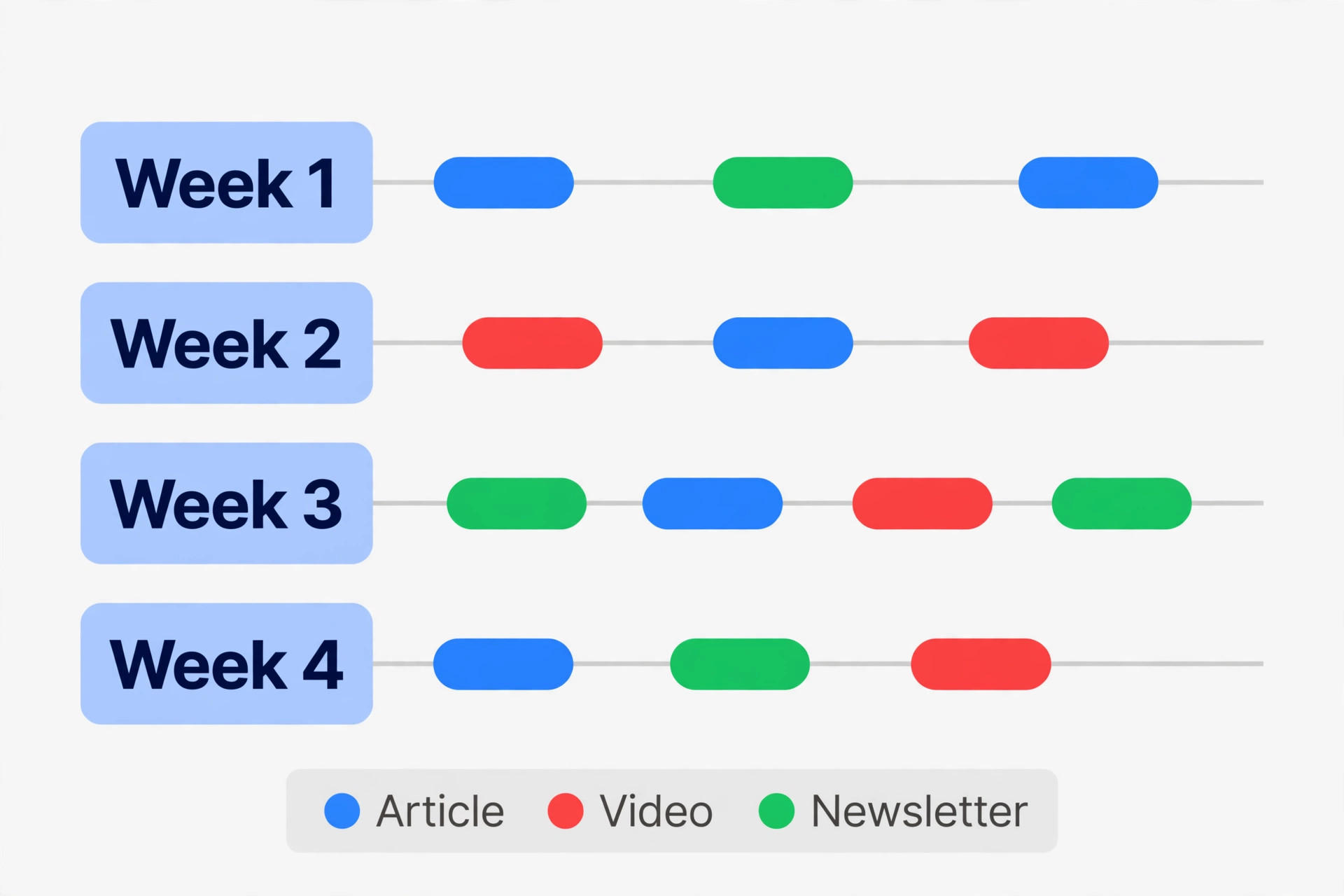
Labels are where most boards go wrong when teams use Trello for content calendar tracking, because teams create twenty labels and then use none of them consistently. Use two label systems and no more. The first system describes the format. Blog post, video, newsletter, social post, guest post and update. The second system describes urgency or risk. Needs image, needs edit, needs fact check, time sensitive and evergreen. A card should carry one format label and, when needed, one urgency label. A card with five labels tells nobody anything, because the colours blur into noise.
Custom fields, available on Standard and above, turn a card from a sticky note into a proper content record. Add fields for content type, target keyword, primary call to action, word count target and live URL. Keep the field count to five or six. More fields mean more time spent filling in a form and less time writing, and writers will start skipping fields they do not understand. The fields that earn their place are the ones an editor or publisher actually checks before a post goes live. If nobody checks a field at publish time, remove it.
Designing Cards That Carry the Whole Job
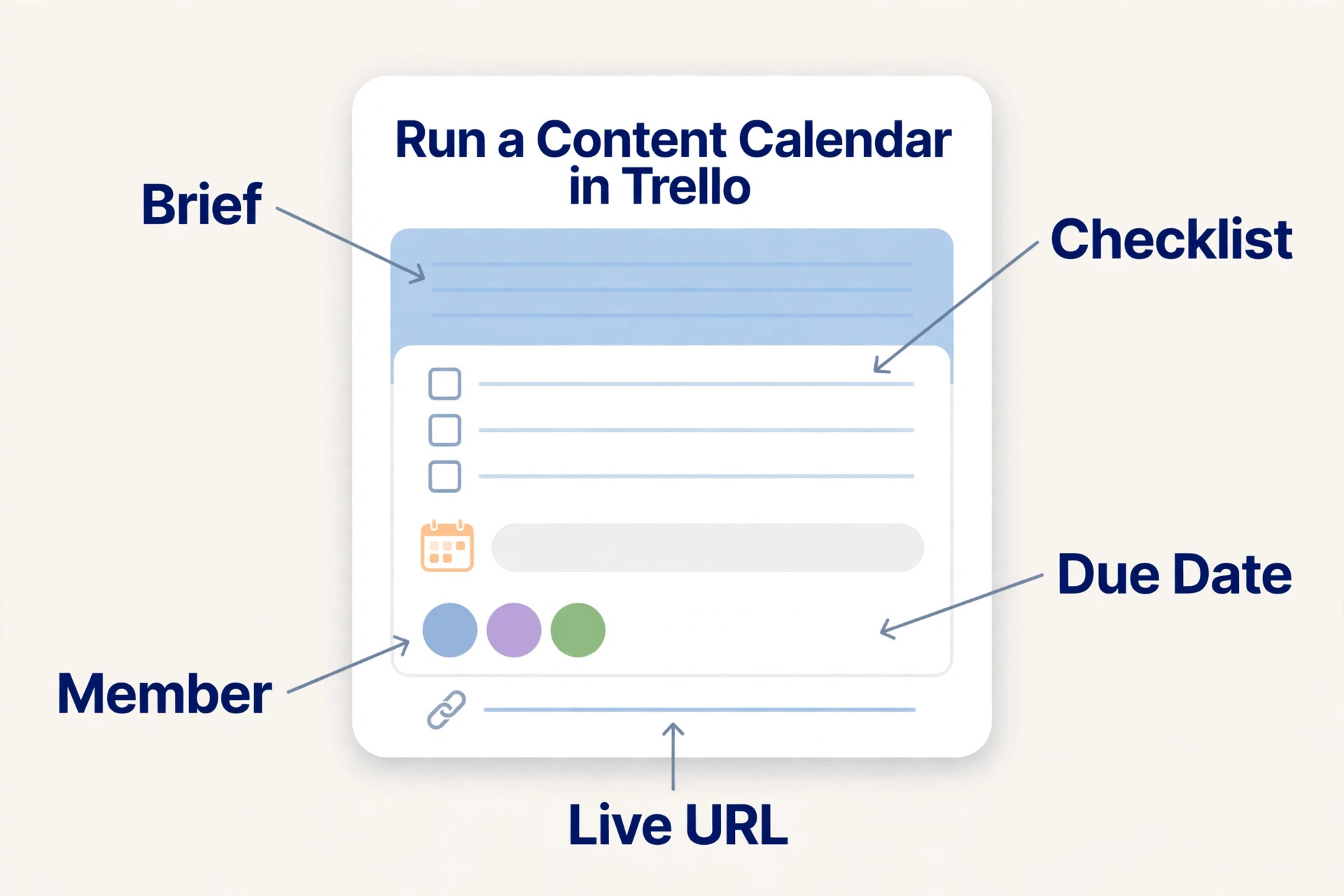
A good content card answers six questions without a meeting. What is this post about. Who is it for. What is the main point. When does it publish. Who owns it. What is left to do. The card description should hold the brief in a short, fixed structure, and the best way to enforce that structure is a card template. Trello card templates let you create a new card with the description and checklist already in place, so every writer starts from the same brief instead of inventing one. Set up one template for articles, one for social posts and one for newsletters, and no more, because a template library with ten options is a library nobody opens.
If you use Trello for content calendar production, the article card template should include the working title, the audience in one sentence, the main point in one sentence, the target keyword or search question, the outline in three to five bullet points, the call to action, and the links or sources the writer must use. That is enough for a writer to start, and short enough that a brief does not become a second article. The outline bullets are the most valuable part, because they force the person who briefs the post to decide the angle before the writer spends hours on a draft that answers the wrong question.
Checklists inside the card should track the production steps, not the writing itself. A typical article checklist has eight items, and the publishing checklist later in this guide expands it into the full pre-publish pass. Keep checklist items as actions with a clear done state, such as “Draft written”, “Images made and spell checked”, “Internal links added”, “Meta description written”, “Post scheduled”, and “Live link added to card”. A checklist item that reads “Make it good” is not a checklist item. It is a wish, and it will sit unchecked forever.
The Publishing Flow From Brief to Live Post
A publishing flow is a sequence of handoffs, and each handoff needs a rule about what “done” means. The flow below is the one this board is built for, and it works for a solo creator as well as a team, because a solo creator simply plays every role in turn and still checks each gate before moving on. Skipping a gate feels faster, but it is how broken links, missing images and duplicate topics reach the live site, and fixing a live post costs more time than checking it before publish.
Step one is briefing, and it is the gate that makes it possible to use Trello for content calendar delivery without chasing writers in chat. The board owner or editor moves a card from Ideas to Briefed only when the brief is complete, the publish date is set and an owner is assigned. A card that moves to Briefed without those three things will stall, because the writer cannot start and the editor cannot tell whether it is ready. Step two is drafting. The writer moves the card to Drafting, writes to the outline, and adds the draft link to the card.
The writer does not move the card to Editing until the draft is complete, not nearly complete, because an editor who starts on a half draft wastes time re-reading it when the rest arrives.
Step three is editing. The editor reads for accuracy, structure and tone, checks every factual claim that can be checked, and leaves comments on the card or in the draft document, not in chat, so the feedback stays with the work. The writer addresses the edits, and the card moves to Ready to Publish only when the checklist items for draft, edit and images are all ticked. Step four is the pre-publish pass, covered by the checklist below. Step five is scheduling. The publisher sets the date and time, moves the card to Scheduled, and adds a note about where the post is scheduled, so a second publisher does not schedule it twice. Step six is going live.
On publish day, the publisher checks the live post, adds the live link to the card, moves it to Published, and removes the time sensitive label if one was set.
The Publishing Checklist to Use on Every Post
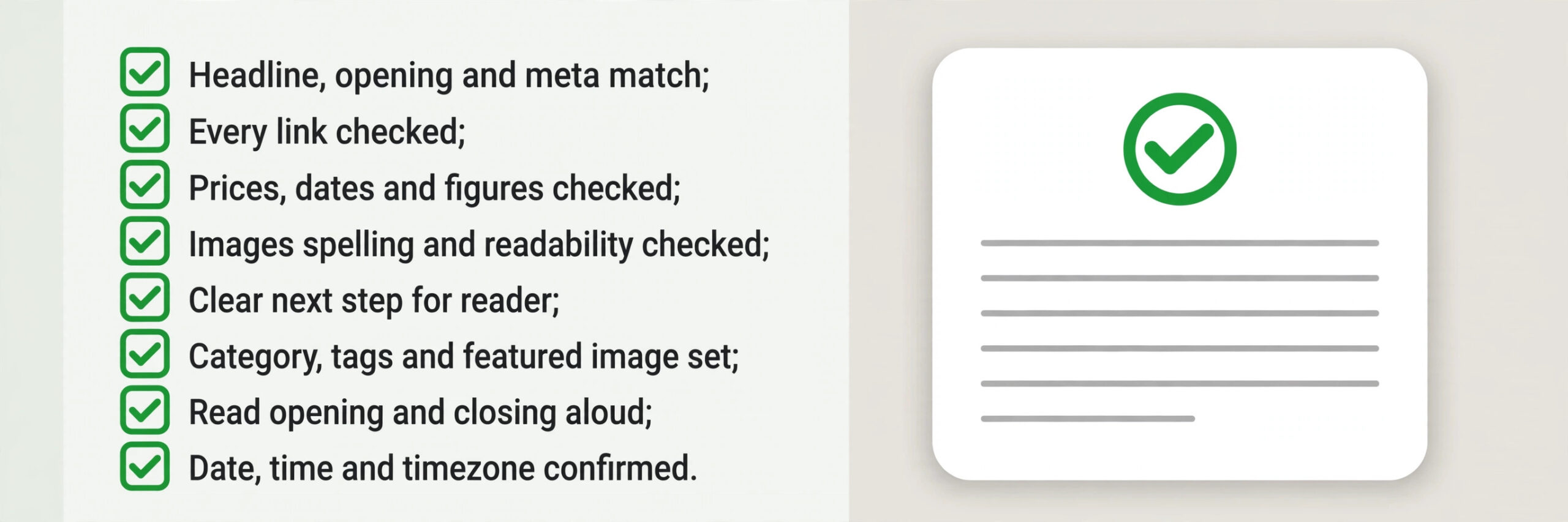
This checklist is the second overview-proof element in this guide, and it is the gate between Ready to Publish and Scheduled. Copy it into your card template when you use Trello for content calendar publishing, and do not move a card to Scheduled until every item is ticked or explicitly marked as not applicable, with a reason. A checklist that is skipped for “quick” posts is a checklist that will be skipped for every post within a month, because every post feels quick when its deadline is close.
First, confirm the headline, the opening paragraph and the meta description all match the post, and that the headline promises only what the post delivers. A headline that overpromises will earn a click and lose a reader, and a meta description that describes a different post will confuse search results. Second, check every link in the post, internal and external, by clicking it. A link to a page that moved, a tool that changed its name, or a pricing page that no longer lists the figure you quoted will damage trust faster than a typo. Third, check every price, date and figure against its source, and confirm the source is still live.
Prices change, and a post that quotes last year’s price as current will look careless.
Fourth, check every image for spelling, readability at phone size, and relevance to the section it sits in. An infographic with a misspelled word will be shared for the wrong reason, and an image that repeats the paragraph above it adds nothing. Fifth, confirm the post has a clear next step for the reader, whether that is a related guide, a tool to try, or a question to answer, and that the next step is a real link, not a vague suggestion. Sixth, confirm the post is assigned a category, tags and a featured image in your publishing platform, because those fields are easy to forget when you are focused on the text.
Seventh, read the post once aloud, or at least the opening and closing, to catch sentences that look fine on screen but sound clumsy when spoken. Eighth, confirm the publish date, time and timezone, and that no other post is scheduled for the same slot unless that overlap is intentional.
Automations That Save Time Without Breaking the Board
Automation in Trello, called Butler on older plans and now simply automation, handles the repetitive moves that humans forget. The free plan allows 250 workspace command runs a month, Standard allows 1,000, and Premium and Enterprise remove the ceiling. Those numbers matter, because a rule that fires on every card move can burn through a free quota in a busy month. Automate the most repetitive step first, measure the runs for a month, and add more rules only when you know the quota can carry them. A board with three good rules beats a board with thirty rules that hit the cap on the twentieth of the month.
Start with three rules when you use Trello for content calendar automation. First, when a card is moved to Published, remove the member who owned it and add a “published” label, or move the card automatically after a set period, so finished work does not sit in the active pipeline. Second, when a card due date arrives and the card is still in Drafting, move it to a list or add a red label that flags it as overdue, and notify the board owner, so slippage is visible the day it happens, not at the monthly review.
Third, when a card is moved to Editing, assign the editor and post a comment that names the draft link, so the editor does not have to hunt for it. Those three rules remove the most common chasing messages, which are “is this published”, “is this late” and “where is the draft”.
Keep approval human, and delete any rule that creates noise.
Trello Pricing and Which Plan Fits a Publishing Team
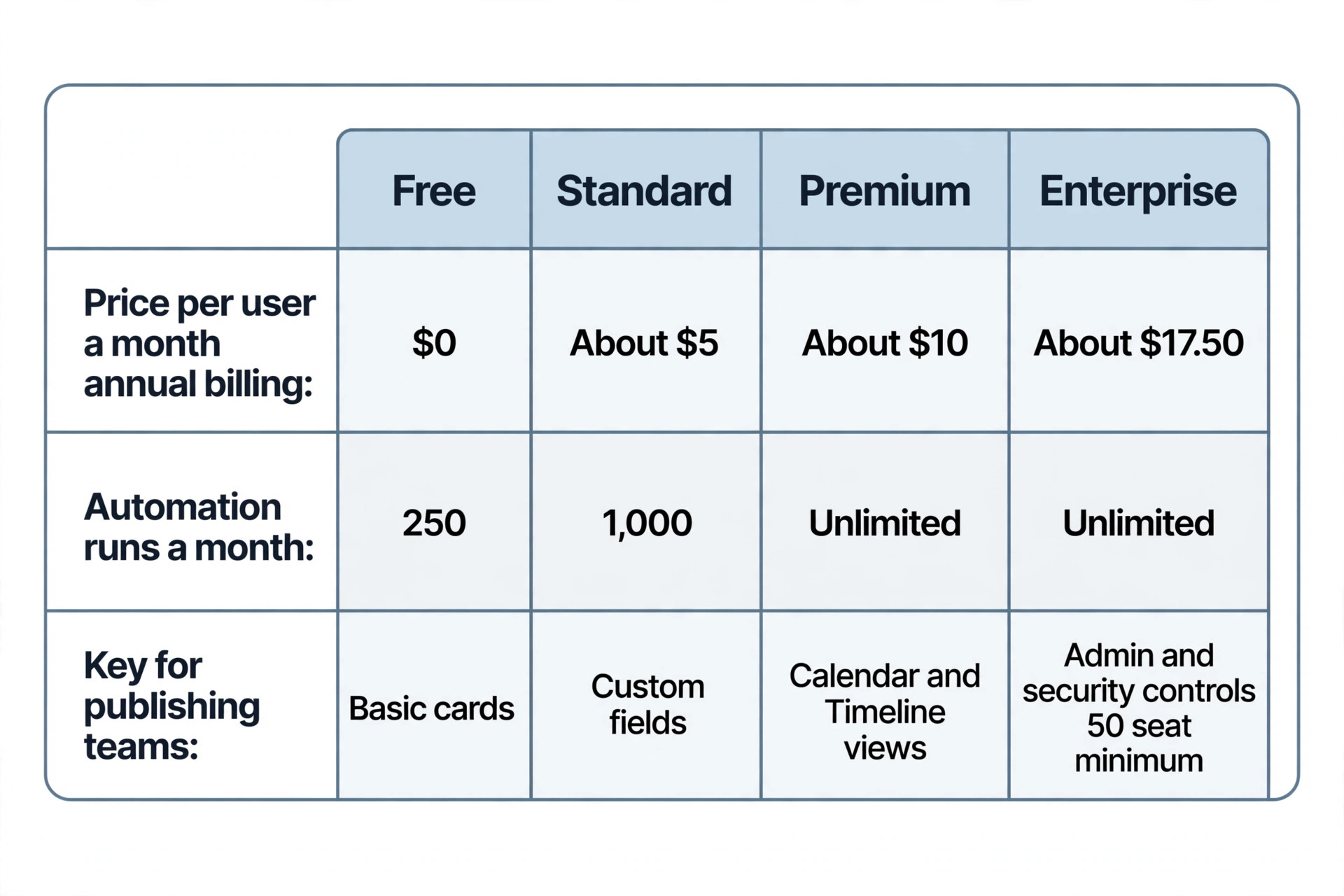
For teams that use Trello for content calendar work every week, Standard costs about $5 per user a month on annual billing, or about $6 on monthly billing, and it removes the board cap, raises attachments to 250 MB per file, adds custom fields, advanced checklists and card mirroring, and raises automation runs to 1,000 a month. Standard is the right plan for a small team that needs custom fields for keywords and live URLs, or that runs several boards for different channels and clients.
The custom fields alone justify Standard for many publishing teams, because they turn cards into searchable records, and a board without searchable fields becomes hard to audit when you need to find every post that mentioned a tool or a price.
Premium costs about $10 per user a month on annual billing, or about $12.50 on monthly billing, and it adds the views that publishing teams notice most, Calendar, Timeline, Table, Dashboard and Map, plus unlimited automation runs and workspace level controls. Premium is the right plan when you publish daily, manage several contributors, or need a calendar view that the whole team can read at a glance. A team publishing three posts a week can manage without Premium by sorting by due date, but a team publishing daily will feel the lack of a calendar view within a month, and the time saved in the weekly review usually covers the price difference.
| Plan | Annual price per user a month | What a publishing team gets |
|---|---|---|
| Free | $0 | One or two boards, basic cards, 250 automation runs |
| Standard | About $5 | Unlimited boards, custom fields, 1,000 automation runs |
| Premium | About $10 | Calendar and Timeline views, unlimited automation runs |
| Enterprise | About $17.50, 50 seat minimum | Admin and security controls for large organisations |
When Trello Is the Wrong Tool for the Job
Trello is the right tool when content moves in a clear sequence of stages and the team needs to see that sequence at a glance. It is the wrong tool when content needs complex dependencies, because Trello has no built-in dependency management that shows one post cannot start until another finishes. A content series where part two depends on part one can be tracked with linked cards and a note, but a research project with twenty interlocking dependencies will outgrow Trello quickly, and a tool with timeline dependencies will serve it better. Be honest about that limit before you build a large system on Trello, because migrating a year of cards is painful.
How to Choose Your Setup by Team Size
A solo creator should keep the system as light as possible. One board, six lists, one format label system, no custom fields beyond keyword and live URL, and a weekly review on Monday morning. The goal for a solo creator is not a perfect board. It is a board that is updated in under ten minutes a week, because a system that takes longer than that will be abandoned when writing gets busy. Use the free plan, set due dates on every card, and keep a buffer of three finished posts in Ready to Publish, so a busy week does not break the publishing rhythm.
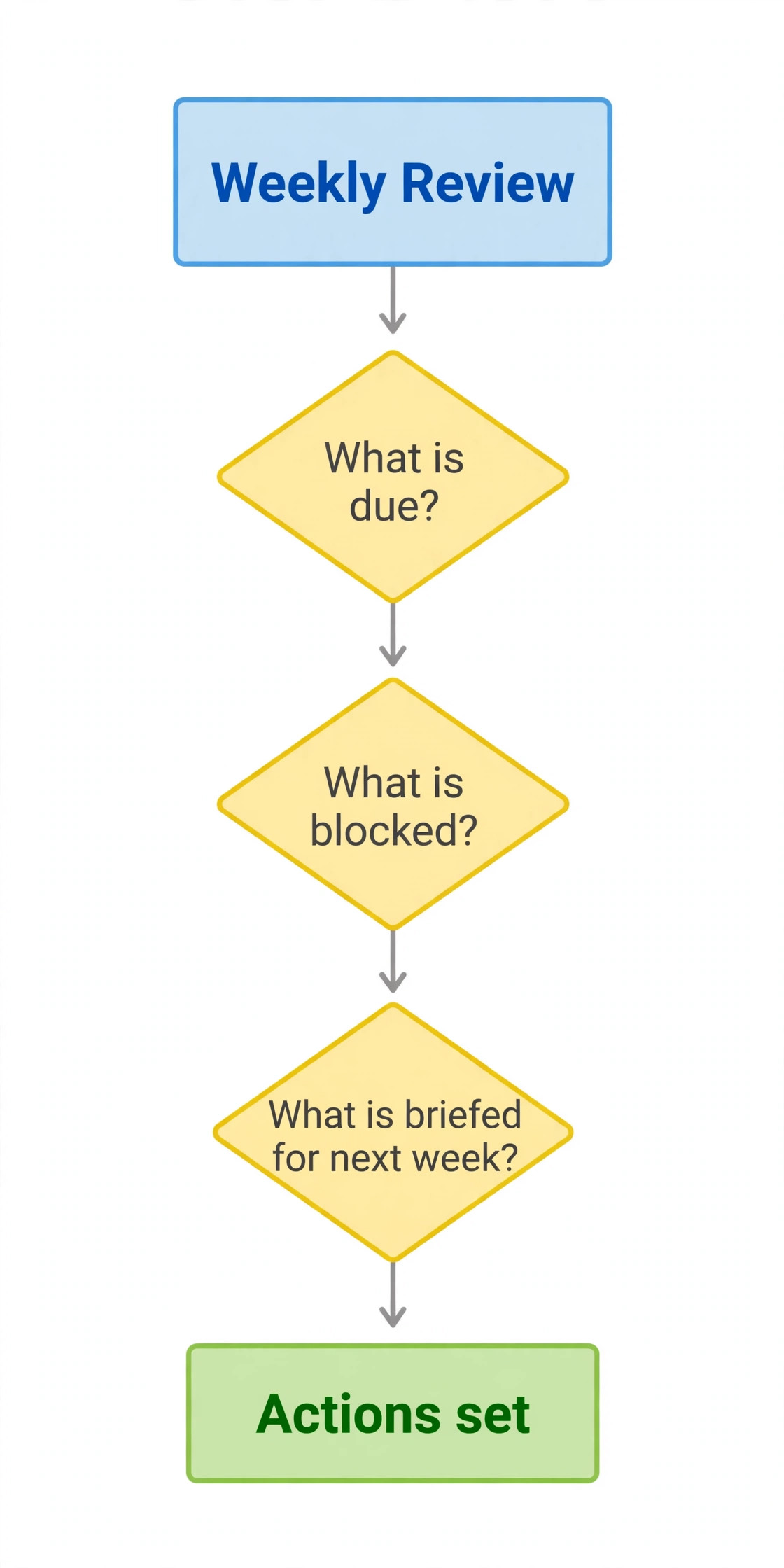
A small team of three to five people should add the full eight lists, custom fields on Standard, and the three automations described earlier. Assign a board owner, agree on label meanings in writing, and run the weekly review as a short meeting, not as a message thread. The meeting should last fifteen minutes and answer the same three questions every week, what is due, what is blocked, and what is briefed for next week. A team that skips the meeting will find that the board and reality drift apart within a month, because nobody owns the gap between them.
Mistakes That Quietly Break a Trello Calendar
The first mistake is adding ideas without dates or owners. An idea card with no date and no owner is not a plan. It is a wish, and a board full of wishes hides the real pipeline. Give every card that leaves Ideas a date and an owner within the same move, or leave it in Ideas until you can. The second mistake is letting cards sit in Editing for weeks. Editing should take days, not weeks, and a card that sits in Editing for more than a week usually means the editor is overloaded, the draft needs a rewrite, or the post should be paused.
The weekly review should name every card that has been in one list for more than two weeks and decide its fate.
For related reading, the guide to planning a month of social content shows how a monthly theme plan feeds the board, best AI tools for content creators covers tools that can speed up drafting, and best project management software is useful if your team outgrows a single board and needs to compare wider options.
Frequently Asked Questions
Is Trello free enough for a content calendar?
Yes, for a solo creator or a team of up to ten collaborators running one or two boards. The free plan covers unlimited cards, due dates, checklists, labels and 250 automation runs a month, which is enough for a weekly publishing rhythm. Upgrade to Standard when you need custom fields for keywords and live URLs, or to Premium when you need a calendar view and unlimited automation runs. That is enough to use Trello for content calendar work on a weekly rhythm. Check the pricing page before you upgrade, because the limits that matter for your team may sit on a different tier than you expect.
How many lists should a Trello content board have?
Eight lists cover most publishing teams, from Ideas through Published, with an On Hold list for paused work. Solo creators can merge down to six lists without losing control, and teams with a separate design or compliance stage should handle that stage inside the card checklist, not as a new list. More than ten lists usually slows the board down, because every move becomes a choice between stages that look almost identical.
Should each content format have its own board?
No, not at first. One board for blog posts, newsletters and the social posts that promote them keeps the pipeline visible in one place. Split into separate boards only when one format runs on a different rhythm, such as daily social posts alongside weekly articles, or when you manage content for different clients. When you split, link the related cards across boards, so the article card still points to its social cards and nobody has to search two boards to find the full story.
How do you stop a Trello board from filling up with stale ideas?
Keep the idea pool on the same board but separate from the active pipeline, cap it at fifty cards, and review it monthly. Move ideas that are still good but not scheduled to a separate archive board, and delete ideas that no longer fit your audience or goals. A card that has sat in Ideas for six months without a brief is not a future post. It is clutter, and removing it makes the ideas you do keep easier to find and easier to commit to.
Yes, if the team is small and publishes weekly rather than daily. Use due dates on every card, sort the board by due date in the weekly review, and use Standard custom fields if you need keyword and URL tracking. Premium becomes worth it when you publish daily, manage several boards, or need calendar and dashboard views that the whole team can read at a glance. The free plan plus a disciplined weekly review beats Premium with no review habit, every time.
What is the single most useful automation for a content board?
The overdue flag is the most useful first automation. When a card passes its due date while still in Drafting or Editing, the rule adds a red label and notifies the board owner, so slippage is visible the day it happens. That single rule prevents the most common calendar failure, which is a missed publish date discovered a week later. After that, add an assignment rule for Editing and an archive rule for Published, and stop there until you have measured your automation runs for a full month.
The Board That Publishes on Time
A content calendar is not a list of dates. It is a promise to your audience that something useful will appear on schedule, and a promise to your team that the work behind that post will be clear, owned and checked. Trello earns its place in that promise because it makes the work visible. A writer can see what to write next. An editor can see what needs attention. A publisher can see what is ready, what is scheduled and what is live, without asking anyone. That visibility is the whole advantage, and it is worth more than any single feature on a pricing page.
Start this week, not with a perfect board, but with a working one. Create the board, add the eight lists, write the first ten cards from your real pipeline, and run the publishing checklist on the next post you publish. Review the board next Monday, archive what is done, and brief next week’s posts before this week’s posts are all live. Repeat that cycle for a month, and you will have more than a calendar. You will have a system that survives a busy week, a sick day and a new team member, because the next step for every post is written on its card, not stored in someone’s head.
That is what a good content calendar does, and it is why a simple board, used with discipline, beats a complex tool used without it.
Official resources for this guide include the Trello pricing page at https://trello.com/pricing and the Trello Blog Content Schedule template at https://trello.com/b/IkQNxAHA/blog-content-schedule, both worth checking before you build, because plan limits and template contents change over time.