
Bloggers who publish regularly often discover the same problem, which is not a lack of ideas, but a lack of visibility into what is due, what is stuck, and what is missing. Studies of planned content repeatedly find that calendars help creators publish more consistently, because planning forces decisions about topics, keywords, and timing before the pressure of a deadline arrives. A spreadsheet may look less exciting than a dedicated content tool, but for bloggers who use Google Sheets for content calendar bloggers, it is the right tool, because it is free, familiar, shareable, and flexible enough to match any workflow.
Bloggers who use Google Sheets for content calendar bloggers can maintain will find this guide practical, because it builds an editorial calendar from columns and statuses, not from expensive software, and it includes the weekly routine that keeps the calendar honest.
Why a Spreadsheet Calendar Beats Memory and Notes
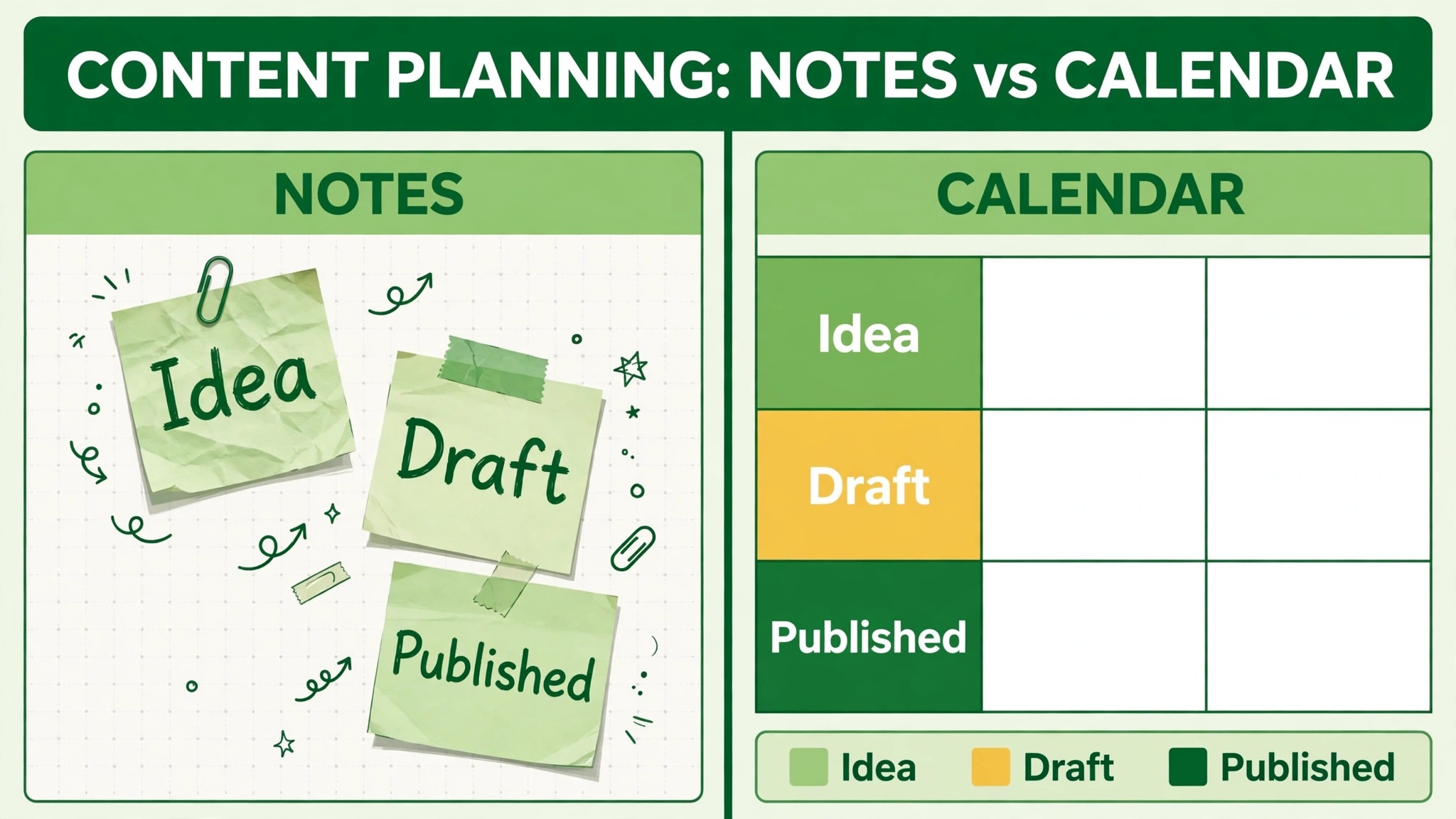
Memory is a poor calendar, which is why bloggers who use Google Sheets for content calendar bloggers planning need a visible system. It remembers the exciting post and forgets the boring but necessary one. It remembers the post due tomorrow and forgets the post that needs research this week to be ready next week. Notes apps are better than memory, but they usually store ideas as a list, without dates, owners, statuses, or links, so they cannot show gaps, overlaps, or bottlenecks. A spreadsheet calendar shows all of those at once, in a single view that can be sorted, filtered, and shared.
The strength of a sheet is that it is both a plan and a record. The plan part shows future posts, their dates, and their statuses. The record part shows past posts, their live links, and their performance notes, so you can see what you actually published, not just what you intended to publish. That record becomes valuable over months, because it reveals patterns, such as topics you cover repeatedly, topics you neglect, formats you favour, and times of year when publishing drops. Those patterns are hard to see from a list of ideas, but easy to see from a dated calendar.
A sheet also scales with a blogger journey. A solo blogger can use eight columns and one tab. A blogger with an editor and a designer can add columns for review, images, and promotion, and tabs for social and email, without changing tools. A blogger who later moves to a dedicated tool will move with a clear sense of what columns and statuses they actually need, because the sheet taught them their workflow. Starting with a sheet is therefore not a compromise. It is a way to learn your workflow before paying for a tool to automate it.
The Core Columns Every Blogger Calendar Needs
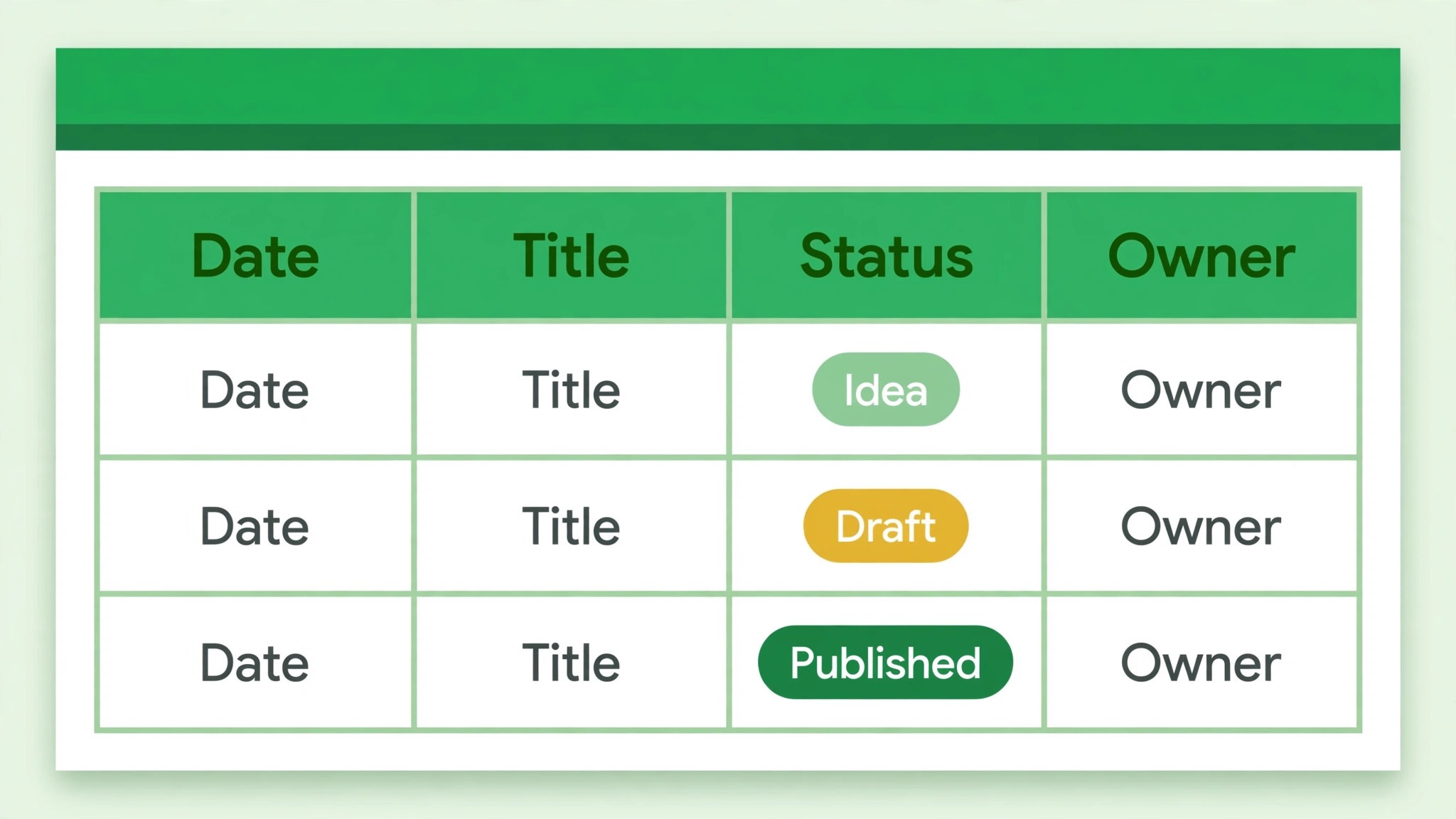
Columns are the heart of a calendar, when you use Google Sheets for content calendar bloggers workflows, because they decide what information is captured for every post. Too few columns, and the calendar cannot answer basic questions, such as who is writing a post or what keyword it targets. Too many columns, and entering a post becomes a chore, so bloggers stop entering posts and the calendar goes stale. Eight core columns cover most blogger needs without overload, and additional columns should be added only when a real question keeps arising that the core columns cannot answer.
The first column is publish date, which is the date the post goes live, not the date you hope to finish writing it. That distinction matters, because confusing the two creates a calendar full of optimistic dates that slip. The second column is working title, which should clarify the angle, not just the topic, so a title such as how to plan a week of meals on a budget is more useful than a title such as meals. The third column is primary keyword or search intent, which states the main query the post targets and whether the intent is informational, commercial, or transactional. That column prevents duplicate posts targeting the same keyword and helps you see topical gaps.
The fourth column is content type, such as how to guide, comparison, list, explainer, or opinion piece, because different types need different production time and different structures. The fifth column is owner or author, with one name per post, not a team name, so responsibility is clear. The sixth column is status, using a fixed list described below. The seventh column is draft link or live link, so anyone can find the work without searching. The eighth column is notes, for brief context, such as waiting for photos, needs fact check, or update seasonal section. Those eight columns, used consistently, turn a sheet from a list into a decision tool.
| Column | What goes in it | Why it matters |
|---|---|---|
| Publish date | Date post goes live | Shows gaps and clusters |
| Working title | Title plus angle | Clarifies what post actually is |
| Primary keyword | Main query and intent | Prevents duplicate targeting |
| Content type | Guide, comparison, list, explainer | Shows format mix and effort |
| Owner | One name per post | Makes responsibility clear |
| Status | Fixed status list | Shows pipeline at a glance |
| Link | Draft link or live link | Finds work without searching |
| Notes | Brief context only | Records blockers and needs |
Statuses, Dropdowns, and Colour Rules
Statuses only work, when you use Google Sheets for content calendar bloggers track progress, if they are fixed, shared, and used consistently. If every blogger invents their own status, such as almost done, nearly ready, and in progress-ish, the calendar cannot be filtered or counted, and no one knows what a status means. Use a short fixed list, such as idea, approved, briefed, drafting, in review, scheduled, and published, and enforce it with a dropdown in the status column. In Google Sheets, a dropdown is created by selecting the column and using the data validation or dropdown feature, then entering the fixed labels.
That small setup step prevents most status chaos, because it removes the option to invent new labels on the fly.
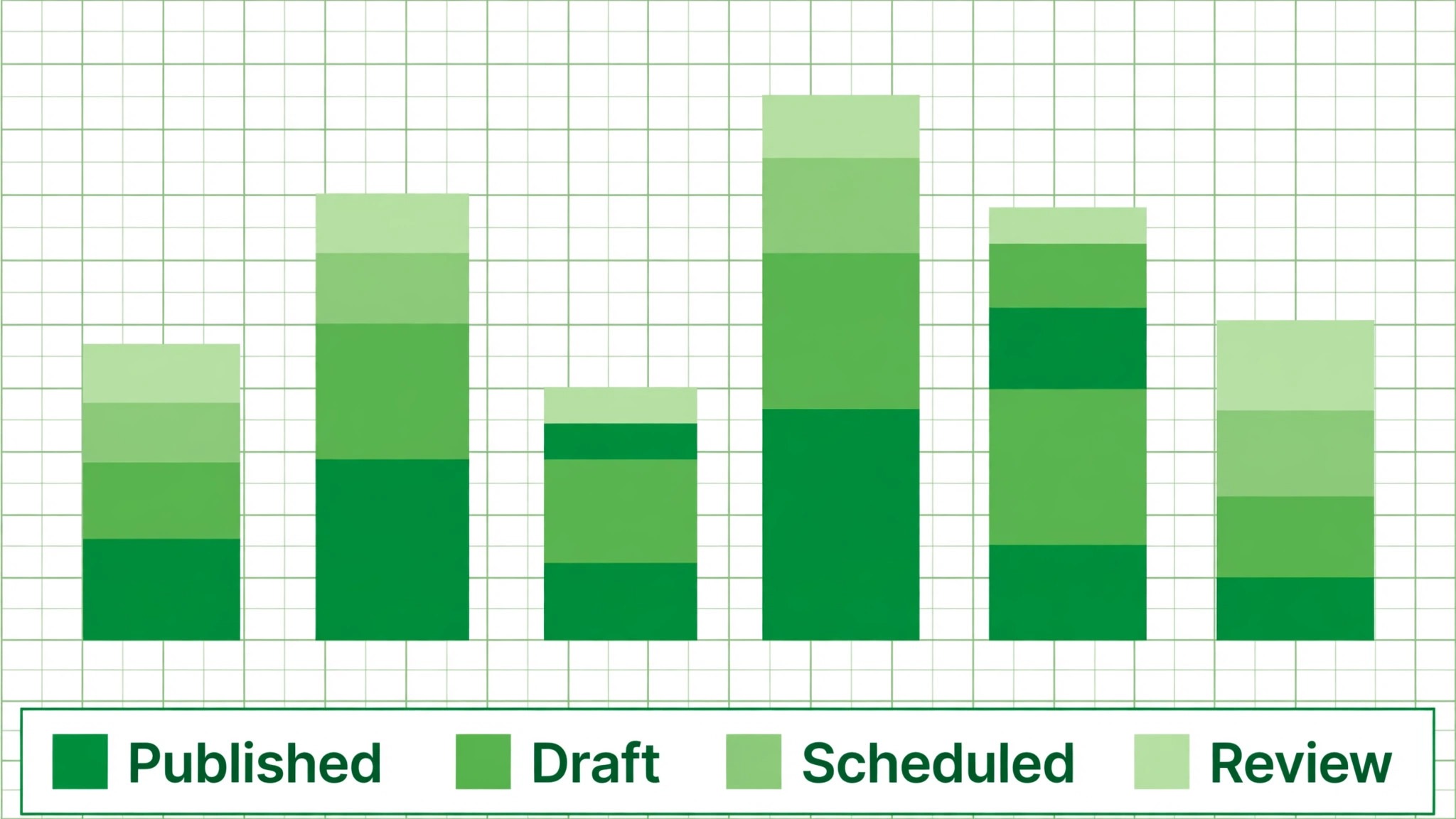
Colour by status using conditional formatting, so the pipeline is visible without reading every row. A common scheme is grey for idea, blue for drafting, yellow for in review, green for scheduled, and a darker green or a check style for published, but the exact colours matter less than consistency. The rule is that anyone opening the sheet should be able to see, in seconds, how many posts are in each stage, which posts are stuck in review, and which dates have no scheduled post. Colour is not decoration here. It is a visual summary that saves reading time every day.
Statuses also need movement rules. An idea becomes approved when the topic, keyword, and date are agreed. Approved becomes briefed when the outline or brief is written. Briefed becomes drafting when writing starts. Drafting becomes in review when a complete draft is ready for editing or fact checking. In review becomes scheduled when the draft is approved and queued. Scheduled becomes published when the post is live and the link is added. If a post stays in one status for longer than expected, such as drafting for three weeks or in review for two weeks, that is a signal to investigate, not a reason to change the status to something vaguer to hide the delay.
Building the Sheet Step by Step
Start with a blank spreadsheet and name it clearly, such as Content Calendar 2026, and create a main tab for blog posts. Freeze the header row, so column names stay visible when scrolling, and set up filters on the header, so you can filter by status, owner, or content type without rearranging the sheet. Those two setup steps take minutes and make the sheet usable for a year, because they keep navigation easy as the number of rows grows into the hundreds.
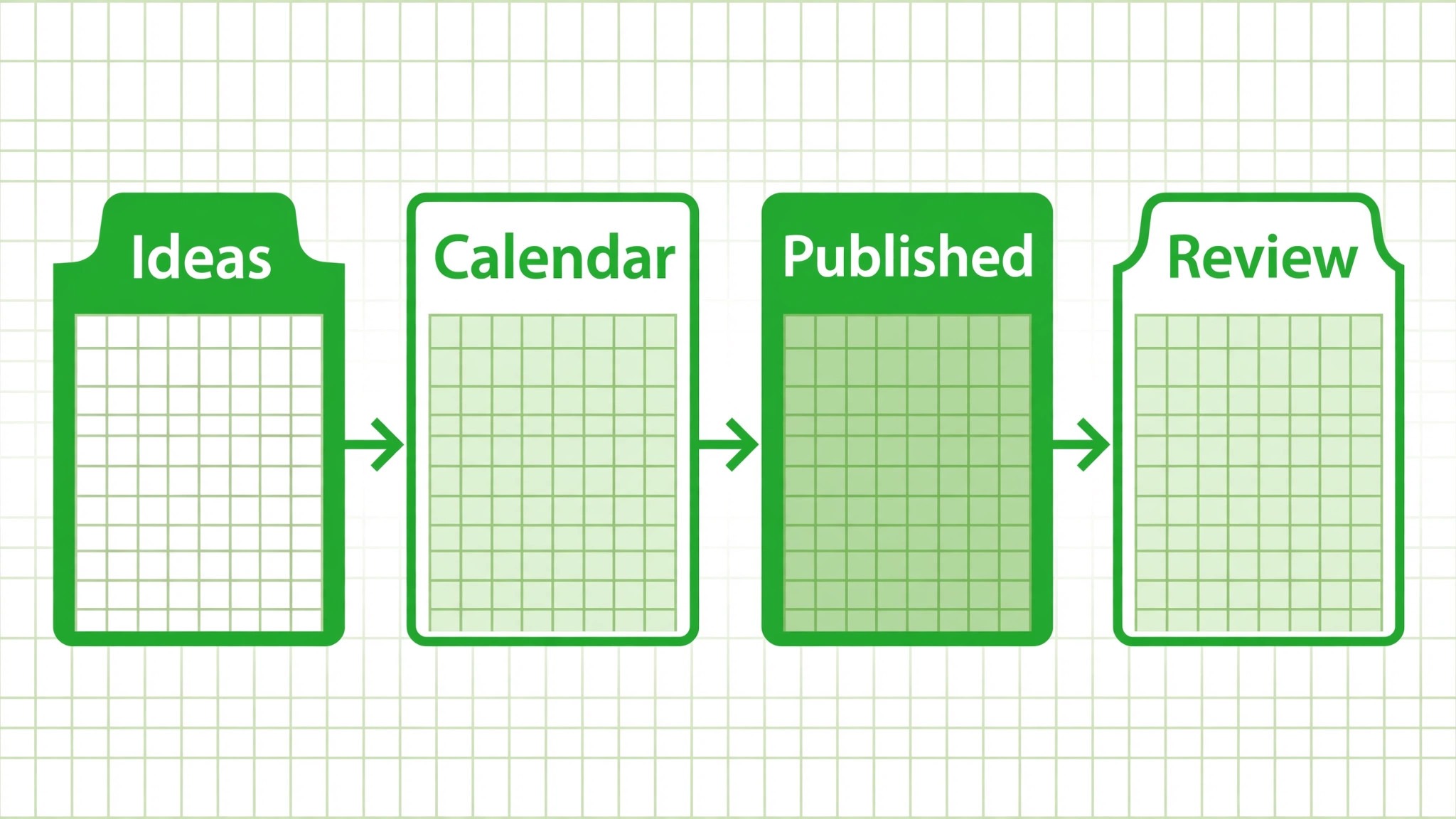
Next, enter the fixed dropdown for status, set up conditional formatting for status colours, and add data validation for dates where helpful, so publish dates are entered as real dates, not as text that cannot be sorted. Add a second tab for ideas, where unapproved topics live before they earn a publish date. That separation is important, because mixing ideas with scheduled posts makes the calendar look fuller than it is and hides real gaps. Ideas that are approved move to the main calendar with a date. Ideas that are rejected or postponed stay on the ideas tab, with a note explaining why, so they are not lost or repeatedly proposed.
Add a third tab for a monthly view or a dashboard, if you want one, but keep it simple. A dashboard can show counts by status, using formulas that count rows in each status, and counts by month, using formulas that count publish dates in each month. Those counts give a quick health check, such as ten posts scheduled this month, three in review, and two overdue, without reading every row. Do not build a complex dashboard before the main calendar is working, because a dashboard for a calendar that is not updated is just a pretty summary of stale data.
Planning a Month Without Burning Out
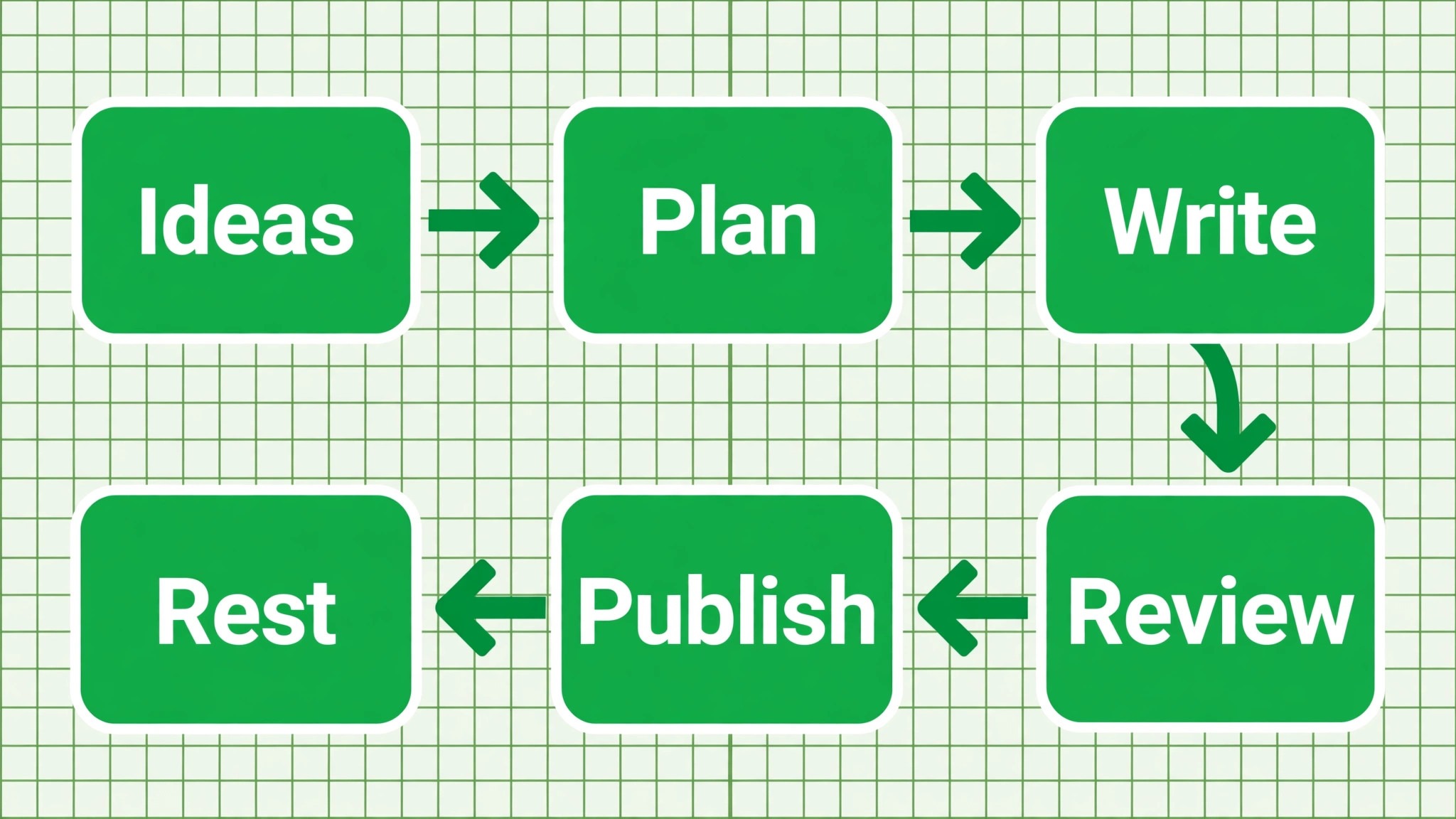
Monthly planning, for bloggers who use Google Sheets for content calendar bloggers plan ahead, should happen in one sitting, ideally at the end of the previous month, and it should produce a realistic schedule, not an aspirational one. Start by counting how many posts you can actually publish, based on past performance, not on hope. If you published four posts last month while busy, planning eight this month because you feel motivated will likely fail and create a backlog that demoralises you. Plan for the blogger you actually are, in the month you actually have, including holidays, work deadlines, and seasonal demands.
Balance the month by topic, format, and intent. Check that you are not publishing three posts on the same keyword in one week, leaving the next week empty, or publishing only one format for a month. A mix of guides, comparisons, lists, and explainers keeps the blog interesting and serves different reader needs. A mix of informational and commercial intent keeps the blog useful for readers at different stages, from those researching a topic to those ready to choose a product or service. That balance is easy to see in a sheet, by filtering or sorting by content type and keyword, and hard to see from a list of ideas.
Leave buffer slots in the month. A buffer slot is a publish date with a flexible topic, such as an update to an existing post, a short answer post, or a repurposed piece, that can be used if a planned post slips. Buffer slots prevent a missed post from becoming a missed week, because there is always a simpler post ready to fill a gap. They also give space for timely posts, such as a response to a news event or a trending question, without disrupting the whole schedule. A calendar without buffers is brittle. A calendar with buffers is resilient, and resilience is what sustains publishing over years.
How to Use Google Sheets for Content Calendar Bloggers With the Full Template
The template below extends the core columns with optional columns that many bloggers add after the core is working. Optional columns include meta description, internal links, featured image status, social promotion status, and thirty day traffic. Each optional column answers a specific question that arises during publishing, such as whether the image is ready, whether the post has been promoted, or whether an old post needs updating. Add optional columns one at a time, when the question they answer keeps arising, rather than adding all of them at once and creating a sheet that feels like a form.
| Optional column | Question it answers | When to add it |
|---|---|---|
| Meta description | Is search snippet ready | When you optimise for search |
| Internal links | Which posts link here | When blog grows past fifty posts |
| Featured image | Is image ready and checked | When images delay publishing |
| Promotion status | Has post been shared | When promotion is inconsistent |
| Thirty day traffic | How did post perform | When you review monthly |
| Refresh date | When to update post | When old posts need updates |
Tabs can also extend the template. A blog tab holds the main calendar. A social tab can hold planned social posts linked to each blog post, with columns for platform, caption status, and publish date. An email tab can hold newsletter plans, with columns for send date, subject, and linked post. Separate tabs prevent the main calendar from becoming cluttered with social details, while still keeping all planning in one spreadsheet that can be shared with collaborators. The key is to keep each tab focused on one workflow, with clear column names and fixed statuses, just as the main tab does.
Sharing rules matter when collaborators are involved. Share the sheet with editors as editors and with stakeholders as viewers, so only those who need to change statuses can do so, and others can see progress without accidentally editing dates or titles. Use comments on specific cells for questions, rather than general messages, so the context stays with the post it concerns. Protect the header row and the status dropdown list if possible, so collaborators cannot accidentally delete the structure that makes the calendar work.
The Publish or Reschedule Checklist
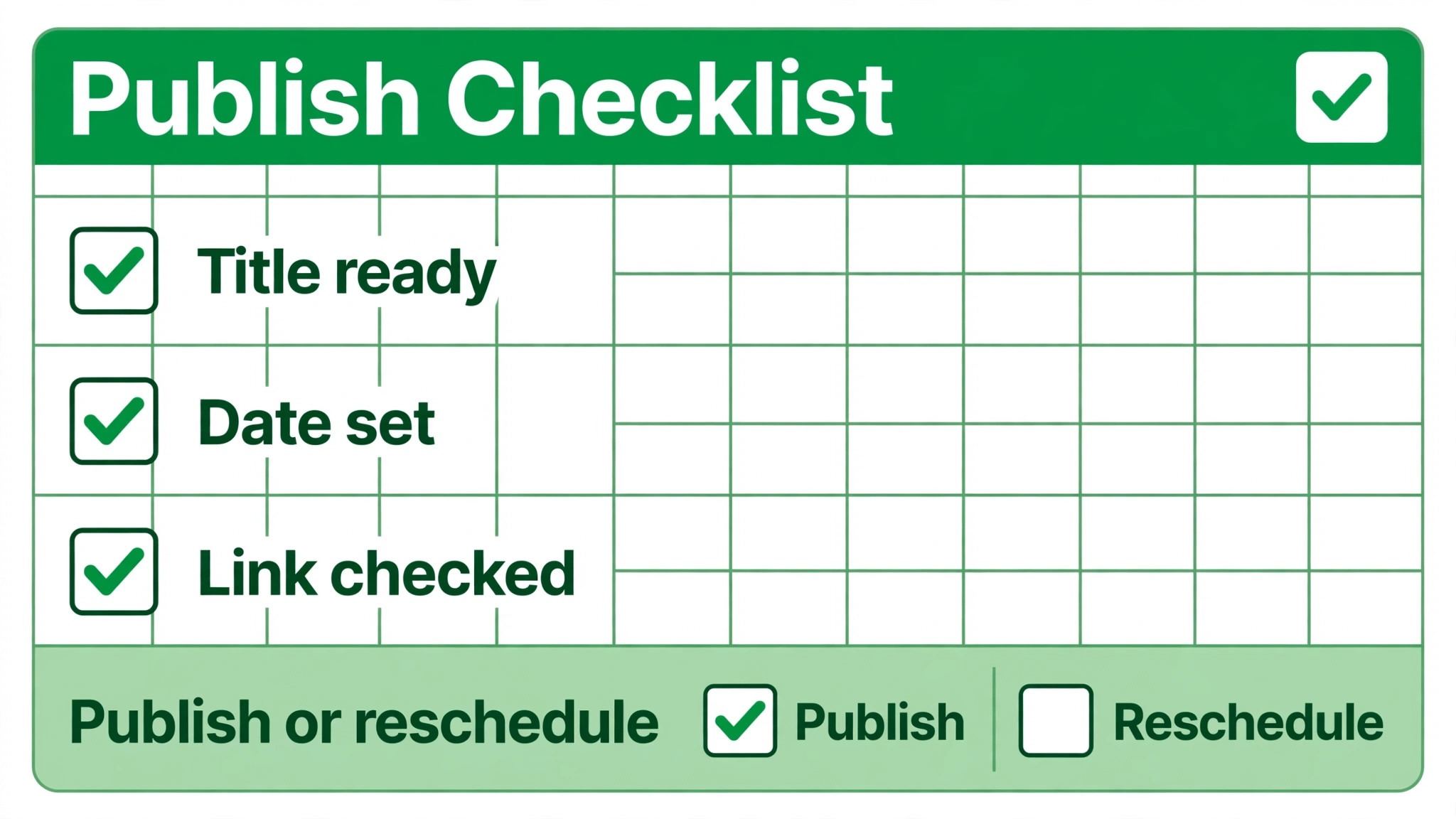
Every publish date needs a decision, which is to publish, reschedule, or replace the post, and that decision should be made deliberately, not by letting the date pass silently. The checklist below is designed for a weekly review, ideally a few days before the next publish date, so there is time to act. It checks the post, the images, the links, and the promotion, and it ends with a clear decision that is recorded in the sheet, so the calendar always reflects reality.
First, check the draft. Is it complete, edited, and fact checked, with a title, headings, and a conclusion that match the promised angle. Second, check the images. Is the featured image ready, checked for spelling and relevance, and are in content images placed and captioned. Third, check search elements. Is the primary keyword present naturally, is the meta description written, and are internal links added to relevant older posts. Fourth, check links and facts. Do all links open correctly, are prices, dates, and claims verified, and is any outdated information updated. Fifth, decide. If all checks pass, schedule the post and mark it scheduled.
If a check fails but can be fixed before the date, assign the fix and keep the date. If a check fails and cannot be fixed in time, reschedule to a new date and note the reason, or replace the slot with a buffer post.
| Checklist item | Pass test | If failed |
|---|---|---|
| Draft complete | Edited, fact checked, structured | Assign edit and keep or move date |
| Images ready | Featured and in content images checked | Assign image work before publishing |
| Search ready | Keyword natural, meta written | Write meta and check keyword use |
| Links and facts | Links work, claims verified | Fix links or update claims |
| Decision recorded | Publish, reschedule, or replace noted | Update status and date in sheet |
Rescheduling is not failure. It is planning. A post rescheduled with a reason and a new date is still part of the plan. A post that simply misses its date, with no update to the sheet, creates a gap that is discovered later, when it is harder to fill. Record every reschedule, and review reschedules monthly. If the same post is rescheduled three times, it may be too large, too vague, or no longer a priority, and it should be split, redefined, or moved back to the ideas tab. That honesty keeps the calendar credible, and a credible calendar is one you will actually use.
Reviewing Performance and Refreshing Old Posts
A calendar is also a record for review, and bloggers who use Google Sheets for content calendar bloggers review monthly will spot patterns faster. Monthly, look at posts published in the previous month and note their early performance, such as traffic, comments, or shares, in the optional traffic column if you use it. More importantly, look at the calendar as a whole. Which topics performed well. Which formats were easiest to produce. Which posts took longest and why. Those answers should influence next month planning, by repeating successful topics in new angles, dropping formats that consistently underperform, and breaking large posts into smaller ones if size was the bottleneck.
Old posts deserve a place in the calendar too, through a refresh date column. Evergreen posts that bring steady traffic should be reviewed annually, or when their information becomes outdated, such as prices, tools, or steps that changed. Schedule refreshes in the calendar just as you schedule new posts, with a status and an owner, so they are not forgotten. A refreshed post, with updated data, new images, and improved headings, can often regain traffic faster than a new post on a similar topic, because it already has history, links, and ranking signals. Treating refreshes as real calendar items, not as afterthoughts, is a mark of a mature blogging workflow.
Seasonal planning also belongs in the calendar. Note seasonal topics months in advance, such as holiday guides, back to school content, or year end roundups, and schedule research and drafting early enough that publishing happens before the season peaks, not during it. A calendar that shows seasonal posts three months ahead lets you prepare images, gather data, and promote in time, while a calendar that only shows next week will always be late for seasonal traffic. That forward view is one of the strongest reasons to keep a calendar in a sheet, where future months are visible with a scroll, rather than in a notes list that only shows the present.
Mistakes That Make Calendars Go Stale
The first mistake is overcomplicating the sheet on day one. Twenty columns, five tabs, and complex formulas look impressive, but they make entering a post feel like filling a form, and bloggers stop entering posts. Start with eight columns and one tab, use it for a month, and add columns only when a real need appears. A simple calendar that is updated is infinitely more useful than a complex calendar that is abandoned.
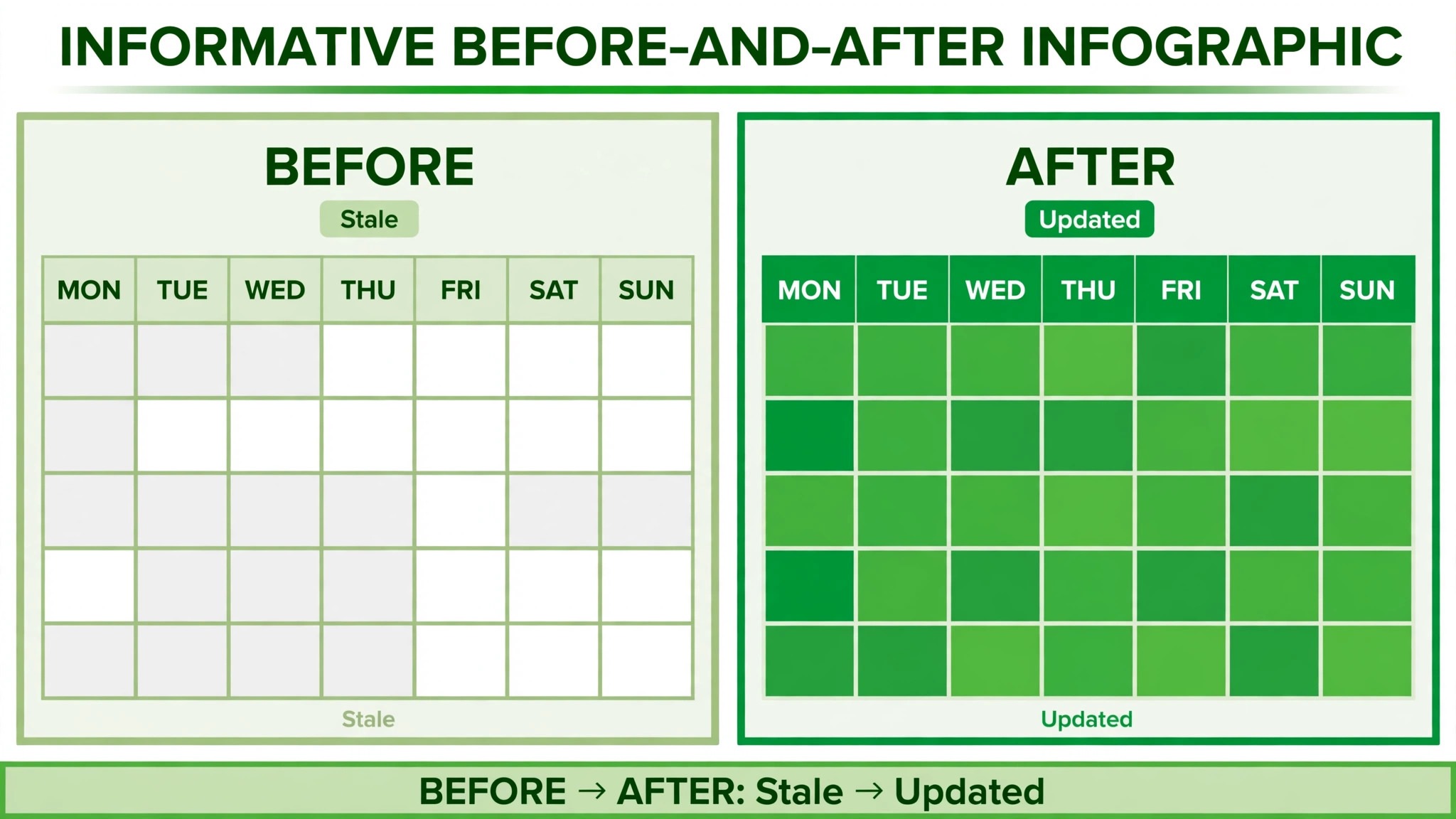
The second mistake is planning without reviewing. A calendar that is planned monthly but never reviewed weekly will drift, with posts stuck in drafting, dates passing silently, and gaps appearing. A weekly review of fifteen minutes, checking statuses, moving dates honestly, and assigning next actions, prevents drift and keeps the calendar trustworthy. A calendar that is out of date by two weeks will be ignored, and an ignored calendar is worse than no calendar, because it creates a false sense of planning.
The third mistake is treating the calendar as a rigid contract. Life, work, and timely opportunities will disrupt any plan, and a calendar that cannot bend will break. Reschedule openly, use buffer slots, and replace posts when needed, recording each change in the sheet. Flexibility with record keeping is different from chaos. Chaos is when dates pass without decisions. Flexibility is when decisions are made, recorded, and reflected in the plan, so the calendar always shows the current intention, not the original hope.
Collaborating on a Sheet Without Breaking It
When a second person starts using a calendar, the rules that worked for a solo blogger need to be written down, or the sheet will quickly become inconsistent. One person may use a new status, another may change a publish date without a note, and a third may sort the sheet in a way that confuses everyone else. A short set of shared rules, kept at the top of the sheet or in a separate tab, prevents most of that chaos. The rules should cover who can change statuses, who can change dates, how reschedules are noted, and where questions should be asked, such as in cell comments rather than in separate messages.
Filter views are a practical tool for collaboration. In Google Sheets, a filter view lets each person filter and sort the sheet for their own view without changing what others see, which prevents the common problem of one person sorting by owner and another person opening the sheet to find it rearranged. Teach collaborators to use filter views for personal views, and to leave the main view in publish date order, so the sheet always opens in a predictable state. That small habit saves confusion, especially when a sheet grows to hundreds of rows and several people rely on it daily.
Finally, agree on a weekly check in, even if it is just a short message confirming that statuses are updated and next week posts are ready. A sheet does not manage people by itself. It manages information, and people still need to communicate about blockers, delays, and changes. A weekly check in, combined with honest status updates and recorded reschedules, turns a shared sheet from a document into a workflow, and that workflow is what allows a small team to publish consistently without constant meetings.
More Reading on Stratilyze
Readers building a publishing system often continue with tracking habits in Notion for beginners, tracking client projects in Trello for freelancers, and writing better emails in Grammarly for professionals, because those pieces cover personal routine, client work, and communication alongside editorial planning.
Frequently Asked Questions
How many columns should a blogger content calendar have in Google Sheets
Start with eight core columns, which are publish date, working title, primary keyword, content type, owner, status, link, and notes. That set answers the main planning questions without making entry feel like a form. Add optional columns, such as meta description, image status, or traffic, one at a time, only when a specific question keeps arising that the core columns cannot answer.
How do I use Google Sheets for content calendar bloggers who work alone
Use one main tab, eight columns, and a fixed status dropdown, and review the sheet weekly for fifteen minutes. Solo bloggers do not need collaborator tabs or complex dashboards, but they do need the discipline of recording decisions, such as reschedules and reasons, so the calendar stays honest. A simple sheet, updated weekly, will outperform a complex tool that is updated sporadically, because consistency matters more than features for a solo workflow.
Should ideas live in the same tab as scheduled posts
No. Keep ideas on a separate tab, and move them to the main calendar only when they are approved with a publish date. Mixing ideas with scheduled posts makes the calendar look fuller than it is, hides real gaps, and makes it hard to see what is actually due. An ideas tab also preserves rejected or postponed ideas with notes, so they are not lost or repeatedly proposed without context.
How often should I plan content in advance
Plan monthly in one sitting, at the end of the previous month, and review weekly. Monthly planning gives a forward view for seasonal topics and balance across formats, while weekly review keeps statuses honest and allows rescheduling before dates pass. Planning further ahead than a month can be useful for seasonal content, but detailed planning beyond a quarter often becomes outdated as priorities change.
Can a Google Sheets calendar replace a dedicated content tool
For many bloggers, yes, especially solo bloggers and small teams. A sheet offers free access, easy sharing, flexible columns, and simple formulas for counts and dashboards, without subscription cost or learning curve. A dedicated tool may be better when workflows become complex, with many collaborators, approvals, and integrations, but a blogger should move to such a tool because the sheet has revealed a specific need, not because a tool looks more professional.
What should I do when a post misses its publish date
Record a decision in the sheet, which is to reschedule to a new date with a reason, or to replace the slot with a buffer post. Do not leave the old date unchanged, because that creates a silent gap and undermines trust in the calendar. If the same post is rescheduled three times, reconsider whether it should be split, redefined, or moved back to ideas, because repeated rescheduling usually signals a scope or priority problem, not a scheduling problem.
A Calendar You Will Actually Open
A content calendar succeeds when it becomes the first place you look each Monday, not a document you remember once a month. That habit comes from simplicity, honesty, and a weekly review, not from elaborate design. Eight columns, fixed statuses, colour by status, and a publish or reschedule decision each week are enough to keep publishing steady, to reveal gaps before they become crises, and to build a record of what actually worked.
Start today by creating the sheet, adding your next month of posts with realistic dates, and setting a weekly review reminder. After a month, you will know your real publishing pace, your real bottlenecks, and your real topic gaps, not guesses. That knowledge is the foundation for growing a blog sustainably, one scheduled post at a time, without burning out or disappearing for weeks.