
An iPhone listens through several microphones, not one, and that fact explains most call problems better than any single setting, because the microphone used on a call is not always the one you expect. The bottom microphone carries most calls, the front microphone serves speakerphone and video, and the rear microphone helps with noise cancellation, so a fault that kills one use can leave the others working perfectly. When someone cannot hear you on a call, the voice may be going to the wrong place, blocked by a setting, muffled by a case, or lost in a single app, and to fix iPhone microphone not working calls you must match the fix to the cause.
This guide shows how to fix iPhone microphone not working calls by testing each microphone in turn, so you find the real cause before resetting anything at random.
Read the Symptoms Before You Touch a Setting
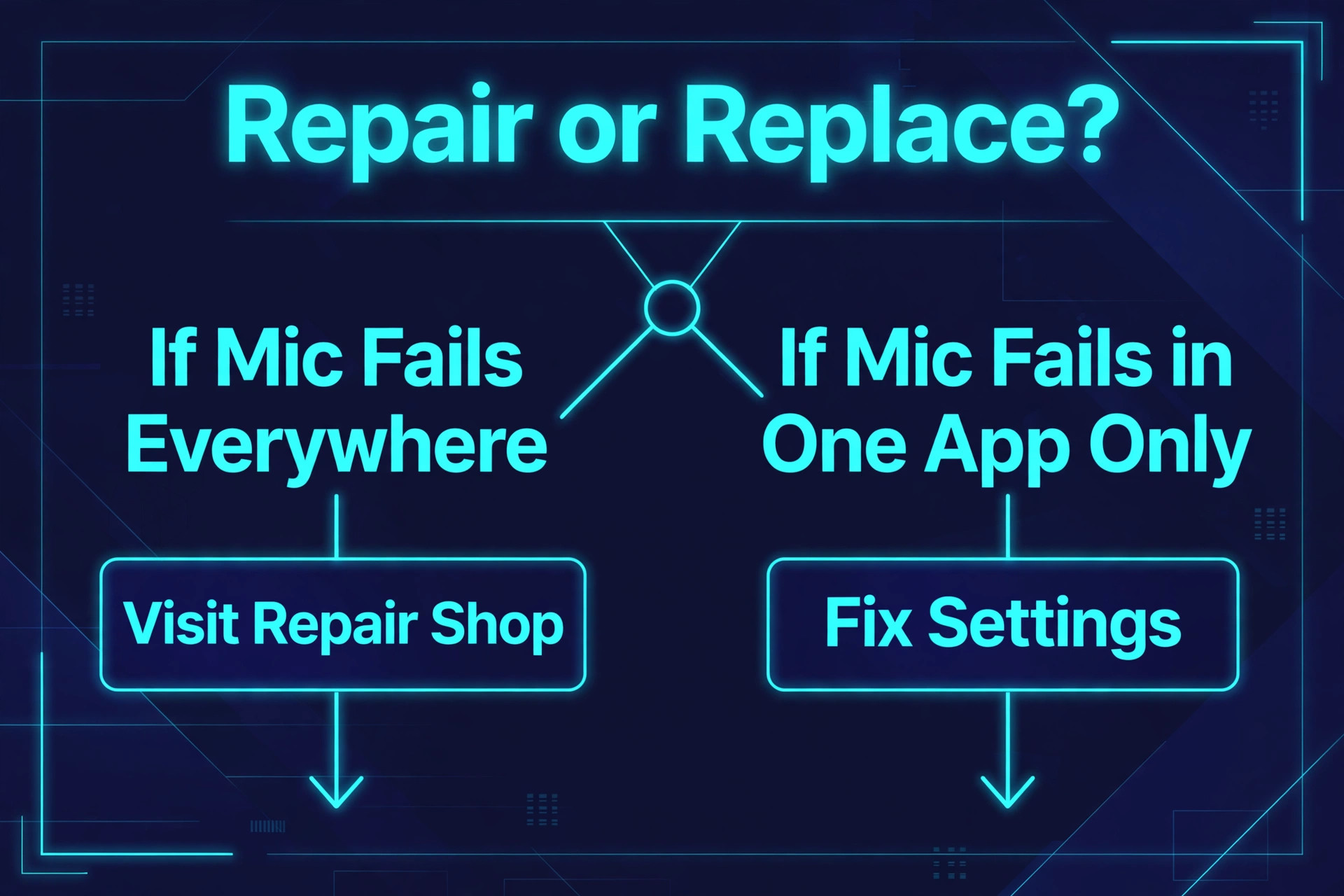
The fastest diagnosis comes from paying attention to exactly when the microphone fails. A microphone that works in Voice Memos but not on phone calls points at call routing or a carrier problem, not at hardware. A microphone that fails in one app but works everywhere else points at that app’s permission. A microphone that fails everywhere, in every app and on every call, points at a blocked port or damaged hardware. Write down your pattern before you change anything, because it tells you which section of this guide matters and which sections you can skip entirely.
| What you notice | Most likely cause | Check this first |
|---|---|---|
| Callers cannot hear you but Voice Memos records fine | Call audio routing or a carrier fault | Bluetooth devices and call audio routing |
| One app cannot hear you but phone calls work | That app lost microphone permission | Settings Privacy and Security Microphone |
| Nobody hears you in any app or on any call | Blocked microphone port or hardware damage | Microphone openings and case fit |
| You sound distant or muffled on every call | Wrong Mic Mode or a covering case | Mic Mode in Control Center and case fit |
| Your voice cuts in and out | Weak signal or a failing Bluetooth link | Signal strength and Bluetooth disconnect |
| The problem started right after an update | A software bug or a reset permission | iOS update and app permissions |
| Speakerphone works but normal calls do not | The bottom microphone is blocked or faulty | Bottom microphone test with Voice Memos |
| You sound fine on Wi-Fi calls but not cellular | Carrier or network audio problem | Airplane mode toggle and carrier settings |
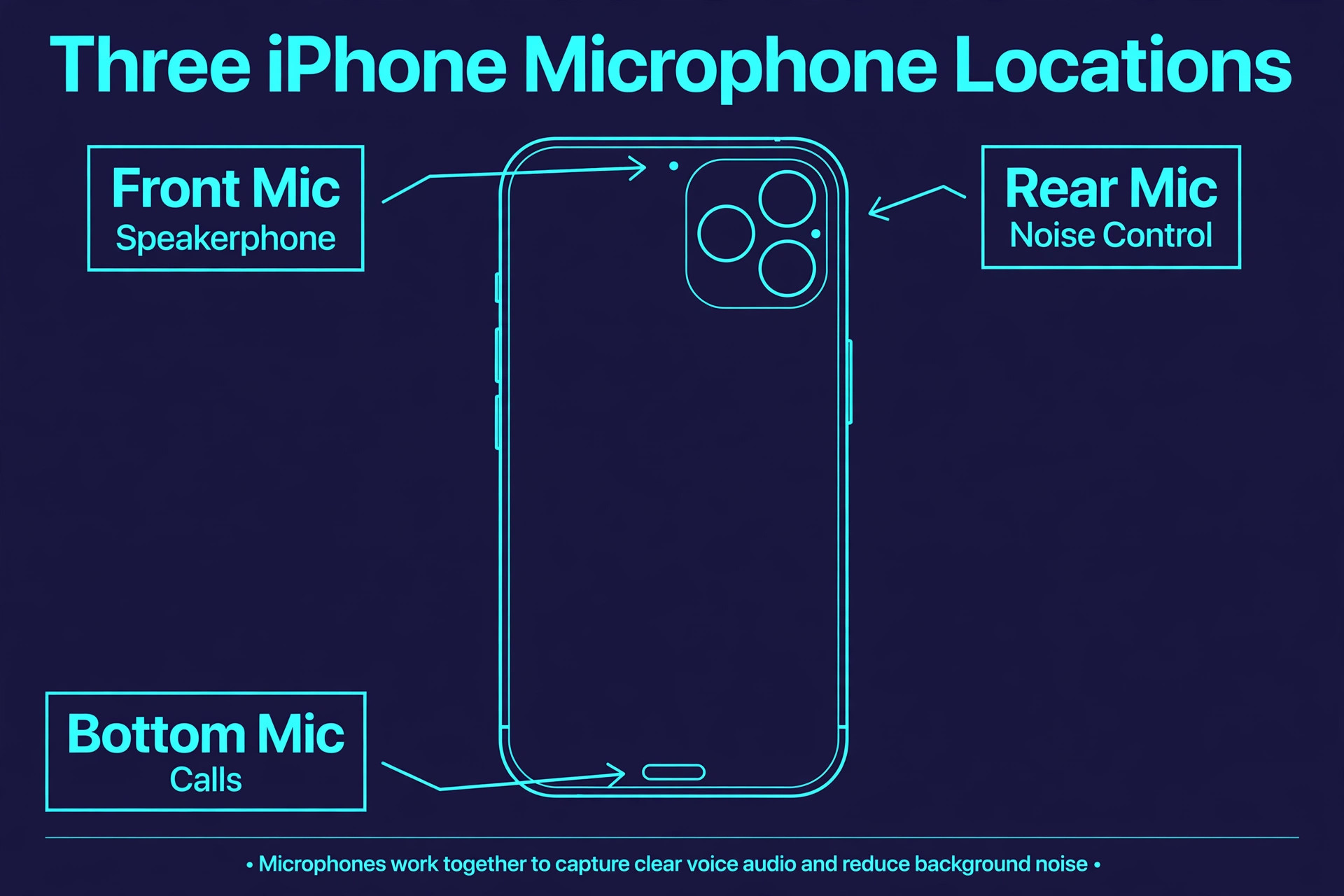
That table is worth more than any single fix, because it stops you from factory resetting a phone that only needed its Bluetooth turned off. Notice the speakerphone clue in particular. Your iPhone has three microphones, and speakerphone uses a different one from a normal handset call. When speakerphone works and normal calls do not, the bottom microphone is the suspect. When neither works, test all three before you conclude anything about hardware.
Test Each iPhone Microphone Separately
Your iPhone carries a bottom microphone near the charging port, a front microphone near the earpiece, and a rear microphone near the camera lenses. Each one serves different jobs, and testing them one at a time turns a vague complaint into a precise diagnosis. Open Voice Memos and record a few seconds of normal speech while holding the phone the way you would on a call. That tests the bottom microphone. Then open the Camera app, switch to the front camera, and record a short video while speaking. That tests the front microphone. Then switch to the rear camera and record another short video. That tests the rear microphone. Play all three back with the volume up.
If only one recording is silent or muffled, you have isolated the fault to one microphone, and the rest of this guide narrows to cleaning that opening or, if cleaning fails, a repair for that part. If all three recordings are silent, the problem is more likely software, a setting, or a routing fault, because three separate microphones rarely fail at the same moment unless the phone has suffered water damage or a hard drop. If all three recordings sound clean but callers still cannot hear you, the microphones are fine and the fault sits in call routing, the network, or the calling app.
That single distinction saves more time than any other step in this guide, so do it before anything else.
How to Fix iPhone Microphone Not Working Calls in Order
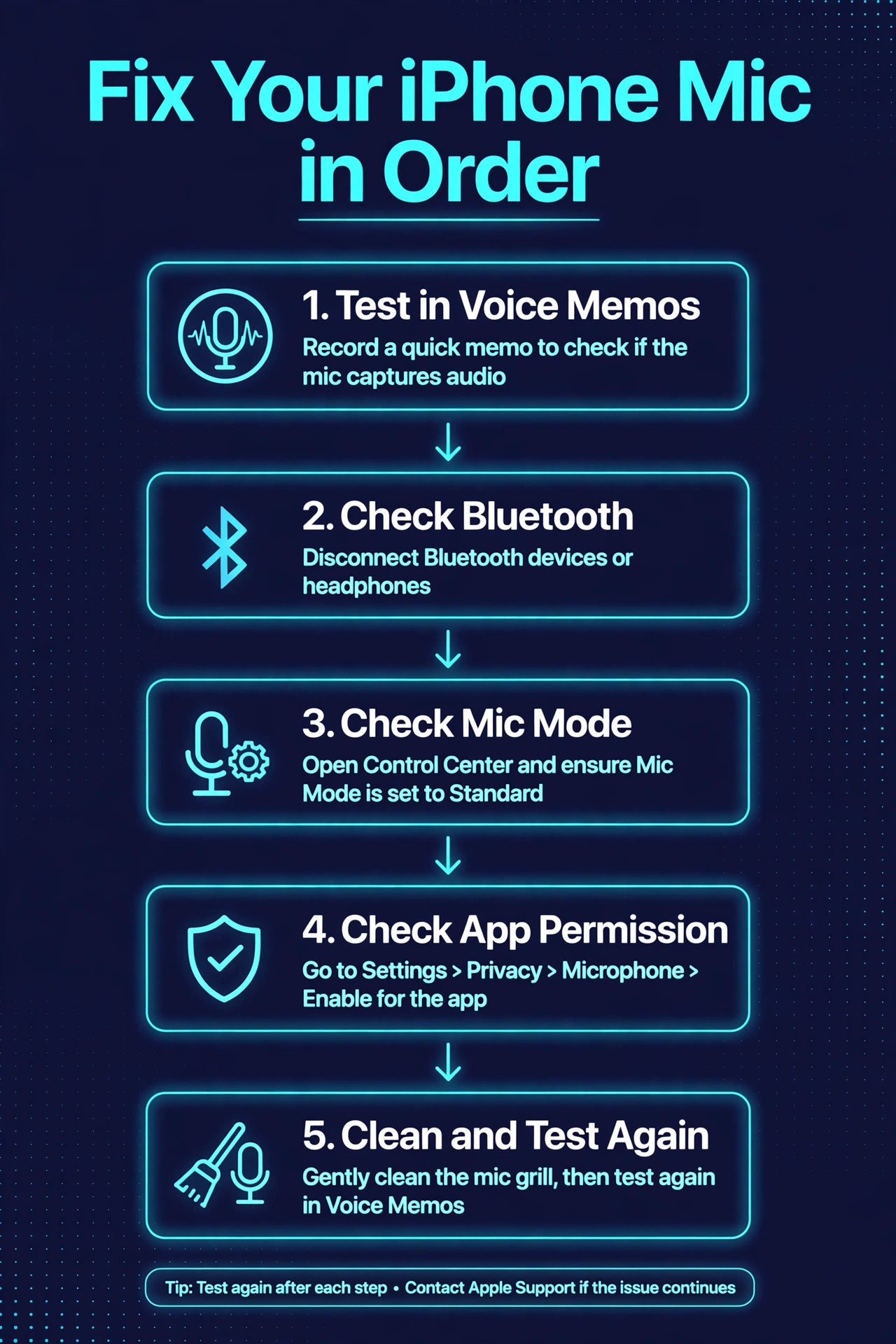
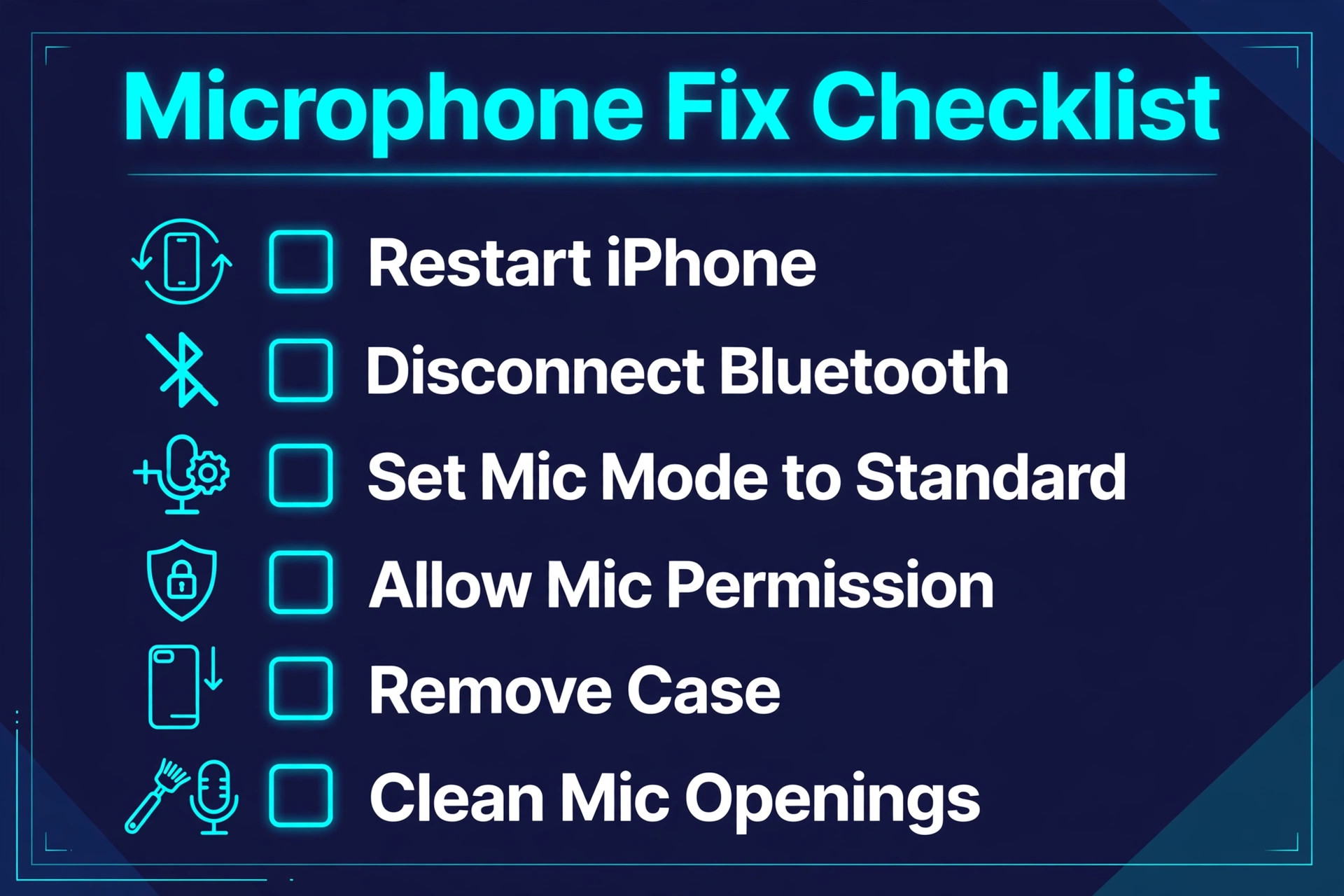
Work through this checklist from top to bottom and test with a real call after each step. The order matters. The first steps take seconds and fix the majority of cases, while the later steps are more disruptive and should only be used when the quick ones fail. Resist the urge to jump ahead to a reset, because a reset wipes settings you may have spent months tuning, and it cannot fix a Bluetooth headset sitting in another room that is quietly stealing your call audio.
Step 1. Check mute and call audio routing first
Start on a live call if you can. Look at the call screen and confirm you have not accidentally tapped mute, which happens more often than anyone admits, especially when the phone shifts in your hand. Then check where the call audio is going. If a Bluetooth headset, car system, or speaker is connected, your voice may be travelling to that device instead of the phone. Swipe down from the top right corner to open Control Center and turn Bluetooth off entirely for the test, then call again. If callers can suddenly hear you, the phone was fine and the Bluetooth device was the problem.
Reconnect it later only if you actually need it, and if the problem returns with it, forget that device in Bluetooth settings and pair it fresh.
Step 2. Clean the microphone openings gently
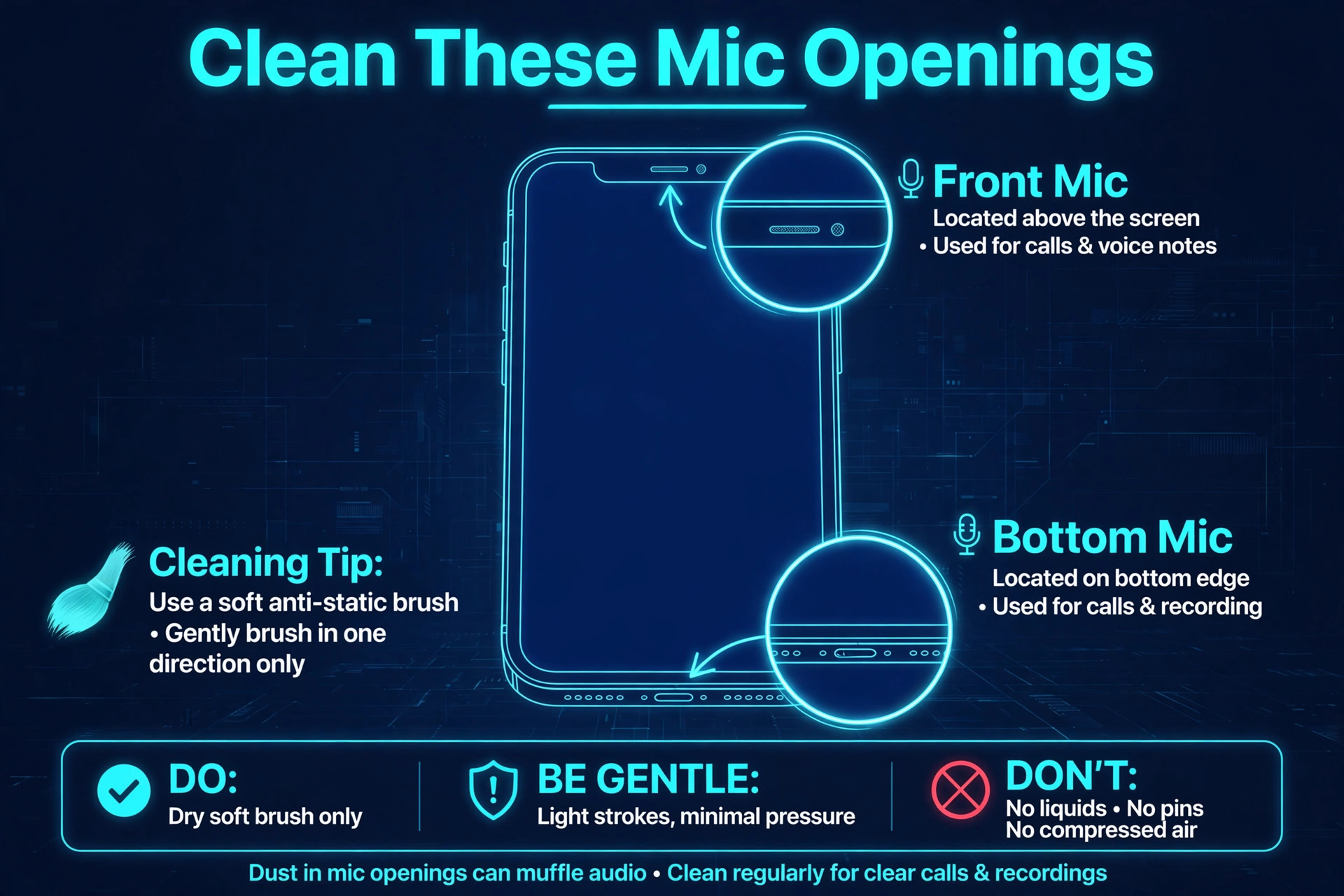
Pocket lint, dust, and case debris collect in the tiny microphone holes, and a surprising number of muffled call complaints end here. Use a soft dry brush, such as a clean soft toothbrush, and brush lightly across the bottom microphone opening and the other microphone holes. Do not push anything sharp into the holes, because a pin or needle can puncture the microphone mesh or the internal component behind it. Do not use a hair dryer on high heat either. After brushing, remove the case completely and test a call without it.
Cases with thick lips, misaligned cutouts, or built-up grime around the microphone hole muffle voices badly, and testing without the case separates a case problem from a phone problem in ten seconds.
Step 3. Restart the iPhone and test again
A restart clears stuck audio processes that can seize the microphone and refuse to release it to the Phone app. Press and hold the side button together with either volume button until the power slider appears, drag the slider, wait about thirty seconds, then hold the side button until the Apple logo appears. Test with Voice Memos first, then with a real call. If the microphone works after a restart but fails again later the same day, note which app you opened in between, because a single app grabbing the microphone and not releasing it is a real pattern, and updating or deleting that app may be the lasting fix.
Step 4. Check the Mic Mode during a call
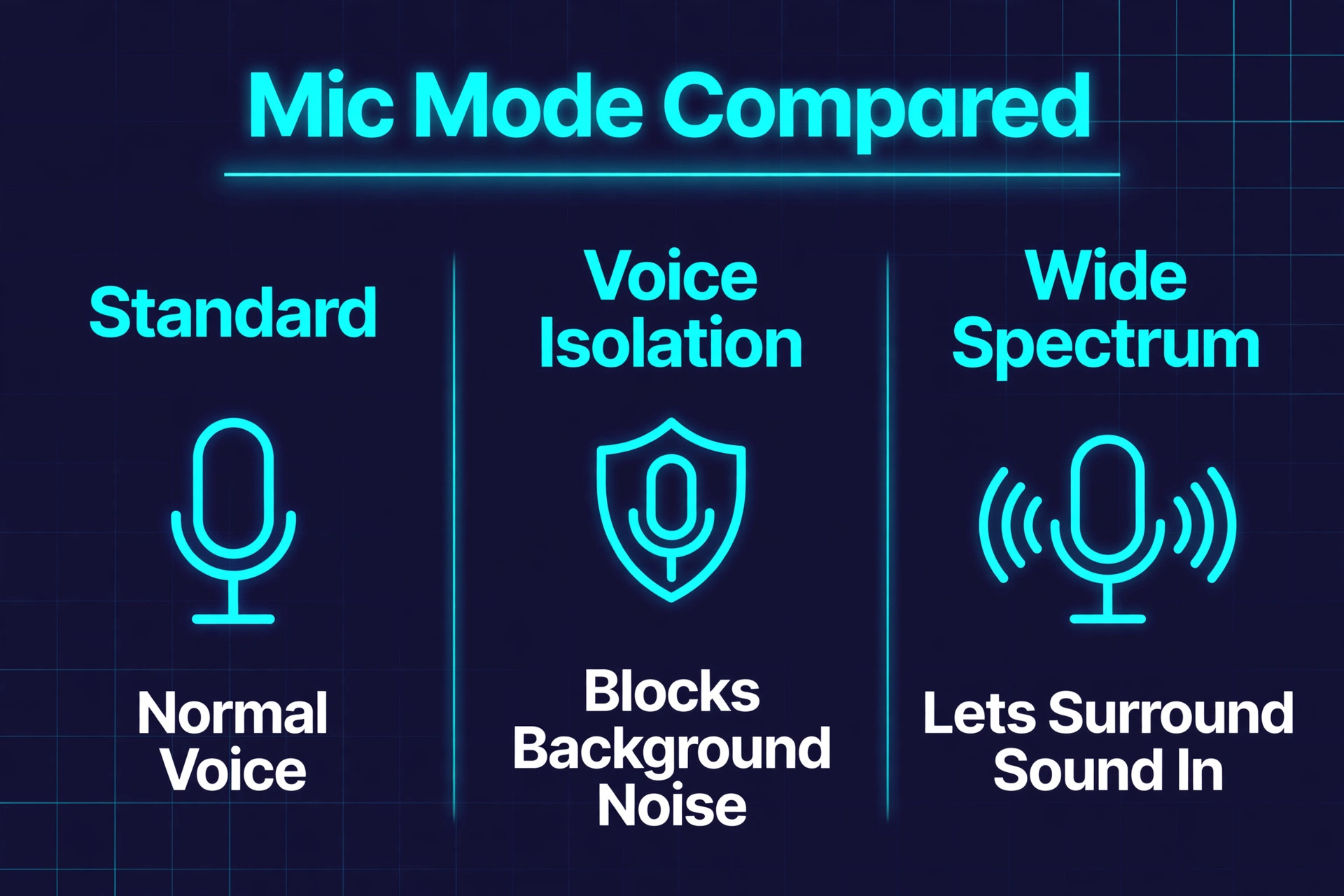
Mic Mode changes how your iPhone processes your voice, and the wrong mode can make you sound distant, thin, or over-filtered. During a call, open Control Center and look for the controls for the app you are using, then check the Mic Mode setting. Standard mode gives normal voice processing and is the safe default. Voice Isolation prioritises your voice and suppresses background noise, which helps in noisy rooms but can clip quiet speech on some calls. Wide Spectrum leaves surrounding sound unfiltered and is not available on regular phone calls. On newer iOS versions an Automatic mode picks for you.
If you sound strange to callers, switch to Standard and test again, because a mode left on the wrong setting after a noisy call is an easy mistake to carry into the next quiet one.
Step 5. Verify microphone permission for the affected app
When the microphone fails in one app only, permission is the prime suspect. Open Settings, then Privacy and Security, then Microphone, and look for the app in the list. If its switch is off, turn it on and test immediately. If the app is not listed at all, open the app and trigger a feature that needs the microphone, such as starting a voice message or joining a call, and iOS should prompt you for permission. If the switch is greyed out and cannot be changed, Screen Time restrictions may be blocking microphone changes, so check Settings, then Screen Time, then Content and Privacy Restrictions, then Microphone, and make sure changes are allowed.
Permission problems often appear after an iOS update or after reinstalling an app, because both events can silently reset what the app is allowed to do.
Step 6. Update iOS and the calling app
Apple ships audio routing fixes inside ordinary point releases, and a microphone bug introduced by one version is often patched within a few weeks. Open Settings, then General, then Software Update, and install anything available. Then open the App Store, check for updates to the calling app you use, whether that is WhatsApp, FaceTime, Zoom, or another app, and install those too. If your problem started right after an update, this step feels counterintuitive, but the fix for an update bug is usually the next update, and skipping it leaves you troubleshooting a bug Apple has already fixed. After updating, restart once more before you test, so the new code loads cleanly.
Step 7. Reset all settings as the last software step
If every quick fix has failed and all three microphone tests are still silent, resetting all settings is the strongest software move short of a full restore. Open Settings, then General, then Transfer or Reset iPhone, then Reset, then Reset All Settings. This keeps your photos, messages, and apps, but returns Wi-Fi passwords, Bluetooth pairings, privacy permissions, and display settings to their defaults. You will need to rejoin Wi-Fi networks and re-pair Bluetooth devices afterwards, so only use this step when you have time to set those things up again.
If the microphone still fails after this reset, you have strong evidence of a hardware fault, and the next section tells you how to confirm it before you pay for a repair.
Settings That Quietly Steal the Microphone
Some microphone failures are not faults at all. They are settings doing exactly what they were told to do, in situations where you forgot you told them. Noise cancellation on older iPhones is one example. On iPhone 12 and earlier, a Phone Noise Cancellation option lives under Settings, then Accessibility, then Audio and Visual, and it reduces background sound during calls held to your ear. It usually helps, but it can occasionally clip your voice, especially in a car or a windy street. Apple removed the option from iPhone 13 onward, so if you own a newer phone you can skip this check entirely.
If you own an older model and your voice sounds clipped, toggle it off and test a call before you assume anything worse.
Focus modes and Do Not Disturb deserve a look too, though they affect ringing more than microphone input. What matters more for calls is any app that holds the microphone open in the background. Voice recording apps, live transcription tools, and some social apps can keep an audio session alive after you leave them, and the Phone app then finds the microphone busy. Force closing recent audio apps before a call is a useful test. Swipe up from the bottom and pause to open the app switcher, swipe away any app that records or processes audio, then try the call again.
If that fixes it repeatedly, the offending app needs an update or removal, because a phone that can only make calls after a manual cleanup has a software conflict, not a hardware fault.
Carrier settings form another quiet layer. Your carrier delivers small configuration updates that affect how calls connect, and an outdated carrier bundle can produce one-way audio on some networks. Open Settings, then General, then About, and wait a few seconds. If a carrier settings update is available, a prompt appears. Install it and test. While you are there, toggle airplane mode on for about thirty seconds and then off again. That forces the phone to re-register with the nearest tower and refresh the call path, which clears a surprising number of one-way audio complaints that are really network problems wearing a microphone disguise.
If the problem follows you across Wi-Fi calling, cellular calls, and different locations, it is in the phone. If it only happens on one network or in one place, it is in the network, and no phone setting will fix it.
iPhone models and microphone placement differences
Not every iPhone puts its microphones in the same place, and knowing your layout helps you clean the right hole and judge case fit. On recent models the bottom microphone sits beside the charging port, the front microphone sits near the earpiece at the top of the display, and the rear microphone sits close to the camera module. Older models with a home button place the bottom microphone beside the headphone jack or charging port depending on the generation. The practical point is simple. When you clean, clean all the openings, not just the one you can see. When you judge a case, check every cutout, not just the charging port.
A case that covers the rear microphone will not affect a normal phone call much, but it will ruin rear camera video audio, and that mismatch confuses diagnosis if you only test one microphone.
Water exposure deserves honest attention. iPhones carry water resistance ratings, but resistance is not immunity, and it weakens as seals age. If your microphone problem began after the phone got wet, let the phone dry fully for at least a day before you test again, and do not use compressed air at close range or heat to rush it. A microphone that sounds muffled while damp and recovers when dry had water in the mesh, not a dead component. A microphone that stays muffled or silent after two days of drying has likely suffered corrosion on the microphone diaphragm or its flex cable contacts, and that needs a technician.
Do not put the phone in rice, which adds starch dust to the openings without meaningfully drying the interior.
When a Repair Is the Honest Answer
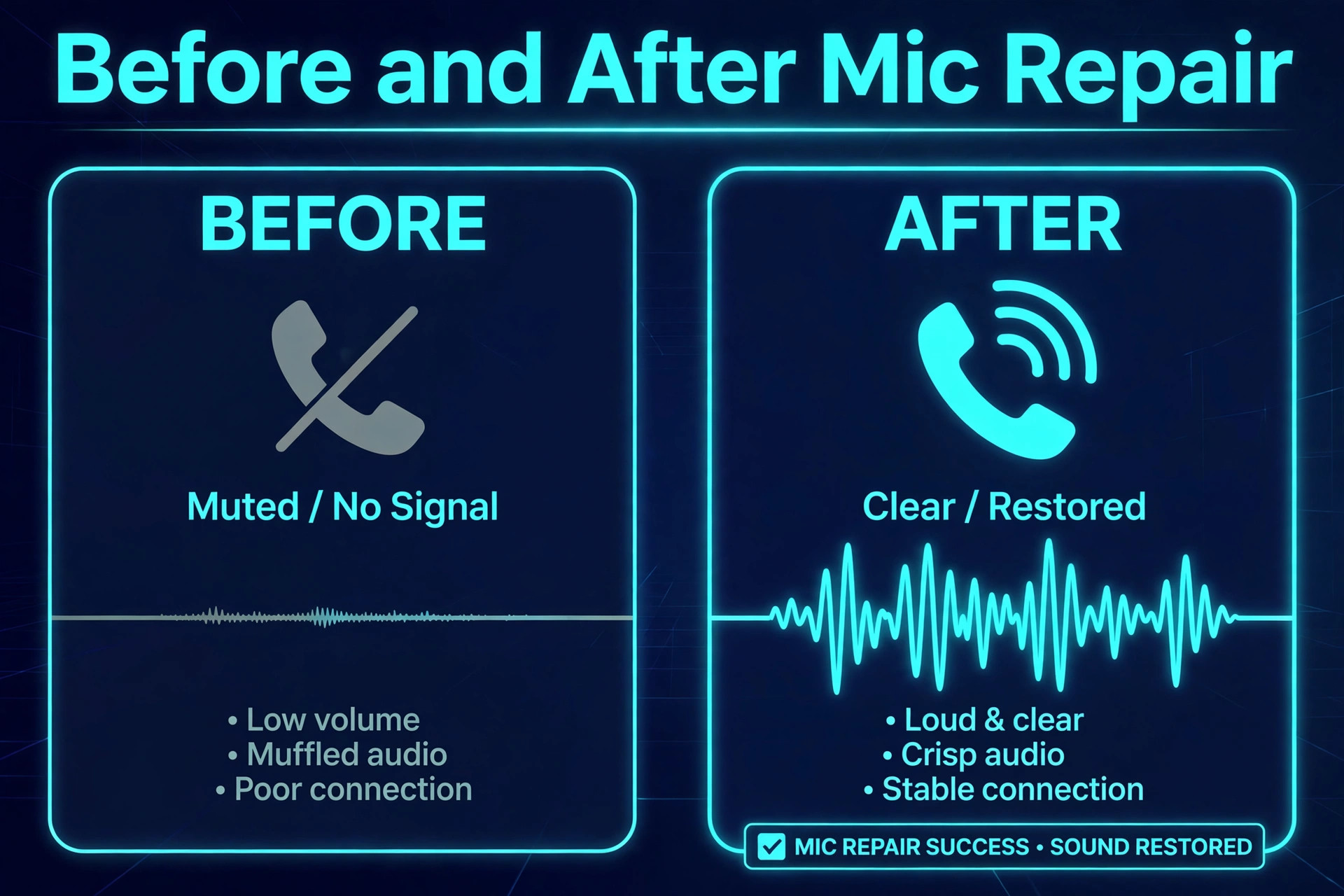
There is a point where continued software troubleshooting stops being useful and starts wasting your time. You have reached it when all three microphone tests are silent after a restart, an iOS update, a permission check, and a reset of all settings, and the openings are clean and the case is off. At that point the fault is almost certainly hardware, such as a failed microphone module, a damaged flex cable, or board-level audio damage after a drop or liquid exposure. A technician can confirm it in minutes with a known-good microphone test, and the repair is usually a microphone module replacement rather than a whole phone replacement.
Before you book anything, gather the evidence that makes the visit short. Note which of the three microphone tests failed, whether the failure followed a drop or water exposure, whether speakerphone works, and whether the problem affects every app or only calls. That list lets the technician skip the software checks you already did and go straight to hardware diagnosis. Check your warranty and AppleCare coverage first, because microphone failure from a manufacturing fault is covered, while damage from a drop or liquid usually is not, and the price difference is large.
If the phone is old enough that a microphone repair costs a large fraction of its remaining value, weigh the repair against a replacement honestly, especially if the battery is also weak. A phone with two ageing components is often better replaced than repaired one part at a time.
What not to do while you troubleshoot
A few popular suggestions do more harm than good. Do not poke the microphone holes with a pin, needle, or SIM ejector tool, because the mesh and the component behind it are delicate and a puncture turns a cleaning job into a repair. Do not spray liquid cleaner or compressed air directly into the openings at close range, because pressure can drive debris deeper or damage the mesh. Do not factory reset the phone as an early step, because it erases everything and rarely fixes a problem that a restart and a permission check would have solved.
Do not install a third-party microphone booster or audio app that promises to fix hardware, because no app can repair a blocked or dead microphone, and such apps often demand broad permissions for no benefit. The disciplined order in this guide exists precisely so you never need these shortcuts.
A Daily Routine That Keeps Calls Clear
Once callers can hear you again, a small routine keeps the problem from returning. Brush the microphone openings gently once a month, or more often if you carry the phone in a dusty pocket or a work environment with sawdust or fabric lint. Check case fit whenever you buy a new case, and test a call with the case on before you rely on it for an important conversation. Keep iOS updated, but wait a day or two after a major release before installing it, so early audio bugs are patched before they reach you. Review microphone permissions every few months under Settings, then Privacy and Security, then Microphone, and remove access from apps that no longer need it.
None of these steps takes more than a minute, and together they prevent the slow accumulation of lint, stale permissions, and outdated software that causes most microphone complaints. If you use Bluetooth headsets daily, make a habit of checking which device is connected before important calls, because the single most common cause of a silent microphone is not damage at all. It is a headset in another room, quietly answering a call you thought your phone was handling.
Mistakes That Slow Down Any Attempt to Fix iPhone Microphone Not Working Calls
The most common mistake when you try to fix iPhone microphone not working calls is to start with the most drastic step instead of the simplest one. A factory reset erases everything and still leaves a Bluetooth headset in the next room stealing your audio, so it is the worst possible opening move. Another frequent mistake is to test only one way. Someone tries a single phone call, hears silence, and concludes the microphone is dead, without ever opening Voice Memos or trying a second app. That single test cannot separate a hardware fault from a routing fault, and the distinction decides whether you need a repair or a settings change.
A third mistake is to change several settings at once. If you clean the port, toggle Bluetooth off, change Mic Mode, and restart all in the same minute, you will never know which change fixed the problem, and you cannot prevent it from returning. Change one thing, test, and only then move on.
A subtler mistake is to ignore the timeline. When you try to fix iPhone microphone not working calls, ask yourself what changed just before the problem appeared. A new case, a new headset, an iOS update, a repaired screen, or a day at the beach each points at a different cause, and the timeline often names the culprit before any test does. Screen replacements deserve special attention, because a poorly seated replacement screen can cover the front microphone or disturb its seal. If your microphone problem began the day after a screen repair, return to the repairer first, because the fault may be in their reassembly rather than in your phone.
Similarly, if the problem began after you paired a new car system or headset, test with that device forgotten before you blame the phone. The discipline of one change at a time plus a clear timeline is what separates a ten minute fix from a week of frustration, and it is the habit that makes every future attempt to fix iPhone microphone not working calls faster than the last one. Keep a short note of what you tried and in what order, because if the problem returns in a month, that note is worth more than any generic guide.
More Reading on Stratilyze
Call audio faults often point to the app or the earpiece rather than the microphone itself, so readers sorting out a quiet call usually check the companion guides next. The guide to WhatsApp calls that will not work covers the app-side call failures that look like a hardware fault, the guide to AirPods microphones that stop working walks through the earbud tests that separate a pairing problem from a dead mic, and the guide to an iPhone with no sound at all explains the volume, silence switch and output checks that restore audio on the same phone.
Frequently Asked Questions
Why can callers hear me on speakerphone but not on normal calls?
Speakerphone and normal calls use different microphones. Normal handset calls rely mainly on the bottom microphone, while speakerphone leans on the front and rear microphones. If speakerphone works and normal calls do not, the bottom microphone is blocked, covered by a case, or faulty. Clean the bottom opening, test without the case, and run the Voice Memos test, which also uses the bottom microphone.
Why does my microphone work in Voice Memos but not on calls?
Voice Memos proves the microphone hardware works, so the fault sits in call routing, the network, or the calling app. Turn Bluetooth off and test again, because a connected headset or car system is the most common cause. Then toggle airplane mode to refresh the network registration, and check the calling app’s microphone permission if only one app is affected.
Can a case really block the iPhone microphone?
Yes, and it happens often. Cases with thick edges, misaligned cutouts, or debris packed around the microphone hole muffle or block sound badly. Test every attempt to fix iPhone microphone not working calls with the case removed. If the problem disappears without the case, the case is the cause, and replacing it with one that has precise cutouts is the fix.
Does updating iOS fix microphone problems?
It often does, because Apple ships audio routing fixes in point releases. If your problem started after an update, check for a newer build before you spend hours on manual troubleshooting, since the follow-up release frequently contains the patch. If no update is available and the problem started with the last update, a restart and a reset of all settings are the next sensible steps.
How do I know if my iPhone microphone is actually broken?
Test all three microphones separately with Voice Memos, front camera video, and rear camera video. If none of them record audio after you have cleaned the openings, restarted the phone, updated iOS, checked permissions, and reset all settings, the hardware is damaged and needs professional repair. If any one of them works, the fault is narrower than a dead microphone, and the working test tells the technician exactly where to look.
Why does my voice sound distant or robotic on calls?
The usual causes are the wrong Mic Mode, a covering case, or a weak network connection that forces heavy voice compression. Switch Mic Mode to Standard during a call, remove the case, and test in a location with strong signal. If the robotic sound only happens on one app, reinstall that app, because its audio processing may be at fault rather than the phone.
The Verdict on a Silent iPhone Microphone
Most iPhone microphone failures on calls are not hardware failures at all. They are routing mistakes, blocked ports, wrong modes, or lost permissions, and the order in this guide finds them fast because it tests before it resets and diagnoses before it replaces. Start with the three microphone tests, work the checklist from the quick checks upward, and stop the moment callers can hear you. If you reach the end of the software steps with all three microphones still silent, take your test notes to a technician and let hardware diagnosis take over.
Either way, you will have spent your time on the cause rather than on random fixes, and the next time you need to fix iPhone microphone not working calls you will know exactly where to start.