

Verdict first. A small store should switch WordPress to Shopify small store owners will recognise as the right call when selling, not site maintenance, has become the bottleneck. If plugin updates, hosting fixes, security patches and checkout breakages eat the hours that should go to products, photos and customers, Shopify buys that time back. If the store needs deep custom features, unusual product logic, or a content site where commerce is a side activity, WordPress may still be the better home, and this guide will help you see that before you rebuild anything.
That verdict needs unpacking, because the two platforms are not two versions of the same thing. WordPress with WooCommerce is a flexible system you assemble and maintain. You choose hosting, you choose plugins, you control almost every detail, and you own the maintenance that comes with that control. Shopify is a hosted commerce system. You give up some control over structure and code, and in return the platform handles hosting, security updates, checkout reliability and much of the plumbing. A small store that wants to sell with a small team usually benefits from that trade. A store built around custom functionality may feel the loss of control more keenly than it feels the gain in simplicity.
This guide follows the move in order, from the decision checks, through product and customer export, the URL redirect map, the theme rebuild, the payment and shipping swap, and the launch checklist. It names what transfers cleanly and what must be rebuilt, and it is plain about a point where sources and store owners disagree, which is how much search traffic a careful migration really preserves.
Figures for plans and payment rates are not quoted as settled facts here, because Shopify changes tiers and rates and your WordPress costs depend on hosting and plugins you already pay for. Check both sides on your decision day, with your real order volume and average order value. That check is the first step in any plan to switch WordPress to Shopify small store owners run well.
Is the Move Right for Your Store
Start with how the store actually earns money today. List the top ten products by revenue, the share of orders that come from search, from repeat customers, from social traffic and from marketplaces, and the tasks that broke or slowed selling in the last six months. If the breakages cluster around hosting, plugin conflicts, payment updates or checkout errors, the platform is costing sales. If the breakages cluster around product range, pricing, photos or traffic, a new platform will not fix them, and a move may simply delay the real work.
Next, list the WordPress features the store cannot lose. A product configurator, a subscription setup with unusual rules, a booking flow tied to products, a wholesale pricing structure, or a custom integration with a warehouse system all need a Shopify equivalent before you commit. Shopify apps cover a great deal, but not everything, and an app that almost covers a feature still leaves a gap your customers will find. Test the equivalent in a Shopify trial store with real products before you promise a launch date.
Consider team size honestly. A one person store or a team of two or three gains the most from hosted commerce, because there is nobody whose job is keeping WordPress healthy. A larger team with developer help may already have maintenance covered, in which case the gain from Shopify is smaller and the cost of rebuilding custom work is higher. The right platform is the one that fits the team you have, not the team you wish you had.
Finally, weigh content against commerce. A WordPress site that is mainly a blog, a magazine or a membership community with a small shop attached is a content business first, and Shopify blogging and content tools are thinner than WordPress. A store whose pages exist to sell, with blog posts supporting product search, is a commerce business first, and Shopify fits that shape well. Name which business you run before you choose the platform for it.
Before You Switch WordPress to Shopify Checklist
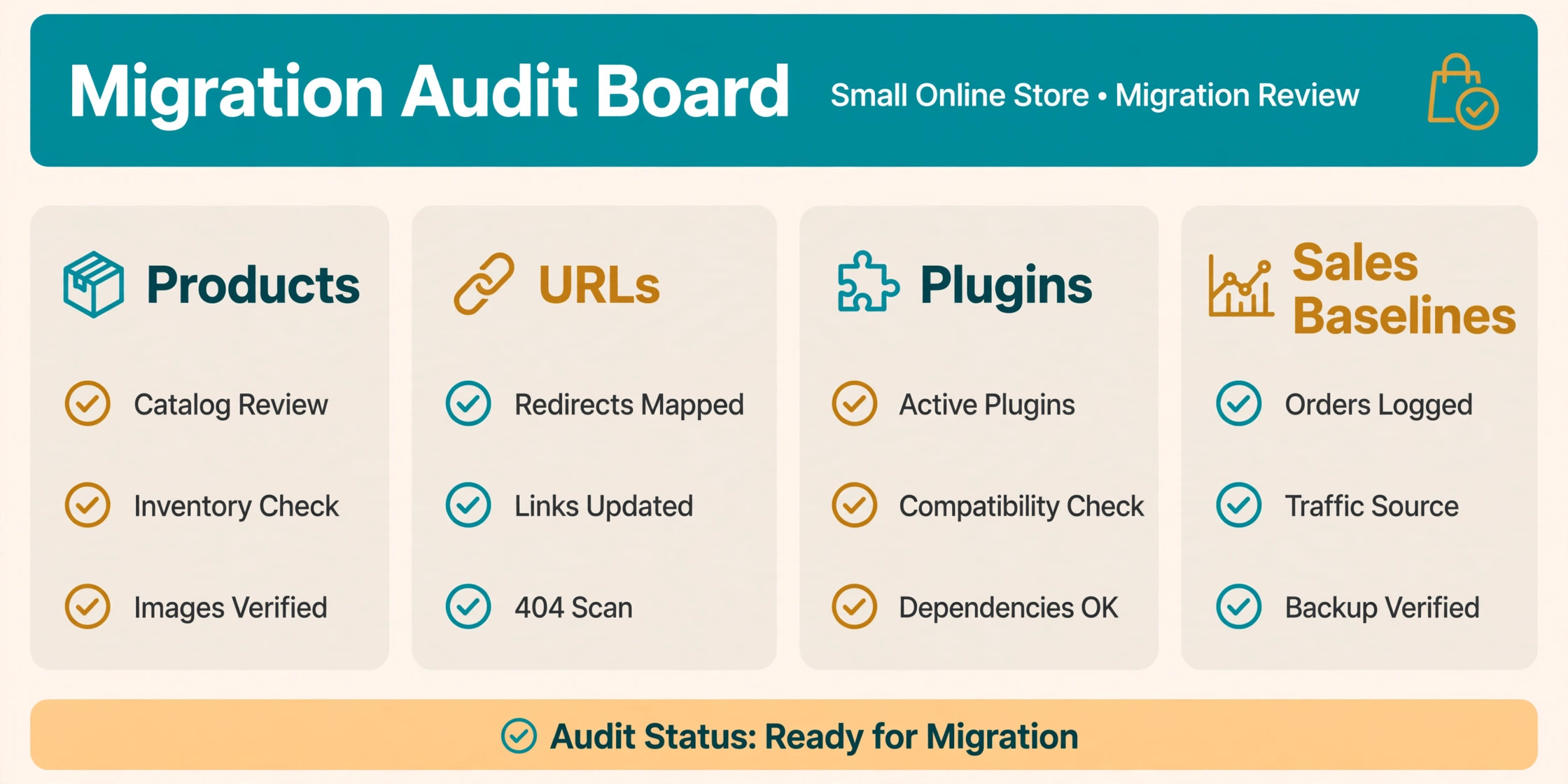
Run this audit in WordPress before exporting anything, and keep the results in a single migration folder that the whole project works from.
First, capture a full backup of the WordPress site, including database and media files, and confirm you can restore it. Store that backup outside the hosting account, so a hosting problem during migration does not take the safety net with it. Also export a list of all products, customers, orders, pages, posts, categories and coupons, even if you later decide not to import every item. An export you do not use costs little. A missing export costs a rebuild.
Second, crawl the live site and save every indexed URL. Use your sitemap, Google Search Console and a crawler, and combine the lists. Products, categories, blog posts, landing pages and old campaign pages all count, because search engines and backlinks do not care whether a page is still in your main navigation. This URL list becomes the redirect map, and it is the single most valuable document in the migration.
Third, record performance and sales baselines. Note weekly traffic, conversion rate, average order value, top landing pages, top search queries and checkout error rates for the last eight weeks. Without baselines, you cannot tell after launch whether a dip is migration damage or normal variation, and you cannot prove the move worked when the owner asks.
Fourth, list every plugin and what it does, then mark each one as core commerce, marketing, content, or nice to have. For each core plugin, find the Shopify app or built in feature that replaces it, and note the cost and limits. Plugins with no replacement are decision points, not afterthoughts, and they should be resolved before the rebuild starts.
Fifth, choose a quiet window and a freeze date. After the freeze date, no new products, no price changes and no content edits happen in WordPress except urgent corrections, which are logged for copying to Shopify. A moving target cannot be migrated cleanly, and a freeze is what keeps the two stores from drifting apart during the rebuild. That freeze is essential in any plan to switch WordPress to Shopify small store owners complete cleanly.
What Transfers and What Must Be Rebuilt
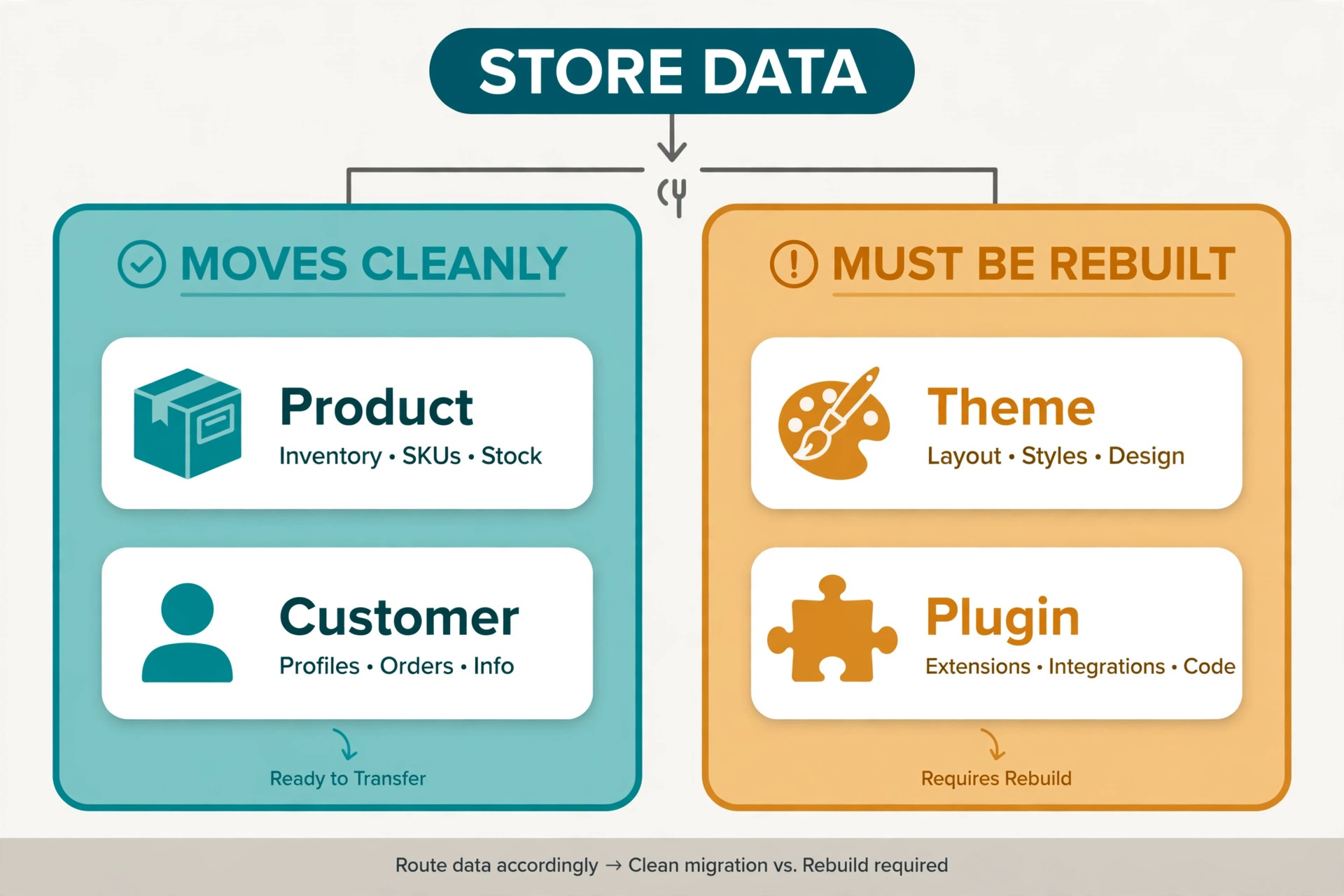
Products transfer well through CSV export and import, provided variants, SKUs, prices, inventory counts and image links are cleaned first. Customers and order history can transfer too, though customer passwords do not, and customers will need to set a new password or use an account activation link on the new store. That is normal, but it must be communicated, because a customer who cannot log in on launch day will assume the store lost their account.
Categories become collections in Shopify, and that mapping needs care. WordPress categories can nest and overlap in ways Shopify collections handle differently, with manual collections and automated collections based on conditions. Plan the collection structure before import, rather than importing a tangled category tree and trying to untangle it in a live store.
Blog posts and pages transfer with work. WordPress content often contains shortcodes, plugin specific blocks and embeds that have no meaning in Shopify. Those elements must be stripped or rebuilt by hand. Images should keep their file names where possible, because search engines index image names, and consistent naming helps the new pages inherit recognition from the old ones.
What must be rebuilt from scratch includes the theme, the checkout experience, shipping and tax settings, discount logic that relied on a plugin, subscription handling, and any custom code. Shopify themes are not WordPress themes with a new skin. They are a different system with sections, templates and app blocks, and a theme rebuild is a design project, not a copy exercise. Treat it that way in the timeline, or the launch will slip.
SEO data needs its own plan. Page titles, meta descriptions and image alt text can be exported from WordPress SEO plugins and carried into Shopify fields, but they do not move automatically with a product CSV. Export them separately, map them to the new URLs, and check the highest traffic pages by hand. That hand check belongs in every plan to switch WordPress to Shopify small store owners trust. A product can sell perfectly while its search listing quietly loses the title and description that earned the click.
Step Workflow to Switch WordPress to Shopify Small Store Owners Can Follow
Work through these steps in order. Each step ends with a check, and the next step does not start until that check passes.
Step 1. Export Products, Customers and Orders From WordPress
Use the built in WooCommerce exporter or a migration app, and export products, customers and orders as separate files. Keep the originals untouched as backups, and clean only copies. Cleaning means removing discontinued products you will not sell again, fixing variant fields that do not fit the Shopify model, checking that every product has a SKU where your operations need one, and confirming image URLs point to files you can actually download.
Watch variant limits closely. WooCommerce allows product structures that Shopify handles through variants, metafields or separate products, and a product with many attributes may need restructuring. Decide the new structure before import, because restructuring after import means editing live products. Where a WordPress custom field has no Shopify variant equivalent, plan to carry it as a metafield or in the product description, and note which choice you made for each field.
Import a test batch first, with a mix of simple products, variant products and products with images. Check titles, prices, variants, inventory, images, handles and SEO fields on the live Shopify preview. Fix mapping errors on the test batch, then import the full catalogue in batches, reconciling counts after each batch. That batch discipline is central to any plan to switch WordPress to Shopify small store owners run. The count imported, plus the count deliberately left behind, plus the count rejected for errors should equal the count exported.
Step 2. Build the URL Redirect Map Before You Design Anything
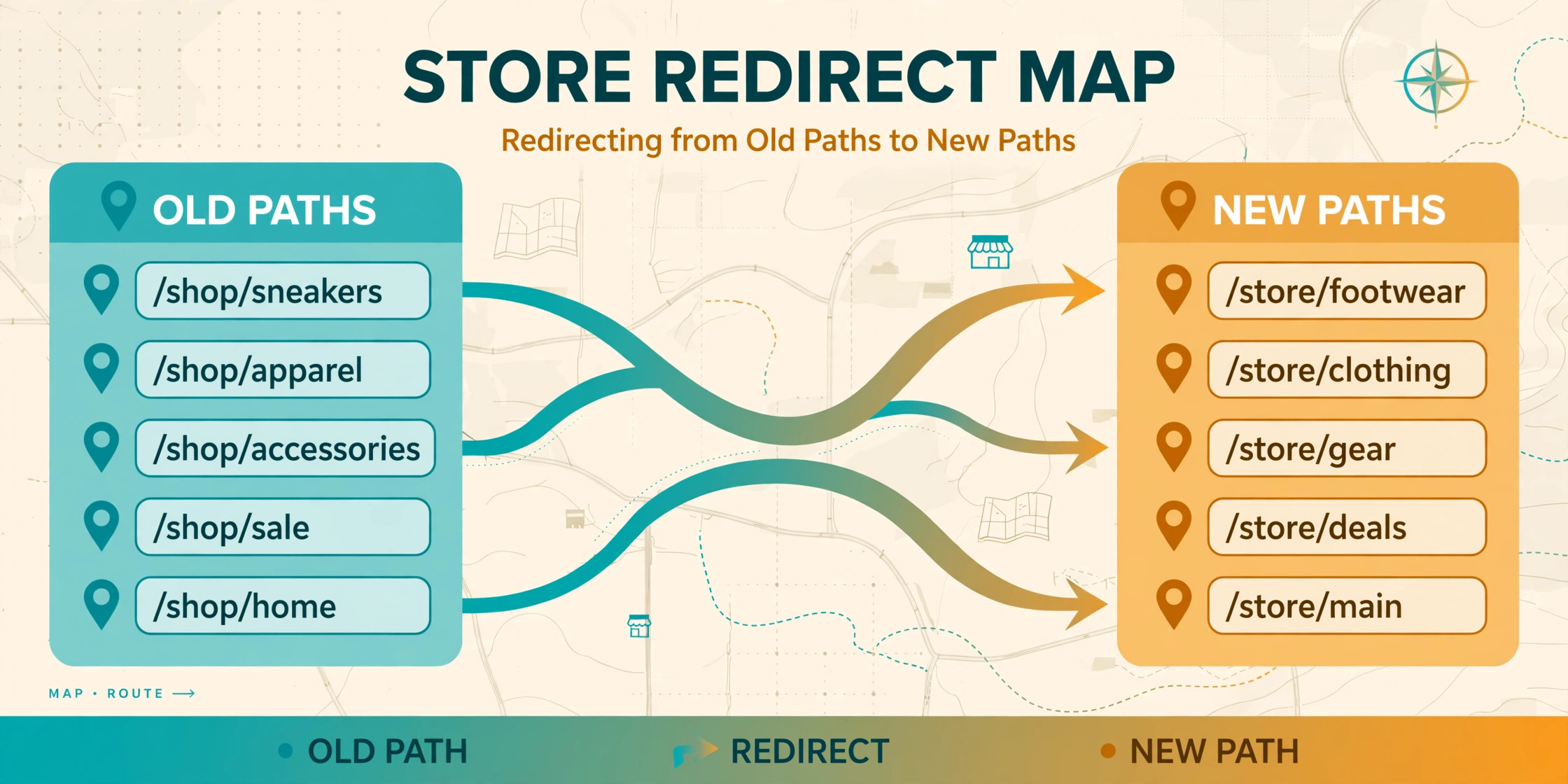
The redirect map is a spreadsheet with three columns, old URL, new Shopify URL, and status. Every URL from your crawl gets a row. Products map to products, categories map to collections, posts map to blog articles, and pages map to pages. Discontinued products map to the closest genuinely relevant product or category, never to the homepage as a lazy default, because a homepage redirect tells neither the visitor nor the search engine what happened to the product they wanted.
Shopify URL structure differs from WordPress by design. A WordPress product path becomes a Shopify products path, a category becomes a collections path, and a blog post gains a blogs segment. Match the final handle, the part after the last slash, to the old slug wherever you can, because a recognisable handle keeps links readable and makes the redirect map cleaner. Do not try to force Shopify to keep WordPress paths exactly, because the platform will not allow every pattern, and fighting the structure wastes time better spent on redirects.
Load redirects into Shopify through its URL redirect tool, using bulk import for large sets. After launch, crawl the old URLs and confirm each one returns a single redirect to a live page, with no chains and no loops. A redirect that points to another redirect, or to a page that itself redirects, leaks value and slows visitors. Fix chains before you declare the SEO work done.
Step 3. Rebuild the Theme Around Selling, Not Around the Old Design
Choose a Shopify theme for how it sells, not for how closely it copies the WordPress design. Check mobile product pages first, because most small store traffic arrives on a phone, and a theme that looks fine on desktop but buries the buy button on mobile will cost sales from day one. Check collection filtering, search behaviour, image zoom and checkout steps with real products, not demo products.
Rebuild pages in priority order. Product pages first, then collection pages, then the homepage, then cart and checkout information, then supporting pages such as shipping, returns and contact. Each product page needs clear photos, a readable description, variant selection that works without confusion, shipping information near the price, and trust signals such as reviews or guarantees where the store genuinely has them. Copy from WordPress and edit for the new layout, rather than pasting old layouts that no longer fit. That restraint improves most plans to switch WordPress to Shopify small store owners attempt.
Keep the design simpler than the old site if you are unsure. A clean theme with fast loading, clear navigation and one clear action per page will outsell a complex recreation of a WordPress design that was already slowing the store down. Note every design compromise in the migration folder, so a future redesign starts from decisions, not from forgotten reasons.
Step 4. Swap Payments, Shipping and Tax Settings
Set up payments in Shopify before you test anything else in the store. Choose the payment providers your customers actually use, confirm payout timing and fees on the provider pages, and test with real test orders in the Shopify test mode and then with a small live order if your provider allows it. A payment setup that looks complete in settings but fails on a real card is a launch day disaster, and it is entirely preventable. Testing with a real card is a step no plan to switch WordPress to Shopify small store owners run should skip.
Rebuild shipping zones, rates and rules from the WordPress setup, and check them against real addresses the store has shipped to before. Free shipping thresholds, weight based rules and local delivery options all need explicit rebuilding, because Shopify will not infer them from old plugin settings. Test shipping at checkout for a local address, a distant address and an international address if the store ships abroad, and confirm the rate shown matches the rate the store intends to charge.
Tax settings need the same care. Confirm how Shopify handles tax for the regions you sell to, check whether prices should be shown including or excluding tax, and compare a test order total against a WordPress order total for the same basket. A tax error that only appears on live orders will be found by customers, and customers report tax errors with chargebacks, not with helpful emails.
Step 5. Rebuild Apps, Discounts and Email Connections
Work through the plugin list from the audit stage and replace each core item. Email marketing, reviews, upsells, subscriptions, loyalty and analytics each need a Shopify app or a built in feature, and each replacement needs a test. A reviews app that imports no reviews leaves product pages looking empty, so plan how reviews move or how new reviews will be collected from launch week onward.
Rebuild discount codes and automatic discounts, and test each one at checkout. Codes that existed in WordPress do not carry over, and a launch promotion that fails at checkout will generate support messages faster than any other launch error. Keep the code list short for launch week, and add complexity only after the basic codes work.
Reconnect email and analytics. Your email tool needs the new store connection, your analytics needs the new domain and checkout tracking, and your ad platforms need conversion tracking on the new thank you page. Test each connection with a real order, and confirm the order appears in each system with the right value. A store that sells but cannot see where sales came from is flying blind in its most important week.
Step 6. Test Orders, Mobile Checkout and Search Before Launch
Run a full test protocol, not a quick look around the preview. Place test orders for a simple product, a variant product, a discounted order, a free shipping order and an international order if relevant. Check order emails, inventory deduction, customer account creation and admin notifications for each one. Check the store on at least two phones and one desktop, on a slow connection as well as a fast one, because customers do not all shop on office wifi.
Test search and navigation as a customer would. Search for the top ten products by name, by category and by a misspelling, and confirm the right product appears. Follow the main navigation to every collection, and confirm no link points to a WordPress URL or a missing page. Search engines will find broken links eventually, but customers will find them first, and they will not report them politely.
Finally, submit the new sitemap in Search Console, request indexing for key pages, and monitor crawl errors daily for the first two weeks. Search traffic after a migration often dips before it recovers, and sources disagree on how long that dip lasts and how complete the recovery is. Some store owners report a short dip with full recovery when redirects are complete. Others report a longer, partial recovery when redirects were incomplete or content changed heavily. The honest position is that careful redirects protect rankings far better than no redirects, but no migration guarantees zero traffic change, and any guide that promises it is selling certainty it cannot deliver.
Cost Picture for a Small Store After the Switch
WordPress costs are scattered. Hosting, a theme licence, plugin licences, security or backup tools, developer time and payment processing each appear on different bills, and the total is easy to understate. Shopify costs are more centralised, with a subscription, payment processing, apps and a theme, but app costs can grow quietly as the store adds features that WordPress plugins once covered for a flat licence. Compare totals, not headlines, and include your own time in both columns. That totals view is the honest core of any plan to switch WordPress to Shopify small store owners use to decide.
Build the comparison from your real WordPress bills for the last twelve months, including any emergency developer help, and from a Shopify trial store configured with the apps you actually need. Add payment processing on your real order volume and average order value, because processing scales with sales and dwarfs the subscription for a busy store. A store doing steady volume should judge the platforms on processing plus apps plus time saved, not on the subscription line alone.
Also budget for the migration itself. A small store with a clean catalogue and a standard theme can migrate with owner time plus a modest app or theme cost. A store with custom features, many products, or a large blog may need paid help, and that help is cheaper when the audit and redirect map are already done. A migration quote that assumes a clean catalogue will rise when the real catalogue arrives, so share the audit before accepting a fixed price.

Rollback Plan for a WordPress to Shopify Move
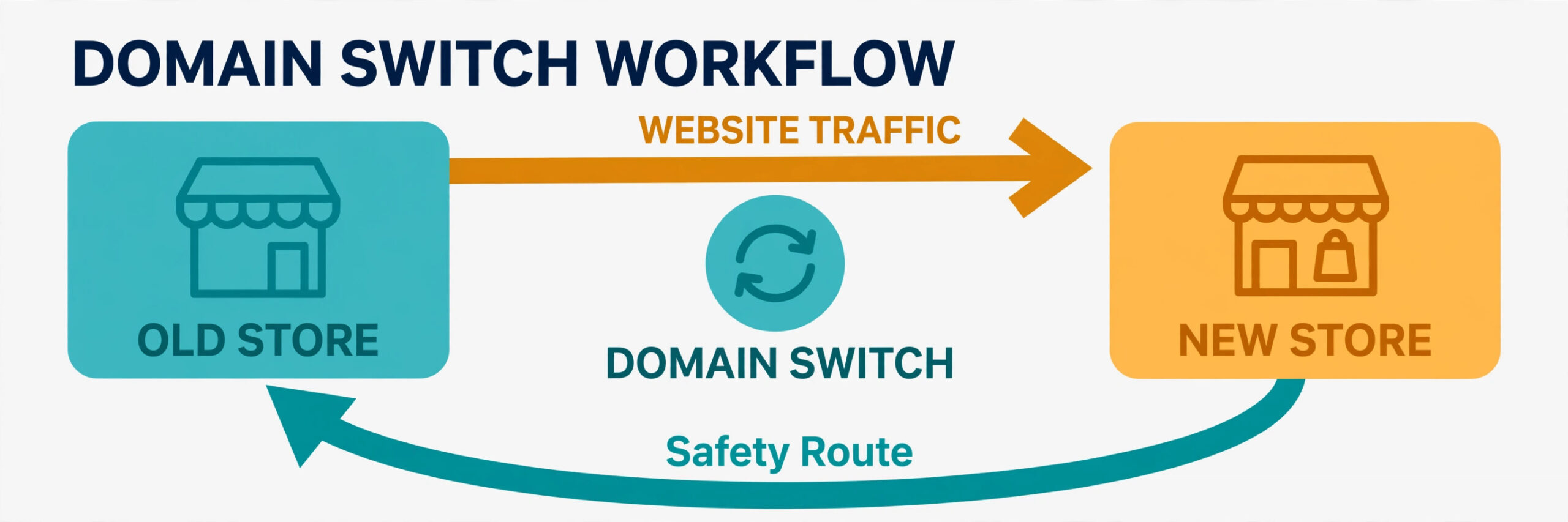
Keep WordPress live, backed up and untouched until the rollback window closes. Do not delete the site, cancel hosting, or let the domain lapse during launch month. The domain point is the control switch for the whole migration. If Shopify fails badly, pointing the domain back to WordPress restores the old store, provided WordPress was kept current and its data was frozen correctly.
Set rollback triggers before launch. A checkout failure affecting real orders, a payment payout failure, a shipping rate error that charges customers wrongly, or a search traffic collapse far beyond the expected dip should all trigger a rollback review within hours, not days. Agree who can make the rollback call, because a migration with no named decision maker stalls while the team debates.
A rollback is not free, because orders placed on Shopify during launch week live in Shopify. Before rolling back, export those orders and customers, and plan how they will be honoured, fulfilled and recorded in WordPress. A store that rolls back without an order plan will fulfil some orders twice and miss others, and that damage lasts longer than the original launch problem.
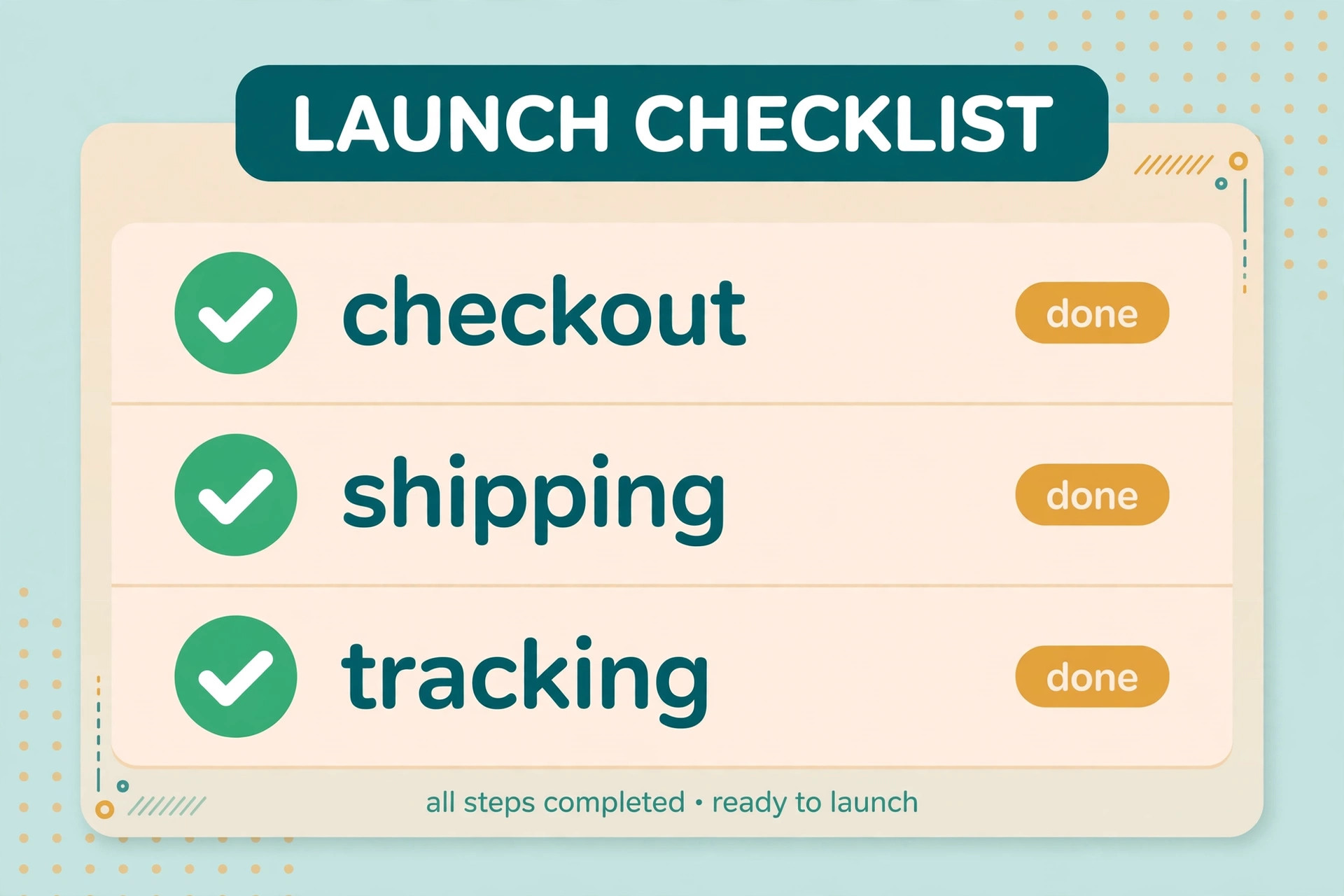
Launch Checklist for the Shopify Go Live
Work through this list on launch day, checking each item live rather than from memory.
– Domain points to Shopify, and the old WordPress URLs redirect to live Shopify pages – Product, customer and order counts reconcile against the WordPress exports – Test orders pass for simple, variant, discounted, free shipping and international baskets – Payment payouts, order emails, inventory deduction and customer accounts all work – Shipping rates, tax totals and discount codes match the WordPress behaviour for the same baskets – Email, analytics and ad conversion tracking fire on a real order – The sitemap is submitted, key pages are requested for indexing, and crawl errors are monitored – The team knows the rollback triggers, the decision maker, and the support response for launch week
Mistakes That Cost a WordPress to Shopify Store Sales
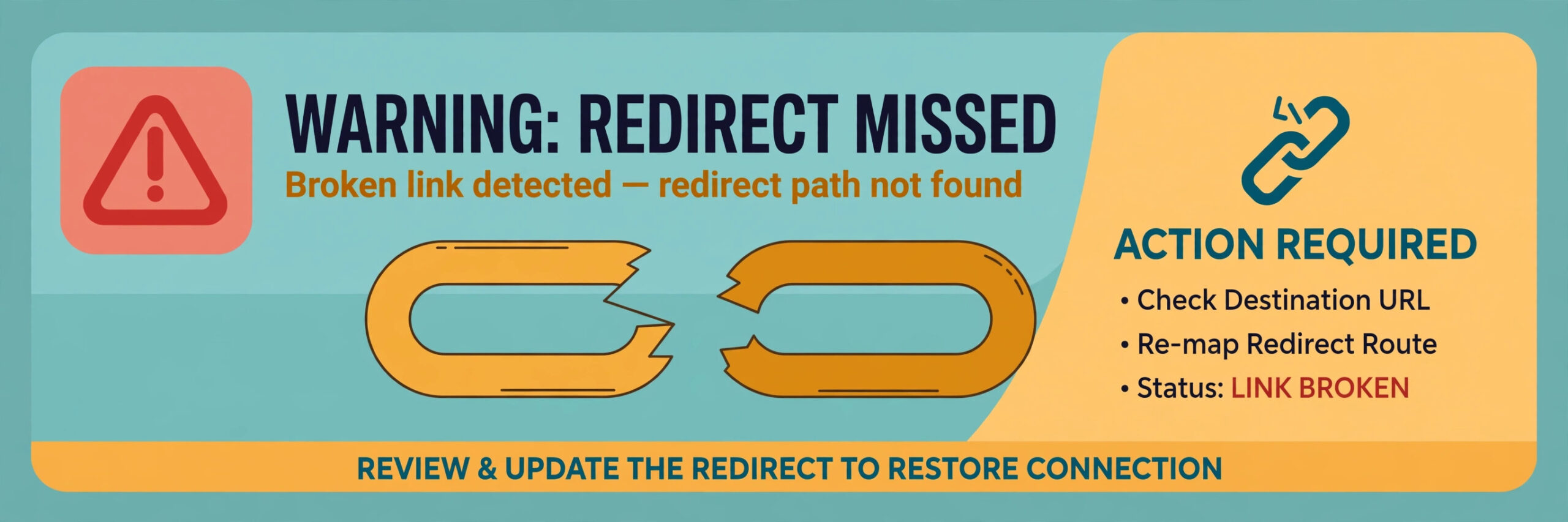
The costliest mistake is launching without a redirect map, or with a partial map covering only products. Search traffic lands on categories, posts and old campaign pages too, and every unmapped URL becomes a dead end for a visitor who was ready to buy. Build the map from a crawl, not from the product list, and verify it after launch.
The second mistake is importing a dirty catalogue and promising to clean it later. Duplicate products, missing images, wrong variants and broken descriptions go live immediately, and customers judge the new store on them. Clean before import, test a batch, and only then import the full catalogue.
The third mistake is rebuilding the old design instead of rebuilding for selling. A theme chosen to look like WordPress, with the same cluttered homepage and the same buried buy button, carries the old problems onto a new platform. Use the move as permission to simplify, and let mobile product pages lead the design.
The fourth mistake is changing the domain, the platform, the theme and the product range all at once. Each change alone is manageable. Together, they make it impossible to tell which change caused a traffic or sales dip. Migrate the platform, keep the range and pricing stable for launch month, and save range changes for after the store has settled.
Frequently Asked Questions
Will the store lose search rankings by moving to Shopify?
Rankings may dip in the short term even with careful work, and sources disagree on how long recovery takes. A complete redirect map, matched handles, carried over SEO titles and descriptions, and a submitted sitemap give rankings the best chance of recovery. No honest guide can promise zero change, because search engines reevaluate a moved site, and content or structure changes during migration add their own effects.
Do customer passwords move from WordPress to Shopify?
No, passwords do not transfer, because they are stored in a form that cannot be moved between systems. Customers will need to activate their new account or set a new password. Tell customers before launch, explain the step plainly in the launch email, and make the account activation link easy to find, so a password reset does not feel like a lost account.
Can a WordPress blog move fully to Shopify?
Posts and pages can move, but shortcodes, plugin blocks and embeds must be rebuilt, and Shopify blogging tools are simpler than WordPress. A store whose blog drives search traffic should move its best posts carefully, with redirects and SEO fields intact, and keep expectations realistic about the blogging experience after the move.
How long does a small store migration take?
A small store with a clean catalogue, a standard theme and few custom features can migrate in two to four weeks including testing. A store with many products, a large blog, custom features or complex shipping rules can take six weeks or more. The redirect map, the theme rebuild and testing drive the timeline, not the product import, which is the fastest part.
Should the store keep WordPress running after launch?
Yes, for a rollback window of at least one full sales cycle, and longer if the store is seasonal. Keep WordPress backed up, keep hosting paid, and keep the domain control in trusted hands. Close WordPress only after Shopify has handled real orders, real traffic and real support queries without a rollback trigger firing.
Is Shopify cheaper than WordPress for a small store?
It depends on hosting and plugin costs on the WordPress side, app costs on the Shopify side, payment processing on real volume, and the value of owner time spent on maintenance. Some stores save money, especially when developer help was frequent. Others pay more in subscription and apps but gain selling time. Run both totals on real figures before deciding on price alone.
Final Call for a Small Store Weighing the Switch
Choose Shopify when selling time matters more than custom control, when maintenance has become a tax on every week, and when the store fits a standard commerce shape with apps for the extras. Stay on WordPress when custom features define the store, when content is the main business, or when the team already handles maintenance well and the rebuild would cost more than it returns.
The switch WordPress to Shopify small store owners regret is usually the rushed one, launched without a redirect map, without test orders, and without a rollback plan. The switch they praise is the boring one, where the catalogue was cleaned, the redirects were verified, the checkout was tested on a phone, and launch week felt uneventful. Aim for uneventful, and the platform change will feel like an upgrade rather than a gamble.
More Reading on Stratilyze
– Migrate WordPress to Shopify for Online Stores – Cost of Shopify for Small Business Monthly – Cost of Building a Shopify Store for Small Business – Shopify Alternatives – Migrate WooCommerce to Shopify for Small Stores – Fix WordPress Slow Loading Checklist