
The verdict first. If your team already pays for Microsoft 365, moving meetings to Teams usually saves a separate Zoom bill and puts meetings, chat, files and calendars in one place. If your team does not pay for Microsoft 365, and most meetings are with outside clients who already know Zoom, the saving is smaller and the friction is larger. That single distinction decides most moves. If you want to switch Zoom to Microsoft Teams small team leaders should therefore start with licensing, not with features, because the licence you already hold changes the maths completely.
Teams is not a clone of Zoom with a different logo. It is a collaboration hub where meetings sit beside chat, channels, files and Office apps. That breadth is the benefit and the adjustment. A team that only needs a reliable video call may find Teams heavier than Zoom. A team that already lives in Outlook, OneDrive and Word will find Teams removes the constant switching between tools that Zoom alone cannot fix.
This guide covers the move in order. Licence check, inventory, link swap, recording move, calendar setup, room checks, adoption and rollback. Pricing figures below are starting points. Microsoft’s own pricing page could not be read directly from our research setup, so figures here come from reputable third party guides reporting 2026 list prices, and you should check the vendor page before budgeting. Where those guides disagree, this guide says so.
When Teams Wins, and When Zoom Should Stay
Teams wins when the team already uses Microsoft 365 Business. In that case meetings, chat and file storage are already paid for, and Zoom becomes a duplicate cost. Teams also wins when meetings need to flow into shared files, collaborative documents and channel discussions without leaving one app. A project meeting that ends with tasks, files and follow up chat in the same place is a Teams shaped workflow.
Teams also wins for organisations that need tight admin control, guest access rules and compliance settings inside one tenant. Small teams rarely cite compliance as the first reason, but a team handling client data or working inside a larger partner’s Microsoft environment will find Teams fits the existing rules more naturally than a separate video tool.
Zoom should stay when the team’s clients drive the choice. If clients send Zoom links, expect Zoom, and judge the team by Zoom fluency, forcing Teams creates friction on every external call. Zoom should also stay when the team needs Zoom specific features, such as a webinar setup the team has already mastered, or integrations that have no Teams equivalent. A move that saves money but loses the team’s best webinar workflow is a poor trade.
A middle path is legitimate. Many small teams run Teams internally and keep a small number of Zoom host licences for client facing work. That hybrid costs more than a clean switch, but it removes the worst friction while the team learns Teams. Treat the hybrid as a bridge with an end date, not as a permanent arrangement, or the team pays for both tools forever.
Before You Switch, Inventory Meetings, Recordings and Rooms
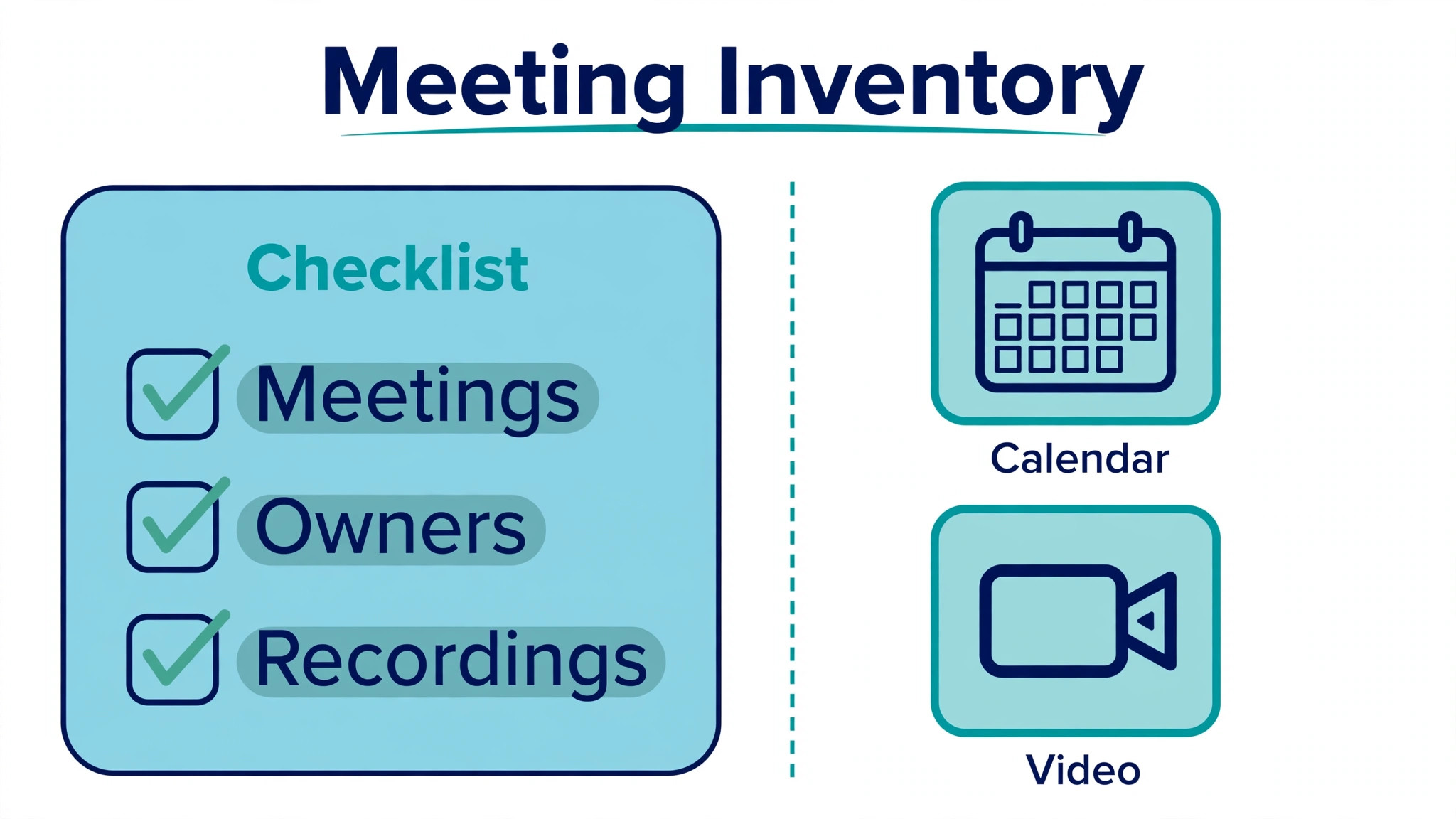
For a switch Zoom to Microsoft Teams small team project, start with a meeting inventory. List recurring meetings, their owners, their participants, and whether they are internal, client facing or public. List one off meetings booked for the next month, and list webinar or training sessions separately, because they have different settings and different audiences. The owner of each meeting is the person who will swap its link, so the inventory must name owners, not just meetings.
Next, inventory recordings. Zoom cloud recordings have links that stop working once Zoom access ends, and guides from organisations that have made this move stress downloading recordings before the cutoff date. List every recording that must be kept, who owns it, and where it will live after the move, usually OneDrive or SharePoint. Download the recordings, check that they play, and check that transcripts or captions travel with them where they exist.
Then inventory everything attached to meetings. That includes waiting room settings, passcodes, registration pages, polls, breakout room plans, virtual backgrounds, and meeting templates. Teams has equivalents for most of these, but they are not imported automatically, so each one needs a rebuild note. A poll that nobody rebuilds is a workshop exercise that fails live in front of clients.
Finally, inventory rooms and devices. Note each meeting room, its camera, microphone, speaker and display, and whether the room runs a Zoom Room setup or a general computer. Rooms are the most underestimated part of a meeting tool switch, because a room that worked with Zoom may need new settings, a new account, or new hardware to work well with Teams. Test rooms before launch week, not during it.
The licence check that comes before everything
Check what Microsoft licences the team already holds, person by person, before buying anything. Teams is included in most Microsoft 365 Business plans, and standalone Teams Essentials is reported as a lower cost option for teams that only need meetings and chat. If the team already holds Business Standard or a similar plan, there may be no new licence to buy at all, and the Zoom saving is the whole prize. If nobody holds a Microsoft licence, price the full Microsoft cost honestly and compare it with the Zoom bill it replaces.
Licence figures reported in 2026 guides disagree on one point, and the disagreement matters for budgeting. Older guides list Microsoft 365 Business Basic at $6 per user per month and Business Standard at $12.50, while guides updated after July 2026 list Basic at $7 and Standard at $14, following a reported Microsoft price rise. Business Premium is consistently reported at $22. Use the newer figures for budgeting, and check the vendor page at purchase, because the older figures still circulate widely and will understate the bill.
Switch Zoom to Microsoft Teams Small Team, Step by Step
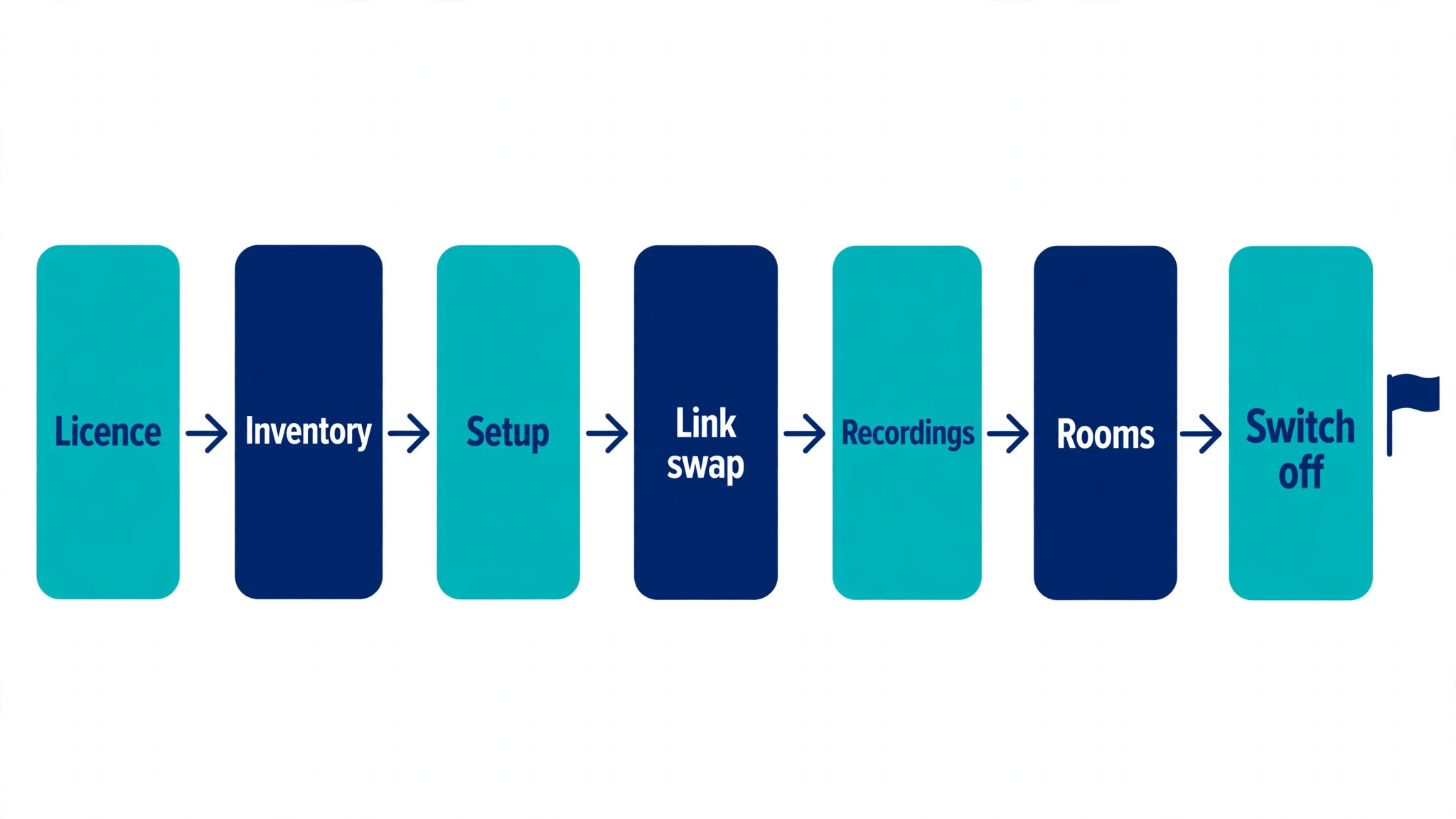
The workflow below runs in seven stages. Stage one is the licence and inventory check above. Stage two is Teams setup, including tenant settings, meeting policies and guest access. Stage three is the meeting link swap, starting with internal recurring meetings. Stage four is recording migration and link replacement in documents and pages. Stage five is calendar integration and the Outlook add in. Stage six is room setup and device testing. Stage seven is adoption, training and the Zoom switch off date.
Run stages two to five with a pilot group first. Pick a small group that meets often, includes an external participant or two, and will report problems honestly. The pilot group swaps its meetings, moves its recordings and tests rooms for two weeks. Fix what the pilot finds, write the fixes into a short guide, and only then roll out to the whole team. A pilot that finds problems is a success. A big bang rollout that finds the same problems in front of clients is not.
Set a Zoom switch off date early, and put it in writing. A switch without a date drifts, because old links stay in calendars and old habits stay in place. The date should allow time for the pilot, for recording downloads, and for client facing meetings to be rescheduled. Announce the date to the team and to regular external participants, so nobody discovers the change by clicking a dead link.
Setting Up Teams, Tenant, Policies and Guest Access
In a switch Zoom to Microsoft Teams small team move, create or confirm the Microsoft 365 tenant and make sure every team member has an account with the right licence. Test sign in for every member before the pilot, because an account problem discovered on meeting day is a meeting that starts late. Set up teams and channels that mirror how the team actually works, not how an org chart says it should work. A channel per project and a channel per standing meeting series covers most small teams.
Meeting policies deserve a deliberate pass. Decide who can record, who can admit guests from the lobby, whether external participants can present, and how long chat persists. Small teams often leave defaults in place and discover them at the worst moment, such as a client being held in a lobby while the host is presenting. Test each policy with a guest account before the first client meeting on Teams.
Guest access is a key difference from Zoom, and it should be tested early. Guests can join Teams meetings without a Teams account, but the experience differs from Zoom, and lobby and admission behaviour should be checked with a real outside email address. Send a test invite to a personal address, join as a guest, and note every step that feels confusing. That note becomes the joining instructions sent to clients.
Chat and file defaults also need a decision. Teams meetings save recordings to OneDrive or SharePoint, and chat history and files live inside the Microsoft environment. Decide where recordings go, who can access them, and how long they are kept. A team that never decides will find recordings scattered across personal drives, which is worse than the old Zoom library it replaced.

Swapping Meeting Links, the Manual Job at the Centre
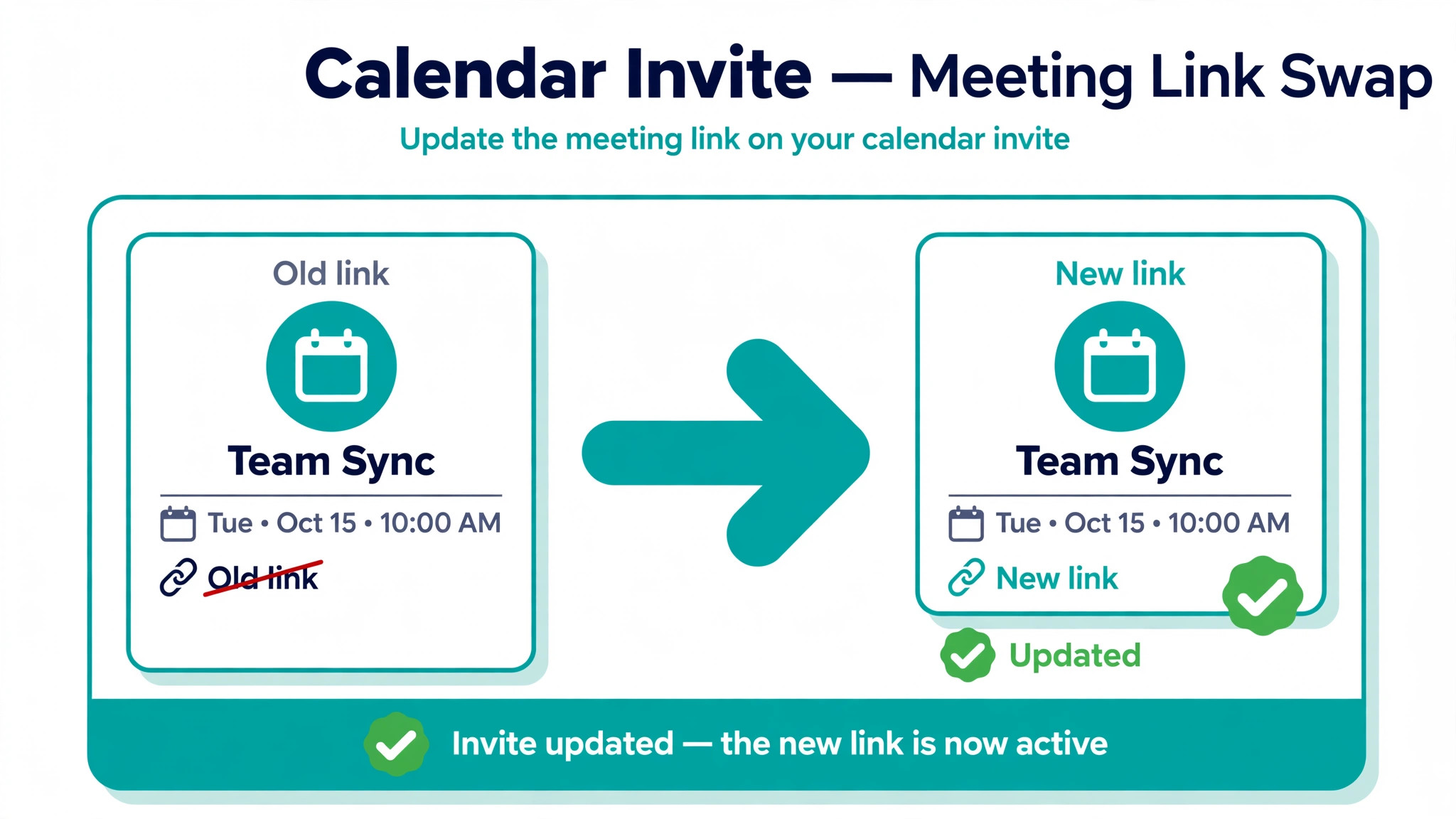
There is no direct migration of Zoom meetings into Teams. Microsoft community answers and institutional guides agree on this point, and it shapes the whole plan. Each meeting must be changed by hand. The standard method in Outlook is to open the meeting, remove the Zoom link from the location and body, add a Teams meeting through the Teams button, and send the update to participants. Do not click the button that cancels the whole meeting, or the meeting itself disappears along with the Zoom portion.
Recurring meetings need special care. Guides report that changing only one occurrence, or changing the series incorrectly, leaves future occurrences still pointing to Zoom. When swapping a series, open the series itself, make the change there, and check a future occurrence to confirm it carries the Teams link. If a series resists conversion, delete it and recreate it as a Teams series, then tell participants clearly that the old invite is replaced, rather than leaving two competing invites in circulation.
Work through the inventory in priority order. Internal recurring meetings first, because the team controls both sides and can fix problems fast. Client facing recurring meetings second, with a personal message explaining the change. One off meetings third, as they arise. Webinar and training sessions last, because they have the most settings to rebuild and the largest audiences to confuse if something goes wrong.
Every swapped invite should carry a short note at the top, such as a line stating that the meeting now takes place in Teams with the link below. Participants scan invites quickly, and a meeting that silently changes platform will have people joining the old link out of habit. The note costs one line and prevents the most common support question of the first month.
Links hiding outside the calendar
Meeting links hide in more places than the calendar. Check email signatures, intranet pages, booking pages, course pages, project documents and recurring email templates. Each Zoom link found outside the calendar needs replacing with the new Teams link, or removing if the meeting no longer exists. A calendar swap that leaves a booking page pointing to Zoom is only half a migration, and customers will find the half that was missed.
Check automated messages too. Booking confirmations, reminder emails and calendar integrations that insert a Zoom link will keep inserting it until their templates are updated. List every system that sends a meeting link, update its template, and send a test message through each one. This check takes an afternoon and prevents weeks of confused join attempts.
Moving Recordings, Files and Chat History
In a switch Zoom to Microsoft Teams small team move, download Zoom cloud recordings before Zoom access ends, and treat the download list as a project with an owner and a deadline. Save recordings to OneDrive or SharePoint in folders that match the new Teams structure, so the team can find them later. Check each recording plays after download, because a corrupted download discovered months later cannot be recovered once Zoom access is gone.
Replace recording links wherever they appear. Course pages, training documents, client portals and internal wikis may all link to Zoom recordings. Each link must be replaced with the new location, or removed if the recording is no longer needed. This is slow work, and it is the work most teams skip, which is why old training pages break quietly after a platform switch.
Zoom chat history does not transfer cleanly to Teams. Institutional guides note that there is no file download for Zoom chat conversations, and the practical options are copying important text into documents or capturing screenshots. Save what matters, such as decisions, agreements and key instructions, into shared documents before access ends. Accept that casual chat history will not survive, and tell the team so nobody expects to search it later.
Files shared in Zoom meetings should be moved to the matching Teams channel or SharePoint folder. Do not rely on participants keeping their own copies, because the copy that matters is the shared one everyone can reach. A short file move, done during the pilot, prevents the familiar problem of a document that exists only on one person’s laptop after the platform changes.

Calendar Integration, Outlook and the Teams Add In
In a switch Zoom to Microsoft Teams small team rollout, Teams meetings are scheduled from Teams itself, from the Teams calendar, or from Outlook with the Teams add in. For most small teams, Outlook is the centre, because invites, rooms and availability already live there. Confirm the Teams add in is enabled for every team member, and test creating a Teams meeting from Outlook before the rollout. If the Teams button is missing, the add in needs enabling or the account needs checking, and that fix should happen before anyone’s first Teams invite.
Teach the team the new habit explicitly. New meetings get a Teams link by default, and old Zoom links must not be pasted into new invites out of habit. A short guide with screenshots of the Outlook Teams button, the lobby behaviour and the guest join steps covers most questions. Keep the guide to one page, because a twenty page manual will not be read, and the questions it was meant to answer will arrive as support requests instead.
Handle the transition period with care. For a few weeks, the calendar will hold both Zoom and Teams meetings, and participants can join the wrong one. Label Teams meetings clearly in their titles or notes during the transition, and remind the team to check the platform before joining. Audio and camera behaviour can differ between platforms, and guides report that switching between Zoom and Teams meetings in one day can cause audio or camera glitches, so allow a minute between back to back meetings on different platforms during the overlap.
Room calendars need updating too. If rooms are booked through Outlook, confirm that room invites carry the Teams link and that the room display or room computer joins Teams correctly. A room booked for a Teams meeting that still tries to join Zoom is a meeting that starts with ten minutes of troubleshooting in front of everyone.
Rooms, Devices and the Meeting Experience
Test every room with a real Teams meeting before launch week. Join from the room, share a screen, check that remote participants can hear the room and that the room can hear them. Check camera framing, because camera angles and default views differ between platforms, and a camera that framed the table well on Zoom may frame a wall on Teams. Adjust the camera, the seating or the settings, and write the working setup down for that room.
Virtual backgrounds, captions and breakout rooms all need checking. A background that worked on Zoom will not carry over, so each regular presenter should choose a Teams background before their first client meeting. Live captions should be tested, including who is speaking and how accurately captions display. Breakout rooms can be created when scheduling or during a meeting, and a team that uses them should practise once before relying on them with clients.
Headsets and microphones deserve a quick audit. Most USB headsets work on both platforms, but test the headsets the team actually uses, especially in rooms. A headset that works on a laptop but echoes in a room is a room problem, not a headset problem, and it needs the room audio settings checked. Keep a spare headset in each room during the first month, because the first month is when small device problems cause the most disruption.
Webinar needs are a separate check. Teams supports webinars, with guides reporting support for up to one thousand attendees, and meetings supporting far larger view only audiences beyond that. Confirm the team’s webinar size, registration needs and presenter controls against the Teams plan held, before promising clients a webinar on the new platform. A webinar that exceeds the plan’s attendee handling is a problem that should be found in testing, not live.

What Teams Costs Against Zoom, Without Pretence
Cost comparison in a switch Zoom to Microsoft Teams small team project only makes sense per team, because Zoom charges per host while Microsoft charges per user, and the two models reward different shapes of team. Zoom’s paid plans are widely reported at about $14.16 per host per month on annual billing for Pro and about $18.33 for Business, with Business requiring a minimum number of users in some reports. Guests join free, so a team where only a few people host meetings pays for few licences. Price the hosts, not the headcount, on the Zoom side.
On the Microsoft side, price the plan the team actually holds or will buy, using the newer figures noted earlier, and remember that the same licence also covers email, Office apps and storage. A team already paying for Business Standard at a reported $14 per user per month gains Teams without a new bill, and the Zoom saving is real. A team buying Microsoft 365 only for Teams pays the full plan price for a meeting tool, and the comparison looks very different. State which case applies to your team in the business case, because a comparison that hides it misleads the decision.
Add the hidden costs honestly. Room hardware changes, training time, pilot time and the hours spent swapping links all cost money, even when they do not appear on a vendor invoice. A small team may spend twenty to forty hours on a careful switch, including inventory, pilot, link swaps and training. That time is worth counting, because it is the real price of the move in the first year, and it is why a rushed switch that saves a licence fee but burns a week of staff time is not a saving.
Adoption Checklist, Training and the Switch Off
Adoption is where meeting tool switches succeed or fail, and it needs a checklist rather than an announcement. Every team member should have joined a test meeting, shared a screen, used chat, and joined as a guest would, before their first real Teams meeting. Every regular meeting owner should have swapped at least one recurring series with help available. Every room should have a one page joining guide taped or linked where the meeting starts.
Training should be short, practical and role based. Hosts need lobby control, recording, breakout rooms and screen sharing. Participants need joining, muting, chat and raising a hand. Admins need policies, guest access and recording storage. One short session per role, plus the one page guide, beats a long general session that nobody remembers. Record the training session itself on Teams, so late joiners and new hires can watch it later.
External participants need their own short guide. Send joining instructions with the first Teams invite to each regular client, including the guest join steps and a note that no account is needed to join as a guest. Offer a two minute test call before the first important meeting, especially for clients who are less confident with new tools. That offer prevents the most embarrassing failure of a platform switch, which is a client unable to join a meeting that matters.
The switch off itself should be a dated event, not a gradual fade. On the switch off date, cancel or archive remaining Zoom meetings, remove Zoom links from templates and pages, and confirm that no recurring Zoom meeting remains on any calendar. Keep Zoom access for a short grace period if the contract allows, purely to recover anything missed, then cancel the subscription. A switch off without a date leaves the team paying for both tools and joining the wrong meeting for months.

Rollback Plan and Mistakes to Avoid
The rollback plan is simple and should be written down before launch. If Teams fails badly in the pilot, or if a critical client workflow cannot be replicated, the team keeps using Zoom for those meetings while the problem is fixed. That only works if Zoom licences and links are kept active through the pilot and the first month, and if nobody cancels Zoom in excitement on day one. Keep the old tool until the new one has proven itself with real meetings.
The most common mistake in a switch Zoom to Microsoft Teams small team move is swapping links without telling participants, which fills the first week with people joining dead Zoom links. The second is forgetting recordings, which are lost once access ends and cannot be recovered by any migration tool. The third is skipping room tests, which turns the first client meeting in each room into a troubleshooting session. Each of these is avoidable with the inventory and the pilot, and each is expensive when discovered live.
Another mistake is assuming chat history and settings transfer. They do not, or they transfer only partly, so anything important in Zoom chat or settings must be saved manually. A related mistake is rolling out to everyone at once, which turns a pilot sized problem into a team sized problem. Roll out in waves, fix between waves, and let early adopters help later waves, because peer help scales better than central support for a small team.
A final mistake is judging the switch too early. The first two weeks will feel slower, because new habits take time and old habits keep surfacing. Judge the switch after a month of real meetings, on meeting reliability, client feedback and total cost, not on first week grumbles. If meetings run reliably, clients join without trouble and the Zoom bill is gone, the switch has worked, even if the first week felt awkward.
Frequently Asked Questions
Is there a tool that moves Zoom meetings to Teams automatically?
No, there is no direct migration of existing Zoom meetings into Teams. Each meeting must be changed by hand in Outlook or recreated in Teams, using the method described earlier. That manual step is the main labour cost of the switch, and it is why the meeting inventory and the pilot matter more than any tool choice.
What happens to Zoom recordings after the switch?
Zoom cloud recordings must be downloaded before Zoom access ends, because their links stop working once access is gone. Save them to OneDrive or SharePoint, check they play, and replace links in documents and pages. Recordings saved on Teams go to OneDrive or SharePoint by default, with transcripts where the plan supports them, so the new library should be organised from the start.
Can guests join Teams meetings without an account?
Yes, guests can join Teams meetings without a Teams account, from a browser or the app. Test the guest journey with a real outside address before the first client meeting, because lobby behaviour and admission settings affect what guests experience. Send guest joining instructions with the first invite to each regular client.
Does the team still need Zoom for some meetings?
Sometimes, yes, for a transition period. Teams run internally on Teams often keep a small number of Zoom host licences for clients who require Zoom, or for a webinar setup not yet rebuilt. Treat that hybrid as a bridge with an end date, and review it after a month. A permanent hybrid means paying for both tools, which defeats the cost case for the switch.
How much does Teams cost for a small team?
It depends on the Microsoft licence already held. Teams is included in most Microsoft 365 Business plans, reported in updated 2026 guides at $7 for Basic, $14 for Standard and $22 for Premium per user per month on annual billing, with standalone Teams Essentials reported at $4. Older guides show lower Basic and Standard figures, so check the vendor page at purchase. If the team already holds a Business plan, there may be no new licence cost at all.
What breaks most often in this switch?
Meeting links, recordings and rooms break most often, in that order. Links break when a series is changed incorrectly or a link outside the calendar is missed. Recordings break when they are not downloaded before access ends. Rooms break when camera, audio or joining settings are not tested on Teams. The inventory, the pilot and room tests exist to catch all three before clients do.
The Call for a Small Team
Move to Teams when the team already pays for Microsoft 365, when meetings should live beside chat and files, and when the Zoom bill is a duplicate cost for capability the team already owns. Stay on Zoom when clients drive the choice, when the webinar or meeting setup is already mastered, and when buying Microsoft 365 only for meetings would cost more than Zoom alone.
For teams that do move, the order is the strategy. Licence check first, inventory second, pilot third, link swap fourth, recordings fifth, rooms sixth, and a dated switch off last. A switch Zoom to Microsoft Teams small team leaders run in that order, with Zoom kept live until Teams has proven itself in real meetings, becomes a quieter, cheaper meeting setup rather than a month of missed joins and lost recordings.
More Reading on Stratilyze
– Cost of Webex for Small Business Monthly – Cost of Slack for Small Business Monthly – Cost of Zoom for Small Business Monthly – Best HR Software for Small Teams – Fix Microsoft Teams Camera Not Working