
Ten minutes of structured triage will tell you more than an hour of random reloading. When you need to fix Meta Business Suite not loading small business dashboards, start by separating a browser fault from an account fault and a platform fault. Those three causes look identical on a blank screen, yet each one needs a different fix. A browser fault clears with a private window or a different browser. An account fault clears only when the right person restores the right access. A platform fault clears only when Meta restores the service. This guide walks through that order, so you stop repeating steps that cannot work for the cause you actually have.
Small businesses feel this failure harder than large teams do. One person often runs the page, the inbox, the ads, and the weekly posts. When the dashboard will not load, scheduled content stalls, customer messages sit unread, and ad checks get skipped. The cost is not only lost time. It is missed replies, missed comments, and a posting gap that customers can see. That is why the first job is not to fix everything at once. The first job is to name the fault, prove it with a simple test, and then work the matching fix in order.
Before you change any setting, take a screenshot of what you see. Note the exact message, the browser you used, and the time you tried. Note whether the page is blank, spinning, partly loaded, or showing an error. That record matters if you later need help from another admin or from Meta support. It also stops you from chasing a moving target. If the screen changes after each attempt, your notes show which change produced the change.
What a Loading Failure Usually Means
A loading failure is a symptom, not a diagnosis. The dashboard may fail to open, open without any business listed, open with a spinning loader that never ends, or open for one page and fail for another. Each pattern points in a different direction, and learning to read that pattern is the first step to fix Meta Business Suite not loading small business dashboards.
A blank page after login often points to the browser, a blocked script, or a saved login that no longer matches the account. A dashboard that opens but shows no business often points to the wrong portfolio, the wrong profile, or access that was removed. A dashboard that loads slowly and then stops often points to a network problem, an extension conflict, or a temporary platform problem.
Do not assume the account is broken just because the page is blank. Do not assume the browser is broken just because the account looks fine on your phone. Test both. Open the dashboard in a private window. Open it in a second browser. Open the app on your phone while you are on mobile data rather than office Wi-Fi. Each test removes one variable. When one route works and another does not, you have found the layer where the fault lives. When no route works, you have stronger evidence for an account or platform problem.
Check the platform status before you spend an hour on settings. Meta publishes status information for its business tools, and a search for the current status page will show whether other users report the same problem. If the service itself is down, no cache clear will help. Wait, keep your scheduled posts in a document, and answer urgent messages from the mobile app if that route still works. If only the desktop dashboard fails while the app works, keep working from the app and fix the desktop route calmly.
How to Fix Meta Business Suite Not Loading Small Business Accounts in Ten Minutes
This section is the fast triage. Work it in order and stop as soon as one step restores access. Do not skip ahead to permission changes when a simple browser test has not been done. Permission changes affect other people, while browser tests affect only your session. Keep that order and you will avoid creating a second problem while fixing the first.
First, reload the page once, then close the tab completely and open a fresh tab. A single reload can clear a stalled script. A fresh tab removes a tab that has been open for days and may hold stale data. If the dashboard still fails, open a private window and sign in there. A private window runs without most extensions and without saved site data for that session. If the dashboard loads in a private window, the fault is in your normal browser profile, not in your account.
Second, try a second browser. Use a browser you do not normally use for this work, and sign in with the same account. If the second browser works, return to your main browser and work through its cache, cookies, and extensions. If the second browser also fails, move to the phone test. Open the Meta Business Suite app, and if the app fails too, try the mobile browser on mobile data. A failure on every device and every network points away from your computer.
Third, confirm you are signing in with the right profile. Many small business owners hold a personal profile, a business profile, and sometimes an old profile from a previous venture. The dashboard shows only the businesses linked to the profile you signed in with. Check the profile switcher at the top of the page. Check the business portfolio name. If you see a different business, you may have signed in correctly but selected the wrong portfolio. Switch portfolios before you conclude that access is gone.
Fourth, check your internet connection with a simple test. Open two unrelated sites. If both load quickly, your connection is probably fine. If both are slow, restart your router or move to mobile data for the test. A slow connection can make a heavy dashboard time out while lighter sites still load. That difference can mislead you into blaming the account when the network is the real fault.

Browser and Cache Checks That Actually Clear the Fault
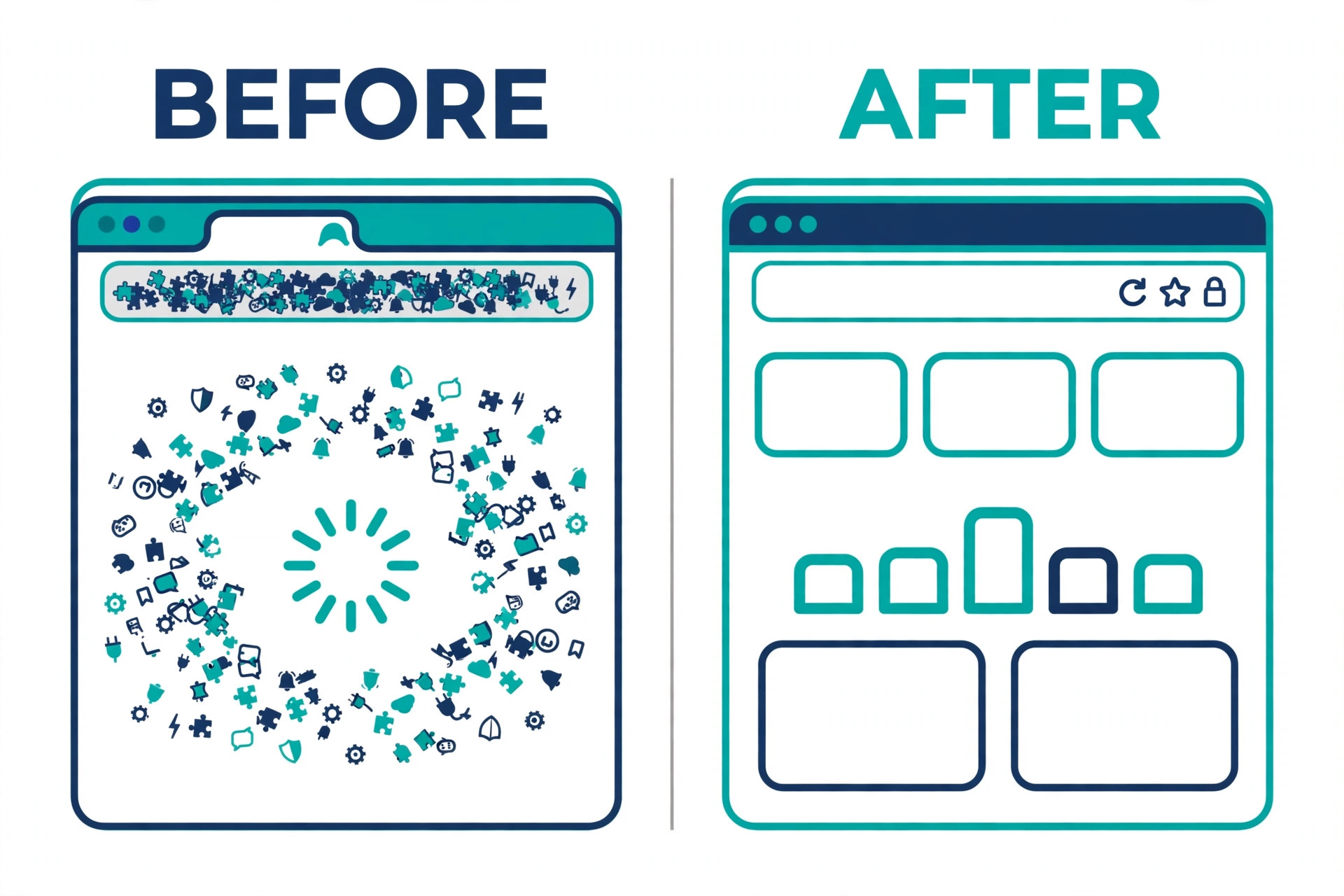
When the private window works but the normal window does not, work through the browser in a fixed order. Start with extensions. Turn off ad blockers, privacy tools, and any extension that changes how pages load. Reload the dashboard after each change if you want a precise answer, or turn off all extensions at once if you want speed and then turn them back on one by one. Extensions that block scripts or cookies are a common cause of a dashboard that spins without finishing.
Next, clear site data for the Meta domains only, rather than clearing your whole browser history at once. In your browser settings, look for site data or cookies for the business dashboard domain and for the main social domain. Remove those entries, close the browser completely, and sign in again. Clearing only those domains protects your saved logins for other sites while still removing the stale data that may be blocking this dashboard. If you clear everything, you will spend the next hour signing back into unrelated services.
Check cookie settings next. The dashboard needs cookies to hold your login and your selected business. If your browser blocks third party cookies or blocks all cookies for the site, the login loop can repeat without an error message. Allow cookies for the dashboard domain, then reload. Also check whether you are in a managed browser profile set by an employer or a school. Managed profiles can block extensions, cookies, or sites without showing a clear warning. If you use a managed device, test on a personal device before you change account settings.
Update the browser if an update is waiting. An old browser can fail on a dashboard that has changed since your last update. A current browser also removes a variable when you ask for support. After updating, restart the browser completely. Do not just close one tab. A full restart clears background processes that a tab close can leave running. Then sign in fresh and test the exact page that failed before, not only the home page.
If the dashboard loads but one tool inside it fails, note which tool fails, because that detail helps you fix Meta Business Suite not loading small business tools one area at a time. Inbox, planner, insights, and ads tools can fail independently. A single failing tool may point to a blocked script for that tool, a missing permission for that asset, or a temporary fault in that tool alone. Test the other tools before you conclude that the whole dashboard is broken. That detail also helps support, because it narrows the fault to one area rather than the whole product.
The Permission Audit Every Small Team Should Run
Permission problems are the most common account cause, and they are also the most misunderstood. Access in Meta tools works in layers. A person can have access to a Facebook Page, access to a business portfolio, and access to an ad account, and those layers do not always match. A person can lose one layer while keeping another. That is why someone can still post on a page yet fail to open the business dashboard, and why a layered audit is needed to fix Meta Business Suite not loading small business access.
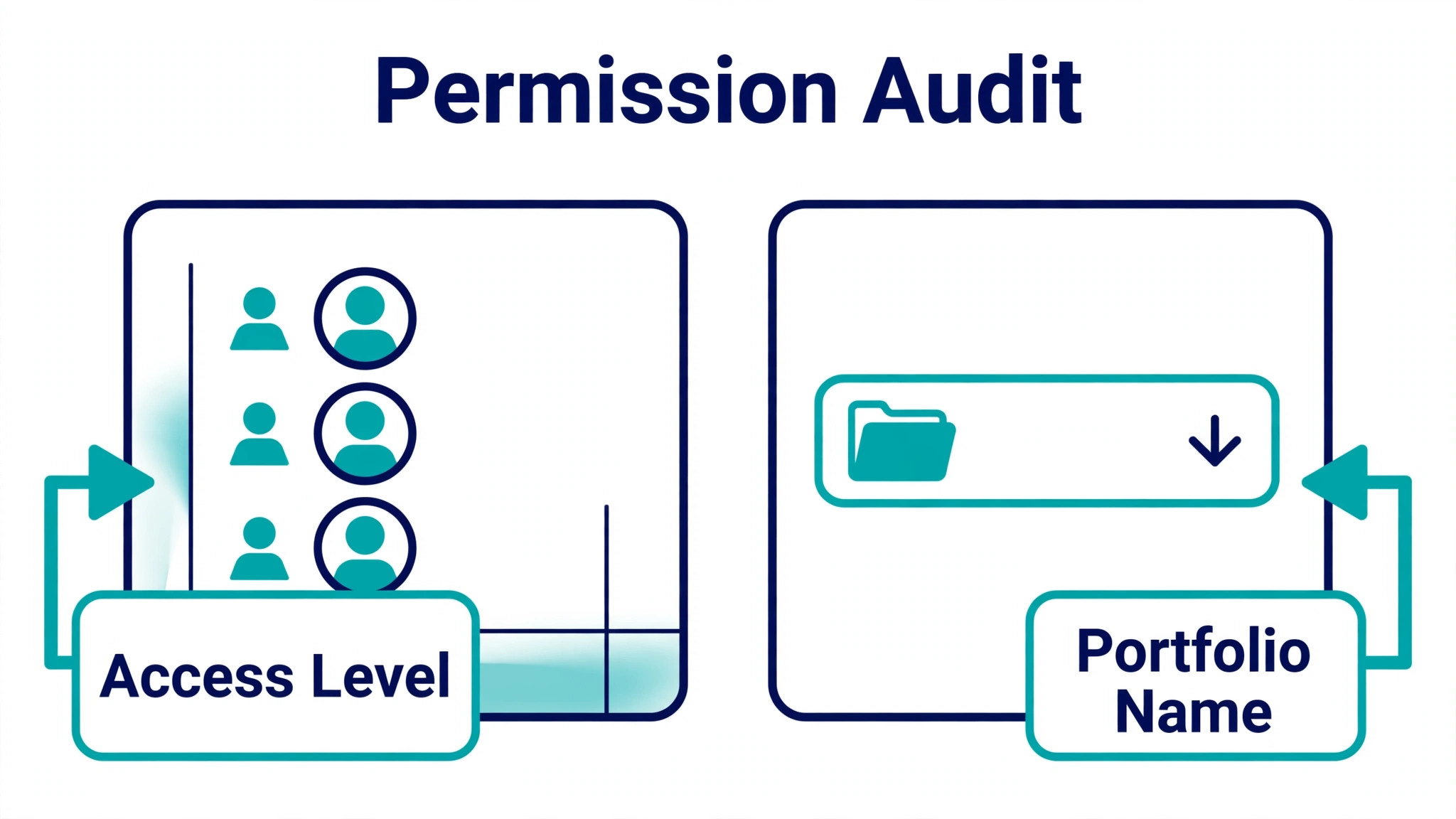
Start with the people list. Ask a current admin to open the business portfolio settings and check the people section. Confirm that your name appears, that your access level is what you expect, and that no duplicate entry exists for an old email address. Duplicate entries are a quiet trap. You may sign in with one email while the access sits on another. If you find a duplicate, ask the admin to align access to the email you actually use, and remove the stale entry only after the working entry is confirmed.
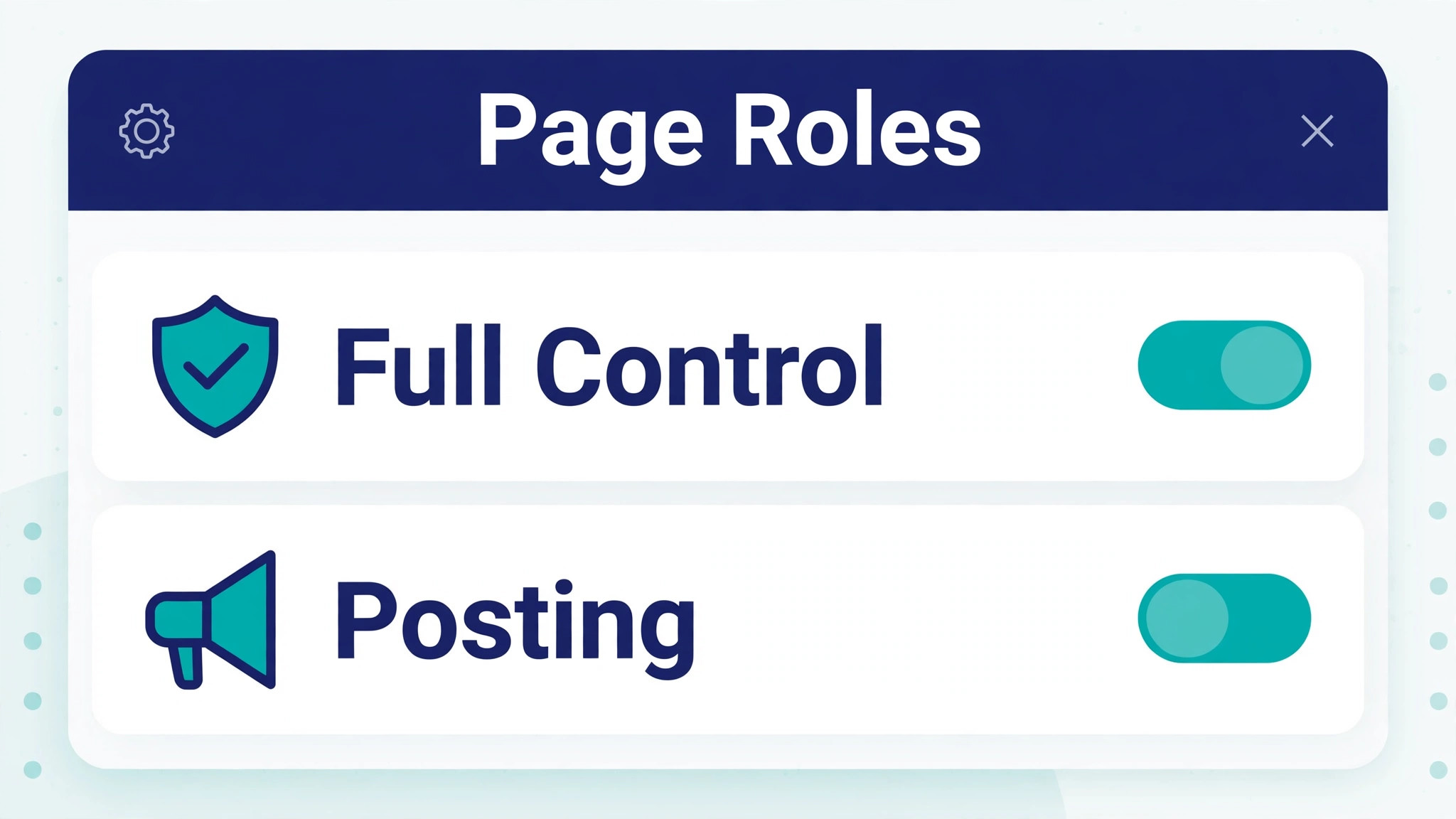
Next, check page access separately from portfolio access. Open the page settings and look at page access. Confirm that you hold the level you need for the work you do. Full control is needed for settings and people changes. A lower level may be enough for posting and messages, but it will block some dashboard areas. If your role was changed during a staff change, a handover, or a security review, that change may explain a sudden failure that looks like a technical fault.
Check connected Instagram access as well. A business dashboard that manages both Facebook and Instagram can fail to show Instagram content when the Instagram account is no longer connected, or when it is connected to a different page. Open the connected accounts area and confirm the Instagram account listed is the business account you expect. If it shows a personal account or an old account, reconnect the correct account from a desktop browser, where settings are easier to manage than in the app.
Watch for pending invitations. If you were invited to a portfolio or a page and never accepted, or if an invitation expired, you will not see that business. Ask the admin to resend the invitation and accept it from the email address that matches the invitation. Accepting from a different address can create a second identity that still lacks access. Keep a record of who holds full control. Every small business needs at least two people with full control, so one departure or one locked account does not lock the whole business out.
Page Role Fixes Without Breaking Someone Else Access
Fixing a role is simple in principle and risky in practice, because a wrong change can lock out the only admin. Never remove the last admin. Never change your own access while you are the only person who can restore it. Make role changes from a second admin account when possible, and confirm the change by signing out and signing back in. A role change that looks correct in settings but has not taken effect in your session can mislead you into making a second change that is not needed.
Ask the admin to set the correct level in one step, then test. If you need full control for settings work, ask for full control. If you need only posting and inbox work, ask for the posting level that matches that work and test whether the dashboard areas you need now load. A lower level is not a failure. It is a safety choice, and it becomes a problem only when it blocks work you are actually assigned to do. Match the level to the work, not to the highest level available.
If no admin remains, do not guess at recovery routes. Gather proof of ownership first. Keep your business registration, your domain ownership, your website, and any invoices that show the business name. Meta support for business access usually asks for proof that the business is yours and that you are authorised to manage it. A clear folder of proof, prepared before you contact support, shortens a process that can otherwise drag on for weeks. Also keep a note of the page name, the portfolio name if you know it, and the date access was lost.
When access returns, write down the fix. Note who changed the role, what level was set, and when it was tested. That note becomes the first thing you check next time. Small teams repeat the same permission fault after staff changes, because nobody recorded the previous fix. A one page access record, kept outside the dashboard, prevents that repeat. Store it where the owner can reach it even when the dashboard is down.
App Versus Desktop Tests That Narrow the Fault Fast
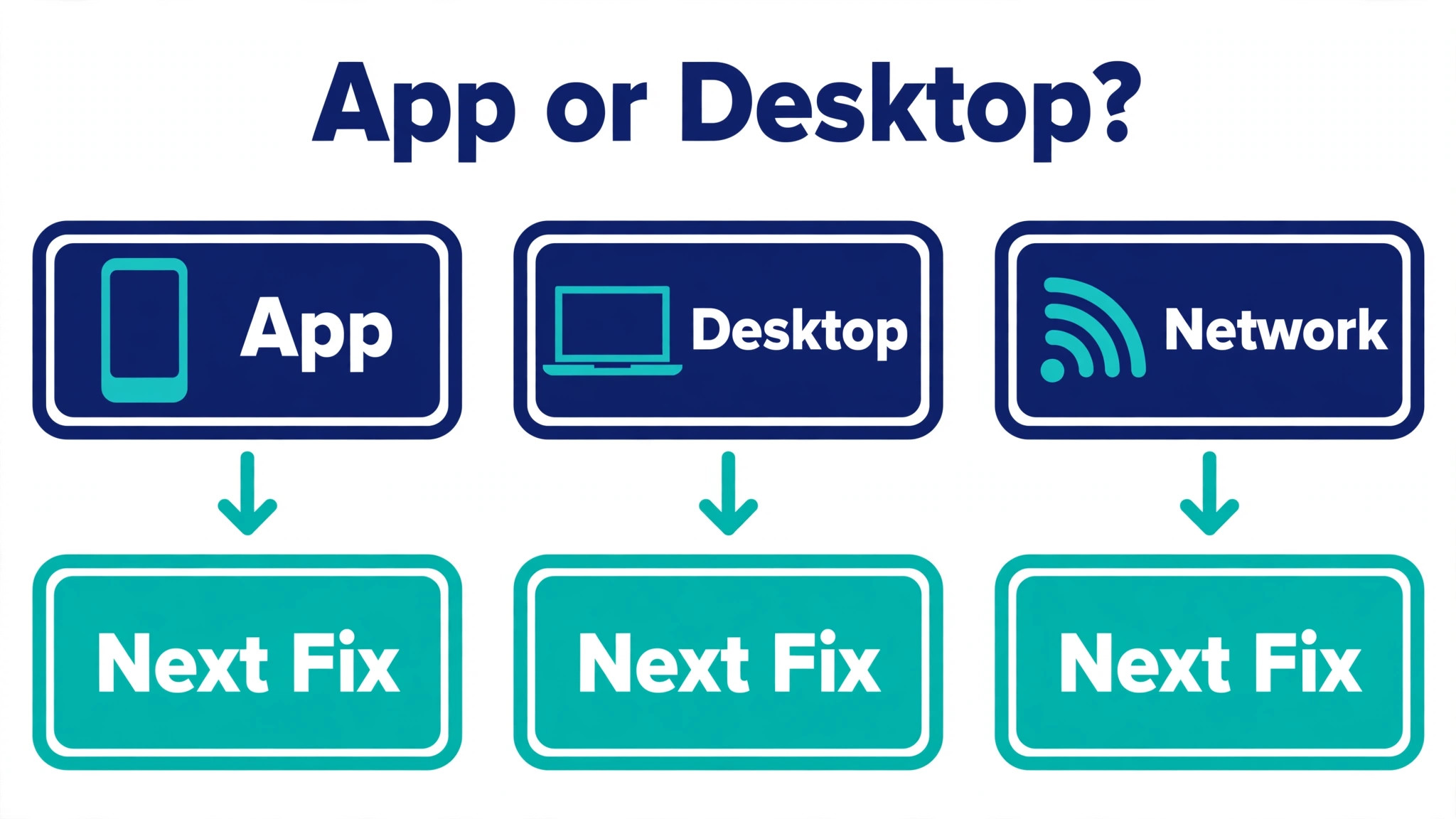
The app and the desktop dashboard are not the same product. The app covers daily work such as inbox, posts, and basic insights. Desktop covers people, partners, security, and deeper settings. A fault that appears only on desktop may never appear in the app, and a fault that appears only in the app may never affect desktop. Use that difference as a test, not as a complaint. If the app works, you can keep customer work moving while you fix Meta Business Suite not loading small business desktop access. If desktop works, you can fix app settings from desktop.
On the app, start with the basics. Update the app from your app store. Close the app completely, not just by leaving it in the background, and open it again. Sign out and sign back in if the app still fails, but only after you confirm you know your password and your two factor method. Signing out without a working second factor can lock you out of both app and desktop. Check app permissions on your phone as well. If the app lacks permission to use mobile data or background data, it may fail on mobile data while working on Wi-Fi, or the reverse.
On desktop, test with a fresh browser profile if the private window test was unclear. A fresh profile runs without extensions, saved data, or custom settings. If the dashboard loads in a fresh profile, your main profile holds the fault. You can then move bookmarks and passwords to the fresh profile, or repair the main profile at your own pace. If the fresh profile also fails, move back to account checks with more confidence.
Compare networks as a separate test. Office Wi-Fi, home Wi-Fi, and mobile data can behave differently when a firewall, a content filter, or a virtual private network blocks part of the dashboard. Turn off a virtual private network for the test. If the dashboard loads without it, the network tool is blocking a script or a domain the dashboard needs. Add an exception for the business domains if your network policy allows it, or work without the network tool for dashboard tasks. Note the result, because a network fault can return every time the tool reconnects.
What to Do When Nothing Above Restores Access
When browser tests, network tests, and permission checks all fail, you need a support case with evidence, not another round of cache clearing. Open a support request from an account that can still reach the help area, or from the app if desktop still fails. Describe the fault in the order you tested it. State the browser and version, the device, the network, the exact message, and the tests that worked and failed. A support agent can act on that list. A message that only says the dashboard is broken gives the agent nothing to check.
Keep your expectations realistic when you fix Meta Business Suite not loading small business accounts through support, because identity checks take time. Account access cases take longer than browser fixes, because support must verify identity and ownership. While you wait, protect the business. Keep posting from any route that still works. Keep a document of scheduled posts and planned replies. Tell customers through a working channel if a delay affects them. A short, honest update on the page itself, posted from the app if possible, beats silence. Customers forgive a delay more easily than they forgive being ignored.
Do not create a second business portfolio to work around a locked one. A duplicate portfolio can split your page, your ad account, and your history across two places, and merging them later is painful. Do not ask staff to share passwords to get around a permission fault. Shared passwords hide who did what, break two factor protection, and create a security problem that is worse than the loading fault. Fix access properly, even when it is slower, because the workaround becomes the next fault.
If the fault affects ads, pause any time sensitive campaign decisions until access returns, or ask an admin with working access to check the campaign. Do not change budgets blindly from a half loaded dashboard. A half loaded page can show stale numbers, and a budget change based on stale numbers can waste money. Wait for a clean load, or for a trusted admin to confirm the current state, before you act on ad data.
Preventing the Next Loading Failure
Prevention is mostly record keeping and routine. Keep two admins with full control at all times. Review the people list every quarter, or whenever someone joins or leaves. Remove access promptly when someone leaves, and add a replacement admin before the departure, not after. Keep a list of which email address holds which access, because duplicate emails cause more confusion than any other single issue in small teams.
Set a browser routine for the person who runs the dashboard daily. Use one browser for business work and keep its extensions minimal. Clear site data for the business domains when the dashboard starts to feel slow, rather than waiting for a full failure. Keep the browser updated. Keep a second browser installed and signed out, ready as a test tool. That second browser costs nothing and saves an hour when the main browser fails.
Document your setup in a place outside the dashboard, so the next person can fix Meta Business Suite not loading small business access without guessing. Record the portfolio name, the page name, the Instagram handle, the admin names, and the date of the last access review. Record the network you use for dashboard work and whether a virtual private network is involved. When a fault returns, that document lets a new team member test the same points without guessing. It also lets you prove ownership faster if you ever need support.
Train the team on the triage order. The steps for a page that disappears entirely are covered in Fix a Facebook Page Not Visible for a Small Business, which pairs well with the dashboard checks here. Everyone who posts or replies should know the private window test, the second browser test, and the portfolio switcher check. Those three tests take minutes and prevent most panic. They also prevent well meaning team members from changing permissions while the real fault is a browser extension. A team that tests first and changes access second will have fewer lockouts and fewer duplicate portfolios.
The Access Checklist to Run Before You Call It Fixed
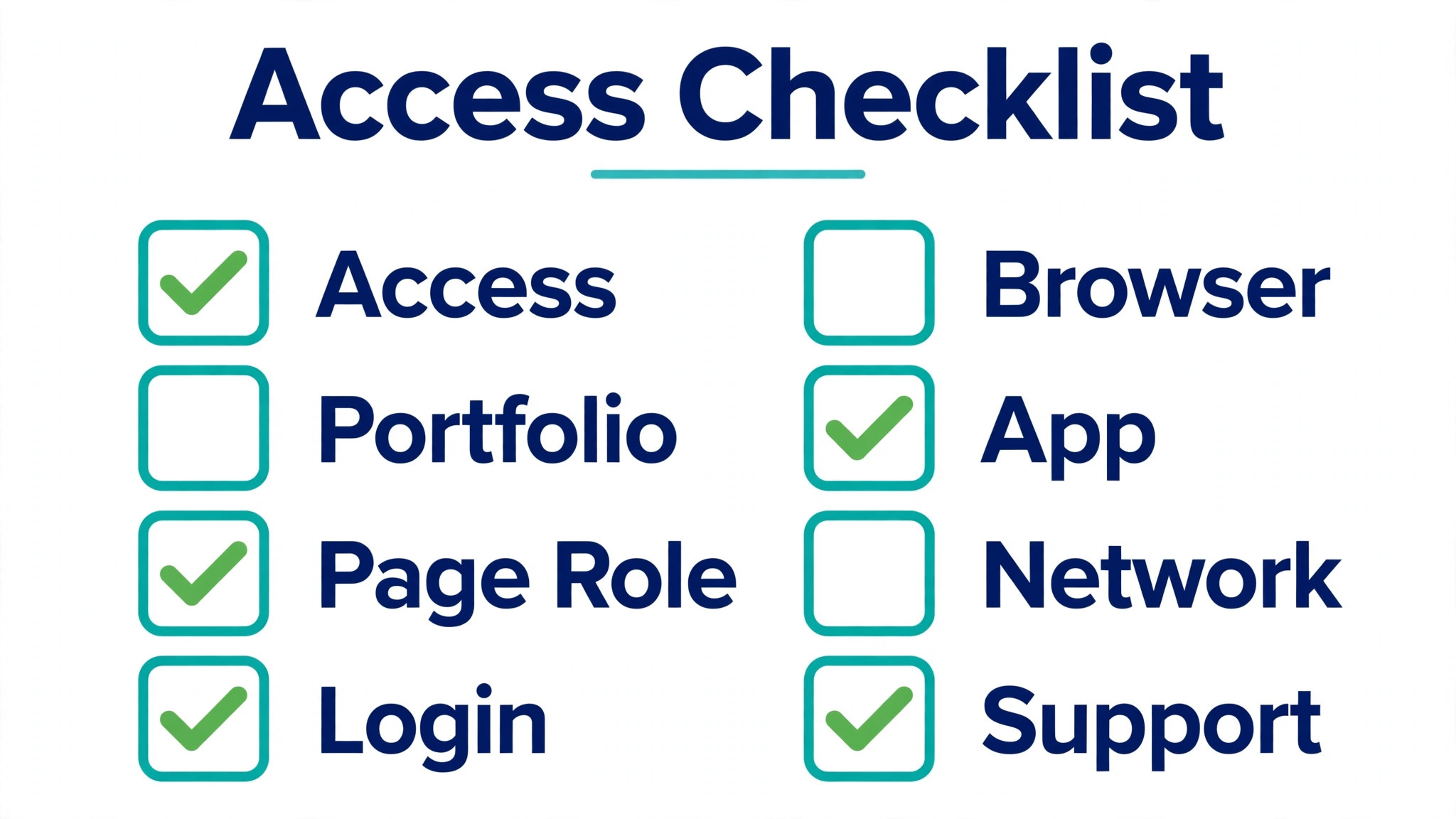
Use this checklist as the final pass. Do not call the fault fixed until each item passes, because a dashboard that loads for one task may still fail for another. Work through the list in order and tick each item only after a live test, not after a setting looks correct.
– Open the dashboard in your normal browser and confirm the correct business portfolio loads. – Open the inbox, the planner, and insights, and confirm each area loads without a spinning loader. – Confirm your page access level matches the work you are assigned to do. – Confirm the connected Instagram account is the business account you expect. – Send a test post to drafts, not live, and confirm the planner saves it. – Open the dashboard on the app and confirm the same business appears. – Confirm a second admin still holds full control, so one lockout cannot block the business. – Record the fault, the fix, and the date in your access document for the next review.
If any item fails, return to the matching section above and fix Meta Business Suite not loading small business access at that layer before you move on. A checklist that is half passed is a fault that is half fixed, and half fixed faults return at the worst moment. Take the extra ten minutes now. It is cheaper than a second outage during a launch, a sale, or a customer service peak.
Frequently Asked Questions
Why does Meta Business Suite load on my phone but not on my computer?
A phone success with a desktop failure usually points to the desktop browser, the desktop network, or a desktop only setting. Test a private window and a second browser on the computer. If both fail on the computer while the app works, check extensions, cookies, and any virtual private network on the computer. If the app works, keep customer work moving from the app while you repair the desktop route.
How do I know whether the problem is my account or the platform?
Test more than one device, more than one browser, and more than one network. If every route fails for your account while a colleague with access can load the dashboard, the fault is likely tied to your account or your access. If every user fails at the same time, check the platform status page and recent reports from other users before changing settings.
What should I do first when the dashboard shows a blank page?
Reload once, then open a fresh tab. If the blank page persists, open a private window and sign in there. A private window result separates a browser profile fault from an account fault in under a minute. If the private window works, work through extensions and site data in your normal browser. If it fails too, move to the second browser and phone tests.
Can clearing cache delete my posts or my page?
Clearing browser cache and site data does not delete posts, pages, or business data stored on Meta servers. It removes saved data from your browser only. Drafts saved in the planner remain on the server and should reappear after you sign in again. If you clear data for unrelated sites as well, you may need to sign back into those sites, which is why clearing only the business domains is the better first step.
Why can I see the page but not the business dashboard?
Page access and portfolio access are separate layers. You may hold page access without holding portfolio access, or you may be signed in with a profile that lacks portfolio access. Ask an admin to check the people list for the portfolio and for the page. Confirm which email address holds the access, and confirm you are signed in with that same email address and profile.
How many admins should a small business keep?
Keep at least two people with full control at all times. One admin is a single point of failure. If that person leaves, loses a phone, or loses access to an email account, the business can be locked out. Two admins cost nothing extra and protect every other fix in this guide. Review the admin list whenever staff changes, and add a replacement before a departure.
Should I create a new business portfolio if I cannot get in?
No, not as a first step. A new portfolio can split your page, ads, and history and create a duplicate that is hard to merge later. Work through browser tests, permission checks, and support with proof of ownership first. A new portfolio is a last resort, and only after you have confirmed that the original portfolio cannot be recovered through support.
When should I contact Meta support instead of trying more fixes?
Contact support when browser tests, network tests, and permission checks all fail, when no admin remains, or when the dashboard shows a restriction or security message you cannot clear. Bring your test notes, your browser and device details, the exact error message, and proof of business ownership. A clear case with evidence moves faster than repeated cache clears with no record.