
Verdict first. If your team wants clearer ownership and calmer project views, and it can live without ClickUp’s deepest customisation, the switch ClickUp to Asana small team move is worth doing. If your team runs on ClickUp docs, goals, time tracking and complex custom fields every day, Asana will feel like a step down in flexibility, and you should either simplify before moving or stay put. That verdict is the whole guide in one paragraph. The rest of this article shows how to test it on your own workspace before you commit.
ClickUp attracts small teams because it tries to do everything. Docs, goals, time tracking, whiteboards, dashboards and deeply custom task types all sit in one place, and the free plan is generous. Asana attracts teams for the opposite reason. It does project work well, with clear tasks, sections, assignees and due dates, and it resists turning every project into a custom database. Teams usually move from ClickUp to Asana when the first tool’s flexibility has become its problem. Too many field types, too many views, and a new joiner who needs a week to learn where work lives.
This guide covers the move in practical terms. It maps ClickUp spaces, folders and lists to Asana teams and projects, explains what a CSV import carries and what it drops, and gives a migration checklist plus a first-week cutover plan. It is written for a team of roughly three to fifteen people, which is the size where Asana’s structure helps most and ClickUp’s customisation is most likely to be underused.
Switch ClickUp to Asana Small Team, Starting With the Honest Trade
Start by listing what your team actually uses in ClickUp, not what it could use. Open your busiest space and count the views, the custom fields and the automations that fired in the last month. Most small teams find a short list. Tasks with assignees and dates, a board or list view, a few custom fields for priority or client, and a handful of automations such as moving a task when its status changes. Everything else is decoration that can be left behind without harm.
Asana’s strength is that its core model is simple and consistent. A team owns projects, a project holds tasks in sections, and a task holds subtasks, attachments, comments and custom fields. There is less to configure, which means less to break and less to teach. The cost of that simplicity is real. ClickUp features with no direct Asana equivalent, such as goals, docs and native time tracking, need a replacement tool or a simpler process. Decide those replacements before the move, because discovering them on cutover day turns a migration into an argument about missing features.
A useful test is to run one Asana project in parallel for a week before migrating anything else. Pick a live project, recreate its tasks in Asana by hand or by CSV, and let the project owner run it there while the rest of the team stays in ClickUp. If the owner reports that work is easier to follow, the migration has a champion. If the owner reports missing fields or views every day, you have a concrete list to solve, which is far better than a general feeling that Asana is not enough.
Mapping ClickUp Structure to Asana Structure
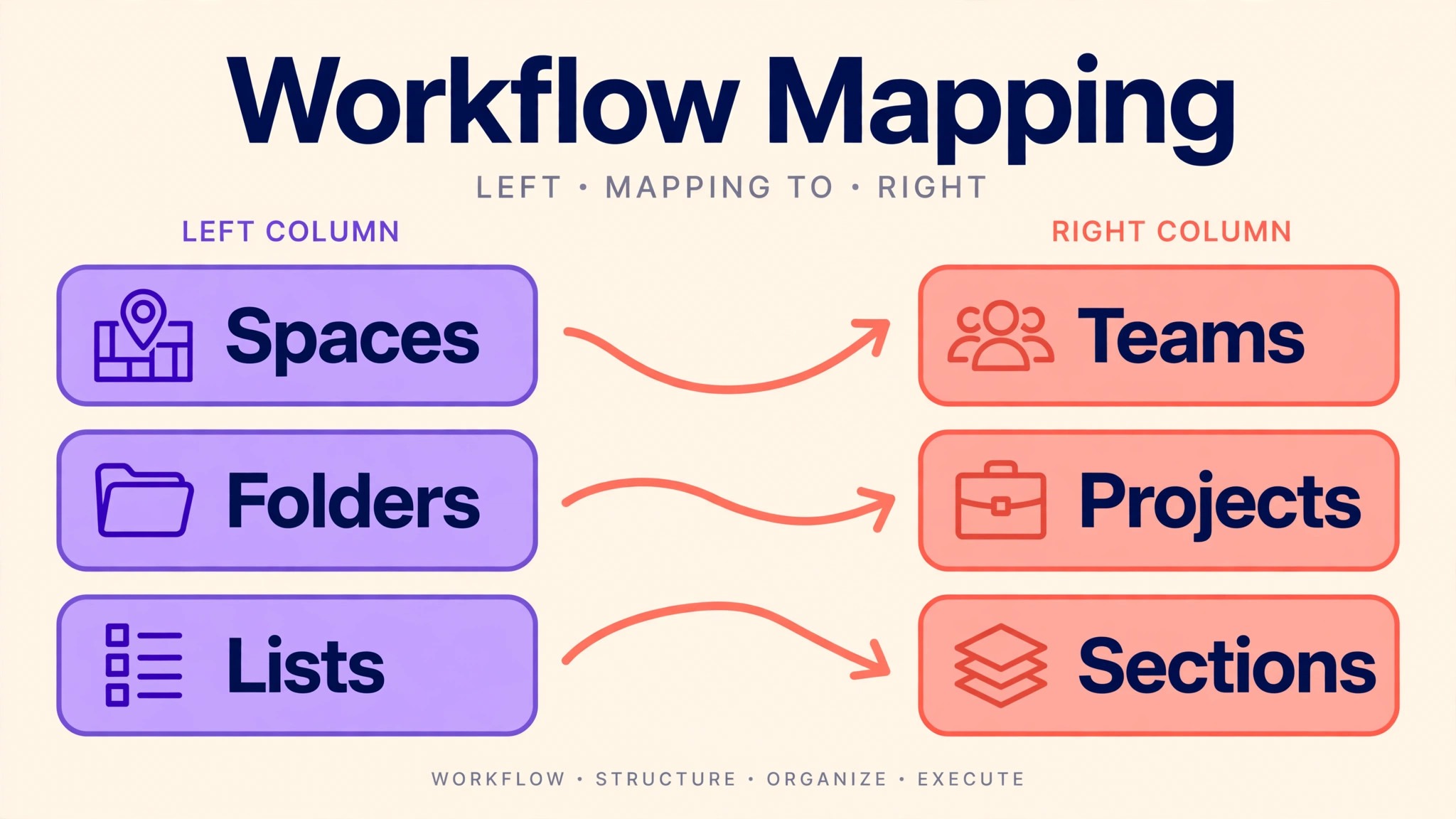
Structure mapping is the decision that determines whether Asana feels clean or chaotic. ClickUp organises work as workspace, space, folder, list and task, with subtasks and checklists inside tasks. Asana organises work as organisation, team, project, section and task, with subtasks inside tasks. The natural mapping for a small team is ClickUp space to Asana team, ClickUp folder to a grouping of Asana projects, and ClickUp list to one Asana project. ClickUp tasks become Asana tasks, and sections in Asana take the role that ClickUp statuses or groups used to play.
That mapping is a starting point, not a rule to follow blindly. A ClickUp space with twenty lists should not become an Asana team with twenty projects if half of those lists are finished or tiny. Merge small lists into one project with sections, archive finished lists, and let the Asana side be simpler than the ClickUp side. A migration is a rare chance to tidy, and teams that copy structure exactly usually copy the clutter too.
Statuses need the same care. ClickUp lets each list carry its own long status list, while Asana projects work best with a short, shared set of sections such as To do, In progress, In review and Done. Before importing, agree one status set for the whole team, map each ClickUp status to it, and write the mapping down. A task that arrives in Asana with a status nobody recognises will sit unowned, and unowned tasks are the first sign a migration is failing.
For context on the reverse direction, the Asana to ClickUp project guide shows the same mapping problem from the other side, and it confirms that status and field mapping, not the import button, is where these moves are won or lost.
What a CSV Import Carries and What It Drops
Asana’s CSV importer is the standard route for a small team moving from ClickUp, and it is honest about its limits. Tasks, titles, descriptions, assignees, dates, tags and basic custom field values transfer when the CSV columns are mapped carefully. What does not transfer cleanly is the surrounding machinery. ClickUp docs do not become Asana project briefs automatically, time tracking history does not carry over as usable data, and automations must be rebuilt as Asana rules. Third-party migration tools can carry more, including comments and attachments with metadata, but they still hit Asana’s own limits, such as attachment size caps and field types that have no Asana match.
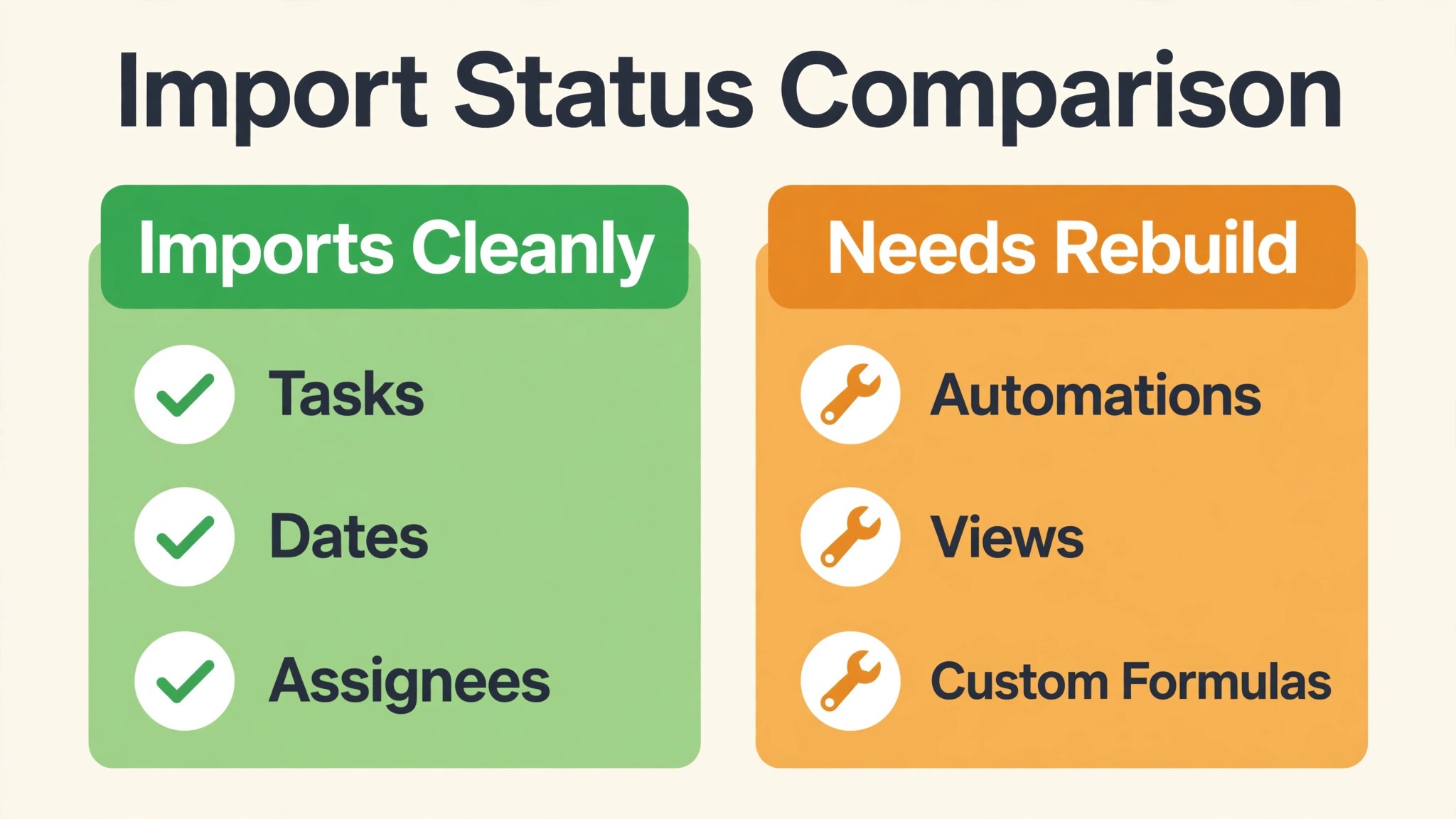
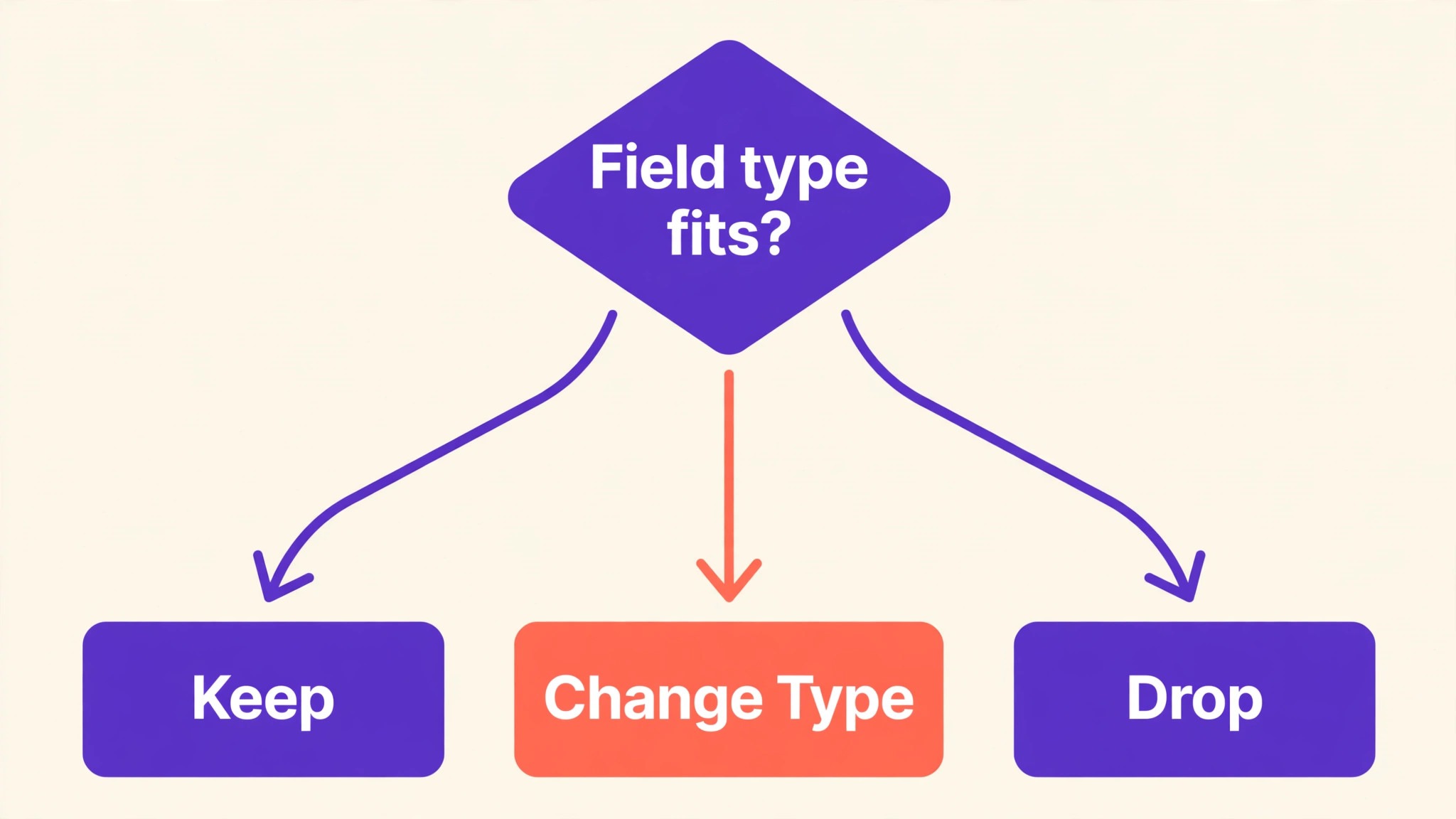
Custom fields are the detail that catches teams out. Migration guides note that ClickUp field types such as files, location, progress, rating and relationship have no direct Asana equivalent, and that other types, such as currency, may arrive as plain numbers that need manual fixing. Checkbox fields may arrive as a two-value dropdown rather than a true checkbox. None of this blocks a migration, but it does mean the team should audit custom fields before export, delete fields nobody uses, and decide the Asana field type for each surviving field in advance.
The table below gives the working picture for planning. Treat any row marked as rebuild as real work in the project plan, with an owner and a time estimate, not as a detail to sort out later.
| ClickUp element | In Asana after CSV import | Action needed |
|---|---|---|
| Spaces and lists | Teams and projects, after mapping | Agree the mapping and merge tiny lists |
| Tasks, subtasks and descriptions | Tasks, subtasks and descriptions | Check deep subtask nesting, which may flatten |
| Assignees, dates and tags | Assignees, due dates and tags | Match users by email before import |
| Custom fields, common types | Custom fields, with type changes possible | Audit fields, fix currency and checkbox types by hand |
| Custom fields, exotic types | No direct equivalent | Replace with a text, number or dropdown field, or drop the field |
| Checklists | Subtasks in some migration tools, or manual rebuild | Decide one method per project |
| Comments and attachments | Partial, depending on route and size limits | Copy key decisions into task descriptions, reattach large files |
| Automations | Nothing transfers | Rebuild as Asana rules, starting with the top five |
| Docs, goals and time tracking | No direct equivalent | Choose a replacement tool or a simpler process |
| Guests and permissions | Project members and guests | Invite by email, set comment-only access where needed |
A pilot import is the only reliable way to test this table against your own data. Export one real list, import it into a test Asana project, and check twenty tasks by hand. Check assignees, dates, custom field values, subtasks and attachments. If the pilot is clean, the rest of the migration is mostly repetition. If the pilot is messy, fix the mapping now, because the same mess repeated across twenty lists is a week of cleanup.
Guests, Permissions and the People Side of the Move
People problems cause more migration failures than data problems. ClickUp guests, members and admins do not map one to one onto Asana roles, and a team that imports tasks before inviting people will find tasks assigned to email addresses with no account behind them. Invite the team to Asana first, confirm that everyone can sign in, and only then import tasks, so that assignees match real accounts.
Guests deserve a deliberate decision. Asana lets you invite guests to specific projects without giving them the whole organisation, which suits clients and contractors. A contractor who only needs one project should be a guest on that project, not a full team member. A staff member who works across projects should be a full member. Write the list down before cutover, because fixing permissions under pressure on day one usually means giving everyone too much access and sorting it out later, which rarely happens.
Privacy is another point to check. ClickUp private lists and tasks need a matching private project or task setting in Asana, and the person doing the import needs access to the source data to move it. If a private project belongs to one person, that person should check the imported result themselves. An import done by an admin who cannot see private work will silently drop it, and the owner will discover the gap when they need that work most.
Training should be short and task-based. A thirty minute session that shows how to find today’s tasks, move a task through sections, add a comment and set a due date covers most daily work. A longer session that tours every Asana feature will be forgotten by the next morning. Record the short session, link it from the team’s main project, and let people rewatch the parts they need.
Rebuilding Rules, Views and Reports in Asana
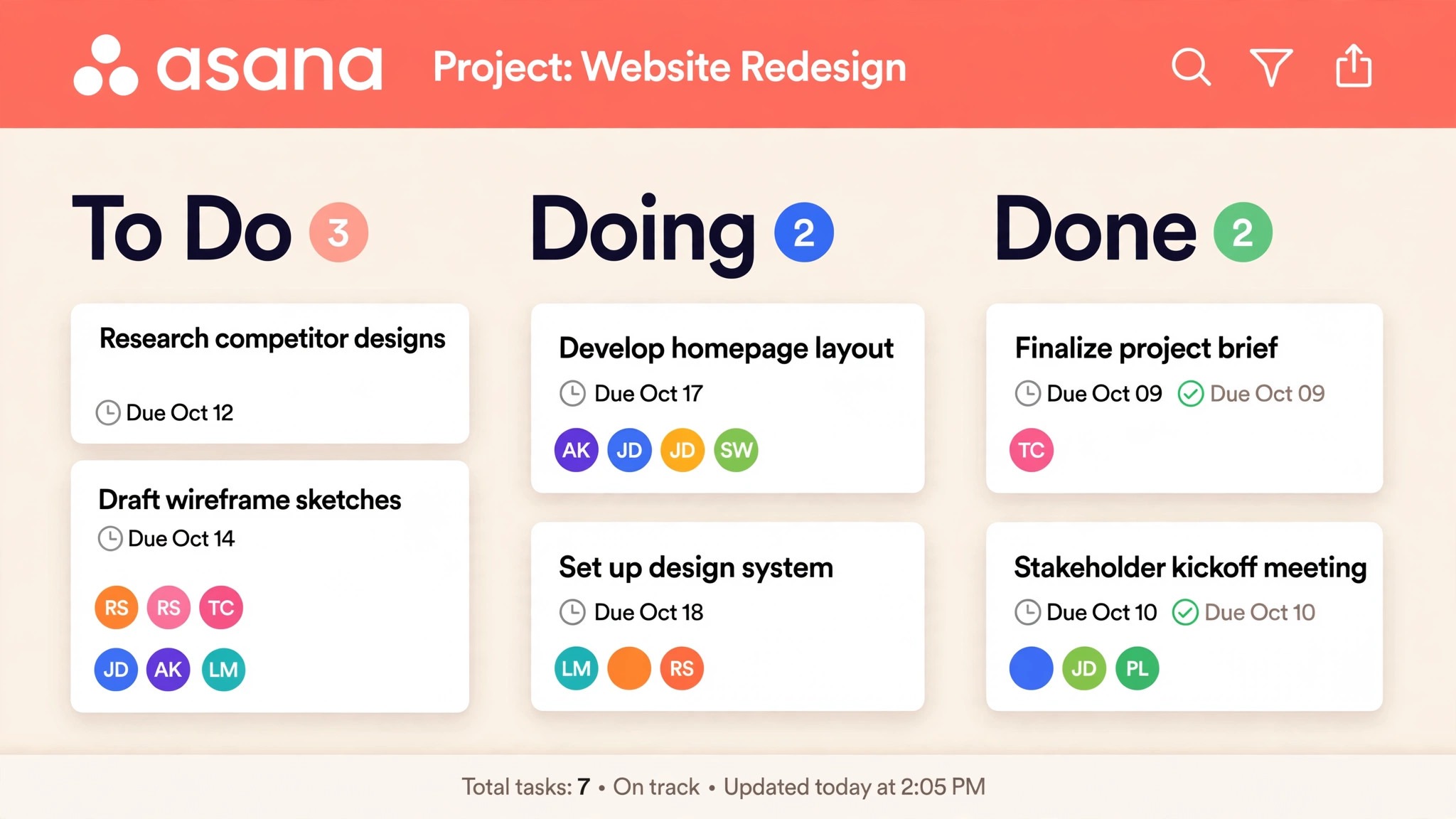
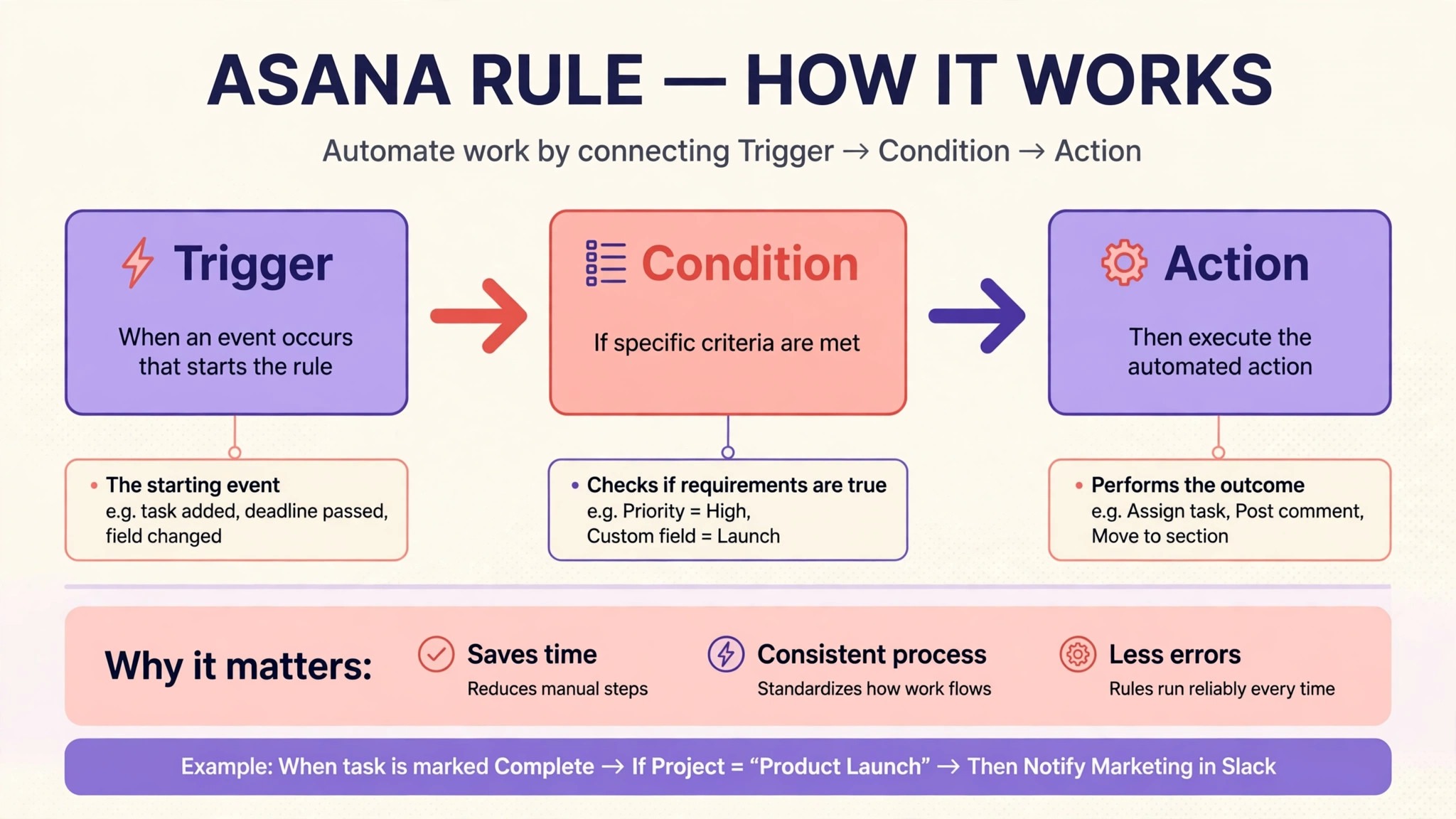
Asana rules replace ClickUp automations, and the rebuild should start with the rules the team notices. Common examples are moving a task to a new section when its custom field changes, assigning a task when it enters a section, setting a due date when a task is created, and notifying a project owner when a task is overdue. Asana’s rule builder covers these patterns well, but it does not cover every ClickUp automation, especially multi-step chains with conditions. Simplify each automation to its essential trigger and action, test it on a test task, and accept that a few complex automations may become a manual check instead.
Views also change. Asana offers list, board, timeline and calendar views, and the timeline and advanced reporting features sit on paid plans, so check the vendor’s current pricing page before promising them. A small team should pick one primary view per project, usually list or board, and let the timeline serve planning meetings rather than daily work. Too many views per project recreates the ClickUp problem of nobody knowing which view is true.
Reporting in Asana is project based, with dashboards and universal reporting on paid plans. A team that relied on ClickUp dashboards should decide which numbers it truly needs, such as tasks completed per week or overdue tasks by owner, and build exactly those reports. A dashboard with twenty charts that nobody reads is worse than a weekly review meeting with three numbers that everyone understands.
For a broader comparison of project tools, the project management software guide helps confirm whether Asana’s simpler model fits, and the ClickUp to Monday guide shows how another destination handles the same trade between flexibility and clarity.
The Full Migration Checklist
Work through this checklist in order, with one owner per item. A tick means the result was checked, not merely attempted, and the pilot import is the item that must not be skipped.
– Audit ClickUp spaces, archive finished lists, and delete custom fields nobody uses – Agree the space to team, folder to project group and list to project mapping in writing – Agree one short status and section set for the whole team and map old statuses to it – Invite every team member and guest to Asana by email and confirm they can sign in – Export ClickUp data to dated files and store them where the team can reach them – Run a pilot import of one real list into a test Asana project and check twenty tasks by hand – Fix custom field types, currency values and checkbox fields found by the pilot – Import live lists one by one, checking assignees, dates and field values on a sample each time – Copy key decisions from comments into task descriptions where the import dropped them – Reattach large files that hit size limits and test that they open – Rebuild the top five automations as Asana rules and test each one with a test task – Set guest access per project and check that private work arrived in private projects – Reconnect calendar, email and file integrations and remove the ClickUp versions – Train the team in a short task-based session and record it for new joiners – Set ClickUp to read-only on cutover day and confirm Asana is the only assignment tool
The checklist is deliberately ordered so that decisions come before imports. Teams that import first and decide later spend the cutover week renaming sections and fixing field types while live work waits. Teams that decide first spend the cutover week doing normal work in a new tool, which is the outcome to aim for.

The First-Week Cutover Plan
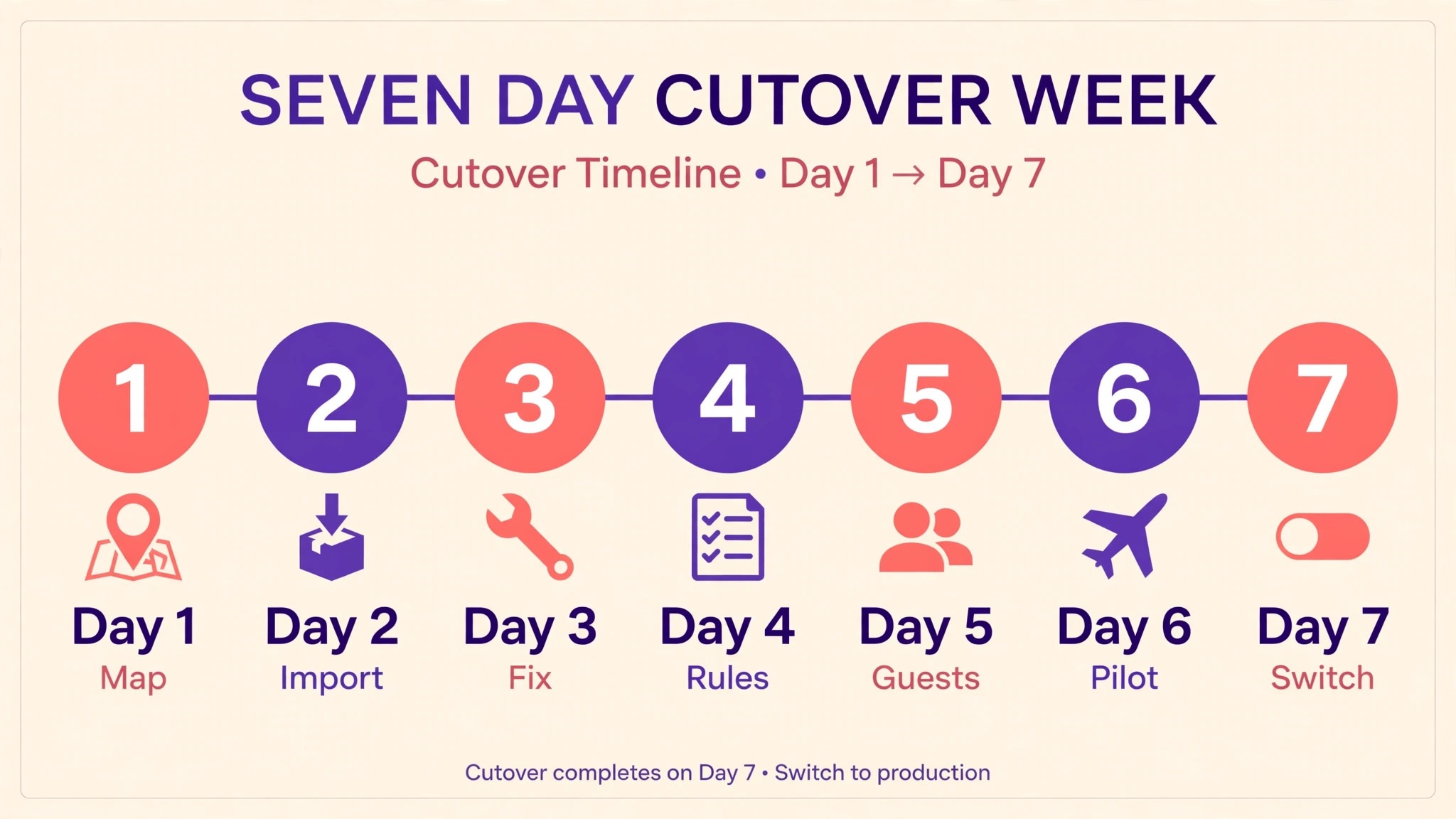
Cutover week gives the team one job per day, so that normal work continues while the new system beds in. The table below is the plan to follow, with the pilot project owner acting as the first point of contact for questions.
| Day | Job for the day | Done looks like |
|---|---|---|
| Day 1, ClickUp read-only | Set ClickUp to read-only, announce Asana as the assignment tool, move new work to Asana | No new tasks created in ClickUp, team knows where to look |
| Day 2, pilot review | Review the pilot project with its owner, fix sections and fields, import the next lists | Pilot project reads clearly to someone who did not build it |
| Day 3, rule check | Test every Asana rule with real tasks, fix rules that fired wrongly or not at all | Each rule has a tested task as evidence |
| Day 4, guest and file check | Confirm guests can reach their projects, open a sample of attachments, fix broken links | Guests confirm access, files open first time |
| Day 5, weekly review in Asana | Run the first weekly review from Asana projects, not from ClickUp or a spreadsheet | Review covers every live project, actions land as Asana tasks |
| Day 6, archive check | Confirm the ClickUp exports and old workspace are reachable, note where they live | Any team member can find the archive without asking |
| Day 7, closeout | Ask the team what still hurts, fix the top three complaints, agree ClickUp stays read-only | Three fixes done, no open request to return to ClickUp |
Day five matters most, because a weekly review run from Asana proves the tool can carry the team’s real meeting. If the review falls back to ClickUp, note exactly why and fix that gap before the next review. Two reviews run entirely from Asana are strong evidence the migration has stuck, and they give the team confidence to close the old workspace after a month.
A Worked Example of the Switch ClickUp to Asana Small Team Move
An illustrative example makes the trade concrete. Imagine a six person marketing team running three ClickUp lists, one for client work, one for content and one for internal projects. Each list carries its own status set, a dozen custom fields and a set of automations built over two years by different people. New joiners take a week to learn which view to trust, and the weekly meeting spends its first twenty minutes reconciling status labels that mean the same thing under different names. Nothing is broken in a dramatic sense. The system has simply grown more complex than the team needs.
The first step for this team is not an export. It is a mapping session that takes about an hour. The three lists become three Asana projects under one team. The three status sets become one section set, To do, In progress, In review and Done, with a single priority custom field kept from ClickUp and the other eleven fields either merged or dropped. That session is the moment the switch ClickUp to Asana small team move either earns its keep or reveals that the team cannot agree on a simpler model. If agreement proves impossible, that is useful information, and the team should pause rather than force a migration it does not want.
Next comes the pilot import of the content list, chosen because it is active but not the team’s most urgent work. The import carries tasks, assignees, due dates and the surviving priority field, while two exotic fields drop out and are replaced by a simple text field for the campaign name. Comments that held approval decisions are copied into task descriptions for the dozen live tasks, and older comments are left in the ClickUp export as an archive.
The pilot owner runs the content project in Asana for a week, and the test is practical. Can the owner find today’s work in under a minute. Can a colleague pick up a task without asking what a field means. For this illustrative team, both answers are yes, which is the evidence needed to migrate the other two lists.
The remaining lists follow the same pattern, one per day, with a sample check after each import. Automations are rebuilt only where the pilot showed a real need, which turns out to be four rules, not the fourteen automations ClickUp held. One rule moves a task to In review when its status field changes. One assigns a task when it enters the content project. One sets a due date on task creation. One notifies the project owner when a task becomes overdue. The other ten automations are not rebuilt, and nobody misses them in the cutover week, which tells the team they were maintenance burden rather than value.
By the end of the cutover week, the team’s weekly review runs from three Asana projects, and the meeting is shorter because everyone reads the same sections. The team still uses a separate docs tool for long documents and a simple time log for client billing, and those are deliberate choices made during planning, not gaps discovered by accident. That is what a successful switch ClickUp to Asana small team project looks like in practice, a simpler core system plus two small side tools, rather than one tool pretending to do everything.
The example also shows why a team should compare destinations before committing. The Monday to Asana operations guide covers a heavier source tool with the same simplification lesson, while the Trello to Asana marketing guide shows a move from a simpler tool where Asana adds structure rather than removing it. Reading both helps a team judge whether Asana is a step up in clarity, a step down in flexibility, or simply the right size for its current work.
Costs, Risks and When to Stay on ClickUp
Price the move on the plan the team will actually use. Asana’s free plan covers small teams with basic features, while timeline, advanced reporting and heavier automation sit on paid plans, so check the vendor’s current pricing page before budgeting. ClickUp’s paid plans can look cheaper per user in some comparisons, which means the saving from moving may be small or none at all. The case for Asana should rest on clarity and adoption, not on a price claim that falls apart when the team adds a paid tier for timeline views.
The risks are specific and manageable. The first is lost context from comments, docs and time history that do not import cleanly. Mitigate it by copying key decisions into task descriptions before export. The second is a half-migrated team, where some people keep working in ClickUp because it feels familiar. Mitigate it with read-only access on day one. The third is field sprawl returning in Asana, as the team recreates every ClickUp field out of habit. Mitigate it with a rule that no new custom field is added in the first month without the project owner’s approval.
Stay on ClickUp when the team genuinely uses its deeper features every week. A team that lives in ClickUp docs, tracks time against tasks, manages goals in the same workspace and builds complex automations will find Asana restrictive, and a forced move will push work into side tools that recreate the old complexity in a messier form. In that case, the better project is to simplify ClickUp itself, by archiving unused spaces, deleting unused fields and agreeing one status set, rather than migrating to a tool that cannot hold the work.
Frequently Asked Questions
Does Asana have a direct ClickUp importer?
Asana’s standard route for a small team is CSV import, with tasks, assignees, dates, tags and basic field values mapped from the exported file. Third-party migration tools can carry more data, including comments and attachments, but they still face Asana’s field type and size limits. Run a pilot import on one real list before committing to either route, because the pilot shows exactly what your data loses.
Will my ClickUp custom fields survive the move?
Common field types usually survive with some type changes, while exotic types such as files, location, progress, rating and relationship have no direct Asana equivalent. Currency fields may arrive as plain numbers, and checkbox fields may arrive as a two-value dropdown. Audit fields before export, delete the ones nobody uses, and plan manual fixes for the survivors that change type.
What happens to ClickUp docs, goals and time tracking?
These have no direct Asana equivalent and need a replacement before cutover. Docs can move to a docs tool or become Asana project briefs and task descriptions, goals can become a simple Asana project with milestones, and time tracking can move to a dedicated time tool or a manual weekly log. Decide the replacement in the planning stage, not on cutover day, so the team is not left without a way to do daily work.
How long does the migration take for a small team?
A team with a handful of spaces can usually audit in a day, pilot in two or three days, and complete the cutover week as set out above, which is a realistic timeline for the switch ClickUp to Asana small team move. The timeline stretches when the audit finds years of unfinished lists or dozens of unused custom fields, because those decisions take longer than the import itself. Allow extra days for tidying rather than rushing it, since a tidy Asana workspace is the point of the move.
Can guests and clients keep access after the move?
Yes, with a deliberate setup. Invite guests to specific Asana projects rather than to the whole organisation, and set comment-only access where a guest should see work but not change it. Check guest access on day four of the cutover plan, because a client locked out of a project on launch day creates pressure to reopen ClickUp, which undermines the whole migration.
Should we migrate everything at once?
No. Migrate one pilot project first, learn from it, then migrate list by list. A board-by-board move lets the team fix the mapping early and keeps other projects running in ClickUp until their turn comes. A single big move feels faster on day one and creates confusion across every project at once, which is the worst time to discover a field mapping mistake.
Closing Note, Not a Sales Pitch
The switch ClickUp to Asana small team decision is really a decision about how much customisation a team wants to maintain. ClickUp rewards teams that enjoy building their own system. Asana rewards teams that want a system already built, with less to configure and less to explain to a new joiner. Neither is better in the abstract. The right choice is the one that matches how your team actually works on a busy Tuesday, not how it works in a demo.
If the pilot project felt calmer and the weekly review ran cleanly from Asana, the switch ClickUp to Asana small team move is worth completing, and ClickUp can be closed after a month. If the pilot kept hitting missing fields and views, take that as useful evidence, simplify ClickUp instead, and revisit the move when the team’s needs change. A migration postponed for good reasons is better than a migration forced through and then quietly reversed.