
For most small stores that have outgrown a hosted builder, the verdict is clear. You should switch Wix to WooCommerce small store owners can run on their own terms when control over checkout, fees, data, and design matters more than the convenience of an all-in-one dashboard. That does not mean the move is free, quick, or automatic. It means the trade is usually worth it once product count, order volume, or custom needs start pushing against Wix limits.
This guide takes the practical route. It explains what actually moves from Wix, what must be rebuilt by hand, how to protect search traffic and live orders, and how to run the first week after launch without panic. If your store is tiny, simple, and profitable exactly as it is, staying put may still be the smarter call. The sections below help you tell the difference before you spend a weekend on a migration that you did not need.
Why a Small Store Outgrows Wix
Wix works well for a store that needs a good looking site fast. You pick a template, add products, connect a payment provider, and start selling. The hosted setup removes server work, security patching, and plugin updates from your week. For a new seller, that simplicity is real value, not a weakness. It lets you test products and learn what customers want before you invest in a more flexible system.
Problems tend to appear gradually rather than all at once. A store owner wants a checkout field that Wix does not offer, a shipping rule based on weight and postcode, a product option that changes price in a specific way, or an integration with a warehouse tool. Each request is small on its own. Together, they create a pattern. You start working around the platform instead of building on it. At that point, the question is no longer whether Wix is good. It is whether its boundaries now cost more time than a move would.
WooCommerce changes the balance because it runs on WordPress and you control the hosting, theme, plugins, and checkout. That control brings responsibility. You, or someone you hire, must keep WordPress updated, choose reliable hosting, and test plugin changes before they reach customers. A small store should budget for that care from day one. If no one will own updates, backups, and basic security, the freedom of WooCommerce can become a burden. Be honest about that trade before you migrate.
What Actually Transfers and What Does Not
A clean migration starts with an honest inventory. Wix can export physical products, contacts, and orders as CSV files in many setups. WooCommerce has a built-in product importer, and the official Wix to Woo Migration extension from WooCommerce can move products, customers, and orders through an API connection. Those tools help a great deal, but they do not move your whole store in one click. Design, checkout settings, and many app features stay behind.
| Item | Likely outcome | Action needed |
|---|---|---|
| Physical products and variants | Transfers by CSV or migration extension | Check prices, SKUs, stock, and images |
| Product images | Transfers in most cases | Download originals as a backup first |
| Digital products | Often incomplete | List each digital file and delivery rule by hand |
| Customers | Transfers without passwords | Plan a password reset message |
| Orders | Transfers with status mapping | Verify totals, taxes, and linked customers |
| Coupons and discounts | Often needs manual rebuild | Recreate codes, limits, and expiry dates |
| Pages and blog posts | Partial or manual | Rebuild layout and check internal links |
| Design and apps | Does not transfer | Choose a theme and replace each app |
Customer passwords deserve special attention. Wix does not hand them over, so customers will need to set a new password on the WooCommerce store. That is normal for platform moves, but it must be communicated clearly. Send the reset note after launch, explain why it happened in one plain sentence, and make the reset link easy to find. Do not promise customers that nothing will change. A short, honest message protects trust better than a polished message that hides the one thing they will notice.
Coupons are another quiet risk. A code that worked on Wix may have a usage limit, a minimum spend, a product restriction, or an expiry date that a simple import misses. Before you close Wix, export or screenshot every active coupon, including codes shared with influencers or printed on packaging. Recreate each one in WooCommerce and test it with a real test order. A single broken launch discount can create more support messages than a week of normal trading.

Cost, Hosting, and the Real Price of Freedom
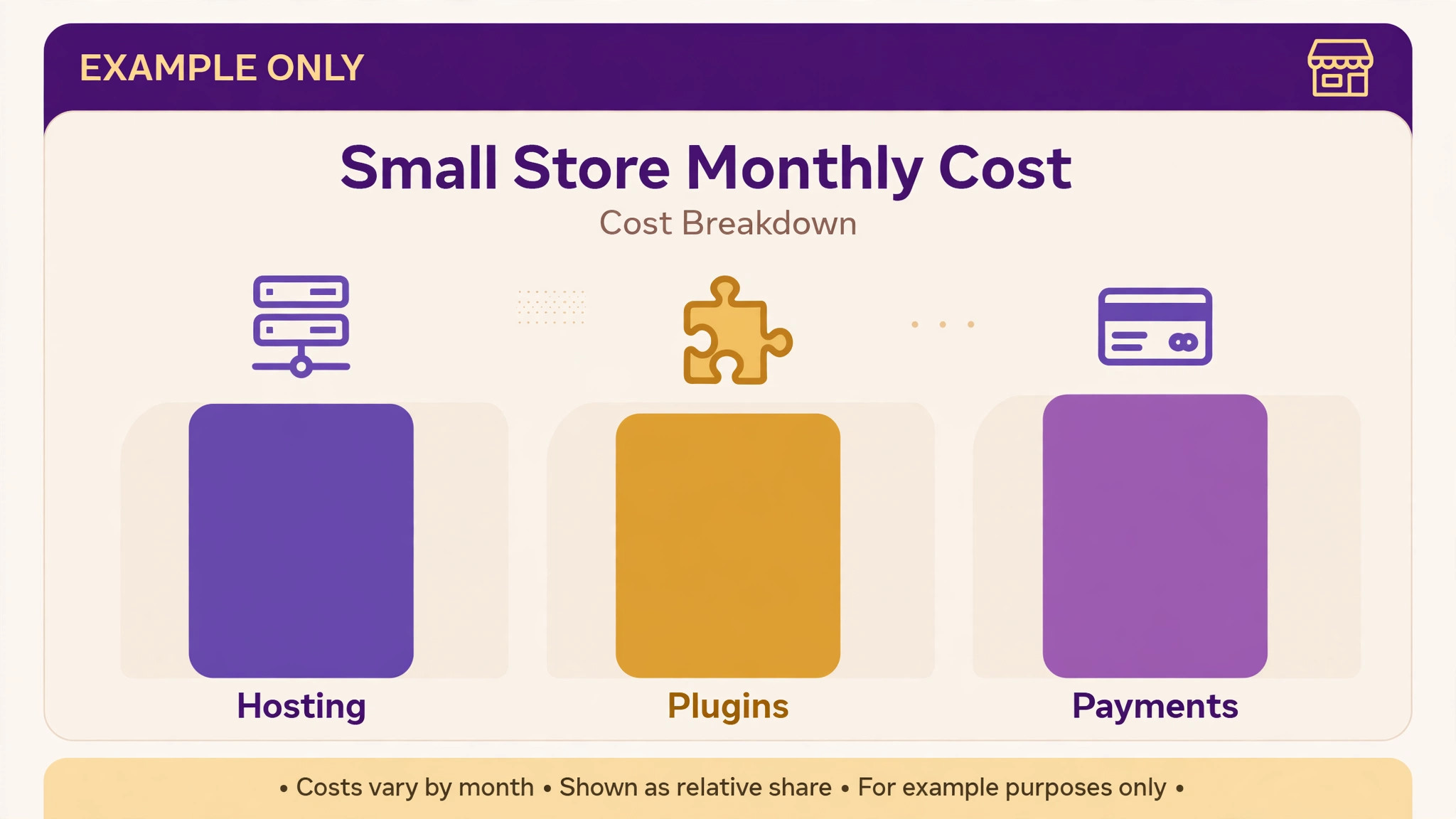
WooCommerce itself is free as a plugin, but a working store is not free. You pay for hosting, a domain, an SSL certificate in many hosting plans, a theme if you choose a paid one, and any paid extensions for subscriptions, bookings, or advanced shipping. Check the vendor’s current pricing page before you budget, because hosting and extension prices change and bundle offers differ by region. The honest comparison is total monthly cost, not the price of the plugin alone.
For a small store, managed WordPress hosting is usually worth the extra cost over the cheapest shared plan. Faster page loads help conversion, and managed backups and staging tools make a migration safer. Look for daily backups, a staging site, PHP and WordPress version control, and support that understands WooCommerce. A host that treats your store like a brochure site will slow you down at the worst moment, which is usually a sale weekend.
Do not judge the move only by monthly fees. Wix bundles hosting, security, and many features into one bill. WooCommerce splits those costs across several providers, which can look cheaper or more expensive depending on your choices. Add hosting, essential plugins, payment processing fees, and a small maintenance budget. Then compare that total with your current Wix bill and the value of the features you gain. If the numbers are close, choose based on control and growth, not on a few dollars of headline price.
Build the New Store Before You Touch the Old One
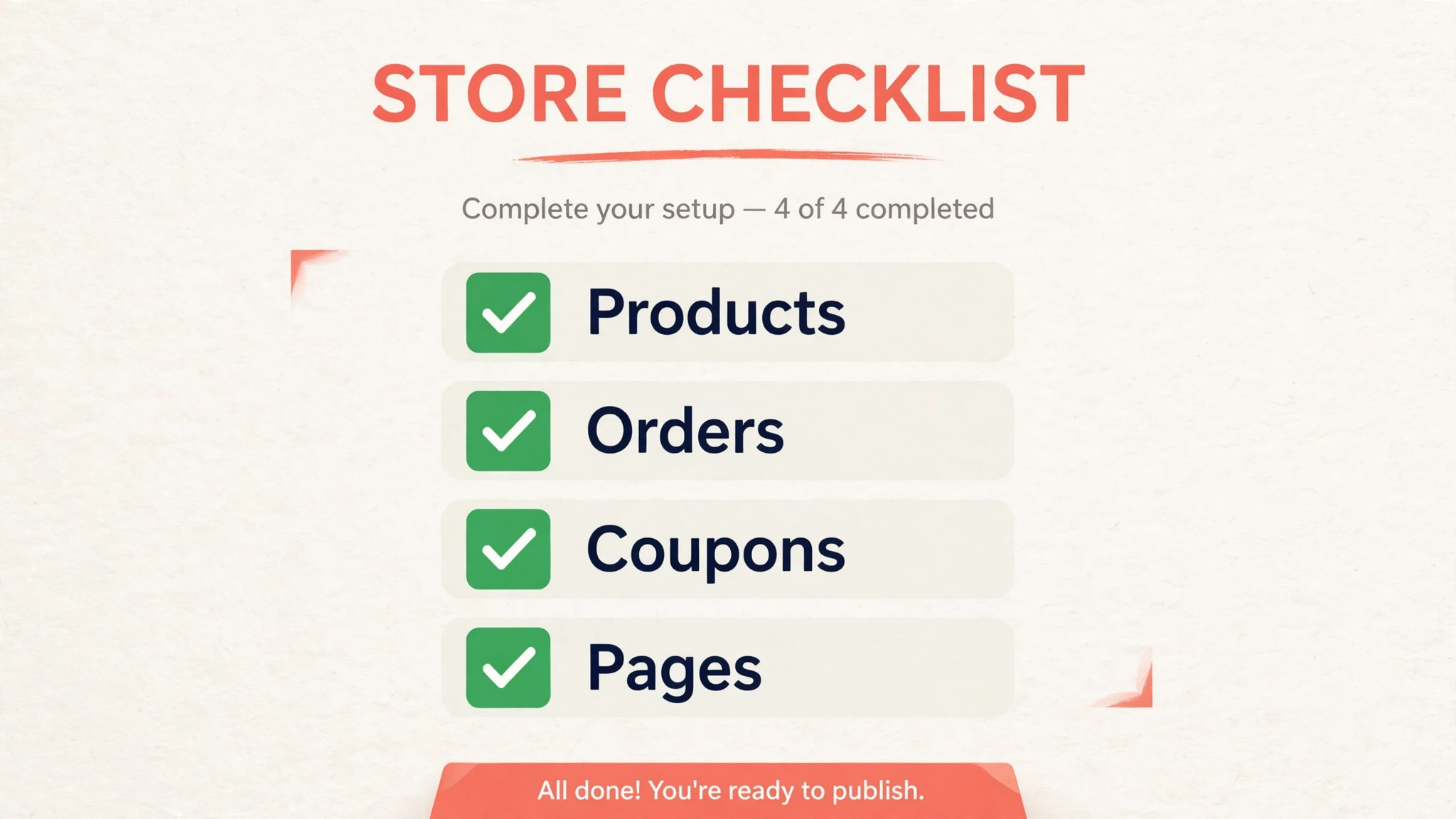
Never rebuild in public on your live domain. Set up WordPress and WooCommerce on a staging site or a temporary subdomain, then build the full store there. Import a test batch of products first, not the whole catalogue. Check how variants, images, prices, and stock behave. Fix the field mapping once, then run the full import. A test batch takes an extra hour and can save a weekend of cleanup.
Choose a theme that fits a small store rather than the most dramatic demo you can find. A fast theme with clear product pages, readable type, and a simple cart flow will sell better than a heavy theme packed with animations. Test the theme on a phone, because most small-store traffic arrives on mobile. Check the product page, cart, checkout, and confirmation screen in that order. If any step feels slow or confusing on a phone, fix it before launch, not after customers complain.
Set up taxes, shipping zones, and payment gateways early, not as a last step. WooCommerce tax settings depend on where you sell and where your business is based, so confirm the rules for your main markets before you configure them. Shipping zones should match the promises already on your Wix site. If you offered free shipping over a threshold, recreate that exact rule and test it at, below, and above the threshold. Payment testing must include a successful order, a failed card, and a refund, because each path touches a different part of your order workflow.
The Migration Checklist for Products, Orders, Coupons, and Pages
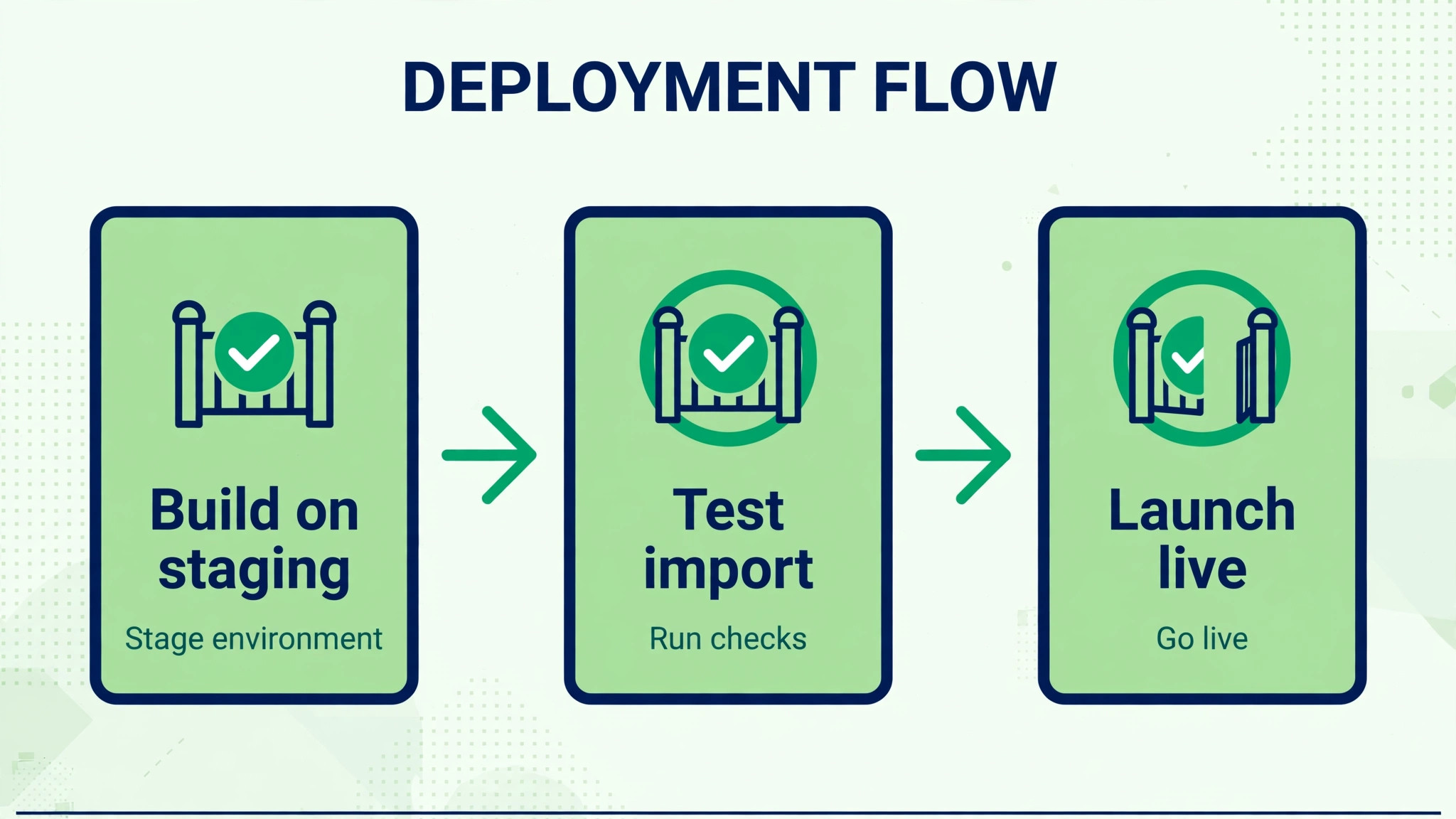
Use this checklist as your master list. Tick each item only after you have verified it on the staging store, not when you think it is done. A checklist that records guesses is worse than no checklist at all.
– Export Wix products, contacts, orders, and coupons, and store copies outside both platforms – Download original product images and check that image links still resolve – Map Wix product fields to WooCommerce fields before the full import – Import a test batch, verify variants, SKUs, prices, stock, and images, then import the rest – Import customers and confirm email addresses are unique and order links are correct – Import orders and map each Wix status to the matching WooCommerce status – Recreate every active coupon with its limits, product rules, and expiry date – Rebuild pages, policies, contact forms, and navigation in WordPress – Recreate shipping zones, tax rules, payment gateways, and email notifications – Write URL redirects for every old product, category, and important page – Test checkout, refunds, coupon codes, and account password resets – Back up the staging store and keep the Wix site live until launch checks pass
Pages need more care than product data. A product import moves catalogue data. It does not rebuild your About page, shipping policy, returns policy, or contact form in a design that matches your new theme. Copy the text, update any old platform references, and rebuild each page in WordPress. Check every internal link after the rebuild, because a link that pointed to a Wix page structure may now point nowhere. Broken policy links look careless at checkout, which is the worst place to lose trust.
Blog posts also need a decision. If your Wix blog drives search traffic, preserve the posts that rank or earn links, even if you rebuild them by hand. If the blog is thin and brings no traffic, you may archive it and focus on product and category pages. Either choice is fine. What is not fine is losing a ranking post by accident because no one checked analytics before the move. Export a list of your top pages from search and analytics tools before you start, and protect those URLs first.
Protect Search Traffic With Redirects
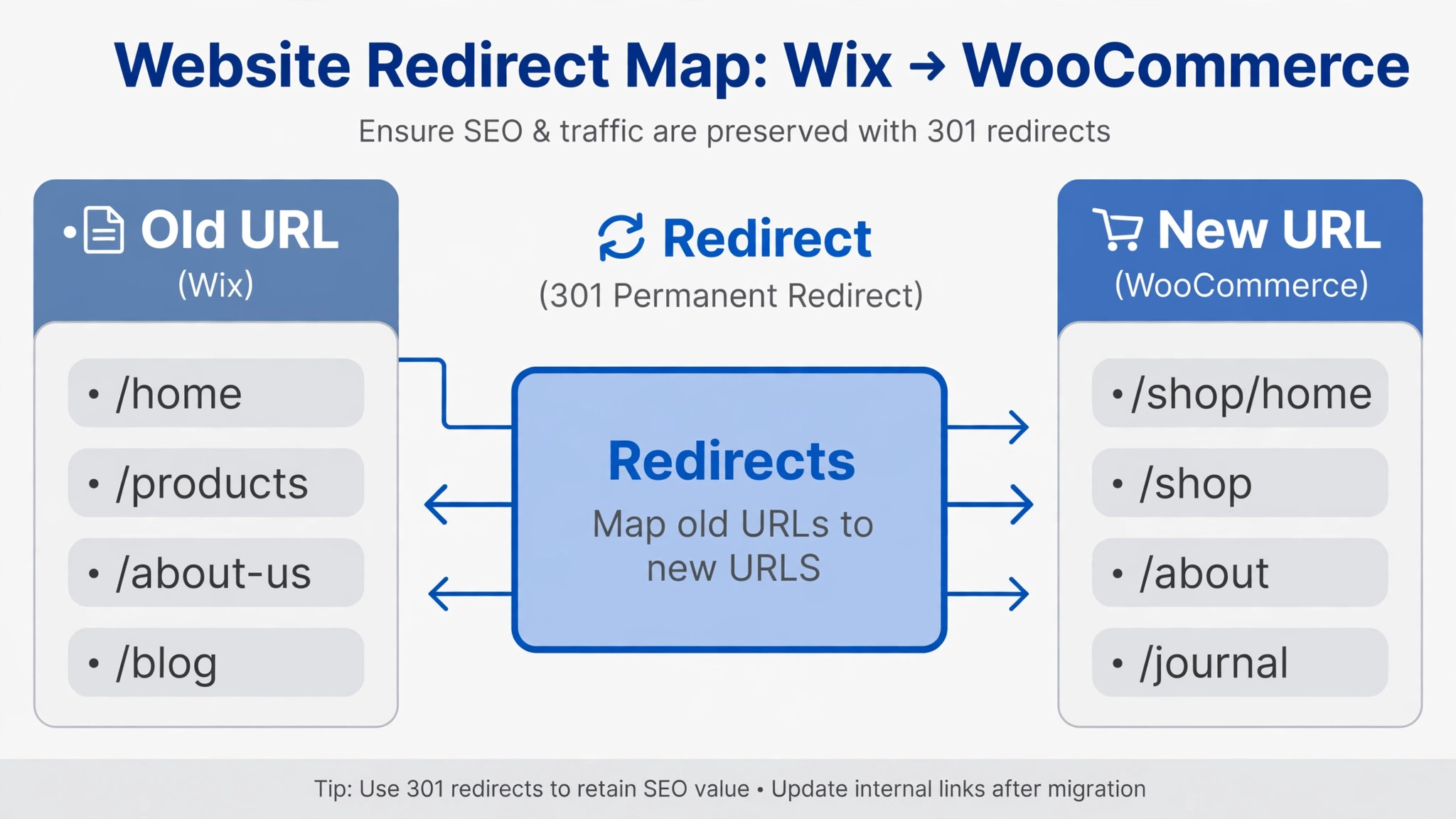
Search traffic is the asset most migrations damage by accident. When a product URL changes, Google and old bookmarks still point to the old address. Without a redirect, visitors land on an error page and leave. A 301 redirect tells search engines and browsers that the page has moved permanently. Write one redirect for each old URL that matters, and test a sample from each category before launch.
Start with the URL list, not the redirect tool. Pull product, category, blog, and policy URLs from your Wix sitemap and from search performance reports. Match each old URL to its new WooCommerce URL. Where a product is discontinued, redirect to the closest live category or replacement product, not to the homepage. A homepage redirect hides the problem from you while still frustrating the visitor who wanted a specific item.
After launch, watch search console coverage and crawl errors for at least a month. Fix missing redirects quickly, and resubmit the new sitemap. Rankings may still dip for a short period after a platform move, even with good redirects, because Google needs time to recrawl and trust the new structure. A dip is not proof that the migration failed. A wave of 404 errors, lost checkout conversions, or missing product pages is. Track those signals separately so you do not panic over normal fluctuation or miss a real fault.
Payments, Shipping, and Order Workflow
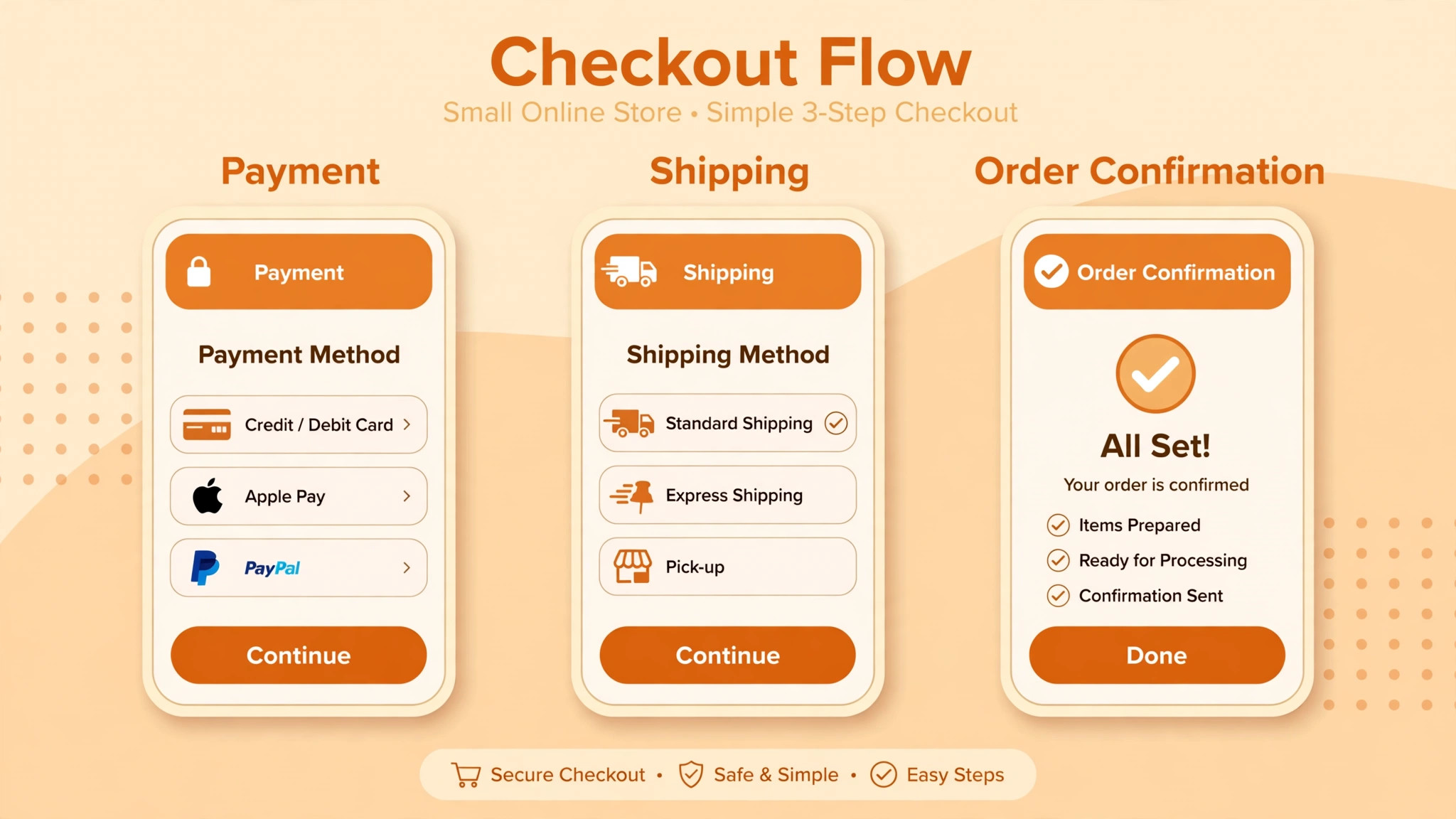
Payment setup is where a migration either feels professional or falls apart. Connect the same payment providers your customers already trust where possible, and confirm that recurring payments, if you sell subscriptions, will continue or need customer action. Subscription migration is a special case. Do not assume old subscription billing moves automatically. Check with your payment provider and subscription extension before launch, and contact affected customers early if they must re-enter payment details.
Shipping deserves the same care. Wix shipping rules do not translate by themselves into WooCommerce zones and methods. Rebuild each zone, method, and rate, then test orders to each region you serve. Include a test for a heavy item, a multi-item basket, and an address that sits near a zone boundary. Small stores often discover a zone error only when a customer in one region sees the wrong delivery price. That error is easy to prevent with ten minutes of test orders.
Order workflow covers what happens after payment. Confirm that order emails use your brand and correct reply address, that stock reduces correctly, and that fulfilment staff can see notes, shipping method, and customer messages. Test a refund and a partial refund, because support work after launch will include both. If you use an external fulfilment or accounting tool, reconnect it on staging and run a full order through it. A store that takes money but cannot fulfil cleanly is not ready to launch.
First-Week Cutover Plan
Launch day is not the end of the migration. It is the start of a short period when small faults are most visible and easiest to fix. Keep the Wix site accessible to you, even if it is no longer public, until the first week ends. Do not cancel hosting, apps, or domain services during this week. You may need an old export, an image, or a setting that you thought you had copied.
| Day | Focus | Checks before you finish |
|---|---|---|
| Day 1 | Launch and checkout | Test orders, payment, emails, and top product pages |
| Day 2 | Redirects and search | Fix 404 errors, submit sitemap, check indexed pages |
| Day 3 | Orders and fulfilment | Process live orders end to end, test refunds |
| Day 4 | Coupons and accounts | Test every active code and the password reset flow |
| Day 5 | Mobile and speed | Check phones, page speed, and checkout on slow connections |
| Day 6 | Support review | Answer migration questions, update help text, fix repeat issues |
| Day 7 | Closeout decision | Confirm backups, close or pause Wix only when checks pass |
On day 1, watch real orders rather than assuming test orders proved everything. A test order uses clean data. A real customer may use an unusual address format, a discount code, or a payment method you tested only once. Keep a simple log of every issue, the fix, and the time it took. That log becomes your evidence for whether the store is stable and your guide if a similar fault returns.
By day 7, you should be able to answer four questions without guessing. Are orders flowing cleanly. Are redirects working. Are customers able to reset passwords and use coupons. Are backups running. If any answer is no, keep Wix access and delay cancellation. Cancelling the old platform to force confidence is a false economy. The cost of one more month of Wix is small compared with the cost of losing an export you still need.

How to Switch Wix to WooCommerce Small Store Owners Can Test in Stages
A staged plan is the safest way to switch Wix to WooCommerce small store owners can actually finish without closing the shop for days. Start with a private staging copy, import a small slice of the catalogue, and prove checkout with test orders. Then widen the test to coupons, shipping zones, and customer accounts. Each stage has a clear pass mark, so a fault found early costs an hour instead of a lost sales day.
The second stage is where many small stores rush. They import everything at once, see products on the screen, and call the migration done. That visual check misses the details that matter at checkout. Prices can look right while tax rules are wrong. Stock can look right while variant stock is mapped to the wrong option. A staged plan forces you to check one system at a time, and that discipline is what keeps launch week calm.
When you switch Wix to WooCommerce small store data in stages, keep a simple decision log. Record the date, what was tested, what failed, and what was fixed. This log helps if a team member joins late, if hosting support asks what changed, or if a fault returns after a plugin update. It also stops the team from retesting the same thing twice while another area stays untested.
The final stage is a parallel run. Keep Wix live while the WooCommerce store handles test traffic, then move real traffic only after orders, refunds, redirects, and emails pass on the new system. A parallel run feels slow, but it is the cheapest insurance a small store can buy. It lets you compare the old and new checkout side by side and catch differences in shipping costs, tax totals, or email wording before customers do.
A staged move also protects your team. Support staff can learn the new order screen before launch, fulfilment staff can practise refunds and stock adjustments, and the owner can review reports without pressure. By the time you switch Wix to WooCommerce small store traffic for real, the new store should feel familiar, not new. Familiarity is what keeps support messages low in the first week, and low support volume is a better launch metric than a fast launch date.
Plan the announcement for the day you switch Wix to WooCommerce small store traffic, not for the day the staging site looks finished. Customers need the password message and the help contact on launch day itself. A second note a week later, once you switch Wix to WooCommerce small store orders cleanly for several days, can close the loop and confirm that the move is complete.
Mistakes That Cost Small Stores the Most
The most common mistake is migrating design before data. A beautiful staging store with wrong prices, missing variants, or broken stock counts is not progress. It is a distraction. Get the catalogue, customers, orders, and checkout right first. Design polish comes after the store can sell correctly. Customers forgive a plain product page. They do not forgive being charged the wrong price.
Another mistake is leaving redirects until after launch. Redirects feel like technical detail, so they get pushed to the end of a busy week. Then launch day arrives, old links break, and the team spends the first day firefighting instead of selling. Write redirects during the build, when you already have both URL lists open. That timing costs little and protects the traffic you worked hard to earn.
A third mistake is telling customers too little, too late. A short launch message should explain what changed, what customers need to do about passwords, and where to get help. Send it to active customers, not to your entire historical list without care for consent and relevance. If you run email marketing, confirm that consent and list handling follow the rules for your region before you import contacts into a new marketing tool. A migration is not a reason to email people who never agreed to hear from you.
When Staying on Wix Is the Better Choice
WooCommerce is not the right move for every small store. If your catalogue is small, your sales are steady, and you have no unmet feature need, the cost of migration may outweigh the benefit. The same applies if no one will maintain WordPress, if your team depends on a Wix app with no WooCommerce equivalent, or if your store relies on a complex Wix feature that would need custom development to replace. In those cases, staying put and improving product pages, photography, and offers will help more than a platform change.
Also consider timing. Do not migrate during your peak sales season, a major promotion, or a stock launch unless you have a strong reason and a tested rollback plan. A quiet period gives you room to fix faults without losing peak revenue. If a move cannot wait, run the new store in parallel for longer, test more heavily, and keep the old checkout available until the new one proves itself under real traffic.
For a deeper look at choosing store software for a small operation, read Best POS System for Gift Shops for a lesson in matching software to a niche workflow, and How to Choose a Payment Processor for Small Business before you lock in checkout fees. If a platform move in the other direction interests you, Switch Shopify to Squarespace Small Store shows how another store migration is staged. For checkout faults after any move, Fix WooCommerce Checkout Not Working Small Store is a useful parallel on testing payment paths.
Frequently Asked Questions
Can I switch Wix to WooCommerce small store data without losing products?
Yes, in most cases physical products transfer by CSV export or through the official Wix to Woo Migration extension. The risk is not usually total loss. It is small errors in variants, images, prices, or stock that appear after import. Import a test batch first, verify every field that affects price or fulfilment, and keep your Wix exports until the new store has traded cleanly for a week.
Do customers keep their Wix passwords on WooCommerce?
No. Customer passwords do not transfer, so customers must set a new password on the new store. Plan a clear reset message for launch day, test the reset flow yourself, and make sure support staff know what to say if a customer cannot log in. Order history can transfer with the right mapping, but login credentials cannot be carried across in plain form.
Do Wix coupons move to WooCommerce automatically?
Not reliably. Treat coupons as a manual rebuild task. List every active code, its discount type, usage limits, product or category rules, minimum spend, and expiry date. Recreate each code in WooCommerce and test it with a real checkout. Pay special attention to codes on packaging, influencer posts, or old emails, because those codes may still be in circulation after launch.
Will I lose Google rankings when I move?
You may see short-term fluctuation even with careful redirects, but you can limit lasting damage. Preserve top page content, match URLs where possible, add 301 redirects for changed URLs, submit the new sitemap, and monitor search console errors. The biggest ranking risk comes from missing redirects, thin rebuilt pages, or slow new pages, not from the platform change itself.
How long does a small store migration take?
A simple store with a small catalogue can be built and tested in a few days of focused work. A store with many variants, coupons, orders, and pages can take one to three weeks, especially if design and content need rebuilding. The safest estimate includes staging, test imports, payment and shipping tests, redirects, and a full first-week check period, not just the import step.
Should I cancel Wix on launch day?
No. Keep Wix access until the first-week checks pass, backups are confirmed, and you no longer need old exports or settings. Cancelling early saves little and removes your safety net. Once the new store trades cleanly and you have stored exports outside both platforms, you can close or pause the old account with confidence.
Final Check Before You Launch
A successful move is boring in the best way. Products are correct, prices are correct, checkout works, emails arrive, refunds work, and old links land where they should. If you can tick those items on staging and again on the live store, you have done the hard part. Design tweaks, new features, and marketing experiments can follow at a normal pace after launch.
Move when Wix limits your growth, not when a new platform looks exciting in a demo. Move with exports saved, redirects written, coupons tested, and a first-week plan that keeps support close to real orders. That discipline is what turns a platform switch into a stronger small store, rather than a stressful rebuild that customers remember for the wrong reasons.
Before you announce the move, run one last end-to-end check as a customer. Search for a product, add it to the cart, apply a coupon, check out, and then process a refund for that test order. That single journey touches products, pricing, shipping, tax, payment, email, stock, and support workflow. If it passes cleanly, the store is ready for real traffic, and the team can focus on selling rather than fixing.
The decision to switch Wix to WooCommerce small store owners face is rarely about one feature. It is about whether the next year of growth will be easier on a platform you control. If the answer is yes, a staged migration, a tested checkout, and a calm first week will give you that control without sacrificing the orders that pay for it. If the answer is no, that is also a good outcome, because you will have chosen stability on purpose rather than drifting into a move you did not need.