
WordPress gives you total control. Wix gives you a quieter week. That is the whole comparison in one line, and it is also the reason this move divides small business owners. When you switch WordPress to Wix small business owners are trading plugin control for bundled maintenance, and that trade should be judged on a year of work, not a demo. If you love tweaking plugins, themes, and settings, WordPress feels like freedom. If you run a business and the website is one job among many, WordPress can feel like a second job that never ends. This guide helps you decide which side you are really on, and then move without losing the content and search traffic you already earned.
A move from WordPress to Wix is not a like-for-like transfer. Blog posts can import, but pages, forms, plugins, and design must be rebuilt. That rebuild is work, but it is also a chance to simplify a site that grew messy over years of plugin installs and theme changes. The question is whether the time you save on maintenance after the move is worth the time you spend rebuilding now. For many small service businesses, the answer is yes. For content-heavy or highly custom sites, it may be no.
Who Gains From Wix, and Who Should Stay
Wix fits a small business that needs a professional site, clear service pages, a contact form, and basic booking or store features, without a developer on call. A therapist, accountant, law firm, trades business, or local service provider often fits that pattern. The site needs to look trustworthy, load fast, answer common questions, and capture enquiries. It does not need custom post types, complex membership logic, or a plugin stack that only one person understands.
WordPress remains the better choice when the site itself is the product. A large blog, a membership site, a custom directory, a complex store, or a site built around specific plugins will lose too much in a move to Wix. The rebuild cost rises with every custom feature, and some features have no clean Wix equivalent. If your business depends on those features daily, staying on WordPress and fixing maintenance, perhaps with managed hosting or a support retainer, is usually cheaper than rebuilding and then working around limits.
Size also matters. A small brochure site with ten pages and a blog can move in days. A site with hundreds of posts, custom templates, and years of SEO history needs a longer plan and a careful redirect map. Do not judge the move by the number of pages alone. Judge it by the number of custom behaviours. A ten-page site with three complex forms and a booking integration can be harder to move than a fifty-page site of simple text pages.
What Wix Imports From WordPress, and What You Rebuild
Wix has a blog importer for WordPress content. In its dashboard, you can import posts from a WordPress site, bringing across text, images, videos, publish dates, categories, and image alt text in typical cases. Published posts are the focus. Drafts, scheduled posts, and password-protected posts generally need to be published, unlocked, or copied manually before they can move. That rule alone should shape your pre-migration cleanup.
Other content does not follow the same path. Static pages such as Home, About, and Services must be rebuilt in the Wix Editor or Wix Studio. Theme design does not transfer. Plugins do not transfer. Forms, pop-ups, and custom features must be replaced with Wix apps or rebuilt with Wix tools. SEO titles and meta descriptions must be re-entered per page. Authors and comments also need separate handling, and comments in particular should not be assumed to move with posts.
| Item | Likely outcome | Action needed |
|---|---|---|
| Published blog posts | Imports in batches | Verify text, images, dates, and categories |
| Post images and alt text | Usually imports with posts | Check galleries and embedded media |
| Draft or scheduled posts | Often excluded | Publish, schedule, or copy manually |
| Authors, tags, comments | Limited or excluded | Recreate authors, check tags, plan comments |
| Static pages | Does not import as pages | Rebuild in Wix Editor or Studio |
| Media library files | Partial, mainly via posts | Download and re-upload page and design media |
| Forms and pop-ups | Does not transfer | Rebuild with Wix forms and apps |
| Plugins and custom code | Does not transfer | Find Wix app equivalents or simplify |
| SEO titles and descriptions | Must be re-entered | Copy from WordPress before you close it |
| Design and theme | Does not transfer | Choose a template and rebuild layout |
Conflicting guidance exists on batch size for the blog import, with some sources describing around 4,000 posts and others up to 5,000 posts per run. Treat the limit as several thousand per batch and plan for multiple runs if your blog is large, rather than relying on one exact number. Check the vendor’s current support pages before launch, because importer limits and steps change. For a small business blog, batch size rarely matters. For a large content site, it decides the migration schedule.
A separate Wix Headless migration route exists in developer preview, using an AI agent to map and import a wider range of content into a Wix project. That route is aimed at a different kind of build, with a custom frontend, and it is not the same as a standard small business move into the Wix Editor. Do not choose it just because it sounds more complete. Choose the standard editor route unless you have a developer reason to build headless, because a small business gains little from a custom frontend it cannot maintain.

Clean Up WordPress Before You Import Anything
Migration is a good excuse to delete what no longer earns its place. Audit posts and pages before import, and remove or redirect thin, outdated, or duplicate content. A smaller, stronger site migrates faster, ranks more clearly, and is easier to maintain in Wix. Keep posts that bring traffic, earn links, or answer real customer questions. Archive the rest, and note their URLs so you can redirect them to the closest live page.
Copy SEO data before you lose access. Export page titles, meta descriptions, and URL lists from WordPress or your SEO plugin. You will need that list twice, once to rebuild titles and descriptions in Wix, and once to write redirects. Also export form entries, contact details, and any content stored inside plugins, because plugin data often sits outside the normal post and page export. If a form holds leads, export them before you change anything.
Download media that matters. Images inside imported blog posts usually travel with the post, but images used in page templates, widgets, or theme design do not travel with a blog import. Download those files from the WordPress media library and re-upload them into Wix Media Manager as you rebuild each page. Do this before you cancel WordPress hosting, because media URLs stop resolving once the old server is gone, and a missing logo or service photo is easy to overlook until a customer mentions it.
Rebuild Pages, Forms, and Calls to Action
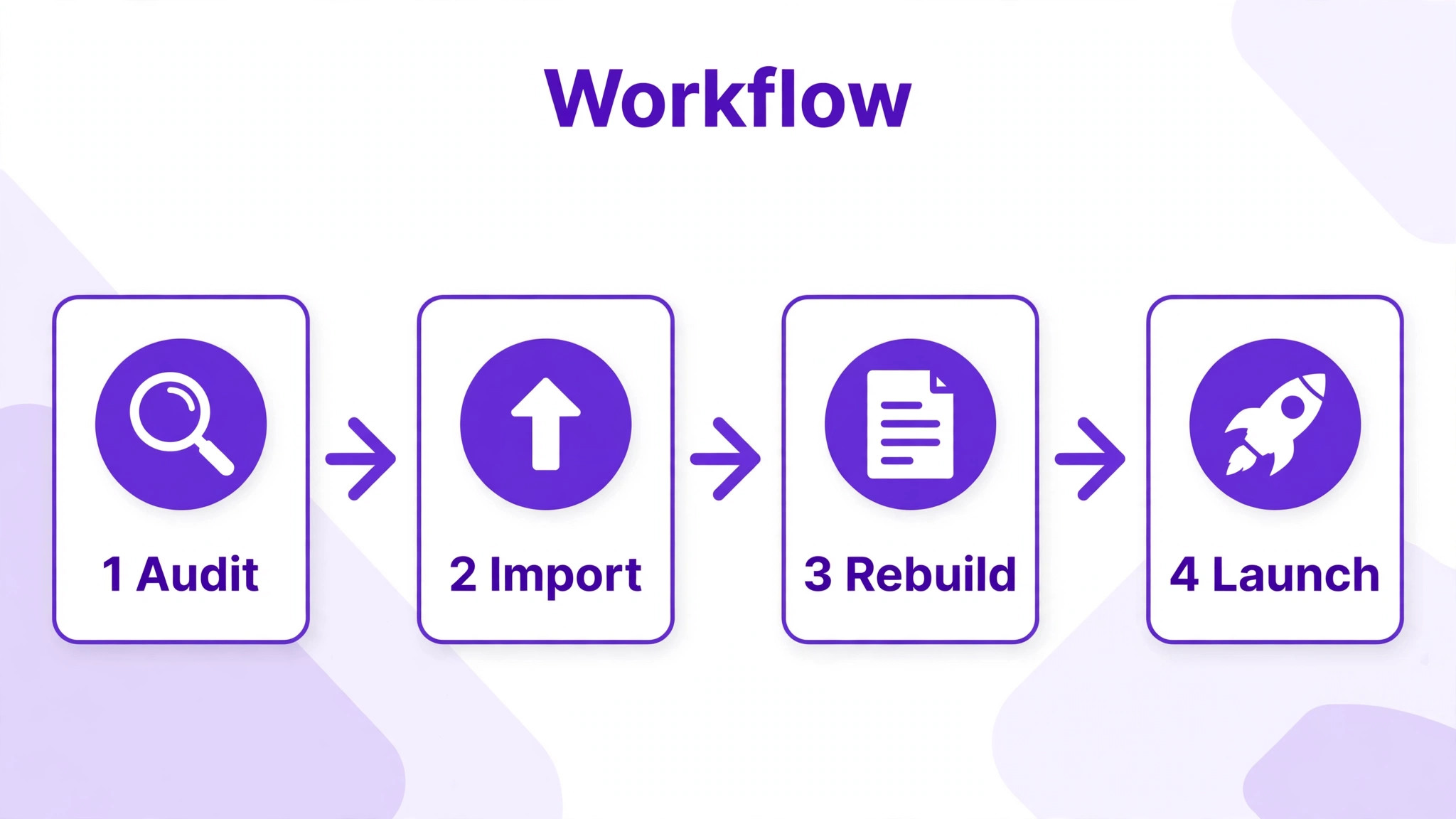
Rebuilding pages is where the move either improves the site or just copies old problems into a new editor. Resist the urge to replicate the old design exactly. Use the rebuild to shorten pages, clarify navigation, and strengthen calls to action. Keep the H1 and main headings identical on pages that rank well, because heading changes on ranking pages add unnecessary risk. Simplify everything else around those headings.
Forms need a fresh test plan. A WordPress contact form may have sent entries to an email address, a CRM, or a spreadsheet. A Wix form must be configured to send to the right place, with the right fields, spam protection, and confirmation message. Test each form with a real submission, check that the email arrives, and confirm that the sender address does not land in spam. A form that looks finished but never delivers is worse than a form that is visibly under construction, because visitors assume you received their enquiry.
Calls to action should match how customers actually contact you. If most enquiries come by phone, make the phone number easy to tap on mobile. If bookings matter more, put the booking step on the service page rather than three clicks away. If email is the main channel, keep the form short. Every extra field reduces completions, and a rebuilt site is the right time to remove fields that no one on your team actually uses.

The Migration Checklist for Pages, Posts, Media, and Forms
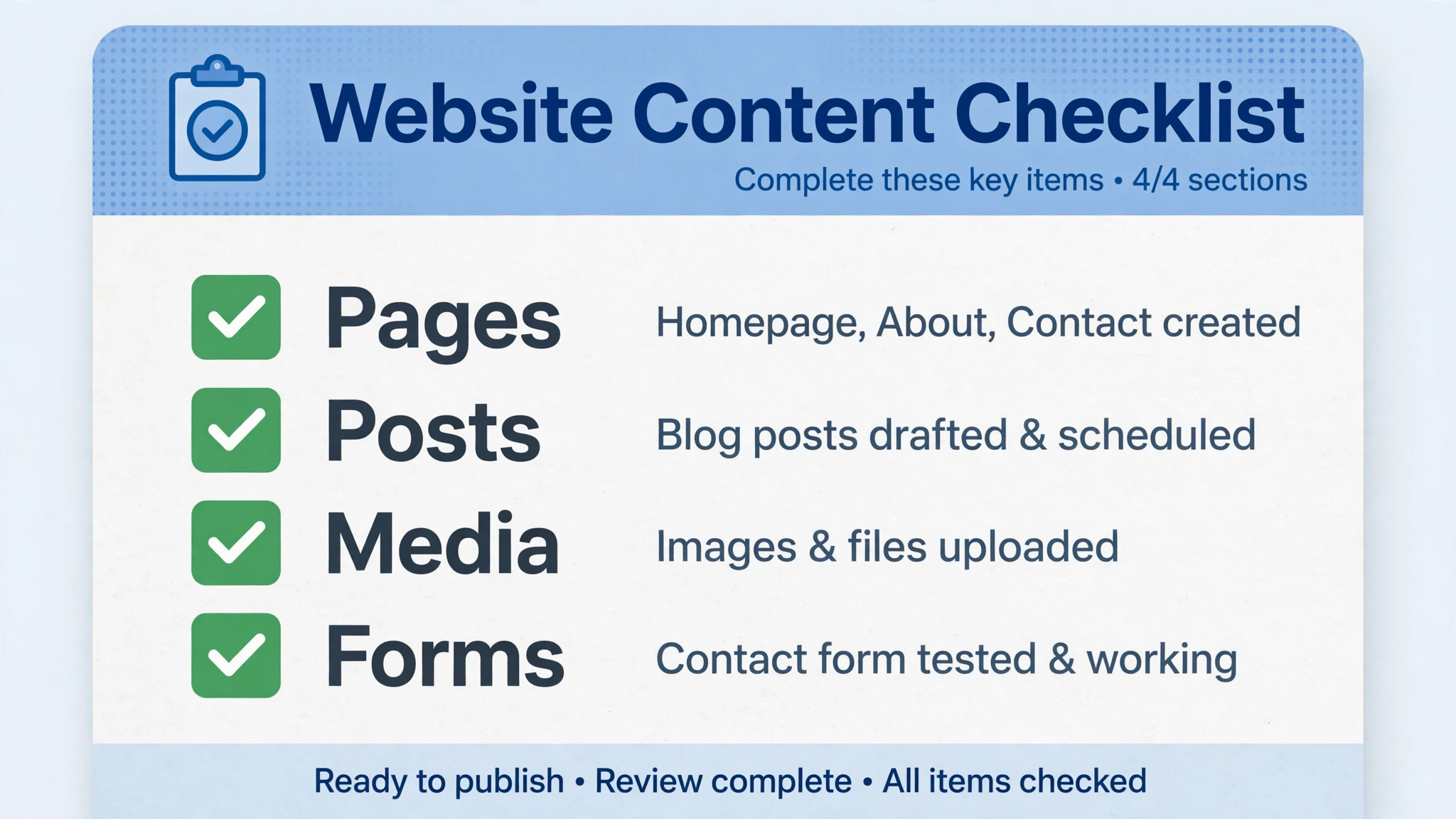
Verify each item on the Wix site, not on a plan document. A checked item means you saw it working.
– Export WordPress posts, pages, media lists, SEO titles, and form entries – Audit content and decide what to keep, redirect, or archive – Import published blog posts and verify text, images, dates, and categories – Manually publish, copy, or reschedule drafts and protected posts – Rebuild Home, About, Services, and policy pages in Wix – Re-upload page, template, and design media into Wix Media Manager – Rebuild forms, pop-ups, and contact flows, and test every submission – Re-enter SEO titles and meta descriptions for key pages and posts – Recreate authors, navigation, footers, and internal links – Replace plugins with Wix apps or simpler workflows – Write 301 redirects for every changed URL that matters – Test the site on phones, tablets, and desktop before launch
Internal links need a second pass after rebuild. A link that pointed to a WordPress page structure may now point to a Wix URL that looks similar but is not identical. Check navigation, footer links, blog post links, and calls to action. A broken internal link on a service page is a lost enquiry, not just a technical fault. Fix links during the build, when both URL lists are still open, rather than discovering them from a customer complaint after launch.
Protect Rankings With Redirects and Rebuilt SEO
Search rankings survive a platform move when three things stay true. The content stays useful, the URLs either stay the same or redirect cleanly, and the new pages load well and answer the same query. Break any one of those, and rankings can slip even if the new site looks better. Keep ranking page content close to the original, especially the opening, headings, and main answers, and change design around that content rather than rewriting it during migration.
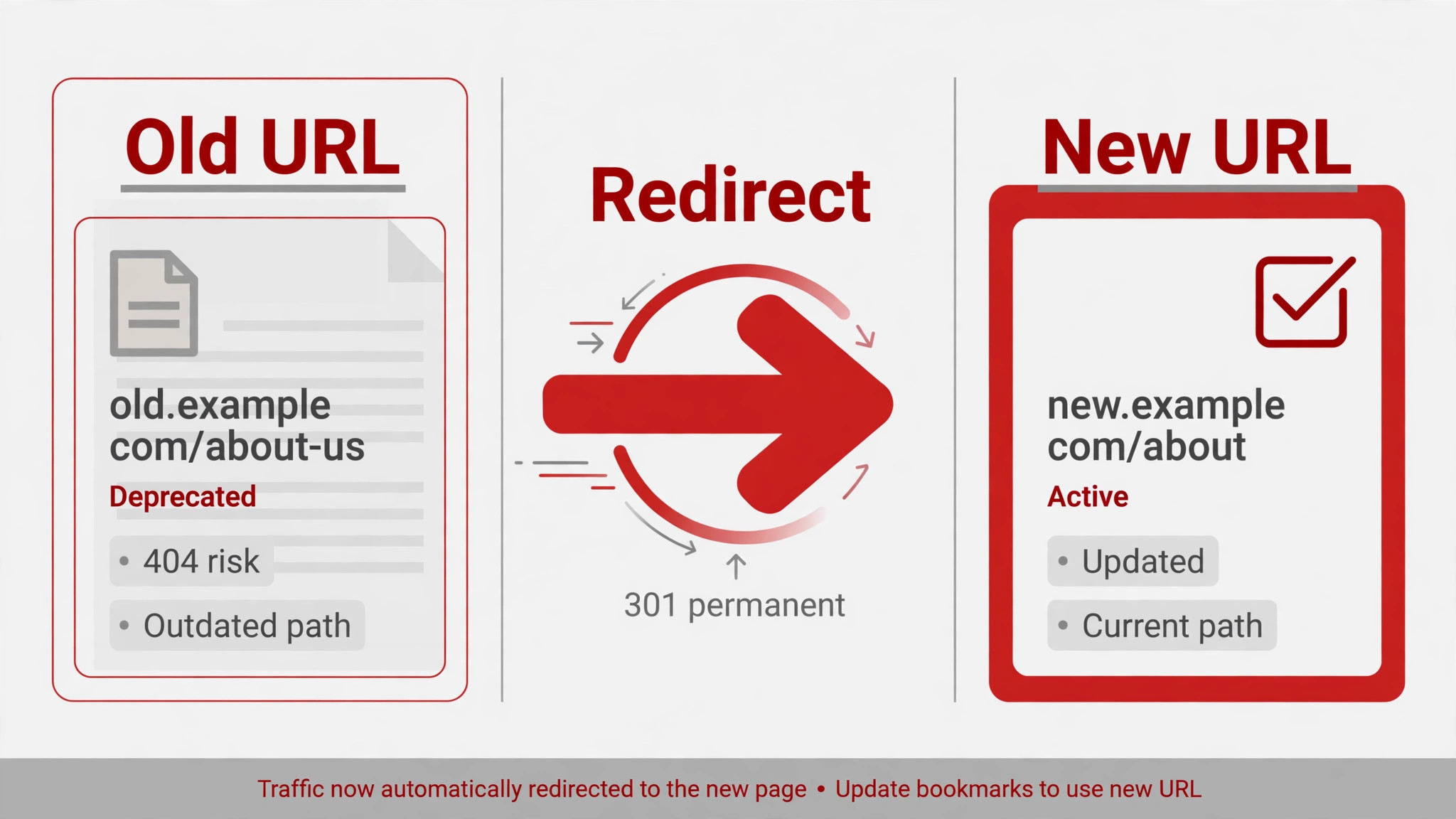
Write redirects from a complete URL list. Pull URLs from the WordPress sitemap, search performance reports, and analytics. Match each old URL to its new Wix URL. Where a page is removed, redirect to the closest live page, not to the homepage. After launch, submit the new sitemap, watch search console for crawl errors, and fix missing redirects quickly. Rankings may fluctuate for a short period while Google recrawls the new structure. That fluctuation is normal. A growing list of 404 errors is not, and it should be treated as a launch fault.
Re-entering SEO titles and descriptions is tedious, but it protects click-through rates. A page that ranks but shows a weak or auto-generated description will lose clicks to competitors, even if its ranking stays the same. Prioritise the pages that already rank or earn traffic, then work through the rest. Add structured data where Wix supports it for the page type, such as FAQ or article markup, but only where the visible content matches the markup. Search engines reward accuracy, not decoration.
Costs, Maintenance, and the Week After Launch
Wix pricing bundles hosting, security, and maintenance into one subscription, while WordPress splits costs across hosting, themes, plugins, and maintenance time. Check the vendor’s current pricing page before you compare, because plan features and limits change. For a small business, the fair comparison includes the time you spend updating WordPress, fixing plugin conflicts, and responding to security notices. If that time is worth more than the price difference, Wix wins on total cost even when its headline price looks higher.
Maintenance after the move should feel lighter, but it does not disappear. You still need to update content, check forms, review analytics, and keep images and offers current. What changes is the type of work. Instead of plugin updates and server issues, you spend time on content, offers, and customer enquiries. That shift is the real benefit for most small businesses, and it is worth naming clearly when you justify the move to a partner or team.

First-Week Cutover Plan
Keep WordPress hosting live during the first week, even if the domain now points to Wix. You may need an old export, a media file, a form entry, or an SEO setting that you thought you had copied. Cancelling early removes that safety net for little saving.
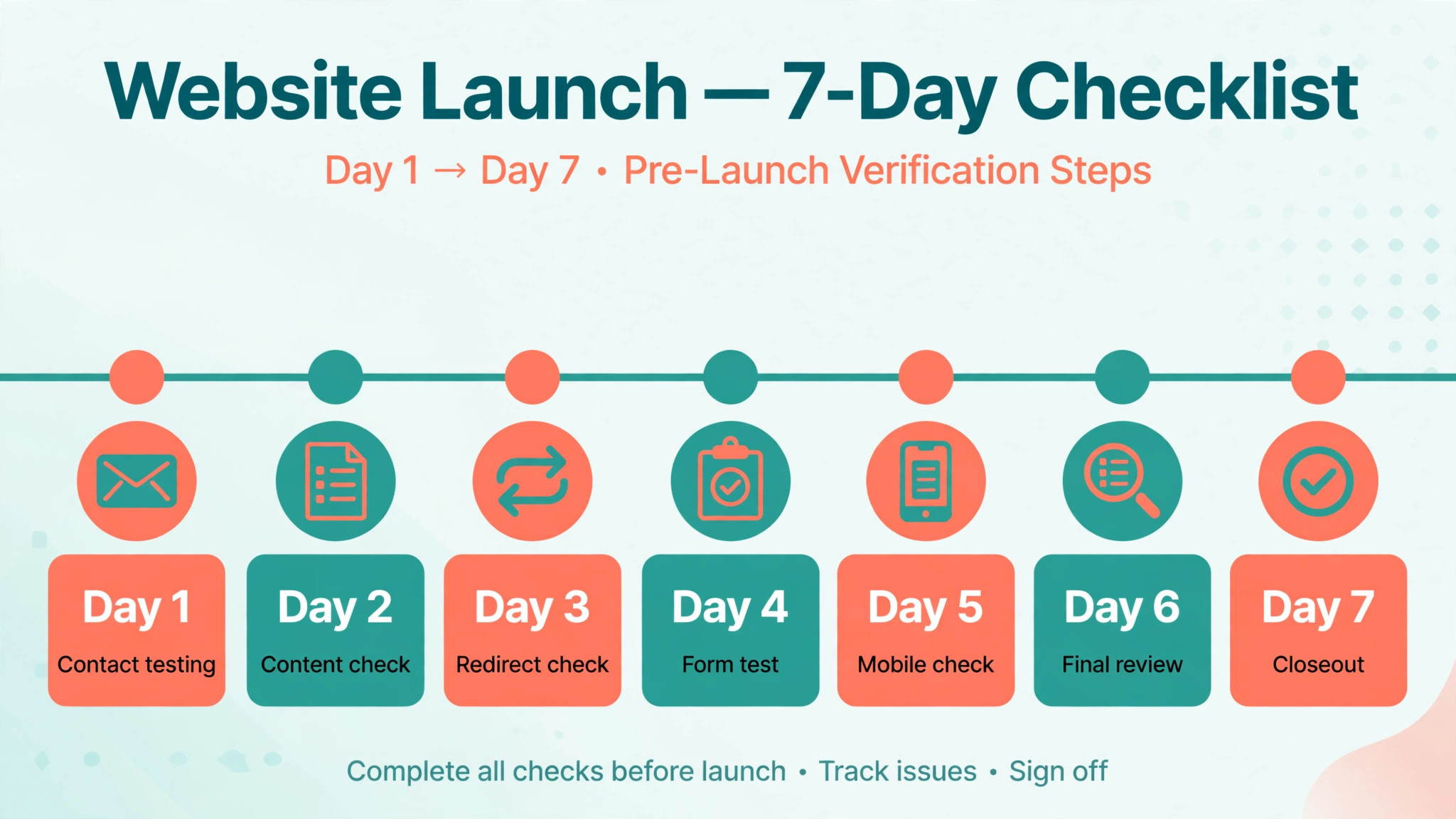
| Day | Focus | Checks before you finish |
|---|---|---|
| Day 1 | Launch and contact | Test forms, phone links, booking, and top pages |
| Day 2 | Blog and media | Fix imported posts, images, galleries, and links |
| Day 3 | Redirects and search | Fix 404 errors, submit sitemap, check indexed pages |
| Day 4 | Forms and leads | Confirm every form delivers to the right inbox |
| Day 5 | Mobile and speed | Check phones, load times, and tap targets |
| Day 6 | Content polish | Fix headings, calls to action, and outdated text |
| Day 7 | Closeout decision | Confirm backups, then decide on WordPress hosting |
On day 1, test the site as a customer, not as the owner. Find a service, read the page, and try to contact the business. If any step feels slow, confusing, or broken, fix it before promoting the new site. Real customers will not report a confusing step politely. They will leave and contact a competitor. A launch that is quiet for a day while you fix contact paths is better than a loud launch that sends enquiries into a broken form.
By day 7, you should know whether the new site captures enquiries as well as the old one. Compare form submissions, calls, and bookings with a normal week, allowing for seasonal variation. If enquiries are stable or higher, the move is working. If they dropped, check forms, redirects, and ranking pages first, before blaming the platform. Most post-migration enquiry drops come from a broken form or a missing redirect, not from Wix itself.
How to Switch WordPress to Wix Small Business Content Without Breaking Enquiries
Enquiries are the metric that matters most during this move, and they are also the metric most migration guides treat as an afterthought. A site can look finished while a form sends to an old inbox, a phone number is hard to tap on mobile, or a booking link points to a retired page. To switch WordPress to Wix small business enquiries safely, test the contact path before you test design polish, and test it again after every major rebuild step.
Start with an enquiry inventory. List every way a customer can contact you through the site, including contact forms, quote forms, booking forms, phone links, email links, chat tools, and newsletter signups. For each one, record where the enquiry goes, who replies, and how fast a reply is expected. That inventory becomes your test list. If an item is not on the list, it will not be tested, and untested contact paths are the ones that fail quietly after launch.
Next, rebuild forms one at a time on the Wix site, and test each with a real submission from a phone and from a desktop. Check the inbox, the confirmation message, and any CRM or spreadsheet entry that should receive the lead. If a form used conditional fields on WordPress, decide whether those fields are still needed. Conditional logic can be rebuilt in Wix in many cases, but a simpler form with fewer fields often converts better. Do not rebuild complexity just because it existed before.
When you switch WordPress to Wix small business owners should also check enquiry wording. A WordPress form may have used field labels, help text, or confirmation copy that customers already understand. Copy that wording into Wix where it still fits, rather than inventing new labels during migration. Familiar wording reduces confusion for repeat customers, and it makes support easier because staff already know what each field means. Change wording later, after launch, if testing shows a better version.
Phone and booking paths deserve the same care. Test tap-to-call on a real phone, not only in a desktop browser preview. Test booking links end to end, including confirmation emails and calendar entries. If bookings relied on a WordPress plugin, confirm the Wix booking flow covers the same steps, including deposits, cancellations, and reminders where relevant. A booking system that looks complete but misses reminders will create no-shows that the old system prevented.
Finally, plan a short enquiry watch period after launch. Check form submissions daily during the first week, compare them with a normal week, and ask staff whether leads feel complete. If submissions drop, check spam folders, inbox rules, and form delivery first. If submissions arrive but lack detail, check field mapping. The goal is to switch WordPress to Wix small business enquiries without a gap, and that goal is met by testing contact paths as carefully as product or page content in a store migration.
A calm launch also needs a fallback. Keep the old WordPress form data and contact details accessible during the first week, so staff can reply to any enquiry that arrived through an old channel. Publish a clear contact page on Wix with a phone number and email address as a backup, even if forms are the main channel. When you switch WordPress to Wix small business customers should always have a second way to reach you if a form fails, and that backup path can save an enquiry that would otherwise be lost.
Common Rebuild Mistakes to Avoid
The most common mistake is importing blog posts and calling the migration done, while pages, forms, and SEO data remain unfinished. A site with imported posts but broken service pages is not ready to launch. It is a blog with a broken business attached. Finish service pages, contact paths, and key SEO fields before you move the domain.
Another mistake is rebuilding every plugin feature instead of asking whether it is still needed. A pop-up, a slider, or a widget that no one maintained on WordPress does not deserve a Wix equivalent. Remove it, simplify the page, and watch whether anyone notices. Most of the time, no one does, and the site becomes faster and easier to maintain. Keep only the features that earn enquiries, bookings, or sales.
A third mistake is changing content and platform at the same time. A full rewrite during migration makes it hard to tell whether a ranking change came from the platform move or from the new wording. Keep ranking content stable through launch, then improve it gradually after search performance settles. That separation gives you a clean signal and a calmer first month.
For related moves, read Switch WordPress to Squarespace Small Business if you want another hosted-builder comparison, and Fix WordPress Plugin Conflict Small Business if plugin trouble is the reason you are considering a move. For form faults, Fix WordPress Contact Form Not Sending Small Business helps separate a fixable fault from a platform decision. For builder choice by profession, Best Website Builder for Small Law Firms and Best Website Builder for Therapists show how service needs shape the choice.
Frequently Asked Questions
Can I switch WordPress to Wix small business blog posts automatically?
Yes, in many cases. Wix offers a WordPress blog import that brings across published posts with text, images, videos, dates, categories, and alt text in typical cases. Drafts, scheduled posts, and password-protected posts generally need manual handling. Check imported posts for formatting, galleries, and embedded content, because custom HTML, shortcodes, and complex layouts often need cleanup.
Do my WordPress pages move to Wix?
No, not as finished pages. Static pages must be rebuilt in the Wix Editor or Wix Studio, even when blog posts import cleanly. That rebuild includes layout, media, forms, and internal links. Keep the original page text and headings for ranking pages, and rebuild design around that content rather than rewriting it during migration.
Do WordPress plugins work on Wix?
No. Plugins do not transfer, so each plugin feature must be replaced with a Wix app, a native Wix feature, or a simpler workflow. Audit plugins before migration and remove any that are unused, duplicated, or no longer needed. The rebuild is a good time to simplify, not to recreate every old feature by default.
Will I lose search rankings?
You may see short-term fluctuation, but lasting loss is usually caused by missing redirects, thin rebuilt pages, slow new pages, or lost SEO titles, not by the platform change alone. Preserve ranking content, write 301 redirects for changed URLs, re-enter SEO titles and descriptions, submit the new sitemap, and monitor search console errors after launch.
How long does a small business move take?
A small brochure site can be rebuilt and tested in a few days. A content-heavy site with many posts, pages, and forms can take one to three weeks, plus a first-week check period. The schedule depends less on page count and more on how many forms, plugins, and custom features need rebuilding or replacing.
Should I cancel WordPress hosting on launch day?
No. Keep hosting access until the first-week checks pass and you have stored exports, media, and SEO data outside both platforms. Once the Wix site captures enquiries cleanly and you no longer need old settings, you can close or pause the old hosting with confidence.
The Decision in One Paragraph
Choose Wix when the website should support the business quietly, with less maintenance, fewer plugin problems, and a simpler editing experience. Stay on WordPress when custom features, large content systems, or specific plugins are central to how the business works. A platform move should reduce work over the next year, not just change where the work happens. If Wix does that for your business, rebuild carefully, protect your URLs and forms, and launch with a calm first week. That is how a simpler platform becomes a stronger business asset, rather than a rushed rebuild you regret.
If you switch WordPress to Wix small business maintenance should feel lighter within the first month, not just on launch day. That lighter week is the return on the rebuild work, and it is worth protecting by keeping content, forms, and redirects in good shape after launch.
After launch, set a monthly routine that keeps the simpler platform simple. Review pages for outdated offers, check forms once a month, remove apps you no longer use, and update service descriptions when prices or hours change. A small business site fails slowly, through stale details rather than dramatic faults. A short monthly check prevents that drift and keeps the maintenance benefit you moved for.
Also keep a simple record of what was rebuilt and where it lives in Wix. Note the form destinations, the app equivalents you chose, and the redirect rules that protect old URLs. That record helps a future team member, a contractor, or even your future self understand the site without reverse-engineering it. Good documentation is part of a low-maintenance site, because it turns a mystery into a checklist the next time something needs changing.
Finally, ask one honest question before you move the domain. Would a new customer trust this site, find the service they need, and contact you without help. If the answer is yes on a phone, with forms tested and redirects in place, the rebuild is ready. If any part needs explanation, fix that part first, because customers will not ask for clarification. They will simply move on.
That simple test is the real launch checklist, and it deserves more attention than any design detail. Keep that test in mind. Design can improve after launch, but trust, contact, and search access must work on day one.