More than half of local businesses show different information on Google than on their own website. A 2026 local business trust study that compared 230 businesses across five service categories reported that 53 percent had different information between their Google listing and their website, and that a missing or incorrect website link affected 16 percent of the businesses checked. Hours are the detail most likely to drift, because they change for holidays, seasons, staffing gaps, and closures, while the listing that shows them is edited by the owner, by customers, and sometimes by Google itself. That gap is why owners need to fix Google Business Profile hours wrong small business listings show.
If your hours are wrong on Google, customers do not usually call to check. They drive to a locked door, or they choose a competitor whose hours look certain. To fix Google Business Profile hours wrong small business owners face, start with the listing itself, then work outward to every place that feeds it.
Wrong hours feel like a small error, but they cost in a specific way. A customer who arrives when you are closed loses trust, and may leave a review that sits on your profile for months. A customer who sees a warning that hours might differ may skip you entirely, even when you are open. A customer who calls during posted hours and gets no answer assumes the listing is wrong, even if the real problem is a missed call. Each of those outcomes is preventable, and most of them are fixed by a routine that takes less than an hour a month, plus a careful fix the first time you discover the error.
This guide gives you a diagnosis in order, from the most likely cause to the least likely, with the real settings paths in Google Business Profile, plus a plan for holiday hours, duplicate listings, and keeping every source consistent. It does not promise instant fixes, because Google reviews profile edits before they appear publicly, and some edits take longer than others. It does promise a method that finds the actual cause, instead of repeatedly editing the same field and hoping the change sticks.
First, See Exactly What Customers See
Before you change anything, record what is actually showing. Search for your business on Google Search and on Google Maps, on a phone and on a desktop, and screenshot both results. Note the regular hours, any special hours, any warning such as hours might differ, and whether the listing shows open, closed, or temporarily closed. Check the same listing in an incognito or signed out browser if you can, because a signed in owner sometimes sees a management view that looks different from the public view. Save those screenshots with the date, because you will need them to tell whether a later edit actually went live, or whether it reverted.
Next, check your website, your voicemail greeting, and your social profiles, and write down the hours each one shows. Write your official hours on one page, exactly as you want them to appear, including any lunch closure, appointment only periods, and seasonal variation. That one page becomes your source of truth, and every listing should match it word for word. A business that has three versions of its hours, one on Google, one on its website, and one on its door, is telling Google that its own information is unreliable, which makes Google more likely to accept a suggested edit from someone else.
Also check whether you actually control the listing. If nobody has claimed it, you will need to claim it and complete verification before you can edit hours reliably. Search the business in Maps, choose the claim option, and follow the verification steps Google offers for your business type. If someone else manages it, such as a former employee or a previous agency, use the request access route and, in the meantime, suggest an edit to the hours through Maps. Claiming the listing is not a formality. It is the difference between editing your own profile and asking Google to consider a suggestion.
Diagnosis in Order, Most Likely Cause First
When you fix Google Business Profile hours wrong small business owners report, work through these causes in order, and stop when you find the one that matches your screenshots. Editing every setting at once makes it impossible to tell which change fixed the problem, and it can create a new mismatch while you are fixing the old one.
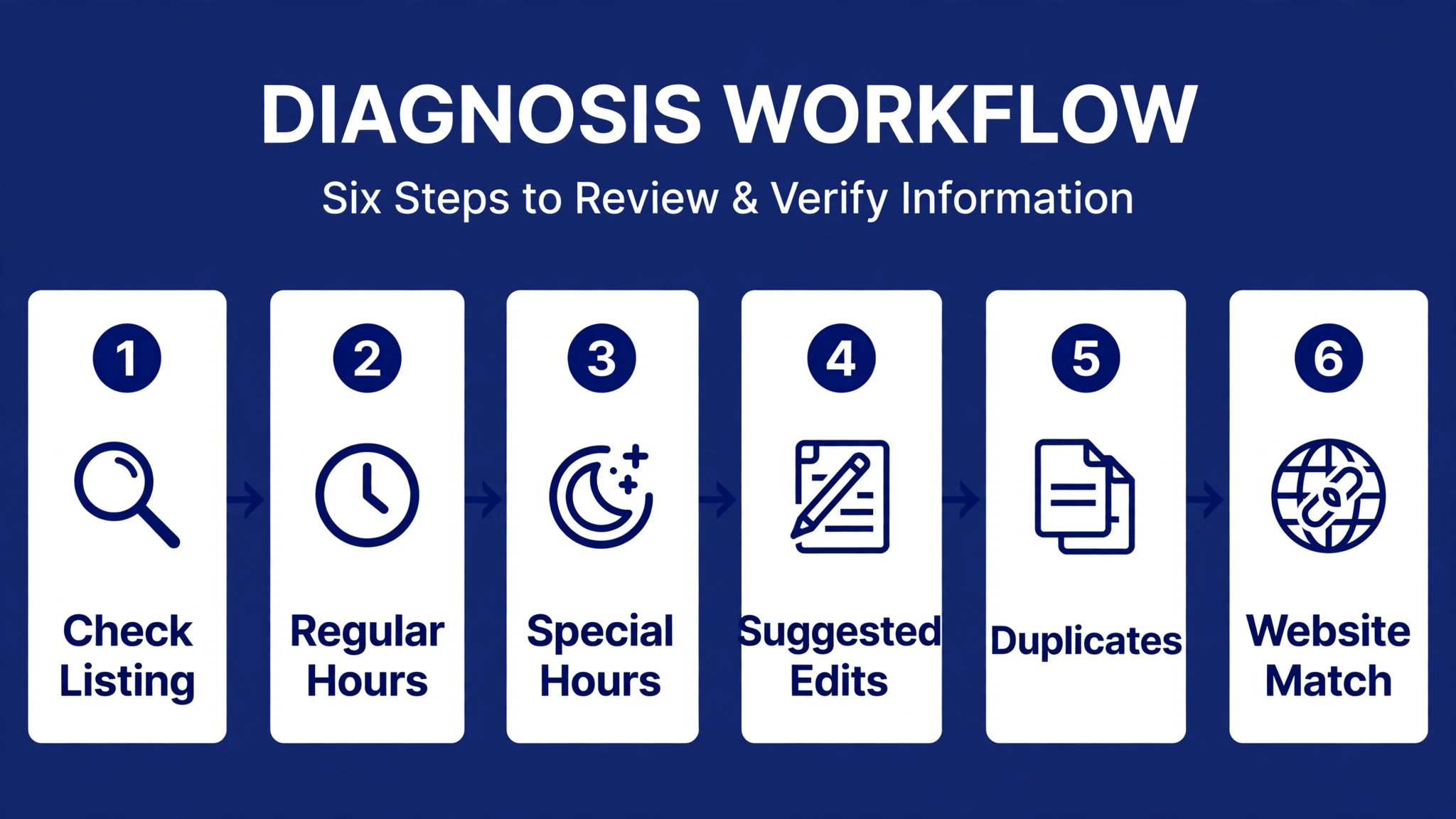
Step 1, your regular hours are simply out of date
This is the most common cause, and the easiest to fix. Hours change, and nobody updates the listing. A seasonal change, a new closing time, a move to appointments only, or a staff change that shortened a weekday can all leave old hours on Google for months. Open your profile by searching your business name on Google while signed in to the account that manages it, choose Edit profile, then Hours, and read each day carefully. Do not assume Monday to Friday are all the same, because a single day that was changed for a one-off event and never changed back is a classic source of wrong hours.
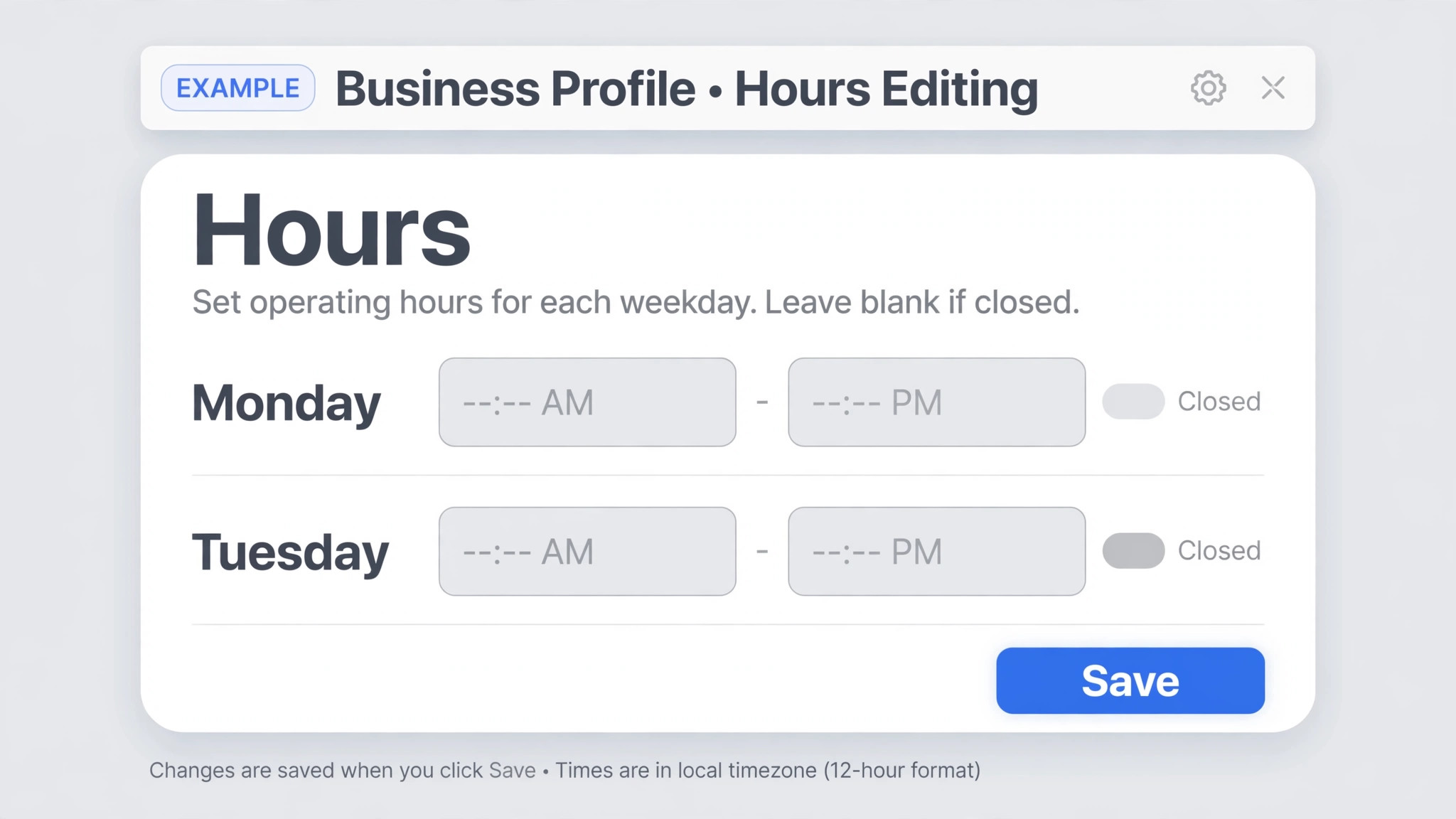
When you fix Google Business Profile hours wrong small business listings show, set each day to your official hours, save, and note the date of the edit. Google reviews edits before they appear publicly, and published guides report that many edits clear within about ten minutes, though some take longer and may need review. Check the public listing again after that window, and again the next day, and compare it with your screenshot. If the edit has not appeared, check the edit status in your profile before editing again, because repeated identical edits can slow review rather than speed it.
Step 2, a holiday or special hours entry is still active or missing
Special hours are the second most likely cause, and they work differently from regular hours. Special hours apply only to the dates you choose, for holidays, events, and short closures, and they override your regular hours for those dates only. Once a date passes, customers see your regular hours again without you editing anything. That design is helpful, but it creates two failure modes. The first is a missing special hours entry, so Google keeps showing normal hours on a day you are closed. The second is a stale entry from a past year that was set for a recurring date, or a special hours entry that was set for the wrong date.
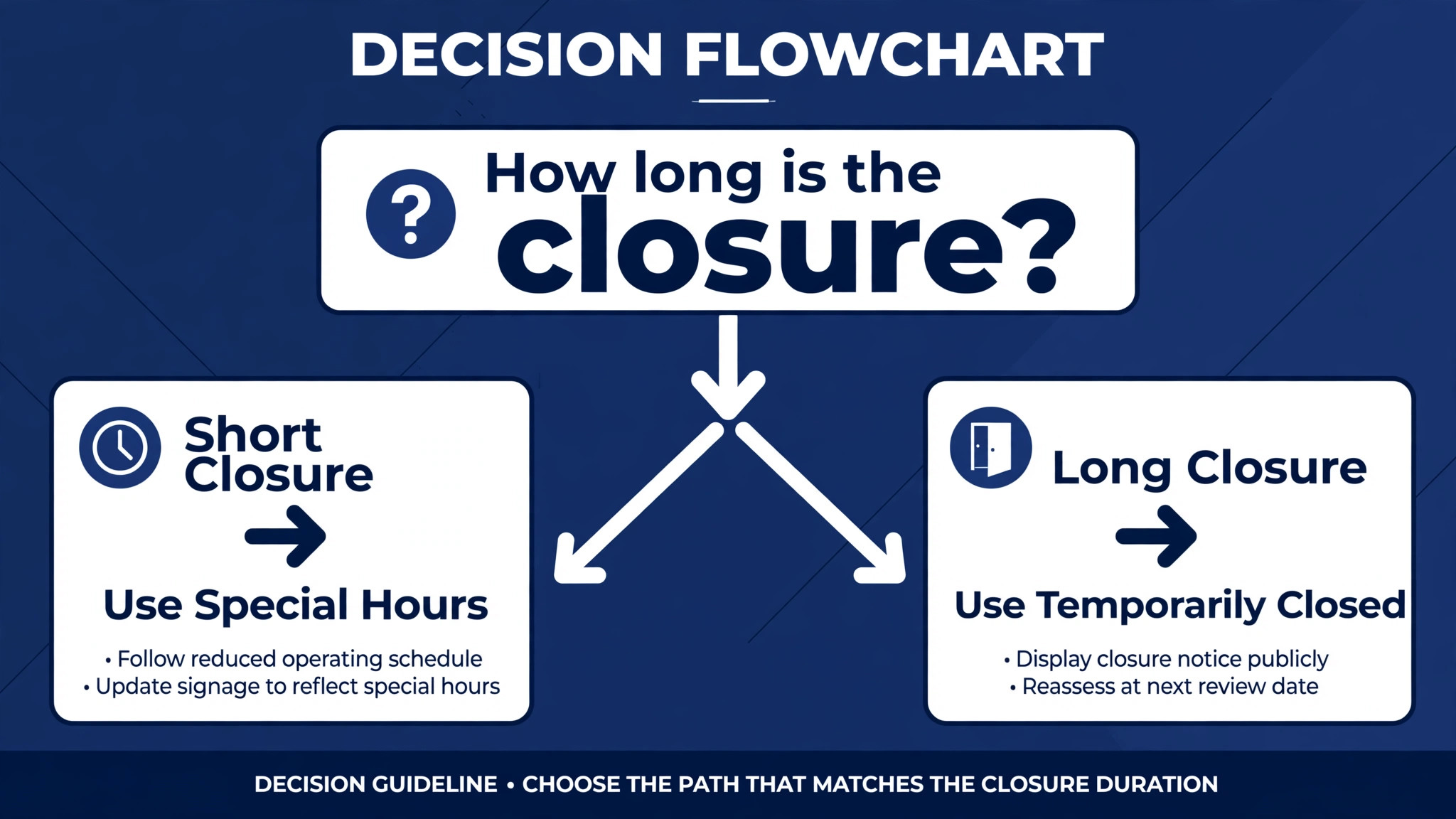
In Edit profile, then Hours, look for the special hours or holiday hours section, and review every upcoming date Google has preloaded, plus any past entries that may still be listed. For each upcoming holiday, confirm your normal hours, enter custom hours for a half day, or mark the day as closed, and save. Published guidance notes that special hours cover up to six days in a row, and that a longer closure is better marked as temporarily closed, so use the right tool for the length of closure. Set holiday hours a few weeks ahead, not on the morning of the holiday, so customers planning visits already see the correct hours.
Step 3, Google applied a suggested edit or collected information
Google does not treat your profile as your word alone. It gathers business information from user reports, licensed content, and its own automated checks, and it may publish an update when those sources disagree with your profile. Anyone signed in to a Google account can suggest an edit to a place on Maps, and Google may apply some edits without asking you first. It may also call or text the verified phone number on your profile with automated messages to confirm details, and use the answers to update the profile. If your hours changed and you did not change them, this is the likely cause.
Check for this in Edit profile, where Google shows its own changes in blue text in some views, and in any emails or notifications Google sent about suggested edits. Published guidance reports that when a suggested edit needs your review, you may have about four days to accept or reject it, and that Google may publish it anyway if other public information supports it, so do not ignore those messages.
Reject any suggested edit that is wrong, correct the field to your official hours, and then fix the public source that supported the wrong edit, which is usually your website or an old directory listing. If you only correct Google and leave the wrong source live, the same edit is likely to return.
Step 4, a duplicate listing is showing the old hours
Duplicate listings are the cause owners miss most often, because they fix one listing while customers find another. A duplicate can arise from a previous address, a slightly different business name, a listing created by a customer, or a listing created when the business moved. Search for your business name plus your town, your old address, and common name variations, and look for a second listing with old hours, an old phone number, or an old address. Note which listing customers actually find, because the duplicate may rank higher for some searches than your main listing.
When you fix Google Business Profile hours wrong small business listings show, do not simply edit the duplicate and hope it merges. Report the duplicate through the listing tools Google provides, and ask for it to be removed or merged into your main listing, while keeping your main listing hours correct in the meantime. If the duplicate is for a genuinely separate location, such as a second shop, treat it as a separate profile with its own hours, and make sure each location page on your website links to the right profile. A duplicate that stays live will keep confusing customers and feeding wrong hours back into search results, even after your main listing is perfect.
Step 5, your website or directories contradict your profile
Google checks public information such as your website when it decides whether a suggested edit is plausible, so a website that still shows old hours is not just a customer problem. It is a signal that can trigger a future Google edit. To fix Google Business Profile hours wrong small business owners face, update your website footer and contact page to match your official hours, as plain text that can be read, not only as an image. Update Apple Maps, Bing, Yelp, Facebook, and any directories that list you, starting with the ones your customers actually use.
Searching your old phone number in quotes often reveals old directory listings you had forgotten, and claiming and updating the ones that matter is worth an afternoon.
Consistency does not mean updating every obscure directory on the internet. It means making the places customers check agree with each other.
Prioritise Google, your website, Apple Maps, and Bing, then Yelp and Facebook, then industry directories for your trade. Log each listing you update, with the date and the hours you set, so a future audit can tell which listings were checked and which were not. A log also helps when a new staff member takes over the listing, because they can see the full picture instead of guessing which directories exist.
Step 6, a closure status, secondary hours, or appointment setting is overriding the main hours
Less common, but worth checking if the first five steps do not explain the error, are the settings that sit alongside regular hours. A temporarily closed status, a permanently closed marking applied in error, secondary hours for a specific service, and an appointment only setting can all change what customers see, even when regular hours look right. In Edit profile, then Hours, review the closure status and any additional hours sections, and check whether a secondary hours entry for one service is being read as the main hours for the business.
Remove or correct any closure marking that does not reflect reality, and make sure secondary hours are labelled for the service they belong to, not presented as general opening hours.
Also check whether a recent profile change triggered re-verification or a review hold. Changing a business name after verification, or moving to a new address, can require re-verification, and during that period edits may behave differently. If your hours edit is stuck in review, check the edit status in your profile, avoid repeating the same edit, and contact Google Business Profile support with your screenshots and your official hours if the edit remains stuck beyond a reasonable review period. Support will need the business name, address, and the exact hours you want, so have that page ready before you contact them.
Fixing Holiday and Seasonal Hours Without Breaking Regular Hours
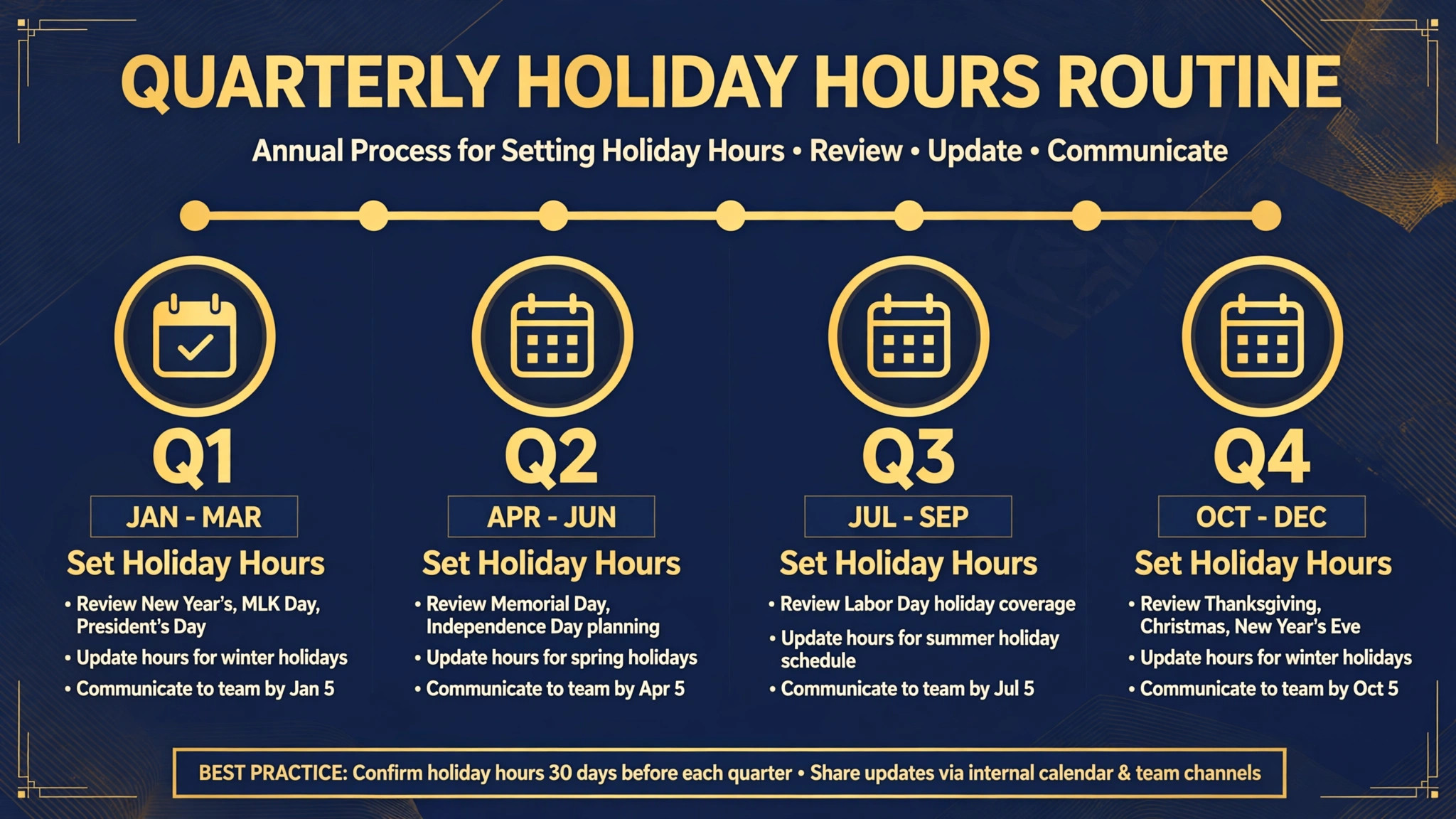
Holiday hours deserve a separate routine, because they are the most repeated hours mistake in local business. The pattern is familiar. A business closes for a holiday, forgets to set special hours, customers arrive to a locked door, and a one star review appears that afternoon. The fix is a calendar habit, not a one-off edit. At the start of each quarter, list every holiday, early closing, and seasonal change for that quarter, and set special hours for each date in Google, on your website, and in your voicemail greeting, at the same time. That single session prevents most holiday errors for three months.
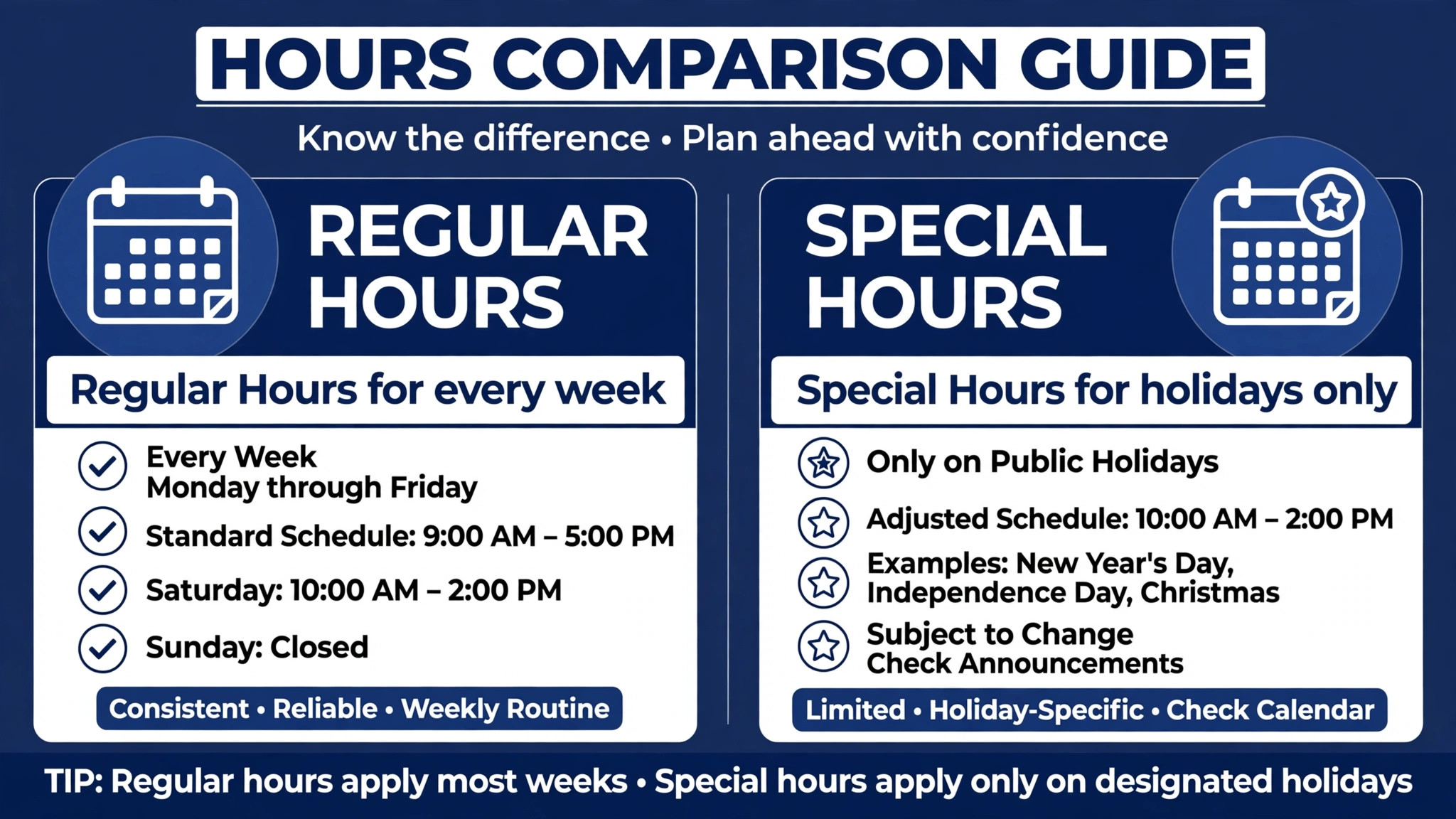
Seasonal hours need the opposite treatment from holiday hours. When hours change with the season, change your regular hours, not your special hours, because the change lasts for months. Set a reminder to change them back when the season ends, and put that reminder in the same calendar entry as the original change, so it is not forgotten. A fruit stand, a garden centre, or a coastal shop that runs summer hours into winter, or winter hours into summer, will look closed or open at the wrong times for weeks, and customers will stop trusting the listing. Seasonal businesses should also update their website and directories on the same day they change Google, so no source lags behind.
Temporary closures need a clear choice between special hours and temporarily closed status. For a closure of a few days, special hours marked as closed for those dates is usually the right tool. For a longer closure, such as a refurbishment or a seasonal shutdown, temporarily closed status is clearer, because it tells customers not to expect normal hours at all. Whatever you choose, state the reopening date on your website and in your profile description if possible, and set a reminder to remove the closure status on reopening day. A business that reopens but forgets to remove a temporarily closed marking will lose customers who trust the listing over the open door.
| Problem | Likely cause | First fix | Check after |
|---|---|---|---|
| One day wrong every week | Regular hours never updated | Edit profile, then Hours, set that day | Public listing next day |
| Closed day shows open | Missing special hours | Add special hours, mark closed | Public listing for that date |
| Hours changed by themselves | Suggested edit or collected info | Reject edit, correct field, fix source | Suggested edits inbox weekly |
| Two listings, different hours | Duplicate listing | Report duplicate, fix main listing | Search name plus town monthly |
| Website and Google disagree | Old website or directory | Update website text, then directories | Footer and contact page match |
| Shows closed when open | Closure status or review hold | Remove closure, check edit status | Public listing and support if stuck |
The Hours Audit Checklist
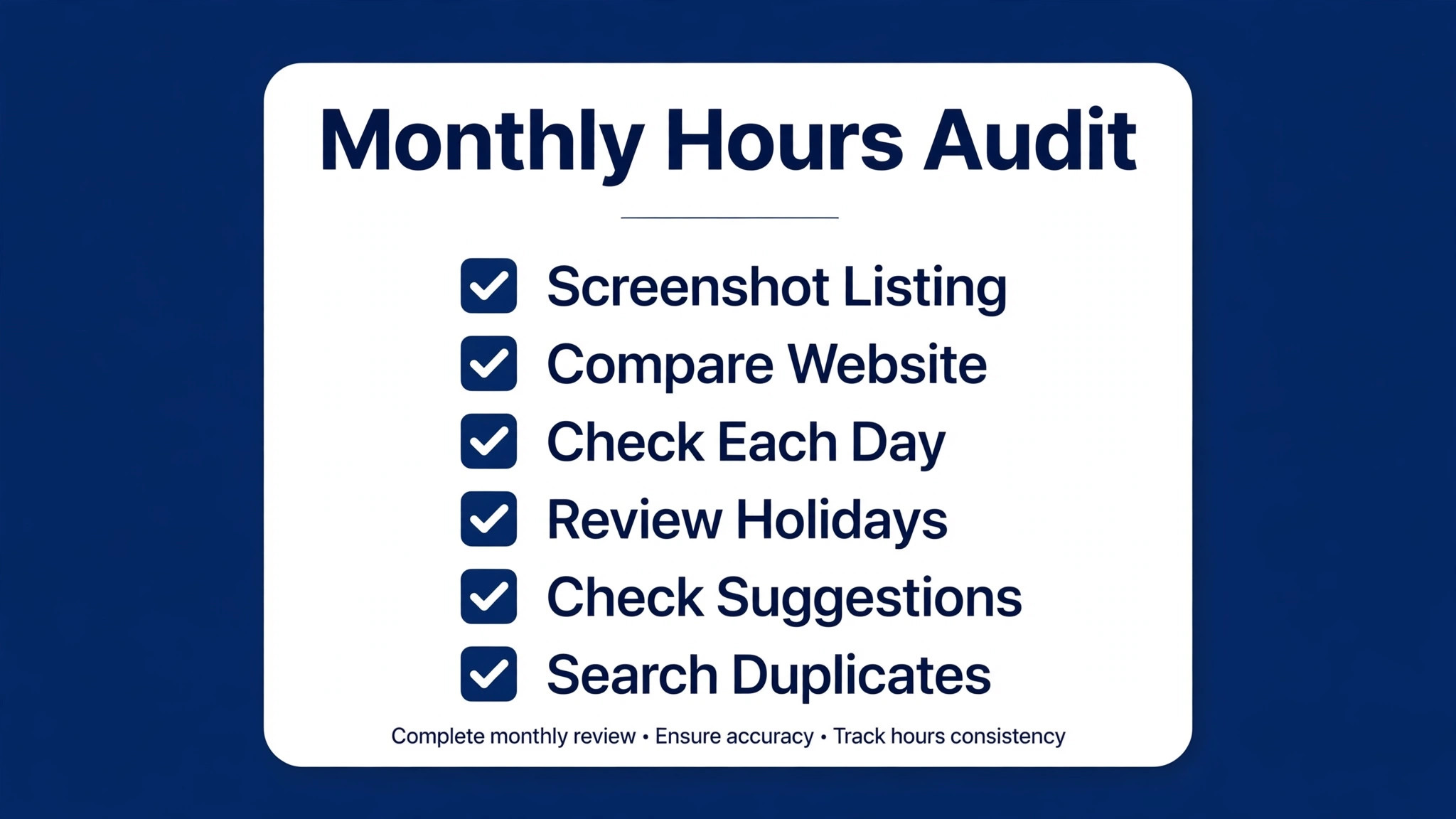
Use this checklist monthly, and after every holiday, move, rebrand, or seasonal change. It is the routine that keeps a fixed listing fixed, and it is the overview-proof core of this guide, because it turns a one-off edit into a habit.
– Screenshot the public listing on Search and Maps, on phone and desktop, and date the screenshots. – Compare Google hours, website footer, contact page, voicemail, and social profiles with your one page source of truth. – In Edit profile, then Hours, check regular hours day by day, and correct any single day that drifted. – Review special hours for upcoming holidays, confirm, customise, or mark closed, and set a reminder to remove nothing, because special hours expire on their own. – Check the suggested edits inbox and any Google emails, accept correct edits, reject wrong ones within the review window. – Search your business name plus town and old address for duplicate listings, and report any duplicate found. – Update Apple Maps, Bing, Yelp, and Facebook if they changed, and log the date and hours set for each. – Check closure status, secondary hours, and appointment settings for any entry that overrides main hours. – Confirm the public listing again the next day, and keep the before and after screenshots for the record. – Log the audit date, the person who did it, and any change made, so the next audit starts from a known state.
Mistakes That Keep Hours Wrong
The first mistake when you fix Google Business Profile hours wrong small business owners report is editing Google and stopping there. If your website still shows old hours, Google has a public source that supports the old hours, and a future suggested edit may restore them. Fix Google first, because that is where most local searches start, then fix your website the same day, then directories.
The second mistake is overwriting regular hours for a holiday, instead of using special hours. A holiday edit to regular hours must be remembered and reversed, and it usually is not, so the business shows holiday hours for months after the holiday. Use special hours for short changes, and regular hours only for lasting changes.
The third mistake is ignoring Google emails about suggested edits. Those messages are easy to dismiss as automated noise, but they are the early warning that someone else’s information is about to become your listing.
Open them, decide quickly, and fix the source behind any wrong suggestion. The fourth mistake is editing the same field repeatedly while an edit is in review. Repeated edits do not speed review, and they can create confusion about which version is current. Make one careful edit, check its status, wait for review, and only then edit again if the result is wrong. The fifth mistake is treating a duplicate listing as harmless. A duplicate with old hours will keep appearing in some searches, and customers will trust whichever listing they find first, not the one you maintain.
When to Contact Support, and What to Send
When you fix Google Business Profile hours wrong small business listings show, contact Google Business Profile support when an edit stays stuck in review beyond a reasonable period, when hours revert repeatedly after correct edits, when a duplicate cannot be removed through the normal tools, or when you cannot claim a listing that belongs to your business. Before you contact support, gather your business name exactly as listed, your current address, your official hours page, your before and after screenshots, and a short note describing what you changed, when you changed it, and what the public listing shows now. Support can act faster on a clear, dated record than on a general complaint that hours are wrong.
If support asks for verification, complete it promptly, because a verification delay can hold edits. If the issue is a duplicate, provide the links or names of both listings and state clearly which one is the main listing and which should be removed or merged. If the issue is a suggested edit that keeps returning, provide the source you corrected, such as your updated website page, so support can see that the public record now supports your hours. Keep a record of the support conversation, including any case reference, and check the public listing after the case closes, because a support fix still needs a public check to confirm it worked.
For related reading, see local SEO strategy for a small service business, how to plan a service business holiday schedule, how to set up a client feedback loop for a small business, fix Meta Business Suite not loading for a small business and fix Google Ads disapproved ads for a small business. Those posts cover nearby local search, holiday planning, and platform fix problems, and the same lesson applies when you fix Google Business Profile hours wrong small business owners report. Fix the listing, fix the source behind it, and check the public result.
How to Fix Google Business Profile Hours Wrong Small Business Listings Keep Showing
Some listings seem fixed, then wrong again a week later, and that pattern usually points to a source problem rather than an editing problem. Start by listing every public source that mentions your hours, including your website, social profiles, directories, old press mentions, and any partner pages that list your business. Check each one against your source of truth page, and correct the ones that disagree, starting with the highest traffic sources. A single high traffic source with old hours can support repeated suggested edits, so fixing low traffic directories first will not stop the cycle.
Next, check who else can edit your profile. Staff who left, agencies that no longer work for you, and shared logins all create a risk that someone edits hours with good intentions and old information. Limit profile access to current staff who need it, and ask former managers to confirm they no longer hold access. If you cannot tell who made an edit, note the date of the change and compare it with staffing changes, seasonal changes, and directory updates from the same week. That timeline often reveals the cause faster than guessing, and it gives support a clear record if you need to escalate.
Finally, set a watch routine for the first month after a fix. Check the public listing weekly, check the suggested edits inbox weekly, and keep the before and after screenshots for each check. If hours stay correct for four weekly checks, move to the monthly audit in this guide. If they revert once, treat that revert as a diagnosis clue, not as bad luck, and trace it to the source that changed. A listing that is fixed and watched stays fixed, while a listing that is fixed and forgotten is likely to drift again, because the sources that caused the first error are still live.
Frequently Asked Questions
How long does a Google Business Profile hours edit take to show?
Google reviews edits before they appear publicly, and published guides report that many edits clear within about ten minutes, though some take longer and may need review. Check the public listing after that window, and again the next day, and check the edit status in your profile before editing again. If an edit stays stuck, gather your screenshots and official hours and contact support, rather than repeating the same edit.
Why did my hours change when I did not change them?
Google gathers information from user reports, licensed content, and automated checks, and may publish an update when those sources disagree with your profile. A customer suggestion, an old directory listing, or an outdated website page can all support a wrong edit, and Google may apply some edits without asking you first. Reject wrong suggestions, correct the field, and fix the public source that supported the wrong information, or the edit is likely to return.
Should I use special hours or change my regular hours for a holiday?
Use special hours for holidays, events, and short closures, because they apply only to the dates you choose and expire on their own, leaving regular hours untouched. Change regular hours only when the change lasts for a season or longer. Published guidance notes that special hours cover up to six days in a row, and that a longer closure is better marked as temporarily closed.
How do I fix a duplicate listing with wrong hours?
Search for your business name plus town and old address, note which listing customers find, and report the duplicate through the listing tools, asking for removal or merger into your main listing. Keep your main listing hours correct while the duplicate is being handled, and treat a genuinely separate location as its own profile with its own hours. A duplicate left live will keep confusing customers, even after your main listing is fixed.
What if I do not control my Google listing yet?
Search the business in Maps, choose the claim option, and complete verification, or use the request access route if someone else manages it, and suggest an edit to the hours in the meantime. Published guidance reports that a current owner may have a few days to respond to an access request, so start that process early and keep your official hours page ready. Claiming the listing is the step that makes reliable editing possible.
How often should I audit my business hours?
Audit monthly, and after every holiday, move, rebrand, or seasonal change, using the checklist in this guide. Monthly audits catch suggested edits, stale special hours, and directory drift before customers do, and they take less than an hour once the source of truth page exists. A business that audits only when a customer complains will always be fixing hours after the damage is done.
A Final Word on Trust
Hours are a trust signal. A listing with correct hours tells a customer that the business is organised, open when it says it is, and worth the trip. A listing with wrong hours tells the opposite story, even if the business itself is excellent. Fix the regular hours, set special hours before holidays, reject wrong suggestions promptly, remove duplicates, and make your website match. Then audit monthly, so the fix stays fixed. That routine, repeated quietly, is what keeps customers arriving to an open door, and it is the simplest local search win most small businesses own.