
One widely cited guide puts WordPress at over 43 percent of websites, which means migration failures are not a rare edge case. That scale is why work to fix WordPress 404 errors after migration small business sites matters so much. They are a routine risk for a huge share of small business sites. When a migration goes wrong, the symptom is brutally visible. The homepage loads, which suggests the move worked, while posts, pages, and product pages return 404 errors one after another. Visitors leave, search engines start recording dead pages, and the owner wonders whether the whole site has been lost. In most cases it has not.
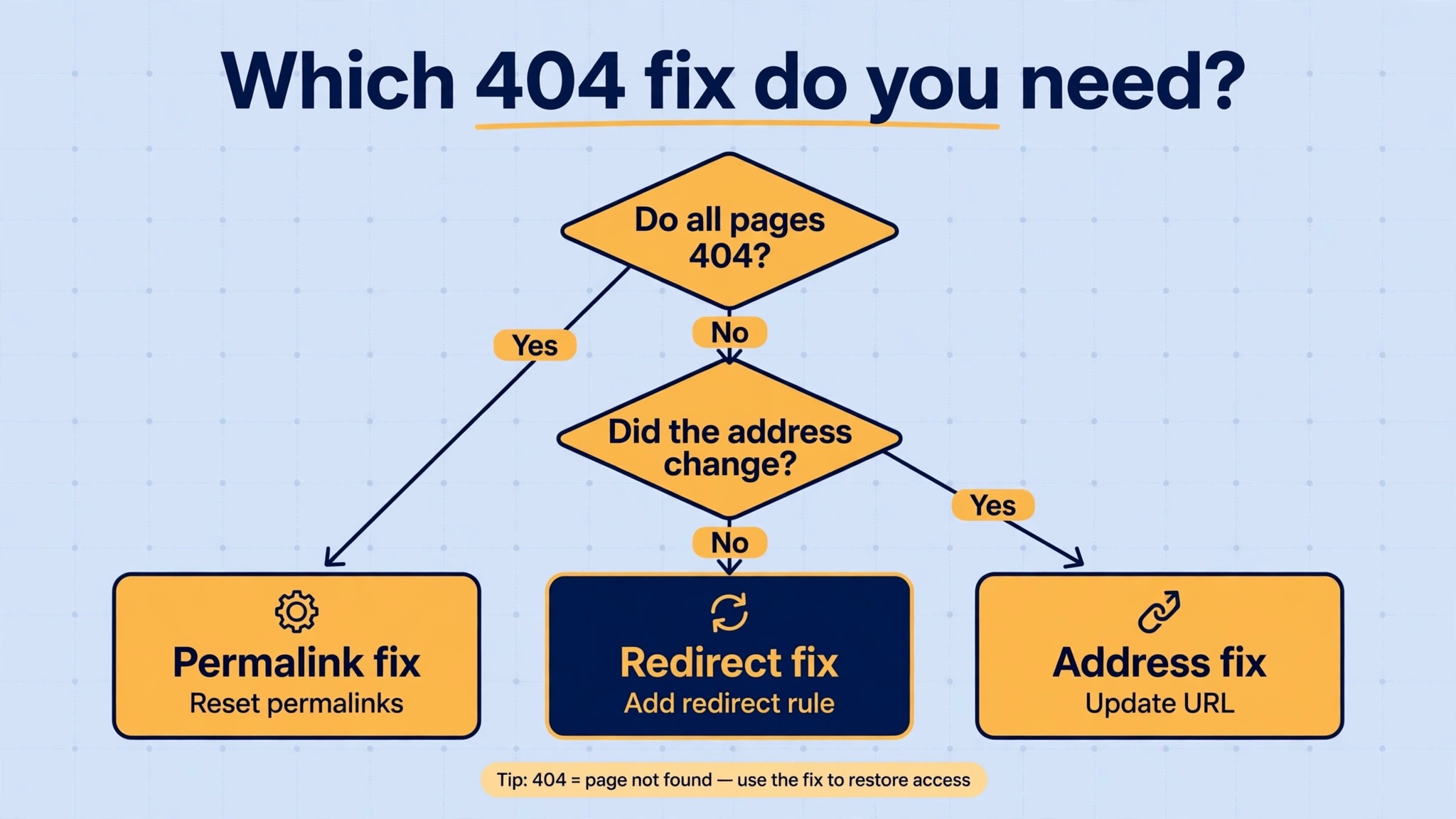
To fix WordPress 404 errors after migration small business owners usually need to repair one of three things, and the order matters. Permalinks first, then the site address and database URLs, then the redirect map for URLs that genuinely changed.
A 404 error after migration is a routing failure, not proof that content is gone. WordPress stores posts in the database, and the database usually survives the move intact. What breaks is the path from a URL to that content. That path runs through the permalink rules, the server rewrite file, the site address settings, and any redirect rules left behind. If any link in that chain still points at the old host, the old folder, or the old domain, WordPress cannot match the request to a post, so it serves a not found page.
Understanding that chain is what separates a ten minute fix from a day of random changes.
This guide works through the chain in the order that solves the most cases first. It gives real settings paths in WordPress admin, the server files to check on Apache and NGINX, and a safe method for updating URLs in the database without breaking serialized data. It also gives a post migration checklist that catches missing media, broken internal links, and redirect gaps before search engines and customers do. Nothing here requires you to rebuild the site. The content is almost certainly still there, and the job is to point the new site at it correctly.
How to Fix WordPress 404 Errors After Migration Small Business in Order
Start by describing the failure precisely, because different patterns point at different causes. If every post and page except the homepage returns 404, the problem is almost certainly permalink rules or server rewrites. If only some pages fail, while others load, the problem is more likely a redirect gap, a missing file, or a URL that changed during the move. If pages load but images and downloads fail, the media library or upload paths are the problem, not permalinks. If the site redirects in a loop, or sends visitors back to the old domain, the site address settings are wrong.
Write down four facts before you change anything. The old domain or folder and the new one. Whether the server runs Apache or NGINX. Whether the homepage loads on the new domain. And a list of five failing URLs, copied exactly, with notes on what each page should be. Those facts guide every later step, and they stop you from fixing a permalink problem when the real problem is a DNS or domain setting. Take a backup before you edit the database or server files, even if the migration tool already made one. A fresh backup before diagnosis means every later change is reversible.
Work through the steps below in order, and test after each one. When a step fixes the failing URLs, stop and run the full checklist at the end, rather than continuing to change settings that are now working. Changing several things at once hides which change fixed the problem, and it can create a second problem that only appears later.
Flush Permalinks First, Because That Fixes Most Cases
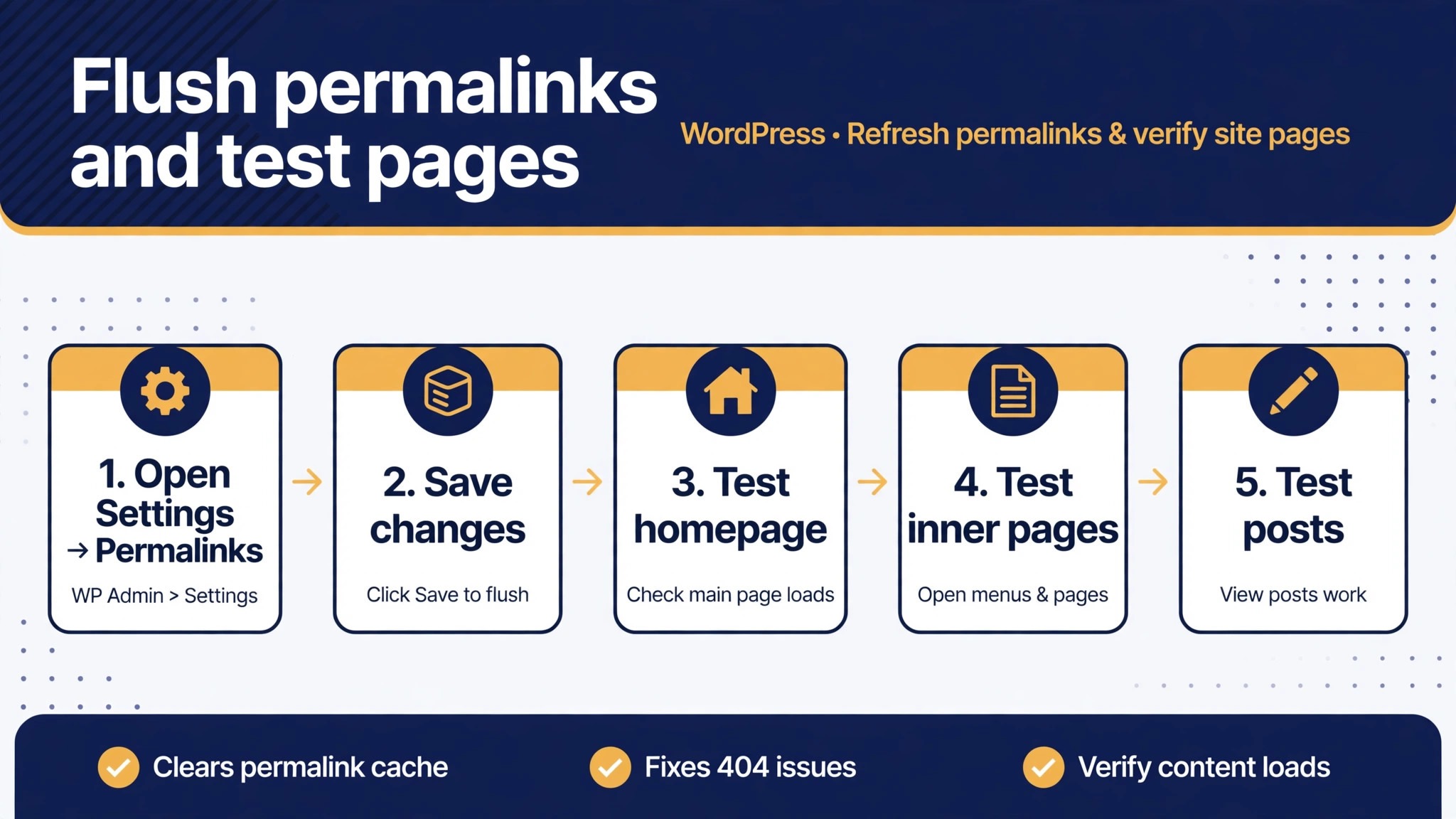
When you fix WordPress 404 errors after migration small business sites, start here. Log in to WordPress admin and go to Settings, then Permalinks. Without changing the structure, scroll down and click Save Changes. That single click forces WordPress to regenerate the rewrite rules stored in the database and to rewrite the rules file on Apache servers. Migration guides commonly describe this step as fixing a large share of post migration 404 errors, and in practice it resolves the classic pattern where the homepage loads but every post fails. It costs nothing, it changes no content, and it should always be the first step.
Check the permalink structure while you are on that screen. It should match the structure the old site used. If the old site used post name URLs and the new site is set to plain URLs, or to a different structure with dates or categories, old links will not match, even after a flush. Set the structure back to the one the old site used, save again, and retest the failing URLs. If you deliberately changed the structure during migration, do not treat that as a permalink fix. That is a URL change, and it needs a redirect map, which is covered later in this guide.
If flushing through admin does not work, or if admin itself is hard to reach, the same flush can be done with WP-CLI, the command line tool many hosts provide. The command to flush rewrite rules regenerates the same rules without loading admin. Check your host documentation for WP-CLI access before assuming it is available, since some shared hosts do not provide it. If WP-CLI is not available, the admin save is the route to use, and a failure there usually points at a server file problem, which is the next step.
Check the Rewrite File on Apache, or the Config on NGINX
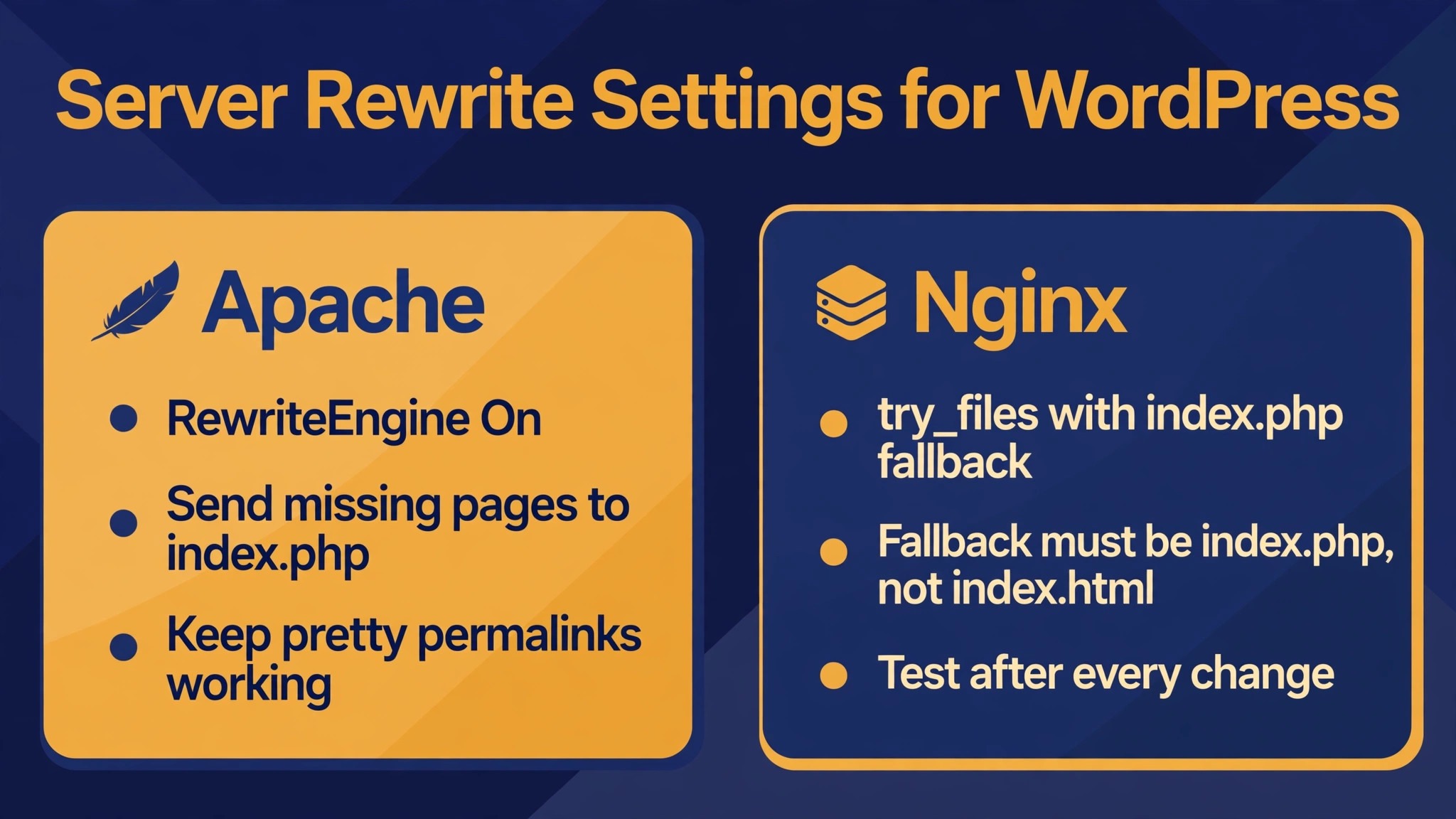
On Apache servers, WordPress relies on a file called .htaccess in the site root to route pretty URLs to the main WordPress file. Migration tools sometimes fail to copy this file, copy an old version with the wrong folder path, or leave a version owned by a user that WordPress cannot rewrite. Open the file through your host file manager or FTP, and check that it contains a WordPress block with rewrite rules. If the file is missing, saving permalinks in admin should recreate it, provided the file and folder permissions allow WordPress to write. If saving does not recreate it, the permissions are the problem, not WordPress.
Typical directory permissions reported by migration guides are 755 for folders and 644 for files, though your host may use different values, so check the host documentation rather than changing permissions blindly. If the file exists but contains rules for the old folder, for example a RewriteBase pointing at a subfolder the site no longer lives in, correct the base path to match the new location, save the file, and flush permalinks again. If the site lives in a subfolder, such as a folder called blog under the main domain, the settings in Settings, then General, must match that subfolder path exactly.
A mismatch there produces 404 errors that no permalink flush will fix.
NGINX servers do not use .htaccess at all, and this is a common trap when moving from an Apache host to an NGINX host. On NGINX, the rewrite rules live in the server configuration block for the site, and they must include a try files directive that sends requests that are not real files or folders to the WordPress index file. If that directive is missing or wrong, pretty URLs fail while the homepage still loads. This is a server level change, so ask your host or server admin to check the NGINX block if you do not manage the server yourself.
Do not create an .htaccess file on NGINX and expect it to help, since NGINX will ignore it.
Also confirm that the Apache rewrite module is enabled on the new host. The module that processes .htaccess rewrite rules can be disabled on some server setups, and when it is disabled, WordPress pretty URLs fail no matter how correct the file looks. Your host support team can confirm this quickly, and it is worth asking before you spend hours editing files that the server is not reading.
Fix the Site Address and Database URLs Safely
When you fix WordPress 404 errors after migration small business sites and permalinks pass, check the site address settings if pages still fail or the site keeps sending visitors to the old domain. Go to Settings, then General, and look at the WordPress Address and Site Address fields. Both should show the new domain, with the correct protocol, meaning the same http or https form the new site uses, and the correct subfolder if any. A site address that still points at the old domain explains redirect loops, mixed links, and 404 errors on pages that were linked with absolute URLs.
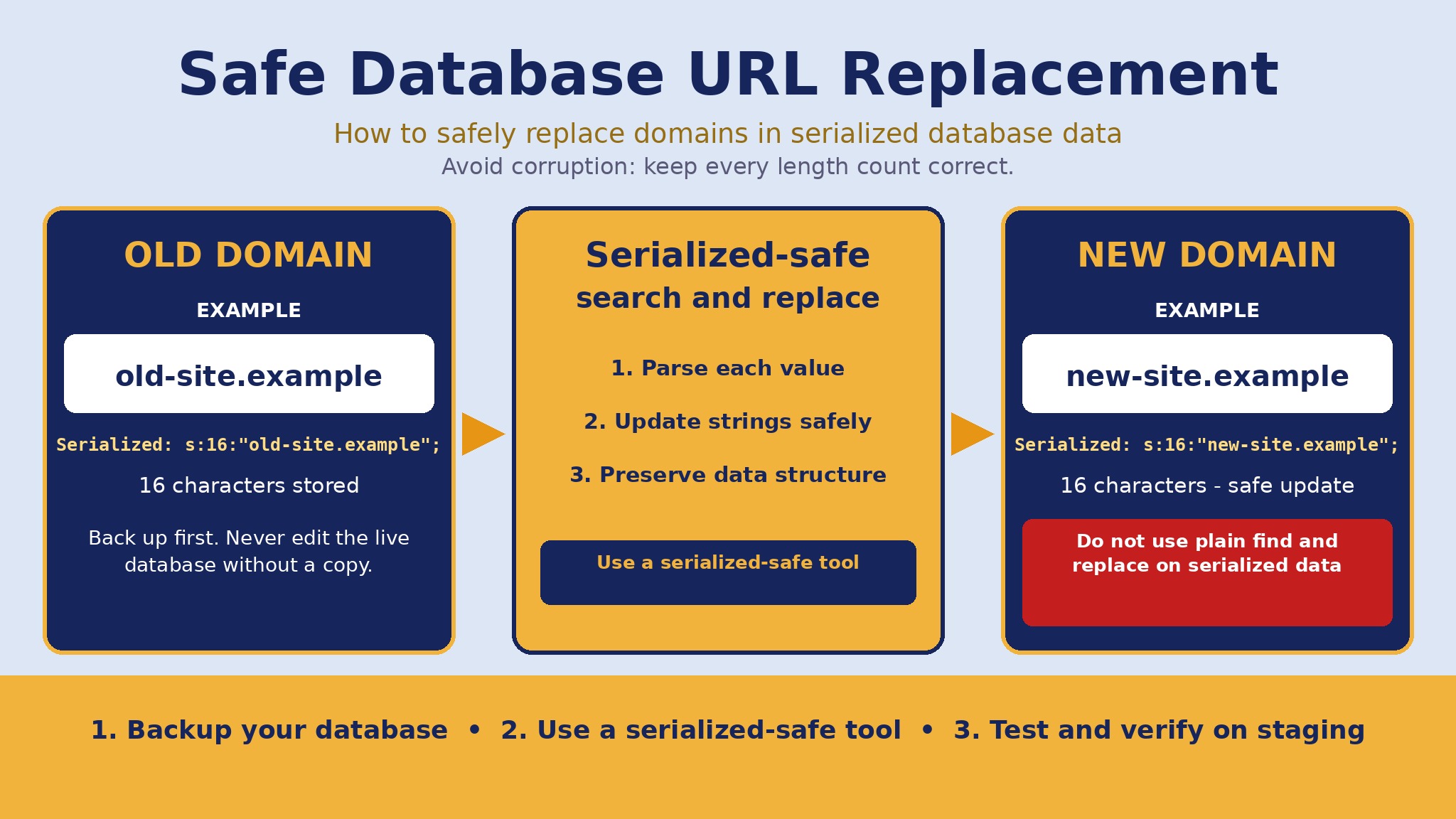
Changing those two fields in admin fixes the addresses WordPress generates for new links, but it does not rewrite old URLs stored inside post content, widgets, menus, and settings. Those old URLs live in the database, and they need a search and replace that understands serialized data. WordPress stores some settings as serialized strings, where the length of each value is recorded alongside it. A plain text find and replace that changes a domain to a longer or shorter one without updating those lengths will corrupt the data and break settings, widgets, or theme options.
Use a tool built for this job, such as a search and replace plugin that handles serialized data, or a migration plugin with a URL replacement step. Run it on a backup copy first if you can, replace the old domain with the new one, and include both the plain domain and any old folder path in the search. After the replacement, check the site address fields again, flush permalinks once more, and test both a post and a page.
If admin is unreachable because the address is wrong, a temporary override in the wp-config file can point WordPress at the new address long enough to log in and fix the settings properly, but treat that override as temporary and remove it once the database is correct.
Build a Redirect Map for URLs That Genuinely Changed
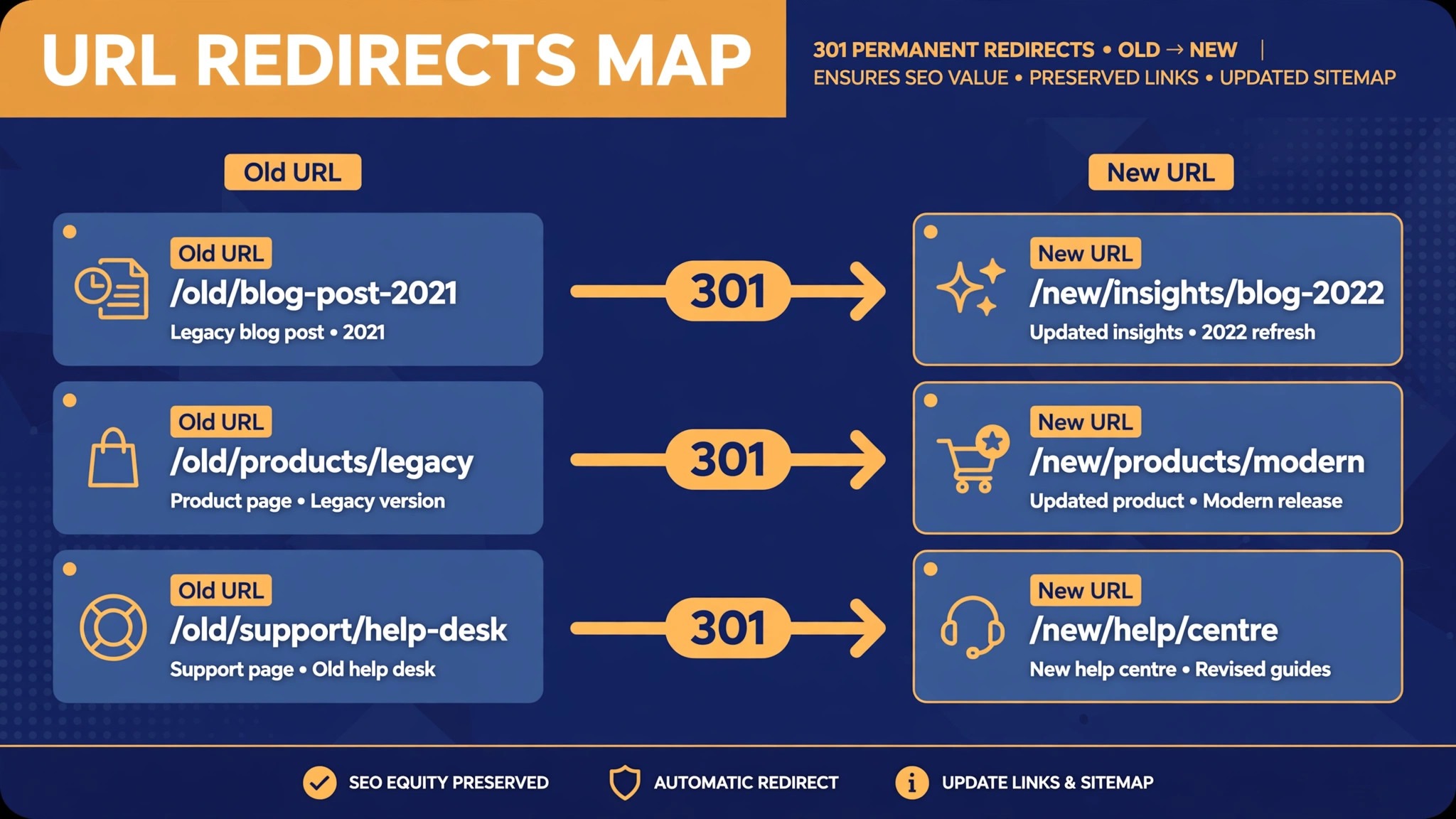
Some 404 errors after migration are not routing failures at all. They are real URL changes, and they need redirects, not permalink fixes. A URL changes when the domain changes without a full URL replacement, when a folder or category base changes, when the permalink structure changes, or when content moves to a new slug. In each case, the old URL will never match a post on the new site, because the post now lives somewhere else. The correct fix is a permanent redirect, known as a 301 redirect, from the old URL to the new one.
To fix WordPress 404 errors after migration small business redirects correctly, build the map from evidence, not from memory. List the failing URLs from your tests, add URLs reported in search console or analytics if you have access, and add the top linked pages from the old site. For each old URL, write the matching new URL, and check that the new URL actually loads. A redirect that points at another 404 page helps nobody. Implement the redirects with a redirection plugin or with server rules, depending on what your host supports, and test each redirect with a fresh browser session, since a cached redirect can hide a mistake.
Prioritise by value, not by alphabetical order. Redirect the homepage variants, the most visited posts, the pages linked from other sites, and any page that ranks in search, before worrying about low traffic archive pages. A small business site rarely needs hundreds of redirects on day one. It needs the twenty or so pages that carry traffic, links, and search visibility redirected correctly, plus a plan to catch the rest from server logs over the following weeks. Keep the redirect list as a document, so a future migration or redesign does not lose it.
Find Missing Media, Uploads, and Broken Internal Links
Pages that load but show broken images, missing downloads, or broken internal links have a different problem from pages that 404 entirely. Media files live in the uploads folder, and migration tools sometimes fail to copy that folder completely, copy it to the wrong path, or leave file permissions that block the web server from reading it. Open the media library in admin and check whether thumbnails show. Then open a failing post and check whether its images point at the new domain and the correct uploads path. If the paths still show the old domain, the database replacement step was incomplete.
Check the uploads folder itself through the file manager. Confirm the year and month subfolders exist, that the files are present, and that the folder is readable by the server. A media library that shows entries but no files usually means the database records moved while the files did not. A library that shows no entries at all usually means the database move itself missed media records, and the migration may need to be reviewed. Do not reupload images one by one into new posts until you know which case you have, since reuploading creates duplicate files and new URLs that break old links further.
Internal links inside post content need the same check. A link that points at the old domain will either redirect, if you set one up, or fail, or send visitors away from the new site. After the database replacement, search a few posts for the old domain text and confirm none remain. Menus and widgets deserve a separate look, since they store links in settings that a content replacement sometimes misses. Fix menus by hand in Appearance, then Menus, and fix widgets in Appearance, then Widgets, or in the block editor, depending on your theme.
Those two places are small, and a manual check there catches links that automated tools miss.
Rule Out Plugin, Theme, and Cache Conflicts
When permalinks, addresses, and redirects are correct but some pages still fail, a plugin or theme conflict becomes the likely cause. A plugin that registers its own URL types, such as a portfolio, events, or shop plugin, can break if its rewrite rules were not regenerated after migration. A theme that registers custom page templates or custom post types can do the same. The test is to flush permalinks again after deactivating plugins, then reactivate them one at a time, flushing after each, and watching for the moment the 404 errors return.
Do this on a staging copy if your host provides one, or during a quiet period, since deactivating plugins briefly changes how the live site behaves. Start with plugins that affect URLs, redirects, caching, or security, since those are the most likely to interfere with routing. Security plugins in particular can block requests that look unusual after a move, and caching plugins can serve old 404 pages long after the underlying problem is fixed. Clear every cache after each fix, including the caching plugin, the host cache, and any content delivery network cache, and test in a private browser window so your own browser cache does not mislead you.
Check DNS, SSL, and Domain Settings Before You Blame WordPress
A migration that looks like a WordPress problem is sometimes a domain problem. DNS changes can take time to spread across the internet, and during that window some visitors reach the new server while others still reach the old one. Guides commonly cite up to 48 hours for full DNS spread, though many visitors see the change much sooner, so treat that figure as an outer bound, not a promise.
If the failing URLs work for you but not for a customer in another region, or work on one network but not another, DNS spread is a strong suspect, and the fix is patience plus a check that the domain points at the correct server address.
SSL causes a related confusion. If the old site used https and the new site serves mixed content, or if the new site has no valid certificate, browsers and search engines may treat pages differently, and links written with https may fail while http versions load, or vice versa. Check that the site address uses the protocol the certificate covers, that the certificate is valid for the exact domain, including any www variant, and that internal links use the same protocol. A certificate problem is a hosting task, not a WordPress settings task, and your host can usually fix or reissue it quickly.
Also check domain variants. A site that moved from a www address to a non www address, or the reverse, needs redirects between those variants, or visitors following old links will land on a version that does not match the site address. Set one canonical variant, redirect the other to it, and make sure the site address matches the canonical one. The same applies to a move from a subfolder to the root, or from the root to a subfolder.
Every variant that existed before needs a deliberate decision, either it is the new home, or it redirects to the new home, or it is intentionally retired with a redirect to a relevant page.
The Post Migration Checklist That Catches What You Missed
Use this checklist after every migration, even when the site looks fine. It is the overview proof element of this guide in practical form, and it catches the problems that only appear on pages you did not test.
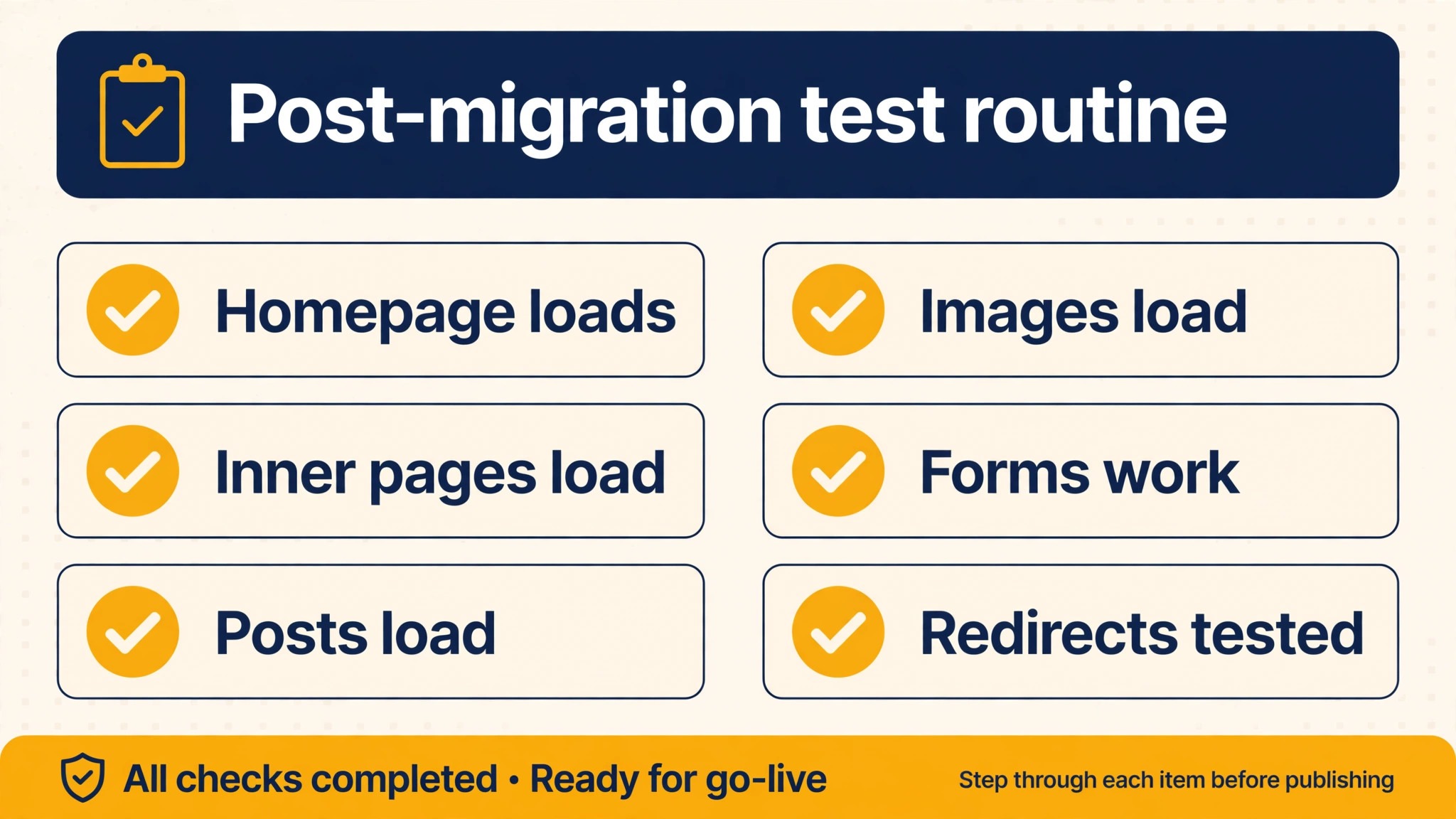
Step 1, test the homepage and five key pages
Load the homepage, the contact page, the most visited post, a category or archive page, and a product or service page. Test each one logged out, in a private window, so caching and login state do not hide failures.
Step 2, flush permalinks and retest
Save permalinks again after any address or file change, and retest the same five pages. A fix that works once but breaks after a later change usually means a later step overwrote the rewrite rules.
Step 3, check site addresses and search for old URLs
Confirm both address fields show the new domain, then search several posts, menus, and widgets for the old domain. Any remaining old URL is a link that will fail or leave the site.
Step 4, check media and downloads
Open the media library, confirm thumbnails show, and open a post with images and a page with a download. Broken media after migration is easy to miss if you only test text pages.
Step 5, test redirects for changed URLs
Test every redirect in your map, including domain variants and folder changes. A redirect that lands on a 404 page is worse than no redirect, because it looks fixed in a list while failing for visitors.
Step 6, clear all caches and test again
Clear the caching plugin, host cache, and content delivery cache, then test in a private window. Cached 404 pages are a common reason a fixed site still looks broken to its owner.
Step 7, check search and analytics for new 404 reports
Over the following week, watch for new 404 reports and add redirects for any high value URL that appears. Migration fixes are rarely finished on day one, and the log is the best source of remaining gaps.
Step 8, record what changed
Write down the old and new domains, the permalink structure, the redirect list, and any server changes. The next migration, redesign, or host move will need that record, and a site without it repeats the same diagnosis from scratch.
Mistakes That Make a Migration Problem Worse
The first mistake is editing the database with a plain text replacement that ignores serialized data. It feels fast, and it often works for simple content, until a widget, theme option, or plugin setting breaks in a way that is hard to trace back to the replacement. Always use a replacement method that handles serialized values, and always work from a backup. The second mistake is changing the permalink structure during migration without a redirect plan. A new structure may look cleaner, but every old link breaks at once, and search visibility drops with it.
If you want a new structure, plan it as a separate project with redirects, not as a side effect of a move.
The third mistake is fixing only the pages you personally visit. A small business site has archive pages, tag pages, author pages, and old posts that the owner rarely opens, and those pages carry search traffic and inbound links. Test a sample from each content type, not just the homepage and contact page. The fourth mistake is leaving the old site live with the same content. Two live copies of a site create duplicate content, confuse search engines, and split traffic.
Once the new site is verified, take the old copy offline or redirect it fully, and do not leave it running as a forgotten backup that search engines keep finding.
The fifth mistake is ignoring the old domain after the move. Domains, email, and subdomains often live on the old host, and cancelling the old hosting account too early can break email or subdomains that were never migrated. List every service tied to the old domain before cancelling anything, including email, subdomains, and third party tools that point at the old address. A migration is finished when the new site works and the old services are accounted for, not when the new homepage loads.
How to Prevent 404 Errors on the Next Migration
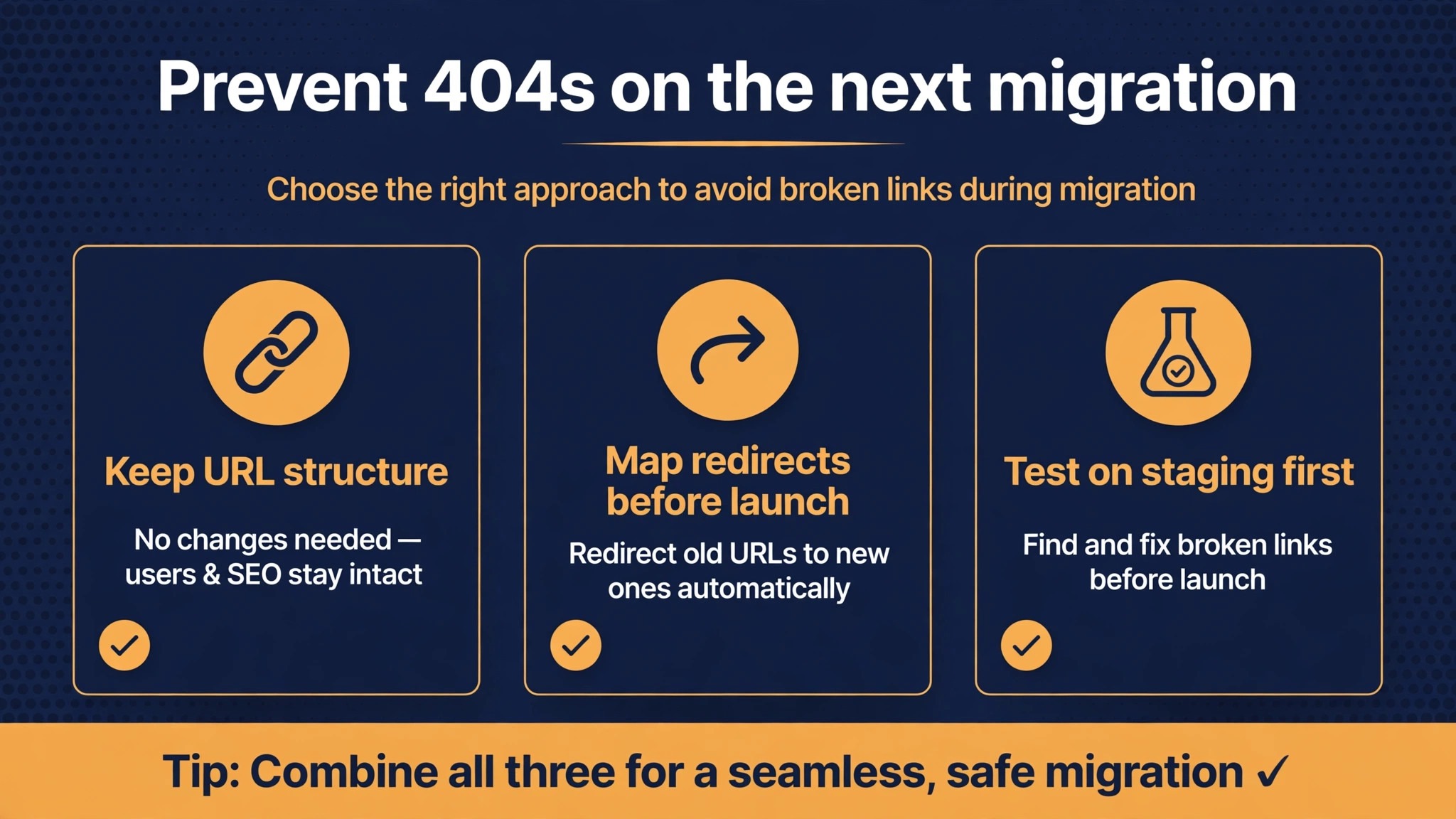
Prevention starts before the move, with a record of the current site. Note the permalink structure, the site addresses, the server type, the active plugins and theme, and a list of the most important URLs. Export that list, so you have a test set ready for the new site. A migration without a test set is guesswork, because the owner has no defined way to say the move worked. With a test set, the first hour after migration becomes a checklist, not a panic.
When you fix WordPress 404 errors after migration small business problems in advance, use a migration tool that handles URLs, serialized data, and media in one pass, and test it on a staging copy before the live move. A staging test reveals permalink, server, and media problems while the live site is still safe. During the live move, keep the old site accessible by a temporary address, so you can compare old and new pages side by side if a URL fails. After the move, run the checklist in this guide, watch the logs for a week, and keep the old hosting active until the new site has been verified and the redirect map is in place.
Choose migration timing deliberately. A move during a busy sales period or a campaign multiplies the cost of any downtime, while a quiet period gives you time to fix 404 errors before customers notice. Tell customers in advance if downtime is possible, and keep a simple holding message ready in case the move takes longer than planned. A short, honest notice beats a broken site that looks abandoned.
For related reading, see WordPress plugin conflict fixes, Google Ads disapproved ads, Meta Business Suite not loading and setting up a client feedback loop. Those posts cover adjacent plugin, advertising, and feedback problems, and the same lesson applies when you fix WordPress 404 errors after migration small business sites. Diagnose the routing chain in order, test real URLs, and record what changed.
Frequently Asked Questions
Why do all my posts show 404 after migration but the homepage works?
That pattern points at permalink rules or server rewrites. Save permalinks in Settings, then Permalinks, check the rewrite file on Apache or the server block on NGINX, and clear caches. If the structure changed during the move, restore the old structure or build redirects for the changed URLs.
Should I edit the database directly to change the old domain?
Only with a tool that handles serialized data. A plain text replacement can corrupt settings where WordPress stores values with their lengths recorded. Use a search and replace plugin or migration tool built for this job, work from a backup, and flush permalinks after the replacement.
What if my site moved from Apache to NGINX?
NGINX does not read .htaccess files, so the rewrite rules must live in the NGINX server configuration. Ask your host to check the try files directive for the site, so requests that are not real files or folders are sent to the WordPress index file. Creating an .htaccess file on NGINX will not fix the problem.
How long does DNS take after a migration?
Guides commonly cite up to 48 hours for full spread, though many visitors see the change much sooner. If the site works for you but not for visitors in another region, wait and check that the domain points at the correct server address, rather than changing WordPress settings that are already correct.
Do I need redirects if only the domain changed?
If every URL was replaced correctly in the database, and the old domain redirects to the new one, individual page redirects may be unnecessary. If any URL path changed, or if old links still point at the old domain without a domain redirect, you need a redirect map for the affected pages, prioritised by traffic and links.
Why do my images break even though pages load?
That usually means the uploads folder did not move completely, or the image paths still point at the old domain. Check the media library, check the uploads folder through the file manager, and confirm the database replacement covered media paths. Do not reupload images until you know whether the files or the records are missing.
A Clear Verdict on Migration 404 Errors
A migration 404 problem feels alarming, but it is usually a routing problem with a known fix, not a lost site. Flush permalinks first, check the server rewrite setup second, fix site addresses and database URLs safely third, and build redirects for anything that genuinely changed. Test with real URLs, clear caches before you declare a fix failed, and record every change for the next move. Small business owners who follow that order spend far less time on migration problems, and they keep the search traffic and customer trust that a careless move can quietly lose.
When you fix WordPress 404 errors after migration small business sites this way, the site does not just come back. It comes back with a redirect map, a test set, and a record that makes the next migration easier than the last.