

Your WooCommerce store breaks again on a plugin update, checkout slows down during a sale, and you spend a Sunday fixing something that has nothing to do with selling. That is the problem that drives most small stores to Shopify, and it is a fair reason to move. You did not open a store to maintain a website. You opened it to sell products, and a hosted platform takes the maintenance work off your plate. When you switch WooCommerce to Shopify small store catalogs, the prize is a store that stays up, checks out fast, and needs far less technical care.
The problem is not that WooCommerce is bad. It is that WooCommerce hands you the full job, including hosting, security updates, plugin compatibility, backups, and performance tuning. A store owner with technical help or a genuine interest in that work can run WooCommerce well for years. A store owner who sells alone, or with one or two staff, usually finds the maintenance eats the hours that should go to products, marketing, and customers. Shopify charges a subscription precisely because it takes that job back.
The move itself is where stores get hurt, not the decision to move. Products import with missing variants. Customers arrive but cannot sign in. Old product links break and search traffic drops. Subscription customers get billed twice or not at all. Every one of those failures is preventable with a plan that puts products first, customers second, orders third, and redirects before launch. This guide gives you that plan, plus a day by day cutover week, so the new store opens cleanly and the old one keeps selling until the switch moment.
Prices, plan limits, and app fees change often, so where a figure matters, check it on the vendor page before you budget. The steps below reflect how Shopify’s own migration guidance describes the move, including which data moves by CSV, which data needs a migration app, and which data cannot move at all.
The Real Problem With Staying on WooCommerce
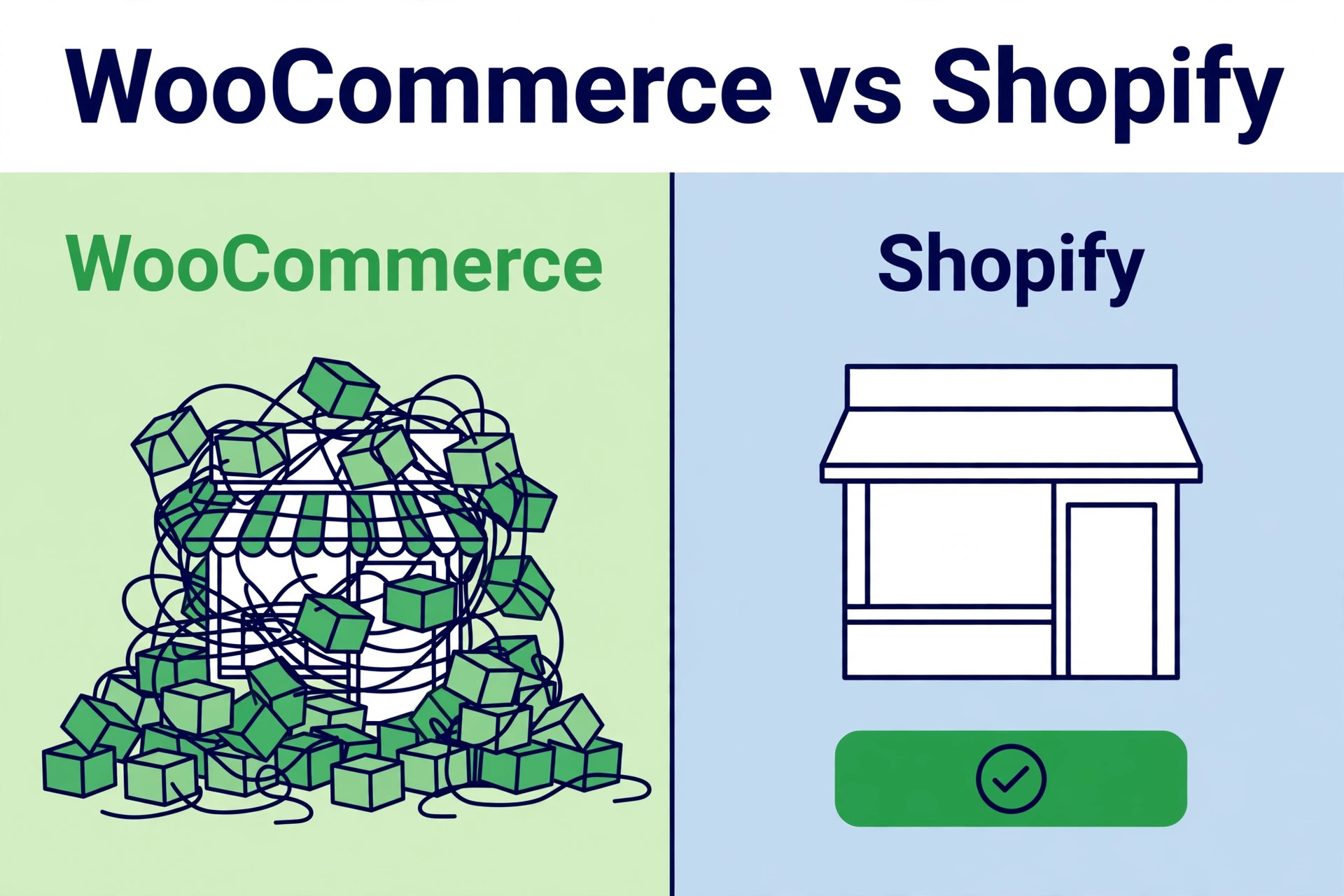
WooCommerce costs look low until you add the whole stack. Hosting, a security plugin, a backup plugin, a performance plugin, a checkout plugin, and a theme can each carry a yearly fee, and each one needs updates that occasionally conflict. A single plugin conflict can break checkout, and the store owner discovers it from an angry customer rather than from a warning. That risk grows with every plugin added, and small stores often run fifteen or more without realizing it.
Time is the hidden cost. Updates, backups, spam order filtering, and speed fixes recur every month, and they fall on the owner when there is no developer on staff. A store doing twenty orders a week can absorb that work. A store doing two hundred orders a week during a busy season cannot, because every maintenance hour is an hour not spent on fulfilment or customer service. Shopify’s hosted model removes most of that recurring work, which is why busy small stores switch even when they like WooCommerce’s flexibility.
WooCommerce still wins for stores that need deep customization. Custom pricing rules, unusual product types, bespoke checkout flows, and tight WordPress content integration are all easier in WooCommerce. If your store depends on a custom feature that no Shopify app reproduces, stay on WooCommerce or budget for custom development. The switch makes sense when the store is a standard catalog with standard checkout, shipping, and discount needs, which describes most small stores.
| Area | WooCommerce reality | Shopify reality |
|---|---|---|
| Hosting and updates | Owner managed, plugin dependent | Hosted, platform managed |
| Checkout | Flexible, but plugin sensitive | Standard, fast, less to break |
| Custom features | Deep customization possible | Apps cover most needs, custom work costs more |
| Content and blogging | Full WordPress power | Good, but simpler than WordPress |
| Ongoing maintenance | Monthly owner hours | Mostly subscription covered |
| Best fit | Custom or content heavy stores | Standard catalog stores that want less upkeep |
Switch WooCommerce to Shopify Small Store Moves Without Breaking Search Rankings
A switch WooCommerce to Shopify small store plan protects three things in order, which are the catalog, the customers, and the search traffic. The catalog matters because products are the store. The customers matter because repeat buyers are the cheapest sales. The search traffic matters because old product links carry Google rankings that took months or years to earn. A migration that moves products but breaks links has traded a maintenance problem for a traffic problem.
Start with a full audit before any export. Count products, variants, categories, customers, orders, blog posts, and pages, and write the counts down. Those counts become your verification sheet after import, because a migration you cannot count is a migration you cannot trust. List every WooCommerce plugin and what it does, since each plugin maps to a Shopify feature, a Shopify app, or custom work. Flag the plugins with no clear equivalent early, because those are the decisions that delay launches.
Next, crawl or list every live URL on the old store and note the top pages in Search Console. Product and category pages carry the most search value, so they get redirect priority. Keep product and collection handles identical to the old slugs where possible, so only the URL prefix changes. That single habit cuts redirect work sharply, because the old and new addresses then differ in a predictable way.
Then decide the import route per data type, not one route for everything. Products and customers move well by CSV or through Shopify’s Store Migration app. Historical orders need a migration app, because Shopify’s own import does not cover orders. Blog posts, pages, coupons, and reviews each need their own plan, and customer passwords cannot move at all. Writing these decisions down before build week prevents the mid migration discovery that a data type has no route.
Audit Before You Export Anything
The audit has four parts, and each one takes under an hour for a small store. First, the catalog audit. Count simple, variable, grouped, and digital products separately, and flag products with more than three variation options, since Shopify products support up to three options and products beyond that need a workaround such as metafields or an app. Flag products with missing images, missing SKUs, or duplicate SKUs, because SKUs link products to orders during import and duplicates cause failures.
Second, the customer audit. Count customers, check for duplicate accounts under different emails, and note how many have active subscriptions. Subscriptions need special handling, because an active WooCommerce subscription usually needs a dedicated subscription app on Shopify and a planned cutover so nobody is billed twice or missed entirely. Contact your subscription app provider early if subscriptions matter to your revenue.
Third, the content audit. List pages, blog posts, and landing pages, and mark which ones earn search traffic or carry important information such as shipping and returns policies. Blog posts and pages are not included in WooCommerce product or customer exports, so they need a migration app or manual recreation. Prioritize the pages that rank or convert, and accept that low traffic posts can be recreated later.
Fourth, the plugin audit. For each plugin, write one line stating what it does and what replaces it on Shopify. Payment gateways, shipping calculators, email marketing, reviews, and discount tools usually map to Shopify features or apps. Custom pricing rules and bespoke integrations may not, and those need a decision before launch, not during it. A plugin with no replacement is a launch blocker until you solve it.
Moving Products, Variants, and Images
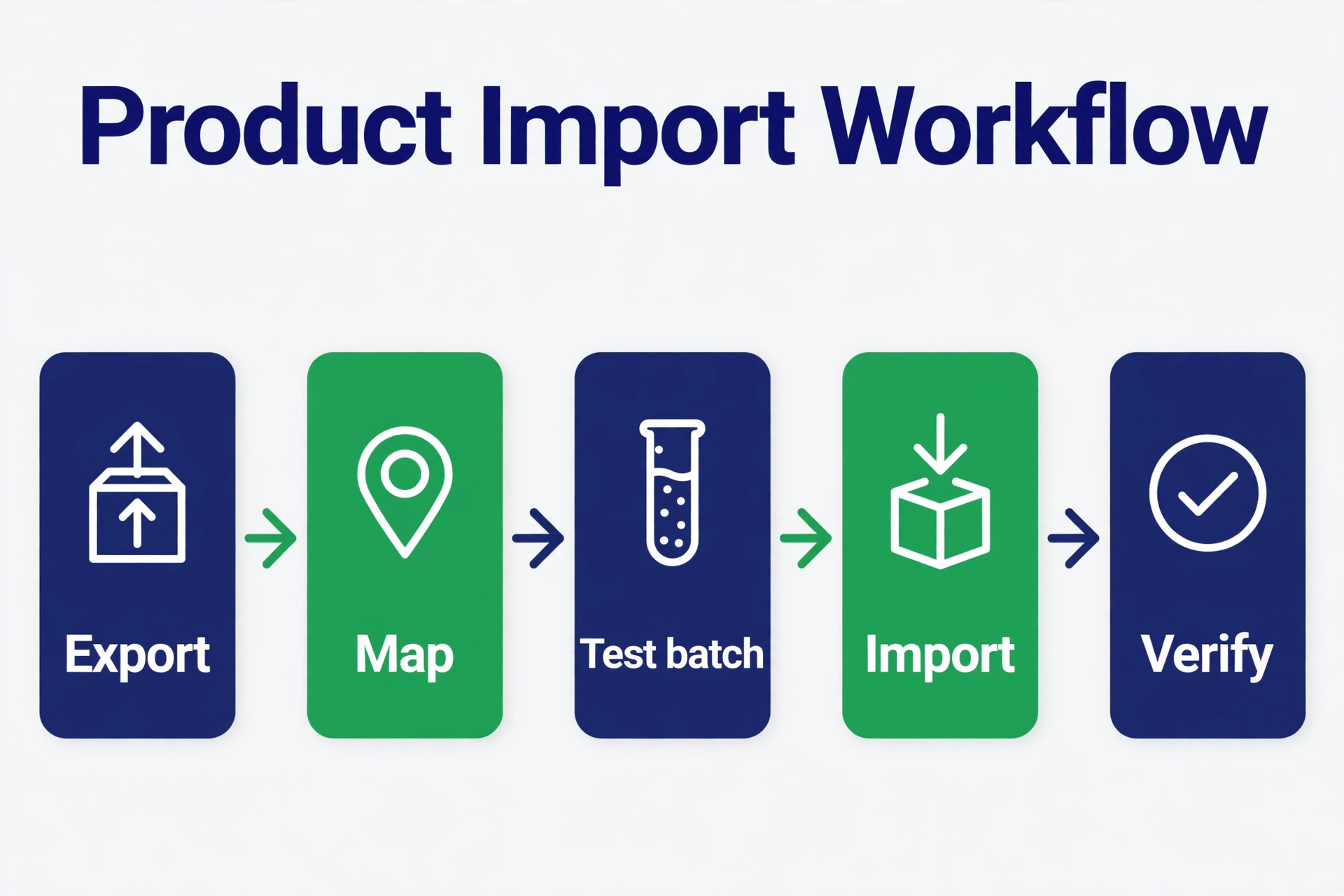
Products move first, because customers and orders link to them after import. Shopify’s product CSV template has its own column names, so a WooCommerce export rarely imports as it stands. Expect a mapping pass in a spreadsheet, renaming columns to match Shopify’s template and checking variant rows carefully. A product missing a variant option fails to import, so variant completeness matters more than speed.
- Export products from WooCommerce and save the file with the export date, keeping the original untouched as your record.
- Open the export in a spreadsheet and check that every product has a name, a handle, a price, and at least one image link.
- Rename columns to Shopify’s product template and split any product with more than three variation options into a workaround plan before import.
- Keep the old site live during import, because image links must be public web addresses that Shopify can fetch, and a closed old site breaks image fetching.
- Import a small test batch of ten products first and check names, prices, variants, image order, and collection assignments before importing the rest.
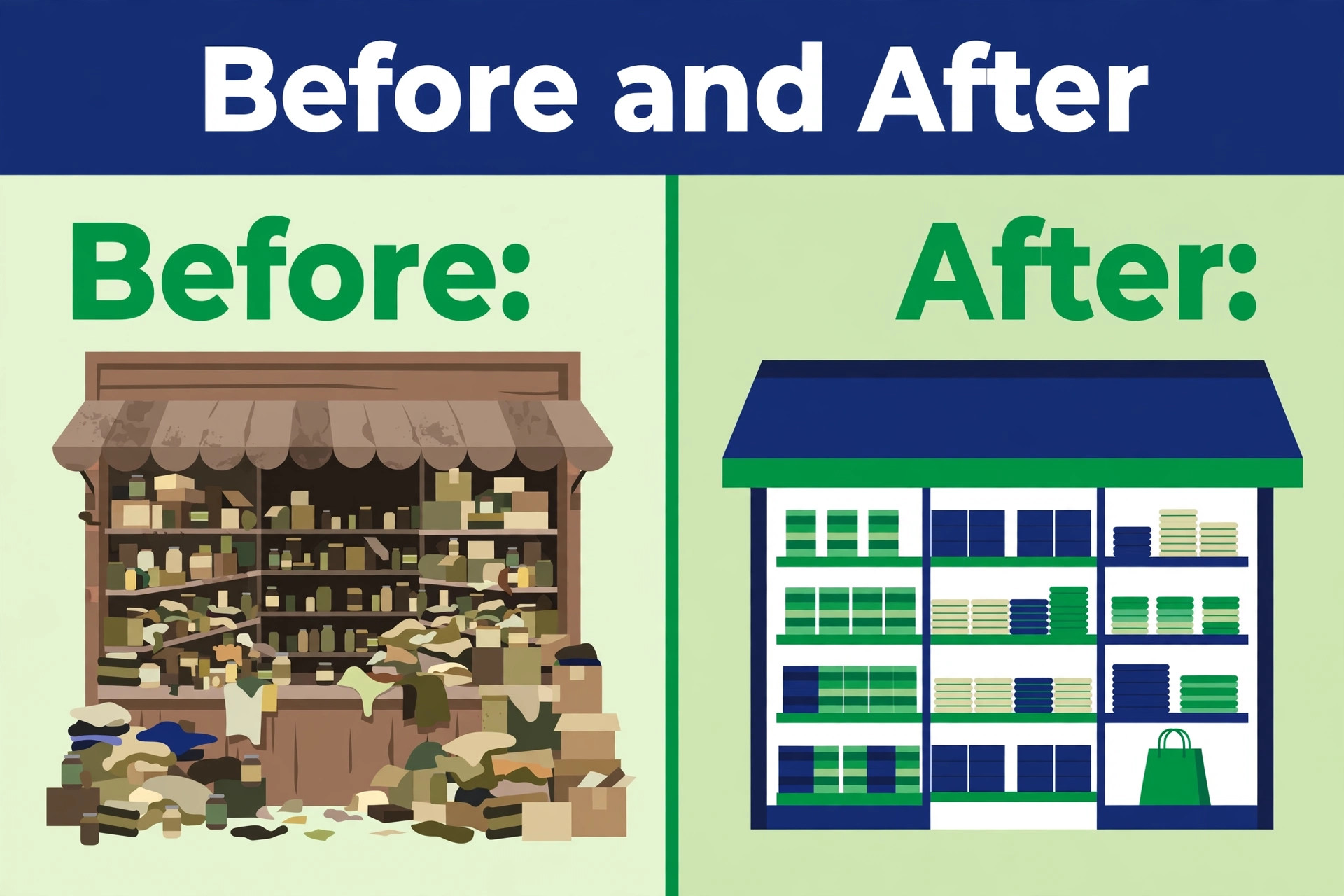
- Compare the imported product and variant counts against your audit counts, and fix gaps before moving on to customers.
Images deserve a dedicated check. Import a test batch, open five products with multiple images, and confirm the image order matches the old store, since a shuffled gallery confuses buyers. Confirm that variant images attach to the right variants, because a color variant showing the wrong photo causes returns. If image links fail, check that the old site is still live and the links are public, since private or blocked image addresses are a common cause.
Categories become Shopify collections, with parent categories mapping most cleanly and child categories often becoming tags. Decide the collection structure before import, because rebuilding collections after products are live is messier than building them first. Keep collection names close to the old category names, so returning customers and search engines recognize the new structure at once.
Moving Customers, Orders, and Discounts
Customers move second, after products, so their order history can link correctly. Shopify’s Store Migration app imports WooCommerce products and customers from CSV files exported from WooCommerce, and plain CSV import works for customers too, with columns renamed to match Shopify’s customer template. Either route carries names, emails, and addresses, but neither carries passwords, because customer passwords cannot be transferred between platforms.
That password limit shapes your launch message. Imported customers sign in with their email address and a one time verification code on Shopify, or they activate their account from an emailed invite, depending on the setup you choose. Write that message before launch, send it on launch day, and expect support questions from customers who try their old password first. A clear launch email prevents most of those questions, while silence guarantees them.
Historical orders move third and need a migration app, because Shopify’s own import does not cover orders. Apps named in Shopify’s own guidance for WooCommerce orders include Matrixify, LitExtension, and Ablestar, among others. Turn off staff order notifications before importing orders, because Shopify sends a new order email to staff for every imported order unless you switch those notifications off, and a thousand imported orders means a thousand emails. Turn notifications back on after the import finishes.
Discounts and coupons cannot be imported by CSV, so recreate them as Shopify discounts or use a migration app that handles them. List every live coupon, its code, its value, and its expiry, and rebuild the list before launch, because a missing launch coupon is discovered by customers at checkout. Reviews are also excluded from the product export, so export reviews from your WooCommerce review plugin and import them into a Shopify review app before launch, or accept that reviews restart on the new store.
A switch WooCommerce to Shopify small store customer move also needs a duplicate check. Import into a test store or a draft state first where possible, scan for duplicate customer records, and merge or delete them before the live import. Duplicate customers cause duplicate marketing emails and confused support threads, and both are easy to prevent with one careful pass.
Rebuilding Theme, Pages, and Content
Build the Shopify store while WooCommerce keeps selling. That single rule removes most launch pressure, because the new store can be built, tested, and fixed without any downtime on the old one. Choose a theme that fits a standard catalog, set up navigation, collections, and product templates, and keep the design close enough to the old store that returning customers recognize it, without copying a layout that no longer fits.
Pages and blog posts need manual attention. WordPress blog posts and pages are not included in WooCommerce exports, so use a migration app or recreate the important pages by hand. Prioritize shipping, returns, contact, and about pages, plus the blog posts that earn search traffic. Copy the text, rebuild the formatting in Shopify’s editor, and check that internal links point to the new addresses rather than the old ones.
SEO fields deserve a pass of their own. Product titles, descriptions, and meta descriptions should carry over through the product import, but check a sample of ten products against the old store to confirm. If meta fields are missing, fix the mapping before the full import, because fixing SEO fields product by product after launch is slow work that rarely gets finished.
Checkout and store settings need setup before any test order. Configure taxes, shipping zones and rates, payment providers, and store policies, and confirm currency and language match the old store, since a store that charges the wrong tax at checkout has still failed launch.
Redirects, the Step That Protects Your Google Traffic
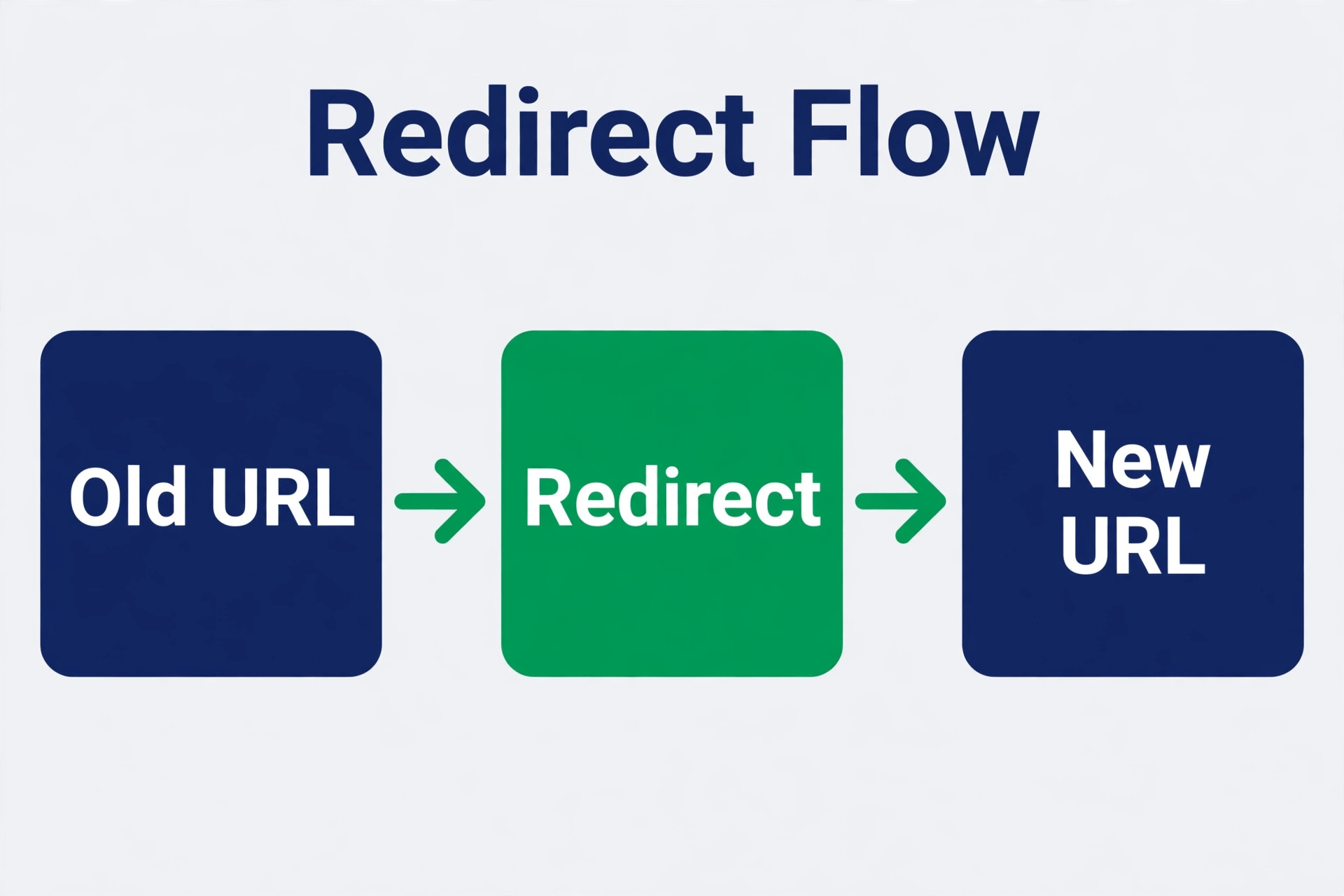
Shopify uses fixed URL patterns, so almost every WooCommerce URL changes. A WooCommerce product address becomes a Shopify product address with a different prefix, and category addresses change the same way. Each old URL needs a 301 redirect to its new address, set up before launch, not after. A redirect set up a week after launch is a week of lost rankings and broken links from other sites.
Bulk import the redirects as a CSV in Shopify under URL redirects, then test the top fifty URLs by hand. Click each old address and confirm it lands on the right new page, not on the home page. A redirect to the home page preserves little search value and frustrates visitors, so a redirect that points nowhere useful is barely better than no redirect at all. Fix the top pages first, because they carry the most traffic, then work down the list.
Keep the redirect file as a permanent record and watch Search Console for crawl errors weekly for the first month, adding redirects for any old address that still draws traffic.
A switch WooCommerce to Shopify small store redirect plan also covers marketing links. Update email templates, social media bios, marketplace profiles, and ad landing pages to the new addresses during launch week. Redirects catch the old links, but updating the source links removes the redirect hop and keeps the visitor journey fast.
Swapping Plugins for Shopify Apps
Every WooCommerce plugin needs a Shopify home, and the swap is a good moment to cut apps the store no longer needs. Payment providers map first, since checkout cannot launch without them. Connect the payment provider, run a test transaction, and confirm payouts and refund flows before launch day. A payment setup tested only on launch day is a risk no small store should take.
Shipping comes next. Rebuild shipping zones, rates, and any free shipping thresholds exactly, then test checkout with addresses from each zone. Email marketing follows, with lists imported and welcome flows rebuilt in the new email tool. Reviews, discount tools, and subscription apps each get their own setup and test, because each one touches the customer at a moment that matters.
Subscriptions need the most careful swap. Active WooCommerce subscriptions usually need a dedicated subscription app on Shopify and a planned cutover so nobody is billed twice or missed. Work with the subscription app provider on the migration timing, tell subscribers what will change and when, and monitor the first billing cycle closely. A subscription cutover done casually is the fastest way to lose loyal customers.
Cut ruthlessly during the swap. A plugin installed two years ago and never configured should not become a paid Shopify app by default, since each app adds monthly cost and another integration to maintain.
Test Orders Before You Point the Domain
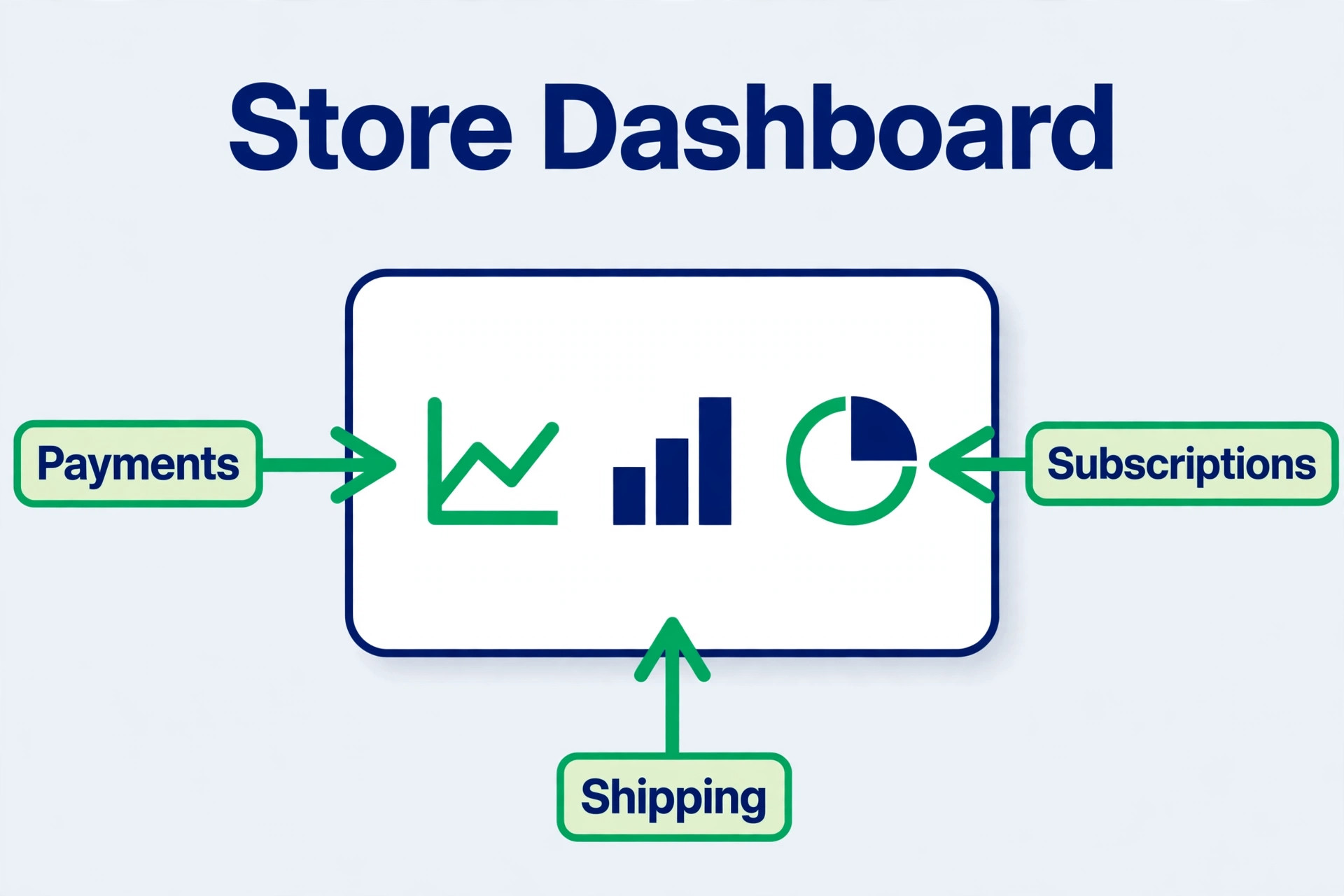
Testing is the pilot phase of a switch WooCommerce to Shopify small store migration, and it must happen before the domain moves. Place test orders for each product type, including a simple product, a variable product with options, a discounted product, and a digital product if the store sells any. Test each shipping zone, each payment method, and the refund flow, because each path can fail independently.
Check the customer journey end to end. Create an account with the new sign in method, place an order, check the confirmation email, and confirm the order appears in the customer account with its history. Ask one real customer or friend to run the same journey and report anything confusing, because the builder of a store stops seeing its rough edges. Fix every issue they find before launch, even if it delays launch by a day, because a day of delay costs less than a week of confused buyers.
Test on mobile first, since most small store traffic arrives on phones. Open the new store on a real phone, not just a resized desktop browser, and complete a full purchase. Check that images load fast, buttons are easy to tap, and the checkout form fits the screen. A store that looks fine on desktop but frustrates on mobile will lose the majority of its visitors without ever knowing why.
A switch WooCommerce to Shopify small store test phase should also include a search check. Search the new store for the top ten products by name and confirm each one appears with the right price and image. Confirm that collection pages list the right products and that no test products remain visible.
Go Live Checklist
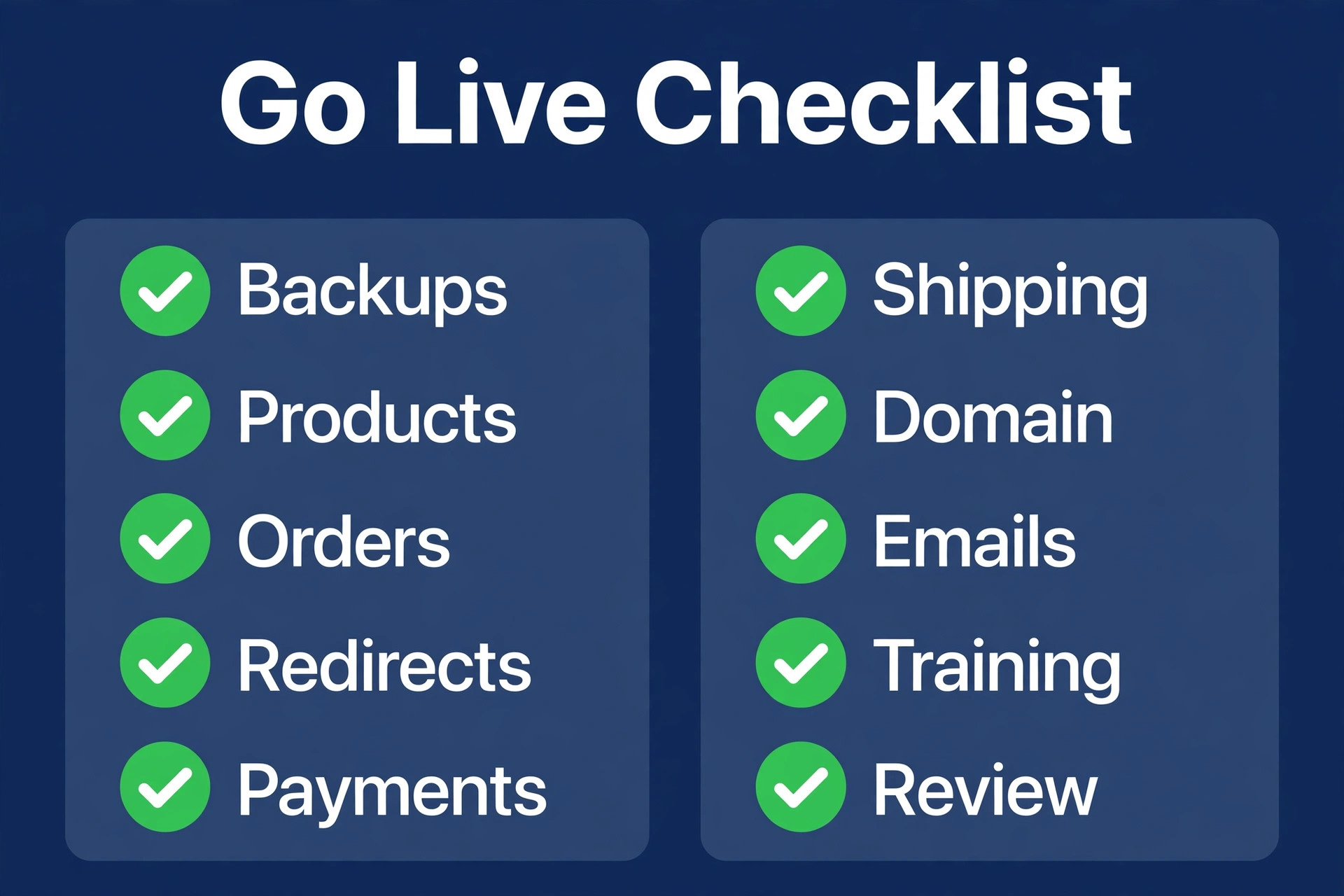
Work through this checklist in order on launch day. Do not point the domain until every item is checked, because the domain switch is the moment visitors start arriving at the new store.
- Product and variant counts match the audit counts, with image order and variant images verified on a sample of products.
- Customer import verified, with duplicate accounts resolved and the launch email about new sign in ready to send.
- Historical orders imported through a migration app, with staff order notifications switched off during import and back on after.
- Discounts recreated and tested at checkout, with live coupon codes checked against the old store’s list.
- Pages, blog posts, and store policies rebuilt, with internal links pointing to new addresses.
- Redirects bulk imported and the top fifty old URLs tested by hand to confirm they land on the right new pages.
- Payment providers, taxes, shipping zones, and rates configured and tested with real test orders on mobile and desktop.
- Subscription cutover planned with the subscription app provider, with subscribers told what will change and when.
- Email marketing lists imported and welcome flows tested, with the old store’s email captures pointed at the new lists.
- A rollback note written down, stating how the domain returns to WooCommerce if a serious problem appears in the first days.
The rollback note matters because it removes the fear that a bad launch is permanent. Pointing a domain back is straightforward if the old store is still live and untouched, which is why the old store must stay live until the new store proves itself. Most stores never use the rollback, but knowing it exists keeps launch day calm.
Your First Week Cutover Plan
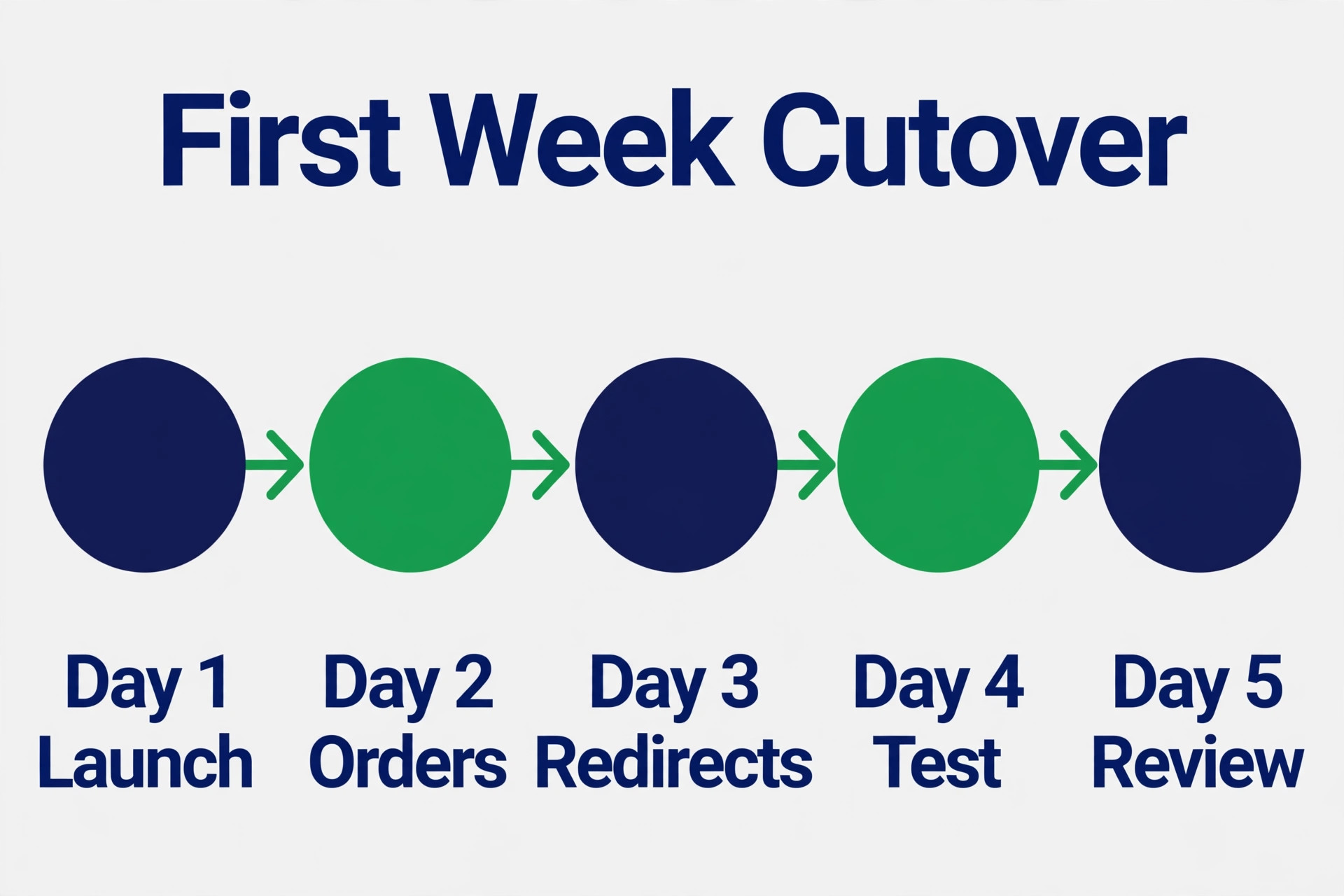
Launch day itself is a domain task, not a build task. Point the domain at Shopify, confirm the store loads, place a live test order within the first hour, and send the customer launch email about the new sign in method. Keep the old WooCommerce store live but closed to new orders, so its data remains available if anything needs checking.
Day two is monitoring day. Check Search Console for crawl errors, analytics for traffic levels, and the order flow for failed checkouts, fixing redirect gaps the same day they appear. Answer customer sign in questions promptly, since early help turns a confused buyer into a loyal one.
Day three is the first real trading test. Run the normal order fulfilment from Shopify only, with no WooCommerce open for new orders. Confirm that fulfilment, shipping labels, and customer messages all flow from the new store. If a step still depends on the old store, note it and fix it on day four, because a hidden dependency will break at the worst moment.
Day four is fix day. Rebuild the missing discount, shipping rate, or email flow that trading exposed, and retest it before the day ends. Review the app stack and cancel any app installed for testing that the store does not need. Small fixes on day four prevent the slow accumulation of workarounds that made the old store hard to maintain.
Day five is review day. Compare Shopify product, customer, and order counts against the audit sheet one final time. Confirm that the top fifty redirects still work and that search traffic is holding. Archive the WooCommerce store data with a full backup, including the database and uploads, and store that backup somewhere safe. A switch WooCommerce to Shopify small store cutover only ends when the old store’s data is backed up and the new store has traded cleanly for a full week, so keep the old hosting live for at least one more week before cancelling anything.
Costs and the Mistakes That Cost the Most
Shopify’s subscription is the visible cost, but the full cost includes apps, payment processing, and the migration itself. List every app the new store needs, price each one, and add payment processing on expected monthly sales, since those lines often exceed the subscription. Confirm current prices on the vendor pages before presenting a budget.
Time costs follow the store’s size. A store with under one hundred products and a standard theme usually needs one to two weeks, while a larger store with reviews, order history, and custom integrations usually needs two to four weeks. The old store stays live throughout, so the only switch moment is the domain change on launch day.
The costliest mistakes are familiar. The first is skipping redirects, which trades a maintenance problem for a traffic problem. The second is forgetting that passwords cannot move, which floods support on launch day. The third is importing orders with staff notifications on, which buries the team in emails. The fourth is cancelling WooCommerce hosting before the backup is verified, which turns a recoverable error into lost history. Avoid all four and the move stays boring, which is what a good migration should be.
Teams weighing the reverse direction sometimes compare the choice to switch from Shopify to WooCommerce, and stores coming from other platforms often study the move to switch from WordPress to Shopify or to switch from Wix to Shopify. The same audit, redirect, and test discipline decides all of them, which is why this guide spends more time on preparation than on the import button itself.
Frequently Asked Questions
Can customers keep their WooCommerce passwords on Shopify?
No, customer passwords cannot be transferred between platforms. Imported customers sign in with their email address and a one time verification code, or they activate their account from an emailed invite, depending on your setup. Send a clear launch email explaining the new sign in method, and expect some support questions from customers who try their old password first.
Can order history move from WooCommerce to Shopify?
Yes, through a migration app, because Shopify’s own import does not cover orders. Apps named in Shopify’s guidance for WooCommerce orders include Matrixify, LitExtension, and Ablestar. Turn off staff order notifications before importing, since Shopify sends a staff email for every imported order, and turn notifications back on after the import finishes.
Will I lose Google rankings when I switch platforms?
In a switch WooCommerce to Shopify small store move, you will lose rankings if redirects are missing, and you will largely keep them if redirects are complete. Set up a 301 redirect from every old product and category URL to its new address before launch, keep handles identical to old slugs where possible, and test the top fifty URLs by hand. Watch Search Console weekly for the first month and add redirects for any old address that still draws traffic.
How long does a small store migration take?
A store with under one hundred products and a standard theme usually needs one to two weeks. A larger store with reviews, order history, subscriptions, and custom integrations usually needs two to four weeks. The old store stays live during the build, so the only switch moment is the domain change on launch day, and testing should never be skipped to save a day.
What happens to WooCommerce coupons and reviews?
Coupons cannot be imported by CSV, so recreate them as Shopify discounts or use a migration app that handles them. Reviews are not included in the product export, so export reviews from your WooCommerce review plugin and import them into a Shopify review app before launch. List every live coupon before launch, because a missing coupon is discovered by customers at checkout.
Should I cancel WooCommerce hosting right after launch?
No, keep the old store live for at least a week after launch, and verify a full backup of the database and uploads before cancelling anything. The old store holds your image files during import, your redirect source data, and your safety net if the new store has a serious problem. Cancel hosting only after a full week of clean trading on Shopify and a verified backup in hand.
Final Word
Shopify is the right move when your store’s biggest problem is maintenance, not missing features. It is the wrong move when a custom WooCommerce feature drives your sales and no Shopify app replaces it. Audit first, move products before customers and orders before launch, set redirects before the domain moves, and test on a real phone before anyone else sees the store. That sequence is unglamorous, and it is exactly why it works.
If the maintenance burden is already eating your selling hours, start the audit this week. Count the catalog, list the plugins, and map each one to its Shopify home. The stores that switch cleanly are rarely the ones with the cleverest setup. They are the ones that counted everything, redirected everything, and tested everything before launch day. For checkout confidence after the move, keep the guides to fix Shopify checkout not working and fix WooCommerce checkout not working handy during cutover week, since a calm first week depends on fixing checkout problems fast when they appear.