
Checkout has stopped working and every hour it stays broken is an hour of lost sales, abandoned carts and customers who may never come back. That urgency makes it tempting to change five settings at once, reinstall apps and rewrite theme code in a panic, but panic fixing usually hides the real cause while creating new problems. This guide shows how to fix Shopify checkout not working small store owners face most often, in a diagnostic order that finds the cause fast and proves the fix before you move on.
The order matters because checkout failures look alike from the customer side and differ completely behind the scenes. A missing shipping rate, a payment provider left in test mode, a discount code with a condition the cart cannot meet, and an app breaking the checkout button all produce the same customer complaint, which is that checkout does not work. Working through the checks in the order below, and changing one thing at a time, tells you which cause you actually have, instead of leaving you guessing after a dozen changes.
Before you touch any setting, capture the evidence. Write down the exact error message customers see, the products in the failing carts, the countries and addresses involved, the device and browser where it fails, and whether it fails for every customer or only some. Take a screenshot of the error at the exact step where it appears. That evidence rules most causes in or out within minutes, once you know where the failure happens and who it affects.
How to Fix Shopify Checkout Not Working Small Store Problems in Order
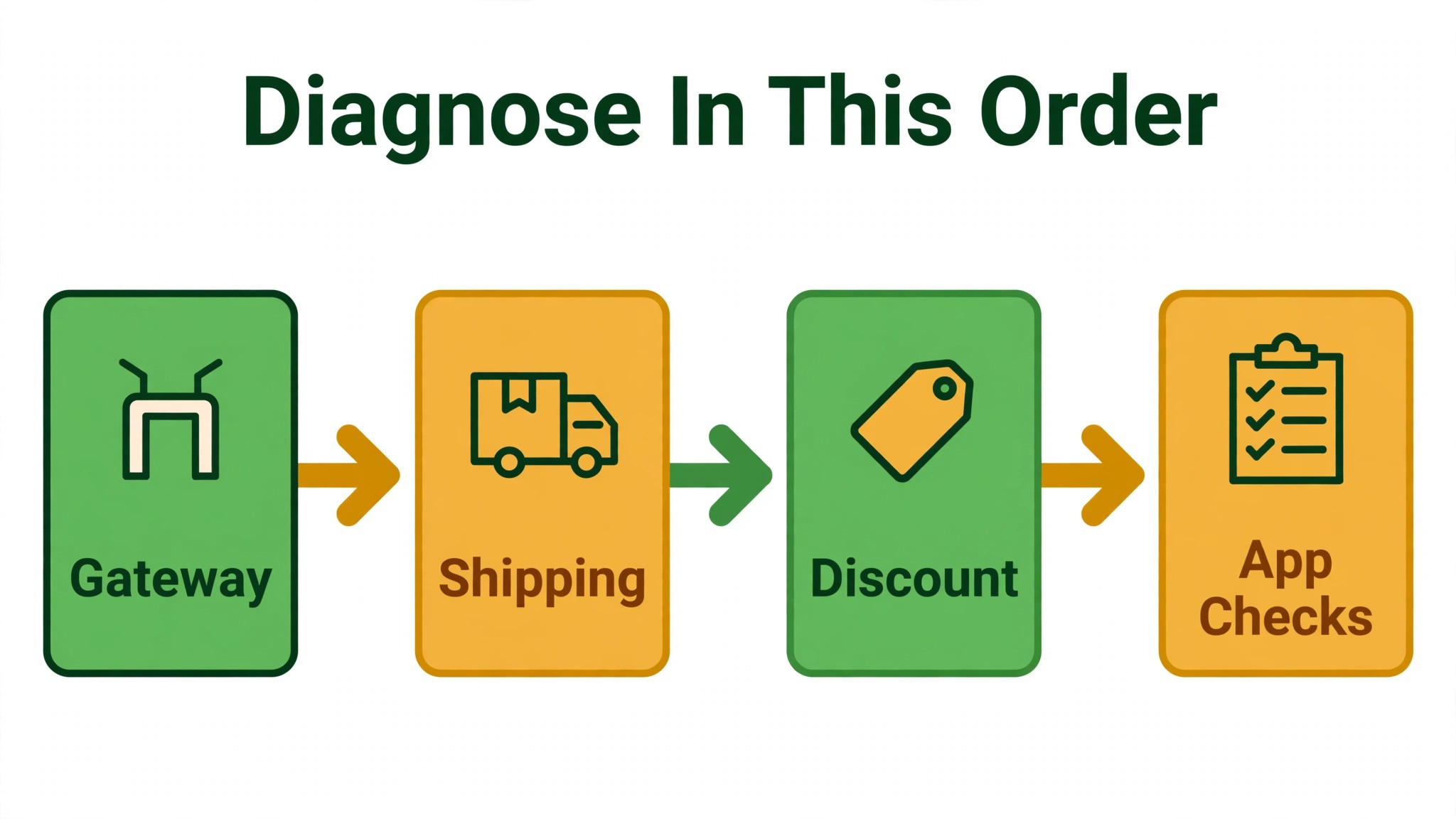
The diagnostic order in this guide runs from the most common and cheapest causes to the rarer and more technical ones. Payment gateway first, because a provider that is not fully live blocks every payment. Shipping zones second, because a missing rate blocks checkout for whole countries at a time. Discount codes third, because a code condition can block a single cart while everything else works. App conflicts fourth, because an app touching the cart or checkout can break the button itself. Test orders last, because a full test proves the whole chain works after the earlier checks pass.
Change one thing at a time and retest after each change. If you change the gateway, a shipping rate and a discount rule together and checkout starts working, you will never know which change fixed it, and you will never know which of the other two changes might break something else later. One change, one test, one note in a simple log of what you changed and when. That log is also what Shopify support will ask for if you need their help, and having it ready shortens that conversation considerably.
Start every test from the customer side, not from the admin preview. Open the live storefront in a private browser window, add the exact product customers report, use the exact address they report, and walk through checkout to the failing step. Admin previews and draft themes can behave differently from the live store, and a test that passes in preview while the live store fails tells you nothing useful. Test on mobile as well as desktop, because mobile checkout has its own failure points, from buttons covered by sticky headers to payment wallets behaving differently on phones.
| Symptom customers report | Most likely cause | First check |
|---|---|---|
| No shipping rates appear | Country missing from every shipping zone, or no rate covers the cart | Settings, Shipping and delivery, zones and rates for that country |
| Payment is refused for every customer | Provider not fully activated, or test mode left on | Settings, Payments, provider status and test mode |
| One discount code never applies | Code condition the cart cannot meet, such as minimum spend or excluded product | Discounts, the code conditions, tested with an exact matching cart |
| Checkout button does nothing | Theme or app script breaking the click | Browser console error, then a duplicate theme test with apps off |
| Checkout works on desktop, fails on one phone | Browser specific script or style problem | Retest in the failing browser with a clean session |
Payment Gateway Check That Rules Out the Most Expensive Cause
Open Settings and then Payments, and read the provider status before changing anything. This check comes first whenever you fix Shopify checkout not working small store cases, because a provider that is not live blocks every payment. A provider that was never fully activated, a Shopify Payments account missing bank details or verification, or a third party provider with expired credentials will refuse payments in ways that look like a broken checkout. Complete any missing setup step the admin flags, reauthenticate the provider if it asks, and confirm that the provider shows as active, not pending or incomplete.
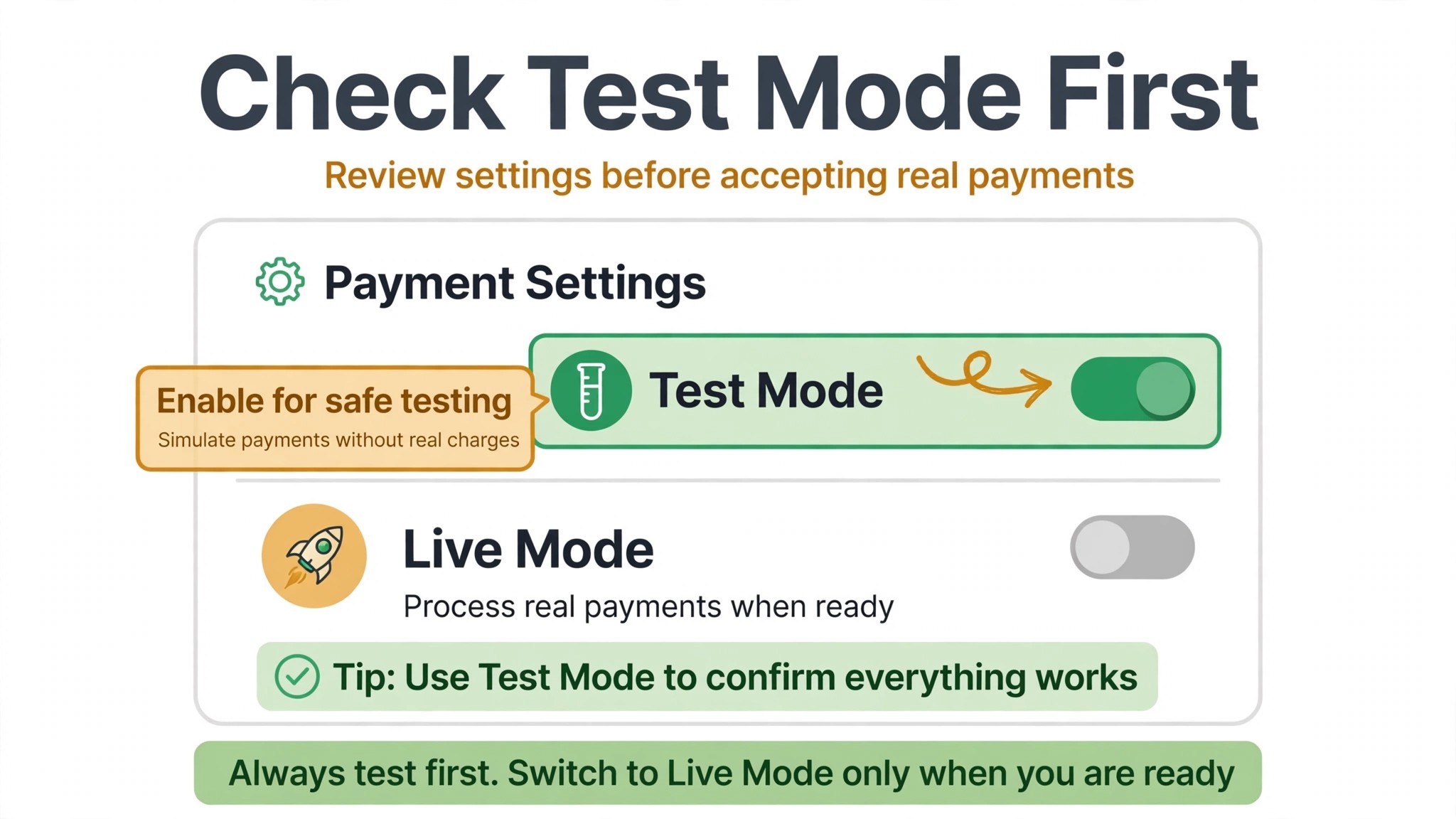
Test mode is the trap that catches small stores most often. Shopify Payments test mode, and the Test payment gateway formerly known as the Bogus Gateway, both simulate transactions without real charges, and while either is active, real cards cannot pay. If you recently tested checkout and never switched back, that alone explains total payment failure. Switch test mode off, reactivate the live provider, and place a small real order yourself to prove live payments work, then refund and cancel that order.
Check which payment methods are actually enabled, and match them against what customers report. A store that only enables one card provider will fail for customers who want a wallet, a local method or a manual method such as cash on delivery or bank transfer. Manual methods do not support test mode, so they need a real order test, not a simulated one. Also check the provider status page and the provider own status, because a provider outage is not a store problem, and no amount of store setting changes will fix it while the provider is down.
If payments fail for some customers but not others, the cause is usually narrower. A declined card, a failed 3D Secure challenge, a card from a country the provider does not support, or a fraud filter blocking a specific order pattern can all look like a general failure when only a few customers report it. Read the exact decline reason in the order timeline or provider dashboard, test with the failing payment type if you can, and do not ask customers to share full card details or passwords while investigating, because that creates a security problem on top of a checkout problem.
Shipping Zone Check That Explains Most No Rate Errors
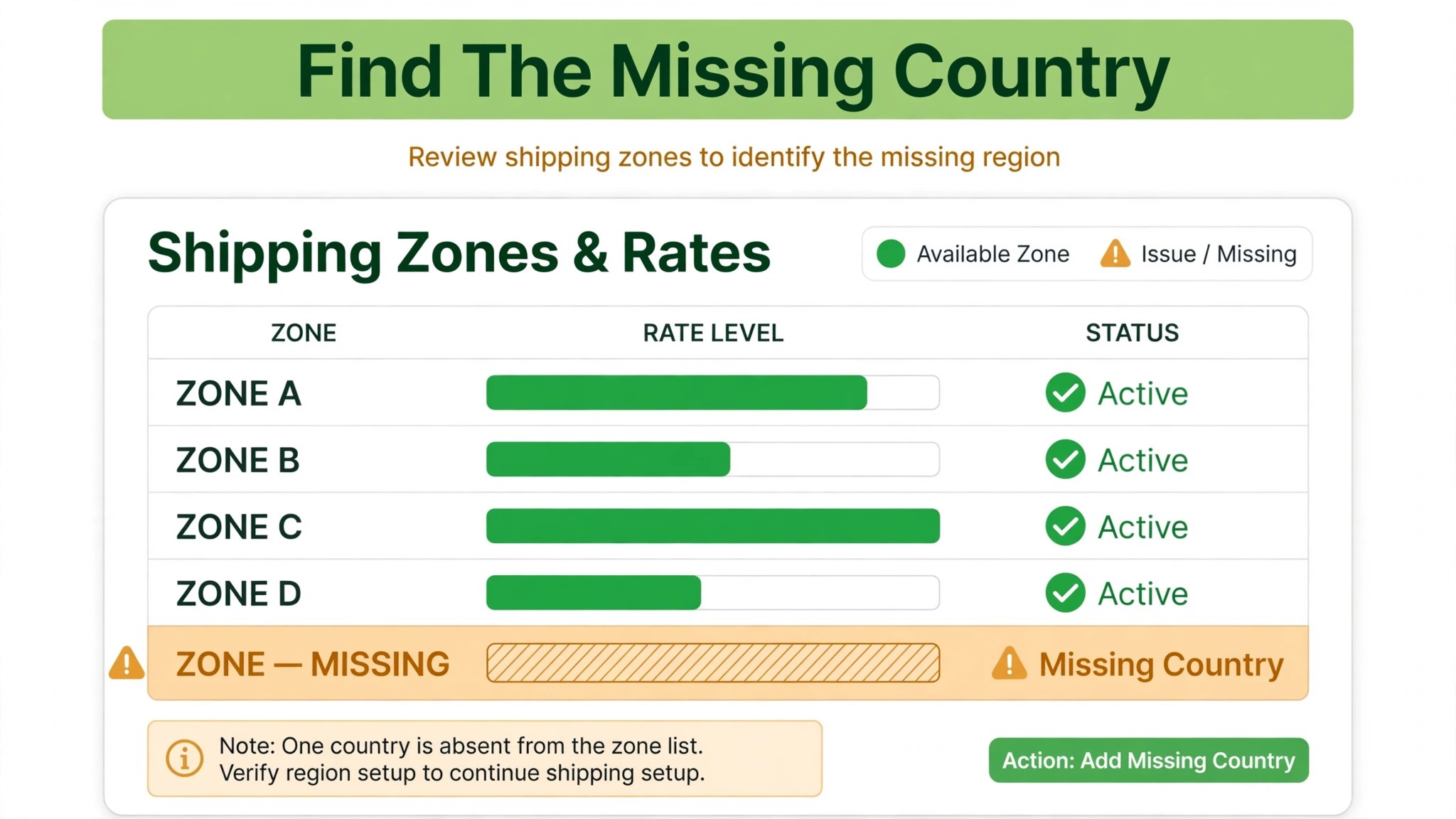
Open Settings and then Shipping and delivery, and work through each shipping profile in turn. This is the next step when you fix Shopify checkout not working small store cases, because a missing rate blocks whole countries at once. A profile groups products, locations and rates together, and a product only gets rates from the profile it belongs to, for the locations that profile covers. The most common no rate error is simple. The customer country sits in no zone at all, or the zone exists but has no rate covering that cart, and checkout stops at the shipping step with no options to choose.
Check the product side as carefully as the zone side. Confirm each product is marked as a physical product where it should be, and that it carries a weight where weight based rates are used, because a missing weight can push a cart outside every weight bracket. Confirm the product ships from a location included in the right profile, because an item stocked only at a location outside that profile gets no rate even when rates exist elsewhere. Use the bulk editor to check several products together, rather than opening each one separately and missing the one that matters.
Check rate conditions for gaps, not just for presence. A weight based set of rates that covers up to a certain weight fails for any heavier cart. A price based set that stops below the largest order total fails for large orders. Add a rate without an upper limit, or a fallback flat rate, in each zone, so checkout never dead ends for a cart that falls outside a bracket. If you use carrier calculated rates, check the carrier connection, the default package dimensions and the account credentials, because a failed live carrier lookup returns no rates instead of a visible error, and a flat fallback rate in the same zone keeps checkout alive while the carrier issue is fixed.
Test with the exact failing case, not a generic one. Add the exact products customers report, enter the exact country and address they report, and watch which rates appear. Repeat for each market the store serves, because a no rate error can have a different root cause for different countries or products within the same store. When the test shows a rate, note which profile and zone produced it, so the next failure can be compared against a known working case instead of starting from zero.
Discount Code Check That Separates Code Problems From Checkout Problems
Open Discounts and read every condition on the failing code slowly, before assuming checkout is broken. When you fix Shopify checkout not working small store problems, discount checks start here, because most code failures are configuration, not breakage. Most discount failures are codes working exactly as configured, with a condition the cart cannot meet. A minimum spend the cart has not reached, a specific product or collection the cart does not contain, an expiry date already passed, a usage limit already reached, or a rule that prevents combining with another discount can each block a code while checkout itself is healthy.
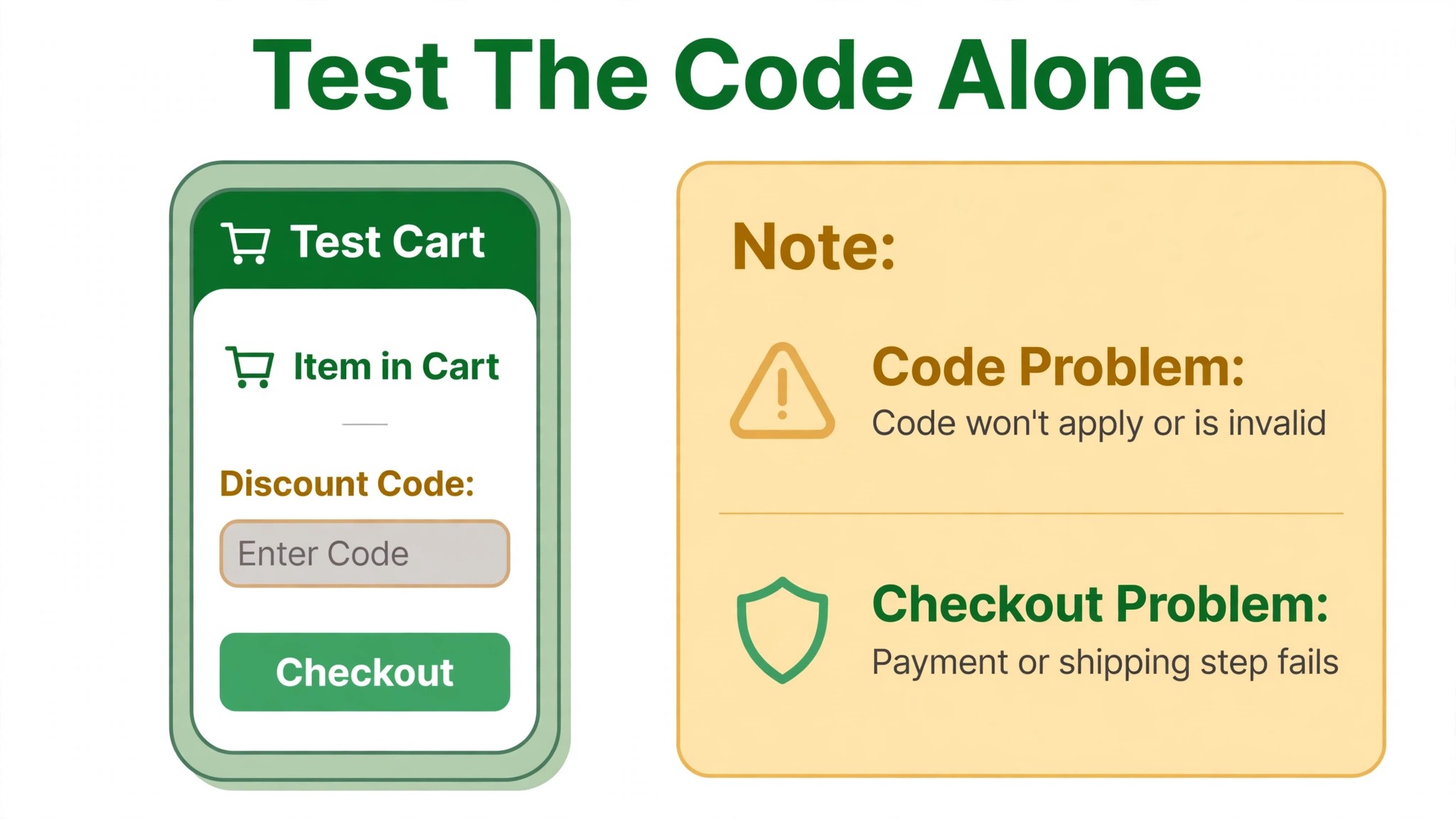
Build a test cart that matches the code conditions exactly, then test the code in that cart. If it applies there, the code is fine and the failing customer carts simply do not meet the conditions, which means the fix is clearer messaging or a changed condition, not a checkout repair. If it does not apply even in an exact matching cart, the code itself needs a closer look. Check for a second discount already applied, an automatic discount conflicting with the code, or a product excluded by a condition buried in the code setup. Test the same cart with and without the code.
A checkout that works without the code and fails with it points at the code, while a checkout that fails both ways points elsewhere.
Watch the edges that create the most complaints. A free shipping threshold creates three cases worth testing, just below the threshold, exactly at it, and just above it, because rounding and tax handling can move a cart across the line. A code that excludes certain products fails silently in a mixed cart, where the customer expects a discount on the whole order and gets one on part of it. A code applied before the customer changes the cart can stop matching after the change, and the error message rarely explains that clearly. Test those edges once, fix the messaging or the condition, and the same complaint stops recurring.
App Conflict Check That Isolates Theme and App Problems
When the checkout button does nothing, or the cart drawer checkout fails while the product page works, suspect a script problem before suspecting settings. App conflicts are the fourth check when you fix Shopify checkout not working small store cases, after gateway, shipping and code checks pass. A cart drawer app, an upsell app, a discount tool, a shipping bar or a review widget can each intercept the checkout click or inject a script that breaks it. A theme customisation can do the same, especially where checkout related code was edited or a product form element was removed.
Isolate the cause safely, without touching the live store. Duplicate the live theme in the admin, preview the copy, and reproduce the failure there, so shoppers are never affected by your testing. Then switch apps off one at a time in the duplicate, starting with the apps that touch the cart or checkout, and retest after each switch. When the button works again, the last app you switched off is the suspect. Confirm by switching it back on and watching the failure return, then leave it off, update it, or replace it, and tell the app developer exactly what you found.
If the button still fails with every app off in the duplicate theme, the cause sits in the theme code itself. Open the browser console, click the button, and read the first error, which usually names the file and the failing line. Compare against a clean copy of the same theme, such as Dawn, by previewing the default theme and testing checkout there.
If checkout works on the default theme and fails on your theme with apps off, the problem is theme code, and a developer should fix that specific file rather than rebuilding the whole theme. If checkout fails even on the default theme with apps off, the cause is almost certainly a setting, covered by the earlier checks, or a Shopify side issue worth raising with support.
Keep a record of every app that touches checkout, with the date it was installed and the date it was last updated. App conflicts often appear right after an app update or a theme update, and that timing is the fastest clue available. When a new app is installed, test checkout in a duplicate theme before publishing the change live, and make that test part of the install routine, not an afterthought when customers complain.
Test Order Sequence That Proves Checkout Works End to End
A test order is the only proof that the whole chain works, from product page to payment to order creation to confirmation email, and it is the final step when you fix Shopify checkout not working small store problems. Shopify offers two main ways to test, and the choice depends on the provider in use. For a third party provider setup, use the Test payment gateway in Settings and then Payments, deactivating the live provider first, then reactivating it after testing. For Shopify Payments, use its test mode instead, and remember that real cards cannot pay while test mode is on, so switch it off as soon as testing ends.
Run the test order in this sequence, and check the result at each step rather than only at the end. First, place an order with a test card that should succeed, and confirm it reaches the thank you page, creates an order in the admin, shows the correct payment status, and triggers the confirmation email. Second, place an order with a test card that should decline, and confirm checkout shows a clear decline message and lets the customer retry without losing the cart.
Third, place an order with a test card that should trigger a provider error, and confirm the error message is readable and the customer can recover. Fourth, repeat the success test on mobile, with a discount code applied, and with a shipping address from each market the store serves.
Use the standard test card details for the gateway in use, and confirm them against the Shopify help pages before testing, since test details can change. For the Test payment gateway, a card number of 1 simulates success, 2 simulates failure, and 3 simulates a provider error, with any future expiry date and any three digit security code. For Shopify Payments test mode, a Visa test number of 4242 4242 4242 4242 simulates approval, while 4000 0000 0000 0002 simulates a decline. The test purchase amount needs to exceed the equivalent of one US dollar in the store currency for the Test payment gateway.
After testing, restore live payments immediately and verify the restoration. Deactivate the Test payment gateway, reactivate the live provider, switch Shopify Payments test mode off where it was used, and place one small real order to prove live payments work, then cancel and refund it. Check the storefront as a customer would, with no admin session, to confirm a real payment method appears at checkout. A store left in test mode after a successful test refuses every real customer until someone notices.
When to Stop Fixing and Call Shopify Support
Some checkout problems need Shopify support, and recognising them early saves hours of setting changes that cannot help. That point can arrive even after you fix Shopify checkout not working small store cases through the earlier checks, when the remaining cause sits outside store settings. Call support when checkout fails on a default theme with apps off and settings verified, when the provider dashboard shows a successful payment but Shopify shows no order, when an error message references a Shopify system error rather than a store setting, or when the store itself shows as unavailable for reasons billing does not explain. Check the Shopify status page first, because a platform incident explains sudden failures across many stores at once.
Prepare a short brief before contacting support, covering the exact error, the step where it appears, the products and addresses tested, the theme and app isolation results, and the log of changes already made. Support can move faster with that brief than with a general report that checkout does not work, and the brief also protects you from being asked to repeat tests you already ran. Keep the case reference and the agreed next step in the same log as your changes, so a second support contact does not start from zero.
Mistakes That Turn a Small Checkout Problem Into a Big One
The most common mistake is changing several settings at once. A gateway change, a shipping rate change and a discount change made together can fix checkout while hiding which change mattered, and the unnecessary changes can break other carts that were working. Change one thing, test, log the result, then move on. Slow diagnosis beats fast guessing, because fast guessing creates a second problem while the first one is still unsolved.
The second mistake is testing only in the admin preview or only on desktop. Preview themes and desktop browsers hide mobile failures and live store differences, so a fix that passes preview can still fail for real customers. Test the live storefront, in a private window, on mobile and desktop, with the exact failing products and addresses, every time. That routine takes minutes and prevents the embarrassment of announcing a fix that customers immediately disprove.
The third mistake is leaving test mode on after testing. Test mode is useful for minutes and harmful for hours, because it silently refuses real payments while the store looks normal to the owner. Build the restoration step into the test routine itself, with a live order proof immediately after, so test mode can never be forgotten. The same discipline applies to duplicate themes, which should be deleted or clearly labelled once testing ends, so nobody publishes a test theme by accident.
The fourth mistake is ignoring the error message. Shopify usually states the problem plainly, whether it is a missing shipping rate, a refused payment or a code condition, and owners who skip past the message to general fixes waste the best clue available. Read the exact message, search it against the help pages, and fix the setting it names before changing anything else. An error message is a diagnosis, not an annoyance, and treating it that way shortens most checkout repairs dramatically.
Shopify Checkout Fix Checklist
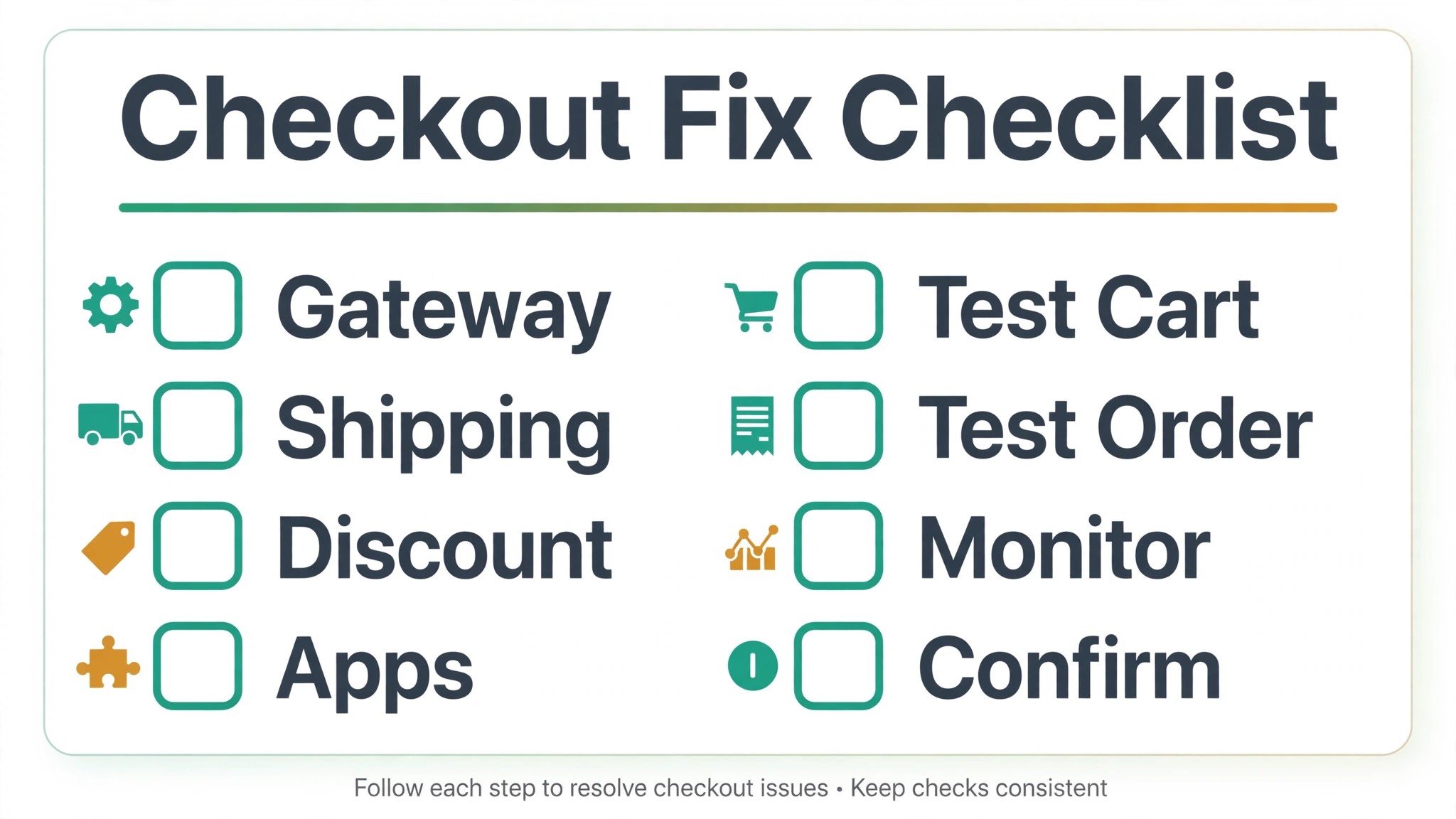
Use this checklist in order, and stop at the step where checkout starts working, then run the test order sequence to prove it.
1. Capture the exact error, failing products, countries, devices and whether every customer or only some are affected. 2. Check Settings and then Payments for provider activation, verification, expired credentials and test mode left on. 3. Check Settings and then Shipping and delivery for missing zones, missing rates, product weights, physical product flags and profile locations. 4. Check Discounts for code conditions, expiry, usage limits, exclusions and conflicts with automatic discounts. 5. Duplicate the live theme, reproduce the failure, and switch cart and checkout apps off one at a time until the suspect appears. 6. Preview a default theme with apps off to separate theme code problems from setting problems. 7. Run the full test order sequence, covering success, decline and error cases, on mobile and desktop, with a discount code and with addresses from each market. 8. Restore live payments immediately, place one small real order, refund and cancel it, and log every change made.
That checklist is deliberately short. A longer repair plan looks impressive and gets ignored under sales pressure. Eight steps, done in order, fix most small store checkout failures without a developer, and the log they produce makes the remaining cases far easier for support to solve.
How to Prove Checkout Stays Fixed
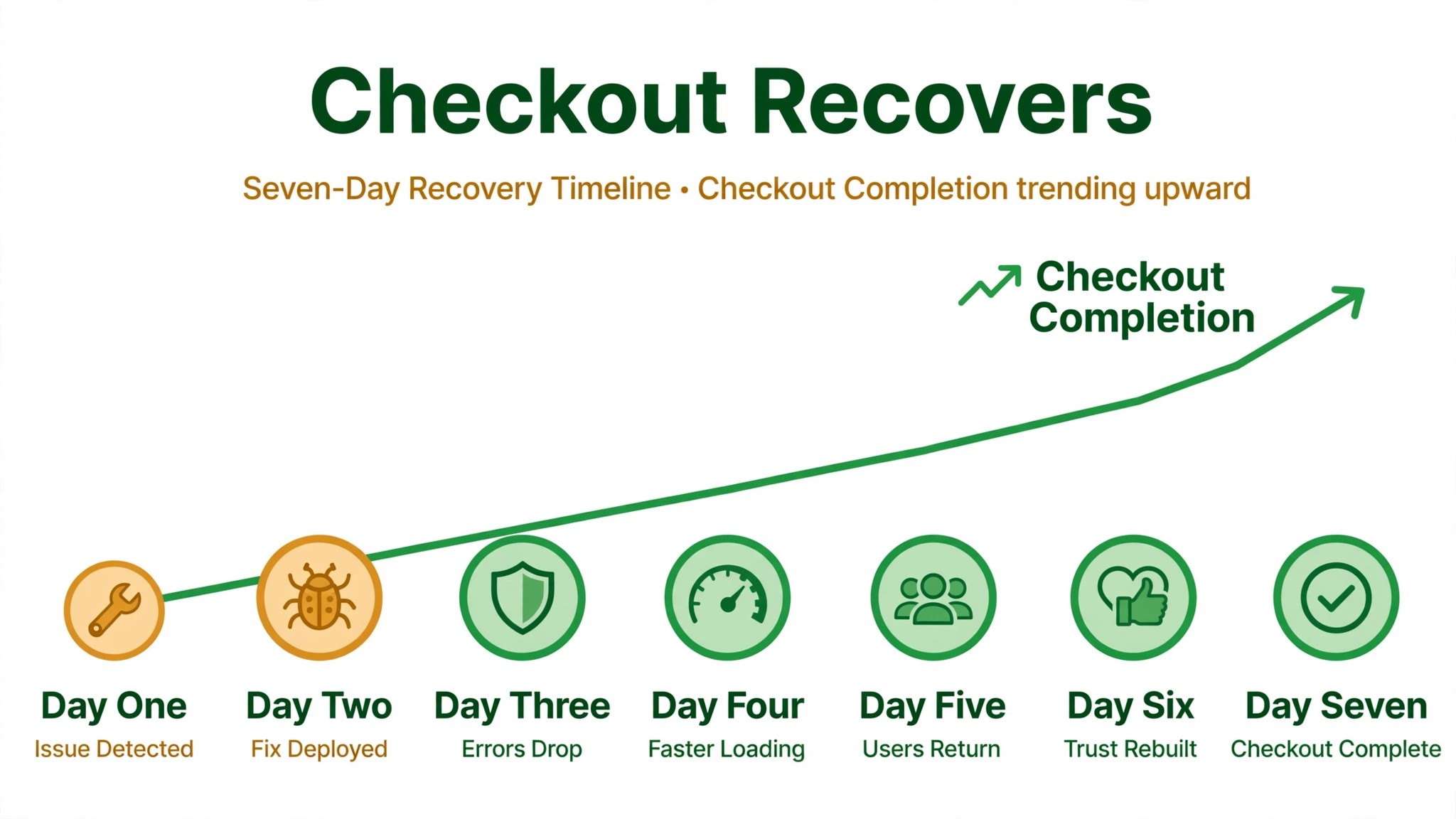
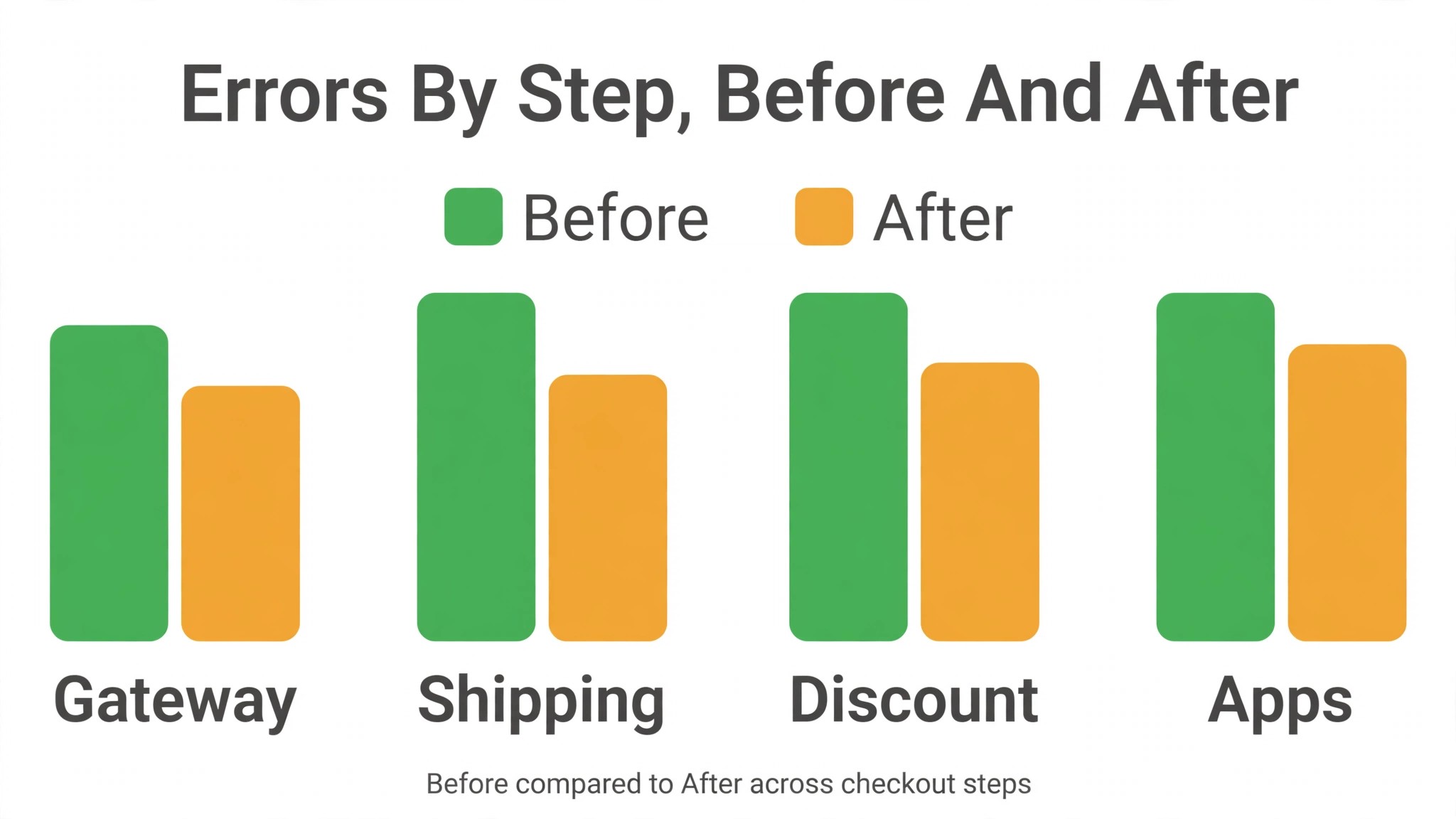
A single successful test order proves checkout worked once, not that it stays working. Monitor the next seven days with three simple measures. First, the checkout completion rate, meaning orders divided by checkouts started, compared with the period before the failure. Second, the error rate by step, meaning how often customers abandon at shipping, payment or confirmation, which shows whether the fixed step stays fixed. Third, the support contact rate about checkout, meaning how many customers still report problems, which catches failures your own tests miss because they involve products, countries or devices you did not test.
Set a weekly checkout test as a standing habit, not a one off repair. Once a week, place a test order path through the live storefront, or at least walk to the payment step with a real cart, on mobile, and confirm rates, codes and payment methods all appear. Test again after every app install, theme update, shipping change or discount launch, because those are the moments new checkout failures are born. A store that tests weekly finds problems in minutes, while a store that tests only after complaints finds them after lost sales.
Watch for the quiet failures that never produce an error message. A shipping rate that appears but is wildly wrong, a discount that applies to part of a cart, a payment method that vanishes for one country, and a checkout button that works but is hard to reach on a small screen all lose sales without a single customer complaint. Compare checkout behaviour across markets and devices regularly, and treat a sudden change in completion rate as a checkout problem until proven otherwise, even when no customer has reported it yet.
The Checkout Verdict for Small Stores Under Sales Pressure
The fastest way to fix Shopify checkout not working small store owners face is also the least dramatic. Capture the evidence, check the gateway, check the zones, check the code, isolate apps in a duplicate theme, and prove the fix with a full test order sequence. That order finds the common causes first, avoids the trap of changing everything at once, and leaves a log that makes any remaining problem easy for support to solve.
Start with the symptom table, work the checklist in order, and do not skip the restoration step after any test. Test weekly after the repair, and test again after every app, theme or shipping change, because checkout is the one part of a store where a small unnoticed change costs real money every hour. Done that way, a checkout failure becomes a short interruption with a known cause, not a long crisis with a guessed fix.
Frequently Asked Questions
Why does checkout show no shipping rates for some customers only?
Because shipping rates depend on the customer country, the products in the cart and the profile those products belong to. A country missing from every zone, a rate set that does not cover the cart weight or price, a product missing its weight or physical flag, or a product stocked at a location outside the right profile can each remove rates for one group of customers while others check out normally. Test with the exact failing products and address to find which of those applies.
Can a discount code break checkout, or only the discount itself?
A code usually breaks only the discount, not checkout, but the distinction matters for diagnosis. If checkout works without the code and fails with it, the code conditions, an automatic discount conflict or an excluded product is the cause. If checkout fails both with and without the code, the cause sits elsewhere, usually in shipping or payments. Test both ways before changing checkout settings, because fixing the wrong area wastes time and can break working carts.
Duplicate the live theme, reproduce the failure in the copy, and switch cart and checkout apps off one at a time, retesting after each switch. When the button works again, the last app switched off is the suspect. If the button still fails with every app off, preview a default theme. Checkout working on the default theme points at your theme code, while failure on the default theme points at a setting or a Shopify side issue.
Is it safe to use the Test payment gateway on a live store?
It is safe for a short, controlled test, provided live payments are restored immediately afterward. While the Test payment gateway is active, every order is a test order and real cards cannot pay, so a store left in test mode refuses real customers. Deactivate the test gateway, reactivate the live provider, and place one small real order, then refund and cancel it, to prove live payments work before considering the test finished.
What should I do if checkout fails only on mobile?
Test the exact failing phone and browser with a clean session, and check for mobile specific problems such as buttons covered by sticky headers, fields hidden when the keyboard opens, payment wallets behaving differently, and scripts that one mobile browser does not handle. Compare against desktop with the same cart and address. A failure that appears only on one device usually points at theme code or an app script, and the browser console on that device usually names the problem.
When should I contact Shopify support instead of keep fixing?
Contact support when checkout fails on a default theme with apps off and settings verified, when a provider shows a successful payment but Shopify shows no order, when an error references a Shopify system problem, or when the store shows as unavailable for reasons billing does not explain. Send the exact error, the step where it appears, the products and addresses tested, the theme and app isolation results, and the log of changes already made, so support can move faster.
More Reading on Stratilyze
– Use AI for Plumbing Company Dispatch – Automate Small Business with AI – Best Website Builder for Tradespeople – Best Quote Software for Trades Businesses