

Zoom vs Microsoft Teams is not a close call for every buyer, and that is the point of this guide. If your main job is running reliable video meetings with people outside your company, Zoom wins. If your company already lives in Microsoft 365, pays for it, and needs chat, files, and meetings in one place, Microsoft Teams wins, often without any extra meeting software cost. The right choice depends less on which product has more features and more on where your work already happens, who you meet with, and how much friction you can accept when a guest joins a call.
That verdict sounds simple, but the details matter. Zoom still sets the standard for meeting quality, ease of joining, and large webinars. Teams has closed much of the gap on video, and it brings a full teamwork hub that Zoom only partly matches through separate add ons and integrations. Teams can feel heavier, especially on older machines, and its best value only appears when you count the Microsoft 365 bundle. Zoom can feel simpler, but costs can grow when you add phone service, webinars, rooms, and storage.
This comparison is built around real buying decisions, not a feature checklist. We tested the questions buyers actually ask: Which tool gets a guest into a meeting fastest? Which one holds up on a weak connection? Which one makes a hybrid meeting room work without an IT degree? Which one is easier to manage for 10 people, and which one scales to 1,000? We also look at pricing structure, security controls, recording and transcription, phone options, and the hidden costs that appear after the first year. Prices change often, so treat every price note here as a structure guide and verify the current price at checkout before you buy.
The Short Verdict on Zoom vs Microsoft Teams
For most small teams that meet clients, students, patients, or partners outside their own company, Zoom is the safer default. Guests know it. The join flow is familiar. Meeting controls are easy to find. Audio and video recovery on poor networks is strong. For companies that already use Outlook, Word, Excel, SharePoint, and OneDrive every day, Teams is the smarter default. It keeps chat, files, tasks, and meetings together, and it avoids paying twice for tools that overlap.
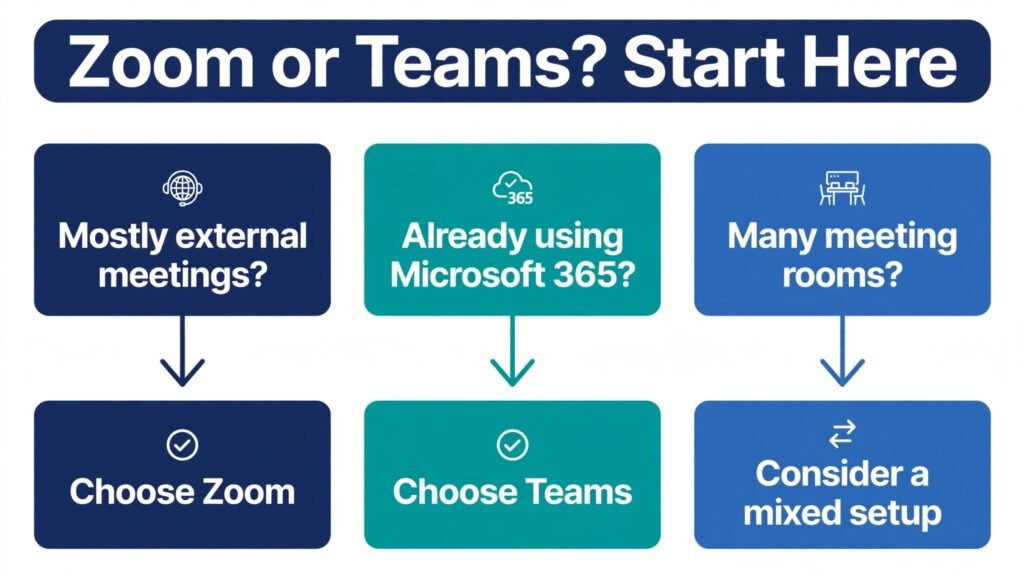
Choose Zoom if you run client facing meetings, webinars, training, coaching, or sales calls where the guest experience matters most. Choose Teams if your team works inside Microsoft 365, needs persistent team channels, and wants one admin console for chat, meetings, and files. Choose a mix only if you have a clear reason, such as Zoom for external webinars and Teams for internal chat, and you are willing to manage two systems and train people on both.
A practical rule helps. If more than half your meetings include people outside your organization, weight the guest experience heavily and lean Zoom. If more than half your work is internal planning, document review, and ongoing project chat, weight the hub value heavily and lean Teams. If you are split down the middle, start with the tool your team already uses daily, because adoption beats a small feature advantage every time.
Test 1: Getting a Guest Into a Meeting
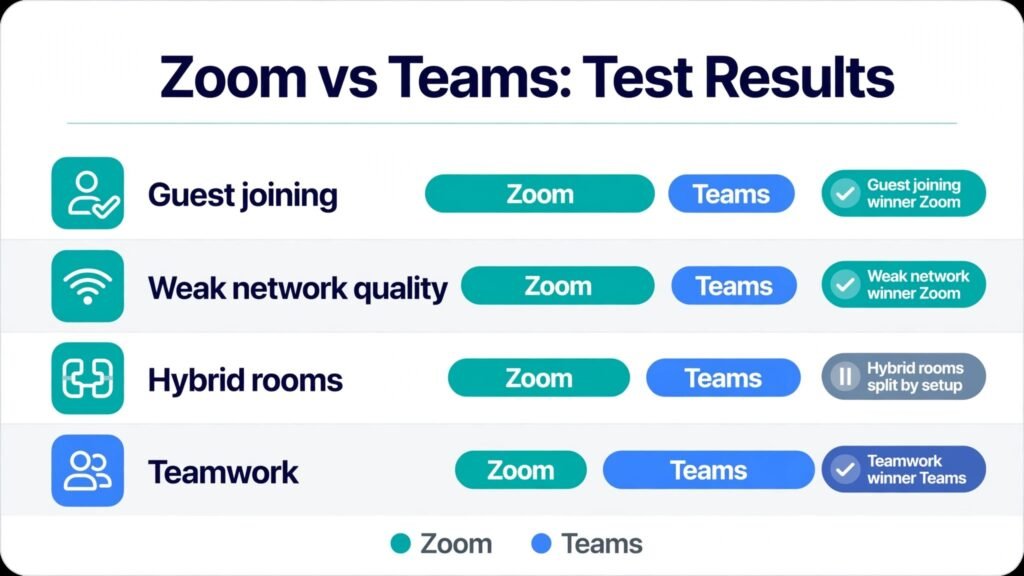
Zoom wins this test clearly. A guest can click a link, type a name, and join from a browser or app with very little setup. The meeting ID and passcode system is familiar to millions of people. Hosts can admit guests from a waiting room, rename participants, and control screen sharing without hunting through settings. For a sales call, a client interview, or a parent teacher meeting, that familiarity reduces no shows and late starts.
Teams has improved guest access, but it still feels more corporate. Guests may need to download an app, sign in, or wait for lobby approval in ways that vary by the host organization policy. Internal users have a smoother path, because Teams is already open on their computer. External guests do not get that advantage. If you meet the same clients every week, they learn the flow. If you meet new people every day, the extra steps add up.
The practical difference is minutes, not hours, but minutes matter at the start of a paid consultation or a class. Zoom also makes it easier to share a single meeting link across email, calendar invites, and a booking page, and to reuse a personal meeting room for repeat clients. Teams links work well inside Outlook and Microsoft calendars, but the guest path is less consistent across browsers and devices.
Verdict for this test: Zoom, by a clear margin, for external meetings. Teams is fine for internal meetings and repeat partners, but it is not the best choice when first impressions count.

Test 2: Video and Audio Quality on a Weak Connection
Zoom also wins on raw meeting performance, although the gap is smaller than it was three years ago. Zoom handles packet loss, low bandwidth, and switching between wifi and mobile data with fewer freezes. Its audio processing keeps voices clear when several people talk, and its video layout adapts without constant manual adjustment. Hosts can also set bandwidth limits, enable original sound for music lessons, and use noise suppression that works well in a noisy home office.
Teams video quality is strong on a good office connection, especially for internal meetings where everyone uses the same Microsoft setup. It has improved background effects, noise suppression, and together mode layouts. On a weak hotel wifi connection or a shared home network during school hours, Teams is more likely to show frozen video, delayed audio, or a sudden drop to a low resolution view. That is not a failure for every team, but it is noticeable in back to back client calls.
For audio only calls, both tools are solid. Zoom phone and Teams phone are separate products with their own plans, and neither should be confused with a standard meeting. If your team works from rural areas, travels often, or joins from phones, test both tools on the same weak connection before you commit. A ten minute test with two laptops and a phone hotspot will tell you more than any marketing page.
Verdict for this test: Zoom, especially for remote, mobile, and low bandwidth users. Teams is competitive on stable office networks.

Test 3: Running a Hybrid Meeting Room
Hybrid rooms expose the difference between a meeting app and a meeting system. Zoom Rooms has a long track record in conference rooms, classrooms, and training centers. Room controllers are simple, scheduling displays are clear, and hardware partners offer a wide range of cameras, speaker bars, and touch panels. An IT team can standardize a room, lock the settings, and support it without retraining staff every quarter.
Teams Rooms is the natural choice if your company already standardizes on Microsoft hardware and licenses. It ties room calendars to Outlook, shows Teams chat and files in the room, and works well for internal all hands meetings. The setup can be more complex, because room licensing, device management, and Microsoft 365 policies all interact. Once set up correctly, it is powerful. Getting there takes more planning than a simple Zoom Room install in many small offices.
For a single room, either system can work. For ten rooms across two offices, Zoom Rooms often deploys faster and costs less to support, unless the company already has a Microsoft device management team. For a company that wants room chat, whiteboard files, and meeting notes to live in the same Teams channel after the meeting ends, Teams Rooms has a clear workflow advantage.
Verdict for this test: Zoom Rooms for speed and simplicity in mixed hardware rooms. Teams Rooms for Microsoft centered companies that want the meeting to continue in a channel after people leave the room.

Test 4: Chat, Files, and Daily Teamwork
Teams wins this test by a wide margin. Teams is not only a meeting tool. It is a persistent workspace where channels hold conversations, files, tabs, apps, and meeting recordings in one place. A project channel can hold a plan in Planner, a document in SharePoint, a chat thread about a decision, and the recording of the meeting where that decision was made. New hires can read the history instead of asking for the same files again.
Zoom has chat, whiteboards, docs, and clips, and its newer workplace features are improving. But Zoom chat is still mainly a meeting companion for many users, not the place where daily work lives. Teams that use Slack for chat often pair it with Zoom for meetings, which is a proven combination. Teams tries to replace both, and for Microsoft shops it often succeeds.
The trade off is complexity. Teams channels, tabs, and apps can become cluttered if no one owns the structure. A small team with three channels will love Teams. A large company with hundreds of teams needs governance, naming rules, and archiving, or people cannot find anything. Zoom stays simpler precisely because it does less outside meetings. If your team already uses another chat tool and likes it, do not switch chat just to get Teams meetings.
Verdict for this test: Teams, clearly, for persistent teamwork. Zoom, for teams that want meetings only and already have a chat tool they like.

Zoom in Depth: Pricing, Best Fit, and Watch Outs
Zoom pricing is built in layers. A free tier covers short group meetings and one to one calls, which is useful for testing and occasional use. Paid meeting plans add longer meetings, cloud recording, reporting, and admin controls. From there, Zoom sells add ons for webinars, large meetings, rooms, phone service, and extra cloud storage. That modular model is flexible, but it is also where budgets grow. A team that starts with basic meetings and later adds webinars, phone, and rooms can end up with a stack that costs more than a bundled alternative.
Zoom is best for client facing businesses, coaches, consultants, trainers, schools, clinics, recruiters, and sales teams. It is also best for companies that meet people across different companies, industries, and technical skill levels. If your calendar is full of external meetings, Zoom reduces support tickets and awkward starts. It also works well for companies that use Google Workspace, Slack, or other non Microsoft tools, because Zoom integrates with many calendars and apps without forcing a platform switch.
Watch out for three things. First, add on pricing. Price the full stack you will need in year one, not only the base meeting plan. Second, recording storage and retention. Cloud recordings, transcripts, and webinar replays can grow quickly, so set retention rules early. Third, meeting security settings. Use waiting rooms, passcodes, and host controls for public links, and train hosts to lock meetings and manage screen sharing. Zoom security is strong when configured well, but public links need care on any platform.
Zoom also offers AI companion features, whiteboards, docs, and scheduling tools that reduce the need for separate apps. Treat those as useful extras, not as a full replacement for a dedicated project hub, unless your team is small and wants one vendor for meetings and light collaboration. Check the current plan limits at checkout, because participant limits, recording limits, and AI feature availability vary by plan and region.
Microsoft Teams in Depth: Pricing, Best Fit, and Watch Outs
Teams pricing is best understood as part of Microsoft 365, not as a standalone meeting price. Many business plans include Teams with chat, meetings, file storage, and Office apps. That bundle can be excellent value when a company already needs Word, Excel, Outlook, and OneDrive. It can feel expensive if a company only wants meetings and already uses Google Workspace or another office suite. Teams also has standalone and frontline options in some markets, and phone, webinar, and premium meeting features may require extra licenses.
Teams is best for companies already invested in Microsoft 365, especially midsize and large organizations, schools, government teams, and regulated industries that need centralized admin, compliance, and data controls. It is also best for teams that run ongoing projects in channels, share files in SharePoint, and want meeting notes, tasks, and chat to stay together. IT teams gain one identity system, one admin center, and consistent policies across email, files, and meetings.
Watch out for three things. First, performance on older hardware. Teams can use more memory and CPU than Zoom, so test it on your oldest laptops before a company wide rollout. Second, channel sprawl. Create a simple team and channel structure, assign owners, and archive inactive teams. Third, guest and external access policy. Decide early who can invite guests, who can join from outside, and how lobby and recording rules work, because those settings shape the guest experience.
Teams meeting features include breakout rooms, whiteboard, live captions, transcription, together mode, polls, and webinar options on higher plans. Recording storage typically lives in OneDrive or SharePoint, which helps compliance but requires storage planning. Verify the current webinar limits, town hall limits, and premium features at checkout, because Microsoft often moves advanced meeting features between standard and premium tiers.
Side by Side Comparison Table
| Area | Zoom | Microsoft Teams |
|---|---|---|
| Best for | External meetings, webinars, training | Microsoft 365 teams, internal teamwork |
| Guest joining | Very easy, familiar to most guests | Good for repeat partners, heavier for new guests |
| Meeting quality on weak networks | Strong recovery, clear audio | Strong on stable networks, weaker on poor wifi |
| Chat and files | Good meeting chat, growing workplace tools | Full hub with channels, SharePoint, and tabs |
| Hybrid rooms | Zoom Rooms, wide hardware choice | Teams Rooms, best inside Microsoft setup |
| Webinars and large events | Strong webinar platform | Strong town halls on higher plans |
| Phone service | Zoom Phone as add on | Teams Phone as add on or bundle |
| Admin and compliance | Good admin controls, add ons vary | Central Microsoft admin, strong compliance tools |
| Pricing model | Modular meeting plans plus add ons | Often bundled with Microsoft 365 |
| Learning curve | Low for meetings | Low for chat, higher for full hub governance |
Use this table as a starting point, not a final score. A tool can win five rows and still lose the deal if it fails the one row your business depends on. For a coaching business, guest joining and webinar quality may outweigh everything else. For a 500 person company on Microsoft 365, bundle value and compliance may outweigh a small meeting quality gap.
Total Cost: What the First Year Really Costs
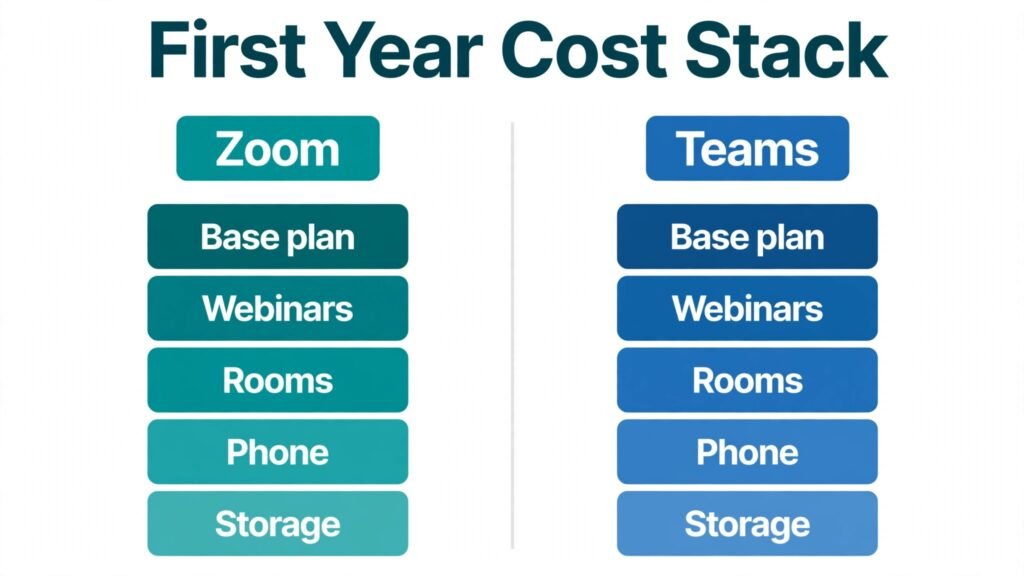
The cheapest advertised plan rarely reflects the first year cost. With Zoom, add the base meeting plan, then add webinar seats if you run public events, room licenses if you equip rooms, phone seats if you replace a phone system, and extra storage if you record everything. With Teams, add the Microsoft 365 plan cost per user, then add phone, webinar, or premium meeting licenses only if your plan does not include them. In both cases, add hardware for rooms, headsets for home workers, and admin time for setup and training.
A ten person consulting firm that already pays for Microsoft 365 Business plans may find Teams effectively free for meetings, while Zoom would be an extra subscription. A ten person coaching business on Google Workspace may find Zoom cheaper overall, because it avoids paying for a second office suite just to get Teams. A 200 person company with mixed tools should price both stacks for the same user count, same webinar needs, and same room count, then compare the three year total, not only month one.
Also check renewal terms, per user minimums, and whether webinar or phone licenses can be assigned to only the people who need them. Buying a premium license for every employee when only ten people run webinars is a common waste. On the other hand, buying too few meeting licenses and forcing staff to share accounts creates security and scheduling problems. Price for real roles, not for a flat headcount.
Security, Privacy, and Admin Controls
Both platforms offer encryption, waiting rooms, lobby controls, meeting locks, host controls, recording consent options, and admin policies. Zoom offers end to end encryption options for meetings, admin dashboards, and detailed meeting controls. Teams benefits from Microsoft identity, conditional access, data loss prevention, and compliance tools that large organizations already use for email and files.
For regulated work, the deciding factors are usually audit logs, retention, eDiscovery, data residency, and identity controls, not the meeting interface. Teams often fits more easily into an existing Microsoft compliance setup. Zoom fits well when a company needs strong meeting controls without adopting the full Microsoft stack, and it integrates with common identity providers and security tools. In both cases, require strong passwords, multi factor authentication, and clear rules for recording, transcription, and AI meeting summaries, especially when clients discuss sensitive information.
Do not rely on default settings alone. Review who can record, who can download recordings, how long transcripts are kept, and whether AI summaries can be shared outside the meeting. Publish a one page meeting security guide for hosts, and review it after any major plan change. Security is a process, not a checkbox at purchase time.
Mistakes to Avoid When Choosing
First, choosing on brand alone. Both brands are familiar, but familiarity does not guarantee fit. Test both with your actual guests and your actual network before you sign a yearly deal.
Second, buying for meetings only and ignoring chat. If your team will live in chat all day, the chat experience matters as much as video. If your team only meets twice a week, a full hub may add clutter.
Third, ignoring the guest experience. Internal staff will learn any tool. Clients will judge you by the first two minutes of the call. If clients struggle to join, you lose trust before the meeting starts.
Fourth, underpricing add ons. Webinars, phone, rooms, and storage are where budgets surprise buyers. Map your year one needs before you compare headline prices.
Fifth, rolling out without training. A short host guide, a test meeting for new staff, and a clear rule for recordings will prevent most support tickets. Record a five minute internal demo for each tool you adopt, and keep it where new hires can find it.
Sixth, keeping two tools without a rule. If you use both Zoom and Teams, define which tool is for which meeting type, and put that rule in calendar templates. Without a rule, people book the wrong tool and guests get confused.
Frequently Asked Questions
Is Zoom better than Teams for small business meetings?
For most small businesses that meet clients often, yes. Zoom is easier for guests, faster to learn, and strong on varied networks. Teams can still be better if the business already pays for Microsoft 365 and works mainly with internal staff.
Is Microsoft Teams free?
Teams has free options and trials in some markets, but full business use usually comes through a Microsoft 365 plan or a paid Teams plan. Check current Microsoft terms at checkout, because free tier limits and included features change over time.
Can Zoom and Teams users join the same meeting?
Not directly in the same native meeting without interoperability tools or a join link workaround. In practice, companies pick one host tool per meeting and share that link. Some room systems and third party bridges can help, but they add cost and complexity.
Which tool is better for webinars?
Zoom Webinars is a mature choice for registration, practice sessions, polls, Q and A, and post event reports. Teams town halls and webinars work well for internal events and Microsoft centered audiences, especially on higher plans. For paid public webinars with many first time attendees, Zoom often has the smoother guest path.
Which tool uses less computer resources?
Zoom generally uses fewer resources for a basic meeting, which helps older laptops and low end devices. Teams can be heavier, especially with many channels, apps, and files open. Close unused tabs and test both on your weakest device before rollout.
Which is better for schools and training?
Zoom is popular for classes, tutoring, and training because students know it and breakout rooms are easy to manage. Teams works well for schools already on Microsoft education plans, where class teams, assignments, and files stay together. The best choice follows the school platform, not only the meeting tool.
Should a company switch from Zoom to Teams to save money?
Only if the company already needs Microsoft 365 for office apps, email, and storage. In that case, Teams can remove a duplicate subscription. If the company does not need Microsoft 365, switching to save on Zoom alone rarely saves money after the full bundle cost is counted.
Final Verdict: Who Wins for Which User
Zoom wins for external meetings, webinars, training, coaching, sales, recruiting, and any work where guests join from many different companies. It wins for remote teams on mixed networks, and for companies that want a meeting tool without changing their office suite or chat tool. Its simplicity is a feature, not a limitation, for meeting heavy work.
Teams wins for Microsoft 365 companies, internal project teams, large organizations with compliance needs, and hybrid offices that want chat, files, tasks, and meetings in one hub. It wins on bundle value when the office suite is already paid for, and on persistent teamwork when channels become the daily workspace.
If you must pick one tool today and you meet clients every week, pick Zoom. If you must pick one tool today and your whole company works in Outlook, Word, and SharePoint, pick Teams. If you run both internal projects and external events at scale, use Teams for daily teamwork and Zoom for public webinars, but only with a clear booking rule and a named owner for each system. Either way, run a two week trial with real guests, real rooms, and real weak wifi, then decide on evidence from your own team, not on a feature list.
Check current plans on the official Zoom site and the official Microsoft Teams site before you buy, because plan limits and add on pricing change. For readers comparing other meeting tools, see our guide to Zoom alternatives and our comparison of Slack vs Microsoft Teams for the chat side of this decision. If your work involves client scheduling, our guide to Calendly alternatives can help you pair booking with the meeting tool you choose.
How to Run a Fair Two Week Trial
A fair trial beats a long feature list. Pick five real meetings for each tool, not staged demos. Include one client call with a new guest, one internal planning meeting, one large team update, one meeting from a phone, and one meeting from your weakest wifi spot. Use the same laptop, same headset, and same meeting length for both tools where possible, and ask every participant to rate joining ease, audio clarity, video stability, and how easy it was to find the recording afterward.
Score each meeting on a simple scale from one to five, and write one sentence about what went wrong, if anything. At the end of two weeks, you will have ten scores, not opinions. Look for patterns. If Zoom wins guest joining every time but Teams wins file follow up every time, that pattern tells you which workflow matters more for your team. If both tools score well on stable wifi but only one holds up on mobile data, that result matters for field staff and travelers.
Involve IT, sales, and at least one non technical user in the trial. IT will spot admin and security issues. Sales will spot guest friction. A non technical user will spot confusing controls that experts overlook. Give each group a short checklist: join time, time to share a screen, time to find chat, time to start a recording, and time to share the recording after the meeting. If any step takes more than a minute for a new user, note it as a training need, not as a reason to reject the tool outright, unless that step happens in front of clients.
End the trial with a cost check. List every license, add on, room device, and headset you would need for the winner, and compare that list with the runner up for the same roles. Include admin time for setup, migration of recordings, and training. A tool that looks cheaper per user can cost more in the first quarter if it requires new hardware or a long migration. A tool that looks expensive per user can save money if it replaces two other subscriptions. Decide on total value after the trial, and keep the trial notes for the next renewal, when pricing and features will have changed again.