

The verdict is simple. If you teach privately, start with Tonara for practice tracking plus My Music Staff for studio admin. If you teach in a school or run a larger studio, add SmartMusic for assignments and MuseScore for notation. The best AI tools for music teachers are not the flashiest apps on the app store. They are the ones that solve the three problems every teacher knows well: students who do not practise between lessons, admin that eats the evening, and lesson material that takes hours to prepare.
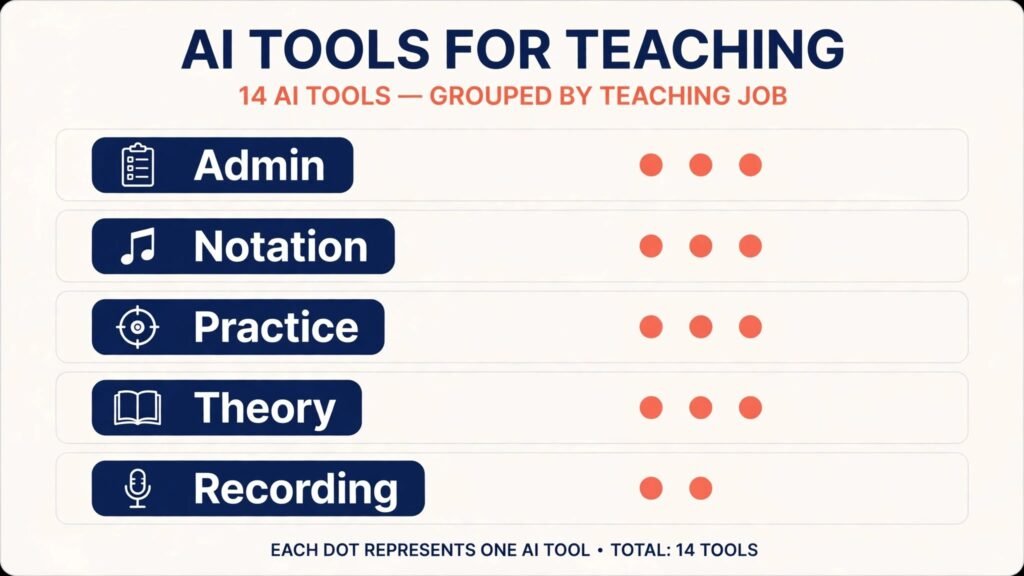
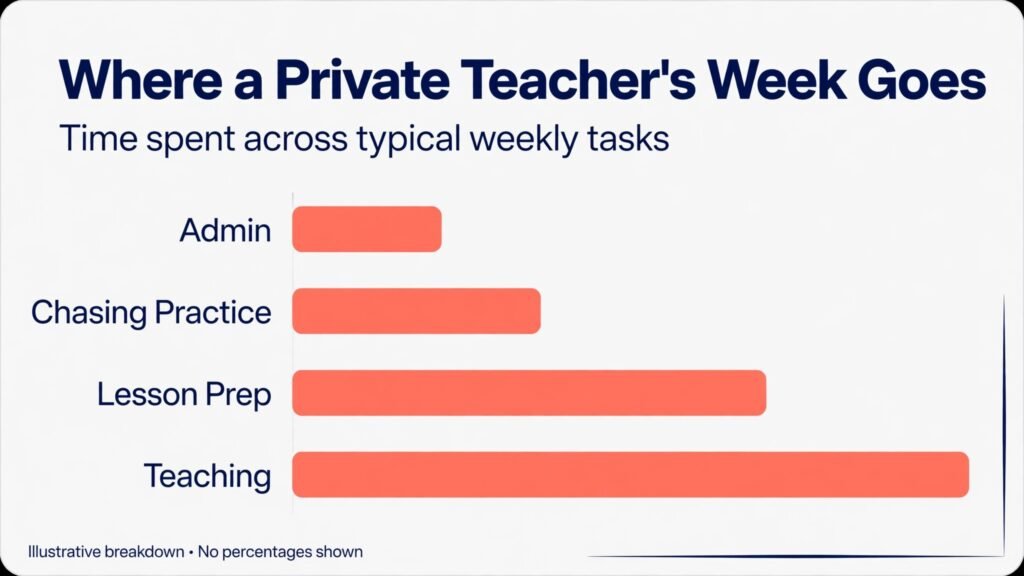
Private music teaching is a small business as much as it is a craft. A teacher with 30 students manages 30 schedules, 30 payment dates, 30 practice habits and 30 sets of parents, often alone. School teachers face a different load: large classes, mixed ability levels, ensemble parts to prepare, and progress reports that must be fair and evidence based. The tools in this guide cover both worlds, grouped by job: studio management, notation and composition, practice motivation, ear training and theory, and recording and collaboration.
A note on pricing and claims. Music apps change prices, free tiers and school licences often, and many “AI” features are really smart feedback, auto grading or adaptive exercises rather than a general chatbot. This guide describes what each tool is built to do and flags where to check the vendor checkout page before you buy. Never choose a tool on a single feature claim. Trial it with two or three real students for a month and watch practice minutes, not just screen time.
At a Glance: The 14 Tools in This Guide
| Tool | Main job | Best for |
|---|---|---|
| Tonara | Practice tracking and student chat | Private teachers who want practise to happen |
| My Music Staff | Studio scheduling, billing and portal | Private studios that need one admin home |
| Teachworks | Scheduling, invoicing and staff management | Multi teacher studios and music schools |
| Music Teacher’s Helper | Studio admin and lesson notes | Teachers who want simple, proven admin |
| MuseScore | Notation and sheet music sharing | Teachers who write arrangements and exercises |
| Noteflight | Online notation and classroom sharing | School teachers and group classes |
| Flat | Collaborative notation in the browser | Ensemble and theory classes |
| SmartMusic | Assignments, assessment and repertoire | School band, orchestra and choir programs |
| EarMaster | Ear training and sight singing | Teachers building aural skills systematically |
| Tenuto | Theory drills on mobile | Quick theory practice between lessons |
| Soundtrap | Online recording and collaboration | Students composing and recording together |
| BandLab | Free recording and sharing | Budget conscious studios and school projects |
| Piano Marvel | Piano practice with guided feedback | Piano teachers who want structured practice |
| Modacity | Deliberate practice tracking for musicians | Advanced students who practise seriously |
If you teach one instrument privately, you probably need three tools: one for admin, one for practice, and one for notation or repertoire. If you teach in school, you need tools that work for a whole class at once, with assignments, grading and a way to share parts without printing 40 copies.
Studio Management: Run the Business Without Losing the Evening
1. Tonara
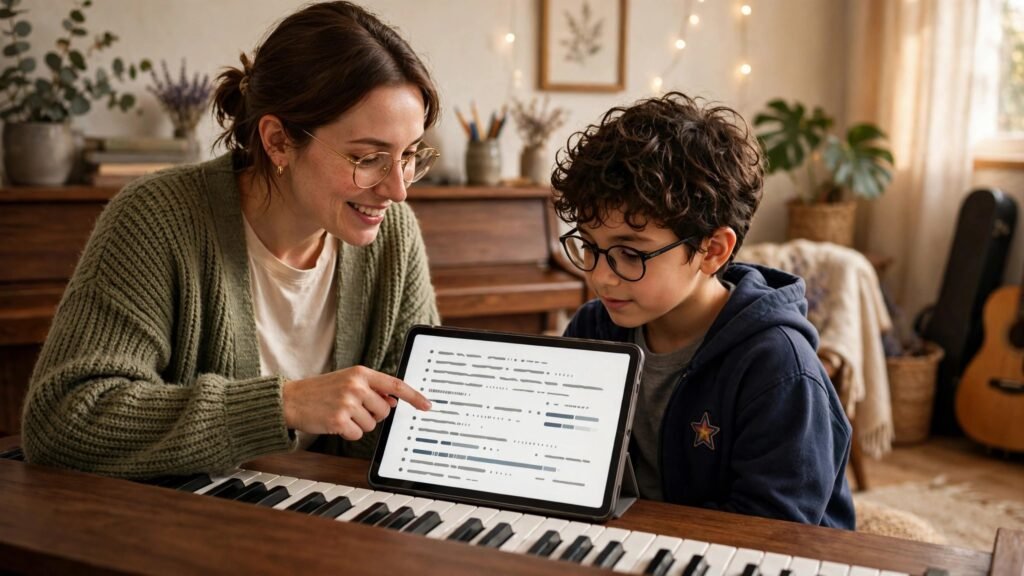
Tonara turns practice into a visible, shared habit. Students log practice, teachers see what was played and for how long, and both sides can chat inside the app instead of losing messages across text, email and social apps. Teachers can send assignments, stickers and encouragement, and parents can see progress without a weekly report email. The point is accountability without nagging: when practice is visible, students practise more, and lessons start from what actually happened that week.
It suits private teachers, especially piano, strings and voice teachers with weekly students. It also suits teachers who spend lesson time asking “did you practise?” instead of teaching. Watch out for: student buy in. If only half your studio uses the app, you will still chase the other half by text. Set the expectation at enrolment, show parents the app on day one, and keep assignments short and clear in the first month.
Pricing note: subscription pricing listed on the vendor site, with teacher and studio plans. Check the checkout page for student limits and whether parent access is included.
2. My Music Staff
My Music Staff is the admin home for a private studio: scheduling, invoicing, payments, attendance, a student portal and lesson notes in one place. Parents can view the schedule, pay online and see lesson notes, which cuts the “when is the next lesson?” and “did I pay?” messages sharply. For a teacher, the win is a single calendar and a single payment record, instead of a spreadsheet, a calendar app and a payment app that never quite agree.
It suits solo private teachers and small studios with up to a handful of teachers. Watch out for: setup time. Importing students, setting payment policies and building invoice templates takes an afternoon, and it is worth doing properly. Use the trial to set up your real studio, not a demo studio, so you can judge the daily workflow honestly.
Pricing note: monthly subscription pricing on the vendor site, by teacher count. Check the checkout page for payment processing fees, which sit on top of the subscription.
3. Teachworks
Teachworks handles scheduling, invoicing, payments and staff management for larger studios and music schools. Where a solo teacher tool focuses on one calendar, Teachworks handles multiple teachers, rooms, subjects and pay rates, with permissions so each teacher sees only their own schedule and students. That structure matters once a studio grows past the point where one person can hold every detail in mind.
It suits multi teacher studios, music schools and tutoring centres that also teach non music subjects. Watch out for: complexity for a solo teacher. If you teach alone, the extra settings may slow you down rather than help. Choose it when you have staff to manage, not before.
Pricing note: subscription pricing listed by the vendor, with add ons for payments and extra features. Check the checkout page for per teacher pricing and payment fees.
4. Music Teacher’s Helper
Music Teacher’s Helper is a long running studio admin tool with scheduling, billing, lesson notes, a student portal and practice logs. Its strength is simplicity and stability: it does the core admin jobs well, without asking a teacher to learn a large platform. Teachers who want to move off spreadsheets, but do not want a system that needs weekly configuration, often settle here and stay.
It suits private teachers who value reliability over new features, and teachers moving from paper or spreadsheet admin for the first time. Watch out for: feature fit. Check that its practice log, payment options and portal match how your families actually pay and communicate. A stable tool that misses your one essential feature is still the wrong tool.
Pricing note: subscription pricing on the vendor site. Check the checkout page for student limits and payment processing terms.
Notation and Composition: Write Parts, Exercises and Arrangements Faster
5. MuseScore
MuseScore is a free notation program with a huge shared library of scores, and it remains the default choice for teachers who write their own exercises, arrangements and theory worksheets. You can write a part, transpose it for a different instrument, export audio for practice, and share a clean PDF with a student in minutes. The community library also gives students legal, teacher shared arrangements to learn from, though quality varies and teachers should check any score before assigning it.
It suits teachers on any budget, school teachers building ensemble parts, and private teachers who customise material for each student. Watch out for: the free version versus the paid MuseScore Pro library and app features. The notation software itself is free, but some library and app features sit behind a subscription, so check what your students actually need before paying.
Pricing note: notation software free; library and app subscriptions listed on the vendor site. Check the checkout page for school or classroom terms.
6. Noteflight
Noteflight puts notation in the browser, which makes it ideal for classrooms where students use different devices. Teachers can create assignments, students can compose and submit work online, and the teacher can comment directly on the score. For theory and composition classes, that feedback loop beats collecting paper scores and returning them a week later. Sound playback also lets students hear their work, which catches errors that silent notation hides.
It suits school teachers, theory classes and group composition work. Watch out for: internet dependence and account management. A class set of accounts needs a clear naming and password plan, and lessons need an offline backup activity for days when the network fails.
Pricing note: free basic accounts plus paid classroom and school plans on the vendor site. Check the checkout page for student seat pricing.
7. Flat
Flat is another browser based notation tool built for collaboration: multiple students can work on a score, teachers can comment, and classes can share a growing library of work. Its clean interface suits younger students better than a dense professional notation program, and its Google Classroom integration helps schools that already use that system for assignments.
It suits primary and secondary classrooms, ensemble directors who share parts, and teachers who want students to compose together. Watch out for: depth limits. For advanced engraving, complex orchestral scores or publishing quality parts, a desktop notation program may still be needed. Use Flat for teaching and collaboration, and a fuller program for final publication work.
Pricing note: free and paid education plans listed on the vendor site. Check the checkout page for classroom seat counts.
Practice, Ear Training and Theory
8. SmartMusic
SmartMusic is built for school music programs: teachers assign repertoire and exercises, students practise with accompaniment and receive instant feedback on pitch and rhythm, and teachers see practice and assessment data for the whole class. For band, orchestra and choir directors, it solves the hardest part of large group teaching, which is hearing every student individually. A student can practise a part at home with feedback, instead of only playing it in a full ensemble rehearsal where mistakes hide.
It suits school band, orchestra and choir programs, and large private studios with graded repertoire. Watch out for: repertoire fit and device access. Check that your program’s core repertoire is available, and confirm that students have a device and microphone that work with the platform. A great assignment system fails if half the class cannot run it at home.
Pricing note: subscription pricing for schools and educators on the vendor site. Check the checkout page for per student versus per educator pricing.
9. EarMaster
EarMaster teaches ear training and sight singing through structured exercises: intervals, chords, rhythms, melodies and sight singing with microphone feedback. Unlike a general theory app, it builds aural skills in a sequence, with levels that adapt as the student improves. For teachers preparing students for exams, auditions or conservatory entry, that structure saves lesson time, because the drilling happens between lessons and the lesson can focus on musicianship.
It suits teachers with exam students, advanced students and school theory programs. Watch out for: practice quality. Ear training needs a quiet room and a decent microphone, and students need to understand why each exercise matters. Explain the goal of each level, or students will treat it as a game to finish rather than a skill to build.
Pricing note: subscription pricing for individuals and schools on the vendor site. Check the checkout page for school licence terms.
10. Tenuto
Tenuto is a compact theory drill app for intervals, chords, scales, key signatures and note reading, built by the makers of Musicnotes. It is not a full course. It is a five minute daily drill that keeps theory sharp between lessons, and it works well as homework for students who already understand the concept but need speed and accuracy. Teachers can recommend specific drills rather than assigning a whole app.
It suits private teachers who want light, focused theory homework, and students preparing for theory exams. Watch out for: depth. Tenuto drills recognition, it does not teach concepts from scratch. Pair it with lesson explanation, or students will memorise answers without understanding the theory behind them.
Pricing note: one time purchase pricing listed on the app stores and vendor site. Check the checkout page, as app store pricing can differ by region.
11. Piano Marvel
Piano Marvel gives piano students structured practice with guided feedback: pieces are broken into sections, the app tracks notes and rhythm, and students follow a clear path from method books to repertoire. For piano teachers, it adds a practice structure that survives the week between lessons, with progress the teacher can see before the student walks in.
It suits piano teachers with beginner to intermediate students, and studios that want a shared practice system across teachers. Watch out for: repertoire taste. Check that the method books and pieces match your teaching approach, because a practice system only helps if students enjoy the music they are asked to practise.
Pricing note: subscription pricing listed on the vendor site, with teacher and studio plans. Check the checkout page for student seat terms.
12. Modacity
Modacity is a practice app built around deliberate practice: students plan sessions, use a metronome and timer, record themselves, and log what they worked on and what needs attention next. It suits advanced students who already practise daily and want to practise better, not just longer. Teachers can review practice logs and recordings, and give feedback on practice method, which is often more valuable than feedback on a single performance.
It suits advanced private students, conservatory preparation and serious adult learners. Watch out for: beginner fit. Younger or less motivated students may find the planning step heavy. Use it for students who are ready to own their practice, and keep a simpler tracker for beginners.
Pricing note: subscription pricing on the vendor site. Check the checkout page for teacher and student plan differences.
Recording and Collaboration
13. Soundtrap
Soundtrap is a browser based recording studio where students can record, loop, edit and collaborate on tracks from school or home. For composition, songwriting and music technology classes, it removes the barrier of expensive software and complex setup: a student opens a browser, records a part, and a classmate adds another part the same day. Teachers can create assignments, listen to drafts and comment inside the project.
It suits school music technology classes, songwriting students and group composition projects. Watch out for: audio quality expectations and account setup. Browser recording is convenient, but it will not match a treated room and a good microphone. Set expectations early, and test the school network and headphones before a full class project.
Pricing note: free tier plus paid education plans on the vendor site. Check the checkout page for classroom seats and storage limits.
14. BandLab
BandLab is a free online recording and sharing platform with a large community of musicians. Students can record multi track projects, use loops and virtual instruments, and share finished work with the class or a wider audience. For budget conscious studios and schools, it offers a real recording workflow at no subscription cost, which makes it a strong choice for first recording projects and for students who want to keep creating at home.
It suits school projects, beginner recording students and studios with tight budgets. Watch out for: community and sharing settings. Student accounts need clear privacy settings, and teachers should set rules for what students share publicly, what stays inside the class, and how feedback is given. Review sharing settings before the first project, not after.
Pricing note: free core platform, with optional paid features listed on the vendor site. Check the checkout page before assuming a feature is free for classroom use.
Best Pick by Job
| Job | Best pick | Why it wins for that job |
|---|---|---|
| Get students practising | Tonara | Visible practice, chat and assignments in one app |
| Run a private studio | My Music Staff | Scheduling, billing and portal in one place |
| Run a multi teacher school | Teachworks | Staff, rooms and pay in one system |
| Write and share notation free | MuseScore | Full notation plus a huge shared library |
| Teach notation online | Noteflight | Browser scores, assignments and feedback |
| Build aural skills | EarMaster | Structured ear training with microphone feedback |
| Grade a whole school program | SmartMusic | Assignments and assessment for large classes |
| Teach recording and songwriting | Soundtrap | Browser studio for collaboration |
| Record on a zero budget | BandLab | Free multi track recording and sharing |
| Build serious practice habits | Modacity | Planned, recorded, reviewed deliberate practice |
How to Choose the Right Tools for Your Studio
Start with your teaching model, not with an app list. A private teacher with 25 students needs admin and practice tracking first. A school teacher with 120 students needs assignments, grading and class management first. A composition teacher needs notation and recording first. Write down the three tasks that take the most time each week, then choose tools that remove those tasks. If admin is not a problem but practice is, do not buy another admin system.
Next, test with real students, not with your own demo account. Pick three students of different ages and ability levels, run the tool for four weeks, and measure practice minutes, assignment completion and the time you spend chasing missing work. Ask students and parents what they liked and what annoyed them. A tool that students enjoy using for a month is worth more than a tool with a longer feature list that students abandon in week two.
Budget by total studio cost, not by single app price. Add per student seats, school licences, payment fees and the time you spend setting up and supporting the tool. A free tool that needs an hour of support per student per month is not free. Also check device reality: if half your students practise on a shared family tablet or a school Chromebook, choose browser tools that work on those devices, not apps that need a recent phone.
Finally, protect the lesson itself. Technology should make the lesson better, not replace the listening, the demonstration and the conversation that only a teacher provides. Use apps for drilling, tracking and preparation, and keep lesson time for musicianship, interpretation and the human feedback that no feedback algorithm can give. Parents pay for a teacher, not for an app, and the best studios use both in the right proportion.
For a related view on running a teaching business, see the Stratilyze guide to the best AI tools for tutors, which covers scheduling, billing and progress tracking for one to one teaching in other subjects.
A Four Week Trial Plan for a Teaching Studio
Week one is for setup with real students. Choose three students of different ages and levels, set up their accounts, assignments and practice logs, and show parents exactly what you will see and what you will not see. Keep lesson time normal and let the tool handle the between lesson work. Note how long setup takes per student, because a tool that needs an hour per student will not scale to a full studio, however good its features look in a demo.
Week two is for observation. Check practice logs before each lesson and adjust assignments based on what students actually did, not on what you hoped they would do. Ask students which parts they liked and which parts felt like extra homework. A practice app that students open willingly is worth more than a feature rich app they avoid. If a student never opens the tool, find out why before the trial ends: it may be a device problem, a password problem or a simple lack of understanding, and each cause has a different fix.
Week three is for parents and billing. If the tool touches scheduling or payments, test a reschedule, a missed lesson and a payment reminder with a real family, and watch how clearly the system communicates. Parents judge a studio by how easy it is to pay, reschedule and understand progress. A tool that confuses parents will cost you enrolments, even if teachers love it.
Week four is for a keep or cancel decision. Keep the tool if practice minutes rose, assignment completion improved, or admin time fell by a clear amount you can name. Cancel it if only you used it, if students needed constant reminders to open it, or if it added a new inbox you must check daily. Record the result in one paragraph, so next term you do not repeat a trial that already failed.
Mistakes to Avoid
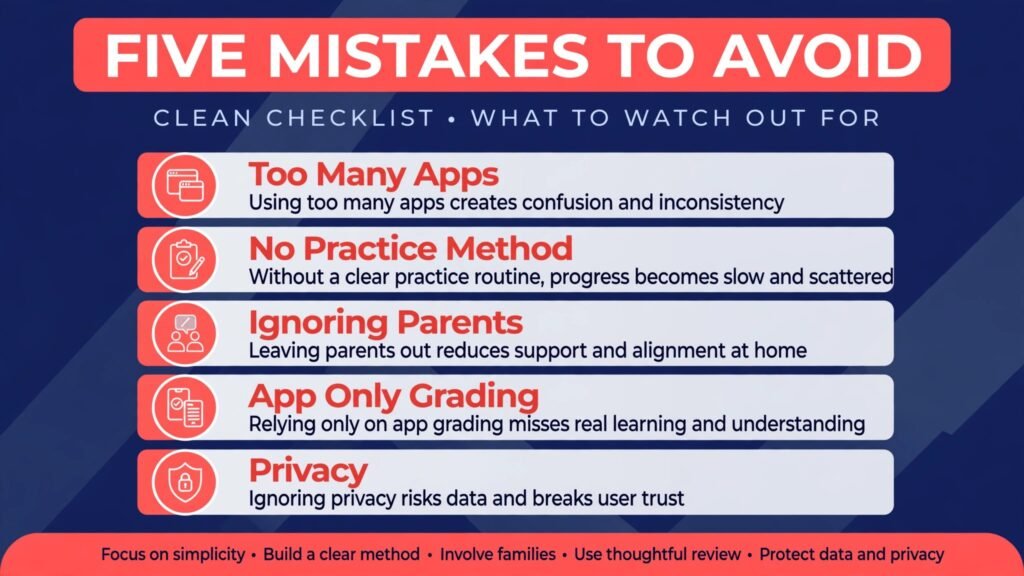
The first mistake is buying five apps at once and expecting students to learn them all. Students, especially younger ones, will use one or two tools well and ignore the rest. Launch one tool, make it normal for a month, then add a second only if a clear gap remains.
The second mistake is assigning an app without teaching students how to practise with it. A practice tracker does not teach practice method. Show students how to break a piece into sections, how to use a metronome, and how to record and listen back. Without that teaching, apps produce more minutes and little improvement.
The third mistake is ignoring parents. Parents pay, parents supervise practice at home, and parents decide whether a tool stays. Show parents the app, explain what you will see and what you will not see, and give them a simple way to ask questions. A tool that parents distrust will be uninstalled, whatever the teacher thinks of it.
The fourth mistake is grading only what the app measures. Pitch accuracy and practice minutes are easy to measure, but phrasing, tone, musicality and joy are not. Keep a teacher judgment in every report and grade, and tell students clearly that the app score is one part of progress, not the whole story.
The fifth mistake is forgetting data and privacy, especially with children. Check where student recordings, practice data and messages are stored, who can see them, and how long they are kept. Use school or studio accounts, not personal accounts, for class work, and get parent consent for any recording or public sharing.
Frequently Asked Questions
Will AI practice apps replace music teachers?
No. Apps give feedback on pitch, rhythm and practice time, but they do not teach interpretation, tone, technique in person, or motivation over months and years. The teachers who benefit most use apps to handle drilling and tracking, and spend lesson time on the musical decisions that need a human ear.
How much should a private teacher spend on tools each month?
Start with one admin tool and one practice tool, and keep total cost below the value of one or two lessons per month until you know the return. If a tool saves you three admin hours a month or brings back two lapsed students, it pays for itself. If it does not, cancel it and try a simpler option.
Do students really practise more with a tracking app?
Often yes, but only when the teacher checks the log and responds to it. A tracker that nobody looks at becomes wallpaper. Review practice before each lesson, praise specific effort, and adjust assignments based on what the log shows. The teacher response is what makes the app work.
What if a family has no device or poor internet?
Keep an offline option. Paper practice charts, printed parts and phone based audio recordings still work, and a teacher should never penalise a student for a device gap. Choose browser tools that work on shared devices, and offer a paper alternative for every digital assignment.
Can school teachers use these tools for a whole class?
Yes, but check school licences, student seat limits and privacy rules first. Tools built for schools, such as SmartMusic, Noteflight and Soundtrap education plans, handle class accounts and grading better than individual accounts shared across a class. Ask your school IT team before a full rollout.
Is free notation software good enough for teaching?
For most teaching, yes. MuseScore handles exercises, arrangements and theory worksheets well, and its shared library saves hours. For publishing quality parts or complex orchestral work, a professional notation program may still be worth it, but start free and upgrade only when you hit a real limit.
Conclusion: Best AI Tools for Music Teachers in 2026
The best AI tools for music teachers in 2026 help the lesson, not distract from it. Tonara and Modacity make practice visible. My Music Staff, Teachworks and Music Teacher’s Helper take admin off the evening. MuseScore, Noteflight and Flat make notation and composition a shared, feedback rich activity. SmartMusic, EarMaster and Tenuto build skills between lessons. Soundtrap and BandLab let students record and create together, and Piano Marvel gives piano practice a clear path.
Choose by your biggest weekly pain, trial with real students for a month, and keep lesson time for the teaching only you can do. A studio that practises more, bills cleanly and shares music confidently will grow by recommendation, and that growth will come from better teaching supported by good tools, not from tools alone.