
Compare two streamers with the same game, skill level and three hours a week to create content. One spends Sunday night scrubbing through a long recording, hunting for a funny moment and typing captions by hand. The other uploads the recording, gets ranked clips in minutes, posts the best one with captions, and spends the evening live with chat. That gap is the case for this guide to the best AI tools for streamers. Success still depends on personality, consistency and community, but AI now decides how much limited time goes to growth work and how much disappears into editing.
A warning belongs with that promise. AI tools reward what is loud or dramatic, which is not always what builds a loyal community. Choose clips that represent the stream you want to be known for, not only the clip most likely to spike, and check platform rules, music licences and sponsor rules before you publish.
The best AI tools for streamers at a glance
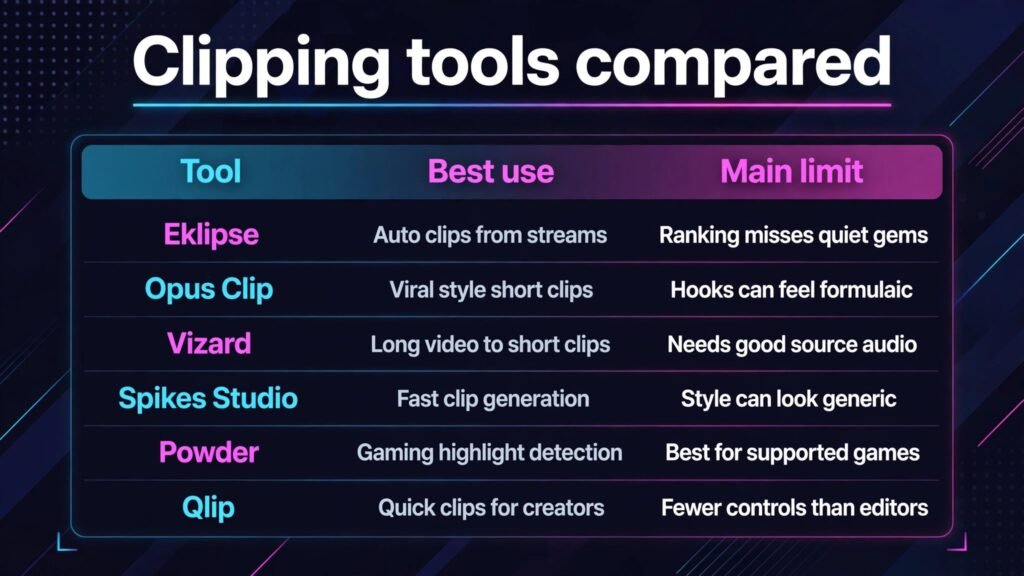
| Tool | Best for | Watch out for |
|---|---|---|
| Eklipse | Auto clips from streams | Clip ranking misses quiet gems |
| Opus Clip | Viral style short clips | Hooks can feel formulaic |
| Vizard | Long video to short clips | Needs good source audio |
| Spikes Studio | Fast clip generation | Style can look generic |
| Powder | Gaming highlight detection | Best for supported games |
| Qlip | Quick clips for creators | Fewer controls than editors |
| Descript | Editing streams by transcript | Long streams need patience |
| Captions | Animated captions and hooks | Caption style can distract |
| ElevenLabs | Voiceovers and dubbing | Voice consent rules apply |
| Midjourney | Overlays, art and thumbnails | Style consistency needs work |
| Canva | Thumbnails, panels and schedules | Templates can look alike |
| ChatGPT | Titles, scripts and chat ideas | Ideas need a human filter |
| Streamlabs | Alerts, overlays and tipping | Overlays can clutter a stream |
| Restream | Streaming to several platforms | Chat across platforms gets messy |
Clipping: turning one stream into a week of shorts
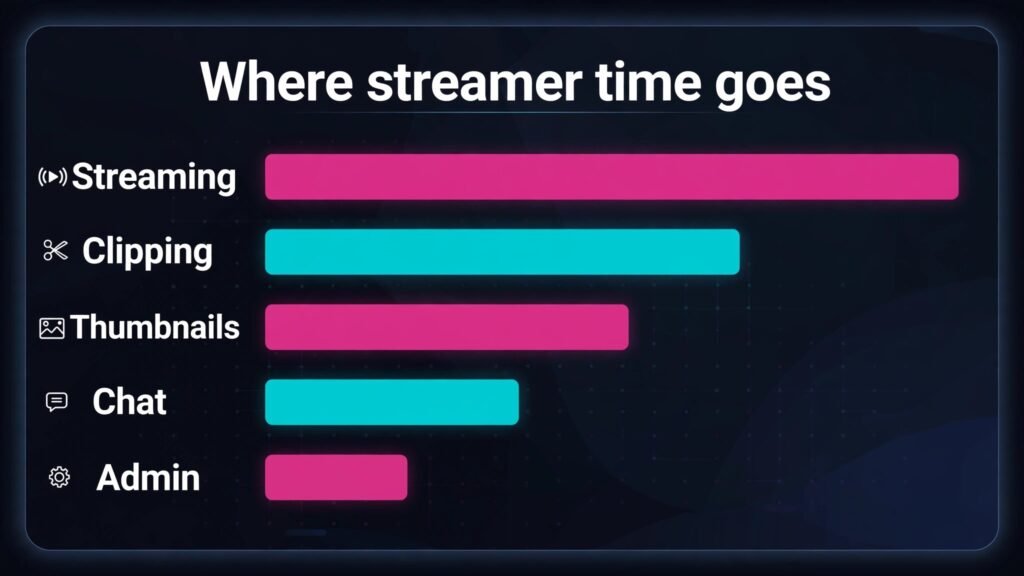
Clipping is the highest return job for most streamers, because one live session can become five to ten short videos if moments are found and cut well. These six tools compete on ranking, control and speed rather than on whether they can cut a clip at all.
1. Eklipse
Eklipse is built for streamers and gamers, and it finds highlights from a stream automatically, then formats them for short video platforms. A streamer can link a channel, let Eklipse process a recent broadcast, and review a set of clips ranked by likely interest, instead of rewatching hours of footage. That ranking saves the most painful part of clipping, which is the search, and it helps smaller streamers who do not have an editor. Eklipse also supports templates, captions and music choices that make a clip ready to post with only a short review pass, which matters when a creator wants to post while a game or trend is still current.
Ranking is a guess, not a judgment. Eklipse will favour loud reactions and funny fails, and may miss a quiet moment that defines a channel. Review more clips than the top three, and note moments during a live stream so you can find them even if ranked low. Check clip length, captions and music licences before posting, and avoid clips that embarrass another player. Eklipse works best as a first pass finder, with a human making the final choice.
Watch out for: ranking that misses quiet moments, caption errors, and clips that embarrass other players.
2. Opus Clip
Opus Clip turns long videos into short clips with hooks, captions and a virality style score, and it is popular with creators who post daily on short video platforms. A streamer can upload a long recording, get a set of clips with suggested titles and captions, and choose the ones that fit the channel. The hook first approach helps on platforms where the first two seconds decide whether a viewer stays, and the caption styles are designed to be readable on a phone screen without sound. For streamers who want to grow through shorts, Opus Clip gives a fast, repeatable workflow from stream to post in one sitting.
The formula can become visible. When every clip opens with the same hook style and pacing, viewers recognise the template rather than the creator. Vary hooks, keep some clips slower or more personal, and rewrite titles in your own voice. Opus Clip also needs a strong source moment. A dull stretch of gameplay will not become a great clip because captions say so, and posting weak clips daily can hurt more than posting strong clips three times a week. Check pricing at checkout, because clip minutes differ by plan.
Watch out for: formulaic hooks, weak source moments dressed up as clips, and posting volume over quality.

3. Vizard
Vizard converts long videos into short clips with transcripts, captions and editing controls, which suits streamers who want more say over the final cut than a fully automatic tool gives. A creator can search the transcript for a phrase, jump to that moment, trim the clip, adjust captions and export for several platforms. That transcript search is valuable for streamers who talk a lot during a stream, because a funny story or a useful tip can be found by words rather than by scrubbing a timeline. Vizard also helps with repurposing non gaming content, such as just chatting streams, interviews and community Q and A sessions, where the value is in what was said rather than what happened in a game.
Good source audio is essential. Overlapping voices and loud game audio produce transcript errors that flow into captions and search. Improve audio first, with a decent microphone and balanced game audio. Vizard also rewards editing time. A creator wanting one click clips may find its controls more work than a simpler tool, while a creator who enjoys shaping a clip will appreciate the control. Test it with one stream before committing to a paid plan.
Watch out for: transcript errors from poor audio, extra editing time, and captions that need a manual fix.
4. Spikes Studio
Spikes Studio focuses on speed. Upload a stream or a long video, get clips quickly, and post the best ones with captions and formatting for short platforms. That speed helps streamers who stream late, want clips live the next morning, and cannot afford a long editing session before work or study. Spikes also helps smaller creators who need a simple workflow, because the steps are few and the output is ready to review without learning a full editor. For a streamer building a daily posting habit, speed and simplicity can matter more than advanced controls that are rarely used.
Speed can produce sameness. Spikes clips can look similar to other creators’ clips, especially when caption styles and templates are left at defaults, and a channel can lose its visual identity if every post uses the same look. Customise captions, colours and hooks to match your channel, and keep a consistent intro or outro that viewers recognise. Also review clips for context. A fast clip workflow can post a moment that made sense live, with chat context, but reads differently as a standalone short. Add a short caption or title that restores the context before posting.
Watch out for: generic default styling, lost context in fast clips, and speed replacing a review pass.
5. Powder
Powder is built for gaming highlights, detecting big moments in supported games and turning them into clips automatically. For streamers who play fast, moment driven games, that detection can catch kills, wins, comebacks and funny fails without manual searching, and it can build a clip library over weeks of play. Powder also helps with sharing, because clips are formatted for social platforms and can be posted quickly after a session. A streamer who plays one main game will get more value from Powder than a variety streamer, because detection improves with familiarity with a game’s events and pacing.
Game support is the limit. A game outside Powder’s supported list, or a stream focused on chatting, building or roleplay rather than competitive moments, will produce fewer useful clips, and a streamer may pay for a tool that only covers part of their content. Check supported games before you commit, and test with your actual game and play style. Powder also favours action moments, so a thoughtful, funny or community moment may still need manual clipping. Use Powder for highlights, and keep another clipping tool or a manual workflow for the moments that define your community.
Watch out for: limited game support, action bias, and value dropping for variety or chatting streams.
6. Qlip
Qlip is a simpler clipping option for creators who want quick clips without a complex editor. Upload a video, get short clips, review and post. That simplicity helps new streamers, streamers who clip on a phone, and creators who want to test short form posting without learning a full toolset first. Qlip also helps streamers who create on a tight schedule, because the time from upload to a postable clip is short, and the review step is the main human job. For a creator who is still learning what clips work for their audience, a simple tool lowers the barrier to experimenting.
Simplicity means fewer controls. A streamer who wants precise trimming, custom caption animation, layered graphics or advanced hook editing may outgrow Qlip quickly, and may need to move to a fuller editor or a second tool. That is not a failure. Starting simple, learning what your audience responds to, and then upgrading to a tool with more control is a sensible path, and it avoids paying for features you do not yet use. Check clip limits, export quality and pricing at checkout, because free tiers can limit the number of clips or the resolution in ways that matter for posting.
Watch out for: fewer editing controls, export and clip limits on free tiers, and outgrowing the tool as editing needs grow.
Editing, captions, voice and visuals
Once clips exist, the next jobs are making them readable, listenable and recognisable. These five tools cover editing, captions, voice, art and design.
7. Descript
Descript edits video and audio by editing a transcript, which is a natural fit for streamers who talk through a game or host a chatting stream. Delete a rambling sentence in the transcript and it disappears from the video, which makes cleaning up a long recording far faster than timeline editing for many creators. Descript also helps with captions, filler word removal and creating short clips from a longer recording, so one tool can cover several post production jobs. For streamers who make YouTube videos from streams, tutorials or podcasts alongside live content, Descript gives a single workflow from raw recording to a clean, captioned video.
Long streams test patience. A three hour recording produces a very long transcript, and editing it in full can still take hours. Work in sections, edit the best hour first, and do not polish every minute of a casual stream. Audio quality matters too. A stream with echo or unbalanced game audio will need more correction, and Descript cannot fix a bad recording. Plan audio before the stream, and check captions for game terms and names that transcription may mishear.
Watch out for: long transcript editing time, poor source audio, and caption errors on game terms and names.
8. Captions
Captions, the app, adds animated, word by word captions to short videos, which helps on platforms where many viewers watch without sound. A streamer can upload a clip, get captions timed to speech, choose a style, and export a video that is readable on a phone, in a feed, or in a noisy room. That readability matters for growth, because a viewer who understands a clip without sound is more likely to stay, follow and watch the full stream later. Captions also help accessibility, giving deaf and hard of hearing viewers a way into content that would otherwise be audio only, which is a real audience gain as well as a good practice.
Caption style can distract if overused. Bright, bouncing words on every clip can make a channel feel loud and hard to watch. Choose a clean, consistent style, keep text readable without covering the game or face, and check timing and spelling before posting. Fast or overlapping speech may need manual correction, and game terms and usernames are common errors. Treat captions as a draft to review.
Watch out for: distracting caption styles, timing and spelling errors, and captions that cover important visuals.
9. ElevenLabs
ElevenLabs creates realistic voiceovers from text, which helps streamers add narration to videos, intros, explainers and highlight reels without recording every line live. A streamer can write a script for a YouTube video, generate a clear voiceover, and edit it alongside gameplay footage, which is useful for creators who are not confident recording voiceovers, who stream late, or who want a consistent narration voice across videos. ElevenLabs also supports dubbing and voice translation for some creators, which can help a channel reach viewers in other languages, though translation quality and cultural fit still need a human check.
Voice use needs clear rules. Never clone another person’s voice without consent, and be transparent when a voiceover is synthetic, especially for sponsorship or personal stories. Undisclosed synthetic audio can damage trust if discovered later. Check pronunciation of game titles and usernames, because a synthetic voice can misread them. ElevenLabs is best for scripted narration and explainers, not for replacing live interaction. Keep live voice human.
Watch out for: voice cloning without consent, undisclosed synthetic voice, and mispronounced names and titles.
10. Midjourney
Midjourney creates striking images from text prompts, which streamers use for overlays, stream backgrounds, emotes, thumbnails and channel art. A creator with a clear visual idea can generate a fantasy scene, a character portrait, a logo style concept or a thumbnail background in minutes, without hiring an artist for every asset. That speed helps with seasonal events, new game launches and series artwork, where a fresh look keeps a channel feeling current. Midjourney images also stand out in a feed, because they can be more dramatic and detailed than a simple screenshot, which helps thumbnails compete for clicks.
Consistency is hard. Midjourney can produce a beautiful image that does not match the previous image or channel colours, and a stream that changes visual identity weekly can feel unsettled. Build a prompt style guide with colours, lighting and character notes, save successful prompts, and edit results before use. Check image rights and platform rules, and be careful with images resembling real people or copyrighted characters. For core brand assets like a logo, a human designer is still the better investment.
Watch out for: inconsistent visual identity, rights questions on generated art, and images resembling copyrighted characters.
11. Canva
Canva is the everyday design tool for streamers. Thumbnails, stream schedules, panels, social posts, subscriber goals and event graphics can all come from one tool, with templates that keep a channel looking consistent. A streamer without design training can make a clean thumbnail in an evening, and a template system means a schedule post, a thumbnail and a social announcement still look like they belong to the same channel. Canva also helps with speed. A thumbnail template with a changeable title, game art and face cutout can be reused weekly, which cuts the time from stream to post.
Template sameness is the risk, and it is visible on streaming platforms where many creators use the same popular layouts. Customise templates with your own colours, fonts, face style and game art, and test thumbnails at small size, because a thumbnail that looks great full screen may be unreadable in a feed. Check spelling, game titles and dates on every graphic, and check image licences for any photo or art you did not create. Canva works best when a streamer treats it as a production system, with a small set of house templates, rather than as a place to browse new templates for every post.
Watch out for: template sameness, thumbnails unreadable at small size, and image licence mistakes.
Live tools, ideas and reaching more platforms
Clips and graphics mean little if the live stream itself is hard to run or stuck on one platform. These three tools cover ideas, live production and multistreaming.
12. ChatGPT
ChatGPT helps streamers with ideas, titles, scripts and community content. A streamer can brainstorm stream ideas, generate ten title options for a video, outline a tutorial, write a community post, or draft responses to common chat questions. That idea help matters when a creator streams several times a week and runs out of fresh angles, because consistency is easier when planning takes thirty minutes instead of three hours. ChatGPT can also help with non streaming jobs, such as writing a sponsor pitch, a channel description, a media kit or a collaboration message, which are the business tasks many creators put off.
Ideas need a human filter. ChatGPT suggestions tend toward the generic, the safe and the already popular, and a channel that follows every suggestion can start to sound like every other channel. Use ChatGPT for a starting list, then pick the idea that fits your personality, your community and your game, and rewrite titles and scripts in your own voice. Check facts before you teach or review anything, because ChatGPT can invent game details, patch notes or statistics with confidence. Keep personal and financial details out of chats, and treat ChatGPT as a brainstorming partner, not as a source of truth.
Watch out for: generic ideas, invented game details, and scripts copied without a personal rewrite.
13. Streamlabs
Streamlabs gives streamers alerts, overlays, widgets and tipping tools in one live production package. A new streamer can set up follower alerts, donation goals, chat boxes and event lists without building a system from separate tools, and can customise the look to match a channel brand. Streamlabs also helps with monetisation basics, such as tip pages and merch links, and with stream management, such as scene collections and widget settings that can be saved and reused. For a creator starting out, that all in one setup lowers the technical barrier to a professional looking stream.
Overlays can clutter a stream. Too many alerts, tickers, goals and widgets can cover gameplay, distract viewers and make a stream feel like an advert break. Keep overlays minimal, test them at full screen and on a phone, and remove anything that does not help viewers understand the stream or join the community. Streamlabs also has paid features and themes, so check pricing at checkout and avoid paying for a theme pack you will only use once. Test alerts before going live, because a broken alert or a loud sound during a quiet moment can derail a stream.
Watch out for: cluttered overlays, broken alerts untested before live, and paid themes bought but rarely used.
14. Restream
Restream lets a streamer broadcast to several platforms at once, such as Twitch, YouTube and Facebook, from a single stream. That reach helps creators who are unsure where their audience lives, or who want to grow on a second platform without streaming twice. Restream also brings chat from several platforms into one view, which helps a streamer read and respond without juggling multiple windows. For creators testing a new platform, multistreaming is a low risk way to learn where viewers actually show up, how chat behaves, and which platform’s discovery works best for their content.
Chat across platforms gets messy. Viewers on different platforms have different cultures and chat speeds, and a streamer can easily miss questions. Keep chat rules clear, use moderation tools, and check multistreaming rules, because some platforms restrict simulcasting for partnered creators. Multistreaming also splits attention, so start with two platforms and expand only if chat remains manageable.
Watch out for: messy multi platform chat, platform exclusivity rules, and attention split across too many chats.
Best pick by job
| Job | First pick | Why it wins for most streamers |
|---|---|---|
| Auto game highlights | Powder | Detects action moments in supported games |
| Viral style shorts | Opus Clip | Hook first clips with scores and captions |
| Transcript based clipping | Vizard | Search by words, trim with control |
| Fast simple clips | Spikes Studio | Speed and simplicity for daily posting |
| Streamer focused auto clips | Eklipse | Built for streamers, ranked highlights |
| Long form editing | Descript | Text based editing for talk heavy content |
| Animated captions | Captions | Readable shorts without sound |
| Voiceovers | ElevenLabs | Clear scripted narration fast |
| Thumbnail and overlay art | Midjourney | Dramatic custom visuals |
| Everyday channel design | Canva | Templates for thumbnails and schedules |
| Ideas and titles | ChatGPT | Fast brainstorming and outlines |
| Live alerts and overlays | Streamlabs | All in one live production setup |
| Multistreaming | Restream | One stream to several platforms |
Start with one clipping tool, Canva for thumbnails and Streamlabs for live production. That trio covers growth, looks and live quality, and is small enough to learn while streaming regularly.
How to choose the right tools for your channel
Start with your bottleneck. If you stream regularly but post no clips, a clipping tool is the first buy. If you post clips but nobody clicks, thumbnails and hooks are the bottleneck, and a design or caption tool matters more. If your live stream looks messy, overlays and audio matter more than another clipping app. Write down where viewers drop off. Are they not finding you, not clicking, not staying, or not returning? Each answer points to a different tool, and buying a tool for the wrong bottleneck wastes money and time.
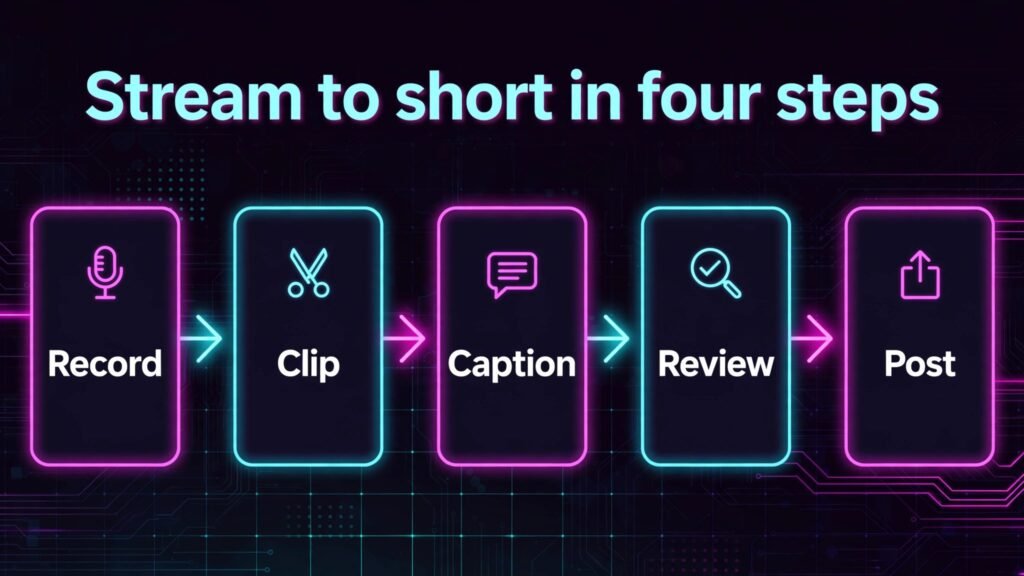
Next, test with one real stream. Run the same recording through two clipping tools, post the best clip from each on different days, and compare views and watch time, not only the tool’s own score. Check pricing at checkout, clip limits, export quality and music licences before you commit, and check whether a tool works with your game, your platform and your device. Keep a simple weekly system. Stream, clip the next morning, review and post one strong clip, then go live again. That rhythm beats a system that produces ten weak clips and no live energy.
Mistakes to avoid
The biggest mistake is posting clips without review. A clip without context, a caption error, a music licence problem or a moment that embarrasses another player can harm a channel faster than a missed post helps it. Review every clip, check context, captions and licences, and delete a clip that does not represent you well. A second mistake is buying every clipping tool at once. Most clipping tools overlap, and a creator who pays for four of them will use one well and ignore three. Pick one, learn it for a month, then add a second only for a job the first cannot do. A third mistake is chasing viral clips over community. A spike of viewers who leave is less valuable than a smaller group who return, chat and support the channel. A fourth mistake is cluttering the live stream with overlays, alerts and widgets until gameplay and personality disappear. Keep the stream watchable first, and add production second. A fifth mistake is ignoring audio. Viewers forgive imperfect video far more easily than they forgive echo, distortion or unbalanced game sound, so fix audio before you buy another visual tool.
Frequently asked questions
Do streamers need AI tools to grow?
No, but AI tools remove the editing bottleneck that stops many consistent streamers from posting clips. Personality, consistency and community still decide growth, while AI decides how much time a creator can spend on those things instead of editing.
Which clipping tool should a new streamer try first?
Start with one tool that matches your game and platform, test it with a real stream, and judge it on clips you actually want to post. A simple, fast tool is better for a new streamer than a powerful editor that takes a week to learn.
Can AI clips replace an editor?
For short form clips, AI can replace much of the search and first cut work, but a human still needs to choose, check context, fix captions and decide what represents the channel. For long YouTube videos, an editor still adds structure, pacing and storytelling that AI tools do not yet provide.
How many clips should a streamer post per week?
Quality and consistency matter more than a fixed number. Three strong clips that represent the channel will usually serve a creator better than ten weak clips, and a posting rhythm a creator can sustain for months beats a burst that burns out in two weeks.
Are AI voiceovers allowed on streaming platforms?
Rules vary by platform and by use, so check current platform rules, sponsorship rules and disclosure expectations before using synthetic voice for narration, ads or personal stories. Never clone another person’s voice without consent.
Should a streamer multistream from the start?
Multistreaming can help a creator test platforms, but it splits chat attention and can complicate platform rules. Start with one main platform, build a community rhythm, then test a second platform when chat and moderation remain manageable.
Conclusion
Streaming growth in 2026 is less about more hours and more about turning hours you already stream into clips and moments people can find and return to. Pick one clipping tool that fits your game, one design tool for thumbnails, and one live production setup that keeps your stream clean, then build a weekly rhythm of stream, clip, review and post. Check every clip for context, captions and licences, protect audio quality, and keep live interaction human, because viewers follow people, not templates. Done consistently, AI gives a solo streamer the output of a small team without losing the personality that made the channel worth following in the first place, and that combination is what turns occasional viewers into a community.
For creators building wider content, see our guide to best AI tools for content agencies and our guide to best AI tools for photographers. Streamers who also edit long videos may find our guide to best AI tools for course creators useful for structuring tutorials.