
A video call freezes, a download restarts, and a page that loaded a minute ago suddenly shows no connection. Then, without any clear action from you, the Wi-Fi icon returns and everything works again for a while. That on and off pattern is the most useful clue you have. To fix Wi-Fi dropping on laptop machines reliably, you need to match the fix to the cause, not work through a random list of tips and hope one of them sticks. A driver fault, a power setting, a crowded channel, and a weak signal all look the same on screen, but they need different repairs.
This guide works from the pattern outward. It starts with a short diagnosis you can finish in ten minutes, then gives a fix table by cause, then walks through each cause in full, with Windows and Mac steps where they differ, router checks, interference fixes, and clear signs that the fault is hardware. Prices are given only where they were checked at draft time, and you should still check the listing at checkout, because router and adapter prices move with sales and stock. You do not need to buy anything to start. Most drops are fixed with a driver change, a setting change, or a router change that costs nothing.
Fix Wi-Fi Dropping on Laptop by Cause, Step by Step
The fastest way to solve this problem is to stop asking what fixes Wi-Fi in general and start asking what is different about your drops. Do they happen only on battery power. Do they happen only in one room. Do they happen only on video calls. Did they start right after an update. Each answer points to a different row in the table below, and each row has a first fix that takes minutes, plus a next step if that fix does not hold for a full day.
Use the table as your starting point, then read the matching section in full. The table alone will help many readers, because it stops the common error of reinstalling a driver when the real problem is a router that is overloaded, or replacing a router when the real problem is a power setting that turns the adapter off. The sections that follow give the exact clicks, the settings to check, and the tests that prove whether a fix worked.
| Cause | Clue that points to it | First fix to try | Move on if this happens |
|---|---|---|---|
| Outdated or faulty driver | Drops started after an update, or only on this laptop | Update from the laptop maker, then roll back if the update caused it | Drops continue on a different network |
| Power saving | Drops on battery, after sleep, or when the laptop idles | Stop Windows turning the adapter off, set maximum wireless performance | Drops continue while plugged in and active |
| Router fault or overload | Every device drops, or drops peak in the evening | Restart the router properly, update firmware, cut the device load | Only the laptop drops |
| Interference | Drops near a microwave, USB hub, or in a crowded flat | Change channel, move the laptop, test 5 GHz and 2.4 GHz separately | Drops continue in a quiet room close to the router |
| Weak signal | Drops far from the router, through walls or floors | Move closer, improve router placement, test with Ethernet | Ethernet also drops, which points to a wider fault |
| Band steering or roaming | Drops when you move rooms, or on mesh Wi-Fi | Split the bands for a test, check roaming and mesh settings | Drops happen while sitting still in one room |
| VPN, firewall or security software | Drops only when the VPN or security tool is on | Update it, test with it off for a short period, change its network setting | Drops happen with it fully off |
| Failing adapter or antenna | Drops on every network, after all software fixes | Test a USB adapter, check antenna cables if the laptop opens safely | A USB adapter is stable for days, which confirms the internal adapter |
Start With a 10 Minute Pattern Check Before You Change Anything
Before you change a driver or buy a device, spend ten minutes writing down what actually happens. That log is the practical way to fix Wi-Fi dropping on laptop connections without guessing. That short log saves hours, because it separates a laptop fault from a home network fault, and it gives you a test you can repeat after each fix. Open a notes app and record the time of each drop, what you were doing, whether the laptop was plugged in or on battery, where you were sitting, and whether other devices also lost connection at the same moment.
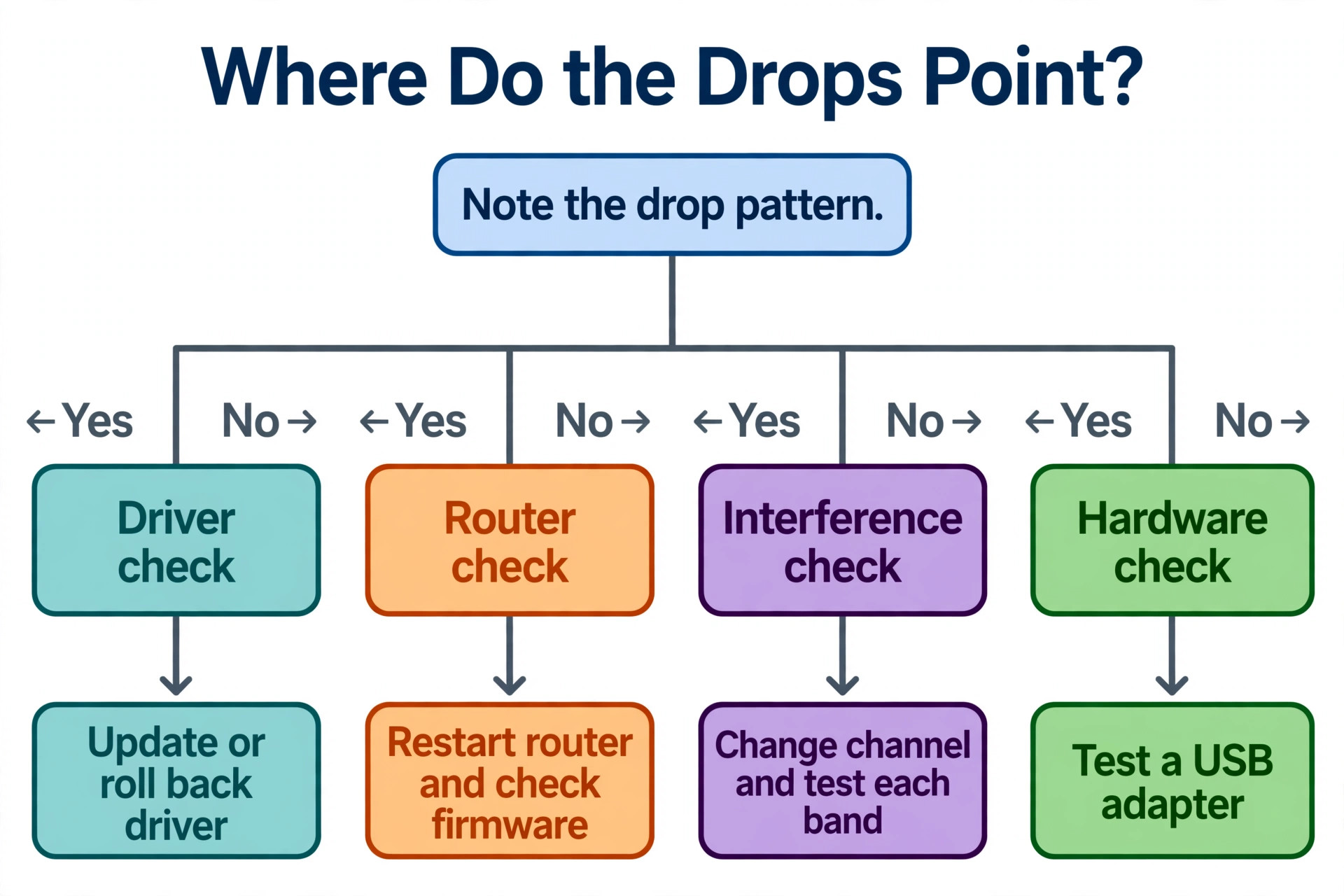
Next, run three quick comparisons. First, move the laptop to the same room as the router and use it there for ten minutes. If the drops stop, signal or interference is high on the suspect list. Second, connect a phone or another laptop to the same network and use it in the same spot. If both devices drop, the router or the internet line is the stronger suspect. Third, connect the laptop to a phone hotspot for ten minutes. If the laptop stays connected on the hotspot, the fault is tied to your home network or router, not to the laptop hardware in general.

If it drops on the hotspot too, the laptop itself moves to the top of the list.
Write down the result of each test before you move to fixes. A useful note looks like this in plain words. Drops happen in the bedroom only, on battery and plugged in, phone stays connected, hotspot is stable. That single sentence already rules out a general laptop hardware fault and points toward signal or interference in one room. Without that note, it is easy to try five fixes, forget which one helped, and end up back at the start a week later.
Driver Problems and How to Fix Them
Drivers are the most common laptop side cause, and they are also the most misunderstood. Many readers who need to fix Wi-Fi dropping on laptop machines start here, because a bad driver can mimic a router fault. A driver is the software that lets Windows or macOS talk to the wireless adapter inside the laptop. When it is outdated, damaged, or mismatched to a recent system update, the adapter can vanish, fail to reconnect, or drop under load, especially on video calls that push a steady stream of data. The fix is not always to install the newest driver.
The right driver is the one that is stable on your exact laptop and router combination, and sometimes that is the version from the laptop maker rather than the generic version from the chip maker.
Start by finding the adapter name. On Windows, open Device Manager, expand Network adapters, and note the full name, for example an Intel Wi-Fi 6 adapter. On a Mac, Wi-Fi drivers are bundled with macOS, so there is no separate driver to download, and the equivalent step is to install macOS updates and, if needed, remove and re-add the network. For Windows, go to the laptop maker support page first, using the exact model number from the sticker on the base or from System Information. Laptop makers often adjust drivers for their antenna layout and power design, so their version can be more stable than a generic download.
If the drops started right after a driver or system update, roll back before you update again. On Windows, open Device Manager, right click the wireless adapter, choose Properties, open the Driver tab, and select Roll Back Driver if it is available. Restart and test for a full day. Rolling back is often skipped because people assume newer must be better, but wireless drivers have a long history of regressions where a new version fixes one router and breaks another. A rollback that holds for 24 hours is strong evidence, not a lucky guess.

Update, Reinstall and Clean Install in the Right Order
Work through driver steps in this order, testing after each one, so you know which change helped. First, update through Windows Update and the laptop maker page, then restart. Second, if the problem remains, uninstall the adapter from Device Manager, tick the option to delete the driver software if it is offered, restart, and let Windows reinstall a fresh copy. Third, if that still fails, download the driver on another device or through a wired connection, then install it by hand from the maker page.
Intel publishes its wireless drivers for Windows 10 and Windows 11 on its official download page, and that page is the safe source for Intel adapters rather than a third party driver site, which can bundle unwanted software.
A clean install deserves a warning. Do not download drivers from random driver updater tools, and do not install a driver for a different adapter model because the name looks close. A wrong driver can leave you with no Wi-Fi at all, which is worse than intermittent drops, and it can be hard to fix without a wired connection or a second device. Before any driver change, make sure you have a way back online, such as an Ethernet cable, a phone hotspot over USB, or the installer saved on the laptop itself. That preparation turns a risky step into a safe one.
Power Settings That Quietly Turn Wi-Fi Off
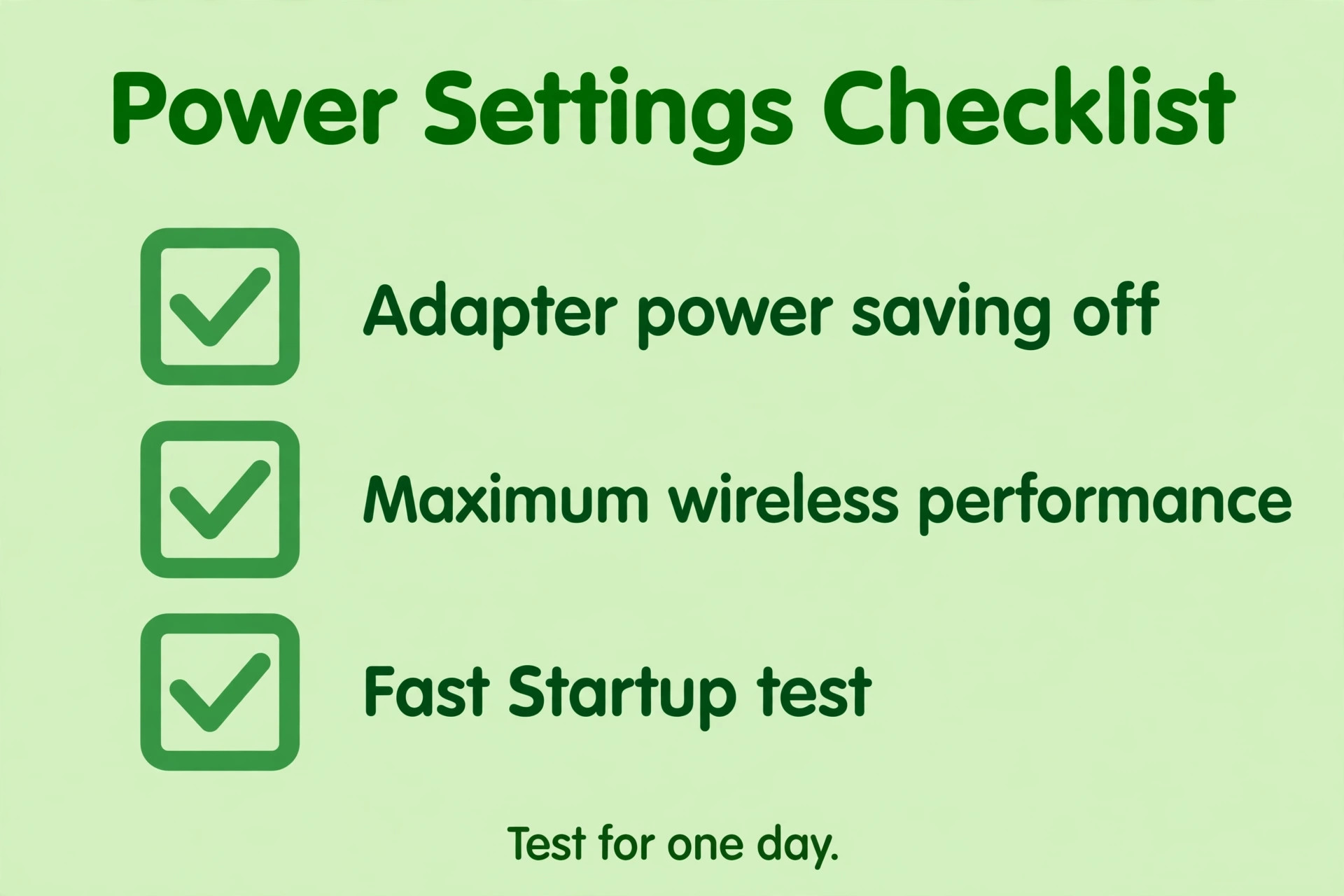
Power saving is the quiet cause that many guides miss, because the laptop looks awake and the user is actively working. If your drops fit that pattern, power settings are a fast way to fix Wi-Fi dropping on laptop machines. Windows can still turn the wireless adapter off to save power, and some laptops do this even while plugged in, depending on the power plan and the adapter settings. The classic clue is a drop after the laptop wakes from sleep, after a period of idle time, or on battery power while the same laptop is stable when plugged in and busy.
To fix this on Windows, open Device Manager, expand Network adapters, right click the wireless adapter, choose Properties, and open the Power Management tab. Untick the box that allows the computer to turn off the device to save power, then restart. Next, open Power Options, open the advanced settings for your active plan, find Wireless Adapter Settings, and set both the battery and plugged in options to Maximum Performance. Test for a day on battery and a day plugged in, because a fix that only holds while plugged in has not solved the battery side of the problem.
Router Problems, Overload and Firmware
When every device in the home drops, or drops cluster in the evening when everyone is streaming, the router is the prime suspect. That pattern still matters when you try to fix Wi-Fi dropping on laptop machines, because it rules the laptop out. Routers are small computers, and they can run out of memory, overheat in a closed cabinet, or struggle with a device count they were never designed to handle. A proper restart is the first test, and it is different from a quick power flick. Unplug the router from power, wait 30 seconds, plug it back in, and wait two full minutes before testing.
If you have a separate modem, restart the modem first, wait until it shows a stable connection, then restart the router.
Firmware is the next check, and it is the router equivalent of a driver update. Log in to the router admin page, look for a firmware or software update section, and install the version offered by the router maker. Turn on automatic updates if the router offers them, because firmware updates often fix stability bugs, security flaws, and compatibility problems with newer laptops. Write down the firmware version before and after, so you can tell support exactly what changed if you need to call them later. Never interrupt a firmware update by unplugging the router, because that can leave the router unusable and turn a simple fix into a replacement.
Device count and traffic also matter more than most people expect. An older router that handled ten devices well can start dropping connections when the home grows to twenty five devices, including phones, TVs, speakers, cameras, and smart plugs. Cameras and cloud backups are heavy users, and they can fill the router memory or the upload link, which then shows up as drops on a laptop video call. As a test, disconnect cameras and backup devices for an evening, or pause cloud uploads, and see whether laptop drops fall. If they do, the fix is load management, a newer router, or a mesh system, not another laptop setting.
Interference and Channel Crowding
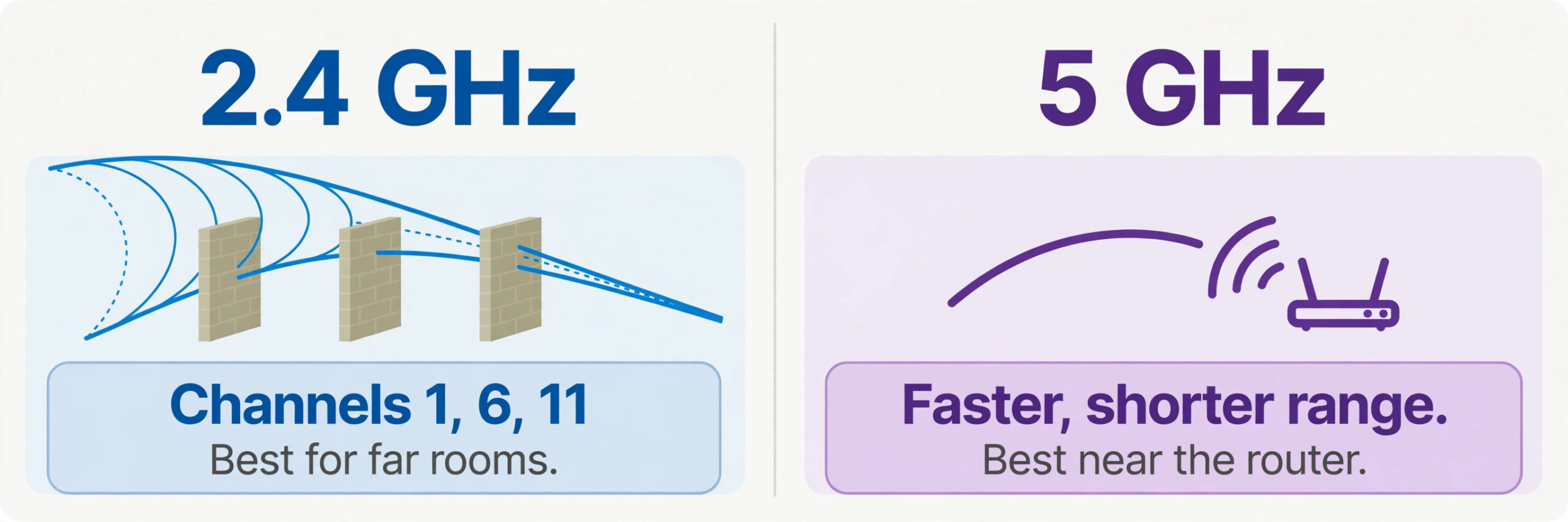
Interference is radio noise, and Wi-Fi lives in shared radio space. Crowded channels are a common reason people struggle to fix Wi-Fi dropping on laptop connections in flats. Neighbour networks, Bluetooth devices, microwaves, cordless phones, baby monitors, and USB 3 devices can all crowd the same channels, especially on the 2.4 GHz band, which has fewer non overlapping channels and travels through walls well, so it picks up more neighbours. The clue for interference is drops that vary by time of day, by room, or by which other devices are running, while the laptop is stable in a quiet room close to the router.
On 2.4 GHz, use channels 1, 6, or 11 where possible, because those three do not overlap each other. On 5 GHz, there are more channels and usually less crowding, but the signal does not travel as far through walls. A free Wi-Fi analyser app on a phone can show which channels are busiest near your laptop, and that scan is worth doing before you change anything, because guessing a channel can move you from a busy channel to an even busier one. Change one channel at a time, test for a day, and keep a note of what you tried, so you do not cycle through the same settings twice.
Weak Signal, Distance and Dead Spots
Weak signal is the simplest cause to understand and the easiest to misdiagnose as a software fault. Distance and walls are often why readers cannot fix Wi-Fi dropping on laptop machines from one far room. Wi-Fi signal falls with distance and with obstacles, and brick, concrete, metal, water tanks, and even a large bookshelf can cut it sharply. The clue is drops that happen in one far room, on one floor, or behind a particular wall, while the laptop is stable near the router. Signal bars are a rough guide only, because they show strength, not quality, and a two bar connection on a crowded channel can be worse than a three bar connection on a clear one.
Start with router placement, which is free and often beats a purchase. Place the router in a central spot, at shelf height rather than on the floor, away from metal objects, mirrors, and thick walls, and out of a closed cabinet where it can overheat. Point antennas, if the router has them, in different directions, with one vertical and one angled, rather than all in the same direction. Then test the problem room again. A move of a few metres can change a dead spot into a usable connection, especially in flats where the router was placed by the front door for cabling convenience rather than for coverage.
If placement does not fix a far room, test with an Ethernet cable for a day. A stable wired connection proves the internet line and the laptop are fine, and it isolates the fault to wireless coverage. That proof matters before you spend money, because it stops you buying a new laptop adapter when the real need is better coverage. If Ethernet also drops, the fault is wider, and you should check the modem, the cable to the wall, and the internet provider before buying Wi-Fi gear.
A USB Wi-Fi adapter is a useful test before a bigger purchase, and it doubles as a workaround. If a USB adapter holds a stable connection for several days while the internal adapter drops, the internal adapter or its antenna is the likely fault. Buy from a retailer with a clear return policy, check that the adapter supports the band you need, and keep the receipt. A USB adapter is not a permanent fix for everyone, because it sticks out and can be knocked, but as a diagnostic tool it is cheap, fast, and decisive.
When Only One Laptop Drops and Everything Else Is Fine
A laptop only fault is frustrating, because the home network looks healthy and everyone else is online. Work through laptop only checks in order, and do not skip the hotspot test, because it is the single test that proves whether the fault travels with the laptop. If the laptop drops on your home Wi-Fi, on a hotspot, and on a neighbour or office network, the laptop is the common factor, and software fixes should be exhausted before hardware is blamed.
How to Choose What to Fix First and What to Buy
With so many possible causes, the order matters. Fix free software causes first, then free router causes, then cheap diagnostic tools, and only then buy coverage hardware. That order protects your money, because a mesh system will not fix a driver that disconnects on every network, and a new adapter will not fix a router that drops every device in the evening. The table at the start of this guide is your order, and the ten minute pattern check is the evidence that tells you which row to start on.
When you do need to buy, choose by the proven cause. Buy a mesh system for coverage, not for speed, and choose pack size by home size and wall type, not by the highest speed number on the box. A two pack suits many flats and small houses, while a three pack suits larger homes or homes with thick walls and multiple floors. Buy a USB adapter for a failing internal adapter, and choose one that supports the band that is stable in your home, with a return policy that lets you test it for a week.
Buy a new router only if the old router drops every device, cannot run current firmware, or cannot handle the device count in your home, and check that the new router supports the Wi-Fi standard your laptop uses, so you do not pay for speed the laptop cannot use.
For readers who work from home and rely on a stable connection for calls, related reading on this site can help with the wider setup. The guide to best AI tools for virtual assistants covers tools that keep remote work organised when calls and tasks pile up, the guide to best AI meeting assistants is useful if dropped calls are costing you meeting notes and follow ups, and the guide to best team communication software helps you choose a chat and call setup that stays usable even when one network path is flaky. Those guides do not fix Wi-Fi, but they reduce the damage a drop causes while you work through the fixes above.

Mistakes That Make Wi-Fi Drops Harder to Fix
The first mistake is changing five settings at once. That habit makes it hard to fix Wi-Fi dropping on laptop machines, because you never learn which change helped. If drops stop, you will not know which change helped, and if they return, you will not know which change to reverse. Change one thing, test for a day, and note the result. The second mistake is restarting the router by flicking power off and on in two seconds. A proper restart needs time for memory to clear and for the modem to sync, and a rushed restart often leaves the fault in place while giving a false sense that a restart was tried.
The third mistake is updating a driver from an untrusted site. Third party driver tools can install the wrong version, bundle unwanted software, and leave you with no Wi-Fi at all. Use the laptop maker page or the chip maker official page, such as the Intel wireless driver page for Intel adapters, and keep the installer saved before you start. The fourth mistake is buying a mesh system before testing Ethernet and a hotspot. Those two free tests separate coverage faults from laptop faults, and skipping them is the most expensive mistake in this guide.
The fifth mistake is ignoring the time pattern. Drops at meal times point to a microwave, drops in the evening point to load, drops after sleep point to power, and drops after an update point to a driver. A log that notes time, place, power state, and other devices turns those patterns into evidence. The sixth mistake is treating signal bars as proof. Bars show strength, not quality, and a strong signal on a crowded channel can drop more than a weaker signal on a clear channel. Use the analyser scan, the band test, and the room test, not bars alone.
The seventh mistake is leaving a fix half tested. A driver update that holds for an hour is not proven. A channel change that holds for one call is not proven. Test for a full day, including a video call, a download, and a period on battery if that is part of your pattern. A fix that survives a full day of normal use is the one to keep, and a fix that fails on day two was never the cause, even if it looked promising at first.

Frequently Asked Questions
Why does my laptop keep dropping Wi-Fi while my phone stays connected?
A phone and a laptop can behave differently on the same network because they use different adapters, drivers, power settings, and roaming behaviour. A laptop driver fault, a power setting that turns the adapter off, or a laptop that clings to a weak band can cause drops while a phone holds the same network without trouble. Test the laptop near the router and on a hotspot to see whether the fault follows the laptop or stays with the home network.
Should I update or roll back my Wi-Fi driver first?
Update first if drops started without a recent update, and use the laptop maker version for your exact model. Roll back first if drops started right after a driver or system update, because a new driver can introduce a regression on one laptop and router combination. Test each change for a full day, and keep the installer saved so you can return to a known version.
Does a mesh system fix Wi-Fi drops on a laptop?
A mesh system fixes drops caused by weak coverage, dead spots, and distance, especially in larger homes and homes with thick walls. It does not fix a driver fault, a power setting, or a router that drops every device because it is overloaded or faulty. Test with Ethernet and a hotspot first, so you buy mesh for coverage, not as a guess.
Why does Wi-Fi drop only when I use video calls?
Video calls need a steady, low delay connection, so they expose problems that web browsing hides. A weak signal, a crowded channel, an overloaded router, or a VPN that reconnects can all stall a call while pages still load. Test a call near the router, test with the VPN off for a short period, and test with other heavy devices paused, to separate signal, congestion, and software causes.
Can a USB Wi-Fi adapter fix a failing internal adapter?
Yes, as a test and as a workaround. If a USB adapter holds a stable connection for several days while the internal adapter drops on the same network, the internal adapter or its antenna is the likely fault. Choose an adapter that supports the band you need, buy from a retailer with a clear return policy, and keep the internal adapter disabled while you test, so the two do not compete.
When should I call my internet provider instead of fixing the laptop?
Call the provider when every device drops at the same time, when Ethernet also drops, when the modem loses sync, or when drops follow a pattern tied to the line rather than to one laptop. Before you call, note the times of drops, the modem lights, and the results of your Ethernet and hotspot tests, because that evidence helps support skip generic steps and check the line and the modem directly.
Stop Chasing the Drop and Fix the Cause That Matches Your Pattern
A dropping connection feels random, but it rarely is. The steps above show how to fix Wi-Fi dropping on laptop machines by matching the repair to the pattern you logged. The pattern in time, place, power state, and other devices points to the cause, and the cause points to the fix. Start with the ten minute check, use the fix table to pick your first repair, change one thing at a time, and test for a full day before you move on. Most readers will find the fault in a driver, a power setting, a router setting, or a channel, and none of those fixes require a purchase.
If you do need to buy, buy for the proven cause, test in the problem room, and keep the return window in mind. A mesh system for coverage, a USB adapter for a failing internal adapter, and a new router for an overloaded or outdated router are all sensible buys, but only after the free tests have ruled out software. That discipline is what turns a week of random tips into a single afternoon of real progress, and it leaves you with a connection you can trust for calls, downloads, and work, not just for a few minutes after a restart.