

If your school already lives in Google Classroom, Docs and Drive, the decision to migrate Zoom to Google Meet classroom work feels obvious, until the first week exposes what did not carry over. Meet wins for classrooms where rosters, assignments and recordings should sit inside one account system, and where a teacher should be able to open a class, start a call and share the recording without juggling a second login. Zoom still leads where a school runs large webinars, needs a long list of add-ons under one vendor, or depends on features such as webinar registration and large-meeting production controls that Meet only matches on its higher education tiers.
This guide works through the move in the order a school actually feels it. It starts with the edition decision, because that single choice decides whether recording, breakout rooms and polls exist at all. It then covers recordings, rosters, scheduling and the feature gaps that need a workaround before term starts, and it ends with a cutover plan you can run across a holiday break. Prices quoted here are the list prices published by Google and Zoom at the time of writing, and both vendors change them, so confirm the figure on the official pricing page before you sign anything.
Where Meet Wins for Classrooms and Where Zoom Still Leads
The strongest argument for Meet in a school is not video quality. Both platforms deliver clear video on a decent connection, and both handle a normal class size without drama. The difference is administration. In Meet, the class roster already exists in Classroom, the recording lands in the teacher’s Drive, the attendance report can feed a register check, and a student’s account is the same account they use for homework. There is no separate Zoom account to provision, no second password reset queue and no meeting link that lives outside the class page.
Zoom’s advantage is depth in live events. A school that runs parent evenings for 500 people, a virtual open day with registration and reporting, or a conference with panelists, interpreters and backstage roles will find Zoom’s webinar and large-meeting tooling more complete. Meet can stream to up to 100,000 viewers inside a domain on Education Plus, which covers an assembly, but a ticketed public event with registration forms and post-event analytics is still more natural in Zoom. Zoom also has a longer history as a standalone meeting product, so its host controls, waiting room habits and recording options feel familiar to staff who have used it for years.
Google Workspace for Education Editions and Limits
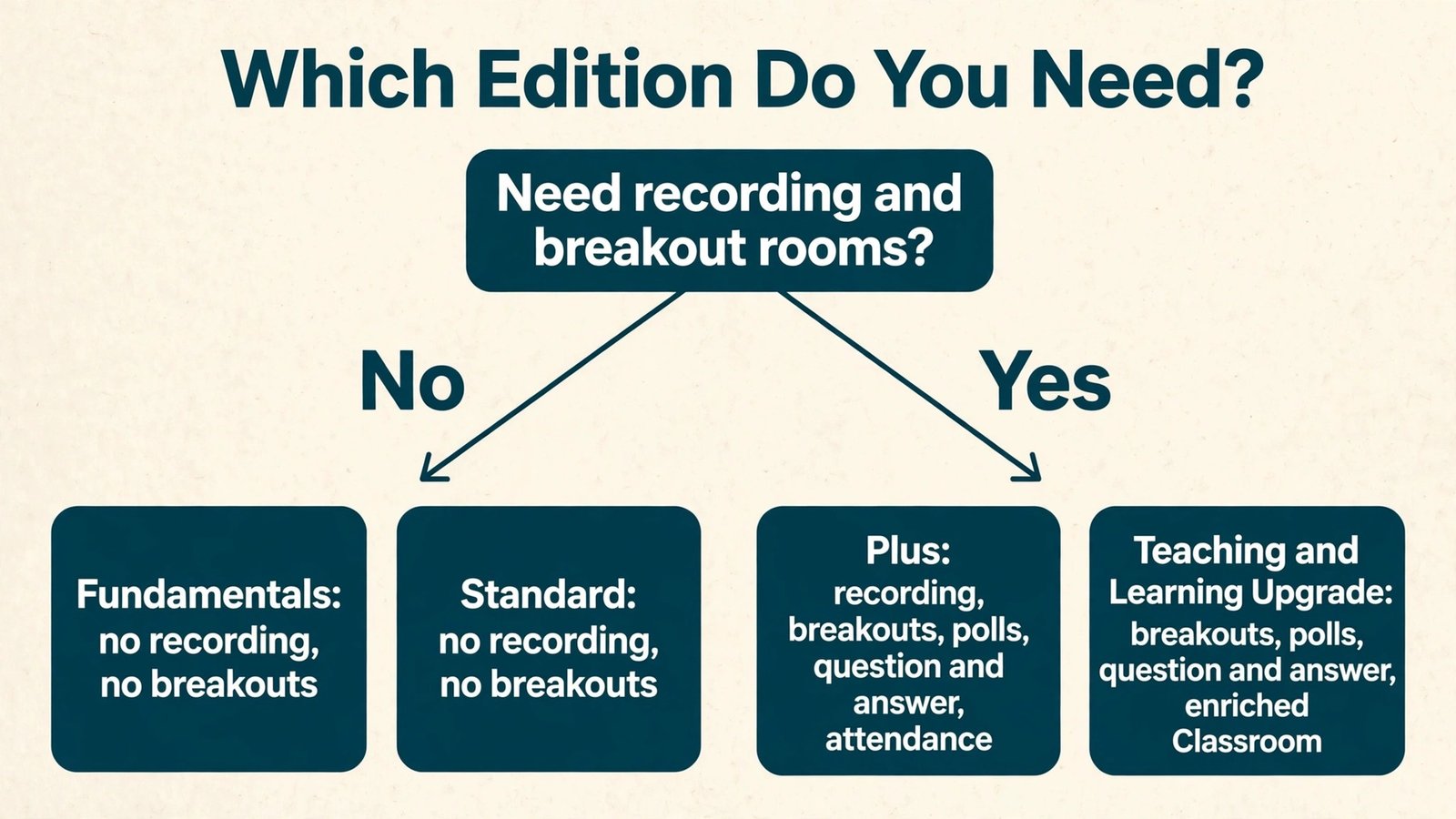
Google does not sell one education product. It sells a free base edition and paid upgrades, and the edition you hold decides the meeting size, the recording right and the storage pool. Get this wrong when you migrate Zoom to Google Meet classroom work and teachers will discover on the first day of term that the record button is missing, which is a far worse surprise than a slightly higher bill.
Education Fundamentals is free for qualifying institutions. It includes Classroom, Docs, Sheets, Slides, Forms, Gmail, Drive, Meet, Sites, Chat and Calendar, plus 100 TB of pooled storage shared across the organisation. Meet meetings on Fundamentals run for up to 24 hours with up to 100 participants. That covers most single classes, but it does not include meeting recording, breakout rooms, polls, question and answer sessions or attendance tracking. A school that moves to Fundamentals alone and expects Zoom-style recording will be disappointed in week one.
Education Standard adds advanced security, a unified security dashboard, deeper analytics and AppSheet Core. Google lists it at 3 US dollars per student per year on its older pricing, and schools renewing under the newer model should confirm the current figure with Google or a reseller before budgeting. Standard improves protection and visibility, but on its own it does not unlock Meet recording or breakout rooms either. Do not buy Standard expecting classroom engagement features, because that is not what it adds.
The two routes to full classroom meeting features are Education Plus and the Teaching and Learning Upgrade. Education Plus is a full-domain edition, priced by Google at 6 US dollars per user per year under its current model, with older renewals at 5 dollars in some cases. It adds recording saved to Drive, breakout rooms, polls, question and answer, attendance tracking, noise cancellation, in-domain live streaming to up to 100,000 viewers and 1,000 participants per meeting. It also adds extra Drive storage per licence on top of the shared pool.
The Teaching and Learning Upgrade is a per-licence add-on rather than a full-domain edition. Google lists it at 60 US dollars per licence per year billed annually, or 6 dollars per licence per month on a flexible plan, with older pricing at 48 dollars per year in some renewal cases. It adds the enriched Classroom features plus the premium Meet engagement tools, including breakout rooms, polls and question and answer, and it adds 100 GB of Drive storage per staff licence. The practical difference is purchasing shape. Plus covers the domain, while the upgrade lets a school buy licences only for the staff who teach live classes.
A small school with 20 teachers and 400 students will usually find the upgrade cheaper than a domain-wide edition, while a large school that wants every student account covered may prefer Plus.
Zoom’s side of the comparison is priced per licensed host, not per student. Zoom Basic is free, with group meetings capped at 40 minutes and up to 100 participants, and local recording only. Zoom Pro costs 16.99 dollars per user per month on monthly billing, or about 14.16 dollars per month billed annually, which is roughly 170 dollars per user per year, and it allows meetings of up to 30 hours with up to 100 participants. Zoom Business costs 21.99 dollars per month, or about 18.33 dollars per month billed annually, roughly 220 dollars per user per year, and it raises the cap to 300 participants with single sign-on, managed domains and extra admin controls.
Business requires a minimum of 10 licences. Zoom also sells education pricing through its sales team, so a school with a current Zoom education quote should compare that quote, not the public list price, against the Google figures.
Licence Cost Table for a School Move
The table below compares annual list prices for a school that needs recording and breakout rooms. It uses the figures above and rounds to whole dollars. Treat it as a planning estimate, not a quote, because taxes, regional pricing and education discounts change the final bill.
| Option | Who pays | Annual list cost | Recording and breakouts |
|---|---|---|---|
| Education Fundamentals | No charge for qualifying schools | 0 dollars | No recording, no breakouts |
| Education Standard | Per student, domain-wide | About 3 dollars per student per year | No recording, no breakouts |
| Education Plus | Per user, domain-wide | About 6 dollars per user per year | Yes, plus polls, Q and A and attendance |
| Teaching and Learning Upgrade | Per staff licence only | About 60 dollars per licence per year | Yes, plus polls, Q and A and enriched Classroom |
| Zoom Pro, billed annually | Per licensed host | About 170 dollars per host per year | Yes, cloud recording included |
| Zoom Business, billed annually | Per licensed host, 10 minimum | About 220 dollars per host per year | Yes, plus 300 participants and SSO |
Worked example helps the numbers land. A school with 30 teaching staff and 600 students that buys the Teaching and Learning Upgrade for staff only pays about 1,800 dollars per year at list price for the meeting features. The same school on Education Plus pays for the domain, and the exact total depends on whether Google counts students, staff or both in the licence count for that school, so get that count in writing before you compare. The same 30 hosts on Zoom Business at list price cost about 6,600 dollars per year, before any education discount Zoom offers.
Even with a generous education discount, the gap explains why schools move, and it also explains why the move must protect recordings, because the saving is not worth a lost term of lessons.
How to Migrate Zoom to Google Meet Classroom in Six Stages
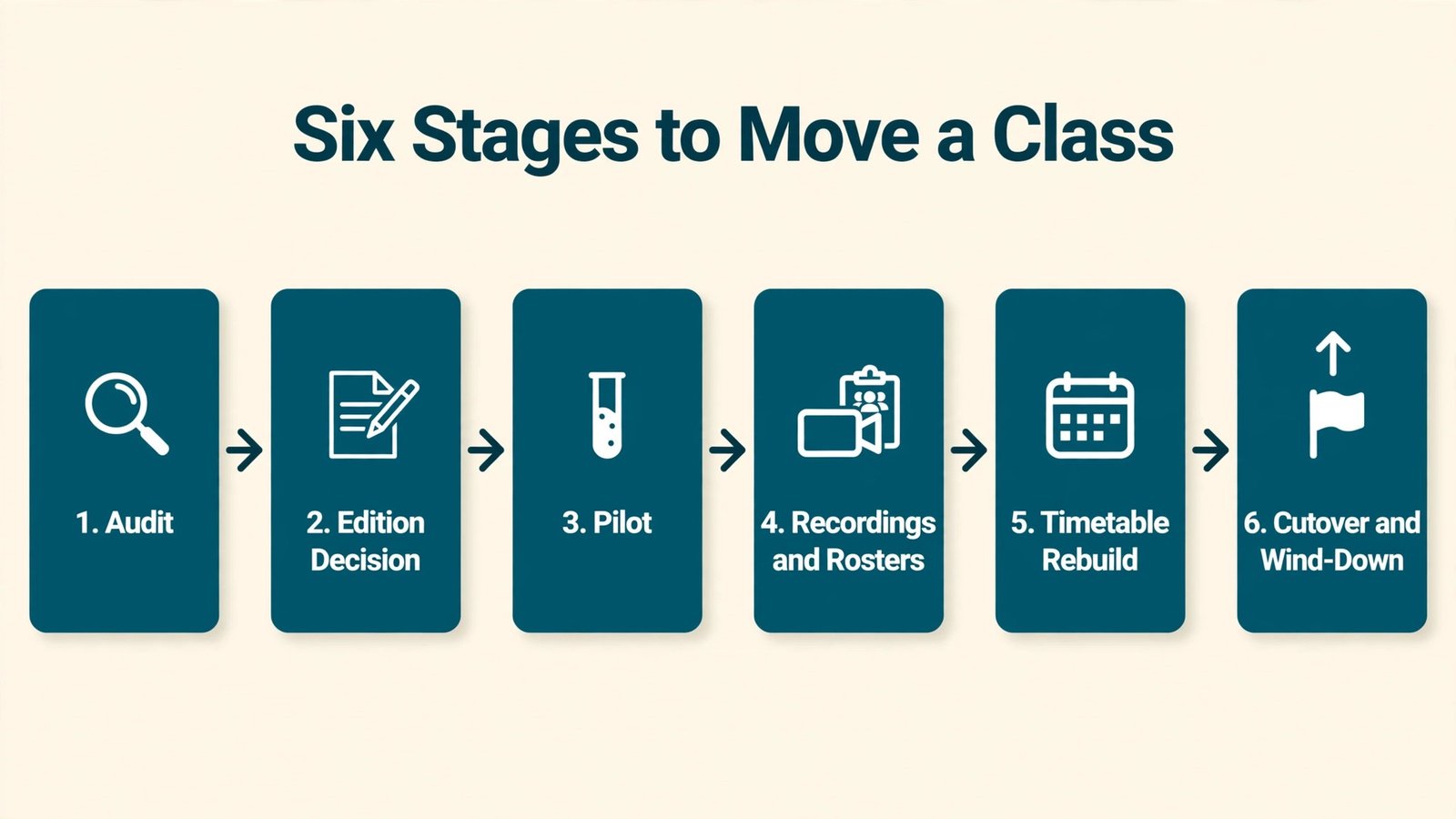
A classroom migration fails when it is treated as a software swap. It succeeds when it is treated as a timetable change, because the timetable is what students and parents actually follow. The six stages below keep Zoom running until Meet is proven, which is the only safe order for a school.
Stage one is the audit. List every recurring Zoom meeting, every personal meeting room link printed in a handbook or pinned in a parent group, every cloud recording that must be kept, and every class that uses Zoom breakout rooms or polls each week. Ask each teacher one question, and that is which Zoom feature they would miss on Monday morning. The answers become your workaround list, and the workaround list becomes your training plan.
Stage two is the edition and admin decision. Confirm the Workspace edition, turn on Meet for the domain, and decide who can create meetings. Google recommends giving meeting creation rights to staff organisational units and letting students join meetings created by staff, rather than letting every student create open rooms. Set host controls, recording permission and external guest rules in the Admin console before any teacher tests a live class, because fixing these after students have the links is twice the work.
Stage three is the pilot. Pick two or three classes that represent your hardest cases, such as a large class, a class that uses breakouts weekly and a class with many students joining from phones. Run those classes in Meet for two full weeks while Zoom stays available. Collect real complaints, not polite feedback, and fix the top three before you expand. A pilot that only covers the easiest class proves nothing.
Stage four is the recording and roster move, covered in detail in the next two sections. Move recordings in batches by term, verify a sample from each batch by opening it in Drive, and rebuild rosters in Classroom rather than importing a Zoom attendee list as if it were a class list. The two are different documents, and confusing them is how a former student keeps access to a new class.
Stage five is the timetable rebuild. Replace Zoom links in Classroom, the school calendar, parent letters and any printed handbook with Meet links generated from Classroom or Calendar. Do not leave both links live with a note saying use the new one, because half the class will use the old one. Publish one link per class, in one place, and name that place in every message home.
Stage six is the cutover and the Zoom wind-down. Keep Zoom read-only for one term after cutover so teachers can still open old recordings and old chat history while the new system beds in, then cancel or reduce licences at the next renewal. Cancel Zoom the day after cutover and you will lose the fallback exactly when a teacher needs it most. The term-start cutover plan near the end of this guide puts dates around these stages.
Moving Recordings Without Losing a Term of Lessons
Recordings are the part of a migration that cannot be recreated. A missed lesson can be re-taught, but a recorded revision lesson, a parent evening or a guest talk that only exists as a Zoom cloud file is gone once the account closes. Treat recordings as the critical path, not as an admin tidy-up.
Start by sorting recordings into three piles. The first pile is keep and share, meaning lessons students still revise from, exam preparation sessions and any recording a teacher has linked from Classroom. The second pile is keep and archive, meaning recordings that matter for safeguarding, inspection or a dispute, but that students do not need to open every week. The third pile is delete, meaning duplicate takes, failed sessions where nobody spoke for twenty minutes, and test recordings from setup week. Most schools find the delete pile is larger than expected, and clearing it before the move saves storage and transfer time.
Zoom cloud recordings download as video files, usually with separate audio and chat files where the host enabled them, and the download must happen while the Zoom account is still active. Download in batches by teacher or by term, name each file with the class, the date and the topic before upload, and upload to a Drive folder owned by the school, not to a teacher’s personal Drive. A recording in a personal Drive leaves with the teacher. A recording in a Shared drive, or in a Classroom-linked Drive folder the school controls, stays when staffing changes. Check that the recording plays after upload, because a transfer report that says complete is not the same as a file that opens.
Meet recordings behave differently, and teachers who migrate Zoom to Google Meet classroom lessons should know the difference before they promise students a recording. On Education Plus or with the Teaching and Learning Upgrade, a Meet recording is saved to the organiser’s Drive, and only the organiser or a person in the same organisation with permission can start one. Students cannot start a recording on their own by default, and everyone in the meeting sees a notice when recording starts. That notice is a safeguarding feature, not an annoyance, and it should stay on. Plan who owns each recording, where it is shared from and how long it is kept, and write those three answers into the class setup notes.
Retention deserves its own decision. A sensible starting rule for most schools is to keep current-term revision recordings in Classroom, move last term’s recordings to an archive Shared drive at the end of term, and delete recordings older than one academic year unless a teacher flags a specific file for longer keeping. Check local safeguarding and data rules before fixing a period, because recording rules for children vary by school policy and by country, and a blog post cannot settle that for your school. Whatever period you pick, publish it to staff and parents in the same message that announces the move, so nobody is surprised when an old link stops working.
Roster and Class Setup in Meet and Classroom
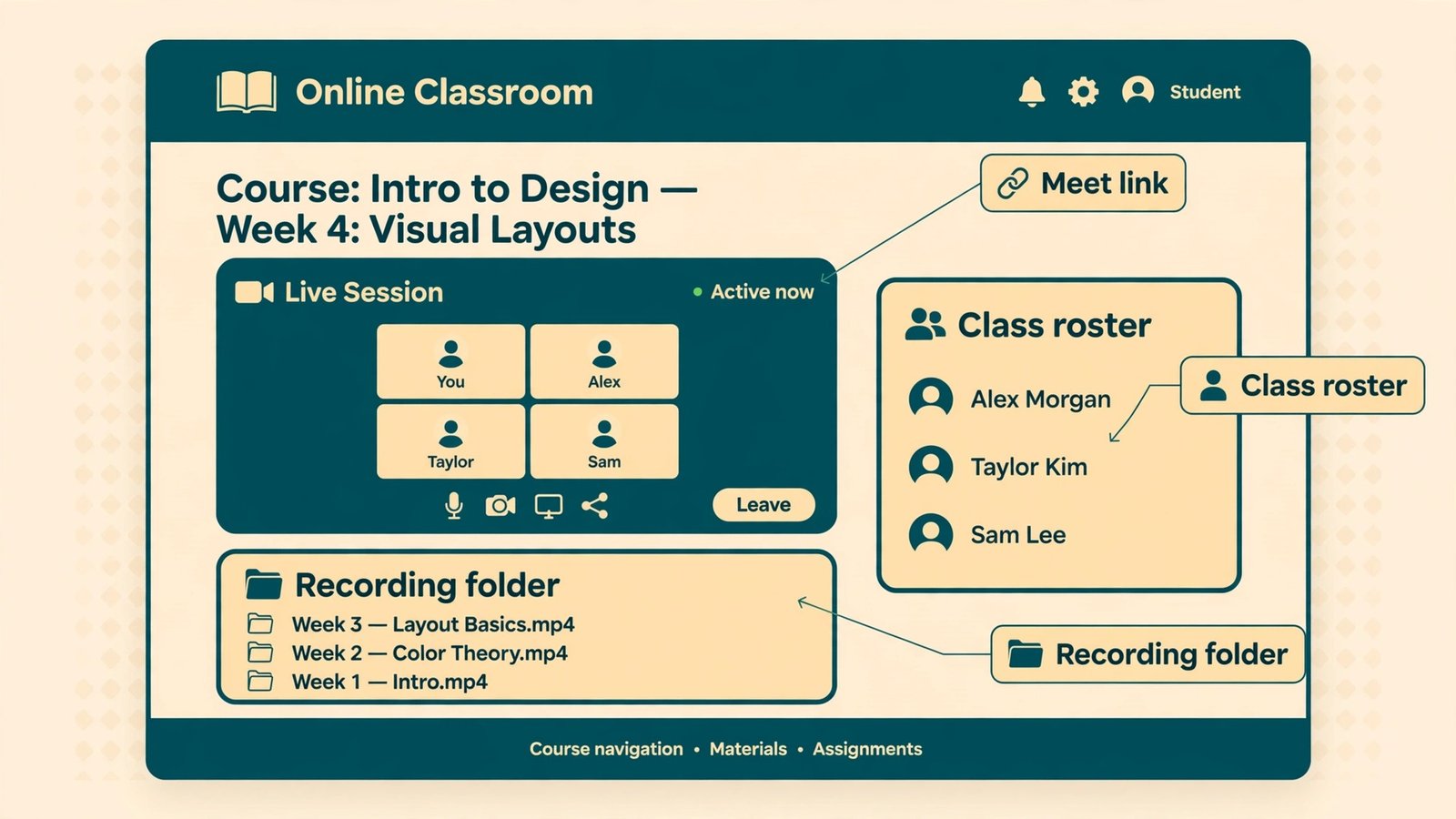
Zoom rosters and Classroom rosters look similar and work differently. A Zoom meeting has a host, invited emails and an attendee list for that one session. A Classroom course has enrolled students, co-teachers, guardians and a standing Meet link that belongs to the course. When you rebuild in Classroom, you are not copying a meeting invite. You are enrolling a class, and enrolment decides who can join, who sees assignments and who can open recordings shared to that course.
Build each course in Classroom first, then attach the Meet link, not the other way around. Create the class with the right teacher as owner, add co-teachers where a class is genuinely shared, and enrol students from the school’s roster system or by class code where the school allows it. Use organisational units in the Admin console to control who can create Meet sessions, and keep student creation off unless the school has a specific reason to allow it. A student-created open room with no teacher present is a safeguarding gap, and it is easy to prevent at setup and hard to explain afterwards.
Scheduling Differences Teachers Notice in Week One
Teachers feel scheduling differences before they feel anything else, because scheduling is the daily habit. In Zoom, a teacher creates a meeting, copies a link and pastes it wherever students look. In Meet, the link usually comes from Classroom or from a Calendar event, and the class link stays the same across the term. That stability is a benefit once it is understood, and a source of confusion until it is explained, because staff who are used to a fresh link per lesson will keep creating new meetings and wondering why attendance is split.
When you plan how to migrate Zoom to Google Meet classroom timetables, keep the old Zoom links visible to staff only during the pilot, and remove them from student-facing pages on cutover day. Two live links for one class will always split the class, and the split will be discovered by the teacher staring at an empty Meet room while students wait in Zoom.

Breakout Rooms, Polls and the Gaps You Must Plan Around
Breakout rooms, polls and question handling are where a badly planned migration hurts learning, because these are the tools teachers use to check understanding in a live lesson. On Fundamentals and Standard, Meet does not include breakout rooms, polls or moderated question and answer. Those features arrive with Education Plus or the Teaching and Learning Upgrade. If your school buys neither, teachers need a workaround from day one, not a discovery in week two.
With the right edition, Meet breakout rooms work well for a class. The host can create rooms, assign students, move between rooms and bring everyone back, and the host can set a timer for the group work. The gap compared with Zoom is in the finer controls teachers may have relied on, such as pre-assigning rooms from a spreadsheet for every lesson, or letting students self-select rooms in a particular way. Test the exact breakout pattern each department uses, for example a science class that splits into lab groups or a language class that pairs students, and confirm the Meet version covers it before promising staff a like-for-like swap.
Polls and question and answer follow the same rule for any school that decides to migrate Zoom to Google Meet classroom teaching. On the higher tiers, Meet supports polls and a question queue that the teacher can moderate, which covers the common classroom uses such as a quick understanding check or collecting questions during a presentation. What Meet does not match is Zoom’s wider webinar polling and reporting, or third-party polling tools that some teachers bolted onto Zoom. If a department runs formal assessed polls, keep that tool, test it inside Meet, and do not assume the built-in poll exports results in the format the department’s tracker expects.
Recording and Roster Checklist
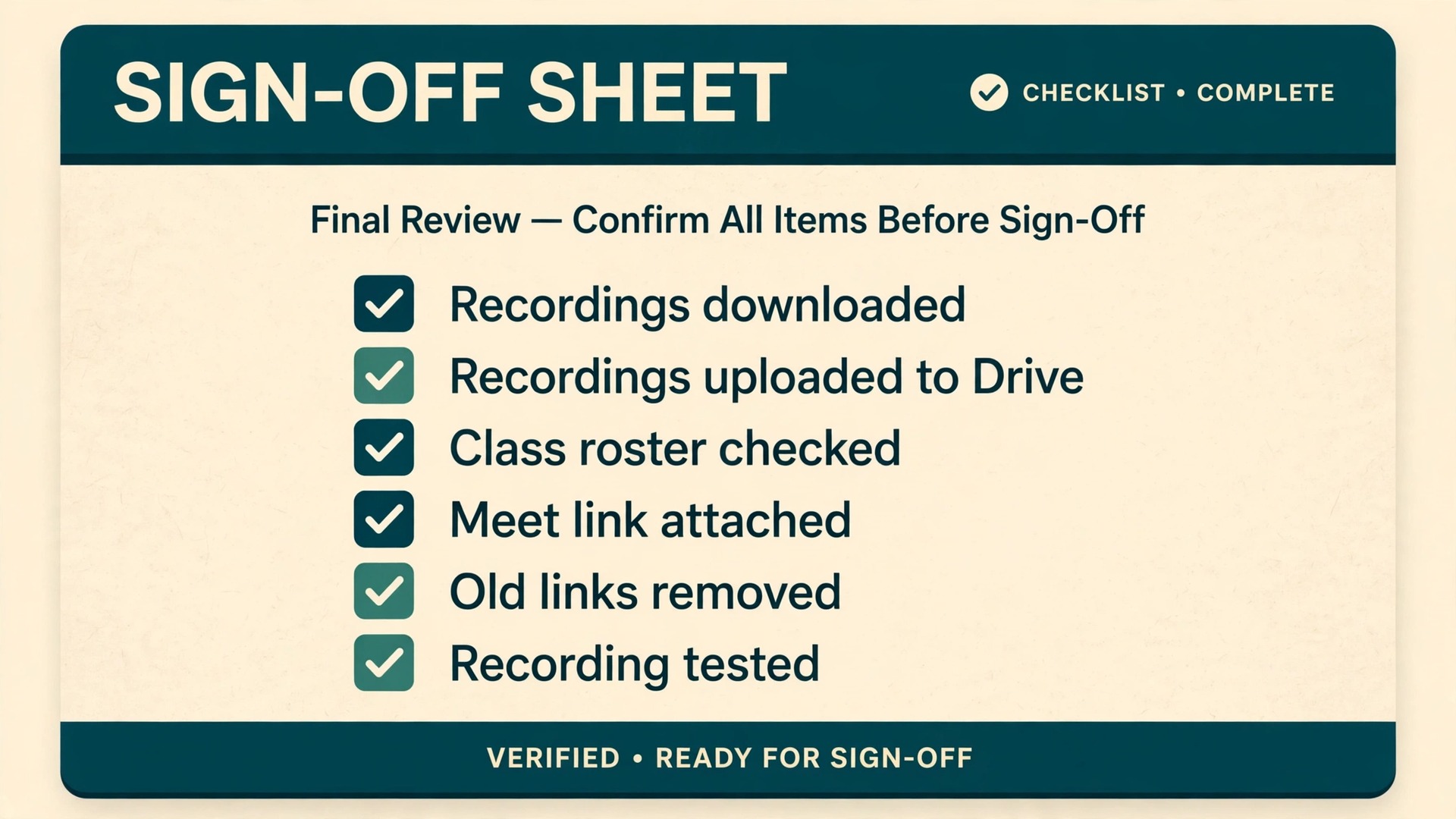
Use this checklist as the sign-off sheet for each class, not as general advice. A class is ready to move only when every line can be ticked by the teacher who owns it, and the sheet should be filed where the next teacher of that class can find it.
- [ ] Old Zoom cloud recordings for the class are downloaded and the delete pile is removed
- [ ] Kept recordings are uploaded to a school-owned Drive folder and a sample file from each batch plays correctly
- [ ] Each kept recording is named with class, date and topic, and linked from the right Classroom course
- [ ] The retention period for the class recordings is written down and shared with staff and parents
- [ ] The Classroom course exists with the correct teacher owner and co-teachers, and the standing Meet link is attached
- [ ] The student roster matches the current class list, with leavers and movers removed
- [ ] Student meeting creation is off, staff creation is on, and host controls are tested from a student account on a phone
- [ ] The timetable pattern in Calendar matches the real timetable, including breaks and exam weeks
- [ ] Breakout, poll and question patterns for the class are tested on the school’s actual edition
- [ ] Guest joining is tested with a real outside email address, and the lobby steps are written down
- [ ] Old Zoom links are removed from every student-facing page, handbook and parent message for the class
- [ ] The teacher can start and stop a recording, find it in Drive afterwards, and share it to the course
When a teacher plans how to migrate Zoom to Google Meet classroom work for a single class, this list is the whole job in miniature. Everything else in this guide is explanation. The list is execution.
A Term-Start Cutover Plan for a Classroom or a School
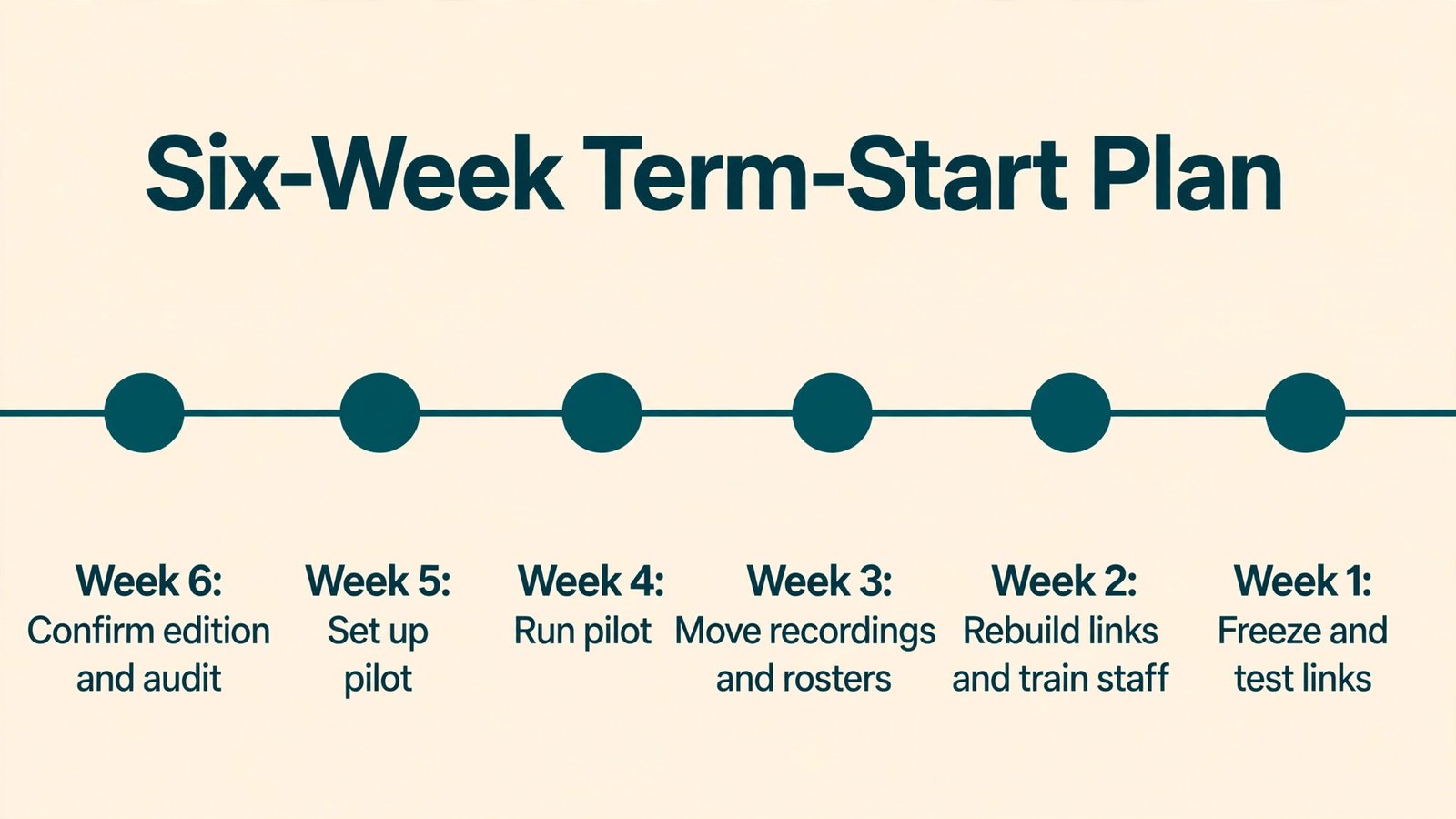
A migration across a holiday break works because nobody needs the system while you change it, but only if the work before the break is finished. The plan below assumes a six-week runway, and it scales down to a single classroom by dropping the whole-school steps and keeping the pilot, the recording move and the link swap.
Six weeks before term, confirm the edition, the licence count and the budget, and run the audit of meetings, recordings and features teachers rely on. Five weeks before, set up the Admin console, create the pilot courses and run the student-account test. Four weeks before, run the two-week pilot and collect the real complaints. Three weeks before, move recordings in batches, rebuild rosters in Classroom and write the department gap sheets. Two weeks before, rebuild the timetable links, train staff in short practical sessions based on the pilot findings, and send the parent letter with the new joining instructions and the recording retention rule.
One week before, freeze changes, test every class link from a student account, and publish the single place where students find their links. On the first day of term, staff the help point with someone who can fix a link, a roster and a recording problem on the spot, and keep Zoom read-only in the background for the full term.
If you are comparing meeting tools more broadly before committing, our comparison of Zoom vs Google Meet sets out the general trade-offs, and teachers building a wider classroom toolkit may also find AI tools for teachers useful. For audio problems that sometimes get blamed on the new platform, the step-by-step fix for Zoom audio echo is a handy reminder that not every glitch is a migration fault. Related reading in this spirit should be treated as background, not as a substitute for the pilot, because only your classes, your edition and your timetable decide whether this move works.
Frequently Asked Questions
Can a school use Google Meet for classes on the free Education Fundamentals edition?
Yes, for live teaching without recording. Fundamentals includes Meet with up to 100 participants and meetings of up to 24 hours, plus Classroom and 100 TB of pooled storage. Recording, breakout rooms, polls, question and answer and attendance tracking need Education Plus or the Teaching and Learning Upgrade, so a school that needs those features must budget for one of those options.
What happens to Zoom cloud recordings after the school cancels Zoom?
They become unavailable once the account closes, so download them before cancellation. Sort recordings into keep and share, keep and archive, and delete, then upload the kept files to a school-owned Drive folder with clear class, date and topic names. Keep Zoom read-only for a full term after cutover as a safety net, and only cancel at the next renewal once a sample from every batch has been checked in Drive.
Do students need a separate account for Meet and Classroom?
No, and that is one of the main benefits of the move. Students use the same school Google account for Classroom, Meet, Drive and Docs, which removes the second login Zoom required. Admins should still control meeting creation so students join teacher-created sessions rather than opening their own rooms, and that setting lives in the Admin console under the staff organisational units.
How do breakout rooms in Meet compare with Zoom breakout rooms?
For normal class group work, Meet breakout rooms on the higher education tiers cover the core pattern, including teacher movement between rooms and bringing everyone back. The differences sit in finer controls, such as pre-assignment methods and self-selection options, so departments should test their exact pattern in the pilot. Schools on Fundamentals or Standard have no Meet breakout rooms at all, and they need either an upgrade or a different group-work method from day one.
Is the Teaching and Learning Upgrade cheaper than Education Plus for a small school?
Often yes, because the upgrade is bought per staff licence while Plus is a full-domain edition. A school with few teachers and many students usually spends less buying the upgrade only for teaching staff. A large school that wants the features for every account, plus the extra security and analytics in Plus, may find Plus simpler to administer. Get the licence count in writing from Google or a reseller, since that count decides the comparison.
When should a school keep Zoom instead of moving to Meet?
Keep Zoom when the school’s core work is large public webinars, ticketed events with registration and reporting, or production-style sessions with panelists and backstage roles, and when the team already depends on Zoom add-ons that have no Meet equivalent. Schools whose work is mostly timetabled classes, homework in Classroom and recordings shared to a course will usually gain more when they migrate Zoom to Google Meet classroom teaching. The deciding question is whether the school runs courses or events, because each platform is built around one of those models.
What to Decide Before the Timetable Freezes
The move itself is not complicated. The decisions around it are, and they are worth making before the timetable freezes, because changing a link mid-term costs trust that a holiday migration does not. Decide the edition on the basis of recording and breakout needs, not on the basis of the cheapest line in a table. Decide the retention rule before the first recording is made, not after storage fills up. Decide who owns each recording, who can create meetings and where students find their links, and write those answers down where the next teacher can find them.
For most classroom schools, the balance tips toward Meet, and the reason is not price alone. It is that the roster, the recording, the assignment and the link finally live in one place, under one account, with one help point. Zoom remains the better tool for large events, and a school that runs both kinds of work can reasonably keep a small Zoom presence for events while teaching moves to Meet. That hybrid is not a failed migration. It is a sensible division of labour, provided the school says so openly and does not leave students guessing which link to use.
Plan how to migrate Zoom to Google Meet classroom work as a timetable change with a checklist, a pilot and a fallback term, and the first week of term will feel like a normal week with a new link. Treat it as a software swap with no pilot and no recording plan, and the first week will feel like a data loss with a timetable attached. The difference is a few weeks of preparation, and this guide gives you the order to do it in.
