
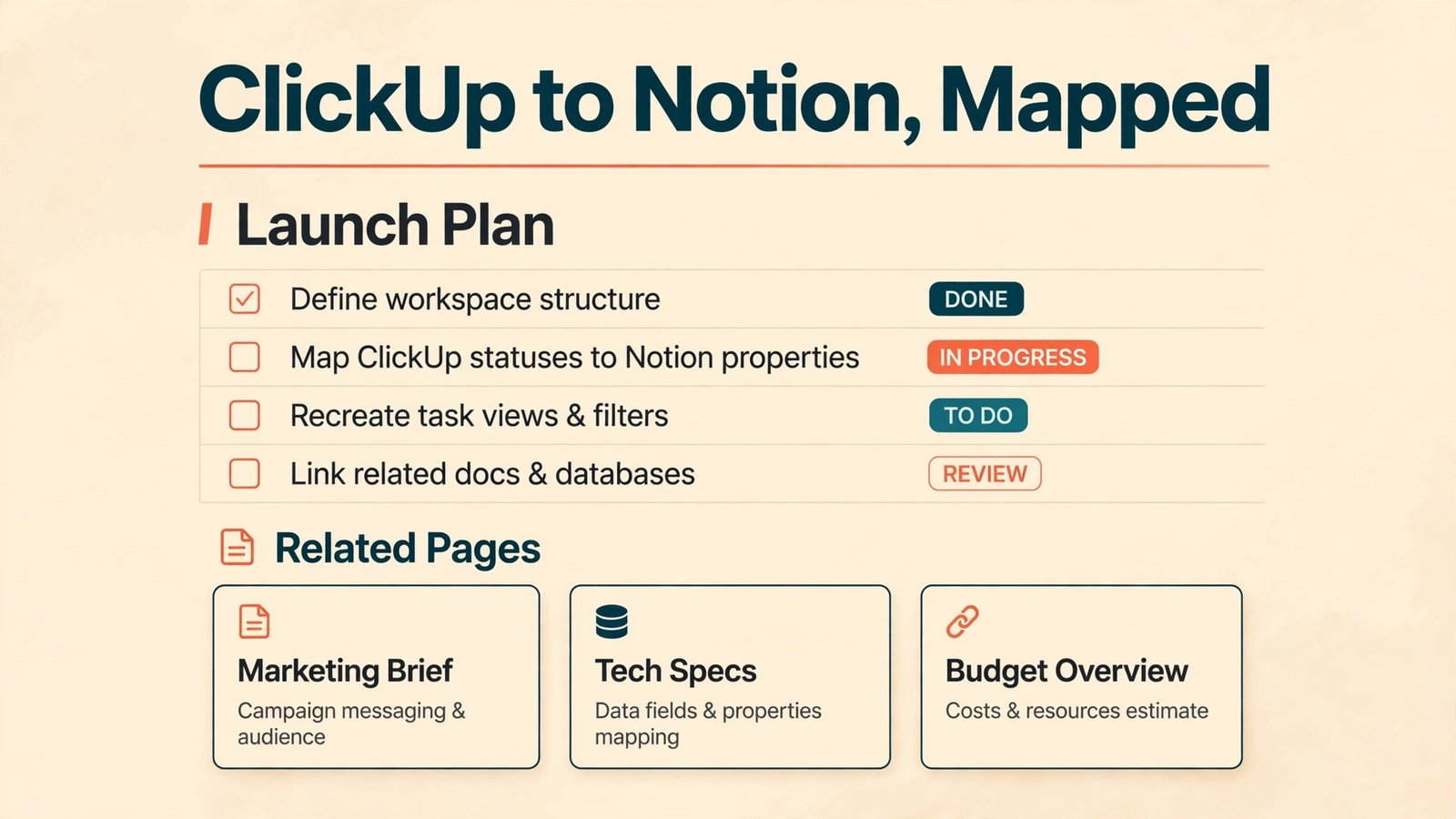
If your team lives in documents, meeting notes and linked reference pages, and project tracking is the second job rather than the first, then you should switch ClickUp to Notion only after a hard look at what you will give up. Notion wins when writing, organising knowledge and building a shared wiki matter more than automated task handling. ClickUp wins when deadlines, dependencies, workload and native time tracking run the working day. This guide helps a team decide which side of that line it sits on, and then move without losing tasks, docs or access control.
The move is not a single import button. Notion offers no direct ClickUp importer of the kind it offers for Asana, Trello, Evernote and Confluence. That gap shapes the whole plan. Tasks travel as exported files, docs travel as exported files or rebuilt pages, and several ClickUp features have no true Notion equivalent at all. A team that plans for those three facts finishes with a workspace people trust. A team that expects a one click copy finishes with missing dates, flattened fields and confused permissions, and then blames the new tool for a planning failure.
When Notion Wins, and When ClickUp Still Wins
Start with the work, not the software. List the ten jobs your team does most often in a normal week. If most of them read like write a brief, keep a decision log, build a client wiki, link research to a project, or publish an internal handbook, Notion is playing to its strengths. Its pages, databases, linked views and flexible layouts make connected writing easy, and one database can act as a task list, a content calendar, a meeting archive or a light CRM without changing tools. For content, operations and knowledge heavy teams, that flexibility is the reason to move.
If most weekly jobs read like assign 40 tasks across five people, track billable hours, run sprint points, watch workload, trigger a status change when a form arrives, or report on overdue work by assignee, ClickUp is the stronger home. Its native time tracking, goals, workload views, dashboards and automation limits are built for operational control. Notion can show tasks on a board or timeline, but it does not offer native time tracking, and its database automations are narrower than ClickUp automations. A delivery team that moves for prettier docs and then cannot answer who is overloaded this week has traded its control panel for a nicer notebook.
What Maps Cleanly, and What Does Not
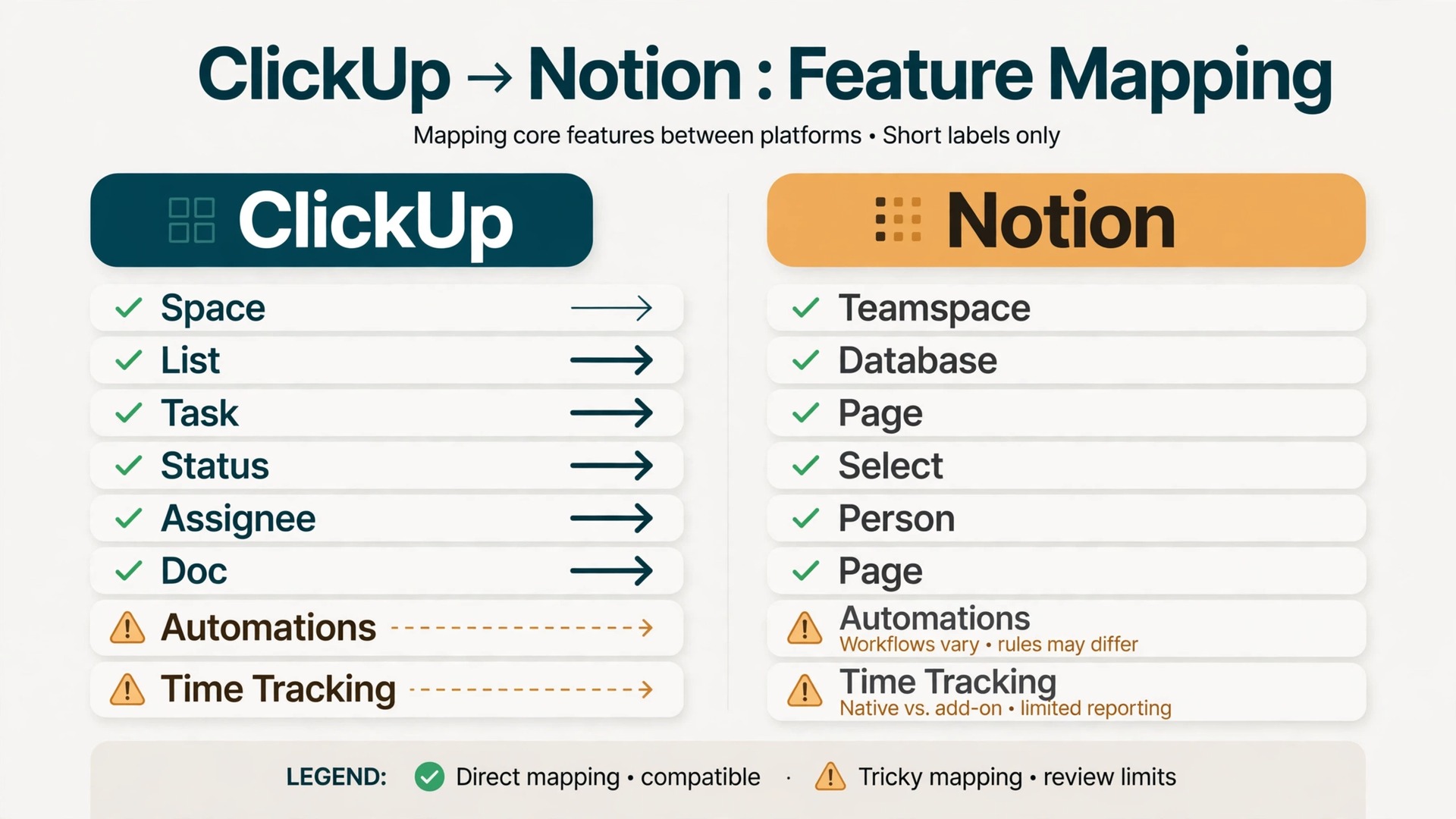
The table below is the core of this guide. Read it before exporting anything, because three rows need preparation work inside ClickUp, and two rows need a decision about a replacement tool before the move starts. The rule behind the table is simple. Content moves well. Structure moves with effort. Behaviour, meaning automations, reporting logic and live tracking, rarely moves at all.
| ClickUp item | Notion equivalent | What happens in practice |
|---|---|---|
| Space | Teamspace or parent page | Rebuild by hand. Spaces do not import as teamspaces |
| Folder | Parent page or database group | Rebuild the hierarchy after import |
| List | Full page database | The most reliable mapping. One List becomes one database |
| Task | Database page, one row per task | Title, dates and text fields usually carry over |
| Subtask | Sub-item or linked page | Sub-items need checking. Nested depth may flatten |
| Task status | Select or status property | Map each ClickUp status to one Notion option first |
| Assignee | Person property | Only works if that person is a Notion member or guest |
| Due date | Date property | Dates usually survive a clean CSV. Check time zones |
| Priority | Select property | Map labels exactly. Do not let two spellings survive |
| Custom Field, text or number | Text or number property | The cleanest custom field types |
| Custom Field, dropdown | Select or multi-select property | Check that every option exists before import |
| Checklist inside a task | To-do blocks on the task page | Often flattens to text. Verify on the pilot |
| Comment on a task | Comment on the page | Do not assume full comment history survives |
| Attachment | File block or file property | Re-upload large files and check size limits |
| Doc | Page, often inside a wiki or teamspace | Text and headings usually survive. Layout may not |
| Whiteboard | Image, embed or rebuilt page | No editable equivalent. Export as an image |
| Dashboard | Linked database views on a page | Rebuild views by hand. Charts need new setup |
| Gantt or timeline view | Timeline view on a database | Dates carry over. Dependencies need manual rebuild |
| Goal | Database with progress property | Tracking logic must be rebuilt |
| Automation | Database automation or outside tool | Most ClickUp automations do not transfer |
| Native time tracking | Manual number property or outside tracker | No native equivalent. Choose a tracker first |
| Form | Notion form on a database | Basic forms rebuild well. Logic may differ |
| Guest access | Guest access to specific pages | Re-invite guests. Access does not transfer |
What does not map is where migrations quietly fail. Automations are the largest gap. A ClickUp rule that moves a task, assigns a person and posts a comment when a status changes has no direct Notion twin. Notion database automations cover a narrower set of triggers, and they do not replace a full automation library. Teams with heavy automation should list every automation, count how often each one runs, and decide for each one whether to rebuild it in Notion, rebuild it in an outside automation tool, or drop it because nobody misses it. ClickUp plan limits make this counting easier.
Unlimited allows 1,000 automation runs a month, Business allows 5,000, and Enterprise allows 250,000, so a team near its limit is a team with automation debt to handle deliberately.
Time tracking is the second large gap. ClickUp includes native time tracking from the Unlimited plan upward, with reporting on time by task, person and project. Notion has no native time tracker. Teams that bill by the hour, report utilisation or need timesheets must pick a replacement before migration day. Options include a dedicated time tracking tool connected to Notion, or a manual hours property updated by each assignee. The manual option works for small teams with simple reporting, and fails for teams that need audit ready timesheets. Do not discover this gap after cancelling ClickUp. Decide it in the pilot, test it for a full week, and only then commit.
How to switch ClickUp to Notion Without Losing Work
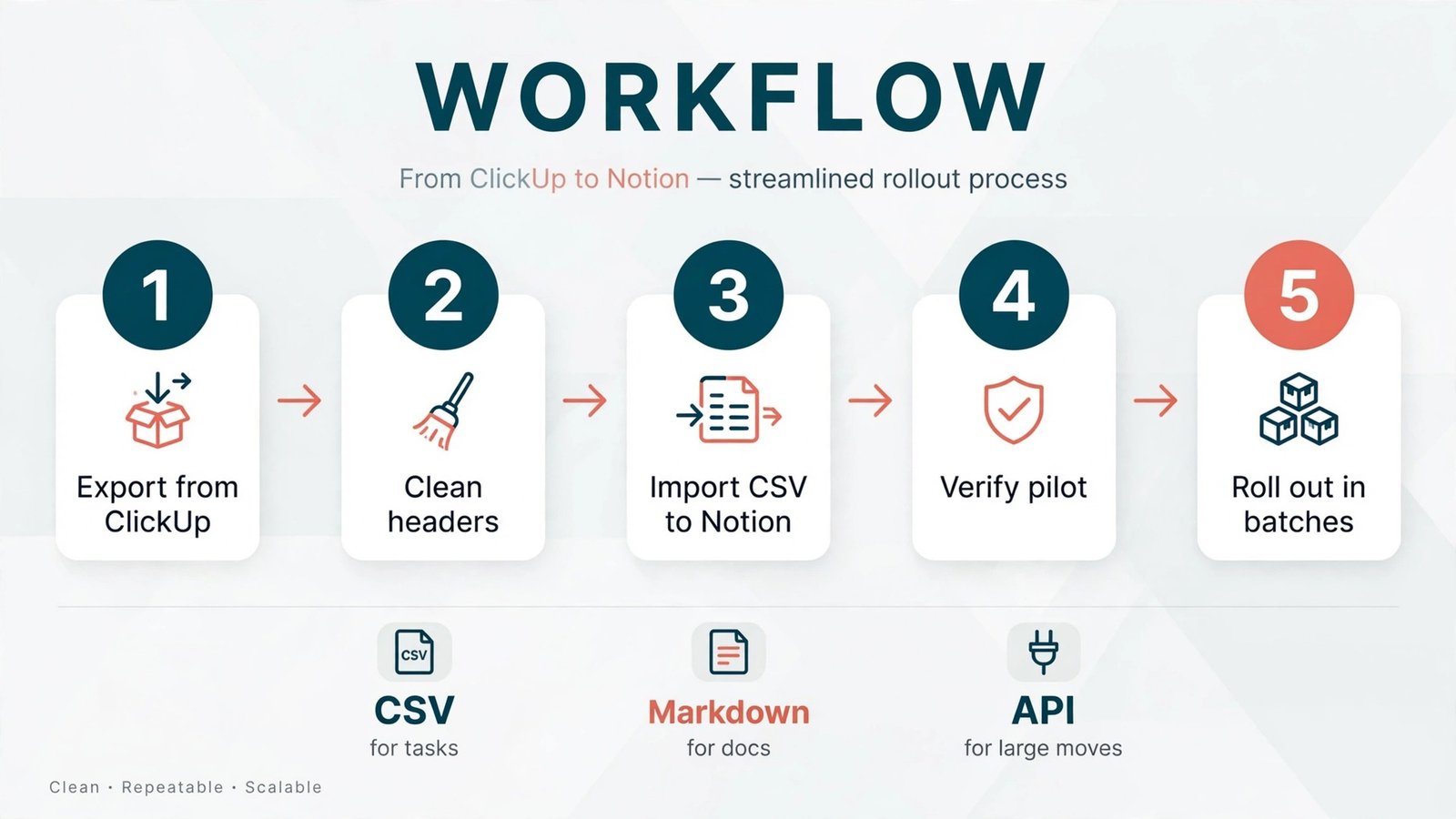
The sequence below protects the original data at every step. Nothing is deleted from ClickUp until Notion has been tested by the people who do the work, and every export is kept as a fallback. Treat ClickUp as read only during the final transfer week, not as a system to delete on day one. A migration that keeps a fallback is slower by a few days and safer by a large margin.
- Freeze new structure in ClickUp. Stop creating new Spaces, Lists and custom fields while the migration runs, so the map does not change under the team.
- Audit every Space, Folder and List. Record task counts, Doc counts, automation counts, dashboard counts and guest counts. This inventory becomes the verification checklist later.
- Clean statuses, priorities, tags and custom field options in ClickUp. Merge duplicates and fix blank assignees on active work.
- Decide the Notion structure on paper first. Name the teamspaces, the databases and the status sets before importing anything.
- Export one pilot List and one pilot Doc. Import them into a test teamspace, not the final workspace structure.
- Verify the pilot with its real users. Check counts, dates, assignees, statuses, attachments, comments and links, and record every gap.
- Fix the route or the mapping based on the pilot, then export and import the remaining work in small batches, verifying counts after each batch.
- Rebuild permissions, views, dashboards and automations in Notion, and test them with guests before inviting the whole team.
- Run both systems in parallel for at least one full working week, with Notion as the place new work is created.
- Only after that parallel week, set ClickUp to read only, keep exports for at least a month, and then cancel or downgrade the ClickUp plan.
Import Tool Options Compared
When you switch ClickUp to Notion, the team chooses between file routes and an API route, and the right choice depends on volume, field complexity and technical comfort. None of these routes is wrong. The mistake is picking a route for the whole workspace before testing it on one real List.
The CSV route is the workhorse for tasks. In ClickUp, open Workspace Settings, choose Imports and Exports, choose Export Items, select the Spaces, Folders or Lists to export, and start the export. ClickUp emails a download link for the resulting CSV file, and view exports from a List or Table view can also produce CSV or Excel files with custom fields included. The workspace task export and the view export are not identical, so test both on the pilot List and compare which one preserves the fields the team cares about.
Collapsed groups are excluded from view exports, and download links sent by email expire after one hour, so download promptly and store the file in a shared migration folder with a clear name and date.
In Notion, import starts from Settings and then Import, or by typing a slash command on a page and searching for the importer. Imports run on desktop and web, not on mobile, and Notion accepts CSV, Markdown, HTML, Word, plain text and PDF files, plus ZIP bundles. A CSV import creates a database, with each row becoming a page and each column becoming a property. That is exactly the shape a task List needs, but it also means column headers must be clean before import. Rename cryptic ClickUp export headers to the property names the team will use, remove columns nobody needs, and check that date columns are recognised as dates rather than text.
A ten minute header cleanup saves hours of property fixing after import.
The Markdown and HTML route is the workhorse for Docs. Export a ClickUp Doc as Markdown, HTML or PDF, then import the file into Notion, where headings, lists and images usually survive. Markdown suits text heavy Docs with a clear structure. HTML suits Docs where tables and formatting matter more, though complex layout still simplifies. PDF import suits reference Docs that should be preserved as readable files rather than edited pages, but a PDF does not become a fully editable Notion page in the same way. Choose per Doc, not per workspace. A handbook chapter becomes Markdown. A designed reference sheet stays a PDF attached to a Notion page.
A spec with tables goes through HTML and gets a cell by cell check.
The API route suits large or repeated migrations, and it suits teams with a developer available. The ClickUp API can export tasks, comments and custom fields in a structured way, and the Notion API can create databases and pages with typed properties. An API script can preserve field types, rebuild relations and log every record it moves, which file exports cannot do as reliably. The cost is development time, testing and maintenance, plus care with rate limits and with mapping assignees to Notion users. For a team moving thousands of tasks with many custom fields, that cost is worth paying. For a team moving two hundred tasks, it is not.
Use the API route only when file routes have failed on the pilot or when the volume makes manual cleanup larger than the scripting effort.
Permissions, Guests and Teamspaces When You switch ClickUp to Notion
Permissions do not migrate. This sentence should be printed on the migration plan, because it is the most common source of post migration embarrassment. ClickUp permission groups, custom roles and Space level access have no automatic Notion counterpart. Every person must be invited to Notion, placed in the right teamspace, and given the right page access, and every guest must be re-invited to the specific pages they should see. A team that imports content first and thinks about permissions later will share the wrong pages with the wrong people, or lock out the right people on day one.
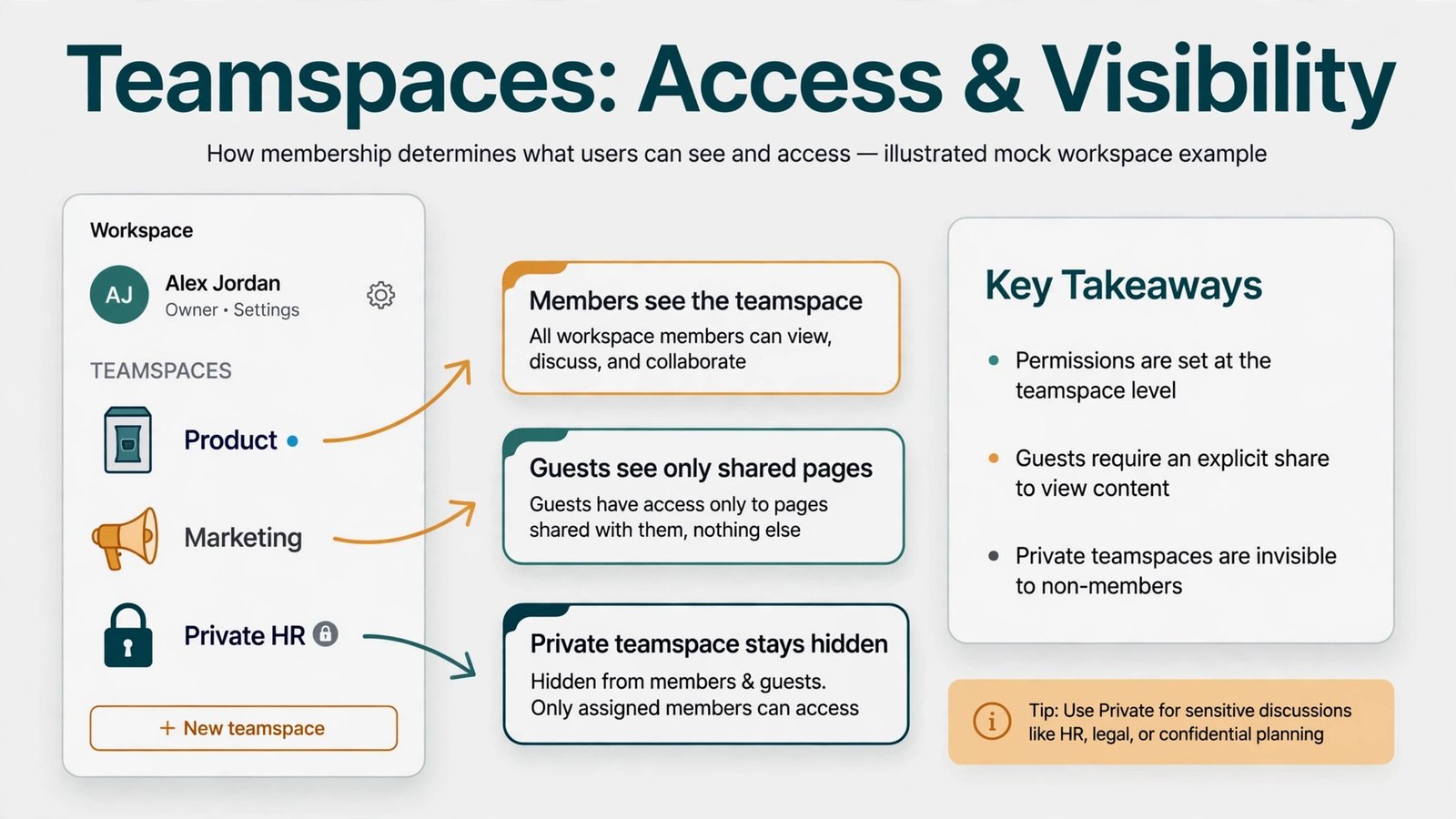
Start by mapping ClickUp roles to Notion roles on paper. ClickUp owners and admins usually become Notion workspace owners or admins. ClickUp members who work inside a team become Notion members of that teamspace. ClickUp guests, clients and contractors who only need certain projects become Notion guests on specific pages, not members of the whole workspace. That last distinction controls cost and security at once. Members are paid seats. Guests are free, but guests see only the pages shared with them, and they do not see the rest of the teamspace. A contractor who was a ClickUp guest on one Folder should become a Notion guest on the equivalent pages, not a full member who can browse everything.
Notion teamspaces organise the sidebar into areas for each team or function, such as Product, Marketing, Operations and Client Work. Teamspaces can be open, closed or private, with private teamspaces available on Business and Enterprise plans. Open teamspaces can be joined directly, closed teamspaces require a request, and private teamspaces are visible only to people added to them. Use private teamspaces for sensitive work such as HR, finance and unreleased product plans, and use open or closed teamspaces for ordinary team work. When a person joins a workspace on Plus, Business or Enterprise, they are added to default teamspaces unless they are a restricted member, so set defaults deliberately rather than letting every new hire land in every teamspace.
Page level sharing needs equal care. In Notion, sharing a page usually shares its subpages by default, though subpage permissions can be restricted or expanded. That default is convenient for a project hub and dangerous for a hub that contains one sensitive subpage. Before inviting guests, walk the pilot teamspace page by page and check what each shared page reveals underneath it. Remove or restrict sensitive subpages, move them to a private teamspace, or share a copy rather than the original. Give guests the lowest access that lets them do their job, and review guest lists monthly.
Guest limits also differ by plan, so count guests before choosing a plan. The free plan allows up to 10 guests. Paid plans allow far more guests, and current Notion help pages describe unlimited guests on paid plans. Confirm the current guest allowance on the pricing page for the plan you intend to buy, and count contractors, clients and agencies separately from staff. A team with thirty active client guests cannot run on the free plan, even if staff headcount is small. That count belongs in the cost check, not as a surprise after migration.
The Cost Check Before You Commit
Prices change, so treat every figure here as a starting point to verify on the vendor pricing page and at checkout before paying. The comparison that matters is not the cheapest headline rate, but the cost of the setup the team will actually live in, including guests, AI features and any replacement tool for time tracking or automation. When you switch ClickUp to Notion, that full stack cost is the number to compare, not the single app rate.
Notion lists a free plan at zero cost, with unlimited pages and blocks for an individual, a 5 MB per file upload cap, 7 day page history and up to 10 guests. Plus is commonly listed at 10 dollars per member per month on annual billing, or 12 dollars on monthly billing, with unlimited file uploads, 30 day page history and unlimited guests. Business is commonly listed at 20 dollars per member per month on annual billing, or 24 dollars on monthly billing, and it adds full Notion AI features, private teamspaces, SAML SSO and stronger permissions. Enterprise pricing is custom.
The AI point matters for budgeting, because full Notion AI is bundled into Business and Enterprise, while Free and Plus include only a limited trial. A team that wants AI writing, meeting notes and search as a daily tool should budget for Business, not Plus plus a hope.
| Setup, annual billing | Commonly listed cost | Best fit |
|---|---|---|
| Notion Free, solo user | 0 dollars | Solo migrators with small files |
| Notion Plus | 10 dollars per member a month | Small teams that need uploads and history |
| Notion Business | 20 dollars per member a month | Teams needing AI, SSO and private teamspaces |
| ClickUp Unlimited | 7 dollars per user a month | Operational teams needing tracking and Gantt |
| ClickUp Business | 12 dollars per user a month | Teams needing dashboards, workload and automations |
| Replacement time tracker | Varies by vendor | Any Notion team that bills hours or reports utilisation |
Check current figures on the official pricing pages before purchase, and trust checkout over any guide, including this one, when they differ.

The Week by Week Migration Plan
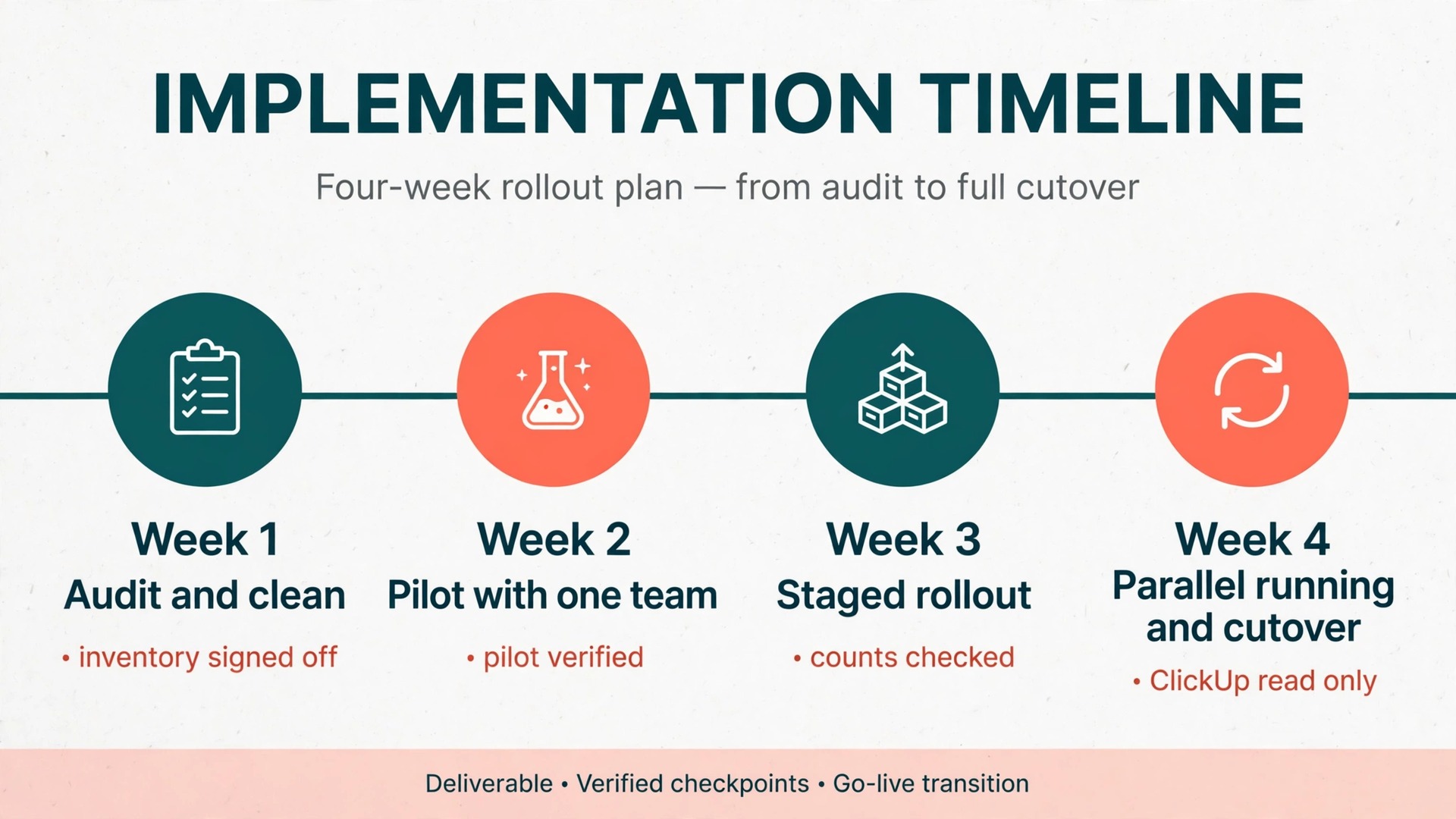
A four week plan fits a small to mid sized team. It keeps the pilot small, the rollout staged and the fallback intact. Larger teams should add a week to the pilot and a week to rollout, and should stagger teamspaces rather than moving every team in the same week. When you switch ClickUp to Notion on this schedule, week 1 is the week most teams want to skip, and it is the week that prevents most failures.
| Week | Focus | Done when |
|---|---|---|
| Week 1 | Audit, clean and decide | Inventory signed off, status map written, Notion structure drawn, pilot List and Doc chosen |
| Week 2 | Pilot with one real team | Pilot imported, verified by real users, gaps listed, route fixed, time tracker tested |
| Week 3 | Staged rollout by teamspace | One teamspace per day or two, counts verified after each batch, permissions tested with guests |
| Week 4 | Parallel running and cutover | New work created in Notion for a full week, old work checked, ClickUp set to read only |
Week 1 is audit and cleaning week. The migration owner inventories Spaces, Lists, Docs, automations, dashboards and guests, and records counts in a simple spreadsheet. The team cleans statuses and labels in ClickUp, merges duplicates, and writes the status mapping and the Notion teamspace plan. No import happens in week 1 except a tiny test file to confirm the export and import menus work. The temptation to rush week 1 is strong, and resisting it is what makes weeks 2 to 4 calm. A clean source and a written map are worth more than an early import.
Pilot Then Rollout, With a Checklist the Team Can Sign
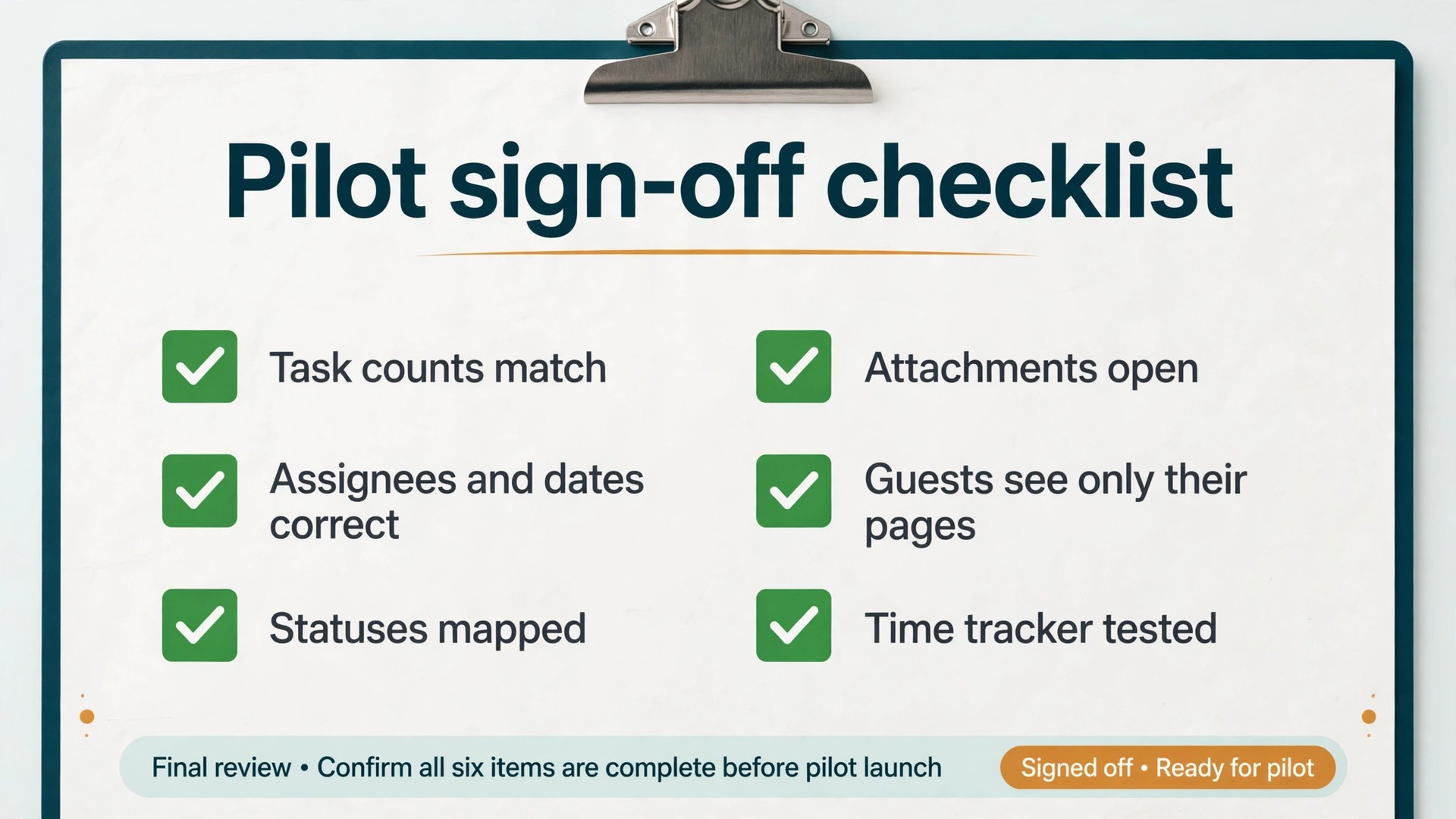
The pilot checklist is the contract between the migration owner and the team. Each item needs a name and a tick, not a vague sense that things look fine. Use the list below for the pilot, then reuse it for every teamspace in rollout, so verification stays consistent.
- Task count in Notion matches the ClickUp List count, after agreed archives are excluded.
- Every active task has the correct assignee, due date and status, checked on a sample of at least twenty tasks.
- Priority labels, tags and custom field values match the agreed mapping, with no duplicate spellings.
- Subtasks are present or deliberately flattened, and the team knows which outcome applies.
- Attachments open on a sample of tasks and Docs, including the largest files.
- Comments that matter are present or copied, and the team knows what comment history was left behind.
- Internal links between Docs and tasks work, or a relink list exists with owners.
- Views for board, calendar and timeline show the right work, and filters match the old ClickUp views.
- Guests can see exactly their pages, and cannot see pages they should not see.
- The time tracking replacement has logged a full week of real entries and produced a usable report.
- The three most used automations have a rebuilt equivalent, or a written decision to drop them.
- Search finds key Docs by title and by a distinctive phrase inside the Doc.
Common Failures, and the Fix for Each One
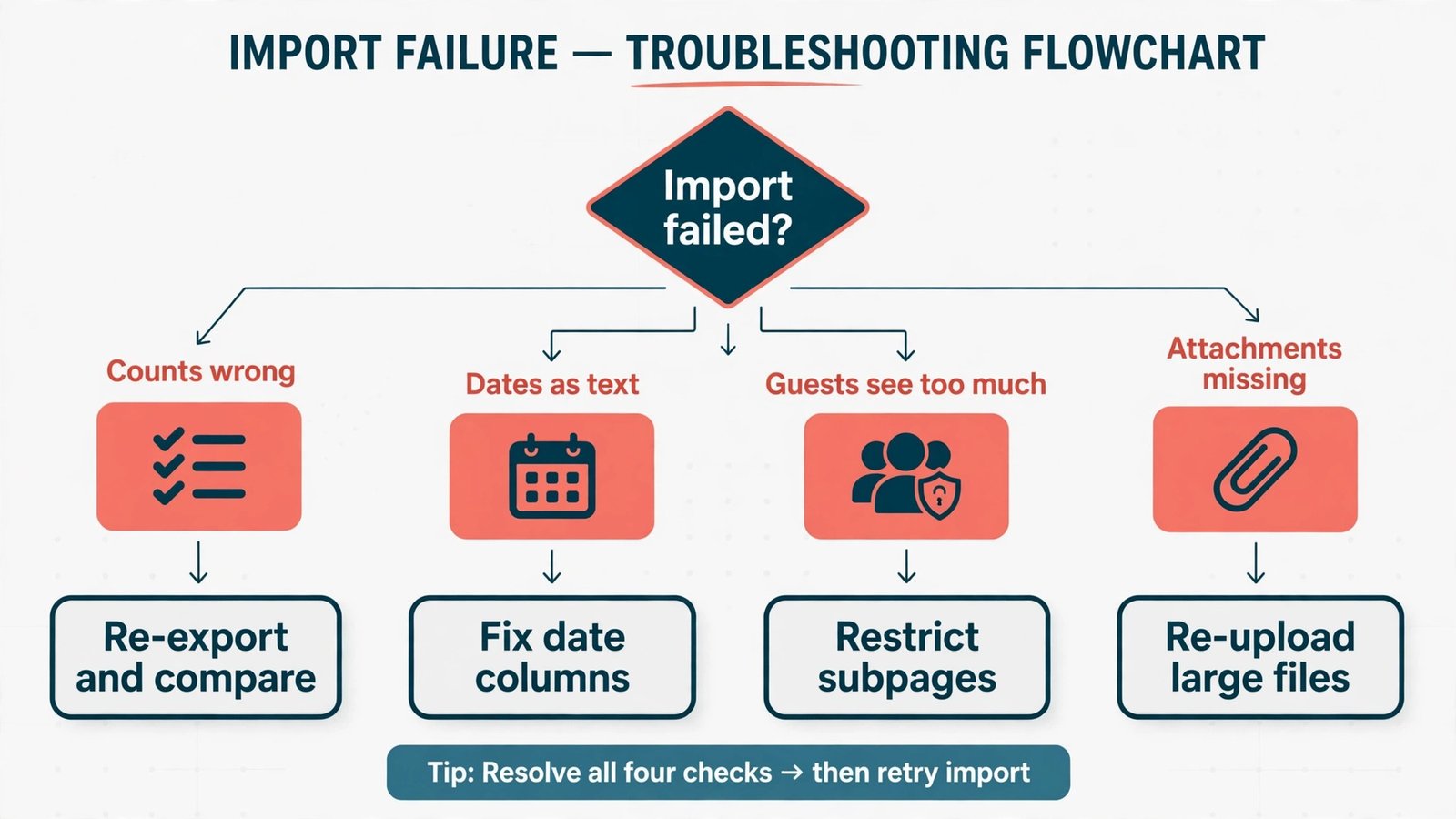
The first failure is silent data loss, where counts look right but comments, attachments or subtask detail are missing. The fix is sample verification, not total trust in an import report. Open twenty tasks across different Lists, open their attachments, read their comments, and compare them with ClickUp before signing off a batch. If a field is missing across the sample, stop the batch and fix the route, because the same gap will repeat across the rest of the workspace.
The second failure is permission leakage, where a guest sees a page they should not see because a parent page was shared. The fix is a guest test before rollout, walking the shared pages and their subpages. Move sensitive subpages to a private teamspace, restrict subpage permissions, or share a copy. Do this check for every teamspace, not just the pilot, because teamspaces are built by different people and inherit different sharing habits.
Teams weighing a platform move often benefit from seeing how other migrations handle the same mapping problem, and this site covers several of them in the same practical style. The Evernote to Notion migration checklist shows how notes, tags and attachments map when the source is a notes app rather than a task app, and the Dropbox to Google Drive business move covers the file and permission questions that also arise when Docs and attachments change homes. For the wider comparison before committing, the Notion versus Evernote guide and the Asana versus Monday guide help a team check whether its real need is better docs, better task control, or a different balance between the two.
A team that reads those guides before it decides to switch ClickUp to Notion will arrive at the decision with clearer expectations about what changes and what stays hard.
Frequently Asked Questions
Can I move ClickUp tasks to Notion directly with one importer
No direct ClickUp importer is offered in Notion at the time of writing. Notion offers direct importers for apps such as Asana, Trello, Evernote and Confluence, plus file imports for CSV, Markdown, HTML, Word and other formats. For ClickUp, export tasks as CSV or Excel from Workspace Settings or from a List view, then import the file into Notion as a database. Docs move through Markdown or HTML export and import. Test both export routes on a pilot List, because the workspace export and the view export preserve different fields.
Will my ClickUp automations work in Notion after the move
Most will not transfer automatically, and each one needs a decision. Notion database automations cover a narrower set of triggers than ClickUp automations, so a rule that assigns, moves and comments in one step usually needs rebuilding across Notion automations, an outside automation tool, or a manual habit. List every automation before migration, count how often each one runs, and rebuild the few that carry real daily value first. Drop automations nobody can explain, and do not promise the team that automation parity will arrive on day one.
What happens to ClickUp time tracking when you switch ClickUp to Notion
Native time tracking does not carry over, because Notion has no native time tracker. Export time data from ClickUp before cutover, so billing and reporting history is preserved, and choose a replacement before migration day. A dedicated tracker connected to Notion suits teams that bill hours or report utilisation. A manual hours property suits small teams with simple reporting. Test the replacement for a full pilot week, and check that its report answers the questions managers asked ClickUp to answer.
How do guests and clients keep access after migration
Guests must be re-invited, because access does not transfer. In Notion, invite each guest to the specific pages they need, with the lowest access level that lets them do their job, and check subpages before sharing a parent page. Guests see only shared pages, not the whole teamspace, which protects internal work when set up carefully. Count guests before choosing a plan, since the free plan allows only 10 guests while paid plans allow far more. Review the guest list monthly, and remove guests when a project ends.
How long does a team migration usually take
A small team with one or two active projects can complete a pilot and staged rollout in about four weeks, following the plan in this guide. Larger teams, teams with many automations, or teams with heavy dashboard reporting should allow six to eight weeks, with extra time for the pilot and for rebuilding reports. Import time itself is rarely the bottleneck. Cleaning, permission setup, automation rebuilding and verification take most of the time, and skipping those steps to save a week usually creates a month of cleanup later.
Should a team keep ClickUp for some work after moving to Notion
Yes, when a specific workflow still fits ClickUp better. A complex sprint board, a workload dashboard or a client reporting setup may be worth keeping in ClickUp while docs, wikis and project hubs live in Notion. The key is a clear boundary, so the team knows which system owns which job and does not duplicate status in both places. A hybrid setup with a written boundary beats a forced full move that leaves one team quietly working around Notion every day. Review the hybrid setup at ninety days, and move the remaining workflow only if a good Notion equivalent exists by then.
The Move That Pays Only When Docs Lead the Work
A move to Notion pays when documents, wikis and linked knowledge are the work, and task tracking supports that work rather than driving it. It disappoints when a delivery team trades workload views, native time tracking and deep automations for prettier pages and then tries to rebuild its control panel by hand. The decision test in this guide, the mapping table, the pilot checklist and the four week plan exist to make that distinction visible before money and momentum are committed. A team that is ready to switch ClickUp to Notion should still run the pilot first, because the pilot is where the real cost of the move shows up.
Move in stages, verify with real users, rebuild permissions deliberately, and keep ClickUp read only until Notion has survived a full working week. A team that follows that sequence ends with a workspace people open because it helps them think and find things, not a workspace they open because migration day has passed. That difference, more than any import tool, is what decides whether the move sticks.