
A timeline editor asks you to find a bad sentence by scrubbing back and forth through waveforms. A text editor asks you to read it. If you want to use Descript for YouTube video editing, that single difference decides most of the outcome. Readers spot rambling answers, repeated points and dead air faster than scrubbers do, and deleting a sentence takes one keystroke instead of four precise cuts. Timeline editors still win when a video depends on exact visual timing, layered effects or music driven cuts. For talking head videos, tutorials and interviews, the text wins on speed, and the timeline only gets involved for polish at the end.
This guide follows one realistic path from raw recording to a published YouTube video. You will import footage, correct the transcript, cut with text, clean the audio, add captions viewers can actually read, cut Shorts from the same project, and export at settings YouTube handles well. Prices and plan limits below were checked against Descript pricing and help pages in October 2026. Descript changes plan details from time to time, so confirm the current pricing page before you pay for a year.
Why reading an edit beats scrubbing one
Most YouTube editing time does not go to creative decisions. It goes to finding things. You hunt for the moment you repeated yourself, the long pause before the answer, and the take that went nowhere. A transcript turns that hunt into reading. You can search for a word, jump to a section, and see the shape of an argument on one screen. A ten minute ramble becomes a paragraph you can skim in thirty seconds. That is the real advantage, and it matters more than any single AI button.
The trade is control. Text editing is excellent for words and order. It is weaker for frame perfect visual jokes, complex multi-camera switches, and heavy effects work. Descript does include a timeline and scenes, so you are not locked out of visual work. But if your video is mostly motion graphics, fast cuts to music, or precise product close ups timed to a beat, a traditional timeline editor will feel more direct. Know which kind of video you make most often before you judge the tool.
How to use Descript for YouTube video editing
Start with a project built around one video, not one channel. A single video project keeps the transcript, the media and the exports in one place, and it stops a long series from turning into a slow, tangled file. Import your main camera file first. Descript sets the composition resolution from the source media you add, so a 720p first file can cap your later export choices even on a paid plan. If you plan to export in 1080p, start with 1080p footage, or check the scene video settings before you edit.
Once the file uploads, Descript transcribes the audio and links every word to its moment in the video. Wait for transcription to finish before you start cutting in earnest. Early cuts on a partial transcript can leave you rechecking work later, and speaker labels settle down once the full file is processed. If you recorded with two people, check the speaker labels early. Fixing a mislabelled speaker at the start takes seconds. Fixing it after you have cut captions, clips and chapters takes far longer.
Correct the transcript before you trust it. Descript transcription is strong on clear speech, but names, brand terms, technical words and accented speech still produce errors. Read through once with the video playing at normal speed, and fix every error that changes meaning. A wrong product name in the transcript becomes a wrong caption later, and a wrong caption on YouTube is visible to every viewer who watches with sound off. This correction pass also doubles as your first viewing of the edit. You will notice weak sections while you fix words, which saves a separate review pass.
Set up scenes before you start cutting
Scenes in Descript act like slides in a presentation. One scene can hold your talking head shot, the next can hold a screen recording, and the next can hold a full screen graphic. This structure helps YouTube videos in a specific way. It lets you change the visual layout for one section without disturbing the rest of the timeline. A tutorial that alternates between face and screen benefits most, because each switch becomes a clean scene change rather than a fiddly track adjustment.
Import order matters more than it looks
The edit workflow that actually ships videos
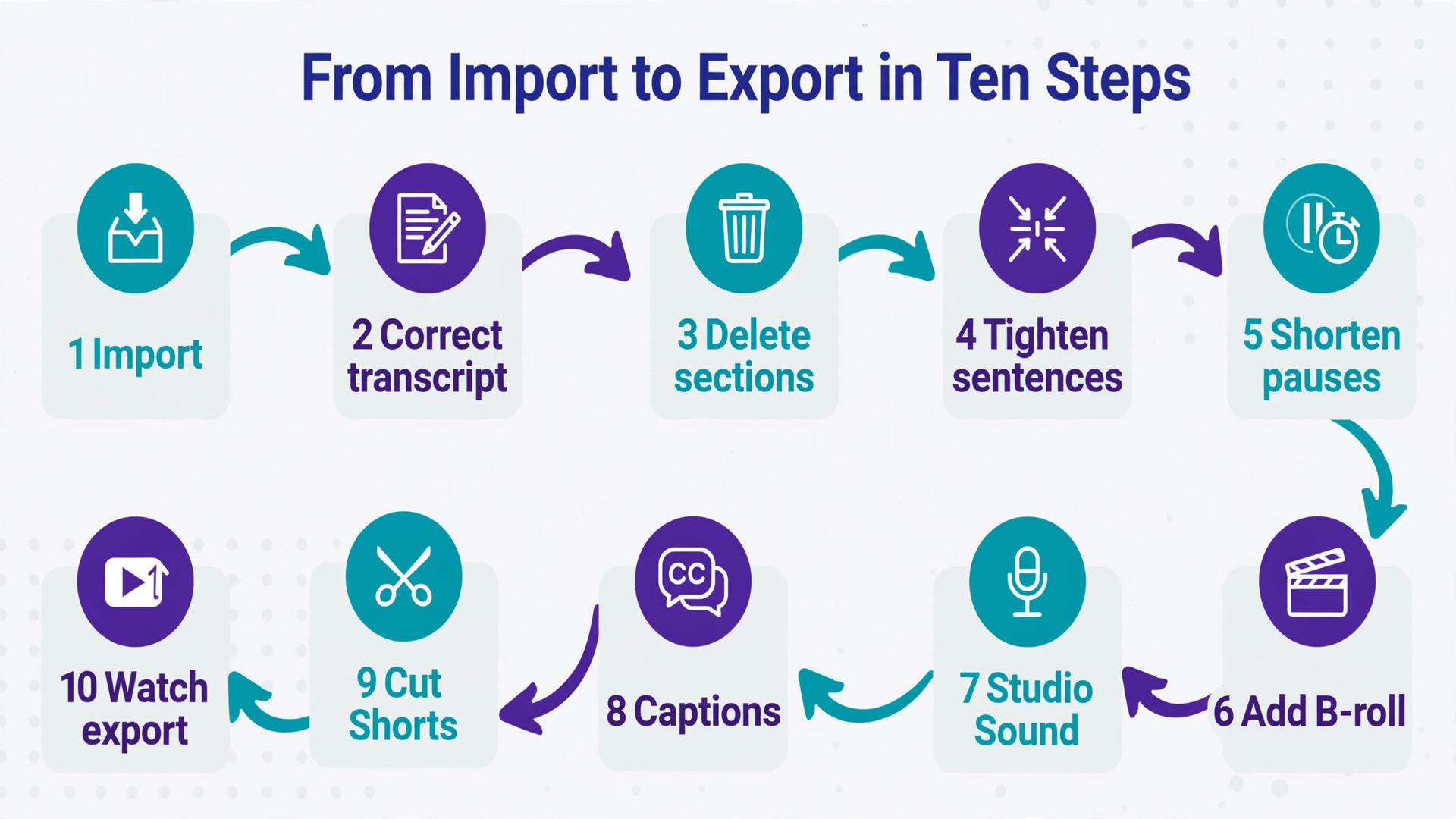
A workflow only helps if you can repeat it when tired. The sequence below is built for a weekly talking head video of roughly eight to fifteen minutes, and it assumes one main speaker plus occasional B-roll. Longer interviews and multi-speaker shows need extra time at the transcript correction stage, but the order stays the same.
- Import the main footage and wait for full transcription.
- Correct names, terms and speaker labels while watching once at normal speed.
- Delete whole sections that do not serve the video, starting with tangents and repeated explanations.
- Tighten sentences inside the sections you keep, cutting filler and false starts.
- Shorten long pauses, but leave natural breathing room at the end of important points.
- Add B-roll, graphics and scene changes where the visuals carry meaning, not decoration.
- Clean the audio with Studio Sound and check it on headphones.
- Style captions, run the caption checklist, and export a subtitle file.
- Cut Shorts from the strongest moments, then export the long video.
- Watch the exported file once from start to finish before you upload it.
Cut in passes, not in one heroic session
First pass cuts are about structure. Remove sections, reorder arguments, and make sure the video answers its title promise in the first minute. Do not polish sentences during this pass. You will waste time perfecting a paragraph you later delete. Second pass cuts are about sentences. Remove filler words, retakes and throat clearing, and tighten any sentence that takes two clauses to say one thing. Third pass cuts are about rhythm. Listen for stretches where the pace drags, and for moments where over-tightening makes the speaker sound rushed.
When you use Descript for YouTube video editing, this pass structure also protects you from the most common Descript mistake, which is deleting too much too fast. Bulk removal tools are powerful, and a single click can strip every filler word in a project. That sounds efficient until you hear the result. Some filler words act as natural pauses. Some retakes contain the better phrasing of an idea. Review bulk removals in context before you accept them, especially in the first minute, where viewers decide whether to stay.
Filler words, retakes and gaps without choppy audio
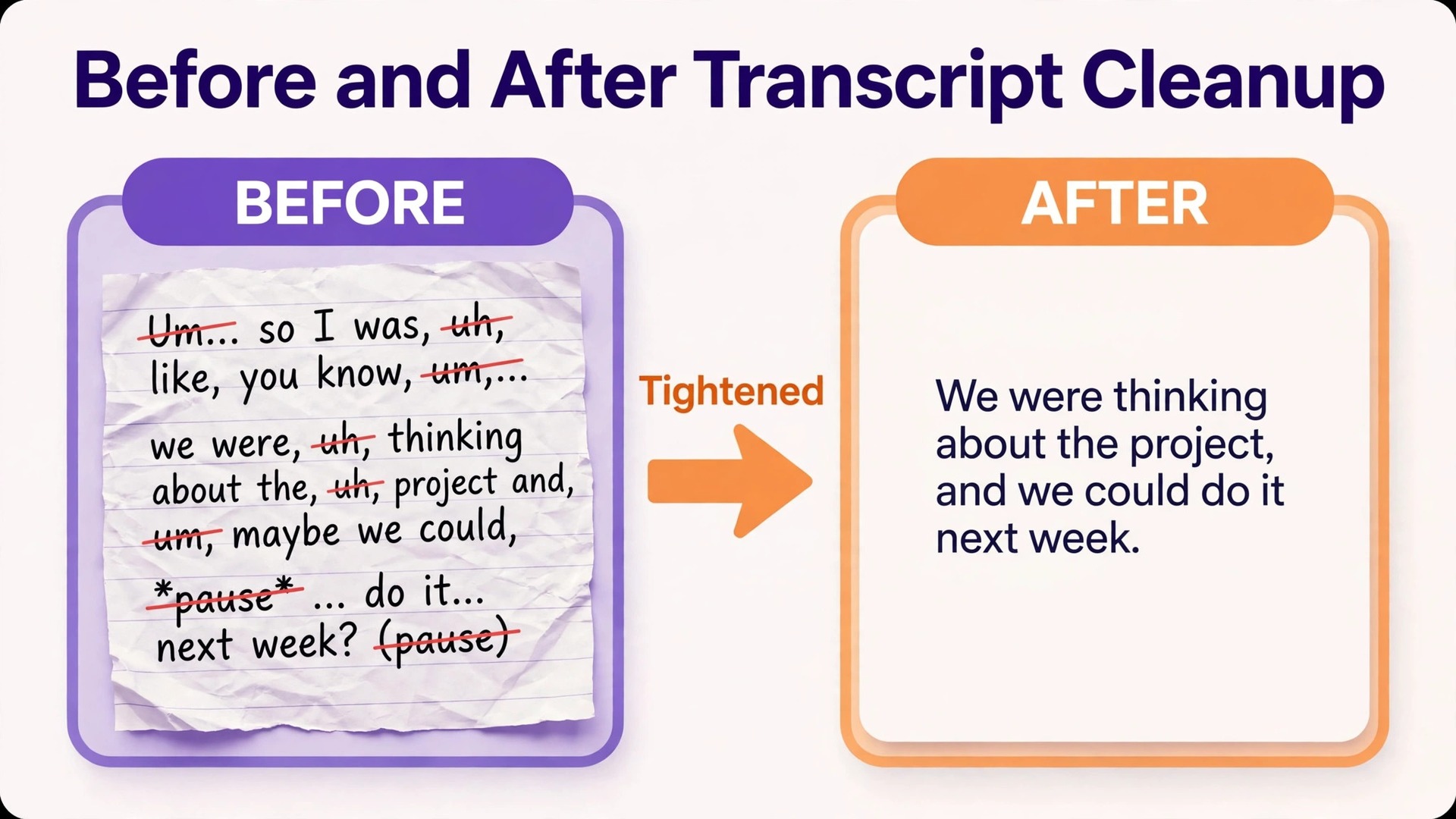
When you use Descript for YouTube video editing, Descript can find filler words such as um and uh, repeated words, and false starts across a whole recording, and remove them in bulk. The same toolset can shorten word gaps, which are the silences between words and sentences. Used lightly, these tools produce the single biggest time saving in the whole workflow. Used aggressively, they produce audio that sounds clipped, breathless and slightly unreal. The difference is almost always the review step.
Start with filler words, and review the first ten removals by ear. Listen for words that were cut too tightly, leaving a consonant clipped or a breath cut in half. If the first ten sound clean, accept the rest, then listen to the transitions between sections. Next, handle retakes. Descript can flag repeated attempts at the same line. Keep the take with the clearest delivery, not the first take and not the longest take. A retake often exists because the speaker knew the first version was weak. Trust that instinct.
Shorten word gaps last, and use a light setting first. Long pauses between sentences often carry meaning. A pause after a surprising claim gives viewers a moment to absorb it. A pause before a reveal builds anticipation. Removing every pause flattens those moments into a monotone rush. A good rule is to shorten gaps that exceed about one second in ordinary explanation, and to leave gaps alone around punchlines, warnings and conclusions. You can always tighten more later. You cannot easily restore a natural pause once the exported file is live and viewers have commented on the rushed feel.
What to leave in on purpose
Not every imperfection should go. A short laugh after a genuine mistake can make a creator feel human. A brief pause while a demonstrator waits for a screen to load tells viewers what to expect on their own machine. A filler word at the start of a thoughtful answer can signal that the speaker is thinking rather than reciting. The goal is not a perfectly clean transcript. The goal is a video where nothing distracts from the idea. If removing a word makes the delivery sound less like a person and more like a script being read at speed, leave the word in.
Studio Sound and audio cleanup that holds up on headphones
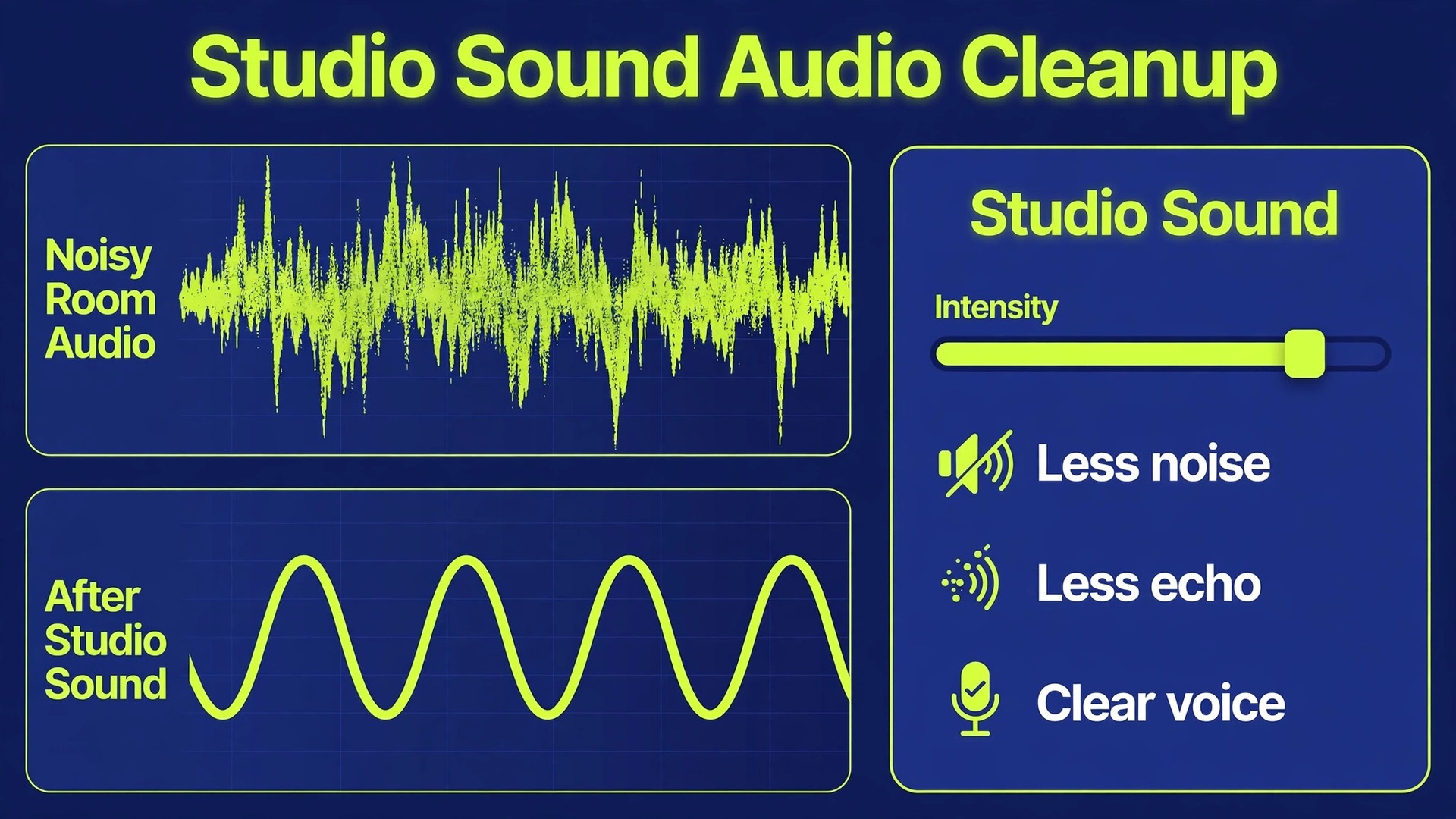
If you use Descript for YouTube video editing, Studio Sound is Descript’s one click audio enhancement. It reduces background noise and room echo, and it adjusts the voice so a home recording sounds closer to a studio recording. On a laptop microphone in an untreated room, the improvement is often dramatic. On a decent USB or dynamic microphone in a quiet room, the improvement is subtler but still useful, because it evens out tone and removes the small room sound that headphones reveal.
Apply Studio Sound after your structural cuts but before your final listen. Applying it early wastes processing on sections you later delete. Applying it after the final listen means you never hear the version viewers will hear. Preview the result at a moderate intensity before you accept the maximum setting. At full strength, some voices take on a slightly processed edge, with breaths flattened and sibilance sharpened. Dial the intensity down until the voice sounds like the same person in a better room, not like a different recording altogether.
Studio Sound is not a substitute for a reasonable recording. It cannot rescue audio recorded far from the microphone, audio with loud background music, or audio where two people talk over each other at similar volume. It also consumes AI credits on paid plans, so running it on every take of a long project adds up. Run it on the final audio track once, after cuts are settled, rather than on each raw clip. If a section still sounds poor after Studio Sound, re-record that section. A thirty second pickup recording beats an hour of trying to polish unusable audio.
A practical audio check before export
Listen to the full video on three outputs if you can. Headphones reveal noise, mouth clicks and harsh sibilance. Phone speakers reveal whether the voice survives small, tinny playback, which is how many viewers watch. A television or laptop speaker at normal room volume reveals whether background music competes with speech. If music covers words on any of those outputs, lower the music bed by a clear step and listen again. Viewers forgive plain visuals far more readily than they forgive words they cannot hear.
Captions and subtitles viewers can read
When you use Descript for YouTube video editing, Descript treats captions and subtitles as different things, and the distinction matters for YouTube. Captions in Descript are styled text burned into the video itself. They always show, they match your brand style, and they are the right choice for Shorts and social clips where viewers scroll with sound off. Subtitles are a separate file, usually SRT or VTT format, that YouTube overlays on request. Viewers can turn subtitles on or off, change their size, and search within them in some players. For a long YouTube video, subtitles are usually the better choice, because they respect viewer preference and accessibility settings.
The workflow for a long video is therefore two part. Style burned in captions for your Shorts, where bold on screen text is part of the format. Export a separate subtitle file for the long video, and upload it alongside the video in YouTube Studio. Exporting the video without burned in captions and uploading the subtitle file separately gives viewers control, and it avoids the problem of permanent text covering important visuals. It also gives you a clean transcript you can reuse for a blog post, show notes, or chapter descriptions.
Styling deserves the same restraint as audio cleanup. Choose one font, one size range, and one position, and use them for the whole video. Captions that jump between top and bottom of the frame, or that change colour every scene, distract from the content. Keep captions near the bottom of the frame for long videos, clear of any lower third graphics. For Shorts, keep captions in the middle band of the frame, clear of the platform buttons and captions that crowd the bottom edge on phones.

Timing and line length
Good captions follow speech, not sentences. A caption block should appear when the words are spoken and disappear when the speaker moves on. Blocks that linger for seconds after speech ends feel broken, and blocks that flash past before viewers can read them feel worse. Descript lets you control the maximum characters per line and the maximum lines per card when you export subtitles. A sensible starting point is around 32 to 42 characters per line and no more than two lines per card. Shorter lines read faster on phones. Longer lines suit desktop viewers but force small text on mobile.
The caption checklist
Use this checklist on every video before export. It takes about ten minutes, and it catches the errors that make an otherwise strong video look careless. Work through it in order, because later steps assume earlier ones are done.
- Names, brands and technical terms are spelled correctly in every caption, not just in the first occurrence.
- Speaker labels are correct wherever two or more voices appear, and no caption is assigned to the wrong person.
- Every caption block matches the words actually spoken, including corrections made by Overdub or re-recorded pickups.
- No caption block exceeds two lines, and no line is so long that it shrinks text on a phone screen.
- Caption timing follows speech, with no block lingering long after the speaker has finished.
- Captions do not cover faces, hands, on screen buttons, or lower third graphics in any scene.
- Numbers, dates and prices in captions match the numbers shown on screen and spoken aloud.
- Burned in captions are used only for Shorts and social clips, while the long video carries a separate subtitle file.
- The exported subtitle file is checked in a plain text editor, so encoding errors and broken lines show up before upload.
- The final video is watched once with captions on and once with captions off, to confirm both versions work.
Clips for Shorts without wrecking the long video
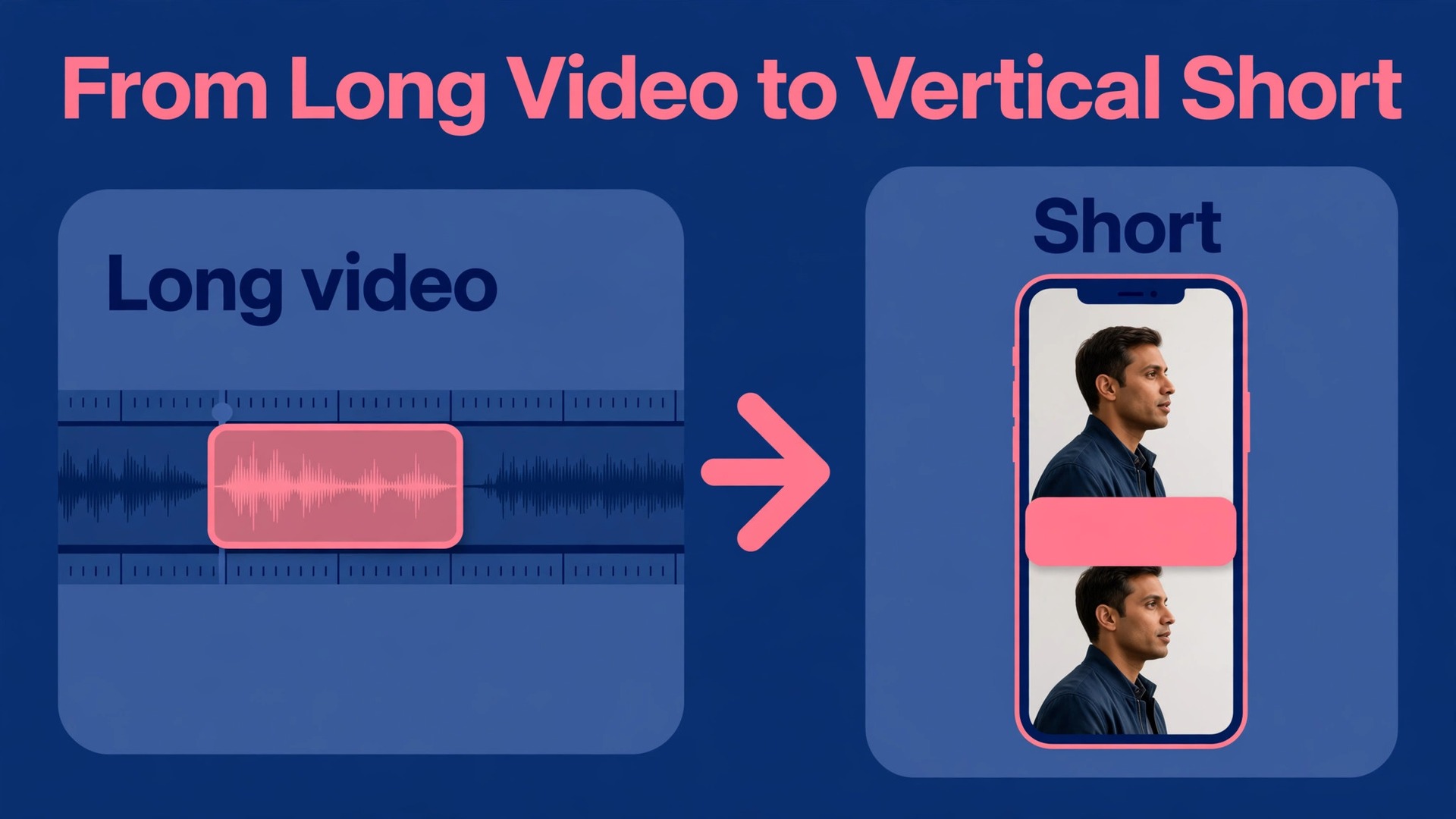
When you use Descript for YouTube video editing, Descript can identify shareable moments in a long recording and help you turn them into vertical clips. The best clips are self contained. A viewer who has never seen the long video should understand the point within the first three seconds, and should not need the previous five minutes to follow it. Strong candidates include a surprising result, a clear before and after, a common mistake with its fix, and a direct answer to a question viewers actually ask.
Reframe for vertical viewing rather than simply cropping the wide video. A talking head shot cropped to vertical can cut off hands, on screen text, or the product being discussed. Check every clip on a phone, with the platform interface in mind. Keep captions in the safe middle band, keep the speaker’s face fully in frame, and keep any essential on screen text away from the edges. A clip that looks fine on a desktop editor can fail on a phone because a button covers the key word.
Keep the long video and the Short honest with each other
Export settings for YouTube that avoid re-exports
When you use Descript for YouTube video editing, export problems usually come from three sources, which are resolution capped by the composition, the wrong caption choice, and a direct YouTube export that does not match the video type. Check all three before you press export. First, confirm the composition resolution. If your first file was 720p, Descript may grey out higher resolutions at export. Open the scene video settings, choose the custom option, and set the resolution to 1080p or 4K as your plan and source footage allow. Remember that Descript does not upscale media. Exporting a 720p source at 1080p creates a larger file, not a sharper picture.
Second, decide between a local file export and a direct YouTube export. Direct export from the web version of Descript lets you set the title, description, category and tags in the export panel and publish straight to your channel. It is supported on all plans, with limits that depend on the plan. Free plans can export to YouTube up to 720p and one hour. Hobbyist plans can export up to 1080p and one hour. Creator, Business and Enterprise plans can export up to 4K and three hours. Direct export is not available for Shorts, so download a Short video file and upload it manually.
It is also limited to channels owned by the connected account, not brand or shared access channels.
Third, choose a local export when you need control. Local video exports use MP4 format with High, Medium or Low quality presets, which manage compression without exposing detailed bitrate controls. High is the sensible default for a main YouTube upload. Medium suits a draft or a review copy. Low suits a quick preview, not a public video. If the export button is greyed out, a file in the project has not finished uploading or processing. Hover over the button to see which file is blocking export, and re-upload that file if needed rather than forcing the export.

A pre-export pass that saves a second upload
Run this pass in order, and do not skip steps because the video looked fine in the editor. Confirm the composition resolution matches your intended export. Confirm the aspect ratio matches the destination, wide for a long video and vertical for a Short. Confirm captions are either burned in for a Short or exported as a separate subtitle file for a long video, never both at once on the same upload. Confirm the audio plays cleanly at the start, middle and end. Confirm the first thirty seconds hook the viewer without relying on captions alone. Confirm the file name includes the video title, so you can find the master later.
Upload the video as unlisted first if the content is important or time sensitive. Watch it on YouTube itself, on a phone and on a desktop, before you switch it to public. YouTube processing can reveal issues that local playback hides, such as a caption file that did not attach, a thumbnail that crops badly, or audio that sounds different after platform compression. An unlisted check costs a few minutes. A public re-upload costs viewer trust and resets early engagement signals.
What Descript costs and which plan fits a YouTube schedule
When you use Descript for YouTube video editing, remember Descript charges by media hours and AI credits, not by finished videos. Media hours measure the length of footage you upload or record. AI credits pay for AI actions such as Studio Sound and some Underlord tasks. A creator who records long raw footage but publishes short videos will use media hours faster than a creator who records tightly. Check both meters before you choose a plan, because the cheaper plan can become the expensive one if you keep buying top ups.
| Plan | Monthly price on annual billing | Monthly price on monthly billing | Media hours a month | AI credits a month | Video export |
|---|---|---|---|---|---|
| Free | 0 dollars | 0 dollars | 1 hour | 100, one time only | 720p with watermark |
| Hobbyist | 16 dollars | 24 dollars | 10 hours | 400 | 1080p, no watermark |
| Creator | 24 dollars | 35 dollars | 30 hours | 800 | 4K, no watermark |
| Business | 50 dollars | 65 dollars | 40 hours | 1500 | 4K, no watermark |
The free plan suits a genuine trial, not a publishing schedule. One hour of media a month covers a single short video, and the watermark plus 720p cap make it unsuitable as a public YouTube master. Hobbyist suits a creator publishing one or two videos a month with tight raw footage, because ten media hours cover several hours of recording once editing trims are counted. Creator suits a weekly publisher, because thirty media hours absorb longer interviews and multiple takes, and 4K export removes a future quality ceiling. Business suits small teams, because it adds more media hours, more credits, brand controls and dubbing depth.
Do the maths on your own footage before you commit annually. Add up raw recording time for a typical month, including retakes and B-roll, then compare that total with the plan allowance. If your raw total sits close to a plan limit, the next plan up is usually cheaper than repeated top ups. If your raw total sits far below the limit, the lower plan is fine, and you can upgrade in a month when volume grows. Annual billing saves roughly a third on Hobbyist, so only pay annually once a monthly plan has survived at least two full publishing cycles.

Where Descript loses to a timeline editor
Honest limits make a recommendation trustworthy, and Descript has clear ones. Complex visual effects, detailed colour grading, advanced motion graphics and precise music timed cuts are all easier in a traditional timeline editor. Descript includes a timeline and scene tools, but it is not built to replace a full visual effects workflow. Creators who publish cinematic travel films, detailed product commercials, or heavily animated explainers will feel those limits quickly.
If you are still choosing between editors, the comparison of Descript and CapCut at https://stratilyze.com/descript-vs-capcut/ sets out where each tool wins for short form and long form work, while the roundup of the best AI video editing tools at https://stratilyze.com/best-ai-video-editing-tools/ places Descript among wider options for different budgets. For the channel side of the job, the breakdown of the cost of starting a YouTube channel at https://stratilyze.com/cost-of-starting-a-youtube-channel-breakdown/ helps you budget gear and software together, and the guide to microphones for noisy rooms at https://stratilyze.com/best-microphone-for-a-noisy-room/ is worth reading before you rely on Studio Sound to fix a bad recording.
If Descript is not the right fit after all, the alternatives roundup at https://stratilyze.com/descript-alternatives/ gives you the next options without starting your research again.
Frequently Asked Questions
Can I use Descript for YouTube video editing on the free plan?
Yes, for a trial, but not comfortably for a publishing schedule. The free plan includes one hour of media a month, 100 AI credits as a one time allowance, and exports at 720p with a watermark. That is enough to learn transcript editing and test Studio Sound on a short video. For a public channel, Hobbyist removes the watermark and raises exports to 1080p, which is the minimum sensible level for a main YouTube upload.
Do I need a timeline editor as well as Descript?
Most talking head, tutorial and interview creators do not. Descript covers cutting, audio cleanup, captions, clips and export in one project. You need a timeline editor as well only when your videos depend on advanced effects, detailed colour work, or frame precise music cuts. In that case, use Descript for the rough cut and captions, then move the timeline to the visual editor for finishing.
Will deleting filler words make my voice sound unnatural?
It can, if you accept every removal without listening. Bulk filler removal is a starting point, not a finished edit. Review the first removals by ear, keep filler words that act as natural pauses, and leave gaps around important points untouched. A light pass that removes obvious clutter sounds far more natural than an aggressive pass that strips every pause.
Should I burn captions into a long YouTube video or upload a subtitle file?
Upload a separate subtitle file for a long video. Burned in captions cannot be turned off, cannot be resized by the viewer, and can cover important visuals. Export the video without burned in captions, export an SRT or VTT subtitle file, and upload that file in YouTube Studio. Reserve burned in captions for Shorts and social clips, where on screen text is part of the format and viewers often watch with sound off.
Why are higher export resolutions greyed out in Descript?
The most common cause is the composition resolution, which Descript sets from the source media you add first. If that file was 720p, higher resolutions stay greyed out even on a paid plan. Open the scene video settings, choose the custom option, and set the resolution to 1080p or 4K as your plan allows. Remember that Descript does not upscale, so a 720p source exported at 1080p will not look sharper.
Can I publish a Short directly from Descript to YouTube?
No. Direct YouTube export from Descript does not support Shorts. Download the vertical clip as a video file, then upload it manually through YouTube Studio or the YouTube app. Check the clip on a phone before upload, because captions and framing that look fine in the editor can clash with platform buttons on a small screen.
The Bottom Line for Talking Head Channels
Descript earns its place when your videos stand or fall on what is said. Transcript editing turns the slowest part of YouTube production, which is finding and cutting words, into reading. Filler removal, Studio Sound and caption export then handle the three jobs that used to need three separate tools. The tool is not a full replacement for a visual effects editor, and its media hour and credit limits reward disciplined recording. But for a creator who talks to camera, teaches on screen, or interviews guests every week, it removes enough friction to change how often you can publish. Start with a real video, not a test clip.
Correct the transcript, cut in passes, run the caption checklist, and watch the export before you upload. If that workflow feels faster than your current editor after two videos, you have your answer. If it feels constrained, you have learned something valuable too, which is that your videos are visual first, and your editor should be as well.