A 30 minute raw recording can easily turn into three hours of cutting, fixing audio, adding captions and exporting clips. That gap between recording and publishing is where most creators lose momentum, and it is exactly why the Descript vs CapCut question matters so much in 2026. Both tools promise faster editing, both lean heavily on AI, and both are used by millions of creators. They solve the same problem in very different ways, and picking the wrong one can cost you hours every week.
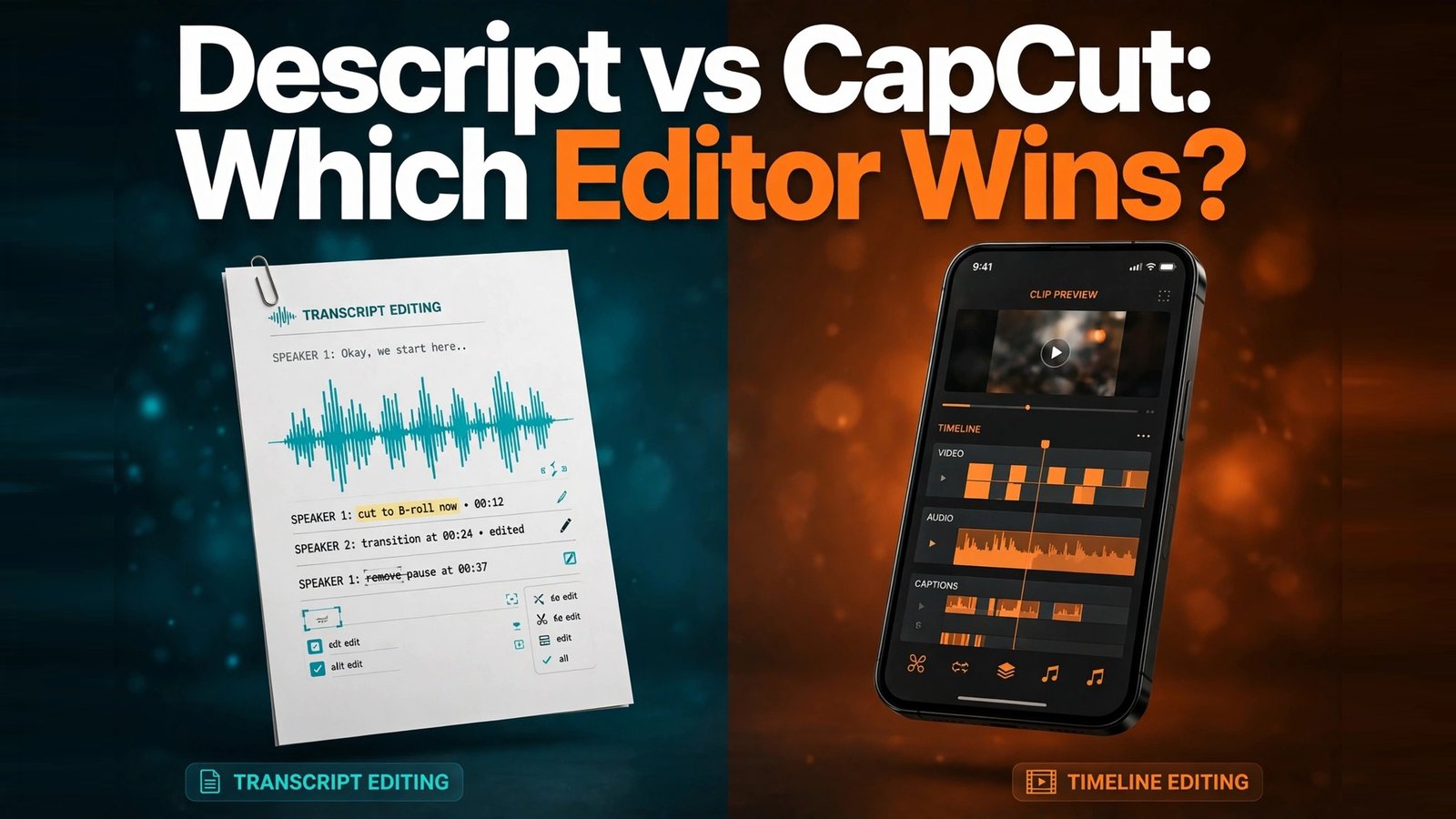
Descript treats video and audio as a document. You edit words on a page, and the media follows. CapCut treats video as a timeline first, with templates, effects and a mobile workflow built for social platforms. If you record podcasts, tutorials, courses or talking head videos, that difference shapes everything from how fast you finish a first cut to how good your captions look on a phone screen.
This comparison tests both tools on the jobs creators actually do: turning a messy recording into a clean publishable video, making short clips from long content, fixing audio, adding captions, and getting the finished file out to YouTube, TikTok, Instagram and podcast feeds. Pricing is described at tier level, because exact prices change often. Check the checkout page for the current price before you buy, and treat any price quoted in older guides as out of date.
The Short Verdict on Descript vs CapCut
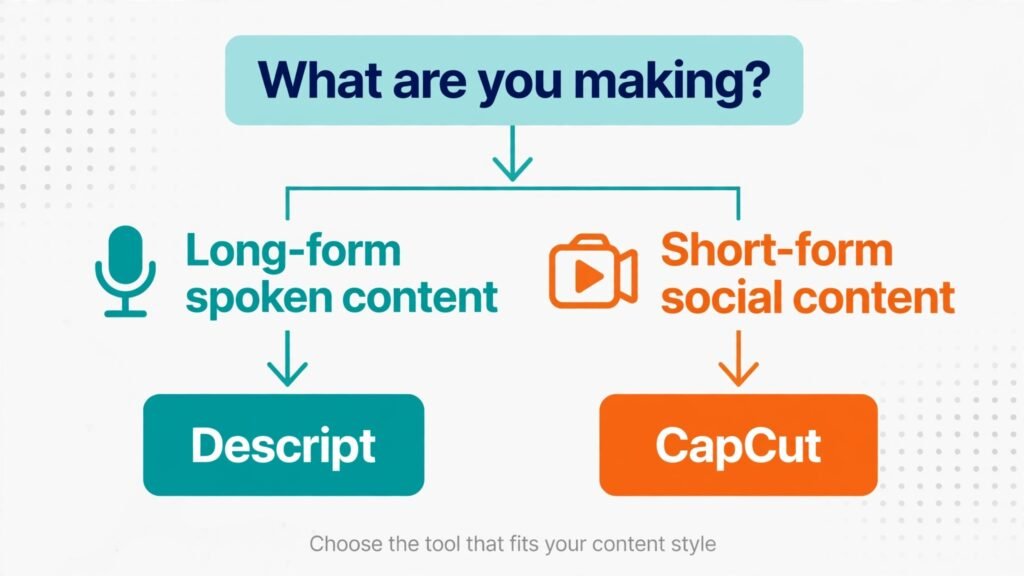
If you edit spoken content and you want the fastest path from transcript to finished video, Descript wins. Its text based editing, filler word removal and studio quality audio tools are built for that job, and no timeline only editor matches how quickly you can restructure a conversation by deleting sentences.
If you edit short form social video, especially on your phone, CapCut wins. Its templates, transitions, effects, trending sounds and one tap caption styles are built for TikTok, Reels and Shorts. You can shoot, edit and post without ever opening a laptop.
Many serious creators end up using both, and that is a legitimate answer rather than a cop out. Descript handles the long form edit and the podcast version. CapCut handles the vertical cuts and the social versions. If you can only pay for one, pick based on where most of your views come from. Long form and podcast views point to Descript. Short form views point to CapCut.
| Question | Descript | CapCut |
|---|---|---|
| Best for | Podcasts, tutorials, courses, talking head video | Short form social video, mobile editing |
| Core editing style | Edit the transcript, media follows | Edit on a timeline with templates and effects |
| Standout strength | Text editing and audio cleanup | Speed, effects and social publishing |
| Weakest area | Social effects and mobile editing | Long form spoken content and transcript editing |
| Best for beginners | Yes, if you record spoken content | Yes, especially on mobile |
| Free tier | Limited, good for a trial | Generous, with paid features locked |
How This Comparison Was Tested
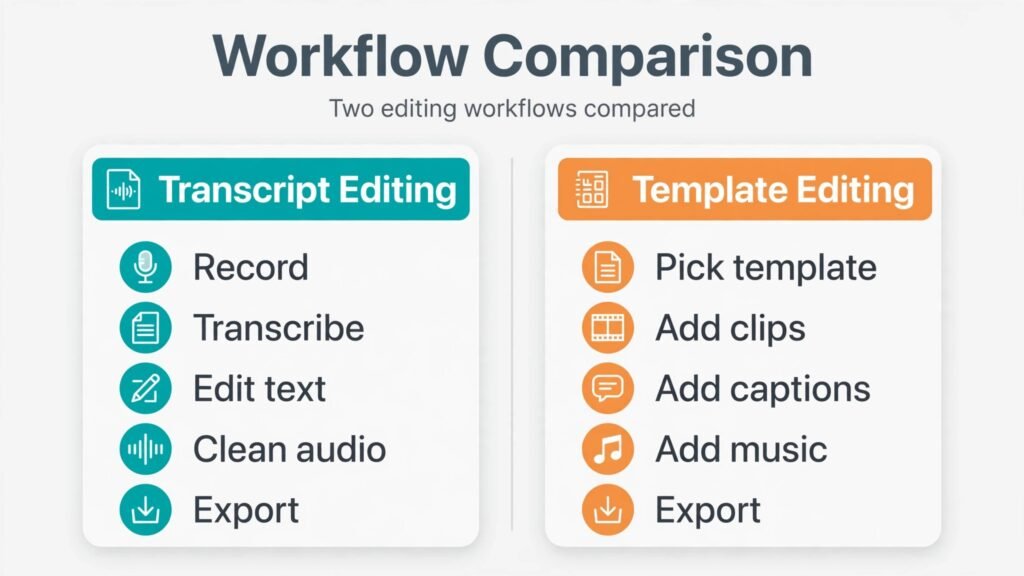
A useful comparison needs the same jobs on both tools, not a feature list copied from a pricing page. The tests behind this guide cover five repeat jobs. First, edit a 20 minute talking head recording down to a tight 12 minute version, removing pauses, mistakes and repeated points. Second, turn that long video into three vertical clips with captions. Third, clean up audio recorded in a normal room with a USB microphone, not a treated studio. Fourth, add captions that stay readable on a small phone screen. Fifth, export for YouTube in wide screen format and for TikTok in vertical, and check how much rework each export needs.
Speed was measured in practical terms: how many steps each job took, how often the tool forced a workaround, and how much manual fixing the AI output needed. Quality was judged the way a viewer judges it: does the audio sound natural, do the captions match the words, do the cuts feel clean, and does the finished video look intentional rather than templated.
Both tools change fast. AI features that were paid extras a year ago now sit in base plans, and template libraries refresh constantly. That is why this guide focuses on workflow differences that survive updates, rather than on one feature that may move tiers next month. Where a feature is tier dependent, that is stated plainly.
Descript in Depth: Editing Words Instead of Clips
Descript starts with transcription. Upload or record audio or video, and Descript produces an editable transcript. Delete a sentence in the transcript and that part of the media disappears. Move a paragraph and the media moves with it. Correct a word and you can fix the transcript without necessarily changing the audio, which matters for show notes and captions.
For podcasters and course creators, this changes the editing rhythm completely. Traditional timeline editing forces you to listen through a recording again and again, hunting for the exact second a mistake starts. Transcript editing lets you read the recording, spot the weak section at a glance, and cut it in seconds. A 40 minute interview can be reduced to a publishable cut in the time it used to take just to review the raw file.
Descript also handles the parts of editing that usually require a second tool. Filler word removal can strip ums, uhs and repeated words in one pass, though you should review the result, because aggressive removal can make speech sound rushed. Studio Sound cleans up room echo, background noise and uneven levels. Overdub lets you type a correction and generate speech in a cloned voice for small fixes, which is useful for a misspoken name or a wrong number, but it should not be used to fake whole passages. Used sparingly, it saves a re-record. Used heavily, it sounds artificial and damages trust.
Multitrack support, screen recording, and publishing to podcast hosts make Descript a full production tool for spoken content rather than a simple clip maker. You can record a remote interview, transcribe it, edit it, clean the audio, add chapters and publish the audio version from one workspace. For a solo creator, that consolidation is worth real money, because every tool you drop is one less export, one less login and one less place for files to get lost.
Where Descript is weaker is visual flair. It has captions, layouts and basic video styling, but it does not offer the huge template and effect library that social editors provide. If your video needs fast cuts, trending transitions, animated stickers and beat synced edits, you will feel the limits quickly. Descript can make a clean, professional looking video. It is not built to make a video that looks like it was assembled from the latest TikTok trends.
The learning curve is gentle for spoken content and steeper if you expect a classic timeline. New users sometimes fight the transcript model, trying to drag clips the way they would in a traditional editor. Once you accept that the text is the timeline, the workflow clicks. Give it two full edits before judging it. The first edit feels strange. The second feels fast.

CapCut in Depth: Built for the Feed
CapCut starts from the opposite direction. Open the app, pick a template or start a timeline, and you are minutes away from something that looks ready to post. The template library is the main draw for many users: trending formats, text animations, transitions and sound pairings that already work on social platforms. For a creator who posts daily, templates remove the blank page problem and keep output consistent.
The mobile app is not a watered down companion. For many creators it is the main editor. You can shoot on your phone, trim on the timeline, add auto captions, apply an effect, adjust the aspect ratio and post without touching a desktop. The desktop version adds a larger timeline, more precise controls and better handling of longer projects, but the product identity is mobile and social first.
CapCut AI tools focus on speed and appearance: auto captions in multiple styles, background removal, auto reframing for vertical video, beat detection for music sync, and text to speech voices for faceless or narrated content. Auto captions are genuinely strong for short clips, with styling options that look native to TikTok and Reels. Background removal works well for simple talking head shots and struggles, like every tool in this class, with busy backgrounds and fast movement.
For long form content, CapCut is capable but less comfortable. You can edit a 20 minute tutorial on the timeline, but you will scrub, listen and cut in the traditional way. There is no transcript first workflow that lets you restructure an argument by moving paragraphs. For a podcast episode or a course lesson with many verbal corrections, that difference adds up to a much longer edit.
CapCut also raises a question Descript does not: how much of your workflow depends on templates and effects that every other creator is using. Templates are a shortcut, and shortcuts show. The smart way to use CapCut is to start from a template for structure, then change the text style, pacing, music and hook so the finished clip carries your own look. Creators who post raw templates with only the words changed blend into the feed. Creators who customise the template stand out.
If you want a fuller picture of alternatives in this space, see our guide to CapCut alternatives and our guide to Descript alternatives.

Descript vs CapCut: Editing Speed Head to Head
Editing speed depends on the job, so a single winner claim would mislead you. For a spoken long form edit, Descript is faster by a clear margin. Reading a transcript and deleting weak sections beats scrubbing a timeline every time, and filler removal plus audio cleanup happen inside the same edit rather than as separate export and import steps.
For a short social clip, CapCut is faster by a similar margin. Starting from a template, adding styled captions and exporting vertical video takes minutes. Doing the same job in Descript requires more manual styling and more decisions about layout, because Descript does not assume you want a trending social look.
For repurposing, the fastest workflow uses both in sequence. Edit the long version in Descript until the argument is tight and the audio is clean. Export that clean version, then cut vertical clips in CapCut, where templates and caption styles do the social work. This two step workflow sounds slower than using one tool, but in practice it is faster than forcing either tool to do a job it was not designed for. The long edit stays clean, and the short clips stay native to each platform.
A practical test makes the point. Take a 20 minute tutorial with five mistakes, three long pauses and two repeated explanations. In Descript, you read the transcript, delete the mistakes and repeats, tighten the pauses, run audio cleanup, and export. In a timeline editor, you listen, mark, cut, listen again to check each cut, then handle audio separately. The transcript route typically finishes first, and the editor is less tired at the end, which matters when you edit every week.
Reverse the test with a 40 second vertical clip that needs a hook, beat synced cuts, animated text and a trending sound. CapCut finishes first, often in under ten minutes, because the template supplies the structure. Descript can produce a good 40 second clip, but you build more of it by hand. Speed follows design, and design follows audience.
AI Features Compared
Both tools market AI heavily, so it helps to separate AI that saves real time from AI that mainly demos well.
Descript AI strengths are transcript based. Accurate transcription is the foundation, and everything else builds on it: filler removal, speaker detection, summarising, chapter creation, and search inside a recording. If you have ever tried to find one quote in a two hour interview, transcript search alone justifies the tool. AI summarising is useful for show notes and descriptions, but always edit the summary before publishing, because summaries smooth over nuance and can misstate a careful point.
CapCut AI strengths are visual and audio for short video. Auto captions, background removal, auto reframe, voice effects and script to video tools all aim at faster social output. Auto captions deserve special mention, because captions decide whether a muted viewer keeps watching. CapCut caption styles look polished out of the box, with word by word highlighting that matches how people read on phones. Descript captions are accurate and customisable, but reaching the same social polish takes more manual styling.
Neither tool should be trusted blindly. Transcripts mishear names, technical terms and accents, especially in noisy audio. Captions inherit those errors. Background removal fails on complex shots. Filler removal can cut a pause that was actually doing dramatic work. Treat AI output as a strong first draft, then review the finished video once at normal speed before publishing. That single review pass catches most AI mistakes, and it is the cheapest quality control in the whole workflow.
Privacy is worth a note for both tools. If you record clients, patients, students or interview guests, check how each tool handles uploads, retention and voice cloning consent before you upload sensitive material. Overdub style voice cloning in particular needs explicit consent from the voice owner. Do not clone a guest voice to fix a quote without asking, and do not upload confidential recordings to a cloud editor without checking your own obligations first.
Audio Quality: Where Descript Pulls Ahead
Audio decides whether viewers stay. Viewers forgive average video. They abandon bad audio quickly. This is the clearest technical gap between the two tools.
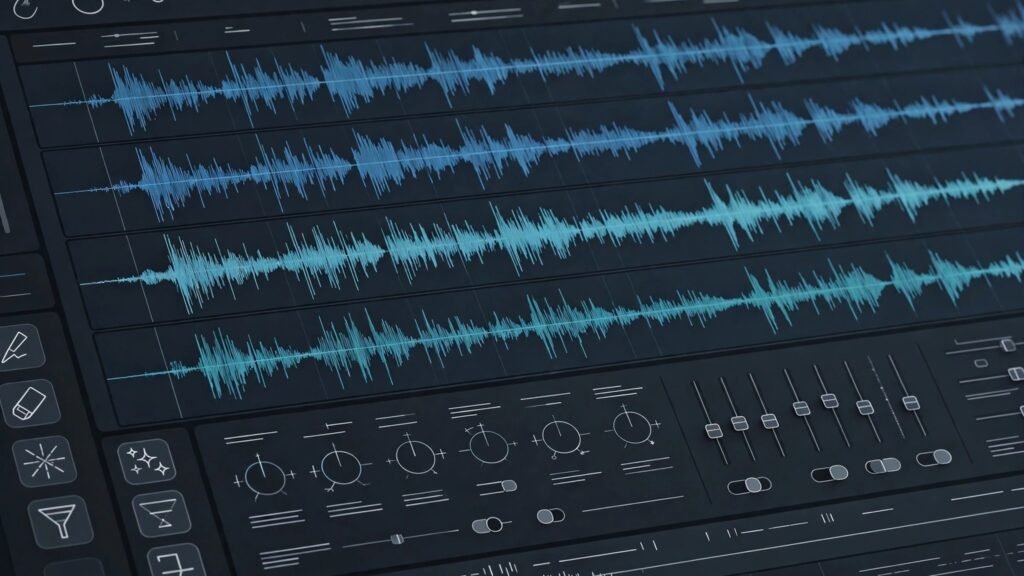
Descript Studio Sound is designed for spoken word in imperfect rooms. It reduces echo, steadies levels and removes background noise in a way that keeps voices sounding natural. It will not turn a phone recording in a noisy cafe into studio audio, and no tool will, but it closes much of the gap between a home setup and a treated room. Combined with filler removal and level control, it gives solo creators a credible podcast sound without an audio engineer.
CapCut audio tools are good for social video: volume control, noise reduction, music mixing, voice effects and sound libraries. For a short clip watched on a phone speaker, that is enough. For a 40 minute podcast, the difference shows. CapCut noise handling is broader and less tuned to long spoken passages, and you have fewer controls for shaping voice tone over a full episode.
The practical rule is simple. If audio is the product, as it is for podcasts, courses and coaching videos, prioritise Descript. If music and sound design carry the video, as they do for many short form clips, CapCut has the library and the beat tools to do the job faster. Record well in the first place either way. A decent microphone, a quiet room and a consistent distance from the mic improve results more than any cleanup tool.
Captions, Publishing and Platform Fit
Captions are not an accessory. A large share of social viewers watch with sound off at least part of the time, and captions also help accessibility and search. Both tools generate captions automatically, but the finishing work differs.
CapCut captions win on social style. Styles, colours, animations and word highlighting look current, and exporting vertical video with burned in captions is straightforward. Descript captions win on accuracy workflow, because you correct the transcript once and the captions, show notes and clips all inherit the correction. If you publish the same content as a podcast, a YouTube video and a blog post, that single source of truth saves repeated fixing.
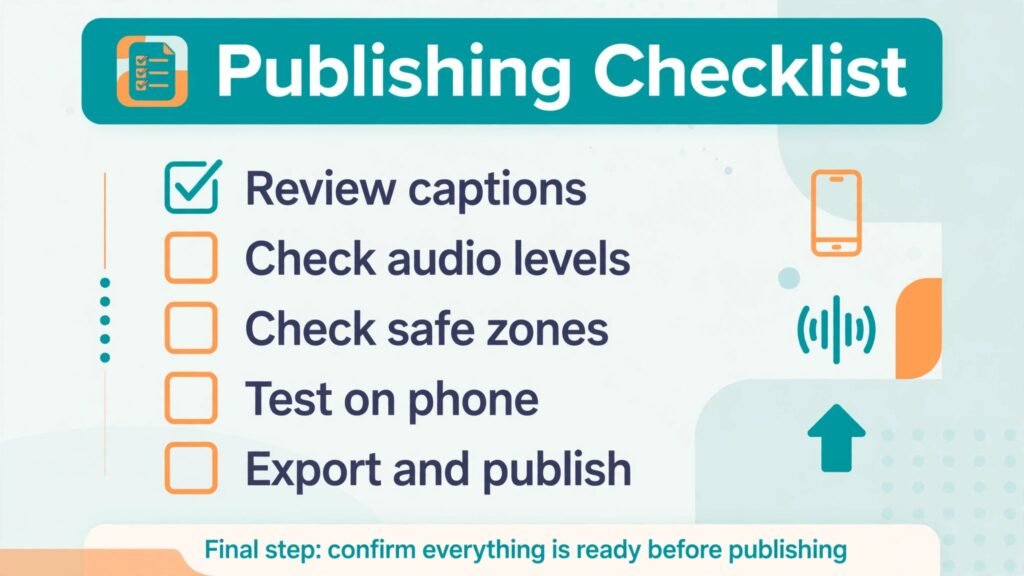
Publishing fit follows the same split. CapCut is built to move quickly to TikTok, Reels and Shorts, with aspect ratios, safe zones and trending formats in mind. Descript is built to move to YouTube, podcast feeds and course platforms, with chapters, transcripts and longer retention in mind. Check safe zones before exporting vertical video in either tool: text placed too close to the edges can be covered by platform buttons and captions on the live post.
Export settings deserve a final check in every workflow. Export a short test clip and watch it on your phone before exporting a full project. Colour, caption size and audio level all look different on a phone than on a desktop monitor. A two minute test prevents a full re-export later.
Pricing, Best For and Watch Out For
Pricing for both tools follows the same pattern: a limited free tier, paid tiers that unlock longer transcription or higher quality exports, AI features and collaboration, and higher tiers for teams. Exact prices and limits change, so check the checkout page for the current tier before you commit. Judge a plan by the limit you will hit first, not by the headline feature list.
For Descript, the limit most creators hit first is transcription time or AI feature usage on lower tiers. If you publish weekly long form content, a plan that looks cheap can become expensive in overage or upgrade costs. For CapCut, the limit most creators hit first is access to premium templates, effects and cloud storage, plus export quality on the free tier. If you post daily, the paid tier pays for itself in saved styling time, but only if you actually use the premium assets.
Best for Descript: podcasters, YouTubers who record talking head content, course creators, coaches, interviewers, and teams that turn recordings into multiple formats. Best for CapCut: short form creators, social media managers, small businesses posting daily, mobile first creators, and anyone whose main metric is social reach rather than long form watch time.
Watch out for Descript: overusing filler removal until speech sounds rushed, overusing voice cloning, and expecting social template speed from a transcript editor. Watch out for CapCut: posting unedited templates that look identical to thousands of other clips, trusting auto captions without review, and building a long form workflow on a timeline when a transcript workflow would be faster.
Who Should Choose Which
Choose Descript if most of your content starts as speech: interviews, solo podcasts, lessons, webinars, sales calls you turn into content, or any recording where the words matter more than the visuals. Choose Descript if you publish the same recording in several formats and you want one corrected transcript behind all of them.
Choose CapCut if most of your content starts as a visual idea: a trend, a transformation, a product demo, a before and after, or a short story told in under a minute. Choose CapCut if you edit on your phone, post daily, and need speed more than transcript control.
Choose both if you publish long and short content every week and you can afford two subscriptions. Use Descript for the master edit and CapCut for the social cuts. If budget forces one choice, follow your main platform. YouTube and podcast audiences reward Descript strengths. TikTok and Reels audiences reward CapCut strengths.
A final decision shortcut helps when you are still torn. Record your next piece of content, then ask which edit you dread more: cutting the long version, or making the short clips. Buy the tool that removes the dreaded job first. You can add the second tool later, once publishing is consistent.
Mistakes Creators Make With Both Tools
The first mistake is editing in the wrong order. Creators cut clips before the long version is tight, then discover a factual error in the master and have to fix every clip. Finish the master first, then cut clips from the finished version.
The second mistake is publishing AI output without a full review. Transcripts, captions, summaries and filler removal all need one normal speed watch. Skipping that review is how wrong names, wrong numbers and awkward cuts reach an audience.
The third mistake is overusing effects or overcleaning audio. Heavy effects distract from the message. Heavy audio cleanup makes voices sound thin and artificial. Aim for clean and natural, not maximally processed.
The fourth mistake is ignoring the hook. The first three seconds decide whether a social viewer stays, and the first 30 seconds decide whether a YouTube viewer stays. Both tools let you rearrange an opening easily, so test a stronger opening rather than publishing the chronological start by default.
The fifth mistake is buying the top tier before you need it. Start on a lower paid tier or a trial, publish for a month, and check which limit you actually hit. Upgrade based on evidence, not on a feature list.
Frequently Asked Questions
Is Descript vs CapCut a fair comparison, or are they different tools?
It is fair because creators compare them in practice, but they are different tools with overlapping territory. Descript is a transcript first editor for spoken content. CapCut is a timeline and template editor for social video. The overlap is short talking head clips, where both work well. Outside that overlap, each tool has a clear home.
Can Descript replace CapCut for TikTok and Reels?
It can produce vertical videos with captions, but it will not match CapCut speed for trending formats, effects and mobile posting. If short form is a side channel, Descript alone is workable. If short form is your main channel, CapCut is the better primary tool.
Can CapCut replace Descript for podcasts?
It can edit audio on a timeline, but it lacks the transcript first workflow, speaker handling and podcast publishing flow that make Descript efficient for episodes. For occasional audio, CapCut is fine. For a weekly show, Descript saves enough time to justify itself.
Do I need the paid version of either tool to start?
No. Start free, publish real content, and upgrade when a limit blocks your workflow. For Descript, that limit is usually transcription or export related. For CapCut, it is usually premium assets or export quality. Paying before you publish regularly wastes money.
Which tool is easier for a complete beginner?
CapCut is easier for a first social clip, because templates guide every step. Descript is easier for a first podcast or tutorial edit, because transcript editing feels like editing a document. Easier depends on the content type, not on the tool in isolation.
Should I use both Descript and CapCut together?
Yes, if you publish both long and short content and the combined cost fits your budget. Use Descript for the master edit, audio cleanup and transcript, then CapCut for vertical clips and social styling. Keep the master as the single source of truth to avoid version confusion.
Will AI editing make my content sound or look generic?
It can, if you accept every AI suggestion unchanged. Review filler removal, check captions, customise templates, and keep your own hook and structure. AI should speed up your decisions, not replace them.
A Two Week Trial Plan That Reveals the Right Editor
A trial spent browsing settings reveals little. A trial spent publishing reveals almost everything. Use week one for the long edit. Record a real tutorial or podcast episode, edit it in Descript, clean the audio, add captions and publish it. Note how long each step took and where you felt stuck. In week two, take the same finished video and cut three vertical clips in CapCut, with different hooks and caption styles, and post them. Compare not only the time spent but also the comments and retention on each version. Retention tells you whether viewers actually watched, while time tells you whether you can sustain the workflow weekly.
Pay attention to three details during the trial. First, how much fixing did AI output need? Count caption corrections, filler removal reversals and re-recorded lines. Second, how did each export look on a phone? Watch the finished videos on the smallest screen your audience uses, not on your editing monitor. Third, how did you feel at the end of each edit? Editing fatigue is a real cost. A tool that produces good output but leaves you drained will not survive a busy month. The right editor should make publishing feel repeatable, not heroic.
Keep your trial files organised from day one. Name the master edit, the clean audio export and each social clip clearly, and store the project files in one folder per video. Disorganised trial files turn into lost masters later, and a lost master means re-editing from raw footage. Good file habits matter as much as good software, and they cost nothing to start.
Verdict: Pick by Workflow, Not by Hype
Descript vs CapCut is not a contest with one universal winner. It is a workflow choice. Descript wins for spoken long form content, where transcript editing and audio cleanup save hours and improve quality. CapCut wins for short form social content, where templates, effects and mobile speed decide whether you post consistently.
If you must choose one tool today, follow your audience. Long form viewers and listeners point to Descript. Short form scrollers point to CapCut. If you serve both audiences, use both tools in sequence and let each do the job it was designed for. That is the workflow most working creators settle on, not because it is fashionable, but because it finishes videos on time and keeps them worth watching.