

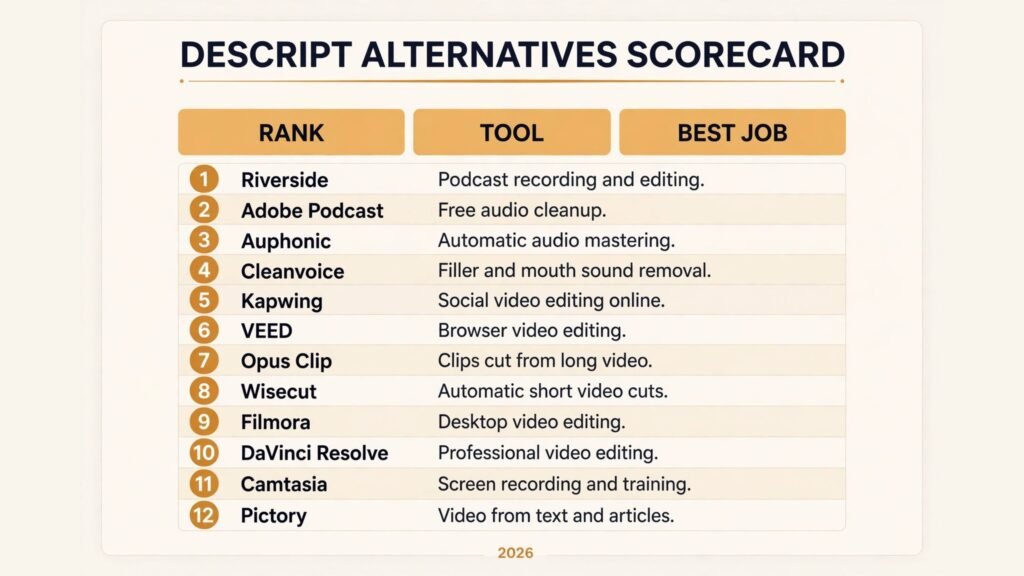
The verdict first: Riverside is the best Descript alternative for podcasters, Kapwing is the best for social video teams, and Adobe Podcast is the best free cleanup tool. No single editor replaces everything Descript does, because Descript bundles transcription, text based editing, filler removal and publishing into one product. The Descript alternatives below beat it by splitting that bundle apart: each one wins the specific job it was built for, and most of them cost less than a full Descript plan.
This guide compares 12 tools grouped by job: podcast editing, social video editing, audio cleanup, and full video editors. Prices are October 2026 figures in US dollars. Where a vendor does not publish pricing, or where sources disagreed, the guide says check checkout rather than guessing. One rule runs through the whole guide: judge an editor by how long it takes to turn raw recording into a publishable file, because that time is the real cost of any editing tool.
The 12 best Descript alternatives at a glance
| Tool | Best job | Free option | Paid from |
|---|---|---|---|
| Riverside | Podcast recording and editing | Free tier | Around $15 per month |
| Adobe Podcast | Free audio cleanup | Free tier | Check checkout |
| Auphonic | Automatic audio mastering | Free tier | Around $11 per month |
| Cleanvoice | Filler and mouth sound removal | Free tier | Around $10 per month |
| Kapwing | Social video editing online | Free tier | Around $16 per month |
| VEED | Browser video editing | Free tier | Around $12 per month |
| Opus Clip | Clips cut from long video | Free tier | Around $15 per month |
| Wisecut | Automatic short video cuts | Free tier | Around $15 per month |
| Filmora | Desktop video editing | Free trial | Around $20 per month |
| DaVinci Resolve | Professional video editing | Free version | Around $295 one time |
| Camtasia | Screen recording and training | Free trial | Around $180 per year |
| Pictory | Video from text and articles | Free trial | Around $25 per month |
Best pick by job
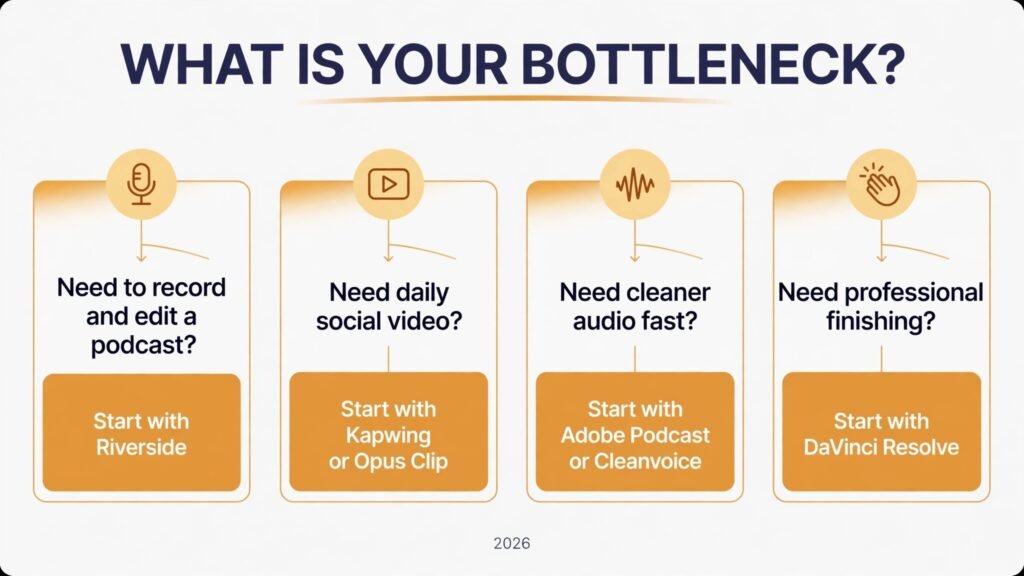
| Your job | Start with | If that fails, try |
|---|---|---|
| Record and edit a podcast | Riverside | Adobe Podcast |
| Clean up noisy audio free | Adobe Podcast | Auphonic |
| Master audio automatically | Auphonic | Cleanvoice |
| Remove fillers and mouth sounds | Cleanvoice | Adobe Podcast |
| Edit social video in a browser | Kapwing | VEED |
| Add captions and subtitles fast | VEED | Kapwing |
| Cut viral clips from long video | Opus Clip | Wisecut |
| Auto edit talking head video | Wisecut | Opus Clip |
| Edit video on a desktop | Filmora | DaVinci Resolve |
| Professional colour and finishing | DaVinci Resolve | Filmora |
| Training videos with screen capture | Camtasia | Filmora |
| Turn articles into video | Pictory | VEED |
Podcast editing: record, transcribe, publish
These three tools cover the podcast workflow that made Descript famous, from recording to a clean transcript and a finished episode.
1. Riverside
Riverside records studio quality audio and video locally on each guest’s device, so a bad connection never ruins the recording. Its text based editing then lets you cut the episode by deleting words from the transcript, just like Descript, and its clip tools turn highlights into social posts.
Pricing: A free tier covers limited recording. Paid plans start at around $15 per month. Check checkout for current storage and transcription limits.
Best for: Podcasters and interview shows that record remote guests and need reliable quality plus fast text based editing.
Watch out for: Riverside editing is simpler than Descript’s full studio, so heavy multitrack productions may still need a desktop editor for finishing.
Try it at: riverside.fm

2. Adobe Podcast
Adobe Podcast is the surprise free tool in this list. Its Enhance Speech feature removes room noise and echo from a recording with one click, and its studio tools handle transcription and basic editing in a browser. For solo creators, it is often all the cleanup needed.
Pricing: A free tier covers basic enhancement and studio use. Paid features are bundled with Adobe plans; check checkout for the current price in your region.
Best for: Solo podcasters, course creators and anyone who needs clean voice audio without buying a full editor.
Watch out for: Adobe Podcast is a cleanup and light editing tool, not a full multitrack editor. Pair it with Riverside or a desktop editor for complete episodes.
Try it at: podcast.adobe.com

3. Auphonic
Auphonic is the mastering step most creators skip and then regret. Upload a finished episode and it levels loudness, removes hum and hiss, and outputs broadcast standard audio for every platform. It works after any editor, which makes it a complement to every tool on this list.
Pricing: A free tier covers limited hours each month. Paid plans start at around $11 per month, with credit packs for occasional users. Check checkout for current hour allowances.
Best for: Podcasters who publish regularly and want consistent loudness and clean sound without learning audio engineering.
Watch out for: Auphonic polishes audio, it does not edit content. Cut the episode first, then send the result here for mastering.
Try it at: auphonic.com
Audio cleanup: remove the small sounds that tire listeners
Fillers, mouth clicks and background noise are what make an amateur recording feel amateur. These two tools remove them automatically.
4. Cleanvoice
Cleanvoice specialises in the small stuff: filler words, stutters, mouth sounds and long pauses. Upload an episode and it returns a tightened track with timestamps, so you can approve every cut before export.
Pricing: A free tier covers limited minutes. Paid plans start at around $10 per month. Check checkout for current minute allowances.
Best for: Podcasters, interviewers and course creators whose recordings need tightening but not full re-editing.
Watch out for: Aggressive settings can cut natural pauses that give speech rhythm. Review the timeline before exporting, especially for storytelling shows.
Try it at: cleanvoice.ai
5. Kapwing
Kapwing is a full browser editor with strong AI features: automatic subtitles, filler removal, background removal and clip generation. Because it runs in a browser, a team can edit the same project from any machine without installing software.
Pricing: A free tier covers basic editing with a watermark. Paid plans start at around $16 per month. Check checkout for current export and storage limits.
Best for: Social media teams and creators who edit short video daily and need captions, resizing and clips in one place.
Watch out for: Browser editing depends on your connection and machine, so very long or high resolution projects may still be smoother on a desktop editor.
Try it at: kapwing.com

6. VEED
VEED is the most complete browser video editor on this list. It covers transcription, subtitles, translation, background removal and basic editing, with templates for every social platform. Its subtitle accuracy is among the best in this group.
Pricing: A free tier covers basic editing with a watermark. Paid plans start at around $12 per month. Check checkout for current subtitle and translation limits.
Best for: Marketing teams and creators who publish captioned video across platforms and need fast turnaround.
Watch out for: VEED’s free tier watermark and export limits push regular users to a paid plan quickly, so budget for that from the start.
Try it at: veed.io
Descript’s clip tools are popular, but these two tools are built only for that job, and they do it faster.
7. Opus Clip
Opus Clip watches a long video, finds the moments most likely to perform, and cuts them into vertical clips with captions and b-roll. Its virality scoring helps creators pick which clips to post first, and its scheduling tools close the loop to publishing.
Pricing: A free tier covers limited processing. Paid plans start at around $15 per month. Check checkout for current processing hour limits.
Best for: Podcasters, streamers and YouTubers who want many short clips from every long recording. For the wider short form toolkit, see our AI tools for TikTok guide.
Watch out for: Automatic clips still need a human review for context and accuracy. A clip that scores high can still misrepresent the original point.
Try it at: opus.pro
8. Wisecut
Wisecut edits talking head video automatically: it removes pauses, adds subtitles, inserts background music and cuts to a publishable length. For creators who record one long take and want a tight video without manual editing, it is the fastest path.
Pricing: A free tier covers limited minutes. Paid plans start at around $15 per month. Check checkout for current minute allowances.
Best for: Course creators, coaches and YouTubers who publish talking head video regularly and want editing done in minutes.
Watch out for: Wisecut works best on clear single speaker video. Multi speaker shows and complex edits still need a manual editor.
Try it at: wisecut.video
Full video editors: when the project needs real control
Sometimes a browser tool is not enough. These four editors give full timeline control, effects and finishing for bigger projects.
9. Filmora
Filmora is the most approachable desktop editor on this list. It offers a full timeline, effects, titles and AI features like silence detection and text based editing, with a gentler learning curve than professional tools. It is the natural step up when browser editors feel limiting.
Pricing: A free trial covers full features with a watermark. Paid plans start at around $20 per month, with a perpetual license option. Check checkout for current pricing in your region.
Best for: Creators moving from browser editing to desktop, and small teams that need effects and titles without professional complexity.
Watch out for: Filmora’s AI features are helpful but less deep than Descript’s text editing, so keep a cleanup tool like Adobe Podcast in the workflow.
Try it at: filmora.wondershare.com
10. DaVinci Resolve
DaVinci Resolve is the professional choice, and its free version is remarkably complete. It covers editing, colour grading, visual effects and audio finishing in one application, and its colour tools are the industry standard. The paid Studio version adds AI features and higher resolution support.
Pricing: The standard version is free. DaVinci Resolve Studio costs around $295 as a one time purchase. Check checkout for current pricing.
Best for: Filmmakers, agencies and serious creators who need professional colour, effects and finishing in one tool.
Watch out for: Resolve has a steep learning curve and needs a capable machine. Beginners should start with Filmora and move here when projects demand it.
Try it at: blackmagicdesign.com
11. Camtasia
Camtasia is built for training and tutorial video. It records screen and camera together, then offers a simple timeline for cutting, annotating and adding quizzes and captions. For anyone who teaches on screen, it is faster than a general editor.
Pricing: A free trial covers full features for a limited period. Paid plans cost around $180 per year. Check checkout for current upgrade pricing.
Best for: Trainers, educators and software teams that produce screen tutorials, demos and onboarding videos.
Watch out for: Camtasia is not a general purpose editor. For cinematic or social video, Filmora or Kapwing will serve you better.
Try it at: techsmith.com
12. Pictory
Pictory turns text into video: paste an article, script or blog post and it builds a captioned video with stock footage, voiceover and music. It is the fastest way to repurpose written content into video for social and search.
Pricing: A free trial covers limited projects. Paid plans start at around $25 per month. Check checkout for current video minute limits.
Best for: Bloggers, marketers and agencies repurposing articles into video at scale. For the wider video toolkit, see our free AI video generators guide.
Watch out for: Pictory output looks template driven unless you customise footage and voice. Budget time for that pass if brand quality matters.
Try it at: pictory.ai
Pricing compared: what editing really costs
| Tool | Free option | Paid from | Pricing note |
|---|---|---|---|
| Riverside | Free tier | Around $15 per month | Storage limits apply |
| Adobe Podcast | Free tier | Check checkout | Bundled with Adobe plans |
| Auphonic | Free tier | Around $11 per month | Credit packs available |
| Cleanvoice | Free tier | Around $10 per month | Minute allowances apply |
| Kapwing | Free tier | Around $16 per month | Watermark on free tier |
| VEED | Free tier | Around $12 per month | Watermark on free tier |
| Opus Clip | Free tier | Around $15 per month | Processing hours apply |
| Wisecut | Free tier | Around $15 per month | Minute allowances apply |
| Filmora | Free trial | Around $20 per month | Perpetual license option |
| DaVinci Resolve | Free version | Around $295 one time | Studio adds AI features |
| Camtasia | Free trial | Around $180 per year | Upgrade pricing varies |
| Pictory | Free trial | Around $25 per month | Video minutes apply |
A realistic starter setup costs $0 to $15 a month: Adobe Podcast for cleanup plus one editor for your main format. A professional setup lands around $30 to $50 a month by adding a clip tool and a mastering tool on top. Pay more only when a specific job, such as daily social clips or professional finishing, justifies it. In every case, check checkout for renewal terms and minute limits, because both change often.

How to Choose the right Descript alternative
Start with the job, not the brand. If the job is a podcast, start with Riverside and test it against Adobe Podcast for cleanup. If the job is social video, start with Kapwing or VEED and test subtitle accuracy on your own footage. If the job is a finished film, start with DaVinci Resolve and accept the learning curve.
Next, test the transcript step before you commit. Text based editing is only useful if transcription is accurate on your voice, your accent and your guests. Run the same five minute clip through each finalist and compare errors.
Then check the export step. Confirm the tool exports the formats and resolutions your platforms need, without a watermark on your plan, and with captions preserved. A tool that edits well but exports poorly will waste the time it saved.
Finally, test the speed step. Time a full episode from raw recording to published file in each finalist. The tool with the shortest honest time, including review and fixes, is usually the right one, even if another tool has a longer feature list.
Mistakes to avoid when switching editors
The first mistake is skipping the transcript review. Text based editing is only as good as the transcript, and every tool mishears names, technical terms and accents. Read the transcript before deleting sections, or you will cut a good point because the tool transcribed it badly. A five minute review pass prevents the most embarrassing editing errors.
The second mistake is removing fillers too aggressively. Fillers and pauses give speech its natural rhythm, and a track with every pause removed sounds rushed and robotic. Use automatic filler removal as a first pass, then listen to the result and restore pauses where a thought needs room to land, especially in storytelling and interview shows.
The third mistake is mastering before editing. Running a loudness tool or noise reduction on raw audio, then cutting the result, wastes processing time and can bake in artefacts. Cut the episode first, clean the remaining audio second, and master last. That order keeps every step working on the final content only.
The fourth mistake is ignoring export formats. A tool that edits beautifully but exports the wrong resolution, frame rate or caption format will cost you a re-edit at deadline time. Before committing, export a test file in every format your platforms need, and check that captions survive the export rather than assuming they do.
The fifth mistake is choosing a tool for its feature list instead of your workflow. A long feature list impresses in a demo, but the tool you actually keep is the one that fits the way you record, edit and publish. Run a full episode through each finalist, from raw recording to published file, and pick the one with the shortest honest time, including the review pass and the fixes.
Frequently Asked Questions
Is there a free Descript alternative?
Yes. Adobe Podcast and DaVinci Resolve both offer genuinely useful free tiers, and Riverside, Kapwing, VEED, Opus Clip and Wisecut offer free tiers for testing. Free tiers limit minutes, storage or exports, so regular publishers will still want a paid plan.
Which Descript alternative is best for podcasts?
Riverside, for most podcasters, because it combines reliable remote recording with text based editing. Add Adobe Podcast for cleanup and Auphonic for mastering, and the combination beats a single tool for many shows.
Kapwing or VEED for browser editing with captions, and Opus Clip for cutting clips from long video. Most social teams use one editor plus one clip tool rather than forcing one tool to do both jobs.
Can I edit video by editing text?
Yes, with Riverside and Filmora, both of which offer text based editing. Accuracy depends on transcription quality, so always review the transcript before deleting sections.
Which tool should a small business start with?
VEED or Kapwing for video, plus Adobe Podcast for audio cleanup. That combination covers most marketing video needs at a low monthly cost, and both tools are easy for a small team to learn.
Do these tools replace a professional editor?
For podcasts, social video and training content, yes for most teams. For cinematic work, commercials and complex effects, a professional editor like DaVinci Resolve, or a human editor using it, is still the right choice.
Conclusion
The best Descript alternatives do not try to copy Descript exactly. They win one job: Riverside wins podcast recording, Adobe Podcast wins free cleanup, Auphonic wins mastering, Kapwing and VEED win browser editing, Opus Clip and Wisecut win social clips, and DaVinci Resolve wins professional finishing.
Start with the job you do most. Test the free tier on a real episode or video, time the full workflow, and only then pay. Keep the old tool read only for a month after migration, so no decision, transcript or exported file is lost while the team settles into the new workflow. The right alternative is the one that gets a publishable file out fastest, not the one with the longest feature list.