
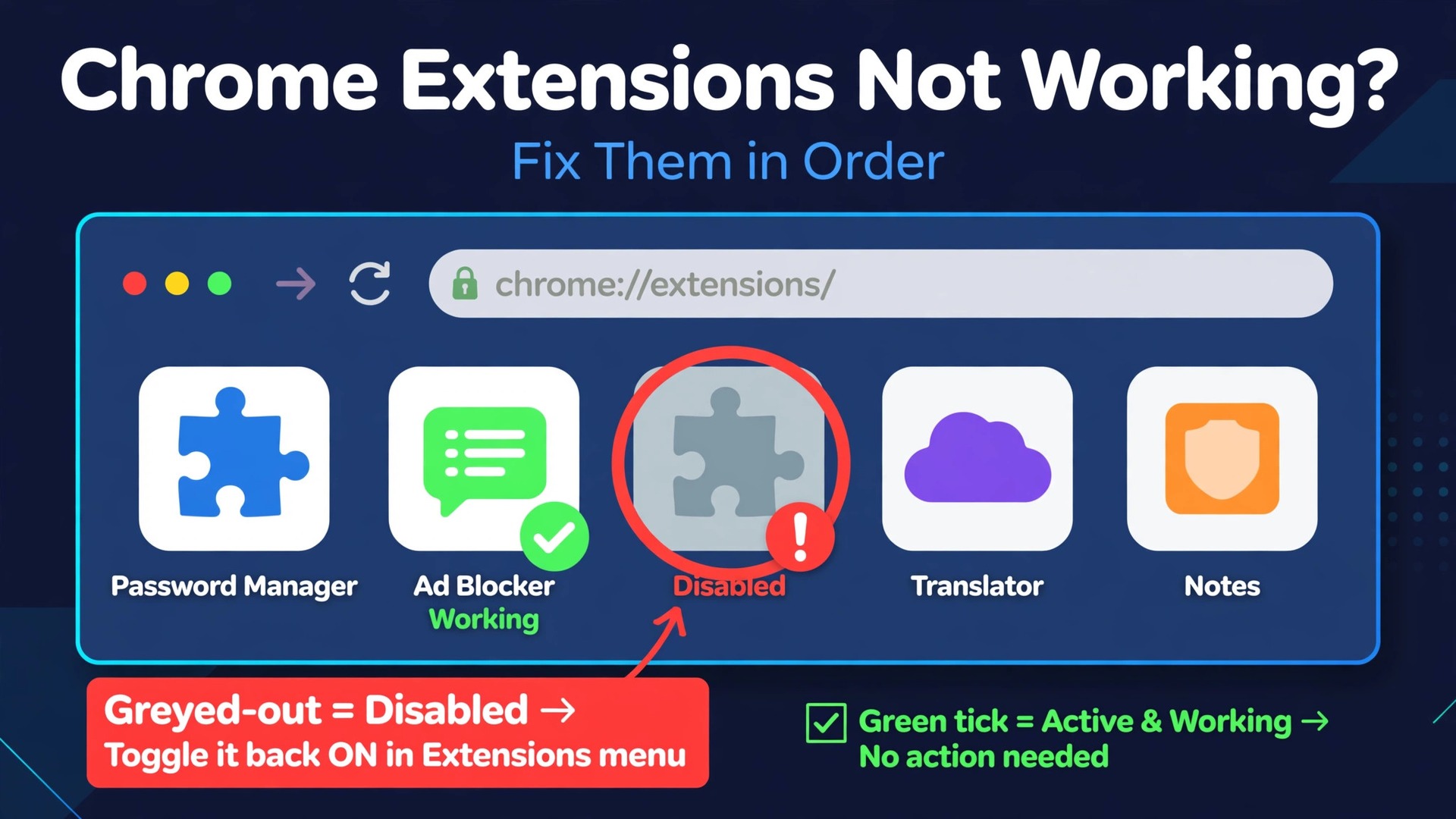
Most extension failures are one conflict or one stale update, not a broken browser. That is good news, because it means the fix is usually close at hand and takes minutes rather than an afternoon of reinstalling everything. If you want to fix Chrome extensions not working without guessing, work through the fixes in this guide in order, test after each step, and stop as soon as the extension works again. Every step tells you what it rules out, so you end up knowing the cause, not just stumbling on a fix by luck.
An extension can fail in several different ways, and the way it fails is your first clue. Some extensions vanish from the toolbar. Some stay visible but do nothing when clicked. Some work on one site and fail on another. This guide covers all of those patterns, from the fastest checks to the deeper profile and reinstall steps for stubborn cases.
What “Not Working” Actually Means
Before you change anything, spend two minutes pinning down the symptom. A precise symptom saves you from running the whole guide when one targeted fix would do, and it gives you a test you can repeat after each step. Open the page where the extension fails, note exactly what happens, and try the same extension on a different site. If it works on one site and not on another, the problem is probably site access or a conflict with that page, not the extension itself.
Check the toolbar first. An extension icon can disappear without the extension being broken. Click the puzzle piece icon in the toolbar to open the extensions menu. If the extension is listed there, it is installed but unpinned, and clicking the pin icon beside it puts it back in the toolbar. If it is not listed at all, it may have been removed, disabled by a policy, or removed from the Chrome Web Store, and the later sections on policy blocks and reinstall cover those cases.
Next, open the extensions page. Use the three dot menu, then Extensions, then Manage extensions. Look at the card for the extension that fails. A toggle switched off means the extension is disabled. A card with an error message, a repair button, or a note that the extension is no longer supported tells you the extension itself needs attention. A card that looks normal, with the toggle on and no error, points toward a conflict, a permission problem, or a damaged profile rather than a single broken extension.
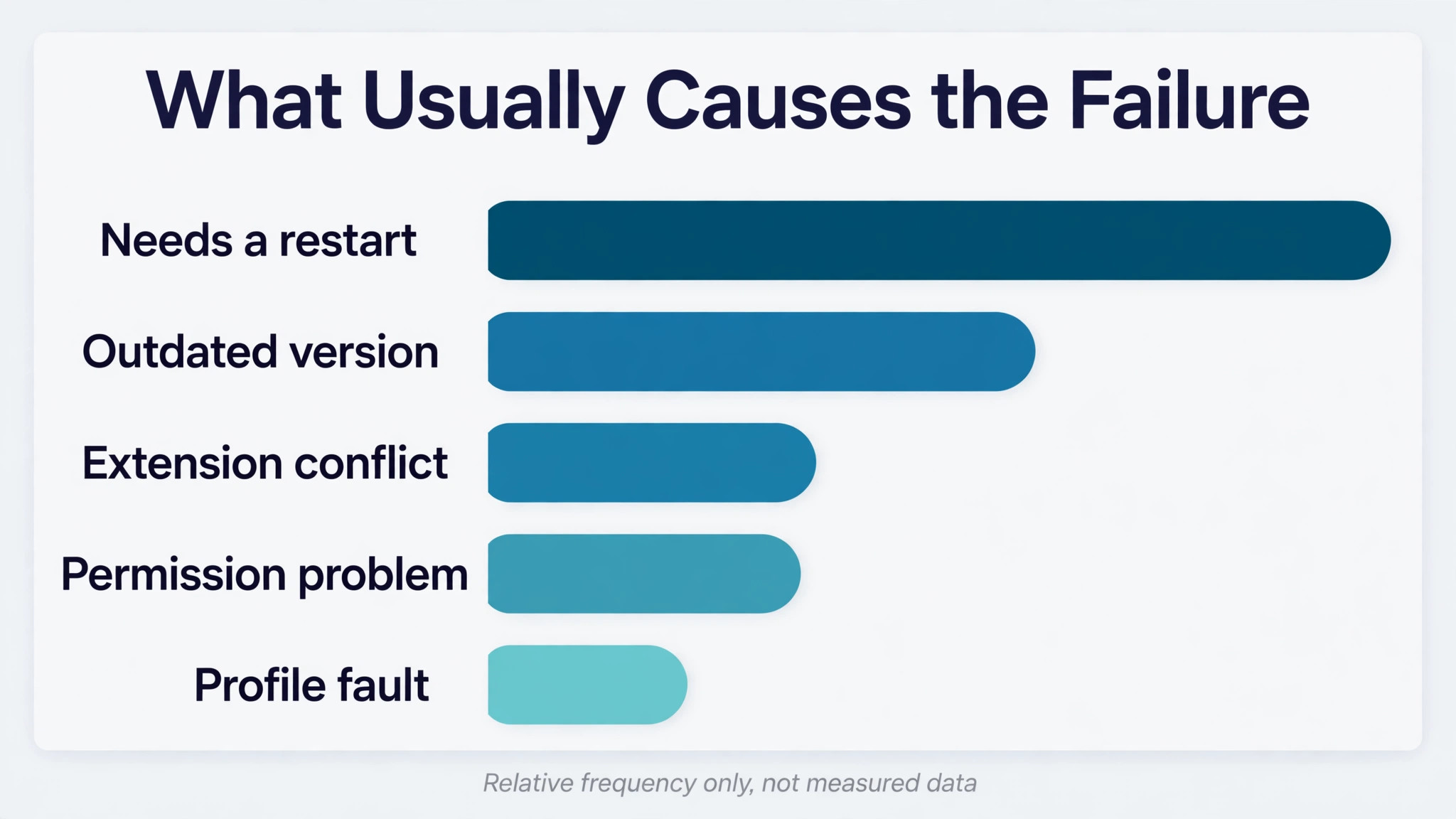
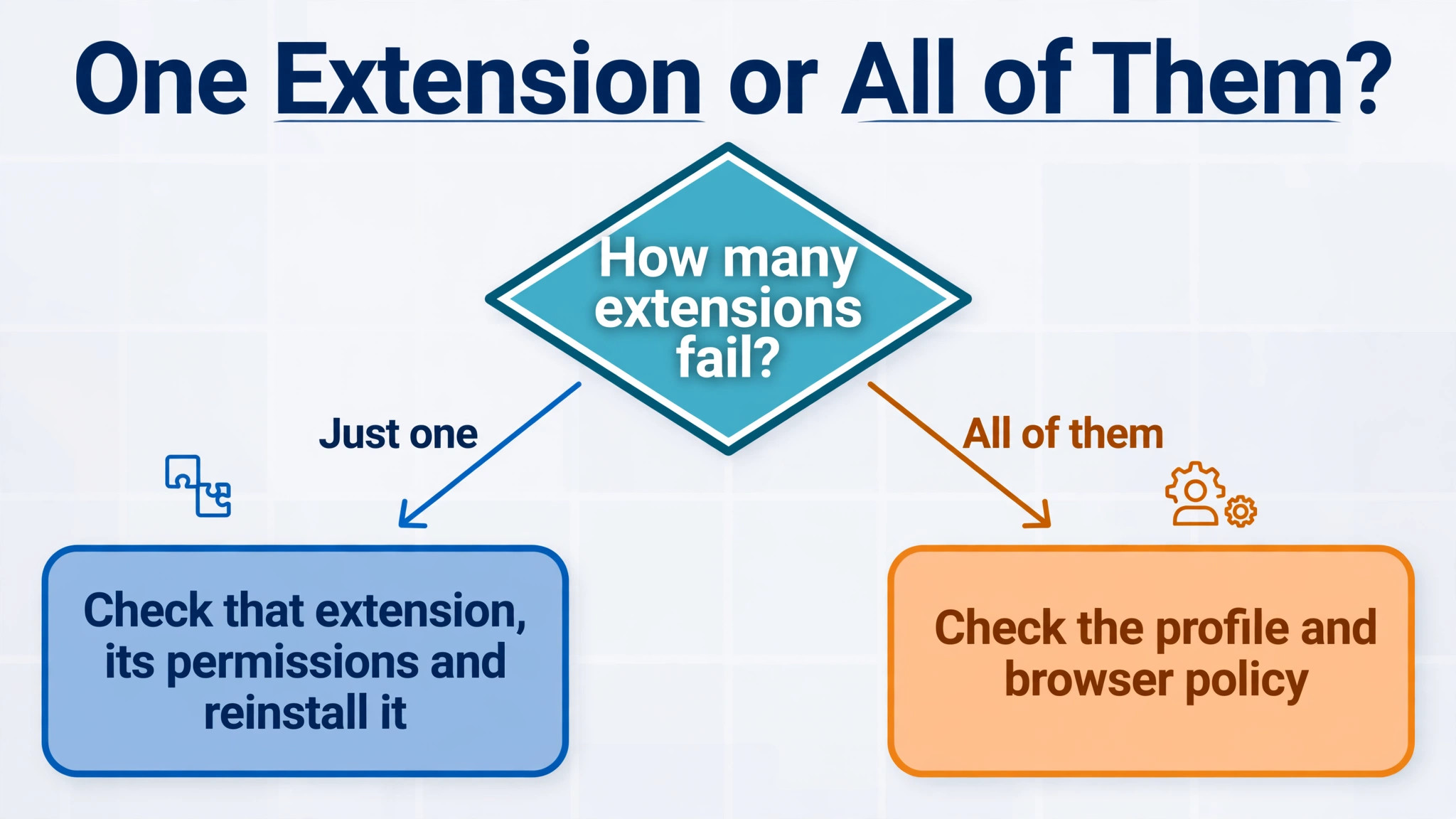
Note whether the problem affects one extension or all of them. One broken extension usually means an outdated extension, a bad update, or a permission problem on that extension. Every extension failing at once usually means a profile problem, a policy block, or a browser update that changed something underneath them. That distinction decides where to start when you try to fix Chrome extensions not working on your own machine.

How to Fix Chrome Extensions Not Working in the Right Order
This is the order to follow when you fix Chrome extensions not working, and it is ordered from fastest to deepest on purpose. Fast steps first means you often finish in ten minutes. Deep steps last means you only rebuild a profile or reinstall when the cheaper tests have already ruled out the easy causes. Test the extension after every step, on the same page where it failed, so you know exactly which step worked.
- Restart Chrome and reload the page. This rules out a temporary glitch and a stuck background process.
- Pin the extension and check its card on the extensions page. This rules out a simple visibility or disabled-toggle problem.
- Test in an Incognito window with other extensions off. This rules in or out a conflict with another extension.
- Update Chrome, then update the extension. This rules out a version mismatch after a browser or extension update.
- Isolate the conflict by disabling half your extensions at a time. This finds the extension that breaks the one you need.
- Check site access, permissions, and Incognito access for the extension. This rules out a permission that quietly blocks the extension on the page you use.
- Clear the site data for the affected page and check for a policy block. This rules out stored data and a work or school restriction.
- Test in a fresh Chrome profile. This rules out a damaged profile without touching your main profile.
- Reset Chrome settings. This rules out a changed setting that no single toggle explains.
- Remove and reinstall the extension cleanly. This rules out damaged extension files and a bad update.
Work through that list in order and do not skip ahead to reinstall. Reinstalling first feels decisive, but it destroys useful evidence. If a conflict caused the failure, a fresh install of the same extension will fail again in the same way. Keep the checklist open in a second tab and tick off each step as you test.
| Step | Time it takes | What it rules out |
|---|---|---|
| Restart and reload | 2 minutes | A temporary glitch |
| Pin and check the card | 2 minutes | Visibility and disabled toggle |
| Incognito test | 3 minutes | Another extension as the cause |
| Update Chrome and the extension | 5 minutes | A version mismatch |
| Half at a time isolation | 15 minutes | The conflicting extension |
| Permission and site access check | 5 minutes | A quiet permission block |
| Site data and policy check | 10 minutes | Stored data and admin blocks |
| Fresh profile test | 10 minutes | A damaged profile |
| Reset settings | 10 minutes | A changed browser setting |
| Clean reinstall | 10 minutes | Damaged extension files |

Start Fast With a Restart, a Reload, and a Pin Check
Close Chrome completely, not just the window you are looking at, and open it again. On Windows, check that no Chrome window is still running before you relaunch. On a Mac, quit Chrome from the menu rather than closing the last window, since closing a window does not always quit the app. Then reload the page where the extension failed. A hard reload, holding Ctrl or Command and pressing R, bypasses the cached copy of the page and is worth trying when a normal reload changes nothing.
Restarting matters because extensions run background processes that can get stuck. A stuck background process can leave an extension icon visible but unresponsive, and only a full browser restart clears it. This is the fastest way to fix Chrome extensions not working when the cause is a stuck background process.
Check the pin and the toggle next. Open the extensions menu from the puzzle piece icon and look for the extension. Pin it if it is unpinned. Then open Manage extensions and confirm the toggle on its card is on. A toggle can end up off after a browser crash, a cleanup tool run, or a settings sync from another device, and nobody notices until the extension is needed. If the toggle switches itself off again after you turn it on, note that, because it points toward a policy block or a damaged extension, both covered later in this guide.
Try the extension on a second page as well. If it works on a plain article page but fails on a complex web app, the page itself may block the extension, for example through a content security rule set by the site. In that case the extension is not broken, and no amount of reinstalling will change the result on that site.
Update Chrome, Then Update the Extension
Version mismatch is one of the most common causes of a sudden extension failure, and it is also one of the fastest to rule out. Chrome updates in the background, extensions update in the background, and the two do not always update on the same day. An extension built for the newest Chrome can misbehave on an older browser, and an older extension can misbehave after Chrome changes something underneath it. Checking both versions takes five minutes and settles the question.
Update Chrome first. Open the three dot menu, choose Help, then About Google Chrome. Chrome checks for an update and installs one if available, then shows a Relaunch button. Save any unsaved work in open tabs before you relaunch, because relaunching closes and reopens your windows. After the relaunch, test the extension before doing anything else. If it works, the browser update was the fix, and you are done.
Update the extension next. Extensions normally update on their own, but a manual check forces the question. Open Manage extensions, switch on Developer mode in the top right of the page, and click the Update button that appears. Chrome then checks every installed extension for a newer version and applies what it finds. Switch Developer mode back off when you are done. Test the extension again after the update check, since this step alone can fix Chrome extensions not working after either side updated on a different day.
If no update is available and the extension still fails, open its listing in the Chrome Web Store and look at the version number and the last update date shown there. Compare that with the version shown on the extension card in Manage extensions. If the store shows a newer version than you have, the automatic update may be stuck, and removing and reinstalling later in this guide will pull the newest version. If the store shows an old date, the extension may simply be abandoned, and the section on replacing an abandoned extension near the end of this guide applies.

Isolate the Conflict, Half at a Time
When the Incognito test points at a conflict, or when one extension works alone but fails with others running, the conflict isolation method finds the culprit without testing every extension one by one from the start. The method is simple, and it works because it halves the suspect list at each round instead of shrinking it by one. With twenty extensions, one by one testing can take twenty rounds. Halving takes about five.
Start by opening Manage extensions and noting how many extensions you have enabled. Then disable the second half of the list, keeping the first half enabled along with the extension that fails. Test the failing extension. If it works, the conflicting extension is in the half you disabled. If it still fails, the conflict is in the half that is still enabled, or the problem is not a conflict at all, and you should move to the permission and profile sections.
Suppose the conflict is in the disabled half. Re-enable half of that half and test again. Each round halves the remaining suspects. Keep going until one extension remains, and the failing extension starts working when that one extension is off. That extension is your conflict. The two extensions may both be fine on their own, which is the confusing part of conflicts. Two ad blockers can fight over the same page. Two password managers can both try to fill the same field. Two VPN or proxy extensions can route traffic in opposite directions.
Two extensions that change the same site, such as two tools that both modify a video site or a shopping site, can overwrite each other’s changes until neither works.
Once you find the pair, you have three sensible choices. Keep the extension you need most and remove the other. Keep both but restrict one of them to the sites where you actually use it, using the site access setting covered in the next section, so they no longer run together on the same page. Or keep both but disable one until you need it. What you should not do is keep both running on every page and hope the conflict stays quiet, because it will return the next time either extension updates. This halving method is the most reliable way to fix Chrome extensions not working when two tools fight over the same page.
Check Permissions, Site Access, and Incognito Access
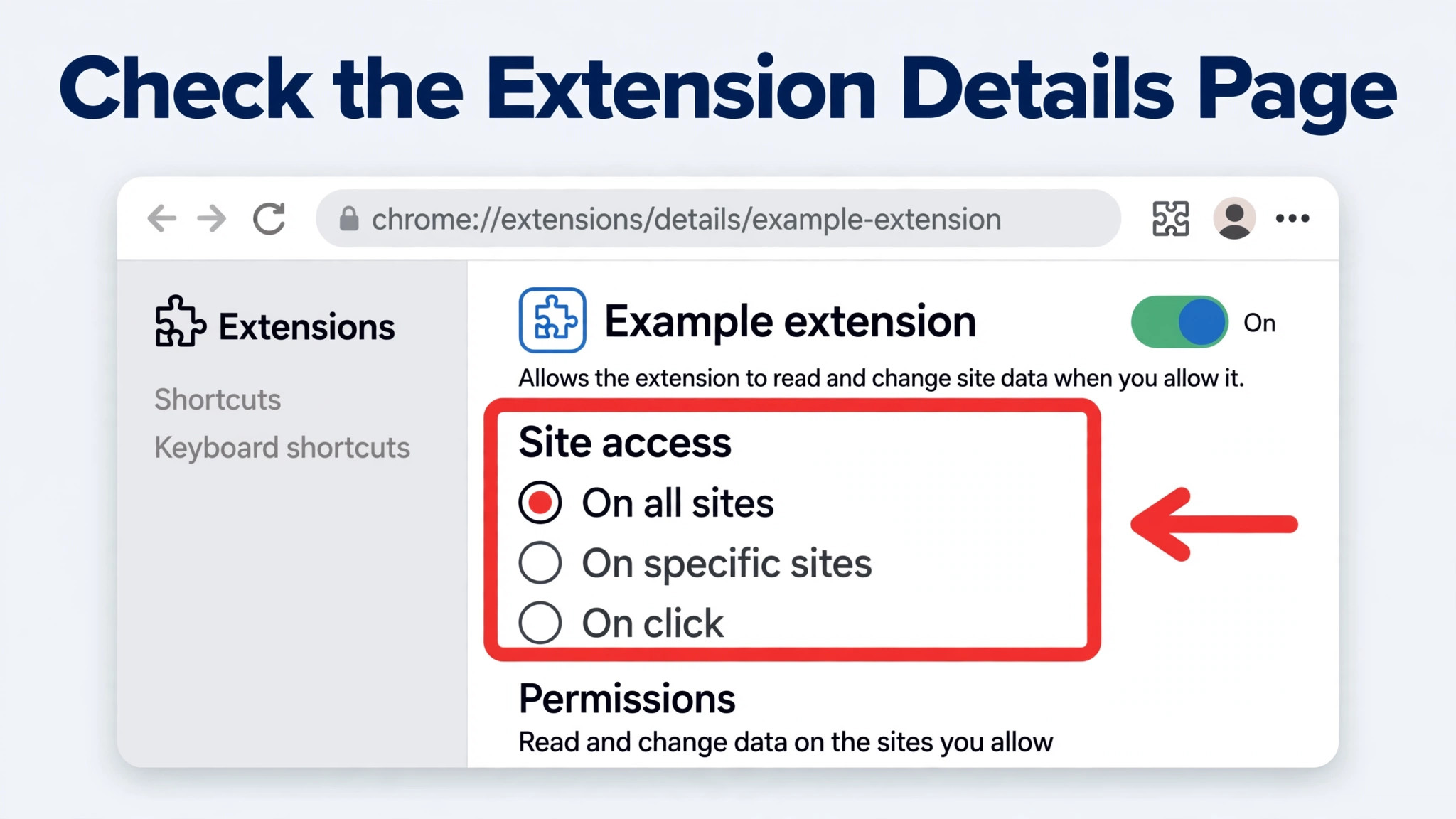
An extension can be installed, enabled, and up to date, yet still fail on the page where you need it, because it does not have permission to run there. This is a quiet failure. There is no error message, no crash, and no obvious clue, just an extension that does nothing on one site while working fine elsewhere. The Details page for the extension is where you check this.
Open Manage extensions, click Details on the extension card, and look at the Site access setting. The usual choices are On all sites, On specific sites, and On click. If the setting is On specific sites, the extension only runs on the sites listed, and it will silently do nothing everywhere else. If it is On click, the extension only runs when you click its icon on that page. Either setting can look like a broken extension if you forgot it was set, or if a previous troubleshooting attempt changed it. Set it to On all sites for a test, then narrow it again once the extension works, if you prefer the tighter setting for privacy.
Check the Permissions list on the same Details page. An extension that needs to read or change data on a site cannot do its job if that permission was refused or removed. If a permission looks missing for the job the extension claims to do, removing and reinstalling the extension will prompt for permissions again. Do not grant permissions blindly, though. If an extension asks for far more access than its job requires, that is a reason to question the extension, not to approve everything it asks for. A missing permission is an easy miss when you try to fix Chrome extensions not working, because nothing on the page announces it.
Check Incognito access separately. Extensions are off in Incognito windows by default, unless you allow them there. On the Details page, the option to allow the extension in Incognito is a separate toggle. Allow it in Incognito only for extensions you trust and actually need in private windows, such as a password manager, since anything allowed in Incognito can see the pages you visit there.
When a Work or School Policy Blocks an Extension
If you use a work or school computer, or a browser signed in with a work or school account, an administrator may control which extensions you can install and run. This is the most commonly missed cause of extension failure, because nothing on the extension card says “blocked by policy” in plain words to most users. Instead, the extension may be missing, disabled with no working toggle, or present but unable to run.
Look for the signs. If Chrome Settings shows a note that the browser is managed by your organization, policies are in force. If an extension toggle is greyed out, or an extension you installed keeps disappearing after a restart, a policy is likely removing or blocking it. If installing from the Chrome Web Store fails with a message that the administrator blocked the item, the block is explicit. In all of these cases, no step in this guide that changes your own settings will override the policy, and that is by design.
The right move is to contact your IT administrator or help desk and tell them the extension name, what it does, and the exact message you see. Administrators manage extensions through allowlists and blocklists, and they can approve a single extension without changing the policy for everyone. Give them the full extension name and its Chrome Web Store listing, since similar names exist and approving the wrong one helps nobody. If the extension is needed for your job, say so plainly, because a business justification is often what turns a request into an approval.
If the computer is yours and no organization manages it, but you still see a managed browser message, check for software that may have set a policy without your knowledge. Some security tools, parental control tools, and older cleanup tools set browser policies. Removing such software, or asking its support team how to release browser control, can clear the message. Do not edit policy files or registry settings by hand unless you know exactly what you are doing, because a wrong edit can affect the whole browser and is hard to undo.
Clear Site Data and Extension Data That Cause Stuck States
Sometimes the extension is fine, the browser is fine, and the page is fine, yet the combination is stuck. Stored site data can cause this. A site that loads old cached files, or holds a broken login session, can make an extension behave as if it were broken, when the real problem is the page state it is trying to work with. Clearing the data for that one site is a targeted fix, and it is far better than clearing everything and signing yourself out of every site at once.
Start with the single site. Open the site, click the icon beside the address, and open Site settings, then clear the data for that site. Reload the page and test the extension. If the extension works, the stuck site data was the cause. If nothing changes, you have ruled out site data in two minutes, and you can move on without having cleared anything else.
For a wider problem, clear cached images and files from Chrome Settings, under Privacy and security, then Clear browsing data. Cached files are meant to speed up repeat visits, but a corrupted cached file can break a page or an extension that depends on it. Avoid clearing cookies at this stage unless you have a reason, because clearing cookies signs you out of most sites and creates a morning of re-logging in for no benefit.
Repair a Corrupted Profile Without Losing Everything
If the fresh profile test shows the extension works in a new profile but not in yours, your main profile is damaged, and the question becomes how to repair it with the least loss. A profile holds bookmarks, history, saved passwords, extensions, and settings, and a damaged file inside it can break extensions while leaving ordinary browsing apparently normal. The repair path below moves from least destructive to most, and it stops as soon as the extension works.
First, test properly in a new profile. Add a profile from the profile menu in the toolbar, or from Settings under You and Google, and install only the failing extension in that new profile. Test it on the same page. If it works there, the profile diagnosis is confirmed. If it fails there too, the problem is not your profile, and you should return to the update, conflict, and policy sections rather than rebuilding anything.
If the new profile works, try resetting settings in your main profile before anything more drastic. Open Settings, then Reset settings, then Restore settings to their original defaults. This returns changed settings to their defaults, disables extensions, and clears temporary data, while keeping bookmarks, history, and saved passwords. After the reset, re-enable only the extension you need and test it. If it works, re-enable your other extensions one group at a time, testing as you go.
Clean Reinstall, Done Properly
Reinstalling an extension is not just clicking Remove and adding it again. A rushed reinstall can leave the same damaged data in place, or restore the same bad state from sync immediately. A clean reinstall follows a short order, and each step has a reason.
First, export anything the extension holds that you want to keep, as described in the data section. Second, open Manage extensions and click Remove on the extension, then confirm. Third, restart Chrome, so no background process from the removed extension lingers. Fourth, install the extension again from the Chrome Web Store listing, not from a downloaded file from another site, since files from outside the store can be outdated or altered. Fifth, accept only the permissions the extension genuinely needs for its job, and test it on the page where it failed before you change any of its settings.
If the extension fails again immediately after a clean reinstall, with no other extensions running and no policy in force, the problem is almost certainly the extension itself, or its interaction with the current Chrome version. Check the Chrome Web Store reviews and the developer support page for recent reports of the same failure. If other users report it after the same Chrome update, the developer needs to release a fix, and no local step will substitute for it.
Replace an Abandoned Extension and Stop the Next Failure
Not every extension deserves to be saved. An extension with no update for a long time, a store listing that says it is no longer supported, or a developer support page full of unanswered failure reports is a liability, even if you manage to coax it back to life once. Every future Chrome update risks breaking it again, and an unmaintained extension is also a security risk, since nobody is patching it. Replacing it is sometimes the fastest permanent fix.
Judge a replacement by the same tests you used to diagnose the failure. Install it in a test profile first if the job matters, check its permissions against its claimed job, and confirm it works on the pages you actually use before you commit your data to it. A replacement with a recent update date, a clear privacy statement, and a developer who answers support questions is worth more than a feature list that is slightly longer. For common jobs, such as ad blocking, password management, or screenshot capture, several maintained options exist, so you rarely need to cling to an abandoned one.
Prevention is mostly a matter of keeping the extension list short and current. Review your extensions once a month, remove anything you have not used in the past month, and disable anything you use only occasionally until you need it. Fewer extensions means fewer conflicts, less memory use, and fewer update surprises. When you install a new extension, test it on the same day, on the pages where you will use it, so a conflict shows up while you still remember what changed.
Keep Chrome updating automatically, and keep one extension per job where possible, especially for ad blocking, password management, VPN use, and page modification, since duplicate tools in the same category cause most conflicts. And keep a note of the extensions you rely on, with their store names, so a future reinstall or a move to a new computer takes minutes instead of an afternoon of remembering what you had.

If extensions were only part of a wider slowdown, the tab and extension load may be the real story rather than one broken tool. Our guide to fixing a slow browser with too many tabs walks through a cleanup that frees memory, groups tabs by job, and audits extensions together. Read it next if Chrome feels heavy even after the failing extension works again. You can find it at https://stratilyze.com/fix-chrome-running-slow-too-many-tabs/
Frequently Asked Questions
Why did my extension stop working after a Chrome update?
A Chrome update can change something the extension depends on, or it can remove support for an older extension platform. First update the extension through Developer mode on the extensions page, then test in a new profile. If the extension listing says it is no longer supported, the developer needs to release a newer version, and a maintained alternative is the practical fix until that happens.
Why does my extension work on one site but not on another?
Site access is the usual cause. The extension may be set to run only on specific sites, or only when clicked, or the site itself may restrict extensions on its pages. Check Site access on the extension Details page, test the extension on a plain article page, and check whether the site blocks extensions deliberately. If it works everywhere except one site, the site is the likely limit, not the extension.
How do I find which extension is causing a conflict?
Disable half your extensions at a time, keeping the failing extension enabled, and test after each round. If the failing extension works, the conflict is in the half you disabled. Halve that group and test again until one extension remains. That extension is the conflict, even if both extensions work fine on their own.
Should I allow an extension in Incognito mode?
Only if you need it there and you trust it. Extensions are off in Incognito by default, and allowing one there lets it see the pages you visit in private windows. A password manager is a reasonable exception for many people. An extension you use occasionally, or one you do not fully trust, should stay off in Incognito.
Will resetting Chrome settings delete my bookmarks and passwords?
Resetting settings to their original defaults keeps bookmarks, history, and saved passwords, but it disables extensions and clears temporary data. Re-enable extensions one group at a time after a reset, testing the extension you need after each group, so a reintroduced conflict is easy to spot.
What should I do if my work computer blocks an extension?
Contact your IT administrator with the full extension name, its Chrome Web Store listing, and the exact message you see. Administrators control extensions through allowlists and blocklists, and they can approve a single extension for your work. Do not try to bypass a device policy with a personal profile for work data, since that can breach workplace rules and may not work if the block is set on the device itself.
Your Extensions, Working Again, Without the Guesswork
You now have a method, not just a list of things to try. The method is to test after each step, to note what each step rules out, and to stop as soon as the extension works, so you know the cause and not just the cure. Most readers will finish at the restart, the update check, or the conflict isolation, and that is the point of ordering the fixes from fastest to deepest. The deeper steps exist for the stubborn cases, not as a starting point.
If you take one habit from this guide, make it the monthly extension review. A short list of maintained extensions, each with a job you can name, causes fewer conflicts, uses less memory, and survives Chrome updates far better than a long list gathered over years and never pruned. Combine that habit with the fix order checklist kept open during any future failure, and the next time an extension stops working, you will have it diagnosed in minutes.
Start with the step that matches your symptom. Restart and test, update and test, isolate and test, and let each result narrow the search. When the extension works again, note which step fixed it, since that note is what turns a one-time repair into a faster diagnosis next time.