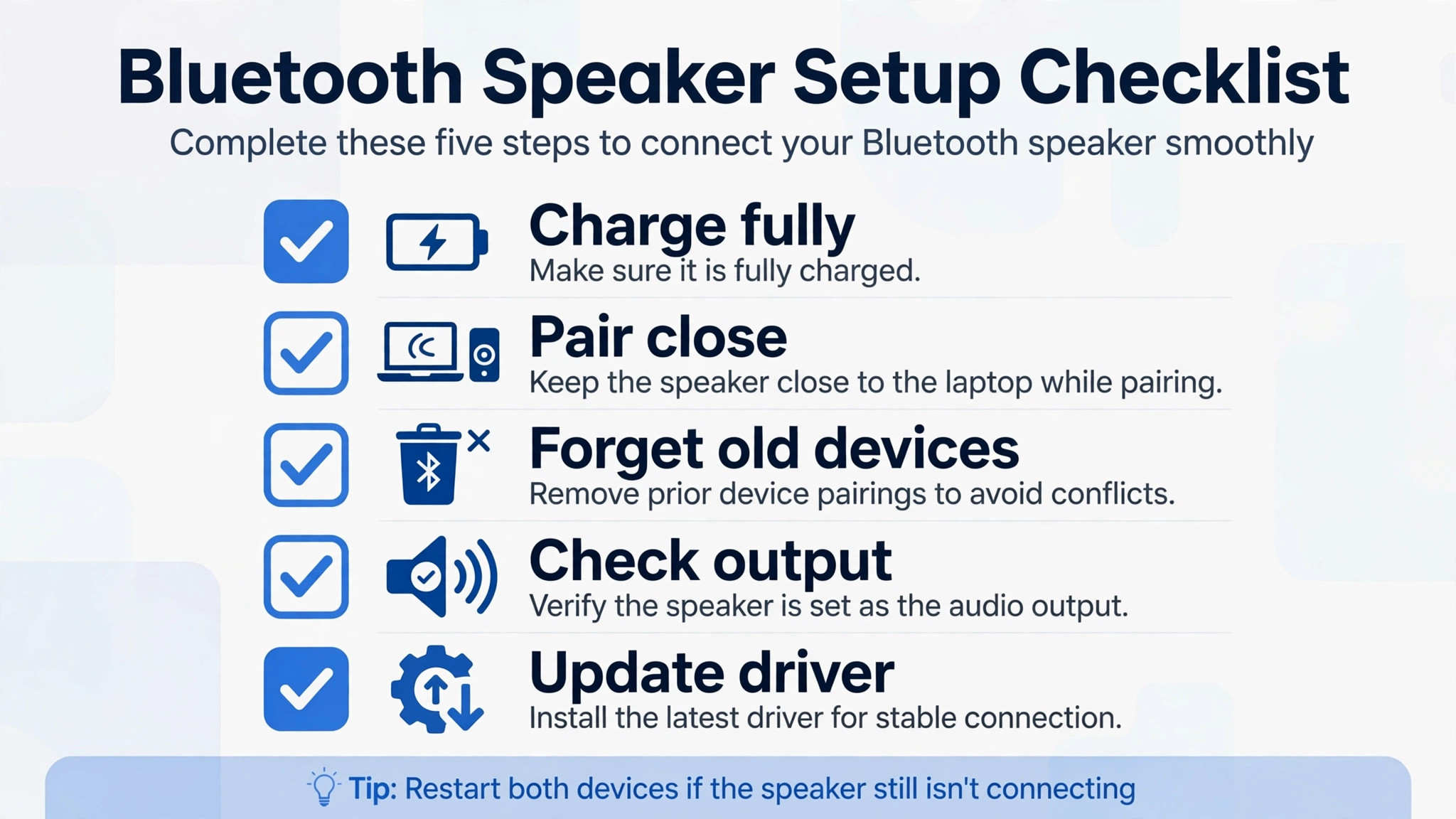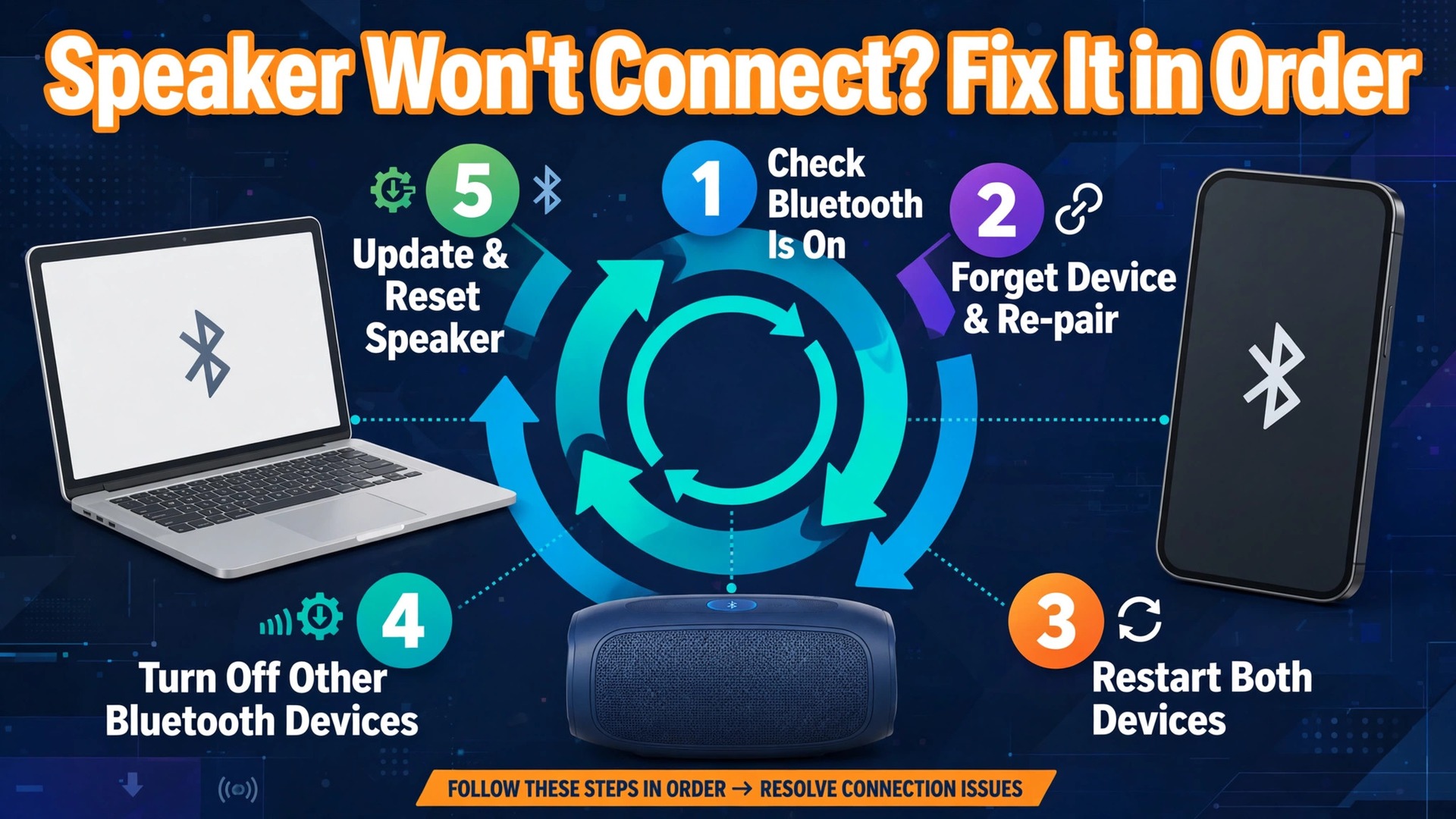
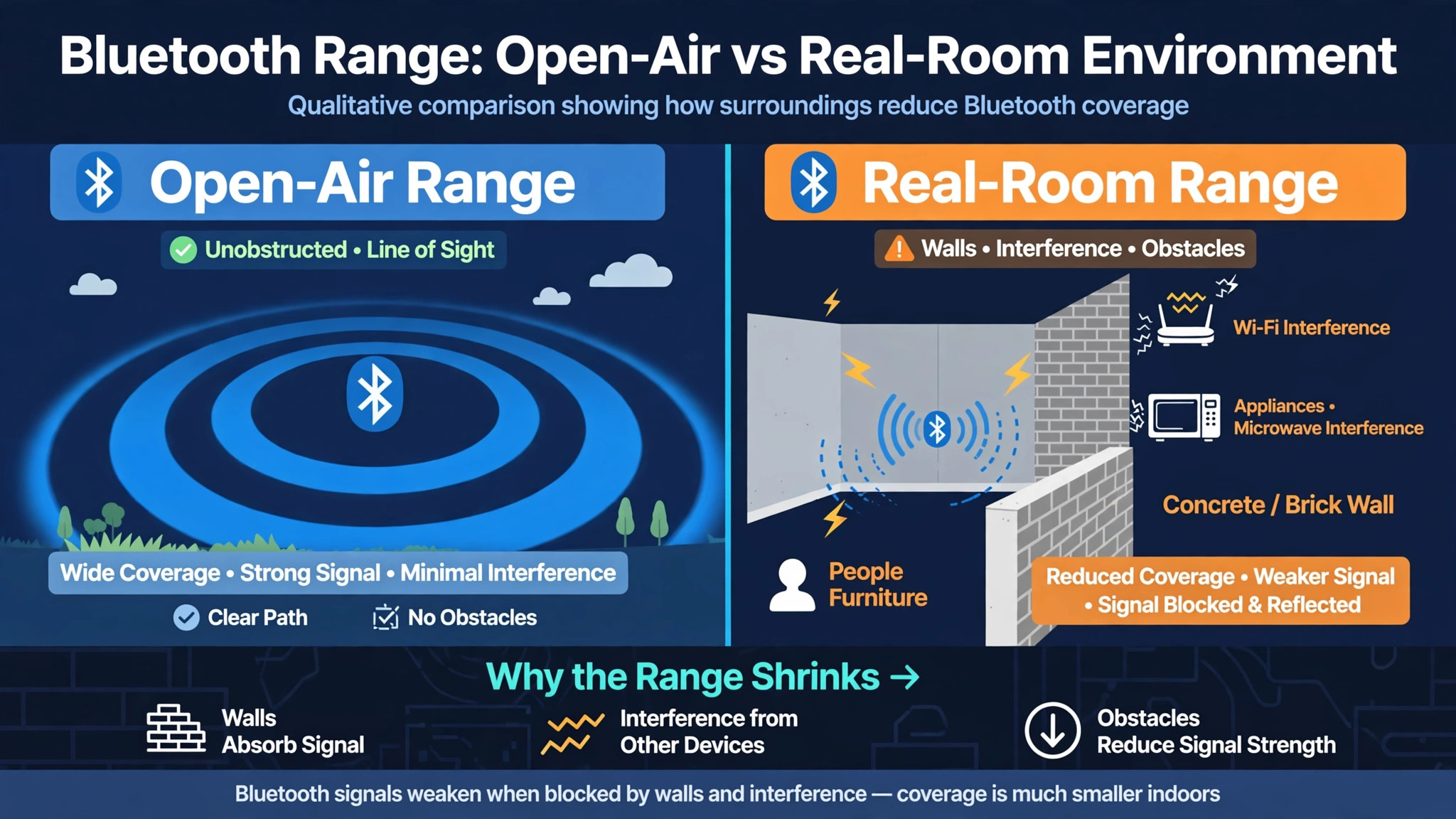
Bluetooth is built for short range work, with most speakers rated for about 10 metres, or 33 feet, in open air, and walls and other wireless traffic cutting that range sharply in a real room. Most pairing failures happen well inside that range. The speaker is not in pairing mode, it is still tied to a phone, the laptop holds a stale pairing record, the wrong audio output is selected, or a driver has stopped working. This guide shows you how to fix Bluetooth speaker not connecting laptop faults in order, from the 30 second checks to the deeper driver steps. Each step tells you what it rules out, so you can stop as soon as the speaker plays.
Do not start with a factory reset, a driver reinstall, or a new adapter. Those steps can waste an hour on a problem that a forgotten phone connection caused. Work the list from the top and test after each step.
Read the Symptom Before You Start Fixing
The symptom narrows the fault faster than any generic list. Use it to fix Bluetooth speaker not connecting laptop faults without repeating a step that cannot help your case. A speaker that never appears is failing at discovery. A speaker that appears but will not connect is failing at pairing or at a stored pairing record. A speaker that connects but produces no sound is failing at audio output selection, not at Bluetooth. A speaker that connects, plays briefly, and then drops is failing at range, interference, power saving, or battery.
| Symptom | Most likely cause | Start here |
|---|---|---|
| Speaker never appears in the list | Not in pairing mode, or still connected to another device | Step 1 and Step 2 |
| Speaker appears but will not connect | Stale pairing record on the laptop or the speaker | Step 3 and Step 4 |
| Speaker connects but no sound plays | Wrong audio output, muted output, or the hands-free profile | Audio output section |
| Speaker connects then drops | Range, interference, low battery, or a power saving setting | Interference section |
| Bluetooth toggle is missing on Windows | Driver missing, disabled adapter, or no built-in Bluetooth | Driver section |
| Speaker works on a phone but not on the laptop | Laptop pairing, driver, service, or output setting | Windows or Mac section |
If your symptom is connected but silent, jump to the audio output section after the two fastest checks. If the Bluetooth toggle is missing, skip to the driver section.
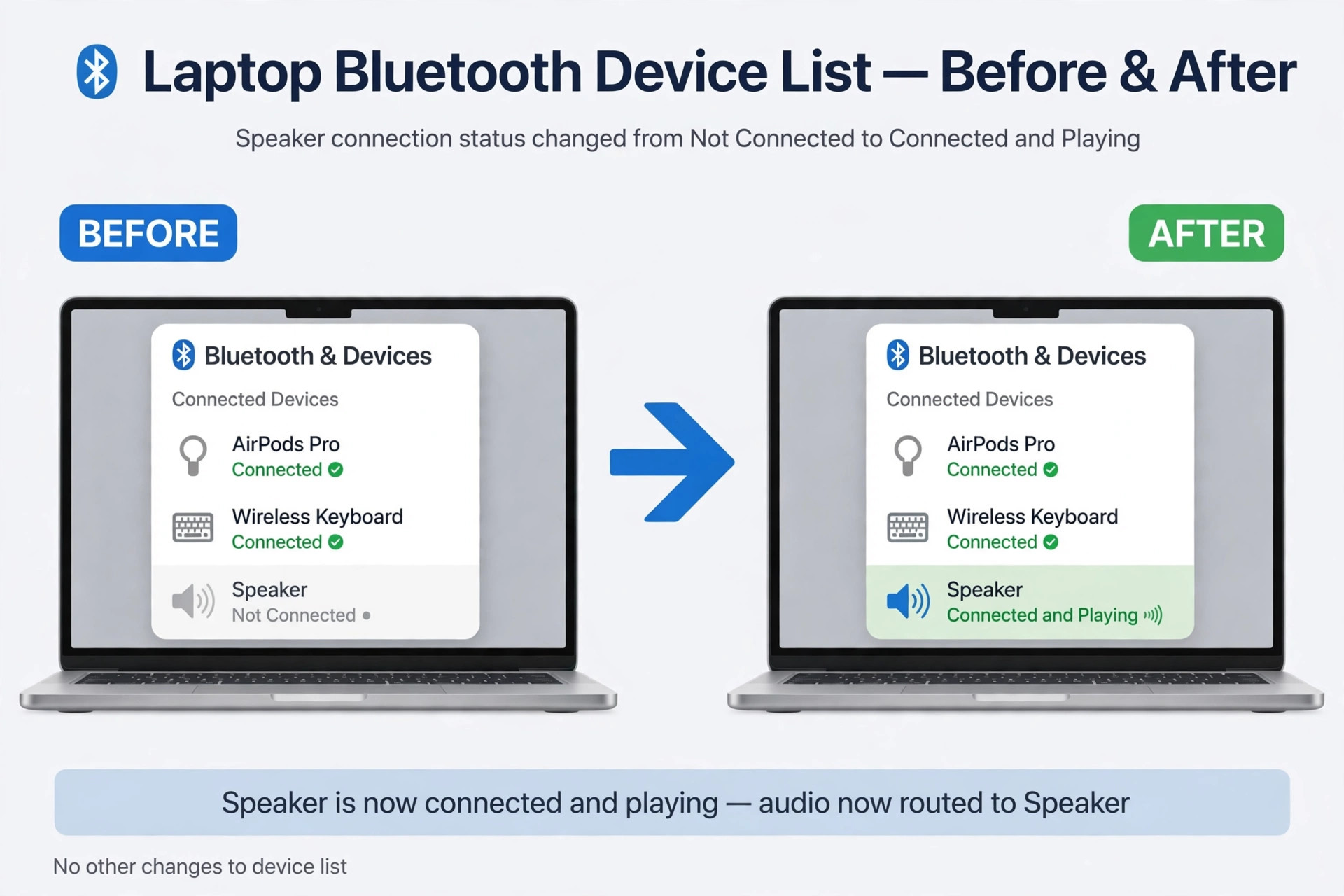
The Fix Order Checklist
This checklist is the whole guide on one page. Work it top to bottom and tick each step off as you test it. Fast and reversible steps come first. Steps that delete data or change drivers come later, only when the fast steps have ruled out the simple causes.
- Charge the speaker and confirm it powers on and stays on.
- Put the speaker in pairing mode and confirm the pairing signal.
- Disconnect or forget the speaker on other devices that have paired with it before.
- Bring the speaker within one metre of the laptop, with nothing solid between them.
- Turn laptop Bluetooth off, wait 10 seconds, and turn it back on.
- Forget the speaker on the laptop and pair it fresh.
- Restart the laptop and pair again.
- Check the audio output setting and the volume on both devices.
- Run the Windows Bluetooth troubleshooter, on Windows laptops.
- Update, roll back, or reinstall the Bluetooth driver, on Windows laptops.
- Restart the Bluetooth services, on Windows laptops.
- Check for interference, range problems, and a laptop power saving setting.
- Reset the speaker to factory settings, using the maker guide for your model.
- Test the speaker on a second device, such as a phone, to separate a speaker fault from a laptop fault.
Steps 1 to 6 fix most failures. Steps 7 to 12 fix most of the rest. Steps 13 and 14 are diagnostic steps. They tell you whether the speaker itself is at fault, and they give you the evidence a support team needs for a warranty claim. The order in this list is how you fix Bluetooth speaker not connecting laptop faults without resetting a speaker that only needed to be forgotten on a phone in another room.
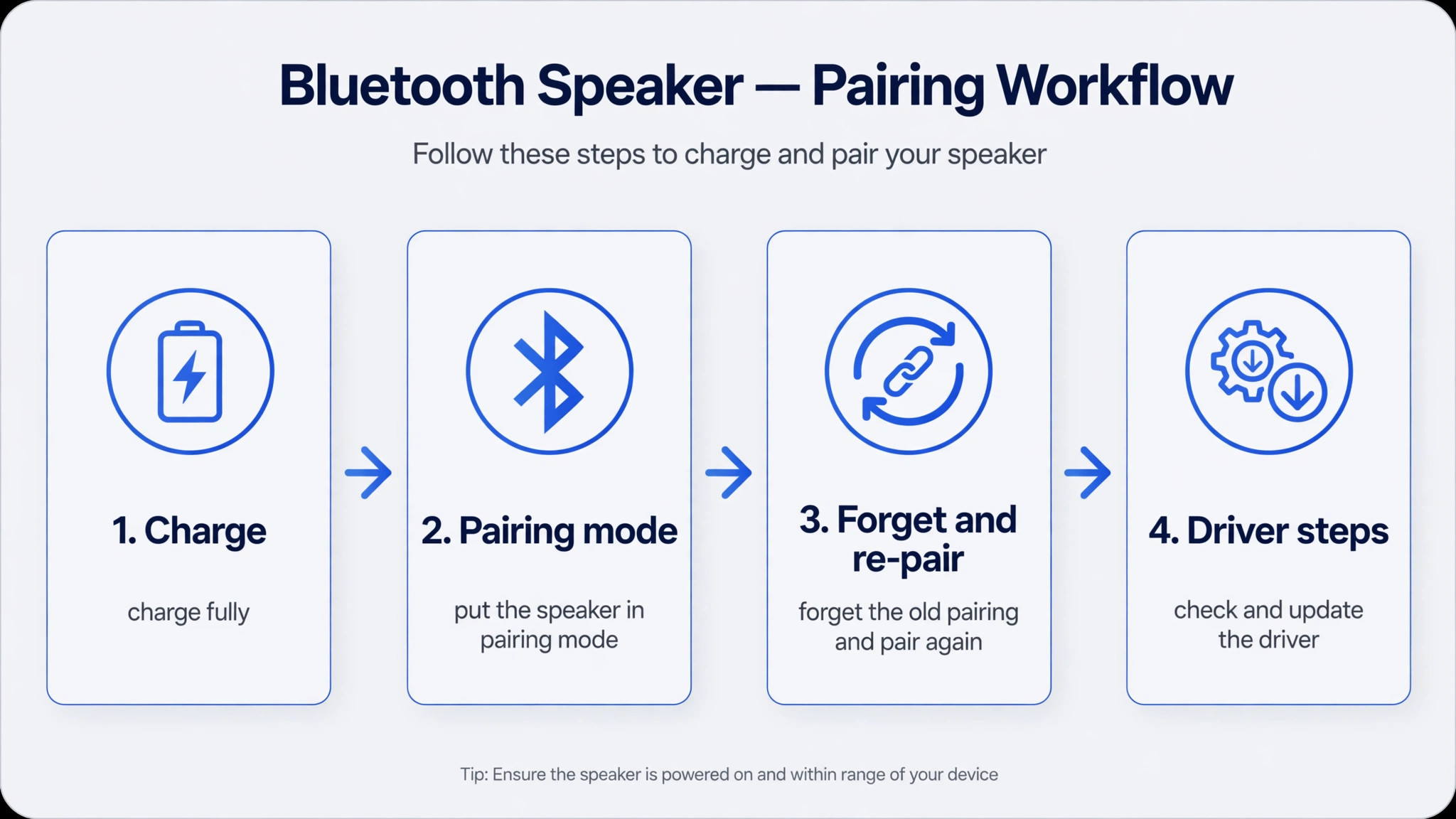
How to Fix Bluetooth Speaker Not Connecting Laptop, Step by Step
This section walks the checklist in full, with the exact menus for Windows and Mac and the reason each step exists. Skip to your operating system section if the fast steps have already failed, but do not skip the fast steps entirely.
Step 1. Charge the Speaker and Confirm It Stays On
A low battery is the most boring cause of a pairing failure, and also one of the most common. Some speakers will power on, flash a light, and then shut down before pairing completes, which looks exactly like a laptop fault. Other speakers will refuse to enter pairing mode at all when the battery is low.
Plug the speaker in for at least 15 minutes, even if the charge light looks normal. Then unplug it, power it on, and watch whether it stays on for a full minute without dimming or shutting down. If it shuts down on battery but runs fine while plugged in, the battery is the suspect, not the laptop. This step rules out power.
Step 2. Put the Speaker in Pairing Mode, Not Just Power On Mode
Switching a speaker on and putting it in pairing mode are two different actions, and confusing them is the most common pairing mistake. Switching on usually reconnects the speaker to the last device it paired with. Pairing mode makes the speaker discoverable to a new device, and it is usually signalled by a distinct light pattern, often a rapidly flashing light or alternating colours, or by a voice prompt that says the speaker is ready to pair.
The exact button varies by maker. On many speakers, you hold the power button for several seconds after switch-on, or you press and hold a dedicated Bluetooth button until the light changes. Check the quick start guide for your exact model, because a hold that is too short will only power the speaker on, and a hold that is too long can trigger a factory reset on some models. A slow pulse or a solid light usually means the speaker is connected to something. A rapid flash usually means it is discoverable. This step rules out discoverability.
Step 3. Free the Speaker From Other Devices
Most portable speakers remember several pairings but connect to only one device at a time, and many will refuse a new pairing while they hold an active connection to an old device. The old device is often a phone in your pocket, a tablet in another room, or a laptop you used last week. The speaker may look free because it is silent, while it quietly holds a connection to a device that is not playing anything.
Turn Bluetooth off on every other device that has paired with this speaker, or disconnect the speaker in Bluetooth settings on those devices. Do not just close the music app. The link stays live even when no audio plays. Then put the speaker back in pairing mode and look for it on the laptop again. Some speakers can stay connected to two devices at once, so a third device may find no free slot. If your speaker supports multipoint, turn Bluetooth off on both connected devices, pair the laptop, and only then re-enable the second connection. This step rules out a hidden active connection.
Step 4. Bring the Speaker Close and Clear the Path
Pair within one metre of the laptop, with a clear line between the two devices. The headline range on the box, often 10 metres or more, applies to open air with no obstacles. A wall, a human body, a metal desk leg, or a closed laptop lid between the speaker and the laptop antenna can cut usable range sharply, and pairing is more sensitive to weak signal than steady playback. Pair close first, then move the speaker to its normal spot once the pairing is established and test playback there.
Move the speaker off the floor, away from a metal cabinet, and away from a running microwave for the pairing attempt. Keep the laptop lid open during pairing. This step rules out range and physical blocking.
Step 5. Toggle Laptop Bluetooth Off and Back On
Turn Bluetooth off on the laptop, wait 10 seconds, and turn it back on. This clears a stuck radio state without deleting any pairing. On Windows, open Settings, then Bluetooth and devices, and use the Bluetooth toggle. You can also use Quick Settings with the Windows key plus A, then the Bluetooth tile. On a Mac, open System Settings, then Bluetooth, and use the Bluetooth toggle, or use Control Centre in the menu bar.
Wait the full 10 seconds, so the radio has time to shut down fully. After the toggle, put the speaker back in pairing mode if it has timed out, since many speakers leave pairing mode after a minute or two. This step rules out a transient radio fault.
Step 6. Forget the Speaker on the Laptop and Pair Fresh
If the speaker appears in the laptop list but will not connect, or if it connects and immediately drops, the stored pairing record is the prime suspect. A pairing record can go stale after an operating system update, after a speaker firmware update, or after the speaker was reset without forgetting it on the laptop. The two sides then disagree about the connection, and repeated taps on Connect will not reconcile them.
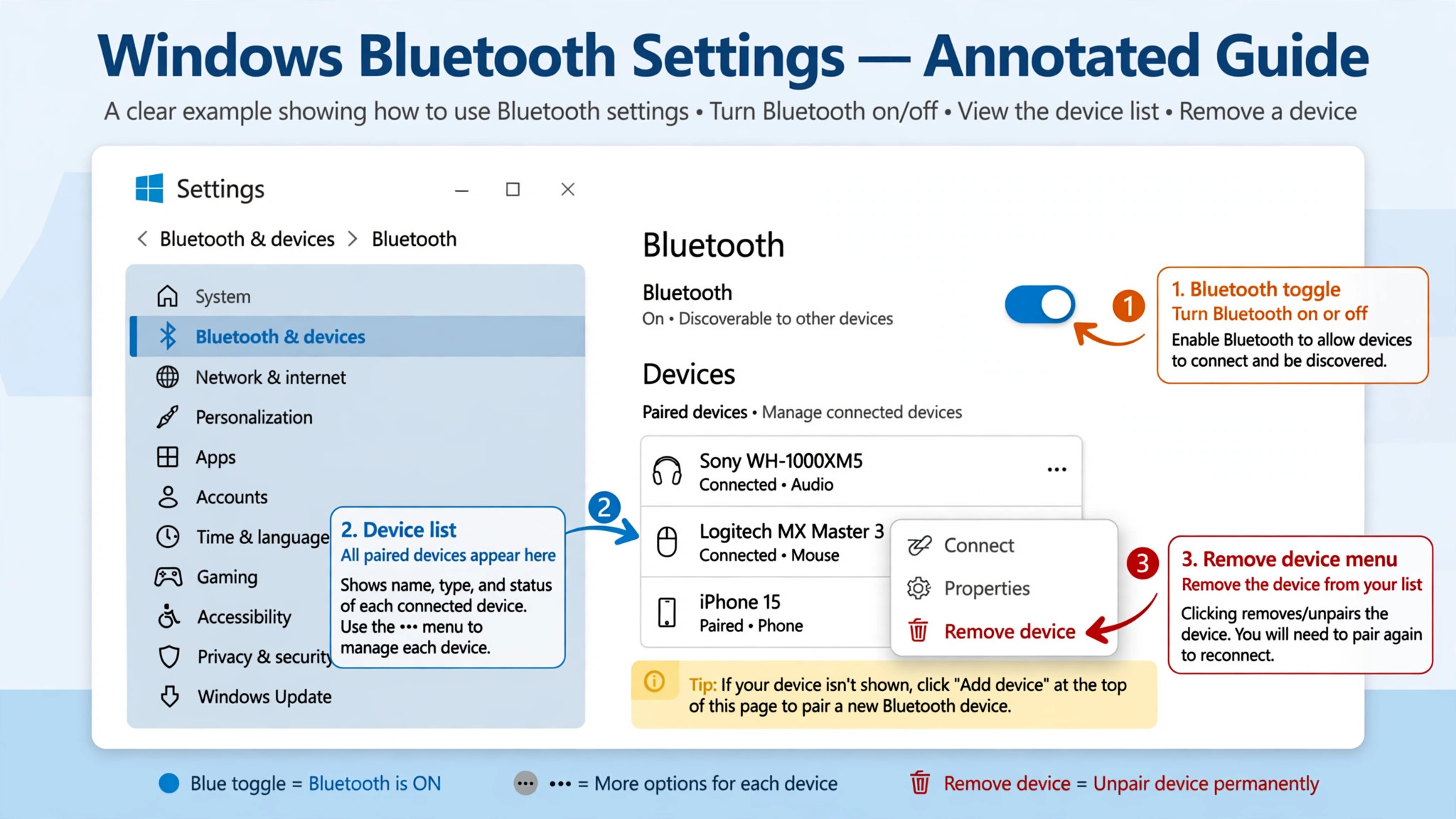
On Windows, open Settings, then Bluetooth and devices, then Devices, find the speaker, open the three dot menu beside its name, and choose Remove device. On a Mac, open System Settings, then Bluetooth, find the speaker, click the info button beside its name, and choose Forget This Device. After removing it, turn Bluetooth off and back on, restart the speaker, put it in pairing mode, and add it again as if it were new.
If the speaker appears twice in the Windows list, once for audio and once for hands-free calling, remove both entries before re-pairing. Leaving one half of a split entry in place can recreate the same stale pairing on the next attempt. This step rules out a corrupt pairing record.
Step 7. Restart the Laptop and the Speaker Together
Restart both devices fully, not just into sleep. On Windows, use Start, then Power, then Restart. On a Mac, use the Apple menu, then Restart. Power the speaker off completely, wait 10 seconds, and power it on again. Then put the speaker in pairing mode and pair fresh.
A restart clears system services, radio state, and audio routing in a way that a Bluetooth toggle does not reach. If the speaker pairs after a restart but fails again after the next sleep cycle, note that pattern, because it points at a power saving setting or a driver that needs updating. This step rules out a temporary system fault.
Windows Bluetooth Settings That Block a Speaker
Windows separates the Bluetooth radio, the device entry, the driver, the services, and the audio output into different panels, so work them in order and test after each change. First, confirm Bluetooth is on and that the laptop has Bluetooth hardware. Open Settings, then Bluetooth and devices, and look for the Bluetooth toggle at the top. If the toggle is missing entirely, do not spend time on pairing steps. A missing toggle usually means a driver problem, a disabled adapter, or a laptop with no built-in Bluetooth at all. Check Device Manager for a Bluetooth section. Desktops and some older laptops have no built-in Bluetooth, and in that case a USB adapter is the correct fix, not a settings change.
If the toggle is present, scroll the full device list, since a speaker may appear under a model code rather than a brand name.
Next, run the built-in Bluetooth troubleshooter before you touch drivers. On Windows 11, open Settings, then System, then Troubleshoot, then Other troubleshooters, and run Bluetooth. Microsoft routes some machines through the Get Help app for the same diagnostic, and either path is fine. If it reports a problem it cannot fix, note the exact message. If you need to fix Bluetooth speaker not connecting laptop faults on a Windows machine that pairs fine with a phone, the device entry, the troubleshooter result, and the driver are the three places to look first.
Mac Bluetooth Settings That Block a Speaker
Mac pairing failures are usually simpler than Windows ones, because macOS has no separate Bluetooth driver for you to reinstall. The fix is almost always about a stale pairing, a stuck radio state, or the wrong audio output. Open System Settings, then Bluetooth, and confirm Bluetooth is on. If the speaker appears but will not connect, click the info button beside its name and choose Forget This Device. Turn Bluetooth off, restart the Mac, turn Bluetooth back on, put the speaker in pairing mode, and click Connect when it appears.
If the speaker still will not appear, check for a macOS update. Open System Settings, then General, then Software Update, and install any pending update. Apple ships Bluetooth fixes in point updates. After the update, restart and pair fresh.
The deeper Mac fix is to remove the Bluetooth preference file, but only after forget and re-pair and a restart have failed. In Finder, use Go, then Go to Folder, open the Preferences folder inside your user Library, move com.apple.Bluetooth.plist to the Trash, and restart the Mac. The Mac rebuilds the file on restart. If you are unsure which file is the right one, skip this step.
Audio Output Selection, the Connected but Silent Fault
A speaker that shows as connected but plays nothing is the most misdiagnosed Bluetooth fault. Owners reset speakers, reinstall drivers, and buy adapters for a problem that lives in one dropdown menu. Work this section before any driver step if your symptom is connected but silent, and use it to fix Bluetooth speaker not connecting laptop faults where the pairing itself already succeeded.
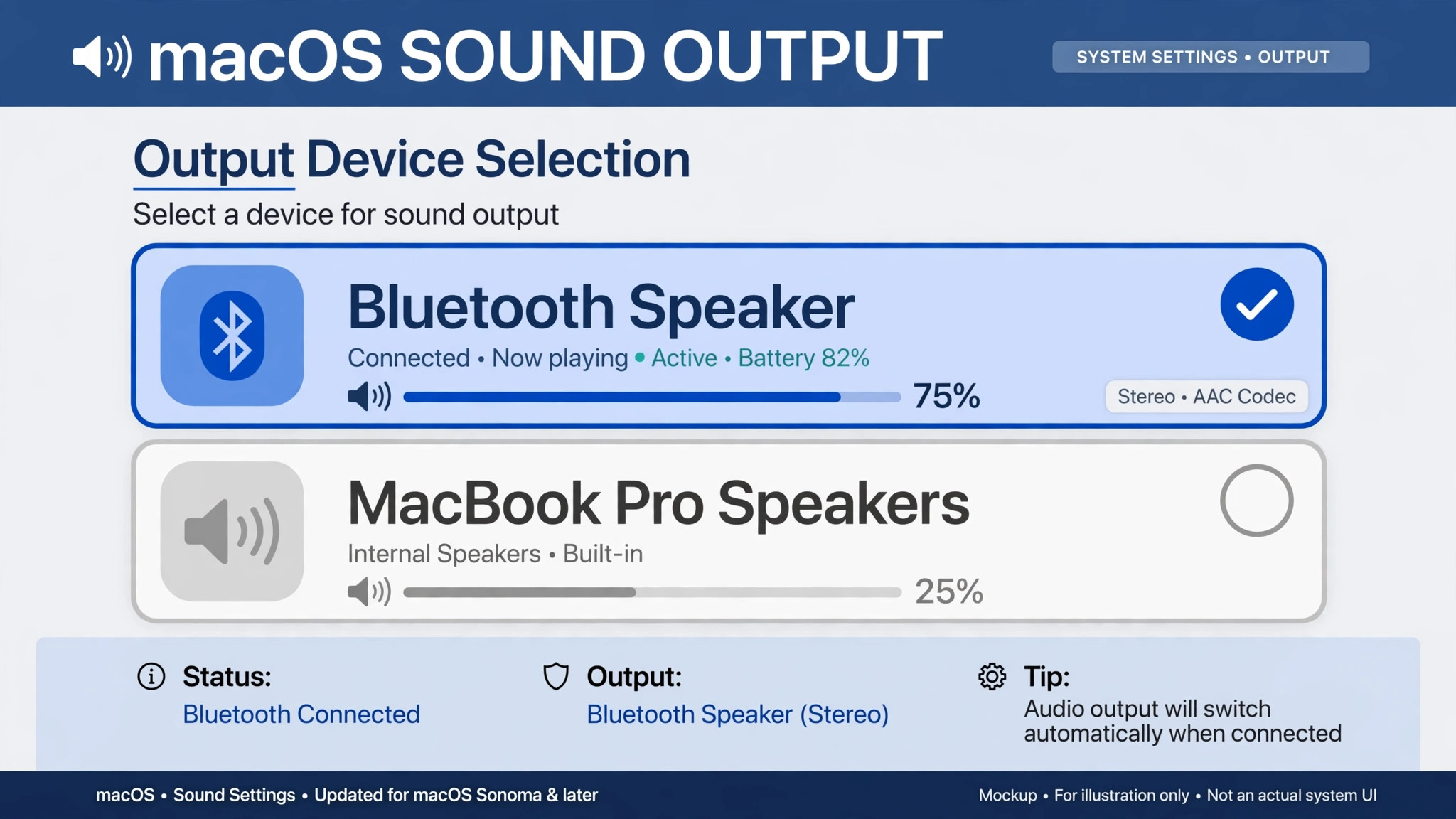
On Windows, open Settings, then System, then Sound, and set Output to your speaker name. Then check the volume mixer for the app you are using, since some apps remember their own output device and can keep playing through laptop speakers even after you change the system output. Close and reopen the app after changing the output, and test with a local audio file before you test with a streaming app.
On a Mac, open System Settings, then Sound, then Output, and select the speaker. If the volume slider is greyed out, the connection has not completed the audio handshake, so forget and re-pair.
Check the speaker input mode as well. Many speakers have more than one input, such as Bluetooth, auxiliary cable, and USB. A speaker last used with a cable may still sit on the auxiliary input even after a successful Bluetooth pairing. Finally, test with a second audio source. If one app plays through the speaker and another does not, the fault is in the silent app, not in Bluetooth.
Also check the hands-free profile. The stereo profile carries music at full quality, while the hands-free profile carries calls with a microphone at much lower music quality. If Windows defaults to the hands-free entry for playback, music will sound thin and distant. In Sound settings, choose the stereo entry for music.
Driver Steps That Fix a Windows Speaker Fault
Drivers are the layer between Windows and the Bluetooth radio. When a driver is corrupt, outdated, or missing, Windows may show no Bluetooth toggle, may fail to discover any device, or may pair a speaker and then drop it. Use driver steps only after the fast steps and the troubleshooter have failed.
Start with an update. Open Device Manager by right clicking Start and choosing Device Manager. Expand Bluetooth, right click the adapter, which is often named for Intel, Realtek, or Qualcomm, and choose Update driver, then Search automatically for drivers. Restart and pair again.
If the automatic update finds nothing, or if the fault started right after a driver update, try a rollback. In Device Manager, right click the adapter, choose Properties, open the Driver tab, and choose Roll Back Driver if the button is active. A greyed out button means Windows has no previous driver to return to. Rollback is the right move when the speaker worked last week, a driver updated, and the speaker has failed ever since.
If update and rollback both fail, reinstall the driver. In Device Manager, right click the adapter, choose Uninstall device, and if the confirmation window offers to delete the driver software, tick that box, then restart the laptop. Windows will reinstall a fresh driver on boot. If Windows cannot find a driver after restart, download the latest driver from the laptop maker support site, or from the adapter maker site, rather than from a third party driver site.
Right click the adapter, choose Properties, and open the Power Management tab, if your adapter has one. If the box that lets the computer turn off the device to save power is ticked, untick it. Laptops that suspend the radio aggressively can drop a speaker after sleep, or refuse to pair after waking. Untick the box, restart, and pair again.
If Device Manager shows no Bluetooth section at all, check whether Bluetooth is disabled in the laptop firmware settings. A missing section usually means the hardware is disabled or absent, not just a driver fault.
Restart the Bluetooth Services on Windows
Services are background processes that Windows uses to run Bluetooth. If a service has stopped, pairing can fail even with a healthy driver. Press the Windows key plus R, type services.msc, and press Enter. Find Bluetooth Support Service, right click it, and choose Restart, then confirm its status shows Running and its startup type is Automatic. Do the same for Bluetooth Audio Gateway Service if it appears. Restart the services, restart the laptop, and pair fresh. Do not change other services in the list.
Interference, Range, and the Room Around You
Bluetooth shares the 2.4 GHz band with Wi-Fi, microwaves, USB 3 devices, and other Bluetooth accessories. A pairing that works in a quiet room can fail in a crowded one. Treat the room as part of the fault, not just the two devices.
Pair the speaker within one metre of the laptop in a quiet spot, away from the router, a running microwave, and a USB 3 hub. If it pairs there and drops in its normal spot, move the normal spot. Move a USB 3 drive to a port on the far side of the laptop, since USB 3 hubs emit noise in the 2.4 GHz band.
If dropouts happen whenever a large download starts, try moving the laptop to a 5 GHz Wi-Fi network, if your router offers one. Turn Bluetooth off on nearby devices you do not need for the pairing attempt, pair the speaker, and then turn them back on.
Reset the Speaker, and the Second Device Test
A factory reset wipes all pairings and returns the speaker to its out of the box state. Use it only after forget and re-pair has failed, after the speaker has failed on a second device, and after you have checked the maker guide for your exact model. Reset methods vary widely, so do not copy a button hold from a different model. Follow the maker method exactly, including the light pattern that confirms the reset completed.
After a reset, pair the speaker to one device only and test it for a full listening session before adding a second device. If the reset changes nothing on two devices, stop resetting. Repeated resets cannot fix a hardware fault or a dead battery.
The second device test is your cheapest diagnostic. Test the speaker on a phone or a tablet before you buy anything or raise a warranty claim. Put the speaker in pairing mode, forget it on the phone if it was paired there before, and pair it fresh. Play audio for at least ten minutes. If the speaker pairs and plays on the phone but not on the laptop, stop working on the speaker and work on the laptop. If it fails on the phone too, stop working on the laptop and work on the speaker.
Mistakes That Make a Speaker Fault Worse
The first mistake is resetting before trying forget and re-pair. A factory reset wipes every pairing on the speaker, while forget and re-pair wipes one pairing and keeps the rest, so it should always come first. The second mistake is pairing in a noisy radio environment with Bluetooth left on everywhere. Pair in a quiet window, then return to the normal room once the pairing is established.
The third mistake is updating speaker firmware mid fault over an unstable link. Firmware updates need a steady connection, and a speaker that drops during an update can end up in a worse state than before. Fix the pairing first, then update firmware once the connection holds. The fourth mistake is buying a USB adapter before checking whether the laptop already has Bluetooth. Adding a second adapter can create a driver conflict, so disable the built-in adapter in Device Manager if you use an external one. The fifth mistake is ignoring the battery. A speaker with a failing battery can pair, play for five minutes, and drop.
If it drops at the same point on every device, the battery or the hardware is the suspect.
How to Decide Between a Driver Fix, a Reset, and a Replacement
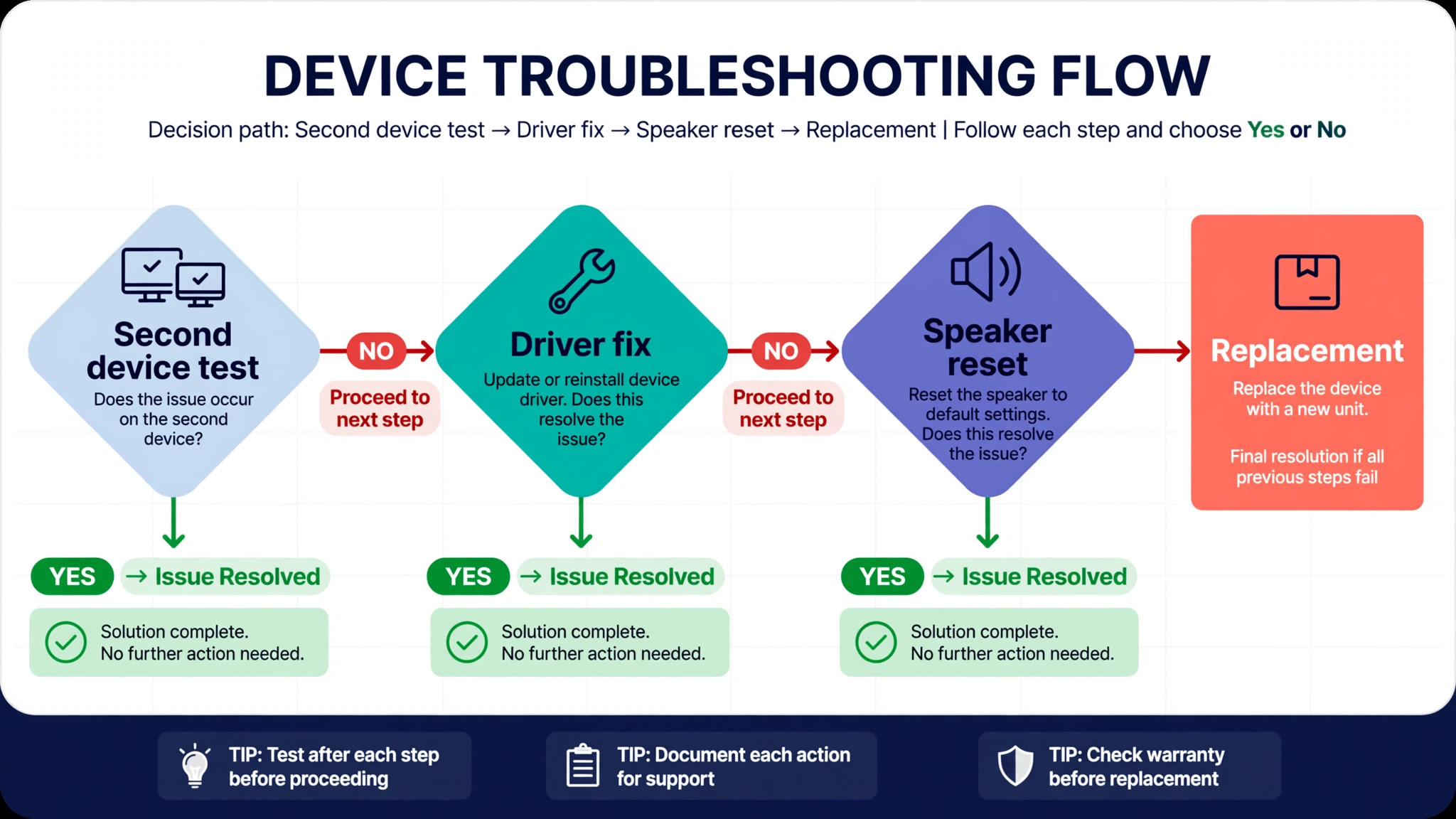
Use this decision path when the fast steps have not fixed the fault. First, run the second device test. If the speaker works on a phone, stay on the laptop side. Work the Windows or Mac section, then the driver section, then the services and power sections, in that order. If you need to fix Bluetooth speaker not connecting laptop faults that survive a driver reinstall, check the services startup type and the power saving setting next.
Second, if the speaker fails on the phone too, reset it using the maker method, then pair to one device only. If the reset fixes it, add devices back one at a time and test after each addition. If the reset changes nothing on either device, check the warranty before buying a replacement. A support ticket that lists the steps you tried and the two device test result will get a faster answer than a ticket that only says the speaker will not connect.
Third, consider a replacement only when three conditions are true together. The speaker fails on two devices, a factory reset changes nothing, and the battery or charging behaviour is also abnormal, such as very short play time or a speaker that will not charge. If only pairing fails but battery and sound are normal, a repair or a warranty claim is the better route. If the speaker is out of warranty and the battery is also weak, replacement makes more sense than repair.
For related reading, fix Bluetooth headphones not pairing covers the same pairing logic for headphones on phones, laptops and TVs, fix Wi-Fi keeps dropping on laptop helps when the 2.4 GHz network itself is unstable, and fix Zoom audio echo step by step is useful when your speaker finally connects but call audio still sounds wrong.
Frequently Asked Questions
Why does my speaker show as paired but not connected on my laptop?
Paired means the two devices remember each other. Connected means they are actively linked right now. If the speaker shows as paired but not connected, it is probably connected to another device or out of range. Turn Bluetooth off on other paired devices, bring the speaker close, and click the speaker name to connect manually. If that fails, forget the speaker and pair fresh.
Why does my speaker pair with my phone but not with my laptop?
A phone and a laptop use different Bluetooth stacks, drivers, and audio settings. On a laptop, the usual causes are a stale device entry, a driver that needs updating, a stopped service, a power saving setting, or the wrong audio output. Work through the Windows or Mac section in order, and run the second device test first. If you need to fix Bluetooth speaker not connecting laptop faults on one machine only, that phone test proves the laptop is the side to work on.
Do I need to reset my speaker to fix a pairing failure?
No, in most cases you do not. Forget and re-pair fixes the majority of pairing failures. A factory reset is justified only when forget and re-pair fails on two different devices, and when you have checked the maker method for your exact model.
Why does my speaker connect but produce no sound?
The most common cause is the wrong audio output. The laptop may still route audio to its internal speakers, or to a hands-free profile instead of the stereo profile. Open Sound settings, set Output to your speaker name, check the volume on the speaker, on the laptop, and inside the app, and confirm the speaker input mode is set to Bluetooth.
Can Wi-Fi really break Bluetooth speaker pairing?
Yes, because both can use the 2.4 GHz band. A busy 2.4 GHz Wi-Fi network, a running microwave, or a USB 3 device near the antenna can disrupt pairing or cause dropouts. Pair close to the laptop, away from those sources, and move the laptop to a 5 GHz Wi-Fi network if dropouts happen during large downloads.
When should I stop troubleshooting and replace the speaker?
Stop when the speaker fails on two unrelated devices, a factory reset using the maker method changes nothing, and the battery or charging is also abnormal. At that point the fault is most likely hardware. Before buying, check the warranty and raise a support ticket with your two device test result.
Get the Music Back, Then Keep the Pairing Short
Most speaker pairing failures are not hardware failures. They are a speaker still tied to a phone, a stale pairing record, a wrong audio output, a driver fault, or wireless noise. Start with charge and pairing mode, free the speaker from other devices, pair close, forget and re-pair, and only then move to drivers, services, and resets.
If you need to fix Bluetooth speaker not connecting laptop faults again in the future, keep the pairing list short. Forget devices you no longer use, turn Bluetooth off on devices you are not using, and note what fixed the fault last time. A short pairing list, a charged speaker, and a one metre pairing distance will prevent most of these failures.