

The verdict is blunt. To fix Zoom screen share not working in most meetings, check the host permission first and the Mac Screen Recording permission second, because those two settings cause more failures than any bug in Zoom itself. A greyed out Share Screen button, a black screen for viewers, and a share that starts and then freezes all look like different problems, but they usually trace back to one of those two gates. Work through the fixes in this guide in order and stop as soon as sharing works again, because each step rules out a whole class of causes and the next step only matters if the earlier one passed.
This guide covers both sides of the call. Hosts get the controls that unblock guests without ending the meeting, and guests get checks they can run on their own machine before asking the host for help. It covers Mac and Windows permission paths separately, because they fail in different ways, and it covers the app version, the in-meeting settings, and the network checks that matter when the share starts but looks terrible. At the end there is a fallback plan for the meeting that cannot wait, so a broken share never has to mean a cancelled session.
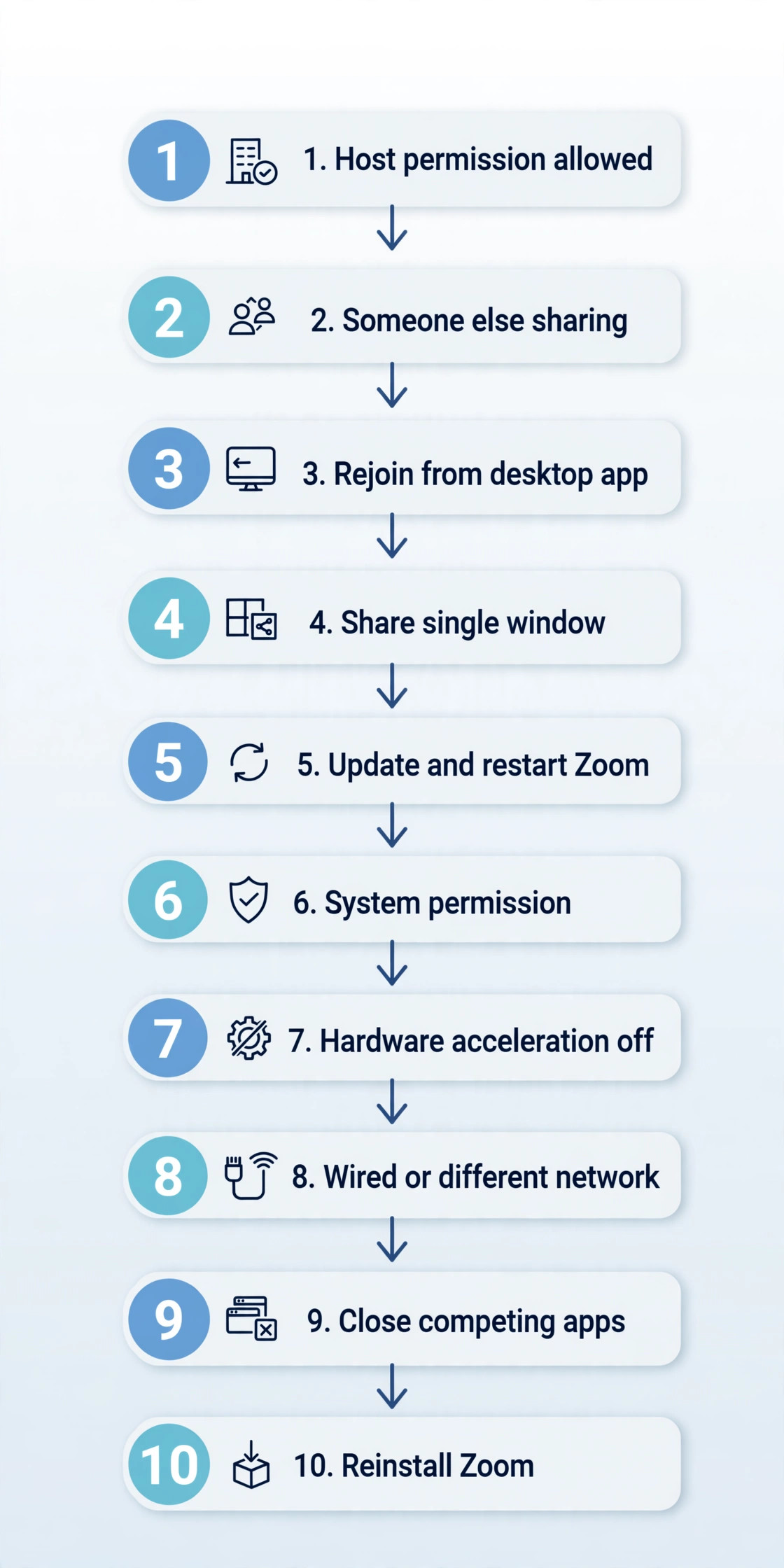
Work from the top down and test after each step. The order runs from fastest to deepest on purpose. A permission fix takes seconds and needs no restart of the meeting, while a reinstall takes minutes and should never be the first move. If you are the guest, start at step 1 and hand the host steps 2 and 3. If you are the host, run steps 2 and 3 yourself before you ask anyone to reinstall anything.
- Confirm you are allowed to share. Ask the host whether sharing is set to all participants or host only. If the Share Screen button is greyed out, this is the cause in most cases, and no setting on your own machine will override it.
- Check whether someone else is already sharing. Zoom allows one participant to share at a time by default. Ask the current sharer to stop, or ask the host to allow multiple participants to share at the same time if the meeting genuinely needs it.
- Rejoin the meeting from the desktop app, not the browser. The web client has a reduced feature set and behaves differently for screen sharing, so a share that fails in a browser tab may work at once in the installed app.
- Share a single window instead of the whole screen. If a window share works while a full screen share fails, the problem is tied to the capture method or to one app on the screen, not to your whole machine.
- Update Zoom, then restart it fully. Click your profile picture, choose Check for Updates, install what it offers, and then quit and reopen Zoom. A restart matters because permission and update changes often do not take effect until the app relaunches.
- Check the operating system permission. On a Mac this means Screen Recording permission for Zoom, and on Windows it means confirming Zoom is allowed to capture the screen and that no privacy or security tool is blocking it. Details for each system follow later in this guide.
- Turn off hardware acceleration and test again. In Zoom Settings, under Share Screen, change the advanced capture options and restart Zoom. If sharing starts working, the graphics path was the fault, and you can leave the setting changed.
- Test on a different network or with a wired connection. A share that starts and then freezes, pixelates, or drops is usually a network problem, not a permission problem, and the network section later in this guide shows how to prove it.
- Close the apps that fight over the screen. Screen recording tools, remote desktop tools, and some security suites can hold the capture path open and block Zoom. Close them one at a time and test after each one.
- Reinstall Zoom as the last step. Uninstall the desktop app, download a fresh copy from the Zoom Download Center, and sign in again. Reinstall only after the earlier steps have failed, because it fixes a damaged install and nothing else, and it will not fix a host setting or a missing permission.
The point of the order is diagnosis, not just repair. Step 1 rules out a host rule. Step 4 rules out a whole machine fault. Step 8 rules out a local setting and points at the connection. When you know what each step ruled out, you stop repeating fixes that already passed and you can describe the fault accurately if you ever need support.
Read the Symptom Before You Touch a Setting
Screen share failures fall into a small set of patterns, and each pattern points at a different gate. The table below is the fastest way to aim your effort. Find the row that matches what you and the other side actually see, then run the fix in the last column first.
| What you see | Likely cause | Who fixes it | First check |
|---|---|---|---|
| Share button greyed out | Host set sharing to host only | Host | Host sharing setting for participants |
| Share starts, viewers see black | Missing screen capture permission | Guest machine owner | Mac Screen Recording or Windows capture block |
| Share starts, then freezes | Weak or unstable network | Guest or host network | Wired test and bandwidth check |
| Only one app will not share | That app blocks capture or runs elevated | Guest machine owner | Window share of a different app |
| Share works in app, not browser | Web client limits | Guest | Desktop app instead of browser |
| Share fails after an update | Permission reset or app fault | Guest machine owner | Permission list and fresh restart |
| Everyone sees a low quality share | Bandwidth or optimisation setting | Guest | Optimise setting and connection speed |
A greyed out button deserves special attention because it is the most misread symptom in this whole topic. Guests spend twenty minutes reinstalling Zoom for a button that no reinstall can enable, because the host setting is the only gate. If you cannot click Share at all, stop and talk to the host. If you can click Share but viewers see nothing, the fault is on your machine, and the permission sections below are where you should look.
The black screen case has its own trap. Viewers who see a black rectangle while the sharer sees a normal desktop are usually looking at a permission failure, not a broken call. On a Mac, Zoom without Screen Recording permission can show its own interface but cannot capture the desktop, so the outgoing picture is empty. On Windows, a similar blank result can come from a security tool or from an app that runs with higher privileges than Zoom. The test is simple. Share a plain window, such as a text editor or a browser window, and ask one viewer what they see.
If a window share works and a full screen share does not, the capture path is partly working and the fault is narrower than it first looked.
Host Causes and the Exact Settings to Change
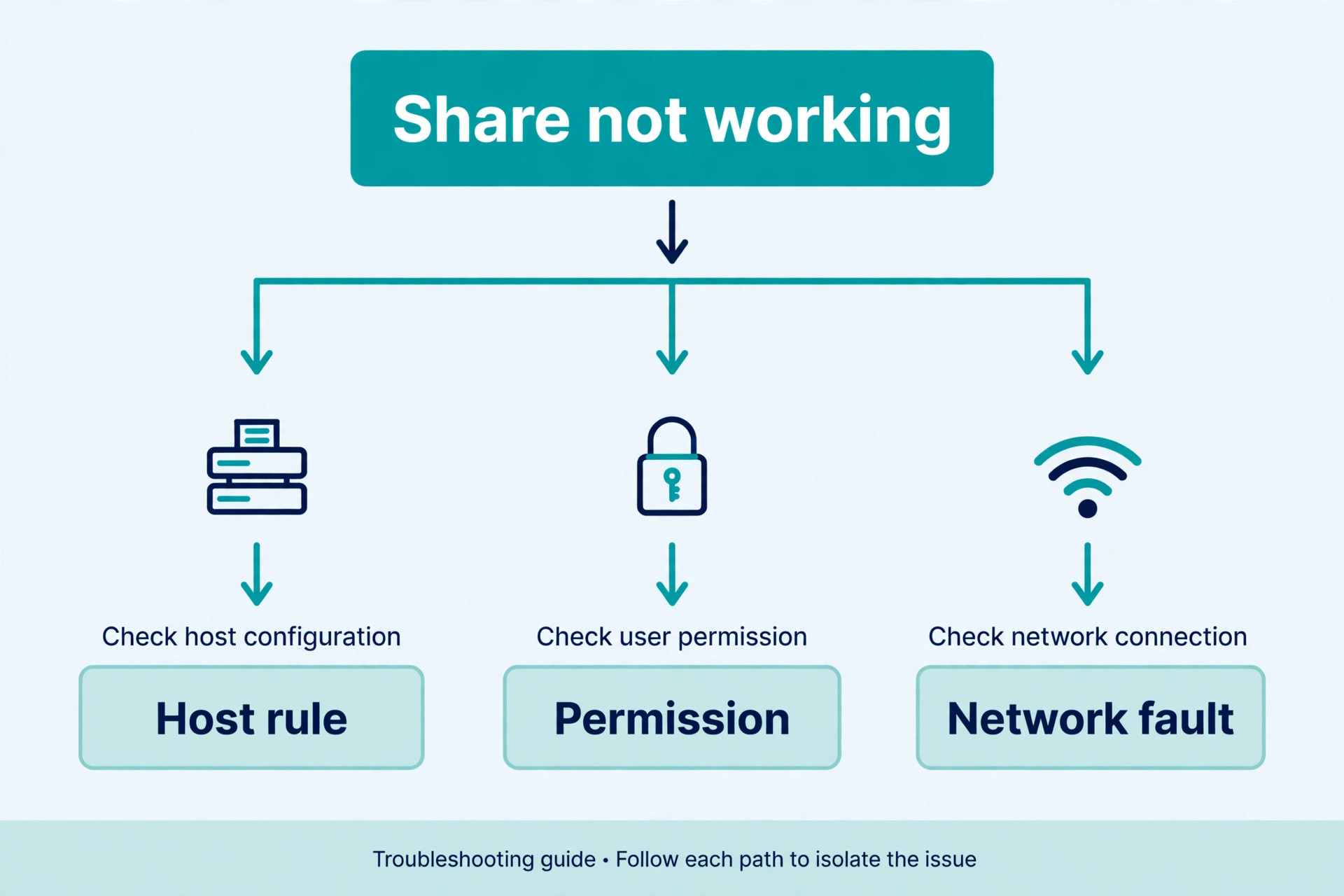
The host owns the first gate, and the host settings live in two places. The first is the meeting itself. During a meeting, click the up arrow beside the Share icon in the meeting controls toolbar, then open Host tools for share. There you will find the setting for who can share, with a choice between host only and all participants, and the setting for how many participants can share at a time. The default is one participant at a time, which is right for most meetings and wrong only when two people genuinely need to present side by side.
The second place is the host account settings on the Zoom website, where an admin can disable screen sharing for a whole account. If the in-meeting controls look correct but sharing still fails for everyone, the account level setting is the next place to check, and that check needs someone with admin access.
Hosts should also understand the co-host trap. That host setting check is the fastest way to fix Zoom screen share not working when guests cannot click Share at all. Making someone a co-host does not automatically fix a host only setting for everyone else, and a guest who was promised sharing rights in chat may still be blocked if the setting was never changed. Change the setting, then ask the guest to try again in the same meeting, without asking them to leave and rejoin first. If the button becomes clickable at once, the fix is confirmed.
If it stays greyed out, the guest is probably in the web client or on an old app version, and those are the next two things to check.
Security settings can also interfere from the host side. A meeting with a waiting room, a locked meeting, or a participant who joined under a different account can behave oddly, and a guest who is not recognised as a participant may not get the rights the host intended. If one guest cannot share while others can, compare how they joined. A guest who joined through a shared link on a different device, or who joined twice from a phone and a laptop, may be sitting in the meeting under the wrong identity. Ask them to leave fully and rejoin once, from the desktop app, under the name the host expects.

Guest Causes and What to Check on Your Own Machine
Guests own the second gate, and the guest checks divide into three groups. The first group is the app itself, meaning version, sign in state, and the in-meeting share options. The second group is the operating system permission, which is covered in full in the next two sections. The third group is the machine around Zoom, meaning other apps, graphics drivers, and the network. Working through them in that order keeps you from blaming the network for a permission fault or blaming Zoom for a graphics driver fault.
Start with the app version. An old client is a common reason people search for how to fix Zoom screen share not working after a meeting update. An old Zoom client can fail to share on a newer meeting configuration, and a client that has not been restarted after an update can behave like an old client. Click your profile picture, choose Check for Updates, and install what is offered. Then quit Zoom completely and reopen it. On Windows, quitting means closing the app, not just minimising it to the system tray, and on a Mac it means choosing Quit Zoom, not just closing the window. This habit clears a stale session and applies pending changes at the same time.
Next, look at the share options themselves. A wrong share option will not fix Zoom screen share not working on its own, but it can make a working share look broken, so set it deliberately. When you click Share Screen, Zoom offers a choice of desktop, window, whiteboard, and other sources, and each source has its own options. Two of those options cause regular trouble. The first is Share sound, which matters when you share a video and viewers hear nothing. The second is Optimise for video clip, which changes how Zoom encodes the share and can make a slide deck look worse if it is turned on for static content.
For a normal presentation, leave video optimisation off and share sound off, unless you are deliberately sharing a video. For a video, turn both on before you start, because toggling them mid share can force a restart of the share.
Also check the Share Screen tab in Zoom Settings before the meeting, not during it. That tab controls choices such as whether Zoom shows all sharing options when you click Share, whether it enters full screen when someone else shares, and the advanced capture settings that matter for the graphics fix later in this guide. Changing these during a live share can interrupt the share, so set them once, in a quiet moment, and then test them in a solo meeting with a second device or a willing colleague.
Mac Permission Checks That Actually Unblock Sharing
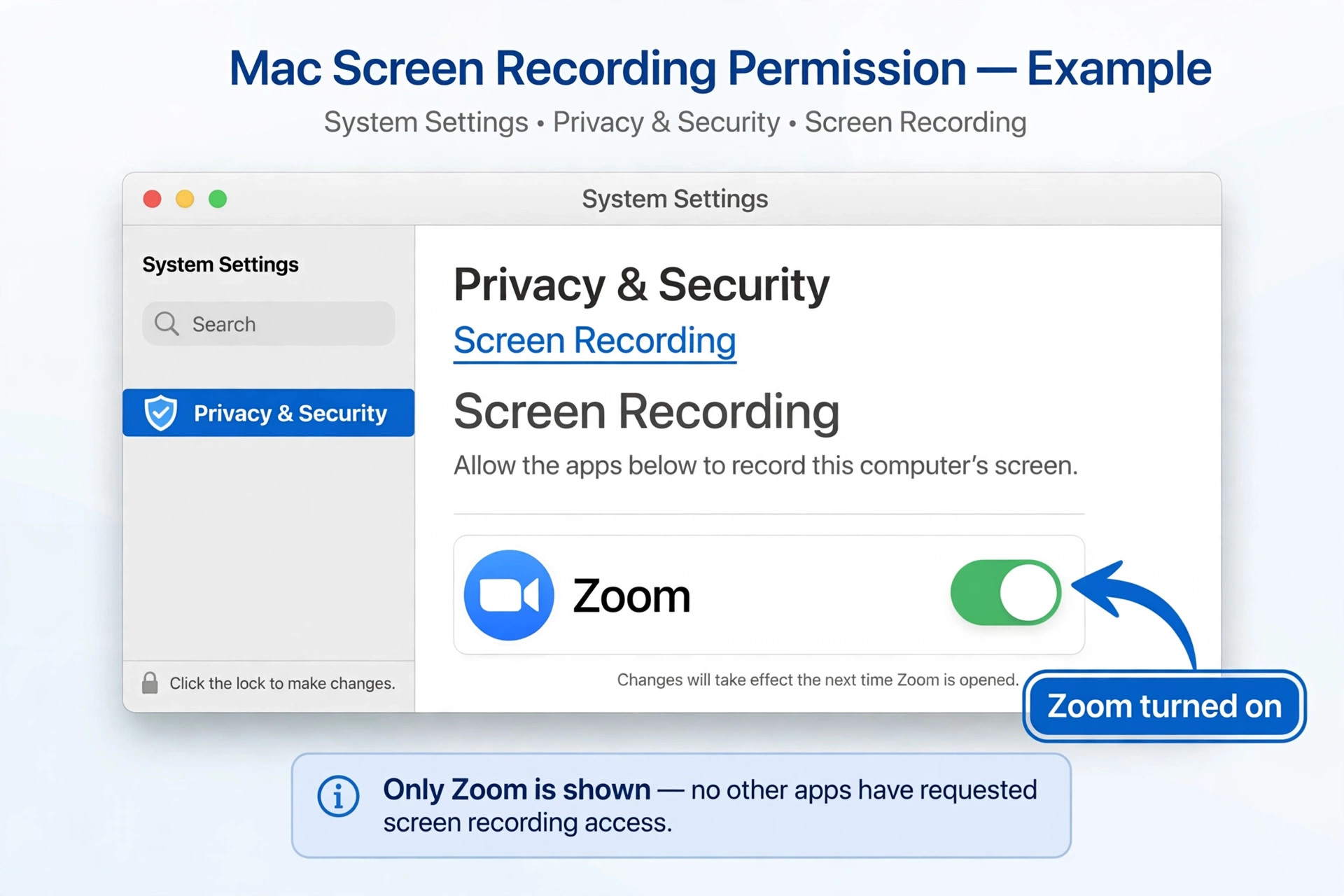
On a Mac, the permission that matters most is Screen Recording. macOS blocks apps from capturing the screen until the user grants that permission, and Zoom is no exception. Without it, you can join a meeting, use video and audio, and even click Share Screen, but viewers will see a black screen or nothing at all. The permission lives in System Settings, under Privacy and Security, then Screen Recording. If Zoom, listed as zoom.us, is not turned on there, turn it on. If it is already on but sharing still fails, turn it off and on again, then restart Zoom, because a permission granted while Zoom was running does not always take effect until the app relaunches.
The restart step is the one most people skip, and it is the reason Mac fixes appear to fail. Toggling the permission while Zoom is open can leave Zoom running under the old permission state. Quit Zoom fully, reopen it, rejoin the meeting, and test the share again. If the permission list does not show Zoom at all, click the plus button in the Screen Recording pane and add the Zoom app from the Applications folder, then restart Zoom. A Mac that has just been updated, or a Zoom install that has just been replaced, can lose the entry, and adding it back manually is the fix.
There are two more Mac checks worth running when the main permission looks right. The first is the camera and microphone permissions, which do not control screen sharing directly but can confuse the diagnosis when a guest reports that nothing works. Confirm Zoom appears under Camera and Microphone in the same pane, because a meeting where video, audio, and sharing all fail together points at permissions or account access rather than sharing alone. The second check is the macOS version itself. An old macOS release can fail to offer the permission cleanly, and the Software Update pane under General in System Settings will show whether an update is waiting.
Update macOS only when you have time before the meeting, never minutes before a live session, because an operating system update is a deep fix and a meeting fallback is a better choice in that moment.
Windows Permission Checks and Graphics Fixes
Windows does not gate screen sharing behind a single permission in the same way macOS does, so Windows faults are more varied and need a slightly wider check. Start in Zoom Settings, under the Share Screen tab, and confirm the sharing options are set as you expect. Then check the Windows privacy settings for screen capture and camera access, because a privacy tool, a group policy on a work machine, or a security suite can block Zoom from capturing the screen without showing a clear error. On a work laptop, the block may be a company policy, and in that case the fix needs the IT team, not another reinstall.
Asking IT early saves the meeting, because no local setting can override a managed policy.
Graphics drivers are the next Windows check, and they matter more than most guests expect when you try to fix Zoom screen share not working on a Windows machine. An outdated or damaged graphics driver can break the capture path that Zoom uses, especially for full screen sharing and for sharing video. Open Device Manager, expand Display adapters, right click the graphics card, and choose Update driver, then let Windows search for a driver. Restart the computer after a driver change and test sharing again. If the driver update makes no difference, try the Zoom side of the graphics path.
In Zoom Settings, under Share Screen, open the advanced options and change the hardware acceleration and capture method settings, restarting Zoom after each change. One of those combinations usually unblocks a share that fails only on one machine, and that pattern points firmly at graphics rather than at Zoom or the network.
A Windows pattern that fools people is the elevated app problem. An app that runs as administrator can sit above Zoom in privilege terms, and Zoom may be unable to capture its window. The symptom is precise. Every window shares fine except one app, usually a work tool or a security sensitive program. The test is to share a different window. If that works, the fault is the elevated app, not Zoom. The fix is to run Zoom as administrator as well, or to share the whole screen instead of that single window, or to present the content from a different app.
Do not turn off security software to work around this without understanding the risk, and on a work machine ask IT before changing privilege settings.
App version problems are quiet. Zoom does not always announce that an old client cannot share in a new meeting, and the symptom can be a share that starts and then stops, or a share button that works for slides but fails for video. The reliable habit is to check for updates before important meetings, not after a failure. Click your profile picture, choose Check for Updates, and install what is offered. Then restart Zoom. If you manage a team, ask everyone to do this before a training day or a client presentation, because one old client in a group call can absorb the whole meeting while everyone else troubleshoots.
Settings that break a good call usually sit in three places. The first is the Share Screen tab in Zoom Settings, covered above, where the capture method and full screen behaviour live. The second is the Video tab, where hardware acceleration and camera choices live, and where a wrong camera choice can make a guest think sharing is broken when the real fault is video. The third is the meeting itself, where the host tools control who can share and how many can share at once. When a share fails, check those three places in that order, and change one setting at a time, testing after each change.
Changing five settings at once may fix the share, but you will not know which change mattered, and the fault will return the next time that setting resets.
Two share options deserve a deliberate choice before you present. Share sound matters only when the content has audio, and turning it on for a slide deck adds nothing while adding a small amount of load. Optimise for video clip matters only when the content moves, and turning it on for static slides can soften text and make a deck look worse. The right default for most meetings is both off, and the right choice for a video is both on. If viewers report that your slides look blurry, check the optimisation setting first, before you blame the network, because a share that is encoded as video will always look softer on text than a share encoded as slides.
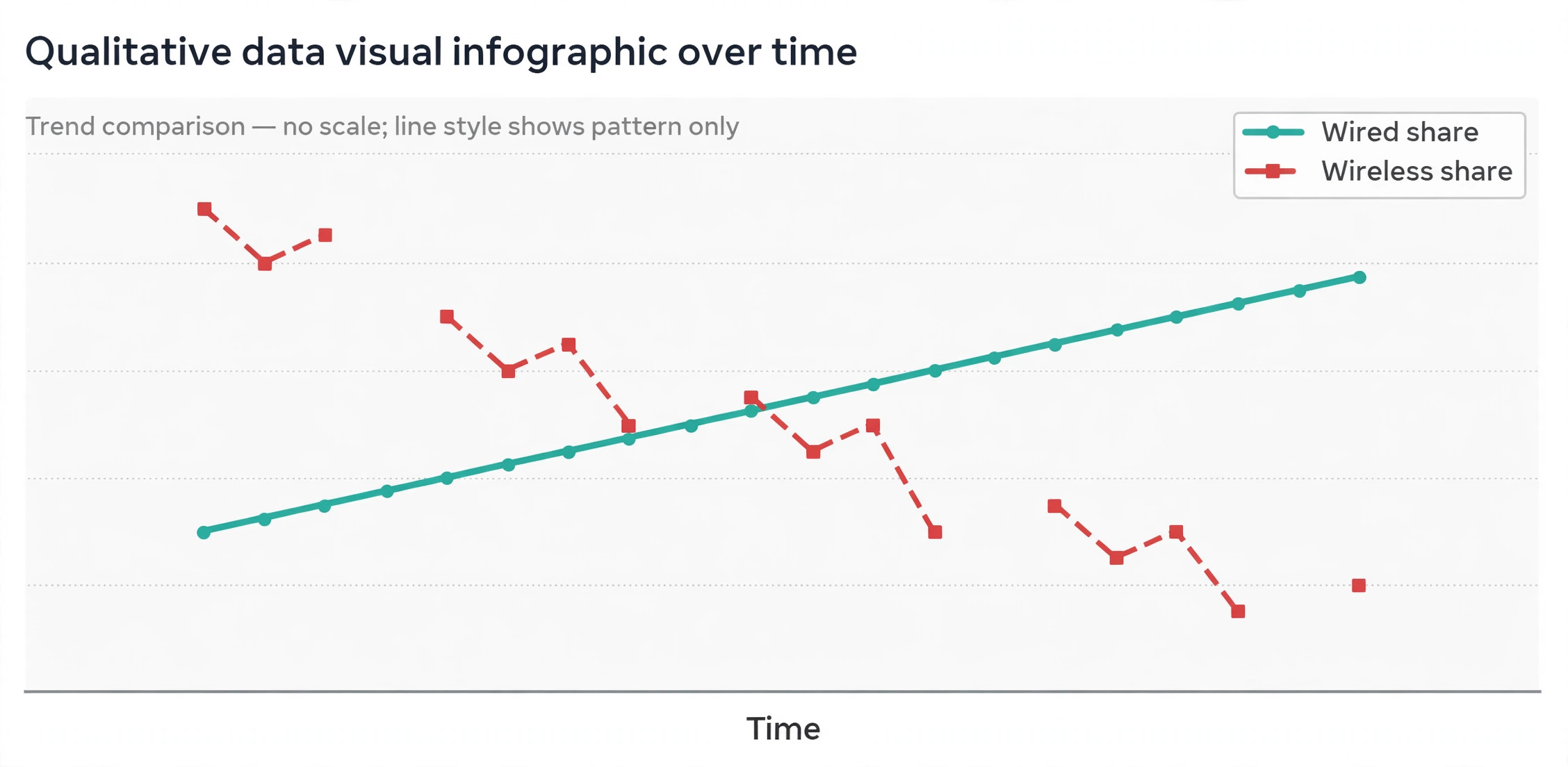
Network faults look different from permission faults, and telling them apart saves a lot of wasted effort. A permission fault blocks the share from starting or shows a black screen from the first second. A network fault lets the share start, then freezes it, pixelates it, or drops it when the content moves. If your share works for a static slide but falls apart for a scrolling page or a video, suspect the network first. If it never starts at all, suspect a permission or host setting first, and do not spend the meeting running speed tests.
Start with the simplest network test. If you are on Wi-Fi, move closer to the router or plug in an ethernet cable and test again. A wired test rules out Wi-Fi interference in one move, and it is the most honest test in this whole section. If the share improves on a cable, the fault is the wireless path, and the fixes are a closer position, a less crowded channel, or a permanent wired setup for presenting. If the share is just as bad on a cable, the fault is the internet connection itself or the machine, and the next tests narrow it further.
Next, run a speed test and a stability test, and read both numbers, not just the headline speed. A connection can show a high download speed and still fail at sharing, because sharing depends on upload speed and on stability. Video sharing needs a steady upload, and a connection that drops packets will freeze a share even when a speed test looks fine. Close cloud backups, large downloads, and other video calls during the test, because those compete for the same upload. If other people in the same household or office are uploading large files, ask them to pause during your presentation, and test again.
A share that recovers when the upload clears is a capacity fault, not a Zoom fault.
Some meetings cannot wait for a full diagnosis, and the fallback plan matters as much as the fix. The first fallback is to switch the host. The current host can make another participant the host, or a co-host, and that person can share instead. This works when the fault is tied to one machine, which is the common case, and it takes seconds. Agree the switch in chat or by voice, hand over host rights, and let the new host share. If the new host shares cleanly, the meeting continues and the original fault can be diagnosed afterwards, without an audience watching.
The second fallback is to share the file instead of the screen. Send the slide deck, the document, or the spreadsheet through Zoom chat or email, and let viewers open it on their own machines while you talk through it by voice. This is less polished than a live share, but it keeps the content in front of everyone, and for a slide deck it is often just as effective. Name the file clearly, tell viewers which slide you are on, and move through it at a pace that lets them follow. A shared file also survives a network fault better than a live share, because viewers already have the content locally.
If screen sharing is only one part of a wider video call problem, the next guides to read are the ones that match the symptom you see next. A call with echo is covered in the Zoom audio echo guide, a connection fault that also freezes a share is covered in the Wi-Fi dropping guide, and a team choosing a meeting tool can compare Zoom against Google Meet and Zoom against Microsoft Teams. Keep this guide bookmarked for the next share failure, because the fix order checklist above is the part you will reach for first, and it works whether the fault is a host setting, a permission, or a network.
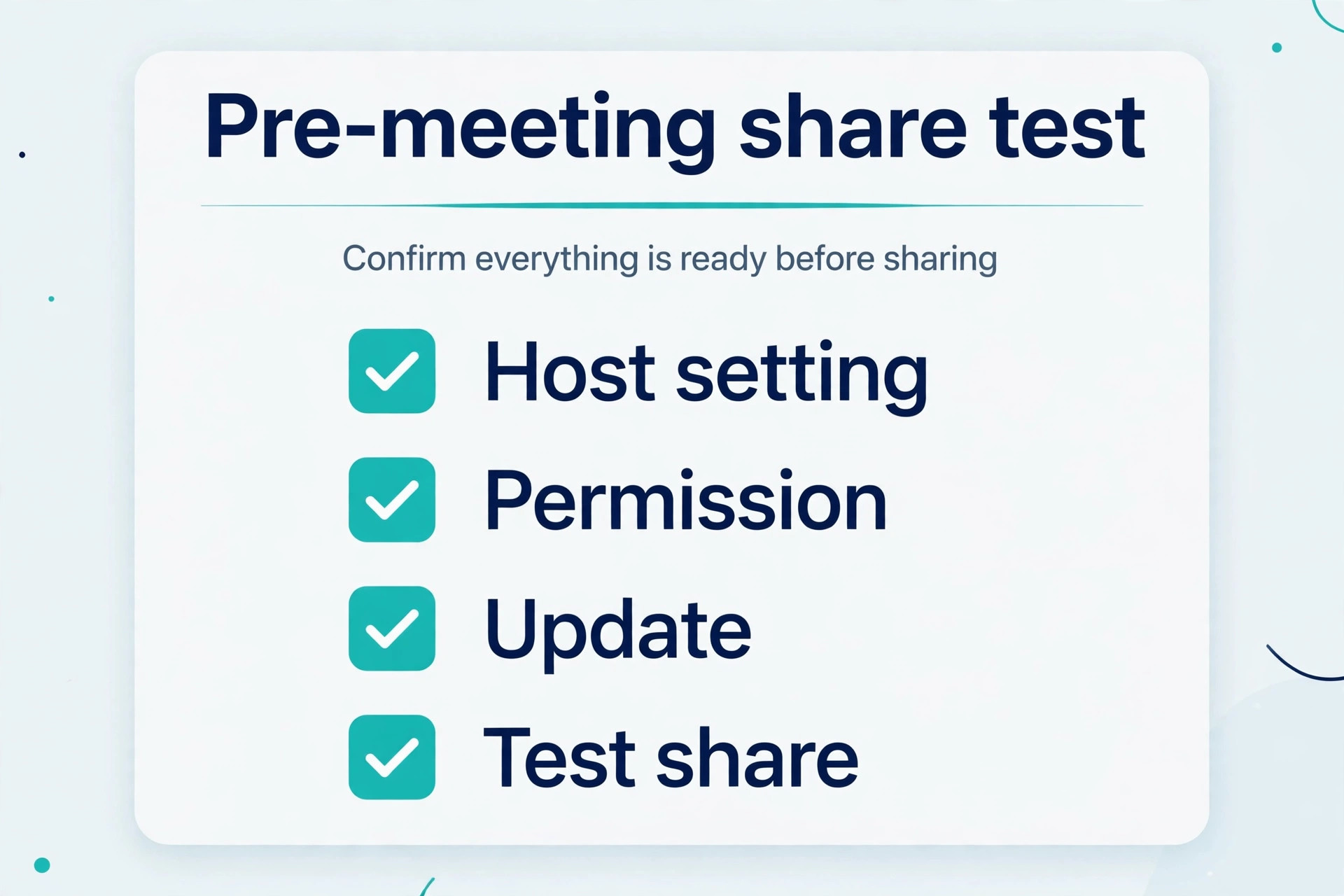
To fix Zoom screen share not working as a habit rather than a panic, run the pre meeting check in the closing section every time sharing matters.
Frequently Asked Questions
The button is greyed out when the host has set sharing to host only, or when someone else is already sharing and the meeting allows only one share at a time. Ask the host to change the setting to all participants, or ask the current sharer to stop. If the button stays greyed out after the host changes the setting, leave and rejoin from the desktop app.
A black screen usually means Zoom does not have permission to capture your screen. On a Mac, grant Screen Recording permission to Zoom in System Settings under Privacy and Security, then quit and reopen Zoom. On Windows, check for a security tool, a privacy policy, or an elevated app blocking capture, and test a single window share to see whether the fault is the whole screen or one app.
Video and screen sharing use the connection differently, so a share can freeze while video looks fine. A share that freezes on movement, scrolling, or video points at upload speed or packet loss, not at a permission. Test with a wired connection, close uploads and other video calls, and try a phone hotspot to see whether the fault follows the machine or the network.
Do I need to restart Zoom after changing a permission?
Yes, in most cases. On a Mac, a Screen Recording permission granted while Zoom is running often does not take effect until Zoom is quit and reopened. The same habit helps after an update and after a graphics setting change. Quit Zoom fully, reopen it, and rejoin the meeting before you declare a fix failed.
A guest can share only if the host setting allows it and the meeting is configured to let participants share without the host. In a meeting set to host only, a guest cannot share until a host or co-host changes the setting or hands over host rights. If you run meetings where guests must present, set sharing to all participants before the meeting starts, so no one has to wait for a host intervention.
Should I reinstall Zoom if screen sharing fails?
Reinstall only after the host setting, the permission, the app version, and the network tests have all passed and sharing still fails. A reinstall fixes a damaged Zoom install, and it will not fix a host rule, a missing permission, or a weak network. Work through the fix order in this guide first, and treat reinstall as the last step, not the first.
The habit that prevents most share failures is a two minute check before the meeting starts. Confirm the host setting, confirm the permission, update Zoom, and test a share in a solo meeting or with one colleague. That check costs less time than a single failed share costs in front of a client, and it catches the two gates that cause most failures. To fix Zoom screen share not working under pressure, remember the order. Host permission first, operating system permission second, app version third, and network last. Everything else in this guide is detail around that order, and that order is what turns a stressful failure into a short, calm fix.