

The printer hums, the paper feeds, the page comes out, and there is nothing on it. No error, no jam, no warning light that explains itself, just a clean sheet where your document should be. That blank page is more frustrating than a jam, because a jam tells you what went wrong, while a blank page hides the cause among ink, nozzles, drivers, settings, and the document itself. Before you buy new cartridges or a new printer to fix printer printing blank pages, work the causes in order, because most blank page problems end at a clogged nozzle, an empty cartridge the gauge misread, or a setting that printed white on white.
If you want to fix printer printing blank pages, start with the cheapest checks and the simplest test document, and let each test rule out one layer before you move to the next.
Blank pages have two families of causes, and separating them early saves money. Hardware causes mean ink is not reaching paper, through empty cartridges, clogged nozzles, dried printheads, protective tape left on a new cartridge, or a faulty cartridge. Software causes mean the printer is working but the job tells it to print nothing, through a wrong paper size, a draft or grayscale setting, white text, a corrupted driver, a stalled print queue, or a document that itself contains blank pages. A test page printed from the printer control panel, without any computer involved, separates those families at once. If the printer own test page is blank, the cause is hardware.
If the test page prints fine but documents from the computer come out blank, the cause is software, and no amount of cleaning will fix it.
Ink Levels, Cartridges, and the Tape People Forget
Check ink first, but check it properly, because gauges lie in both directions. On ink tank printers, look at the physical ink windows and compare the level with the upper and lower lines, since a software gauge can read stale data after a refill. On cartridge printers, open the maker utility on the computer, or the ink menu on the printer screen, and read each colour separately. A printer can report black as full while a colour is empty, and a document that needs that colour, or a grayscale job that mixes colours, can come out blank or nearly blank.
Replace any cartridge that is genuinely empty, and reseat cartridges that look full but sit loosely, since a poorly seated cartridge may not feed ink at all.
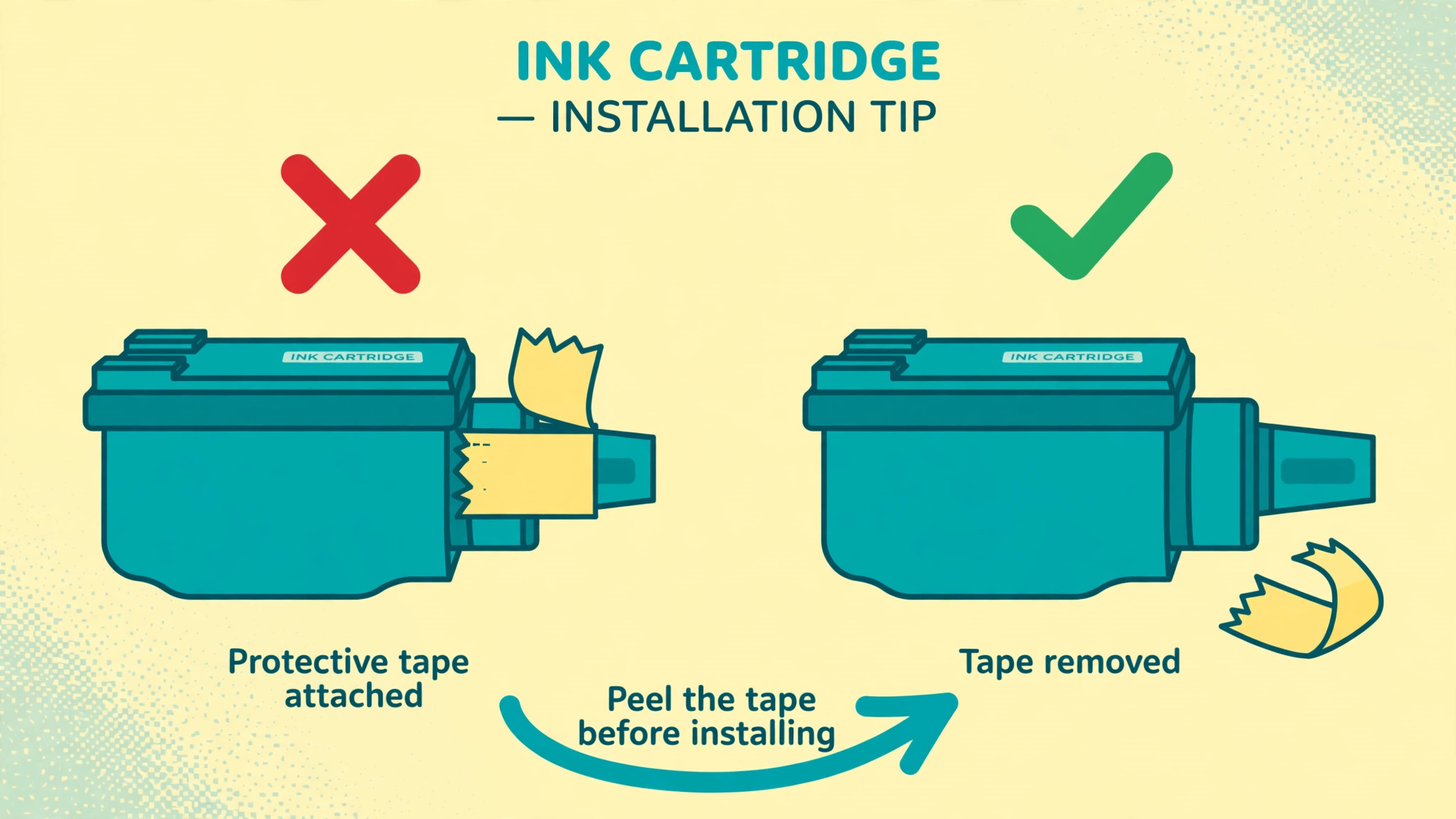
New cartridges carry a trap that catches even experienced users. Most new cartridges ship with a protective tape or clip over the ink outlet and the air vent, and leaving any part of it in place blocks ink flow completely. Remove the cartridge, inspect it under good light, peel off all tape and remove any clip, and check the vent hole is open. Reinstall the cartridge firmly until it clicks, and run a test print. Epson guidance also notes that printing when tank levels are too low to see in the windows can starve the printhead, and in that case refilling to the upper lines and running a power ink flush may be needed to replace ink inside the tubes.
Do not run a power flush casually, since it uses a lot of ink, but know that it exists for a genuinely starved system.
Also check cartridge age and compatibility. An old cartridge that has sat unused for months can have dried ink at the outlet even when the gauge reads ink remaining. A third party cartridge that the printer does not recognise, or that fits poorly, can report full while delivering nothing. Test with a genuine cartridge from the printer maker if you suspect compatibility, since that test separates a cartridge fault from a printer fault. Keep the old cartridge for comparison, and note its install date, because a cartridge that worked for months and then failed after a long idle period is a drying story, while a cartridge that never worked from install is a tape, seating, or compatibility story.
Fix Printer Printing Blank Pages in Order
Work this list top to bottom, printing a test page after each step that changes hardware or settings. Stop as soon as print returns.
- Print a test page from the printer control panel, with no computer involved, to separate hardware from software causes.
- Check ink levels physically and in the maker utility, reseat cartridges, and remove all protective tape from new cartridges.
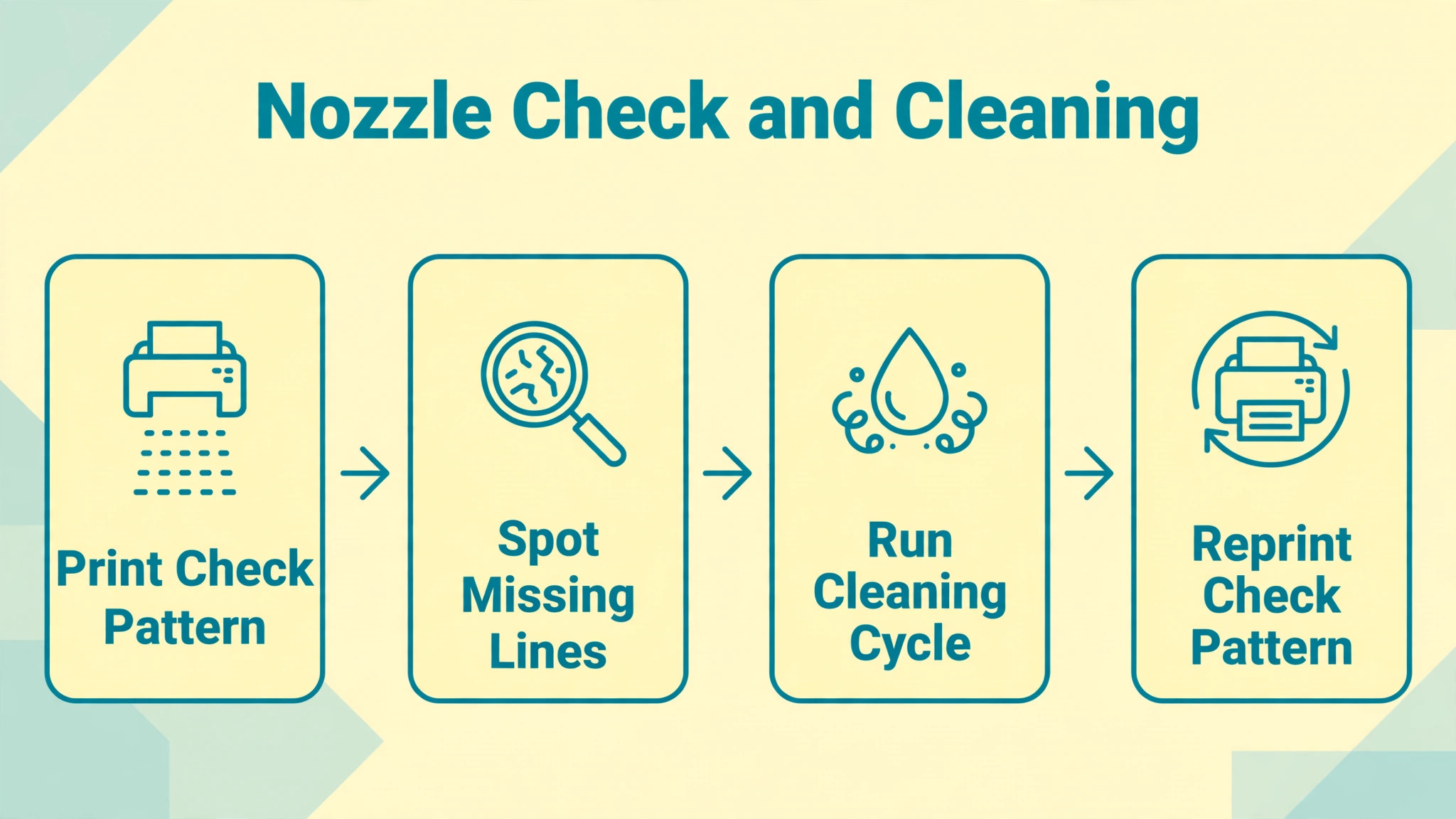
- Print a nozzle check pattern and look for missing lines or missing colours.
- Run one printhead cleaning cycle from the maintenance menu, then print another nozzle check.
- Repeat cleaning and nozzle check alternately up to three times, with a pause between cycles, and stop if ink is dropping fast.
- Check paper size, orientation, colour mode, and draft mode in the print dialog, and print a simple one page text document.
- Clear the print queue, restart the printer and the computer, and print the test document again.
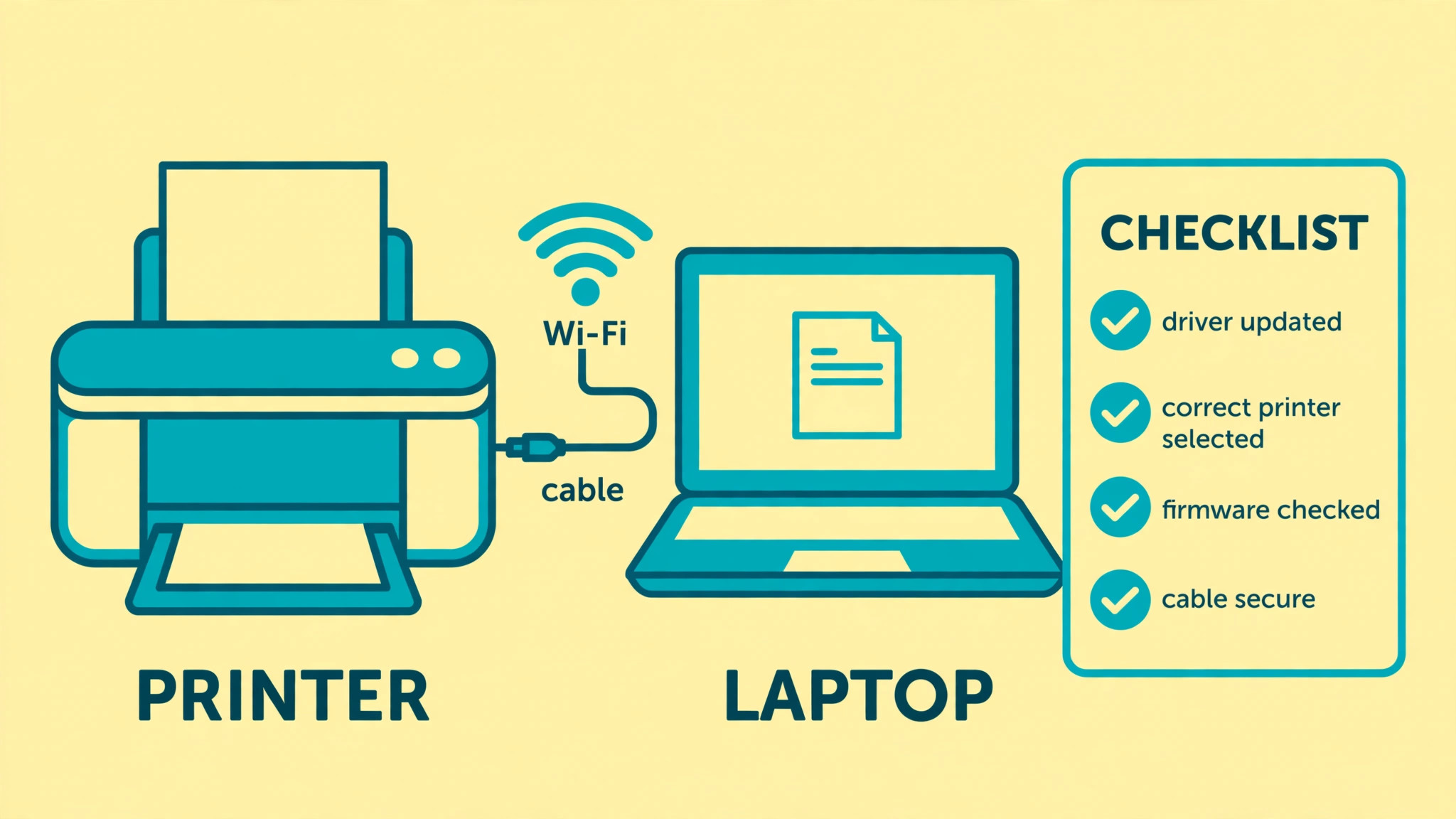
- Update or reinstall the printer driver from the maker support site for your exact model.
- Try a different document, a different app, and a different connection, such as USB instead of Wi-Fi, to isolate the job.
- Leave the printer off for several hours or overnight if clogging persists, then run one more nozzle check before seeking service.
The order protects ink and time. Cleaning uses ink, so it comes after the free checks and before driver work, but it should not be repeated endlessly. Three alternating cycles is the sensible limit for most makers, and Epson documentation for some models allows three to four cycles before a rest period. Beyond that, you are spending ink without improving the pattern, and a rest period or a service check is more productive than a fifth cleaning.

Nozzle Checks and Printhead Cleaning Done Right
A nozzle check pattern is the diagnostic that matters most for blank pages, and it should be printed before and after every cleaning. The pattern prints small lines or blocks for each colour, and missing segments show exactly which nozzles are clogged. Print the pattern from the printer maintenance menu or the maker utility, hold it up to good light, and compare each colour block. A pattern with a few gaps means partial clogging, and one cleaning cycle may fix it. A pattern that is completely blank means either no ink is reaching the head at all, or the head is severely clogged, and cleaning alone may not be enough without checking cartridges and tape first.
Run cleaning correctly. Use the standard cleaning cycle from the maintenance menu, not a deep cleaning or power flush as the first step, since standard cleaning uses less ink and fixes most clogs. Wait for the cycle to finish completely, do not open the printer or cancel mid cycle, and print a nozzle check immediately afterwards. If the pattern improves but is not perfect, run one more cycle and check again. If the pattern does not improve at all after three cycles, stop cleaning and let the printer rest.
Epson guidance for stubborn clogs recommends turning the printer off for at least six to twelve hours, depending on model, and then checking again, because resting allows dried ink to soften and the head to recover without further ink loss.
Deep cleaning and power ink flushing are stronger tools with real ink costs, and they should be used sparingly. A deep cleaning uses significantly more ink than a standard cycle, and a power flush replaces ink throughout the tubes, which can empty a tank noticeably. Use them only when standard cycles and a rest period have failed, when tank levels are adequate, and when the printer maker documentation for your model recommends them. After any deep clean or flush, print a nozzle check before printing documents, so you do not waste paper and ink on a job that will still come out blank.
Paper Settings, Print Dialog Traps, and the Document Itself
Software settings cause blank pages more often than users expect, and they are invisible until you open the print dialog carefully. Check paper size first. If the document is set for one size and the printer is loaded with another, or the driver paper size does not match the loaded paper, the job can misplace content or print blank. Set the paper size in both the document and the driver to the size actually loaded, and check orientation, so a sideways document is not squeezed onto an upright page in a way that hides content.
Check colour and quality settings next. A document printed in grayscale with an empty black cartridge, or with a colour management setting that maps text to a missing colour, can come out blank even though colour cartridges are full. Print a simple black text document as a test, with colour mode set to normal and draft mode off, since draft mode uses minimal ink and can look blank on some papers. Also check for white text, hidden text, or a document that contains blank pages between content pages, which is common in documents converted from other formats. Print page by page, or print a single known good page, to separate a document fault from a printer fault.
The print queue deserves a check too. A stalled job, a paused printer, or a job sent to the wrong printer can produce blank output or no output that looks like blank output. Open the queue, cancel all jobs, restart the printer and the computer, and send a fresh simple job. If the fresh job prints but the original document does not, the original document or its app is the cause, and recreating the document or printing it from a different app will confirm that. Always test with a different document and a different app before concluding the printer is at fault, because a single corrupted file can waste hours of hardware troubleshooting.

Drivers, Connections, and Firmware
A corrupted or outdated driver can send a job the printer cannot interpret, and the result is often a blank page rather than an error. Reinstalling the driver cleanly is the fix, and it should be done from the maker support site for your exact model, not from a generic driver site. On Windows, remove the printer from Devices and Printers, restart the computer, download the current driver, and install it with the printer connected as instructed. On Mac, remove the printer from Printers and Scanners, restart, and add it again, letting the system fetch the current driver. After reinstalling, print the simple test document before the original document, so a driver fix is proven on a clean job.
Connection type can isolate the fault as well. A Wi-Fi job that fails while a USB job prints points at network, spooling, or wireless driver behaviour, not at ink or nozzles. Test with USB if you can, even temporarily, and test from a second computer or phone if one is available. A job that prints from one device but not another points at the first device driver or queue, while a job that fails from every device points at the printer itself. Keep that distinction in mind before cleaning again, since cleaning will not fix a network or driver fault.
Firmware updates for the printer itself can fix printhead behaviour, ink sensing, and communication bugs, but they should be applied carefully. Check the maker support site for your model, apply firmware only from the maker, and do not interrupt the update or turn the printer off mid update. After a firmware update, print a nozzle check and a test page before resuming normal work. A firmware update that is interrupted can leave a printer in a worse state than a clog, so treat it as a deliberate step with the printer plugged into mains power and idle.
Inkjet Versus Laser, and Why the Fix Differs
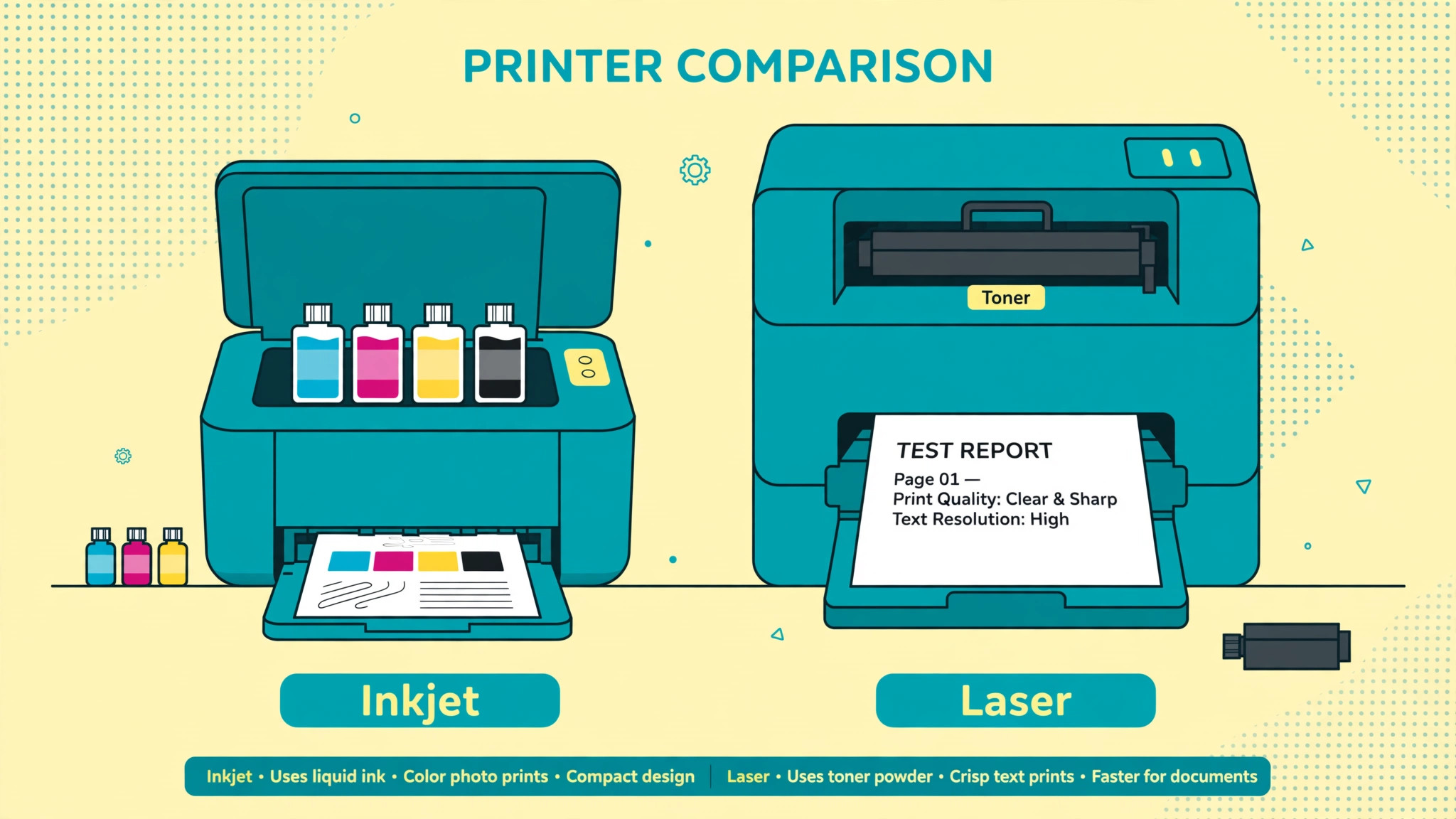
Blank pages mean different things on inkjet and laser printers, and applying an inkjet fix to a laser printer wastes time. Inkjet printers spray liquid ink through tiny nozzles, so clogging, drying, and ink starvation are the main hardware causes, and nozzle checks and cleaning cycles are the main tools. Laser printers fuse dry toner onto paper with heat, so a blank page more often means an empty or faulty toner cartridge, a damaged drum, a transfer problem, or a fuser fault, and there is no nozzle to clean. Know which type you own before you start, because the maintenance menu and the parts are completely different.
For laser printers, check toner level and drum life in the maker utility, reseat the toner cartridge, and inspect it for damage or leaking toner. Shake a low toner cartridge gently from side to side as a temporary test, since toner can settle unevenly, but treat that as a diagnostic, not a permanent fix, and replace a genuinely empty cartridge. Check that the protective strip was removed from a new toner cartridge, just as with ink, and inspect the drum for scratches or light damage, since a damaged drum can print blank or streaked pages.
If toner and drum look fine but pages stay blank, the transfer roller or fuser may be at fault, and those parts usually need service rather than user cleaning.
For inkjet printers, idle time is the enemy. Ink dries in nozzles when a printer sits unused for weeks, especially in a hot or dry room, and the first print after a holiday is the classic blank page case. Print a nozzle check weekly if the printer is idle, or at least print a small colour page every week or two to keep ink moving. Store spare cartridges sealed and upright, keep the printer on a flat stable surface, and avoid tilting it, since Epson guidance notes that a tilted printer may not operate properly. A printer that prints regularly rarely clogs badly, while a printer that prints rarely clogs exactly when you need it most.
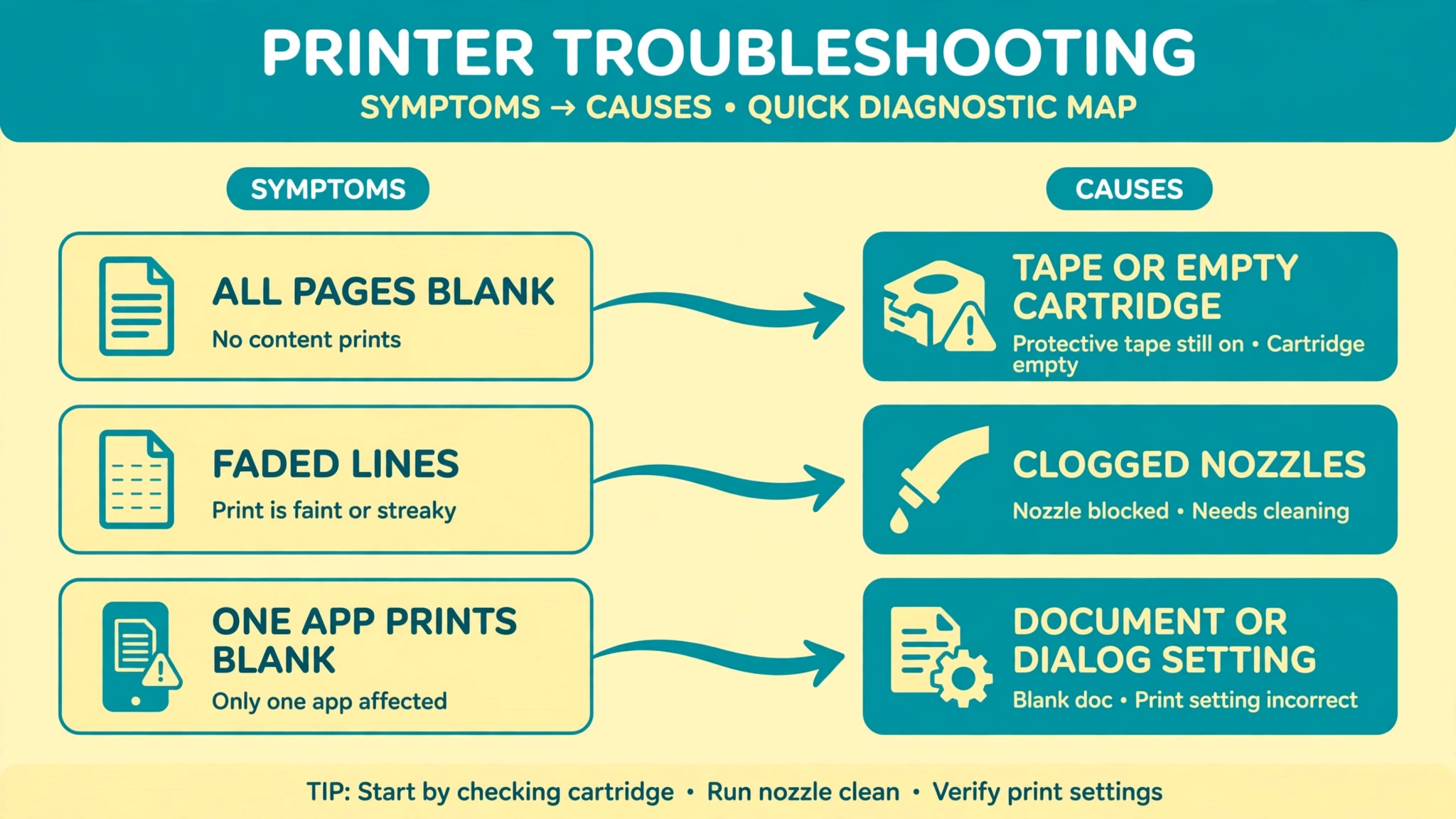
Symptom Guide for Blank Pages
| What you see | Most likely cause | First move |
|---|---|---|
| Printer test page blank, documents blank | Hardware ink or nozzle fault | Check ink, tape, nozzle pattern, cleaning |
| Printer test page fine, documents blank | Driver, settings, or document fault | Simple test document, driver reinstall |
| Some colours missing, others print | Partial nozzle clog for that colour | Nozzle check, targeted cleaning cycles |
| Blank after long idle period | Dried nozzles | Cleaning cycles with rest period |
| Blank after new cartridge install | Tape, seating, or compatibility | Remove tape, reseat, test genuine cartridge |
| Blank only from one app or computer | App, driver, or queue fault | Different app, different device, queue clear |
| Blank on laser printer with toner left | Drum, transfer, or fuser fault | Inspect drum, reseat toner, seek service |
Use the test page result as the fork in the road. Everything before that fork is guessing, and everything after it is targeted. Note the test page result, the nozzle pattern, and the cartridge state together, because a service technician will ask for all three if the problem reaches them.
Mistakes That Waste Ink and Time
The first mistake is running cleaning cycles endlessly. Each cycle uses ink, and after three cycles without improvement, further cycles rarely help and can empty a cartridge that was not the problem. Pause, rest the printer, check cartridges and tape again, and only then consider a deep clean or a service check. Ink spent on pointless cleaning is ink that cannot print documents later.
The second mistake is replacing cartridges before checking the nozzle pattern. A full set of new cartridges will not fix a clogged printhead, and a clogged printhead will make new cartridges look faulty. Print the nozzle check first, clean if needed, and replace cartridges only when the pattern or the gauge shows a genuine empty or faulty cartridge. That order saves the cost of a cartridge set.
The third mistake is ignoring the document and the print dialog. Users who clean, replace, and reinstall for a document that contains white text or blank pages will fix nothing, because the printer was faithfully printing what it was told to print. Print a simple test document from a different app early, and let a successful test document redirect you to settings and files rather than hardware.
The fourth mistake is using a printer on an unstable surface or in a hot, dusty place and blaming the ink. Heat dries nozzles, dust enters the paper path, and tilting disturbs ink flow. Place the printer flat, stable, and away from direct heat and dust, and keep the paper path clean. Environment is a free fix that many users overlook while buying parts.
Keep the Printer Printing After the Fix
Print regularly, even a small colour page each week, to keep ink moving and nozzles clear. Keep spare cartridges sealed until needed, check ink levels before a large job rather than during it, and run a nozzle check before an important print run, such as invitations or reports. Those three habits prevent most blank page emergencies, because they catch a partial clog or a low cartridge while there is still time to fix it calmly.
Keep drivers current, but update them deliberately, not mid job, and note the driver version that works for your model. Keep the printer firmware updated from the maker site, and keep a simple test document saved for troubleshooting, so every future problem starts with a known good job rather than a complex original. A printer that is used weekly, kept clean, and tested with a simple document will rarely surprise you with a blank page, and when it does, the symptom table will point at the cause in minutes.
Printing From Phones and Tablets
Mobile printing adds a layer that desktop troubleshooting misses, because the phone app, the cloud print path, and the printer app each have their own settings. If documents print blank from a phone but fine from a computer, the phone path is the cause, not ink or nozzles. Start by printing the printer own test page to confirm hardware, then print a simple photo or note from the phone using the maker app rather than a third party share menu. Maker apps handle paper size, colour mode, and scaling more reliably than generic share printing, and a successful maker app print proves the phone can reach the printer correctly.
Check the phone print settings carefully, since mobile print dialogs hide options behind menus that desktop dialogs show plainly. Confirm paper size matches the loaded paper, colour mode is set to normal rather than a filtered or draft mode, and scaling is set to fit or actual size rather than a custom percentage that pushes content off the page. Also check whether the phone is printing from a cloud copy of the document that differs from the local copy, since a cloud version with blank pages will print blank no matter how good the printer is. Download the document to the phone first, open it, confirm the pages contain content, and then print from the local copy.
Network behaviour on phones differs too, because phones switch between Wi-Fi networks, mobile data, and VPNs more often than computers. A phone on mobile data cannot reach a Wi-Fi only printer, and a phone on a guest Wi-Fi network may be isolated from the printer on the main network. Confirm the phone and printer share the same Wi-Fi network name, turn off any VPN for the test, and move the phone closer to the router if the job stalls or prints blank.
When you fix printer printing blank pages from a phone, test the same document from the maker app, on the same network, with a simple page first, because that test separates a phone settings fault from a printer fault in minutes. A phone that prints a simple page correctly but not a complex document points at the document or its app, while a phone that prints nothing correctly points at the network or the maker app setup, and each pattern has a different next step. Keep the maker app updated, keep the printer firmware updated, and retest mobile printing after either update, since mobile print paths change with app versions more often than desktop paths do.
More Reading for Everyday Tech Fixes
If pages print again, the wider fix guides on Stratilyze cover the next home office problem in the same order. The guide to fixing a laptop keyboard that misses keys covers input problems, the guide to fixing Google Docs that will not save helps when documents themselves misbehave, the guide to fixing a smartwatch that will not sync applies the same test after each step method to wearables, and the guide to fixing a desk lamp for eye strain helps you set up a comfortable print and read space. Read the Google Docs guide next if documents print blank from one app but fine from another, since that pattern points at the file rather than the printer.
Frequently Asked Questions
Why is my printer printing blank pages when ink levels look full?
Gauges can read stale data, cartridges can sit loosely, tape can block a new cartridge, or nozzles can be clogged while ink remains in the tank. Gauge readings are a common reason people try to fix printer printing blank pages by replacing ink that was never empty. Print a nozzle check pattern first, reseat cartridges, remove all tape from new cartridges, and check tank windows physically on tank printers. A nozzle pattern with missing lines proves clogging, while a full pattern with blank documents points at driver or settings instead. Do not replace full cartridges until the nozzle pattern tells you ink is not reaching paper.
How do I fix printer printing blank pages on an Epson printer?
Start with a nozzle check, then run a standard head cleaning cycle and print another nozzle check. That check and clean pairing is the core method to fix printer printing blank pages on inkjet models. Repeat cleaning and checking alternately up to three times, with a pause between cycles. If clogging persists, turn the printer off for several hours or overnight and check again, since resting allows dried ink to soften. Refill tanks to the upper lines if levels are too low to see, and use a power ink flush only when the maker documentation for your model recommends it for a starved system, since it uses a lot of ink.
Can a driver cause blank pages?
Yes. A corrupted, outdated, or wrong driver can send a job the printer misinterprets, producing blank pages without an error. Driver faults are easy to miss when you try to fix printer printing blank pages, because the printer looks busy and normal while it prints nothing. Remove the printer from system settings, restart the computer, download the current driver from the maker support site for your exact model, and reinstall it. Print a simple test document after reinstalling, before the original document, to prove the driver fix on a clean job. A job that prints from USB but not Wi-Fi, or from one computer but not another, also points at driver or connection rather than ink.
How many times should I run printhead cleaning?
Three standard cleaning cycles, each followed by a nozzle check, is the sensible limit for most inkjet printers, with some maker guidance allowing a fourth cycle before a rest period. If the pattern does not improve after three cycles, stop cleaning, rest the printer for several hours, and check again. Endless cleaning wastes ink and can empty a cartridge without fixing a severe clog, a tape block, or a hardware fault that needs service. A rest period is more productive than a fifth cycle.
Why does my printer print blank pages after not being used for weeks?
Ink dries in nozzles during idle periods, especially in hot or dry rooms, so the first print after a break is the classic blank page case. Run nozzle checks and standard cleaning cycles, with a rest period if needed, and print a small colour page weekly in future to keep ink moving. Store spare cartridges sealed, keep the printer flat and away from heat and dust, and run a nozzle check before an important job after any idle period. Regular use is the best prevention for drying.
When should I seek service for blank pages?
Seek service when the printer test page stays blank after ink checks, tape checks, three cleaning cycles, a rest period, and a driver reinstall, when a laser printer shows drum or fuser symptoms, or when the printer shows a hardware error alongside blank output. Bring the nozzle pattern, the cartridge state, and the test page result, since those three facts let a technician diagnose quickly. A printhead that stays blank after proper cleaning and rest is usually a hardware fault, not a settings problem.
When the Page Finally Prints
Blank pages look mysterious because the printer appears to work, but the diagnosis is straightforward once you separate hardware from software with a test page. Ink, tape, nozzles, and settings cover almost every case, and each one has a test that proves it before you spend money. When you fix printer printing blank pages by checking ink physically, reading the nozzle pattern, and testing a simple document, you avoid the two expensive mistakes, which are replacing good cartridges and replacing a good printer.
Keep the routine going. Print weekly, check nozzles before big jobs, and keep a simple test document ready. A printer that is used, cleaned in moderation, and tested with a known good job will give you far fewer blank surprises, and when one appears, you will know exactly which layer to check first.