

More than 640 million people use Spotify each month, and a large share of them rely on downloads for commutes, flights, gym sessions, and places where the signal drops out. That is why a dead offline library feels so personal. You did the right thing, you downloaded the music in advance, and the app still greets you with greyed out tracks or a message that you are offline when you know you planned for exactly this moment. If you want to fix Spotify offline mode not working, the fastest route is not to reinstall the app first.
The fastest route is to work through the causes in order, from the account and the download itself, through storage and settings, and only then to the heavier resets that wipe your library.
This guide follows that order. You will check whether your subscription and sign in are actually eligible for downloads, confirm that the tracks really finished downloading, look at the device and storage limits that quietly remove downloads, adjust the settings that block offline playback, and finish with a clean reinstall done in a way that does not waste a second download of a huge library. Every step names what to look for and what a pass or a fail tells you, so you stop after the step that fixes your problem instead of doing all of them.
Why Offline Playback Stops Even When You Downloaded Everything
Offline playback is not a copy of a music file sitting on your phone. It is a licensed rental that the app must keep verifying, and that design explains most failures. Downloads on a Premium account are tied to your subscription, to the device they were saved on, and to a regular online check in. Spotify states that you need to go online at least once every 30 days to keep downloads, and that you can download up to 10,000 tracks on each of up to five devices. Break any one of those conditions and the app can hide or refuse tracks that are still physically present in its storage.
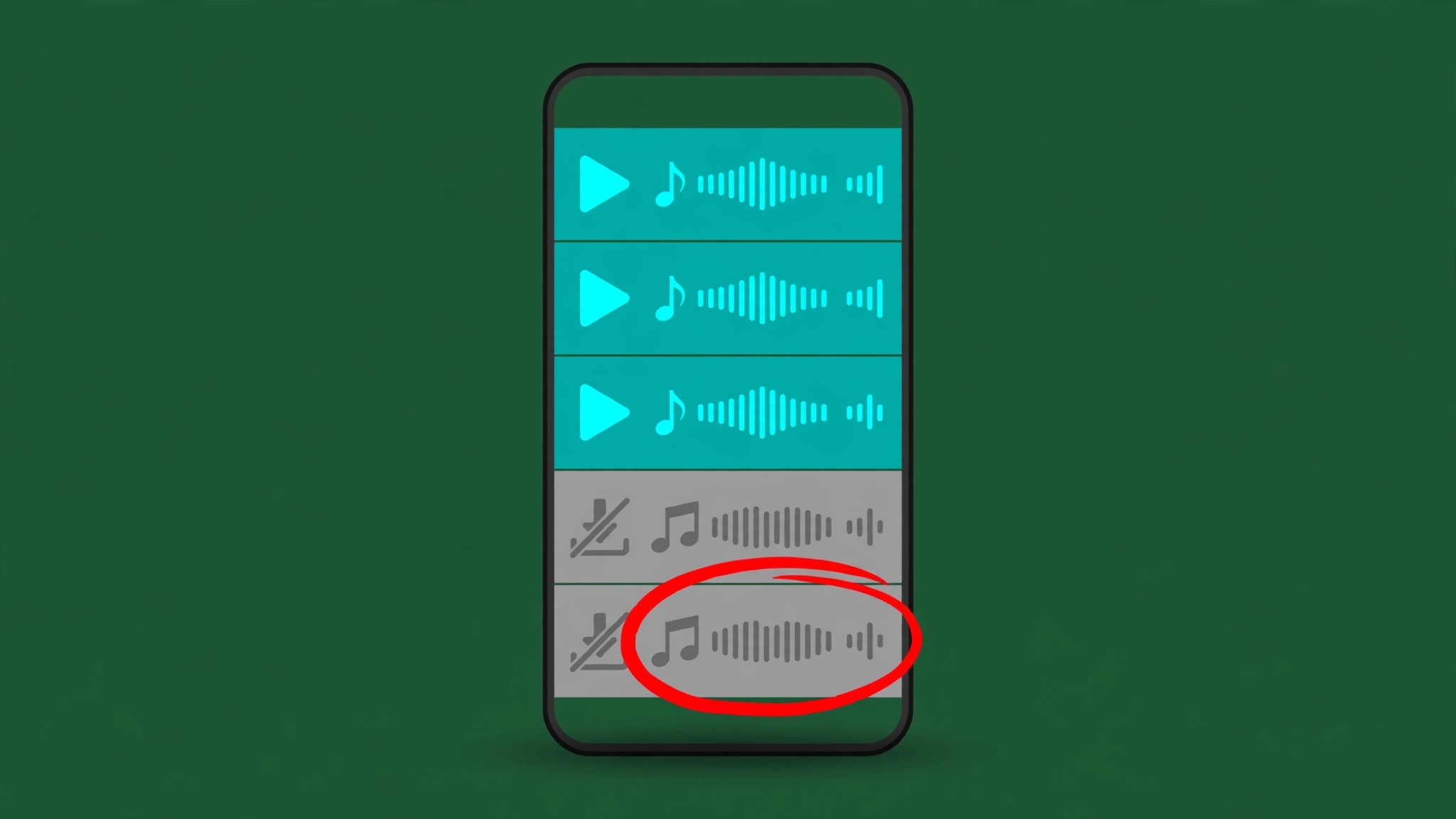
A second cause is the incomplete download. A playlist that looks downloaded may contain tracks that never finished, especially if the download ran on a weak connection, if the phone locked mid download, or if storage ran out partway through. Spotify marks a finished download with a green arrow on the playlist or album, but individual tracks inside a large playlist can still fail while the rest succeed. That is why one album plays offline and another does not, and why testing a single small playlist tells you more than staring at the library screen.
A third cause sits in the settings layer. Data Saver, battery optimisation, background restrictions, and the Offline Mode toggle itself can all stop playback or stop the app from finishing a download in the background. These settings rarely announce themselves. The app simply behaves as if the music is not there. Finally, there is plain corruption. An interrupted app update or a full storage drive can damage the local download cache, and in that case no setting will help until the cache or the app is rebuilt.
Check the Account First Before You Touch the App
Start with the account because it decides whether offline playback is even available to you. Downloads are a Premium feature, so a lapsed payment, a failed renewal, or a move off a Family or Duo plan removes offline access at once. Open Spotify on a device with a connection, tap your profile picture, and check the plan shown on your account page. If it shows Free, or if a recent payment failed, that is the whole answer, and no amount of cache clearing will restore downloads until the plan is active again.
Next, confirm that you are signed in to the right account. People with a personal account and a second account for a partner or a child often download on one and sign in on the other, then wonder where the music went. Downloads belong to the account that saved them, not to the device. Sign out and back in with the account that holds the Premium plan and the library you expect, then let the app sync for a minute before testing offline playback.
Also check the device count. If you have downloaded music on an old phone, a tablet, a work computer, and a family device, you may be at the five device limit. Spotify says downloads may be removed from the least recently used device when the limit is passed, which produces the confusing result of music vanishing from a phone you have not used in a while. If you no longer own a device, remove its downloads from the account side or contact Spotify support, since you cannot always reach the old device to clear it yourself.

Fix Spotify Offline Mode Not Working in Order
This is the checklist to follow from top to bottom. Test offline playback after each step by turning on flight mode and playing one downloaded playlist. Stop as soon as it works, because later steps are more disruptive and later steps delete downloads.
- Confirm Premium is active and you are on the right account, then restart the app.
- Connect to Wi-Fi, open the playlist, and check for the green downloaded arrow on every track you need.
- Turn Offline Mode off and back on in settings, then test again.
- Free up storage until at least 1 GB is free, since Spotify recommends at least 1 GB of free memory for the app.
- Clear the app cache from Spotify settings, restart the app, and redownload one test playlist.
- Check Data Saver, battery optimisation, and background data permission for Spotify on your phone.
- Remove downloads from an unused device if you are near the five device limit, then reconnect this device.
- Delete the problem playlist download and download it again on a stable Wi-Fi connection.
- Remove all downloads from settings, then download a small test playlist before rebuilding the full library.
- Reinstall the app as a last step, knowing it removes all downloads, then rebuild the library on Wi-Fi.
The order matters because it protects your time. Steps 1 to 4 take minutes and fix most cases. Steps 5 to 8 take longer but keep most of your library. Steps 9 and 10 are the nuclear options, and doing them first is how a ten minute fix turns into an afternoon of redownloading.
Confirm the Downloads Really Finished
A green arrow on a playlist header is a promise, not a guarantee for every track. Open the playlist while you are online and scroll through it. Tracks that failed to download often show a greyed out title or a missing arrow on the track row, and tapping one while online will usually finish it. For a large playlist, sort or filter to downloaded content only if your app version offers that view, and compare the track count shown on the playlist with the number you expect.
Download behaviour also changes with connection type. By default, many phones restrict large downloads to Wi-Fi, and a playlist started on mobile data may pause and never resume. Open settings, look for the download quality and download over cellular options, and if you are in a hurry, finish the download on Wi-Fi before you leave. Download quality matters for storage too. Very high quality audio uses far more space per track than normal quality, so a library that fit at normal quality can run out of room at very high quality and stop mid download without a clear warning.
If only some tracks fail, remove the download for that playlist and download it again in one clean pass on stable Wi-Fi. Do not redownload the whole library to fix one album. Test the fixed playlist in flight mode before moving on, because a playlist that plays offline is proof that the account, the device, and the settings on this phone are all working.

Storage, Device Limits, and the 30 Day Rule
Storage is the quietest cause of offline failure. Phones fill up with photos, videos, and other apps, and Spotify stops downloading or drops older downloads when space gets tight. Check your phone storage first, not the Spotify storage screen. Delete or move large videos, clear the downloads folder of files you no longer need, and aim for comfortably more than 1 GB free, since the recommendation is a floor, not a comfortable working margin. After freeing space, restart the phone so the system reports the new free space correctly, then redownload the test playlist.
Device limits deserve a separate check because they behave differently from storage. You can download up to 10,000 tracks per device, and podcasts have their own limit of up to 10,000 episodes across devices. A listener with huge playlists, many saved albums, and years of podcast downloads can hit a limit without realising it, and the symptom looks like random tracks refusing to download. Open your library, remove downloads from playlists you no longer listen to, and keep the offline library to the music you actually play away from Wi-Fi. A smaller offline library also redownloads faster if you ever need the last step in the checklist.
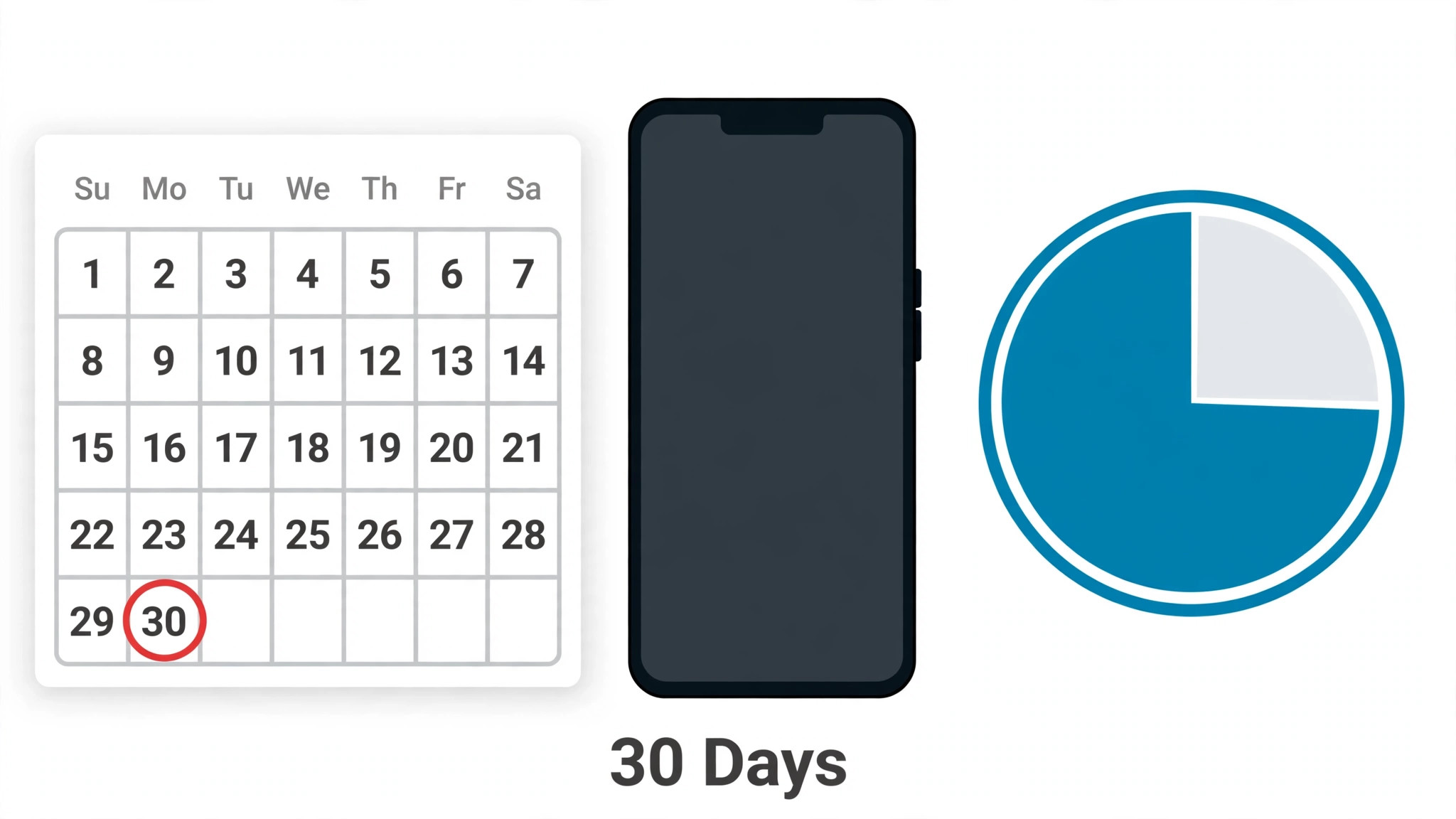
The 30 day rule catches travellers and second device owners. If a phone or tablet has been offline for more than 30 days, Spotify disables its downloads until the device goes online again and revalidates the subscription. The fix is simple. Connect the device to the internet, open Spotify, let it sync, and the downloads should return without a full redownload. Build a monthly habit of opening Spotify on each offline device while you have Wi-Fi, even for a minute, so the clock never runs out on a trip.
Match the Symptom to the Cause Before You Reset Anything
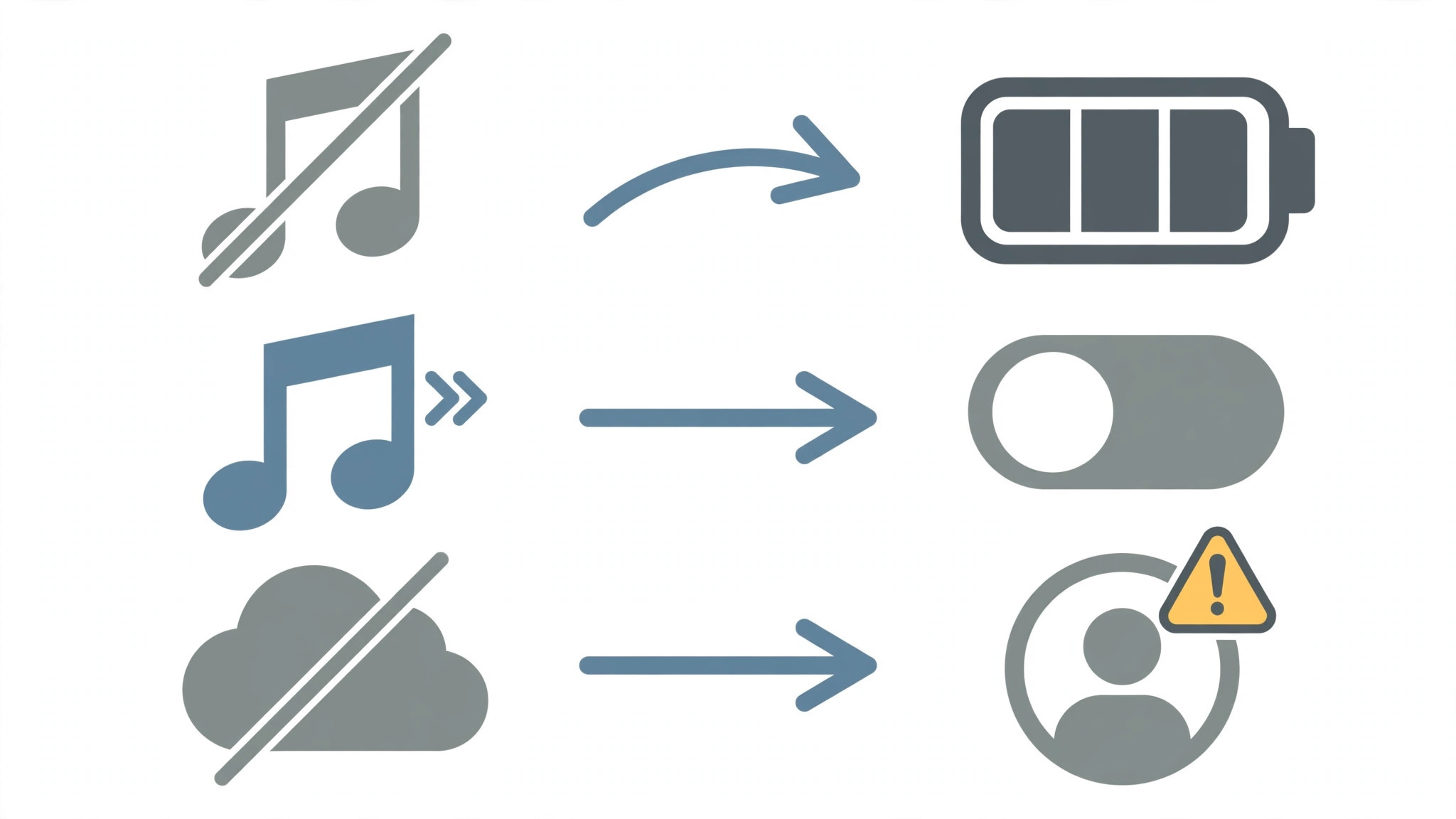
Guessing wastes time, and the symptom usually points at the cause if you read it carefully. Use this table to narrow the search before you clear anything or reinstall anything.
| What you see | Most likely cause | First move |
|---|---|---|
| All downloads greyed out at once | Subscription lapsed or wrong account | Check plan and sign in again |
| One playlist fails, others play | Incomplete download for that playlist | Redownload that playlist on Wi-Fi |
| Downloads vanish from an old device | Five device limit reached | Remove downloads from an unused device |
| Music stops after weeks offline | 30 day check in missed | Connect to the internet and let the app sync |
| New downloads never finish | Storage full or download restricted | Free space and check download settings |
| App says offline when Wi-Fi works | Offline Mode stuck on or connection fault | Toggle Offline Mode and restart the app |
| Some tracks play, some do not | Failed tracks inside a large playlist | Scroll the playlist online and finish each track |
A symptom table also stops the most common mistake, which is treating every offline problem as a reinstall problem. If all downloads failed at once after a payment problem, reinstalling changes nothing. If one playlist failed, reinstalling deletes the working playlists too. Read the symptom, make one change, and test in flight mode. A fix you can prove with a flight mode test is a fix you can trust on a plane.
Settings That Quietly Block Offline Playback
Data Saver is a frequent culprit. On iPhone and Android, Spotify has a Data Saver option and the phone itself has battery and data controls that can starve the app in the background. If Data Saver is on, downloads may pause, artwork may fail to load, and background sync may stop, which leaves the library half finished. Turn Data Saver off while you repair the library, finish the downloads on Wi-Fi, and only then decide whether to turn it back on for everyday listening.
Battery optimisation is the Android version of the same problem. When the system puts Spotify into a restricted battery bucket, it can stop background downloads and kill the app during a long download. Open the phone settings, find Spotify under battery or app settings, and set it to unrestricted or not optimised while you rebuild downloads. On iPhone, Low Power Mode has a similar effect on background activity, so turn it off during the repair and test again. These controls are meant to save battery, and they do, but they do it by interrupting exactly the background work a download needs.
Background data permission is the third setting to check. If Spotify is blocked from using data in the background, it cannot finish a download when you switch to another app, and it cannot sync licence checks when you reconnect. Allow background data and background refresh for Spotify, then leave the app open on the playlist screen until the green arrow appears. A download that finishes while you watch is worth more than a download that pauses every time you answer a message.
Offline Mode itself deserves a direct test. In Spotify settings, turn Offline Mode on, wait a few seconds, turn it off again, and restart the app. A toggle that has been stuck since a long flight or a patchy connection sometimes needs that explicit cycle to clear. After the cycle, test with flight mode on your phone rather than trusting the in app toggle alone, because flight mode is the real world condition you are preparing for.

Clear the Cache, Then Reinstall Only If You Must
Clearing the cache is the middle step between settings and reinstalling, and it is worth doing properly. In the Spotify app, open your profile, go to Settings and Privacy, find Storage, and tap Clear cache. This removes temporary data without removing your downloads on most versions, but treat it as a step that needs a test afterwards. Restart the app, open one downloaded playlist, and test it in flight mode. If that playlist plays, clear cache fixed a corruption problem and you have saved yourself a full rebuild.
If cache clearing does not help, remove all downloads before you reinstall. In settings under Storage, use Remove all downloads, then download one small playlist and test it offline. This tells you whether the app itself works with a fresh download. If the small playlist plays, the app is healthy and the old library was the problem, so rebuild it playlist by playlist on Wi-Fi, starting with the music you need first. If even a fresh small download fails, the problem is deeper, and that is the point where a reinstall earns its place.
Reinstalling removes all downloads, so plan it. Make sure you have Wi-Fi, a charger, and time, and note which playlists you keep offline so you can rebuild them in priority order. Delete the app, restart the phone, install Spotify again from the official store, sign in to the correct Premium account, and download one test playlist first. Only when that test passes should you queue the rest of the library. A reinstall that is followed by a blind full library download on mobile data will fail in the same way the first library did, and you will be back at the start with less patience.
Mistakes That Turn a Small Fix Into a Lost Library
The first mistake is reinstalling before checking the account. A lapsed subscription or a wrong account makes every other step pointless, and reinstalling deletes downloads that would have returned the moment the payment or sign in was fixed. Always check plan, account, and device limits first, even when you are sure you know the answer, because account problems are invisible from inside the library screen.
The second mistake is clearing app data instead of cache on Android. Clear cache removes temporary files. Clear storage or clear data removes downloads and sign in state, which is effectively a reinstall without the clean install benefit. If you tap the wrong button, you have not broken anything permanently, but you have committed yourself to a full redownload, so read the button before you tap it and use the in app cache control where possible.
The third mistake is testing with Wi-Fi on. An offline fix cannot be tested while the app can stream, because streaming hides a broken download completely. Every test in this guide uses flight mode for a reason. Turn flight mode on, play the test playlist from start to finish for at least a few tracks, skip forward, and confirm that playback continues without a connection. Only then turn flight mode off and move on.
The fourth mistake is rebuilding a huge library on a weak connection. Downloads that start on patchy Wi-Fi or on mobile data with restrictions will fail in patches, and you will spend days chasing greyed out tracks. Rebuild on stable Wi-Fi, plug the phone in, leave the app open, and work through playlists in priority order. The music you need for tomorrow matters more than the archive you might play next month.
Keep Offline Working After the Fix
Prevention is mostly habit, not settings. Open Spotify on each device that holds downloads at least once a month while you have a connection, so the 30 day check in never lapses. Keep a buffer of free storage on the phone, and treat the 1 GB recommendation as a minimum to stay above, not a target to hover at. Review the offline library every few months and remove playlists you no longer play, because a smaller library downloads faster, fails less often, and rebuilds in minutes instead of hours.
Set download quality deliberately. Very high quality sounds better on good headphones, but it uses far more storage and takes far longer to download, which increases the chance of a partial failure. Normal or high quality is the sensible default for a large offline library, with very high quality reserved for a small set of favourite albums. Check the download over cellular setting too, and leave it off unless you genuinely need to download away from Wi-Fi, since a mobile data download that pauses at a data cap is a classic source of half finished playlists.
Finally, keep the app updated, but update on Wi-Fi and test offline playback after a major update. App updates occasionally change storage handling or settings, and a quick flight mode test after an update catches a problem while you still have Wi-Fi to fix it. That one minute test is the difference between discovering a broken library at home and discovering it at the airport.
When to Contact Spotify Support Instead of Trying Again
There is a point where repeating the checklist stops helping, and recognising it saves hours. If a fresh small download fails after you have checked the account, freed storage, cleared the cache, and reinstalled on stable Wi-Fi, the problem is likely on the account side or in hardware, not in a setting you missed. That is the moment to contact Spotify support with a clear summary rather than starting the list again from the top.
Write down four facts before you contact support. Note the device model and operating system version, the app version, whether the failure affects every playlist or only some, and what happens on a fresh test playlist in flight mode. Support can check device registrations and account status that you cannot see, and a precise report gets you past generic advice much faster than a message that simply says downloads do not work. Mention the steps you already tried, in order, so the agent does not ask you to repeat a reinstall you have already done twice.
Support is also the right route when downloads vanish from a device you no longer own. If an old phone still holds a device slot, only the account side can release it reliably, and trying to fix that from your current phone will not work. The same applies when a payment problem has left the account in an unclear state, for example after a failed renewal followed by a new payment. In those cases, the app on your phone is behaving correctly for the account state it sees, and only an account fix will change it.
If you want to fix Spotify offline mode not working in a case like that, the fix lives in the account, not in the app, and support is the fastest way to reach it.
Do not pay a third party repair service for an offline download problem before you have tried support. Download failures are almost always account, storage, settings, or app corruption issues, and none of them need paid software or a shop visit. A shop can replace a failing battery or a damaged storage chip, but it cannot fix a device limit or a subscription state, and paying for a hardware repair before the account checks are done is money spent on the wrong problem. Keep your summary, your test playlist result, and your device list together, and let support confirm whether the account side is clean before you spend anything.
More Reading for Everyday Tech Fixes
If this guide fixed your music, the wider fix guides on Stratilyze cover the next problem before it ruins your day. The guide to fixing an iPhone with no sound walks through speaker and settings checks in the same order, the guide to fixing Bluetooth that will not turn on covers pairing and radio problems, the guide to fixing fast battery drain on Android helps when downloads and background activity eat power, and the guide to fixing a smartwatch that will not sync applies the same test after each step method to wearables. Read the Bluetooth guide next if your offline music plays but will not reach your earbuds, because that is a connection problem, not a download problem.
Frequently Asked Questions
Why do my Spotify downloads disappear after a month offline?
Downloads need an online check in at least once every 30 days to confirm that the Premium subscription is still active. After 30 days without a connection, Spotify disables the downloads until the device goes online again. Connect to Wi-Fi, open the app, let it sync for a minute, and the downloads should return. That 30 day check is the first thing to verify when you try to fix Spotify offline mode not working after a long trip. If they do not return after syncing, remove the download for one playlist and download it again as a test before rebuilding the whole library.
How do I fix Spotify offline mode not working on a second phone?
Start by checking the five device limit, because a second phone is often the device that loses downloads when a newer device is added. Remove downloads from a device you no longer use, sign in to the correct Premium account on the second phone, connect to Wi-Fi, and download one small playlist as a test. Test it in flight mode before rebuilding the full library, and keep the offline library smaller on a second device so it stays within storage and download limits.
Does clearing the cache delete my Spotify downloads?
Clearing the cache from inside the Spotify app removes temporary data and usually leaves downloads in place, but clearing app storage or app data on Android removes downloads and sign in state. Use the in app cache control first, restart the app, and test one playlist in flight mode. Cache first is the safe order when you fix Spotify offline mode not working without losing the library. If you need a deeper reset, remove downloads deliberately from settings rather than tapping a system level clear data button by accident, so you control the rebuild order.
Why do some songs in a downloaded playlist not play offline?
Individual tracks can fail while the rest of a playlist succeeds, usually because the download paused on a weak connection, storage ran out, or the track was added after the download finished. Open the playlist while online, scroll through it, and look for greyed out tracks or missing download marks. Tap a failed track while online to finish it, or remove the playlist download and download it again in one clean pass on stable Wi-Fi, then test it in flight mode. Partial playlists are a common reason people try to fix Spotify offline mode not working, and a clean single pass download usually ends the problem.
Can I fix Spotify offline mode not working without reinstalling the app?
Yes, in most cases. Check the subscription and account, confirm downloads finished, free up storage, toggle Offline Mode, clear the cache, and check Data Saver and battery settings first. Reinstalling is only needed when a fresh small download also fails after those steps, which points to app corruption rather than a setting or a limit. When you do reinstall, test one small playlist before rebuilding the full library, so a bad connection does not create a second half finished library.
How much free storage does Spotify need for offline downloads?
Spotify recommends at least 1 GB of free memory for the app, and that is a floor rather than a comfortable margin. Very high quality downloads use far more space per track, so a large library at very high quality can need several gigabytes beyond that floor. Keep comfortably more than 1 GB free, lower the download quality for a large library, and remove offline playlists you no longer play. Storage headroom is an easy win when you fix Spotify offline mode not working, because a download that cannot finish will fail no matter how good the connection is. After freeing space, restart the phone and redownload a test playlist to confirm the app can finish a download.
The Fix to Try First
Most offline failures end at one of three checks, and they are the checks people skip because they feel too simple. Confirm Premium is active on the right account, confirm the playlist really finished downloading on Wi-Fi, and confirm the phone has free storage and a clear settings path for background downloads. When you fix Spotify offline mode not working by working that short list first, you usually find the answer in minutes and keep the library you already built.
If those checks pass and the problem stays, work the longer list in order, test in flight mode after each step, and let a small test playlist prove the app is healthy before you rebuild everything. Offline music is supposed to be the part of Spotify that never lets you down, and with the account, the download, and the settings all verified, it usually does not.