
Your cursor freezes, jumps, or vanishes entirely, and the laptop that worked fine yesterday suddenly needs an external mouse for everything. That failure is disruptive out of proportion to its size, because a touchpad is the primary way most laptop users point, click, scroll and gesture, and losing it turns every task into a workaround. When you fix Windows laptop touchpad not working, the cause is usually one of four things, which are a disabled touchpad, a wrong setting, a faulty driver, or a hardware fault, and each has a different fix, so random reinstalls and resets waste time that a short diagnosis would have saved.
This guide works through the fixes in order, from the toggle key and Windows settings, through driver steps in Device Manager, to BIOS and hardware checks that prove whether the touchpad itself has failed. It covers both total failures, where the touchpad does nothing at all, and partial failures, where movement works but gestures, scrolling, or tapping fail, because those patterns point to different causes. Follow the steps in order, test after each one, and keep an external mouse handy, because several steps are far easier with a working pointer.
What Kind of Touchpad Failure You Have
The pattern of failure narrows the cause faster than any single fix, so note exactly what happens before changing settings. A touchpad that does nothing at all, with no cursor movement, no tapping, and no gestures, points to a disabled touchpad, a driver failure, or a hardware fault, in that order of likelihood. A touchpad that moves the cursor but ignores tapping, scrolling, or multi finger gestures points to a settings problem, because movement proves the hardware and basic driver work, while the missing features are controlled by settings that can be turned off.
A touchpad that works intermittently, failing after sleep, after an update, or when the laptop is hot, points to a driver, power, or heat related cause, and the timing of failures is the clue that matters most.
Check whether an external mouse works, because that single test splits the problem usefully. If an external mouse works perfectly while the touchpad does nothing, the fault is specific to the touchpad, its settings, its driver, or its hardware, and Windows itself is healthy. If neither a mouse nor the touchpad works properly, the problem is broader, such as a system fault, a conflicting program, or a user profile issue, and touchpad specific fixes will not help until the broader fault is addressed.
Also check whether the touchpad failed after a specific event, such as a Windows update, a driver update, a spill, or a drop, because that event often names the cause directly, and undoing that event, such as rolling back a driver, becomes the obvious first fix.
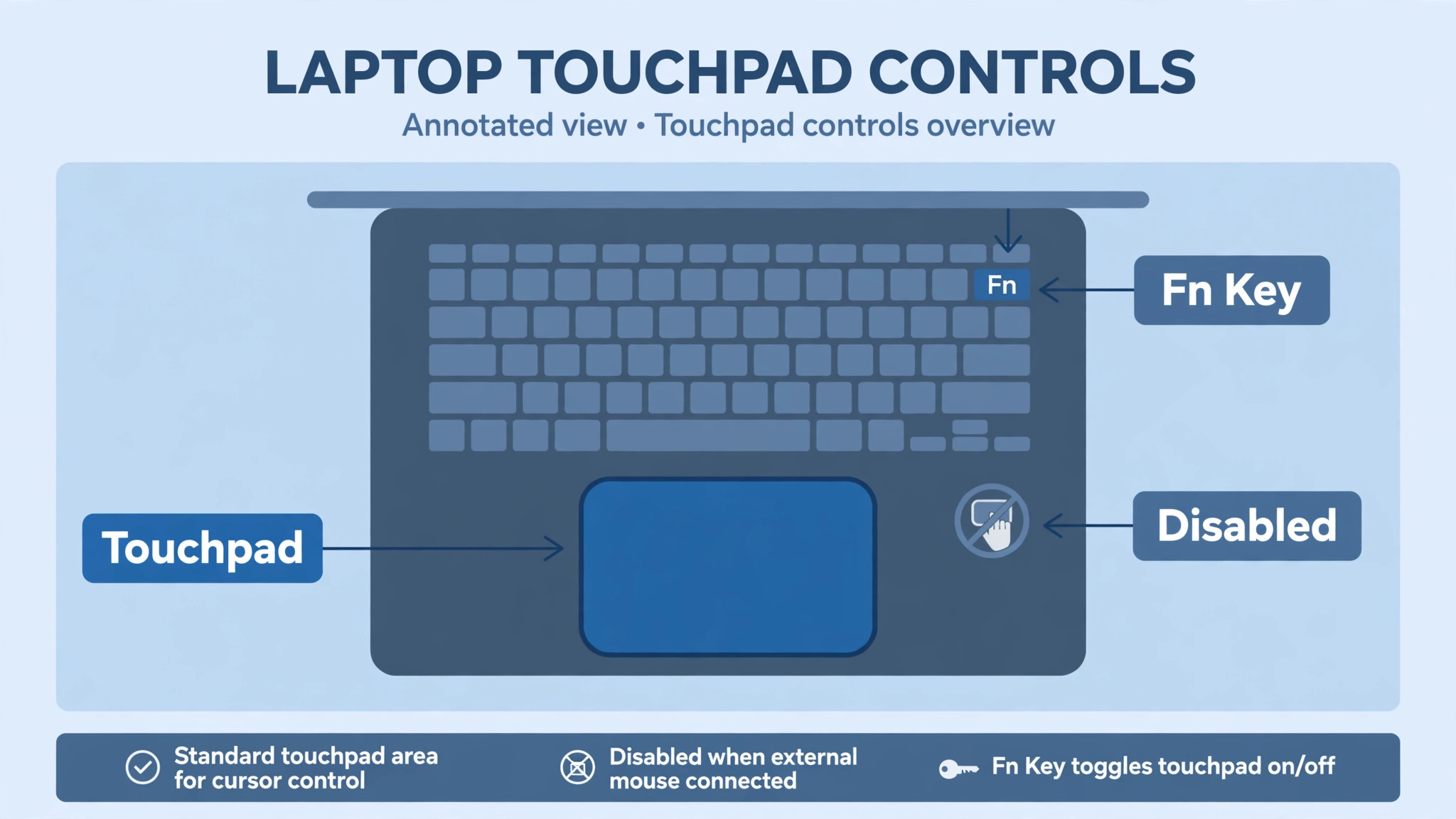
A function key toggle deserves mention first, because it causes a surprising share of apparent failures. Many Windows laptops have a touchpad toggle key, often on the function row, sometimes combined with another key, and pressing it accidentally disables the touchpad completely, with no on screen warning that a casual user would notice. If the touchpad stopped after cleaning the keyboard, after a child used the laptop, or after carrying it in a bag, check that toggle before any deeper step, because a single key press restores a touchpad that hours of driver work cannot fix.
Look for a touchpad icon on the function keys, try the toggle with and without the function key modifier, and watch for any on screen indicator that the touchpad state changed. Try the toggle first when you fix Windows laptop touchpad not working, because it costs seconds and fixes many cases.
How to fix Windows laptop touchpad not working in Order
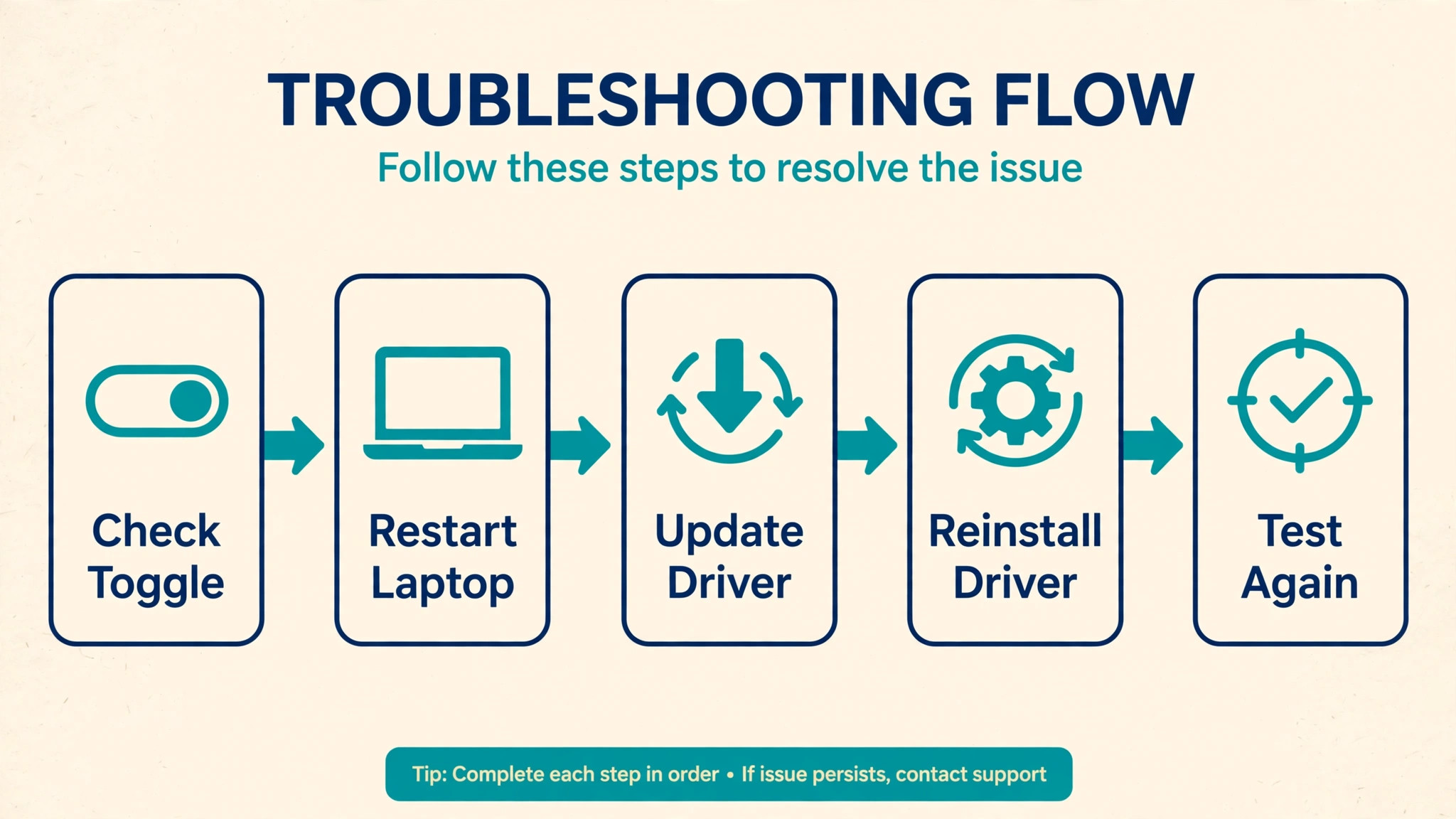
Work through this order, testing after each step, and stop when the touchpad responds normally to movement, tapping, scrolling and gestures. Keep an external mouse connected, because several steps need a pointer, and note what changed after each step, so a later support conversation starts from evidence rather than guesswork.
- Press the touchpad toggle key on the function row, trying it with and without the function modifier, and watch for any indicator that the touchpad state changed.
- Restart the laptop fully, not just sleep and wake, and test the touchpad on the sign in screen and on the desktop.
- Open Settings, go to Bluetooth and Devices, then Touchpad, and confirm the touchpad switch is on, with a sensible sensitivity and tap setting.
- In the same Touchpad settings, check that scrolling, multi finger gestures, and taps are enabled, and reset touchpad settings to defaults if they look wrong.
- Check whether Windows is set to disable the touchpad when an external mouse is connected, and change that setting if it explains the failure.
- Open Device Manager, expand Mice and Other Pointing Devices, and check whether the touchpad device appears, with or without a warning icon.
- Update the touchpad driver from Device Manager, using Search Automatically, and restart, then test again.
- Roll back the driver in Device Manager, if the failure followed a driver or Windows update, and restart, then test again.
- Uninstall the touchpad device in Device Manager, restart so Windows reinstalls it, and test again before installing any maker driver.
- Download the touchpad driver from the laptop maker’s support site for your exact model, install it, restart, and test again.
- Check the BIOS or UEFI settings for a touchpad enable option, if the touchpad is missing from Device Manager entirely, and enable it if it is off.
- If the touchpad still does nothing after all software steps, contact the maker or an authorised repairer, with a note of steps tried, because hardware is likely.
That order runs from instant and harmless to slow and disruptive, so a toggle or a restart can solve the problem before any driver work begins, and driver work can solve it before any hardware conclusion is drawn. Restarting matters more than it seems, because a touchpad that fails after sleep or after an update often recovers with a full restart, while sleep and wake cycles preserve the faulty state. Settings matter next, because a touchpad disabled in Settings, or disabled when a mouse is connected, looks exactly like a hardware failure, and no driver reinstall will fix a setting that keeps it off.
When you fix Windows laptop touchpad not working, test with the external mouse disconnected for at least one test, because a setting that disables the touchpad when a mouse is present can hide a working touchpad behind a connected mouse. Test movement, tapping, two finger scrolling, and a three finger gesture separately, because a touchpad that moves but does not scroll has a different remaining problem from a touchpad that does nothing, and that distinction decides whether settings or drivers deserve the next step. A touchpad that returns after a driver reinstall but fails again after the next Windows update needs a maker driver pinned or a Windows update setting reviewed, which the driver section below explains.
Driver Steps in Detail
Driver steps deserve care, because a wrong driver action can make a working touchpad worse, while the right action in the right order fixes most software failures. Start in Device Manager, which you can open by right clicking Start or by searching for it, and expand the section for mice and other pointing devices, where the touchpad usually appears under a name mentioning touchpad, precision touchpad, or the maker name, such as Synaptics, ELAN, or HID compliant.
If the device shows a yellow warning icon, note the error message in its properties, because that message often names the cause, such as a driver that failed to load or a device that cannot start, and that message helps support enormously if later help is needed.
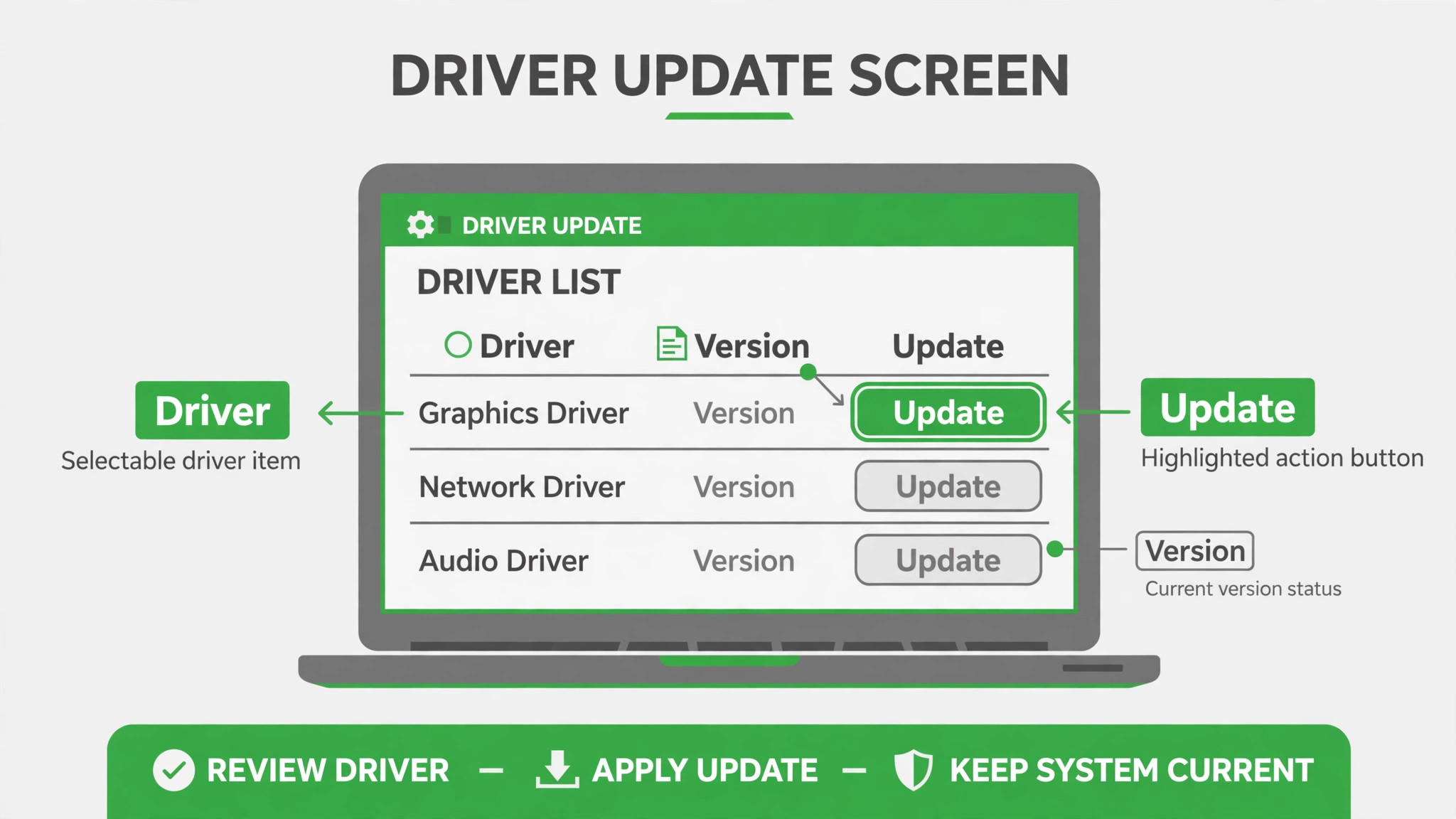
Updating the driver is the gentlest driver step, because it keeps the current driver as a fallback while trying a newer one. Right click the touchpad device, choose Update Driver, then Search Automatically, and let Windows check for a newer version, then restart and test. If Windows says the best driver is already installed, that does not prove the driver is healthy, because Windows may be comparing against its own catalogue rather than the maker’s latest version, so the next step is the maker’s support site, where you can download the driver for your exact laptop model and operating system version.
Install the maker driver only from the maker’s official site, never from a driver download aggregator, because third party driver sites commonly bundle unwanted software or wrong drivers that worsen the problem. Use the maker site only when you fix Windows laptop touchpad not working for drivers, and keep the download page noted.
Rolling back and reinstalling are stronger steps, and they suit different situations. Roll back when the failure followed a driver or Windows update, because rolling back returns to the previous driver that worked, and it is found in the device properties under Driver, where the Roll Back Driver option appears only if a previous driver exists. Uninstalling suits a corrupt driver, because restarting after uninstall lets Windows reinstall a fresh copy, though you should keep an external mouse connected, since the touchpad may not work until reinstall completes.
After any driver change, restart, test all touchpad features, and note the driver version that works, because a future Windows update may replace it, and knowing the working version lets you restore it quickly. If Windows repeatedly replaces a working maker driver with a faulty one, check Windows Update settings for optional driver updates, and consider hiding that specific driver update, following the maker’s guidance for your model.
Cause Table for Touchpad Symptoms
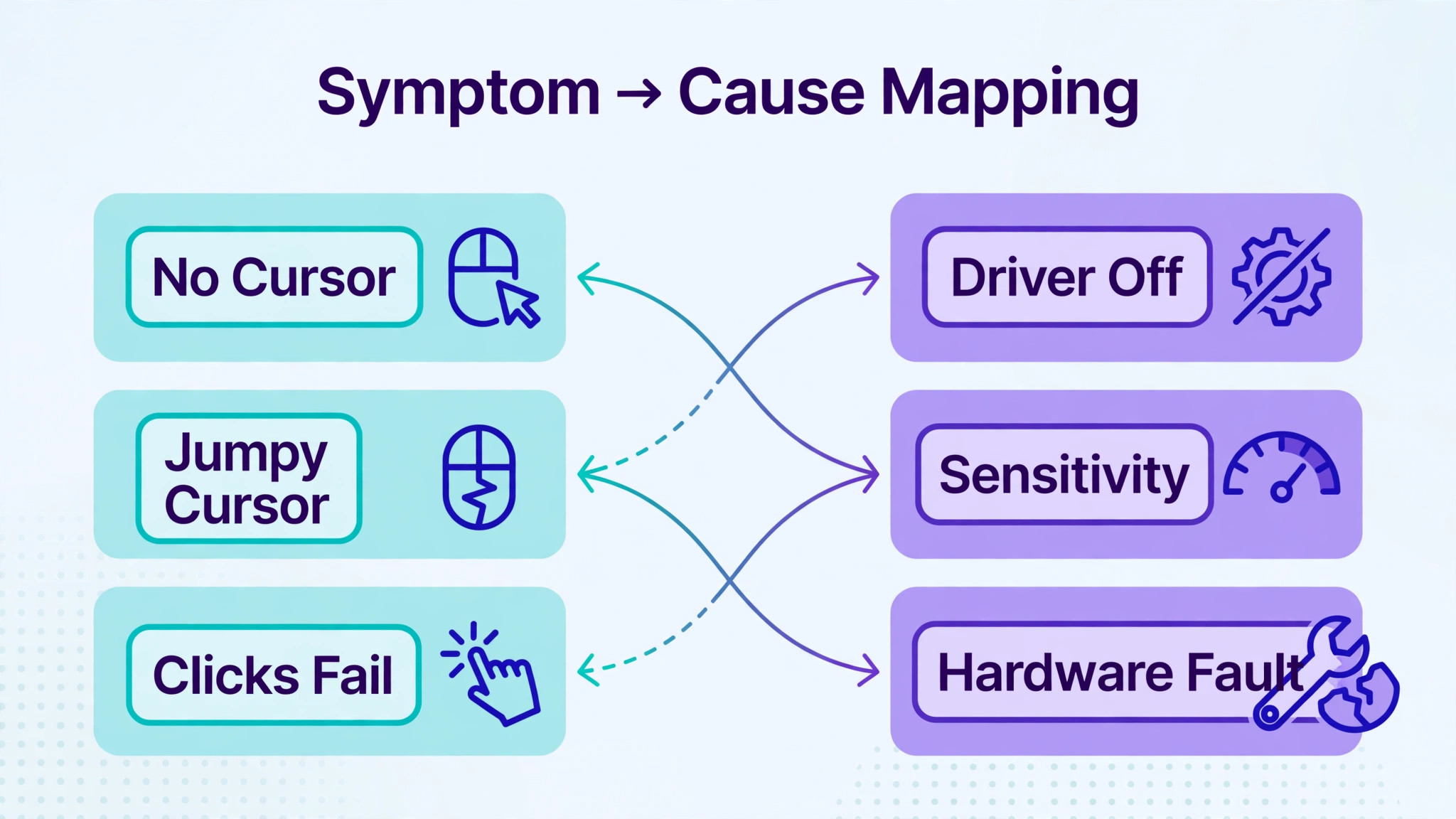
Use this table to match what you see with the most likely cause and the first fix, so a clear symptom leads straight to the relevant section without working blindly. The table does not replace the full order, but it speeds diagnosis when a pattern is distinctive.
| Symptom | Most likely cause | First fix to try |
|---|---|---|
| Nothing at all, cursor frozen | Toggle off, disabled setting, driver, hardware | Toggle key, Settings switch, restart |
| Moves but no tap or scroll | Settings for taps or gestures off | Touchpad settings, reset to defaults |
| Moves but no multi finger gestures | Gesture settings off or basic driver | Enable gestures, install maker driver |
| Works after restart, fails after sleep | Driver or power management fault | Update driver, check power settings |
| Failed right after a Windows update | Faulty or incompatible new driver | Roll back driver, install maker driver |
| Missing from Device Manager entirely | Disabled in BIOS or hardware fault | Check BIOS setting, seek hardware check |
| Works with mouse unplugged, fails with mouse | Disable on mouse connect setting on | Change that setting in Touchpad settings |
| Jumpy, erratic, or overly sensitive | Sensitivity, palm rejection, or dirty surface | Adjust sensitivity, clean touchpad surface |
A symptom that changes after a step is useful, even when the step does not fully fix the problem, so note what changed. If a driver update restores movement but not gestures, the basic driver works and the maker driver, which provides gestures, is still missing or faulty. If a settings reset restores tapping but scrolling still fails, the remaining fault is narrower than the original, and a maker driver becomes the next sensible step. Troubleshooting is narrowing, not magic, and a short note of symptoms, steps, and changes makes that narrowing fast, especially if you later speak to support. Use the table first when you fix Windows laptop touchpad not working and the pattern is clear.
Settings That Commonly Disable a Touchpad
Windows touchpad settings contain several options that can silently disable features, and checking them fully takes only a few minutes. Open Settings, go to Bluetooth and Devices, then Touchpad, and confirm the main touchpad switch is on, because that switch alone can explain a total failure, especially after an update that reset settings. Check taps, which control tap to click, and check scroll and zoom, which control two finger scrolling and pinch, because those features are often turned off by a preset, a maker utility, or another user, without the owner realising.
Check three finger and four finger gestures, because those are the features most often lost when a basic driver replaces a maker driver, and their absence points to a driver problem rather than a settings problem.
Sensitivity and palm rejection deserve attention for erratic touchpads, because a sensitivity set too high makes the cursor jump at light touches, while palm rejection set too low lets the palm move the cursor while typing. Set sensitivity to medium as a starting point, test typing and pointing together, and adjust in small steps, rather than jumping to extremes, because a touchpad that feels wrong at one extreme often feels right in the middle.
Clean the touchpad surface with a soft, slightly damp cloth, and dry it fully, because grease, moisture, and debris on the surface cause jumpy or unresponsive behaviour that no setting can fix, and a clean surface should be ruled out before any driver work for erratic movement.
Also check maker utilities, because many laptops ship with a maker control app that has its own touchpad enable switch, gesture settings, or gaming mode that disables the touchpad. If Windows settings look correct but the touchpad still fails, open the maker utility and check its touchpad options, because a utility setting can override Windows settings, and a utility updated recently can change a setting without warning. If a utility is the cause, change its setting and note it, so the next utility update does not silently reintroduce the same failure.
When you fix Windows laptop touchpad not working, settings checks come before driver work for a reason, because a setting that is off will defeat every driver fix until it is turned back on.

BIOS, Hardware and Repair Signs
BIOS, also called UEFI on modern laptops, contains a touchpad enable option on some models, and it matters when the touchpad is missing from Device Manager entirely, because Windows cannot fix a device the firmware has disabled. Restart the laptop, enter BIOS using the maker’s key, often Delete, F2, or F10 during boot, and look for a touchpad, pointing device, or internal pointing device setting, enabling it if it is off, then save and exit. BIOS layouts vary widely by maker, so check the maker’s support pages for the exact menu path for your model, and do not change unrelated BIOS settings, because a wrong BIOS change can prevent booting, while a touchpad setting change is safe and reversible.
Check BIOS only when the device is missing when you fix Windows laptop touchpad not working, not as a first step.
Hardware signs point to repair when software steps have all failed, and recognising them early saves repeated driver work that cannot help. Suspect hardware when the touchpad is missing from Device Manager and from BIOS, when it fails after a spill or a drop, when the touchpad surface is physically damaged, cracked, or raised, or when the touchpad fails alongside a swollen battery that presses on internal parts. A swollen battery deserves urgent attention, because it can damage the touchpad and other parts, and the laptop should not be used or charged further until service checks it.
Do not attempt to open the laptop yourself unless you have the correct tools and experience, because modern laptops contain batteries and fragile ribbon cables, and a failed home repair can turn a touchpad fault into a dead machine.
Before booking repair, complete the full software order once, including a maker driver install and a BIOS check, and note the laptop model, Windows version, driver version, and steps tried, because support will ask for those details and a clear note speeds diagnosis. Check warranty and care coverage, and back up important files before service, because repair can involve parts replacement that risks data if a backup is missing. If the laptop is old and repair costs approach replacement value, an external mouse or a replacement machine may be the more sensible path, and that decision should be made with a repair quote in hand, not by guessing at costs.

Mistakes That Waste Time on Touchpad Fixes
The first mistake is reinstalling drivers before checking the toggle key and Windows settings, which spends the most effort on the least likely cause for many users, because a disabled touchpad looks exactly like a driver failure. The second mistake is downloading drivers from aggregator sites, which bundle unwanted software or wrong drivers, when the maker’s official site has the correct driver for the exact model. The third mistake is testing only with an external mouse connected, which hides a setting that disables the touchpad when a mouse is present, and produces a false failure that no driver fix can cure.
The fourth mistake is changing several settings and drivers at once, which makes it impossible to know which change helped or harmed, and can leave the laptop in a worse state than before. Change one thing, test, and note the result, before changing another. The fifth mistake is ignoring the event that preceded the failure, such as a Windows update, because a driver rollback for an update caused failure is a one step fix, while blind reinstalls waste hours. The sixth mistake is continuing to use a laptop with a swollen battery or a damaged touchpad surface, because both are safety and hardware issues, not settings puzzles, and prompt service is cheaper and safer than waiting.

Preventing the Next Touchpad Failure
Prevention for touchpads is mostly about settings awareness, driver care, and physical care, because most failures come from an accidental toggle, a bad driver update, or a dirty surface. Learn where the toggle key sits on your laptop, and check it first whenever the touchpad stops, before assuming a deeper fault, because that single habit saves hours over the life of a laptop. Keep a note of the working driver version and the maker driver download page, so a future Windows update that breaks the touchpad can be fixed by reinstalling a known good driver in minutes.
Clean the touchpad surface regularly with a soft cloth, keep liquids away from the keyboard area, and avoid pressing the touchpad with excessive force, because physical care extends its life noticeably.
Keep Windows updated, but check touchpad function after major updates, because a quick test after an update catches a driver problem while the previous driver is still available for rollback. Test after major updates when you fix Windows laptop touchpad not working through a prevention routine, while rollback is still easy. Avoid driver updater tools that promise to fix every driver, because they commonly install wrong or unwanted drivers, and prefer Windows Update and the maker’s site as the only driver sources. A few minutes of settings awareness and driver care each month keeps the touchpad reliable, and it means the next time the cursor stops, the cause will be obvious, because the usual suspects will already be checked.
More Reading on Stratilyze
If this guide helps your touchpad respond again, the wider Stratilyze guides cover the laptop problems around it. The guide to laptop keyboard keys not working covers a related input fault, the guide to Windows update stuck downloading helps when updates cause driver problems, and the guide to Bluetooth speaker not connecting to a laptop covers another device connection fault on the same machine. Read the keyboard guide next if more than one input device fails, because a shared input fault needs a different approach.
Frequently Asked Questions
Why did my touchpad stop working after a Windows update when you fix Windows laptop touchpad not working?
A Windows update can replace a working maker driver with a generic or incompatible driver, or reset touchpad settings, and either change looks like a sudden hardware failure. Check Touchpad settings first, then roll back the driver in Device Manager if the failure followed the update, and install the maker driver from the laptop maker’s official site for your exact model. Note the working driver version once restored, so a future update that breaks it again can be fixed quickly by reinstalling that version.
How do I turn my laptop touchpad back on?
Press the touchpad toggle key on the function row, trying it with and without the function modifier, then open Settings, go to Bluetooth and Devices, then Touchpad, and confirm the main touchpad switch is on. If an external mouse is connected, check whether Windows is set to disable the touchpad when a mouse is present, and change that setting, then test with the mouse disconnected. A toggle or a settings switch restores a large share of apparently dead touchpads without any driver work.
Why does my touchpad move but not scroll or tap?
Movement with missing tap, scroll, or gestures usually means those features are turned off in Touchpad settings, or a basic driver has replaced the maker driver that provides them. Enable taps, scrolling, and multi finger gestures in Settings, and if gestures still fail, install the maker driver from the laptop maker’s site, because generic drivers often provide movement only. Test each feature separately after the fix, because movement returning does not prove gestures have returned.
Should I download touchpad drivers from driver update sites?
No, download touchpad drivers only from Windows Update or from the laptop maker’s official support site for your exact model, because aggregator sites commonly bundle unwanted software or install wrong drivers that worsen the problem. Check the maker site by model and operating system version, and keep a note of the working driver version once installed. Avoid driver updater tools that promise to fix every driver, because they are a common source of new driver problems.
What if my touchpad is missing from Device Manager?
A touchpad missing from Device Manager may be disabled in BIOS, also called UEFI, or may have a hardware fault, so check the BIOS for a touchpad or internal pointing device setting and enable it if it is off. Restart after any BIOS change, and check Device Manager again, because a firmware disabled device cannot be fixed by Windows driver steps. If the touchpad is enabled in BIOS but still missing from Device Manager after a full software order, contact the maker or an authorised repairer, because hardware is likely.
Can a dirty touchpad cause erratic cursor movement?
Yes, grease, moisture, and debris on the touchpad surface cause jumpy, erratic, or unresponsive behaviour that no setting or driver can fix. Clean the surface with a soft, slightly damp cloth, dry it fully, and test again, and adjust sensitivity and palm rejection in Touchpad settings if movement still feels wrong after cleaning. A clean surface should be ruled out before driver work for erratic movement, because it is the cheapest and fastest fix for that symptom.
A Touchpad That Responds Again
A Windows touchpad failure resolves fastest when the pattern is read first, the toggle and settings are checked before drivers, and each driver step gets a separate test. Press the toggle key, restart fully, confirm the Touchpad switch and gesture settings, and test with the external mouse disconnected, before updating, rolling back, or reinstalling drivers from the maker’s official site. Check BIOS only when the device is missing entirely, and treat a touchpad that fails after every software step as a hardware job for the maker or an authorised repairer, with a clear note of steps tried.
Keep the working driver version recorded, clean the surface regularly, and test after major updates, and the next touchpad failure, if it comes, will be a quick toggle or settings fix instead of an afternoon of guesswork. Save a copy of the working driver installer on an external drive, because a future reinstall without internet access is far harder, and a saved installer turns a driver emergency into a five minute fix.