
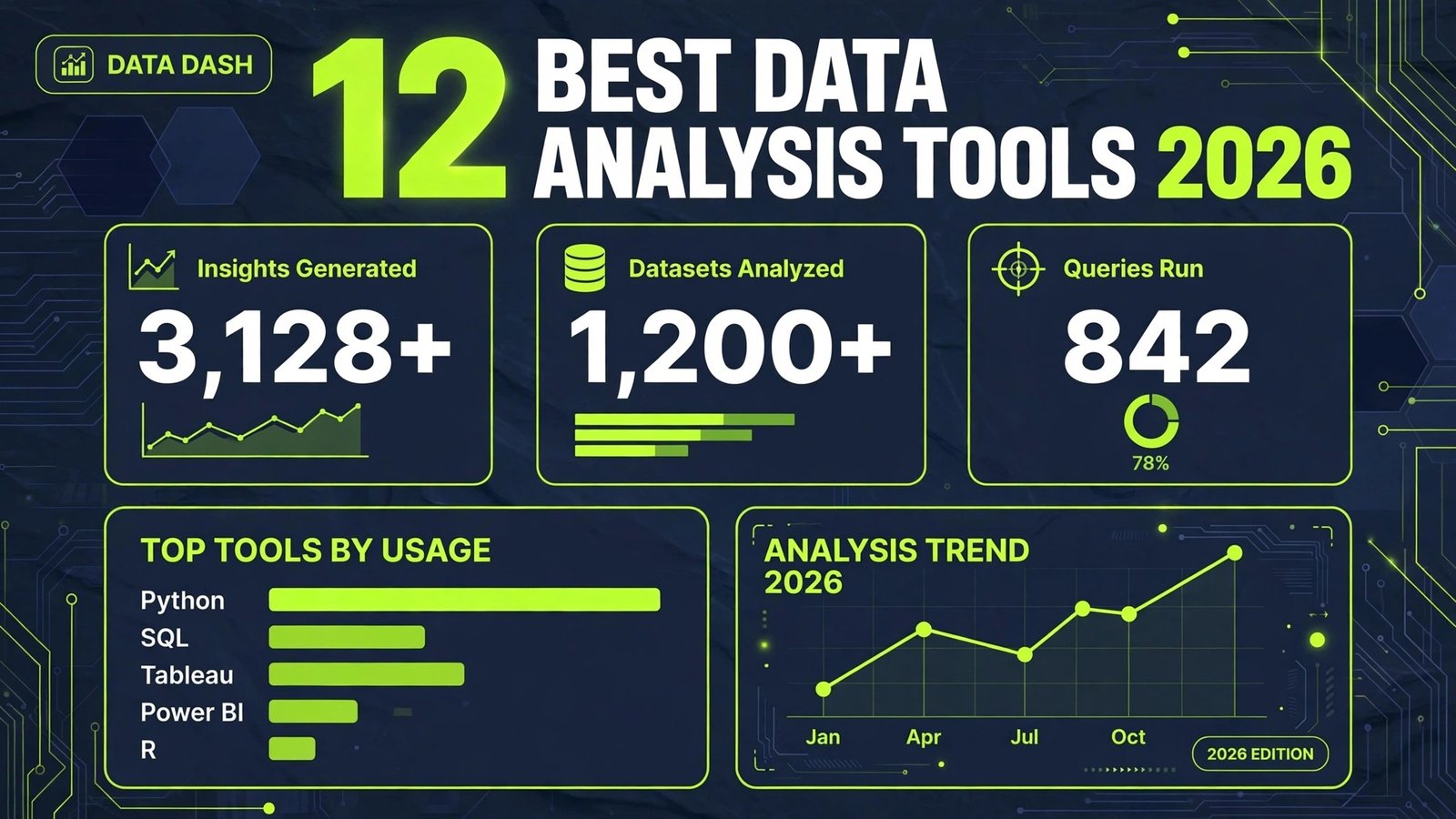
Most teams do not lack data. They lack answers. Sales figures sit in one spreadsheet, web traffic in another, customer feedback in a third, and by the time someone has cleaned, joined and charted it all, the decision has already been made on gut feel. The best AI data analysis tools close that gap. They clean messy tables, explain what changed, build charts from a plain English question, and forecast what happens next, without a data science degree or a week of waiting on an analyst.
This guide compares 12 tools grouped by the job each one does best: spreadsheets and no-code analysis, business intelligence dashboards, SQL and data prep, statistical and predictive analysis, and reporting and visualisation. Prices are October 2026 figures in US dollars. Where a vendor does not publish pricing, or where sources disagreed, the guide says check checkout rather than guessing. One rule runs through the whole guide: AI analysis is a draft, not a verdict. Every number should be checked against the source data before it reaches a board slide or a budget decision, because a wrong total in a polished chart is more dangerous than a wrong total in a messy spreadsheet.
The 12 best AI data analysis tools at a glance
| Tool | Best job | Free option | Paid from |
|---|---|---|---|
| Microsoft Excel with Copilot | Analysis inside Excel | No | Microsoft 365 Copilot $30 per user per month |
| Google Sheets with Gemini | Analysis inside Google Sheets | Limited | Bundled with Workspace, check checkout |
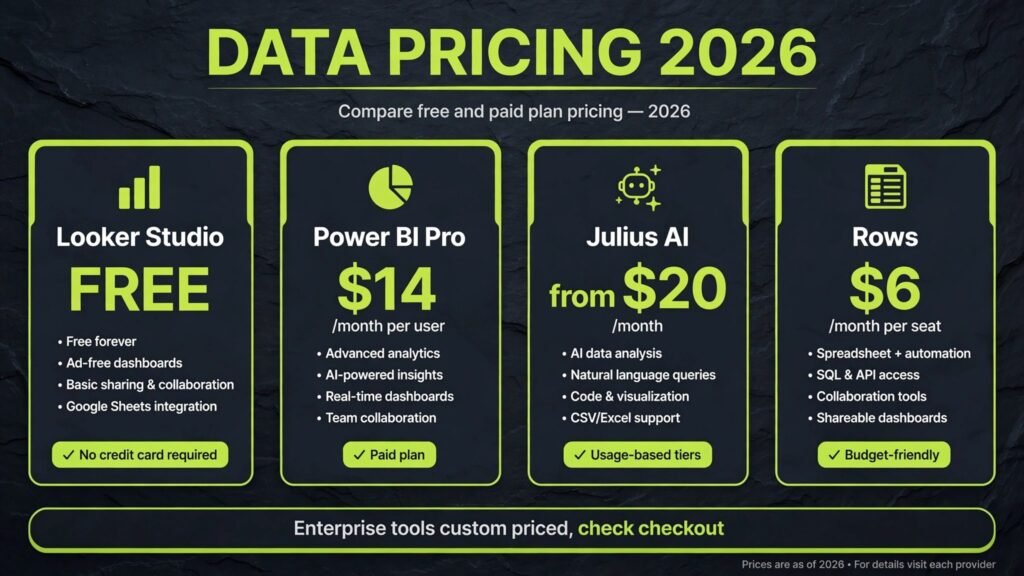
| Rows | AI native spreadsheets | Free plan | Plus $6 per user per month, Pro from $59 per workspace per month |
| Microsoft Power BI | Company dashboards | Free desktop app | Pro $14 per user per month |
| Tableau | Deep visual exploration | No | Creator $75 per user per month |
| Looker Studio | Free dashboards | Free | Free, Pro $9 per user per project per month |
| Julius AI | Chat with your data | Free tier | Plus $20 per month |
| Hex | Collaborative SQL and Python notebooks | Free tier | Check checkout |
| DataRobot | Predictive models at scale | No | Custom, check checkout |
| Obviously AI | No-code predictions | Free trial | Check checkout |
| Flourish | Animated public charts | Free public tier | Check checkout |
| Datawrapper | Publish ready charts and maps | Free tier | Custom $599 per month |

Best pick by job
| Your job | Start with | If that fails, try |
|---|---|---|
| Analyse data already in Excel | Excel with Copilot | Rows |
| Analyse data already in Google Sheets | Sheets with Gemini | Looker Studio |
| Build a spreadsheet with AI from scratch | Rows | Julius AI |
| Dashboards for the whole company | Power BI | Tableau |
| Explore data visually, no fixed question | Tableau | Hex |
| Dashboards on a zero budget | Looker Studio | Flourish |
| Ask questions of a CSV in plain English | Julius AI | Hex |
| Analyse data with SQL and Python together | Hex | Julius AI |
| Forecast churn, demand or risk | DataRobot | Obviously AI |
| Predict outcomes without coding | Obviously AI | DataRobot |
| Charts for articles and social posts | Flourish | Datawrapper |
| Clean charts for news and reports | Datawrapper | Flourish |
Spreadsheets and no-code analysis: start where the data already lives
Most analysis starts in a spreadsheet, and most people never leave it. These three tools add AI to the spreadsheet itself, so cleaning, formulas and summaries happen where the data already sits, instead of in a new platform that needs a migration project.
1. Microsoft Excel with Copilot
Excel with Copilot is the obvious first step for teams already running on Microsoft 365. Copilot explains formulas in plain language, writes them from a description, cleans inconsistent columns, highlights trends, and builds pivot summaries and charts from a question typed in the sidebar. Because it works on the workbook itself, there is no export step and no second copy of the data to keep in sync.

Pricing: Microsoft 365 Copilot is reported at $30 per user per month on top of a Microsoft 365 subscription. Check checkout for the current bundle, since Microsoft has changed Copilot packaging more than once.
Best for: Finance, operations and sales teams whose data already lives in Excel and who need faster cleaning, formulas and summaries without learning a new tool.
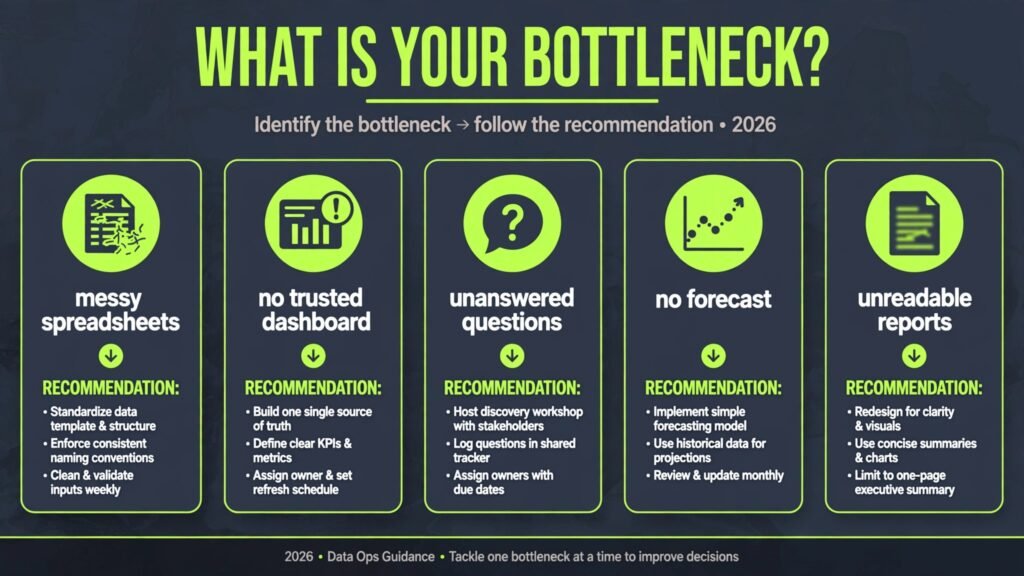
Watch out for: Copilot is only as good as the table it is given. Messy headers, merged cells and mixed formats confuse it, so clean the structure first and spot check its summaries against the raw rows before sharing them.
Try it at: microsoft.com
2. Google Sheets with Gemini
Google Sheets with Gemini is the equivalent move for Google Workspace teams. Gemini summarises a sheet, generates formulas, creates tables from a description, and drafts charts, while the sheet stays collaborative in real time. For teams that already plan, track and report in Sheets, it removes the need to move data anywhere else.
Pricing: Gemini features are bundled with Google Workspace Business plans, with Business Standard reported at $14 per user per month on annual billing, and consumer Google AI Pro reported at $19.99 per month. Check checkout for the current bundle, since Google has changed AI packaging several times.
Best for: Small teams, startups and marketing teams that already live in Google Sheets and want AI help without a new subscription or a new platform.
Watch out for: Sheets slows down on very large datasets, and Gemini is better at summaries and formulas than at heavy statistical work. For files above a few hundred thousand rows, a dedicated tool like Hex or a database backed dashboard will hold up better.
Try it at: google.com
3. Rows
Rows is the emerging AI native spreadsheet, built for teams that find Excel and Sheets too rigid for modern reporting. It pulls live data from tools like Stripe, HubSpot and Google Analytics directly into cells, offers AI functions that enrich, classify and summarise rows, and turns a spreadsheet into a shareable dashboard without a separate BI tool.
Pricing: A free plan is offered with limited AI tasks. Plus is reported at $6 per user per month, and Pro from $59 per workspace per month plus a per user charge. Check checkout for the current workspace pricing, since Rows has changed its plan structure before.
Best for: Startups, agencies and ops teams that want live data, AI enrichment and good looking shared reports inside one spreadsheet.
Watch out for: Rows is newer, so its formula library and ecosystem are smaller than Excel or Sheets. Teams with heavy macro habits should test their most complex workbook before migrating.
Try it at: rows.com
Business intelligence dashboards: one number everyone trusts
Spreadsheets answer one person’s question. Dashboards answer the whole company’s question, refreshed on a schedule, from governed data. These three tools cover the range from free to enterprise, and the choice usually comes down to which ecosystem the company already pays for.
4. Microsoft Power BI
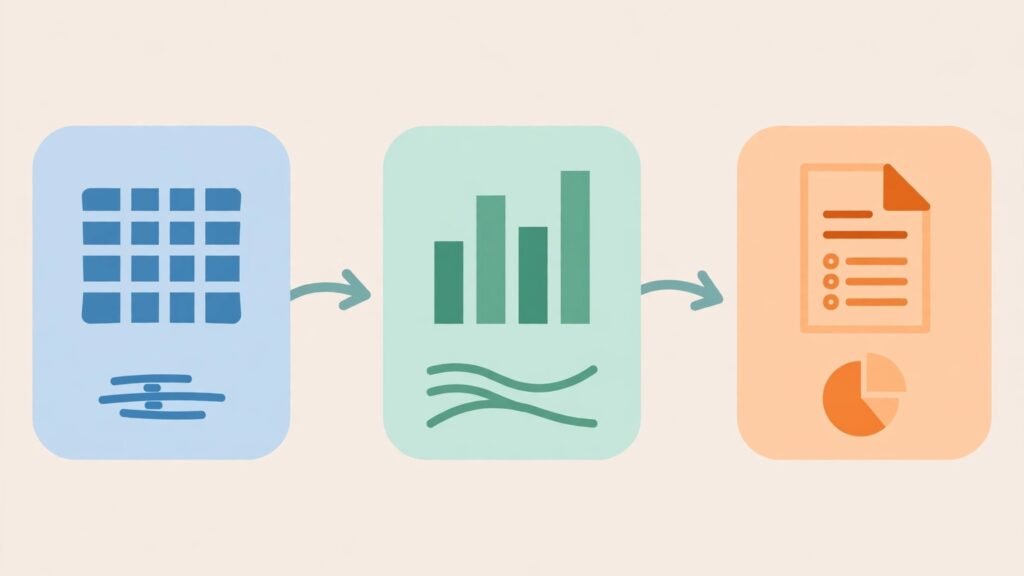
Power BI is the default dashboard platform for Microsoft shops, and its AI features now include natural language questions, anomaly detection, and Copilot generated summaries and report pages. It connects to hundreds of sources, models data with relationships and measures, and publishes dashboards that refresh on a schedule.
Pricing: Power BI Desktop is free. Pro is $14 per user per month, and Premium per user is reported at $24 per user per month. Check checkout for capacity pricing if every employee needs to view reports without a Pro licence.
Best for: Mid size and large companies standardising reporting on Microsoft, and teams that need governed metrics, scheduled refresh and row level security.
Watch out for: Power BI has a real learning curve. Building a clean data model takes training, and a dashboard built on a messy model produces confident looking but wrong numbers, so budget for modelling time, not just licences. Teams comparing the wider small business stack should also see our best AI tools for small business guide.
Try it at: microsoft.com
5. Tableau
Tableau is the exploration tool. Where Power BI suits governed reporting, Tableau suits analysts who start with a question and follow it through the data, dragging fields onto a canvas and watching patterns emerge. Its AI assistant, Tableau Agent, answers questions, suggests visualisations and explains trends.
Pricing: Creator is reported at $75 per user per month on annual billing, with Explorer around $35 and Viewer around $15. Check checkout for the current tier mix, since Tableau has changed its licence names before.
Best for: Analysts, data teams and large companies that need deep visual exploration, and organisations where dashboards are built by specialists rather than by every manager.
Watch out for: Cost and skill. Creator licences add up fast, and Tableau rewards trained users while punishing casual ones. A small team that only needs a few shared dashboards will get faster value from Looker Studio.
Try it at: tableau.com
6. Looker Studio
Looker Studio is Google’s free dashboard tool, and it is the best answer when the budget is zero. It connects to Google Analytics, Sheets, BigQuery and hundreds of third party sources through connectors, and it builds shareable, branded dashboards in an afternoon. Its AI help is lighter than Power BI or Tableau, but the price is hard to argue with.
Pricing: Looker Studio is free. Looker Studio Pro is reported at $9 per user per project per month, adding team workspaces and governance. Check checkout for the current Pro scope.
Best for: Marketing teams, agencies, startups and anyone who needs client or team dashboards without a BI budget, especially teams already on Google Analytics and Sheets.
Watch out for: Performance and governance. Very large datasets and complex blends slow it down, and it lacks the modelling depth of Power BI or Tableau. It is a reporting tool, not a governed enterprise platform.
Try it at: lookerstudio.google.com
SQL and data prep: ask the database directly
Dashboards show what happened. These two tools answer new questions on demand, in plain English or in code, against files and databases, for analysts and managers tired of waiting for a report to be built for every new question.
7. Julius AI
Julius AI is the conversational analyst: upload a CSV, Excel file or database connection, ask a question in plain English, and get back a chart, a table and the code that produced it. That code trail lets a human check the logic instead of trusting a black box, and it makes Julius the fastest route from a messy export to a defensible answer.

Pricing: A free tier is offered with limited credits. Plus is $20 per month, or around $16 per month on annual billing, and Pro is $45 per month, or around $37 on annual billing. Check checkout for the current credit allowances, since Julius prices by credits and heavy analyses burn them faster than light ones.
Best for: Analysts, researchers, marketers and founders who need one off answers from files and databases without writing code or waiting on a data team.
Watch out for: Credit metering and file expiry. Heavy analyses consume credits quickly, and uploaded files expire after a set period on lower tiers, so Julius is an analysis session tool, not a permanent data home. Teams learning analysis fundamentals should also see our best AI tools for learning to code guide.
Try it at: julius.ai
8. Hex
Hex is the collaborative notebook for teams that work in SQL and Python. It combines queries, code, charts and write ups in one shared document, with AI assistance that writes and explains queries, fixes errors and summarises results, so analyses can be rerun, audited and built on rather than dying in a chat window.
Pricing: A free tier is offered for individuals and small teams. Paid team plans are not consistently published, so check checkout for the current price for your team size.
Best for: Data teams, analysts and product teams that already use SQL or Python and want AI help inside a shared, repeatable analysis workflow.
Watch out for: Hex assumes some data skill. Non technical users will find Julius AI faster for a single question, and Hex only pays off when analyses are repeated, shared and maintained.
Try it at: hex.tech
Statistical and predictive analysis: what happens next
Descriptive tools explain the past. Predictive tools estimate the future: which customers will leave, which products will sell, which claims look risky. These two tools bring that capability to teams without a data science department.
9. DataRobot
DataRobot is the enterprise predictive platform. Upload historical data, pick a target such as churn or default, and it tests dozens of models, ranks them, and explains which factors drive each prediction. It also handles deployment, monitoring and retraining, so a model built this quarter keeps working next quarter.
Pricing: Custom enterprise pricing only, sold by usage and scope. There is no self serve price to quote, so check checkout through an enterprise sales conversation.
Best for: Large companies and regulated teams that need audited, explainable predictions at scale, and organisations where a model feeds a real business decision rather than a slide.
Watch out for: DataRobot needs clean, well labelled history. A company with messy, incomplete or biased historical data will get a confident model that repeats past mistakes, so data quality work comes before model work.
Try it at: datarobot.com
10. Obviously AI
Obviously AI is the emerging no-code prediction tool for smaller teams. Upload a CSV, pick the column to predict, and it builds and explains a model in minutes, with a simple interface for testing what if scenarios. It suits teams that want a churn score or a demand forecast without hiring a data scientist.
Pricing: A free trial is offered. Paid plans are not consistently published, so check checkout for the current price for your data size and team.
Best for: Small and mid size teams that need one or two practical predictions, such as churn risk or lead scoring, and want results this week rather than this quarter. Sales teams building prediction into their pipeline should also see our best AI lead scoring tools guide for the lead scoring side of the stack.
Watch out for: Simplicity has a ceiling. Obviously AI handles clean tabular predictions well, but it is not a replacement for a data science team on complex or regulated problems. Validate predictions on held out data before acting on them, and never let a score alone decide a customer outcome.
Try it at: obviously.ai
Reporting and visualisation: make the answer readable
A correct analysis that nobody understands is wasted work. These two tools turn prepared data into charts, maps and stories that a non technical audience can grasp in seconds, which is why newsrooms and public facing teams use them more than any BI platform.
11. Flourish
Flourish is the storytelling visualisation tool, famous for animated bar chart races, maps and interactive stories that readers can play with. Upload a spreadsheet, pick a template, and publish an embed that looks designed rather than default, with a learning curve measured in minutes.
Pricing: A free tier is offered for public projects. Paid plans for private projects and teams are not consistently published, with past reports ranging widely, so check checkout for the current price.
Best for: Journalists, marketers, educators and communicators who need beautiful, interactive visuals for articles, social posts and presentations.
Watch out for: Flourish visualises prepared data, it does not analyse or clean it, and it has no database connectors, so the analysis must happen elsewhere first. Free projects are public, which rules it out for sensitive internal data.
Try it at: flourish.studio
12. Datawrapper
Datawrapper is the newsroom standard for clean, accurate charts, maps and tables. It trades Flourish’s animation for precision: every chart is accessible, mobile friendly and honestly labelled, with no misleading axes by default.

Pricing: A free tier is offered. Custom plans are reported at $599 per month, including a set of user licences. Check checkout for the current plan, since Datawrapper has changed its tiers before.
Best for: Newsrooms, research teams, government and NGOs that publish charts publicly and need accuracy, accessibility and a consistent house style.
Watch out for: Price and scope. Datawrapper is expensive for a small team that only publishes occasionally, and it is a visualisation tool, not an analysis tool, so it adds a second step after analysis. Content teams weighing the wider publishing stack should also see our best AI tools for content creators guide.
Try it at: datawrapper.de
Pricing compared: what analysis really costs
| Tool | Free option | Paid from | Pricing note |
|---|---|---|---|
| Excel with Copilot | No | $30 per user per month | On top of Microsoft 365 |
| Sheets with Gemini | Limited | Bundled, check checkout | Workspace or AI Pro bundle |
| Rows | Free plan | $6 per user per month | Pro from $59 per workspace |
| Power BI | Free desktop | $14 per user per month | Premium per user $24 |
| Tableau | No | $75 per user per month | Creator tier, Explorer and Viewer cheaper |
| Looker Studio | Free | Free | Pro $9 per user per project |
| Julius AI | Free tier | $20 per month | Credit based, Pro $45 |
| Hex | Free tier | Check checkout | Team pricing varies |
| DataRobot | No | Custom | Enterprise only |
| Obviously AI | Free trial | Check checkout | Small team pricing varies |
| Flourish | Free public tier | Check checkout | Private projects need a paid plan |
| Datawrapper | Free tier | $599 per month | Custom plan, includes user licences |
A realistic starter stack costs $0 to $50 a month: Looker Studio for dashboards, Sheets with Gemini for spreadsheet work, and Julius AI Plus at $20 for ad hoc questions. A professional analyst stack lands around $100 to $200 a month by adding Power BI Pro and a prediction tool. An enterprise stack with Tableau Creator seats and DataRobot runs into custom contracts, so price training and modelling time too, before signing. Teams sending analysis inside client proposals should also see our best AI proposal software guide.
How to Choose the right analysis tool
Start with where the data lives, not with the tool list. If the data is in Excel, start with Copilot. If it is in Sheets and Google Analytics, start with Gemini and Looker Studio. If it is in a database, start with Hex or Julius AI.
Next, decide whether the question repeats. A one off question belongs in Julius AI or a spreadsheet. A question asked every Monday belongs on a dashboard in Power BI, Tableau or Looker Studio. A prediction that drives a weekly decision belongs in DataRobot or Obviously AI.
Then test the check step before you commit. Run a real analysis and verify the tool’s total, filters and chart against the raw rows. If you cannot trace a number back to its source in under a minute, the tool is a risk no matter how good its charts look.
Finally, set the human rule in writing. No AI generated number reaches a client, a board or a budget without a human checking it against source data. No prediction alone decides a customer outcome. The teams that succeed with AI analysis treat the tool as a faster first draft of the answer, not as the answer itself.
Frequently Asked Questions
Can AI tools replace data analysts?
No. AI tools clean, chart and draft analyses faster, but they do not know which question matters, whether the data is trustworthy, or whether a result makes business sense. Analysts still define the question, check the data and judge the answer.
Is it safe to put company data into AI analysis tools?
It depends on the tool and the data. Enterprise tools offer security certifications, data residency options and no training on customer data, while consumer chat tools may retain inputs. Check the vendor’s security terms before uploading customer or financial data.
Will AI analysis tools get my numbers wrong?
Sometimes, yes. AI tools misread headers, confuse units, drop rows silently and invent plausible totals. That is why every output needs a check against source data: re-add a column by hand and confirm the chart matches the rows it claims to show.
How much should a small business pay for data analysis tools?
Between $0 and $50 a month covers a working stack: Looker Studio for dashboards, a spreadsheet AI already bundled in Workspace or Microsoft 365, and Julius AI Plus for ad hoc questions. Add Power BI or Tableau only when reporting volume or governance justifies the licence cost.
Do I need to learn SQL or Python to use these tools?
Not for the spreadsheet, chat and dashboard tools on this list. SQL or Python only becomes necessary when data lives in a database, when analyses repeat at scale, or when predictions need custom features.
Which single tool should a small team start with?
Julius AI, for most small teams, because it answers real questions from real files within minutes and shows its working. Teams that already report weekly should start with Looker Studio instead, and teams living in Excel should start with Copilot.
Conclusion
The best AI data analysis tools do not replace analysis. They remove the slow parts: the formula hunt, the manual cleaning, the chart rebuild, the dashboard refresh, and the first draft of a forecast. Excel with Copilot and Sheets with Gemini bring AI to the spreadsheet. Rows rebuilds the spreadsheet around live data. Power BI, Tableau and Looker Studio turn recurring questions into dashboards. Julius AI and Hex answer new questions from files and databases. DataRobot and Obviously AI forecast what happens next. Flourish and Datawrapper make the answer readable.
Start with where the data lives. Answer one real question, check it against the source, and only then build the dashboard or the model. Keep a human on every number that leaves the team.