
Maya runs a small bakery and makes her own Instagram posts. One Tuesday, she hit the wall every Canva free user eventually hits: the template she wanted had a crown on it, the background remover asked her to upgrade, and her brand colours lived in a kit she could not save without paying. She did not hate Canva. She just needed one specific thing Canva would not give her for free, and that one thing decided which alternative was right for her.
That is the honest way to pick a Canva alternative. There is no single best replacement, because people leave Canva for different reasons. Some want a cheaper twin. Some want professional power without a subscription. Some sell designs and need a commercial licence. Some need presentations, not social posts. This guide groups 13 tools by the gap each one fixes, so you can skip straight to your reason and ignore the rest.
This is not the same post as our canva-vs-adobe-express head-to-head, which compares exactly two tools in depth. This one covers the whole field, and it links back to that comparison wherever the two-tool detail matters more.
The 13 alternatives at a glance
| Tool | Free plan | Paid from | Fixes which Canva gap |
|---|---|---|---|
| Adobe Express | Yes | $9.99/mo | Closest all-rounder, Adobe fonts and stock |
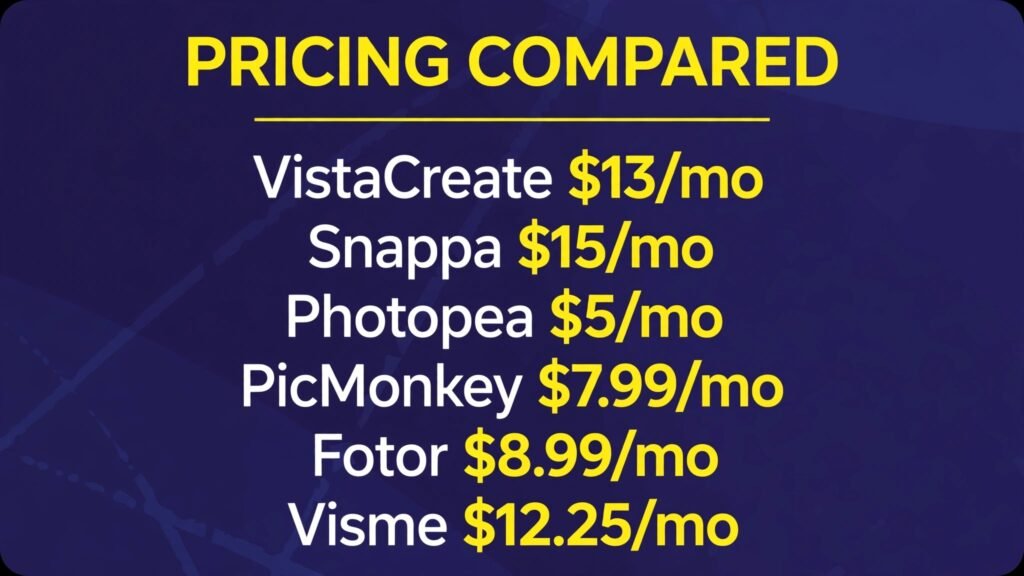
| VistaCreate | Yes | $13/mo ($10/mo annual) | Animated social posts, cheaper team plan |
| Snappa | Yes, 3 downloads/mo | $15/mo ($10/mo annual) | Fastest social graphics, no learning curve |
| Affinity | Yes, full app | Free | Pro vector, photo and layout power, no subscription |
| Photopea | Yes, with ads | About $5/mo | Photoshop-style editing in a browser, no install |
| Pixlr | Yes, with ads | About $2 to $5/mo | Layered photo editing plus AI generation |
| Kittl | Yes, personal use only | $14/mo annual ($19 monthly) | Typography, vintage design, print-on-demand |
| Desygner | Yes, limited | About $5 to $10/mo | Brand locking and agency approval workflows |
| PicMonkey | Trial only | $7.99/mo | Photo editing first, design second |
| Fotor | Yes, watermarked exports | $8.99/mo | One-click photo enhancement plus templates |
| BeFunky | Yes | About $9.99/mo | AI photo retouching and collages |
| Stencil | Yes, limited | $9/mo | Simplest possible social images |
| Visme | Yes, watermarked | $12.25/mo annual | Presentations, infographics and reports |

Prices are US list prices found in October 2026 roundups. They change often, so check the vendor page before you pay. Where sources disagreed, this guide says so instead of picking one number and hoping.
If you want a near-identical replacement
Adobe Express: the closest all-rounder
Adobe Express is the first tool to try if you like Canva’s shape but want Adobe’s assets behind it. It is a template-first editor in the browser, with social posts, flyers, videos and short documents, plus Adobe Fonts and a large stock library. Its Firefly image generation is commercially safer than most rivals, because it is trained on licensed content, and paid plans include indemnification for commercial use.
The free plan is genuinely usable, with over 100,000 templates and a million stock assets, though premium templates, brand kits and one-click resize sit behind Premium. The editor is heavier than Canva’s on modest laptops, and its social scheduling is less polished. But if you already pay for Creative Cloud, Express Premium is included, which makes it effectively free. Our canva-vs-adobe-express post goes deeper on the two-way comparison.
Pricing: Free plan at $0. Premium at $9.99 a month.
Best for: Anyone who wants Canva’s workflow with Adobe’s fonts, stock and AI.
Watch out for: Heavier browser load, and free-plan AI credits are limited.
Try it at: adobe.com/express
VistaCreate: animated posts and a cheaper team plan
VistaCreate, from Vista (formerly Depositphotos), is the closest Canva twin for animated social content. It has over 100,000 free templates and a million stock assets on the free Starter plan, and its editor will feel familiar within minutes. Where it pulls ahead is teams: one Pro subscription covers up to 10 team members, where Canva charges per seat on its business plan.
The Pro plan adds premium templates, 170 million assets, unlimited brand kits and storage, a resize tool and AI image generation. The template style leans more commercial and less trendy than Canva’s, and its AI tools are thinner. But for a small team posting daily, the per-seat maths is hard to argue with.
Pricing: Starter free. Pro at $13 a month, or $10 a month billed annually, with a 14-day trial.
Best for: Small teams and animated social content on a budget.
Watch out for: Fewer trendy templates, and AI generation is capped at 100 images a month on Pro.
Try it at: create.vista.com
Snappa’s pitch is speed, and it delivers. Pick a size preset for any platform, pick a template, swap the text, download. There is almost nothing to learn, which is exactly the point for bloggers, marketers and small business owners who need a graphic in five minutes and do not want a design hobby.
The tradeoff is depth. The free Starter plan allows only 3 downloads a month, so it is a trial in practice, and the template library is smaller and less fashionable than Canva’s. Paid plans unlock unlimited downloads, background removal, custom fonts and social integrations. If your bottleneck is time rather than creativity, Snappa is the most honest pick on this list.
Pricing: Starter free (3 downloads a month). Pro at $15 a month, or $10 a month billed annually. Team at $30 a month ($20 annual) for up to 5 users.
Best for: Bloggers and marketers who need fast, simple social graphics.
Watch out for: The free plan is too limited for regular use, and templates are less trendy.
Try it at: snappa.com
If you want pro power without a subscription
Affinity: the plot twist in this whole list
Here is the strangest fact in this guide: the best professional alternative to Canva is now owned by Canva, and it is free. Canva bought Serif, the maker of Affinity, in 2024, and in October 2025 it relaunched Affinity as a single unified app combining vector design, photo editing and page layout, free for everyone, with no subscription for the core tools.
That means a tool that used to cost money and was taken seriously as an Adobe rival now costs nothing. It opens Photoshop files, handles RAW photos, vectors and multi-page layouts, and runs on desktop rather than in a browser. The catch is that it is not a Canva replacement in the template sense: there is no giant template library or one-click social workflow, and advanced AI features sit behind Canva’s paid plans. You also need a free Canva account to sign in. But for anyone whose complaint about Canva is “I have outgrown it”, Affinity is the answer, and it costs nothing to try.
Pricing: Free, full app, with a Canva account. Advanced AI features require a Canva paid plan.
Best for: Designers and serious creators who want professional tools without a subscription.
Watch out for: No template-first workflow, a real learning curve, and desktop only.
Try it at: affinity.com
Photopea: Photoshop in a browser tab
Photopea is the tool you open when someone sends you a PSD and you do not have Photoshop. It runs entirely in the browser, needs no account and no install, and it opens PSD, XCF, Sketch and XD files with full layers, masks and blend modes. For layered photo editing and file compatibility, nothing free comes closer to Photoshop.
The price you pay is advertising on the free tier, and the interface assumes you already know how layered editors work. Beginners will find it intimidating next to Canva. But as a second tool alongside a template app, it is invaluable: design the post in Canva or VistaCreate, do the serious photo work in Photopea, and never pay for either.
Pricing: Free with ads. Premium at about $5 a month removes ads and adds storage.
Best for: PSD compatibility and serious layered editing without installing anything.
Watch out for: Ads on the free tier, and a steep learning curve for beginners.
Try it at: photopea.com
Pixlr: layered editing plus AI generation
Pixlr sits between Photopea and Canva. It is a browser editor with real layers, but it also bundles AI tools: generative fill, text-to-image using models including FLUX and Recraft, background removal and face tools. That combination makes it a good pick if your work is photo-led rather than template-led.
The free tier is ad-supported and meters AI use with credits, so heavy AI days will push you toward a paid plan. Prices vary by tier and billing term across 2026 sources, roughly $2 to $5 a month for the entry paid tier, so check the checkout page for the plan you actually want. The template side is thinner than Canva’s, but for editing photos and generating images in one place, Pixlr covers more ground than most tools here.
Pricing: Free tier with ads and limited AI credits. Paid plans from roughly $2 to $5 a month depending on tier and billing.
Best for: Photo-led creators who want layers and AI in one browser app.
Watch out for: AI credit limits, ads on free, and weaker templates than Canva.
Try it at: pixlr.com
If you sell designs or manage a brand
Kittl: typography and print-on-demand
Kittl is the tool for people who sell what they design. Its strength is typography: vintage fonts, text effects, mockup-ready layouts and a workflow built around t-shirts, posters and packaging rather than social posts. Print-on-demand sellers use it because the export quality and commercial licence fit the job, and the template library leans into designs people actually buy.
The free plan is personal use only, with low-resolution exports, so sellers need a paid plan. Pro includes a commercial licence, vector exports and AI tokens. Pricing figures disagree across 2026 sources: the most current listings put Pro at $14 a month billed annually ($19 month to month), with Expert at $34 annual, while older articles quote $10 and $24. Trust the checkout page, and note that the free plan cannot be used for products you sell.
Pricing: Free for personal use only. Pro from $14 a month billed annually ($19 month to month). Expert from $34 a month billed annually.
Best for: Print-on-demand sellers, typography lovers and vintage design.
Watch out for: Free exports are too low-resolution to sell, and the token system needs watching.
Try it at: kittl.com

Desygner: brand locking for teams and agencies
Desygner is the least famous tool on this list and the most useful for one specific job: keeping a brand consistent when many people make designs. Its brand locking lets an admin lock logos, colours and fonts so a franchisee or junior staffer cannot drift off brand, and its approval workflows fit agencies and multi-location businesses.
The editor itself is solid but unremarkable, and its template library is smaller than Canva’s. Pricing is the fuzzy part: 2026 listings range from about $4.95 to $9.95 a month for entry paid plans, so treat any single figure as approximate and check the checkout page. If your problem is brand chaos rather than creativity, Desygner solves it more directly than any other tool here.
Pricing: Free plan with limits. Paid plans roughly $5 to $10 a month depending on tier; check checkout.
Best for: Agencies, franchises and teams that need brand control.
Watch out for: Smaller template library, and pricing varies across sources.
Try it at: desygner.com

PicMonkey: photo editing first, design second
PicMonkey, now part of Shutterstock, is the pick if your designs start from photos rather than templates. Its touch-up tools, filters, effects and background remover are stronger than Canva’s, and it adds solid design templates, Smart Resize and brand kits on Pro. Bloggers and small shops that photograph their own products tend to like it.
There is no permanent free plan, only a free trial, which is a real difference from most tools here. Basic starts at $7.99 a month and Pro at $12.99 a month, with Pro adding unlimited storage, PDF export, Smart Resize and a brand kit. If you need templates first and photo tools second, Canva or VistaCreate still win. If the photo is the design, PicMonkey earns its price.
Pricing: Free trial only, no permanent free plan. Basic from $7.99 a month, Pro from $12.99 a month.
Best for: Photo-led creators, product sellers and bloggers who shoot their own images.
Watch out for: No free plan, and templates trail Canva’s library.
Try it at: picmonkey.com
If your work is photo-led and fast
Fotor: one-click enhancement plus templates
Fotor combines a photo editor with a design tool, and its one-click enhancement is the reason people stay. Upload a dull photo, tap once, and colour, light and sharpness improve enough for social use. It also has AI generation, batch editing and a template library for the design side.
The free tier works for occasional personal use, but exports carry a watermark on non-HD downloads, which rules it out for anything public. Pro removes that and unlocks HD exports and more AI. Pricing reports conflict slightly, with Pro quoted at $8.99 a month in most 2026 listings and a lower annual-equivalent figure elsewhere, so check the checkout page. Fotor makes most sense when you genuinely need both photo editing and templates in one subscription.
Pricing: Free with watermarked exports. Pro at $8.99 a month.
Best for: Social creators who want fast photo enhancement plus templates.
Watch out for: Free watermark, and AI results can be unreliable on complex images.
Try it at: fotor.com
BeFunky: AI retouching and collages
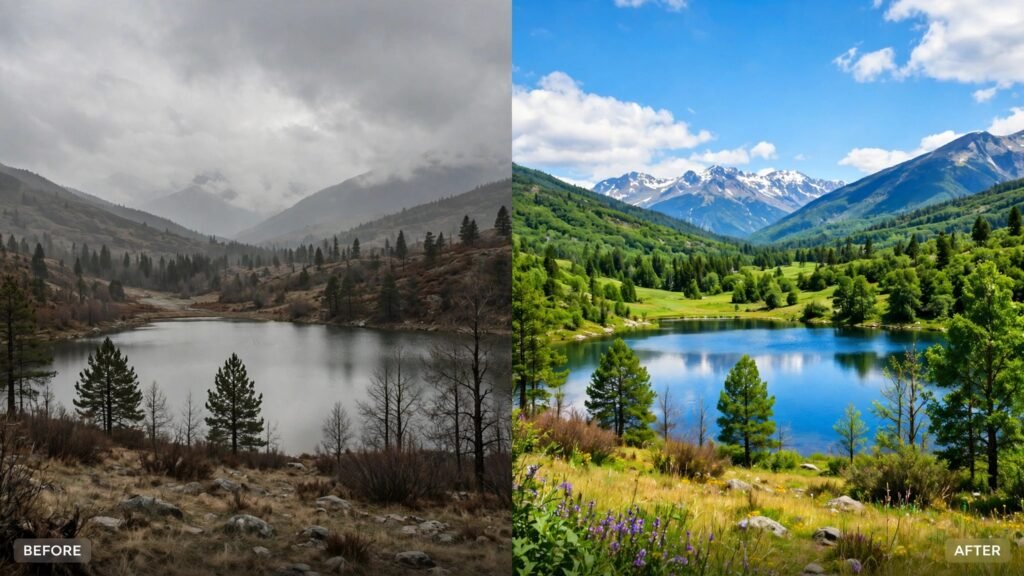
BeFunky is a friendly photo editor with a genuinely good AI retouch suite: skin smoothing, blemish removal, background tools and artsy effects, plus a collage maker that is better than most rivals’. It also has a design side with templates, though it is thinner than Canva’s.
The free plan is functional for photo editing, which puts it ahead of Snappa’s 3-download cap for casual users. Paid plans run about $9.99 a month in 2026 comparisons, though treat that as approximate and confirm at checkout. It is not a team tool and not a presentation tool, but for one person making photo-led posts, it is fast and forgiving.
Pricing: Free plan for photo editing. Paid plans about $9.99 a month; confirm at checkout.
Best for: Solo creators who want AI photo retouching and collages.
Watch out for: No team features, and templates trail Canva.
Try it at: befunky.com
Stencil: the simplest tool on this list
Stencil’s whole philosophy is that design tools got too complicated. It offers templates, stock photos, quotes and icons in an editor a complete beginner can use in minutes, with sizes preset for every major platform. Bloggers and small business owners who post a quote graphic or announcement a few times a week love it for exactly that reason.
The limits are obvious: no video to speak of, no brand kits on the scale Canva offers, and a small template library. The free plan is limited, and paid plans start at $9 a month. If you tried Canva and found it overwhelming, Stencil is the gentlest step down. If you already use Canva comfortably, it will feel like a downgrade.
Pricing: Free plan with limits. Paid plans from $9 a month.
Best for: Beginners and bloggers who want the simplest possible social graphics.
Watch out for: Small template library, minimal video and brand features.
Try it at: getstencil.com
If presentations and documents matter more than posts
Visme: decks, infographics and reports
Visme is the only tool here built for presentations first. It makes decks, infographics, reports, proposals and interactive documents, with charts, data widgets, animations and brand controls that Canva’s presentation mode only gestures at. If your week involves board decks or client reports rather than Instagram squares, Visme is the category winner.
The free Basic plan works for testing, but exports carry a Visme watermark, so professional use needs a paid plan. Starter is $12.25 a month billed annually ($147 a year), or $29 month to month, and Pro is $24.75 a month billed annually ($297 a year), or $59 month to month. That annual discount is steep, so only buy annually if you will use it most of the year. For pure social content, Canva or VistaCreate remain better. For documents people read, Visme is in a different class.
Pricing: Basic free with watermark. Starter $12.25 a month billed annually ($29 monthly). Pro $24.75 a month billed annually ($59 monthly).
Best for: Presentations, infographics, reports and data-led documents.
Watch out for: Free watermark, and the annual commitment is large.
Try it at: visme.co

How to choose: start from the reason, not the ranking
The fastest way through this list is one question: what made you look for an alternative in the first place?
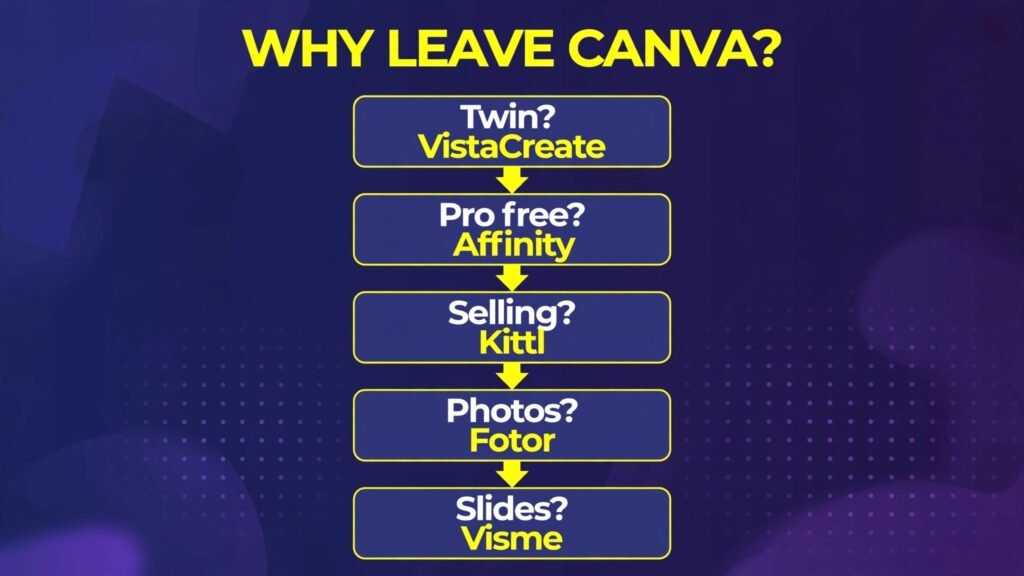
- You like Canva but want it cheaper or with better assets: Adobe Express first, VistaCreate second. Express undercuts Canva Pro on monthly billing and adds Adobe’s fonts and stock.
- You have outgrown templates and want real design power: Affinity, free, then Photopea for layered file work. This is the only path here with no subscription at all.
- You sell designs: Kittl for typography and print-on-demand, Desygner if brand control across a team is the problem.
- Your designs start from photos: PicMonkey or Fotor for editing plus templates, BeFunky for retouching and collages.
- You need it done in five minutes: Snappa or Stencil, depending on whether you want speed with some depth (Snappa) or the simplest possible editor (Stencil).
- You make decks and reports: Visme, and nothing else on this list is close.
One more practical point. Most people do not need two design subscriptions. Pick the tool that fixes your actual bottleneck, and keep a free second tool for the jobs it cannot do. A common pairing is Affinity for serious work plus a template app for quick posts, which together cost nothing. If you make videos as well as graphics, our best-ai-tools-for-content-creators guide covers the wider creator toolkit, and our best-ai-tools-for-youtubers guide covers video-first creators specifically.
Before you pay: Prices in this guide are October 2026 roundup figures. Kittl, Desygner, Pixlr and BeFunky all show conflicting prices across sources, and Canva’s own pricing varies by billing term and region. Open the vendor’s pricing page and confirm the figure on the checkout screen before subscribing. A two minute check beats a surprise on the first bill.
Frequently Asked Questions
Is there a completely free Canva alternative?
Yes, more than one. Affinity’s full professional app is free, Photopea is free with ads, and VistaCreate, Adobe Express, Snappa and Visme all have free plans with limits. The catch is always the same: free plans limit downloads, watermark exports or lock brand features, so match the free plan to the job you actually do.
Which Canva alternative is closest to Canva itself?
Adobe Express, for most people. It has the same template-first shape, a huge font and stock library, and a free plan. VistaCreate is the runner up, especially for animated posts and small teams.
Can I use these alternatives for client work?
Yes, with one check first. Adobe Express paid plans include indemnification for commercial use, Kittl’s paid plans include a commercial licence, and Desygner is built for agency brand control. For the rest, read the licence on the plan you actually buy, not the marketing page.
Do I still need Canva if I switch?
Not necessarily, but many people keep Canva free alongside a specialist tool. A common setup is Affinity for serious design plus Canva free for quick templates, or Kittl for products plus Canva for social posts. Keep the free plan until a paid tool covers your actual weekly work.
Which alternative is best for print-on-demand?
Kittl, by a clear margin. Its typography, mockups and commercial licence are built for products people buy. Desygner is the runner up if you manage a brand across many products.
Are my designs private on these alternatives?
It depends on the tool. Desktop tools like Affinity keep your files on your own computer. Browser tools vary: most let you set projects to private, but free plans sometimes default to public galleries. Check the privacy setting before uploading client work.
Should I cancel Canva Pro completely?
Only when another tool covers your weekly work, not just your test designs. If Canva Pro’s Brand Kit, Magic Resize and content planner are part of your daily routine, no single alternative replaces all three. Switch when you have a clear reason: price, power, print, photos or presentations.
Conclusion
Back to Maya and her bakery. Her problem was never Canva itself. It was one locked feature, and the fix was a tool that gave her that feature without a subscription she did not need. Your version of that story will look different, and that is the whole point.
Start with your reason, not a ranking. Try the free plan of your pick on a real design this week, not a test template, and only pay when the free tier actually stops you. That habit, free first and pay on evidence, will save you more money than any comparison table.
If you want the wider picture, our canva-vs-adobe-express comparison puts the top two head to head, and our best-ai-image-generators guide covers AI image generation for the artwork inside your designs.