Compare two videos side by side. One has no captions, and you have to turn the sound on to follow it. The other has bold, word by word captions that highlight key words, keep pace with speech, and make the point clear even on mute. On social feeds, where most viewers scroll with sound off, the second video wins, not because the content is better, but because it is readable. That is the whole case for the best AI video caption generators. They do not make a boring video good. They make a good video watchable in the conditions where most people actually watch it.
The comparison that matters is not paid versus free in general. It is native captions versus styled captions, and caption only tools versus full editors. Native captions in TikTok, Instagram, and YouTube are free, accurate enough for many creators, and sufficient when you only need readable text. Paid styled tools earn their price when you need animated word highlighting, brand templates, translation, clip selection, or a fast workflow across many videos per week. This guide separates those jobs, compares 13 tools, and helps you stop paying for styling you do not need, or struggling with free tools that cannot do the job you actually have.
The 13 tools at a glance
| Tool | Best for | Core job | Pricing note |
|---|---|---|---|
| Captions | Mobile talking head videos | Captions plus mobile editing | Free credits, then paid; check checkout |
| Submagic | Viral short form styles | Animated captions for Shorts and Reels | Paid plans; check checkout |
| OpusClip | Long video to short clips | Clip selection plus captions | Free plan, then paid; check checkout |
| VEED | Browser editing and subtitles | Editor with subtitles and translation | Free plan, then paid; check checkout |
| Kapwing | Browser collaboration | Editor with branded captions | Free plan, then paid; check checkout |
| Descript | Dialogue heavy editing | Transcript editing plus captions | Paid plans; check checkout |
| CapCut | Mobile and desktop editing | Editor with auto captions | Free tools, then paid; check checkout |
| Zubtitle | Simple social captions | Captioned social videos | Free plan, then paid; check checkout |
| Vizard | Long video to clips | Clip selection plus captions | Free plan, then paid; check checkout |
| Klap | Low cost vertical clipping | Clip selection plus captions | Free video, then paid; check checkout |
| Exemplary AI | Clips, captions, and transcripts | Combined clip and transcript workflow | Free plan, then paid; check checkout |
| Choppity | Highlight clips with captions | Highlight finding plus captioned clips | Paid plans; check checkout |
| Riverside | Record and caption workflow | Recording, transcript, and captions | Paid plans; check checkout |
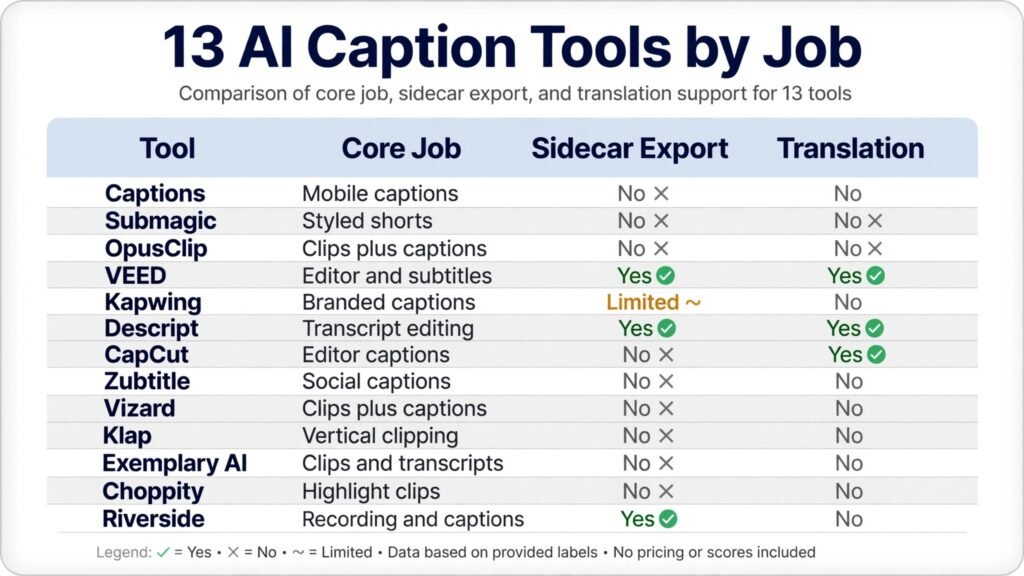
Pick by the job first
Styled short form captions
Captions, Submagic, and Zubtitle belong here. Use them when the goal is a scroll stopping short video with animated, word by word captions, keyword highlights, and a consistent brand look. The style is part of the product here, not decoration, because viewers judge a short video in the first two seconds, and caption style is visible immediately.
Long video to captioned clips
OpusClip, Vizard, Klap, Choppity, and Exemplary AI belong here. Use them when you start with a podcast, a webinar, a stream, or a long tutorial, and you need short clips with captions for social distribution. The value is not only captions. It is clip selection, reframing to vertical, and a workflow that turns one long recording into many publishable shorts.
Full editing with captions included
VEED, Kapwing, Descript, CapCut, and Riverside belong here. Use them when captions are one part of a larger edit, such as a tutorial, a course video, a corporate video, or a podcast episode that also needs trimming, translation, or subtitle files. A caption only tool will feel limited here, because you will still need an editor for everything else.
1. Captions
Captions is the strongest mobile first pick for talking head videos. It transcribes speech, generates styled captions, and lets you edit, dub, and polish short videos on your phone. For creators who film, caption, and publish from one device, that mobile workflow is faster than exporting to a desktop editor for every short video.
Captions works best for solo creators who publish frequently and want a consistent look. Set a template with your font, colours, and highlight style, then reuse it across videos so your feed looks coherent. That consistency helps viewers recognise your videos quickly, and it reduces decision time for every new post. Check captions for names, numbers, and brand terms before you publish, because those are the words speech recognition gets wrong most often.
Watch out for credit and plan limits. Captions offers free credits, with paid plans that add more capacity and features, so check checkout for current iOS and web pricing and for what is included in each tier. Also confirm whether the export resolution and watermark terms meet your needs on the plan you choose, because a mobile tool is only useful if the final video looks professional on every platform.

2. Submagic
Submagic is built for viral short form caption styles. It generates animated captions with word highlighting, emoji options, and templates that match the look of high performing Shorts, Reels, and TikTok videos. For creators who compete on retention in the first few seconds, that style is not a cosmetic extra. It is a core part of how the video holds attention.
Submagic works best for short, high energy videos with clear speech and a strong hook. Upload a vertical video, choose a template, correct the transcript, and export with consistent styling. The best test is to watch the captioned video on mute, on a phone, at normal scrolling speed. If you can follow the argument without sound, the captions are doing their job. If you have to rewatch or guess at words, fix the transcript and the timing before you publish.
Watch out for price and for length limits. Submagic is a paid tool, so check checkout for current plan pricing and for any caps on video length or monthly minutes. It is also a caption and short form tool, not a full editor, so pair it with an editor such as CapCut or VEED when you need trimming, B roll, or complex edits beyond captions.
3. OpusClip
OpusClip turns long videos into short, captioned clips. It analyses a long recording, selects highlight moments, reframes them to vertical, adds animated captions, and prepares clips for Shorts, Reels, and TikTok. For podcasters, coaches, and educators with a back catalogue of long videos, that repurposing workflow is the main value, not captions alone.
OpusClip works best when you review clips before you publish, rather than auto posting everything it generates. Check each clip for context, because a highlight taken out of context can misrepresent the original point, and check captions for names and technical terms. Use the best clips as a starting point, then trim, correct, and add a hook in the first two seconds if the clip needs one for social distribution.
Watch out for the free plan limits and for clip quality variation. Free plans include watermarks and limited processing minutes, while paid plans add more capacity, higher quality, and scheduling features. Check checkout for current pricing and for whether the plan includes the clip length, languages, and export quality you need for your main platform.
4. VEED
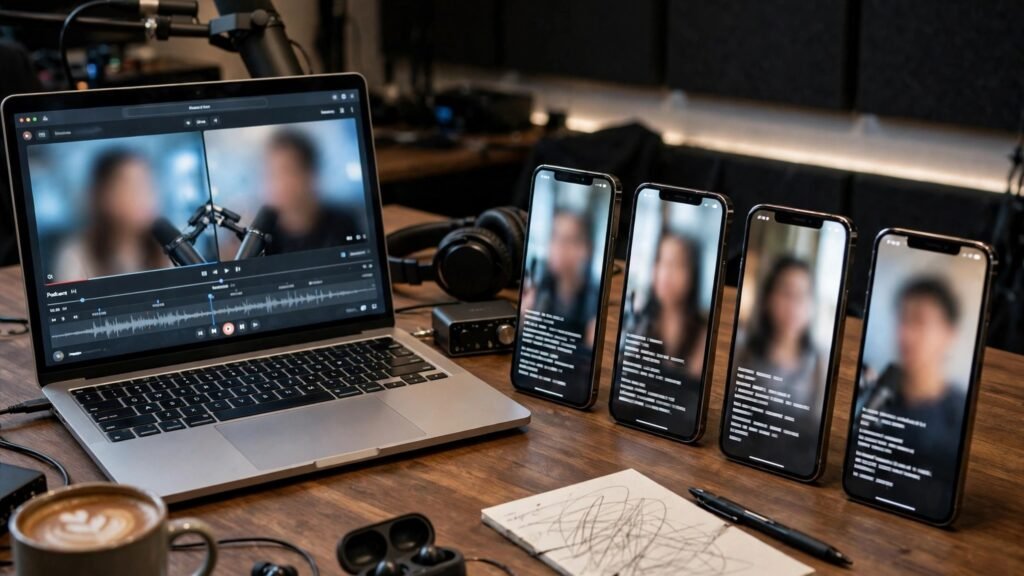
VEED is a browser editor with strong subtitle and translation features. You can upload a video, generate subtitles, edit text and timing, style visible captions, and export either a burned in video or a subtitle file. That flexibility suits teams, educators, and businesses that need both social videos and accessible, translated versions of the same content.
VEED works best for browser based teams and for multilingual work. Generate subtitles in one language, correct the transcript, translate where needed, and export SRT or VTT files for platforms that support sidecar subtitles, as well as burned in videos for social feeds. That dual output, sidecar for accessibility and burned in for social, is a practical advantage, because different platforms and audiences need different caption formats.
Watch out for plan limits and for local pricing. VEED offers a free plan with watermarks, and paid plans vary by local currency and by features such as translation, stock, and export quality. Check checkout for current pricing in your currency and for subtitle limits on the plan you choose, especially if you caption long videos regularly.
5. Kapwing
Kapwing is a browser editor built for collaboration and branded social captions. You can generate captions, edit the transcript, adjust timing, position, and animation, and save brand templates and terminology for repeat use. For small teams that publish together, that shared template and terminology system saves time and keeps output consistent.
Kapwing works best for teams that need to review captions before publishing. One person can generate and draft captions, another can correct names and terms, and a third can approve the final style. That review loop matters for brand terms, product names, and technical language, which are exactly the words that automated transcription gets wrong. Save correct spellings as terminology where the tool supports it, so future videos need less correction.
Watch out for sidecar export limits by plan. Some plans limit SRT or VTT export, while burned in video export is more widely available. Check checkout for current plan terms and for whether your workflow needs sidecar files for accessibility, or whether burned in captions are sufficient for your main platforms.
6. Descript
Descript edits video through a transcript, which makes it the best pick for dialogue heavy content. You can delete a sentence from the transcript and the corresponding video is removed, add captions in script synced styles, and manage multi speaker content with clear layers. For podcasts, interviews, tutorials, and course videos, that transcript first workflow is faster than timeline only editing.
Descript works best when accuracy and editing speed matter more than viral caption style. Use it to clean up filler words, tighten a long interview, and export captioned video plus a transcript for accessibility and repurposing. The caption styles are professional and readable, but they are not the same as the animated, meme style captions that Submagic and Captions specialise in. Choose Descript for substance and clarity, and a styled tool for short form punch.
Watch out for the broader editor price and learning curve. Descript is a full editor, not a caption only tool, so check checkout for current pricing and for whether the plan includes the transcription minutes, export quality, and collaboration features you need. For a single short video, a simpler caption tool may be faster.
7. CapCut
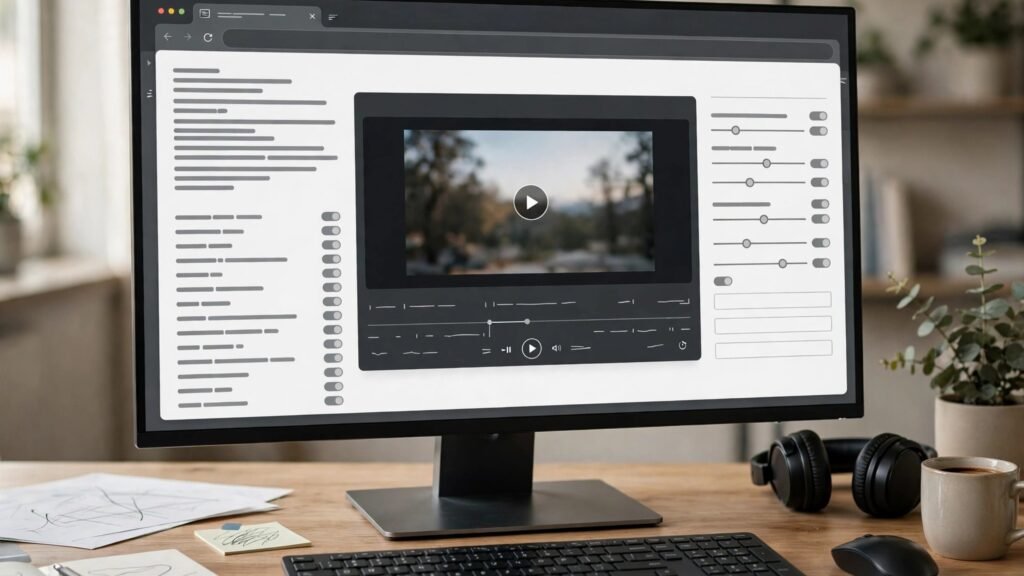
CapCut is the best all rounder for creators who already edit in CapCut. It offers free auto captions across many languages, animated styles, and translation, inside a mobile and desktop editor that also handles trimming, effects, and publishing. For many creators, that combination means no extra tool is needed at all for captions.
CapCut works best as a default, not as a last resort. Generate auto captions, correct names and numbers, choose a style that matches your brand, and export for TikTok, Reels, or Shorts. Because CapCut is free for basic caption work, it is the right benchmark for any paid tool. A paid tool should beat CapCut on style, workflow, translation, or clip selection, not merely on transcription, because transcription quality is now broadly comparable across tools.
Watch out for feature availability by app surface and region. Some CapCut features vary between mobile, desktop, and web, and paid pricing varies by region, so check checkout for current terms in your location. Also confirm export quality and watermark terms on the free tier, especially if you publish for a client or a brand.
8. Zubtitle
Zubtitle is a simple tool for captioned social videos. It focuses on turning a video into a captioned clip with a headline, a progress bar, and a consistent style, without the complexity of a full editor. For businesses and creators who need a clean, professional captioned video quickly, that simplicity is an advantage.
Zubtitle works best for straightforward videos with clear speech, such as testimonials, announcements, and short explainers. Upload the video, generate captions, correct the transcript, add a headline and branding, and export. The headline is especially useful on social feeds, because it gives context before a viewer reads the captions, and it helps a muted video communicate its topic in the first second.
Watch out for the free plan watermark and for paid plan pricing. Zubtitle offers a free plan with watermarked output, and paid plans start at a monthly rate, so check checkout for current pricing and for video length and volume limits. If you need advanced editing, pair Zubtitle with a full editor rather than expecting it to replace one.
9. Vizard
Vizard turns long uploads into short, captioned clips with collaboration features. It supports long videos, selects highlights, reframes to vertical, adds captions, and lets teams review and share clips. For agencies and content teams that repurpose webinars, podcasts, and live streams at scale, that team workflow matters as much as caption quality.
Vizard works best for high volume repurposing. Upload a long video, review the suggested clips, correct captions and hooks, and publish the best ones across platforms. The collaboration features help when one person selects clips, another corrects captions, and a third approves publication, because that division of labour keeps quality high at volume. Check each clip for context, as with any auto clipping tool, before you publish.
Watch out for price and for free plan watermarks. Vizard offers a free plan with watermarked output, and paid plans add more minutes, higher quality, and team features. Check checkout for current monthly pricing and for the upload length and clip limits on the plan you choose, especially if your source videos are long.
10. Klap
Klap is a low cost vertical clipping tool. It identifies engaging moments in a long video, formats them for short form platforms, and adds captions. For creators who want a simple, affordable way to turn YouTube videos, podcasts, and streams into Shorts and Reels, Klap is a strong starting point.
Klap works best for creators with a regular long form output and a small social team. Upload a video, review the clips, correct captions, and publish the best ones. The low cost entry point makes it easy to test whether short form repurposing actually grows your audience before you invest in a more expensive tool. Track which clips perform, and use that data to guide future long form topics and hooks.
Watch out for the free video limit and for paid plan pricing. Klap offers one free video, with paid plans from a monthly rate, so check checkout for current pricing and for minute and clip limits. Klap is also a clipping tool, not a full editor, so pair it with CapCut or VEED for complex edits beyond captions and reframing.
11. Exemplary AI
Exemplary AI combines clips, captions, and transcripts in one workspace. You can generate clips from a long video, caption them, and use the transcript for show notes, blog posts, or social copy. For creators who repurpose content across video, audio, and text, that combined workflow reduces the number of tools and exports needed for one project.
Exemplary AI works best for multi format repurposing. Start with a podcast or webinar, generate clips with captions, export the transcript, and use that transcript to create a blog post or newsletter. That reuse makes one recording work across several channels, which is valuable for small teams with limited production time. Correct the transcript once, and use the corrected version for every output, so errors do not spread across formats.
Watch out for free plan resolution and watermark limits. Exemplary AI offers a free plan with lower resolution and watermarked output, so check checkout for current paid pricing and for export quality on the plan you choose. For client work or brand publishing, a paid plan with clean exports is usually necessary.
12. Choppity
Choppity finds highlights in long videos and produces captioned short clips. It suits creators who want a focused clipping tool without the full feature set of a larger platform, and it works well for podcasts, interviews, and talking head videos where the best moments are clear from speech and sentiment.
Choppity works best when you give it strong source material. A long video with clear topics, distinct segments, and a strong hook will produce better clips than a rambling recording with no structure. Review clips for context and caption accuracy, add a hook or title where needed, and publish only the clips that stand alone without the full original video. A clip that needs the original for context will confuse social viewers.
Watch out for pricing and for the limits of auto selection. Choppity is a paid tool, so check checkout for current pricing and for minute limits. Auto selection is a starting point, not a final edit, and human review remains essential for context, accuracy, and brand safety, especially for sensitive topics or client work.
13. Riverside
Riverside is a recording platform with transcript and caption workflow built in. It records high quality audio and video, including remote interviews, generates transcripts, and supports captioned clips and exports. For podcasters and interviewers, that recording to caption flow is valuable, because it starts with a clean recording, which makes transcription and captioning more accurate.
Riverside works best for remote interviews and podcast production. Record guests in separate tracks, edit from the transcript, generate captions for clips, and export for social distribution. Separate tracks also make it easier to fix audio issues for one speaker without affecting others, which improves both the final episode and the captioned clips derived from it.
Watch out for the fact that Riverside is primarily a recording and production platform, not a caption only tool. Check checkout for current pricing and for transcription, export, and storage limits on the plan you choose. For a creator who only needs captions for existing videos, a caption only tool such as Submagic or Captions may be simpler and cheaper.
Best pick by job for video captions
| Job | First pick | Why it wins | Second option |
|---|---|---|---|
| Mobile talking head | Captions | Mobile captions plus editing | CapCut |
| Viral short form style | Submagic | Animated word highlighting templates | Captions |
| Long video to clips | OpusClip | Clip selection plus captions | Vizard |
| Browser editing and translation | VEED | Subtitles, translation, and sidecar export | Kapwing |
| Team branded captions | Kapwing | Collaboration and brand templates | VEED |
| Dialogue heavy editing | Descript | Transcript first editing | Riverside |
| Free all rounder editing | CapCut | Free auto captions inside an editor | VEED |
| Simple social captions | Zubtitle | Clean headline and progress bar style | Kapwing |
| High volume clipping | Vizard | Long uploads plus team review | OpusClip |
| Low cost clipping | Klap | Affordable vertical clipping | Choppity |
| Multi format repurposing | Exemplary AI | Clips, captions, and transcripts together | Descript |
| Remote interview captions | Riverside | Separate track recording plus transcript | Descript |
How to choose the best AI video caption generators for your format
Start with the format you publish most. If you publish Shorts and Reels daily, you need styled captions and a fast mobile or browser workflow. If you publish long tutorials or courses, you need accurate subtitles, sidecar files, and translation. If you publish podcasts, you need clip selection plus captions. A tool that is excellent for one format can be frustrating for another, so judge by your main format first.
Next, test accuracy on your own voice, accent, and vocabulary. Generate captions for a real video, not a demo, and count errors in names, numbers, brand terms, and technical words. Those errors are the ones that matter, because a generic word error is easy to miss, while a wrong name or number can mislead viewers. For creator context, see best AI tools for TikTok, best AI tools for Instagram, and best AI tools for content agencies.
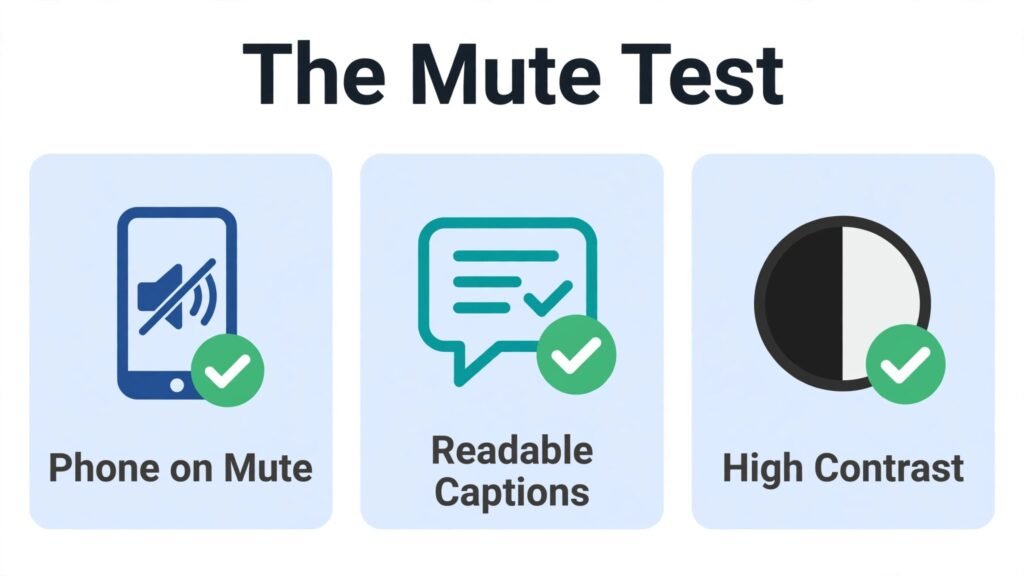
Then check style at scrolling speed. Watch the captioned video on mute, on a phone, while scrolling, and ask whether you can follow it without effort. Check font size, contrast, position, and word highlighting. A caption style that looks good on a desktop monitor can be unreadable on a phone, and a style that works for a slow tutorial can feel too slow for a fast short video. Save the style that passes the mute test as a template, and reuse it.
Finally, check total cost for your volume. A free tool is good value for occasional videos. A paid tool is good value only if you publish often enough to use its minutes, templates, and workflow features. A clipping tool is good value if you have long videos to repurpose, and poor value if you only film short videos directly. Match the pricing model to your publishing frequency, not to a feature list.
Mistakes to avoid with AI video captions
The first mistake is publishing captions without correction. Automated transcription is good, but it still mishears names, numbers, and technical terms, and those errors are visible to every viewer. Correct the transcript before you export, especially for the first ten seconds, because that is where viewers decide whether to keep watching.
The second mistake is choosing a caption style that fights the video. Tiny text, low contrast, or captions placed over important visuals will reduce readability, even if the transcription is perfect. Keep captions large enough to read on a phone, use high contrast, and avoid placing text over faces, key actions, or on screen text that viewers also need to read.
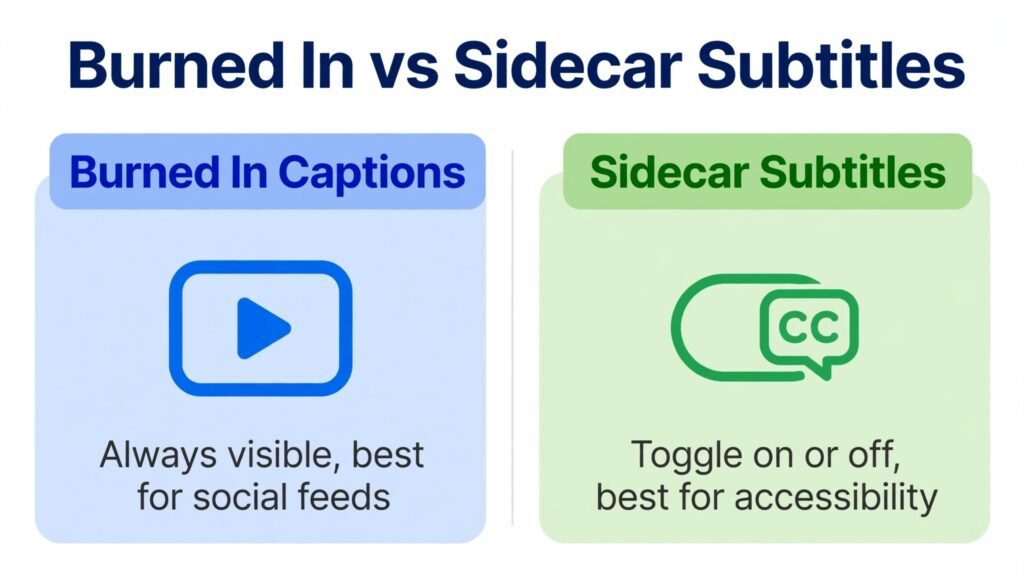
The third mistake is using burned in captions when you need accessible subtitles, or vice versa. Burned in captions are ideal for social feeds, where viewers watch on mute and platforms may not show sidecar subtitles reliably. Sidecar subtitles, such as SRT or VTT files, are better for accessibility, translation, and platforms that let viewers toggle captions. Many projects need both, so check whether your tool exports both formats.
The fourth mistake is auto posting clips without context checks. Auto clipping tools can select a moment that sounds engaging but misrepresents the original point, or that needs context from earlier in the video. Review every clip for standalone clarity, add a title or hook where needed, and do not publish a clip that could be misunderstood without the full original.
The fifth mistake is paying for a tool that duplicates a free tool you already use. If CapCut or native platform captions already give you readable, styled captions for your main format, a paid tool must add clear value, such as clip selection, translation, team workflow, or a style you cannot achieve free. Test the paid tool against your free baseline on a real video before you subscribe.
Frequently asked questions
Are AI video captions accurate enough to publish?
Yes, after correction. Modern speech recognition is strong for clear speech, but it still makes errors on names, numbers, accents, and technical terms. Generate captions, correct the transcript, and check the first ten seconds carefully. With that review step, AI captions are accurate enough for social, educational, and business videos.
Which of the best AI video caption generators is best for TikTok and Reels?
Submagic is the strongest pick for viral short form style, with animated word highlighting and templates built for Shorts and Reels. Captions is the strongest mobile pick for talking head videos, and CapCut is the strongest free all rounder. Test all three with a real video, and choose by which style passes the mute test on your phone.
Do I need burned in captions or subtitle files?
It depends on the platform. Burned in captions are best for social feeds, where viewers watch on mute and you want the text always visible. Subtitle files, such as SRT or VTT, are best for accessibility, translation, and platforms that support caption toggling. Tools such as VEED and Kapwing can export both, so use burned in for social and sidecar files where accessibility matters.
Can AI caption generators translate videos?
Some can. VEED, Kapwing, and Descript offer translation features, with varying language coverage and accuracy by plan. Always review translated captions with a speaker of the target language before you publish, because automated translation can misread idioms, names, and technical terms. For a free alternative, see best free AI video generators.
Do caption tools work for long videos?
Yes, but check minute limits and pricing. Clipping tools such as OpusClip, Vizard, and Klap are built for long videos, while caption only tools may have length caps or per minute pricing that adds up. For a long tutorial or course, a full editor such as Descript or VEED is often more practical than a short form caption tool.
Should I pay for captions if native platform captions are free?
Pay only when a paid tool adds clear value over native captions. Native captions are sufficient for many creators. Paid tools earn their price through animated styling, brand templates, translation, clip selection, team workflow, or a faster process across many videos per week. If none of those apply to your workflow, stay with free tools and invest the saving elsewhere.
Conclusion: readable on mute, correct on names, styled for your feed
The best AI video caption generators make your videos readable in the conditions where most people watch them: on a phone, on mute, while scrolling. Start free with native captions or CapCut, test accuracy on your own voice, and pay only when styling, clipping, translation, or team workflow clearly improves your output. Correct names and numbers every time, check style at scrolling speed, and export both burned in and sidecar captions where your audience needs them. Do that, and captions stop being an afterthought and become a reliable part of every video you publish.