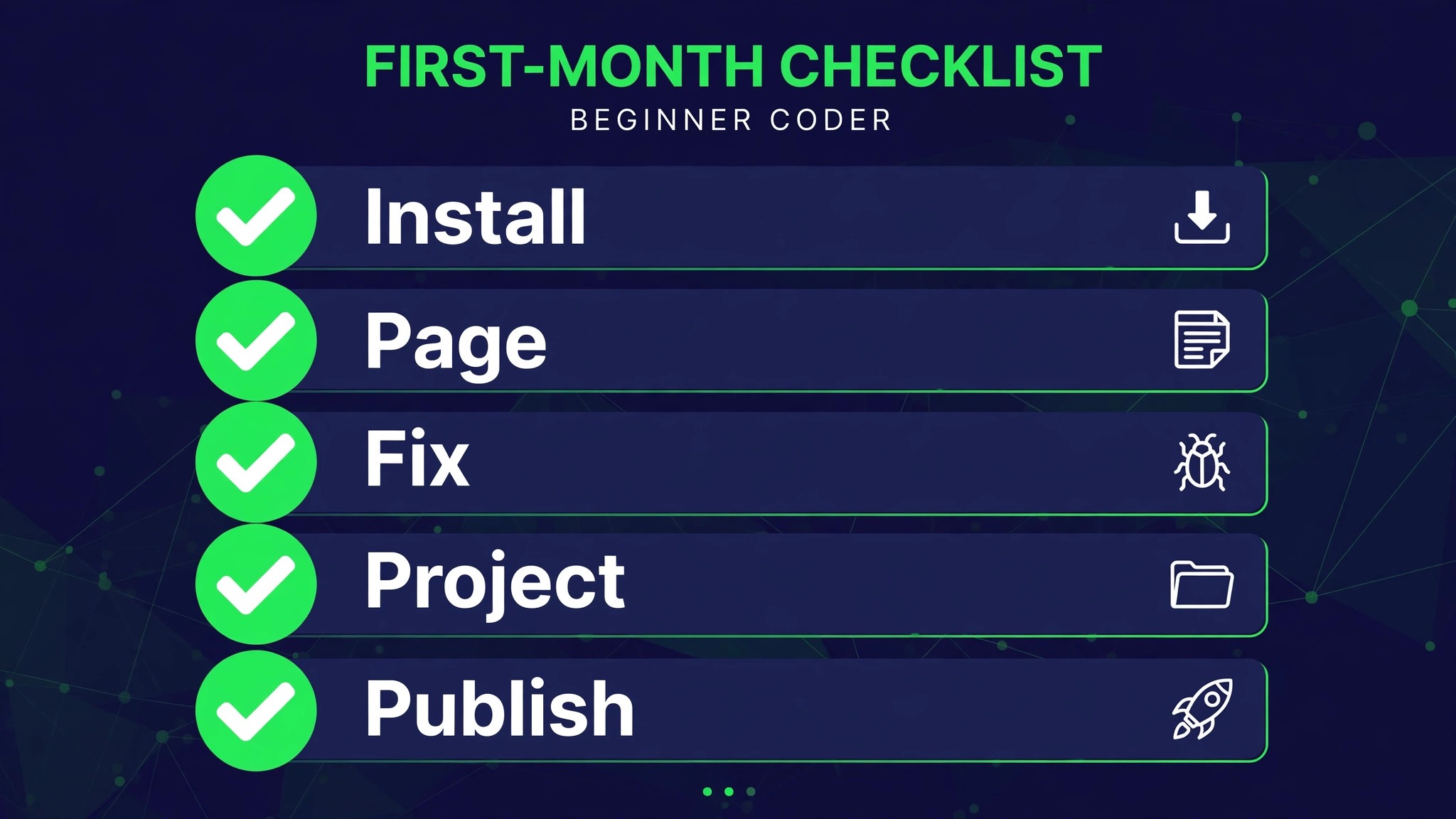
You get home from work, open a laptop at the kitchen table, and decide that tonight is the night you learn to code. The best code editors for beginners is the question that stands between you and the first line, and the honest answer for most new coders is Visual Studio Code, because it costs nothing, it runs on every machine, and it explains your mistakes instead of just marking them wrong. This post follows your first thirty days, from the install to a small project that actually works.
Day 1: Install It, Open It, Write One Line
Day one takes twenty minutes, and that is the point. You download Visual Studio Code, install it, and open a folder on your desktop. The editor asks for nothing else. No account, no project settings, no licence key. You create a file called hello.html, type one heading and one paragraph, and save it.
The first file teaches you the three things that matter in week one. The colours tell you what each word is, so a tag looks different from plain text. The automatic tag closing finishes the tag you started, so you type less and break less. The error underline appears the moment you mistype a bracket, and it names the problem in plain words.
Day one ends with a habit, not a project. Open the editor, write one line, save it, close it. Do that again tomorrow. The coder who opens the editor every evening for a month learns more than the coder who studies editors for a month and opens one twice.
Day 7: Your First Web Page
By day seven you have a page with a heading, two paragraphs, a photo and a link, and you have opened it in a browser to see it work. The page is ugly, and that is fine. The win is that you built it, and you can change the colours in the CSS file and watch the page change.
The extension is the moment VS Code pulls ahead of the simple editors. An extension is a small add-on that teaches the editor a new trick, and you install it from inside the editor in under a minute. The Python extension adds linting, debugging and a test runner when you learn Python, and Live Server refreshes the browser for web pages. One extension for the language you are learning is all you need in month one.
Day seven also teaches you the save habit. Save the work, close the editor, and reopen it the next day. A beginner who can find yesterday’s file and pick up where they left off has a workflow, and that is what turns an evening hobby into a skill. For the best code editors for beginners, that daily reopen is the real test, and VS Code passes it.

VS Code vs Cursor: Free Classic Against AI First
The first difference is the price model. VS Code is free with no paid tier at all, and every feature a beginner needs ships in the box. Cursor is free to try, then Plus at 8 dollars a month or Premium at 30 dollars a month for the current plans, with the older Pro at 20 dollars a month kept for existing subscribers. A beginner who pays for Cursor in month one is paying for the AI, not for the editor, because the editor underneath is the same VS Code base.
The second difference is the learning effect, and this is the trade-off that decides the pick. VS Code teaches by showing errors, underlining mistakes and offering fixes that you read and apply. Cursor teaches by answering questions in chat and writing code on request, which is faster but hides the learning. A beginner who uses Cursor from day one will ship more code and understand less of it, while a beginner who starts in VS Code will ship slower and understand more.
The deciding factor is the month. Month one belongs to VS Code, because the basics deserve a month of unassisted practice. Month two belongs to Cursor, because once the syntax is familiar the AI becomes a tutor rather than a crutch.
Day 14: The First Error That Fights Back
Day fourteen is the day the error message stops making sense. You change one line, the page breaks, and the underline points at a bracket three lines above the real mistake. Every coder meets this day, and the editor you picked decides how it goes. VS Code underlines the missing bracket, names the error in plain words and offers a one-click fix. Cursor goes further, and its chat panel explains the bug tied to the actual code on screen, not a generic web result.
Here is what to do before you ask anyone for help. Read the error message out loud, slowly. Check the line above the one the editor points at, because a missing bracket hides upstream. Break something on purpose in a copy of the file, then fix it, so you learn what the error looks like when you cause it.
The AI question gets honest here. Cursor and Windsurf put an AI assistant beside the code, and that assistant can explain a function, fix a bug and write a first draft of a script. That help is real, but it can also become a crutch, because a beginner who never reads the code the AI writes will not learn the language. Every list of the best code editors for beginners hides that trade-off in a footnote, so read it here first. Faster code now, or deeper understanding that lasts.
Day 30: A Small Project That Works
Day thirty is a finished project, and it is small on purpose. A personal page, a recipe list or a simple calculator, built piece by piece over three weeks. You add a second page, link the pages together, and publish the site with a free host. Then you show it to a friend. A learner who ships something real in thirty days has a portfolio, a habit and a reason to keep going, and that single shipped project teaches more than a year of comparing editors.
The last week of the month is the finish, not the build. Fix the one bug that annoys you most, tidy the page that looks worst, and write a short note about what the project does. A project that exists by day thirty teaches more than a month of tutorial videos, because you made every decision in it, including the wrong ones.
Look back at the month and count what you spent. If you stayed on free editors, the answer is nothing, and that is the right budget for a hobby that may not last.
If you bought a 99 dollar licence, you paid about 66 cents per coding session across a year of three evenings a week. If you pay 30 dollars a month for Cursor Premium, you pay about 2.40 dollars per session, which is fair only when you use the AI daily. That single shipped project is how you should judge the best code editors for beginners, not by their feature lists.
Best Pick by Job
| Job type | First pick | Second tool | Why this pair works |
|---|---|---|---|
| First ever editor | Visual Studio Code | Notepad++ | VS Code teaches with hints, Notepad++ costs nothing on Windows |
| AI assisted learning | Cursor | Windsurf | Cursor explains code in chat, Windsurf runs agent tasks |
| Slow or older computer | Sublime Text | Zed | Sublime opens instantly, Zed stays light on modern machines |
| Mac only workflow | Nova | BBEdit | Nova publishes from the editor, BBEdit searches huge files |
| Zero budget, any platform | Visual Studio Code | Pulsar | Both are free, VS Code has the bigger extension library |
Start free, learn the basics, and pay only for the tool that solved a real problem. A learner who hits a wall that only an AI assistant can clear should buy Cursor, and a learner who loves the speed of Sublime should buy the licence. For the best code editors for beginners on a zero budget, nothing else in this guide needs your money in month one.
How to Choose the Best Code Editors for Beginners
Start with the operating system and the budget. A free editor that runs everywhere is the right default, and that points to Visual Studio Code, Zed or Pulsar on any machine, Notepad++ on Windows only, and Nova or BBEdit on Mac only. A beginner who pays 99 dollars for Sublime Text or Nova before writing a first program is paying for speed and polish that a free editor already gives away.
Next, check how the editor explains mistakes. A good beginner editor underlines a missing bracket, names the error in plain words and offers a one-click fix. VS Code, Cursor and Zed all do this well, while Notepad++ and TextMate only highlight syntax and leave the debugging to the coder. Error help should weigh more than themes or fonts, because the editor that explains the mistake is the editor that teaches.
Then look at the AI question honestly. Cursor and Windsurf put an AI assistant beside the code, and that assistant can explain a function, fix a bug and write a first draft of a script. That help is real, and it is also a risk, because a beginner who accepts every AI suggestion without reading it will finish projects without learning the language.
Finally, run the five-minute test before you commit to any editor.
- Install the editor and open a folder in under ten minutes
- Write a first HTML page and see the preview in a browser
- Break something on purpose and read the error message
- Install one extension for the language being learned
- Save the work, close the editor and reopen it the next day
Here is the whole field before you install a second tool. Every editor below was judged on the same first project, a small web page with HTML, CSS and JavaScript, so the comparison reflects real beginner work rather than feature lists.
| Tool | Main job | Best for | Starting price |
|---|---|---|---|
| Visual Studio Code | Free general editor | Most beginners | Free |
| Cursor | AI first editor | Beginners who want AI help | Free, paid from 8 dollars a month |
| Sublime Text | Fast lightweight editor | Older machines, huge files | 99 dollars one time |
| Zed | Fast native editor | Speed and live collaboration | Free, Pro 10 dollars a month |
| Windsurf | AI agent editor | Agent driven coding | Free, Pro 20 dollars a month |
| Notepad++ | Free Windows editor | Windows only, zero cost | Free |
| Nova | Native Mac editor | Mac only, publishing built in | 99 dollars one time |
| BBEdit | Classic Mac text editor | Mac text work and search | 49.99 dollars one time |
| TextMate | Free Mac editor | Mac, open source, bundles | Free |
| Pulsar | Community Atom fork | Open source fans | Free |
The 10 Tools in Detail
The ten editors below cover free general editors, AI first editors, paid one time editors and open source forks. Each one is judged on install time, startup speed, error help, extension depth and what it costs after year one, so this roundup of the best code editors for beginners stays honest about what each editor actually does for a new coder.
1. Visual Studio Code
Visual Studio Code is the free editor from Microsoft, and it is the default recommendation for new coders for good reason. It runs on Windows, Mac and Linux, it installs in minutes, and it opens a folder and starts editing with no project setup. Syntax highlighting, bracket matching, automatic tag closing and a built in terminal all ship in the box, and the extension marketplace adds support for Python, JavaScript, Java, C plus plus, Go, Rust and every other first language.
The extension library is the strength. A beginner adds the Python extension and gets linting, debugging and a test runner, or adds Live Server and sees a web page refresh in the browser as the code changes. The editor also includes Git integration, so the first version control lesson happens inside the same window, and the settings sync keeps the setup identical across machines.
The drawback is the Electron base. VS Code uses more memory than a native editor, and a machine with 4 gigabytes of RAM will feel it when a browser and a video lesson run beside it. It suits almost every beginner, and you should start here, then move only when a specific limit shows up.
What would I do in your place. I would install VS Code tonight, build the first web page this week, and add nothing else for a month. No themes, no extra extensions, no second editor. The month of plain practice is what makes the editor feel like yours, and the fancy setup can wait until you know what you are missing.
2. Cursor
Cursor is an AI first editor built on the VS Code base, and it is the fastest way for a beginner to get unstuck. The chat panel explains code in plain words, the agent mode edits files across a project, and the autocomplete predicts whole blocks of code from a comment. New customers start on the Free plan, Plus at 8 dollars a month, or Premium at 30 dollars a month under the current X Subscription pricing, while the older Pro plan at 20 dollars a month stays for existing subscribers only.
The AI help is the strength. A beginner who types a question in plain English gets an answer tied to the actual code on screen, not a generic web result, and the agent can run a fix, run the tests and report what changed. That loop teaches faster than a search engine, because the feedback arrives in seconds and in context.
The limit is the learning risk. A beginner who accepts every AI suggestion without reading it will finish projects without learning the language, and the usage based pricing means heavy agent use can push the bill past the plan price.
Cursor suits a beginner who already knows the basics and wants a tutor beside the code. Learn the syntax first, then let the AI speed you up.
3. Sublime Text
Sublime Text is the fast lightweight editor that has survived every trend since 2008, and it still opens faster than anything else in this guide. The personal licence costs 99 dollars one time and covers three years of updates, with a free evaluation that runs without a time limit. It runs on Windows, Mac and Linux, it opens huge files without a pause, and its multi cursor editing lets a coder change ten lines at once.
The speed is the strength. Sublime starts in a fraction of a second, it handles a one million line log file without freezing, and the command palette puts every action a keystroke away. The package ecosystem adds linting, formatting and language support, though it is smaller than the VS Code marketplace.
The drawback is the setup work. Sublime ships lean, so a beginner must install packages for linting, debugging and Git, and the menus hide more than they reveal. It suits a learner on an older machine or a coder who values speed above all else.
4. Zed
Zed is the free native editor from the makers of Atom, and it is the speed pick for beginners on modern machines. It is written in Rust, it starts almost instantly, and it uses far less memory than an Electron editor. The free plan covers the editor and the core features, and Zed Pro at 10 dollars a month adds the AI features and higher model limits.
The native performance is the strength. Zed opens a large project without a loading spinner, it renders text at a high frame rate, and its built in collaboration lets two people edit the same file live, which suits a study group or a mentor session. The limit is the young ecosystem, because Zed has fewer extensions than VS Code and fewer language servers are bundled. It suits a beginner who wants the fastest free editor and is happy to grow with a young tool.
5. Windsurf
Windsurf is the AI agent editor from Codeium, now sold as Devin Desktop, and it is built around agent driven coding. The agent, called Cascade, reads the whole codebase, plans a change across files, writes the code and runs the checks. The free plan covers a trial of the agent features, and the Pro plan costs 20 dollars a month.
The agent depth is the strength. A beginner describes a feature in plain words and watches the agent build it, which makes a first full project feel reachable in an afternoon. The drawback is the abstraction, because a beginner who leans on the agent from day one will not learn how the code fits together, and the agent sometimes writes more code than the task needs. It suits a beginner who already understands the basics and wants to build a bigger project fast.
6. Notepad++
Notepad++ is the free editor for Windows, and it is the simplest tool in this guide. It installs in under a minute, it opens in under a second, and it needs no account, no sign in and no setup. Syntax highlighting covers dozens of languages, the tab system handles many files at once, and the plugin manager adds tools such as a JSON viewer and a file comparison view.
The simplicity is the strength, and the ceiling is the limit. A Windows beginner can be writing code three minutes after the download finishes, and the editor never asks for a subscription or a cloud account. It has no built in terminal, no debugger and no Git integration, so a beginner outgrows it once the projects need real tooling. It suits a Windows learner who wants the cheapest possible start or a second editor for quick edits.
7. Nova
Nova is the native Mac editor from Panic, and it is the most polished editor a Mac beginner will meet. The licence costs 99 dollars one time and includes one year of updates, with a 30 day free trial. Nova includes a built in terminal, Git support, a publishing tool that uploads a site to a server, and a task runner that builds and tests a project with one click.
The Mac native feel is the strength. Nova looks and behaves like a Mac app, it opens fast, it renders text cleanly, and its extension library covers the common languages. The drawback is the platform and the price, because Nova runs on Mac only, so the skills do not transfer to a Windows machine, and 99 dollars is a real cost for a hobby that may not stick. It suits a Mac only learner who wants a beautiful editor and plans to publish a site.
8. BBEdit
BBEdit is the classic Mac text editor from Bare Bones, and it has been the Mac standard for text work since the early 1990s. The licence costs 49.99 dollars one time, and a free mode covers the core editing after the trial ends. BBEdit handles huge files and edits text, HTML, CSS and code with equal ease.
Its search power is the reason professionals keep it installed beside a modern editor.
- Rename a word across fifty files in one search
- Clean up a messy data file with regular expressions
- Compare two versions of a document side by side
- Transform blocks of text with built in tools
The limit is the modern coding workflow, because BBEdit has no built in debugger, no extension marketplace as large as VS Code, and no AI help, so it works best as a second editor rather than the only one. It suits a Mac learner who does heavy text work alongside coding.
9. TextMate
TextMate is the free open source Mac editor that defined the modern code editor, and it still earns a place for Mac beginners. It is free, it runs on macOS, and its bundle system adds language support, snippets and commands for dozens of languages. TextMate opens fast, it highlights syntax cleanly, and it stays simple enough that a beginner learns the editor in an afternoon.
The bundle system is the strength. A beginner installs the bundle for the language being learned and gets snippets, syntax rules and commands that match the language, without the weight of a full IDE. The drawback is the slow development pace, because TextMate updates arrive less often than VS Code or Zed, and there is no built in terminal or debugger. It suits a Mac learner who wants a free native editor with no account and no subscription.
10. Pulsar
You care about open source and you want a free editor that is not owned by a large company. Is Pulsar a real choice, or a hobby project.
It is a real choice with honest limits. Pulsar is the free open source fork of Atom, kept alive by the community after GitHub shut Atom down in 2022. It runs on Windows, Mac and Linux, and it carries the Atom extension library forward under community care.
A beginner gets a hackable editor with a package manager, themes and a familiar Atom style interface, and many older tutorials still apply, because the interface and the key bindings match the editor those tutorials used. The limit is the small team behind it, because Pulsar updates arrive slower than VS Code and the package library is thinner.
What Is an Extension, and Which Ones Do You Actually Need?
An extension is a small add-on that teaches your editor a new trick, and you install it from inside the editor in under a minute. The language extension is the one that matters first, because the Python extension adds linting, debugging and a test runner, and the same idea holds for JavaScript and every other first language. Live Server is the second one worth installing, because it refreshes the browser every time you save, which turns editing a web page into a live game.
Everything after those two is optional in month one. A theme changes the colours and nothing else. A snippet pack saves typing and teaches nothing. Install the language extension and Live Server, then stop.
Can You Learn to Code With a Free Editor Only?
Yes, and most working developers did exactly that. VS Code is free, it covers every language a beginner will meet, and its extension marketplace adds debugging, testing and Git without a payment. Notepad++ is free on Windows, TextMate and Pulsar are free on Mac and Linux, and Zed is free on every platform. A beginner can go from the first line of HTML to a deployed website without spending a dollar.
The second reason is the quality of the free help. The VS Code docs, the Python extension docs and the free tutorials on the web all assume the reader uses VS Code, so the answers match the screen.
Should You Use an AI Editor From Day One?
No. A beginner should learn the syntax in VS Code for the first month, so the errors and the fixes become familiar, and then add Cursor or Windsurf in month two when the questions get harder. An AI editor used from day one writes code the learner never reads, and the learning never happens. The AI is a tutor, not a replacement for practice.
The honest middle path is to use the AI as a question answerer, not a code writer, in month one. Ask it to explain a function, ask it why an error appeared, and then write the fix yourself.
Frequently Asked Questions
How much does Cursor cost now?
Cursor is free to try, and new customers buy Plus at 8 dollars a month or Premium at 30 dollars a month under the current X Subscription pricing. The older Pro plan at 20 dollars a month stays for existing subscribers only.
Is VS Code really free?
Yes. Visual Studio Code is free to download and free to use, with no paid tier and no feature locked behind a payment. Microsoft makes money from its cloud services, not from the editor, so the editor stays free.
Which code editor should a beginner start with?
Visual Studio Code is the best start for most beginners, because it is free, it runs on every platform, and its extension library covers every first language. A Windows beginner who wants the simplest tool can start with Notepad++, and a Mac beginner who wants a native feel can start with Nova or BBEdit.
Is Sublime Text worth 99 dollars for a beginner?
Sublime Text is worth 99 dollars only when the speed becomes a daily habit, because the free evaluation runs without a time limit and covers every feature. A beginner should try the evaluation for a month, and buy the licence when the editor is the tool reached for every day. A learner who has not coded for a month yet should stay with a free editor.
Can a beginner code on a Chromebook?
Yes, with limits. VS Code runs on ChromeOS through the Linux container, and web based editors such as GitHub Codespaces run in the browser. A Chromebook with 4 gigabytes of RAM will struggle with heavy extensions, so a beginner on a Chromebook should keep the setup light and use the web tools first. A used Windows laptop often costs less than a new Chromebook and runs every editor here natively.
Should a beginner use an AI editor from day one?
No. A beginner should learn the syntax in VS Code for the first month, so the errors and the fixes become familiar, and then add Cursor or Windsurf in month two when the questions get harder. An AI editor used from day one writes code the learner never reads, and the learning never happens.
Your First 30 Days, Planned
Week one is the setup. Install VS Code, open a folder, write a first HTML page with a heading and a paragraph, and open it in a browser. Add a CSS file, change the colours, break the page on purpose and read the error. The goal of week one is comfort, not output, and a learner who can open the editor without dread has already won.
Week two and three are the build. Pick one small project, a personal page, a recipe list or a simple calculator, and build it piece by piece. Use the editor hints, read every error message, and ask the AI assistant only after trying the fix alone.
Week four is the finish. Add a second page, link the pages together, publish the site with a free host, and show it to a friend. Pick one editor, build one small project in thirty days, and publish it. That single shipped project is the only honest way to choose among the best code editors for beginners, and it teaches more than a year of comparing editors.