
Students decide how much they trust a tutor in the first few seconds of video, long before they judge the lesson itself. A sharp face, even light and a steady frame signal that the session will be clear and organised. A dark, grainy or drifting image does the opposite, and students quietly blame the tutor for it. That is why the best webcam for online tutoring is not the camera with the biggest resolution number on the box. It is the camera that keeps your face bright and centred in a normal room, with a normal lamp, on a normal laptop, for a full teaching day.
This guide tests that idea against 8 cameras. It compares resolution, low-light behaviour and framing side by side, gives a price for each pick from current retail listings in October 2026, and names a rejection reason for every camera. Prices move with sales and bundles, so check the price at checkout before you buy. The verdict at the end matches a camera to a teaching job, because a tutor who walks to a whiteboard needs a different camera from a tutor who sits still and teaches maths from a desk.
The Short Verdict for Busy Tutors
If you teach from a desk, the best webcam for online tutoring at a midrange price is the Logitech Brio 500, which looks professional on Zoom, Google Meet and Teams. It gives you 1080p video, strong auto light correction, auto-framing that keeps you centred when you lean or shift, and a desk view mode for showing written work. At about 130 dollars it sits in the middle of this list, and it removes the three problems tutors complain about most, which are dim rooms, drifting framing and awkward document shots.
If your budget is tight, buy the Brio 100 at about 40 dollars or the C200 at about 70 dollars. If you move around the room or teach from a whiteboard, buy the OBSBOT Tiny 2, whose motorised tracking follows you. If you want the sharpest recorded lessons, buy the MX Brio, which records in 4K.
Do not buy on resolution alone. A 4K camera in a dim room with no light correction will look worse than a well lit 1080p camera, and a wide fixed frame that shows your whole bookshelf will make your face look small. Light and framing decide how professional you look. Resolution only decides how much detail survives once light and framing are right.
What Tutoring Video Actually Needs
Tutoring video has a narrower job than streaming or office calls. You are on camera for hours, you speak for most of the session, you show written work, and your students watch on laptops, tablets and phones. That combination changes what matters.
Resolution matters, but only up to a point. On a live call, most platforms compress your video to 720p or 1080p anyway, so a 4K sensor helps mainly when you record lessons or crop into the frame.
Low-light performance matters more than most tutors expect. Teaching often happens in the evening, in a spare room, with one ceiling light or a desk lamp behind the tutor. A camera with a larger sensor, a wider aperture or good auto light correction will lift your face out of shadow without turning the background into a white blur.
Framing matters because tutoring is not a headshot. You lean forward to explain a step, you lean back to think, you turn to a notebook, and you sometimes stand to work through a problem. A fixed narrow frame punishes every move.
Audio is the quiet fourth factor. Every camera in this guide has a built-in microphone, and none of them replaces a proper headset or desk microphone for daily teaching.
Connection and software matter too. A USB-C camera on a modern laptop is simple, while an older USB-A camera may need an adapter.
The Comparison Table With Rejection Reasons
This table is the overview proof element for this guide to the best webcam for online tutoring. Find your teaching situation, read the verdict, then read the rejection reason. The rejection often tells you more than the recommendation, because it shows what each camera cannot do.
| Camera | Resolution and frame rate | Low light | Framing | Price seen | Who it suits | Rejection reason |
|---|---|---|---|---|---|---|
| Logitech Brio 100 | 1080p at 30 frames per second | RightLight 2 auto light balance | Fixed 58 degree view, fixed focus | About 40 dollars | New tutors on a tight budget | Narrow fixed frame and fixed focus punish movement and desk shots |
| Logitech C920s Pro | 1080p at 30 frames per second | Auto light correction, 3 megapixel sensor | Autofocus, 78 degree view | About 60 dollars | Reliable everyday desk teaching | No auto-framing and no desk view, so you must sit still and frame by hand |
| Logitech C922 Pro Stream | 1080p at 30 frames per second, 720p at 60 | Auto low-light correction | Autofocus, 78 degree view, tripod included | About 120 dollars | Tutors who also record lessons | Older design with no auto-framing, and the price is high for 1080p only |
| Logitech Brio 500 | 1080p at 30 frames per second, 720p at 60 | RightLight 4 with HDR | RightSight auto-framing, 90, 78 and 65 degree views, Show Mode | About 130 dollars | Most desk tutors, the default pick | Not a 4K camera, so recorded lessons cannot be cropped as far |
| Anker PowerConf C200 | 2K resolution | Low-light correction | Adjustable 65, 78 and 95 degree views | About 70 dollars | Tutors who teach pairs or small groups | No motorised tracking and no desk view, so whiteboard teaching still needs manual framing |
| Razer Kiyo Pro | 1080p at 60 frames per second, HDR at 30 | Adaptive light sensor, Sony STARVIS sensor | Adjustable 103, 90 and 80 degree views | About 200 dollars at list | Tutors in dim rooms who also stream | No 4K, and the best framing settings need Razer software |
| Logitech MX Brio | 4K at 30 frames per second, 1080p at 60 | Large 8.5 megapixel sensor, auto light correction | RightSight auto-framing, 90, 78 and 65 degree views, Show Mode | About 170 to 200 dollars | Tutors building a recorded course library | The highest price here for gains that live calls may compress away |
| OBSBOT Tiny 2 | 4K at 30 frames per second, 1080p at 60 | Dual native ISO, large 1/1.5 inch sensor | Motorised AI tracking with auto-framing and auto zoom | About 299 dollars | Whiteboard tutors and moving presenters | The highest price and the most complex setup, which is wasted on a seated tutor |

How to Choose the best webcam for online tutoring
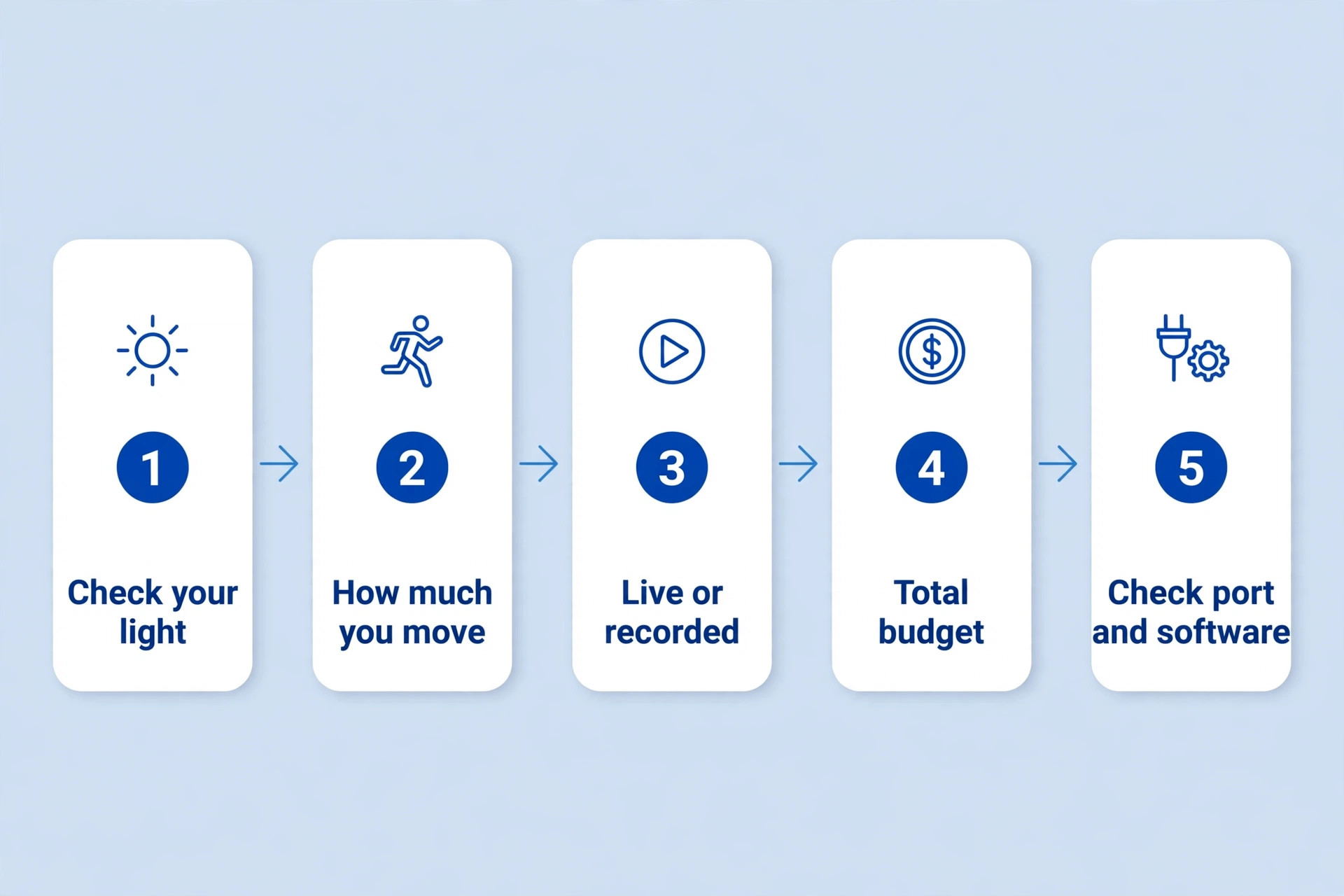
Choosing the best webcam for online tutoring is a sequence, not a single product decision. Start with your room, then your movement, then your recording plans, then your budget. Skipping the first step is how tutors buy a well reviewed camera, place it in a dim corner, and then blame the camera when students say they cannot see the work.
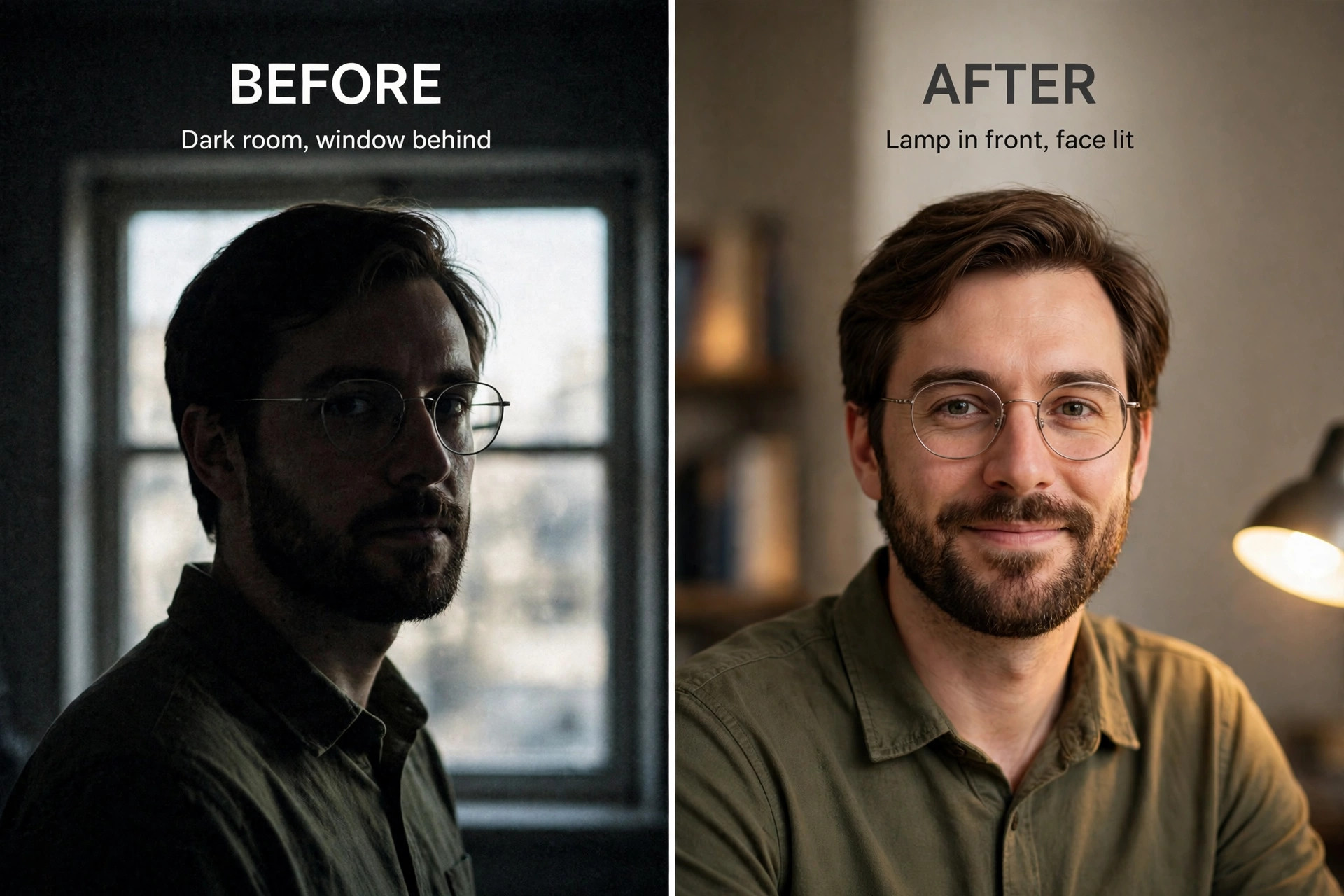
First, look at your light. Sit where you teach at your usual hour and check your own call preview. If your face is dark and the window behind you is bright, you need strong light correction or HDR, and you need to move the light in front of you, not behind you.
Second, be honest about how much you move. If you sit at a desk and teach from slides, a fixed or adjustable frame is enough. If you stand, walk to a board, or teach a practical subject, auto-framing or motorised tracking changes the lesson.
Third, decide whether you record. Live calls compress video, so 1080p is enough for most live teaching. Recorded lessons keep more detail, so 4K gives you cropping room.
Fourth, set a total budget, not a camera budget. A camera alone does not make a professional setup. Add a small lamp, a tripod or monitor mount that puts the camera at eye level, and a headset or microphone if you do not own one yet.
Fifth, check the software and the port. Confirm the camera works with Zoom, Meet or Teams on your computer, confirm the framing software runs on your system, and confirm you have the right USB port or adapter.
The 8 Picks in Detail

Logitech Brio 100 for the Tightest Budget
The Brio 100 is the cheapest credible upgrade from a laptop camera, and its value is easy to explain. It records Full HD 1080p at 30 frames per second from a 2 megapixel sensor, it uses RightLight 2 auto light balance to lift a dim face, and it includes an integrated privacy shutter and a built-in omnidirectional microphone with a range of about 1 metre. It connects over USB-A, it works with Teams, Zoom and Google Meet without extra drivers, and it costs about 40 dollars at Best Buy. For a new tutor testing whether online teaching will pay, that price is low enough to try without regret.
Low-light performance is decent for the price, not outstanding. RightLight 2 brightens shadows, but it cannot rescue a very dark room or a strong backlight alone. Add a lamp in front of you and the Brio 100 looks clean.
Framing is where the low price shows. The fixed 58 degree view and fixed focus give a tight head and shoulders shot for one tutor sitting still. It does not follow you, widen for a second student, or tilt down to a desk. Buy it for one to one desk teaching on a tight budget. Avoid it if you move, teach groups, or show handwritten work often. The rejection reason is simple. A fixed narrow frame is fine for a first camera, but it is the first thing you will want to replace.
Logitech C920s Pro for Reliable Everyday Desk Teaching
The C920s Pro is the long running workhorse of this list, and tutors keep buying it because it rarely surprises them. It records 1080p at 30 frames per second, it has a 3 megapixel sensor with autofocus, a 78 degree field of view, dual stereo microphones, a privacy shutter, and automatic light correction. Retail listings put it at about 60 dollars at Staples and about 70 dollars at Best Buy, so shop around before you pay the higher figure. It connects over USB, it works with the major call platforms, and it has been tested by millions of users, which means setup guides and troubleshooting help are easy to find.
Low-light performance is solid for this price. The sensor and autofocus keep your face sharp when you lean forward, and the light correction handles a normal home office well. The 78 degree view is wider than the Brio 100, so you get more room to gesture, and a second person can squeeze in briefly.
Framing is manual. There is no auto-framing, tracking or desk view, so you set the angle once and stay in it. That suits a seated tutor, and it is a weakness if you stand or show work by hand. Buy it for a proven camera at a sensible price with no software fuss. Avoid it if you need the camera to follow you or show your desk. The rejection reason is a missing feature, not a flaw.
Logitech C922 Pro Stream for Tutors Who Also Record
The C922 Pro Stream sits in an odd spot for tutors. It records 1080p at 30 frames per second and 720p at 60 frames per second, it has autofocus, a glass lens, a 78 degree field of view, dual omnidirectional microphones, automatic low-light correction, and an adjustable tripod in the box. Target and Sweetwater list it at about 120 dollars. The tripod is genuinely useful for tutors, because it lets you raise the camera to eye level on a desk or place it beside a whiteboard, instead of clipping it to a laptop screen that sits too low.
Low-light performance is good for its age. Automatic correction adjusts to dim rooms, and autofocus keeps you sharp when you move toward the camera. The smoother 720p at 60 frames per second mode suits recorded demonstrations where hand movement matters, even though resolution drops.
Framing is manual, with the tripod doing the work that software does on newer cameras. You can place the camera well, but it will not follow you or tilt to your desk on command. Buy it if you want a tripod in the box and you record as well as teach live. Avoid it at full price when buying fresh, because the Brio 500 adds auto-framing and a desk view for only a little more. The rejection reason is timing. Newer cameras at a similar price now do more for a tutor.
Logitech Brio 500 for Most Desk Tutors
The Brio 500 is the default recommendation in this guide to the best webcam for online tutoring, and it earns that place by solving tutoring problems rather than by winning a spec sheet contest. It records 1080p at 30 frames per second and 720p at 60 frames per second from a 4 megapixel sensor, it uses RightLight 4 with HDR for clear images from low light to direct sunlight, and it offers RightSight auto-framing, a choice of 90, 78 and 65 degree views, 4x digital zoom, and Show Mode for tilting down to your desk. It has dual noise reducing microphones, an integrated privacy shutter, a USB-C connection, and a mount clip that fits laptops and monitors.
Best Buy lists it at about 130 dollars, with sale prices near 100 dollars seen in recent listings.
Low-light performance is a clear step up from the cheaper Logitech models here. RightLight 4 with HDR handles a bright window behind a dim face better than basic light correction, and it keeps skin tones natural instead of washing them out.
Framing is the reason to buy this camera. RightSight auto-framing centres you when you lean or shift, the three view options cover solo and group shots, and Show Mode tilts down with one hand to show a notebook or worksheet. That last feature saves tutors from holding work up to a laptop camera at an awkward angle. Buy it for desk teaching and written work. Avoid it if you need 4K recording or motorised tracking, because this camera stays where you put it. The rejection reason is scope. It is the best desk camera here, not the best moving or recording camera.
Anker PowerConf C200 for Pairs and Small Groups
The Anker PowerConf C200 is the value pick for tutors who do not always teach one to one. It records in 2K resolution, which is sharper than 1080p and gives you a little cropping room, and it lets you choose a field of view of 65, 78 or 95 degrees through software. It has dual microphones with noise cancellation, low-light correction, an integrated privacy cover, and a USB connection that works with Windows and macOS. The maker lists it at about 70 dollars, which makes it one of the cheapest ways to get a wider frame and a sharper image in one purchase.
Low-light performance handles a normal evening room well when a lamp faces you, though a very dark room will still show grain, since it lacks the large sensor of the premium cameras here. The 2K resolution helps most on a larger screen or when you crop, and less on a compressed live call.
Framing is flexible but manual. The 95 degree view fits two students or a tutor with a board in shot, while the 65 degree view gives a tighter solo shot. You choose the view in software, and the camera does not follow you once it is set. Buy it for pairs, small groups, or 2K sharpness without a premium price. Avoid it for whiteboard teaching, because you will still reframe by hand. The rejection reason is movement. It frames a group well, but it does not track a moving tutor.
Razer Kiyo Pro for Dim Rooms and Smooth Motion
The Razer Kiyo Pro is the low-light specialist of this list, and it is built around a sensor borrowed from surveillance camera technology. It records uncompressed 1080p at 60 frames per second, or 1080p with HDR at 30 frames per second, from a Sony STARVIS sensor that is designed to gather usable images in very low light. It has an adaptive light sensor, an adjustable field of view of 103, 90 or 80 degrees through Razer Synapse software, a built-in omnidirectional microphone, a privacy shutter, and a USB 3.0 connection. The list price is about 200 dollars, with frequent sale prices near 100 dollars seen in retail coverage, so the real price depends on when you buy.
Low-light performance is the reason this camera exists. The STARVIS sensor and adaptive light handling keep faces visible in rooms where other cameras go dark, and HDR at 30 frames per second helps with mixed light. If you teach late in a poor room, this camera shows the biggest improvement over a laptop camera.
Framing is wide and adjustable, but it needs software. The 103 degree view suits a board and desk in shot, while the 80 degree view gives a tighter solo shot. You change the view in Razer Synapse, not by twisting the lens, so set it before the session. The 60 frames per second mode makes hand movement look smooth for demonstrations. Buy it for a dim room and smooth motion. Avoid it if you want 4K, dislike maker software, or lack USB 3.0 ports. The rejection reason is price and software. At full list price you pay a premium for low-light skill that a lamp and a cheaper camera can partly match.
Logitech MX Brio for a Recorded Course Library
The MX Brio is the premium Logitech camera in this guide, and it is aimed at tutors who record as seriously as they teach live. It records UHD 4K at 30 frames per second and 1080p at 60 frames per second from an 8.5 megapixel sensor, it offers a choice of 90, 78 and 65 degree views, 4x digital zoom, autofocus, auto light correction, RightSight auto-framing, Show Mode for desk work, dual beamforming microphones with noise cancellation, an integrated privacy shutter, and a USB-C connection. B and H lists it at about 170 dollars, while other retailers list it near 200 dollars, so the street price sits in that range.
Low-light performance benefits from the larger sensor and newer processing, which keep detail and colour in mixed light, with fewer blown highlights than a basic 1080p camera. The 4K sensor also means a cropped recorded lesson still looks sharp, which is the main practical benefit of 4K for a tutor.
Framing matches the Brio 500, with auto-framing, three view widths and a desk view, so this is a complete tutoring camera that also records in 4K. Buy it if you sell recorded lessons or build a course library. Avoid it if you only teach live, because platforms compress much of that 4K detail away. The rejection reason is value for live only teaching. It is the best recording camera here, but more than a live only tutor needs.
OBSBOT Tiny 2 for Whiteboard and Moving Teaching
The OBSBOT Tiny 2 is the only motorised camera in this guide, and it changes what a solo tutor can do without help. It records UHD 4K at 30 frames per second and 1080p at 60 frames per second from a large 1/1.5 inch CMOS sensor, it uses dual native ISO and PixGain HDR for low-light quality, and it offers motorised pan, tilt and zoom with AI tracking, auto-framing, auto zoom, zone tracking and gesture control. The maker lists it at about 299 dollars. It connects over USB, it works with the OBSBOT Center app for control and presets, and it can be mounted on a tripod or a desk.
Low-light performance is strong, thanks to the large sensor and dual native ISO design, which combines two exposures to reduce motion blur and noise. That helps when you move in uneven light, where smaller sensors smear first, and when a whiteboard is bright and your face is darker.
Framing is the whole point. The camera follows you to a board, adjusts zoom to keep you at a consistent size, and gesture control starts or stops tracking without touching the computer. Zone tracking limits movement to one area, so the camera does not chase a passing family member. Buy it for whiteboard teaching or standing presentations. Avoid it if you sit at a desk all day, because tracking adds cost and complexity for no benefit. The rejection reason is fit. It is the best moving camera here by a wide margin, and the worst value for a seated tutor.
The Setup That Makes Any of These Cameras Look Better
Run through this checklist before your first paid session on a new camera, and repeat it whenever you change rooms.

- Put the camera at eye level, not below your chin. Use a monitor mount, a tripod, or a stack of books under a laptop until the lens meets your eyes.
- Put a lamp behind the camera, aimed at your face, and close or cover a bright window behind you. Light on your face matters more than light in the room.
- Choose your field of view before the lesson. Use a tight view for one to one work, a wider view for groups, and test the view with a practice call.
- Turn on auto-framing only if you move. If you sit still, a fixed frame is steadier and less distracting for students.
- Test your desk view before you need it. Tilt the camera down, check that handwriting is readable, and check that the camera returns to your face quickly.
- Record a two minute test lesson. Watch it on a phone, not just on your laptop, because students often watch on smaller screens.
- Keep the privacy shutter closed between sessions. It protects your privacy and it signals to students that you take safeguarding seriously.
- Use a headset or a desk microphone for daily teaching, and keep the camera microphone as a backup for emergencies.

If students still say they cannot see your work, the problem is usually distance, not resolution. Move the camera closer, write larger, or share the work as a document on screen.
What to Reject Before You Buy
Reject a no-name camera that lists 1080p or 4K but names no sensor, no frame rate and no light correction. Those listings often use upscaled video that looks soft on a real call, and they rarely publish honest low-light behaviour. If the maker will not say what is inside, assume the image will not beat a named camera at the same price.
Reject a camera bought only for 4K when you only teach live. Live platforms compress video, and your upload speed may limit the call anyway. Spend the difference on a lamp, a mount and a microphone.
Reject a wide fixed frame for one to one tutoring. A very wide view makes your face small and shows clutter behind you. A tight or adjustable view is better for solo teaching.
Reject the idea that a camera fixes bad audio. Students forgive a slightly soft image far more readily than echo or a distant voice. If your audio is weak, fix that first.

Even the best webcam for online tutoring is only one part of a teaching setup, and the other parts decide whether students stay. A microphone guide covers cutting background sound in a noisy room, a conferencing guide covers screen sharing and recording for hybrid classes, and an echo fix covers the audio feedback that ruins good lessons. Pair your camera choice with the microphone guide at https://www.stratilyze.com/best-microphone-for-a-noisy-room/ and the conferencing guide at https://www.stratilyze.com/best-video-conferencing-tool-for-hybrid-classes/ and the echo fix at https://www.stratilyze.com/fix-zoom-audio-echo-step-by-step/.
Frequently Asked Questions
Do I need a 4K webcam for online tutoring
No, not for live teaching. Live platforms compress video to 720p or 1080p, so a good 1080p camera with clean light handling looks excellent on a call. Buy 4K if you record lessons or sell courses. For live only tutoring, spend the extra money on a lamp, a mount and a microphone instead.
Is a laptop camera good enough for paid tutoring
It can work for a first few sessions, but it rarely looks professional for paid work. Laptop cameras sit low, look up at your chin, struggle in dim rooms, and show a cluttered background. A dedicated camera at eye level is one of the cheapest ways to raise how professional a paid session feels.
What field of view should a tutor choose
Choose 65 to 78 degrees for one to one teaching, which frames your head and shoulders cleanly. Choose 90 to 95 degrees for pairs, small groups, or a tutor sitting back with a board in shot. Choose adjustable views if you teach both solo and group sessions.
How important is auto-framing for tutoring
Auto-framing helps if you move, gesture, lean, or stand during lessons, because it keeps you centred without manual adjustment. It matters less if you sit still, where a fixed frame is steadier. Motorised tracking helps most for whiteboard teaching. For seated teaching, auto-framing is a convenience, not a requirement.
Will a better webcam fix a dark room
It will help, but it will not fully fix a dark room. A larger sensor and good light correction lift a dim face, yet no camera creates light that is not there. A lamp behind the camera, aimed at your face, improves almost any camera more than an upgrade improves a dark room. Fix the light first.
Should I use the webcam microphone or a separate microphone
Use a separate headset or desk microphone for daily teaching. Webcam microphones sit far from your mouth, pick up room echo and keyboard noise, and make long sessions tiring to listen to. Keep the webcam microphone as a backup, and test it once before you need it.
The Camera to Buy and the Setup That Makes It Look Good
Most desk tutors looking for the best webcam for online tutoring should buy the Logitech Brio 500, add a lamp in front of them, and put the camera at eye level. That combination solves light, framing and desk work in one purchase, and it leaves budget for a microphone, which matters more than a sharper sensor. Tutors on a tight budget should buy the Brio 100 or the Anker PowerConf C200 and spend the saving on light and a mount. Tutors who move should buy the OBSBOT Tiny 2, and tutors who record courses should buy the MX Brio.
Whatever camera you choose, test it in your real teaching light, record a short practice lesson, and watch it on a phone. Students judge your teaching by what they see and hear in the first minute. Buy for your room and your movement, not for the biggest number on the box.