
The problem with CapCut is not the editor, it is the limits around it. Watermarks on the free tier, templates that make every video look the same, export caps that bite when you publish daily, and a catalogue of effects that every other creator is using too. If you want a distinct look, a clean export without paying, or an editor that works the way you work, you need a different tool. The best CapCut alternatives below are chosen for creators who publish short form video every week and want speed without sameness.
This guide compares 12 tools grouped by platform: mobile editors, desktop editors and browser editors. Prices are October 2026 figures in US dollars. Where a vendor does not publish pricing, or where sources disagreed, the guide says check checkout rather than guessing. One rule runs through the whole guide: judge an editor by the finished video, not the template gallery, because templates impress in a demo and bore an audience after the tenth video.
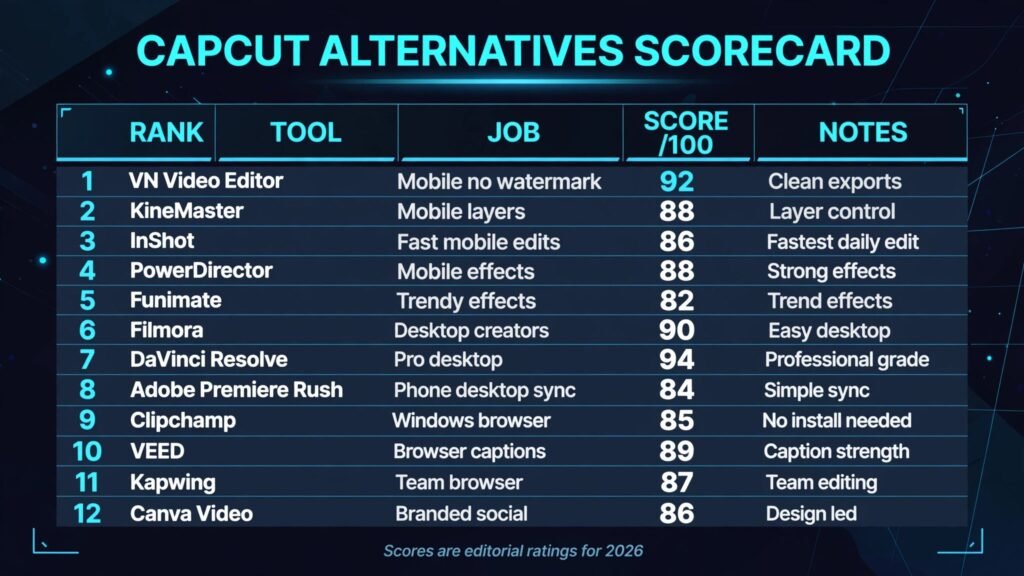
The 12 best CapCut alternatives at a glance
| Tool | Best job | Free option | Paid from |
|---|---|---|---|
| VN Video Editor | Mobile editing without watermark | Free version | Around $10 per month |
| KineMaster | Mobile editing with layers | Free tier | Around $8 per month |
| InShot | Fast mobile edits | Free tier | Around $4 per month |
| PowerDirector | Mobile editing with effects | Free tier | Around $7 per month |
| Funimate | Effects and transitions for teens | Free tier | Around $7 per month |
| Filmora | Desktop editing for creators | Free trial | Around $20 per month |
| DaVinci Resolve | Professional desktop editing | Free version | Around $295 one time |
| Adobe Premiere Rush | Simple desktop and mobile sync | Free tier | Around $10 per month |
| Clipchamp | Windows browser editing | Free tier | Around $12 per month |
| VEED | Browser editing with captions | Free tier | Around $12 per month |
| Kapwing | Browser editing for teams | Free tier | Around $16 per month |
| Canva Video | Design led social video | Free tier | Around $13 per month |
Best pick by job
| Your job | Start with | If that fails, try |
|---|---|---|
| Mobile editing, no watermark | VN Video Editor | InShot |
| Mobile editing with many layers | KineMaster | PowerDirector |
| Fastest simple mobile edit | InShot | VN Video Editor |
| Mobile effects and templates | PowerDirector | Funimate |
| Trendy effects for young audiences | Funimate | KineMaster |
| Desktop editing for creators | Filmora | DaVinci Resolve |
| Professional desktop finishing | DaVinci Resolve | Filmora |
| Edit on phone and desktop together | Adobe Premiere Rush | Clipchamp |
| Windows editing without install | Clipchamp | VEED |
| Captioned video in a browser | VEED | Kapwing |
| Team editing in a browser | Kapwing | VEED |
| Branded social video fast | Canva Video | Kapwing |
Mobile editors: edit on the phone you film with
Most short form creators film and edit on the same phone. These five mobile editors cover that workflow, from clean and simple to effects heavy.
1. VN Video Editor
VN is the mobile editor creators recommend when they are tired of watermarks. Its free version exports without a watermark, supports multi track timelines, keyframes and colour tools, and stays out of the way of your own style. It is the closest thing to a professional mobile editor without a professional price.
Pricing: A free version covers most features without a watermark. Paid plans start at around $10 per month for advanced features and cloud extras. Check checkout for current pricing in your region.
Best for: Creators who edit on a phone and want clean exports, real timeline control and no template sameness.
Watch out for: VN has fewer trendy templates than CapCut, so creators who rely on templates will need to build their own look. That is a feature for originality, but it costs setup time.
Try it at: vnvideoeditor.com

2. KineMaster
KineMaster is the layer king of mobile editing. It supports many video, image, sticker and text layers, with keyframe animation, chroma key and blending modes that most mobile editors lack. For creators who build complex edits on a phone, it is the most capable option.
Pricing: A free tier covers basic editing with a watermark. Paid plans start at around $8 per month. Check checkout for current pricing in your region.
Best for: Mobile creators who layer text, stickers and effects heavily and want precise control on a small screen.
Watch out for: The free tier watermark pushes regular users to a paid plan, so budget for that if you publish often.
Try it at: kinemaster.com
3. InShot
InShot is the fastest mobile editor on this list. Trim, split, add music and text, resize for any platform, and export in minutes. It is less powerful than VN or KineMaster, but for daily short form posts, speed beats power most days.
Pricing: A free tier covers basic editing with ads and a watermark option. Paid plans start at around $4 per month, which makes it the cheapest paid option here. Check checkout for current pricing.
Best for: Creators who post daily and need a quick, reliable edit without learning a complex timeline. For the wider short form toolkit, see our AI tools for TikTok guide.
Watch out for: InShot lacks the depth for complex projects. When an edit needs many layers or precise effects, move it to VN or Filmora.
Try it at: inshot.com

4. PowerDirector
PowerDirector brings desktop style effects to a phone: motion tracking, video stabilisation, AI background removal and a large effects library. It is the best mobile choice for creators who want polished effects without moving to a computer.
Pricing: A free tier covers basic editing with a watermark. Paid plans start at around $7 per month. Check checkout for current pricing in your region.
Best for: Mobile creators who want strong effects, stabilisation and AI tools in a phone app.
Watch out for: Some AI features need a good connection and a recent phone, so older devices may struggle with the heaviest effects.
Try it at: cyberlink.com
5. Funimate
Funimate is built for trendy short form effects: transitions, text animations and video effects that match what performs on TikTok and Reels. It is less of a general editor and more of an effects studio, which suits creators whose style depends on eye catching transitions.
Pricing: A free tier covers basic effects with a watermark. Paid plans start at around $7 per month. Check checkout for current pricing.
Best for: Young creators and trend driven accounts that need fresh effects and transitions every week.
Watch out for: Funimate effects can overwhelm a video if overused. One strong transition per clip usually performs better than five.
Try it at: funimate.com
Desktop editors: when the phone is not enough
Longer videos, precise colour and complex timelines still belong on a desktop. These three editors cover creators from beginner to professional.
6. Filmora
Filmora is the most approachable desktop editor for creators. It offers a full timeline, effects, titles and AI features like silence detection, with a gentler learning curve than professional tools. Creators who outgrow mobile editing usually land here first.
Pricing: A free trial covers full features with a watermark. Paid plans start at around $20 per month, with a perpetual license option. Check checkout for current pricing in your region.
Best for: Creators moving from mobile to desktop, and small teams that need effects and titles without professional complexity.
Watch out for: Filmora’s AI features are helpful but shallow compared with dedicated AI tools, so keep a caption or clip tool in the workflow for social output.
Try it at: filmora.wondershare.com

7. DaVinci Resolve
DaVinci Resolve is the professional choice, and its free version is remarkably complete. It covers editing, colour grading, visual effects and audio finishing in one application, and its colour tools are the industry standard for creators who care about look.
Pricing: The standard version is free. DaVinci Resolve Studio costs around $295 as a one time purchase. Check checkout for current pricing.
Best for: Filmmakers, agencies and serious creators who need professional colour and finishing.
Watch out for: Resolve needs a capable machine and a willingness to learn. Beginners should start with Filmora and move here when projects demand it.
Try it at: blackmagicdesign.com
8. Adobe Premiere Rush
Premiere Rush is the bridge between phone and desktop. Edit on either device, and the project syncs between them, so you can start a cut on a phone and finish it on a computer. It is simpler than Premiere Pro by design, which keeps the workflow fast.
Pricing: A free tier covers limited exports. Paid plans start at around $10 per month. Check checkout for current pricing and bundle options.
Best for: Creators who film on a phone, edit on the go, and finish on a desktop without switching tools.
Watch out for: Rush is deliberately simple. Complex effects and precise colour work still need Premiere Pro or DaVinci Resolve.
Try it at: adobe.com
Browser editors: no install, team friendly
Browser editors suit teams and creators who work across machines. These four cover Windows users, caption heavy work, collaboration and branded design.
9. Clipchamp
Clipchamp is Microsoft’s browser and Windows editor, with templates, stock media, text to speech and auto captions. It is the natural choice for Windows creators who want an editor without installing heavy software.
Pricing: A free tier covers basic editing. Paid plans start at around $12 per month. Check checkout for current pricing and Microsoft 365 bundle options.
Best for: Windows creators, small businesses and teams already in the Microsoft ecosystem.
Watch out for: Clipchamp’s free tier limits some stock and export options, so check the plan before building a workflow around a specific feature.
Try it at: clipchamp.com
10. VEED
VEED is the most complete browser editor for captioned video. It covers transcription, subtitles, translation, background removal and editing, with templates for every social platform. Its subtitle accuracy is among the best in this group.
Pricing: A free tier covers basic editing with a watermark. Paid plans start at around $12 per month. Check checkout for current subtitle and translation limits.
Best for: Marketing teams and creators who publish captioned video across platforms and need fast turnaround.
Watch out for: Browser editing depends on connection and machine, so very long or high resolution projects may still be smoother on a desktop editor.
Try it at: veed.io

11. Kapwing
Kapwing is a full browser editor with strong collaboration: teams can comment, share and edit the same project from any machine. Its AI features cover subtitles, filler removal and clip generation, which makes it a good hub for a social team.
Pricing: A free tier covers basic editing with a watermark. Paid plans start at around $16 per month. Check checkout for current export and storage limits.
Best for: Social media teams and agencies that edit collaboratively and publish across platforms daily.
Watch out for: Kapwing’s free tier watermark and export limits push regular users to a paid plan quickly, so budget for that from the start.
Try it at: kapwing.com
12. Canva Video
Canva Video is the design led option. If your brand already lives in Canva, video editing there keeps fonts, colours and templates consistent without exporting between tools. It is simpler than dedicated editors, but for branded social video that simplicity is the point.
Pricing: A free tier covers basic video editing. Canva Pro starts at around $13 per month. Check checkout for current pricing in your region.
Best for: Small businesses, marketers and creators who need branded social video fast and already use Canva for design. For the wider design toolkit, see our Canva alternatives guide.
Watch out for: Canva Video lacks timeline depth for complex edits. Use it for branded shorts, and move complex projects to Filmora or DaVinci Resolve.
Try it at: canva.com
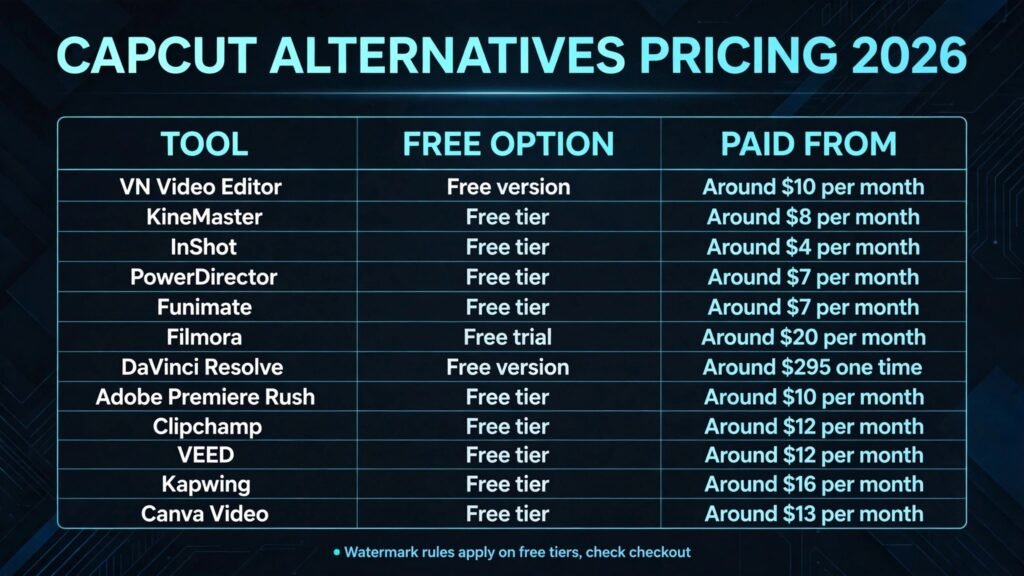
Pricing compared: what video editing really costs
| Tool | Free option | Paid from | Pricing note |
|---|---|---|---|
| VN Video Editor | Free version | Around $10 per month | No watermark on free version |
| KineMaster | Free tier | Around $8 per month | Watermark on free tier |
| InShot | Free tier | Around $4 per month | Cheapest paid option |
| PowerDirector | Free tier | Around $7 per month | Watermark on free tier |
| Funimate | Free tier | Around $7 per month | Watermark on free tier |
| Filmora | Free trial | Around $20 per month | Perpetual license option |
| DaVinci Resolve | Free version | Around $295 one time | Studio adds AI features |
| Adobe Premiere Rush | Free tier | Around $10 per month | Export limits on free tier |
| Clipchamp | Free tier | Around $12 per month | Bundle options vary |
| VEED | Free tier | Around $12 per month | Watermark on free tier |
| Kapwing | Free tier | Around $16 per month | Watermark on free tier |
| Canva Video | Free tier | Around $13 per month | Bundled with Canva Pro |
A realistic starter setup costs $0 to $10 a month: VN free on mobile plus one browser tool for captions. A professional setup lands around $20 to $35 a month by adding a desktop editor and a caption tool on top. Pay more only when a specific job, such as daily branded video or professional finishing, justifies it. In every case, check checkout for renewal terms and export limits, because both change often.
How to Choose the right CapCut alternative
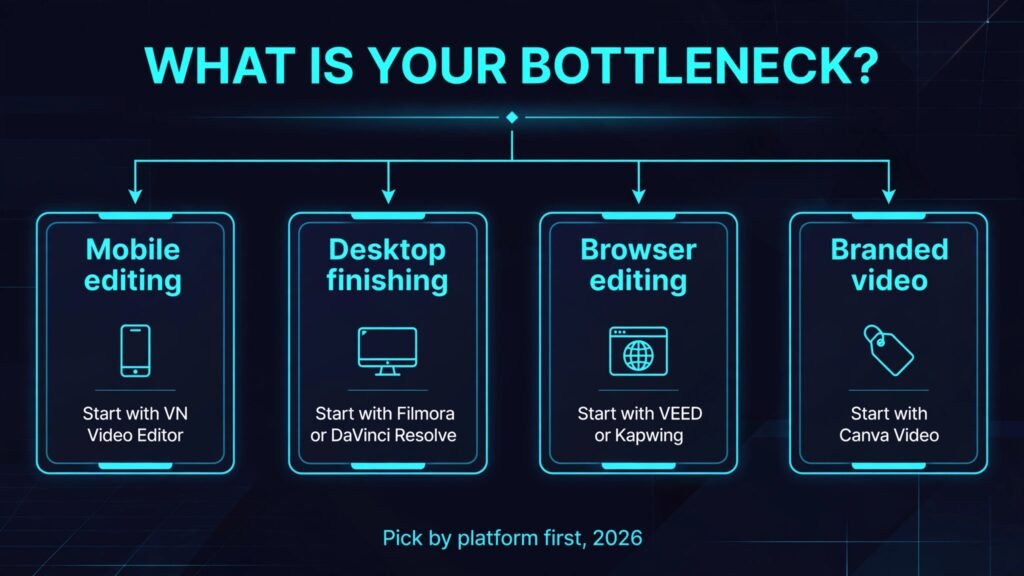
Start with the device, not the brand. If you edit on a phone, start with VN and test it against InShot on the same clip. If you edit on a desktop, start with Filmora and test it against DaVinci Resolve on a real project. If you edit across machines, start with VEED or Kapwing and test export quality on your connection.
Next, test the watermark step before you commit. Export a finished video from each finalist on its free tier and check whether a watermark, resolution cap or export limit appears. A tool that edits well but watermarks your work is not free for publishing.
Then check the style step. Edit the same clip in each finalist and compare the finished look. The tool that lets you build a distinct style, rather than a template look, is usually the right one for a channel that needs to stand out.
Finally, test the speed step. Time a full video from raw footage to published post in each finalist. The tool with the shortest honest time, including review and fixes, is usually the right one for a daily posting schedule.
Mistakes to avoid with short form editing
The first mistake is living on templates. Templates make the first ten videos fast, and then they make every video look like every other creator’s work. Audiences notice repetition quickly, and a channel built on templates struggles to develop a recognisable style. Use a template as a starting point, then change the pacing, the text style and at least one visual element so the result is yours.
The second mistake is discovering the watermark at publish time. Many free tiers export cleanly for short clips and watermark longer or higher resolution exports, which means the problem appears on your best video, not your test. Export a full length test video from each finalist before committing, and check the result on a phone screen, not just in the editor preview.
The third mistake is editing everything on a phone. Mobile editors are fast for shorts, but long projects, precise colour work and complex timelines belong on a desktop. When a project passes five minutes or needs many layers, move it to a desktop editor rather than fighting a small screen. The time saved on the phone is lost in fiddly corrections.
The fourth mistake is treating captions as an afterthought. Most short form video is watched without sound, so a video without accurate captions loses a large share of its audience before the first second ends. Generate captions automatically, then correct names, numbers and brand terms by hand, because automatic captions mishear exactly the words that matter most.
The fifth mistake is using trending audio without checking the license. A sound that is free inside one app may not be licensed for commercial use, for ads, or for another platform. If a video will run as an ad or for a client, use licensed music from a library or a tool with a clear commercial license, and keep the license record with the project file.
Frequently Asked Questions
Is there a free CapCut alternative without a watermark?
Yes. VN Video Editor exports without a watermark on its free version, and DaVinci Resolve is free outright on desktop. Both are genuinely usable without paying, unlike most free tiers that watermark exports.
Which CapCut alternative is best for mobile editing?
VN Video Editor, for most creators, because it combines a real timeline with clean exports. KineMaster is better for heavy layering, and InShot is faster for simple daily edits.
Which CapCut alternative is best for TikTok and Reels?
VN or InShot for mobile speed, plus VEED or Kapwing for captions. Most successful short form creators use one mobile editor for the cut and one browser tool for captions and resizing.
Can I edit video in a browser without installing software?
Yes. VEED, Kapwing, Clipchamp and Canva Video all run in a browser. Browser editing suits short and medium projects; very long or high resolution work is still smoother on a desktop editor.
Which tool should a small business start with?
Canva Video if the brand already lives in Canva, or VEED for captioned marketing video. Both are easy for a small team to learn and cover most social video needs.
Do these tools replace CapCut templates?
Not exactly. VN, KineMaster and PowerDirector offer templates, but fewer trendy ones than CapCut. The trade is originality: your videos look less like everyone else’s, which is an advantage once a channel grows.
Conclusion
The best CapCut alternatives do not try to copy CapCut exactly. They win one job: VN wins clean mobile editing, KineMaster wins layering, InShot wins speed, PowerDirector wins mobile effects, Filmora wins approachable desktop editing, DaVinci Resolve wins professional finishing, and VEED and Kapwing win browser editing with captions.
Start with the device you edit on. Test the free tier on a real video, check the export for watermarks, and only then pay. The right alternative is the one that gives you a distinct, publishable video fastest, not the one with the biggest template library.