

Start with the fix that works most often, which is to clear the Play Store cache and restart the phone, because a corrupt temporary file blocks more updates than any other single cause. That sounds too simple for a problem that leaves a dozen apps stuck on pending, but temporary files, a paused download queue, and a storage shortage together explain most cases, and each has a quick check before any drastic step. When you fix Android apps not updating Play Store, the order protects you from the common trap of removing your Google account first, which disrupts mail, contacts and backups for a problem a cache clear would have solved.
This guide works through the fixes in order, from connection and storage checks, through cache and data steps, to account and system steps, plus the settings that control automatic updates. It covers both manual updates that refuse to start and automatic updates that silently stop, and it explains what each step deletes, so you never clear data blindly. Follow the steps in order, test with one app update after each step, and stop as soon as updates flow again.
Why Play Store Updates Stall
Play Store updates stall for a small set of reasons, and naming them first prevents random fixing. A weak or unstable connection leaves downloads on pending, because the store waits for a usable network before starting, and a connection that drops repeatedly can restart the queue each time. Low storage blocks updates, because an update needs free space for the new version plus working space during installation, and a phone with only a few hundred megabytes free will refuse updates even when the update itself is small.
A corrupt cache in the Play Store app or in Google Play Services blocks the store’s own bookkeeping, so the store cannot track what is downloaded, what is pending, or what is installed, and the queue freezes in place.
Account and settings causes come next, and they are easy to miss because the store opens normally. An account password changed on another device, a payment or verification hold, or a device date and time set wrong can all break the store’s connection to Google’s servers, even while browsing and mail seem fine. Automatic update settings can also silently stop updates, because the store may be set to update only over Wi-Fi, only while charging, or not at all, and a user who changed that setting months ago will not connect it to today’s failure.
Finally, a single app can block the queue, because the store processes downloads in order, and an app with a permission change, a compatibility hold, or a corrupted install can hold every update behind it hostage.
Device differences matter, because Android settings names vary by maker, so a menu called Apps on one phone may be called Applications on another, and Storage and Cache may sit in a slightly different place. The steps in this guide use the most common names, and if a menu name differs on your phone, look for the closest match rather than abandoning the step. Note also whether the failure affects one app or all apps, because one stuck app points to that app’s own problem, while all apps stuck points to the store, the connection, or storage, and that distinction decides which section of this guide matters most.
Make that check first when you fix Android apps not updating Play Store, because it decides the whole approach.

How to fix Android apps not updating Play Store in Order
Work through this order, testing one app update after each step, and stop when updates start flowing. The order runs from quick checks to disruptive account steps, so you never remove an account for a storage problem, and you never clear data before trying a cache clear. Keep your Google account password handy from step eight onward, because account steps require signing in again.
- Check the connection by opening a web page and a video, switch between Wi-Fi and mobile data if possible, and restart the router if Wi-Fi is the problem.
- Restart the phone fully, then open the Play Store and try updating one app manually, to clear temporary states.
- Check free storage in Settings under Storage, and free space if the phone is nearly full, by deleting unused apps, large videos, or cached files from other apps.
- In the Play Store, check the download queue, cancel any app stuck on pending for a long time, and try updating a different app first.
- Force stop the Play Store, then clear only its cache in Settings under Apps, Google Play Store, and Storage and Cache, then reopen the store.
- Clear the cache for Google Play Services the same way, because its temporary files also block downloads when corrupt.
- Check the date and time in Settings under System and Date and Time, and turn on automatic date and time, because wrong dates break server connections.
- Check automatic update settings in the Play Store under Settings and Network Preferences, and set updates to over Wi-Fi or over any network as you prefer.
- Clear Play Store data, also called Clear Storage, only if cache steps failed, knowing it resets store settings and signs you out of store preferences.
- Remove and re-add your Google account in Settings under Accounts, restart, and sign in again, as a last resort before seeking maker support.
That order protects your data, because early steps delete nothing, cache steps delete only temporary files, and data and account steps, which reset more, come only after simpler fixes have failed. Clearing cache is safe and repeatable, while clearing data resets the store’s settings, history and preferences, so it should never be the first step, even though many guides list it early. Removing an account is the most disruptive step, because it affects mail, contacts, calendar and backups until you sign in again, so it belongs at the end, after you have confirmed that connection, storage, cache and settings are all correct.
When you fix Android apps not updating Play Store, test with a small app update after each step, rather than tapping update all and waiting, because a single small update proves the queue works without tying up the phone for a long download. If one specific app still refuses while others update, focus on that app, by clearing its own cache, checking its permissions, or uninstalling and reinstalling it, rather than repeating store wide steps. A queue that moves for other apps is a healthy store, and the remaining problem belongs to the single app, not to the store itself.

Cache and Data Steps Explained
Cache and data are often confused, and the difference matters, because one is safe and the other resets settings. Cache means temporary files the store keeps to work faster, such as images, lists and partial download records, and clearing it deletes nothing you need, because the store rebuilds those files as you use it. Data, also called storage, means the store’s own settings, preferences, history and account related records on the device, and clearing it returns the store to a fresh state, requiring you to accept terms and set preferences again. That is why this guide clears cache first for both the Play Store and Google Play Services, and reserves data clearing for cases where cache steps have already failed.
To clear cache, open Settings, go to Apps, find Google Play Store, open Storage and Cache, and tap Clear Cache, then repeat the same path for Google Play Services. Force stopping the store before clearing cache helps, because a running app can recreate a corrupt temporary file immediately, undoing the clear. After clearing, reopen the store, wait a few seconds for it to refresh, and try one small update, because the store needs a moment to rebuild its lists. If the update starts, the cache was the cause, and no further steps are needed, though a phone restart after a successful cache clear is a sensible extra that costs nothing.
Clearing data follows the same path, but taps Clear Storage or Clear Data instead of Clear Cache, and it should be done only when cache steps, a restart, and a storage check have all failed. After clearing data, the store will ask you to accept terms again, and you may need to reconfigure download preferences, so check automatic update settings again after this step, because they may have returned to defaults. If data clearing also fails, the problem is more likely account, system, or network related, and the next sections, not repeated data clearing, are the right path, because clearing data twice rarely fixes what clearing it once did not.
Clear cache before data whenever you fix Android apps not updating Play Store, without exception.

Storage, Connection and Queue Problems
Storage is the most overlooked cause, because a phone can feel usable while being too full for updates, since browsing and messaging need little space while app updates need working room. Check free space in Settings under Storage, and aim to keep at least a few gigabytes free on a modern phone, because updates, system tasks and photo backups all compete for the same space. Free space by uninstalling apps you no longer use, deleting large downloaded videos, clearing caches from heavy apps such as browsers and social apps, and moving photos to cloud backup where you already use it, then try an update again before moving to account steps.
A phone that updates again after freeing space had a storage problem all along, and no store fix would have helped until space existed.
Connection problems need the same patient checking, because a store queue stuck on pending often means the store is waiting for a network it trusts. Test with Wi-Fi off and mobile data on, and the reverse, to see whether one network works while the other fails, and if Wi-Fi fails everywhere in the house, restart the router and test another device on the same network. Check whether a VPN, a data saver, or a firewall app is blocking the store, by pausing it temporarily and testing, because those tools commonly interfere with downloads while leaving browsing apparently fine.
Also check whether downloads are set to Wi-Fi only, because a phone on mobile data with that setting will queue updates indefinitely without an error that explains why.
Queue problems have their own fixes, because a single stuck download can block everything behind it. Open the Play Store, go to your profile, then Manage Apps and Device, and look at the pending list, cancelling any app that has sat on pending for an unusually long time, then try a different app. If a specific app always sticks, check whether it needs a new permission, whether it is compatible with your Android version, or whether its own cache is corrupt, and clear that app’s cache separately. A queue that clears after cancelling one app had a single app problem, and the rest of the updates should then flow normally without further store wide steps.
Free space before account steps when you fix Android apps not updating Play Store with a nearly full phone.

Account and Automatic Update Settings
Account problems are subtler, because the store may open and browse normally while updates fail, especially after a password change, a security check, or a switch to a new device. Check that you are signed into the correct Google account in the Play Store profile, because a household phone with several accounts can update from one account while apps belong to another, and updates for those apps will fail or never appear. If you recently changed your Google password, sign out and sign in again on the phone, because an old session can lose permission to download even while browsing still works.
Check for any account alert, payment verification, or security hold in the Google account settings, because those holds can block downloads until resolved, and they are easy to miss when the store itself shows no clear error.
Automatic update settings deserve a direct check, because they silently control whether updates happen at all. In the Play Store, open your profile, go to Settings, then Network Preferences, and check Auto Update Apps, which may be set to over Wi-Fi only, over any network, or off entirely. A setting of over Wi-Fi only explains updates that never arrive on mobile data, while a setting of off explains updates that never arrive at all, and both are common after a user changed settings to save data and forgot. Also check whether updates are set to require charging, on some devices, because a phone rarely left charging may postpone updates indefinitely.
Set the option to match your data plan and charging habits, then trigger one manual update to prove the queue works, before relying on automatic updates again.
Removing and re-adding an account is the last resort in this guide, and it should be done only after connection, storage, cache, data and settings have all been checked. To do it, open Settings, go to Accounts or Passwords and Accounts, select the Google account, remove it, restart the phone, and add the account again with the correct password. Back up anything that syncs only through that account before removing it, and expect mail, contacts and calendar to resync after signing in again, which can take time on a slow connection. Check settings again after data clearing when you fix Android apps not updating Play Store, because defaults may return.
If updates still fail after a clean account re-add, the problem is more likely system or hardware related, and maker support, with a note of steps tried, is the next step.

System Updates and Single App Failures
System updates matter, because an old Android version can clash with a newer Play Store or with apps that require a newer system for their latest version. Check for a system update in Settings under System and System Update, and install it if one is available, then retest the Play Store, because a system update often refreshes the store and its services together. Also update the Play Store itself, by opening its profile, going to Settings, then About, and checking for a Play Store update, because the store updates separately from the system and an old store version can fail on newer apps. Restart after either update, because a restart clears the temporary states that updates leave behind.
Single app failures need a different lens, because a store that updates ten apps but refuses one has a healthy store and a sick app. For the stuck app, clear its own cache in Settings under Apps, check its permissions, and confirm it is compatible with your Android version, because an app that dropped support for older systems will stop updating without a clear message. If the app still refuses, uninstall and reinstall it from the store, after checking whether its data is backed up or synced, because reinstalling deletes local app data that is not synced.
That step should never be done blindly for banking, messaging, or authenticator apps, where local data matters, so check backup first, and contact the app maker if reinstalling is risky or if the app is paid and the purchase does not restore.
When you fix Android apps not updating Play Store with a single stuck app, resist repeating store wide steps, because they cannot fix an app specific problem and they waste time. Instead, note the app name, its version, and the exact error or stuck state, and search the app maker’s help pages for that error, because many apps have known update holds, permission changes, or regional availability changes that explain a single failure. A clear note of one app’s behaviour also helps support enormously, compared with a general statement that updates do not work, which support must then narrow from scratch.
Mistakes That Make Play Store Problems Worse
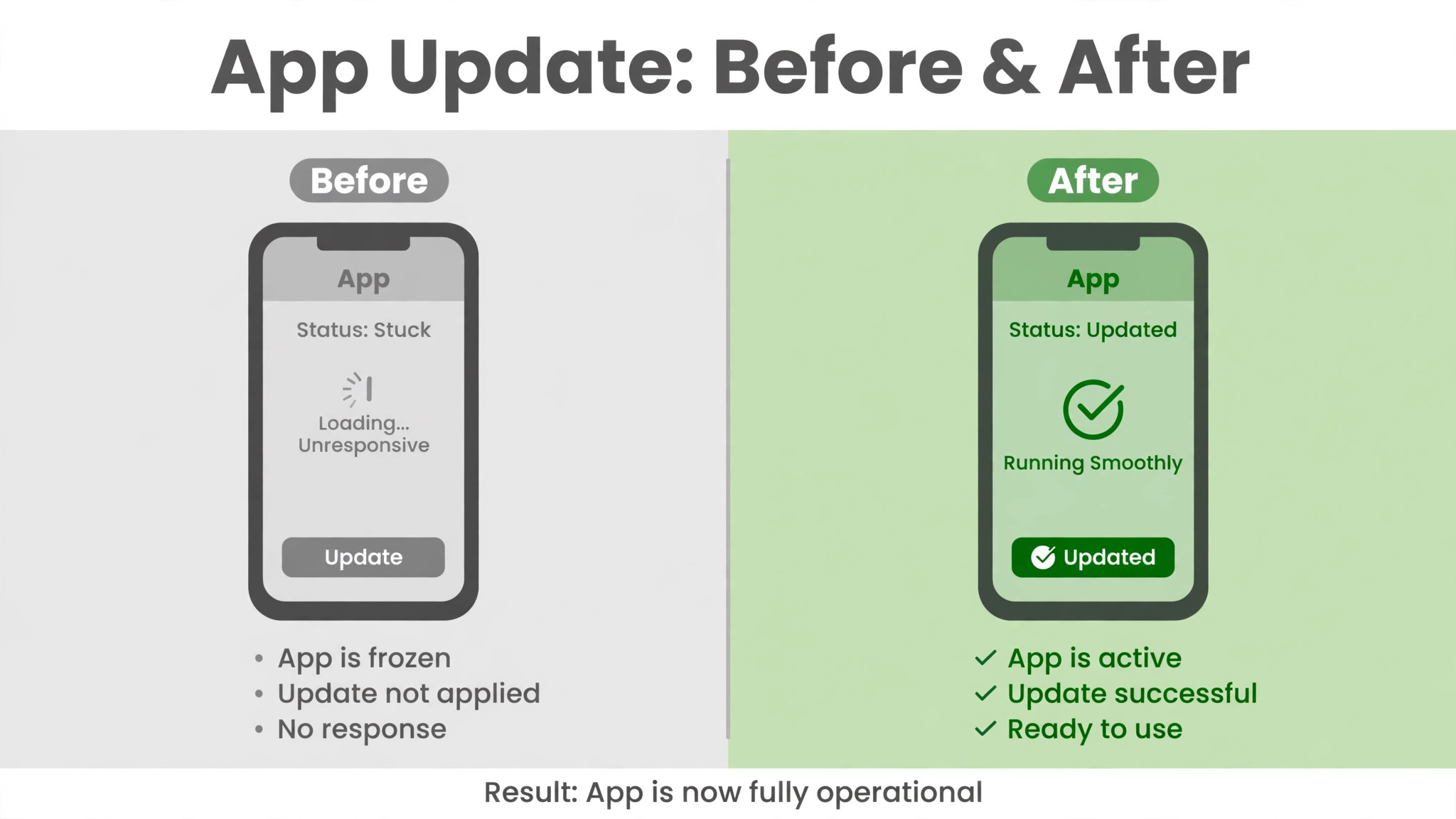
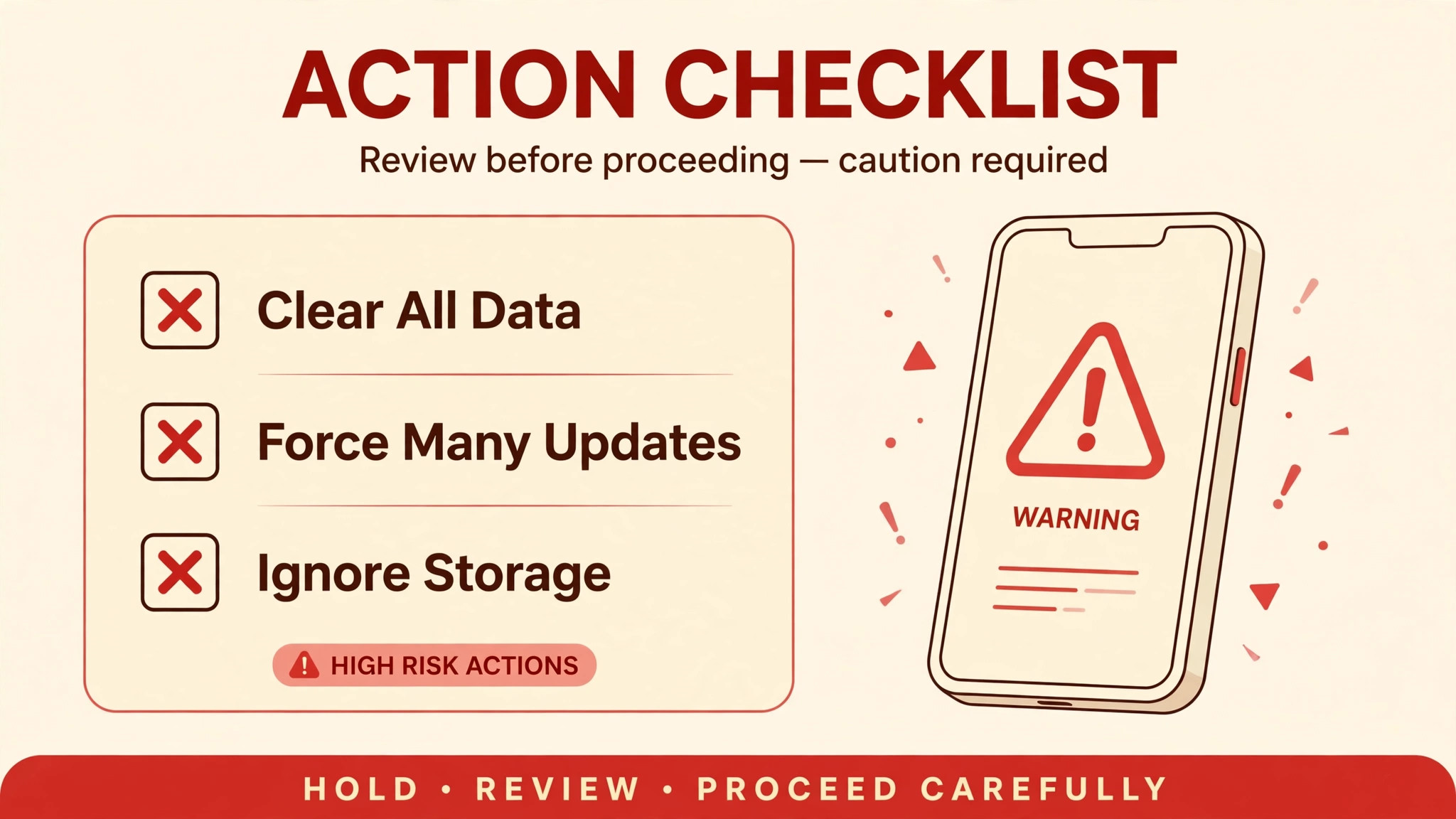
The first mistake is removing the Google account first, before checking connection, storage, or cache, which disrupts mail, contacts and backups for a problem that often needs only a cache clear. The second mistake is clearing data repeatedly, because clearing data once either fixes a corrupt store state or it does not, and repeating it only resets preferences again without addressing an account or network cause. The third mistake is tapping update all on a weak connection, which queues many downloads at once, overwhelms the connection, and leaves every app stuck on pending, when updating one small app first would have proved the queue and cleared it gradually.
The fourth mistake is ignoring storage, because a phone with almost no free space will refuse updates no matter how many store steps are tried, and the fix is freeing space, not fixing the store. The fifth mistake is forgetting automatic update settings, because a store set to Wi-Fi only or off will never update on mobile data or at all, and no cache clear changes a setting. The sixth mistake is using unofficial app sources to bypass a stuck update, because sideloaded files can carry malware, break future store updates, and void support for the app, while the official store, once fixed, updates safely and keeps purchase records intact.
Fix the store, do not bypass it, unless the app maker itself directs you to a safe alternative.
Preventing the Next Update Stall
Prevention for Play Store updates is mostly about space, settings and routine, because most stalls come from a full phone, a forgotten setting, or a corrupt cache that builds up over time. Keep a few gigabytes free by reviewing storage monthly, uninstalling unused apps, and moving photos to backup, because a phone with breathing room updates without drama. Check automatic update settings after any data saving change, so a temporary Wi-Fi only setting does not become a permanent block, and restart the phone weekly, because a regular restart clears temporary states before they freeze a queue.
Clear the Play Store cache occasionally if updates ever feel slow, even before they stall completely, because a proactive cache clear costs nothing and prevents the corrupt file that causes a stall.
For households with several Android devices, keep one account note, which records which account owns which apps, because mixed accounts are a common hidden cause of update failures, especially on shared tablets. Keep system and store updates enabled, and install them promptly, because an old system paired with new apps is a recurring source of update holds. A short monthly routine, covering storage, settings, and a restart, keeps updates flowing quietly in the background, which is exactly how they should work, and it means the next time an app update appears, it simply installs, without a troubleshooting session.
Keep a few gigabytes free when you fix Android apps not updating Play Store through a monthly routine, and updates will rarely stall.
More Reading on Stratilyze
If this guide helps your apps update again, the wider Stratilyze guides cover the Android problems around it. The guide to Android battery draining fast helps when updates and battery problems combine, the guide to iPhone apps crashing after an update covers the equivalent problem on the other platform, and the guide to Google Docs not saving changes helps when a Google service, not just the store, stops syncing. Read the battery guide next if updates stall and the phone also drains fast, because storage and background work often link the two.
Frequently Asked Questions
Why do my apps say pending forever when you fix Android apps not updating Play Store?
A pending queue usually means the store is waiting for a usable network, for free storage, or for a stuck download ahead in the queue to clear. Check the connection by opening a web page, check free storage in Settings, and cancel any app stuck on pending for a long time, then try a different small app first. If one app always sticks while others update, that app itself, not the store, is the problem, and clearing its cache or reinstalling it is the right next step.
Is it safe to clear the Play Store cache?
Yes, clearing cache is safe, because cache means temporary files the store rebuilds as you use it, such as images, lists and partial download records. It deletes no apps, no purchases, and no personal files, and it fixes a large share of stuck queues caused by corrupt temporary files. Clear cache for both the Play Store and Google Play Services, force stop the store first, and test one small update afterwards, because the store needs a moment to rebuild its lists.
What is the difference between clearing cache and clearing data in the Play Store?
Clearing cache deletes only temporary files and is safe to repeat, while clearing data, also called Clear Storage, resets the store’s settings, preferences and history, requiring you to accept terms and set preferences again. Clear cache first, and clear data only if cache steps, a restart, and a storage check have all failed, because data clearing is disruptive without fixing account or network causes. After clearing data, check automatic update settings again, because they may have returned to defaults.
Will removing my Google account delete my photos and contacts?
Removing an account from a phone stops syncing for that account until you sign in again, and locally stored items that are not synced can be at risk, so back up before removing any account. Photos, contacts and calendar items that are already synced to Google will resync after signing in again, though that can take time on a slow connection. Remove an account only as a last resort, after connection, storage, cache, data and settings have been checked, and keep your password handy for signing in again.
Why do apps update on Wi-Fi but not on mobile data?
That pattern almost always means automatic updates are set to Wi-Fi only, in the Play Store under Settings and Network Preferences, so the store queues updates until Wi-Fi returns. Change the setting to over any network if your data plan allows it, or trigger manual updates on mobile data when needed, because manual updates follow the same network preference on some devices. Also check data saver settings, because a data saver can block background downloads while allowing browsing, which produces the same symptom.
How much free storage do I need for app updates?
Aim to keep at least a few gigabytes free on a modern phone, because an update needs space for the new version plus working room during installation, and system tasks and backups compete for the same space. A phone with only a few hundred megabytes free will refuse updates even when the update itself is small, and freeing space by uninstalling unused apps or moving photos to backup often fixes a stall immediately. Check storage in Settings regularly, because a phone that feels usable for messaging can still be too full for updates.
When Updates Start Flowing Again
Most Play Store update stalls resolve with a patient walk through the order in this guide, starting with connection and storage checks, moving through a restart and cache clears for the store and its services, and only then reaching data clearing and account steps. Test one small app after each step, cancel a single stuck download before blaming the whole store, and check automatic update settings whenever updates silently stop. Keep a few gigabytes free, restart weekly, and keep system and store updates current, and the next update will simply install in the background, which is how updates should work.
If updates still fail after a clean account re-add, take your note of steps tried to maker support, because a clear history speeds a deeper diagnosis more than repeated cache clearing can. Note the working fix in a short phone note, so the next stall can be solved by repeating the step that worked, rather than starting the whole order again, and share that note with family members who use the same phone, because a shared fix saves everyone time.