
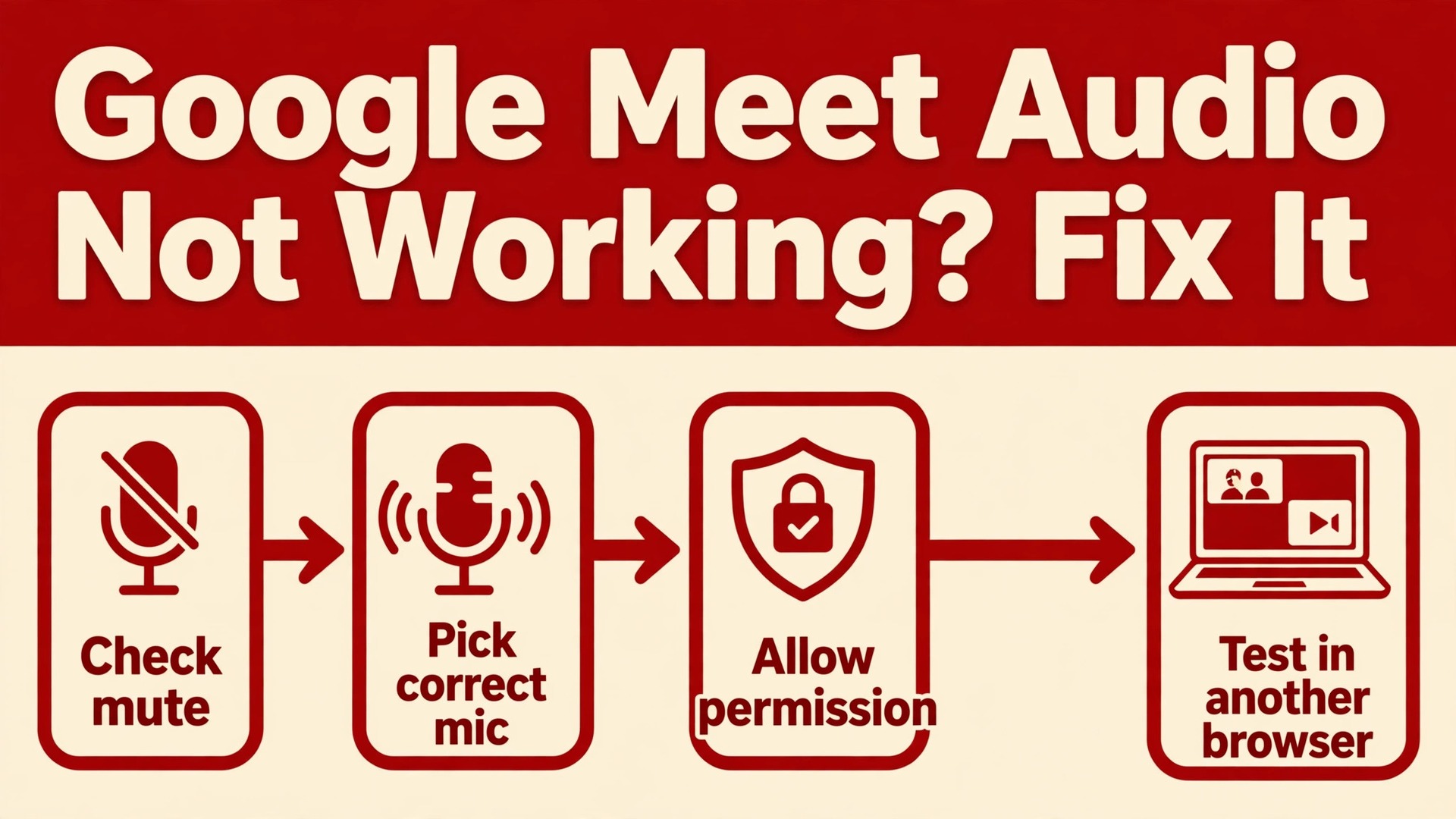
The verdict is simple, and it saves a lot of wasted effort. Most Google Meet audio failures are not Meet failures at all. They are permission blocks, wrong device selections, or browser settings that silently refuse the microphone, and each of those has a fast fix once you identify it. The mistake most people make is reinstalling, restarting repeatedly, or buying a new headset before checking whether Meet ever received permission to use the microphone in the first place. To fix Google Meet audio not working problems reliably, start with the permission and device layer, prove the microphone works outside Meet, and only then move to browser and network fixes.
This guide follows that verdict in order, so you find the fault in minutes rather than spending a meeting guessing.
Diagnose First, Because Audio Has Two Directions
Audio failure in Meet splits into two directions, and confusing them leads to wrong fixes. In one direction, other people cannot hear you, which means your microphone, its permission, or its selection is at fault. In the other direction, you cannot hear other people, which means your speaker, its selection, its volume, or your output device is at fault. A third pattern, where everyone sounds robotic or broken, usually means network quality rather than a device fault. Before changing anything, ask the other participants what they hear, and check the blue speaking indicator on your own video tile.
Google Meet shows that indicator when it detects sound from your microphone, so if it lights up while others say they cannot hear you, the problem is more likely on their speaker side or in the meeting connection than in your microphone.
Test the microphone outside Meet before you blame Meet. Record a short voice note, try a test call in another app, or open the operating system sound settings and watch the input level move as you speak. If the level does not move anywhere, the microphone itself, its physical mute switch, or its system permission is the fault, and no Meet setting will fix it. If the level moves everywhere except Meet, the fault is specific to Meet permissions or device selection, and the browser section below is where the fix lives. That single outside test divides the whole problem in half, and it is the step most troubleshooting guides skip.
Keep it as your first test whenever audio fails in any meeting app, because it works for every platform and it takes less than a minute.
| Symptom pattern | Likely cause | First action to try |
|---|---|---|
| Others cannot hear you at all | Microphone permission or wrong mic selected | Check browser permission and Meet device settings |
| You cannot hear others at all | Wrong speaker output or muted volume | Check Meet speaker selection and system volume |
| Your tile indicator never lights up | Microphone blocked or not selected | Test mic outside Meet and reselect it in Meet |
| Others hear you faintly or with echo | Wrong mic, speaker feedback, or no headset | Use a headset and lower speaker volume |
| Audio works then cuts out mid meeting | Network instability or Bluetooth drop | Switch to wired headset and test network |
| Audio fails only in one browser | Browser permission or extension conflict | Test Meet in another browser or incognito window |
| Audio fails on phone but works on computer | App permission or Bluetooth output | Check phone app permissions and disconnect Bluetooth |
| Audio fails in Companion mode | Companion mode disables mic and speaker | Leave Companion mode and rejoin normally |
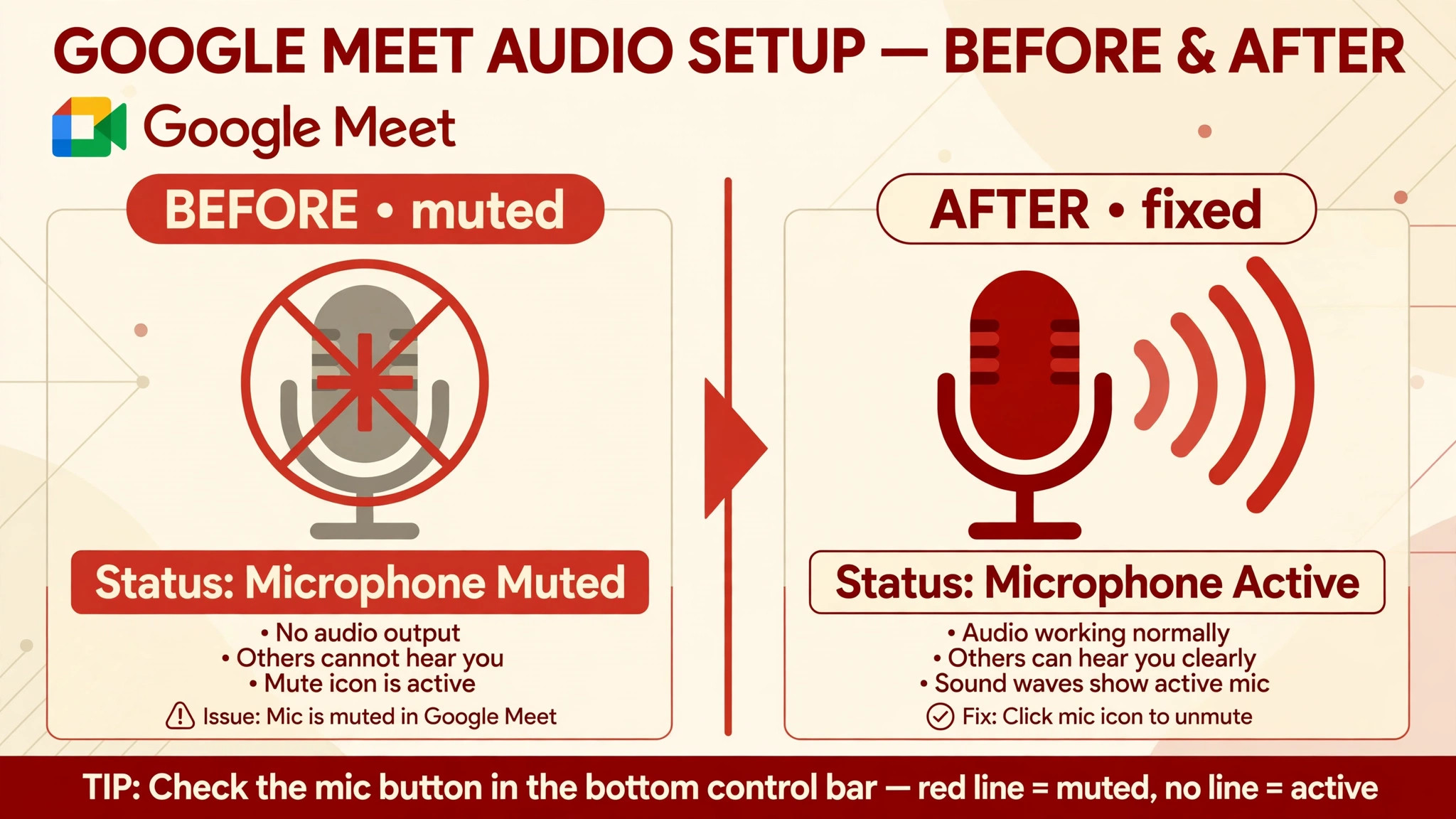
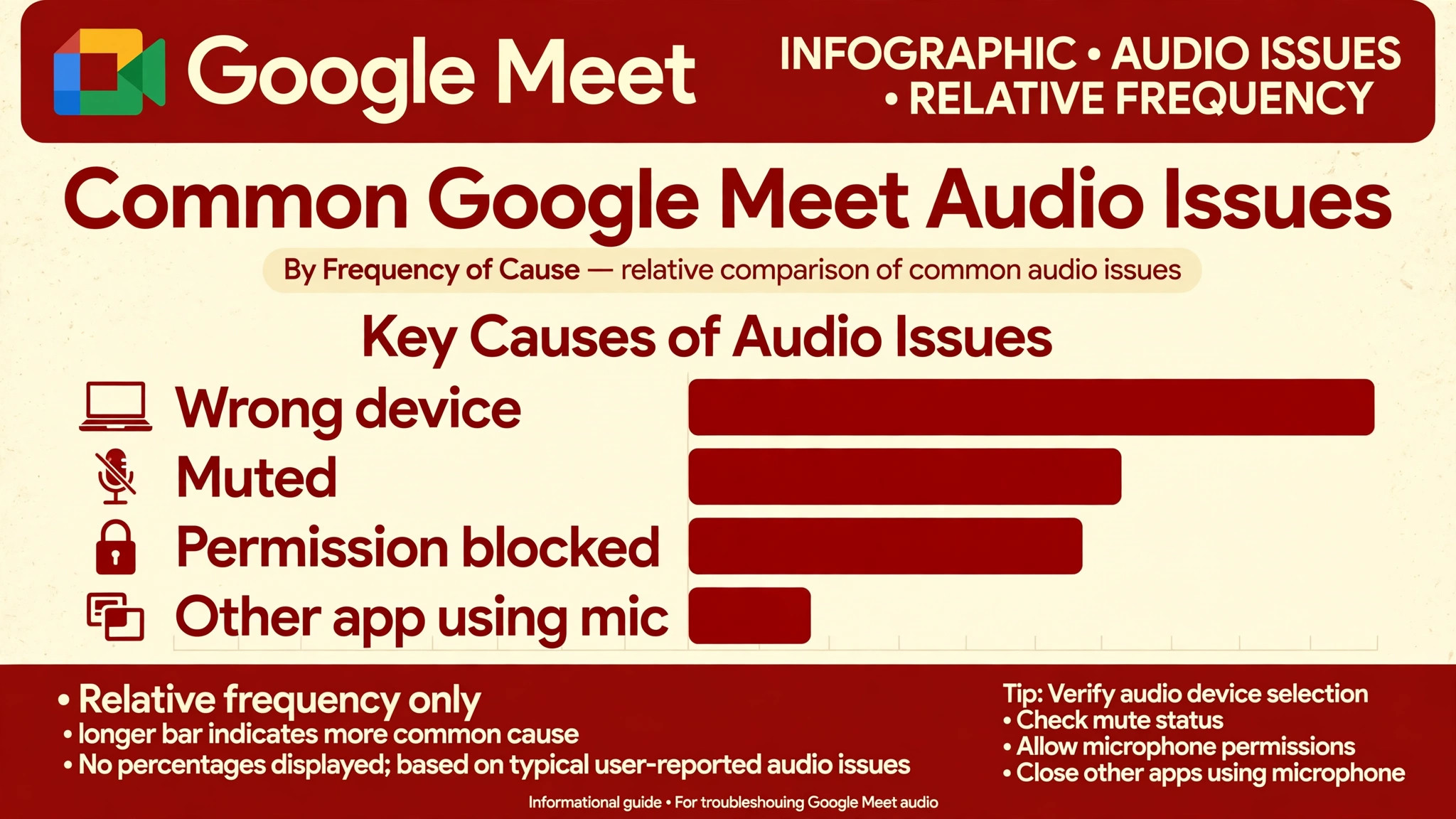
Companion mode deserves special attention, because it catches people by surprise. When you join a meeting in Companion mode, the microphone and speaker are unavailable by design, since the mode is meant for a second screen in a meeting room. If you joined through a room device or clicked the wrong join option, audio will appear completely broken even though nothing is faulty. Leaving Companion mode and rejoining normally restores audio immediately. Similarly, check whether you are muted in Meet and muted at the system level, because both mutes must be off, and a physical mute button on a headset or laptop can add a third mute that no on screen icon reveals.
Fix Google Meet Audio Not Working With This Ordered Checklist
Work through this checklist in order, testing with a short spoken sentence after each group. Ask another participant to confirm they hear you, or use the speaking indicator as a proxy when you are alone in a test meeting.
1. Google Meet Mute, Volume, and Output Checks
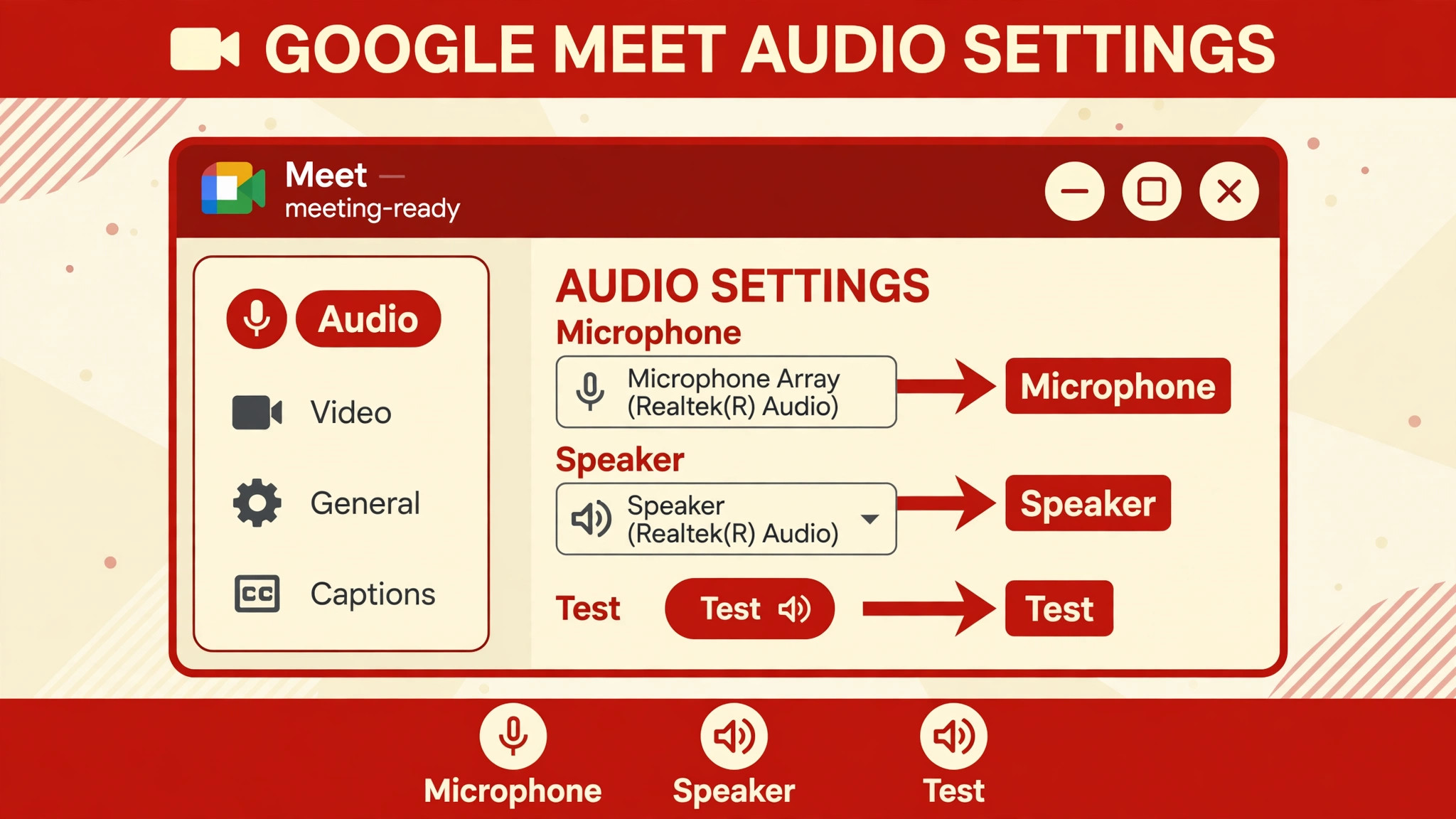
Start with the visible controls. In the meeting, confirm the microphone icon shows the unmuted state, and confirm the speaker volume is up. Check the operating system volume separately, because Meet volume and system volume are different controls, and one can be silent while the other looks normal. Check the audio output device in Meet settings, because a monitor with built in speakers, a television, or a Bluetooth device can capture the output silently. If you use an external monitor, make sure it is not selected as the speaker when its speakers are off or disconnected, since Meet will happily send audio to a display that cannot play it.
Next, check physical mute controls. Many headsets have a mute button on the cable or earcup, many laptops have a microphone mute key, and many external microphones have a switch on the body. Press each one deliberately and watch the Meet indicator, because a physical mute can persist across restarts and across browsers. Disconnect Bluetooth devices temporarily and test with the built in microphone and speakers, which removes an entire layer of wireless complexity from the diagnosis. If audio returns with Bluetooth off, reconnect devices one at a time to find the one that captured the output. This step alone resolves many reports of total audio failure, because the sound was playing correctly to a device in another room.
2. Google Meet Microphone and Speaker Selection
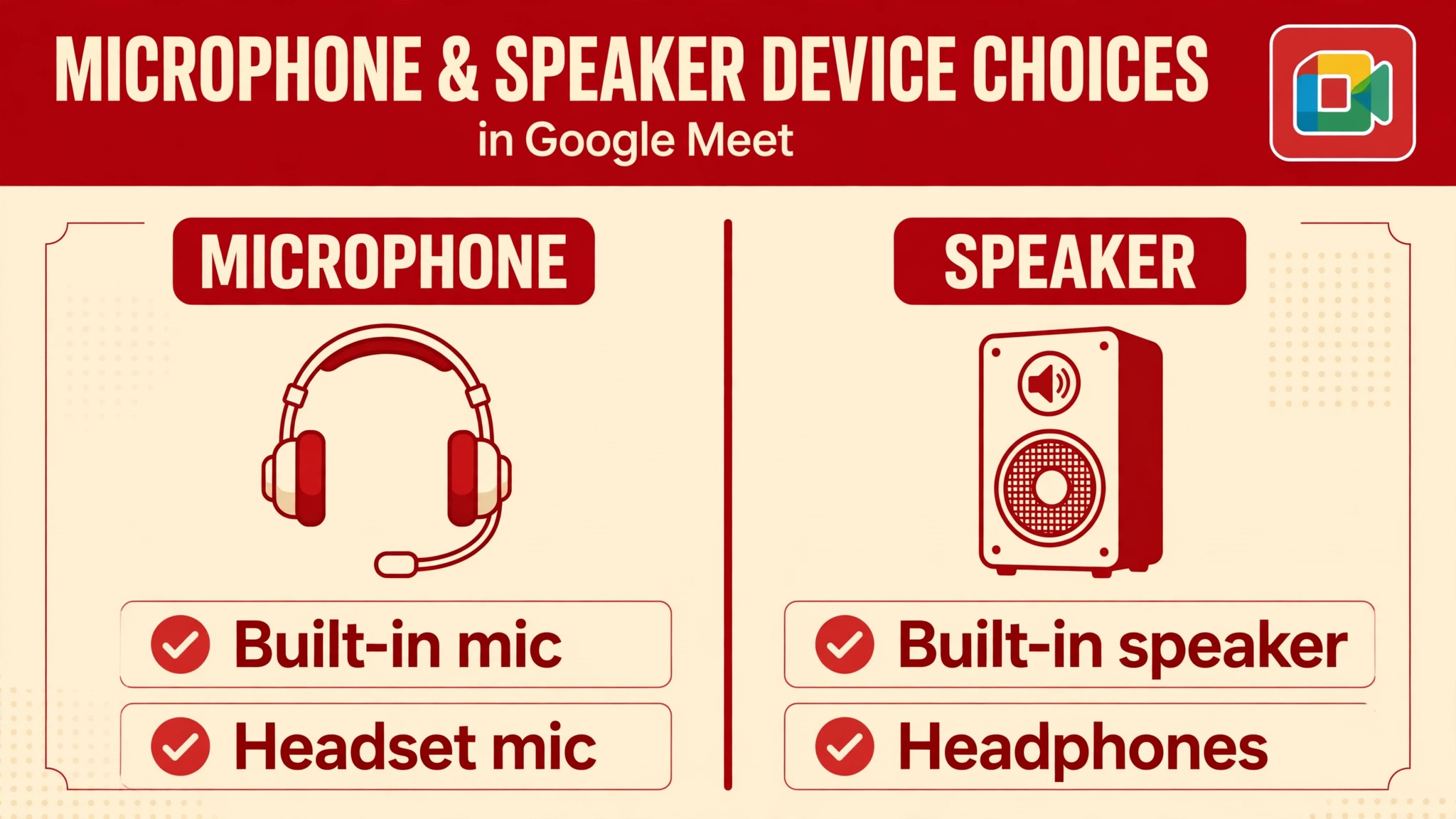
Open Meet settings before or during a meeting and open the Audio section. Confirm the microphone dropdown lists the device you intend to use, and confirm the speaker dropdown lists the device you intend to hear through. USB headsets sometimes appear as two devices, one for the microphone and one for the speaker, and selecting the wrong entry for either direction breaks that direction while leaving the other working. If a headset appears twice, try each entry in turn and test with a spoken sentence. Also check the operating system sound settings, because Meet can only offer devices the system recognises, and a device that is disabled at the system level will not appear in Meet at all.
If the correct device is selected but audio still fails, switch to a different device temporarily, such as the built in microphone, and test again. A successful test with the built in device proves Meet and its permissions work, and points the fault at the external device, its cable, its driver, or its own settings. If the built in device also fails, the fault is broader, and the permission section below becomes the priority. Note whether the device works in other apps, because a headset that fails everywhere has a hardware or driver fault, while a headset that works everywhere except Meet has a Meet specific permission or selection fault.
That distinction decides whether you shop for a new headset or fix a browser setting.
3. Google Meet Browser and System Permissions
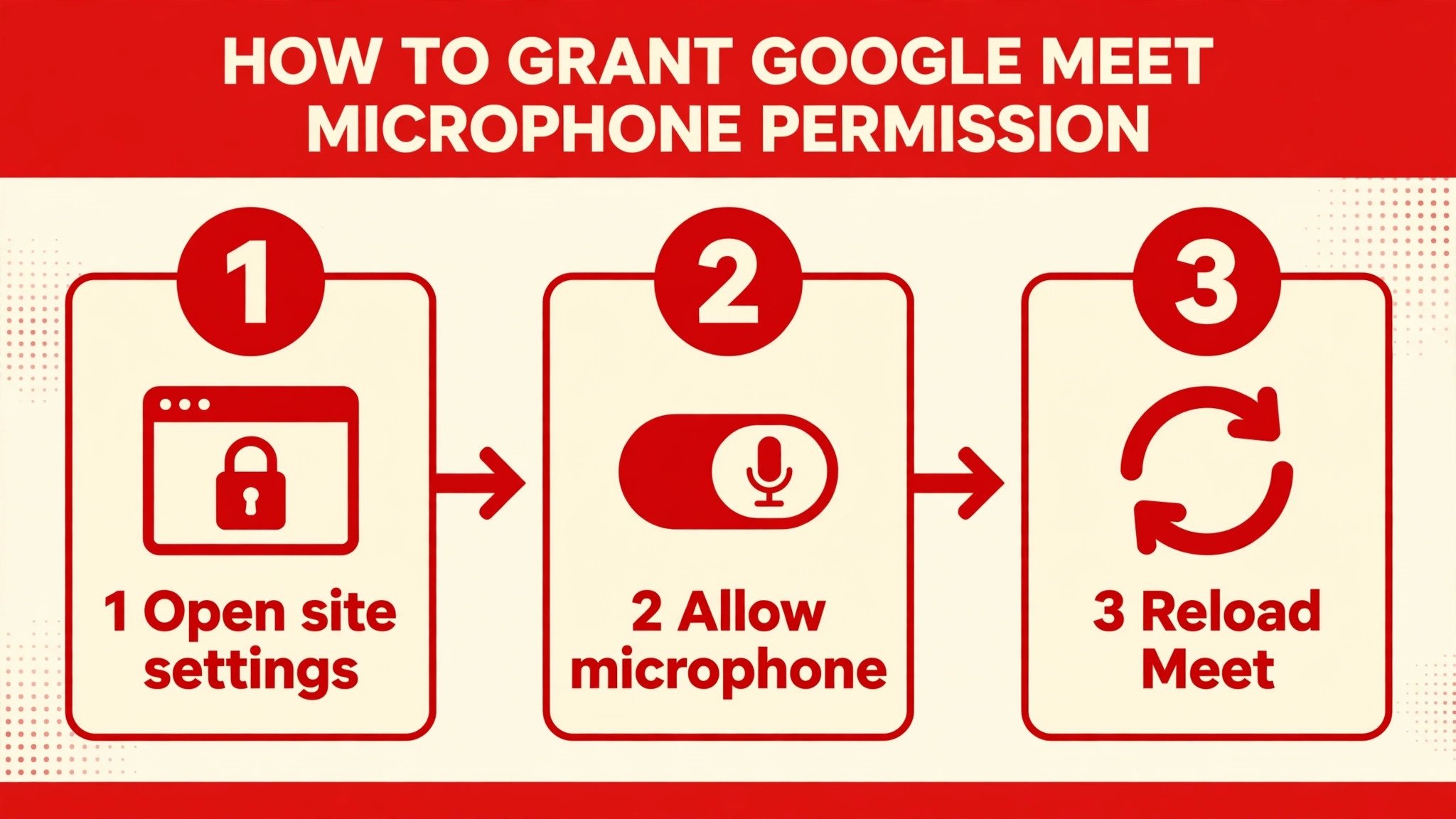
Meet needs microphone permission at three levels, and all three must allow it. The browser must have permission, Meet itself must have permission within the browser, and the operating system must allow the browser to use the microphone. On a computer, open the browser site settings for Meet and confirm microphone access is allowed, not blocked or set to ask every time in a way that leaves it denied. In Chrome, the site settings are reached through the lock or tune icon in the address bar while on the Meet page. If permission was previously denied, the browser may remember that denial silently, and Meet will show no clear error beyond a missing microphone.
Clearing the site permission and allowing it fresh often resolves this.
At the operating system level, open privacy settings and confirm the browser is allowed to use the microphone. On Windows, open Settings, open Privacy and security, open Microphone, and confirm both the master microphone access and the browser entry are on. On macOS, open System Settings, open Privacy and Security, open Microphone, and confirm the browser is checked. On a phone, open the system settings, open the Meet app permissions, and confirm microphone permission is set to allow while using the app. After changing any permission, reload Meet or rejoin the meeting, because permission changes often do not take effect in a meeting that is already running.
To fix Google Meet audio not working faults that appear after a browser or system update, permissions are the first place to look, because updates frequently reset them without warning.
4. Google Meet Extension, Cache, and Browser Conflicts
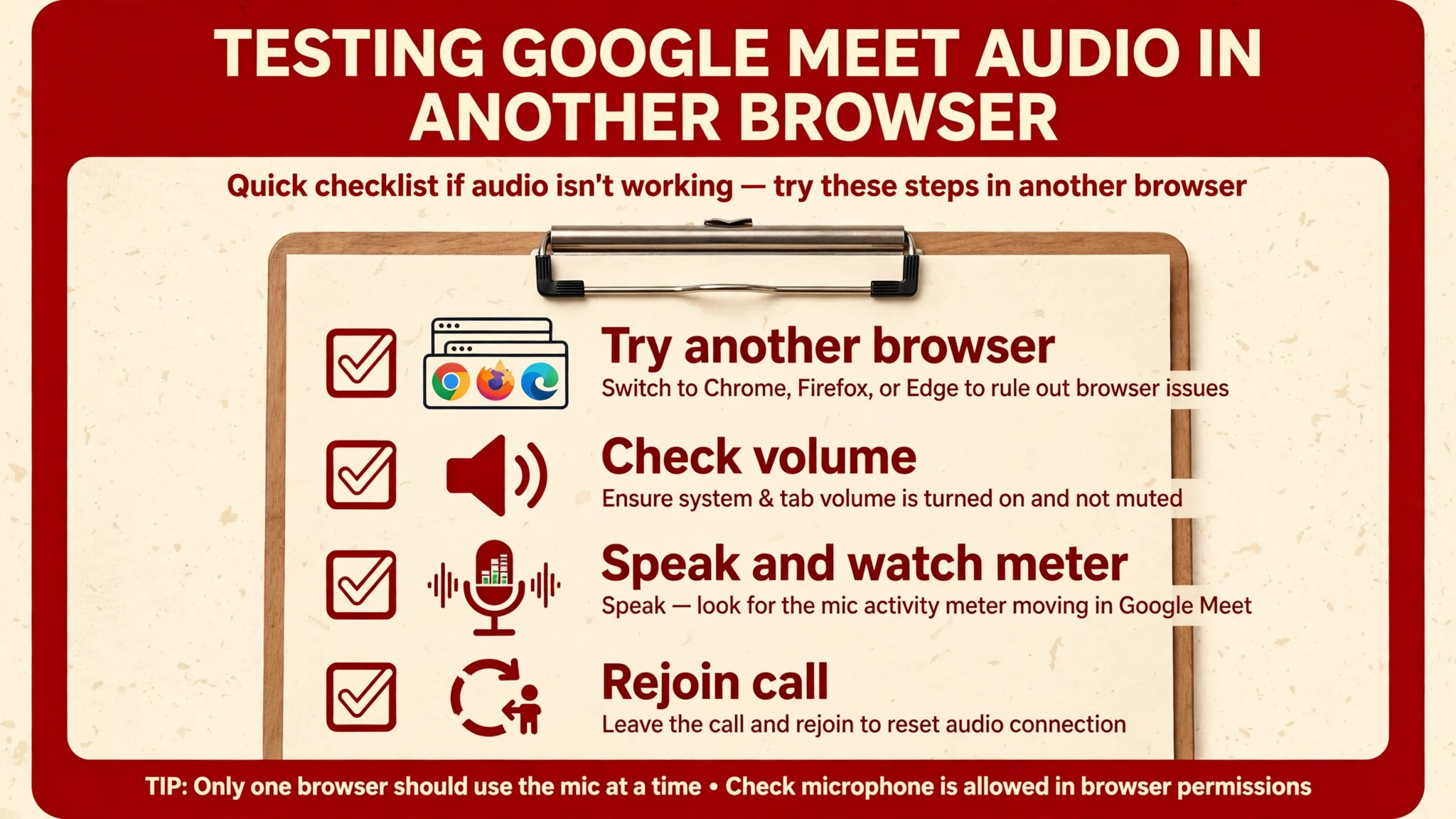
Browser extensions can interfere with audio in subtle ways. Ad blockers, privacy tools, and audio enhancement extensions sometimes block microphone access or alter audio routing. Test Meet in an incognito or private window, where most extensions are disabled by default, and see whether audio returns. If it does, disable extensions one at a time in the normal window until you find the interfering one, rather than removing all extensions permanently. Also test Meet in a different browser entirely, because a browser specific fault, such as a corrupted profile or a failed update, will not follow you to another browser, while a system fault will.
Clearing browser data for Meet can also help, although it should come after permission checks rather than before them. Clearing site data signs you out of Meet and removes stored preferences, so use it deliberately and be ready to sign in again. Update the browser to the latest version as well, because Meet depends on current web audio features and an outdated browser can lose compatibility after a Meet update. Restart the browser fully after updating, using the browser restart command or by closing every window, since a browser left running for days can hold stale audio sessions that block new ones.
If audio works in one browser but not another after all these steps, keep using the working browser for important meetings and investigate the failing browser separately, rather than letting a browser fault block your work.
5. Google Meet Network and Quality Problems
When audio breaks up, drops words, or sounds robotic, the network is more likely at fault than the microphone. Meet has a built in troubleshooting panel that appears when quality problems are detected, marked by a red dot on the more options button during a meeting. Opening that panel gives tailored suggestions based on the detected issue, and it is worth checking before changing hardware. Test the connection by switching between Wi-Fi and mobile data, or by connecting with an Ethernet cable, and see whether audio quality changes with the network.
Close bandwidth heavy apps during meetings, pause cloud sync, and ask others in the household to pause streaming during important calls, because audio is sensitive to jitter even when download speeds look adequate.
Echo deserves separate treatment, because it is often misdiagnosed as a microphone fault. Echo happens when your speaker output feeds back into your microphone, usually because you are using loudspeakers without a headset or because your speaker volume is high. The fix is to use headphones, lower speaker volume, or mute yourself when not speaking, and Meet also tries to reduce echo automatically. If other participants report echo only when you speak, the feedback path is on your side, and a headset is the most reliable cure.
If you hear your own voice echoed back, the feedback is on another participant side, and asking them to use a headset or mute when not speaking resolves it faster than changing your own settings.
6. Google Meet Phone, Tablet, and Meeting Room Variations
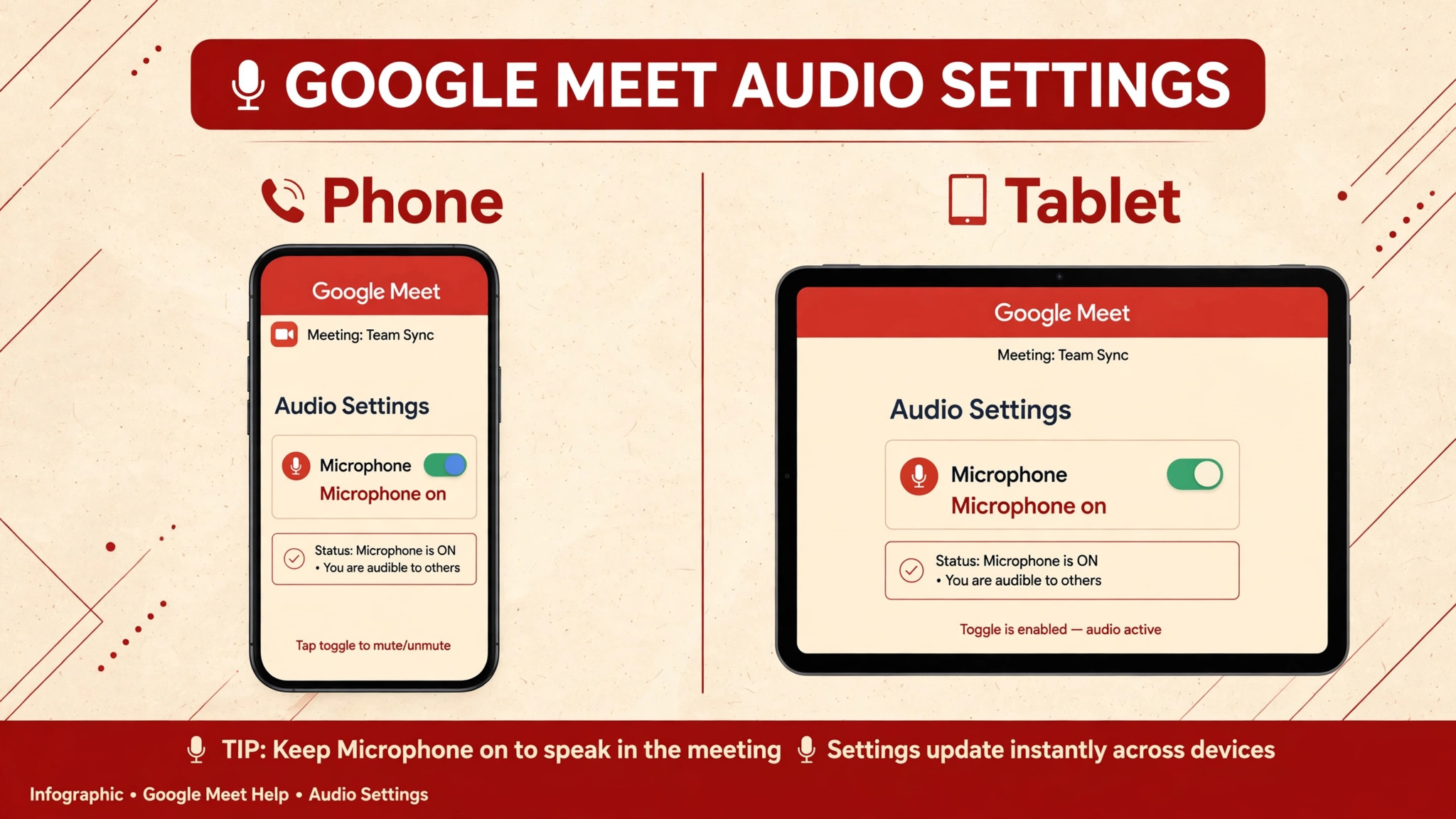
On a phone, Meet audio failures have their own pattern. Check that the Meet app has microphone permission, that the phone is not connected to a Bluetooth device that captured audio, and that the phone is not in a mode that restricts the microphone. Test with the phone speaker and built in microphone before testing with earbuds, because that isolates the app from accessory faults. Restart the phone if audio fails after an app update, since phone audio sessions can remain stuck across updates.
On a tablet, the same steps apply, with the added check that a keyboard case or cover is not covering the microphone, and that the tablet is not connected to an external display that captured the speaker output.
In a meeting room, audio routing becomes more complex, because room speakers, room microphones, and personal laptops can all compete. If you join from a laptop in a room that already has a room system running, your laptop microphone may pick up room speaker audio and create echo, or the room system may capture the meeting while your laptop stays muted. Use Companion mode deliberately for a second screen in a room, and use the main room device for audio, rather than running two audio paths at once.
When audio fails in a room, simplify to one device for audio before troubleshooting further, because multiple audio paths are the most common room fault and the hardest to diagnose while they are all active.
Audio That Works in Testing but Fails in Real Meetings
A frustrating pattern is audio that works in a solo test and fails once a real meeting starts. The difference is usually load, participants, or a setting that only activates with others present. A microphone that works alone may fail when several participants speak, because the browser must process multiple audio streams at once and a struggling computer can drop the local microphone stream first. Test with a colleague in a short two person call before an important meeting, rather than relying on a solo test, because a two person call reproduces the real processing load. Also test with the exact headset and browser you will use for the real meeting, since swapping either one after testing invalidates the test.
Another cause is a meeting setting applied by the host or the organisation, such as a policy that mutes participants on entry or restricts microphone use for certain accounts. If audio fails only in meetings organised by one host or one organisation, while working in your own meetings, an organisational policy is more likely than a device fault. Ask the host whether other participants have the same problem, and test by creating your own meeting and joining it from a second device. That comparison separates a personal device fault from a meeting policy fault in minutes, and it prevents a long device troubleshooting session for a problem that only the host can change.
To fix Google Meet audio not working faults that follow one meeting organiser, gather that comparison evidence before changing hardware.
Preventing Repeat Audio Failures Before Important Calls
A short pre meeting routine prevents most repeat failures. Before an important call, join two minutes early, confirm the microphone and speaker selections in Meet settings, speak a test sentence, and watch the speaking indicator. Keep a wired headset as a backup, because a wired connection removes Bluetooth pairing, battery, and wireless interference from the equation at exactly the moment reliability matters most. Keep the browser updated and avoid installing new extensions on meeting days, since both changes can alter permissions without warning. If you use a laptop, keep it plugged in during long meetings, because power saver modes can restrict background processing and audio handling in ways that appear only after an hour of use.
Document your working configuration once you find it, noting the browser, the headset, and the exact device names selected in Meet. When audio fails after an update, that note lets you restore the known working setup instead of guessing through device lists under pressure. Review phone app permissions after major phone updates as well, because updates sometimes reset permissions for apps that have not been used recently. This routine takes two minutes and it turns audio failure from a meeting derailing event into a short check that usually ends with a single corrected selection. People who follow it rarely lose a meeting to audio, because they catch the fault before the meeting starts rather than during it.
Audio Failures on Managed Work and School Accounts
Meetings on a work or school account add a layer that personal accounts do not have, because an administrator can restrict microphone access, limit which browsers are allowed, or require a managed device for meetings. When you need to fix Google Meet audio not working trouble on a managed account, the device checks in this guide still apply, but they may not be sufficient on their own, because a policy set by the organisation can override a local permission. The clue is usually scope.
If audio fails on your work account but works on a personal account on the same computer, browser, and headset, the fault is almost certainly policy rather than hardware, and no amount of device swapping will change it.
Start by testing that comparison deliberately. Sign into Meet with a personal account in a separate browser profile and join a test meeting, then repeat the test with the work account in its usual profile. If the personal account works and the work account does not, contact the IT administrator with that evidence, noting the browser, the device, and the exact error or symptom. Administrators can check whether microphone access is blocked by policy, whether an extension is forced on managed browsers, or whether a device management rule prevents audio capture. Bring the result of the outside Meet microphone test as well, because it proves the hardware works and focuses the administrator on policy rather than on replacing your headset.
Managed Chromebooks deserve a separate note, because their settings are often locked in ways that personal devices are not. On a managed Chromebook, microphone permission may be controlled centrally, and the user may not be able to change it even when the setting appears available. If audio fails on a managed Chromebook while working on a personal device, report the device name, the account, and the time of the failure to IT, and ask whether a recent policy change affected audio. In the meantime, joining the meeting from a phone on a personal data connection is a practical workaround, because it bypasses the managed device entirely.
To fix Google Meet audio not working problems in managed environments, the fastest path is often a clear report to the people who control the policy, supported by the personal account comparison that proves the hardware is healthy.
A related managed environment trap is the virtual desktop or remote desktop setup, where Meet runs inside a remote session rather than on the local computer. In that setup, microphone audio must travel from the local device into the remote session, and redirection settings control whether that path works at all. If audio fails only inside a virtual desktop while working in a local browser, check the remote desktop client audio redirection settings and test with a local browser meeting as a comparison. That test separates a Meet fault from a virtual desktop redirection fault, and it gives IT the precise detail they need.
When you need to fix Google Meet audio not working trouble inside a remote session, the local browser test is the single most useful piece of evidence you can gather before escalating.
More Reading on Stratilyze
Meet audio faults usually sit next to a camera or device-selection fault in the same call, so readers often check the neighbouring meeting guides next. The guide to a Google Meet microphone that will not work covers the input-side version of the same permission problem, the guide to a Google Meet camera that will not work explains the video-side checks that fail in the same meetings, and the guide to Zoom audio that will not work in a meeting shows the same audio diagnosis on the other major meeting platform.
Frequently Asked Questions
Why can others not hear me in Google Meet but I can hear them
That one way pattern means your microphone path is broken while your speaker path works. Check the Meet microphone selection, the browser microphone permission, and the operating system microphone permission, in that order. Test the microphone outside Meet to confirm it works at all, and check for a physical mute button on the headset or laptop. If the microphone works elsewhere but not in Meet, a permission block is the most likely cause, and clearing the site permission and allowing it fresh usually restores it.
Why does Meet say my microphone is blocked
A blocked microphone message means permission was denied at the browser or system level, or a previous denial is being remembered. Open the browser site settings for Meet and change microphone access to Allow, then check the operating system privacy settings and confirm the browser is allowed to use the microphone. Reload Meet after changing permissions, because a meeting already running may not pick up the change. If the message persists, test in an incognito window or another browser to separate a browser profile fault from a system permission fault.
Why does my audio echo in Google Meet
Echo usually means speaker output is feeding back into a microphone, either yours or another participant’s. Use headphones, lower speaker volume, and mute yourself when not speaking. If others hear echo only when you speak, the feedback is on your side and a headset is the reliable fix. If you hear your own voice echoed, the feedback is on another participant side, and asking them to use a headset resolves it. Meet also attempts automatic echo reduction, but it cannot fully compensate for loud speakers and an open microphone in the same room.
Why does Meet audio work on my computer but not on my phone
Phone audio failures usually involve app permissions, Bluetooth output, or a phone mode that restricts the microphone. Open the phone settings, confirm Meet has microphone permission, disconnect Bluetooth, and test with the built in microphone and speaker. Restart the phone if audio failed after an app update. If the phone still fails while the computer works, the fault is specific to the phone configuration rather than to your account or to Meet itself, and a clean app reinstall on the phone is a reasonable later step after permission checks.
Why does Meet audio cut out during the meeting
Audio that cuts out mid meeting usually points to network instability, Bluetooth drops, or processor strain as more participants join. Switch to a wired headset, connect with Ethernet where possible, and close bandwidth heavy apps. Check the Meet troubleshooting panel when it appears, since it gives suggestions based on the detected quality problem. If cutting out follows a pattern, such as starting when screen sharing begins or when a particular participant joins, that pattern points to the load or the participant connection that triggers it.
Should I buy a new headset to fix Meet audio
Buy a new headset only after proving the current one fails outside Meet as well. Test the microphone in a voice recorder and in another app, and test Meet with the built in microphone. If Meet works with the built in microphone but fails with the headset everywhere, the headset is at fault. If the headset works everywhere except Meet, a permission or selection setting is at fault and a new headset will fail in exactly the same way. That test saves an unnecessary purchase and focuses the fix where it belongs.
When you need to fix Google Meet audio not working faults that survive every permission and device test, a different browser or a clean browser profile is worth trying before any hardware purchase.
A Final Audio Check You Can Run in Sixty Seconds
When audio fails and time is short, run this sixty second sequence. Unmute in Meet, disconnect Bluetooth, select the built in microphone and speakers in Meet settings, speak and watch the indicator, and test the microphone in another app if the indicator stays dark. If the indicator lights up, the microphone works and the fault is output, network, or another participant side. If it stays dark everywhere, the fault is permission, physical mute, or hardware, and you should check permissions next. That sequence covers the most common faults in the order most likely to find them, and it gives you a clear next step instead of a vague sense that audio is broken.
Keep a wired headset nearby for important meetings, join early, and confirm audio before the meeting starts, and most Meet audio problems become a brief check rather than a lost meeting. Fixing audio is rarely about advanced settings. It is about proving, step by step, which link in a short chain has broken, and then fixing that link alone.