
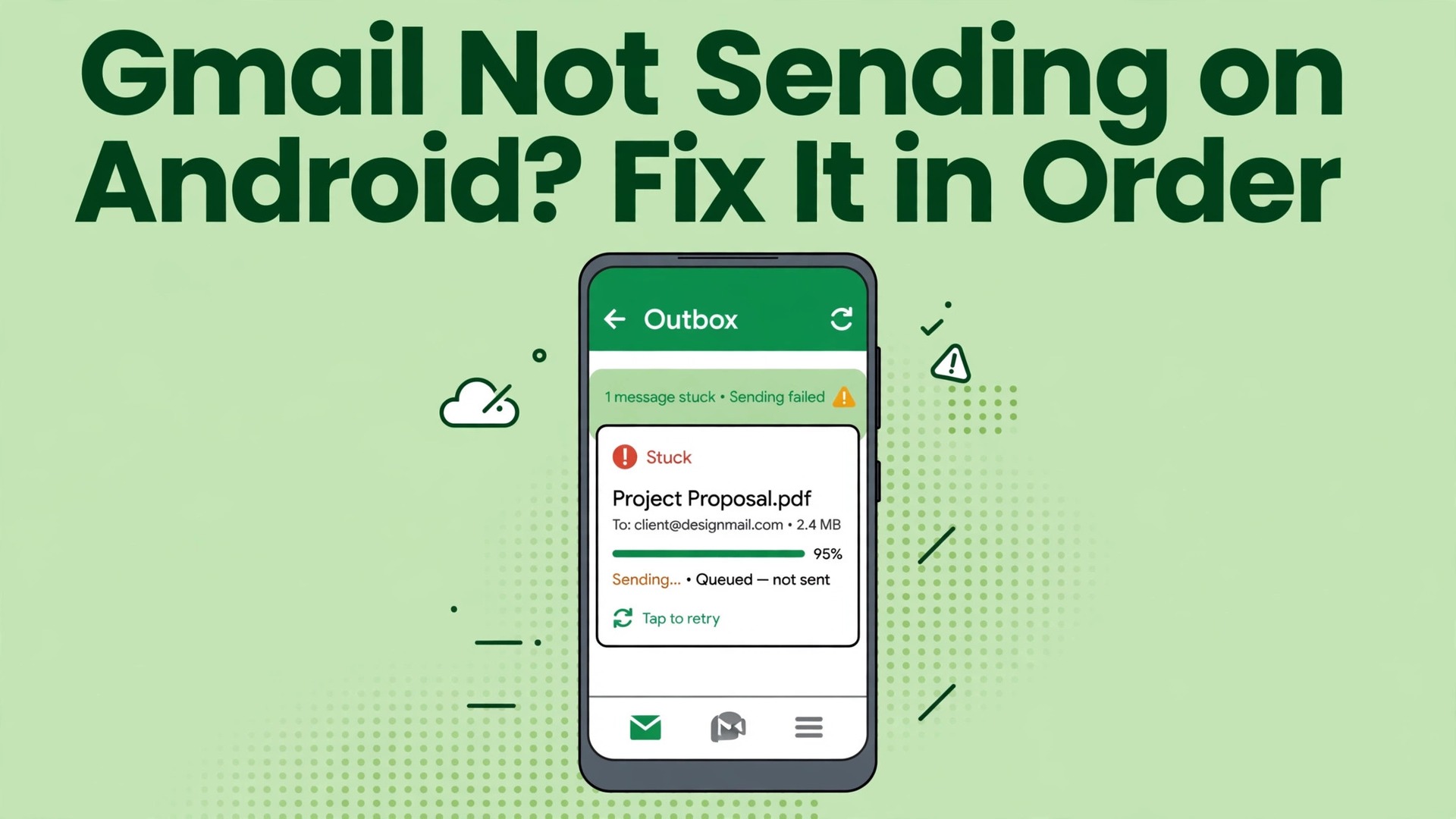
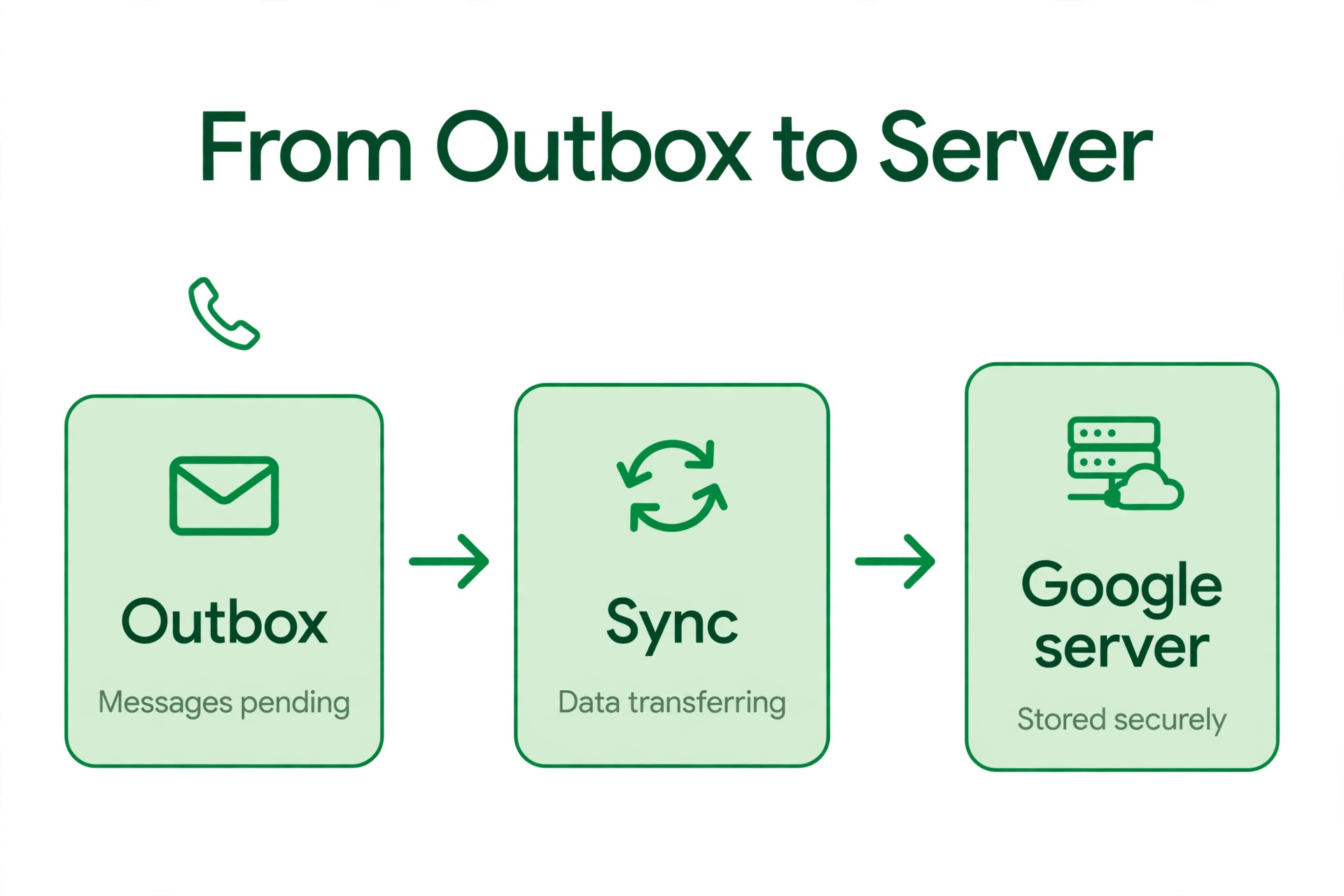
Every Gmail message on Android passes through the same narrow gate. It leaves your outbox, syncs through your Google account, and reaches Google’s servers, and when you fix Gmail app not sending emails Android, a failure at any one of those stages leaves the message sitting in the outbox with a quiet Queued or Sending label. The scale of that gate is worth noting. Hundreds of millions of people send mail through Gmail on Android every day, and the overwhelming majority of stuck messages trace back to a handful of causes, a lost connection, a paused sync, a full account, an oversized attachment, or a battery saver quietly throttling the app.
If you need to fix Gmail app not sending emails Android problems, the good news is that the fix order is short and the diagnosis is visible. The outbox itself tells you where the message stopped, and this guide shows you how to read it, then works through the fixes from the fastest checks to the account level resets that solve the stubborn cases.
Read the Outbox Before You Change Anything
Open the Gmail app, open the menu, and tap Outbox. The state of the messages there is your diagnosis. A message marked Queued usually means Gmail is waiting for a connection or for sync permission, and it will send on its own once that condition clears. A message marked Sending that never completes usually means the upload started but stalled, often because of a large attachment or an unstable connection. An empty outbox combined with a missing message means the message may already be in Sent, so check Sent before you resend anything, because resending a message that already went out creates the duplicate that causes more embarrassment than the original delay. Also check whether receiving works.
If new mail arrives normally but nothing sends, the fault is specific to sending, which points at the outbox, attachments, or account storage. If neither sending nor receiving works, the fault is connection or sync level, and the whole account link needs attention.
| What you see in Gmail | Most likely cause | Check this first |
|---|---|---|
| Message stuck on Queued | No connection or sync paused | Connection test and Sync Gmail toggle |
| Message stuck on Sending | Large attachment or unstable connection | Attachment size and network switch |
| Outbox empty but message missing | Message already sent or saved as draft | Sent folder and Drafts folder |
| Sending works on Wi-Fi but not mobile data | Data Saver or mobile data restriction | Data Saver exception for Gmail |
| Sending fails only for one account | That account’s storage full or sign-in problem | Account storage and sign-in status |
| All Google apps failing to sync | Account sync off or sign-in expired | System account sync settings |
| Message bounces back with an error | Invalid address, full recipient box, or blocked content | Error text and recipient address |
| Sending worked yesterday, fails today | Update, battery rule, or storage threshold crossed | App update and battery optimisation |
That table turns a vague complaint into a targeted first step. The attachment row deserves emphasis, because Gmail caps attachments at twenty five megabytes per message, and a message over that limit will sit in the outbox indefinitely rather than failing loudly. Photos and videos from a modern phone camera easily exceed that limit, especially several at once, so a message that refuses to send while short text messages fly out is almost always an attachment problem. The fix is to send the files through a Drive link instead, which has no such per-message cap in practice for sharing, and to keep the email itself light.
Confirm the connection and the account before anything else
Two checks belong before any Gmail setting, because they rule out the environment entirely. First, open a browser and load any ordinary web page. If pages fail to load, the connection is the problem, not Gmail, and switching between Wi-Fi and mobile data will tell you which network is at fault. Second, open Gmail on another device or in a browser and check whether the account sends from there. If web Gmail sends fine while the Android app does not, the fault is in the app or the phone, and the app level steps below are the ones that matter.
If web Gmail also fails, the fault is in the account, its storage, or Google’s service, and no phone setting will fix it. This pair of tests takes a minute and prevents an hour of phone troubleshooting for an account problem.
How to Fix Gmail App Not Sending Emails Android in Order
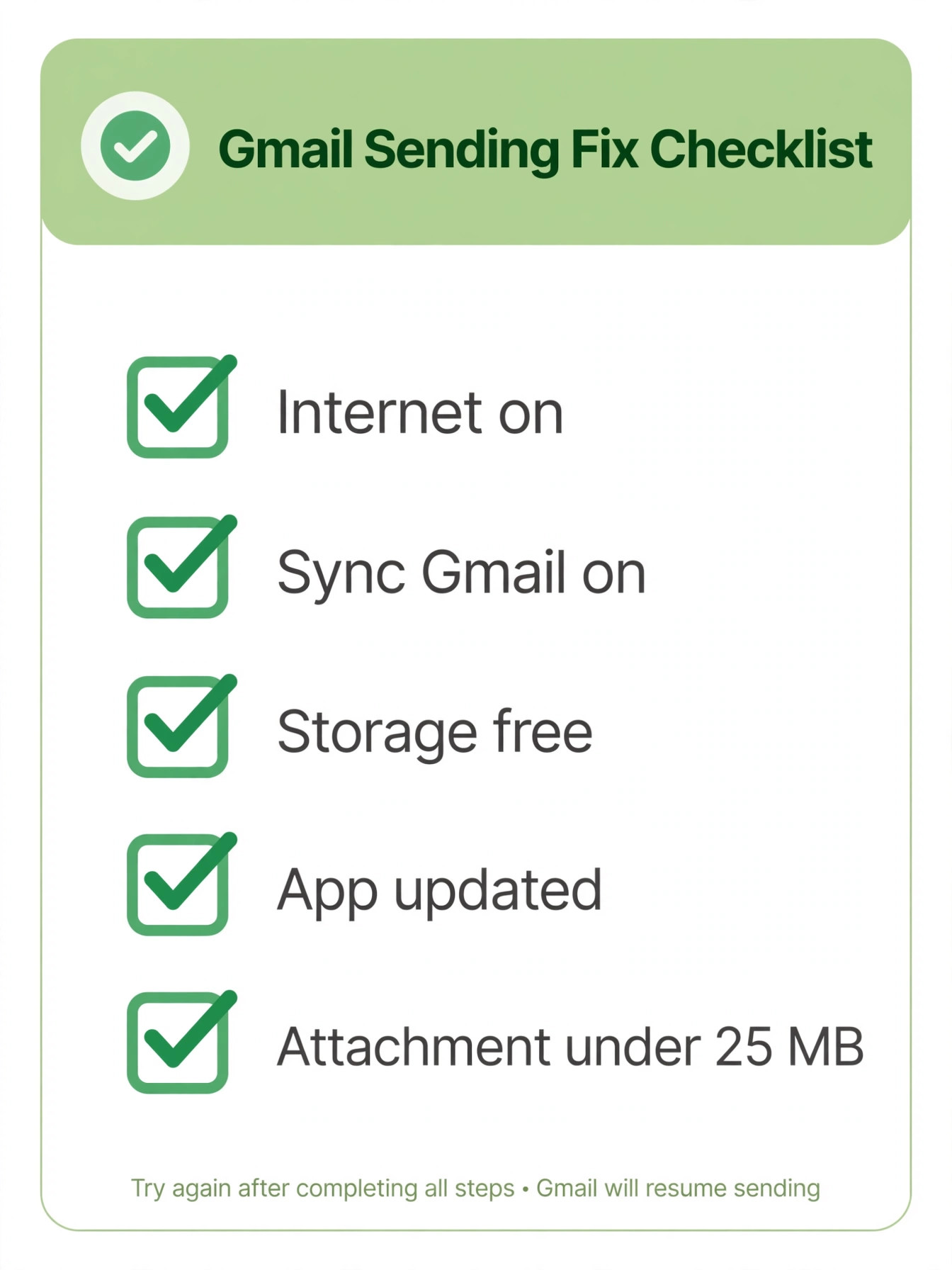
Work through this checklist from top to bottom and test by sending a short test message to yourself after each step. Do not resend the original stuck message repeatedly while testing, because each resend can queue another copy. Use a fresh short test message, and only return to the original once sending works again.

Step 1. Refresh the outbox and check the connection
Open the Outbox, pull down to refresh, and wait a few seconds. This alone clears many queued messages, because Gmail retries on refresh and a momentary connection gap is often the whole story. Then verify the connection properly. Load a web page, and if you are on Wi-Fi, switch to mobile data and test again, or the reverse. A network that loads pages slowly or intermittently can accept a short message yet stall on a larger one, so test with both a short message and, once short messages work, the original message.
If messages send on one network and not the other, the network is the cause, and the fix is a router restart, a different network, or a conversation with your provider, not a Gmail setting.
Step 2. Toggle Sync Gmail off and on for the account
Open Gmail, then Settings, then your account, and find the Sync Gmail toggle. Turn it off, force close Gmail, reopen it, and turn sync back on. This sync restart re-establishes the link between the app and Google’s servers and clears a stuck sync state that a simple refresh cannot. Then open the system settings, go to Accounts or Passwords and Accounts, select your Google account, and tap Sync Now to force a full account sync. Check that Gmail is ticked in the account’s sync list, because an account sync that covers contacts and calendar but not Gmail will receive nothing and send nothing.
If sync was off for the whole account, turning it back on may take several minutes to clear a backlog, so give it time before you judge the result.
Step 3. Check storage on the phone and in the Google account
Storage blocks sending in two places, and both are easy to miss. On the phone, low free storage prevents Gmail from staging attachments and sync data, so free space by clearing cached files or removing unused apps if the phone is nearly full. In the Google account, a full storage quota blocks sending even when the phone has space, because Gmail, Drive, and Photos share the same quota. Open your Google account storage view and check the percentage used. If it is full, delete large Drive files, clear spam and trash in Gmail, and remove backed up photos you no longer need, or consider a storage upgrade if the account is genuinely full.
A message stuck in the outbox on an account at one hundred percent storage will not move until space is freed, and no phone setting changes that.
Step 4. Shrink or remove the attachment
If short messages send and one message does not, open the stuck message and look at its attachments. A total attachment size above twenty five megabytes will not send through Gmail, and several high resolution photos easily pass that limit. Remove the attachments and send the message text alone to confirm, then share the files through a Drive link in a follow-up message. Also check for an attachment type that Gmail blocks for security, such as executable files, which Gmail refuses regardless of size. Renaming a blocked file does not bypass the block reliably and can look suspicious to recipients, so use Drive sharing for such files instead.
If the message contains no attachment and still will not send, move on, because the cause lies elsewhere.
Step 5. Check date, time, battery optimisation, and Data Saver
An incorrect phone date or time can break authentication with Google’s servers, because security certificates and sign-in tokens depend on accurate time. Open Settings, then System, then Date and Time, and turn on automatic date and time and automatic time zone. Then check battery optimisation. Open Settings, then Apps, then Gmail, then Battery, and set Gmail to Unrestricted, because aggressive battery management can delay or block background sending, especially after the phone has been idle. Then check Data Saver under Network settings. If Data Saver is on, make sure Gmail is listed as an app allowed to use data unrestricted, or turn Data Saver off as a test.
These three settings are invisible in normal use and together explain many cases where Gmail works while the phone is in active use and fails when it has been idle.
Step 6. Clear the Gmail cache and update the app
Open Settings, then Apps, then Gmail, then Storage, and tap Clear Cache. This removes temporary files that may be corrupted without deleting your mail, which lives on Google’s servers. Test sending again. If the problem persists, open the Play Store, search for Gmail, and install any update available, because app updates fix sync and sending bugs regularly. If Gmail is already up to date, clearing app data is the stronger step, but do it carefully. Clearing data signs you out of the app’s local state and removes local drafts and unsent attachments that are not saved elsewhere, so save the text of any stuck message and its attachments before you do it.
After clearing data, reopen Gmail, sign in again if prompted, confirm Sync Gmail is on, and test with a short message.
Step 7. Remove and re-add the Google account as a last resort
Only use this step after the others have failed, and only when you can sign back in. First verify your password and two-step verification method on another device or in a browser, and save any unsent drafts and local attachments. Then open Settings, then Accounts, select the affected Google account, and remove it from the device. This removes the account’s mail, contacts, and settings from the phone, but it does not delete the Google account itself. Then add the account back, sign in, complete verification, open Gmail, confirm Sync Gmail is on, and allow time for mail to resync. For a work or school account, check with your administrator first, because managed accounts may have policies that complicate removal.
If sending still fails after a clean account re-add on a phone with a good connection and free storage, the fault is likely at Google’s end or in the account itself, and Google support is the next step.
Work, School, and Multiple Account Complications
Managed accounts add rules that personal accounts do not have. A work or school Google account may be controlled by an administrator who restricts sending, enforces device policies, or limits attachment types, and those policies can block sending without any visible error in the app. If personal Gmail sends fine on the same phone while the work account does not, the administrator’s policy is the first suspect, and the IT help desk is the right contact. Multiple accounts add a different confusion. Gmail on Android can hold several accounts, and a message composed under the wrong account sends from that account’s outbox and quota, not the one you intended.
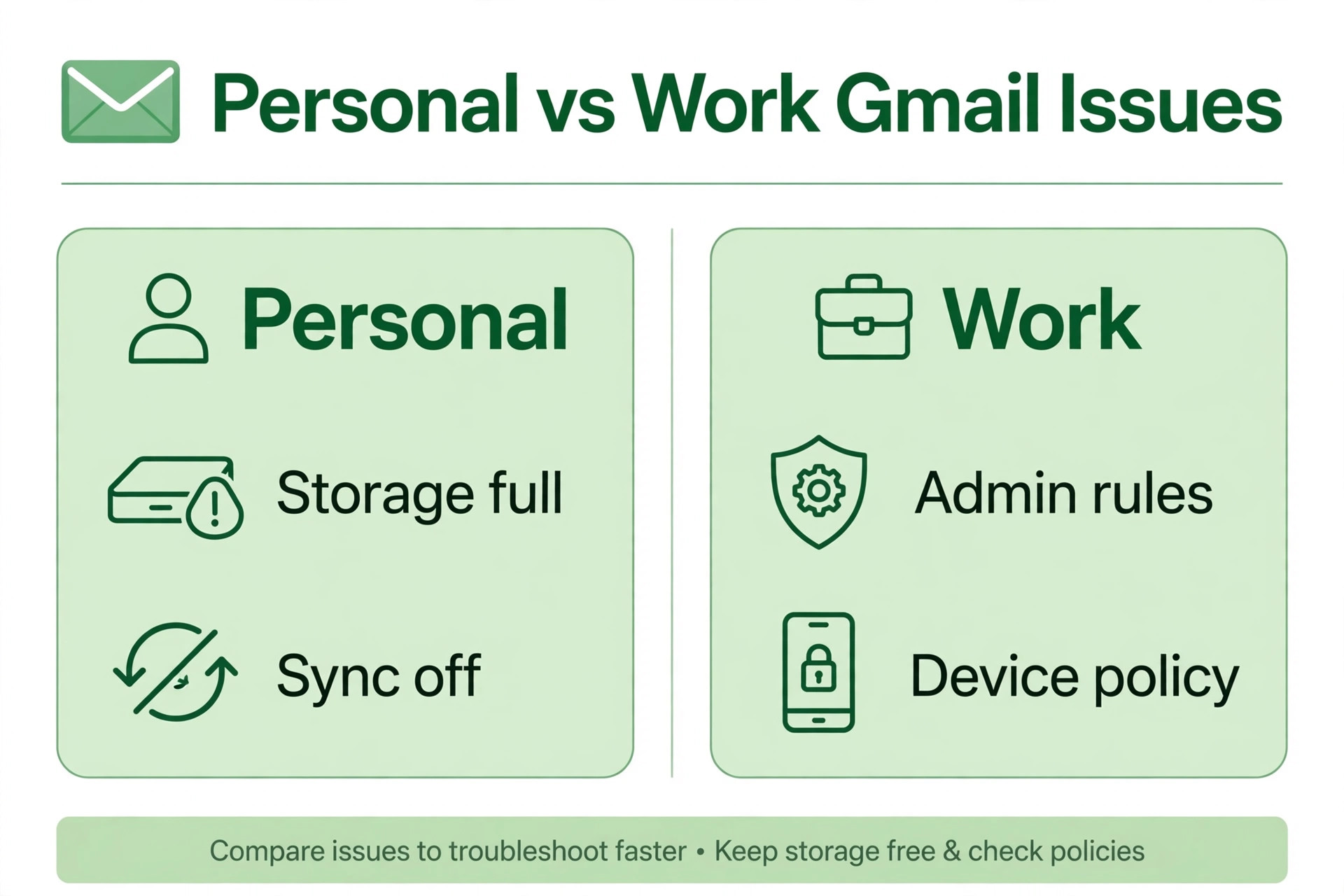
Check the account shown at the top of the compose screen before sending anything important, and check the outbox of each account when a message goes missing, because it may be queued under an account you were not watching. Switching accounts in the compose screen is a one tap fix that prevents a surprising number of missing message mysteries.

Account sign-in problems deserve their own check. If Google asks you to sign in again, if two-step verification fails, or if the account shows a sign-in error in system settings, Gmail cannot send until sign-in is restored. Complete the sign-in on another device first to confirm the password and verification method work, then sign in on the phone. A changed password is a common trigger, because the phone may keep trying with an old token and failing silently while everything else looks normal. After any password change, open the account settings on the phone and confirm the account shows as synced, rather than assuming the phone picked up the change on its own.
This check takes seconds and explains a whole class of sudden sending failures that begin the day after a password update.
Offline mode, drafts, and the messages you think you sent
Gmail’s offline behaviour can create a false sense of sending. A message composed while offline sits in the outbox and sends when connectivity returns, which is correct behaviour, but an owner who closes the app before connectivity returns may believe the message went out when it is still queued. Always confirm a critical message appears in Sent before you rely on it, especially when sending from a weak signal area, a lift, or a rural road. Drafts cause a related confusion. A message you thought you sent may actually be a draft if you backed out of the compose screen instead of tapping send, and drafts do not appear in the outbox. Check Drafts whenever a message is missing entirely.
The discipline is simple. For any message that matters, verify it in Sent within a minute of sending, and treat anything still in Outbox or Drafts as unsent until proven otherwise. That habit prevents more missed deadlines than any settings change in this guide.
When the Problem Is at Google’s End
Sometimes the fault is genuinely not yours. Google services occasionally suffer outages or degraded sending, during which messages queue across millions of devices and clear on their own when service returns. If sending fails on the phone, in web Gmail, and on another device simultaneously, and your connection and storage are fine, check Google’s service status or try another online service to confirm your connection. During an outage the correct action is to wait, not to reset the phone, clear data, or remove the account, because those steps cannot fix a server problem and they risk losing local drafts.
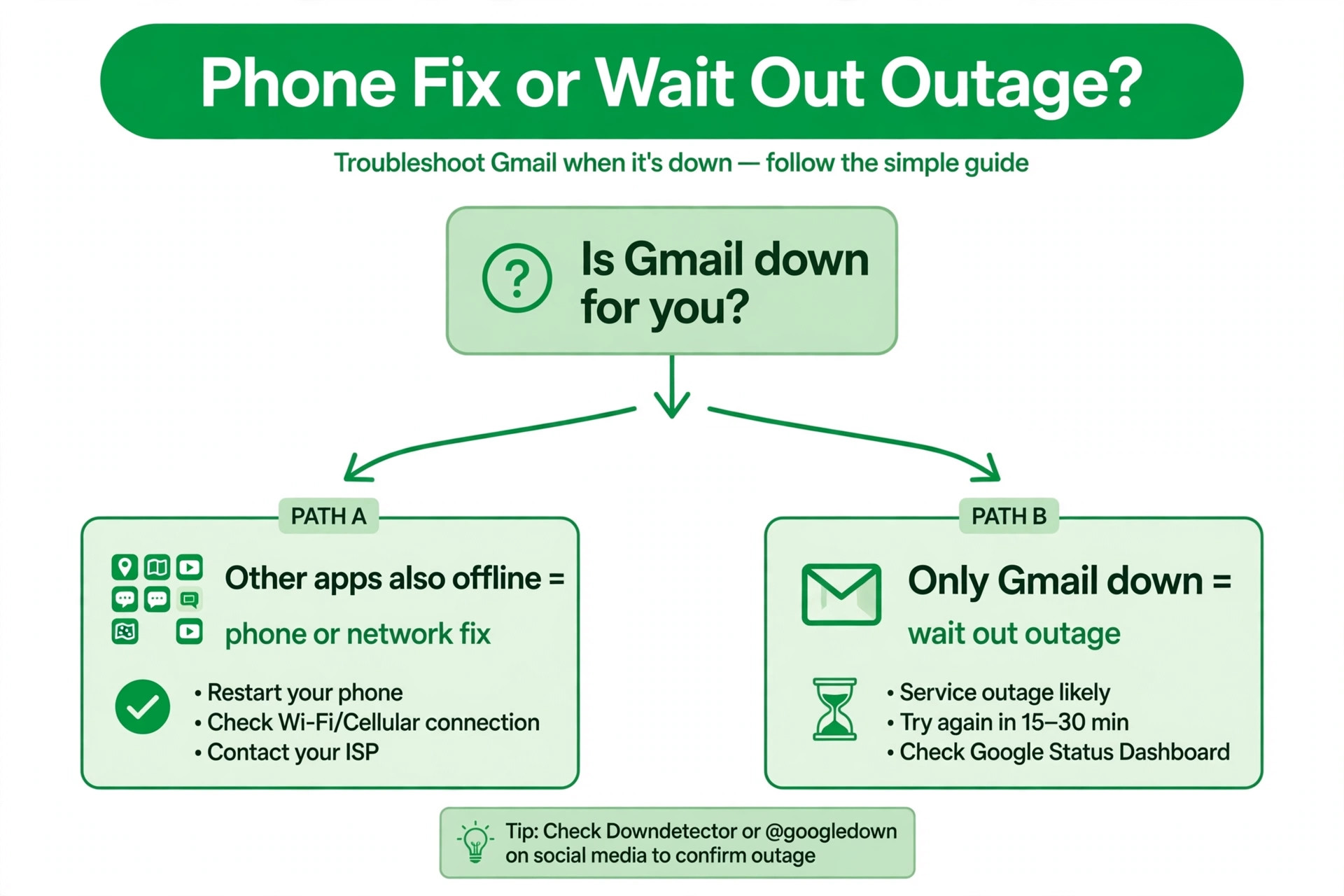
The same patience applies to a message delayed by Google’s spam and abuse checks, which can hold a message with many recipients, many links, or a suspicious attachment for review. If one message to many recipients stalls while ordinary messages send, reduce the recipient list or remove the links and try again, because bulk-like patterns trigger automated holds that a single message never would.

Attachment Alternatives and Large File Workflows
The twenty five megabyte attachment limit shapes how Gmail on Android should be used for large files, and working with it rather than against it prevents most stuck message complaints. The simplest workflow is to upload files to Drive first, then share a link in the email. Open Drive, upload the photos or videos, set the sharing permission to anyone with the link or to specific recipients, copy the link, and paste it into a short email. The recipient gets the same files, the email itself stays tiny and sends instantly, and you avoid the outbox stall entirely.
This workflow also gives you control after sending, because you can change sharing permissions or replace the file without sending a second email. For photos, consider sending a smaller number per message or using a shared album link, which handles dozens of high resolution images gracefully where direct attachments fail.
Video deserves special attention, because a single minute of high resolution phone video can exceed the attachment limit on its own. Compressing the video before sending is one option, and most gallery apps offer a resize or compress choice when sharing. A better option for anything longer than a short clip is a Drive link or a dedicated video sharing service, because compression degrades quality and still may not shrink a long video enough. Audio files, presentations with embedded media, and scanned document bundles all follow the same rule. If the total size approaches the limit, switch to a link before you send, not after the message stalls.
Also remember that the limit applies to the encoded size, which runs slightly larger than the file size shown on the phone, so a set of files totalling just under the limit on paper can still exceed it once encoded. Leave a comfortable margin, and when in doubt, link instead of attach.
Recipients matter too. A message to many recipients with a large attachment multiplies the delivery work and increases the chance of an automated hold or a bounce from a recipient whose mailbox is full. For group messages, send the text and a Drive link to everyone, and keep individual attachments for one to one messages where they belong. If a message bounces, read the bounce text carefully instead of resending blindly, because it usually names the reason, whether a full recipient mailbox, a blocked attachment type, or an invalid address. A bounce is information, not a reason to try the same message again unchanged.
Building the link-first habit for large files is the single most effective change an owner can make after learning how to fix Gmail app not sending emails Android problems, because it removes the largest single cause of stuck messages from daily use entirely.
Mistakes People Make When They Try to Fix Gmail App Not Sending Emails Android
The most damaging mistake when you try to fix Gmail app not sending emails Android problems is to resend the stuck message repeatedly, which queues multiple copies that all send at once when the block clears, embarrassing the sender and confusing the recipient. Check Sent first, send one test message, and only then return to the original. The second mistake is to clear app data before saving the stuck message’s text and attachments, which destroys the only copy of an unsent message. The third mistake is to factory reset the phone for an account storage problem, which erases the phone and leaves the full quota untouched.
The fourth mistake is to ignore the attachment size, spending an hour on sync settings for a message that exceeds the twenty five megabyte limit and will never send in its current form. Work the order, test with a short message, and let the outbox state guide you. Learning how to fix Gmail app not sending emails Android issues properly is mostly learning to read the outbox and to test before you reset.
A Routine That Keeps Gmail Sending Reliably
Reliable sending is mostly quota and sync hygiene. Check Google account storage monthly and clear spam, trash, and large Drive files before the quota fills, because a full quota blocks sending without warning. Keep Gmail updated, keep Sync Gmail on, and keep Gmail unrestricted in battery settings permanently, since there is no benefit to throttling your mail app. Use Drive links for large files as a habit rather than attaching them directly, which keeps messages small and fast. After any password change, confirm the phone account shows as synced. After any major Android update, confirm sync and battery settings, since updates can restore defaults. Finally, verify critical messages in Sent as a matter of routine.
These habits cost minutes a month and prevent the stuck outbox that otherwise appears at the worst possible moment, usually when a deadline message is waiting.
More Reading on Stratilyze
Mail faults on Android usually come in pairs, with sending trouble arriving alongside sync or crash trouble, so readers often check the same app from the other angles next. The guide to a Gmail app that will not sync on Android covers the account and sync settings that also stall the outbox, the guide to a Gmail app that keeps crashing on Android walks through the storage and update checks that clear a corrupted install, and the guide to Gmail not receiving emails, as a checklist gives the inbox-side version of the same diagnosis for readers whose mail fails in both directions.
Frequently Asked Questions
Why is my Gmail stuck in the outbox on Android?
A message sits in the outbox when Gmail cannot complete the send, usually because of a lost connection, paused sync, full account storage, or an oversized attachment. Refresh the outbox, check the connection, confirm Sync Gmail is on, and check attachment size and account storage. Short test messages help separate a connection or sync fault from an attachment fault, because short messages send while oversized ones stall.
How do I force Gmail to send a queued email?
Open the Outbox and pull down to refresh, which prompts Gmail to retry. If that fails, toggle Sync Gmail off and on for the account, force close and reopen Gmail, and force a system account sync. Check the connection and switch networks if needed. If the message still queues, check attachment size and account storage, because a message over twenty five megabytes or an account at full quota will not send until those conditions change.
Will clearing Gmail cache delete my emails?
No. Clearing cache removes temporary files only, and your mail lives on Google’s servers and resyncs when you reopen the app. Clearing app data is stronger and removes local state, including unsaved local drafts and unsent attachments, so save the text and attachments of any stuck message before you clear data. Clearing cache is safe to try early, while clearing data belongs later in the fix order.
Why does Gmail send on Wi-Fi but not on mobile data?
This pattern points at a mobile data restriction, Data Saver, or a carrier issue. Check that Gmail is allowed to use mobile data unrestricted under Data Saver settings, confirm mobile data is on and working for other apps, and test with Data Saver off. If other apps also fail on mobile data, the mobile connection itself is the problem, and a carrier or APN check is the next step.
Can a full Google account stop Gmail from sending?
Yes. Gmail, Drive, and Photos share one storage quota, and a full quota blocks sending even when the phone has free space. Free space by deleting large Drive files, clearing Gmail spam and trash, and removing unneeded backed up photos, or upgrade storage if the account is genuinely full. Sending resumes once the quota has headroom, though it may take a few minutes for the change to propagate.
Should I remove and re-add my Google account to fix sending?
Only as a last resort, after connection, sync, storage, attachment, cache, and update checks have failed, and only when you can sign back in. Verify your password and two-step verification on another device first, save unsent drafts and attachments, and check with your administrator for a work or school account. If you need to fix Gmail app not sending emails Android problems that survive a clean account re-add, the fault is likely at Google’s end or in the account itself, and Google support is the next step.
The Final Check Before You Hit Send Again
A Gmail message stuck in the outbox is a message waiting for a condition, not a message lost forever. Read the outbox state, test the connection, restart sync, check storage and attachment size, and work the checklist in order, testing with a short message after each step. Most owners find the block in the first three steps, and the rest find it in battery settings, Data Saver, or the account itself. Keep storage clear, keep sync on, keep Gmail unrestricted, and verify critical messages in Sent.
Do that, and the next time you need to fix Gmail app not sending emails Android issues, you will know within minutes whether the answer is a connection, a sync toggle, a full quota, or an attachment, instead of wondering where your message went.