
An app that worked yesterday and crashes today, right after an update, is one of the most annoying iPhone problems because it feels personal. You changed nothing inside the app, yet it now closes the second you open it, freezes on its loading screen, or vanishes back to the Home Screen in the middle of a task. If you want to fix iPhone apps crashing after iOS update trouble without wiping your phone or deleting apps at random, work in order, fastest fix first, and test the app after each step. That order matters, because the first three steps solve most cases in under ten minutes, while the deeper steps exist for the cases that survive them.
This guide is built around elimination. Every fix below names what it rules out, so a step that fails still gives you information. A crash that survives a force close and a restart is not the same problem as a crash that survives a reinstall. You will also learn which resets keep your photos, messages, and files, which choice between offloading and deleting fits each kind of app, and when the honest answer is to wait a few days for the developer to ship a patch.
Why an Update Breaks Apps That Worked Yesterday
An iOS update does not just change a few menus. It replaces system frameworks that apps rely on, tightens permission rules, changes how memory is managed, and sometimes changes how an app is allowed to run in the background. An app built and tested against the older system can hit a changed rule the first time it launches on the new system, and a crash is how that mismatch shows up. This is why the timing matters so much. If an app was fine before the update and crashes the morning after, the update is the prime suspect, even if the app itself never changed.
There are four common mechanisms behind that timing. The first is compatibility. The developer has not yet shipped a version built for the new iOS release, so the old version calls something that now behaves differently. The second is corrupted temporary data. An update rewrites a large amount of system state, and an app’s cached files or saved session can end up in a state the app cannot read, so it quits instead of recovering. The third is resource pressure. The first day or two after a major update, the phone is busy indexing photos, rebuilding search data, and finishing background work, which leaves less memory and processing room for demanding apps. The fourth is a changed setting.
An update can reset or tighten a permission, and an app that depended on the old permission now fails when it cannot get what it expects.
Knowing which mechanism you face changes the fix, and the steps below are ordered so you meet each mechanism with the cheapest test first.
One more distinction shapes everything that follows. Ask whether one app crashes or many apps crash. One crashing app points at that app, its data, or its compatibility with the new iOS version. Many unrelated apps crashing points at the phone itself, meaning storage, memory, a system setting, or the update build. Write down your answer before you start, because it tells you whether to spend your time in the App Store or in Settings.

The Fix Order Checklist
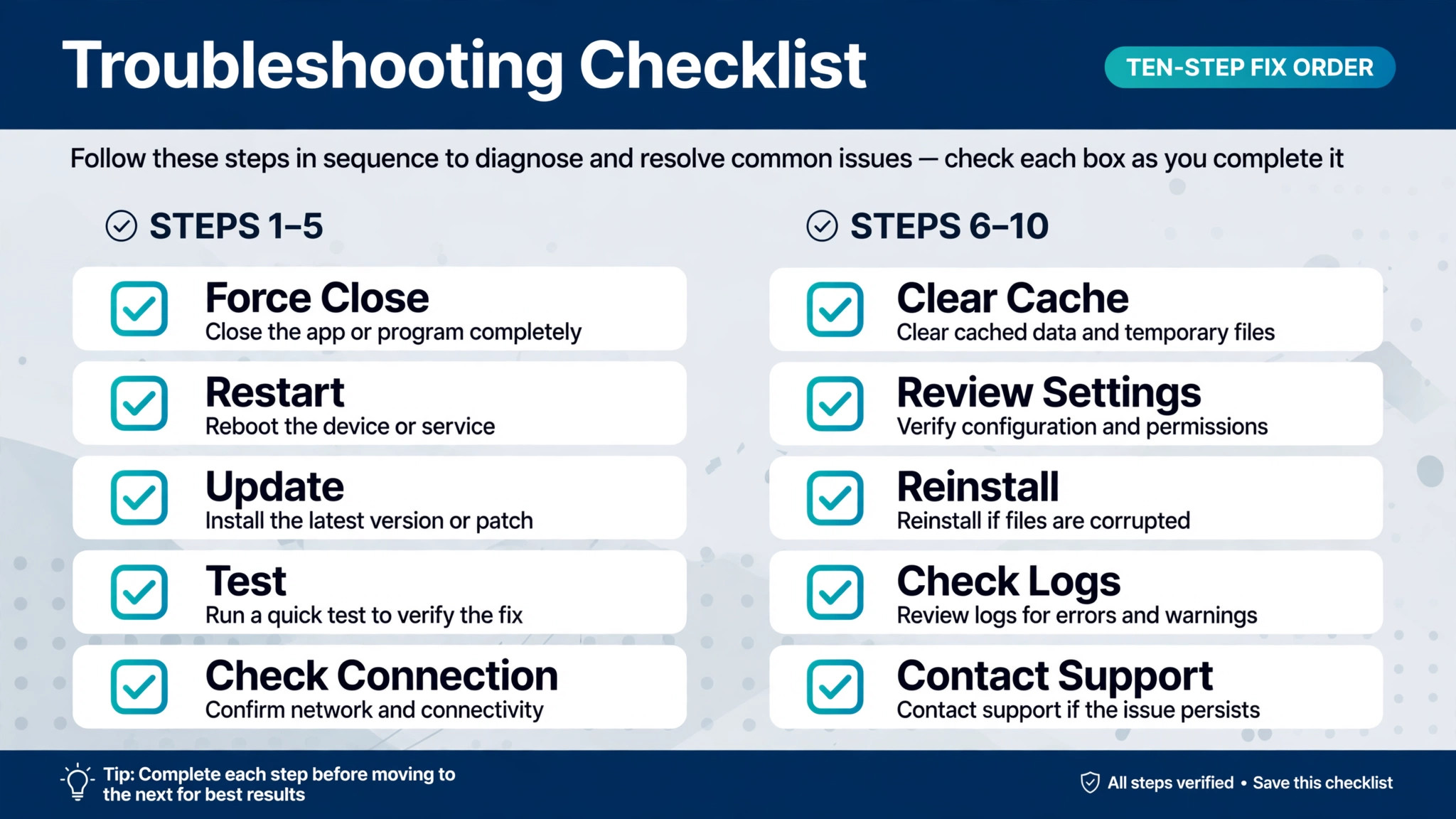
Use this checklist as your working note to fix iPhone apps crashing after iOS update trouble. Work from the top down, test the app after each line, and stop as soon as it works. The deeper steps cost more time and, in the case of resets, cost you saved Wi-Fi passwords, so spend them only on a problem that has survived the cheaper tests.
- Force close the crashing app and reopen it. This rules out a stuck session.
- Restart the iPhone once, properly. This rules out a stuck system process.
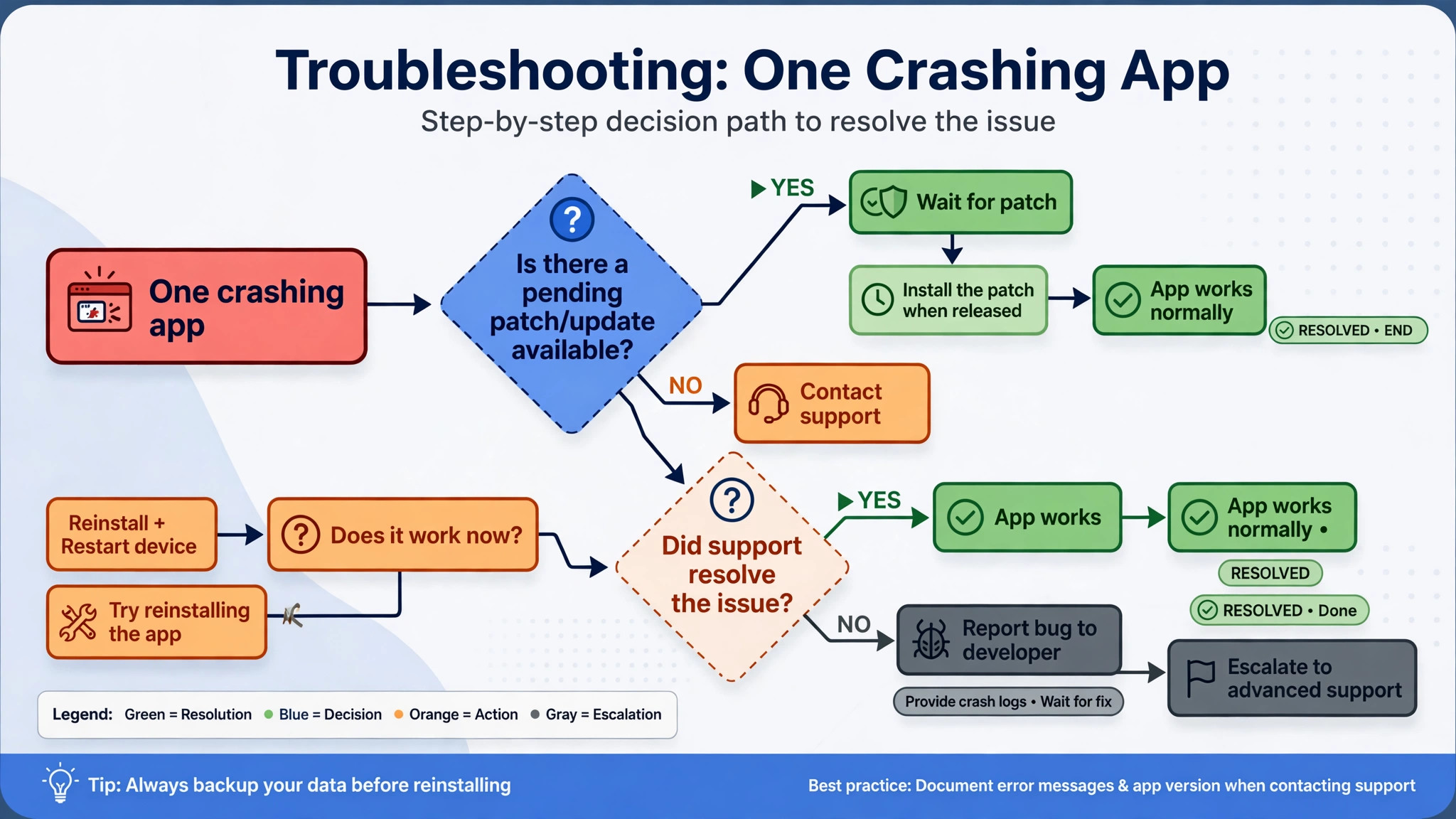
- Check the App Store for an update to that app and install it. This rules out a known compatibility bug the developer has already fixed.
- Check free storage and close the heaviest background load. This rules out storage and memory pressure.
- Offload the app, then reinstall it from the same screen. This rules out corrupted app files while keeping the app data.
- Delete the app fully and reinstall it fresh. This rules out corrupted app data as well as corrupted app files.
- Check permissions, network settings, and VPN or content blocking. This rules out a changed setting or a blocked connection.
- Reset All Settings, then Reset Network Settings if the problem is network shaped. These rule out a tangled settings state while keeping your content.
- Check for a newer iOS point release and check the developer’s update notes. This rules out a bug that only a patch can fix.
- Wait for the app patch, use a workaround in the meantime, and report the crash. This is the honest endpoint when every local fix has failed.
Keep a one line note beside each step, with the time and the result. That note stops you from repeating a step you already tried.
How to Fix iPhone Apps Crashing After iOS Update in the Right Order
The rest of this guide walks the checklist in full, with exact paths and the tradeoffs of each step. If you only have five minutes, do steps one to three. If you have half an hour, work through step six. Only reach for the resets at the end if the problem has earned them.

Step 1. Force Close the App and Reopen It
Force closing clears the app’s live session from memory and makes iOS start a fresh process the next time you open it. It does not delete anything, it does not sign you out, and it takes about twenty seconds, which is why it is always first. On an iPhone with Face ID, swipe up from the bottom of the screen and pause in the middle to open the app switcher, find the crashing app, and swipe its preview upward. On an iPhone with a Home button, double press the Home button, find the app, and swipe its preview upward. Wait a few seconds, then open the app again from the Home Screen.
Test the app properly after this step, not just by watching it open. Some apps open fine and crash on a specific action, like opening the camera or playing a video. Try the action that crashed before, twice if you can, before you declare the step a failure. If the app now works, the cause was most likely a stuck session left over from the update. A crash that survives a force close lives in the app’s stored state, in the app’s code, or in the phone’s system state.

Step 2. Restart the iPhone Once, Properly
A restart clears temporary system processes and gives iOS a clean start, without touching your data. It is the right second step because it catches a system process that got stuck during or just after the update. Go to Settings, then General, scroll down, tap Shut Down, and drag the slider. Wait about thirty seconds after the screen goes dark, then press and hold the side button until the Apple logo appears. Give the phone a full minute after it boots before you test the app.

If the screen is frozen and you cannot reach the Shut Down slider, use a force restart instead. Press and quickly release the volume up button, press and quickly release the volume down button, then press and hold the side button until the Apple logo appears, and release the side button. A force restart also keeps your data. What this rules out is a stuck system process rather than a broken app. If several apps were crashing and a restart fixes all of them at once, the update left a system process in a bad state, and the restart cleared it.
If one app still crashes after a restart, the problem is narrower, and the next steps should focus on that app.
Step 3. Update the App, Then Check for an iOS Point Release
After a major iOS release, developers ship compatibility updates quickly, often within days, and the App Store is where those fixes land. Open the App Store, tap your profile picture in the top right, and look for the crashing app in the update list. If an update is waiting, tap Update next to that app, wait for it to finish, and test the app again. Test the crashing app first, before you change anything else, so you know which update mattered.
Also check whether automatic updates are on. Go to Settings, then Apps, then App Store, and look for the App Updates switch. With it on, the phone installs app updates on its own when it is on Wi-Fi and charging. With it off, updates wait for you, and an app can sit on a pre-update version for weeks after an iOS release.
While you are here, check for an iOS point release as well. Go to Settings, then General, then Software Update. A small release that follows a major update often fixes system bugs that make apps crash. Install a point release on Wi-Fi and on power, then give the phone a day of normal use before you judge the result. If the app developer’s release notes mention your iOS version or describe a crash fix, that is strong evidence you have found the cause.
This is also the step where patience starts to pay. If no app update is available yet, and the app’s reviews or support page show other people reporting the same crash on the same iOS version, you are probably looking at a compatibility bug that only the developer can fix. A local fix cannot rewrite an app’s code, so the way to fix iPhone apps crashing after iOS update trouble in this case may simply be the next app release.
Step 4. Free Storage and Relieve Memory Pressure
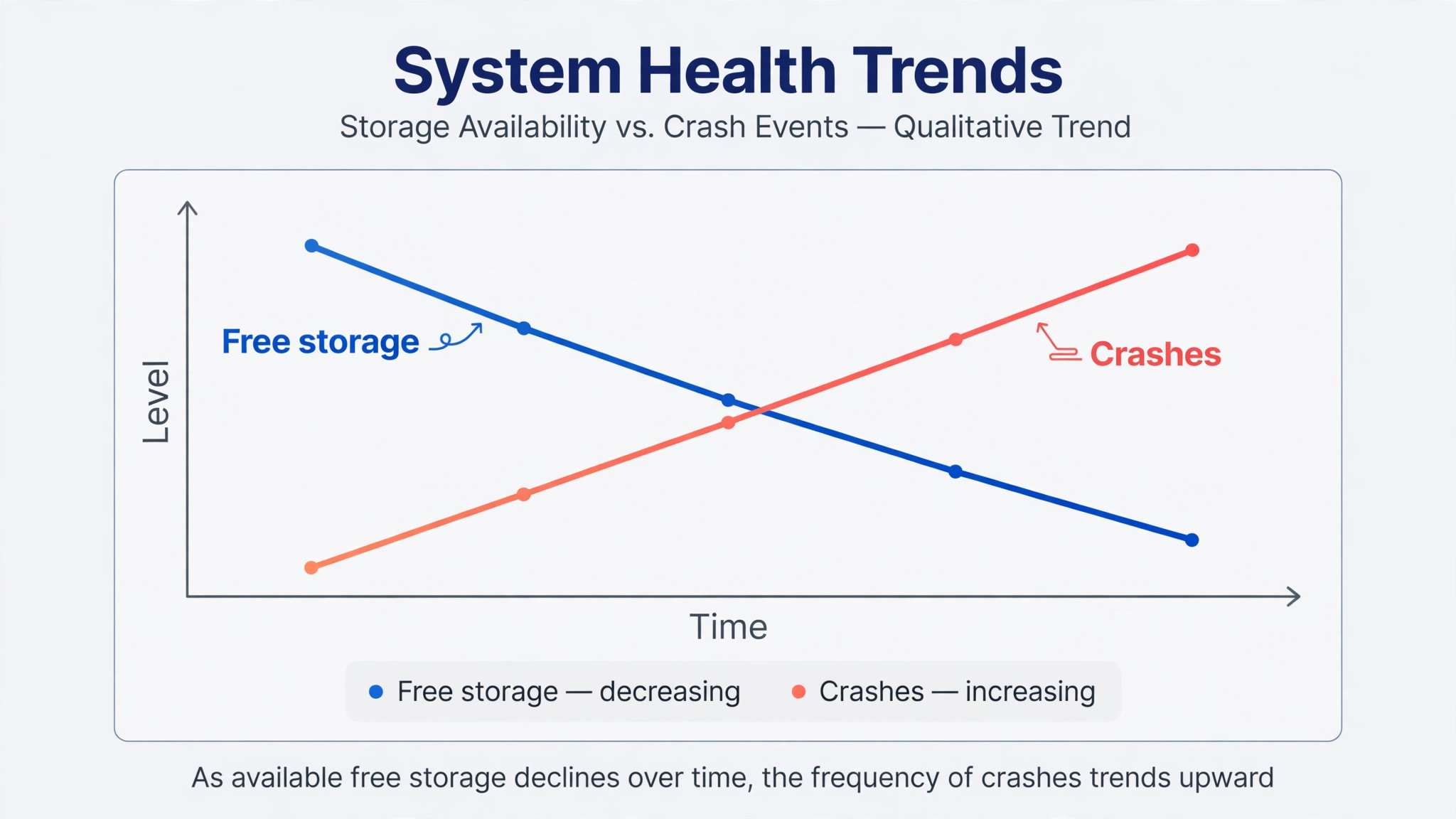
A phone that is nearly full behaves badly in ways that look like app bugs. Apps need free space to write temporary files, save downloads, and update themselves, and when space runs out, an app can quit mid task or fail to launch at all. Memory pressure is a different thing. Memory is the phone’s short term working space, and a demanding app that cannot get enough of it will be closed by the system. After an update, both pressures can rise at once, because the phone is indexing and rebuilding data in the background.
Start by reading the real number. Go to Settings, then General, then iPhone Storage. Wait for the list to load fully, because the first numbers shown can change as the phone finishes measuring. Look at the free space at the top, then look at which apps use the most space. As a practical rule, keep at least a few gigabytes free, because apps and updates need room to work. If your free space is measured in megabytes rather than gigabytes, storage is a leading suspect.
Free space in the order that costs you least. Start with the iPhone Storage recommendations on that same screen, which may suggest offloading unused apps or reviewing large attachments. Then delete downloaded videos, podcasts, and offline maps you no longer need, and clear large message attachments. For a fuller cleanup plan that avoids deleting photos you want to keep, see how to free phone storage without deleting photos.
To relieve memory pressure, close the app that is crashing, and close any heavy app you are not using, such as a game or a navigation app running in the background. Avoid running a demanding app while the phone is still doing heavy post update work, like a large photo sync.
Step 5. Offload the App to Keep Its Data
Offloading is the gentler reinstall, and it is the right choice when the app holds data you care about. Go to Settings, then General, then iPhone Storage, tap the crashing app, and tap Offload App. This removes the app itself but keeps its documents and data on the phone. The app icon stays on the Home Screen with a small cloud symbol, and tapping the icon, or tapping Reinstall App on the same storage screen, downloads a fresh copy of the app and restores the kept data. You get clean app files without losing what was inside the app.
Offloading rules out corrupted app files while protecting your data, which is exactly the distinction you want at this stage. If the app works after an offload and reinstall, the old app files were the problem, and your data survived. If it still crashes, the problem may live in the data itself, which points to the fuller delete in the next step. That two stage test is valuable, because it tells you whether the data is safe before you risk it.
There are two limits to know. First, offloading only helps if the app is still available in the App Store for your region and your iOS version, so check that the app is still listed before you offload, especially for older or niche apps. Second, offloading is not a backup. If the app’s data lives only inside the app and nowhere else, export anything irreplaceable before you touch it.
Step 6. Delete the App Fully and Reinstall It Fresh
A full delete is stronger than an offload, because it removes the app and its local data, so the reinstall starts completely clean. Touch and hold the app icon on the Home Screen, tap Remove App, tap Delete App, and confirm. Then open the App Store, search for the app, and download it again. Sign in again if the app asks, and let it sync or restore from its own cloud account before you judge whether it works. This is the step that proves whether corrupted local data was the cause, and it is the step most people skip because they fear losing something.
That fear is reasonable, so prepare before you delete. Check whether the app stores your work in its own cloud account, and confirm you can sign in to that account. Export or screenshot anything that lives only on the phone, like a draft or an unsynced project. If everything important is synced or exported, delete with confidence. If something important exists only inside the app and cannot be exported, pause here and contact the developer’s support first.
Test the fresh install in stages. First, open the app and confirm it launches. Then sign in, and let any sync finish before you open large files or projects. Then try the exact action that crashed before. If the app crashes even on a fresh install with no data restored, the problem is almost certainly in the app’s code or in a system setting, not in your data. If it works fresh but crashes again after you restore a particular file or account, that file or account is the trigger, and you have narrowed the problem to something the developer can actually investigate.
Step 7. Check Permissions, Network, and Blocking Tools
An update can change what an app is allowed to do, and an app that cannot get a permission it expects may crash instead of showing a polite error. Go to Settings, then scroll to the app itself, or go to Settings, then Privacy and Security, and review the permissions the app actually needs, like Photos, Location, Camera, Microphone, and Local Network. If a permission the app needs is set to Never or is missing, change it to the level the app asks for and test the app. A permission set to While Using the App is usually the right balance for location.
Network shaped crashes deserve their own check. Some apps crash when they cannot reach their servers, when a connection hangs, or when a security tool interferes. If the crashing app needs the internet, test it on Wi-Fi and on mobile data separately, because a crash on one network and not the other points at the network, not the app. If you use a VPN, a custom DNS setting, an ad blocker, or a content blocker, turn it off temporarily and test the app again. If the app works with the blocker off, you have found the conflict, and you can add an exception for that app rather than deleting the app for a network problem.
Wi-Fi specific trouble has its own signs. An app that crashes only at home, or only on one network, may be hitting a captive portal, a router setting, or a DNS problem. Forget and rejoin that one network, from Settings, then Wi-Fi, by tapping the network name and choosing Forget This Network, then joining again with the password. That step is cheap, it affects only that network, and it rules out a stale network entry left over from the update. For a broader look at wireless trouble that survives this step, see why Wi-Fi keeps dropping on a laptop, which covers router side causes that also affect phones on the same network.
Step 8. Reset Settings That Keep Your Data
Two resets help here, and both keep your photos, apps, messages, and files. They are not the same, and using the right one matters. Reset All Settings returns system settings to their defaults, including network settings, privacy settings, location settings, display settings, and keyboard settings. It also removes saved Wi-Fi passwords, so you will need to rejoin your networks afterwards. Reset Network Settings is narrower. It clears saved Wi-Fi networks and passwords, mobile data settings, and VPN settings, but leaves your other preferences alone. Choose the narrow reset when the problem is network shaped, and the wider reset when settings in general feel tangled after the update.
To use them, go to Settings, then General, then Transfer or Reset iPhone, then Reset. You will see both options there, along with others you should not touch at this stage. Read the option name twice before you tap, because the screen also lists Erase All Content and Settings, which is a full wipe, and that is not what you want here. Before any reset, make sure you know your Wi-Fi passwords, or that you can get them again, and make sure you have a recent backup, even though these resets are designed to keep your content.
What these resets rule out is a tangled settings state. If an app works after Reset All Settings, some preference or permission combination was the cause. Rebuild slowly afterwards, changing one group of settings at a time and testing the app, or you will recreate the same tangle. If the app still crashes after both resets, the problem is not in your settings at all, and the remaining steps are about patches and waiting. Do not jump to a full erase at this point. Erasing the phone takes hours, risks data loss, and often restores the same problem from a backup.
It is a last resort for a phone that is unstable well beyond one app, and only after a verified backup, never step one.
Offload or Delete, Which One Fits Your App
Choosing between offloading and deleting is easier when you sort apps by what they hold. The table below gives a practical rule for each kind, and it is the comparison to use when you reach steps five and six and need to fix iPhone apps crashing after iOS update trouble without risking data you cannot replace.
| App kind | Start with | Why this order fits |
|---|---|---|
| Banking, authentication, or ticketing | Offload | You need the account working again fast, and login or ticket data matters |
| Photo, note, or document apps | Offload, then export before any delete | Local files may exist nowhere else, so protect them first |
| Games with cloud saves | Offload | Progress usually syncs, but a delete still risks a local save |
| Games with local only saves | Export or screenshot progress, then delete only if needed | A delete can erase progress that no cloud copy holds |
| Messaging and social apps | Offload | Chats usually sync, and a delete adds a long re-login and re-download |
| Streaming and news apps | Delete | Little local data matters, and a clean install is fast |
| Work apps tied to one company account | Offload, then check with IT before a delete | A delete can break single sign on or device approval |
| Apps you no longer recognise | Delete | An unknown app holds nothing you need, and a clean removal is safer |
When the Problem Is the Update Itself, Not the App
Sometimes every local step fails, and that failure is itself the diagnosis. A genuine update bug has a pattern. Many people on the same iOS version report the same crash, often for the same app or the same kind of app. The crash starts immediately after the update, with no change in how the app is used. The app developer acknowledges the problem, or a point release arrives that mentions crash fixes. If that pattern matches your case, further resets on your phone will not help, because the fault is not in your phone’s state, and the only real way to fix iPhone apps crashing after iOS update trouble of this kind is a patch from the developer or Apple.
In that situation, your best moves are practical, not technical. Check the developer’s support page, the app’s release notes, and recent reviews for mentions of your iOS version, and confirm you are not alone before you spend more time. Turn on automatic app updates, or check the App Store daily for a few days, so the patch reaches you as soon as it ships. Use a workaround in the meantime, which may mean using the service in Safari or a different app for the same job for a week. Report the crash with your iPhone model, your iOS version, and the exact action that triggers it.
Also watch for the phone settling after a major update. The first day or two after a large release can bring extra heat, extra battery use, and slower performance while indexing and background work finish, and demanding apps are the first to suffer in that window. A crash that appears on update day, improves on day two, and disappears by day three was probably resource pressure, not a permanent bug. Give a borderline case a day of normal use, on Wi-Fi and on power overnight, before you decide it needs deeper work. For the battery side of that settling period, see how to handle iPhone battery drain after an update.
If a point release arrives and the crash continues, and the developer has not acknowledged it, contact Apple Support with your step by step note.
Related reading includes the storage cleanup guide linked in step four, the battery guide linked above for the settling period after an update, and why smart TV apps crash and how to fix them, which follows the same fastest first logic on another screen. That shared cause approach is a useful extra lens when you fix iPhone apps crashing after iOS update trouble that keeps coming back.
Frequently Asked Questions
Why do apps crash only after I update iOS, when they worked fine before?
An update changes system frameworks, permission rules, and memory handling that apps depend on. An app built for the older system can hit a changed rule on its first launch afterwards and quit. If the crash starts the day of the update, compatibility, corrupted temporary data, or post update resource pressure are the likely causes, in that order.
Should I delete a crashing app or offload it first?
Offload first, whenever the app holds anything you care about. Offloading removes the app files but keeps its documents and data, so a reinstall restores them. Delete only after you have exported anything irreplaceable and confirmed the app syncs to its own cloud account. That order is the safest way to fix iPhone apps crashing after iOS update trouble in an app you cannot afford to lose. The one exception is an app with nothing worth keeping, like a streaming app, where a straight delete is faster and just as safe.
Will Reset All Settings delete my photos or messages?
No. Reset All Settings returns system preferences to defaults, including network, privacy, location, and display settings, and it removes saved Wi-Fi passwords, but it keeps your photos, apps, messages, and files. Erase All Content and Settings is the option that wipes the phone, and it sits on the same screen, so read the option name twice before you tap anything there.
How long should I wait after an update before I worry about crashes?
Give the phone a day or two of normal use after a major update, especially if the crashes are mild or affect demanding apps. Indexing, photo processing, and background app updates all compete for resources in that window, and crashes that fade by day three were probably resource pressure. A crash that is consistent, or that survives a restart, deserves troubleshooting right away rather than waiting.
What if only one app crashes and everything else works fine?
Treat that as an app problem, not a phone problem. Update that app, offload and reinstall it, check its permissions, and check whether other users report the same crash on your iOS version. That narrowed approach is how you fix iPhone apps crashing after iOS update trouble when only one app is affected. When many unrelated apps crash, the cause is more likely storage, a system setting, or the update build itself, and the phone wide steps in this guide matter more than anything inside one app.
Can I stop this happening after the next iOS update?
You can reduce the odds, though no habit prevents every compatibility bug. Keep automatic app updates on, so apps get their compatibility fixes without waiting for you. Keep a few gigabytes of free storage, so updates and reinstalls always have room. Check the App Store the day after any iOS update, and update the apps you rely on most before you need them urgently.
Get Back to the App That Worked Yesterday
You do not need to fix every possible cause. You need to find your cause, and the order in this guide is designed to fix iPhone apps crashing after iOS update cases with the least damage. Force close, restart, update, check storage, offload, delete, check settings, reset settings, and then wait for a patch. Most readers will stop in the first three steps. Readers who reach the waiting stage will know they are waiting for a real reason, not because they gave up early. Start at the top, test after each step, and let the app tell you when you have found it.