
Two small business sites can run the same theme, carry the same kind of content and serve the same kind of customer, yet one opens instantly while the other keeps visitors staring at a blank page. The difference is rarely one dramatic fault. It is a stack of small drags, each adding a fraction of a second, until the total becomes a reason to leave. That stacked effect is why owners who want to fix WordPress site slow small business problems fail with a single plugin install, because no single plugin removes five drags at once. This guide works through the drags in diagnostic order, so you find the biggest one first and prove each fix before moving on.
The comparison that matters is between a site treated as one problem and a site treated as a chain. A site treated as one problem gets a caching plugin, shows a slightly better score, and stays slow for real visitors. A site treated as a chain gets measured first, then fixed step by step, with hosting, caching, images, plugins and database each checked in turn. The second site improves measurably at each step, and the owner knows which step caused which improvement, which matters when the site slows down again later and the cause needs finding fast.
Before you change anything, capture a baseline. Test the home page and one popular inner page with PageSpeed Insights or GTmetrix, on mobile and desktop, and write down the largest contentful paint, interaction to next paint and layout shift figures, plus the total page size and request count. Save a screenshot of each result. Without that baseline, every later claim about improvement is guesswork, and you will not know whether a change helped, hurt or did nothing at all. Back up the site fully before any fix, including the database, so any change that breaks something can be undone in minutes.
How to Fix WordPress Site Slow Small Business Problems in Order
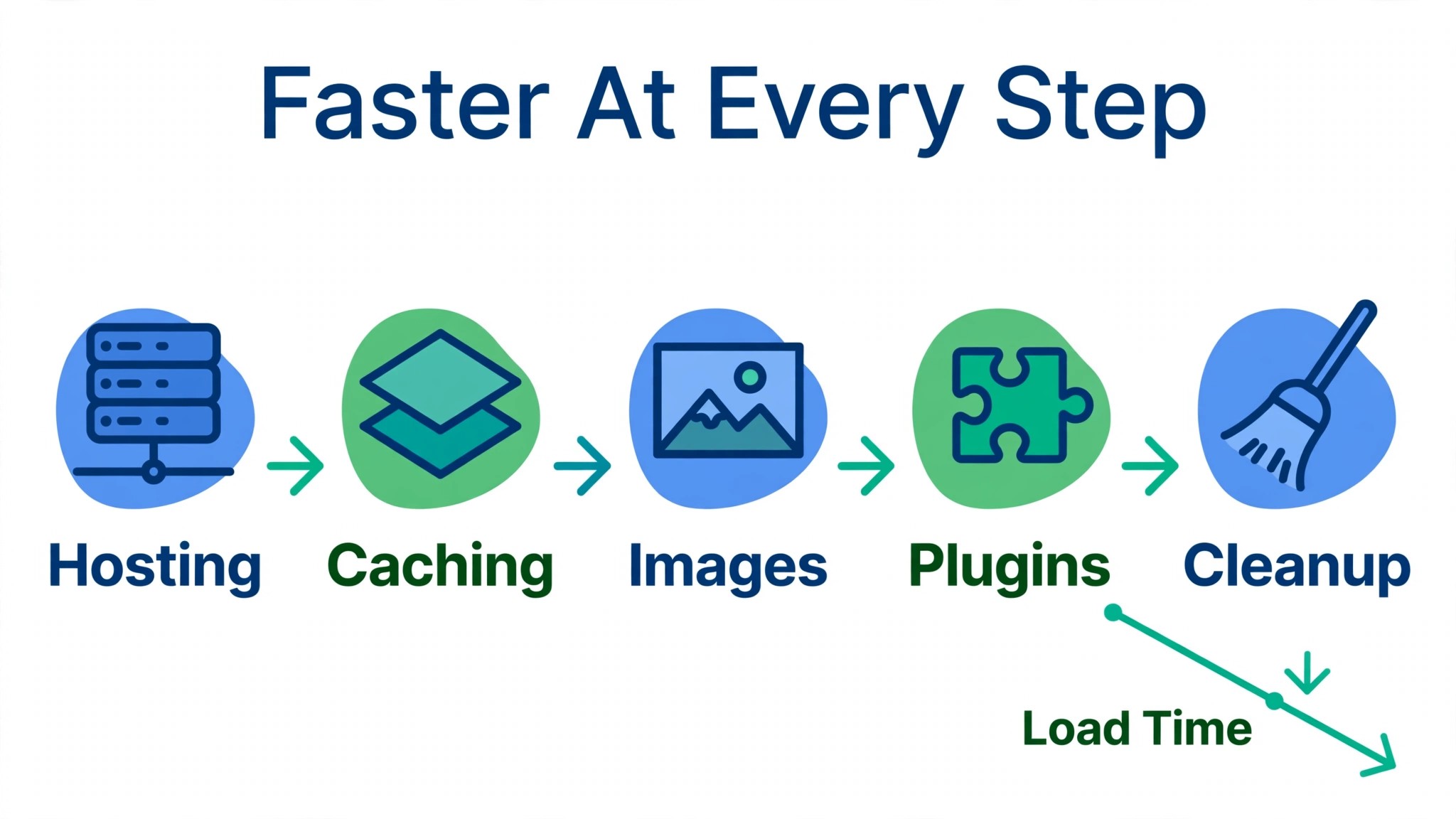
The diagnostic order in this guide runs from the foundation upward. Hosting first, because a slow server caps every later gain. Caching second, because page caching removes repeated work for most visitors. Images third, because images often make up the largest share of page weight. Plugins fourth, because a single heavy plugin can undo the earlier gains. Database cleanup fifth, because a bloated database slows every query the site makes. Work the checks in that order, change one thing at a time, and retest after each change.
A symptom table helps you jump to the likely cause when one symptom dominates, but still work in order when several symptoms appear together. A site that is slow for every visitor on every page usually points at hosting or caching. A site that is slow only on image heavy pages points at images. A site that slowed suddenly after an update points at a plugin or theme change. A site that grows slower month by month points at database bloat. Use the table to prioritise, not to skip steps, because most slow small business sites carry more than one cause.
| Symptom you observe | Most likely cause | First check |
|---|---|---|
| Slow for every visitor, every page | Weak hosting or missing page caching | Server response time, then caching plugin status |
| Slow only on image heavy pages | Oversized or uncompressed images | Largest images on the slowest page, by file size |
| Slowed suddenly after an update | New or updated plugin or theme | Plugin audit, starting with the most recent change |
| Grows slower month by month | Database bloat from revisions and transients | Revision count, transient data and autoloaded options |
| Fast on desktop, slow on mobile | Oversized images or mobile caching gaps | Mobile test with image sizes and mobile cache settings |
Hosting Check That Sets the Speed Ceiling
Hosting sets the ceiling for everything else, because no plugin can make a slow server respond faster than the server itself can. Start by checking server response time, often called time to first byte, in your speed test results. A response time consistently above roughly half a second on a simple page suggests the server, not the content, is the bottleneck, while a fast response time with a slow full load points further down the chain at images, scripts or plugins.
Check the basics before considering a move. Confirm the site runs a current PHP version, with PHP 8.2 or 8.3 as the current sensible target for most small business sites, and confirm the hosting plan still fits the site traffic and size. A site that outgrew a basic shared plan will stay slow no matter how many optimisation plugins are added, because CPU and memory limits, not configuration, are the constraint.
Ask the host what resources the plan provides, whether server level caching is available, and whether object caching with Redis or Memcached is supported, because those answers shape every later step. This check comes first whenever you fix WordPress site slow small business problems, because a slow server caps every later gain.
Consider a move only when the evidence points at hosting after the other checks, or when the host cannot provide the basics a growing site needs. Managed WordPress hosts typically bundle server caching, a content delivery network and performance dashboards, at a higher monthly price than basic shared hosting. That price is easier to judge against the cost of lost visitors and lost enquiries from a slow site, but it should still be a decision based on measurements, not on a sales claim. Before migrating, confirm the new host supports the site plugins and PHP version, and keep the old site live until the new one is tested end to end.

Caching Setup That Stops Rebuilding Every Page
Caching works by serving a ready made page instead of rebuilding it from the database on every visit, and for most small business sites it is the single biggest speed gain available. Install one caching plugin, not two, and enable page caching first. Popular options include WP Rocket for a guided setup and LiteSpeed Cache where the server runs LiteSpeed, and the right choice usually follows the server, since server matched caching performs better than a generic plugin fighting the server setup.
Caching is the second step when you fix WordPress site slow small business problems. Configure caching with the site real pages in mind. Enable page caching and preloading where the plugin offers it, so popular pages are ready before visitors arrive. Enable a separate mobile cache where the plugin supports it, because mobile visitors often need different cached output than desktop visitors. Exclude dynamic pages from caching, such as cart, checkout and account pages on a store, and any page that shows personalised content, because caching those pages can show one visitor another visitor content. That exclusion list is the most common caching mistake on small business stores, and it is easy to miss when setup is rushed.
Object caching is the second layer worth understanding, even if you do not enable it on day one. Page caching stores finished pages, while object caching stores database query results, so repeated queries run faster. Where the host supports Redis or Memcached, an object caching plugin connected to that service can cut database load noticeably on larger sites. Where the host does not support it, a file based fallback can help on smaller sites, but it should not be treated as equal to server object caching, and it should be tested carefully before being left in place.
Test caching the way visitors experience it, not the way the admin sees it. Log out, open the site in a private window, and load the home page twice, because the first load may build the cache and only the second load shows the cached speed. Check that dynamic pages still behave correctly, that forms still submit, and that logged in users still see the right content. A caching setup that breaks a contact form or a cart while improving a speed score has traded a visible win for a hidden loss, and the hidden loss costs enquiries.

Image Compression That Shrinks the Largest Page Weight
Images commonly make up the largest share of a web page total weight, which is why image work often produces the most visible speed gain after caching. Start by finding the largest images on the slowest pages, using the speed test detail that lists resources by size. Those few files, often photos uploaded straight from a phone or camera at full resolution, are usually responsible for more delay than all the text and code on the page combined.
Images are the third step when you fix WordPress site slow small business problems. Fix images in this order, because the order saves rework. First, resize each image to the largest size it actually displays at, rather than serving a huge original that the browser shrinks. Second, compress the resized image, and convert to a modern format such as WebP or AVIF where the site supports it, since those formats typically cut file size by roughly a third to a half compared with older formats at similar quality. Third, lazy load images below the fold, so they only load when the visitor scrolls to them.
Keep the main hero image loading immediately, because delaying the hero image hurts the largest contentful paint figure.
Use a plugin for the ongoing work, but do the first pass by hand on the worst pages. An image optimisation plugin such as ShortPixel or Imagify can compress and convert new uploads automatically, which prevents the problem from returning, but it cannot decide the right display size for a hero image or fix a page where ten huge images were uploaded at once. Work through the home page and the top five visited pages first, resize and compress by hand where needed, then let the plugin handle everything new. That combination fixes the current damage and stops the next batch of uploads from recreating it.
Check the result visually, not just by score. Open the optimised pages on a phone and a desktop, and confirm images still look sharp, hero images still load first, and no image appears broken or stretched. Over compression that makes product or portfolio photos look poor costs trust, especially for a small business whose photos sell the work. Aim for files that are small enough to load fast and sharp enough to look professional, and keep originals backed up in case a higher quality version is needed later.

Plugin Audit That Finds the One Heavyweight
Every active plugin adds some processing, and small business sites commonly accumulate plugins that overlap, duplicate or quietly load scripts on pages that never use them. A plugin audit starts with a simple list. Write down every active plugin, what job it does, and when it was last needed. Any plugin with no clear job, any pair of plugins doing the same job, and any plugin not updated in a long time is a candidate for removal, starting with the least essential.
The plugin audit is the fourth step when you fix WordPress site slow small business problems. Use Query Monitor to find the heavyweights the list alone cannot show. The free Query Monitor plugin shows which plugins generate the most database queries and the slowest queries on a page, and it highlights query counts that point at a specific offender. Install it temporarily, load the slowest pages, note the top offenders, then deactivate Query Monitor itself when the audit is done, since it adds its own overhead and should not stay active on a live small business site. That temporary use is the correct pattern for diagnostic plugins generally, which is to install, measure, act, and remove.
Deactivate plugins one at a time and retest speed after each change, starting with the heaviest and the most recently changed. A single deactivation that cuts load time sharply has found a real cause, while a series of deactivations with no change suggests the bottleneck sits elsewhere, such as hosting or images. Replace overlapping plugins with one well maintained option where possible, rather than keeping five small plugins for five micro tasks, because each additional plugin is another update, another conflict risk and another script load to manage.
Check where scripts load, not just whether a plugin is active. A form builder or social sharing plugin that loads its scripts on every page, including text only pages that never show a form, wastes load time on pages that gain nothing from it. Some performance plugins can limit script loading to the pages that need it, but that setting needs care, because blocking a script a page actually needs breaks the feature. Test each restriction on the affected pages before leaving it in place, and keep a note of which plugin was restricted where, so a future fault can be traced quickly.

Database Cleanup That Keeps Queries Fast Over Time
The WordPress database accumulates leftovers with normal use, and over months or years those leftovers slow every query the site makes. Post revisions pile up with every saved draft, spam and trashed comments linger, expired transients remain, and uninstalled plugins can leave tables and options behind. A site with years of revisions and a large autoloaded options table will feel slower even when hosting, caching, images and plugins are all in good shape, because the database work underneath every page has grown heavier.
Database cleanup is the fifth step when you fix WordPress site slow small business problems. Back up before any cleanup, and clean in safe categories first. A tool such as WP-Optimize can remove post revisions, trashed and spam comments, and expired transients, and can optimise database tables, without manual database edits. Limit future revisions to a small number, such as five per post, through the site configuration, so the pile does not rebuild immediately after cleaning. Schedule the cleanup to run regularly, such as monthly, rather than treating it as a one off rescue, because database bloat returns with normal publishing.
Autoloaded options deserve a specific check on older sites. Options marked to load on every page add work to every single visit, and a small number of plugins can leave large autoloaded data behind even after they are removed. WP-Optimize and similar tools can show autoloaded data size, and a figure far above normal for a small site points at a plugin to investigate. Do not delete options by hand unless you know what they belong to, because deleting the wrong option can break a plugin or a theme setting. Where autoloaded data looks suspicious, identify the owning plugin first, then remove the plugin properly or ask a developer to clean its leftovers safely.
Measure the database effect the same way as every other fix, by testing before and after on the same pages. Database cleanup rarely produces the dramatic gain that caching or image work produces, but on an older site it often produces a steady gain across every page, and it prevents the slow month by month decline that owners otherwise blame on hosting. Treat it as maintenance, like servicing a vehicle, rather than as a rescue, and the site stays fast instead of cycling between fast and slow.
What to Check Next When the Five Fixes Are Done
When hosting, caching, images, plugins and database are all in good shape and the site is still slower than it should be, the next layer is delivery and code. A content delivery network, such as Cloudflare, serves static files from servers closer to each visitor, which matters most when visitors sit far from the host server. Test from more than one location, because a site that loads in two seconds near the server and five seconds on another continent has a distance problem that a delivery network solves better than any plugin.
Theme weight is the next check. A theme packed with features the site never uses loads scripts, styles and fonts the visitor never sees, and no amount of caching removes that weight entirely. Compare the current theme against a lightweight option, such as GeneratePress or Astra, on a staging copy, and judge by measured load on the same pages, not by feature lists. Switching themes is a larger project than a plugin change, so it belongs after the five core fixes, when the remaining gain justifies the work and the risk can be managed with a staging test.
Best Pick by Job for Slow WordPress Sites
Fix priority should follow the site shape, not a generic checklist order. A new brochure site needs a different first fix than an old store with years of content, and both will waste effort if they start in the wrong place. The table below sorts the main approaches by the job they do best, based on how site owners and hosts describe the common patterns.
| Site shape | Best first fix | Why it fits |
|---|---|---|
| New brochure site, few pages | Caching plus image optimisation | Foundation fixes that cover most of the load on a small, young site |
| Old content site, years of posts | Database cleanup plus plugin audit | Removes accumulated bloat and overlapping plugins that grow with age |
| Image heavy portfolio or store | Image resizing and modern formats first | Largest page weight sits in images, so that fix shows the biggest gain |
| Store with cart and checkout | Caching exclusions plus hosting review | Protects dynamic pages while fixing the server foundation underneath |
| Site already optimised, still slow | Delivery network plus theme weight review | Remaining drag sits in distance and theme code, not in basic settings |
Read the table as a starting point, not a verdict. A new site on weak hosting still needs the hosting check first, because caching cannot fix a slow server, and an old site with huge images still needs image work alongside database cleanup. Use the symptom table and the baseline measurements to choose the starting point, then work the full five step order, because most slow sites carry more than one cause and the table only picks the loudest one.
Mistakes That Keep a WordPress Site Slow
The most common mistake is installing two caching plugins at once. Two caching systems fight over the same pages, produce stale or broken output, and make diagnosis nearly impossible, because nobody knows which plugin served the page being tested. Use one caching plugin, configure it fully, and test it properly. The same rule applies to image optimisation plugins, security plugins and backup plugins, where duplicates create conflicts while looking like extra protection.
The second mistake is skipping the baseline test. Without before measurements, every change is judged by feeling, and feeling favours the most recent change, whether or not it helped. Test before, test after each change, and keep the screenshots in one place. That record also settles arguments later, such as whether a new plugin slowed the site or the site was already slow before it arrived, because the numbers answer the question without debate.
The third mistake is optimising only for a score. A speed score is a useful guide, but it is not the visitor experience, and chasing a perfect score can break forms, carts, fonts or images that real customers need. Test visually on a phone and a desktop after every change, confirm forms submit, carts work and images look right, and accept a slightly lower score on a page that works correctly over a higher score on a page that does not. Visitors buy from working pages, not from scores.
The fourth mistake is treating optimisation as a one off project. New uploads, new plugins, new theme updates and growing content all add weight back over time, and a site optimised once will drift slow again within months if nobody watches it. Schedule a monthly check, covering the baseline pages, plugin list and database cleanup, and test again after every plugin install, theme update or hosting change. That routine is what keeps a site fast, rather than cycling between fast and slow.
WordPress Speed Fix Checklist
Use this checklist in order to fix WordPress site slow small business problems, and retest after each step so you know which fix caused which gain.
1. Back up the site fully, including the database, and capture baseline speed tests for the home page and one popular inner page. 2. Check hosting response time, PHP version and plan resources, and fix or move hosting where the server is the bottleneck. 3. Install one caching plugin, enable page caching and mobile cache where supported, and exclude cart, checkout and account pages. 4. Resize, compress and convert the largest images on the home page and top visited pages, and set up automatic optimisation for new uploads. 5. Audit plugins with a list and with Query Monitor, remove overlaps and heavyweights one at a time, and remove Query Monitor when done. 6. Clean the database with WP-Optimize, covering revisions, spam and trashed comments and expired transients, and limit future revisions. 7. Check delivery and theme weight where the site is still slow, covering a delivery network, font handling and third party scripts. 8. Retest the baseline pages, compare against the original figures, and set a monthly check plus a retest after every plugin, theme or hosting change.
That checklist is deliberately short. A longer repair plan looks impressive and gets ignored under business pressure. Eight steps, done in order, fix most small business WordPress speed problems without a developer, and the baseline they produce makes any remaining problem far easier to diagnose.

How to Prove the Site Stays Fast
A single improved test proves the site was faster once, not that it stays fast. Monitor the next month with three simple measures. First, the largest contentful paint on the baseline pages, tested weekly on mobile, because that figure tracks what visitors actually wait for. Second, the total page size and request count on those pages, because rising size predicts rising load time before visitors complain. Third, the enquiry or order rate from the site, because a faster site that loses enquiries has traded a score for a business result, and that trade needs reversing.
Set a monthly speed check as a standing habit, not a one off repair. Once a month, retest the baseline pages, review the plugin list for new additions, run the database cleanup, and check that new uploads are being optimised automatically. Test again after every plugin install, theme update, hosting change or major content addition, because those are the moments new slowness is born. A site that is checked monthly stays fast with small corrections, while a site checked only after complaints needs a large rescue each time.
The Speed Verdict for Small Businesses That Cannot Afford to Lose Visitors
The fastest way to fix WordPress site slow small business problems is also the least dramatic. Measure first, check hosting, set up caching properly, shrink images, audit plugins one at a time, and clean the database on a schedule. That order finds the biggest drag first, avoids the trap of installing everything at once, and leaves a baseline that makes any future slowdown easy to trace.
Start with the symptom table, work the checklist in order, and do not skip the backup or the baseline, because those two steps protect every change that follows. Test monthly after the repair, and test again after every plugin, theme or hosting change, because speed is maintenance, not a one time project. Done that way, a slow site becomes a fast site with a known cause for every gain, and staying fast becomes a small routine instead of a recurring crisis.

Frequently Asked Questions
Will a caching plugin alone fix my slow WordPress site?
Sometimes it helps a lot, and sometimes it barely moves the result, depending on where the drag sits. Caching removes repeated page building, so it helps most when the server is sound and the pages are largely static. It helps least when hosting is weak, images are huge, or a heavy plugin dominates load time. Work the full order, starting with hosting and caching together, then images, plugins and database, and measure after each step to see which fix actually moved the result.
Is WP Rocket better than LiteSpeed Cache?
The better choice usually follows the server. LiteSpeed Cache performs strongly on servers running LiteSpeed, because it uses server level caching matched to that setup. WP Rocket offers a guided setup that works well across many hosts and is often chosen where the server is not LiteSpeed. Judge either option by measured load on your own baseline pages, with one caching plugin active at a time, rather than by feature lists or review scores alone.
How do I find which plugin is slowing my site?
List every active plugin with its job, then use Query Monitor temporarily to see which plugins generate the most and slowest database queries on the slowest pages. Deactivate suspects one at a time and retest speed after each change, starting with the heaviest and most recently changed. Remove Query Monitor when the audit is done, since diagnostic plugins add their own overhead and should not stay active on a live site.
Is database cleanup safe for a small business site?
Yes, when it is done with a backup first and limited to safe categories, such as post revisions, spam and trashed comments, expired transients and table optimisation, using a tool such as WP-Optimize. Do not delete database options by hand unless you know what they belong to, because deleting the wrong option can break a plugin or theme setting. Where autoloaded data looks suspicious, identify the owning plugin first, then remove that plugin properly or ask a developer to clean its leftovers.
Why is my site fast on desktop but slow on mobile?
Mobile slowness usually points at oversized images, missing mobile cache settings, or scripts that hurt more on slower connections and smaller devices. Test on mobile specifically, check image display sizes against phone screens, confirm the caching plugin serves a separate mobile cache where supported, and keep the hero image loading immediately while lazy loading images below the fold. A site can score well on desktop while failing mobile visitors, and mobile visitors are often the majority for a small business.
How often should I check WordPress speed after fixing it?
Check monthly as a standing routine, covering the baseline pages, the plugin list and database cleanup, and retest after every plugin install, theme update, hosting change or major content addition. Monthly checks catch small regressions while they are easy to fix, while waiting for complaints means visitors have already left. Keep the baseline screenshots in one place so month to month comparisons stay honest and quick.
More Reading on Stratilyze
– Use AI for Plumbing Company Dispatch – Automate Small Business with AI – Best Website Builder for Tradespeople – Best Quote Software for Trades Businesses