
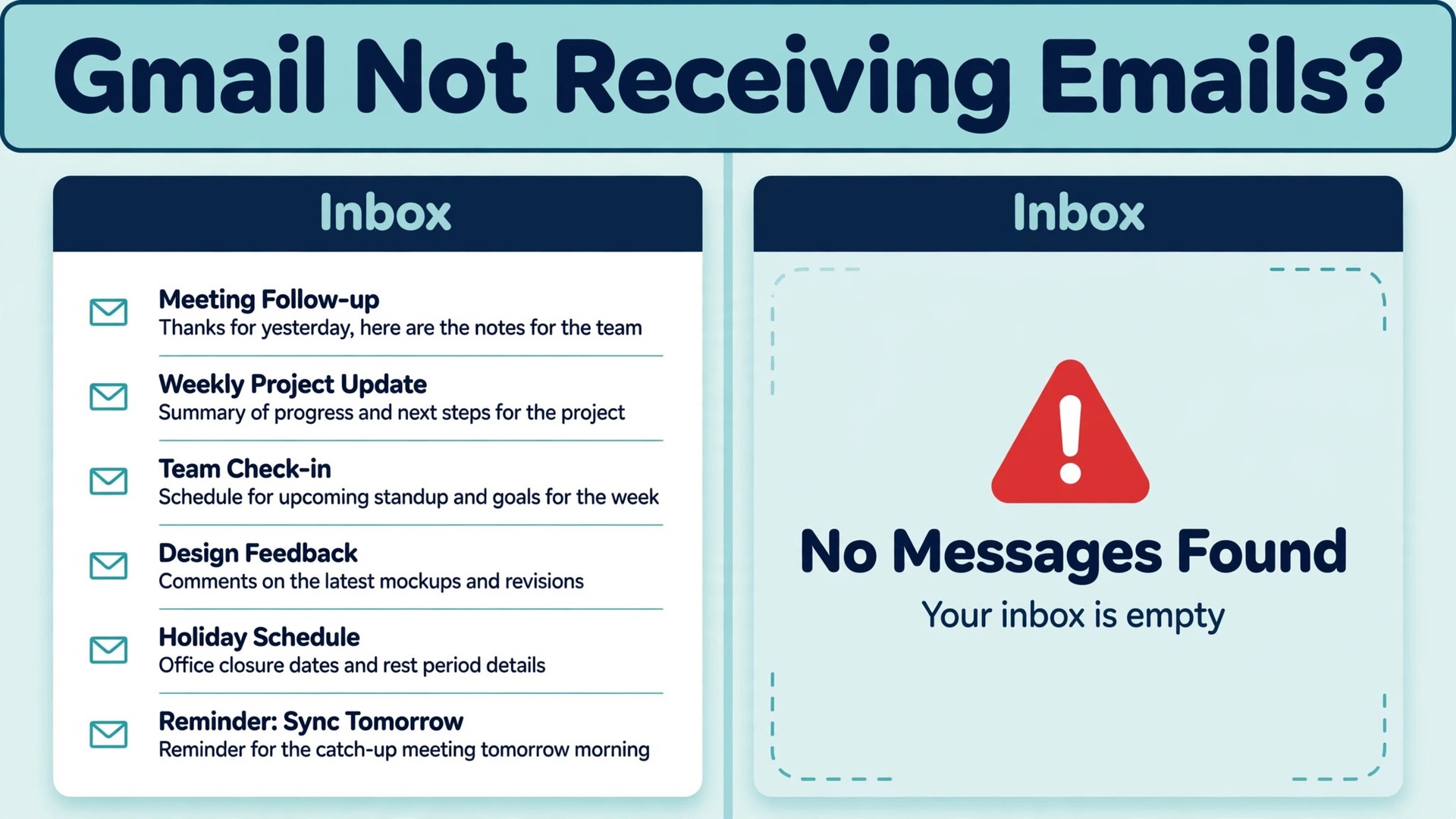
A free Google account includes 15 GB of shared storage across Gmail, Drive and Photos, and when that storage fills up, Gmail stops accepting new mail altogether. Use this guide to fix Gmail not receiving emails small business teams miss most often. That single limit explains a surprising share of missing mail cases in small firms, yet it is rarely the first thing anyone checks. Most owners start by asking the sender to resend the message, then by restarting a phone, then by assuming Gmail itself is broken, while the real cause sits quietly in a filter, a forwarding rule, a blocked address list or a domain record nobody has looked at for years.
This guide will help you fix Gmail not receiving emails small business teams miss most often, in an order that finds the cause quickly and proves the fix with a test message before you move on.
Missing mail is not a minor inconvenience for a small business. A lost quote request, a missed invoice query, a supplier reply that never arrives and a customer complaint that sits unseen can each cost a job, a payment or a relationship. The damage grows because nobody knows mail is missing until someone asks why you never replied. That is why this guide treats the problem as a business process failure, not just a settings puzzle. You will set up a simple test, work through the checks in order, log what you find, and put a short monitoring habit in place so the next failure is caught in hours rather than weeks.
Start by defining the failure precisely. Ask three questions before changing anything. First, is mail missing from everyone, or only from one sender or one domain. Second, is it missing for one person, or for the whole team. Third, did it stop suddenly after a change, such as a domain move, a new phone, a storage warning or a new filter. The answers point straight at the cause.
Mail missing from everyone points at storage or domain routing. Mail missing from one sender points at a filter, a blocked address or a spam decision. Mail missing for one person points at that person’s settings. Mail that stopped after a domain move points at MX records. Write the answers down, with the date the problem started, because that note will save you from repeating checks later.
Also check the obvious failure that is not a settings failure at all. Ask the sender for the exact bounce message if they received one, because a bounce message usually names the reason in plain language, whether storage is full, the address does not exist, or the sending server was rejected. Check the Google Workspace status dashboard for a Gmail outage before spending an hour on settings, because a platform outage explains a sudden failure across many accounts at once and no local change will fix it. If the sender received no bounce and Gmail shows no outage, work through the checks below in order, changing one thing at a time and testing after each change.
How to Fix Gmail Not Receiving Emails Small Business Owners Face in Order
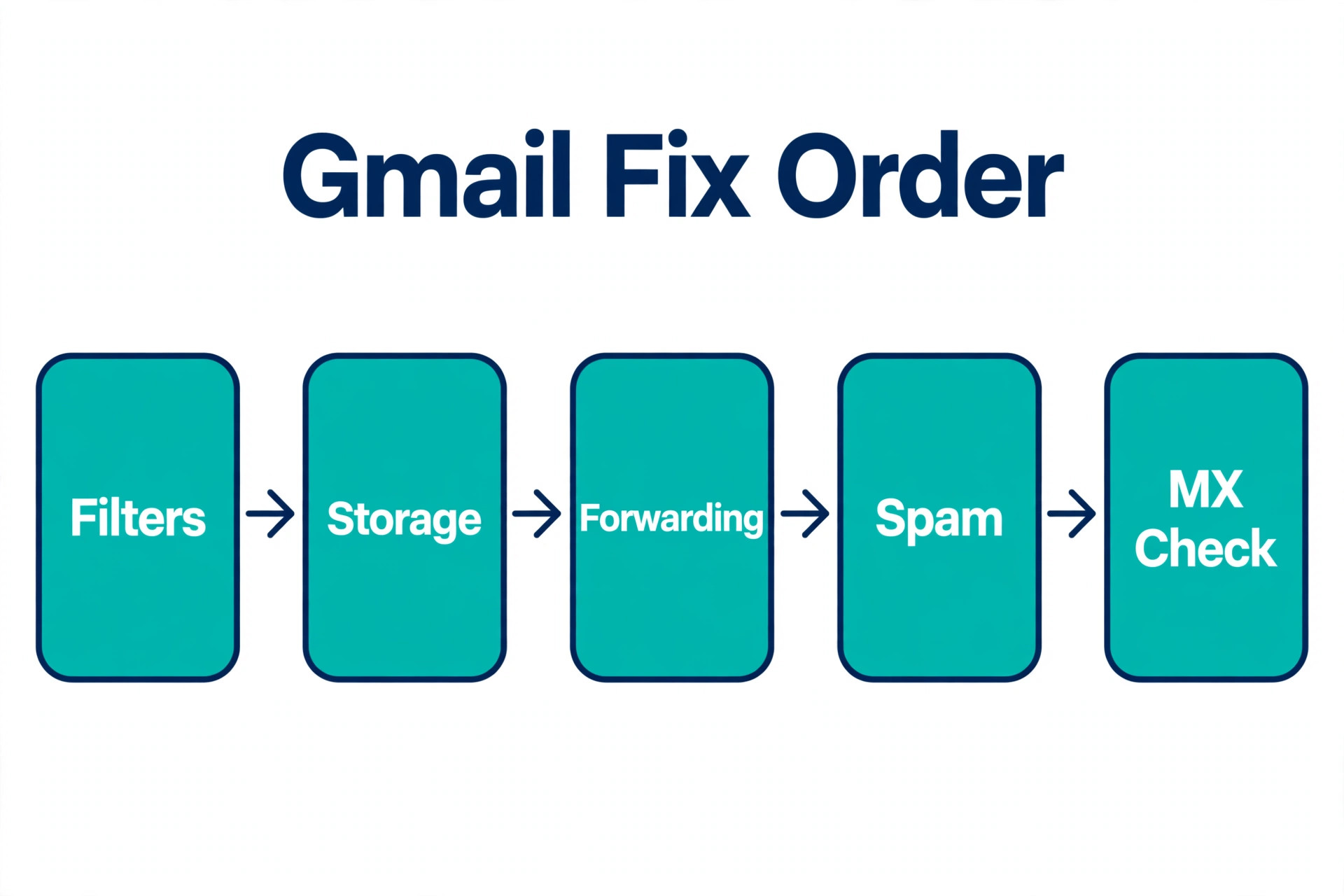
The diagnostic order in this guide runs from the checks that solve the most cases with the least risk to the checks that need admin or DNS access. Filter check first, because a filter can delete or archive mail silently and it takes minutes to review. Storage check second, because full storage blocks all new mail and the fix is measurable.
Forwarding check third, because a forwarding rule can send mail elsewhere and delete the Gmail copy. Blocklist check fourth, because a blocked sender is invisible until you look at the list. MX check last, because domain routing affects a whole domain and changes need care, but it is the decisive check when mail stops after a migration or a DNS change.
Change one thing at a time and retest after each change. If you delete a filter, free storage and change a forwarding rule together and mail starts arriving, you will never know which change mattered, and you will never know whether one of the other changes broke something else. One change, one test, one note. Keep the log simple. Record the date, the setting checked, what you found, what you changed, and the result of the test message.
Test from outside Gmail, not from inside it. Ask a colleague to send a test message from a different provider, or send one yourself from a personal account that is not the account under test. Sending a test from the same account to itself proves very little, because it never leaves the system in the same way. Use a subject line you can search for, such as a test phrase with the date, so you can search for it in every folder afterward. Check the inbox, then Spam, then Trash, then All Mail, and note exactly where the test message lands, because where it lands is itself a diagnosis.
| Symptom you see | Most likely cause | First check |
|---|---|---|
| One sender missing | Filter or blocked address | Filters and Blocked Addresses, plus Spam |
| No new mail at all | Storage full | Storage indicator in the inbox |
| Mail on phone only | Forwarding or POP deleting copy | Forwarding and POP/IMAP |
| Stopped after domain move | MX records at old provider | DNS records versus Admin console |
| Mail in Promotions tab | Category tab routing | Drag one message to Primary |
Filter Check That Finds Mail Deleted Before You See It
Open Settings, then See all settings, then Filters and Blocked Addresses, and read every filter slowly before deleting anything. This is the first check in this workflow because a filter acts before you ever see a message. It is a core step whenever you fix Gmail not receiving emails small business owners report. A filter that matches a sender, a domain, a subject word or a size condition can skip the inbox, apply a label, mark mail as read, forward it, or delete it outright. The dangerous actions are the ones that hide mail, namely Skip the Inbox and Delete it, because mail processed that way looks exactly like mail that never arrived.
Look first for filters you did not create, or filters whose actions you do not recognise. An unfamiliar filter, especially one that forwards mail or deletes it, can be a sign that someone else has had access to the account, so treat it seriously. Remove any filter you cannot explain, change the account password, and turn on 2 Step Verification if it is not already on. Do not simply edit a suspicious filter and move on, because the underlying access problem would remain.
For filters you do recognise, check whether the matching criteria are broader than you intended. A filter matching a whole domain will catch every sender at that domain, not just the one person you meant to filter, and a filter matching a common subject word will catch far more mail than planned.
Test a filter before deciding it is harmless. Search Gmail with the sender address and set the search scope to Mail and Spam and Trash, so the search covers the folders a filter might have sent mail to. If messages from that sender appear in All Mail with a label but not in the inbox, a Skip the Inbox filter is the likely cause. If they appear in Trash, a Delete it filter is the likely cause. If they appear nowhere, the filter may not be the cause, or the sender mail may never have reached Gmail at all, which points you toward the storage and MX checks later in this guide.
When you find the offending filter, fix it in the narrowest way possible. Delete a filter that serves no purpose. Edit a filter that is useful but too broad, so it matches only the sender or subject it was meant for. For a legitimate sender whose mail keeps getting filtered, create a protective filter for that sender with the action Never send it to Spam, and confirm that no older filter contradicts it, because filters are processed in order and a delete action earlier in the list can win.
After the change, send a fresh test message from that sender and search for it in every folder. Only when the test lands in the inbox can you call the filter check closed.

Storage Check That Explains Why All New Mail Stops
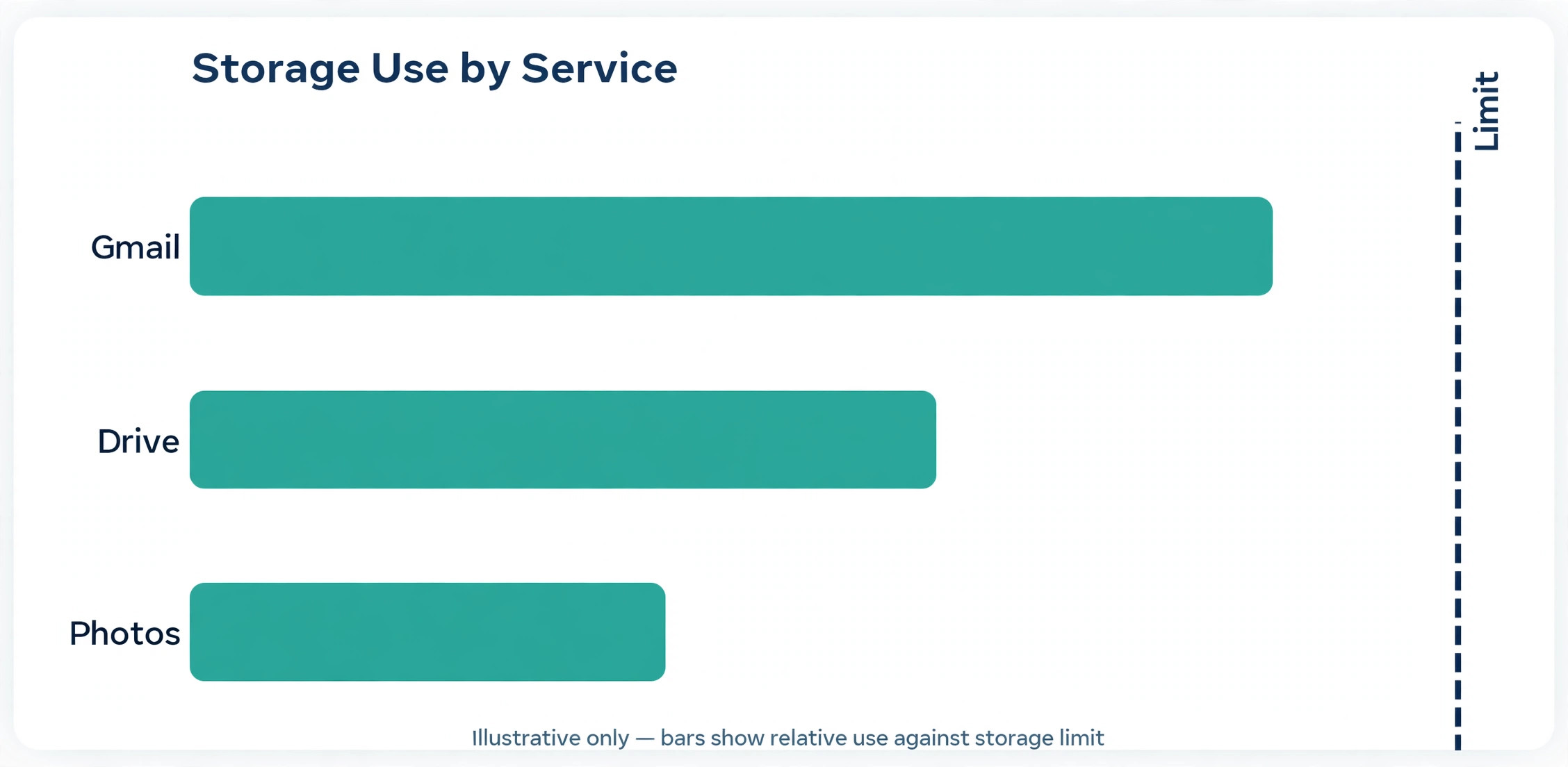
Check storage before assuming a deeper problem, because full storage is a total block, not a partial one. This step matters in any plan to fix Gmail not receiving emails small business teams face. Gmail shares its storage with Google Drive and Google Photos on a free account, so a phone backing up photos can fill the account even when the inbox itself looks modest.
Look at the storage indicator at the bottom of the inbox, then open the storage management page to see how much each service uses. If the account is at or near its limit, new mail will bounce back to senders, and freeing space is the only fix that matters until the indicator drops below the limit.
Free space in the order that recovers the most with the least risk. Start by searching for large messages with a size search such as larger than 10 MB, and delete the attachments you no longer need, starting with old newsletters, duplicated files and large video attachments. Then empty Trash in Gmail and in Drive, because deleting a message does not free space until Trash is emptied.
Then review Drive for large files and Photos for backed up videos that can be removed or moved elsewhere. Do not delete business records, invoices or contracts to free space in a hurry. Move those to a separate archive or a paid storage upgrade if they are genuinely needed, because a storage panic that deletes records creates a second problem.
After freeing space, verify the recovery instead of assuming it. Confirm the storage indicator has dropped below the limit on every part of the account, not just in Gmail, because Drive and Photos count toward the same total. Then send a test message from an outside account and confirm it arrives in the inbox within a few minutes. If the test still does not arrive, storage was not the only cause, so continue to the forwarding and blocklist checks rather than deleting more mail in the hope that it helps.
If the test arrives, note the storage level in your log and set a reminder to review it monthly, because storage fills gradually and silently until the day it blocks mail again.
Forwarding Check That Finds Mail Sent Somewhere Else
Open Settings, then Forwarding and POP/IMAP, and read the forwarding section line by line. Forwarding is a quiet cause when you fix Gmail not receiving emails small business inboxes lose. A forwarding rule that is on and set to delete the Gmail copy sends every new message to another address and removes it from Gmail, so the inbox looks empty while mail is actually arriving somewhere else.
That somewhere else might be an old personal address, a former employee mailbox, or an address that no longer exists, in which case mail simply vanishes. Turn forwarding off if it serves no current purpose, or change it to keep a copy in the inbox if forwarding is still needed for a genuine reason.
Check the POP settings on the same page with equal care. If a mail client on a computer downloads mail through POP and is set to delete the Gmail copy after download, messages will appear on that one computer and nowhere else. That explains the classic symptom where mail is visible on a desktop client but missing from Gmail on the web and from a phone.
Change the POP setting to keep a copy in the inbox, or switch the client to IMAP, which syncs mail across devices instead of removing it from the server. If a former team member computer still runs a POP client against a shared mailbox, that computer can keep removing mail long after the person has left, so check for that possibility explicitly.
Also review any address in the forwarding list that you do not recognise, for the same security reason as with filters. Forwarding rules and filters that you did not create are a warning sign. Remove them, change the password, review recent account activity for unfamiliar sessions, and turn on 2 Step Verification. A business mailbox that forwards to an unknown address is a data leak as well as a delivery problem, so treat it as urgent even if only a few messages seem affected.
After any forwarding change, send a test message from outside and confirm it stays in the inbox. If it still disappears, the cause lies elsewhere in this workflow, and the log you kept will show that forwarding has already been ruled out.

Blocklist Check That Restores Mail From One Sender
The blocked addresses list sits on the same Settings tab as filters, and it is easy to overlook because it is short and rarely opened. It belongs in every plan to fix Gmail not receiving emails small business senders report. Open it and read every entry. A blocked sender address means mail from that sender is sent to Spam automatically, so a single accidental block can look like a delivery failure for months. Unblock any sender whose mail the business needs, then check Spam for recent messages from that sender and mark them as Not spam, because marking them teaches Gmail that the sender is legitimate and helps future mail reach the inbox.
Blocking is not the only sender level cause. Gmail spam filtering can also send legitimate mail to Spam without any block in place, especially when the sender domain fails authentication checks, sends from a new server, or has a poor reputation. Search Spam for the sender, and if messages are there, mark them as Not spam and create a protective filter for that sender. Adding the sender to Google Contacts also helps, because senders in contacts are less likely to be filtered as spam. If mail from a whole domain lands in Spam, ask the sender to check their own authentication and reputation, because a recipient side fix can only go so far when the sender side is failing checks.
MX Check That Fixes Domain Routing After a Move
The MX check applies when the business uses Gmail through Google Workspace on its own domain, rather than a free Gmail address. Domain routing is the final step when you fix Gmail not receiving emails small business domains lose. MX records are DNS records that tell sending mail servers where to deliver mail for a domain, and they must point at Google for Workspace mail to arrive.
When a business moves to Google Workspace, changes DNS provider, or rebuilds its DNS zone, an old MX record left in place can keep sending mail to the previous provider, or a missing MX record can leave mail with nowhere to go. The symptom is distinctive. Sending usually works, receiving fails, and it often starts right after a migration or a DNS change.
Verify MX records in two places and compare them. First, open the Google Admin console, go to Apps, then Google Workspace, then Gmail, and note the recommended MX values shown there. For new Workspace setups the recommended value is a single record pointing at smtp.google.com with priority 1, while older setups may use the legacy multi record set. Second, open the DNS panel at the domain registrar or DNS provider and list every MX record on the domain.
The two lists must agree, and there must be no leftover MX record pointing at a previous provider, because even one leftover record at a lower priority number can divert mail away from Google. Use a public MX lookup tool or the Google Admin Toolbox check to confirm what the rest of the internet actually sees, since the registrar panel and the live DNS answer can differ while changes propagate.
Fix MX problems carefully, one record at a time. Delete leftover MX records from the old provider, keep only the Google set recommended in the Admin console, and do not mix the single record set with the legacy set, because running both creates ambiguous routing. Save the change, then allow time for DNS propagation, which can take hours in some cases, and test by sending mail from an outside provider to the domain address. Check the Admin console domain status as well, because a domain that shows as unverified can also block mail even when MX records look correct.
If DNS changes feel risky, take a screenshot of the current DNS records before changing anything, so you can restore them if a mistake is made. If mail still does not arrive after MX records are confirmed correct and propagation time has passed, contact the domain provider and Google Workspace support with the MX lookup result and the bounce message, because the remaining causes sit outside the mailbox itself.
Mistakes That Turn a Small Gmail Problem Into a Big One
The most common mistake is changing several settings at once. It also hides the evidence when you fix Gmail not receiving emails small business owners chase. A filter deletion, a storage cleanup and a forwarding change made together can restore mail while hiding which change mattered, and the unnecessary changes can break other mail flows that were working. Change one thing, test, log the result, then move on. Slow diagnosis beats fast guessing, because fast guessing creates a second problem while the first one is still unsolved.
The second mistake is deleting mail to free storage without checking what is being deleted. Invoices, contracts, tax correspondence and customer approvals live in mail for many small firms, and a hurried cleanup can destroy the only copy. Move important records to a proper archive before deleting anything, and empty Trash only after confirming that nothing needed sits in it. The same discipline applies to filters. Deleting every filter at once may restore mail, but it also removes useful labelling and routing that the team relies on, so delete only the filter that the evidence points at.
The third mistake is ignoring the bounce message. Senders often forward a bounce message that states the problem plainly, whether storage is full, the address does not exist, or the server rejected the message, and owners who skip past it to general fixes waste the best clue available. Read the exact bounce text, search it against the Google support pages, and fix the cause it names before changing anything else. A bounce message is a diagnosis, not an annoyance, and treating it that way shortens most Gmail repairs dramatically.
The fourth mistake is leaving the account insecure after finding an unfamiliar filter or forwarding rule. If a rule you did not create is diverting mail, changing the rule without changing the password and checking sessions leaves the access route open. Treat any unexplained rule as a security incident. Change the password, turn on 2 Step Verification, review recent sessions, and remove any forwarding address or filter you cannot explain. Security work feels slower than a settings fix, but it is the only fix that prevents the same diversion from reappearing.
Gmail Fix Checklist
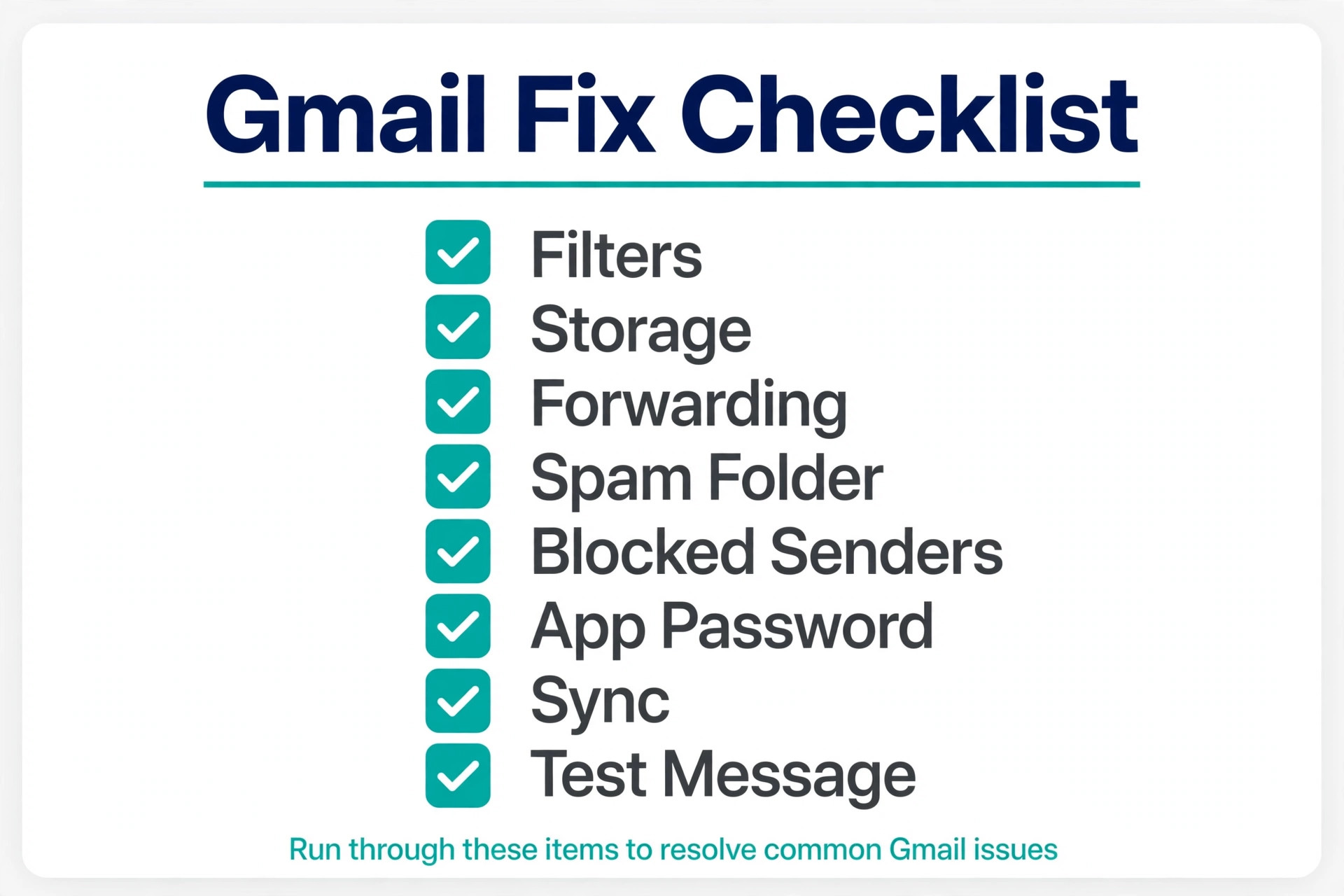
Use this checklist in order, and stop at the step where test mail starts arriving, then run the proof test below to confirm it stays fixed.
- Define the failure. Note whether mail is missing from everyone or one sender, for one person or the whole team, and when it started.
- Ask the sender for the bounce message and check the Workspace status dashboard for a Gmail outage.
- Check Settings, Filters and Blocked Addresses for filters that skip the inbox or delete mail, and delete or narrow the offending filter.
- Check storage across Gmail, Drive and Photos, free space safely, empty Trash, and confirm the indicator drops below the limit.
- Check Settings, Forwarding and POP/IMAP for forwarding that deletes the Gmail copy and for POP clients removing mail from the server.
- Check the blocked addresses list, unblock needed senders, mark their mail as Not spam, and add them to Contacts.
- For a Workspace domain, compare MX records in DNS with the Admin console values, remove leftover provider records, and allow propagation time.
- Send a test message from an outside provider, search for it in inbox, Spam, Trash and All Mail, and confirm it lands in the inbox.
That checklist is deliberately short. A longer repair plan looks impressive and gets ignored under business pressure. Eight steps, done in order, fix most small business Gmail delivery failures without outside help, and the log they produce makes the remaining cases far easier for support to solve.
How to Prove Gmail Stays Fixed
A single test message proves mail arrived once, not that it stays arriving. Monitor the next seven days with three simple measures. First, a daily test message from an outside account, sent at a different time each day, so a failure that only affects certain hours or senders is still caught. Second, a weekly storage review, because storage is the failure that returns gradually and silently. Third, a weekly Spam review, where one person scans Spam for legitimate mail and marks it as Not spam, so the filter learns and the team sees a pattern before it becomes a crisis.
Set a monthly mailbox audit as a standing habit, not a one off repair. Once a month, open Filters and Blocked Addresses, Forwarding and POP/IMAP, and the storage page, and confirm nothing unfamiliar has appeared. Review the audit after every staff departure, every domain or DNS change, and every new mail client setup, because those are the moments new filters, forwarding rules and POP removals are born. A business that audits monthly finds problems in minutes, while a business that audits only after complaints finds them after lost orders.
Watch for the quiet failures that never produce a bounce message. Mail that lands in a category tab, mail that is labelled and archived by a filter, and mail that arrives on one device but not another all lose business without a single error message. Compare what different team members see for the same test message, and treat a sudden drop in incoming mail volume as a delivery problem until proven otherwise, even when no customer has complained yet. Volume is a signal, and a quiet inbox in a normally busy business deserves investigation, not celebration.

The Gmail Verdict for Small Businesses That Cannot Miss Mail
The fastest way to fix Gmail not receiving emails small business owners face is also the least dramatic. Define the failure, check filters, check storage, check forwarding, check the blocklist, and check MX records for a Workspace domain, testing after each change. That order finds the common causes first, avoids the trap of changing everything at once, and leaves a log that makes any remaining problem easy for support to solve.
Start with the symptom table, work the checklist in order, and do not skip the test message after any change. Audit monthly after the repair, and audit again after every staff change, DNS change or new mail client, because mail delivery is the one part of a business where a small unnoticed change costs real money every day. Done that way, missing mail becomes a short interruption with a known cause, not a long crisis with a guessed fix.

Frequently Asked Questions
Why does Gmail receive mail from some senders but not others?
Because sender specific causes affect only that sender. A filter matching that sender, a blocked address entry, a spam decision against that sender domain, or a sender authentication failure can each block one sender while everyone else arrives normally. Check filters, the blocked list and Spam for that sender first, then ask the sender for their bounce message, because it often names the exact rejection reason.
How do I know whether full storage is the cause?
Check the storage indicator at the bottom of the inbox and the storage page that breaks usage down by Gmail, Drive and Photos. If the account is at its limit, new mail bounces and no new mail from anyone will arrive. Free space safely, empty Trash in Gmail and Drive, confirm the indicator drops below the limit, and send a test message from outside to prove mail flows again.
Can a filter delete mail without me noticing?
Yes, and that is what makes filters dangerous. A filter with the Delete it action removes matching mail before you see it, and a filter with the Skip the Inbox action archives it under a label where it looks like it never arrived. Search with the scope set to Mail and Spam and Trash for the sender, check All Mail and Trash directly, and review every filter on the Filters and Blocked Addresses tab.
What should I do if I find a forwarding rule I did not create?
Remove it immediately, change the account password, turn on 2 Step Verification, and review recent account sessions for unfamiliar access. A forwarding rule you did not create can send business mail to an unknown address, so treat it as a security incident, not just a settings error. After securing the account, send a test message and confirm it stays in the inbox.
Why did mail stop right after we moved our domain to Google Workspace?
Because MX records still point at the old provider, or the domain is not yet verified in the Admin console. Compare the MX records in your DNS panel with the values shown in the Admin console, remove leftover records from the previous provider, confirm the domain shows as verified, and allow propagation time before testing again. A screenshot of the old DNS records before changing them makes recovery easy if a mistake is made.
When should I contact Google Workspace support instead of keep fixing?
Contact support when MX records are confirmed correct and propagation time has passed but mail still does not arrive, when a bounce message references a Google system problem rather than a setting, or when the account shows signs of compromise that you cannot fully explain. Send the failure definition, the bounce message, the MX lookup result, and the log of checks already made, so support can move faster than a general report that mail does not arrive.
More Reading on Stratilyze
– Best Email Marketing Software for Ecommerce Stores – Fix a Slow WordPress Site for a Small Business – Best CRM Software for Consultants – Best Live Chat Software for Small Business Websites