
NotebookLM is the Google AI tool that answers questions using only your own documents — and it’s quietly become one of the most useful AI apps of 2026. Upload your PDFs, slides, web pages and videos, and it becomes a research assistant that cites every claim back to the exact passage it came from. No hallucinations from thin air. No “as an AI language model.” Just grounded answers with receipts.
The killer feature that made it famous — Audio Overviews, the AI-generated podcast where two hosts discuss your documents — is still unmatched. But 2026 added a lot: Video Overviews, mind maps, flashcards, quizzes, slide decks, infographics, data tables, Deep Research mode, and a mobile app.
This guide covers everything: how to use NotebookLM from your first notebook to power-user workflows, the 2026 pricing, and 15 practical use cases across study, work and business.
A note on the name: In July 2026 Google renamed NotebookLM to Gemini Notebook. The standalone app (notebooklm.google.com) still works the same, and notebooks now sync with the Gemini app. This guide uses “NotebookLM” throughout since that’s what most people still search for.
Quick Answer: What Is NotebookLM and How Do You Use It?
NotebookLM is Google’s free AI research assistant that grounds every answer in sources you provide. The workflow is always the same:
- Create a notebook for a topic or project (free: up to 100 notebooks).
- Add sources — PDFs, Google Docs/Slides, websites, YouTube videos, audio files, images, plain text (free: up to 50 sources per notebook, 500,000 words per source).
- Chat with your sources — ask questions; every answer includes clickable citations back to the exact passage.
- Generate Studio outputs — Audio Overviews (podcast), Video Overviews, mind maps, flashcards, quizzes, reports, slide decks, infographics, data tables.
- Share or export — notebooks can be shared publicly or privately.
Pricing (October 2026): Free with any Google account (generous limits). Paid access is bundled into Google AI plans — Plus ($4.99/mo), Pro ($19.99/mo), Ultra ($99.99+/mo) — which raise notebook/source/usage limits. You can’t buy NotebookLM separately.
Getting Started: Your First Notebook in 10 Minutes
Step 1: Open NotebookLM and create a notebook
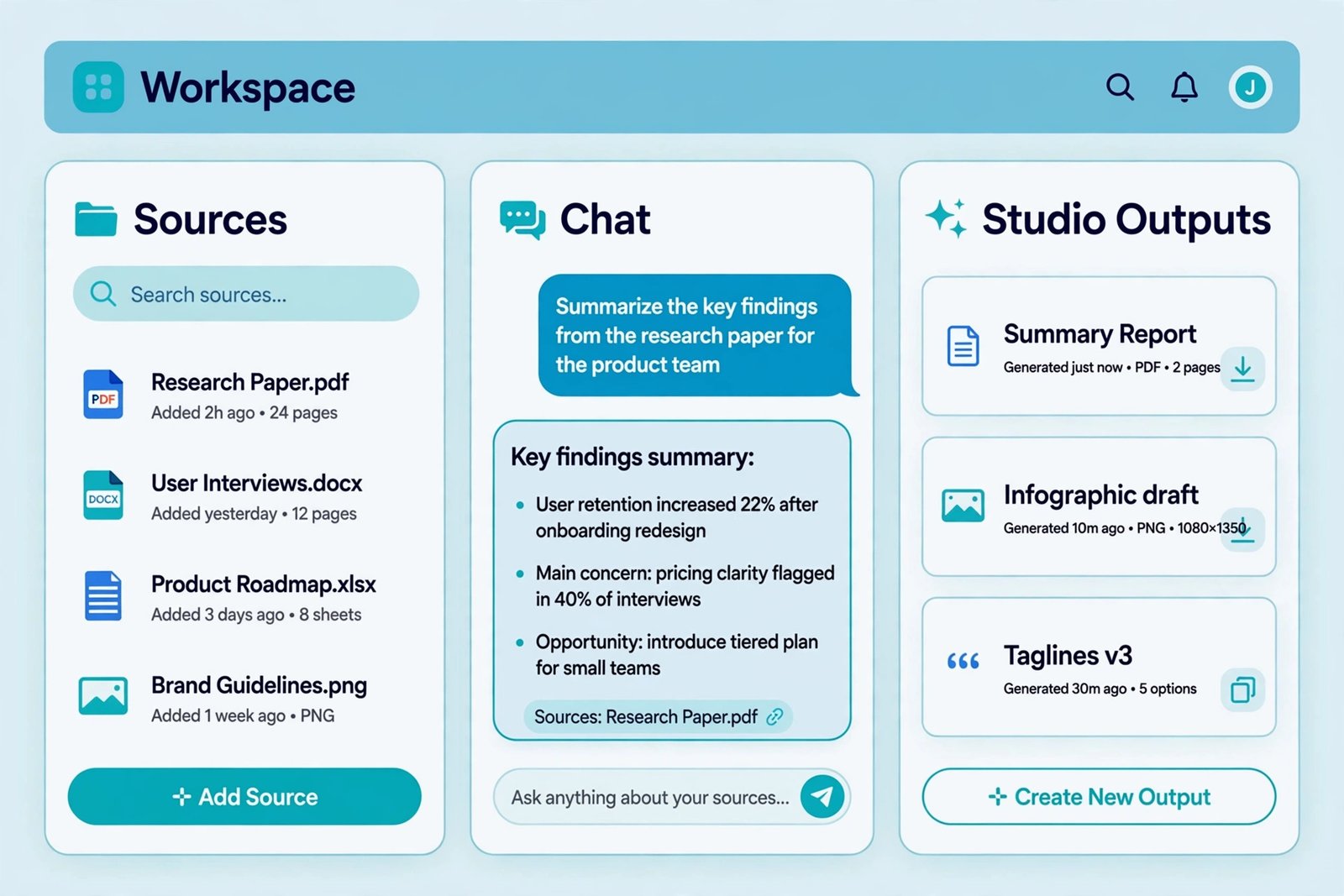
Go to notebooklm.google.com and sign in with your Google account — no credit card, no trial, no time limit on the free plan. Click “New Notebook,” give it a name (e.g., “Q4 Marketing Research”), and you’ll land in the three-panel workspace:
- Left: Sources — everything you’ve uploaded
- Middle: Chat — where you ask questions
- Right: Studio — where you generate outputs (audio, video, mind maps…)
Step 2: Add sources (six ways)
Click “Add sources” and choose:
- Upload files — PDFs, DOCX, TXT, CSV, MP3/MP4/WAV audio, images. Up to 200MB or 500,000 words per source.
- Google Drive — Docs, Slides, Sheets. These stay in sync — edit the Doc and the notebook sees the new version.
- Links — paste web page URLs; NotebookLM reads the article content.
- YouTube — paste a video URL; it uses the transcript (works even for long videos).
- Copied text — paste anything directly.
- Discover sources — describe your topic and NotebookLM searches the web for relevant sources to add.
Pro tip: Start with 3–5 high-quality sources, not 50. NotebookLM’s answers are only as good as what you feed it — a tight, relevant source set beats a bloated one every time.
Step 3: Read the Notebook Guide, then chat
As soon as sources are added, NotebookLM generates a Notebook Guide — an instant summary with suggested questions. Click a suggestion or ask your own:
- “What are the three main arguments across these sources?”
- “Compare how source A and source B define this concept.”
- “What evidence supports [claim]?”
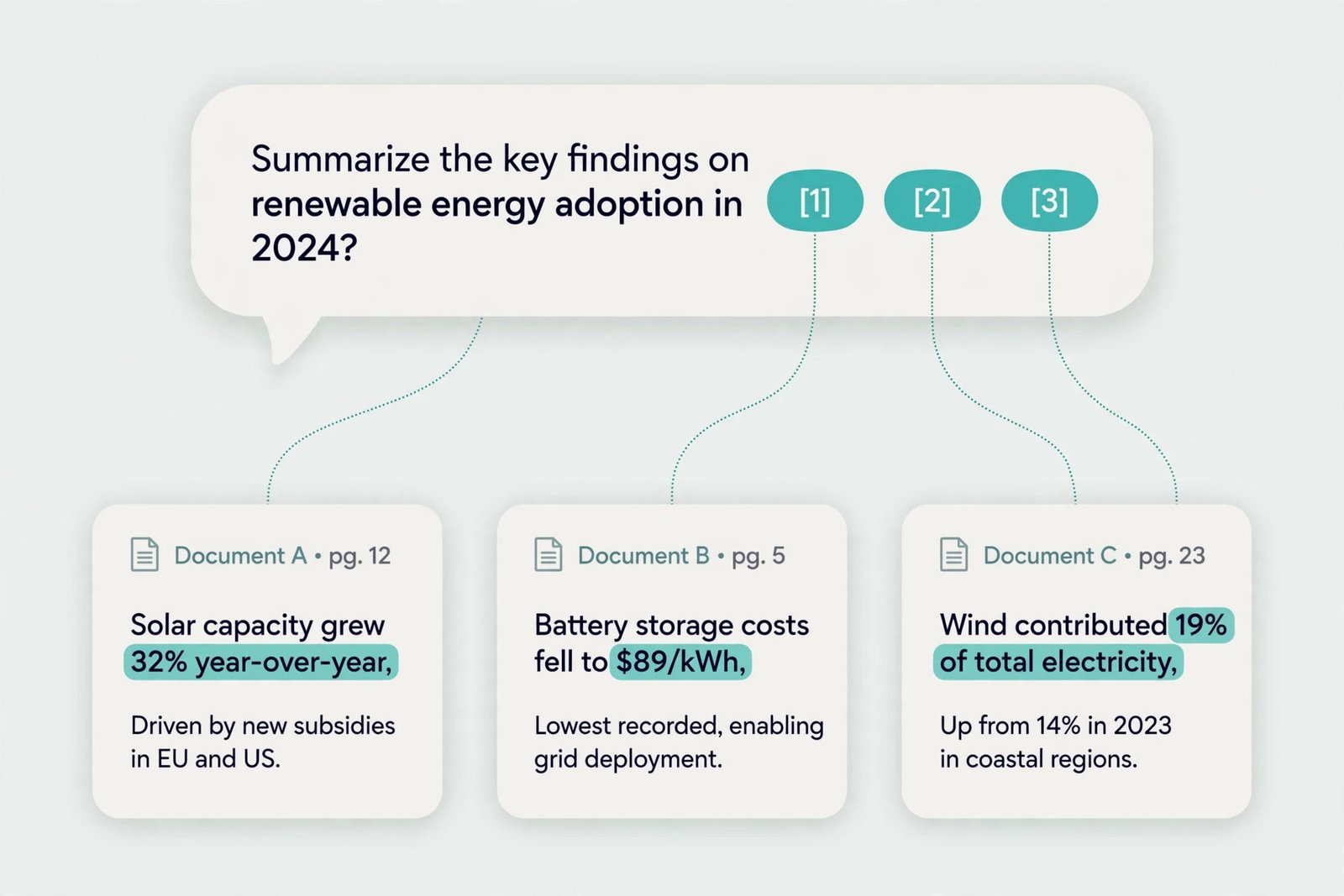
Every answer includes inline citations — click one and the source opens at the exact passage. This is the feature that separates NotebookLM from a chatbot: you can verify everything in seconds. When sources disagree, NotebookLM says so instead of smoothing over the conflict.
Step 4: Generate your first Audio Overview
In the Studio panel, click Audio Overview. In a minute or two you get a podcast-style conversation between two AI hosts discussing your sources — typically 2–30 minutes depending on your settings. You can:
- Customise the focus (“focus on the pricing sections”), audience level and length
- Join in — interactive mode lets you ask the hosts questions mid-episode
- Listen on mobile — the iOS/Android app syncs your notebooks for on-the-go listening
Audio Overviews remain the single best reason to use NotebookLM. They’re genuinely good — natural pacing, real back-and-forth, and strictly grounded in your sources.
The Studio Panel: Every Output Type Explained (2026)
The Studio menu is where sources become finished content. As of mid-2026 it offers ten output types:

| Output | What it does | Best for |
|---|---|---|
| Audio Overviews | AI-hosted podcast discussion of your sources | Absorbing research on a walk; study review |
| Video Overviews | Narrated video summaries with AI visuals | Sharing findings with a team |
| Mind Maps | Interactive diagram of connected concepts | Seeing structure before you write |
| Reports | Finished briefing document with citations | Competitive analysis, study guides |
| Flashcards | Auto-generated study cards | Exam prep |
| Quizzes | Multiple-choice questions with explanations | Self-testing, course assessments |
| Slide Decks | Presentation drafts (exportable to PPTX/Google Slides) | Meeting-ready decks from research |
| Infographics | Visual summaries in 10+ styles | Social posts, one-pagers |
| Data Tables | Structured comparisons pulled from sources | Tool comparisons, feature matrices |
| Deep Research | Web-augmented research reports that supplement your sources | Topics where your sources are incomplete |
You can generate and store several outputs of the same type in one notebook, and listen to an Audio Overview while exploring a Mind Map at the same time.
Two to try first: Data Tables — drop in five tool reviews and get a clean comparison matrix in a minute (bloggers: this collapses hours of work). And Reports — feed a notebook ten competitor pages and ask for a positioning breakdown; you get a structured, cited document.
Deep Research mode
Toggle Deep Research when your own sources aren’t enough. NotebookLM searches the web to supplement them, citing both your uploads and external sources. It bridges the gap between “AI that only knows my docs” and “AI that searches the web” — useful when you’re starting research from zero.
Mind maps, flashcards and quizzes
These three are the study stack. Mind maps generate an interactive diagram — click a node to expand sub-topics; excellent for finding the structure of a topic before writing about it. Flashcards and quizzes are generated strictly from your sources, so unlike generic quiz apps, every answer is verifiable against your actual course material. If you sell courses or run a membership, this is the fastest assessment layer you’ll find.
NotebookLM Pricing 2026: Free vs Plus vs Pro vs Ultra
Google does not sell NotebookLM as a separate subscription. Paid access comes bundled into Google AI plans (or a qualifying Google Workspace plan). Pricing snapshot — confirm current limits at notebooklm.google.com/plans before paying:
| Free | Plus ($4.99/mo) | Pro ($19.99/mo) | Ultra ($99.99/$199.99/mo) | |
|---|---|---|---|---|
| Notebooks | 100 | 200 | 500 | 500 |
| Sources per notebook | 50 | 100 | 300 | 500–600 |
| Usage model | Compute budget, refreshes every ~5 hrs | 2× free allowance | 5× free allowance | Up to 50× |
| Audio/Video Overviews | Included (limited) | 2× | 5× | Up to 200/day + Cinematic Video |
| Advanced sharing | No | Yes | Yes | Yes |
| Watermark removal | No | No | Yes (exceptions) | Yes |
What changed in 2026: Since September 2026, personal-account usage runs on a compute budget that refreshes every five hours (with a weekly cap) instead of fixed daily counts — a long chat or heavy feature costs more than a quick question. Google AI Plus dropped to $4.99/month in January 2026. NotebookLM Plus is also bundled into Google Workspace Business Standard and up.
Our take: The free plan is genuinely generous — 100 notebooks with 50 sources each covers most individuals completely. Upgrade to Plus ($4.99) when you need more sources per notebook or advanced sharing; Pro when you’re running research as a job.
15 Practical NotebookLM Use Cases

For studying (1–5)
1. Exam prep from your actual course materials. Upload lecture slides, readings and your notes into one notebook. Generate flashcards and quizzes from your material — every answer traceable to the source. Then listen to an Audio Overview of the weak topics on your commute. This is the single highest-ROI study workflow in 2026.
2. Reading dense academic papers fast. Upload 5–10 papers and ask: “Summarise the methodology of each” or “Where do these papers disagree?” NotebookLM’s citations let you verify every claim — critical when the summary informs your own writing.
3. Learning a new subject from scratch. Combine a textbook chapter, three explainer articles and two YouTube videos in one notebook. Chat through concepts (“explain X like I’m 15”), then test yourself with generated quizzes. The mind map shows you the topic’s structure before you dive deep.
4. Thesis and dissertation research. One notebook per chapter. Fifty sources per notebook on the free plan is enough for most chapters; Pro’s 300 covers literature reviews. Use Data Tables to compare studies’ methods and findings side by side.
5. Language learning. Upload articles, transcripts and vocabulary lists in your target language. Chat in that language about the sources; generate quizzes on vocabulary in context. Set the AI output language separately from the interface language in the multi-language controls.
For work (6–10)
6. Meeting and interview digestion. Upload transcripts, recordings or notes from a research interview series. Ask “what themes came up across all six interviews?” — NotebookLM synthesises with citations to specific speakers. (Our AI meeting notes comparison covers live capture; NotebookLM covers the analysis layer.)
7. Competitive intelligence. One notebook per competitor: their pricing page, three blog posts, two review-site profiles, a YouTube demo. Ask for a positioning breakdown, then generate a Report — a cited competitive brief in minutes. Refresh quarterly.
8. Onboarding notebooks for new hires. Upload the handbook, key process docs, product FAQs and three recorded training sessions. New hires chat with the notebook instead of pinging the team — and every answer cites the official source, so nothing gets invented.
9. Contract and policy review. Upload the 60-page vendor contract plus your company’s procurement policy. Ask “what are the termination clauses?” or “does this conflict with our data policy?” — with citations to exact clauses. (Not legal advice; always have counsel review.)
10. Customer feedback synthesis. Upload survey exports, support ticket summaries and review-site comments. Ask for the top complaints by frequency with example quotes. Faster and more grounded than asking a general chatbot to “analyse feedback.”
For business and content (11–15)
11. Content research hub. One notebook per article: source articles, studies, expert interviews. Chat for angles (“what’s the contrarian take here?”), generate a Data Table comparing the sources’ claims, then write from the cited brief. This is how research-heavy posts like our AI search visibility guide get built efficiently.
12. Podcast and video prep. Upload everything about a guest or topic, generate an Audio Overview to absorb it, then chat for “10 questions that go beyond the obvious.” Creators use this to prep interviews in a fraction of the time.
13. Course and workshop creation. Upload your expertise (docs, transcripts, slides), then generate the assessment layer: quizzes, flashcards, plus a slide-deck draft for the workshop. The fastest path from knowledge to sellable course material.
14. Sales battlecards. One notebook per competitor with their docs, pricing and reviews. Reps chat “how do we counter their enterprise claim?” before calls — answers grounded in real sources, not marketing folklore.
15. Personal knowledge base. The long game: a notebook for your field’s canonical texts, updated over time. Ask it questions as your second brain — one that cites its sources and never confabulates. Pair with public notebook sharing to publish curated collections as a traffic asset.
NotebookLM Tips Most Guides Miss
- Source quality > source quantity. Five excellent sources beat fifty mediocre ones. Curate ruthlessly.
- Use Deep Research to seed, then verify. Let it find sources, then keep only the ones you’d cite yourself.
- Drive-synced sources stay fresh. Google Docs sources update when the Doc updates — use this for living documents like handbooks.
- Customise Audio Overviews. Set the focus, audience and length before generating — a 5-minute exec brief and a 25-minute deep dive are different products.
- Ask comparative questions. “Where do these sources disagree?” and “What evidence supports X?” are NotebookLM’s superpower prompts.
- Mind the privacy line. NotebookLM trains on nothing by default on consumer accounts, but don’t upload client-confidential material to any cloud AI without checking your agreements. For sensitive work, a local tool is safer.
- No cross-notebook search. Each notebook is isolated — plan your organisation up front (one notebook per project, clear naming) because there’s no global search across notebooks.
Frequently Asked Questions
Is NotebookLM really free?
Yes. The free plan — 100 notebooks, 50 sources per notebook, a compute-based usage allowance that refreshes every few hours — needs only a Google account, no credit card, no expiry. Paid tiers (via Google AI Plus/Pro/Ultra) raise limits; they don’t unlock fundamentally different features.
What’s the difference between NotebookLM and ChatGPT?
ChatGPT answers from its training data and the web; NotebookLM answers only from sources you upload, with citations to exact passages. That makes NotebookLM far more reliable for research on your own materials — but useless for open-ended brainstorming or general knowledge questions.
Can NotebookLM read YouTube videos and audio files?
Yes. Paste a YouTube URL (it uses the transcript), or upload MP3/MP4/WAV audio files directly. This makes it excellent for digesting lectures, interviews and podcasts.
What are the NotebookLM limits on the free plan?
100 notebooks, 50 sources per notebook (500,000 words or 200MB each), and a compute-based usage allowance that refreshes roughly every five hours with a weekly cap. Audio and Video Overviews are included within that allowance.
Is NotebookLM good for students?
It’s arguably the best free AI study tool available: flashcards, quizzes and mind maps generated strictly from your course materials, with every answer verifiable. School accounts also get it free through Google Workspace for Education.
Did Google rename NotebookLM?
Yes — in July 2026 Google renamed it Gemini Notebook. The standalone web app still works, features are unchanged, and notebooks now sync with the Gemini app. Most of the web (and search traffic) still calls it NotebookLM.
Final Verdict
NotebookLM earns its hype because it solves AI’s trust problem in the most direct way possible: it shows its work. Every answer carries citations to your own sources, which makes it the rare AI tool you can actually rely on for research, study and business decisions.
Start free — the limits are generous enough that most people never need to pay. Build one notebook this week around a real project (an exam, a competitor, your next article), generate an Audio Overview, and you’ll understand in ten minutes why this tool has a cult following.
Keep going: compare the chatbots you’d pair it with in ChatGPT vs Claude vs Gemini, and see how AI research fits a small-business automation stack.