
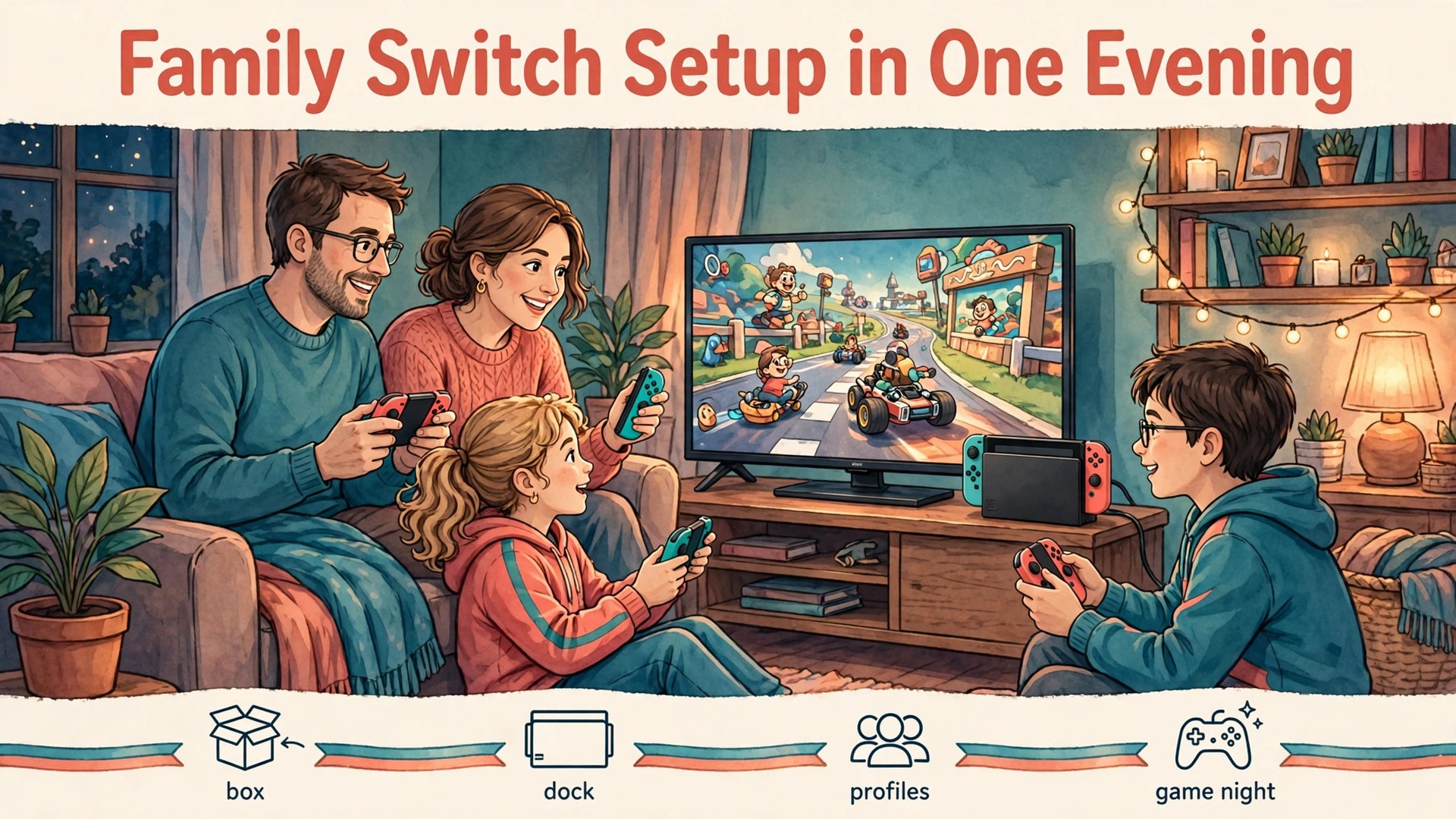
One console for a whole family sounds simple until the first weekend. One child wants to race, another wants to build, a parent wants to check homework progress, and everyone wants their own save file, their own character and their own progress. If you set up Nintendo Switch family gaming the way you would set up a console for one adult, you get shared saves, arguments about whose turn it is, and controls that are either too strict for the oldest child or too loose for the youngest. A family setup changes the job completely.
This guide treats the Switch as a shared household device, not a personal one. It walks through the first hour of console setup, a Nintendo Account family group, one profile per child, parental controls that match the youngest player, playtime limits that children can understand, online safety settings, and game picks by age. Prices quoted are United States list prices checked at draft time, and you should confirm the price in your own region before you pay, because Nintendo pricing varies by country and currency.
Buying one console per child solves some arguments and creates others. It multiplies cost, it splits game libraries, and it makes supervision harder because play spreads across bedrooms and devices. One shared console, set up well, keeps games in one place, keeps costs visible, and gives parents one set of controls to check. The trade is that the setup work has to happen up front. Skip it, and the console itself becomes the argument.
Start with a simple household rule before you open any settings menu. Decide who the console belongs to in practice. In most families the answer is that it belongs to the household, it lives in a shared room, and it is borrowed by each player for a turn. That one decision makes almost every later setting easier.
Next, decide how strict the baseline will be. Nintendo parental controls apply to the console as a whole, not to each individual user profile. That single fact shapes the whole setup. If a six year old and a fourteen year old share one console, the restriction level must be set with the youngest player in mind, and older children get extra freedom through specific allowed games or through supervised changes, not through a separate looser profile. Parents who miss this point often set controls for the oldest child, then discover that the youngest child can open games that were never meant for them.
A family setup also needs a plan for money. Games, downloadable content and in game purchases can add up fast when several children share one payment method. Decide now whether children can buy anything at all, whether they must ask first, and whether the console will store a card. The safest default for younger children is no stored payment method and no purchases without a parent present. Older children can earn more freedom gradually, but that freedom should be a deliberate change, not an accident caused by a card left on the account.
The First Hour. Console, Dock, Updates and Accounts
Unbox with a plan, not with excitement alone. Place the dock near the television, with enough airflow around it and a cable route that does not cross a walkway. Connect the HDMI cable to the television and the power adapter to the dock, then slide the console into the dock until it sits firmly.
Turn the console on and work through the on screen setup in order. Choose language and region carefully, because region affects the eShop catalogue and pricing you will see. Connect to your home Wi-Fi network, and if the connection fails, move the console closer to the router for setup and test again before you assume the network is at fault. Set the time zone correctly, because playtime limits and bedtime alarms depend on the console clock. A wrong time zone turns a sensible bedtime rule into a rule that fires an hour early or an hour late.
Create the first user profile for a parent or guardian, not for a child. This profile is the household anchor. Link it to the parent Nintendo Account, which you create or sign into at accounts.nintendo.com or during console setup. Use a strong password that children do not know, and turn on two step verification for the Nintendo Account if it is offered in your region. The parent account is also the account that will manage the family group and approve child accounts, so it should never be handed to a child to use as their own profile.
Before anyone plays a game, run a system update. Go to System Settings, then System, then System Update, and install anything offered. Updates fix bugs, add features and keep online play working, and they are far less annoying during setup than in the middle of a family game night. While the update runs, download the free Nintendo Switch Parental Controls app on a parent phone from the App Store or Google Play. You will need it in the next section, and installing it now saves a second setup session later.
How to set up Nintendo Switch family gaming profiles and a family group
A user profile on the console and a Nintendo Account are two different things, and families need both. A user profile is the icon a child selects on the console home screen. It holds that child save data, play activity and preferences on that console. A Nintendo Account is the online identity behind the profile. It controls eShop access, online play, friend lists and family group membership. Every child should have their own user profile, and every child who plays online or buys games should have their own supervised Nintendo Account linked to it.
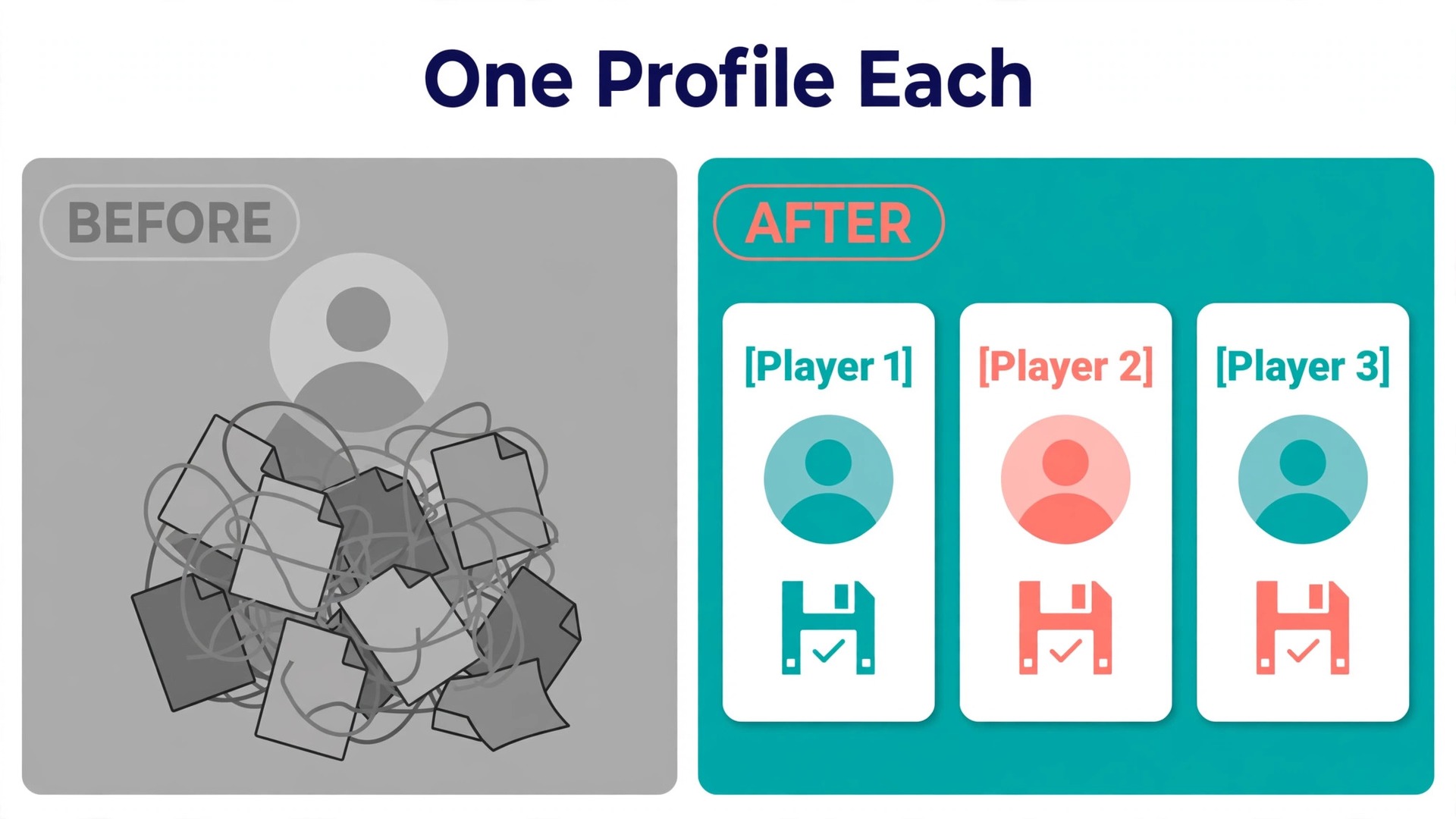
Start on the console. Go to System Settings, then Users, then Add User, and create one user for each child. Let each child pick an icon and a nickname they like, because a profile that feels like theirs is one they will actually use instead of borrowing a sibling profile. Keep nicknames free of full names, school names and other personal details, especially if the child will ever play online. A nickname is a small thing, but it is also the name strangers may see.
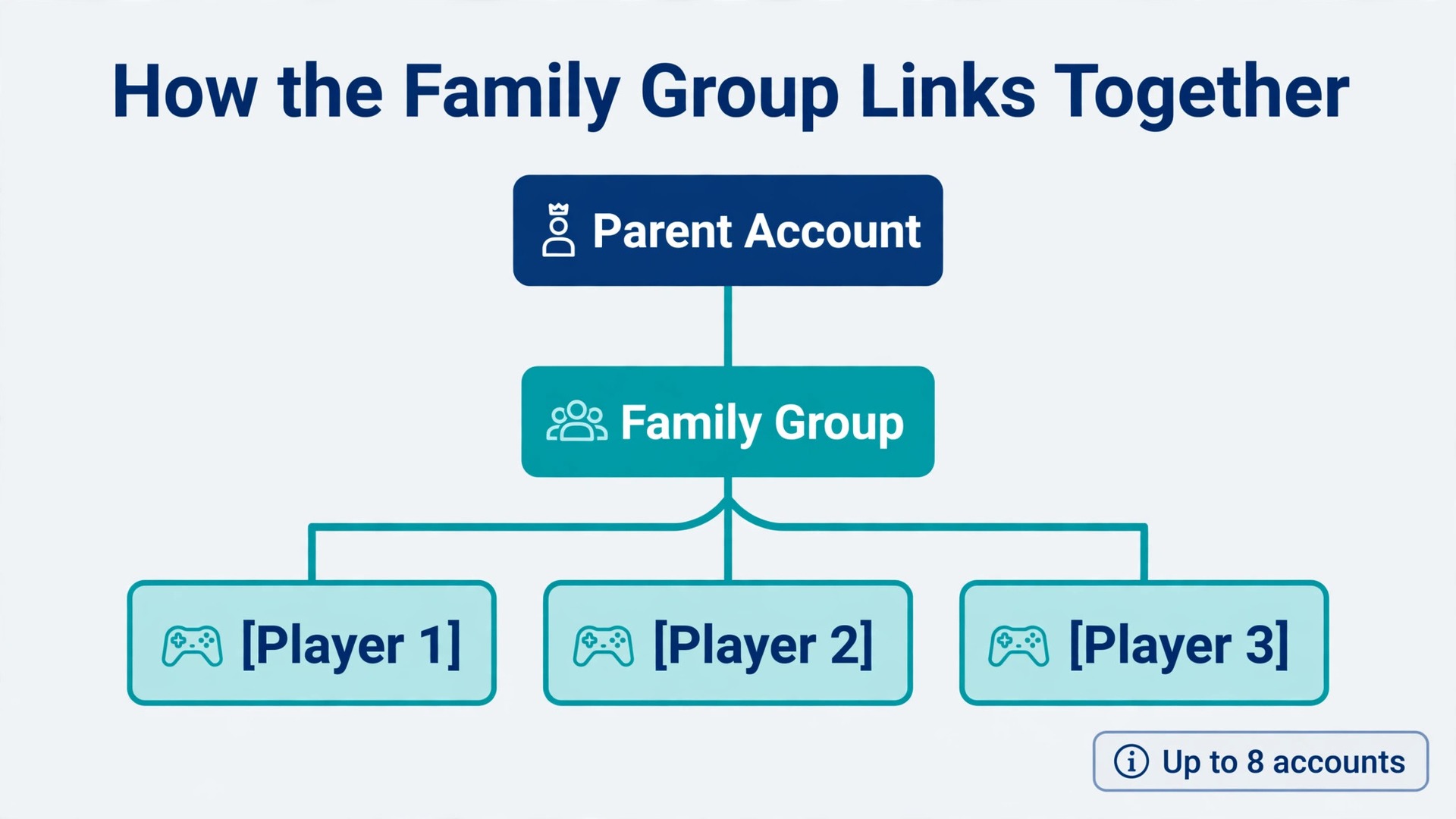
Next, build the family group from the parent Nintendo Account. Sign in at accounts.nintendo.com, open Family Group, and create the group if you do not already have one. From there you can add an existing Nintendo Account or create an account for a child. A supervised child account lets the parent manage spending restrictions and age based purchase restrictions from the family group settings. Nintendo allows a family group to cover up to eight Nintendo Accounts, which is generous for most households and also covers grandparents or a second parent who want to join the same online membership later.
Link each child profile on the console to the matching child Nintendo Account. On the console, select the child user, choose Link Nintendo Account, and follow the sign in steps, using the QR code option if it is offered, because it is faster and less error prone than typing a password on a controller. Repeat the link step for each child, one at a time, and check after each link that the right profile matched the right account. A swapped link is a common family setup error, and it is much easier to fix now than after a month of save data has built up on the wrong profile.
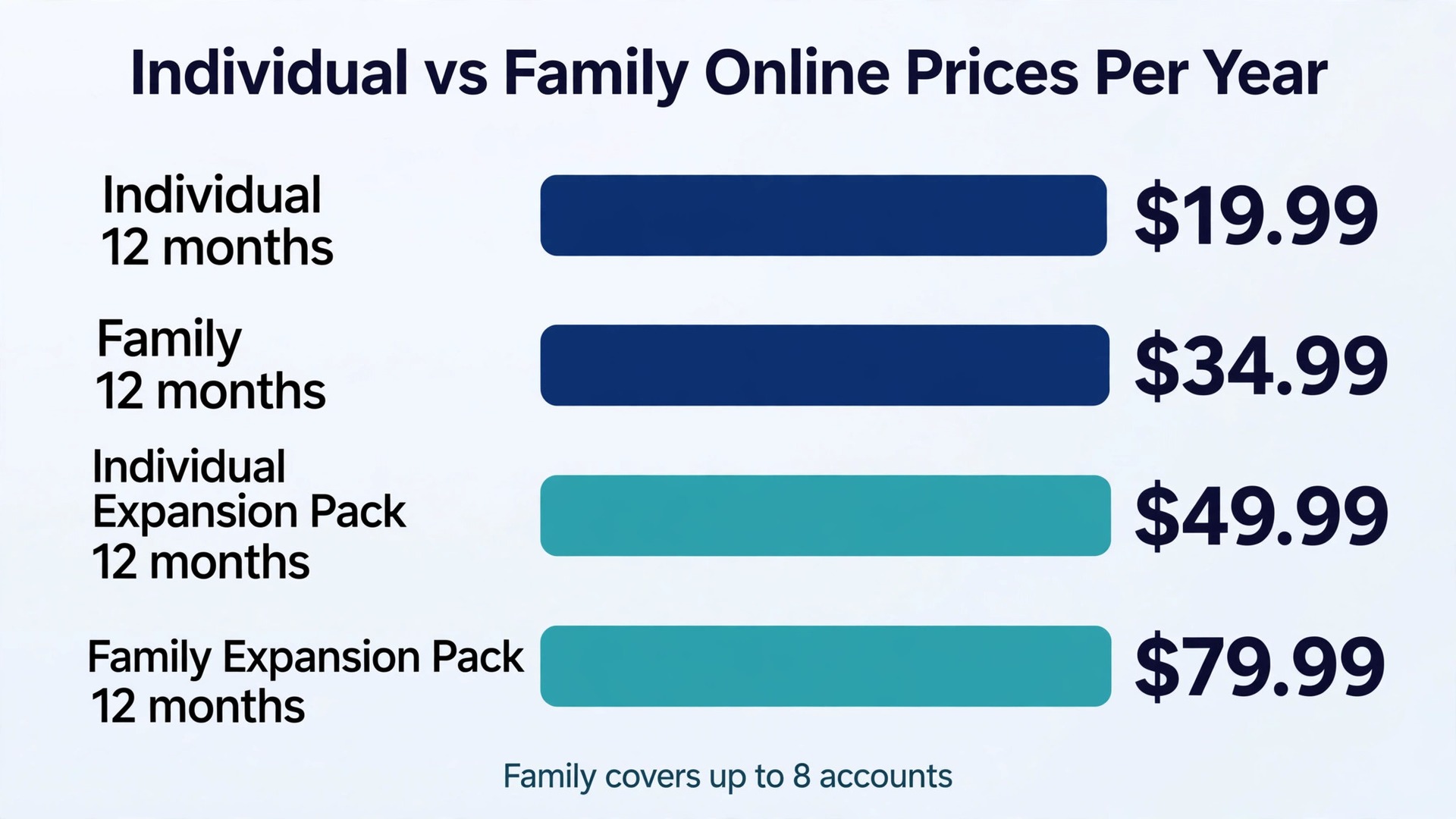
If you plan to buy Nintendo Switch Online, buy the family membership rather than several individual memberships. At United States list prices checked at draft time, an individual membership costs 19.99 dollars for 12 months, while a family membership costs 34.99 dollars for 12 months and covers up to eight Nintendo Accounts in the same family group. The Expansion Pack tier, which adds retro catalogues and selected downloadable content, costs 49.99 dollars for an individual membership and 79.99 dollars for a family membership for 12 months. Family memberships are sold as 12 month plans.
Parental Controls That Fit the Youngest Player
To set up Nintendo Switch family gaming safely, note that parental controls on the Switch come in three places, and each place controls different things. Console settings control age ratings, communication and posting. The free Nintendo Switch Parental Controls app adds playtime limits, play activity reports and the ability to allow specific games. Nintendo Account family group settings control eShop purchases, age based purchase visibility, friend suggestions and information sharing with third parties. A complete family setup uses all three, because using only one leaves gaps that children find quickly.
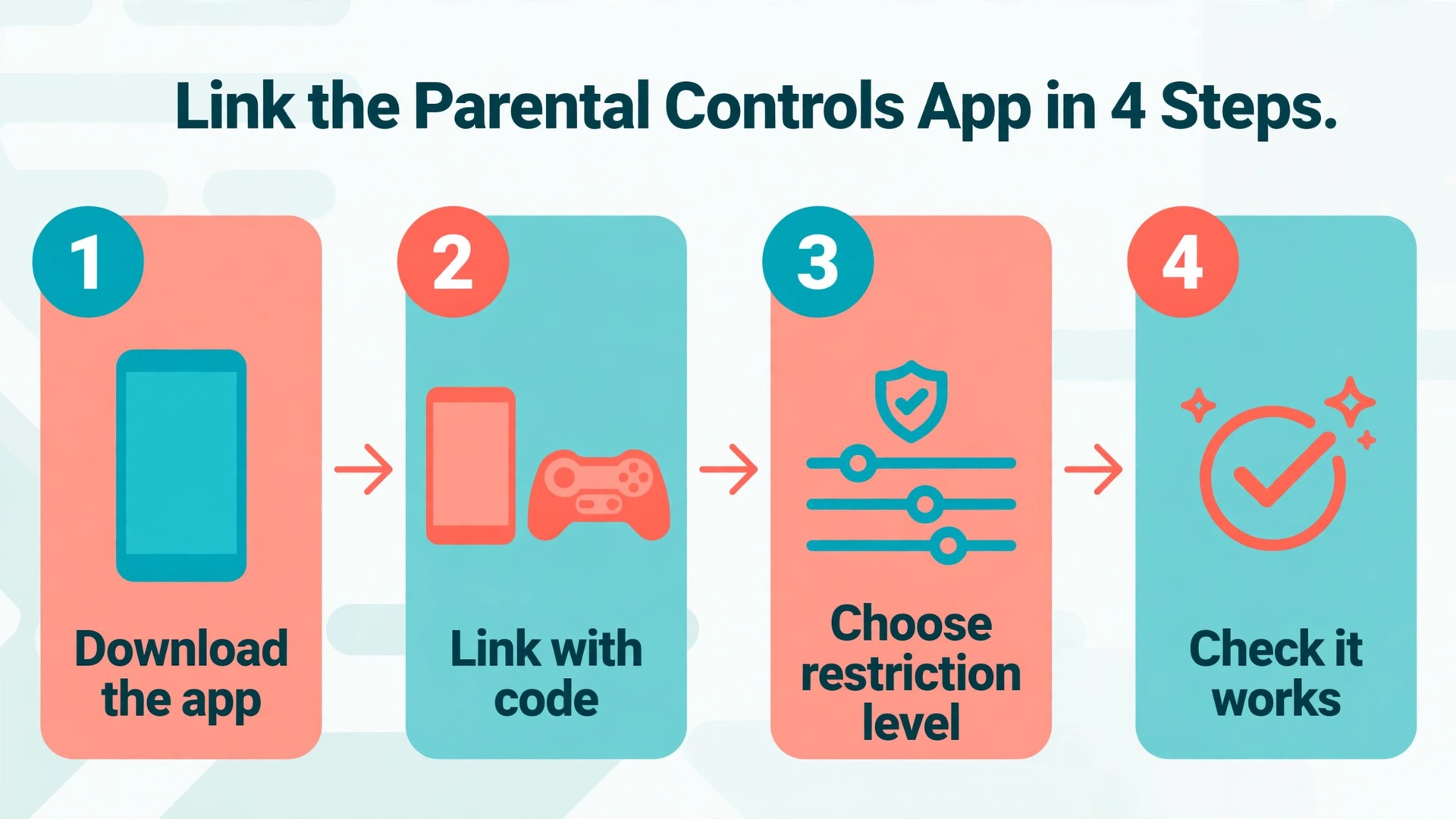
Start with the app, because it gives you the most options. Open the Nintendo Switch Parental Controls app on the parent phone, sign in with the parent Nintendo Account, and link the console by entering the code shown in the app on the console, or by scanning the QR code shown on the console screen. On the console, the path is System Settings, then Parental Controls, then Parental Controls Settings. Follow the prompts until the app and the console confirm they are linked. If you do not have a smartphone, you can still set basic controls directly on the console, but you will not get playtime limits or activity reports, which are two of the most useful family features.
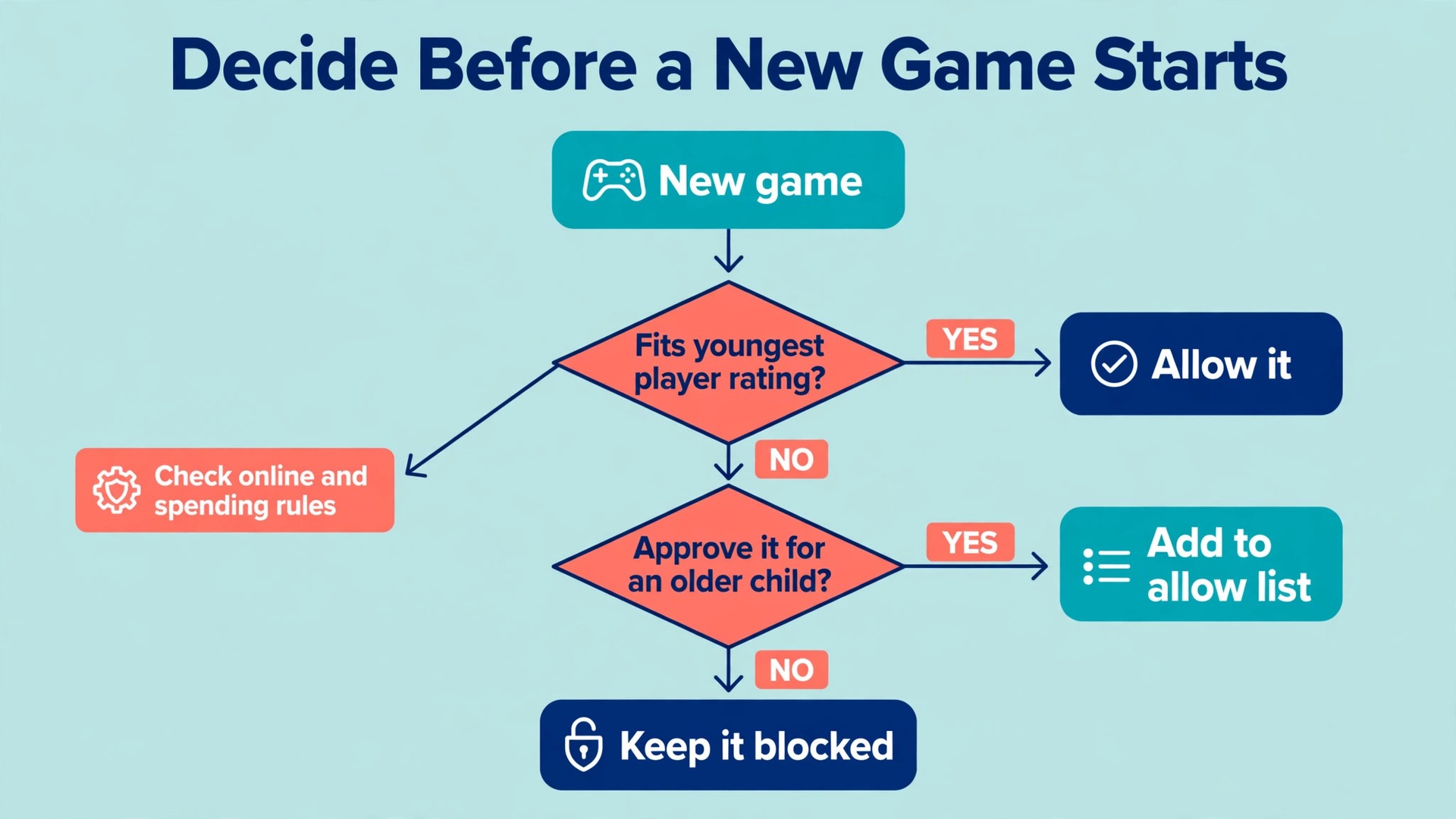
Choose a restriction level, then customise it. Nintendo offers preset levels by age band, including Child, Pre-Teen and Teen presets, and a Custom Settings option that lets you adjust each restriction separately. The presets change several settings at once, including which age rated software can launch, whether free communication with other players is allowed, whether screenshots can be posted to social networks, and whether VR mode is available. Start with the preset for your youngest player, then use Custom Settings to allow a specific game for an older child through the allow list in the app, rather than loosening the whole console for everyone.
Playtime Limits and Bedtime Rules Children Can Live With
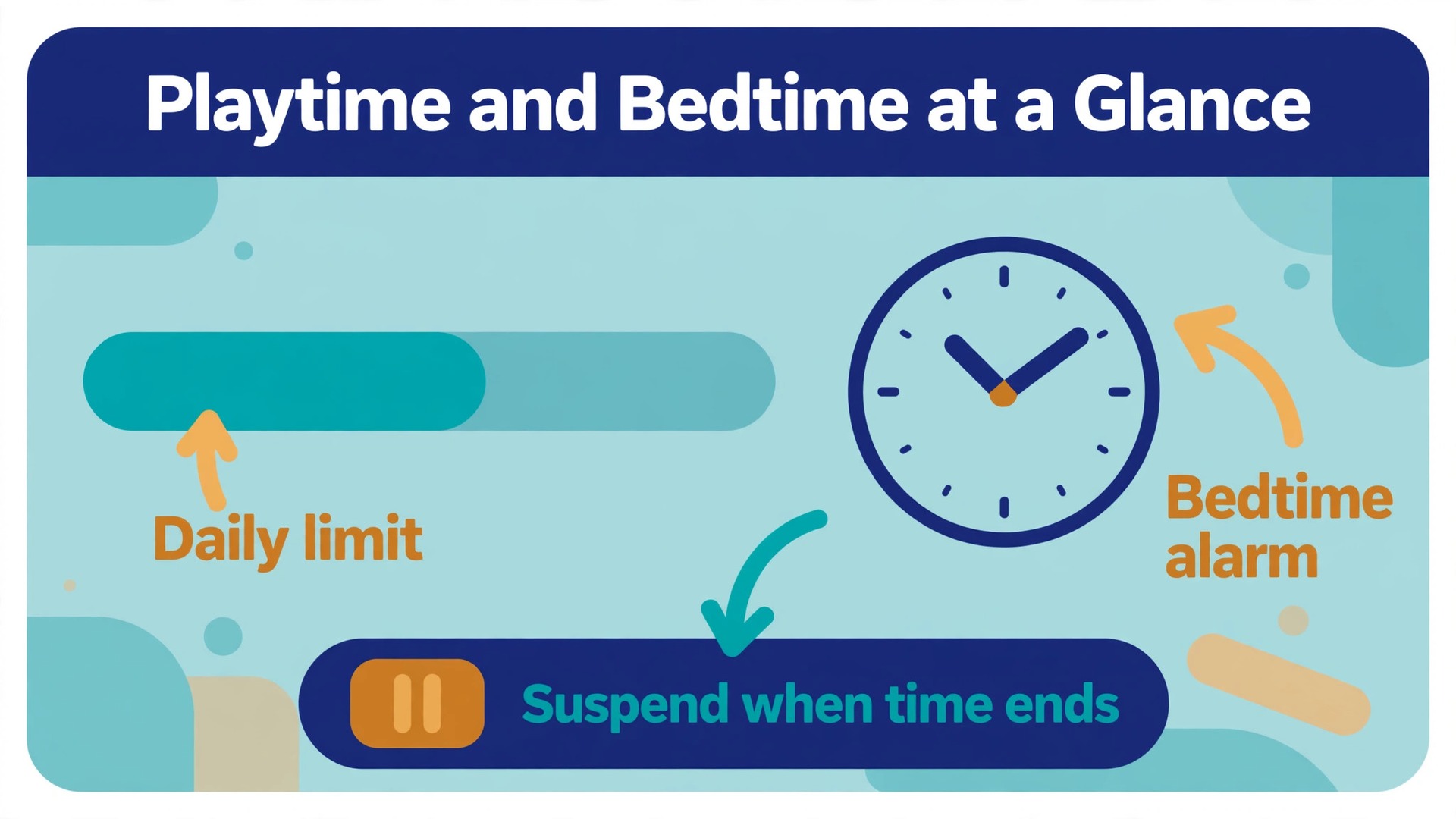
When you set up Nintendo Switch family gaming for more than one child, playtime is where most household arguments start. The Parental Controls app lets you set a daily playtime limit in 15 minute steps, up to six hours per day, and it lets you set a bedtime after which play stops. You can also set different limits for different days of the week, so a school night and a Saturday do not have to follow the same rule. Choose limits with children present if they are old enough to understand the conversation, because a limit they helped choose is far easier to enforce than a limit imposed without warning.
Decide what happens when time runs out. The app offers two broad approaches. One approach shows a warning and suspends play when the limit is reached. The other approach warns but lets play continue, which is useful for a trial week while a family learns how long games actually take. For most families, the suspend option is the right long term choice, because a warning that never ends is not a limit at all. The console warns players before time expires, so children get a chance to save progress and finish a race or a level rather than being cut off mid game without warning.
Use the bedtime alarm as well as the daily limit, because they solve different problems. A daily limit controls total time. A bedtime alarm controls when play stops, even if time remains. If the daily limit and the bedtime are both set, the console uses whichever limit comes first. That matters on a Saturday when a child might still have two hours left at 9 pm but still needs to stop for sleep. Set the bedtime alarm for the time play should end, not for the time children should be asleep, and leave a gap between the two so there is time to wind down.
Online Safety, Friends, Voice Chat and Spending
When you set up Nintendo Switch family gaming, online play is the part parents most often leave until after a problem happens, and it is the part that most needs a decision before children go online. Start by deciding whether each child plays online at all. Younger children can enjoy a huge Switch library entirely offline, including local multiplayer with siblings in the same room, without ever joining an online match with strangers. Older children may want online play with real life friends, which is a different risk from open online play with strangers, and the settings should reflect that difference.
In the Parental Controls app, set free communication with other players to restricted for younger children. This blocks open chat features that let players exchange messages freely. For older children who play with known friends, you can allow communication for specific approved games while keeping it restricted elsewhere, and you should still talk about what to do if a stranger tries to start a conversation. The rule to teach is simple and repeatable. Play with people you know in real life. Do not accept friend requests from strangers. Tell a parent if anyone asks for personal details, photos or a move to another app.
Control spending through the Nintendo Account, not through hope. In the family group settings, turn on spending restrictions for supervised child accounts, so children cannot make purchases in the eShop without parent involvement. Turn on age based purchase restrictions as well, so children only see eShop content suitable for their age. Remove any stored payment method from the console if younger children use it, and require a password for purchases even when a card is present. Free games deserve special attention, because a free download can still contain paid items inside the game. Check each free game for in game purchases before you allow it, and explain to children that free does not mean free forever.
Game Picks by Age. What to Buy First
When you set up Nintendo Switch family gaming, a family game library should grow slowly, with a few games everyone can play together before you buy games for individual children. Start with local multiplayer games, because they use the shared console well and they let parents play alongside children. Mario Kart 8 Deluxe is the classic first buy for a reason. It supports up to four players on one console, it has driving assists that let a young child stay competitive, and it rarely produces the kind of frustration that ends a game night early. Super Mario Bros. Wonder is another strong early buy, with cooperative platforming that lets players help each other rather than compete directly.
For children aged around five to seven, look for games rated E for Everyone, with simple controls, no open chat and no pressure to play online. Good first picks include Mario Kart 8 Deluxe, Super Mario Bros. Wonder, Animal Crossing. New Horizons, Super Mario Party Jamboree and Yoshi Crafted World. Animal Crossing deserves a note for families, because it runs on a real time clock and each player gets their own house on a shared island, which makes it a good lesson in sharing a space. Yoshi and similar gentle platformers are forgiving when a child misses a jump, which matters more than graphics for a young player.
For children aged around eight to twelve, the library can expand to games rated E for Everyone and E10+ for Everyone 10 and older, provided parents check the specific content first. Useful picks include Minecraft, Pokemon Scarlet and Violet, Splatoon 3, Luigi Mansion 3 and Mario Party Jamboree. Minecraft is the most flexible buy in this age band, because children can build creatively offline, play together locally, or join a supervised server later, but parents should check multiplayer settings separately, because the base rating does not cover everything that can happen on a public server.
Splatoon 3 is a team shooter without realistic violence, but it is an online game first, so it belongs in this band only when online rules are already in place.
For teenagers, the range widens to Teen rated games, but approval should still be game by game. The Legend of Zelda. Tears of the Kingdom is rated E10+ and suits many younger teenagers, with a huge open world, puzzles and combat that is fantastical rather than realistic. Pokemon Legends. Z-A and similar role playing games suit teenagers who enjoy long single player stories. Fortnite is rated T for Teen and is free to download, but it includes in game purchases and voice chat, so it should only be approved after parents have checked spending settings and communication settings for that game specifically.
Use the table below as a shopping shortlist, not as a rulebook. Ratings shown are United States ESRB ratings checked at draft time. Other regions use PEGI or local systems, so check the rating shown on the box or eShop page in your region before you buy. Prices change with sales, so check the eShop price at purchase time rather than relying on a price quoted in any guide, including this one.
| Game | ESRB rating | Best age band | Why it works for families |
|---|---|---|---|
| Mario Kart 8 Deluxe | E | 5 and up | Four player local racing with assists for young drivers |
| Super Mario Bros. Wonder | E | 5 and up | Cooperative platforming with forgiving multiplayer |
| Animal Crossing. New Horizons | E | 6 and up | Shared island, own house per player, gentle daily play |
| Super Mario Party Jamboree | E | 6 and up | Board game style party play for the whole family |
| Minecraft | E10+ | 8 and up | Creative building, local play, supervised online later |
| Splatoon 3 | E10+ | 9 and up | Team play without realistic violence, needs online rules |
| The Legend of Zelda. Tears of the Kingdom | E10+ | 10 and up | Large single player adventure with puzzles and exploration |
| Pokemon Scarlet and Violet | E | 8 and up | Collecting and story play, easy to share progress talk |
| Fortnite | T | 13 and up, with checks | Free download, but check spending and voice chat first |
The Profile and Control Checklist
Use this checklist on setup day, and run through it again whenever a child gets a new game, a new console joins the house, or a birthday changes the age band that applies. When you set up Nintendo Switch family gaming controls, a written checklist beats memory, because the settings live in three different places and it is easy to finish two of them and forget the third.
- Parent profile created first and linked to the parent Nintendo Account, with a password children do not know.
- One user profile per child on the console, with a nickname free of personal details.
- Family group created from the parent account, with each child added as a supervised account.
- Each child profile linked to the correct child Nintendo Account, checked one by one.
- Nintendo Switch Parental Controls app installed on a parent phone and linked to the console.
- Restriction level set for the youngest player, with Custom Settings adjusted where needed.
- Allow list reviewed, with approved games for older children added individually.
- Parental control PIN set, private, and stored where only parents can find it.
- Playtime limit set, bedtime alarm set, and the suspend on limit option chosen deliberately.
- Free communication with other players restricted for younger children, reviewed per game for older children.
- Posting screenshots and videos to social networks turned off for younger children.
- Spending restrictions turned on for supervised accounts, and age based purchase restrictions turned on.
- Stored payment method removed or password protected, with purchases requiring parent approval.
- Friend list reviewed, friend suggestions disabled for younger children where appropriate.
- Controls tested by trying a restricted game and an approved game before free play begins.
- Household rules written down, including daily limits, bedtime, family game night and extra time rules.
Troubleshooting Common Family Setup Problems
When you set up Nintendo Switch family gaming for the first time, most problems fall into a small set of patterns, and each has a straightforward fix. Work through them in order, and check the simplest cause first, because a surprising number of family setup problems are a wrong profile, a wrong account or a setting applied to the wrong place.
If a child cannot open a game that should be allowed, check the restriction level first, then the allow list. A game rated above the console restriction level will ask for the PIN unless it has been added to the allow list in the Parental Controls app. Add it there, save the change, and wait for the console to sync over the internet before testing again. If the game still asks for the PIN, check that you edited the settings for the right console, especially if the household has more than one Switch.
If playtime limits do not seem to work, check whether the console is connected to the internet and whether the Parental Controls app is still linked. Settings changed in the app update on the console the next time it connects to the internet, so a console played offline for a week may run on older settings. Also check whether the limit was set in the app or only on the console. Console only settings do not include playtime limits in the same way, so a family that skipped the app will find that limit missing. Link the app, set the limit there, and test it with a short limit for one day before returning to the normal rule.
For families balancing school and screen time, a related guide on AI tools for homeschool parents covers routines and learning apps that pair well with a clear playtime plan. It is worth reading alongside this setup guide if homework, reading and game time compete for the same afternoon hours. The same principle applies in both places. A schedule written down and agreed in advance causes fewer arguments than a rule invented in the moment.
Frequently Asked Questions
Does each child need their own Nintendo Account, or is a profile enough?
A profile alone is enough for offline play on one console, because each profile keeps its own save data. A supervised Nintendo Account is needed for online play, eShop access, friend lists and family group controls. For most families, the practical answer is to give each child a profile immediately and a supervised account as soon as they play online or need to buy anything. That way save data stays separate from day one, and online features can be switched on later without rebuilding profiles.
Can parental controls be different for each child on one console?
No, not in the way most parents expect. Parental controls on the Switch apply to the console, not to each user profile, so the restriction level must suit the youngest player. The workaround is the allow list in the Parental Controls app, which lets parents approve specific games for older children while keeping the general restriction strict. Playtime limits also apply at console level through the app. Families with a large age gap who need truly separate controls should consider a second console for the older child, rather than fighting one set of console wide rules.
What is the cheapest Nintendo Switch Online option for a family?
For a family, the family membership is almost always cheaper than buying individual memberships. At United States list prices checked at draft time, a standard family membership costs 34.99 dollars for 12 months and covers up to eight Nintendo Accounts in the same family group. An individual membership costs 19.99 dollars for 12 months for one account, so two individual memberships already cost more than one family membership. The Expansion Pack family membership costs 79.99 dollars for 12 months, and it is worth it only if the family will use the retro catalogues or included content.
How do I stop my child buying games without asking?
Turn on spending restrictions for the supervised child account in the family group settings, turn on age based purchase restrictions, remove any stored payment method from the console, and require a password for purchases. Check the settings after any account change, because a new profile or a new console can reset assumptions about who can pay. Also check free games for in game purchases before allowing them, since a free download does not mean a game has no paid items inside it.
What happens when the playtime limit runs out mid game?
The console warns the player before time expires, then suspends play if the suspend option is chosen. Suspended play stops the game, but save data is not deleted, and the child can continue the next day or after a parent grants extra time through the app. Teach children to save often and to finish a level or race when the warning appears, rather than starting a new long mission with five minutes left. Parents can grant a short extension remotely for a genuine reason, such as finishing a game with a friend, without changing the daily rule permanently.
A shared room is the better default for younger children, because it makes supervision natural and it encourages multiplayer play together. A bedroom console is harder to supervise, harder to enforce bedtime on, and more likely to become a private device rather than a family one. Older teenagers may reasonably have a console in their room after they have shown they can follow limits and online rules, but that move should be a deliberate step with the same controls and the same family group in place, not a quiet relocation that drops the rules.
One Console, Clear Rules, More Play Together
A family Switch setup is finished not when the console turns on, but when any parent in the house can answer four questions without checking a menu. Who plays on which profile. What games are allowed for whom. How much time is allowed and when it stops. What happens if someone wants more time or a new game. If those answers are clear, the console stops being a source of daily negotiation and starts being what it should be, a shared toy that brings people into the same room.
Start with the checklist in this guide, test the controls with your youngest child, and play the first game together. When you set up Nintendo Switch family gaming this way, the rules do the boring work in the background, and the family gets the fun part. Adjust the limits as children grow, review the allow list when a new game arrives, and keep the conversation open, because a setup that grows with the family lasts far longer than a setup that is frozen on day one.