
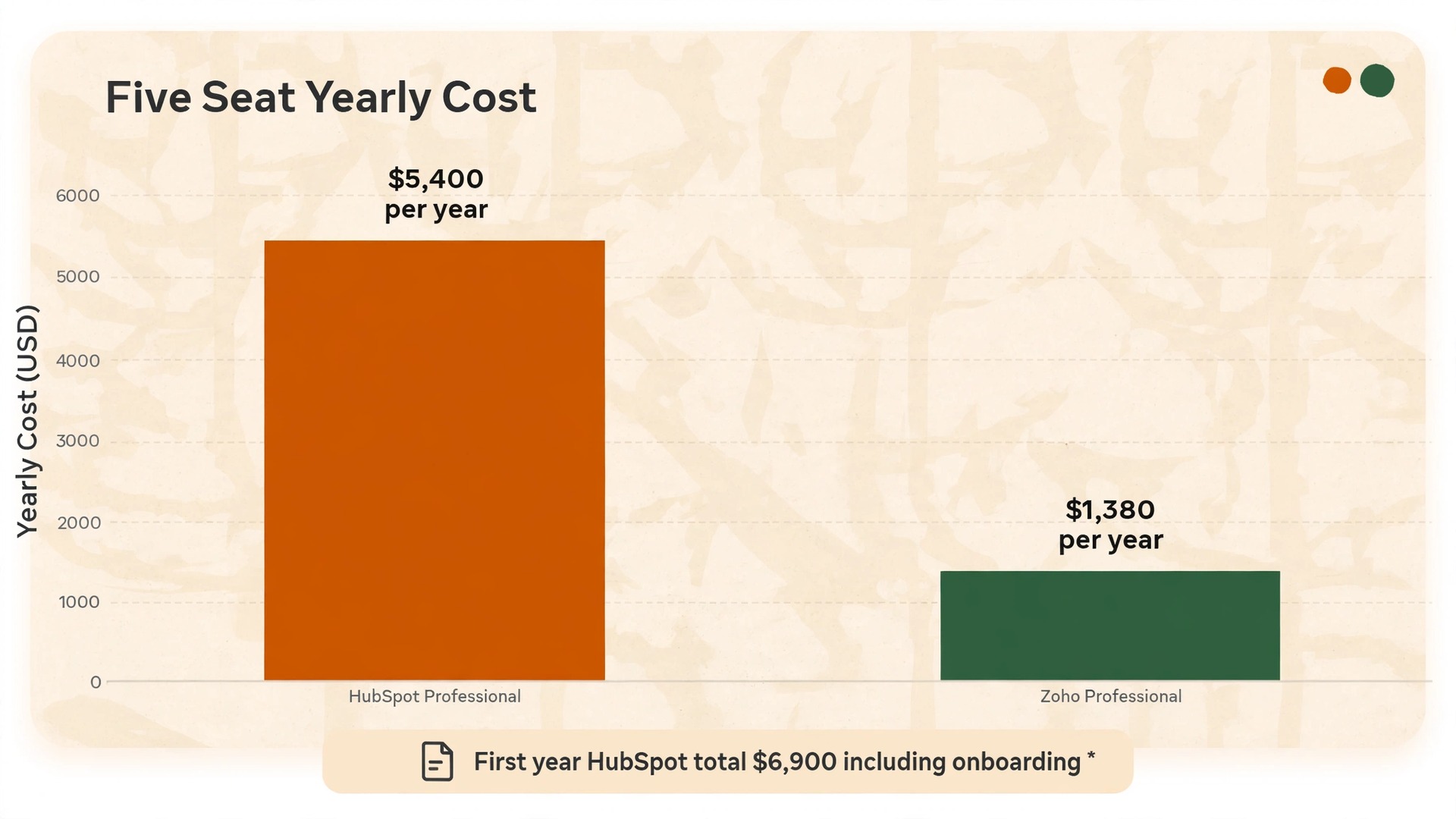
A five person sales team on HubSpot Sales Hub Professional pays about $450 a month on annual billing, plus a one time onboarding fee of $1,500. The same five seats on Zoho CRM Professional cost about $115 a month, with no mandatory onboarding fee. That gap, roughly $4,000 in the first year alone, is why so many small businesses decide to switch HubSpot to Zoho CRM. The catch is that the saving only holds if the move itself goes cleanly, and a rushed migration can cost more in lost deals and confused reps than a year of seat fees.
This guide walks through the move the way it actually happens for a small team, covering what exports cleanly, what has to be rebuilt by hand, where field mapping usually breaks, how to set up users and permissions in Zoho, and a phased cutover plan that keeps the team selling while the systems change underneath them. Prices reflect widely listed October 2026 figures, so confirm the checkout total before you buy.
Why Small Teams Leave HubSpot for Zoho
Cost is the reason most small teams start the conversation, but it is rarely the only reason they finish it. HubSpot pricing has a cliff in it. Starter seats run from about $7 a month on annual billing, but Professional jumps to about $90 a seat a month, and that jump is where sequences, forecasting, and deeper automation live. A team that starts free or on Starter often finds that the features it actually needs sit one very expensive rung up. Zoho pricing, by contrast, climbs in small steps.
Standard is $14 a user a month on annual billing, Professional is $23, and Enterprise is $40, so a team can buy the automation it needs without paying for an enterprise tier it does not.
The seat model matters too. HubSpot free accounts cap at two users, and every person who edits records or uses sales features needs a paid seat, although view only seats are free. Zoho free accounts allow up to three users, and its paid tiers include a cheaper team user license for staff who only view records and add notes, which trims the real bill where the owner, bookkeeper, and support rep peek into the CRM without owning deals.
There are honest reasons to stay as well. If your marketing runs on HubSpot, with landing pages, email campaigns, and lead scoring wired together, moving only the CRM splits that stack and creates integration work. A move pays when the CRM is mainly a sales tool, not the hub of your whole marketing operation, so price the whole replacement, not just the CRM seats, before you decide.
What Changes When You Switch HubSpot to Zoho CRM
The first surprise when you switch HubSpot to Zoho CRM is how much of the data moves easily and how little of the logic moves at all. Records move. Rules do not. Contacts, companies, deals, notes, calls, meetings, tasks, products, and attachments all have a path into Zoho, either through the built in migration tool or CSV export and import. What does not move is everything that made those records behave a certain way. Workflows, sequences, lead scoring rules, custom reports, dashboards, and email templates are logic and design, not data, and each one has to be rebuilt in Zoho terms.
The vocabulary changes too. HubSpot companies become Zoho accounts, sequences become cadences, workflows become workflow rules, and stricter step by step processes become Zoho Blueprint. A rep who searches for a company the HubSpot way will swear the data is missing when it is simply filed under a different name.
One more change catches teams off guard. HubSpot hides setup behind friendly defaults, while Zoho exposes far more configuration and expects an admin to make decisions on picklists, page layouts, validation rules, and sharing settings. That flexibility is what makes Zoho cheaper and more adaptable, but the first week in Zoho feels like more work than the last week in HubSpot, so budget admin time accordingly and do not judge the new system on day two.

Before You Export Anything, Audit Your HubSpot Portal
A migration fails when the team discovers halfway through that something important lived only in HubSpot. Before you switch HubSpot to Zoho CRM, spend one focused session on an inventory, and write it down in a single document the whole team can see. List every pipeline, workflow, sequence, custom property, form, report, and integration that touches HubSpot, including your website, inbox, calendar, and quoting or payment tool.
For each workflow and sequence, record its trigger, steps, delays, and goal in plain language. A lead nurture sequence is not one item, but a trigger, a first email at sign up, a follow up after two days, a task for the rep after five days, and a branch for people who booked a meeting in between. That level of detail is what lets you rebuild the automation in Zoho instead of guessing at it later. Screenshot the workflow diagrams too, since you lose access when the subscription ends.
Next, audit the data itself, starting with a sample export of each object. First name, last name, email, phone, company, deal amount, close date, and lead source are worth mapping. A custom property created for one 2023 campaign probably is not. Check for duplicates, since the same person often exists twice after years of imports, and a duplicate that imports as two contacts will confuse reps. Decide which record is the source of truth and merge before you import, not after.
Finally, record your baseline numbers. Note open pipeline value, average deal size, win rate, and average days to close for the last 90 days, and save the baseline with the inventory. Keep a copy of every export outside both platforms, so if a number looks wrong after the move you can prove whether the migration or the pipeline changed.
The Contact, Company and Deal Mapping Table
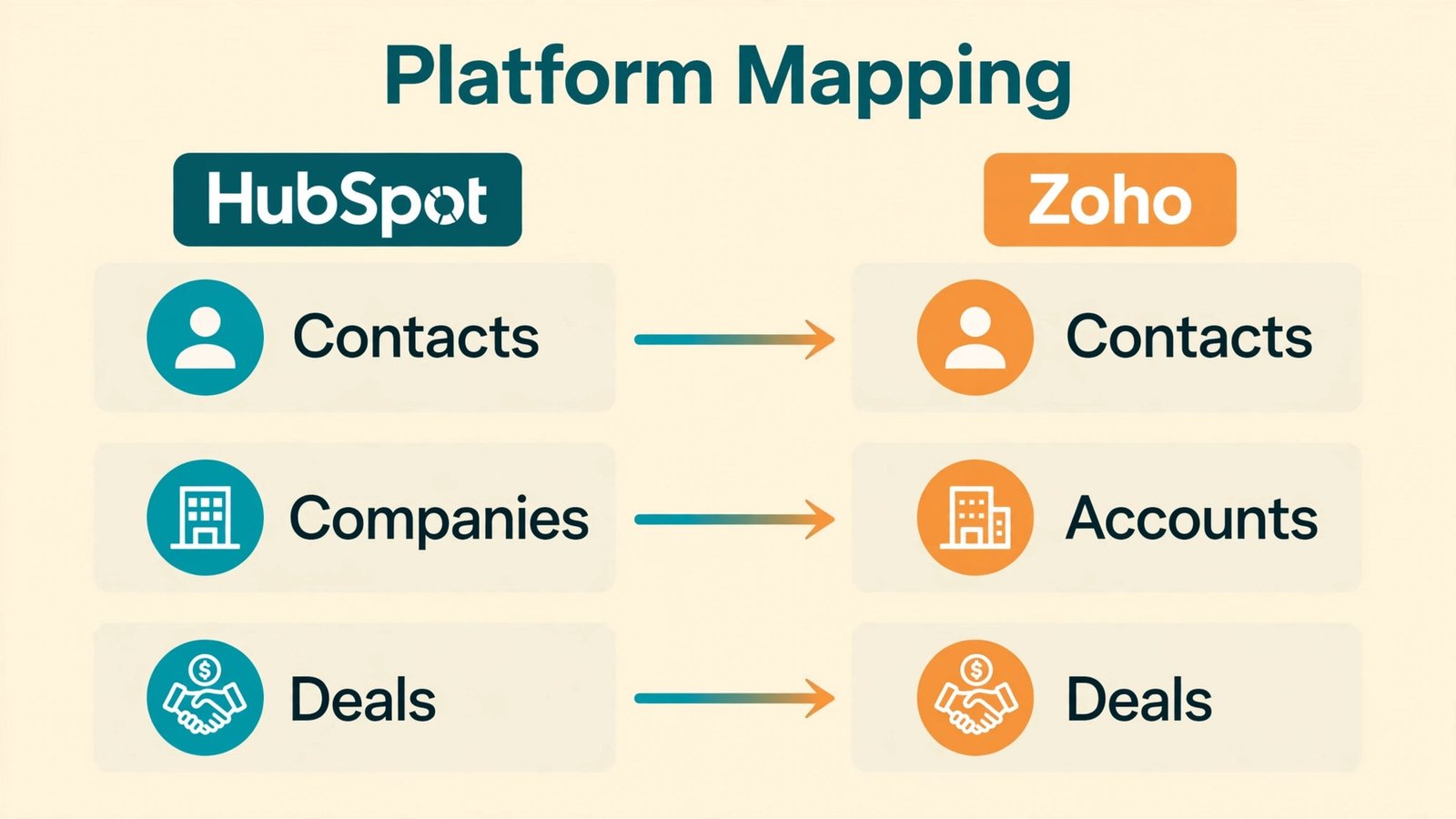
Mapping before you move stops you from recreating HubSpot structure inside Zoho, which would cost more and work worse. Use this table as your working document, add a row for every custom property your team actually uses, and decide now what to do with any field that has no Zoho equivalent, since that decision is much harder after the import.
| HubSpot item | Zoho CRM equivalent | What to do during the move |
|---|---|---|
| Contact | Contact | Import with email as the matching key, and keep the HubSpot record ID in a custom field |
| Company | Account | Import after contacts, then link by account name or domain |
| Deal | Deal | Map each HubSpot pipeline to a Zoho pipeline, and match stage names first |
| Deal pipeline | Pipeline with stages | Recreate stages in Zoho first, with probability values per stage |
| Contact owner | Record owner | Match HubSpot users to Zoho users by name first, or ownership lands on the admin |
| Lifecycle stage | Lead Status or a custom picklist | Map subscriber, lead, marketing qualified, sales qualified, opportunity, customer to Zoho values |
| Lead source | Lead Source picklist | Align the value lists first, or sources fragment into near duplicates |
| Notes and calls | Notes and activities under the record | Import with timestamps preserved, and check a sample record end to end |
| Tags | Tags | Keep ten or fewer tags per record, since Zoho migration caps tags at ten |
| Products and line items | Products linked to deals | Import the product catalog first, then attach line items to deals |
| Tickets | Cases in Zoho Desk, not Zoho CRM | Decide whether support history moves to Zoho Desk or stays as backup |
| Custom properties | Custom fields | Create every custom field in Zoho before import, with matching field types |
One row deserves extra attention, and that is ownership. Imports run before user accounts exist assign everything to whoever ran the import, so create the Zoho users first, map each HubSpot owner to a Zoho user by name, and only then run the import. The same applies to pipelines. Deals import into whatever stages exist, so a misspelled stage name sends deals to the wrong stage or fails the import, and both outcomes look like data loss.
Field Mapping Pitfalls That Break Imports
Most failed imports are quiet. A few hundred records import with the wrong stage, a picklist value silently becomes blank, or a date lands in the wrong format, and nobody notices until a rep opens a deal mid call. Check these pitfalls on a trial batch of 50 records before the full import.
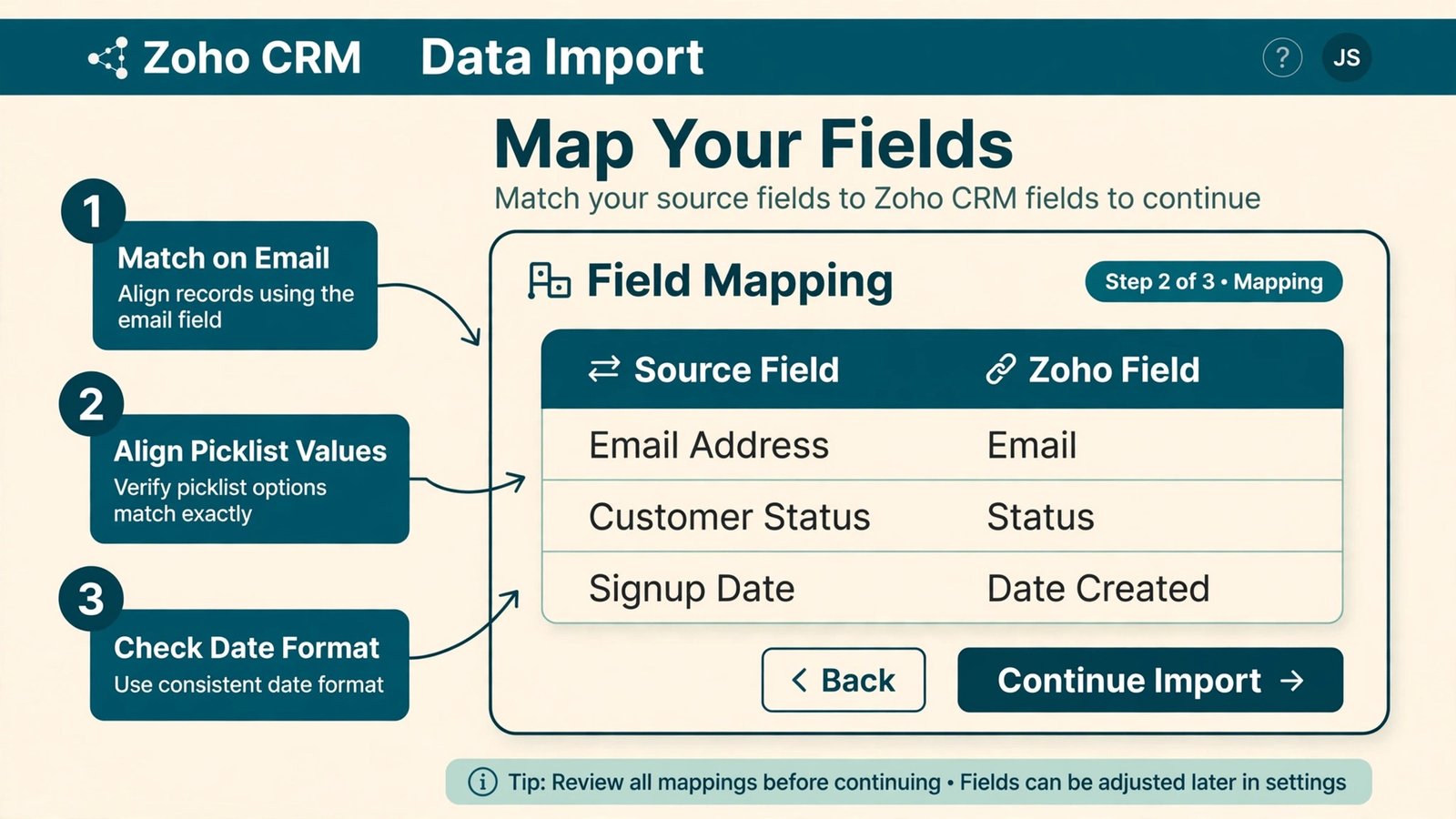
- Picklist mismatches. HubSpot lifecycle stages, lead statuses, and deal stages are picklists, and Zoho rejects or blanks values that do not match its own lists exactly. Align every picklist value in Zoho before import, including capitalisation, and watch for values like “Sales Qualified Lead” versus “SQL” that mean the same thing.
- Multi checkbox fields. A HubSpot contact with three interest checkboxes becomes three separate values, and Zoho multi select fields handle this only if the field type matches. Map a multi checkbox field to a single line text field and only the first value survives.
- Date formats. HubSpot exports dates in its own format, and Zoho expects a consistent format on import. A close date that imports as text instead of a date breaks forecasting and aging reports, so verify imported dates sort and filter as dates, not as text.
- Phone numbers. HubSpot accepts phone numbers in many formats, while Zoho import works best with a consistent format, so normalise phone numbers in the export file before import, and keep the country code where you sell internationally.
- Duplicates on email. Email is the natural matching key for contacts, but shared inboxes like info@ or sales@ appear on many records, so decide how shared addresses are handled before import, or one contact record will swallow several real people.
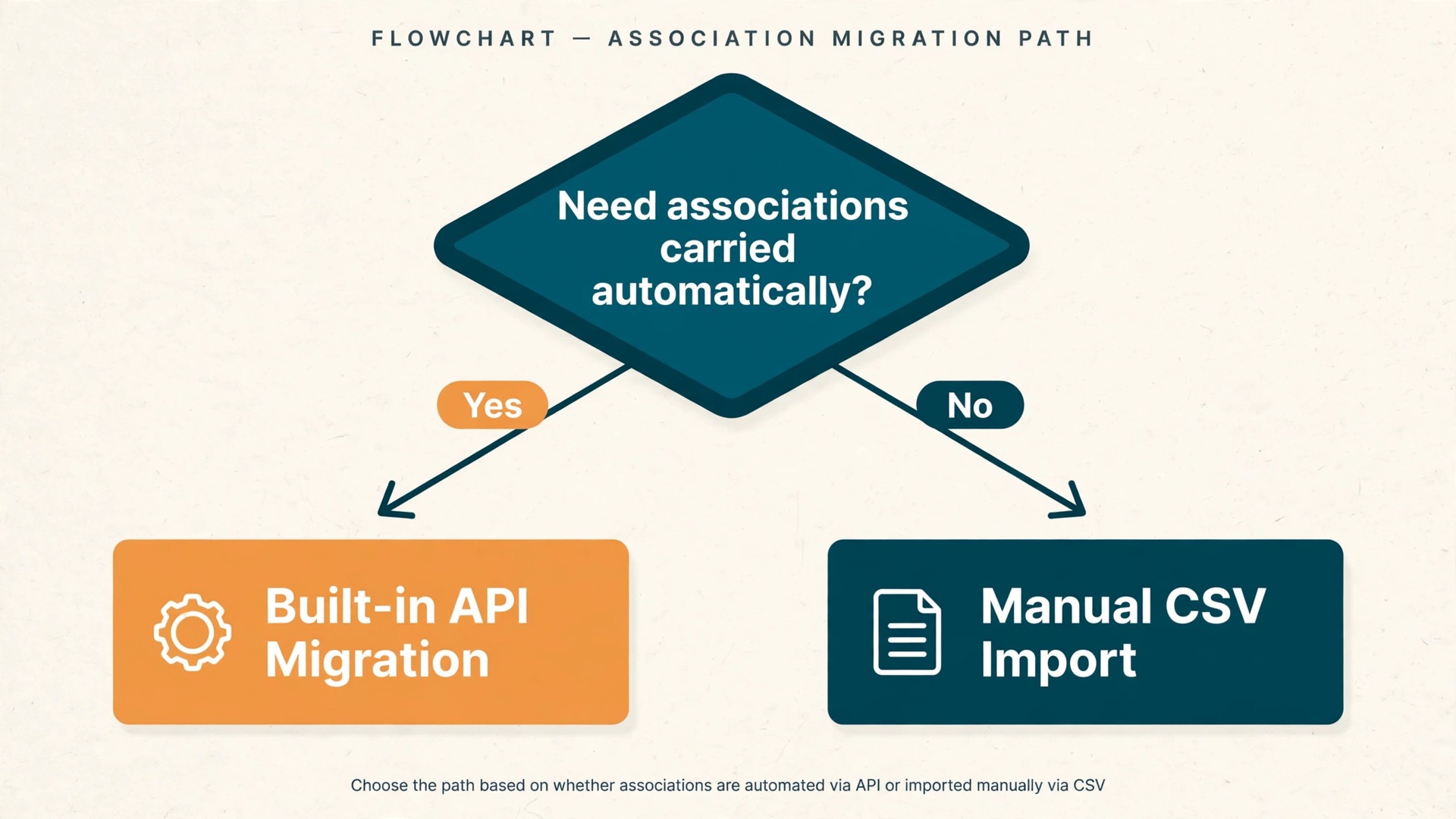
- Associations. A deal linked to two contacts and one company in HubSpot needs those links rebuilt in Zoho. The built in migration tool carries associations, but a CSV import does not carry them automatically, so if you go the CSV route, export the association columns and rebuild links after import.
- Required fields. Zoho lets admins mark fields mandatory on a layout, and an import that hits a mandatory field with blank data fails on those rows, so turn off non essential mandatory rules during the import week, then turn them back on.
- Tag limits. Zoho migration caps tags at ten per record, with each tag limited to 25 characters, so records with more tags lose the extras silently, and tag sprawl should be trimmed before you migrate.
Run the trial import, then open ten records at random and compare them field by field against HubSpot. Check one open deal, one closed won deal, one closed lost deal, one contact with many notes, and one company with several contacts. If those five pass, the full import usually passes.
Two Ways to Move the Data
Zoho offers a built in migration path from HubSpot, and it is the right choice for most small teams because it carries records plus their associations in one run. The second path is manual CSV export followed by CSV import into Zoho, which gives more control but demands more cleanup. Pick one path and commit to it, because mixing the two creates duplicates.
The built in path works through an API connection. In HubSpot, create a private app under Settings, then Account Setup, then Integrations, then Private Apps, with read scopes for contacts, companies, deals, owners, quotes, and line items. In Zoho, go to Setup, then Data Administration, then Import, choose HubSpot on the data migration page, enter the HubSpot instance URL and the API token, and click Migrate Now. Zoho runs the transfer in the background and emails you when it finishes, and you can undo or rerun the migration up to three times, which makes the trial run low risk. Note one guardrail.
Zoho pauses the migration if more than 5,000 records in a module are skipped, so a messy source portal can halt the run and force cleanup first.
The CSV path starts in HubSpot. Open each object in list view, click Export in the top right, choose CSV or Excel format, and select all properties rather than only the visible ones, so no custom field is left behind. HubSpot emails a download link for the export file, so save every file in a dated backup folder at once. In Zoho, use the import wizard module by module, map each column to a Zoho field, and import contacts first, then accounts, then deals, so links resolve in the right order.
CSV lets you clean data in a spreadsheet before it lands in Zoho, which is its real advantage, but associations and activity history need separate handling, so budget extra time for those.
Whichever path you choose when you switch HubSpot to Zoho CRM, do not cancel HubSpot until the new system has run for at least two full sales cycles. Keep both systems live during the overlap, sync unsubscribes and new leads in both directions if you can, and treat HubSpot as backup until Zoho has proven itself on real deals.
What Needs Rebuilding by Hand
This is the part that takes the most time when you switch HubSpot to Zoho CRM, and it is also the part teams underestimate most. Plan for it explicitly, and assign an owner to each rebuild, or the team will arrive in Zoho with clean data and no automation behind it.
- Workflows become Zoho workflow rules. HubSpot workflows with simple triggers, such as assigning a lead when its source is a form, rebuild quickly as workflow rules, while multi branch workflows with delays and goals need Zoho Blueprint or a combination of workflow rules and scheduled actions, so document each workflow logic before you rebuild it.
- Sequences become cadences. Zoho cadences handle the same job, a timed series of emails and tasks for a prospect, but enrollment rules and unsubscribe handling differ, so rebuild your two or three highest performing sequences first, test them on internal addresses, and retire the rest until the team has capacity.
- Lead scoring has to be redesigned. HubSpot lead scores do not transfer with meaning, because the scoring rules behind them stay in HubSpot. Decide what a qualified lead means in Zoho terms, rebuild the score from behaviours you can track in Zoho, and reset scores rather than importing stale ones.
- Reports and dashboards start over. HubSpot reports reference HubSpot fields and filters, so none of them import, but list the five reports the team actually opens each week, rebuild those first in Zoho, and check the numbers against HubSpot for the same period before you trust them.
- Forms and landing pages move to Zoho webforms or your website tool. Replace every HubSpot form on your site, test a live submission on each placement, and confirm the lead lands in Zoho with the right source and owner, since a form that submits into the void loses leads silently.
- Email templates get recreated. Convert HubSpot personalisation tokens to Zoho merge fields, check the unsubscribe link in every template, and never import a contact list into a sending tool without consent status mapped, since unsubscribed contacts in HubSpot must stay unsubscribed in Zoho or you risk spam complaints that damage your sending domain.
- Integrations get reconnected one by one. Your inbox, calendar, website chat, quoting tool, and accounting software each need a fresh connection in Zoho, so list every integration from your audit, reconnect them before cutover, and test each one with a real record, not just a successful connection message.
Rebuild only what the team used in the last 90 days, and put the rest on a backlog list, since migrations are a good moment to retire automation nobody remembers building.
Users, Roles and Permissions in Zoho
Zoho permissions work through three layers, and getting them right before go live prevents data leaks and daily friction. Profiles control what a user can see and do in each module, such as creating, editing, or deleting records. Roles control where a user sits in the hierarchy, which decides whose records they can see, and data sharing rules then fine tune access, for example letting support view deals without editing them.
For a small team, keep the structure simple, with one admin profile for the owner or operations lead, one standard sales profile for reps, and one view focused profile for staff who look up records but do not own deals. Build roles that mirror the real team, such as owner, sales manager, and sales rep, with reps under the manager so reporting rolls up naturally. Avoid a separate profile per person, since that becomes unmaintainable the moment someone changes jobs.
Assign record ownership during the import, not after it. Then check sharing with a test. Log in as a rep and confirm they can see their own deals, see team deals if that is your policy, and cannot delete records they should not. Also confirm a departing rep handover works, since Zoho lets an admin transfer ownership in bulk.
Zoho also offers cheaper team user licenses for staff who only need visibility, notes, and the mobile app, without record ownership or automation access. If your bookkeeper or support rep only checks deal status, a team user seat cuts cost without cutting visibility, so review the seat mix after the first month. For a closer look at how CRM choice changes with team size, see the best CRM for a 3 person sales team.
Cost Comparison for a Small Business
The table below compares a five seat team on the plans most small businesses buy, using widely listed October 2026 prices. Treat the numbers as a planning model, not a quote, and confirm the checkout total before you commit, since both vendors run promotions that change the first year figure.
| Item | HubSpot Sales Hub Professional | Zoho CRM Professional |
|---|---|---|
| Seat price, annual billing | About $90 per seat per month | About $23 per user per month |
| Five seats, monthly total | About $450 | About $115 |
| Five seats, yearly total | About $5,400 | About $1,380 |
| One time onboarding fee | $1,500, mandatory | None listed |
| First year total for five seats | About $6,900 | About $1,380 |
| Free tier limit | Two users | Three users |
| Cheaper view only seat option | Free view only seats | Paid team user seats for view and notes |
The gap is about $5,500 in year one for five seats, and it widens as the team grows, since every HubSpot hire adds about $90 a month while every Zoho hire adds about $23. Two costs sit outside the table, setup time, either your own admin hours or a consultant, since Zoho needs more configuration than HubSpot, and overlap, since you should run both systems for at least a month during cutover. Even with both added, most five person teams still come out well ahead in year one.
One caution applies to the Starter comparison. HubSpot Starter looks close to Zoho Standard on price, but Starter lacks the sequences, forecasting, and deeper automation Professional buyers want, so comparing Starter to Zoho Professional understates the real saving. Compare the tier with the features you actually use, not the cheapest tier on either pricing page. A broader comparison is covered in the best CRM software for small business.
The Phased Cutover Plan
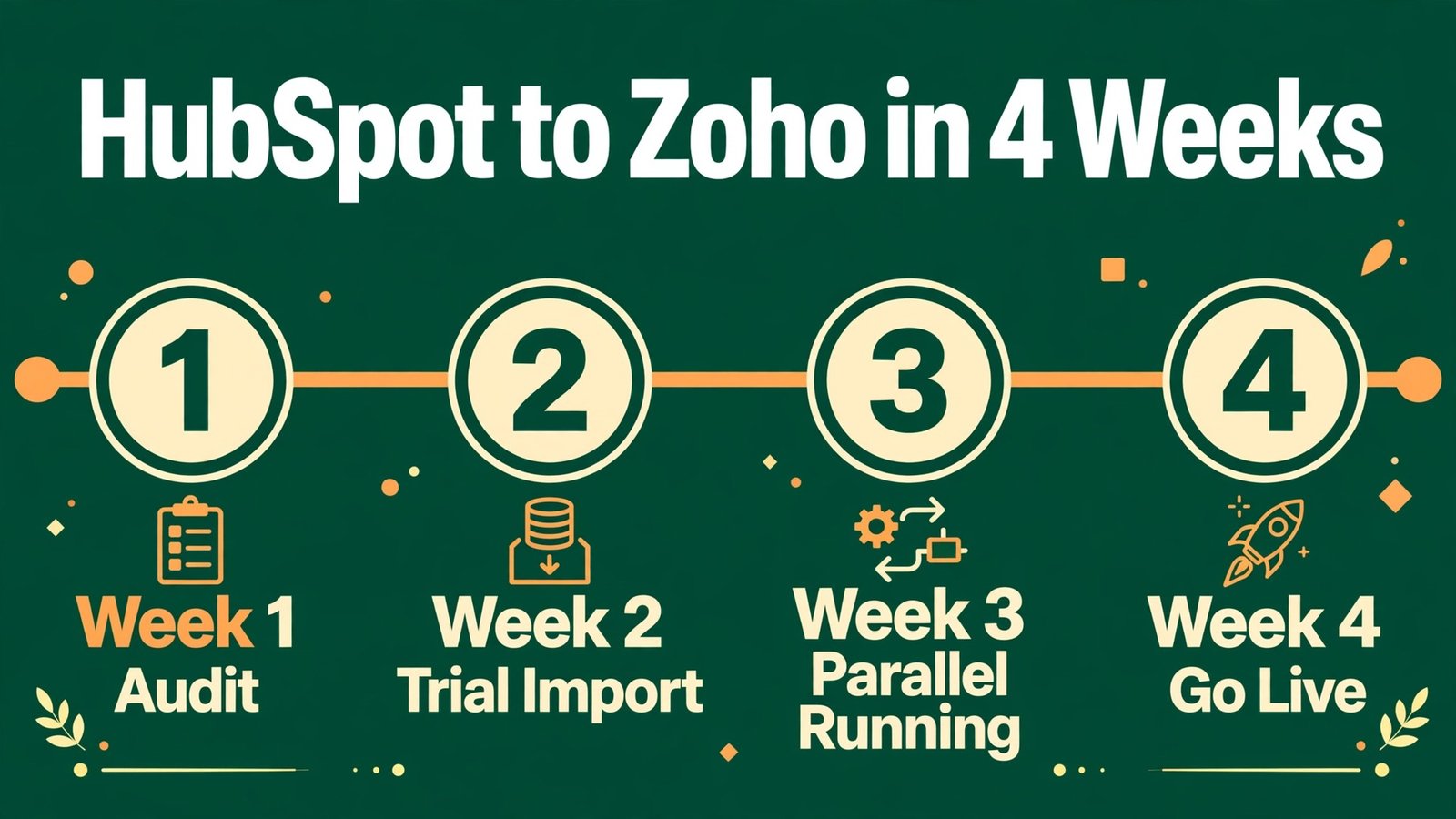
A phased cutover beats a big bang switch when you switch HubSpot to Zoho CRM, because selling never stops while you move. The plan below runs over four weeks, with a clear exit test per phase. Do not start the next phase until the current one passes its test, even if the calendar says otherwise.
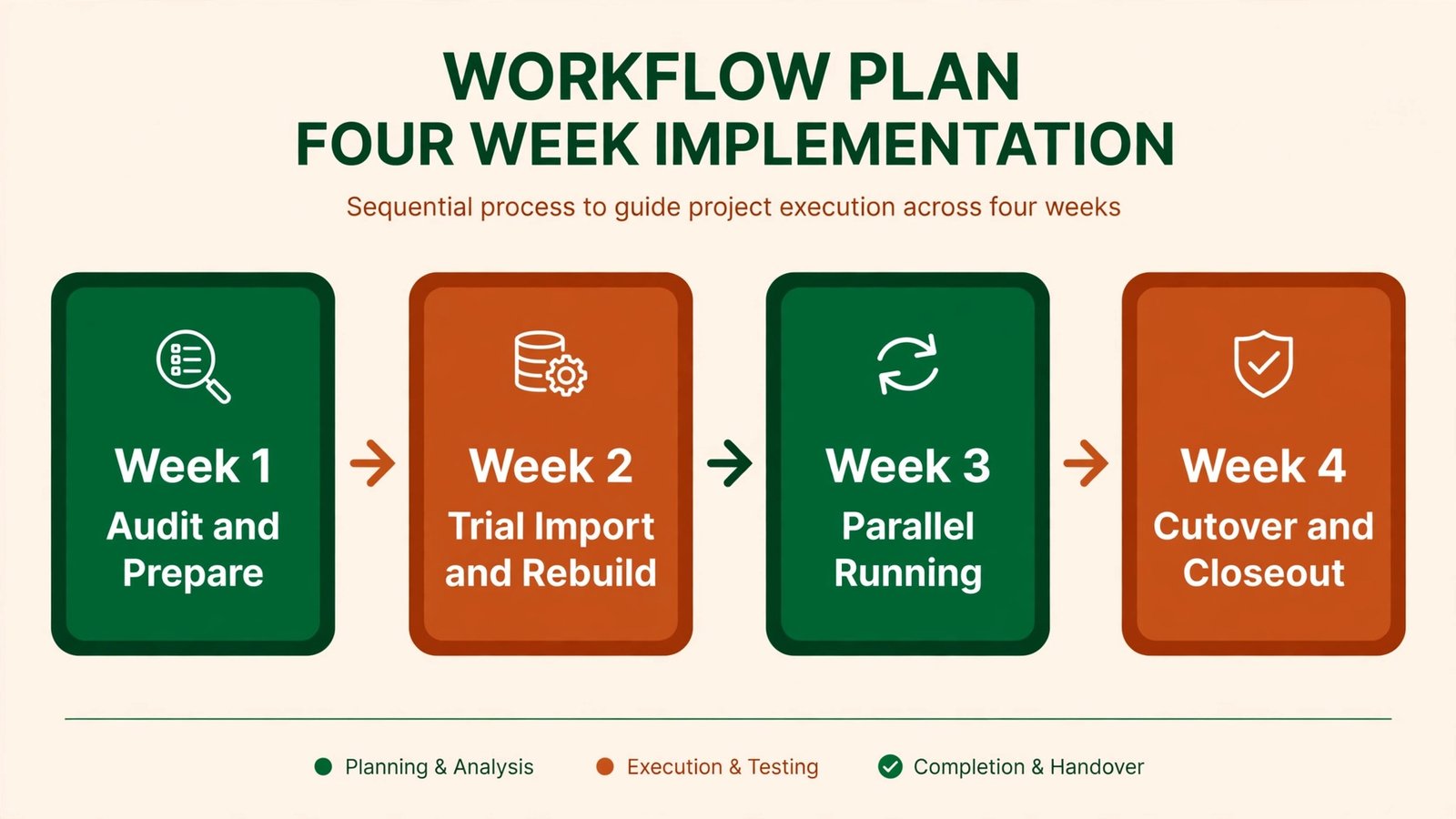
- Week one, audit and prepare. Finish the HubSpot inventory, clean duplicates, align picklists, and create Zoho users, roles, pipelines, and every custom field the import needs. Exit test: the mapping table is complete and every HubSpot owner has a matching Zoho user.
- Week two, trial import and rebuild. Run the migration or CSV import into a Zoho trial, check the five sample records described earlier, and rebuild the five weekly reports and top two sequences. Exit test: sample records match HubSpot field by field, and the five reports reconcile.
- Week three, parallel running. Import the full data set, reconnect integrations, replace website forms, and run both systems side by side, with reps logging activity in Zoho while HubSpot stays available as backup. Exit test: a full week of real deals tracked in Zoho with no missing records.
- Week four, cutover and closeout. Move all reps fully to Zoho, switch off HubSpot sequences and workflows so nothing sends twice, and export a final HubSpot backup before you downgrade or cancel HubSpot. Exit test: every rep works a full day in Zoho without opening HubSpot, and no lead goes unassigned.

Pipeline Checklist for Cutover Week
- Every HubSpot pipeline has a matching Zoho pipeline with identical stages and probabilities.
- Every open deal appears in Zoho with the right amount, close date, owner, and stage.
- Closed won and closed lost deals from the last 12 months are present.
- Deal associations to contacts and accounts resolve, with no orphan deals.
- The pipeline total in Zoho matches the HubSpot total within a small rounding margin.
- Each rep has opened their own pipeline and confirmed their deals look right.
- No HubSpot workflow or sequence is still active that could email a prospect twice.
- New website leads route to Zoho and assign to the right owner within minutes.
- The team knows who to contact when a record looks wrong, and that person has admin access.
After Go Live, the First 30 Days
The first month after you switch HubSpot to Zoho CRM is when habits form, so treat it as part of the migration, not as business as usual. Run a short weekly check in for the first four weeks, ask each rep to name one thing slower than HubSpot and one thing faster, and fix the slow items first.
Watch three numbers weekly. Pipeline value should track the pre move baseline. Deals created per rep should stay level, which proves reps are logging work in the new system, and records with missing owners or blank stages should trend toward zero as the team cleans up import stragglers. If pipeline value drops sharply in week one, check for missing stages or unassigned deals first.
Also revisit your seat mix and automation backlog at day 30, since some reps will need features you did not rebuild and some profiles will need permission tweaks. That review is the moment to retire the HubSpot backup habit and let Zoho become the single source of truth.
If you are weighing Zoho against other options rather than moving from HubSpot specifically, HubSpot alternatives for small teams and the HubSpot versus Salesforce comparison give useful context. If your next migration is on the marketing side, the same audit, mapping, and phased cutover discipline works there too, as shown in the Mailchimp to Klaviyo migration checklist.
Frequently Asked Questions
How long does it take to switch HubSpot to Zoho CRM for a small team?
Most five person teams complete the move in three to four weeks, including the audit, trial import, parallel running, and cutover. The data transfer itself often finishes in a day, but rebuilding workflows, sequences, and reports takes the rest of the time, so teams with heavy automation should allow six weeks.
Will I lose my deal history and notes in the move?
No, provided you use the right path and check the result. The built in migration tool carries contacts, companies, deals, notes, calls, meetings, tasks, products, and attachments, along with their associations, while CSV import needs separate handling for associations and activity history. Either way, keep a full HubSpot export as backup until Zoho has run for at least two sales cycles, and verify history on sample records before you cancel HubSpot.
Do HubSpot workflows and sequences transfer automatically?
No. Workflows, sequences, lead scoring rules, reports, dashboards, and email templates are logic and design, not data, so none of them import. Sequences rebuild as Zoho cadences, workflows rebuild as workflow rules or Blueprint processes, and reports rebuild from scratch in Zoho, so budget most of your migration time for this rebuild and start with the automations the team used in the last 90 days.
What happens to my HubSpot forms and website tracking?
HubSpot forms stop feeding your CRM the moment you replace them, so swap each form for a Zoho webform or your website tool form, and test a live submission on every placement before cutover. Visitor tracking moves to Zoho SalesIQ or your analytics setup, and historical source data should migrate as fields on the contact record so old attribution reports still make sense.
Can I keep HubSpot for marketing and use Zoho only for sales?
Yes, and some teams do this deliberately, syncing contacts and deal status between the two systems. It works, but it costs more than a full move, since you pay for both platforms and the sync itself needs monitoring. For most small teams the cleaner choice is a full move, with marketing email handled by Zoho Campaigns or a dedicated email tool, rather than paying two subscriptions to avoid one rebuild.
What is the biggest mistake small teams make in this migration?
Cancelling HubSpot too early. Teams that cancel before Zoho has run through real deals lose their safety net, and a missing report or broken form becomes an emergency instead of a fix, so run both systems in parallel for at least a month, keep a dated export backup for a year, and cancel only after every rep has worked a full week in Zoho without needing HubSpot.
When the Move Pays and When It Does Not
The move pays when your CRM is mainly a sales tool, your team is between three and twenty people, and the features you need sit on HubSpot Professional or above. In that case the saving is large, the data moves cleanly, and a few weeks of focused rebuild work pays for itself inside the first quarter, faster still if you are hiring, since every new seat widens the price gap.
The move does not pay when HubSpot runs your whole marketing operation, when your team depends on deep HubSpot reporting that would take months to rebuild, or when you have no one willing to own Zoho administration. In those cases the honest choice is to stay, or to move in stages, starting with sales while marketing follows later. A CRM switch should make selling easier within a month, not create a second job for the owner. If your situation matches the first case, run the audit this week, trial the import next week, and let your own pipeline numbers settle the decision.