
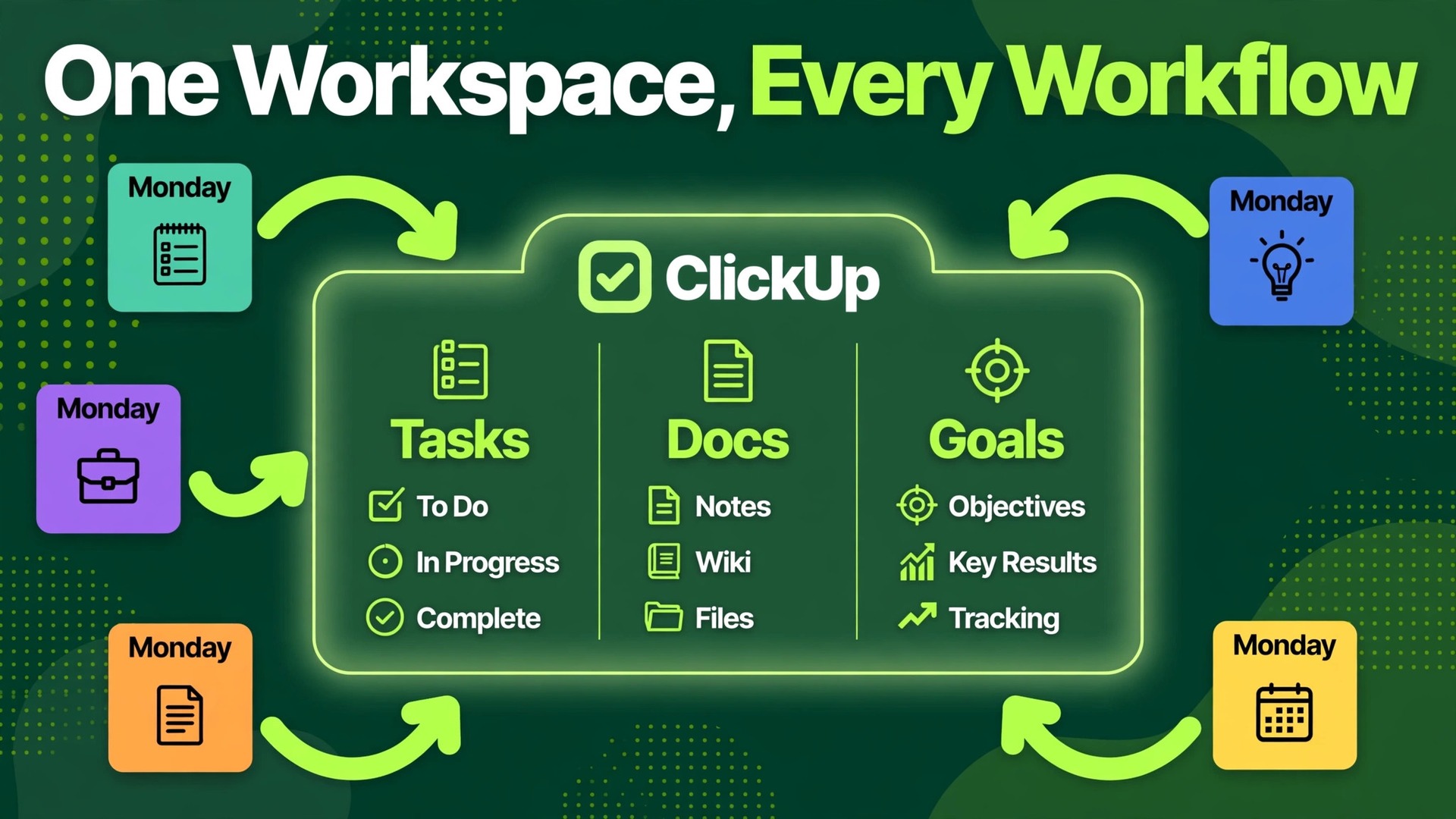
Your boards work, but your bill and your board count keep growing. Every new client becomes a new board, every new board needs its own automations, and every automation counts against a monthly cap that feels smaller each quarter. That is the problem that makes teams switch Monday to ClickUp small team workspaces in the first place. It is not that Monday is broken. It is that a team outgrows a board per project model and starts wanting one workspace where tasks, docs, goals, and dashboards live together without paying for each piece separately.
This guide treats the move as a translation project, not as a copy job. ClickUp has a native Monday importer, which puts this switch ahead of most others in this series, but the importer still drops real things. Automations, dashboards, formulas, dependencies, and many attachments do not transfer, and subitems arrive as tasks rather than as nested subtasks. Knowing those gaps before you start is what separates a clean week from a month of repair work. The sections below cover the importer in detail, the rebuild order, the cost at last published list prices, and a first week cutover plan that keeps client work moving.
Monday and ClickUp Compared Board by Board
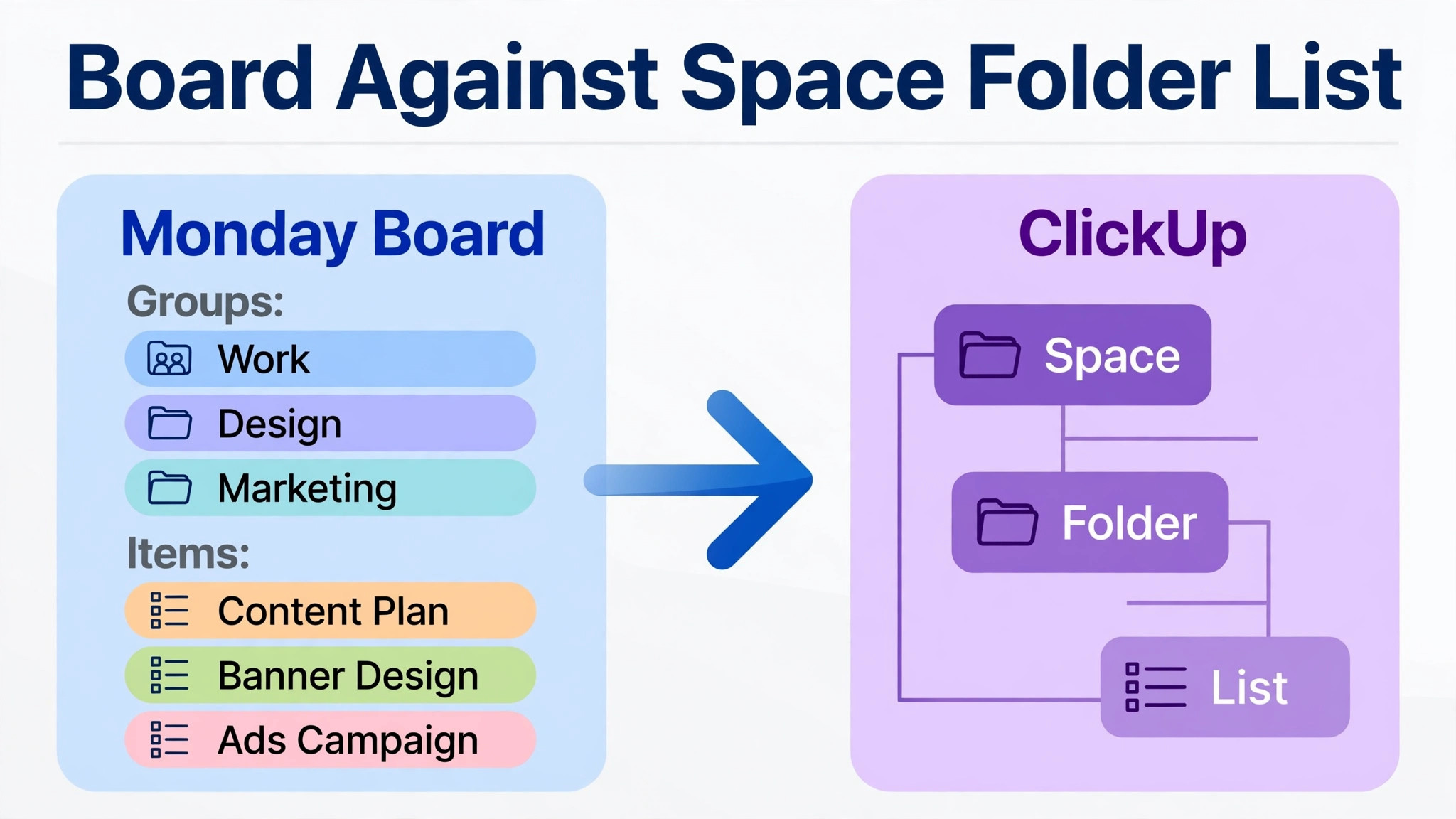
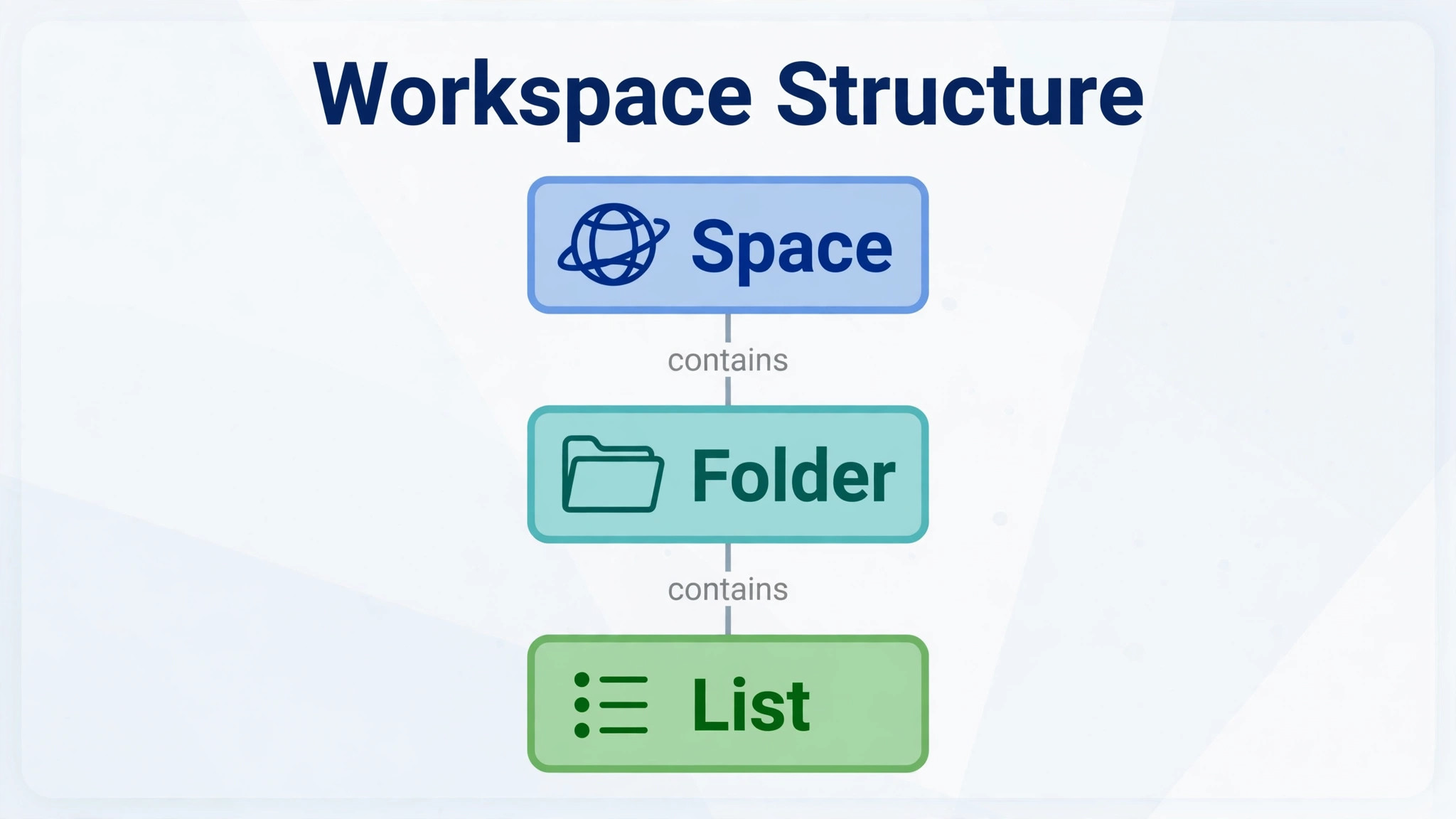
Monday organises work as boards with groups and items, plus columns that describe each item. Its visual strength is immediate. Anyone opening a board can see status colours, owners, and dates at a glance. ClickUp organises work as a hierarchy of Spaces, Folders, Lists, and Tasks, with views on top. Its strength is depth. A single task can hold subtasks, checklists, docs, time tracking, and custom fields, and a dashboard can pull from the whole workspace rather than one board.
The habit change is real. A Monday user thinks in boards and asks which board holds the work. A ClickUp user thinks in Lists inside Spaces and asks which view shows the work best. Teams that adopt the ClickUp habit gain flexibility, especially when one piece of work belongs to a client project, a marketing sprint, and a quarterly goal at the same time. Teams that keep asking for boards will build a ClickUp workspace that is just Monday with extra clicks, and they will wonder why they moved.
| Area | Monday | ClickUp |
|---|---|---|
| Core unit | Board with groups and items | Space, Folder, List, then Task |
| Views | Board, Timeline, Gantt, Calendar | List, Board, Gantt, Calendar, more |
| Subitems | Nested under items | Import as tasks, rebuild nesting by hand |
| Automations | Capped monthly actions by plan | Built in automations, caps vary by plan |
| Docs | Separate docs product in many plans | Docs built into the workspace |
| Goals | Separate tracking in many setups | Goals built into the workspace |
| Dashboards | Per board reporting strength | Dashboards across the whole workspace |
| Entry paid plan | Basic, 9 dollars per seat per month billed annually | Unlimited, 7 dollars per user per month billed annually |
| Mid plan | Standard, 12 dollars per seat per month billed annually | Business, 12 dollars per user per month billed annually |
| Higher plan | Pro, 19 dollars per seat per month billed annually | Business Plus, 19 dollars per user per month billed annually |
Monday paid plans start at three seats and are sold in bundles, so a team of eleven may pay for a larger bundle than its headcount. ClickUp sells per user without that bundle step on the classic plans. Confirm both models at checkout, because bundle rules and plan lineups change. ClickUp has also shown a newer AI included lineup on its pricing page alongside the classic lineup, so check which lineup your quote uses before comparing totals.
Monday Strengths to Respect Before Leaving
Monday boards are fast to build and easy to explain to a new hire. Status colours, timeline views, and board automations make sense within minutes. If your team runs simple projects with few dependencies and values that speed, the case for moving weakens. A switch should buy something the team will use weekly, such as unified docs and goals, not just a lower entry price.
ClickUp Strengths That Justify the Learning Curve
ClickUp justifies its learning curve when the team uses hierarchy, docs, goals, and dashboards together. A task linked to a goal, documented in a doc, and reported on a dashboard is doing work that Monday spreads across separate boards and products. If the team will only use ClickUp as a task list, the extra structure becomes overhead. Judge the move by the second month, not the second day, because hierarchy pays off once the workspace fills up.
What the Native Importer Carries and What It Drops
ClickUp native importer for Monday turns boards into Folders and Lists, with groups and items inside. The importer needs Monday admin rights, or a personal access token that limits the import to what that person can see. Create the destination Spaces first, then import boards into them, rather than importing into a flat workspace and reorganising later. Import one board as a pilot, inspect it fully, and fix the mapping before the rest follow.
Items that transfer well include assignees, checkboxes, comments, dates, dropdowns, numbers, statuses, time tracking, and custom fields. Subitems arrive as tasks, so check how they sit under their parents in the pilot and rebuild the hierarchy where the layout matters. Colour picker columns arrive as text, not as a colour field, so rebuild them as dropdowns or labels if colour matters to the team.
| Item | What happens in the move | Action for your team |
|---|---|---|
| Boards | Become Folders and Lists | Create Spaces first, then import |
| Groups and items | Land inside the imported Lists | Confirm placement in the pilot |
| Subitems | Arrive as tasks | Rebuild nesting where layout matters |
| Statuses and dates | Usually map cleanly | Check status sets in the pilot |
| Custom fields | Usually transfer | Match field types before import |
| Comments | Usually transfer | Spot check long threads |
| Colour pickers | Arrive as text | Rebuild as dropdowns or labels |
| Attachments | Often not reliably imported | Reattach critical files by hand |
| Formulas | Do not transfer | Rebuild in ClickUp fields |
| Dependencies and mirrors | Do not transfer | Rebuild with relationships |
| Automations | Do not transfer | Rebuild from a written spec |
| Dashboards | Do not transfer | Rebuild only the weekly views |
Attachments need a frank warning. ClickUp own migration guidance and independent guides both flag attachments as unreliable in the native import, so never assume a file moved. List critical files per board before import, store them in a shared folder as backup, and reattach the ones the team opens weekly. A missing brief costs more than the hour saved by skipping the check.
How to Switch Monday to ClickUp Small Team Boards Without Breaking Work
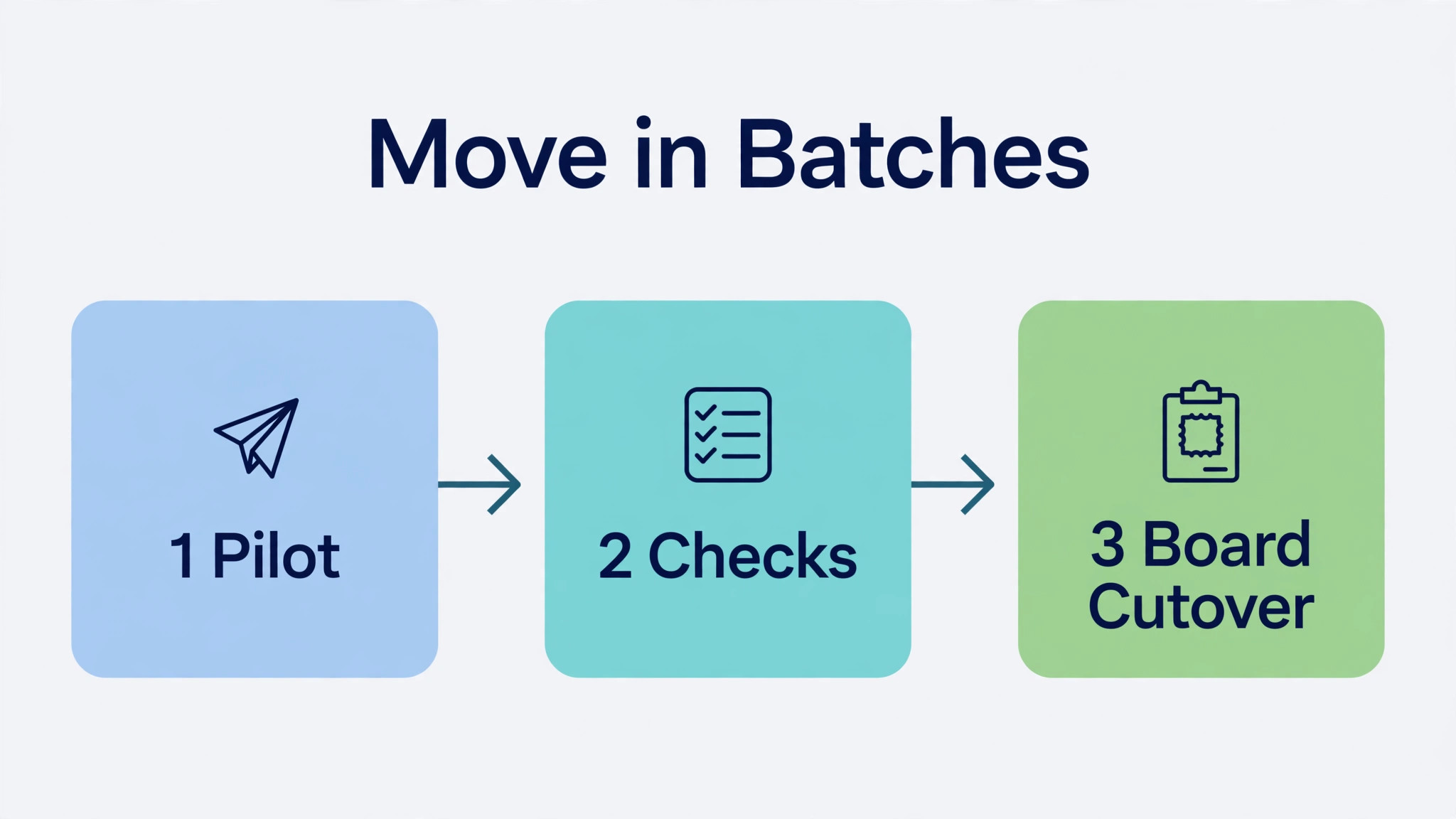
Move in batches of a few boards at a time, never the whole workspace in one run. Start with an internal board that the team can afford to inspect slowly, such as an operations board or a content calendar. Import it, check statuses, dates, assignees, and custom fields, and fix the mapping while the blast radius is one board. Then move client boards in order of deadline pressure, leaving the most urgent board until the team trusts the process.
Map users before importing. Monday users must map to ClickUp users, and anyone without a ClickUp account will land as an unassigned or mismatched owner. Create ClickUp accounts first, with matching email addresses, and confirm that guests and external collaborators have the access they need. A board that imports with the wrong owners looks complete in a list view and fails the first time a manager filters by owner.
Freeze edits on each board once its final import begins. Announce the freeze per board, so other boards keep moving while one board crosses over. After import, verify counts for items, open items, and assignees against Monday, then check ten items end to end. Only then should the team start updating live work in ClickUp for that board. Keep Monday readable throughout, and keep a spreadsheet export of each board as an archive, even for boards that import cleanly.
Monday Export Steps That Save the Import
Export each board to a spreadsheet file as a backup before importing, even though the native importer does not need the file. The backup is the audit trail if counts disagree later, and it is the fallback if a board needs a spreadsheet import instead. Clean the board first by archiving dead items, merging duplicate status labels, and removing columns nobody uses. A column that nobody uses in Monday becomes a custom field nobody uses in ClickUp, with interest.
ClickUp Import Steps That Protect Assignments
In ClickUp, open the import settings, connect Monday with admin rights or a token, and select boards in batches. Map columns and users deliberately, and never accept a default user mapping without reading it. Run the pilot, check assignments and dates, and keep the import report for each batch. If a batch shows missing items, stop and find the cause before importing the next batch, because the same cause will repeat at larger scale.
Boards, Automations, Docs, and Goals in ClickUp Shape
Boards become the first design decision, not a copy job. Each Monday board should map to a ClickUp List inside a Folder inside a Space, and the Space structure should reflect how the team works next year, not how Monday boards accumulated over time. A common mistake is creating one Space per old board, which recreates board sprawl inside ClickUp. Group boards by function instead, such as one Space for client delivery, one for marketing, and one for internal operations, with Folders for clients or campaigns inside them.
Automations need a written spec before anyone rebuilds them. List every Monday automation that fired in the last ninety days, with its trigger, its action, and its purpose. Monday Standard caps automations near 250 actions a month on last published lists, while Pro allows far more, near 25,000 actions a month. ClickUp Business allows near 5,000 automations a month on published guides. Those caps decide which automations matter, because a team that rebuilds every automation will hit a cap it never noticed in Monday. Rebuild the highest volume automations first, test them with test tasks, and retire the rest.
Docs and goals are where ClickUp earns its keep, but only if the team actually moves into them. Monday docs often live beside boards, while ClickUp docs live inside the workspace and link to tasks. Move the five docs the team opens weekly first, link them to their Lists, and leave the archive where it is. Goals work the same way. Set one team goal and two project goals in ClickUp before cutover, link live tasks to them, and review them in the first weekly meeting. A goal with no linked tasks is decoration, and decoration is what the team is leaving behind.
Monday Automations to Rebuild First
Rebuild status change automations first, because the team feels them every day. When a task moves to done, the next owner should be notified, the due date should update, and the dashboard should reflect the change without manual work. Next rebuild due date reminders and assignment rules, then reporting automations. Anything that fired fewer than five times in ninety days should wait until the team asks for it with a real example.
ClickUp Docs and Goals to Set Up Early
Set up docs for the processes the team repeats, such as client onboarding, content review, and launch checklists. Link each doc to its List, and give one owner per doc. Set up goals with measurable targets and linked tasks, and review progress weekly. Early docs and goals teach the team that ClickUp is a workspace, not just a prettier board, and that lesson matters more than any single imported board.
Views, Permissions, and Notifications After the Import
Views are where a ClickUp workspace earns trust or loses it. Monday boards look the same to everyone who opens them, while ClickUp Lists can look completely different depending on the view. Set up one List view, one Board view, and one Calendar view for each core List before cutover, and name them plainly so reps can find them without asking. A List with no saved views forces every rep to rebuild filters daily, and that friction alone can push a team back to Monday habits.
Permissions need the same deliberate setup. Monday board access is simple to explain, while ClickUp permissions run through Spaces, Folders, and Lists, with guests and members at different levels. Decide who can edit, who can comment, and who can only view, for each Space, and test with a guest account before clients see anything. A client who can see another client Folder is a trust problem, not a settings footnote, and it is far easier to prevent than to explain afterwards.
Notifications are the third trap. ClickUp notifies generously by default, and a team imported from Monday can drown in task updates during week one. Ask each rep to set notification preferences on day one, mute Lists they only watch, and keep alerts for assignments and mentions. Teams that switch Monday to ClickUp small team workspaces successfully treat notification setup as part of cutover, not as personal preference to sort out later. A quiet workspace gets used. A noisy one gets muted entirely, and then nobody sees the assignment that matters.
The Migration Checklist for a Small Team Board Switch
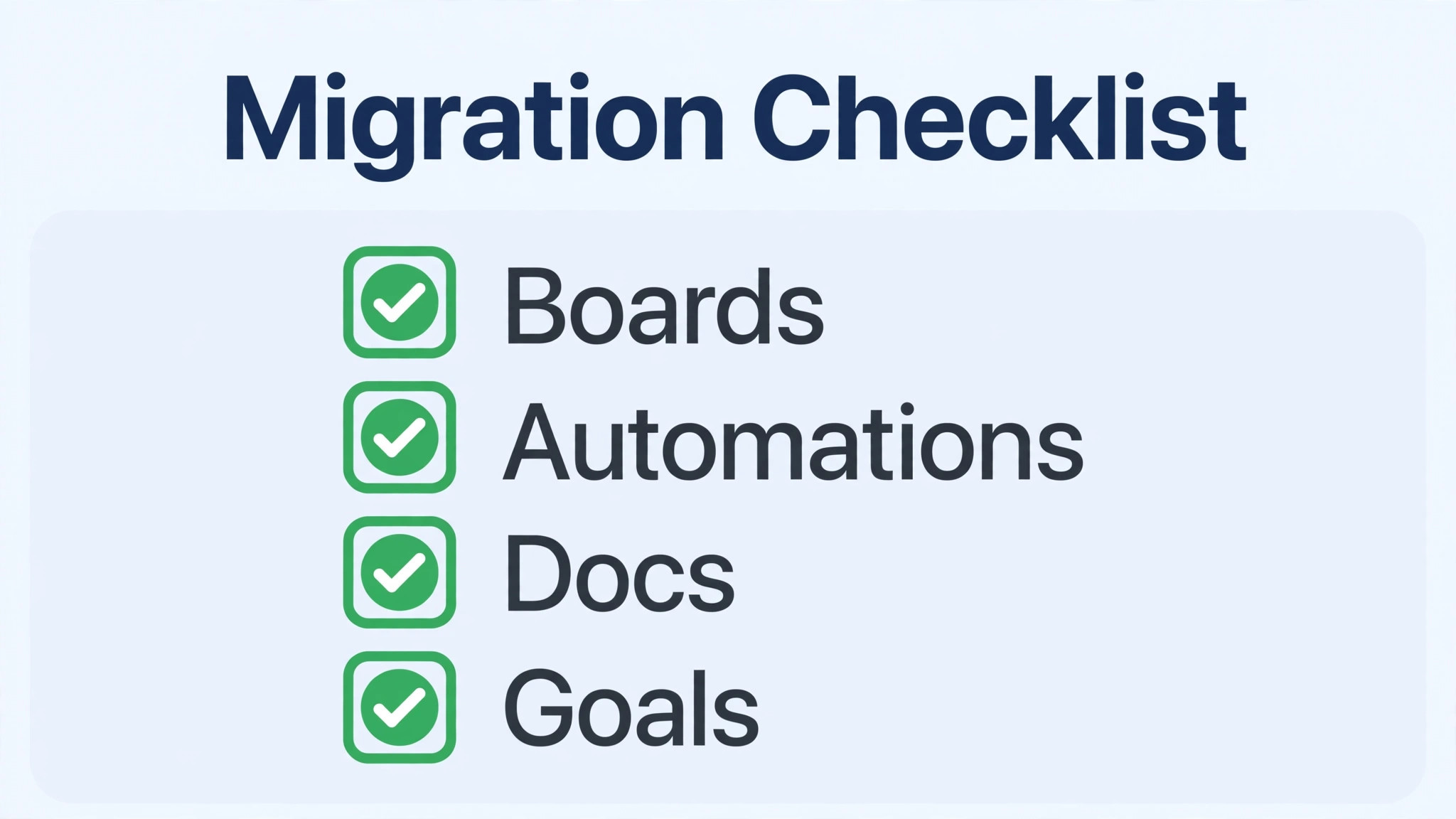
Use this checklist as the project plan, and check each item only when there is evidence, such as matching counts or a tested automation. The checklist covers boards, automations, docs, and goals, plus the surrounding work that keeps a switch safe. A team that decides to switch Monday to ClickUp small team boards should treat the checklist as the contract for the move.
– Confirm the reason for the switch and the ClickUp plan that covers automations, dashboards, docs, and goals – List every Monday board, automation, dashboard, and doc used in the last ninety days – Archive dead boards and dead items before export, and merge duplicate status labels – Design the ClickUp Space, Folder, and List structure by function, not one Space per old board – Create ClickUp user accounts with matching email addresses, and confirm guest access where needed – Export each Monday board to a spreadsheet file as a backup, and keep the raw files untouched – Run a pilot import on an internal board, and compare item, open item, and assignee counts – Inspect ten pilot items end to end, including statuses, dates, custom fields, and comments – Rebuild subitem hierarchy where layout matters, and rebuild colour pickers as dropdowns or labels – Reattach critical files by hand, and store the full file backup in a shared folder – Rebuild automations from a written spec, starting with status change rules, and test with test tasks – Rebuild only the weekly dashboards, and check their numbers against Monday for a full week – Move the five most used docs into ClickUp first, link them to Lists, and assign one owner per doc – Set up one team goal and two project goals with linked tasks, and review them in week one – Freeze edits per board at final import, verify live work, and keep Monday readable for thirty days
What ClickUp Costs After Monday
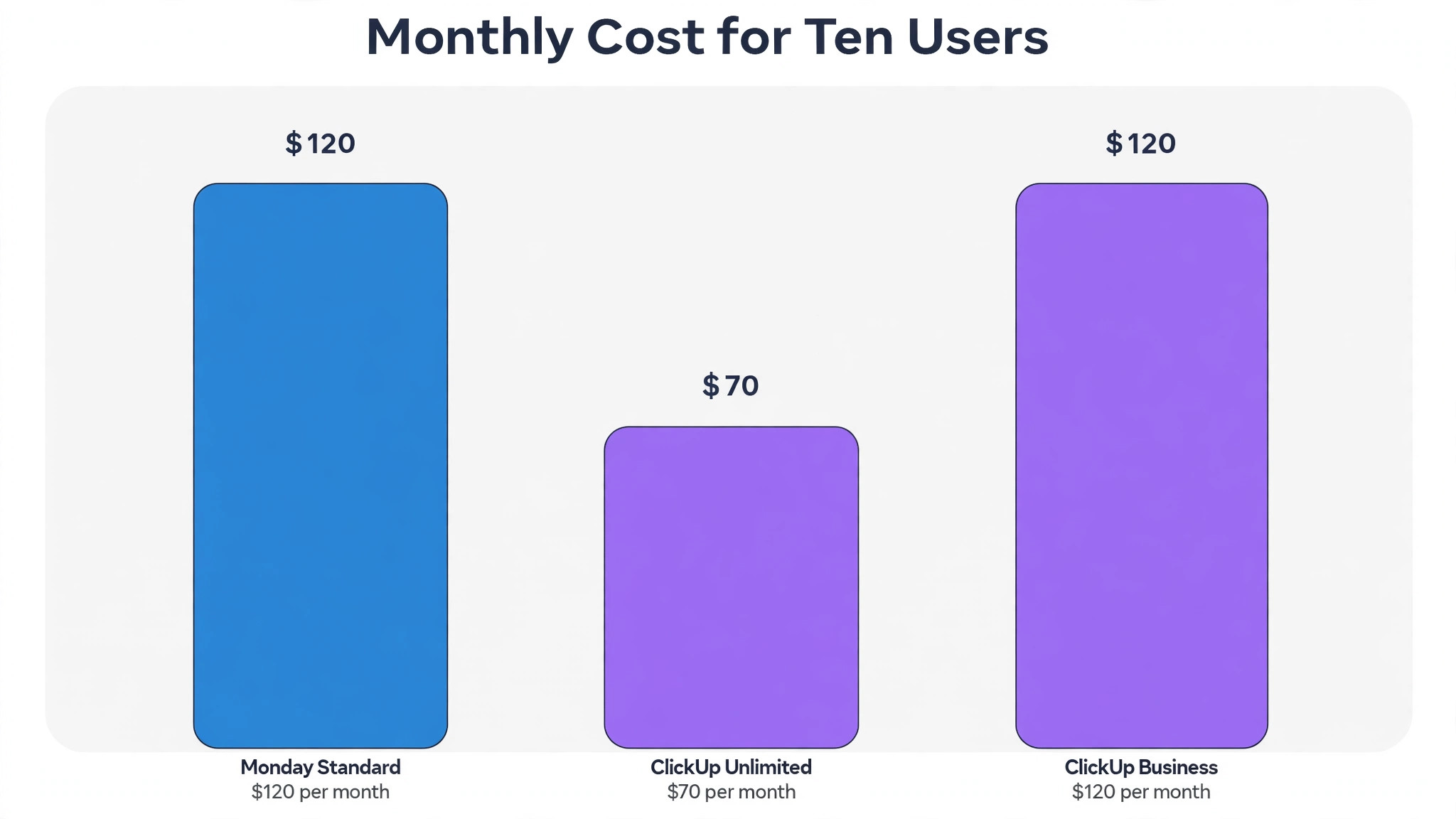
The seat comparison favours ClickUp at the entry tier and evens out in the middle. Monday Basic is listed at 9 dollars per seat per month billed annually, Standard at 12 dollars, and Pro at 19 dollars. ClickUp Unlimited is listed at 7 dollars per user per month billed annually, Business at 12 dollars, and Business Plus at 19 dollars. For ten people, Monday Standard costs about 120 dollars a month, ClickUp Unlimited about 70 dollars, and ClickUp Business about 120 dollars. Confirm every figure at checkout, because Monday bundle rules and ClickUp plan lineups both change.
The real cost question is which plan holds the features the team uses. Monday Standard caps automations near 250 actions a month, which small teams often outgrow without noticing until work stalls. ClickUp Business raises automation capacity and adds workload views and advanced dashboards, which is why many teams land there even though Unlimited looks cheaper. Price the plan with the automation headroom the team needs, at the real headcount rounded up to the next Monday bundle, and include taxes. A cheaper plan that throttles automations is not cheaper in lost hours.
A team that decides to switch Monday to ClickUp small team budgets should also budget training time and a week of slower updates. ClickUp hierarchy takes a week to feel natural, and a team that skips training will build a flat workspace that hides the benefits. The saving is still real for most teams, especially at the entry tier, but it should be judged over a quarter, not over the first invoice.
The First Week Cutover Plan in ClickUp
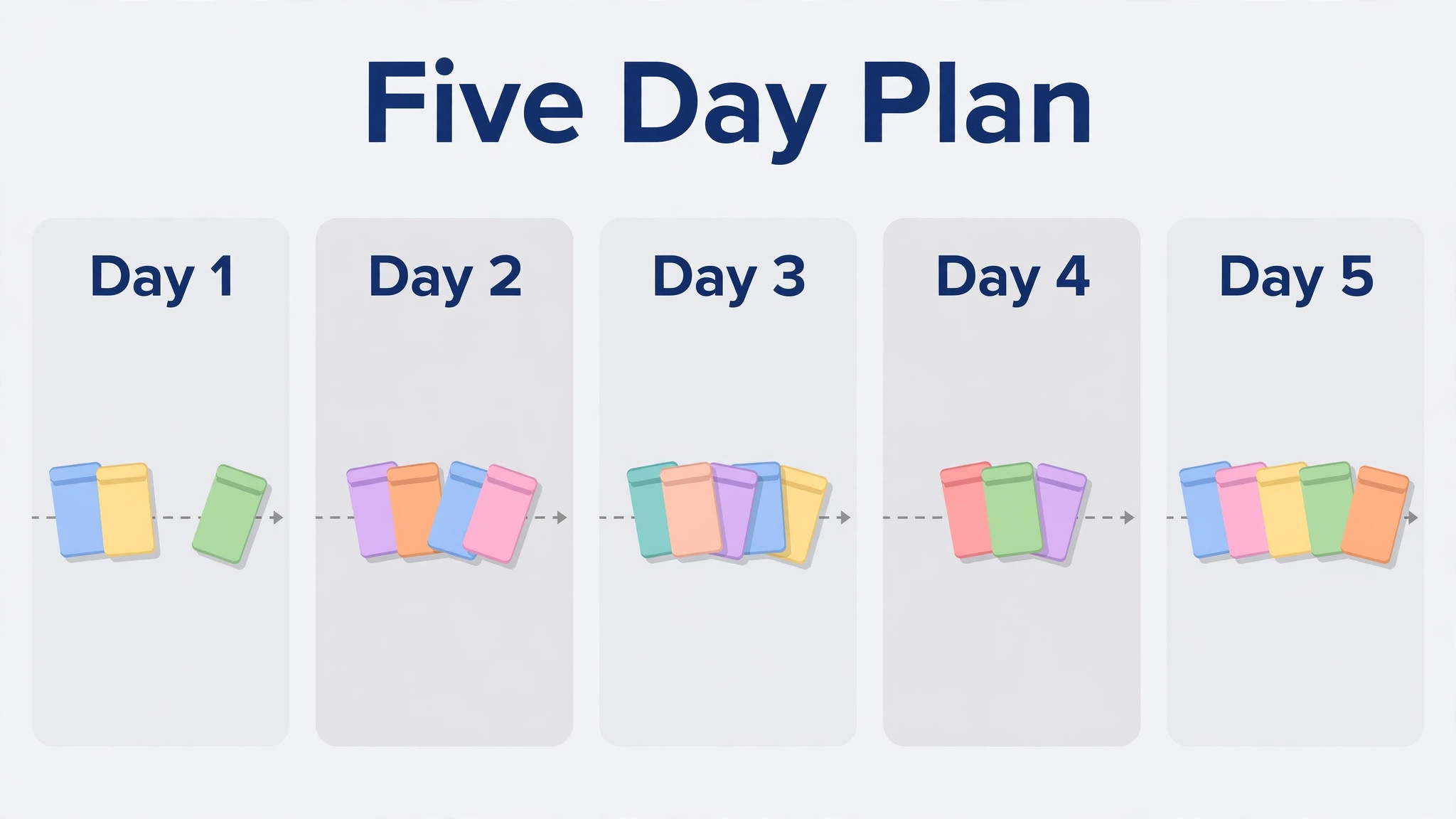
To switch Monday to ClickUp small team cutovers work best as a five day plan with boards crossing in batches. Day one is pilot proof day. The pilot board goes live, the team updates tasks in ClickUp, and the evening check compares open item counts with Monday. Day two moves the next batch of internal boards, and the team fixes the most common error, which is usually a status set that does not match Monday labels.
Day three is the first live client day in ClickUp. Client boards that crossed over become the only place for new updates, while Monday stays readable for history. Hold a morning check in on hierarchy, because reps will ask where a board went and need the Space and Folder answer in one sentence. Day four moves the remaining boards and rebuilds the weekly dashboard from live ClickUp data. Day five is decision day. Review the friction list, confirm open work counts, and agree whether Monday stays readable for another month.
Keep Monday readable for at least thirty days after the last board crosses. Client history, old approvals, and file links will be needed at least once, and read only access prevents a panicked reimport. The rule stays simple. New updates go in ClickUp, old work is read in Monday, and nobody updates both places. A team that breaks that rule for one urgent client will break it for every urgent client.
If the Import Goes Wrong
Rollback starts with triggers agreed before cutover. Useful triggers include an import batch with a large count mismatch, a status mapping error that affects live client work, or an automation that notifies the wrong people. If a trigger fires, pause the next batch, return live updates to Monday for the affected board, and fix the mapping without time pressure. A paused batch is a delay. A bad batch imported on top of another bad batch is a cleanup project.
Never delete Monday boards during week one, and never cancel billing until every live board has run a full cycle in ClickUp. Keep the spreadsheet backups and the import reports, so a rollback means returning to a known state. Most teams never roll back fully, but a partial rollback of one badly mapped board is common. Reimport that board cleanly, rebuild its hierarchy, and move on. The migration that cannot admit a bad board will keep the bad board forever.
Mistakes Teams Make on This Switch
The most common mistake is copying board sprawl into ClickUp. One Space per old board recreates the problem the team left Monday to solve, and dashboards become harder, not easier, to build. Design by function first, and let old boards merge where they served the same purpose. The second mistake is rebuilding every automation on day one. Rebuild the rules that fire weekly, test them, and let the team earn the rest with real examples.
The third mistake is assuming attachments moved. They often did not, and the team discovers the gap when a client asks for a file. Reattach critical files during the import week, not during a client call. The fourth mistake is skipping docs and goals. A team that imports boards but never sets up docs and goals has paid the learning cost without collecting the benefit. Teams that switch Monday to ClickUp small team workspaces successfully are the teams that set up docs and goals in week one and link live tasks to them from the start.
The Call for a Small Team Board Switch
Move when the team needs one workspace for tasks, docs, goals, and dashboards, when automation caps are biting, and when the team will learn hierarchy. Stay when boards are simple, when the team values Monday speed over depth, and when nobody will own the ClickUp structure. The importer makes the data move easy. The structure decision makes the switch succeed or fail. Make that decision deliberately, in writing, before the first board crosses.
Frequently Asked Questions About This Switch
Teams that switch Monday to ClickUp small team boards usually ask about the importer, attachments, and cost first, so the answers below start there.
Does ClickUp have a native Monday importer
Yes. ClickUp offers a native Monday importer that turns boards into Folders and Lists, with groups and items inside. It needs Monday admin rights, or a personal access token that limits the import to what that person can see. Create the destination Spaces first, import one board as a pilot, and check statuses, dates, and assignees before importing the rest in batches.
What does the Monday importer not transfer to ClickUp
Automations, dashboards, formulas, dependencies, linked tasks, and mirrors do not transfer and must be rebuilt. Attachments are often not reliably imported, so reattach critical files by hand. Subitems arrive as tasks rather than nested subtasks, and colour picker columns arrive as text. Plan the rebuild as real work with owners and deadlines, not as a footnote to the import.
Do Monday automations work in ClickUp after import
No. Monday automations must be rebuilt as ClickUp automations from a written spec. List the automations that fired in the last ninety days, rebuild status change rules first, and test each one with test tasks before it touches live work. Check automation caps on your plan, because a team that rebuilds every old rule can hit a monthly cap it never noticed before.
How long does a Monday to ClickUp migration take
A small team with ten to twenty boards usually needs two to four weeks. One week covers cleanup and structure design, one week covers the pilot and automation rebuilds, and one week covers the batch cutover. Teams with many automations or dashboards should allow an extra week, because rebuilds and testing take longer than the import itself.
What does ClickUp cost compared with Monday for ten users
Using last published list prices, Monday Standard at 12 dollars per seat per month billed annually costs about 120 dollars a month for ten people. ClickUp Unlimited at 7 dollars per user per month billed annually costs about 70 dollars, and ClickUp Business at 12 dollars costs about 120 dollars. Teams that switch Monday to ClickUp small team plans should confirm both quotes at checkout, because Monday bundle rules and ClickUp plan lineups change, and taxes belong in the comparison.
Can the team keep using Monday during the move
Yes. Move boards in batches, freeze edits only on the board being imported, and keep the rest of Monday live. Keep Monday readable for thirty days after the last board crosses, with new updates going in ClickUp and old work read in Monday. That per board freeze lets a small team migrate without stopping client delivery for a week.
Do ClickUp docs and goals replace Monday docs and tracking
ClickUp docs and goals can replace separate tracking, but only if the team moves into them deliberately. Move the five most used docs first, link them to Lists, and assign one owner per doc. Set up one team goal and two project goals with linked tasks, and review them in the first weekly meeting. A goal with no linked tasks is decoration, and the team left Monday to reduce decoration, not to move it.
Can the team roll back to Monday if ClickUp does not fit
Yes, if Monday boards and spreadsheet backups are kept. Do not delete Monday during week one, and do not cancel billing until every live board has run a full cycle in ClickUp. A partial rollback of one badly mapped board is common and healthy. Reimport that board cleanly, rebuild its hierarchy, and continue. Agree rollback triggers before cutover so the decision stays calm and evidence based.